Process Maintenance
The manufacturing master data a job order needs before anyone can plan or run production: machines, process types, the process templates that say what one step consumes and produces and on which machine, and the job templates that tie a finished item to its chain of steps. Open it first: the job order form will not save without a process group, and a group exists only once a job template has been set up here. The form’s group drop-down lists every item’s groups, not only the item’s own, so an item with no job template of its own can still be given another item’s group — and its process instances then follow that other item’s chain. Set up the job template for each item you make, and pick the group named after it. Nothing here posts a journal or moves stock, and the MRP in its address is the module’s name, not a material requirements planning engine; there is none.
Overview
Process Maintenance is the manufacturing master-data applet. It holds the four things a job order needs before anyone can plan or run production: the machines on the floor, the process types that classify and sequence work (drawing, stranding, insulation, packing…), the process templates that say what one step consumes, what it produces, and on which machine, and the job templates that tie a finished item to the chain of process templates that makes it. A CSV import creates process templates in bulk.
It is opened by whoever owns the production recipe — a process engineer or a system administrator — and it is opened first: the Production Planning and Monitoring applet cannot raise a job order for an item that has no job template, and the Manufacturing Operations applet only ever runs process instances generated from these templates.
Nothing in this applet posts a journal or moves stock. Stock moves once, later, when a process instance is finalised (see Lifecycle and effects).
The MRP you will see in the applet’s address is the name the platform gave this module, not a material requirements planning engine — there is none.
Where it fits
| Direction | Applet / data | Why |
|---|---|---|
| Upstream | Inventory Item Maintenance | Inputs, outputs and job-template items are picked from the inventory item master. |
| Upstream | Doc Item Maintenance | Machine item-linking and the job-template item selector read the financial item master. |
| Downstream | Production Planning and Monitoring | Job orders are created against a job template’s process group; process instances are generated from the linked process templates. |
| Downstream | Manufacturing Operations | Operators log work against process instances whose input/output lines and default machine came from the process template. |
| Downstream | Packing Order (Internal) | Process templates of type PACKING and machines of type Packing are what the packing line runs. |
| Module | Manufacturing | Primary module. |
    flowchart LR
  M[Machine] --> PT[Process Template]
  T[Process Type] --> PT
  I[Inventory item] -->|input / output BOM lines| PT
  PT -->|options derived from BOM| JT[Job Template]
  I -->|finished item| JT
  JT -.->|job order, process instances| PP[Production Planning<br/>and Monitoring]
Screens and menus
The sidebar has five entries. A sixth, QC Specifications, is not available in the current build.
| Menu | Route | Listing columns |
|---|---|---|
| Process Template (default landing) | process-template | Process Template Name, Output Items, Input Items, Process Type, Modified Date, Created Date |
| Process Type | process | Process Type Code, Process Type Name, Description, Status |
| Machine | machine | No., Machine Name, Machine Code, Machine Type, Description, Remarks, Status |
| Job Template | job-template | Item Name, Item Code, Description |
| Import Process Template | process-template-import | File Name, File Size, Format, Status, Process Status, User Error Message, Created Date, Updated Date, Created by |
Each listing opens a create form (+) or an edit form (row click). Edit forms are tabbed:
- Machine — Main, Parameters (ad-hoc Field Name / Field Type custom fields), Item Linking.
- Process Type — Main, Attributes (custom fields), Item Linking, Machine Linking, Attachments.
- Process Template — Main, Output Items, Input Items, Machine Used, Machine Spec (attachments), plus a QC tab on create (Custom Fields, Attachments). The tab order is configurable (below).
- Job Template — Main, Process Group. (The create form has one tab, Item Details.)
Settings (lands on Field Settings): System Configuration → Field Settings, Default Selection · Server Side Permissions → Permission Wizard, Permission Set, User Permission, Role Permission · Integration → Triggers (webhook) · Developer Tools → Release Notes, Audit Trail. Personalization has one item, Default Selection, and the sidebar editor.
Configuration
Before you can use it
| Prerequisite | Where | Why |
|---|---|---|
| Inventory items for every input, output and finished good | Inventory Item Maintenance | The item pickers on the BOM tabs and the job-template Main tab search the inventory item master, so create every item there first. |
| Financial items | Doc Item Maintenance | Machine → Item Linking and Process Type → Item Linking link to the financial item master. |
| A branch and location | Organisation | Only for the Default Selection setting; nothing in this applet’s forms is branch-scoped. |
| Server-side permissions | this applet’s Settings → Server Side Permissions | See Feature visibility / permissions. |
Applet settings
Anyone with access to the Settings menu can change the settings below.
Field Settings
| Setting | What it controls | Default | Consumed by |
|---|---|---|---|
HIDE_EXTERNAL_PROCESS | Hides the External Process toggle on the Process Type create and edit forms. | off | Process Type create and edit forms |
HIDE_ITEM_MARKING | Hides the Item Marking toggle on the same two forms. | off | same two forms |
ENABLE MULTI OUTPUT PROCESS TEMPLATE (ENABLE_MULTI_OUTPUT_PROCESS_TEMPLATE) | Lets a process template carry more than one output line. Off, the Output Items tab accepts one. | off | Process Template create and edit forms |
Process Type – Item Categories (ITEM_CATEGORY_CATEGORY_GROUP_SETTINGS_LIST_NEW) | Up to N rows of Category Group n + Mandatory. Saved as an item-category setting, separately from the other applet settings. | empty | Nothing in this applet reads it — saving it changes nothing on any form today. |
Default Selection
| Setting | What it controls | Default | Consumed by |
|---|---|---|---|
Default Branch and Default Location (DEFAULT_BRANCH, DEFAULT_LOCATION) | Stored applet-wide. Picking a branch fills Default Location with that branch’s main location when the branch has one; otherwise the location already chosen stays. | none | Nothing but this screen reads them — it shows your saved values back to you. No form in this applet pre-fills from them, and the backend has no reader of this applet’s keys. The branch and location that production stock moves in come from each job order, not from here, so you can leave both empty. |
Details Tab Ordering (PROCESS_TEMPLATE_DETAILS_TAB_ORDER) | Drag-to-reorder the tabs of the Process Template edit view. Saved as an ordered list; tabs added in a later build are appended after the saved ones. | code order (Main, Output Items, Input Items, Machine Used, Machine Spec) | Process Template edit view |
Personalization → Default Selection saves nothing. The screen opens blank, because the code that would load your current values is switched off, and it is never handed the applet’s settings, so a branch or location you pick is not recorded and SAVE has nothing to send. Since no form reads the applet-wide values either, nothing is lost — but do not rely on it as a per-user override.
Document behaviour settings
Not applicable — this applet creates no document. There is no status flow, posting, printable, approval or e-Invoice control anywhere in it.
Settings in other applets that control this applet
None found. The item pickers respect whatever the item masters hold, but no setting in Inventory Item Maintenance or Doc Item Maintenance changes how this applet behaves.
Feature visibility / permissions
- Server-side. Every save, read, update and delete in this applet is guarded by a server-side permission per record type; the Permission Wizard / Set / User / Role screens assign them. The wizard’s targets are Company, Entity, Location, Branch, Tenant, Applet, Team and Hostname — the standard set, nothing manufacturing-specific.
- Client-side. There is no client-side permission screen in this applet and no client-side permission definitions are registered for it. Whoever can open the applet can see and edit everything in it.
Fields
Machine (Main tab)
| Field | Meaning | Required | Notes / validation |
|---|---|---|---|
| Machine Name | The name shown wherever a machine is picked | Yes | Cannot be blank; the server rejects an empty name. |
| Machine Code | Short identifier | Yes | Must be unique. A duplicate is rejected with “The code in the … object already exists”. |
| Machine Type | Which line may use the machine | No | Production or Packing, stored as that word. The Packing Order (Internal) applet’s machine pickers list only machines whose type is exactly Packing, so a packing machine left blank or set to Production never appears there. This applet’s own Machine Used picker ignores the type and offers every machine. |
Description and Remarks are free text, both shown as listing columns. The code is turned to capitals as you type it. Name and code cannot be changed after the first save — both are read-only on the edit form (the lock is the screen’s: the server’s update would accept a new, unique code) — so a mistyped code means a new machine and deleting the old one.
Other tabs: Parameters — free Field Name / Field Type custom fields kept with the record; Item Linking — links the machine to financial items. The link does not protect the item: deleting a financial item is not checked against its machine links, and the delete clears those links away with the item.
Process Type (Main tab)
| Field | Meaning | Required | Notes / validation |
|---|---|---|---|
| Process Type Name | The type’s readable name | Yes (form only) | Inside this applet you almost never see it again: the type pickers on the Process Template and Job Template forms, the Process Template listing and the job template’s Process Group tab all show the code. Downstream, a job order’s list of process instances shows the name, looked up live, so renaming a type renames it on job orders already raised. The server does not require a name. |
| Process Type Code | Short identifier, and what every picker shows | Yes | Placeholder “Process Code”. Uniqueness is not checked — two types can share a code, and then look identical in every picker. A process template stores a copy of the code when you choose its type; change the code later and the Process Template listing shows the new one (it looks it up), while the copy on each existing template keeps the old one until that template is saved again. |
| Sequence | Order of the step in a chain | Yes | Must be an integer and not already used by another process type. Checked on the form only — the server does not re-check. |
| Active | Whether the type is in use | — | Toggle; the listing’s Status column shows the value. |
| Independent Process | Flag | — | Stored and available as a filter; nothing else in the product reads it today. |
| External Process | Flag | — | Same status as above. Hidden by HIDE_EXTERNAL_PROCESS. |
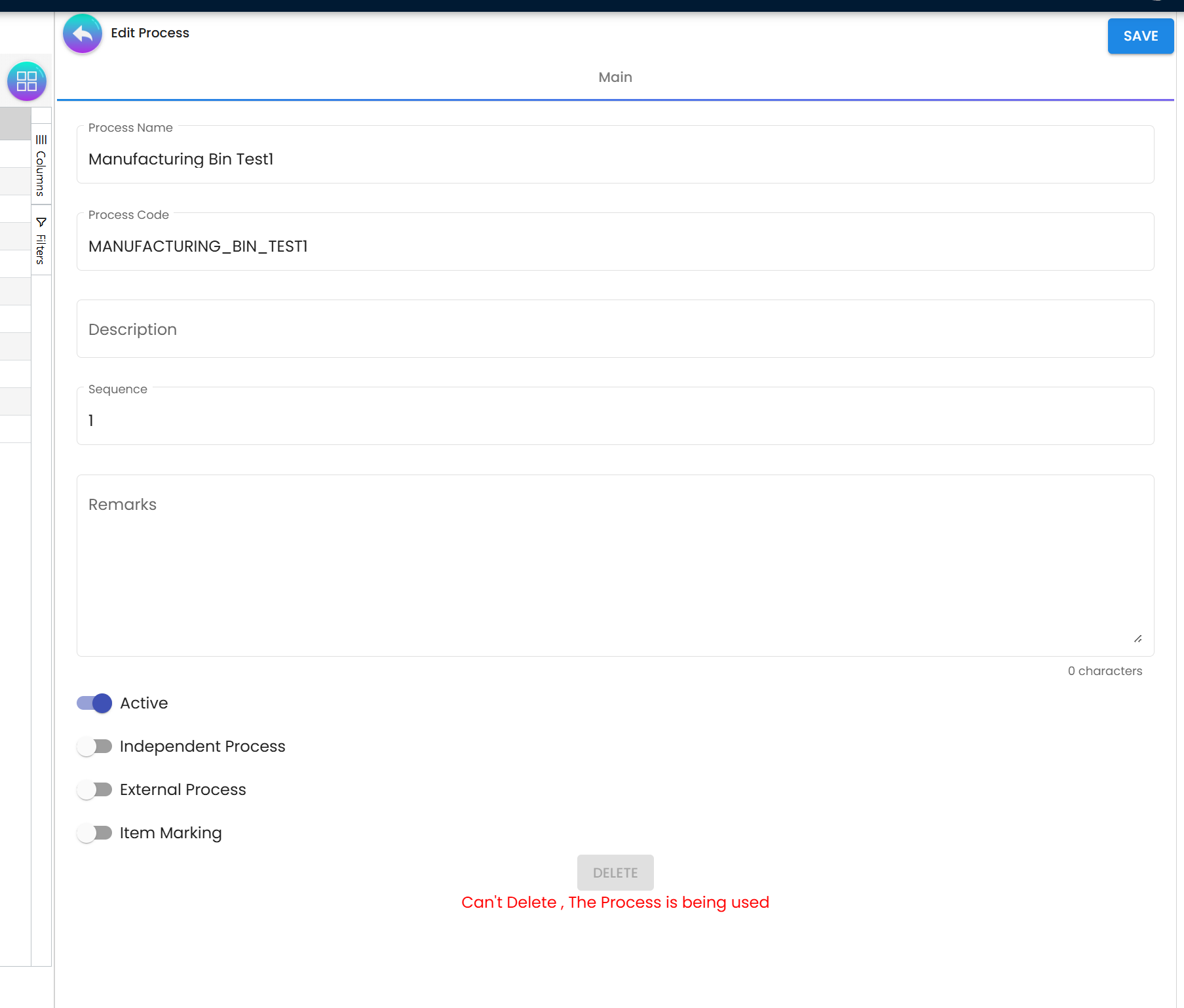
| Item Marking | Flag | — | When on, process templates of this type show an Item Marking text field. Hidden by HIDE_ITEM_MARKING. |
Description (also a listing column) and Remarks are free text.
Other tabs: Attributes (custom fields); Item Linking and Machine Linking (stored with the type; nothing outside this applet reads them today); Attachments (columns Title, File Name, Size, Uploaded Date, Uploaded By).
Process Template
Main
| Field | Meaning | Required | Notes / validation |
|---|---|---|---|
| Process Template Name | Name and code in one (one control feeds both) | Yes | The form checks the name against every existing template before save: “Process Template Name already exist”. The server does not check. |
| Process Type | The type this step belongs to | Yes | Searchable drop-down of process types. The server rejects a type that does not exist. |
| Template Type | Production or packing | Yes | PRODUCTION (default) or PACKING. Read by the CSV import and by the packing applet. |
| Item Marking | Marking text | No | Shown only when the chosen process type has Item Marking on. |
The Main tab also takes a free-text Description.
Output Items / Input Items — one row per line, added through the BOM form:
| Field | Meaning | Required | Notes |
|---|---|---|---|
| INV Item Code | The inventory item | Yes | Picker over the inventory item master; the picker grid shows Category Group 0–2 / Category 0–2 columns. |
| UOM | The item’s inventory unit | — | Copied from the item when you pick it, and read-only. It travels to the process-instance line as a label; nothing converts between units, so write the Ratio in this unit. |
| Ratio | How much of the item one unit of production needs or yields | Yes | Sets planned quantities only. When a job order generates its process instances, every line on every step is planned at Ratio × the job order’s quantity. If the job order’s quantity is changed later, the plan is recomputed from the last step down: that step’s output becomes the job quantity and each input becomes its step’s planned output × the input’s Ratio. The two methods agree only while output Ratios are 1 — keep the output at 1 and state each input per one unit of output. Stock moves by the actual quantities logged in Manufacturing Operations, not by these. No numeric range check. |
Each line also takes a free-text Description. With ENABLE_MULTI_OUTPUT_PROCESS_TEMPLATE off the Output Items tab takes one row.
Machine Used — the machines this step can run on (Machine Code, Name, Description, Default Machine? checkbox). Only one default is allowed — the checkbox is disabled once a default exists. The Main form has no machine field of its own; machines are assigned only here.
Machine Spec — file attachments, opened from the tab or shared through a public link.
Job Template
Main
| Field | Meaning | Required | Notes |
|---|---|---|---|
| Item Name / Item Code | The finished item, and the job template’s own name and code | Yes (both) | Picker over the inventory item master (columns Item Code, Item Name, Category Group 0–2, Category 0–2, UOM, System Stock Balance). The item’s name and code are copied onto the job template at creation — they are the Item Name and Item Code on the listing — so renaming the item later leaves the template showing the old name. |
The tab also offers an optional Process Type and a free-text Description (a listing column). The server checks that a chosen process type exists, and then nothing reads it: it does not narrow the options, and job orders do not use it. The form carries Job Template Name and Job Template Code inputs too, but they are hidden and never sent — a job template is always named and coded after its item.
Process Group is not typed in; it is derived. See Lifecycle and effects.
Import Process Template
One .csv per upload, processed row-by-row. Column order:
PROCESS_TEMPLATE_CODE, PROCESS_TYPE_CODE, TEMPLATE_TYPE, TEMPLATE_DESCRIPTION, MACHINE_1_CODE … MACHINE_4_CODE, OUTPUT_ITEM_CODE, OUTPUT_UOM, OUTPUT_RATIO, OUTPUT_DESCRIPTION, INPUT_1_ITEM_CODE, INPUT_1_UOM, INPUT_1_RATIO, INPUT_1_DESCRIPTION … INPUT_7_*
So one file row = one process template with up to four machines, one output and seven inputs. The edit view of an import shows All rows and Error rows (Short Error Message, Error Stack Trace, then the row’s columns). A Sample Format for Process Template link on the upload panel points at the template file.
Lifecycle and effects
This is master data: every screen saves directly and nothing posts. The one exception in behaviour is the job template, which generates data:
Job template creation is asynchronous and derives the options. Save on the create form starts a background task and the form polls until it finishes. Behind it, BigLedger:
- creates the header;
- finds every process template whose output line is the job template’s item, and for each one walks its input lines recursively — each input that is itself the output of some process template opens the next level — until it reaches items nothing produces (raw material). Every distinct path is one option; every link records its level so the Process Group tab can show a sequence;
- stops with “No BOM options found for this item” if no process template outputs the item, and “Option group n has N BOMs (max 30) - possible data issue” above thirty links in one option;
- saves one link per step, naming the group
<item name>-OPT-<n>.
The Process Group tab lists the links grouped by name — <item name>-OPT-1, -OPT-2 and so on
— with Process Template, Output, Input, Process Type (its code) and Sequence. That grouping is what
a job order is raised against. The tab is read-only: there is no screen that renames a group or
regroups its links, so the generated -OPT-n names stand as they are.
Delete guards. The server does not check whether a machine or process type is in use before deleting it. The guard is on the edit form: the Machine edit form looks for process templates that use the machine and the Process Type edit form looks for templates of the type; if either finds any, the DELETE button is disabled and the message Can’t Delete, The Machine/Process is being used is shown. A deletion issued outside the form is not stopped.
Where stock moves. Not here. A process template’s BOM lines are copied onto process-instance lines when a job order is planned; when the instance is finalised, the finalisation run turns INPUT lines into stock-out and OUTPUT lines into stock-in inventory transactions. Those transactions carry no cost from inputs to output, so the ratios you enter here drive quantities only — each item is costed at its own unit cost at that location, and a finished item never costed there comes in at zero. The job order and packing order documents themselves post nothing to the ledger.
Job order completion (downstream, but set up here): the server has a rule that refuses
COMPLETED on a job order while any of its active process instances is not COMPLETED — “SORRY! NOT
ALL PROCESSES ARE COMPLETE…” — but it sits on a status route no screen calls. The job order form in
Production Planning and Monitoring saves through the ordinary update, which does not check, so the
check is yours: confirm every active instance reads COMPLETED before completing the job order.
Related applets
- Production Planning and Monitoring — raises job orders against a job template’s process group and generates process instances from its process templates.
- Manufacturing Operations — supervisors and operators work the process instances; the default machine and the input/output lines come from here.
- Packing Order (Internal) — the packing line uses
PACKINGtemplates and Packing machines. - Inventory Item Maintenance — every input, output and finished item.
- Doc Item Maintenance — the financial items a machine or process type can be linked to; deleting such an item clears its machine links rather than being stopped by them.
Troubleshooting
| Symptom | Cause | Fix |
|---|---|---|
| “Process Template Name already exist” under the name field | The applet compares the name against every existing template before save. | Use a distinct name. The check is on the form only; a template created outside it can still duplicate. |
| Machine save fails with “The code in the … already exists” | Machine Code must be unique. | Change the Machine Code. |
| A machine is missing from the Packing Order applet’s machine list | Its Machine Type is blank or Production; the packing screens list only Packing machines. | Machine type can be changed on the edit form (name and code cannot); set it to Packing. |
| DELETE is greyed out on a machine or process type | A process template references it. | Remove it from the templates’ Machine Used tab, or change the templates’ process type, then delete. |
| Job template creation toast “Failed to create Job Template … No BOM options found for this item” | No process template lists the item as an output line. | Create the final-step process template with the item on its Output Items tab first, then re-create the job template. |
| “Option group n has N BOMs (max 30) - possible data issue” | The recursive BOM walk found more than thirty links in one path — usually an item that is both an input and, further down, an output of the same chain. | Check the input/output lines of the templates along that chain for a loop. |
| Sequence field shows an error | Non-integer, or the number is already used by another process type. | Enter an unused integer. |
| Import status FAILED / rows under the Error tab | The CSV did not match the 40-column layout, or a referenced machine, process type or item code does not exist. | Read Short Error Message per row; fix the referenced master data or the column, re-upload. The importer rejects a file it cannot parse with “FAILED TO READ FROM CSV FILE. FILE IS INVALID.” |
| A job order reads COMPLETED while some of its process instances are still FINAL or READY | The job order form saves through an update route that does not check the instances. Finalising an instance leaves it at FINAL, which is not COMPLETED. | After finalising, set each instance’s status to COMPLETED on the supervisor screen of Manufacturing Operations, and complete the job order only after that. |
Related documentation
- Manufacturing module — how the four manufacturing applets fit together.
- Production Planning and Monitoring — the next applet in the flow.