Customer Applet
Purpose and Overview
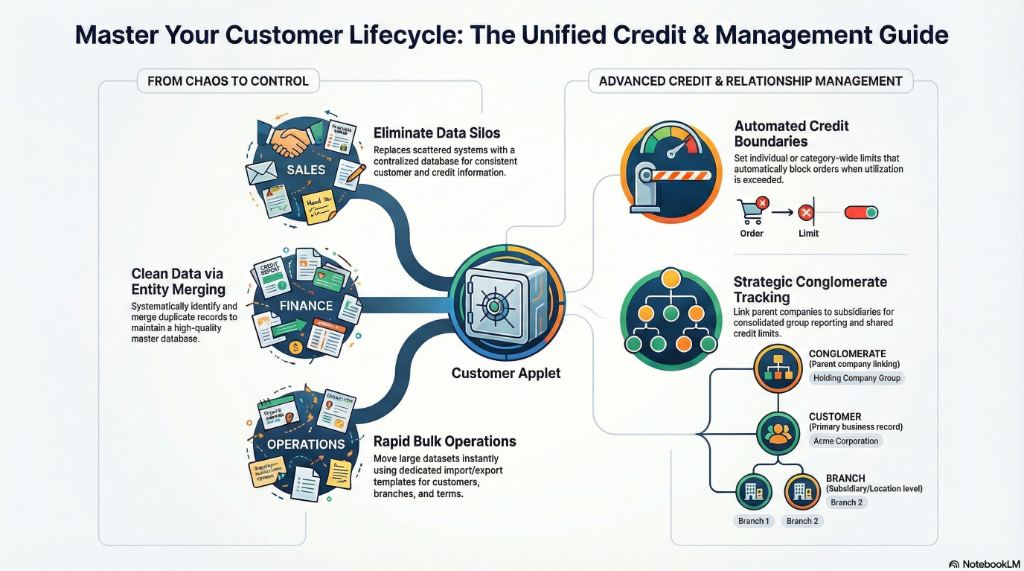
The Customer Applet is the master data foundation for every customer-facing process in BigLedger. Before you can issue a Sales Quotation, create a Sales Order, or generate an Invoice, the customer must exist here first. This applet is not just a contact list — it is the centralized command center where you define who your customers are, how much credit you trust them with, and how their corporate family tree is structured.
Every applet that touches a customer — Sales, Delivery Orders, AR Reports, E-Invoicing — pulls its data from this single source of truth.
Who Benefits from This Applet?
| Role | How they use it |
|---|---|
| Sales Reps | Looking up a customer’s profile and credit status before committing to a deal. |
| Credit Controllers | Setting and monitoring credit limits to prevent the company from overextending financially. |
| Account Managers | Maintaining accurate customer information, tracking corporate group relationships (Conglomerates). |
| Operations / Data Teams | Importing thousands of customers via bulk file upload, cleaning duplicates using Entity Merge. |
| Finance Teams | Configuring billing terms, payment schedules, and credit policies that flow into invoicing. |
What Problems Does This Solve?
Without the Customer Applet:
- Customer data is scattered across spreadsheets, email signatures, and individual salesperson’s notebooks.
- A Sales Rep creates “ABC Corporation” while another creates “ABC Corp” — you now have two records for the same company, leading to split transaction history.
- Credit limits are managed informally. A customer exceeds their limit because nobody checked before approving the Sales Order.
- Onboarding 500 new B2B customers from an acquisition requires weeks of manual one-by-one data entry.
With Customer Applet:
- ✓ Single Source of Truth — One centralized database. Every applet in the system reads customer data from here.
- ✓ Automated Credit Enforcement — Set a credit limit of RM 50,000 for a customer. The system blocks any new Sales Order that would push them over.
- ✓ Conglomerate Intelligence — Link “ABC Corp”, “ABC Logistics”, and “ABC Retail” under the parent holding “ABC Group”. See combined credit exposure across the entire group.
- ✓ Bulk Operations — Import 5,000 customers from a CSV in minutes, not weeks.
- ✓ Entity Deduplication — Find and merge duplicate customer records, automatically transferring all transaction history to the surviving master record.
The Five Pillars of Customer Management
To master this applet, understand these five interconnected components:
- The Customer Profile: The core record — name, code, contact details, tax ID. This is the identity card.
- Categories: How you classify them (Retail, Wholesale, Government, VIP). This drives pricing and policies.
- Credit Terms: The when — when must they pay? (Net 30, COD, Prepaid). This controls invoice due dates.
- Credit Limits: The how much — the maximum outstanding balance you will tolerate before blocking new orders.
- Conglomerates: The who else — linking related companies under a parent holding for consolidated credit and reporting.
Role-Based Quick Start Guides
For Sales Reps: Look Up a Customer Before a Deal
Your goal is to quickly verify a customer’s profile and credit status before quoting them.
- Go to Customer Listing from the sidebar.
- Search by customer name, code, or phone number.
- Click on the customer row to open their full profile.
- Check the Credit Term field — this tells you their agreed payment terms (e.g., Net 30).
- Check the Credit Limit field — this shows their maximum allowed outstanding.
- If the customer’s current outstanding balance is close to the limit, alert your Credit Controller before proceeding.
For Credit Controllers: Set Up Credit Terms and Limits
Your goal is to configure how much credit a new customer gets and when they must pay.
Step 1: Define the Payment Term
- Go to Credit Term Listing from the sidebar.
- Click "+" to create a new Credit Term.
- Enter the Term Code (e.g.,
NET30), Term Name (e.g., Net 30 Days), and Days Due (e.g.,30). - Click Save.
Step 2: Assign the Term and Limit to the Customer
- Go to Customer Listing and find the customer.
- Open their profile.
- Set the Credit Term to your newly created
NET30. - Set the Credit Limit to the approved amount (e.g.,
RM 50,000). - Click Save.
For Operations: Import 500 Customers from a Spreadsheet
Your goal is to onboard a large batch of customers from an acquisition.
- Go to File Listing (File Import) from the sidebar.
- Click Download Template to get the official customer import template.
- Fill in the spreadsheet with your customer data (Code, Name, Category, Credit Term, Credit Limit, Contact Info, Tax ID).
- Click Upload and select your completed file.
- The system validates the data and shows a preview of detected records.
- Review for errors (e.g., duplicate codes, missing required fields).
- Click Process to create all customers in one batch.
Deep-Dive: The Core Modules
1. Customer Listing (The Master Directory)
This is the primary workspace. It displays all customers in a searchable, filterable grid.
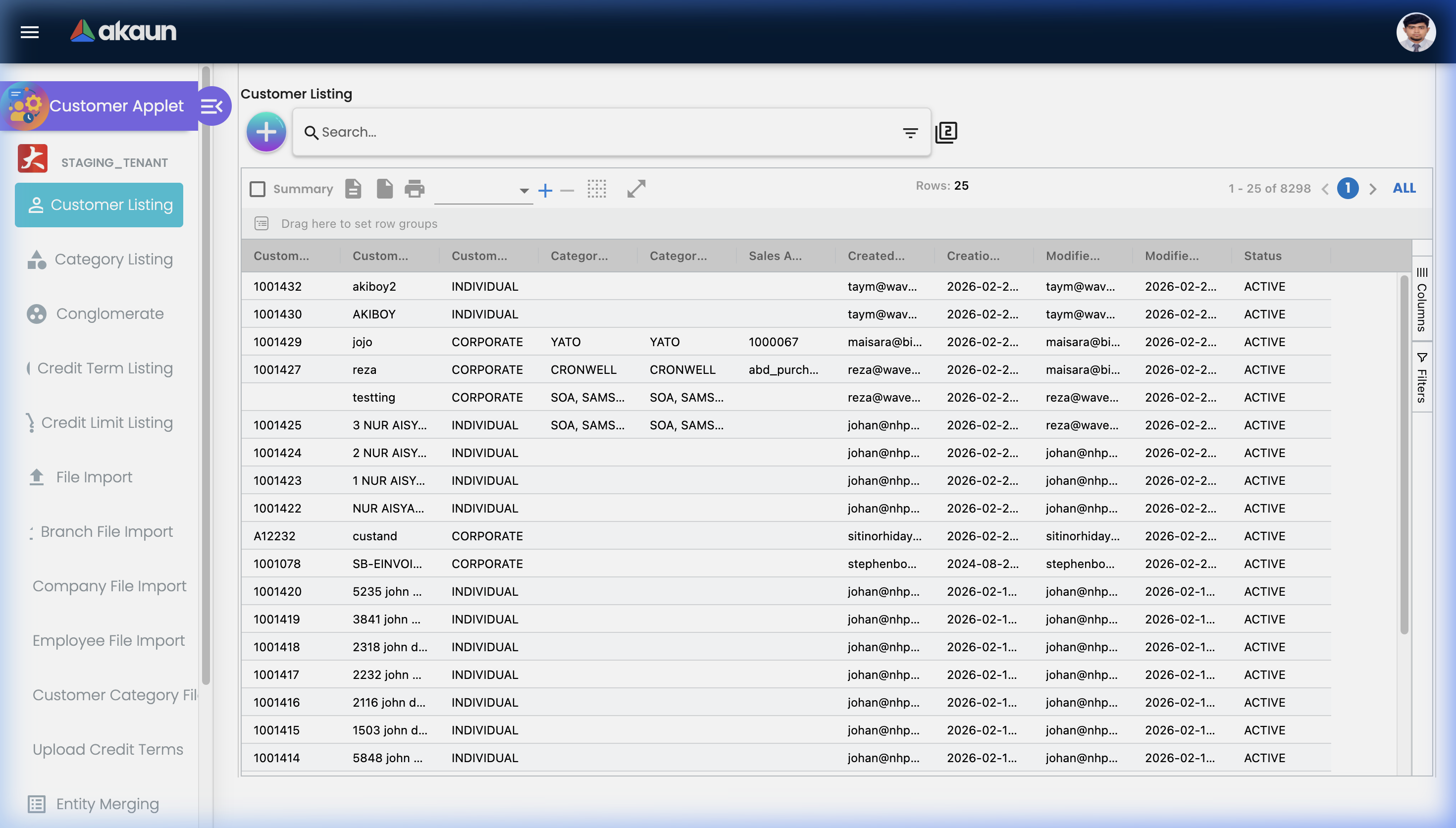
Key Customer Fields:
| Field | Purpose | Required? |
|---|---|---|
| Customer Code | A unique identifier (e.g., CUST-001). Used across all transactional applets to reference this customer. | ✅ Yes |
| Customer Name | The display name shown on invoices, delivery orders, and reports. | ✅ Yes |
| Category | The classification group (Retail, Wholesale, VIP). Drives pricing rules and report segmentation. | Optional |
| Credit Term | The default payment terms assigned to this customer. Auto-populates on new Sales Orders. | Optional |
| Credit Limit | The maximum outstanding balance allowed. The system blocks new orders if exceeded. | Optional |
| Contact Info | Phone, email, and physical address. | Optional |
| Tax ID | Business registration number. Required for E-Invoicing compliance (MyInvois). | Optional |
2. Customer Categories (The Classification Engine)
Categories allow you to group customers for strategic purposes.
| Category | Purpose | Business Impact |
|---|---|---|
| Retail | Walk-in or small-volume customers. | May have COD or Prepaid terms — low credit risk. |
| Wholesale | High-volume B2B buyers. | Typically Net 30 or Net 60 terms — moderate credit risk. |
| Government | Government agencies and GLCs. | May have long payment cycles (Net 90+) but are low default risk. |
| VIP / Premium | Strategic, high-value customers. | May get special pricing, extended credit limits, or priority fulfillment. |
| New Customer | Recently onboarded, unscored. | Should be set to COD or Prepaid until credit history is established. |
3. Credit Terms (The Payment Clock)
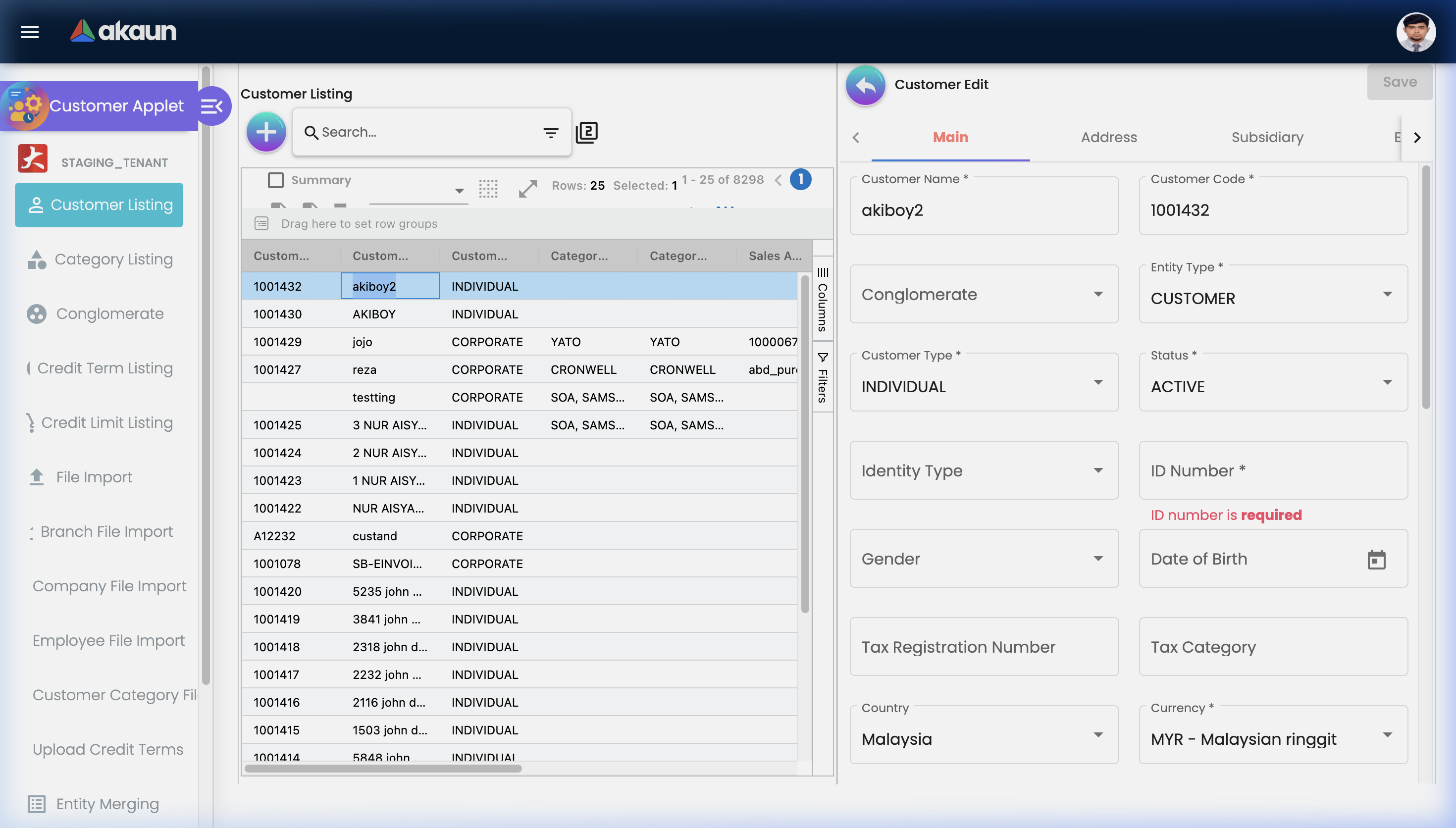
Credit Terms define when a customer must pay after receiving an invoice.
| Term | Days | Meaning | Typical Use |
|---|---|---|---|
| COD | 0 | Cash on Delivery. Payment at the point of sale. | Retail walk-ins, new unscored customers. |
| Prepaid | -N | Payment before goods are shipped. | High-risk customers, international orders. |
| Net 15 | 15 | Payment due within 15 days of invoice date. | Small B2B customers. |
| Net 30 | 30 | Payment due within 30 days. The industry standard. | Most Wholesale and B2B customers. |
| Net 60 | 60 | Payment due within 60 days. Extended terms. | Large corporate customers with strong credit. |
| Net 90 | 90 | Payment due within 90 days. | Government agencies, strategic partners. |
How it flows: When you create a Sales Invoice for a customer with Net 30 terms and the invoice date is March 1st, the system automatically calculates the Due Date as March 31st. This due date then feeds into the Debtor Aging Report for collection tracking.
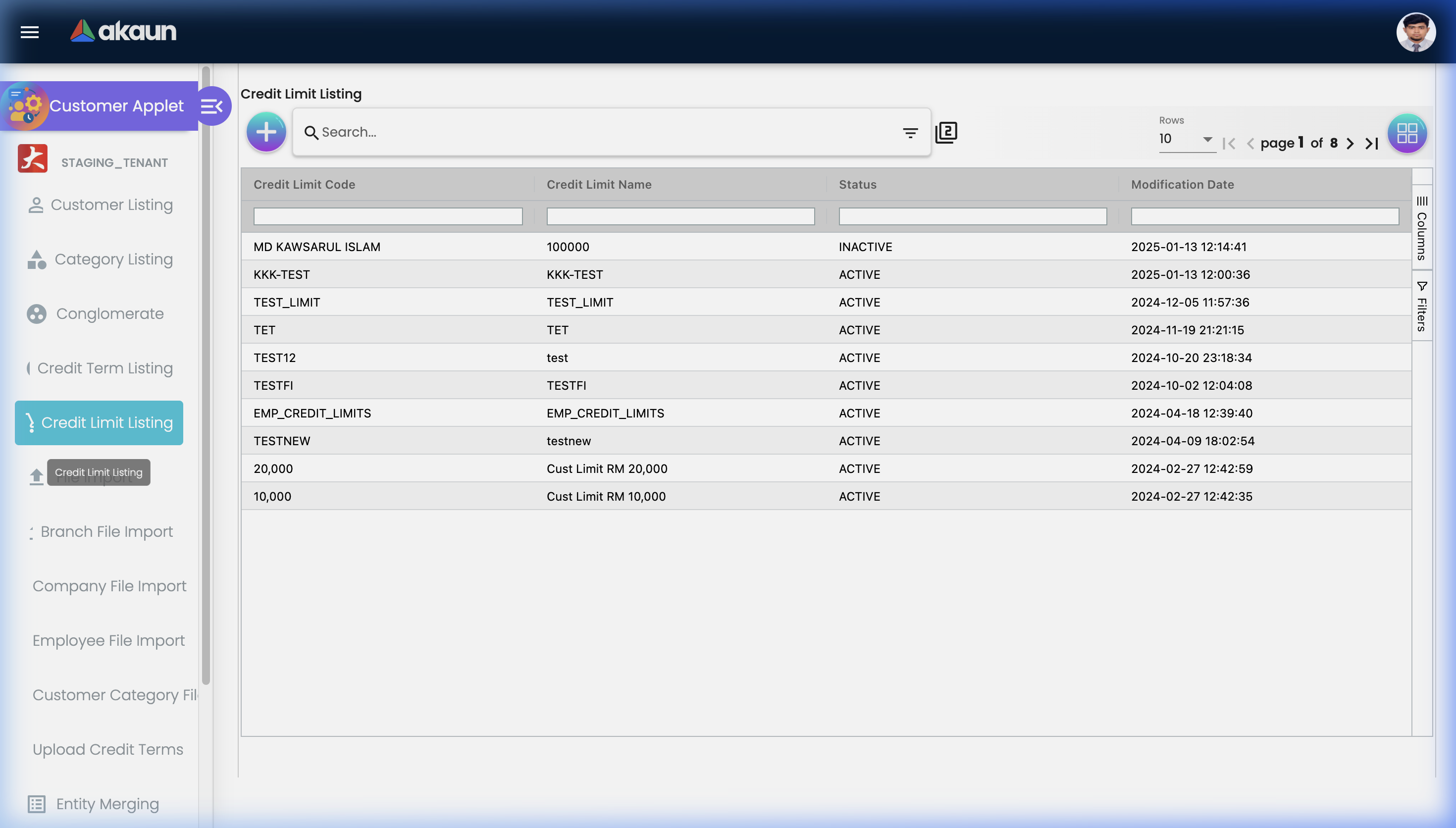
4. Credit Limits (The Financial Guardrail)
Credit Limits prevent your organization from overextending financially to a single customer.
How it works:
- You set a Credit Limit of RM 50,000 for Customer XYZ.
- Customer XYZ currently has RM 45,000 in outstanding (unpaid) invoices.
- A Sales Rep tries to create a new Sales Order for RM 10,000.
- The system calculates: RM 45,000 (existing) + RM 10,000 (new) = RM 55,000 → Exceeds the RM 50,000 limit.
- Result: The system blocks the Sales Order and alerts the Sales Rep that the customer’s credit limit has been exceeded.
Credit Limit Levels:
| Level | Scope | Example |
|---|---|---|
| Per Customer | Individual limit for a single customer. | Customer ABC has a RM 50,000 limit. |
| Per Category | Default limit applied to all customers in a category. | All “Wholesale” customers default to RM 20,000. |
| Per Conglomerate | Combined limit across all companies in a group. | ABC Group (3 subsidiaries) has a combined RM 200,000 limit. |
5. Conglomerates (The Corporate Family Tree)
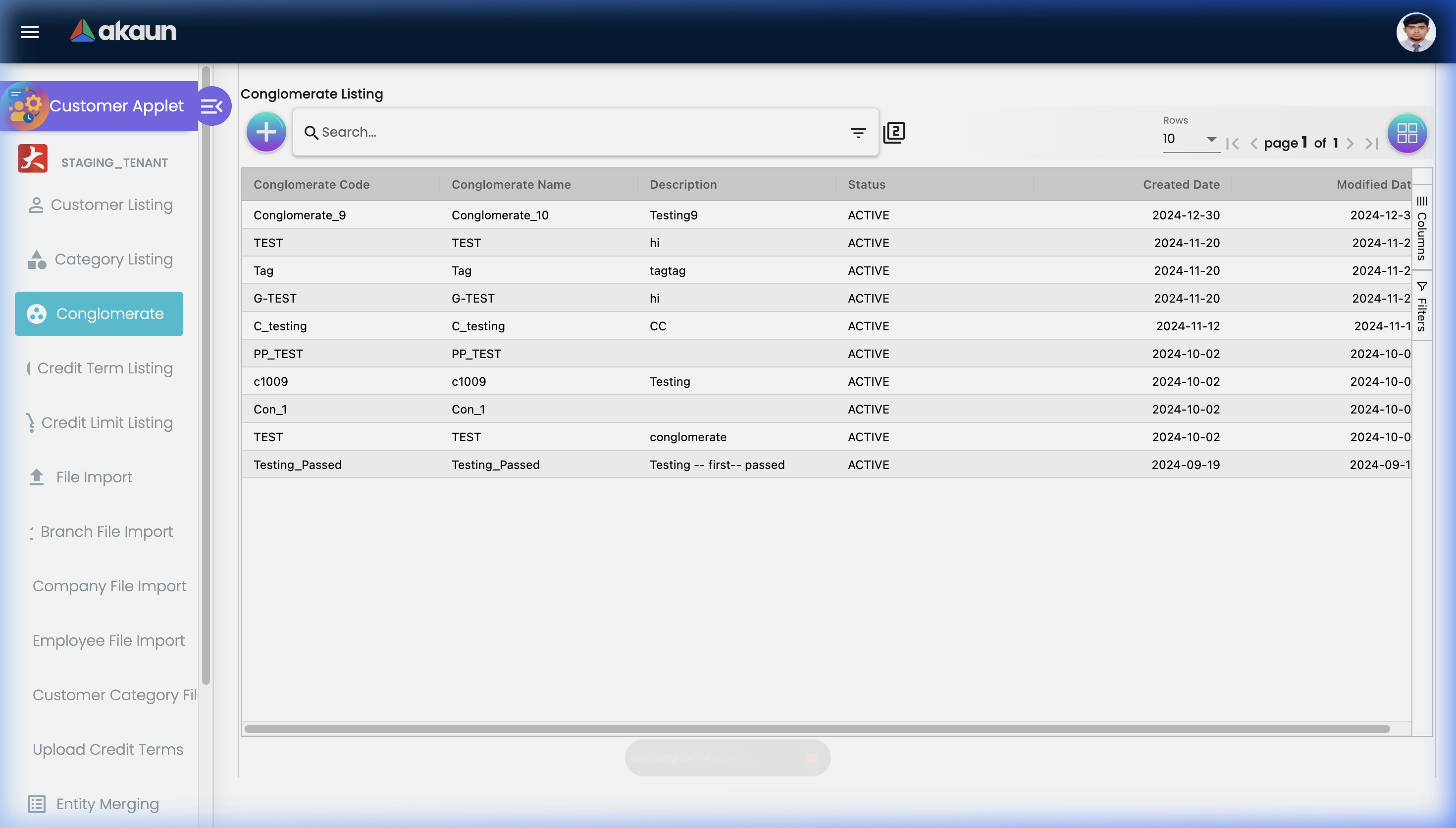
Conglomerates allow you to link related companies under a single parent entity.
Why this matters:
- A holding company, Mega Corp Holdings, has 3 subsidiaries: Mega Retail, Mega Logistics, and Mega IT Services.
- Each subsidiary is a separate customer in your system with its own orders and invoices.
- Without the Conglomerate feature, you see 3 individual credit exposures (RM 50K, RM 30K, RM 20K). Everything looks fine.
- With the Conglomerate feature, you see the combined group exposure is RM 100,000. If Mega Corp Holdings is struggling financially, all three subsidiaries are at risk — and now you can see that consolidated risk in one place.
Bulk Operations
File Import
The File Import feature supports bulk creation and update of multiple record types:
| Import Type | What it creates | Typical Use Case |
|---|---|---|
| Customers | Main customer records | Migrating from an old system or onboarding an acquisition. |
| Customer Branches | Branch/location records under a customer | Adding multiple delivery addresses for a national chain. |
| Customer Companies | Company-level profiles | Multi-entity setup for large corporates. |
| Customer Employees | Contact person records | Adding procurement officers and AP contacts. |
| Customer Categories | Category definitions | Standardizing classification schemas. |
| Credit Terms | Payment term records | Setting up industry-standard payment terms. |
| Credit Limits | Credit boundary records | Applying pre-approved limits from a credit committee spreadsheet. |
File Export
Export filtered customer data to Excel/CSV for external analysis, mail merge, or reporting.
Entity Merging (Deduplication)
When duplicate records are discovered (e.g., “ABC Corp” and “ABC Corporation”), the Entity Merge process:
- Identifies Duplicates — Search for customers with similar names or matching tax IDs.
- Selects the Master — Choose which record to keep as the surviving entity.
- Merges All Data — All historical transactions (Sales Orders, Invoices, Payments, Delivery Orders) from the duplicate are automatically transferred to the master record.
- Deactivates the Duplicate — The duplicate record is soft-deleted to prevent reuse, but its historical footprint is preserved for audit.
Applet Configuration (For Admins)
Navigate to Settings in the sidebar to configure the applet.
Default Settings
Pre-set values that auto-populate when creating new customer records.
- Set a default Category, Credit Term, or Credit Limit so new records are initialized consistently.
Field Configuration
Control which fields are visible and which are mandatory during customer creation and editing.
- Example: Make the Tax ID field mandatory to ensure E-Invoicing compliance for all new customers.
Business Nature
Define the types of business activities your customers engage in (Manufacturing, Trading, Services, etc.). This feeds into customer classification and reporting.
Printable Format Settings
Customize how customer-related documents (e.g., Customer Statements, Confirmation Letters) look when exported to PDF or printed.
| Tab | Purpose |
|---|---|
| Details | Header/footer layout, company logo, address block. |
| Line | Line item layout for transactional printouts. |
Entity Branch Group
Configure rules for grouping customer branches. Useful for national chains where you want to track branches by region (e.g., Peninsula Malaysia, East Malaysia).
Webhook Configuration
Integrate with external systems (e.g., CRM, marketing automation) by triggering webhook events when customer records are created, updated, or merged.
Feature Visibility
Control which sidebar menu items and features appear for different user roles.
- Example: Hide the Entity Merge feature from standard Sales Reps, keeping it visible only to Data Administrators.
Permissions
Enforce role-based access control.
| Permission | Who typically gets it |
|---|---|
| View | All Sales and Support staff. |
| Create | Sales Admins, Operations team. |
| Edit | Account Managers, Credit Controllers. |
| Delete | Data Administrators only. |
| Admin | IT / System Administrators for full configuration access. |
Personalization
Each user can customize their own experience without affecting other users.
- Personal Default Settings: Set your default Company, Category, or view filters so the listing always starts with the data most relevant to you.
- Sidebar Customization: Rearrange sidebar menu items to match your daily workflow. If you never use Conglomerates, move it to the bottom.
Common Real-World Scenarios
Scenario 1: The New B2B Customer Onboarding
The Situation: Your company just signed a distribution agreement with a new wholesale buyer, Delta Distributors. They need to be set up in the system before the first Sales Order can be created. The Workflow:
- Account Manager goes to Customer Listing and clicks "+".
- Enters Customer Code:
DELTA-001, Name: Delta Distributors Sdn Bhd, Category: Wholesale. - Sets Credit Term to
Net 30(as agreed in the contract). - Sets Credit Limit to
RM 100,000(as approved by the Credit Committee). - Enters Tax ID for E-Invoicing compliance.
- Clicks Save.
- The Sales Rep can now immediately create a Sales Quotation for Delta Distributors — the system pulls the customer profile, credit terms, and limit automatically.
Scenario 2: The Credit Limit Breach
The Situation: A long-standing customer, OmniRetail, has been ordering aggressively. Their outstanding invoices total RM 48,000 against a RM 50,000 credit limit. A Sales Rep tries to create a new RM 5,000 order. The Workflow:
- The Sales Rep creates the Sales Order. The system checks: RM 48,000 + RM 5,000 = RM 53,000 > RM 50,000 limit.
- The system blocks the order and displays a credit limit exceeded warning.
- The Sales Rep contacts the Credit Controller.
- The Credit Controller opens OmniRetail’s profile, reviews their payment history (they always pay on time), and decides to temporarily increase the limit to RM 60,000.
- The Sales Rep re-submits the order. It goes through successfully.
Scenario 3: The Post-Acquisition Customer Migration
The Situation: Your company acquired a competitor. Their 800 customers need to be added to BigLedger immediately. The Workflow:
- Operations downloads the File Import Template from the File Listing page.
- The competitor’s customer data is cleaned and formatted into the template (Code, Name, Category, Credit Term, Contact Info, Tax ID).
- Operations uploads the file. The system validates 800 records — 795 pass, 5 fail due to duplicate Tax IDs.
- Operations fixes the 5 errors and re-imports.
- All 800 customers are now live in the system, ready for Sales to engage.
FAQs
Q: How do I prevent duplicate customer records from being created? A: The system provides a warning if a customer with a similar name or matching Tax ID already exists during creation. Additionally, the Entity Merge feature allows you to periodically scan for and merge duplicates that slip through.
Q: Can I import customers from another system (e.g., an old ERP)? A: Yes. Download the File Import Template, map your existing data into the template columns, and upload it. The system supports bulk creation of customers, branches, employees, categories, and credit terms.
Q: How do Credit Limits work with Conglomerates? A: Credit can be set at the individual customer level and at the Conglomerate (group) level. When a group-level limit is set, the system monitors the combined outstanding across all subsidiaries in the group. Even if Subsidiary A is under its individual limit, a new order could be blocked if the group total exceeds the conglomerate limit.
Q: What happens when I merge two customer records? A: All transactions (Sales Orders, Invoices, Payments, Delivery Orders, Credit Notes) from the duplicate are permanently transferred to the master record. The duplicate is deactivated but remains in the database for audit purposes. This action is irreversible.
Q: Can I have different Credit Terms per branch? A: Yes. Each customer branch can be configured with its own Credit Term, allowing you to have Net 30 for the HQ but COD for a smaller satellite branch.
Q: Where does the Customer data flow to? A: Everywhere. The Customer Applet feeds into Sales Quotations, Sales Orders, Delivery Orders, Sales Invoices, AR Aging Reports, E-Invoicing (MyInvois), and Customer Statements. It is the foundational master data layer.