Doc Item Maintenance
Watch these as presentations — 16 on this page, slides with narration.
Every line on a sales, purchasing, POS or marketplace document points at an item created here — no item, no document line. This is the item’s commercial definition (units, tax codes, pricing, categories, e-Invoice classification); its physical stock record lives in Inventory Item Maintenance.
Overview
The Doc Item Maintenance applet is BigLedger’s item master. Every line on a sales invoice, purchase order, POS receipt, delivery order or marketplace listing points at a record created here. It holds the commercial definition of an item — code, name, type, unit of measure, tax codes, pricing, categories, images, branch and company visibility, e-Invoice classification — and links to the physical stock record kept by the Inventory Item Maintenance applet.
It is opened by whoever owns the product catalogue: a merchandising or purchasing clerk in a retailer, the accounts team for account-code and service items, and the e-commerce team for marketplace-linked items. It sits at the very start of every process: no item, no document line.
The scale this has to work at. A working retail catalogue runs to tens of thousands of items, and each one carries category slots, tax codes, alternative units and a price row per pricing scheme. That is why several things on this screen behave the way they do — why the listing is paged and column-trimmed, why the Create by Category mode generates item codes from a pattern instead of asking you to type them, and why the costing figures you see are stored rather than recomputed when you open the tab.
A short introduction to the applet:
Analogy: think of the applet as a supermarket manager’s office.
- The Items menu is the product database where you fill out the details for every apple, cereal box and detergent.
- Pricing Schemes are the price lists you define (for example “Retail”, “Member Price”, “Wholesale”).
- Category Groups are how you arrange the aisles (Food > Produce > Fruit).
- Import / Export is the loading dock where you bring in pallets of data at once instead of carrying items in one by one.
Where it fits
What must exist first
You cannot finish an item without these, and each failure shows up somewhere other than this screen.
| Must exist | Where you create it | What happens if it does not |
|---|---|---|
| Tax codes | Tax Configuration | The Tax tab offers an empty drop-down, the item saves untaxed, and the first invoice that uses it prints with no tax line |
| GL codes | Chart of Accounts | An Account Code item with no GL code of its own does not stop save or FINAL. At posting its line falls back to the document header’s GL code, the item’s company GL link, then the company default for sales or purchases; if none resolves, the line is left out of the journal and the customer’s or supplier’s line absorbs it, so the journal posts short with no message |
| An inventory item record | Inventory Item Maintenance | A stock-tracked doc item must reference an existing, non-deleted inventory item; the backend rejects a link to a missing one. Normally you never do this by hand — see What happens when you press Save |
| A category group bound to each category slot | this applet, in Application Settings | Until a slot is bound to a group, Category slots 0–20 stay empty on every item — so an empty category drop-down almost always means the binding is missing, not the categories |
| At least one pricing scheme | this applet | The Pricing Scheme tab has no columns, so the item has no sellable price and the till falls back to zero |
| T2T permission | T2T Admin | The lists on T2T Item Mapping stay empty, so the mapping tab looks broken rather than unconfigured |
What this makes possible
Once an item exists and is Active it becomes selectable everywhere at once — there is no per-module publish step. That single record lets you raise a purchase order for it, receive it, sell it at the till or on a sales invoice, list it on a marketplace, put it in a bundle, attach a warranty to it, submit it on an e-Invoice line, and report margin on it. Items are also what Stock Replenishment plans against, and what the Pricebook builds price lists from.
Doc item or inventory item — which record are you editing?
This is the most common wrong turn on this screen, because the two records share a code and a name and each has its own applet.
The doc item is the commercial record: what you sell it as, what it costs the customer, what tax it carries, which categories it belongs to, what the regulator should see on the e-Invoice. The inventory item is the physical record: what is on the shelf, in which location, at what cost, under which serial or batch number.
Use this applet when the answer changes what a document says. Use Inventory Item Maintenance when the answer changes what a count says. Category groups and categories are shared between the two applets — the same rows, two doors.
Not every doc item has an inventory twin, and that is the point of the split: an item can live here with no inventory-item link at all. Those are services, delivery charges, deposits and account-code lines — things that belong on an invoice and can never be counted.
What breaks elsewhere when an item is wrong
Because one record feeds every module, a mistake here is never local:
- A missing e-Invoice classification does not stop anything. It is substituted at submission: the to-IRB line goes to LHDN as
022 Others, a blank e-Invoice UOM asH87 piece, and a blank taxable type as whatever the line’s tax amount implies. The document is accepted and wrong, and nobody is told. Nothing on the item, on the document, or in the submission response distinguishes a classification somebody chose from one the payload builder filled in, so this screen is the only place a blank can be caught. - A wrong item type cannot be corrected on this screen once the item is saved — only a Doc Item import carrying the same code rewrites it, unchecked (Import is an upsert) — and the type decides whether the line moves stock, whether it has a cost, which account it resolves to and whether it can be returned.
- A wrong quantity-tracking mode (Sub Item Type) is fixed at first use and locks every downstream reconciliation into that choice — see What it will not do.
- A wrong GL code on an Account Code item posts real money to the wrong account on every document that uses it, silently, until somebody reads the trial balance.
- Setting the item Inactive reaches into the inventory record too, and only partly — see What happens when you press Save.
Four settings that decide how this screen feels
Four entries in Application Settings change the shape of this applet more than anything else on it. Read them on your own tenant before concluding the screen is behaving oddly:
- An item-code format turns the Create by Category mode into a code generator. With one set, codes come out of a pattern; without one, somebody types each code by hand in the Default mode.
EDIT_ITEM_CODEunlocks the item code after the first save. It ships off, so the code is permanent until an administrator turns it on — and whether it is on is the first thing to check before you tell a user their code cannot change.HIDE_COSTINGS_TABships on. If you cannot see cost on an item, that setting is the usual reason, and the tab can be granted back with a permission on a role the people who need it hold.AVAILABLE_ITEM_TYPEStrims the item-type drop-down. Left unset, the create screen offers the full list, which is why it is long.
Modules: Core, Inventory, E-Commerce, POS, E-Invoice.
What happens when you press Save
Nothing on this screen posts to the General Ledger. What it does do is start work that finishes after the save returns, and that gap is behind several “it did not take effect” reports.
Creating an item writes the row, then enqueues two jobs: a webhook event (FINANCIAL_ITEM_CREATED) for anything subscribed to your catalogue, and — when the item is created with its stock twin — an inventory-item auto-creation job. The inventory record is therefore created after the doc item, on a queue. For a second or two, the doc item exists and its inventory item does not.
Updating an item writes the row, enqueues a FINANCIAL_ITEM_UPDATED webhook, enqueues a CP Commerce free-shipping job if that flag changed, and then pushes the status across to the inventory item asynchronously.
Setting a doc item to Inactive does not always deactivate every inventory record behind it. The push has two halves. The item’s default inventory record follows the status unconditionally. A second, non-default inventory record that the doc item points at follows it too — except when the new status is Inactive, where the update applies only if that record holds no stock at any location. The symptom is an item that has vanished from sales screens while an inventory record behind it still appears on stock reports and in stocktake. The cause is stock on hand. The fix is to move or adjust that stock out and save the status again, or set the inventory item’s status directly in Inventory Item Maintenance.
The push runs on a background thread and its failures are logged, not shown. Nothing on this screen will tell you it did not happen.
Everything to do with cost and stock happens somewhere else entirely. When a document is finalised — a separate endpoint, not a save — a primary job processor fans out to secondary processors that post to inventory transactions, journals, membership points and the cashbook, and the costing computed from those inventory lines is then written back onto the document line. That chain is what puts numbers on the Costings tab you are looking at here.
Where the numbers on this screen come from
Three tabs on an item show figures that this applet does not calculate. Knowing which store each one reads, and what last wrote it, is the difference between “the cost is wrong” and “the cost is as at the last transaction”.
The Costings tab
The tab computes nothing. It lists one stored row per company from the current company stock-balance table and prints its columns. Whatever you see is a snapshot, written by whichever processor last touched that row — not a figure recomputed when you opened the tab.
What writes each column is not the same in each case, and this is the part that surprises people:
| Figure on the tab | What last wrote it | What that means when you read it |
|---|---|---|
| Moving average (MA) price and amount | The stock-balance processor, on every inventory transaction line for that item and company. It is the tip of a per-company chain: each line carries the running balance and MA forward from the previous one | Current as at the last finalised document that moved this item. A document still in draft has not moved it |
| Weighted average (WA) price and amount | Only a Refresh Stock Balance run, and that run computes WA from transactions dated before the first day of the current month | This is a prior-month figure. This month’s purchases do not move it, and if nobody has run a refresh it may be far older than that |
| FIFO price and amount | A separate FIFO/LIFO costing processor, from the FIFO register baskets, on purchase-side and sales-side documents | Maintained independently of MA, from a different mechanism, so MA and FIFO on the same item are not expected to agree |
| Last purchase cost | The stock-balance processor, directly, when the line is on a purchase invoice. A GRN Stock In moves the moving average but leaves this figure alone | The last price you actually paid, not an average of anything |
| LIFO, manual and replacement cost, and every landed-cost column | Nothing writes them in the current build. The LIFO call in the costing processor is commented out | These columns read zero on every row — see below |
LIFO, manual cost, replacement cost and the landed-cost columns are empty. cost_lifo_price, cost_manual_price, cost_replacement_price and landed_cost_ma_price read zero or blank on every company stock-balance row, because the current build has no writer for them: the LIFO call in the costing processor is commented out and the other three are never assigned. The columns exist and the screen shows them; no setting fills them.
Do not build a valuation, a margin report or a sell-below-cost rule on those columns. MA, FIFO and last-purchase cost are the three that carry real numbers.
If the MA on the tab looks wrong, the question to ask is which transaction last moved this item for this company, not what the tab is doing — the tab is only displaying. The MA chain is rebuilt from that company’s transaction lines when a document is back-dated, so a back-dated purchase invoice legitimately changes a cost you looked at yesterday.
Stock Availability and Stock Card
The Stock Card tab is the item’s movement history, read from the inventory transaction lines. The Stock Availability tab is about marketplace shops, not the warehouse: one row per shop the item is listed on, with the shop’s Balance (the figure last worked out for that shop, stored on the listing), its buffer, and a Sales Order column. Its Calculate Stock button works every row’s figure out again and sends it to a Lazada or Shopee shop. How the figure is worked out is in E-Commerce Core Concepts §3.
For the item’s stock by location, use the Stock Availability and Stock Balance applets.
The prices in the item listing
The listing aggregates pricing, remarks and marketplace data per row as it pages. On a large catalogue with many pricing-scheme links per item, that aggregation is what makes pagination slow — see Troubleshooting.
The price a document uses is a different query again. The item-scan endpoint the selling applets call joins the pricing-scheme link table and nothing else. It has no customer field, which is why a price entered against a named customer on the Entity Pricing tab never reaches a sales document — see that tab below.
The price on a document line
A price you typed on the Pricing Scheme tab becomes a line’s price through three decisions, made in three different places. Reading them in order is what turns “the price is wrong” into a question with an answer.
First, which scheme the document proposed. The line editor takes the branch’s Default Pricing Scheme, and if the branch has none it falls back to the sales applet’s own PRICING_RETAIL_GUID setting. The price picker then opens with one of: the only scheme the item has a price on, if there is exactly one; otherwise the customer’s own Pricing Scheme field, if that customer is on a scheme this item is priced on; otherwise that branch default. Which of those three you land on is worth establishing before you go hunting for a wrong price. The customer’s own Pricing Scheme field is blank unless somebody filled it in on the customer record, so unless yours are filled in, that middle test never fires and the branch default is what decides — and a branch with no default falls through to the sales applet’s setting.
Second, which rows the picker was offered. The endpoint returns every price row for the item whose status is ACTIVE, with no ORDER BY and no filter on which schemes this user may see. The picker then keeps one row per scheme — the last one the unordered query happened to return. That matters when an item carries more than one row on the same scheme, which is what a second UOM produces: with no ORDER BY, which of them survives is whichever the database happened to return last, and that is not guaranteed to be the same row twice.
Third, what selecting a price stamps. The line takes the scheme’s unit price (inclusive and exclusive of tax), its minimum, its replacement and reference prices — and a tax code, rate and type that may not be the scheme’s at all, because those come from a five-step cascade described under Pricing Scheme tab below. It also records pricing_scheme_link_guid, the price row it came from, which is the one thread back from a posted line to a price list.
Five readers of the price table, three different answers to “is this price real”. The sales-price and purchase-price endpoints filter status = 'ACTIVE'. The bulk effective-price lookup and the UOM-fallback lookup filter status != 'DELETED', so they will return a row the price picker refuses. The POS barcode-scan query joins with AND pricing_link.status = 'ACTIVE'; the POS label and text-search query, in the same class, joins with no status predicate at all — which is why a deleted price can still appear in the till’s Add Item search while the same item scans at the right price.
There is a further trap in the data: price rows exist carrying a status that is none of the platform’s three standard ones, and no writer for that value is visible in the applets or the backend. A row like that is refused by the readers that require ACTIVE and returned by the ones that only exclude DELETED, so it appears on some screens and not others with nothing to explain the difference. If you are asking why a price shows up in one place and not another, the question to answer is which of the five readers reached it — not what the price list says.
Screens and menus
The left menu of the applet has these entries (Application Settings can hide any of them):
| Menu | What it is for |
|---|---|
| Items | The item listing, create and edit screens — the bulk of this page |
| Category Groups | Named groups of categories (the “aisles”) |
| Categories | Individual categories, optionally nested, linked to a category group |
| Classifications | The LHDN e-Invoice item classification list. Seeded with 45 MALAYSIA-EINVOICE codes. Where your tenant has the scheduled classification clock, the descriptions of those codes are refreshed from LHDN’s published list — but a code LHDN adds is never inserted. The screen has a Create form (code, name and type required; the only type offered is MALAYSIA-EINVOICE), so a new LHDN code has to be added by hand |
| Pricing Schemes | Price-list templates; prices themselves are entered per item |
| Import Item | CSV import of items, links, pricing, categories |
| Export Item | CSV export of pricing, GL-code, company / branch / label links |
| Entity Pricing Import | CSV import of customer / supplier-specific prices |
| Item Image File Import | Bulk image upload |
| Scheduler | Cron-style jobs, mainly marketplace (Lazada / Shopee) synchronisation |
| Search Filter | Storefront filter definitions used by CP Commerce categories |
| Frames | Pictures laid over an item’s product image on the CP Commerce storefront — see Frames |
| Item Price Change | A read-only report of recorded price changes, old value beside new — it changes nothing. Empty unless price history is switched on for your tenant; see Setting Up Pricing Schemes |
| Item Templates | Templates that pre-fill new items |
The gear (Settings) menu holds Application Settings, Default Selection, Custom Resource Bundle Configuration (translations), Custom Field Placement, Spreadsheet View configuration, Ecomsync Management, CpCommerce Brand, Attribute / Attribute Set and Rating Configuration.
Items
Item listing
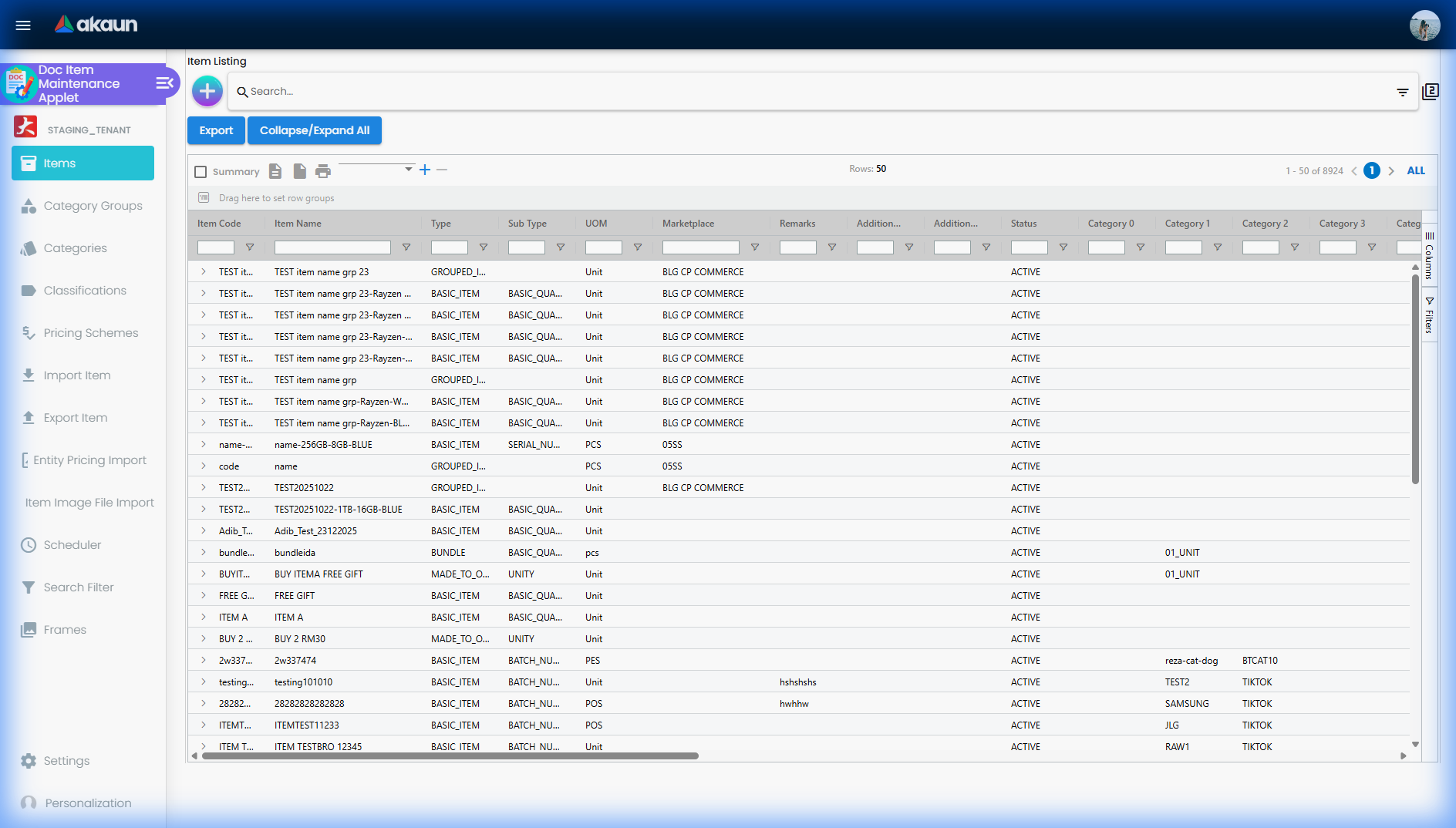
Click a row to open the item for editing. The default status filter, the visible columns and the sort order (created date or alphabetical) are all controlled in Application Settings.
The status filter is the one that catches people out. An item code is unique among non-deleted items, so a code held by an INACTIVE, OBSOLETE or TEMP item will still be rejected as a duplicate while the listing — filtered to Active — shows you nothing.
Create item
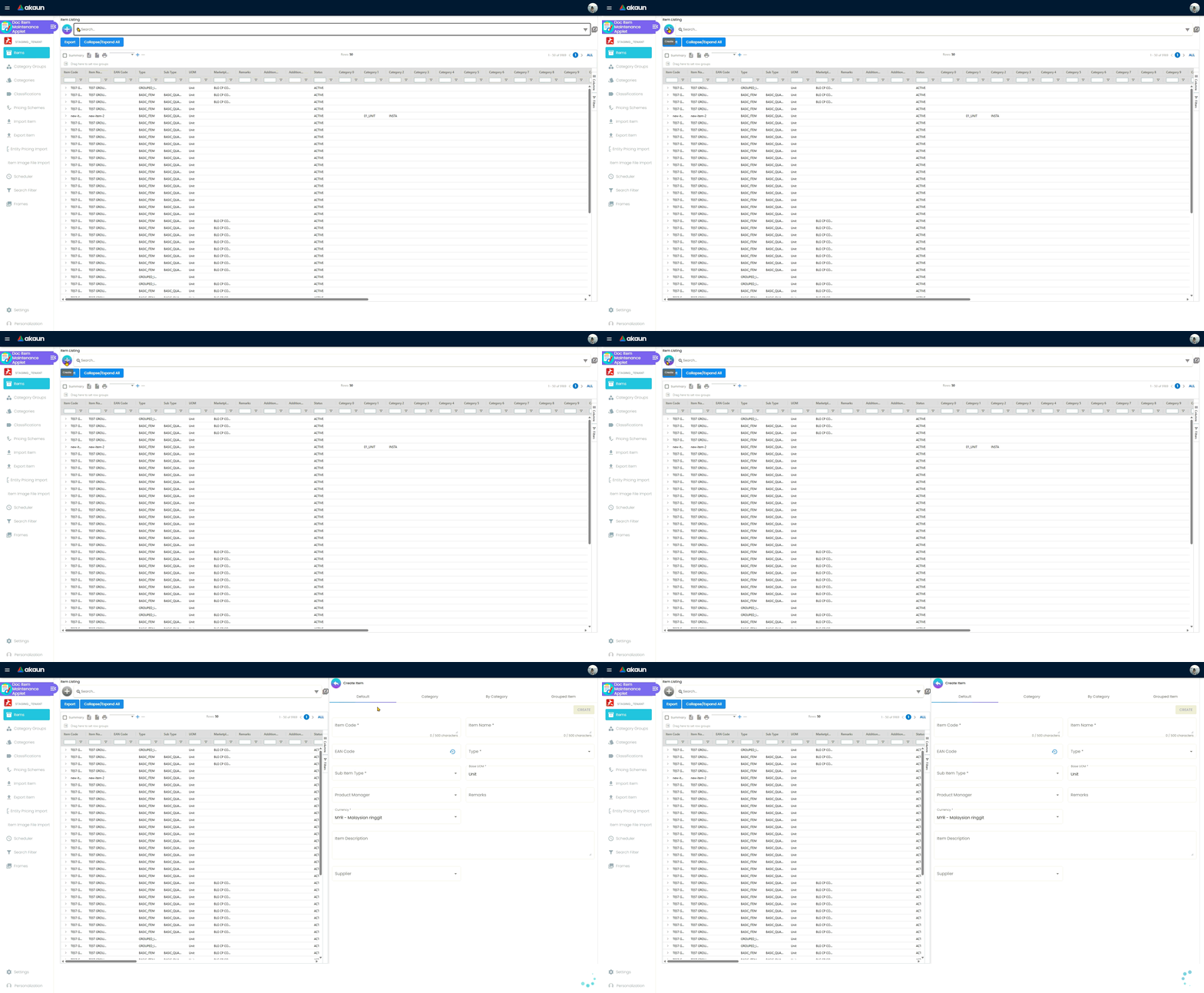
The create screen deliberately asks for the minimum: item code, item name, item type, sub item type, base UOM, currency, and optionally a description, remarks, product manager, GL code and EAN code. Everything else is added on the edit screen after the first save, so that a long form is never lost to a missed Save.
Item Code and Item Type cannot be changed on this screen after the item is saved — unless an administrator turns on EDIT_ITEM_CODE, which unlocks the code but never the type. A Doc Item import row with the same code does overwrite the type, and nothing checks it. Item Name can be changed at any time.
The lock is the shipped default and an administrator can lift it, so check whether EDIT_ITEM_CODE is on in your own Application Settings before telling a user their code is permanent.
Item Template Selection is tab 0, before the Default tab, and it can be skipped. Choosing a template does two things: it restricts which tabs the create flow shows, and it supplies a default value per field — including the E-Invoice tab’s Item Classification, Einvoice Tax Type Code and Einvoice Uom. A template default for Item Classification is the one thing that outranks the tab’s hard-coded 022 Others, so a template is the supported way to give a whole class of items the right code at creation. A category’s own E-Invoice tab looks like a second way and is not — see the category’s E-Invoice tab. Templates are maintained under the Item Templates menu.
The create screen has three modes, each of which can be hidden in settings: Default (free-typed item code), By Category (the code is generated from a configured item code format such as <category00>-<category01>-####, where #### is a running number) and Group Item (creates a grouped parent and its child variants in one go, driven by attribute groups).
By Category is the mode a large catalogue wants, because a generated code is what keeps a 12,000-item catalogue navigable and stops the same product arriving twice under two spellings. It does nothing until an item code format is set in Application Settings — without one, the create screen falls back to a typed code.
Screenshot withdrawn; a recapture from a demo tenant is on the list.
The create form also carries three checkboxes worth understanding before you tick them: Consignment Item (stock you hold but do not own), Required Production (the item must go through a production process before it can be sold) and Alternate Item Code (a second code used by another system, which is what you use when a supplier or a marketplace insists on its own code rather than yours).
Item types
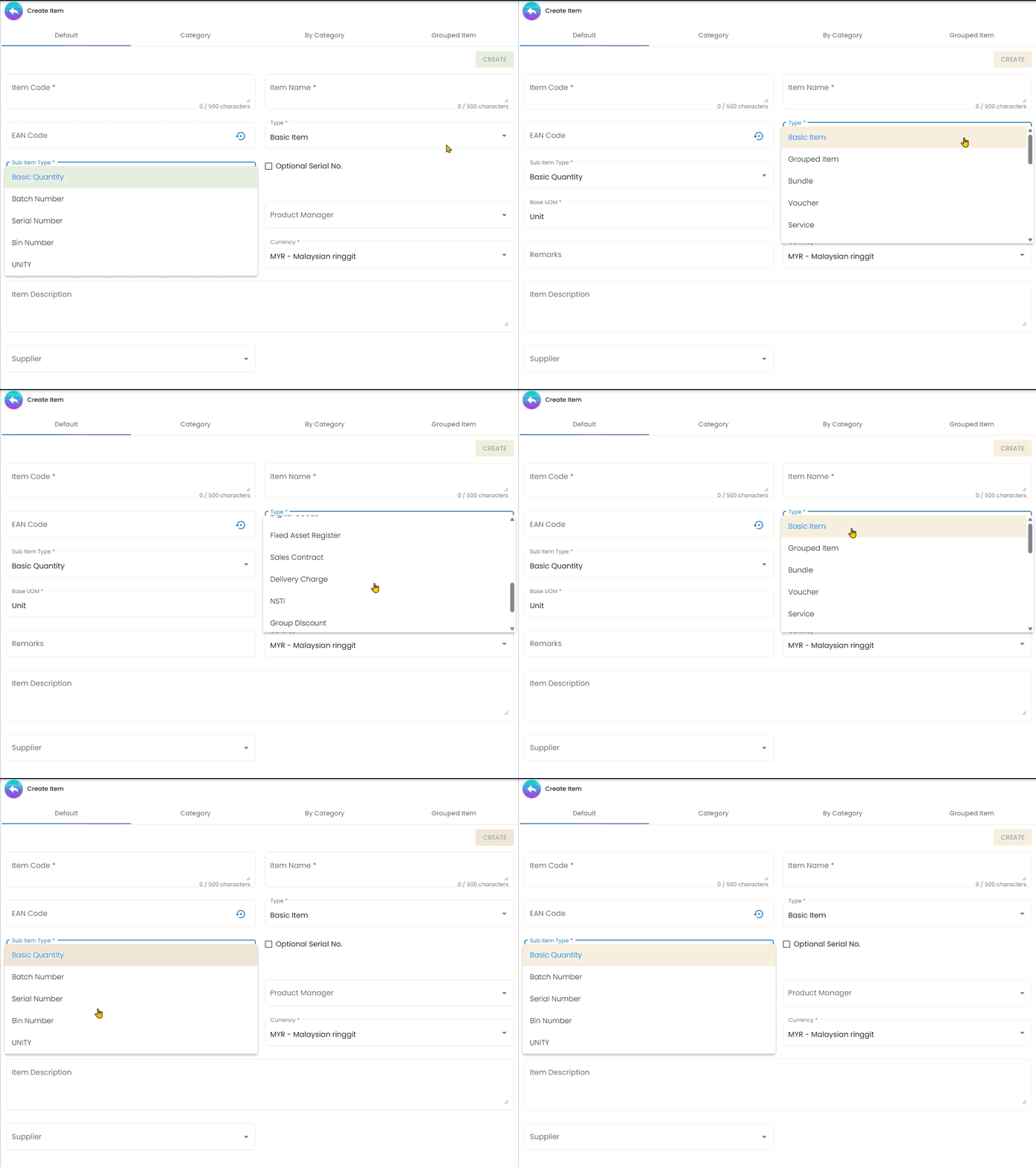
The item type decides which edit tabs appear and how transactional applets treat the line: whether it moves stock, whether it has a cost, which account it resolves to, whether it reaches the e-Invoice payload and whether a margin report should count it. It cannot be changed on this screen after the first save (a Doc Item import with the same code is the one route that rewrites it, and it checks nothing against the stock and documents already carrying the old type), so it is the one decision on the create screen worth slowing down for.
The full list offered by the UI (an administrator can restrict it with AVAILABLE_ITEM_TYPES), and what each one is for:
| Item type (UI label) | Stored value | Use |
|---|---|---|
| Basic Item | BASIC_ITEM | The default for physical goods; the only type with a Stock Card tab |
| Account Code | GL_CODE | An item that is really a GL account, used to post non-stock charges — a deposit, a claim, a retention — straight from a document |
| Service | SERVICE | A line with no inventory tracking: labour, installation, delivery |
| Warranty | WARRANTY | Extended warranty sold against eligible categories, items or pricing bands |
| Bundle | BUNDLE | Several stand-alone items sold for one price; stock is deducted from the child items, not the parent |
| Grouped Item | GROUPED_ITEM | A parent that groups variants (child items) sharing attributes such as colour or size |
| Voucher | COUPON | Records stock in / out of vouchers; reflected in the Voucher Management applet |
| Made to Order (MTO) | MADE_TO_ORDER | Assembled to customer specification; enables the MTO Config and Add On tabs |
| Group Discount, Doc Header Adjustment | GROUP_DISCOUNT, DOC_HEADER_ADJUSTMENT | Money off the deal, and a whole-document correction expressed as a line, both used by POS promotions |
| Membership | MEMBERSHIP | Membership plans: attributes, dues schedule, expiry |
| NSTI | NSTI | Non-stock trade-in — the old machine you took back |
| Digital Goods, Fixed Asset Register, Sales Contract, Delivery Charge, Currency, Alias, Member Point Discount, External | as named | Non-physical delivery, company assets, contract-based sales, shipping cost lines, multi-currency, item aliases, membership points and external catalogues |
The type column is a plain string, not an enumeration. Downstream code compares it against exact constants such as BASIC_ITEM, so an item whose type is spelled differently does not match and falls through to whatever the default branch does. Spellings the create screen never offered do end up in item masters — carried in by a migration or a CSV import, both of which write the column without checking it against the list.
If items imported from an old system behave as though they have no type, check the stored type against the list above before looking anywhere else.
Sub item types
Sub item types apply to Basic Items (and Alias items) and decide how quantity is tracked. Serial-number tracking is a mainstream choice rather than an exotic one — it is what you want for phones, laptops and anything that will one day carry a warranty claim against a specific unit.
| Sub item type | Stored value | Behaviour |
|---|---|---|
| Basic Quantity | BASIC_QUANTITY | Plain quantity. The choice for anything you count rather than identify |
| Serial Number | SERIAL_NUMBER | Container measure and quantity both fixed at 1 — one serial per unit |
| Unity | UNITY | Single-unit items |
| Batch Number | BATCH_NUMBER | Container measure fixed at 1, container quantity editable — for goods tracked by production lot or expiry date rather than by individual unit |
| Bin Number | BIN_NUMBER | Container measure and quantity both editable |
The sub item type is shown in the POS applet. It can be set only while the item is still TEMP — the auto-saved draft the create screen works on. From the first real save onwards the control is disabled for every user: the field-lock routine enables it when the item’s status is TEMP and disables it otherwise. The edit template records the reason — changing how quantity is tracked would have to reconcile existing stock balances and every document the item appears on, and the backend checks for that are not written.
A client-side permission ENABLE_EDIT_SUB_ITEM_TYPE is registered ACTIVE for this applet and is read by no code in it. Granting it unlocks nothing; Sub Item Type stays disabled on every saved item whether or not a user holds it.
Whether a saved item’s sub item type can be changed has one answer, and it is the same every time: an item created with the wrong sub item type is replaced, not repaired. Create a new code with the right tracking, retire the old one, and move the remaining stock across. The reason the lock has no key is that flipping serial tracking on would make the platform believe two hundred past sales should have carried serial numbers that were never recorded — the lock is protecting the history, not the item record.
Decide tracking on the create screen, and know that the door closes earlier than anyone expects. It is not the first sale, and it is not the first goods receipt: the create screen auto-saves the item as soon as code, name, type, unit and currency are filled, the item stops being TEMP at that moment, and the control is disabled from then on. Support has explained this as “locked once the item has been used in a transaction”, which is the reassuring version — the real lock is at the first save, on an item that has never appeared on a document.
The lock lives in the screen, not in the data — and the CSV import walks straight through it. No update validator on the backend refuses a change of item type or sub item type; the edit template records why, in a comment on the field itself: the backend checks that would have to reconcile existing stock balances and documents “are not done yet”, so the control was disabled instead. The Doc Item import is a different door into the same table. It matches a row on item code among non-deleted items and, when it finds one, updates it — writing the item type and the sub item type from the file unconditionally, with nothing to stop them differing from what is there.
The practical consequence is not theoretical: exporting a catalogue, editing it in a spreadsheet and re-uploading it is a normal thing to do, and a changed or mistyped value in either of those two columns silently retypes live items that the screen would have refused to touch. Treat a re-upload of existing item codes as an edit of those items, because that is what it is.
Edit item
Screenshot withdrawn; a recapture from a demo tenant is on the list.
The edit screen is a set of tabs. Which tabs are shown depends on the item type and on the HIDE_* settings in Application Settings; the order can also be changed per tenant (DETAILS_TAB_ORDER). The full tab set, in default order:
Item Template Selection · Main · E-Invoice · Label · Item Category · MTO Config (MTO only) · Delivery Charge Config (Delivery Charge only) · Eligible Categories / Eligible Items / Eligible Pricing Bands (Warranty only) · Add On · Add On Of · Tax · Sales Contract Template Details · Depreciation · Voucher Details · Membership · Dimension Details · Bundle Config (Bundle only) · Child Item (Grouped only) · Multi UOM · Branch Linking · Company Linking · Costings · PNS Settlement Method · Pricing Scheme · Manage Media · Entity Pricing (not for MTO) · T2T Item Mapping · Marketplace · Stock Availability · Stock Card (Basic Item only) · Attribute · Pages · Reviews.
MTO Config tab: how a made-to-order item is put together
A made-to-order item is a menu the customer chooses from, not one fixed product. Take a custom gaming PC bundle. It has a Processor section, a Graphics section and an optional Accessories section. Inside each section are components, the choices the customer must make, such as pick one graphics card. Each component offers options, the actual items that can fill it. You build this once on the MTO Config tab. The POS General till, the Sales Order and Shopee Sales Order screens and the online store then take the customer through it.
What each setting does when the item is sold:
- Required on a component decides whether the item can be added at all. The Add button stays disabled until every required component is satisfied. A required component is satisfied when the quantity chosen in it is between its Aggregate Min Qty and Aggregate Max Qty.
- Give every required component a maximum. With the maximum left blank, no quantity counts as within range, so the item can never be added. The screen only says the item is not fulfilled.
- The maximum is enforced only when a minimum is also set. A component with a maximum of 2 and no minimum lets the cashier pick five options without complaint.
- Pricing Logic on the item’s Main tab decides who carries the price. With PARENT, the made-to-order item’s own price is the price and the options add nothing. With CHILD, each option chosen adds its own price.
- Pricing Logic on a component matters only at the POS General till, and only when the till lists options as combined items (a POS General setting). There, LINK_OVERRIDE uses the price typed on the option line, DEFAULT_PRICING_SCHEME uses the option item’s price in the till’s pricing scheme, and CHILD_TREATMENT uses the fixed value in the component’s treatment. Everywhere else the option line’s own price is used. AMOUNT_HIGHEST is offered in the picker, but nothing prices by it. On a till that lists combined items, a component set to AMOUNT_HIGHEST or TIERED_PRICING shows an empty option list.
- Tiered pricing on a component prices by how many options the customer picks, for example one accessory at RM 39, two for RM 69. A band applies when the quantity is at least its From and below its To, so give each band a To equal to the next band’s From. A quantity that lands in no band is priced at zero. Only the POS General till prices tiers: the Sales Order screens accept the options but do not apply the bands. A service item chosen in a tiered component is priced at zero and marked as a hidden row.
- A tiered component that is not Required blocks the item. The screens count an optional tiered component as satisfied only when it is required and has something in it. So an optional tiered component keeps the whole item unfulfilled, and the Add button never enables. Until that changes, mark tiered components Required.
Main tab
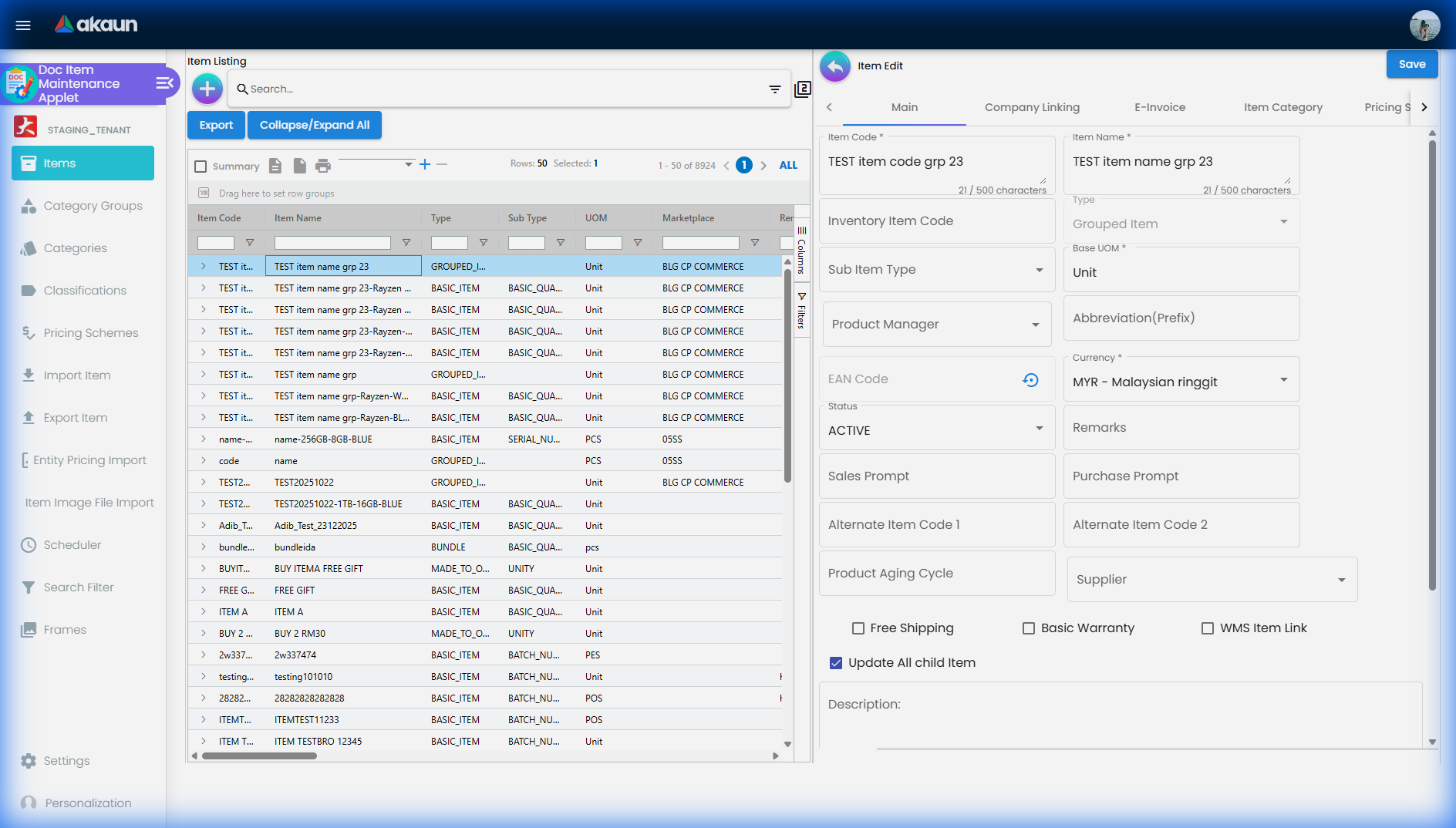
General information: name (editable), code and type (locked), sub item type, GL code, abbreviation / prefix (used by the voucher applet to group items), EAN code, currency, status, supplier, sales and purchase prompts, remarks, and the consignment / production / delivery checkboxes.
The GL code on this tab is not a fallback — it is the strongest thing an item can say about where its money goes, and understanding why takes one paragraph. There are two GL codes attached to an item: the one on this tab, stored on the item record itself, and a per-company GL code link, which is a separate row per (item, company, transaction code) and has no tab at all — it is created and maintained only by the Doc Item With GL Code import.
When somebody adds this item to a sales invoice, purchase invoice or POS line, the applet copies the code on this tab onto the document line. The journal posting that runs at finalise then resolves the line’s account in this order: the code on the line, the code on the document header, the per-item-per-company link for that transaction code, and finally the company default (SALES, PURCHASE and the rest). Because the applet has already put this tab’s code on the line, it wins at step one and the per-company link is never consulted — at the till the per-company link is used only when the item’s own field is blank, and on a sales invoice it is not consulted at all. So the relationship is the reverse of what the two screens suggest: the item’s own GL code overrides the per-company link, not the other way round.
A purchase invoice built from a goods receipt or a purchase order does not read the item at all. Pulling a GRN or PO line into a purchase invoice copies the GL code from that source document line, whatever it was when the earlier document was raised. Correcting an item’s GL code today therefore changes nothing on invoices still being raised against older purchase orders, and the line quietly falls through to the company’s default purchases account. Recurrent GL complaints in the support record are this shape — an account code set on the item, a document that posts to the catch-all anyway, and nothing anywhere saying a fallback happened. The posting chain is silent by design: finalise returns success either way.
If a document has already posted to the wrong account, the fix is on the document or in the journal, not on the item — see Chart of Accounts.
E-Invoice tab
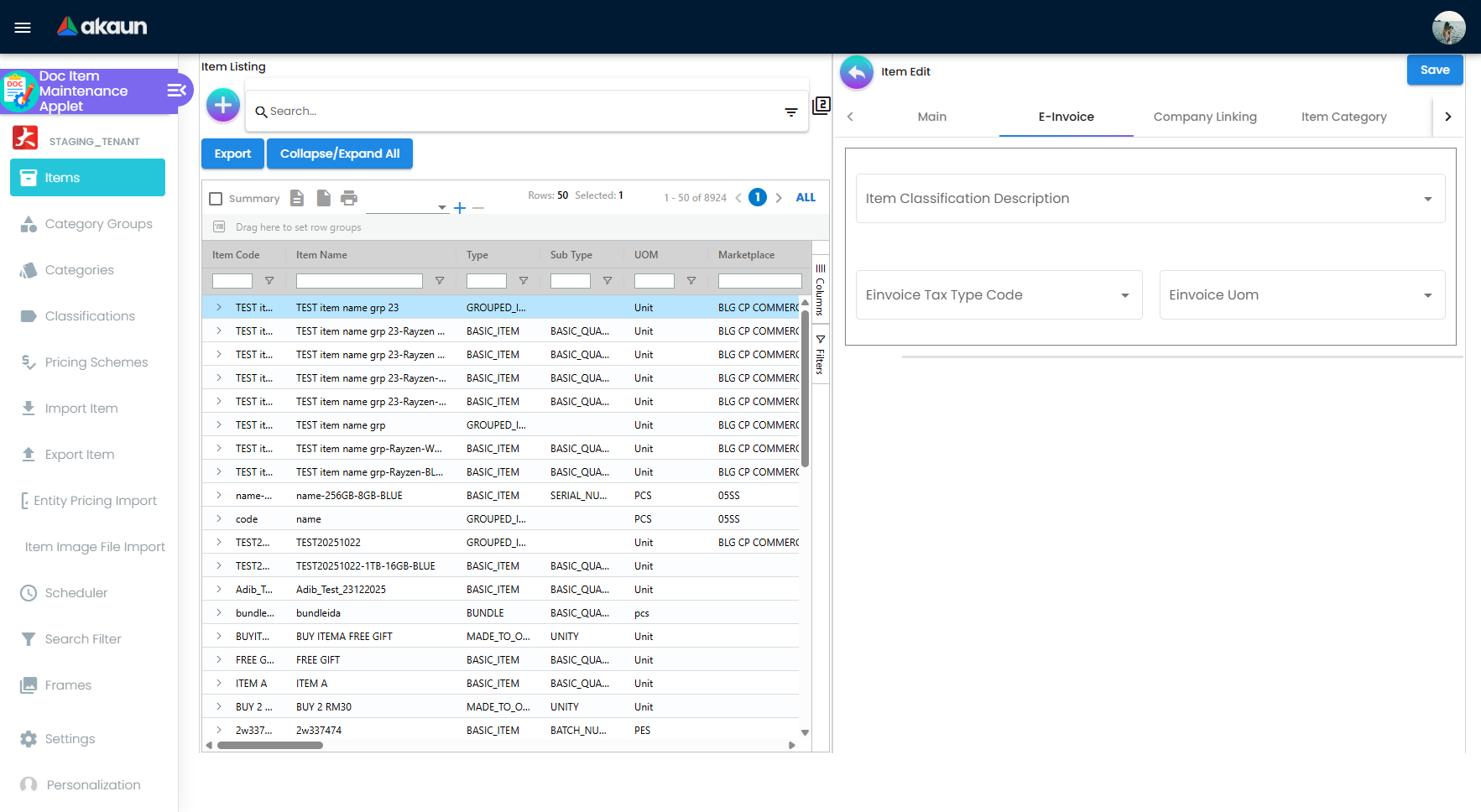
The LHDN item classification, taxable type code and e-Invoice UOM carried by every e-Invoice line for this item — with one large qualification: the taxable type is recomputed from the line’s tax amount at submission and survives only on a line that has a non-zero tax amount and a code other than 06 (see Tax Configuration).
Three things about this tab are not on it:
- Leaving a field blank does not stop a submission. The payload builder substitutes
022 Othersfor a blank classification,H87 piecefor a blank e-Invoice UOM, and a taxable type derived from the line’s tax amount — before the mandatory-field check looks, so that check can never report these three as missing. - Opening the tab on an item with no classification pre-fills
022 Othersand marks the form changed, unless an Item Template supplies one. Convenient for an accessory, wrong for a phone, and silent either way. - The
DEFAULT_EINVOICE_*settings are no longer read. The settings screen still offers the fields, so a value saved there looks configured and reaches nothing.
Classifications themselves are maintained under the Classifications menu. The list starts as 45 seeded codes; a scheduled clock refreshes their wording from LHDN where your tenant has it, and never adds a code — see Classifications.
Item Category tab
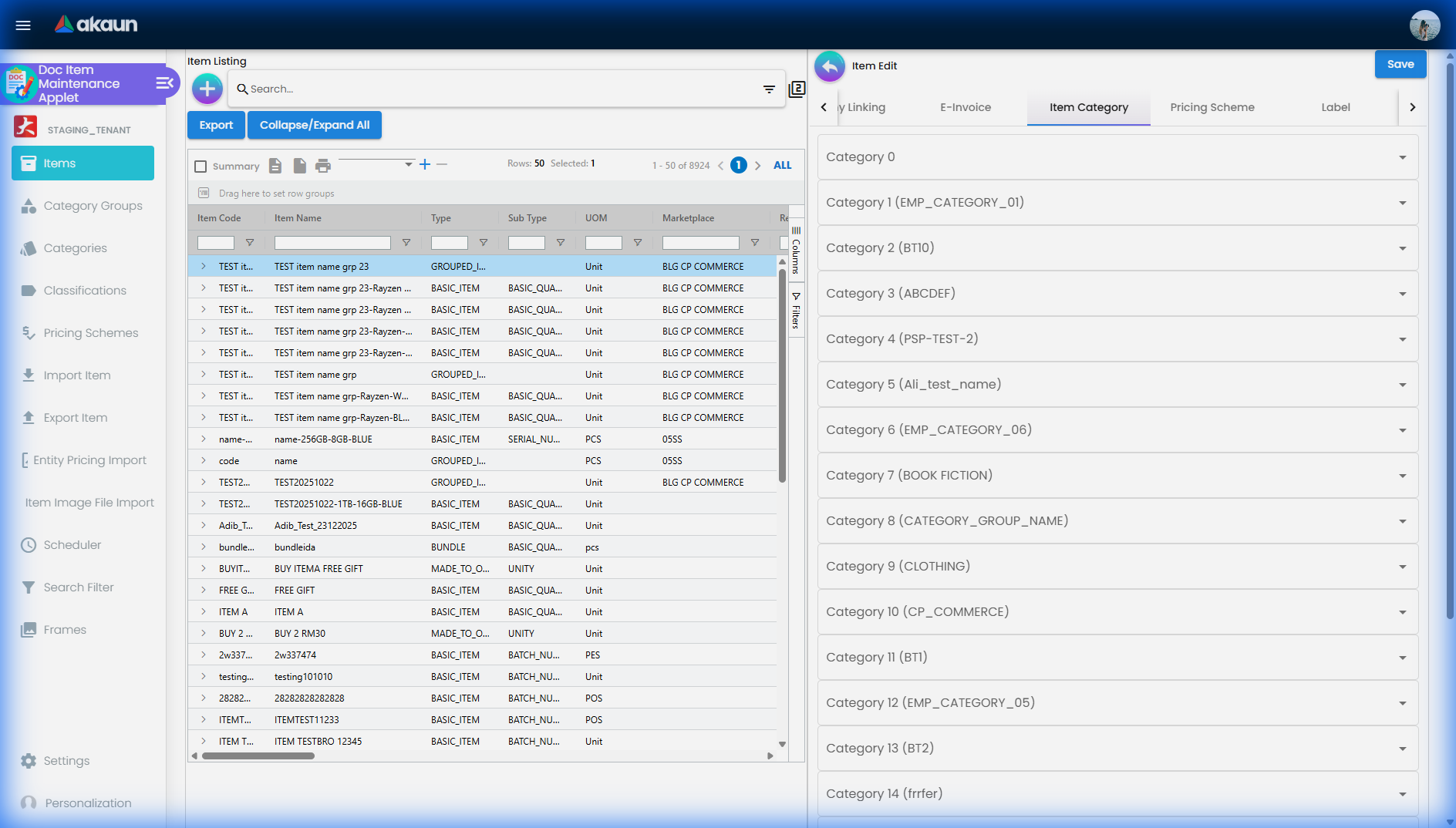
Up to 21 category slots (Category 0 – 20). Each slot is bound to one category group in Application Settings, and each can be made mandatory. Categories are created under the Categories menu.
Changing which group a slot is bound to resets that category on every item that used the old group. The UI warns first; the recovery is to re-import the links with the Doc Item Category Link template.
Tax tab
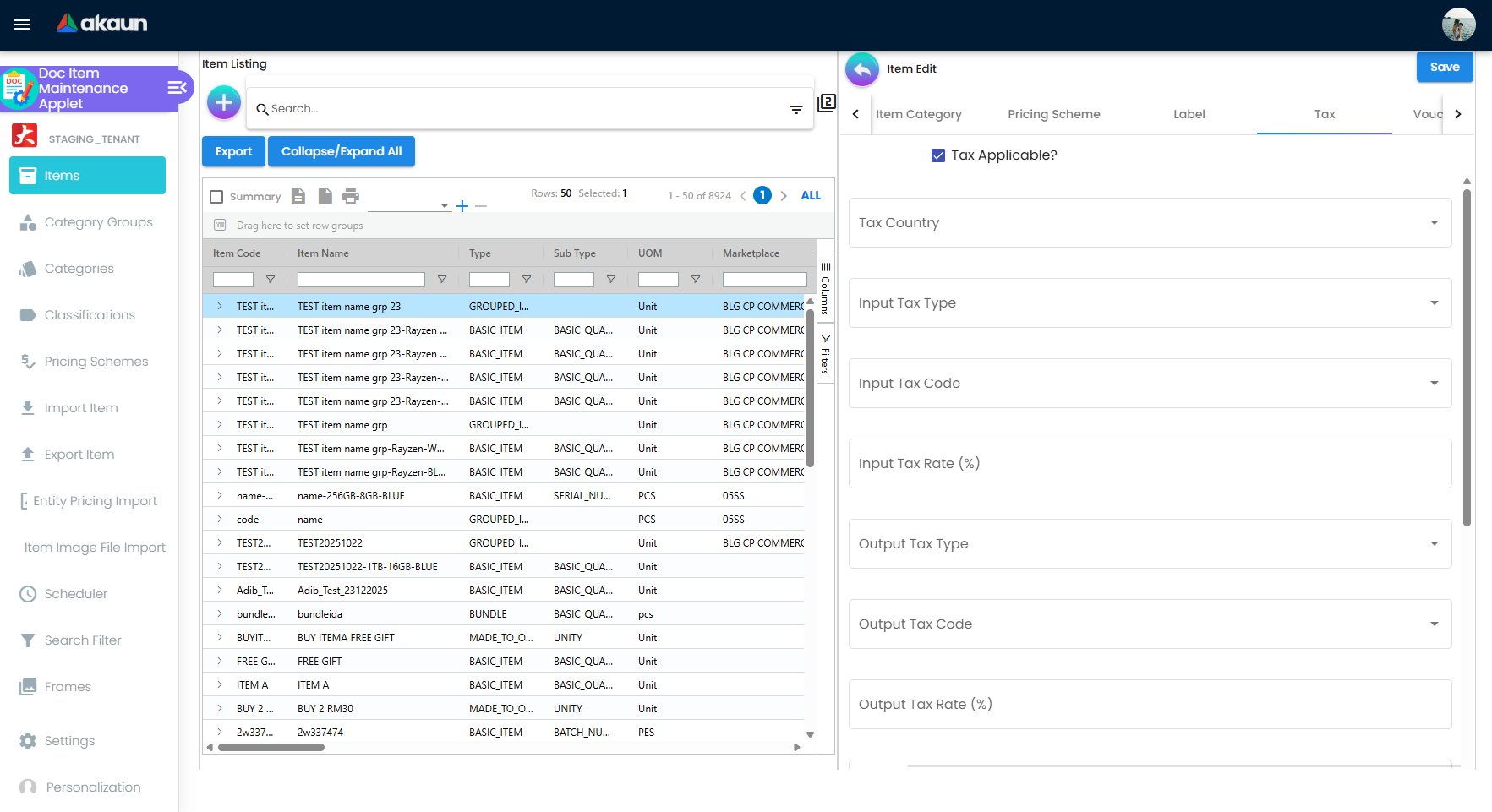
Tick tax applicable, then set the country and the four code/type/rate triples — input, output, output-withholding and input-withholding. The codes come from the Tax Configuration applet, and the rate is read from the code rather than typed here, so a rate that looks wrong is a Tax Configuration question, not an item question.
The tick is a gate, not a label. With tax applicable off, none of the three triples is copied onto a document line — a code can be filled in and visible on this screen and still never apply. A filled-in tax code with the tick off is the combination to look for when an invoice comes out untaxed, and it is the one the screen makes look correct. Leaving the tick off does not error; it produces invoices with no tax line, which is only noticed when somebody reconciles the SST return.
Which triple applies depends on the document type, and some types get neither. On the JSON document-import path the line takes this item’s output triple when the document’s server type contains SALES and the input triple when it contains PURCHASE. A type containing neither — a delivery order, a stock transfer, a jobsheet, a payment or receipt voucher — takes no tax code, type or rate from the item at all.
The rate on this tab is a copy, and it is a copy of a different column from the one a document uses. Picking a code here stores the code’s tax_rate_filing; a line editor stamps the code’s tax_rate_txn onto a document line. Both columns are written together by both maintenance screens, so they normally hold the same value and this costs nothing — but it means “the rate on the item” and “the rate on the invoice” are two stored numbers rather than one live lookup, and a third copy sits on each pricing-scheme link, taken when the link was created and never refreshed by a later item edit. See Tax Configuration → Lifecycle and effects.
Treat the withholding half of this tab as unproven. The two withholding drop-downs only offer codes somebody has created as withholding codes in Tax Configuration; if none exist, both are empty and the fields cannot be filled at all. The output-withholding rate also does not reload when you reopen the item — the edit form reads a property name the item header does not have — so do not take what the reopened form shows as evidence of what was stored.
Multi UOM tab
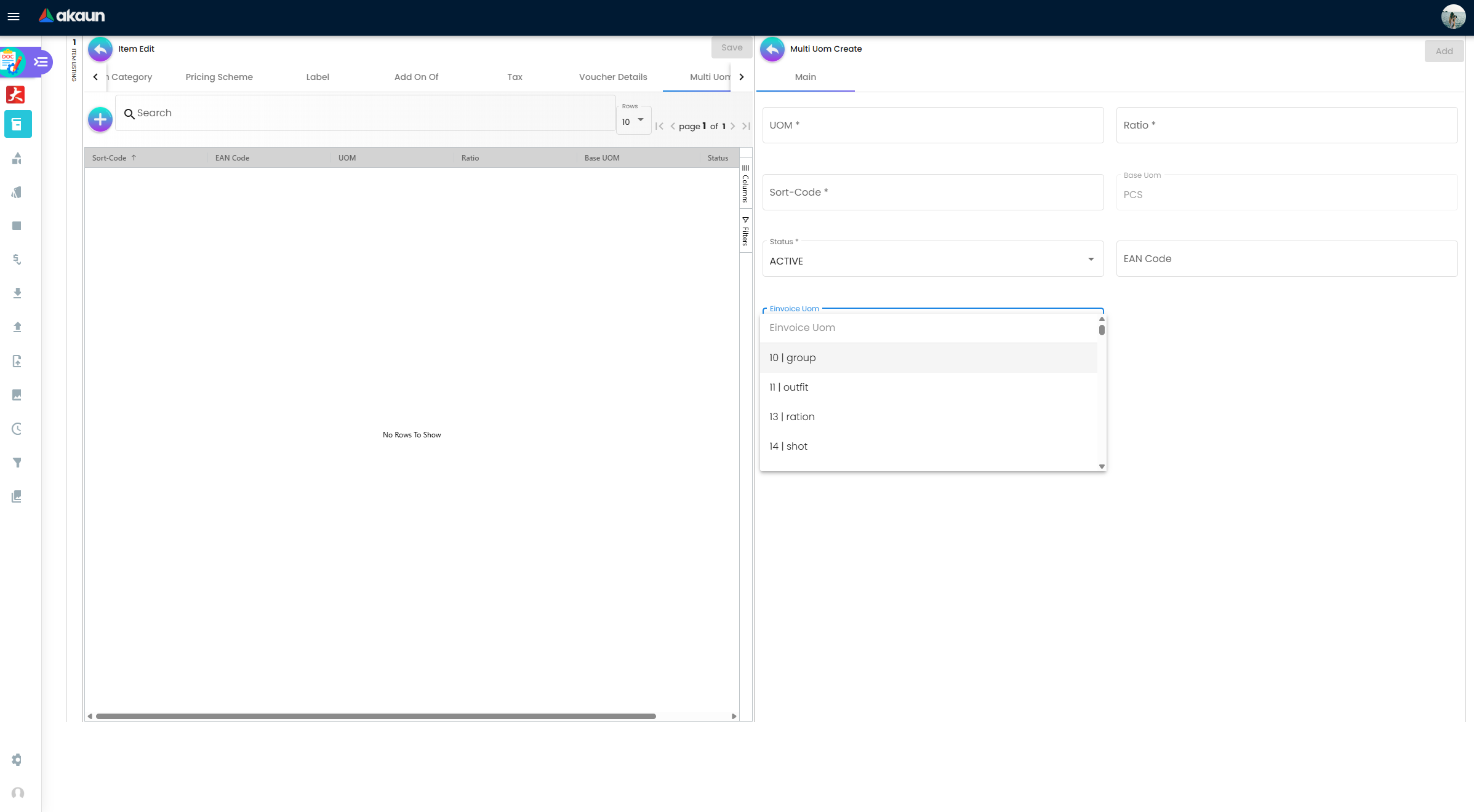
Alternative units and their ratio to the base UOM, so transactional applets can convert automatically and reports can show multiple units:
- 1 Box = 12 Packs
- 1 Pack = 10 Strips
- 1 Strip = 10 Tablets
Each line takes a unit, its ratio to the base unit, a status, a sort code, an EAN code and an e-Invoice UOM. Three of those carry something the screen does not say:
| Field | What it carries |
|---|---|
| Ratio | Always expressed in base units, never in the unit on the line above. A Box of 12 Packs of 10 Strips has a ratio of 120 against a base of Strips, not 12 |
| Sort Code | Orders the units from smallest upwards, 001 first. It decides the order the units appear in on document lines and reports, so getting it backwards makes every picker read oddly |
| E-Invoice UOM | The LHDN code for this unit. It is only an option: a document line keeps the item’s own code when you sell in Boxes, and offers this one on its E-Invoice UOM picker. The quantity LHDN receives is always in base units, so choosing the Box code on a line reports 24 pieces as 24 boxes — see Which unit each line reports |
Adding a Multi UOM row also pushes a matching row onto the linked inventory item, so the alternative unit exists on both sides.
Branch Linking and Company Linking tabs
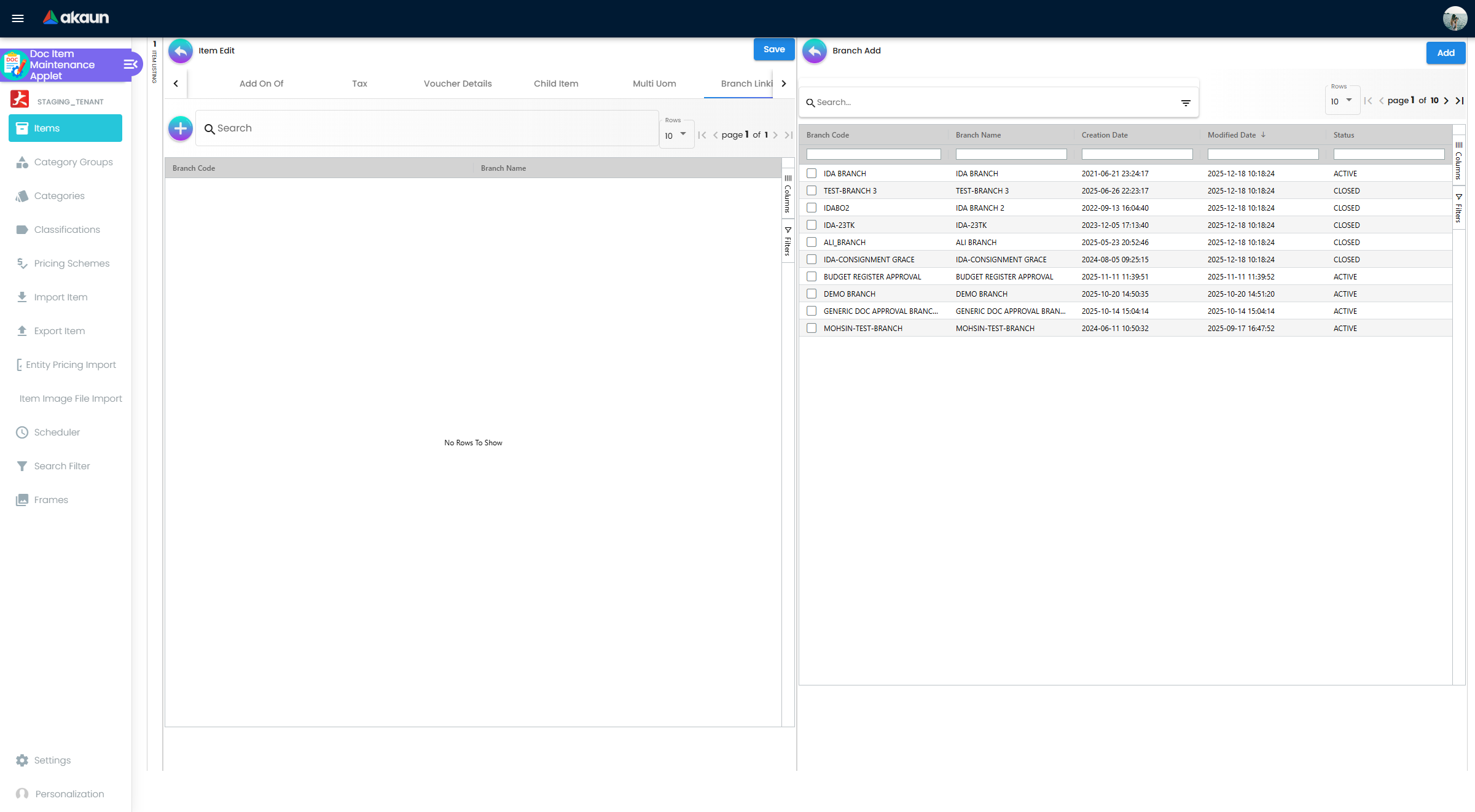
These two tabs record which companies and branches an item belongs to. The links are stored in one table and can be imported and exported with the Doc Item Company Link and Doc Item Branch Link templates. They are a way of marking a handful of items, not a way of partitioning a catalogue: there is no bulk “this branch carries only these categories” control behind them, and — as the caution below explains — marking an item may not restrict anything at all.
Do not rely on these tabs as a visibility control until you have tested it on your own tenant. We could not establish that linking an item to a branch or company prevents it being transacted elsewhere: the lookup that prices and stocks a document line does not consult those links, and although they are written, imported, exported and validated, we found nothing in POS, sales invoicing or the backend that refuses a document because of them.
Companies and branches themselves come from the Organisation applet. If you need a branch to be unable to sell something, treat it as an open question and verify on your own data before designing a process around it. Who may see which branch is a permission question with its own model.
Costings tab
Cost figures per company, read from the stored company stock-balance row rather than calculated here — Where the numbers on this screen come from explains which processor writes each figure, and which four columns nothing writes at all.
The tab is hidden by default (HIDE_COSTINGS_TAB) and stays hidden until somebody turns that setting off; a user with the SHOW_COSTINGS_TAB permission sees it regardless, and each individual figure has its own SHOW_COST_* permission. That per-figure split exists so a buyer can be shown last-purchase cost without being shown the moving average the accounts team works from.
PNS Settlement Method tab
HIDE_PNS_SETTLEMENT_METHOD off. It links a product-and-service item to a settlement method for payment-provider and membership-point workflows.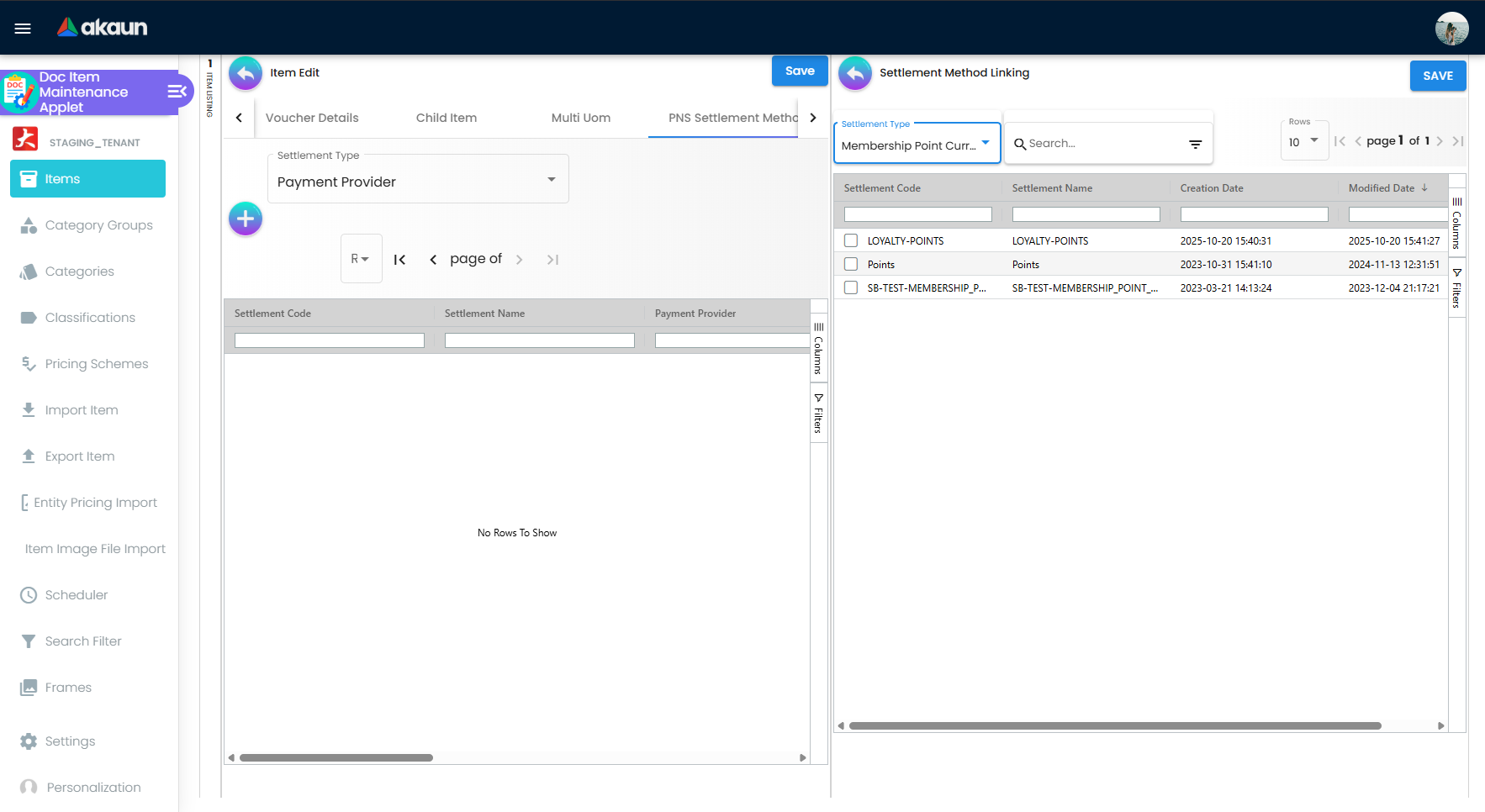
Settlement type is Payment Provider or Membership Point Currency.
Pricing Scheme tab
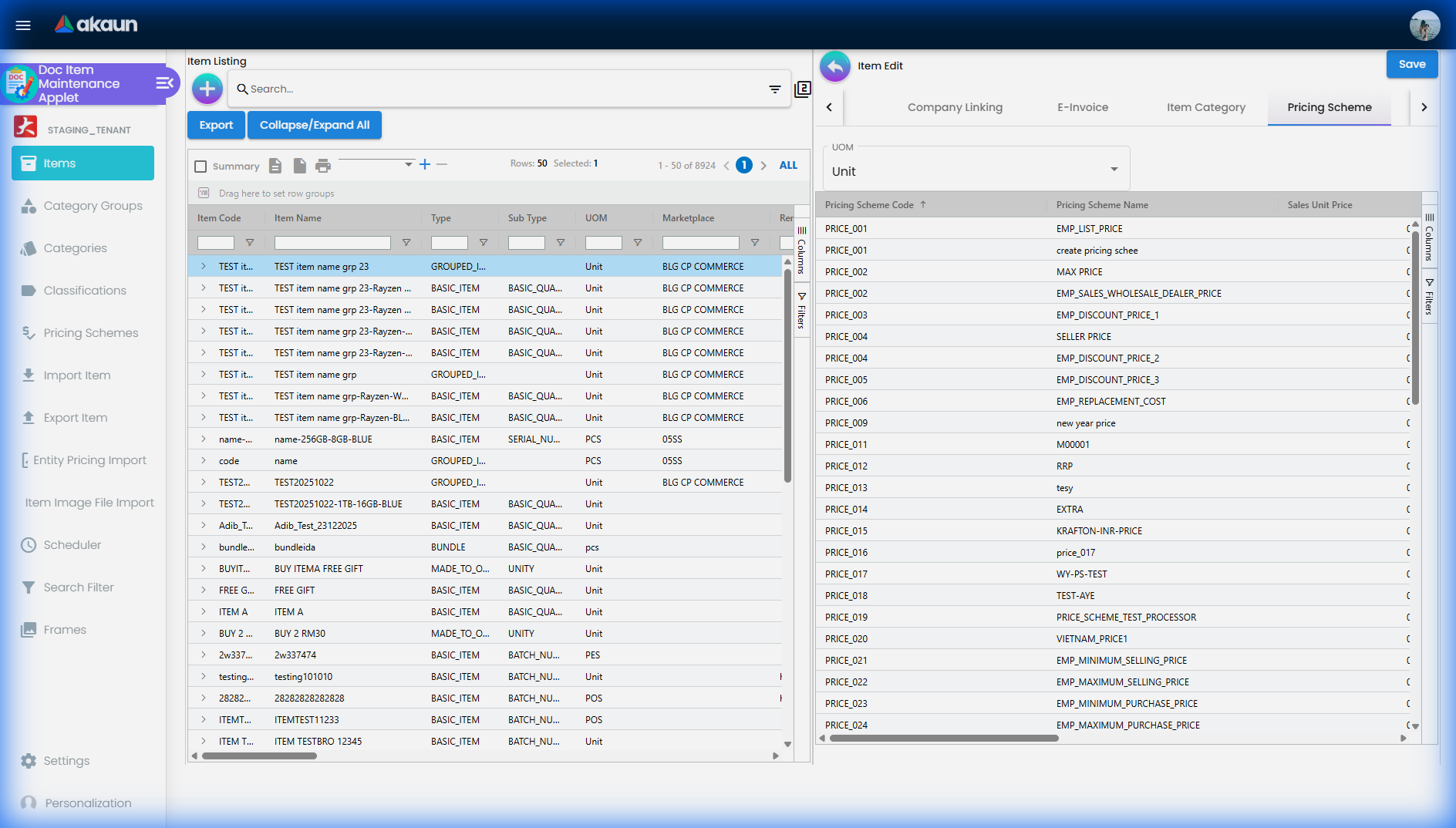
Enter the unit price (and minimum, maximum, promotion, before / after tax) for each pricing scheme template defined under the Pricing Schemes menu. Transactional applets pick a scheme and read the price from here.
This is the layer that actually reaches a document. Of the three ways BigLedger can say “this buyer does not pay list price” — a pricing scheme, a price book on top of it, and a per-customer price on the Entity Pricing tab — the scheme is the one the selling path reads.
Each row you fill in here is one record keyed on scheme + item + UOM, and it carries far more than a price: a minimum, a maximum, a promotion price with its own dates, a validity window, quantity bands, reward and redemption points, reference, delta and rebate prices, an e-invoice block — and a full copy of the item’s tax code, type and rate, for sales, purchase and both withholding sides. Most of those columns behave differently from how the screen implies, and the table below says which.
The tax block on a price row is a copy of the item, taken when the row was created, and nothing refreshes it. When a price row is created by the item-code generator, twelve tax columns are copied off the item header onto it — output and input code, type and rate, and both withholding triples. Every other creation path copies none of them and the validator fills each missing rate with zero. So two price rows on the same item can disagree about its tax from the moment they are born, and an item whose tax code you correct afterwards leaves both behind.
No screen anywhere compares the two, so a price row whose tax block has gone stale looks exactly like one that has not. It bites the moment an item’s tax code changes after its prices were entered: every price row already on that item keeps the old block, and no screen shows that the two have parted.
This is the same shape as the frozen Tax tab on a customer record (Customer Maintenance) and the two stored rate columns behind both (Tax Configuration). If a tax rate on a document looks stale, the price row is the third place to check, and the only one with no screen that shows the discrepancy.
The tax the line ends up with is often not this row’s. When the price picker builds its list it decides the tax code, rate and type per row, by taking the first of these that is present: the entity branch’s output tax code on the document, then the customer’s frozen Tax tab, then this price row’s own tax code, then the item header’s, then the company’s default output tax code (read live from the tax code record, not copied), and failing all five, a blank code and a zero rate. The price row is third in that queue, behind two things most people do not know are in it — so a tax code you set on a price row is what the line gets only when the branch and the customer have nothing to say.
| Column on the tab | What it really does |
|---|---|
| Unit price (incl. and excl. tax) | The price. Which of the two boxes the line editor uses follows the company’s tax-inclusive setting, so fill in the one your company actually sells on — nothing derives the other from it |
| Minimum price | Real, but advisory and browser-only: compared against the typed price by the line editor when DISALLOW_SELL_BELOW_MIN_PRICE is on, bypassed by the matching ALLOW_ permission or a line approval, and checked by no server-side validator, job processor or finalise path. See Sales Invoice and Sales Order |
| Maximum price | Stored, exported, copied between schemes and sent to the storefront — and compared with nothing, anywhere, in any layer. There is no ceiling check |
| Promotion price and its two dates | Written by the marketplace syncs, the copy-scheme job and this form. Honoured by the POS and Sales Order v2 line search only, and those read the row’s Valid Date Start / End, not the promotion’s own two date columns, which no front end reads at all |
| Valid Date Start / End | Never filtered by the server. The price endpoints return an expired row exactly as they return a live one; only the POS and Sales Order v2 line search run a date test, and only to choose between the promotion price and the unit price |
| Valid Date Check | Written by nobody and read by nobody. It is serialised into the price API response and dropped |
| Min / Max Qty per Order | Stored by this form, copied to child items, sent to the storefront — and no consumer enforces an order quantity against them |
| Validity Period (Days) | Genuinely read: it is how long membership points earned on the line last, defaulting to 365 days when it is zero or null |
| Follow / Update Child Pricing | Genuinely read, and the only one of these columns used as a SQL condition: it decides whether a bundle parent’s price is recomputed when a child’s price changes |
| The e-invoice block (UOM, taxable type, classification) | Written by this form and read back by this form. No document line ever takes its e-invoice classification or taxable type from a price row — the line always takes them from the item header or from the document before it, so anything you type here is stored and never submitted |
price_range_from, price_range_to and the two pairs that would set a minimum price as a percentage of the unit or purchase price were added to the table and never connected: no form control, no API field, no storefront projection, no consumer in any of the 449 applet repositories. They exist in the front end only as a translated drop-down label. If somebody asks for banded pricing or an automatic floor, this is a schema placeholder, not a feature.Manage Media tab
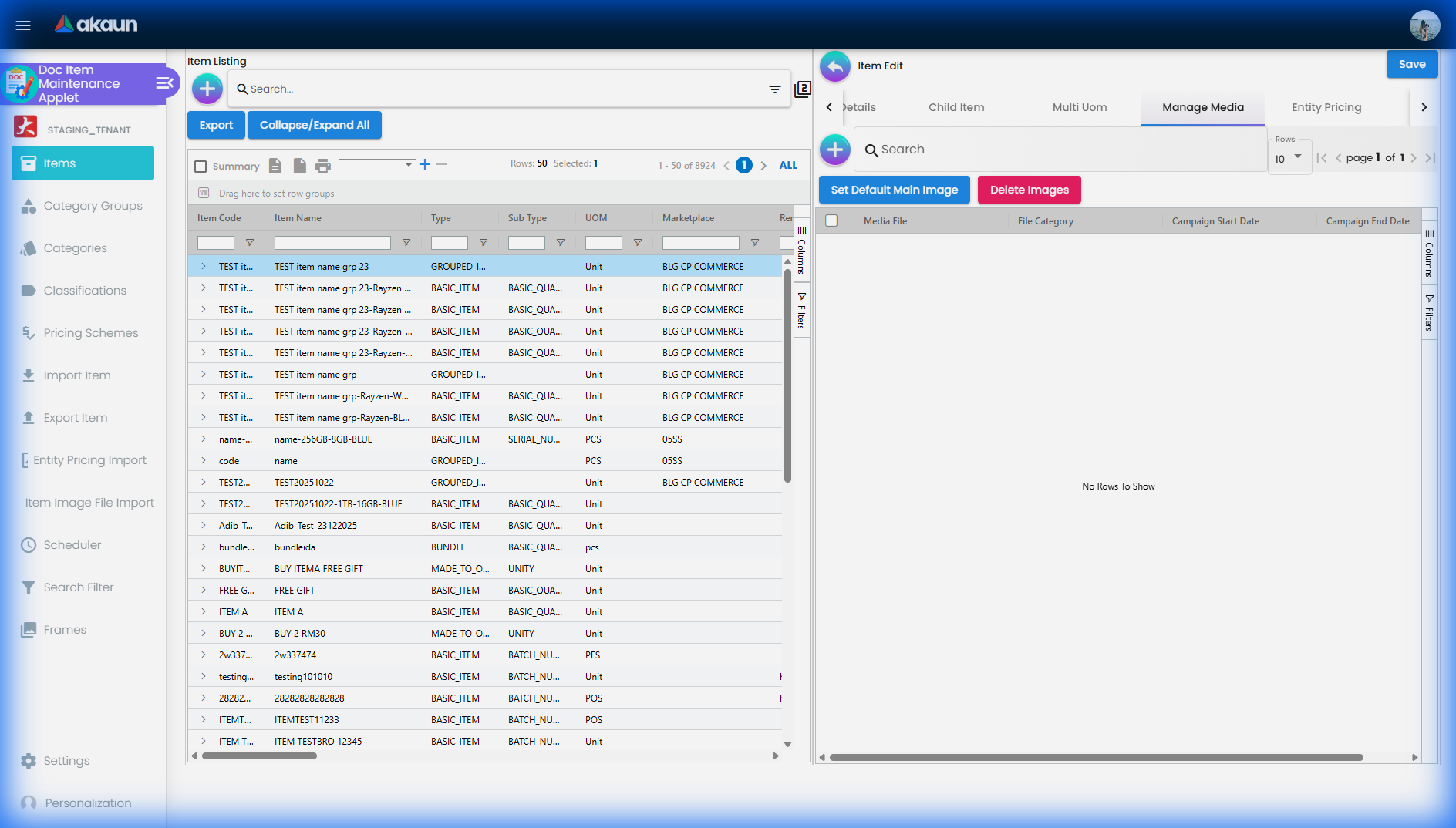
Product images used by Ecomsync, CP Commerce, POS and GRN. Image type is for organisation only — Main Image (the marketplace listing image), Promotional Image (replaces the main image during a promotion) and Additional images (angles, box contents). The date range on an image is a reference note and does not switch images automatically; somebody still has to change the main image when the promotion starts.
Entity Pricing tab
Screenshot withdrawn; a recapture from a demo tenant is on the list.
A price per customer, supplier or employee for this item: sales and purchase unit / min / max price, quantity bands (sales, purchase, consignment), currency, tax codes, lead time and the counterparty’s own item code and name. Every field on the add and edit forms can be hidden individually in Application Settings.
The two halves of a row are not equally connected. The purchase half is what this tab is for: the replenishment run’s order-fulfilment processor reads the supplier row for the item and takes its purchase unit price, minimum and maximum order quantity and lead time onto the purchase order it generates, and Stock Replenishment documents the selection rules. The sales half is stored and exported and nothing prices from it: the item-scan endpoint the selling applets call joins only the pricing-scheme link table, and its query criteria carries no entity or customer field, so it cannot filter by the customer on the document.
A contracted B2B sales price entered here will not appear on a sales order, invoice, quotation or POS line, and nothing warns the person who entered it. Price a named customer through a customer category and a price book price set, or through a pricing scheme.
T2T Item Mapping tab
Tenant-to-Tenant (T2T) lets a pair of BigLedger tenants that trade with each other link their item codes, so that a purchase order or invoice sent from the other tenant is recognised as your item.
| Sub-tab | Purpose |
|---|---|
| Host Tenant | Map your item to an item in a host tenant (the tenant you connect to) |
| Guest Tenant Item Mapping | Read-only view of guest tenants’ items mapped to your item |
| Guest Tenant Permission Listing | Which guest tenants may map their items to yours |
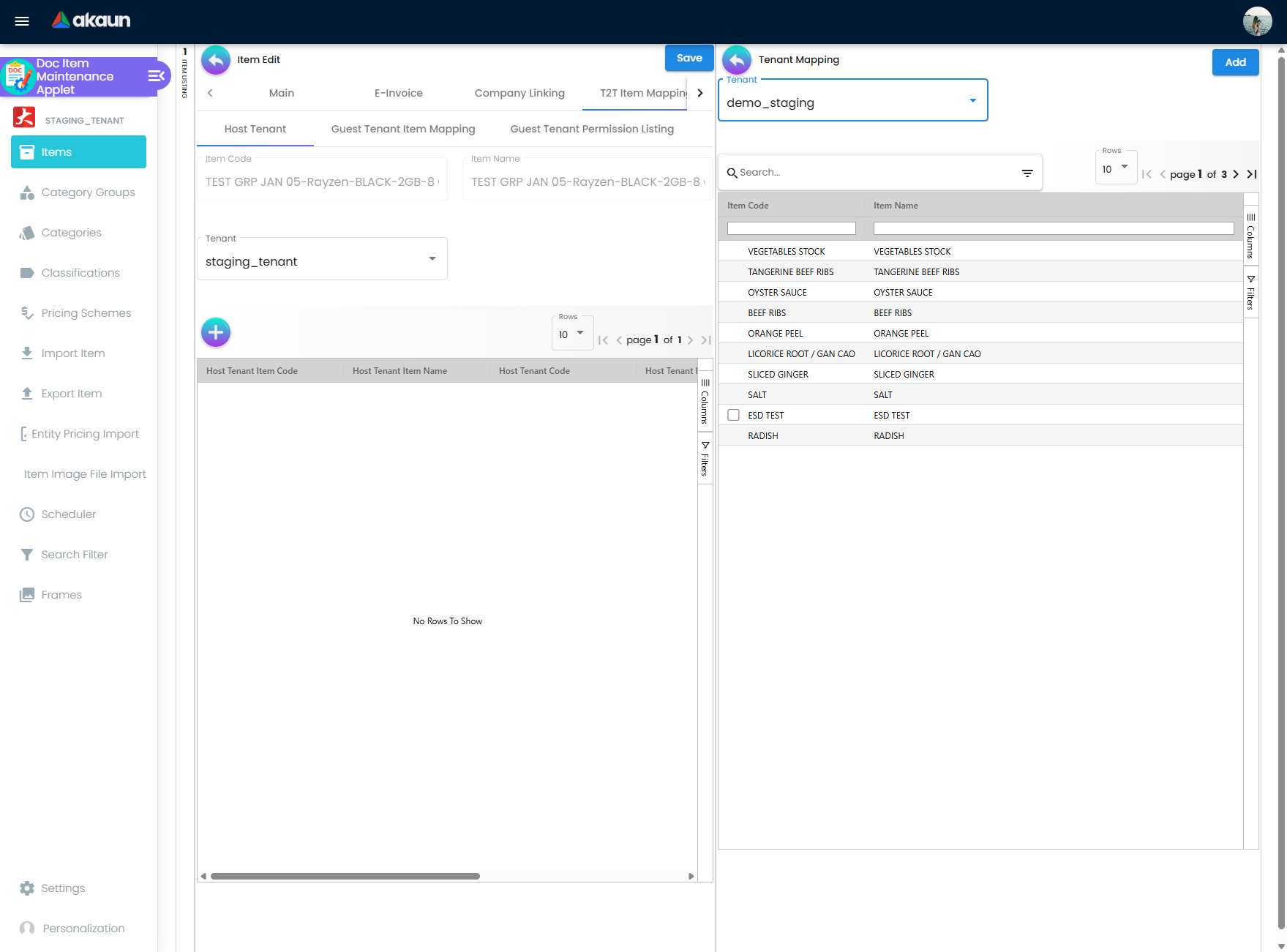
Marketplace tab
Links the item to store listings on Lazada, Shopee, Shopify, CP Commerce or Anchanto OMS. Main selects the stores; Other Resellers records reseller marketplace URLs; Checking shows the Ecomsync synchronisation report.
Other tabs
- Label — assign labels (a lighter alternative to categories, with no slot binding to configure).
- Dimension Details — height, length, width, weight; read by shipping-rate and delivery-charge logic rather than by anything on this screen.
- Stock Availability — each marketplace shop’s figure for the item, with a Calculate Stock button; see Where the numbers on this screen come from.
- Stock Card — stock balance movements; Basic Item only, because no other type has inventory transaction lines.
- Bundle Config — the child items and quantities of a Bundle. Stock moves on the children, never on the parent. Give every child the Basic Item type. The availability check that runs when a document carrying a bundle is finalised counts only children whose inventory record is a Basic Item, and only at the line’s own location: it takes the smallest whole number of bundles those children can supply, and a child of any other type is not counted at all. When the check fails, the error names the parent — “There’s not enough stock for bundle item <parent code>” — and never the child that ran out, so somebody has to open the bundle and check the children location by location. Sales staff meet this as a document that will not go final for no visible reason.
- Child Item — the variants of a Grouped Item, with ratio, display option and status.
- Voucher Details, Membership, Depreciation, Sales Contract Template Details — type-specific detail, shown only for their item type.
- Attribute, Pages, Reviews — e-commerce catalogue data (attribute sets, CMS posts, ratings) read by the CP Commerce storefront. The Reviews tab is where an item’s product ratings are set up — see Rating Configuration and the Reviews tab.
Category Groups
Screenshot withdrawn; a recapture from a demo tenant is on the list.
A category group is a named container of categories. Application Settings decides which item category slot (0 – 20) uses which group, so that when a user picks Category 3 on an item they only see that group’s categories.
Screenshot withdrawn; a recapture from a demo tenant is on the list.
All six fields are mandatory: Category Group Code, Category Group Name, Type, Param Code, Param Name and Status. The one that matters is Type — DOC_ITEM, CP_COM, EMP_CATEGORIES, LAZADA or SHOPEE — because it decides which consumer sees the group, and which types the form even offers is itself a setting. A group created with the wrong type is invisible to the screen you created it for.
Screenshot withdrawn; a recapture from a demo tenant is on the list.
Editing shows a Main tab and a Categories tab listing the linked categories in a nested grid, where categories can be added, edited or removed.
Screenshot withdrawn; a recapture from a demo tenant is on the list.
Categories
Screenshot withdrawn; a recapture from a demo tenant is on the list.
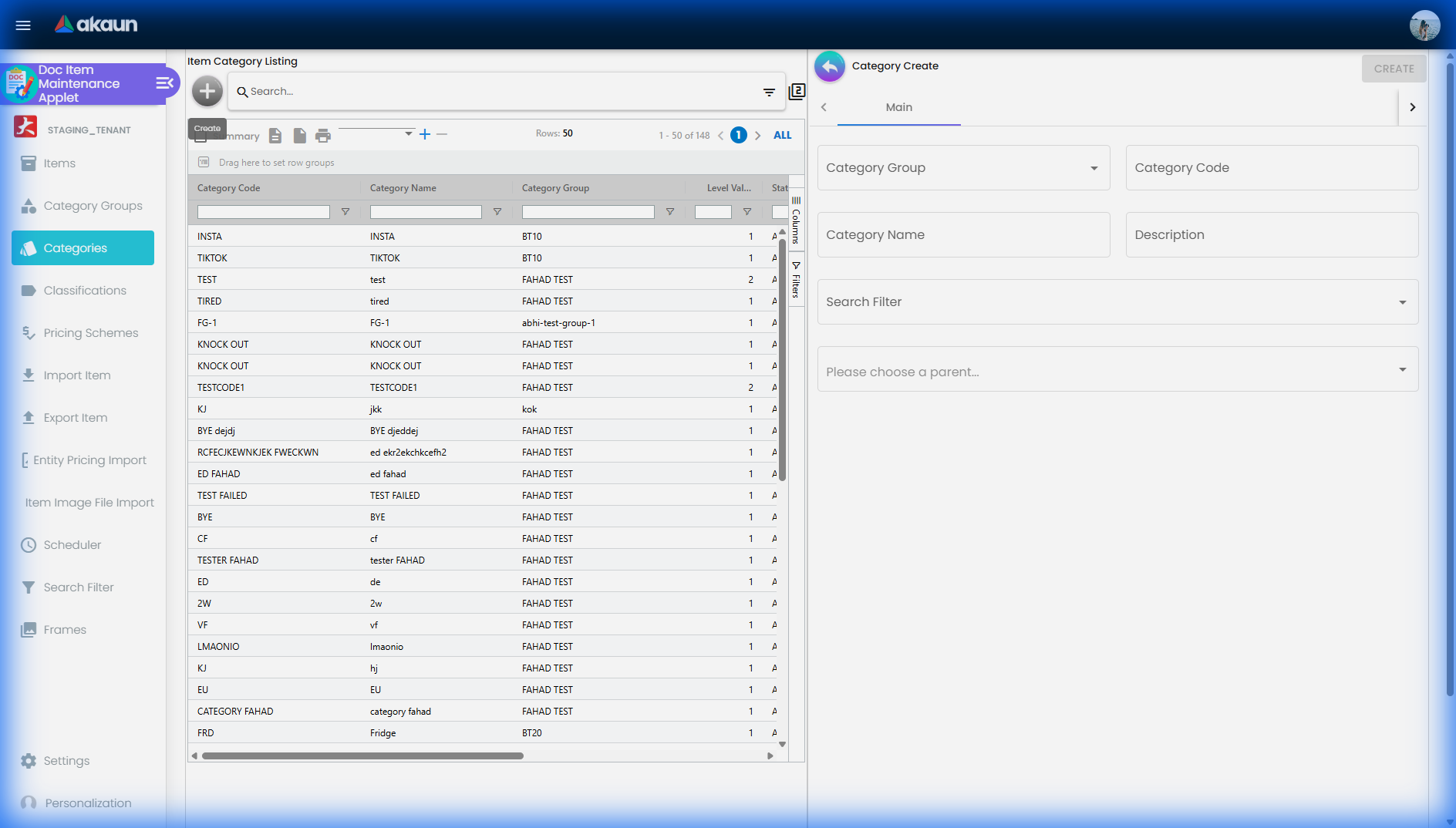
A category needs a group, a code and a name; description, search filter and parent category are optional. Search Filter is what drives the facets on a CP Commerce storefront category page, and Parent Category is what makes categories nest (Smartphones > Flagship smartphones) — a category with no parent sits at the top of its group whether you meant it to or not.
Screenshot withdrawn; a recapture from a demo tenant is on the list.
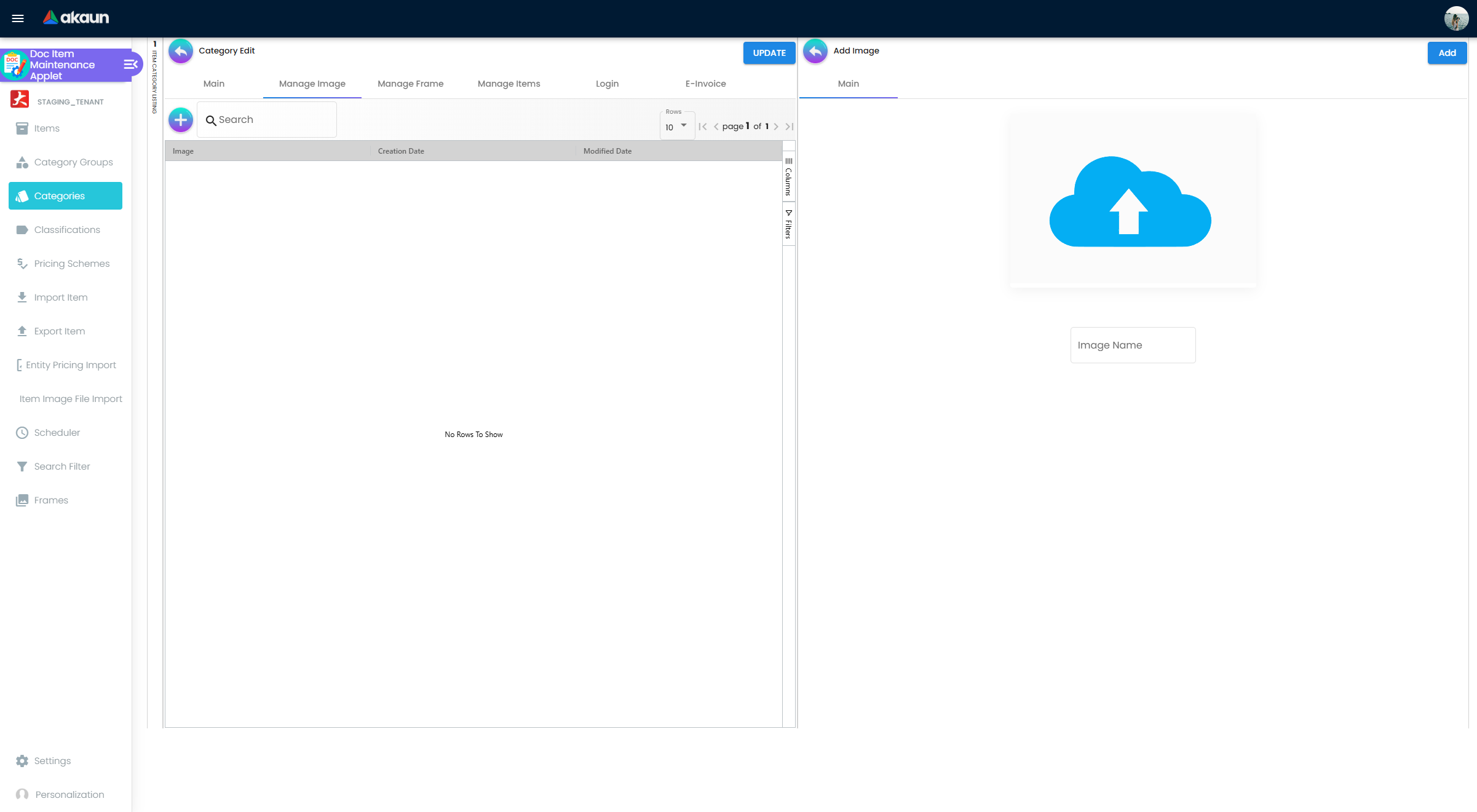
Edit tabs: Main, Report Item Price (see below), Manage Image (category images shown on the CP Commerce storefront), Manage Frame, Manage Item (the items under this category), Login and E-Invoice.
The category’s E-Invoice tab is a note, not a default
The E-Invoice tab on a category holds three values — an item classification, an e-Invoice tax type code and an e-Invoice unit of measure — and pressing Save on the category saves them with it. The tab reads like “every item in Flagship smartphones should report as classification X”, and that is the decision it records. Nothing carries it any further.
- A new item does not pick it up. Creating an item under the category, in any of the three create modes, never reads the category’s record; the item’s own E-Invoice tab still opens on
022 Othersunless an Item Template supplies a classification. - Existing items are not updated. Changing the category’s values touches no item already in it.
- An import does not use it, and neither does submission. A line with a blank classification is still sent as
022 Others, not as its category’s value.
The one screen that reads these values is this tab itself. So a category showing the right code tells you what somebody intended for its items, not what they carry. To make the intention real, put the same three values in an Item Template and create the category’s items from that template; for items that already exist, export them, fill the E-Invoice columns and re-import. To check what an item will actually report, open the item’s own E-Invoice tab — that is the value submission reads.
The Report Item Price tab: a figure stamped on each line at save
Categories → open a category → Report Item Price
This tab gives Sales Report four figures that no item cost carries: Replacement Cost, Manual Cost, Commission and Rebate. A category holds at most one rule for each of the four. A rule is a Price Source (the line’s standard, net or transaction amount, or its base quantity), an Operator (Multiply, Absolute, Add, Subtract or Formula) and a Value or Formula.
What happens behind the scene. Nothing is worked out when you save the rule. When a document is created or saved again, BigLedger looks at each line’s item and at every category that item belongs to. It works out each rule it finds and writes the result onto the line. Sales Report reads those stored figures when you pick one of the four report figures in Calculate Base On. Nothing else reads them: they post nothing to the General Ledger and pay nobody.
For example, a Commission rule on Flagship smartphones of Doc Line Net Amount × 0.02 writes RM 159.96 on a line of two phones at RM 3,999 each.
Where the number comes from, and the cautions that follow:
- It is stamped when the document is saved, not when you run the report. Change the rule and every document already saved keeps the old figure. A document gets the new rule only if it is saved again. So a report across the month the rule changed mixes both rates, line by line.
- It is a figure for the whole line, whatever the name says. Sales Report adds it up without multiplying by the quantity. An Absolute rule of 50 gives 50 on a line of one unit and 50 on a line of ten.
- A line sold far below cost gets zero. If the price source is smaller than the line’s moving-average unit cost divided by its quantity, the figure is set to 0. With an amount as the source, that catches a one-unit line sold below cost, and only steeper losses on lines of more units. With Base Quantity, the quantity is compared with a money amount, so a Base Quantity rule reads 0 on almost every line that carries its cost. The tab has no switch to turn this test off.
- An item in two categories with rules of the same type gets one of them, and which one is not defined.
- A formula that fails gives zero, silently.
{PRICE_SOURCE}is replaced by the source figure. The{DAY}in the tab’s hint is always 0 here. A formula that does not parse, or that comes out negative, writes 0 with no error. - The tab has no delete. To stop a rule, set its Operator to NA. From then on the next save of a document writes 0 for that type, not a blank.
The job that stays yours. Choosing a replacement cost, a commission rate or a rebate is a management decision the software only records. The tab does not show when a rule last changed, and a line does not record which rule produced its figure. So whoever changes a rule tells whoever owns margin reporting, with the date, before that month’s figures are read. Checking it is quick: run SR By Item Code for one item on one day after the change, with Calculate Base On set to that figure, and work the total out by hand from that day’s lines. If a line shows nothing, its document was saved before the rule existed, or its item is in no category with a rule.
Classifications
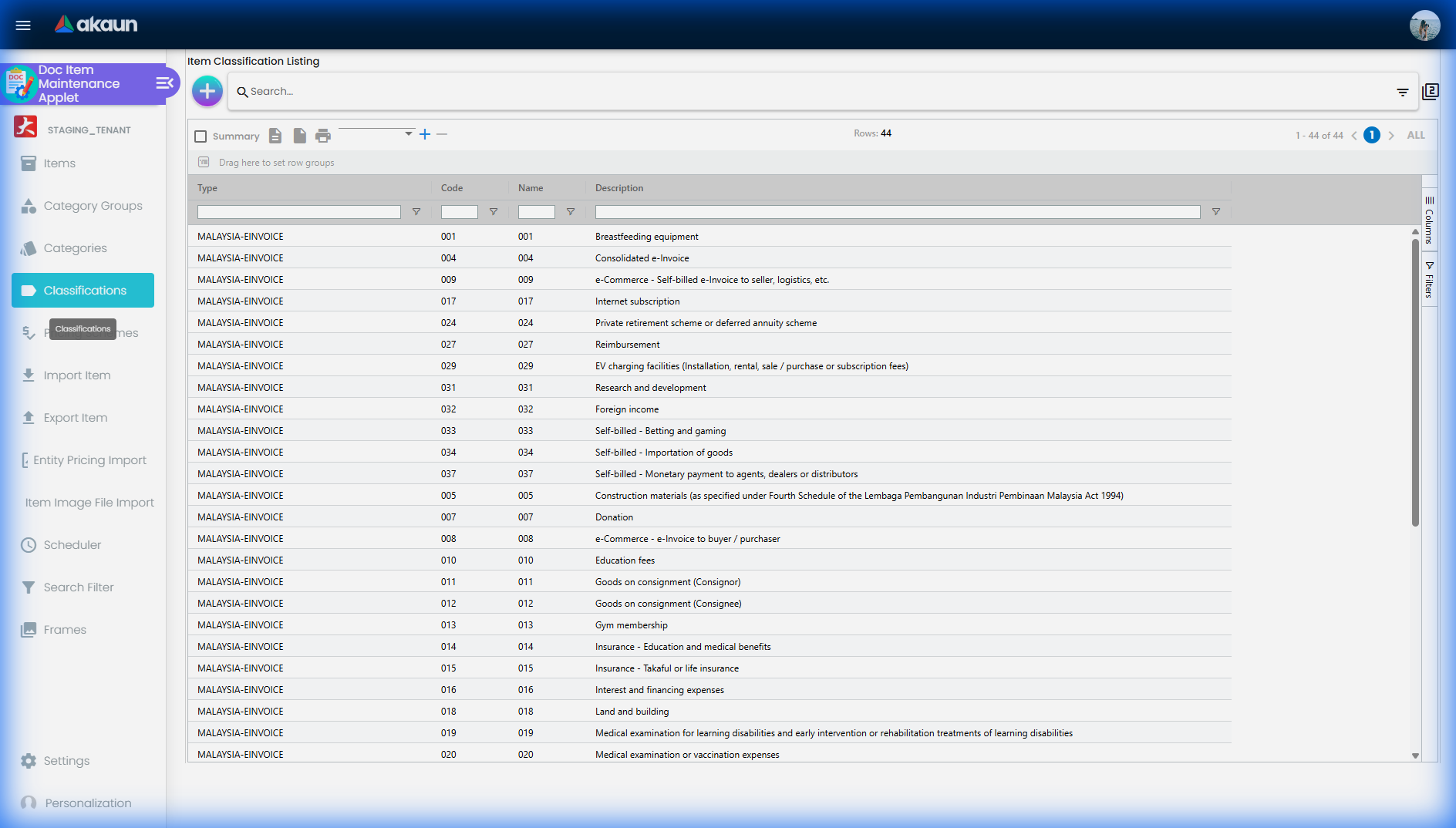
The LHDN (Inland Revenue Board of Malaysia) e-Invoice item classification codes — the list the item’s E-Invoice tab selects from.
MALAYSIA-EINVOICE rows. A scheduled clock, E_INVOICE_ITEM_CLASSIFICATION_CODE_UPDATE_PROCESSOR — one of the default clocks BigLedger installs, so look for it in the Scheduler applet, because not every tenant has it — reads LHDN’s published list and rewrites the description of any code already here when LHDN’s wording has changed. A code LHDN publishes that is not here yet is read and then dropped: the clock never saves it. There is no refresh button. If LHDN adds a code, somebody has to add it by hand on the Create form, clock or no clock.Pricing Schemes
Screenshot withdrawn; a recapture from a demo tenant is on the list.
A pricing scheme is a template (“Retail”, “Member Price”, “Wholesale”). Create the scheme here; enter the actual prices on each item’s Pricing Scheme tab (or import them). POS settings choose which scheme supplies the retail, minimum and maximum price.
Screenshot withdrawn; a recapture from a demo tenant is on the list.
Creating one takes a name and an optional description; the code is generated.
Screenshot withdrawn; a recapture from a demo tenant is on the list.
Edit tabs: Main (edit / delete; code is locked) and Copy. The Copy tab is the one worth knowing about — it duplicates every item price from another scheme, optionally with an amendment, which is how a “Member Price” list gets built as “Retail minus 5%” in one pass instead of item by item across a 12,000-item catalogue. The copy carries the prices, the promotion price and the quantity bands; it does not carry the e-invoice block, which the copy job does not touch.
A scheme you have used as a parent cannot be deleted until its children are — the delete guard raises “this pricing scheme is also used as parent pricing scheme, please delete the child pricing scheme first”.
A scheme is a label, not a price. The scheme header has its own six price columns — sales and purchase unit, minimum and maximum — and they are not a price for anything. Nothing in the backend ever writes them or reads them, and about thirty document applets each carry a copied Pricing Details grid whose Unit Price column is bound to one of them, so that column renders permanently blank and clicking its rows does nothing. Every price a document uses comes from the per-item rows, not from here, so a blank Unit Price on one of those grids is the column doing what it always does rather than a price you failed to enter.
The parent/child tree exists and has never been used. A scheme can name a parent, and when it does, linking an item to the child creates a price row on the child and on every ancestor at that moment — a fan-out at creation time, not an inheritance at read time. There is no fallback anywhere that looks up a parent scheme when a child has no price for an item, so a price edited on a parent after the fan-out does not reach the children. If you want a “Retail minus 5%” list, the Copy tab is the mechanism that exists; the tree is not.
The two remaining header columns are housekeeping. Transaction type is the only mandatory field the validator enforces, and every screen and every marketplace sync writes the same constant into it. Level is a derived depth, computed by walking to the root, surfaced in the price-listing export and read by nothing in this applet that changes behaviour.
Import Item
Screenshot withdrawn; a recapture from a demo tenant is on the list.
| Template | Use |
|---|---|
| Doc Item | Create / update items (column set is configurable) |
| Doc Item Category Link | Link items to categories. Also the recovery route after a category-slot rebinding wipes them |
| Doc Item Relationship | Grouped / bundle parent–child links |
| Doc Item Pricing | Prices per pricing scheme |
| Doc Item With GL Code | The per-company GL code links of items, not the header GL code: the template takes ITEM_CODE, COMPANY_CODE, CHART_OF_ACCOUNT_CODE, GL_CODE, TXN_CODE. This is the only route to a per-company GL code; there is no tab for it |
| Doc Item Label Link | Item to label |
| Doc Item Company Link / Doc Item Branch Link | Company / branch links |
| Doc Item Category | Categories themselves |
| Doc Item with Ecomsync Item Link | Item to marketplace listing |
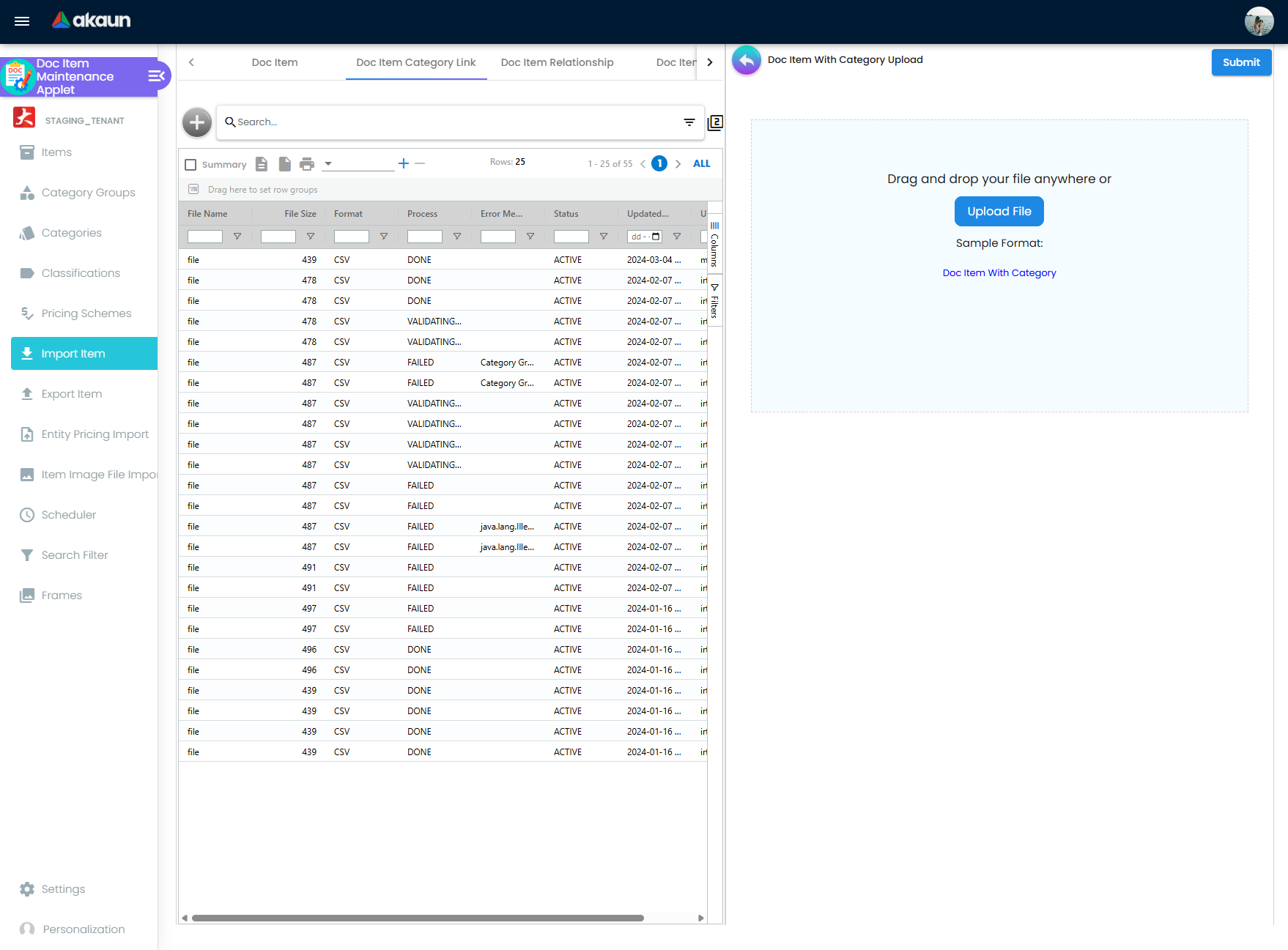
For the Doc Item template a dialog lets you pick only the columns you need before downloading the CSV; the other templates have fixed columns.
Screenshot withdrawn; a recapture from a demo tenant is on the list.
Process: choose the template → (Doc Item only) pick columns → download the CSV → fill it in → save as .csv → upload or drag-and-drop. Uploaded files are listed below and can be reviewed or deleted from the File Import Edit page.
Inventory Item rather than BASIC_ITEM creates an item the create screen could not have created, which downstream code will not recognise as a Basic Item. Use the exact stored values from Item types above.Import is an upsert, not a create
Every Doc Item row is matched on item code against non-deleted items. A match updates that item; no match creates one. There is no create-only mode and no “this code already exists” refusal, so a file that you expect to be rejected as duplicates is instead applied as an edit to every item in it — including the item type and sub item type columns, which the edit screen locks.
Two further differences between importing a change and making the same change on the screen, neither of them visible anywhere:
- The import fires no catalogue webhook. Saving on the screen enqueues a
FINANCIAL_ITEM_UPDATEDevent for anything subscribed to your catalogue; the import path uses the no-webhook variant of the same update service and enqueues nothing. Anything downstream that listens for catalogue changes does not hear about an imported one. - The import does not push the status to the inventory item. The screen’s Save runs that push on a background thread; the import does not run it at all. It does upsert an inventory item for a
BASIC_ITEMrow, and logs a failure rather than reporting it. So a batch of items setINACTIVEby file can leave their inventory recordsACTIVEand still visible on stock reports and in stocktake.
A failed Doc Item import is not a no-op
The four templates do not behave the same way when a file contains errors, and the difference decides whether a failed upload leaves anything behind.
Doc Item With Category checks the whole staged file before it writes anything and abandons the run if any row is invalid — nothing is created. Doc Item has no such check. It validates every row, stamps the errors, and then processes the rows one at a time: an invalid row is recorded and skipped, and the valid rows around it are created and updated as normal. Only at the end does the upload’s status become FAILED. Nothing on the screen distinguishes “failed, nothing happened” from “failed, 300 of your 400 items were written”.
This is not an edge case. One mistyped item type in a 400-row file is enough to mark the whole upload FAILED, and by the time it says so the other 399 rows have already been written. A partly-applied upload is the ordinary outcome of a file with a few bad rows, not a rare one.
What to do about it. Treat a FAILED Doc Item upload as partially applied. Open the upload’s Error tab, note the failing line numbers, and check the item listing for the codes that were not on that list before re-uploading — a second run of the whole file is safe in the sense that it is idempotent for unchanged rows, but it is still an update of every item in the file. For a first load of a new catalogue, use a small file to prove the column set before sending the large one.
Export Item
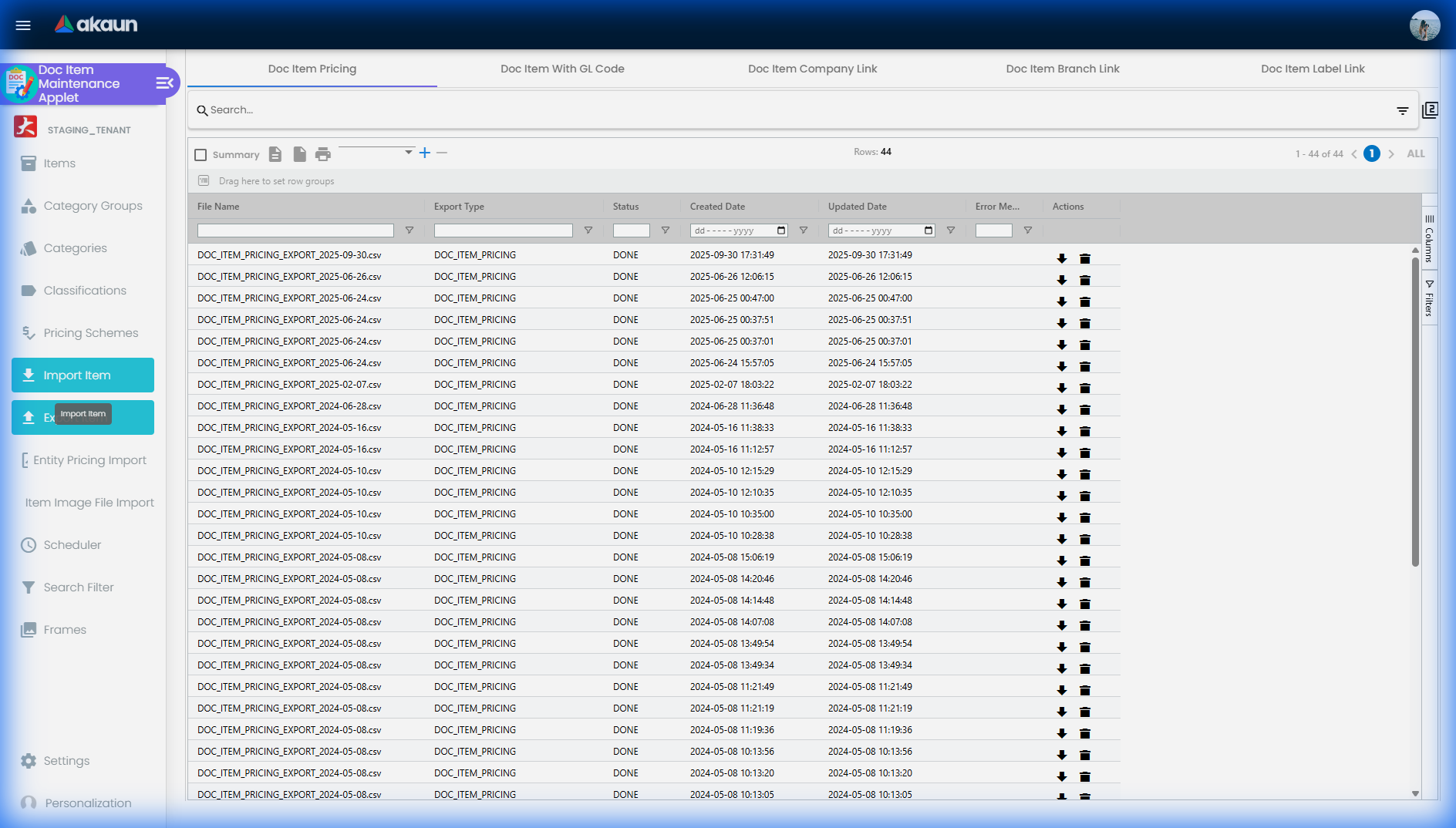
Templates: Doc Item Pricing, Doc Item With GL Code (the per-company GL code links — item, company, chart, GL code, transaction code — not the header GL code), Doc Item Company Link, Doc Item Branch Link, Doc Item Label Link. You can filter which items are exported (pricing scheme, status, categories) but not which columns — each template has a fixed column set, so an export you intend to edit and re-import comes back wider than you wanted.
Scheduler
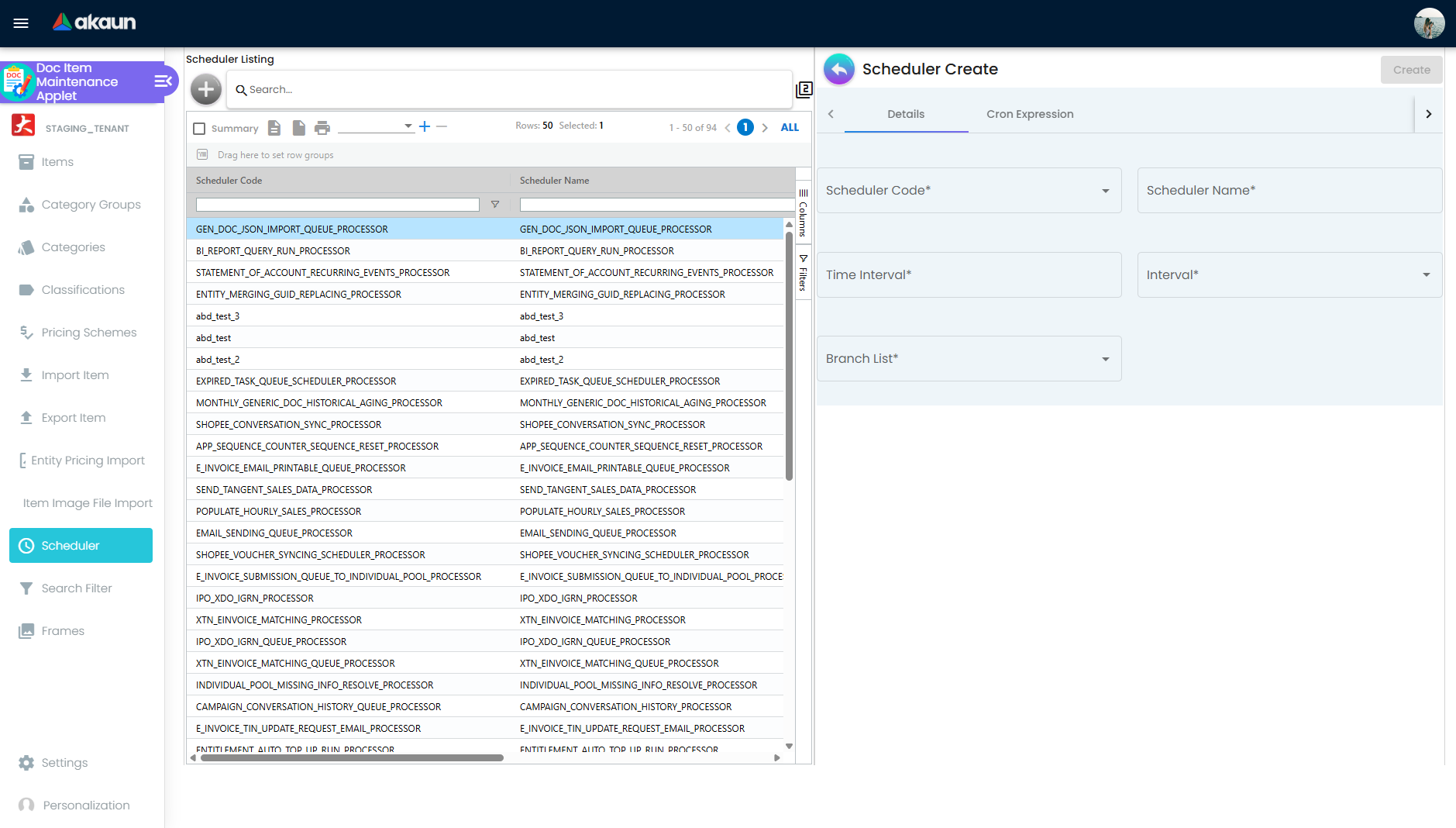
Cron-style jobs, almost entirely marketplace synchronisation: Lazada products / orders / QC status / fulfilment / inventory sync, and the Shopee equivalents. A job takes a scheduler code, a name, a time interval, a branch list and a cron expression.
Search Filter
Search filters define the facets shown on a CP Commerce storefront category page. Within this applet they are only referenced from the Category create / edit screens — they do nothing until a category points at one.
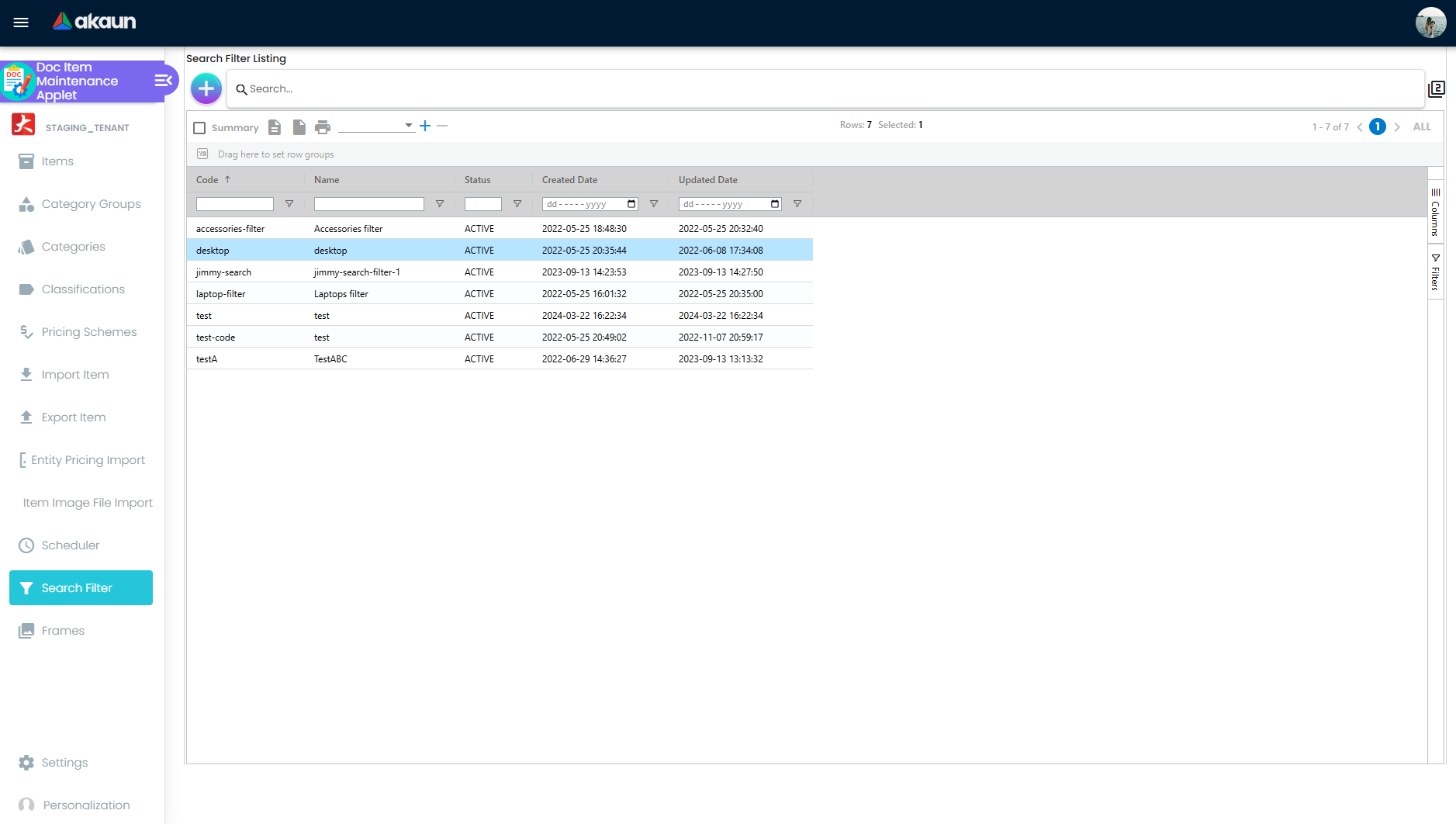
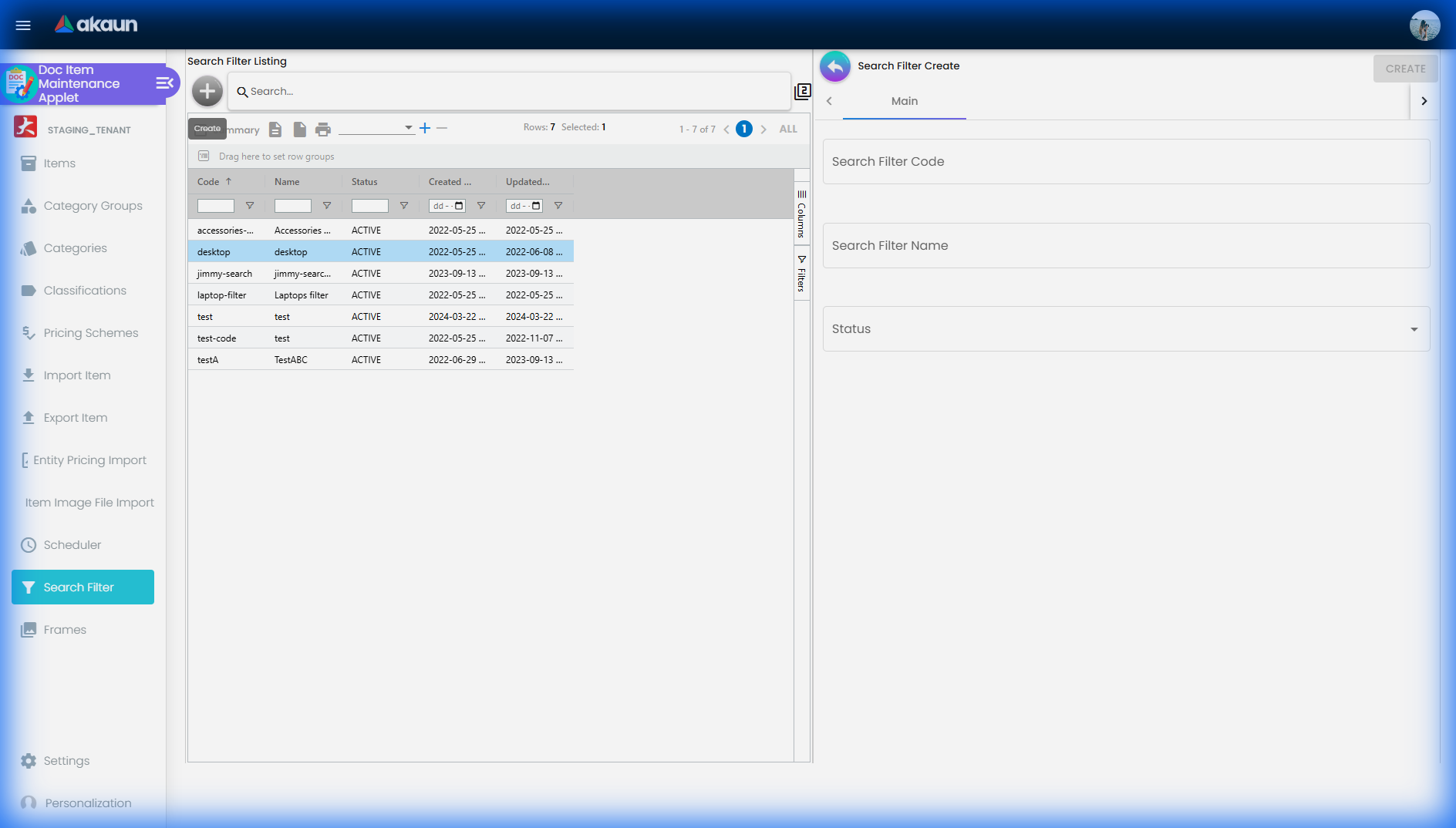
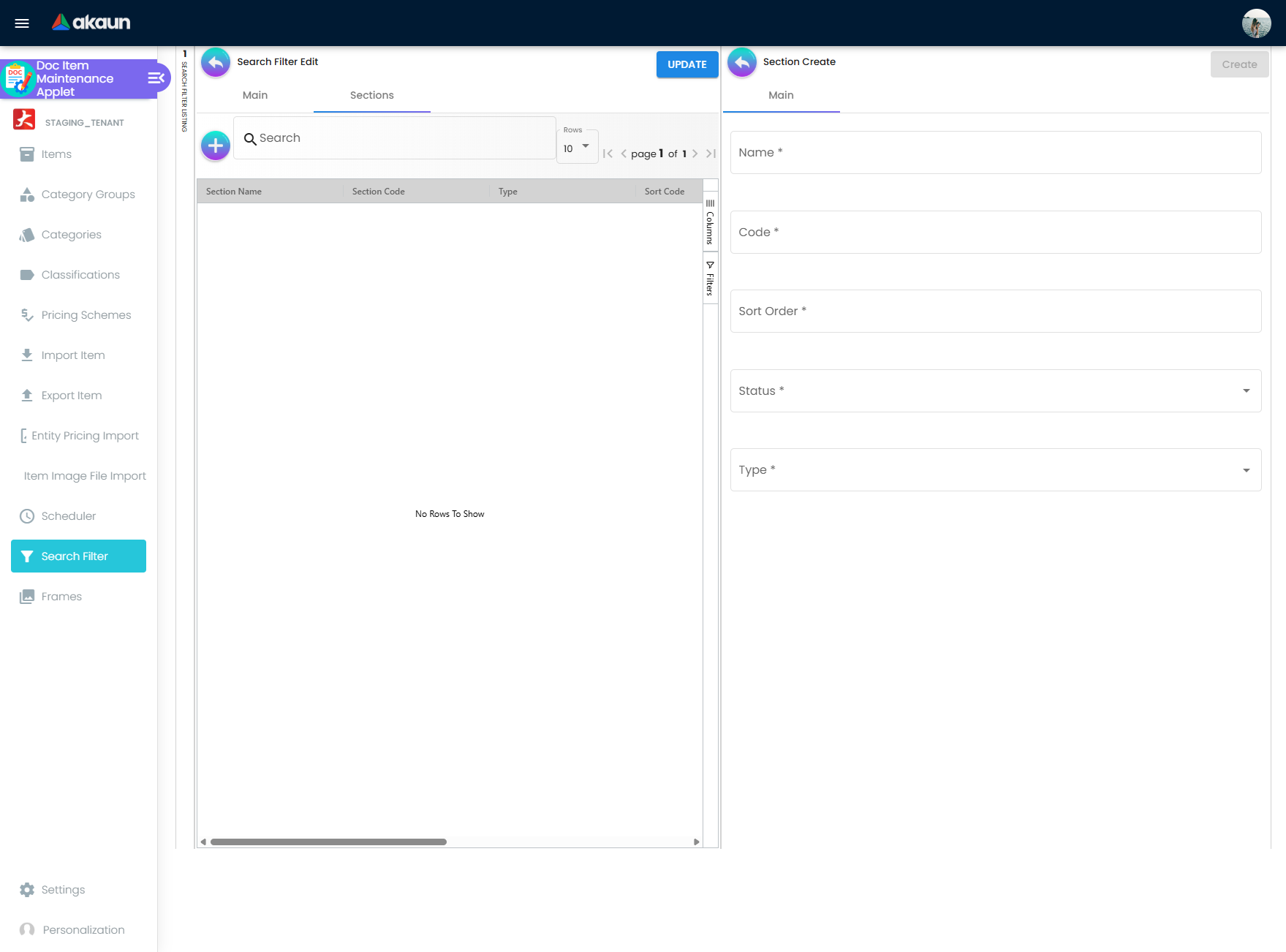
Each section has a name, a type, a sort order and a status. The types offered are Attribute (brand, colour, storage…), Price, Rating, Point Currency, Stock Availability and Point Redeem.
What the shopper actually sees
A search filter is the column of facets down the side of a storefront category page — Brand, Colour, Storage on GadgetSphere Online’s Flagship smartphones. What reaches that column is decided on the storefront’s side, and four of its rules are not visible from this screen:
- The storefront asks for the filter of the category it is showing, and only that one. A sub-category does not borrow its parent’s: Flagship smartphones shows no facets unless its own Search Filter field is set, even when Smartphones has one. The other way round, one filter can serve many categories, so an edit here changes every category that points at it.
- On the standard storefront, only Attribute sections become facets. Each facet is headed by the attribute’s own title, not by the section’s name. Price reaches the shopper as a sort order built into the page, not as a facet, and a Rating, Point Currency, Stock Availability or Point Redeem section is saved here and not shown.
- A facet lists only the values some item actually carries. Define Colour with ten colours while your catalogue carries three, and shoppers see three. The test is any item in the catalogue, not only this category’s, so a colour sold only in another category can still appear here and find nothing. An attribute no item carries drops off the page altogether.
- Deleting a section, or setting it Inactive, does not take it off the storefront. The storefront’s check for removed sections does not match the status this screen writes, so a deleted Attribute section keeps showing. To take a facet down, build a filter without it and point the categories at that filter instead.
To check a filter, open the category page on your storefront as a shopper would, not this screen: this screen shows what you defined, and the page shows what survived the rules above.
Rating Configuration and the Reviews tab
The stars under a product on your storefront, the average beside them and the comments shoppers leave are built from two things you set up here. The storefront then adds rules of its own that neither screen shows.
- Rating Configuration (in the gear menu) holds rating scales. A scale has a title, a sort order, an Is Active tick and two to five choices, each a label and a value: Poor 1, Fair 2, Good 3, Very good 4, Excellent 5.
- The item’s Reviews tab has two sub-tabs. Review Settings gives the item a review heading: a title, one of your rating scales, a Rating Default Value, a status and a summary. Review Votes lists the ratings recorded against the item’s headings and lets you add one.
Rating Configuration on the CP Commerce Admin applet is a different list with the same name, and the storefront does not read it.
What the shopper meets
- The storefront works with one heading per item. It collects and shows ratings against one of the item’s headings; give an item two and the storefront uses one of them, and you do not choose which.
- The star row always has five stars. A shopper picks one to five, whatever your scale says. The rating is saved only when the scale has a choice whose value is exactly the number picked. With Bad 1, Good 5, a shopper who picks three stars presses submit and nothing happens: no rating, and no message.
- Only a shopper with a sales order for the item can rate it. The storefront checks for a sales order line for that item under the shopper’s customer record, and anything short of a deleted order counts. A purchase that exists only as a cash bill or a sales invoice does not, and the shopper is told You are able to review after purchase.
- A rating is published at once. There is no approval step. It joins the item’s average straight away, and a shopper who rates twice is counted twice.
- The average replaces your default value. Rating Default Value is what the item shows until the first rating arrives. From then on, every new, edited or deleted rating recalculates the average from the ratings alone, and the default value no longer counts.
- A rating you add on the Review Votes sub-tab counts like a shopper’s. It is recorded under your own sign-in and enters the same average.
- The figure beside the stars reads 0 Sold on every product that has a review heading. It is fixed at zero on the standard storefront; it is not a sales count.
A Search Filter section of type Rating is not tied to any of these scales: the section screens never set one. On the standard storefront it does not become a facet either (see What the shopper actually sees).
Frames: a badge laid over a product picture on the storefront
A frame is a picture, PNG or JPEG, that the CP Commerce storefront lays over an item’s product image. It might be a New ribbon, a Bundle deal corner or a border for a campaign. It appears on the product card in listings and search results, and over the main image on the product page. Nothing else reads it: not documents, not POS, not printouts.
Where it sits. The storefront divides the product image into a three-by-three grid. A frame covers the rectangle from its start cell to its end cell, stretched to fit. Top left to Top right is a strip across the top. Top left to Bottom right is the whole picture.
What happens behind the scene. A frame shows on an item only through a link between that frame and that item. The link keeps its own copy of the start and end cells, taken when the link is made. When the storefront loads a page of products, it asks for the links of those items and draws each one.
Things to know before you rely on it:
- Link from the category’s side. On a category’s Manage Frame tab, adding a frame also gives a link to every item in the category at that moment. On the frame’s own Manage Category tab, adding a category records only the category link, and the storefront never reads category links. A frame linked that way appears on no product.
- A category link does not follow the category. An item added to the category later gets no frame. An item moved out keeps its frame. The Manage Frame tab adds only the first frame you tick, and it reads only the first 100 items in the category, so a larger category needs checking.
- Removing a category’s frame removes that frame from the items in the category now. That includes a link you made by hand on one of those items. Items that have left the category keep it.
- Two frames on one item cannot overlap. A link whose rectangle shares a cell with another frame on the same item is refused. When that happens during a category link, the other items still get theirs and the final success message does not appear.
- Changing a frame’s cells later does not move it on items already linked. Replacing the picture does change it everywhere, because every link shows the frame’s current picture.
The job that stays with a person. Whoever runs the campaign keeps the list of which items should carry which frame, and the dates. BigLedger gives a frame no start or end date. When the campaign ends, the frame comes off only when someone removes it, from the category tab or item by item on the frame’s Manage Items tab. Before launch and after, open the category on the storefront and look: a frame on every product you expect, none on the products you do not. The storefront is the only place a frame can be seen.
Configuration
Before you can use it
The prerequisites and what each one costs you when it is missing are in Where it fits above. In short: tax codes, GL codes, an inventory item record for anything stock-tracked, a category group bound to each slot you intend to use, at least one pricing scheme, e-Invoice classifications, a T2T grant before T2T mapping, and the applet permissions below.
Applet settings
Settings > Application Settings is one tenant-wide settings blob, saved whole; a change reaches every user of the applet on their next load. Most of the toggles on that screen hide a single field, tab, button or menu entry and take effect the moment you save, so flipping one shows you what it did. The settings below are the ones that change what the applet will let you do, or that decide something you cannot see the effect of from the screen.
| Setting | What changes | Default when never saved | Advisory or hard |
|---|---|---|---|
EDIT_ITEM_CODE | Makes the item code editable after the first save. The lock is the shipped default, so check this before telling anyone a code is permanent | Code locked after save | Field disabled in the browser. The backend still enforces uniqueness among non-deleted items either way |
ITEM_CODE_FORMAT with the running-number generation method | Generates the code in the Create by Category mode from category codes plus a running number, e.g. <category00>-<category01>-####. The method is either a random number or a running number per item | No format; the code is typed | Generation only. Nothing stops a user creating a free-typed code through the Default mode as well |
| The category-group settings list | Binds each Category slot 0–20 to a category group and marks it mandatory or not. An empty category drop-down is nearly always an unbound slot rather than an empty group | No slot is bound, so every category drop-down is empty | Changing a slot’s group resets that category on every item that used the old group. The UI warns before saving; recovery is a re-import of the category links |
AVAILABLE_ITEM_TYPES | Restricts which item types the create drop-down offers | All types offered | Restricts the drop-down only. A CSV import can still write any type, including one the drop-down would not have offered |
DEFAULT_EINVOICE_ITEM_CLASSIFICATION_*, DEFAULT_EINVOICE_TAXABLE_TYPE_*, DEFAULT_EINVOICE_UOM | Read by nothing. The settings screen still writes them, so a value saved here looks configured and never reaches an item | Blank on every new item | Setting these changes nothing. What does pre-fill a blank classification is the E-Invoice tab’s own hard-coded 022 Others, which an Item Template default outranks |
AUTO_CAPITALIZE_ITEM_CODE | Upper-cases the code as it is typed | Typed case is kept | Browser-side. Without it, abc-01 and ABC-01 are two different items and the uniqueness check will not object |
ENABLE_ITEM_CODE_MAX_LIMIT / ITEM_CODE_MAX_LIMIT, and the item-name pair | Applies a maximum-length validator to the code or the name | No length limit is applied | Browser-side validator; save is blocked past the limit in the form |
ENABLE_TEMP_FEATURE | Shows the temp-save path so a user can park a half-filled item | Not shown | Turning it off does not remove the TEMP status: that is the create screen’s own auto-saved draft, and an abandoned create leaves a TEMP item behind either way |
On the screen and doing nothing
- The four Department Settings toggles — Segment, GL Dimension, Profit Center, Project. They render as slide toggles on the Application Settings screen and are bound to no form control at all, so flipping one changes nothing and nothing is stored. A reader looking for a way to turn on profit-centre tagging on items will find this panel first; the dimension it is reaching for lives on the document header and line, not on the item. Checked in the applet’s settings template.
Everything else on that screen that is not in the table above is a presentation toggle — one HIDE_* per field, tab, column, button and menu entry, plus EXPAND_* for which tabs open expanded, DETAILS_TAB_ORDER for tab order, and ENABLE_SIMPLIFIED_UI / ENABLE_VERTICAL_UI for layout. They hide things; they change nothing about what the applet will accept.
Who can change what
Client-side permissions are registered for DocItemApplet and assigned to a role — not to an individual user, so granting one person a permission means giving them a role that carries it. Each SHOW_* permission overrides the corresponding HIDE_* application setting for the holder — which is the pairing worth knowing here: the tenant hides something for everyone, then grants it back to the few who need it.
The ones that gate something a reader will ask about:
| Permission | What appears when it is granted |
|---|---|
SHOW_COSTINGS_TAB | The Costings tab, when HIDE_COSTINGS_TAB has hidden it for everyone else |
SHOW_COST_MA_PRICE, SHOW_COST_MA_AMOUNT, and one pair per costing method (WA, FIFO, LIFO, manual, replacement), plus SHOW_COST_LAST_PURCHASE_COMPANY, SHOW_COMPANY_CODE and the SHOW_LANDED_* set | One cost figure each, individually. This is how a buyer is shown last-purchase cost without being shown the moving average |
SHOW_CATEGORIES_GRID, SHOW_CATEGORY_GROUP_GRID, SHOW_PRICING_SCHEME_GRID | The Categories, Category Groups and Pricing Schemes listings, when the tenant has hidden them under Hide Features Based on Permissions |
SHOW_COMMENTS | The Comments column and field when HIDE_COMMENTS is on |
The listing and edit code also honour SHOW_CAT_0 … SHOW_CAT_20, SHOW_SUB_ITEM_TYPE, SHOW_MARKETPLACE, SHOW_REMARKS_LISTING, SHOW_ADDITIONAL_REMARKS_1..4 and SHOW_MIN_MRP_STOCK_QTY as per-column overrides where a tenant has defined them; they are not part of the standard registered set.
A dead permission code: ENABLE_EDIT_SUB_ITEM_TYPE is registered ACTIVE for this applet and is referenced by no code in the applet project. Granting it unlocks nothing. Sub Item Type stays disabled on every saved item.
SHOW_COST_* as tidiness and role clarity, not as security.Document behaviour settings
Not applicable — the applet maintains master records, not posting documents. There are no status-flow, approval, printable or e-Invoice submission switches here; e-Invoice classification data is captured on the item and consumed by the document applets.
Fields
Create item — Default tab
The create form takes the identification you would expect — item code, name, type, sub item type, base UOM (pre-filled PCS), currency (pre-filled MYR), description, remarks and additional remarks 1–4, product manager, supplier, GL code, EAN code and minimum stock quantity — plus type-specific pickers that appear only for their type (a voucher link, a sales contract template, a fixed-asset category and type, and the formula fields for Made to Order). Several of the additional fields appear only when their SHOW_* setting is on.
These are the ones that behave in a way the form does not tell you:
| Field | What it carries beyond the label |
|---|---|
| Item Code | Unique among non-deleted items only, so a DELETED item frees its code and an INACTIVE one does not. A blank code is rejected, and so is a reused one — the duplicate-code refusal is the error you get when the listing appears to show nothing. Locked after save unless EDIT_ITEM_CODE is on |
| Item Type | Locked after save, with no override. Decides which tabs exist, whether the line moves stock, whether it has a cost and which account it resolves to. Stored as a plain string, so an imported spelling outside the list silently fails to match downstream |
| Sub Item Type | Settable only while the item is still TEMP, and disabled for every user from the first real save. Required for Basic Items; cleared for types that do not track quantity |
| GL Code | Optional on the form and effectively mandatory for an Account Code item, which has nothing else to post to. A per-company GL link, loaded by import, overrides it for that company |
| EAN Code | Optional unless MANDATORY_EAN_CODE is on. 7-digit codes are accepted only with ENABLE_EAN_CODE_7_DIGITS, and CUSTOM_EAN_CODE can derive the EAN from the part of the item code after a chosen letter instead of typing it |
| Description | Capped at 255 characters — long marketing copy belongs on the CP Commerce page, not here |
| Inventory (checkbox) | On by default. Turning it off disables the serialised option, because an item with no stock record has nothing to serialise |
| Min MRP Stock Qty | Read by Stock Replenishment as the reorder floor; must be zero or greater. Shown only when SHOW_MIN_MRP_STOCK_QTY_FORM_FIELD is on |
Edit item — Main tab
The same fields, plus Inv Item Code (the linked inventory item, read-only — it is set by the auto-creation job, not by you), Item Status, Abbreviation (max 255; the voucher applet uses it as a prefix to group items), Alias Item, Sales Prompt and Purchase Prompt (prompt text that is shown to the operator on sales and purchase screens — the place to put “ask for the IMEI”), Comments, the Ecomsync / Require Delivery / Require Production checkboxes, and Created By / Date Created, both read-only.
Fields on the remaining tabs are covered under Screens and menus, where they carry a consequence worth the space.
Lifecycle and effects
A doc item is a master record. It never posts to the General Ledger by itself — GL posting for an Account Code item happens on the document that uses it, and the costing you see on the item is written by the processors that run when a document is finalised.
Its status is a plain attribute, and what each value actually does is not what the drop-down implies:
| Status | Meaning |
|---|---|
ACTIVE | Selectable on documents |
INACTIVE | Kept for history, not offered for new documents — the status to retire an item into. Saving it here is what triggers the status push to the inventory record, with the stock-on-hand exception described above |
DELETED | Soft-deleted; its code becomes reusable |
TEMP | The create screen’s auto-saved draft, until it is completed. Abandoned creates are left in it, and it is the only state in which Sub Item Type can still be changed |
OBSOLETE | Discontinued. A second retirement status with no behaviour of its own on this screen; it still holds the item code, so it does not free the code either. Prefer INACTIVE unless you have a reason not to |
What a save writes and what it queues is set out in What happens when you press Save. On update, the backend validates any GL code and inventory-item link the item carries; deleting an item is verified against every table that references it before anything is removed.
What it will not do
Stated plainly, because each of these has cost somebody a day:
- The edit screen will not let you change the item type or the quantity-tracking mode once the item has been saved — which happens at the create screen’s auto-save, not at the first transaction. There is no administrator override on that screen and the registered permission that looks like one is read by no code. The lock is the screen’s alone: no backend validator enforces it, and a Doc Item import matching an existing item code overwrites both fields without comment.
- It will not apply a per-customer sales price. Entity Pricing reaches purchase orders and stock replenishment; it does not reach a sales order, invoice, quotation or POS line.
- It will not fill the LIFO, manual, replacement or landed-cost columns. Nothing in the current build writes them, so they read zero on every company stock-balance row.
- It will not recompute the Costings tab when you open it. Those are stored figures, and the weighted-average one is a prior-month figure that only a Refresh Stock Balance run updates.
- It will not add a new LHDN classification code. The scheduled clock refreshes the wording of the codes you have; a new one goes in by hand.
- It will not tell you when the status push to the inventory item was refused because stock was still on hand, or when it failed.
- It will not stop you creating an item with no e-Invoice classification — and neither will the e-Invoice path. There is no later failure to wait for: the line is submitted as
022 Others. - It will not free an item code until the item is
DELETED;INACTIVEandOBSOLETEstill hold it.
How you know it worked
A new item is finished when it can be transacted, not when it saves. This takes about a minute:
- Open the item again from the listing with the status filter set to All. The Main tab should show an Inv Item Code if the item is stock-tracked. If it is blank, the inventory auto-creation job has not run or has failed, and nothing else on this list will work.
- Check the E-Invoice tab has the classification you meant and a UOM. A blank is not an error you will be told about later — it is substituted at submission. Check that
022 Othersis there because you chose it, not because the tab filled it in. Set a taxable type too, but do not audit it here: it is recomputed from the line’s tax amount, so the submitted record is the only place it can be checked. - Check the Pricing Scheme tab has a price in the scheme your till or sales applet reads. A price on the Entity Pricing tab is not a substitute.
- Raise a draft sales invoice or open the till and scan the item. The correct outcome is that the item is found, the price comes through from the pricing scheme, and the tax line appears. If the item is not found, it is not Active. If the price is zero, the scheme has no price for it.
- If it is stock-tracked, buy one unit on a purchase invoice and finalise it, then reopen the item’s Costings tab. Use the invoice, not a goods receipt: a standard Purchase GRN moves no stock and no cost, so after one the tab stays empty however long you wait. The invoice brings the moving average and the last purchase cost; a GRN Stock In, if your company receives that way, brings the moving average only. Expect a figure you can work out yourself. One unit at RM 3,520.00 into empty stock reads RM 3,520.00 on both. With stock already held, the average blends: 50 flagship smartphones at RM 3,520.00 landing on 10 held at RM 3,400.00 give a moving average of RM 3,500.00 and a last purchase cost of RM 3,520.00. If the tab is still empty a few minutes after the invoice is finalised, open the invoice’s TraceDocument and look at Inv Txn (for a foreign-currency invoice, on its ringgit copy). No stock line there means the line never reached inventory: an item with no Inv Item Code (check 1) is skipped, and otherwise the stock job failed, which is a support question rather than a setup one.
Step 4 is the one that matters. An item that saves cleanly but does not come up when scanned is the commonest way this goes wrong, and the cause is almost always status, pricing scheme, or an inventory link that never arrived.
Related applets
- Inventory Item Maintenance — the stock-side twin; a stock-tracked doc item points at one inventory item, category groups are shared, and the status push between them is the thing that most often only half-works.
- Tax Configuration — supplies every tax code selectable on the Tax and Entity Pricing tabs, and owns the rates those codes carry.
- Chart of Accounts — supplies the GL code on the Main tab and the account behind Account Code items.
- Organisation — the companies and branches that the linking tabs and the per-company GL links refer to.
- Stock Availability and Stock Balance — the item’s stock by location.
- Stock Replenishment — reads the minimum stock quantity and the supplier half of Entity Pricing when it raises a purchase order.
- Pricebook — builds price lists and promotions on top of items and pricing schemes.
- POS General — sells the items; its settings choose which pricing scheme supplies retail, minimum and maximum price.
- CP Commerce Admin — the storefront that consumes categories, images, attributes, search filters and reviews.
- Tiktok Sales Order Applet — marketplace order lines resolve to the listings on the item’s Marketplace tab.
- Shopping Cart Customer Access (Internal) — the items its line-item search offers a customer login.
- T2T Admin — grants the tenant links that T2T Item Mapping relies on.
- Voucher Management — stock in / out of Voucher-type items.
- My E-Invoice Portal — submits documents whose lines carry the item’s classification, taxable type and UOM.
Troubleshooting
| Symptom | Cause | Fix |
|---|---|---|
| Save fails with an “item code already exists” error although the code is not in the listing | The listing is filtered (often to ACTIVE) and the code belongs to an INACTIVE, OBSOLETE or TEMP item; only DELETED items free their code | Switch the listing status filter to All, find the item, and reuse or rename it |
| The item saved, but its Inv Item Code on the Main tab is blank and stock screens do not know it | The inventory item is created by a queued job after the save returns; it has not run, or it failed | Reopen the item after a moment. If it is still blank, the item cannot be stock-tracked until it has an inventory record. For a Basic Item, a Doc Item import row with this item’s code creates that record and links it back — but the row overwrites every column it carries, type and status included, so fill it from the item as it stands now. If the field is still blank after that, raise it with support. Do not create a second item |
| The item was set to Inactive but still appears in stock reports and stocktake | The default inventory record always follows the status, but a second, non-default inventory record the item points at is set Inactive only when it holds no stock at any location. Stock on hand blocked that one, and nothing told you | Move or adjust the remaining stock out and save the status again, or set the status directly in Inventory Item Maintenance |
| Costings tab shows a moving average but nothing for LIFO, manual, replacement or landed cost | Nothing in the current build writes those columns; the LIFO branch of the costing processor is commented out | Use moving average, FIFO or last-purchase cost. Do not build a report or a sell-below-cost rule on the empty columns |
| Weighted average on the Costings tab looks stale, or has not moved all month | It is computed only from transactions dated before the first day of the current month, and only a Refresh Stock Balance run writes it | Read it as a prior-month figure. For a current cost, use moving average |
| Moving average changed for a period somebody had already reported on | A back-dated document was finalised; the moving-average chain for that company is rebuilt from the affected transaction forwards | Expected behaviour. Find the back-dated document before assuming the cost is wrong |
| A customer-specific price entered on Entity Pricing never appears on a sales document | The item-scan endpoint the selling applets call reads pricing-scheme prices only, and has no customer field | Price the customer through a customer category and a price-book price set, or through a pricing scheme |
| Category drop-down on the item is empty | The category slot is not bound to a category group in Application Settings, or the group has no categories | Bind the slot under Items Settings, then create categories in that group |
| Items lost their category after a settings change | The category group bound to a slot was changed, and the applet resets that slot on every item that used the old group | Re-import the links with the Doc Item Category Link template |
An accepted e-Invoice shows classification 022 Others or unit H87 piece and nobody chose them | The item’s E-Invoice tab was blank and the payload builder substituted both. No rejection, no warning | Fill the E-Invoice tab. The classification — and only the classification — is re-read from the item at submission, so fixing it also fixes finalised documents that have not been submitted yet |
| An e-Invoice UOM set by Doc Item import does not appear on the item | The import looks the code up in a list that is empty unless somebody has filled it by hand; when the lookup finds nothing, the value is dropped without an error | Set the e-Invoice UOM on the screen, whose drop-down is a list shipped inside the applet rather than a table lookup |
| An LHDN classification code you need is not in the list | The list starts as 45 seeded codes; the classification clock refreshes their wording and never inserts a code LHDN has added | Add it by hand on the Classifications Create form |
| A tab described on this page is not visible | It is hidden by a HIDE_* setting, or it is type-specific (Stock Card is Basic Item only; MTO Config, Bundle Config, Child Item and the Eligible tabs follow their item type) | Check Item Edit Tab Hidden in Application Settings and the item type |
| Costings tab or a single cost column is not visible to a user | HIDE_COSTINGS_TAB or a HIDE_COST_* is on — the tab is hidden by default — and the user lacks the matching SHOW_* permission | Grant SHOW_COSTINGS_TAB and the specific SHOW_COST_* permissions that user needs |
| Sub item type cannot be changed on an existing item | The control is enabled only while the item is TEMP; the create screen’s auto-save ends that, and ENABLE_EDIT_SUB_ITEM_TYPE is read by no code | Create a replacement item with the right sub item type, retire this one, and move the remaining stock. Granting the permission will not unlock the field |
| An item’s type or tracking mode changed and nobody edited it on the screen | A Doc Item import carrying that item’s code updates it, and writes the item type and sub item type unconditionally. No backend validator refuses the change | Check the Import Item history for an upload covering that code. Before the next upload, remove those two columns from the file if you are not deliberately changing them |
A Doc Item import says FAILED, but items from the file exist | The Doc Item template is not atomic: invalid rows are skipped and the valid rows around them are committed, then the upload is marked failed | Read the Error tab for the failing line numbers and treat everything else in the file as applied. Doc Item With Category aborts before writing and does not behave like this |
| An item changed by import did not reach the storefront, the marketplace or anything else subscribed to the catalogue | The import path uses the no-webhook variant of the item update, so no FINANCIAL_ITEM_UPDATED event is raised and the inventory-status push does not run | Re-save the affected items on the edit screen, which does both |
| A document carrying a bundle will not go final and names the bundle, which is in stock | The check counts only children whose inventory record is a Basic Item, at the line’s own location, and reports the smallest number of whole bundles they can supply. The error names the parent, never the child | Open the bundle’s children and check each one’s stock at that location. Make sure every child is a Basic Item |
| A GL code set on the item’s Main tab did not reach the journal | The document line carries whatever GL code the applet put on it. A purchase invoice built from a goods receipt or purchase order copies the source document line’s code, not the item’s | Fix the code on the document line before finalising, or on the source document. Changing the item affects only documents raised from the item afterwards |
| Items imported from another system behave as though they have no type | The item type is a free string on import; a spelling outside the stored values does not match the downstream comparisons | Re-import with the exact stored values listed under Item types |
| Optional serial number checkbox is confusing | Enabling it means a serial number is not required on transactions for this item | Leave it off for items that must be serial-tracked |
| Listing pagination is slow (several seconds per page) on a large catalogue | The listing aggregates pricing, remarks and marketplace data per row; with many pricing-scheme links per item this dominates | Reduce visible columns, filter by status, and report the tenant to support — the backend query has been the subject of a performance fix |
| Import with labels or MTO category listing fails | Known defect in older builds, fixed in the applet repository in 2026 | Update to the current applet build |
| A campaign frame shows on some products in a category and not on others, or on none | The frame was linked from the frame’s Manage Category tab, which the storefront never reads; or the item joined the category after the frame was linked; or the category has more than 100 items | Link it from the category’s Manage Frame tab, then check the rest item by item. See Frames |
Related documentation
Read next: Inventory Item Maintenance — it is the other half of every item you create here, and the half that decides what a stock count says.
- Core module — where the item master sits among the other master-data applets.
- Inventory module configuration and E-Commerce module configuration — module-level setup that starts with items.
- E-Invoice module configuration — item classification requirements.
- Point of Sale module configuration — which pricing schemes POS reads.