Employee Applet
Purpose and Overview
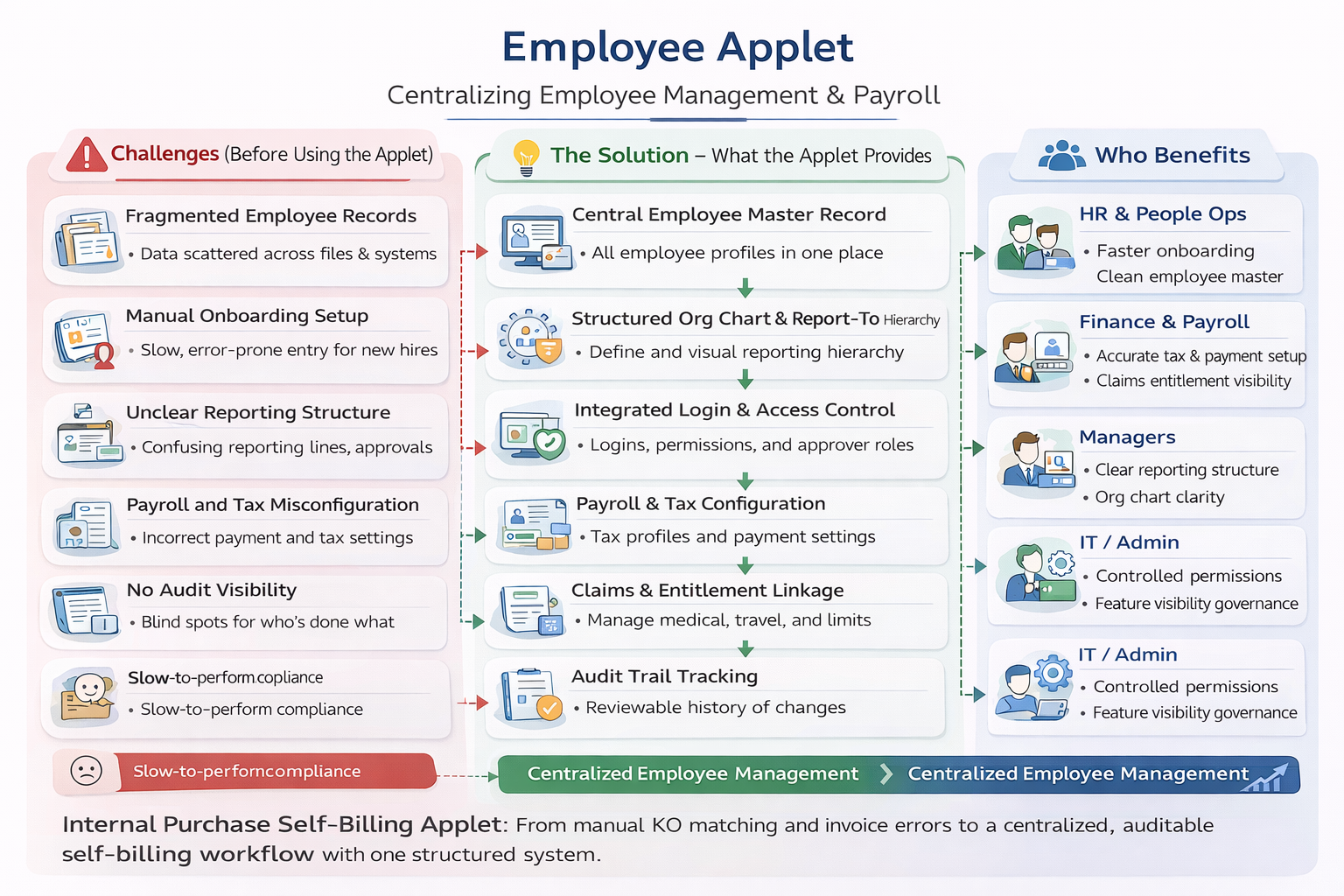
The Employee Applet is the central hub for managing employee master data in the Akaun Platform. It brings together employee profiles, reporting lines, login access, payroll and tax configuration, claims setup, and compliance records in one structured system.
About the Applet
Purpose: Maintain accurate employee master data and operational settings across HR, finance, and access control workflows.
Target Users: HR and People Ops, Finance and Payroll, Department Managers, IT and System Admins.
Key Features:
- Employee profile creation and maintenance
- Employee category management and labeling
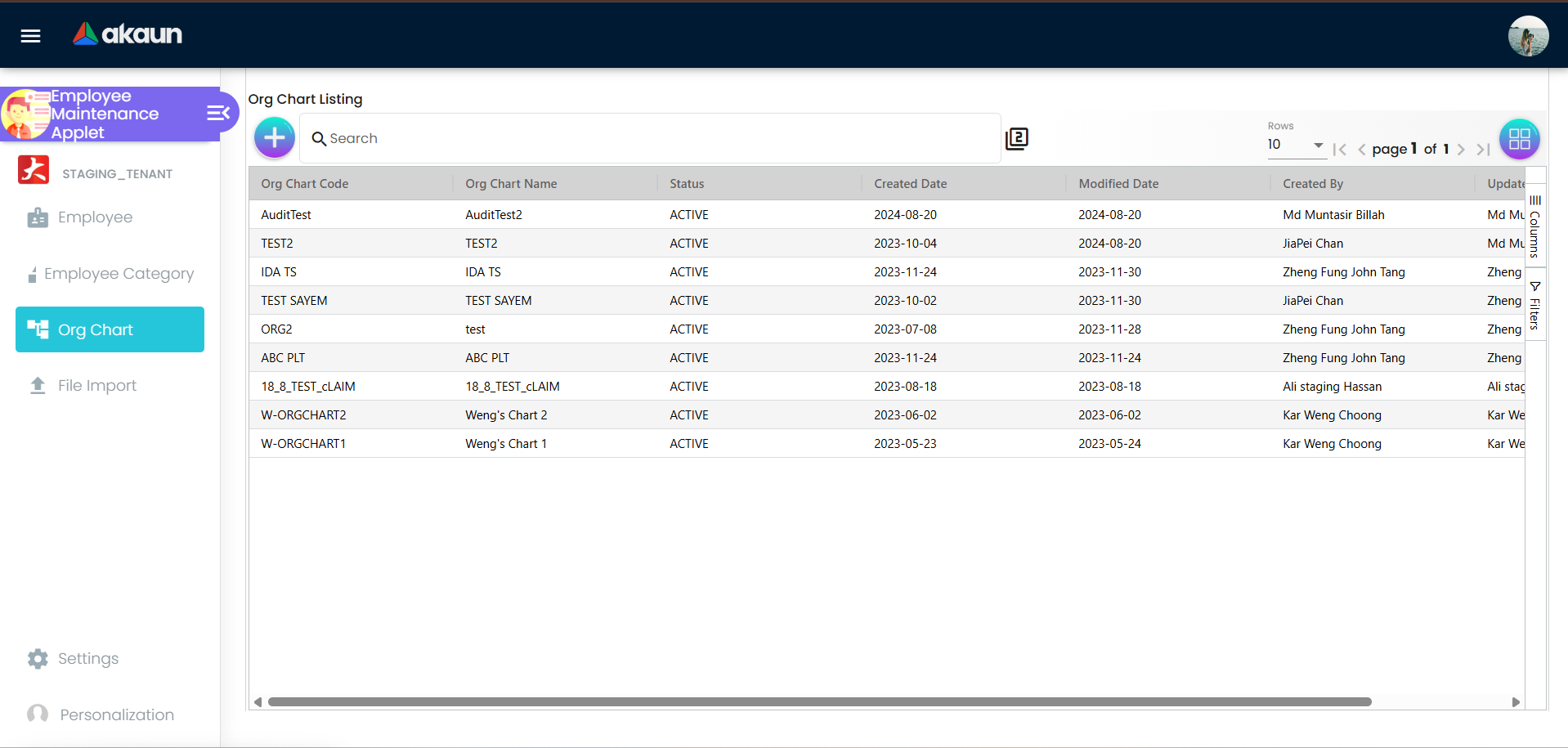
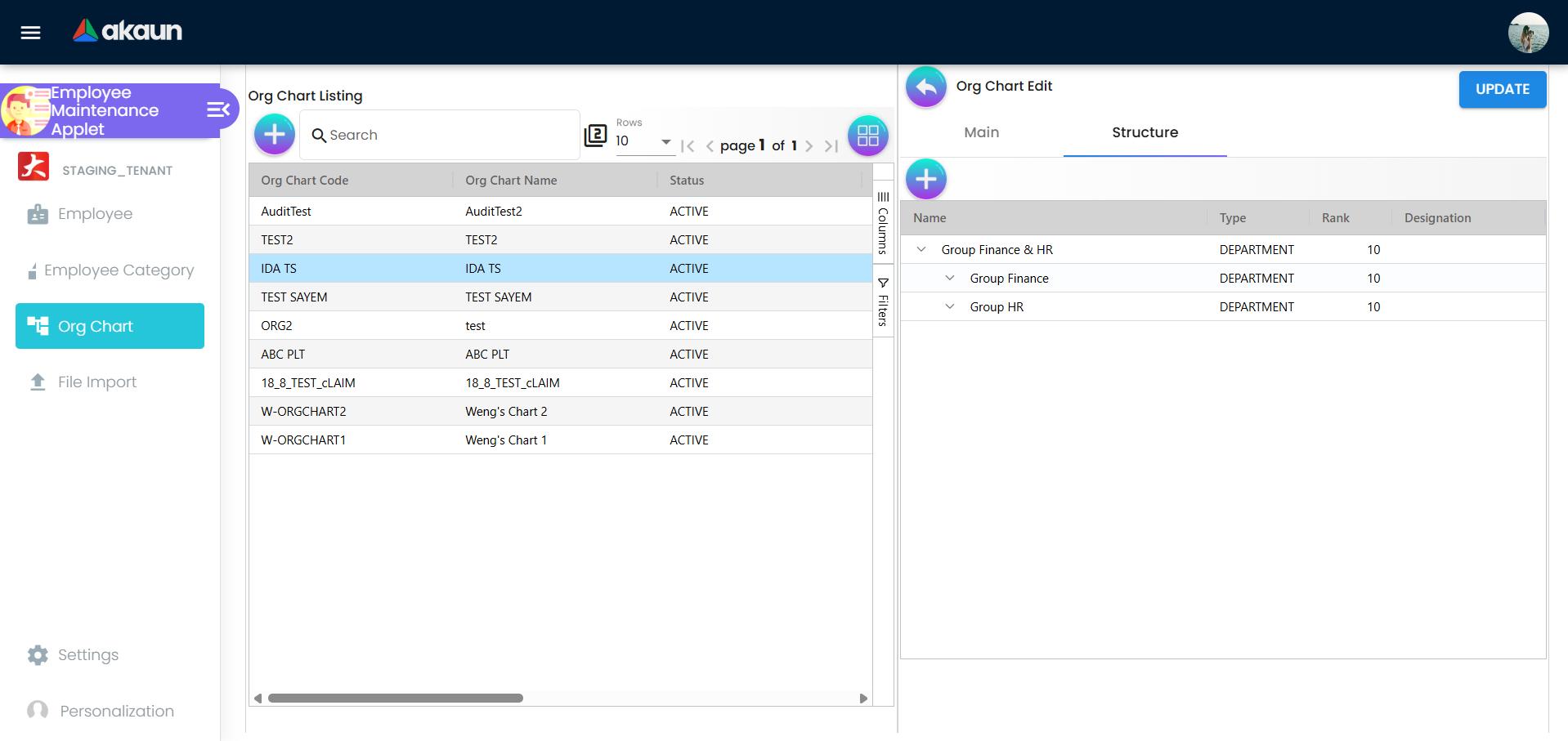
- Org chart and report-to structure
- Login access and permission controls
- Payroll, tax, and payment configuration
- Claims accounts and entitlements visibility
- Bulk file import and audit trails
Key Features Overview
Who Benefits from This Applet?
HR and People Ops:
- Structured onboarding and profile maintenance
- Central view of employee contact and address data
- Quick updates to branches, departments, and roles
Finance and Payroll:
- Consistent payment and tax configuration
- Spending limits and claim entitlement linkage
- Clean data for payroll and reimbursement processing
Department Managers:
- Clear report-to structure and team visibility
- Approved leave tracking and updates
- Accurate org chart alignment
IT and System Admins:
- Login and permission control
- Feature visibility and access management
- Applet audit trail for compliance
What Problems Does This Solve?
The Fragmented Employee Data Problem:
Traditional employee management is scattered across spreadsheets, email threads, and separate HR or payroll systems. Common issues include:
- Duplicate or inconsistent employee records
- Missing reporting lines and unclear approvals
- Inaccurate payroll and tax configuration
- Delayed onboarding due to manual setup
- Lack of audit traceability
The Employee Applet Solution:
- Single source of truth for employee data
- Structured org chart and report-to relationships
- Integrated access setup for logins and permissions
- Payroll-ready configuration for tax and payment settings
- Bulk import tools for faster onboarding
- Audit trail for compliance and accountability
Key Features Overview
Key Concepts
The Employee Master Structure
| Aspect | Component | Practical Example |
|---|---|---|
| Who is the employee? | Profile and identity | Name, ID, designation |
| Where do they belong? | Branch, department, report-to | KL Branch, Finance, Manager X |
| What access do they need? | Login and permissions | Approver, HR admin, staff |
| How are they paid? | Payment and tax config | Bank details, tax profile |
| What can they claim? | Claims accounts and entitlements | Medical fund, travel limit |
Quick Start Guide
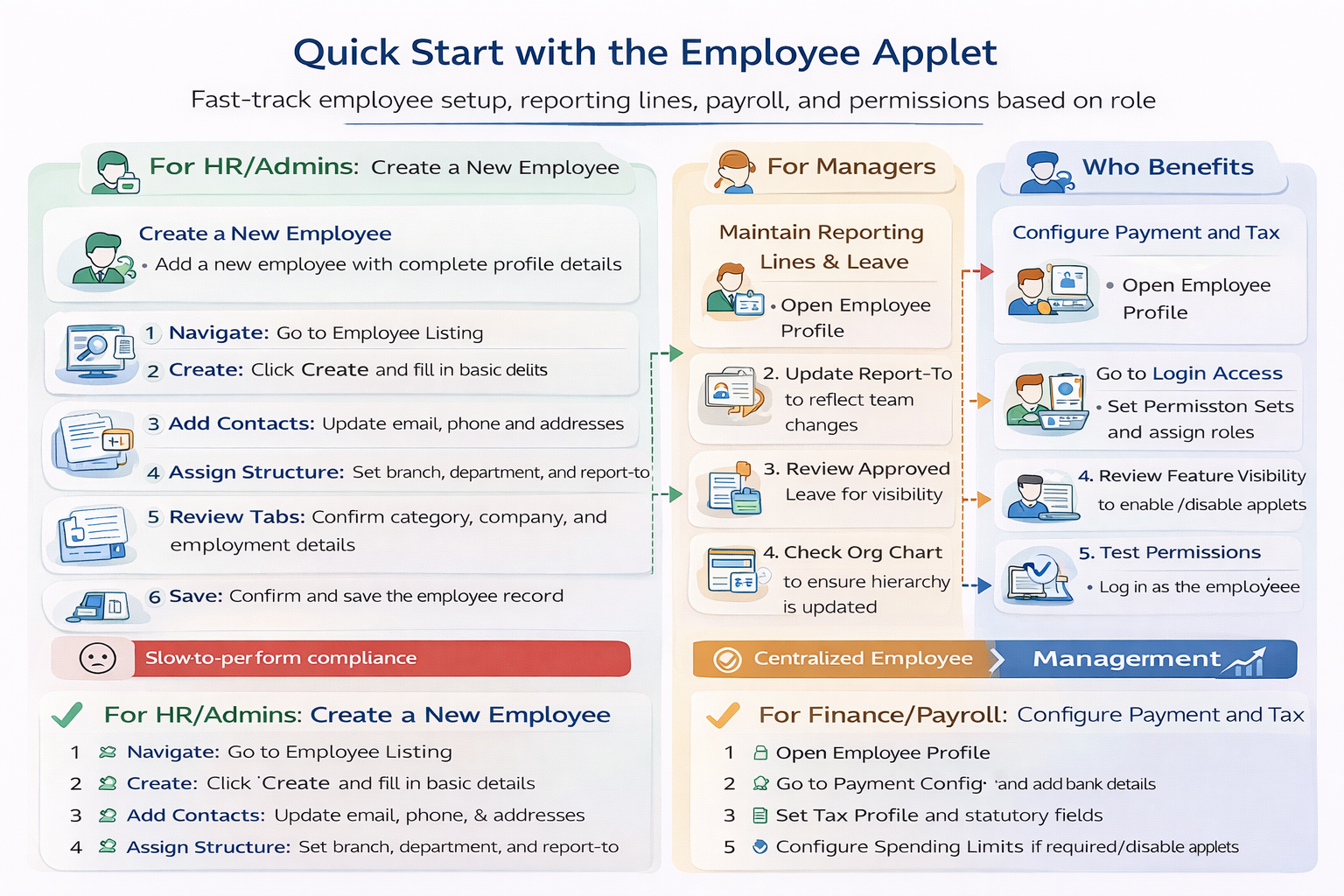
Get started quickly based on your role.
For HR/Admins: Create a New Employee
Goal: Add a new employee with complete profile details.
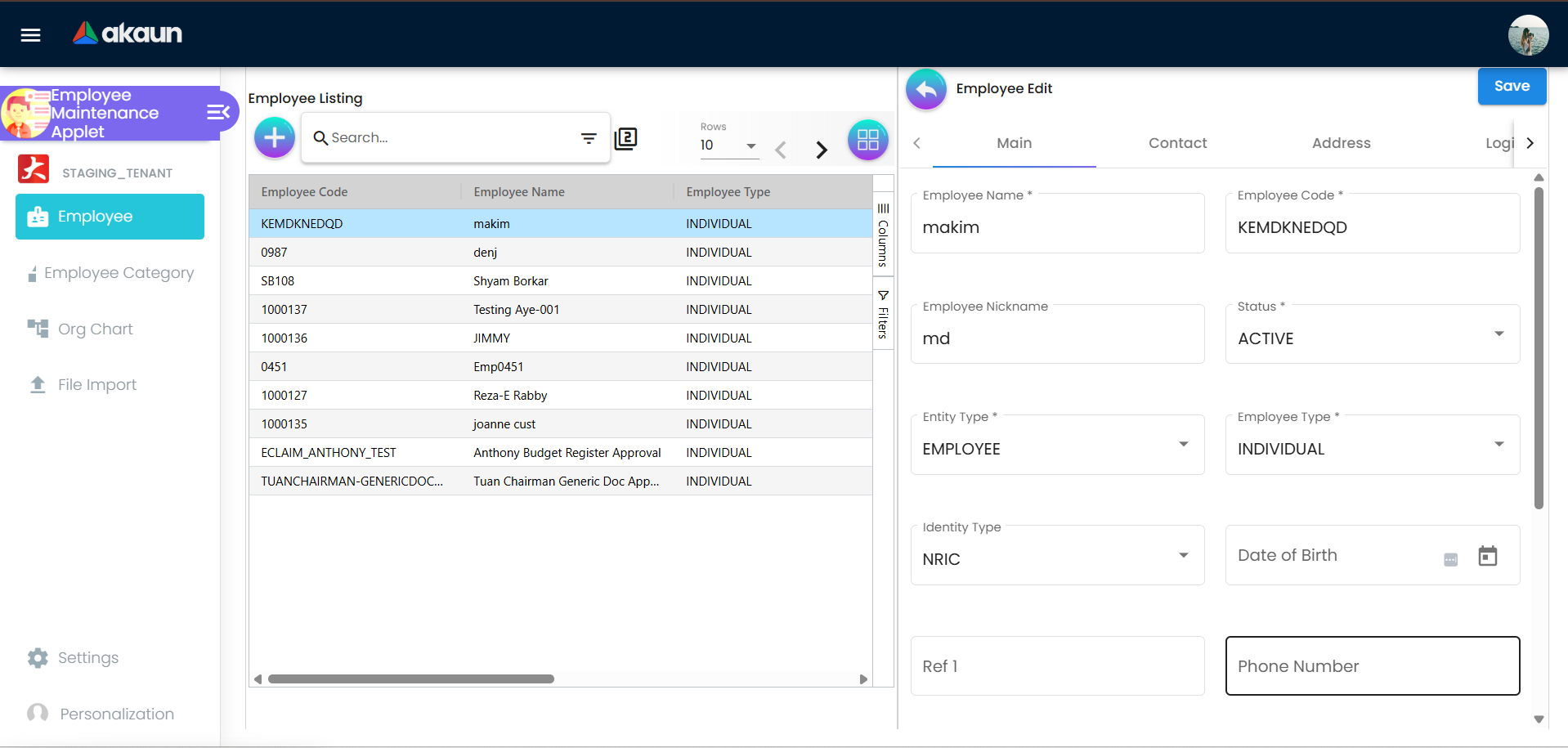
- Navigate: Go to Employee Listing
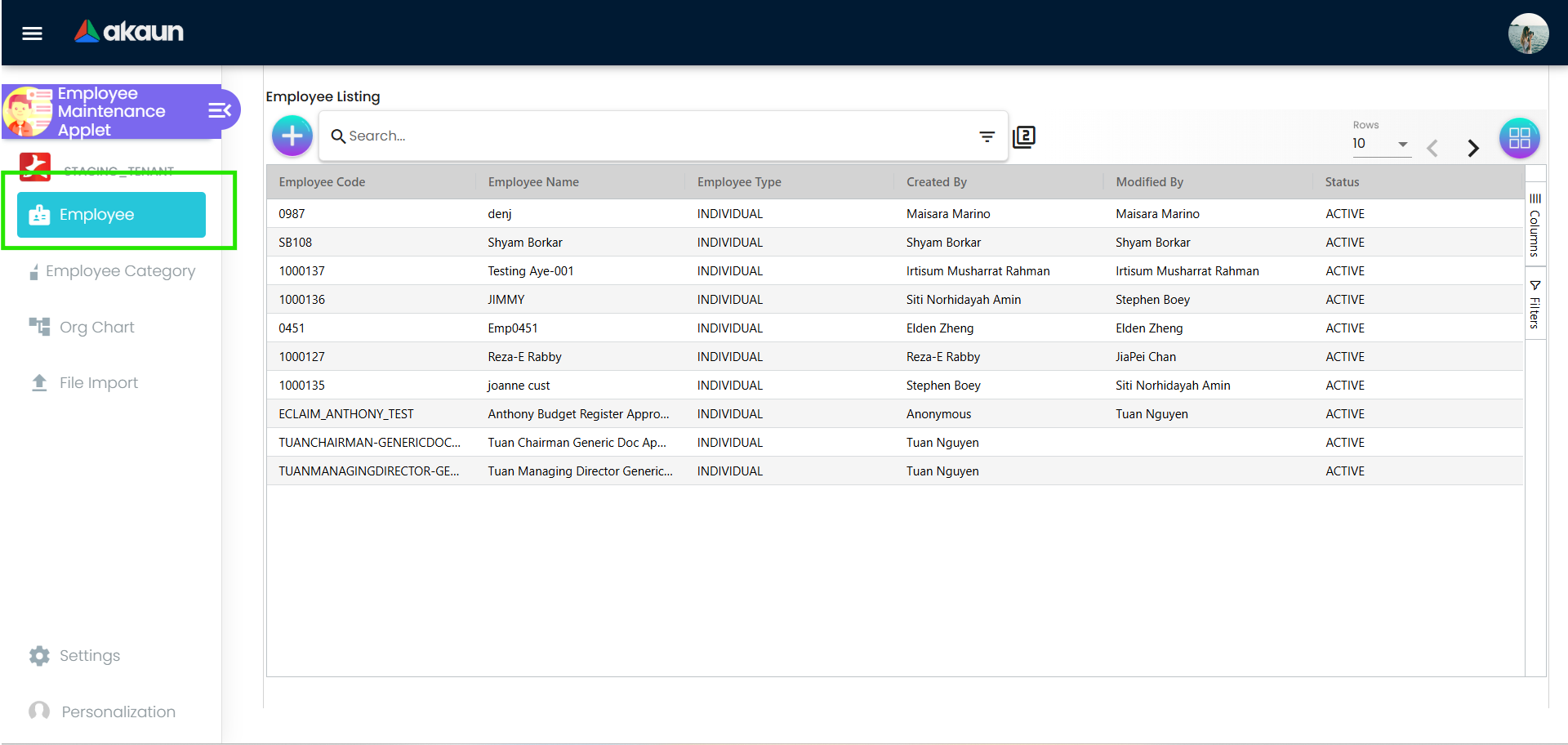
Image of Employee Listing where user can see all the created employee - Create: Click + and fill in basic details
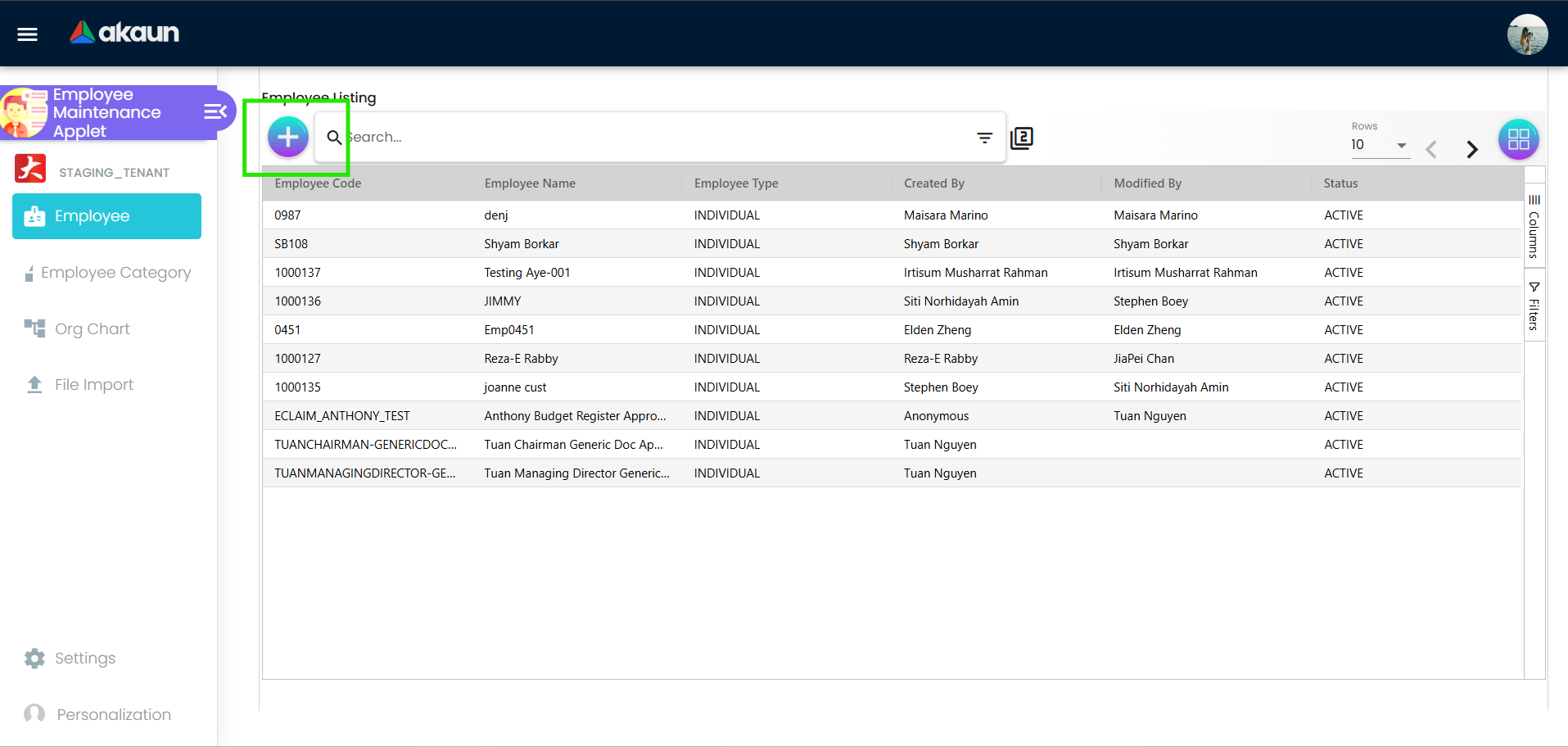
Create button for creating new employee listing. - Add Contacts: Update Employee Name, Employee Code, Employee Nickname, status, and other fields
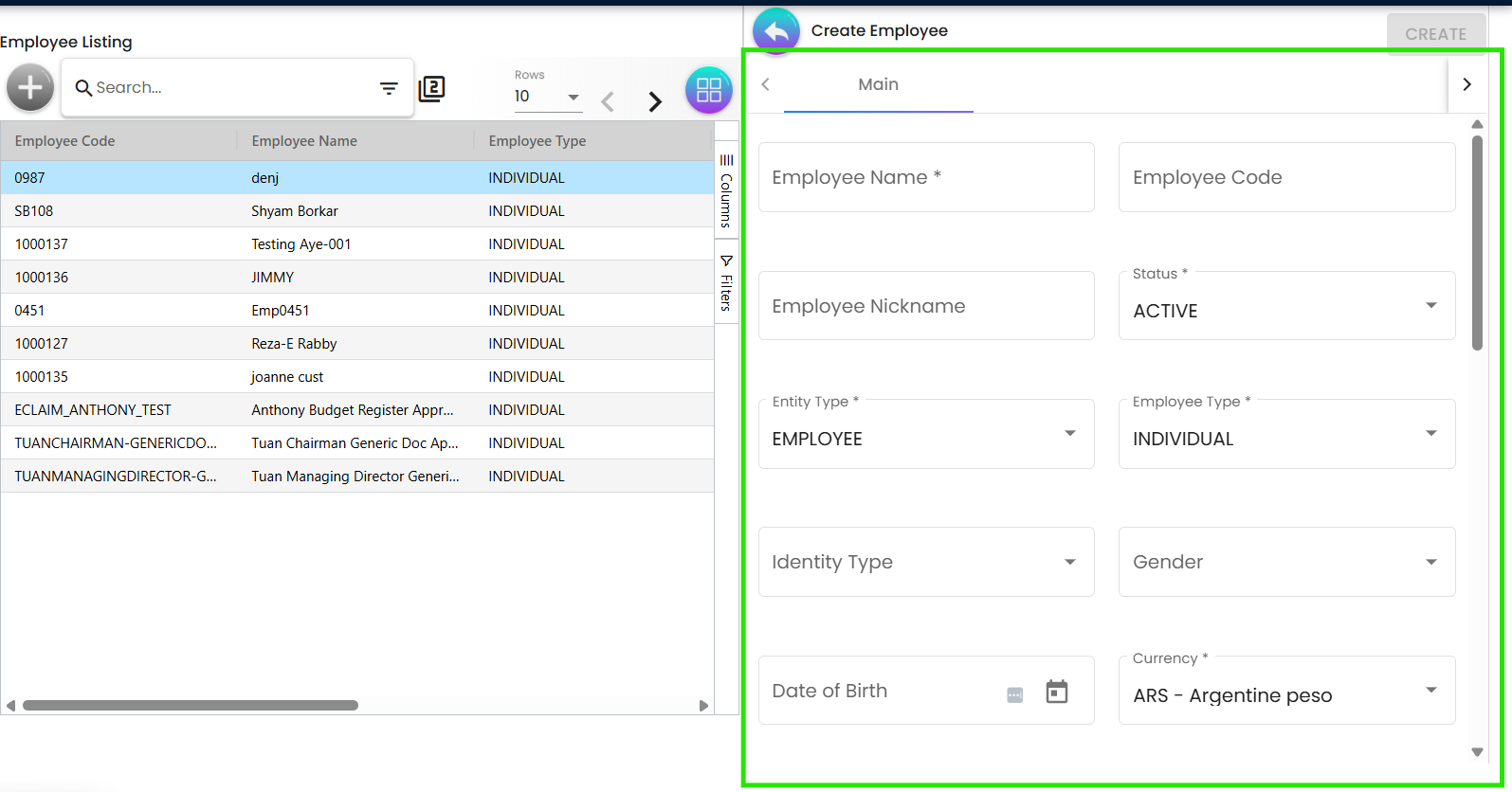
Add employee fields in the Create Employee section. - Assign Structure: Set branch, department, and report-to
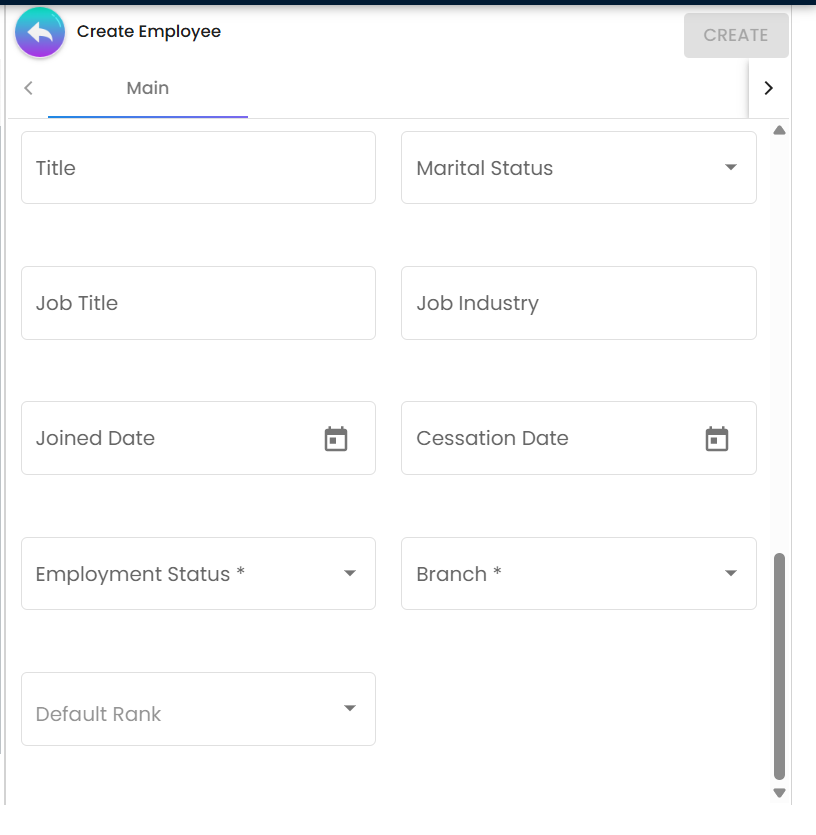
Set employee branch in the configuration. - Save: Confirm and save the employee record
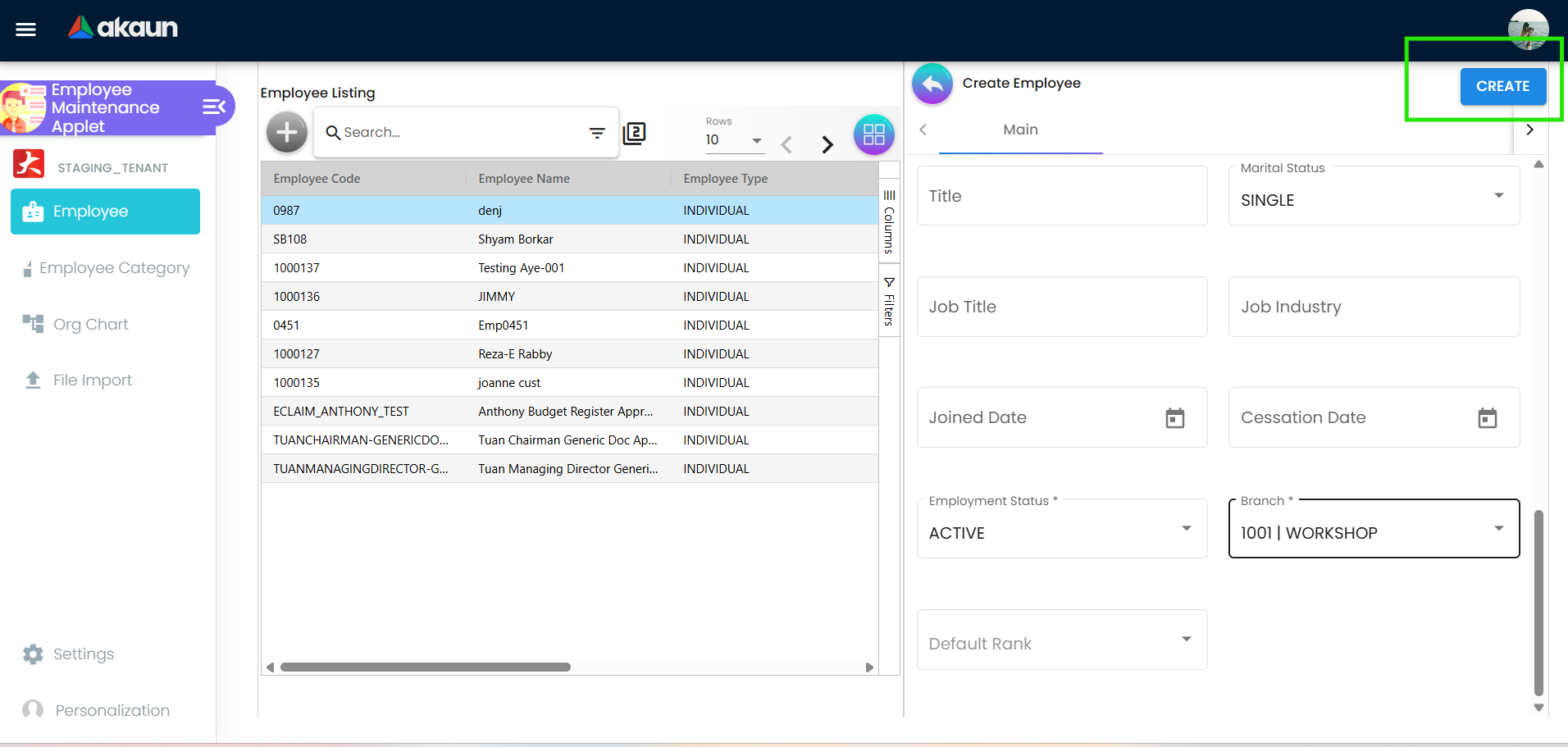
Click CREATE to save the employee details.
For Managers: Maintain Reporting Lines and Leave
Goal: Keep team structure and approved leave accurate.
- Open Employee Profile from the listing
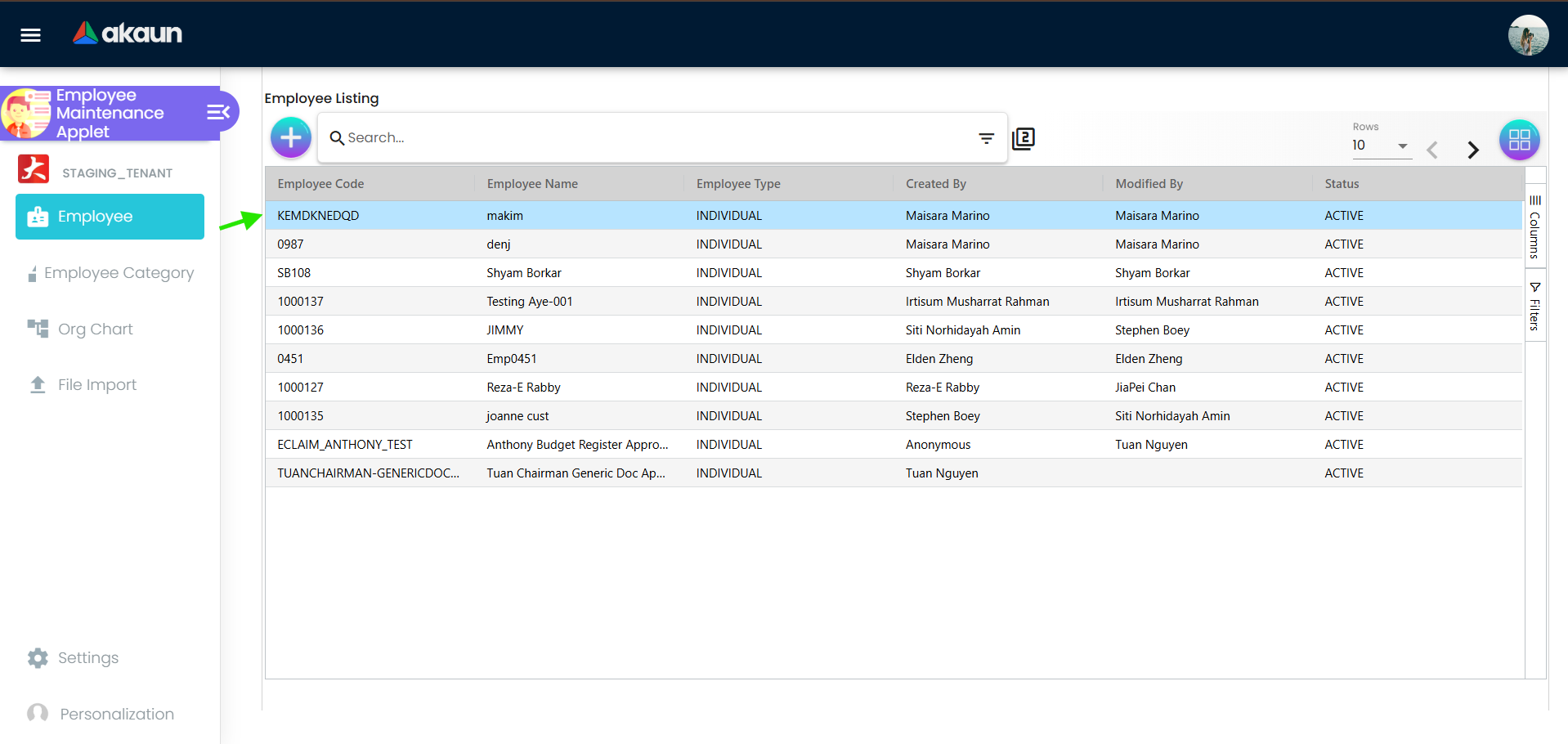
Click on the employee listing to view their details. - Update Report-To to reflect team changes
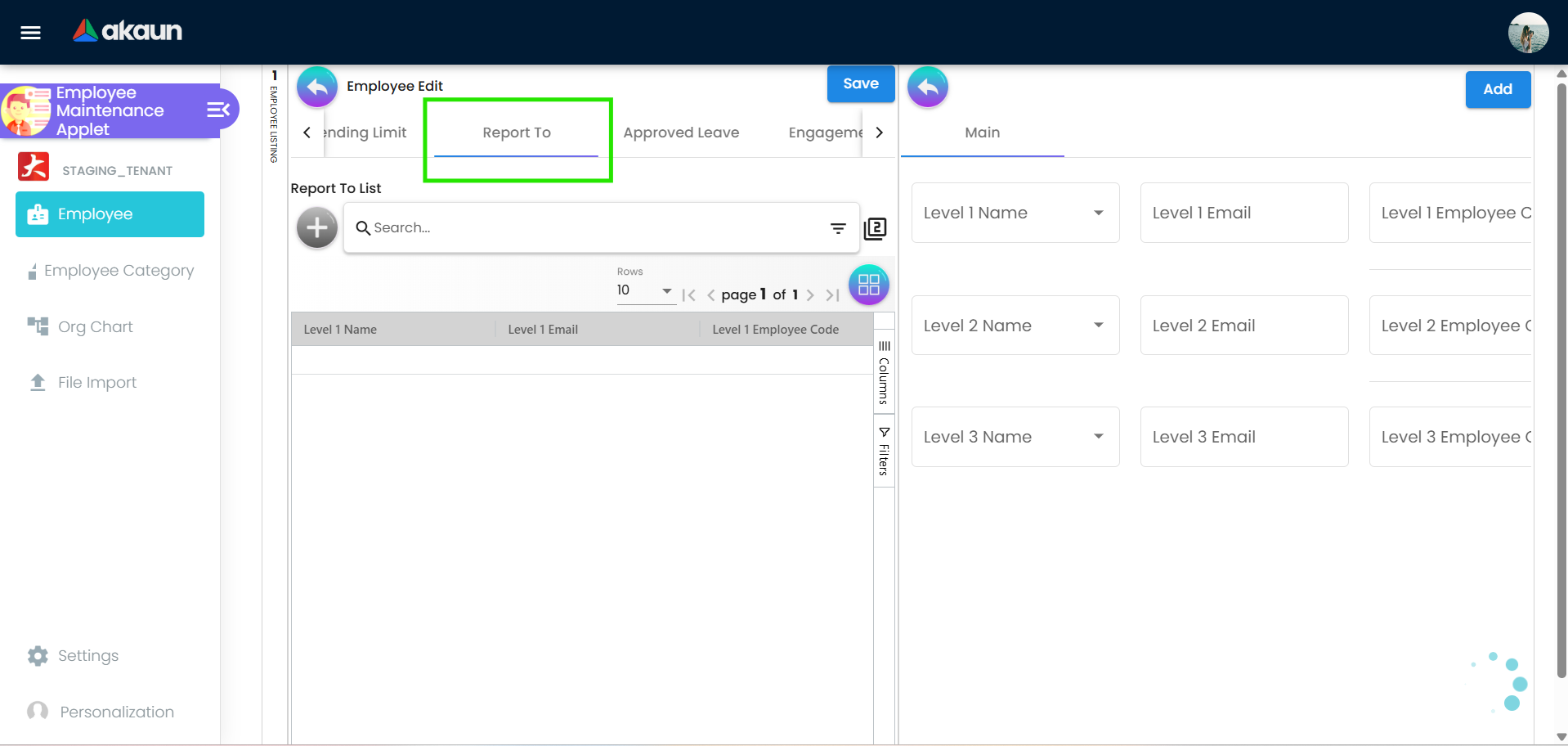
Report To tab in the applet. User can add and edit the details in the tab. - Review Approved Leave for visibility
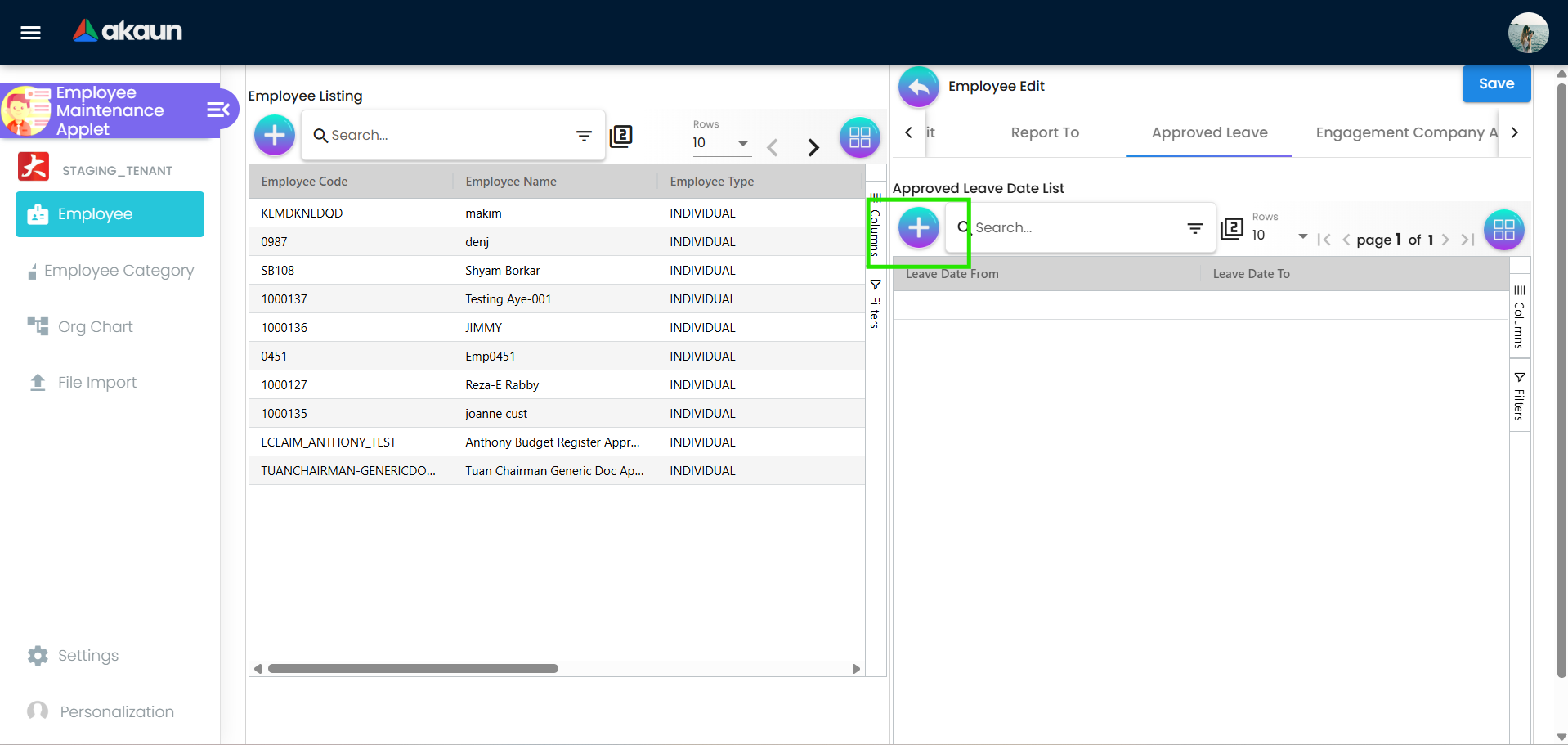
To create new Approved Leave listing
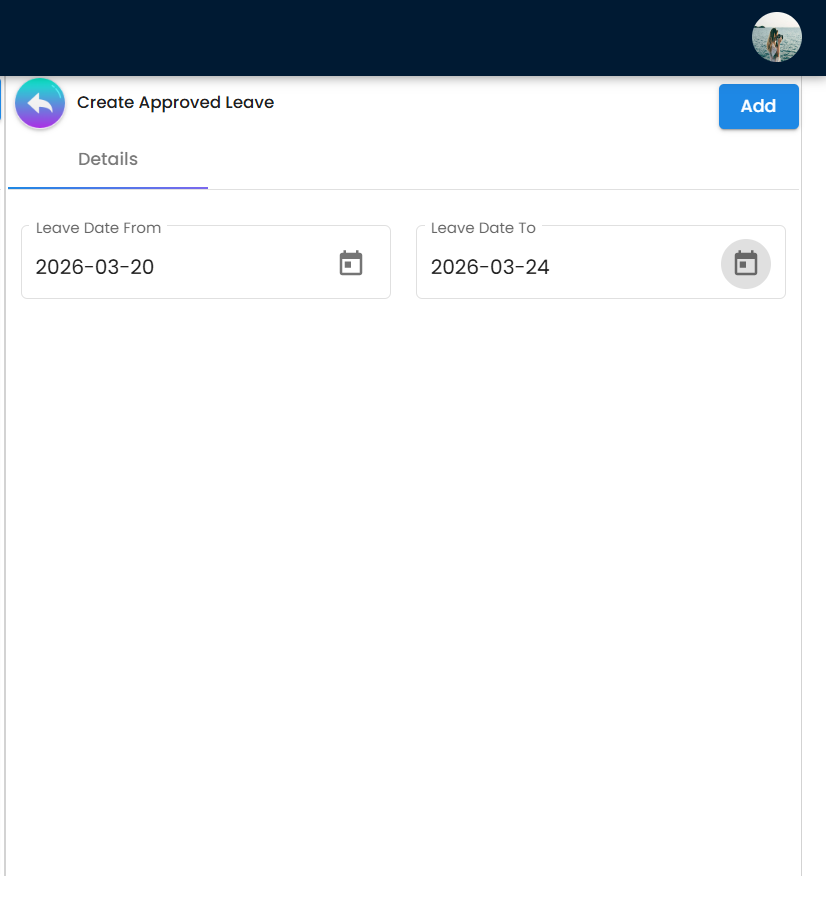
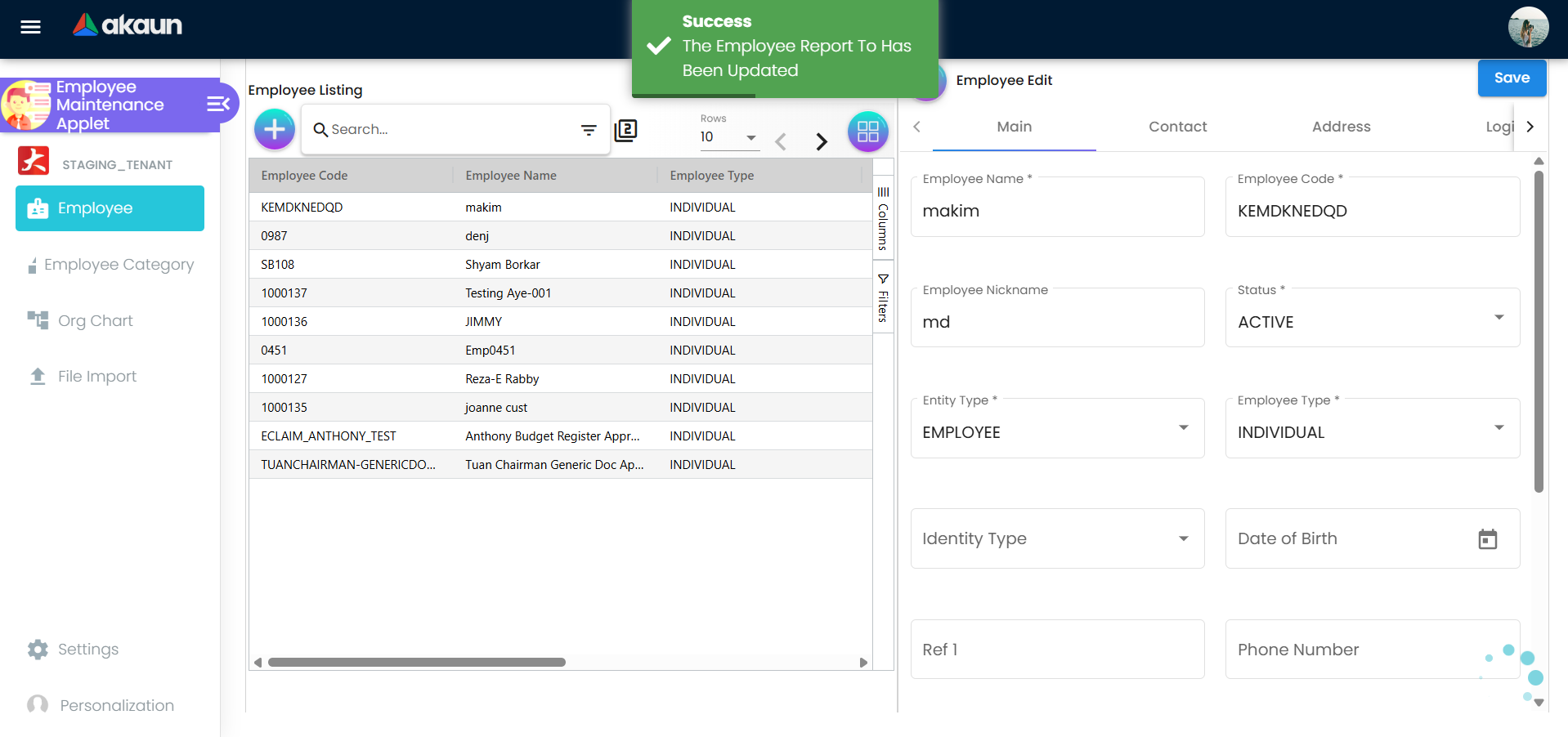
For Finance/Payroll: Configure Payment and Tax
Goal: Ensure payroll-ready employee setup.
- Open Employee Profile
- Go to Payment Config and add bank details
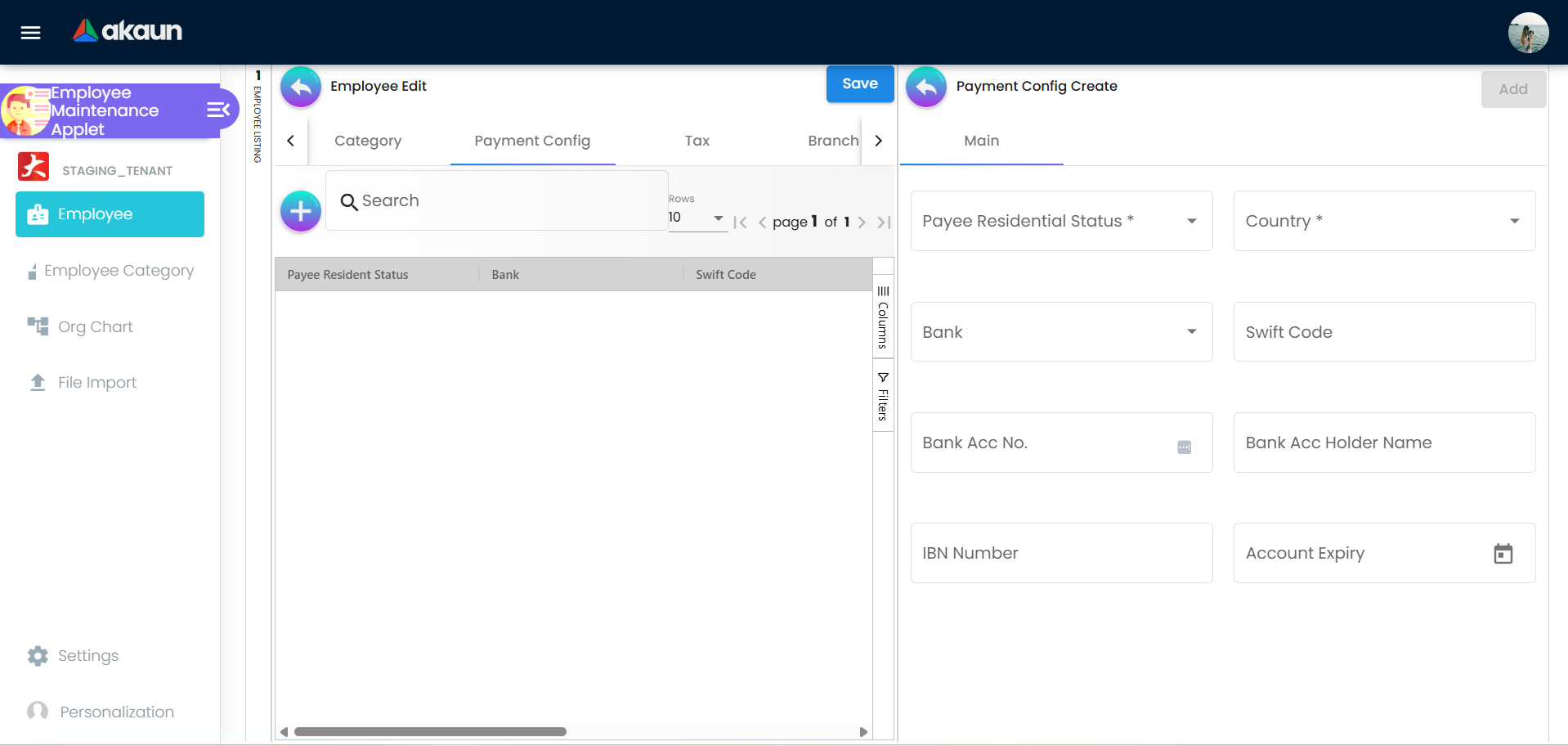
Configuration for employee payment details - Set Tax Profile and statutory fields
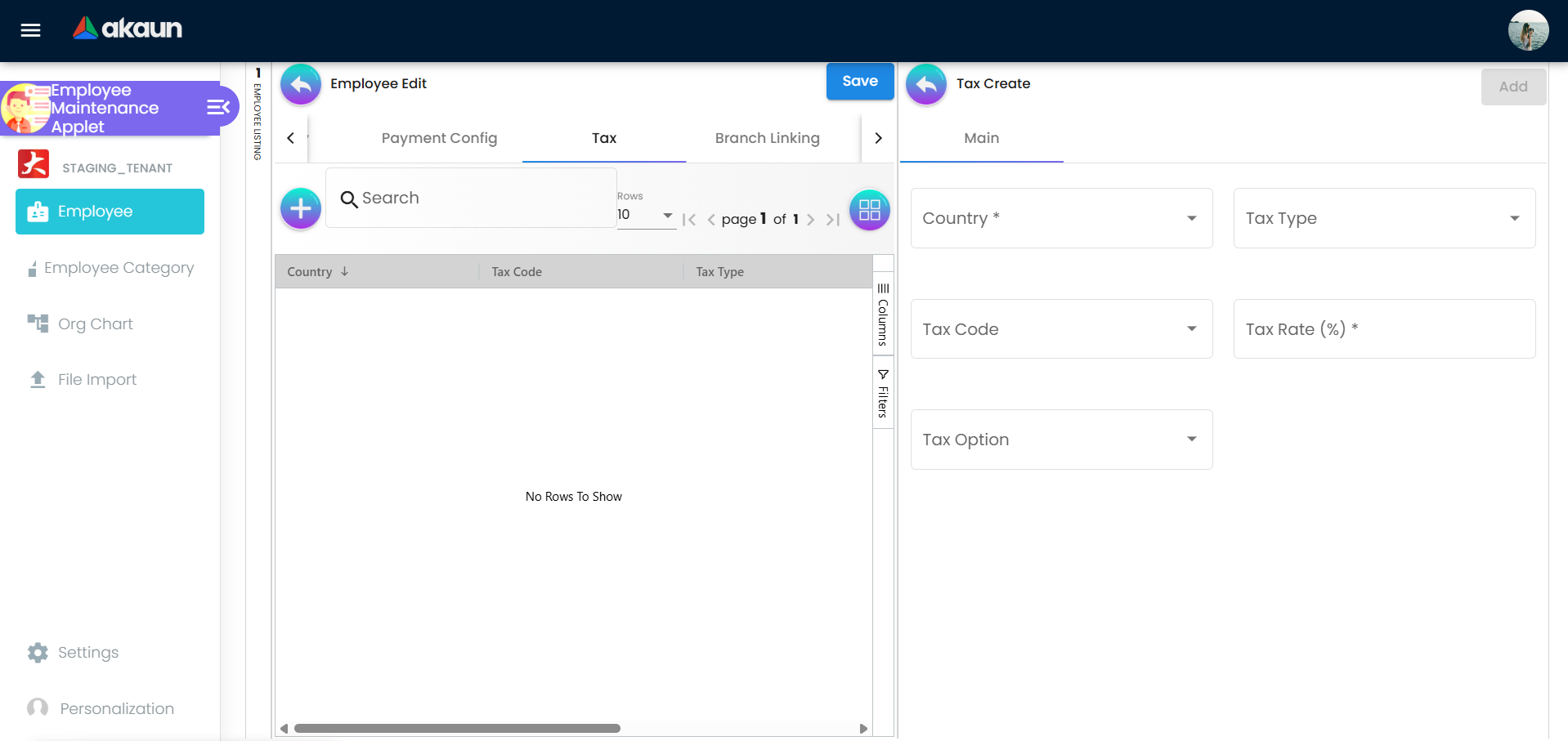
Configuration for employee tax details - Configure Spending Limits if required
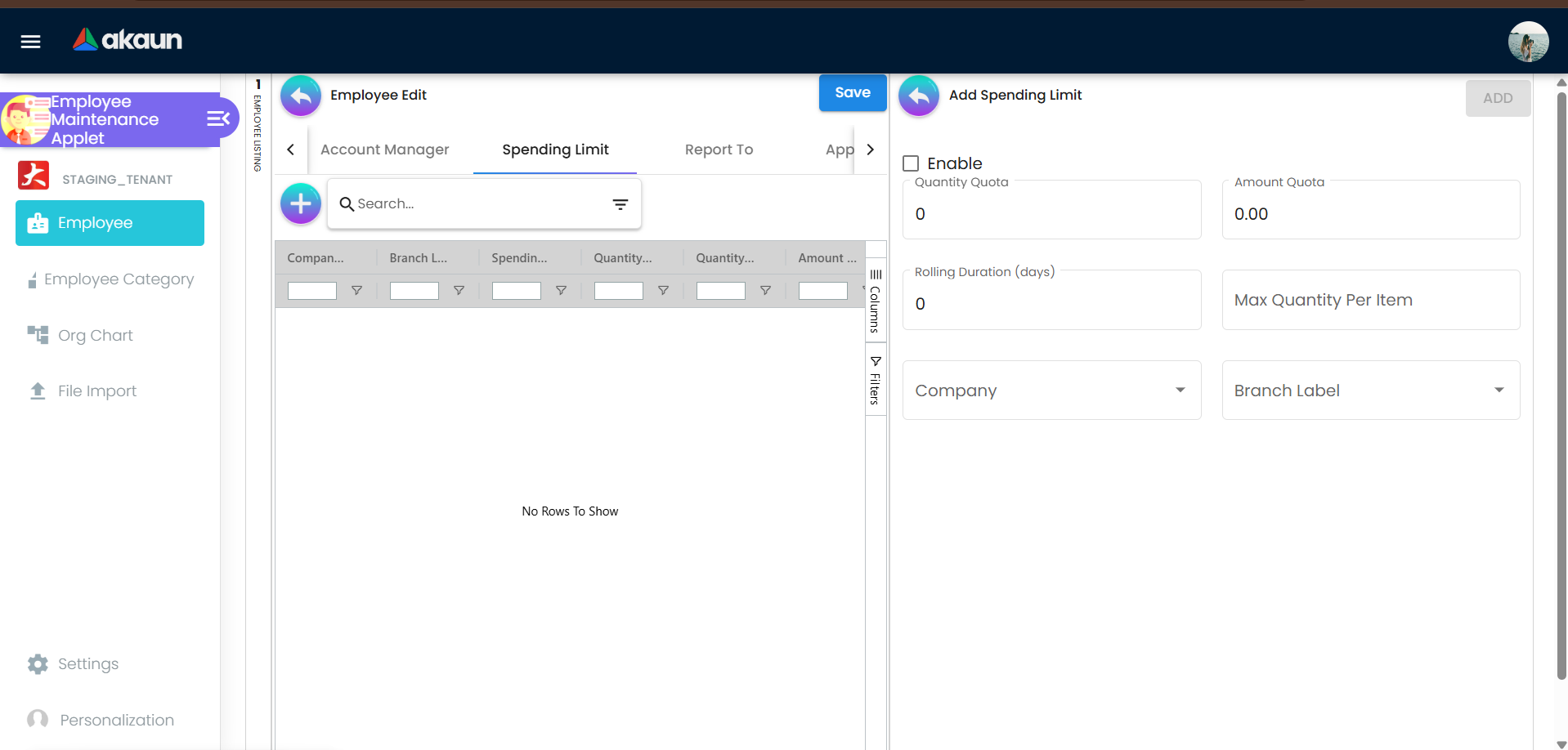
Configuration for employee spending limit details - Review Changes to confirm payroll fields
- Save to activate payroll data
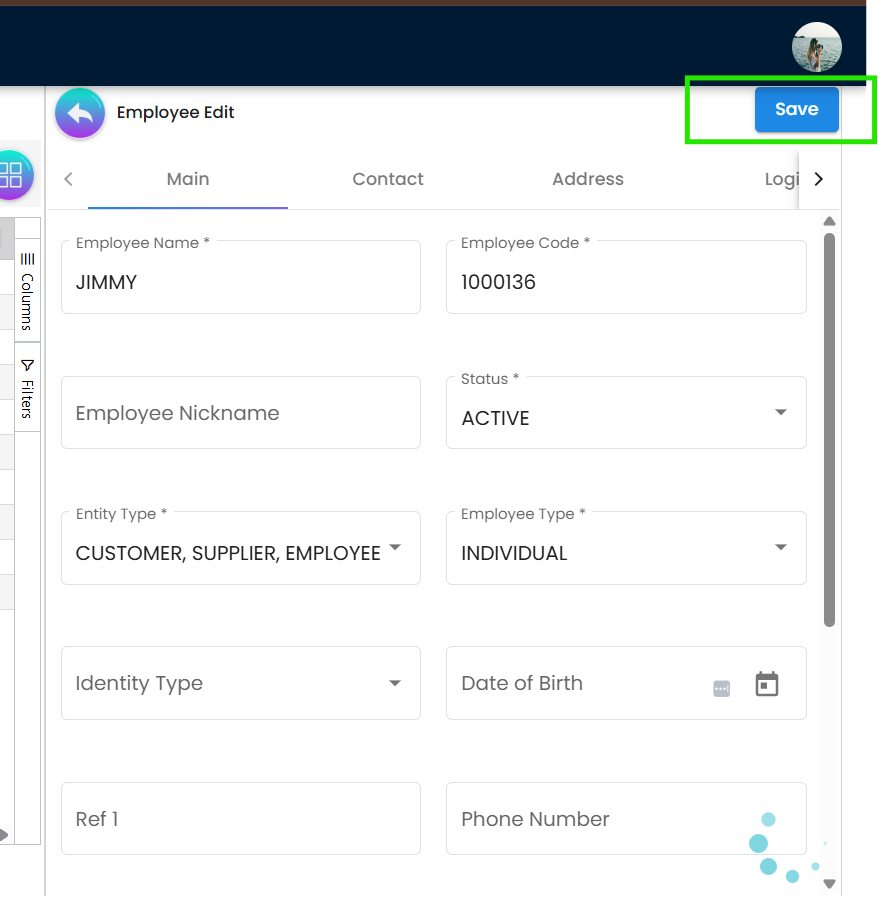
Saved all the edited/added details for the employee
For IT/Admins: Set Permissions and Visibility
Goal: Control user access and feature availability.
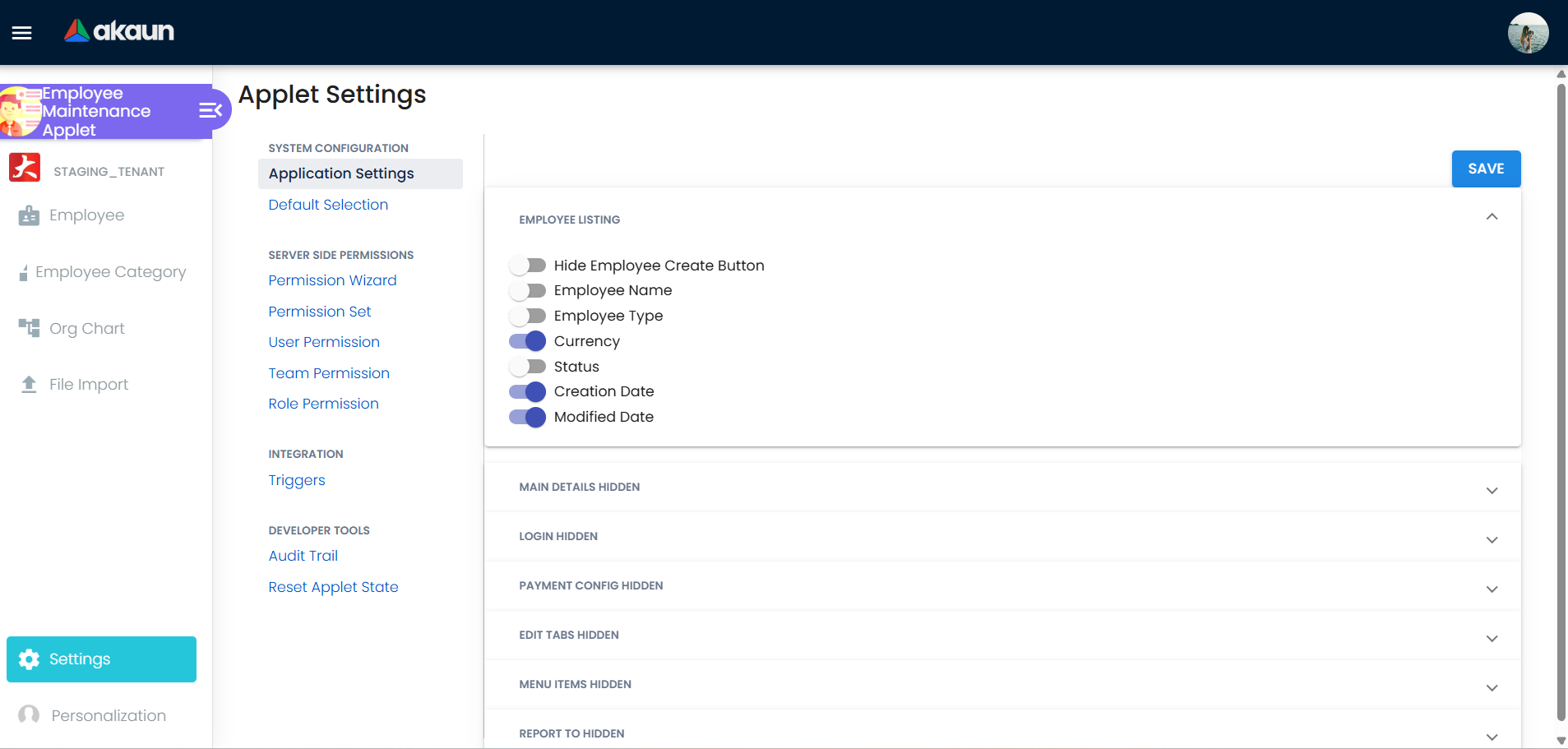
- Go to Settings
- Configure Permission Sets for roles and teams
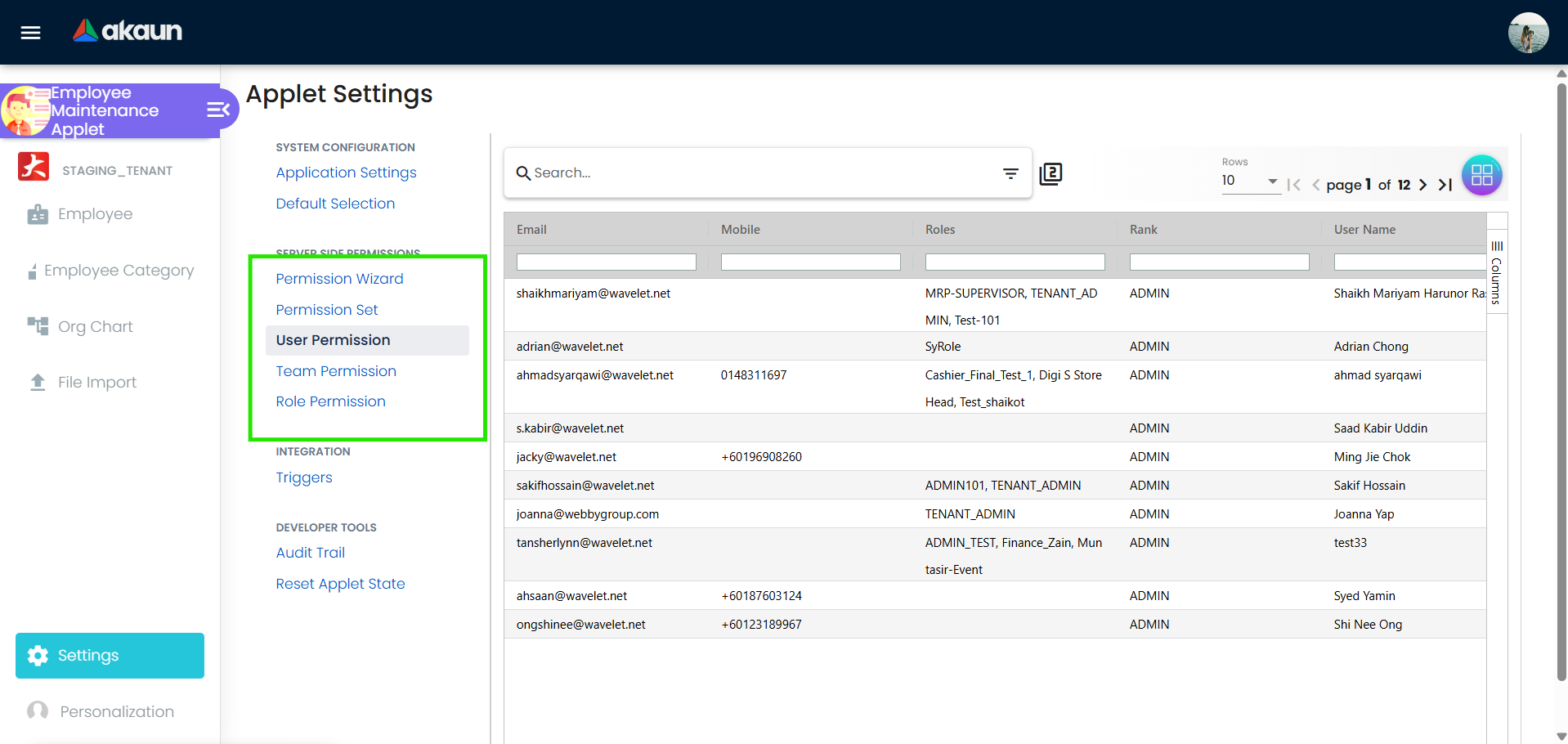
Set permission and role for each employee - Adjust Feature Visibility for menus and tabs
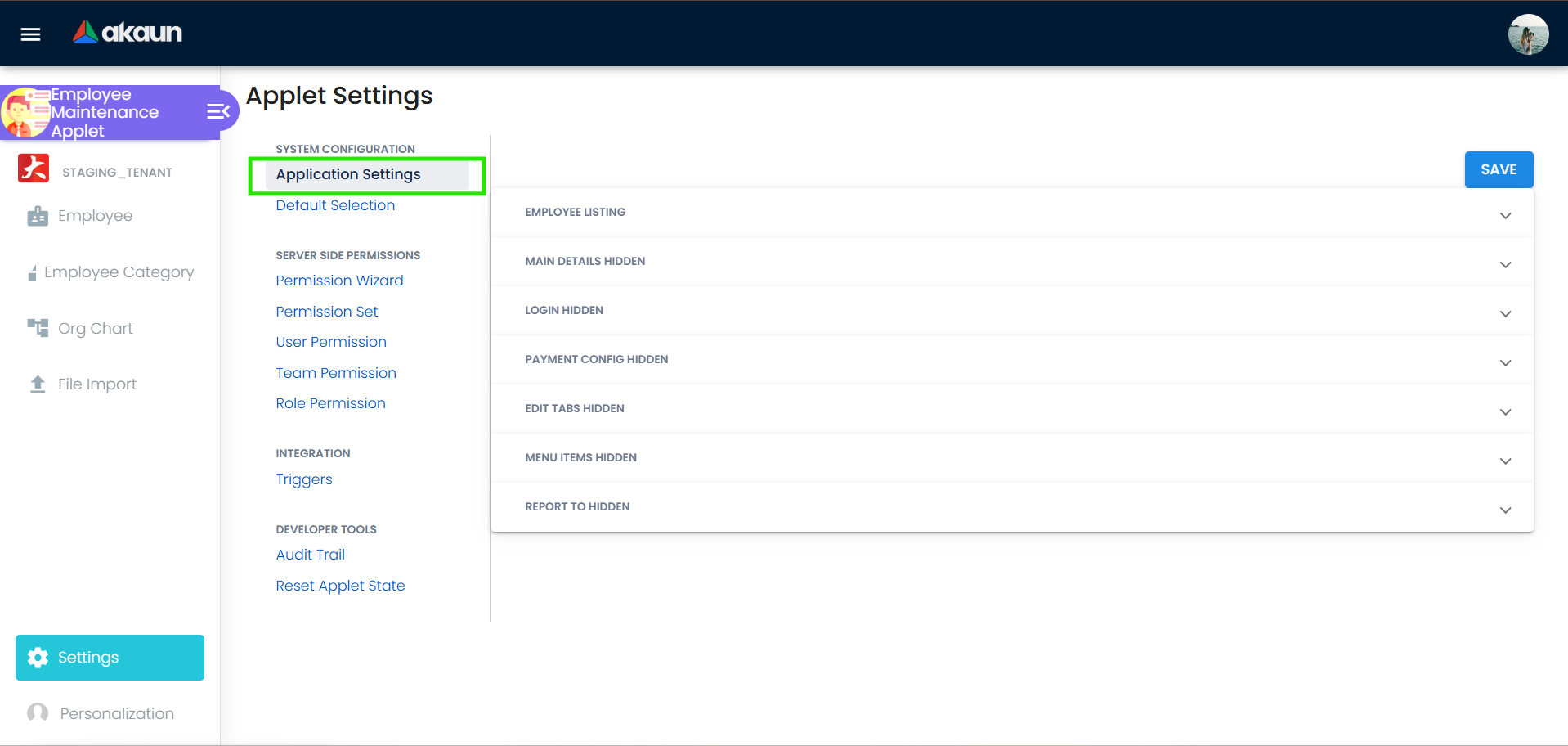
Choose either the user want to hide the or show each tab in the applet
Employee Master Data
The employee listing is the main hub for creating and managing employee records. It includes:
- Profile details, category, and employment type
- Contact and address management
- Branch and company assignments
- Engagement company access and e-invoice details
- Peppol ID link setup and notification configuration
Common Statuses/States
| Status | Meaning | Typical Use |
|---|---|---|
| ACTIVE | Employee is active in the system | Standard employee record |
| INACTIVE | Employee is no longer active | Offboarding or long leave |
| DRAFT | Profile setup not completed | During onboarding |
Employee Categories
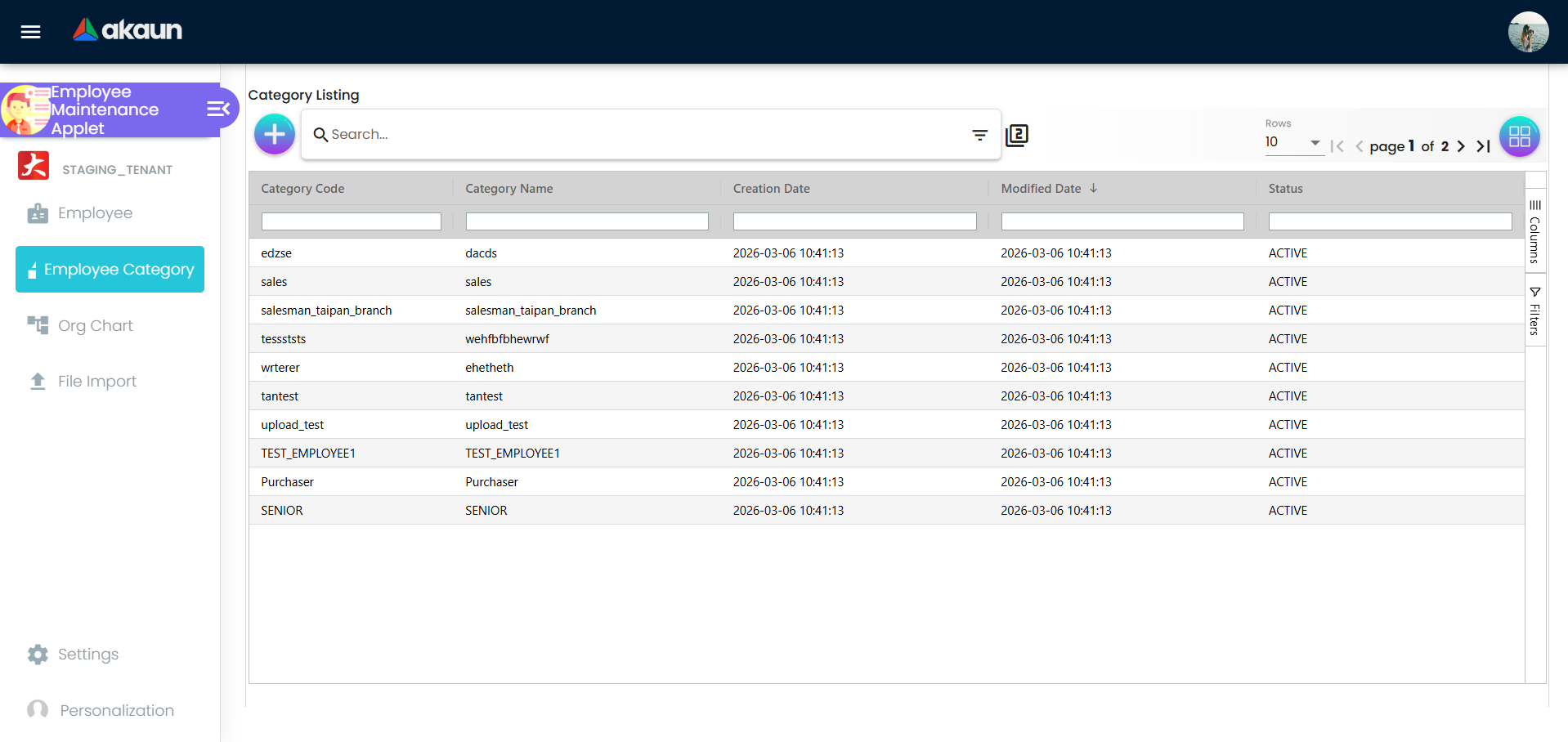
Use category listing to classify employees for reporting, filtering, and policy control:
- Create, edit, and assign employee categories
- Label-based grouping for HR and finance views
- Treeview selection with localized labels
Org Chart and Reporting
Use the org chart tools to define and visualize reporting lines:
- Report-to setup per employee
- Org chart listing and hierarchy view
- Approved leave visibility for manager planning
Login and Access
Control login and access rights directly from employee profiles:
- Create and edit employee login credentials
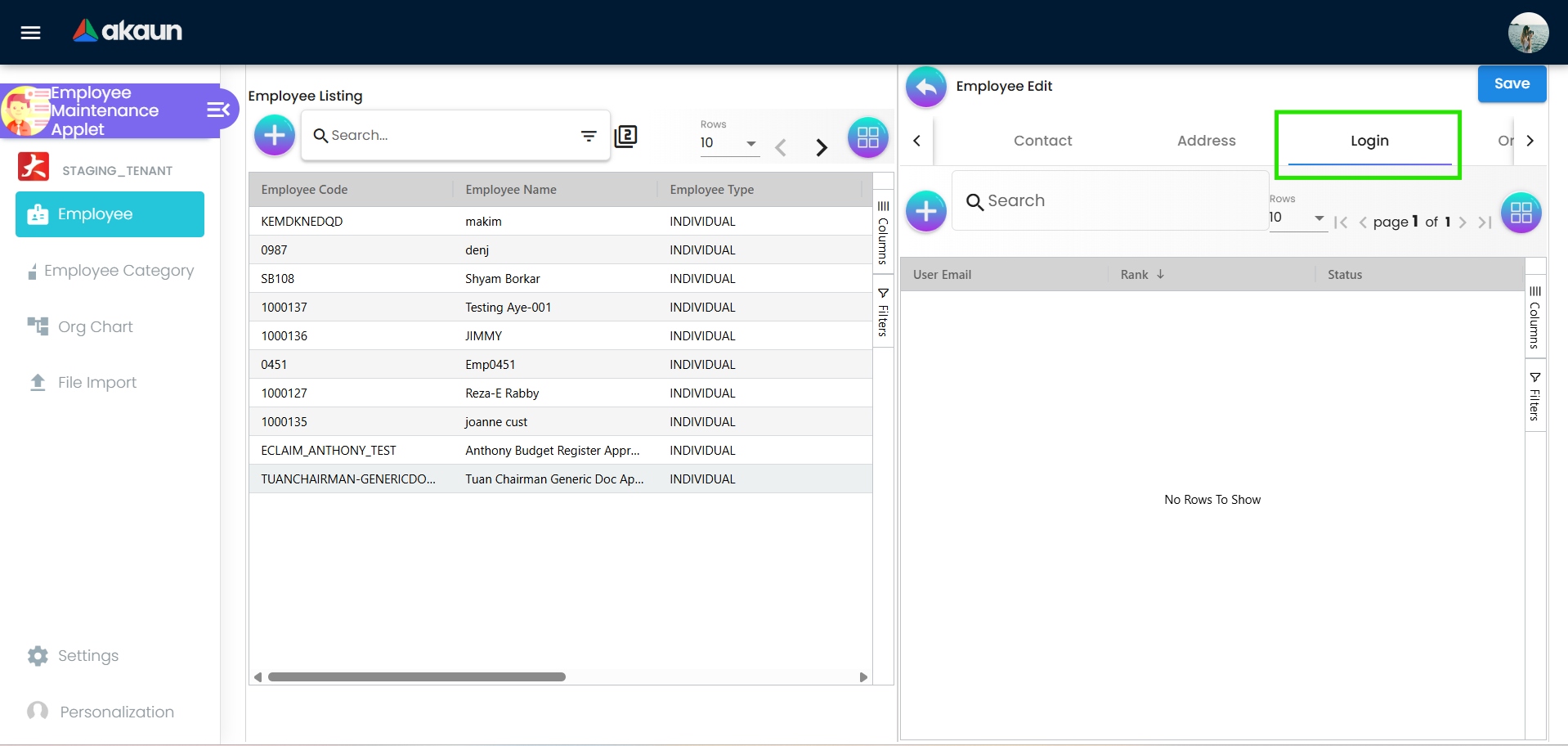
Login Tab in the Employe details - Set rank, status, and applet catalog access
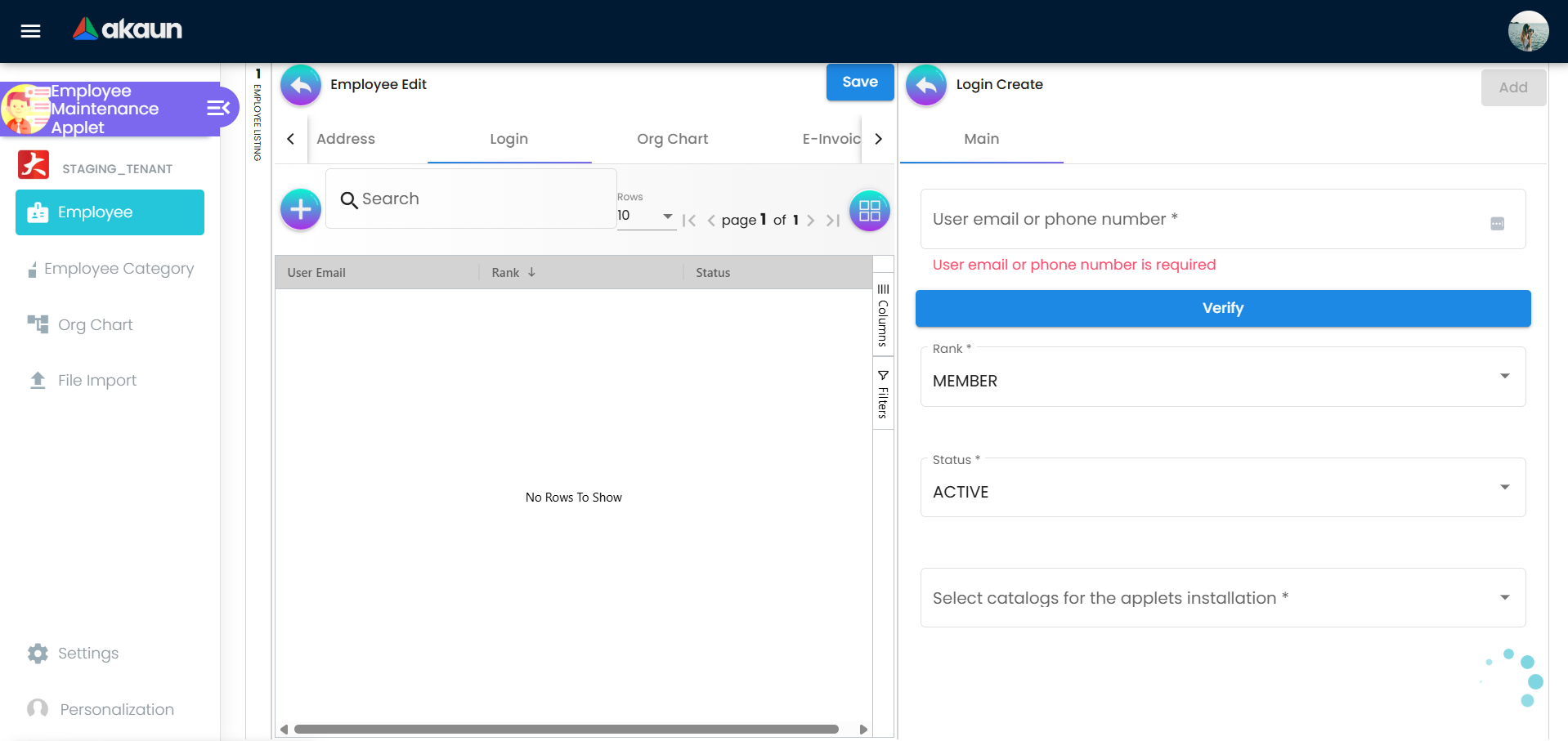
Configuration for employee login
Payroll and Tax Configuration
Payroll readiness requires consistent financial setup:
- Payment configuration and bank details
- Tax profile and statutory settings
- Employee spending limits for controlled reimbursements
Claims and Entitlements
The applet ties employee records to claim management:
- Claims accounts and entitlement linkage
- Claims report visibility for HR and finance
- Balance and usage tracking for entitlements
File Import
Bulk import simplifies onboarding and mass updates:
- Upload employee data files
- Validate and preview before import
- Reduce manual entry for large teams
- Use the template file to avoid validation errors
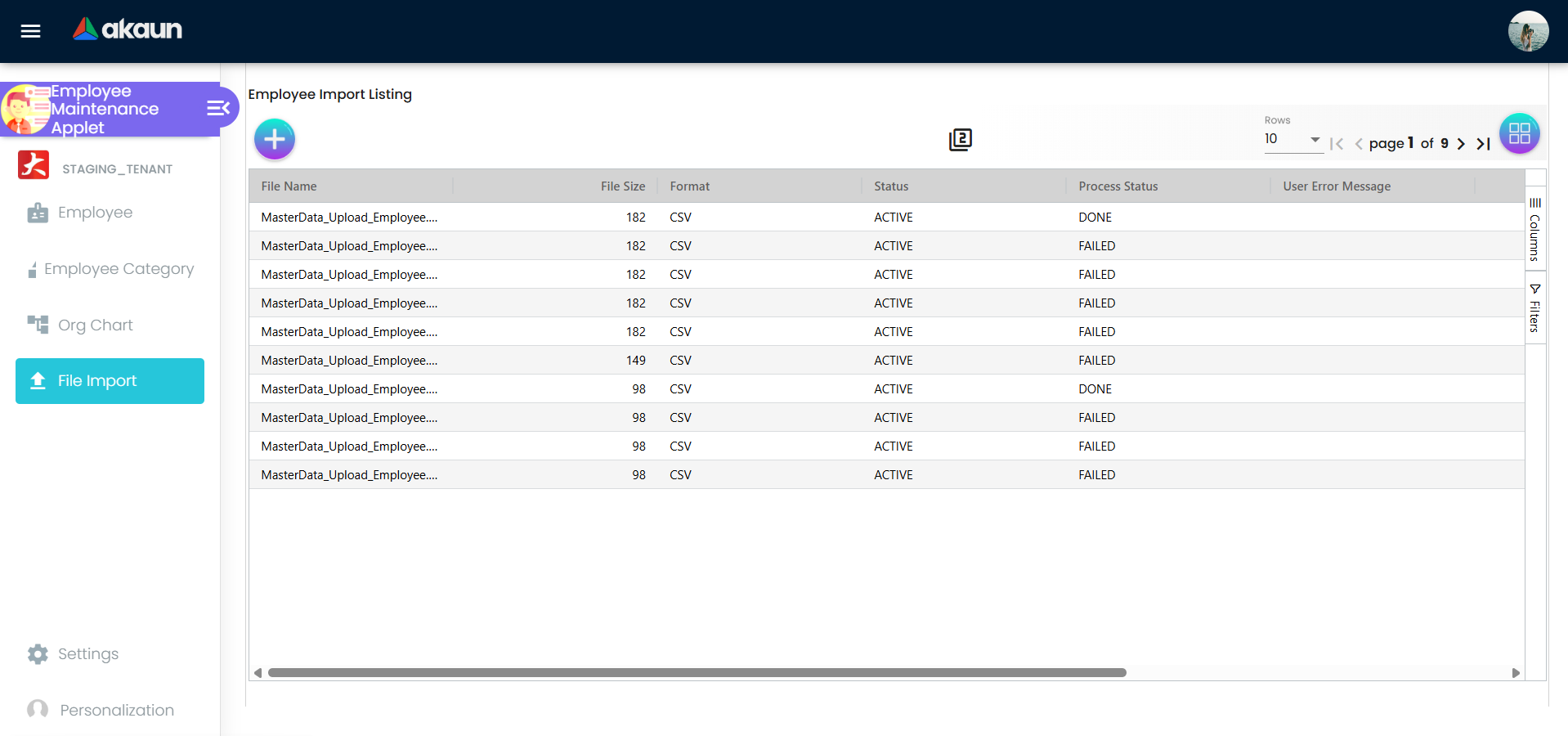
Allow user to import employee details in CSV file which will saved more time
Sample File Import Template
Use CSV or Excel (XLSX) with headers in the first row. Recommended format:
| Column | Required | Example | Notes |
|---|---|---|---|
| Employee Code | Yes | EMP001 | Must be unique |
| Employee Name | Yes | Nur Aisyah | Legal name |
| Employee Type | Yes | Merchant | Employee type |
| ID Number | Yes | EMP1234 | Employee identification |
| Yes | nur@example.com | Used for login | |
| Phone | No | +60 12-345 6789 | Include country code |
| Branch Code | Yes | KL01 | Must exist in Branch setup |
| Department | No | Finance | Use standard department names |
| Report To (Employee ID) | No | EMP0005 | Manager ID |
| Join Date | No | 2026-01-15 | YYYY-MM-DD |
| Status | No | ACTIVE | ACTIVE/INACTIVE |
Configuration & Settings
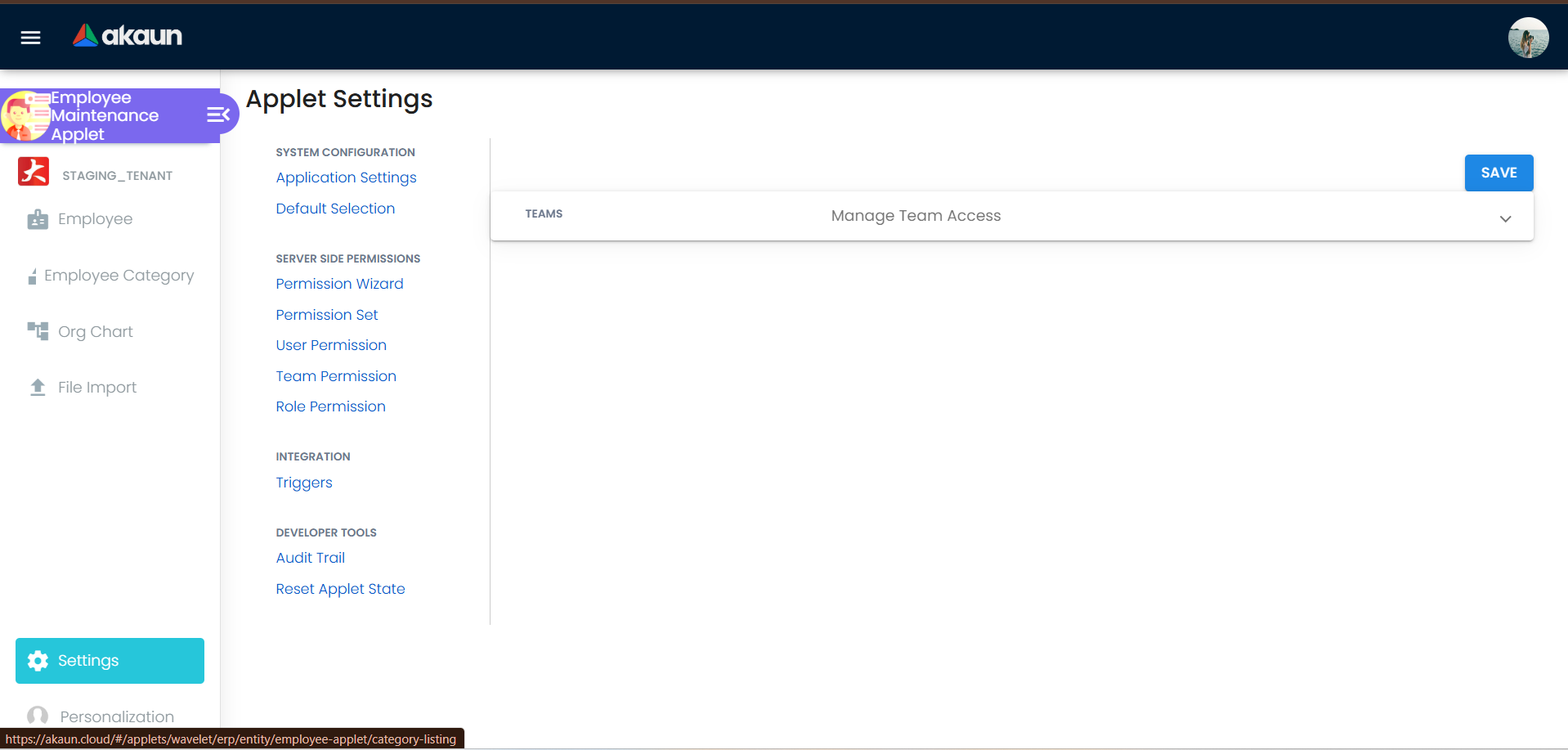
Access settings under Settings to control behavior across the applet.
Key configuration areas:
- Default Selection: Branch, department, and common defaults
- Field Settings: Enable or hide fields and tabs
- Webhook: Integrate employee events with external systems
- Feature Visibility: Control access to menus and modules
- Permission Wizard and Sets: Role-based access management
- User, Team, and Role Permissions: Fine-grained control
- Personalization: Default preferences and sidebar layout
- Applet Log: Trace actions for compliance audits
FAQ
Q: Why can I not see the Create Employee button? A: You may not have the required permission set. Check role or user permissions in Settings.
Q: How do I bulk upload employees? A: Go to File Import, upload the template file, validate, and import.
Q: How do I change an employee’s reporting manager? A: Open the employee profile and update the Report-To section.
Q: Why are payroll or tax fields hidden?
A: Field visibility can be controlled in Settings > Field Settings.
Q: How do I link a Peppol ID for e-invoicing? A: Use the Peppol ID Link section in the employee profile.
Q: Why can I not see the Org Chart menu?
A: Feature visibility or role permissions may hide it. Check Settings > Feature Visibility.