Employee Maintenance
The employee master: one entity record per person, the same kind as customers and suppliers, marked as an employee. This page is mostly about what the screen does not show — which identifier the rest of the platform keys a person on, what a document keeps when the record changes, and what to do when somebody leaves.
Your job, and the screen for it
| The job | Screen or tab | Read |
|---|---|---|
| Add an employee | Employee › create, then the Main tab — the header Save saves Main and E-Invoice only | The Main tab, field by field |
| Let them use Claims — it takes both the Login tab link and a Main-tab e-mail that is their login address | Employee edit, Login tab and Main tab | Which identifier everything else keys on |
| Place them in the organisation chart and record whom they report to | Org Chart › Structure; Employee edit, Report To tab | The other tabs, and what each one feeds |
| Load employees from a file | File Import | File Import |
Handle a leaver — INACTIVE hides them from the Sales Invoice and POS pickers only, and Employment Status is a label, read only to drop a TERMINATED person as a claim reviewer | Employee edit, Main tab; their row in the Claim Cycle applet | When somebody leaves |
| Follow one new hire from first day to last | The screens the check names, one per row | Check yourself |
Overview
The Employee Maintenance applet is BigLedger’s employee master. An employee is an entity record — the same kind of record as customers, suppliers and merchants — marked as an employee. The record carries who the person is, where they sit in the organisation, how they log in, how they are paid, their tax and spending rules, their reporting line, and the identity fields that go on a self-billed e-Invoice.
That much is on the screen. What is not on the screen, and what this page is mostly about, is the answer to three questions a reader only discovers the hard way:
- Which identifier does the rest of the platform key a person on? Not one. Four, and they are used by different modules for different things — see Which identifier everything else keys on.
- What happens to work already recorded when a record changes? Documents keep a copy, not a pointer — see What a document keeps of the employee.
- What should you do when somebody leaves? There is no Delete button here, and the two things you can do have opposite effects in different modules — see When somebody leaves.
CUSTOMER, SUPPLIER,
EMPLOYEE, MERCHANT). The same person can be an employee and a customer on one record; this applet
sets is_employee and shows the employment fields only while EMPLOYEE is among the selected types.
That is also why the employee-code uniqueness check below reaches across every entity in the tenant
and not only the employees.Where it fits
An employee record is master data, so nothing flows into it from a document and nothing flows out of it as one. What it does is supply an identity that eight other places key on, which is why it belongs to four modules at once.
| Direction | Applet | What passes |
|---|---|---|
| Upstream | Organisation | The companies and branches a person can be linked to, and the default branch on the record. A branch’s default sales agent points back at an employee from there |
| Upstream | Tax Configuration | The tax codes the Tax tab offers |
| Upstream | Tenant Admin | The logins, ranks and applet catalogs the Login tab links to and installs |
| Sibling | Customer · Supplier · Merchant · Entity | The same entity record seen through a different lens. One person can be an employee and a customer on one record |
| Downstream | Sales documents, and commission | The salesperson slot on a document header, and the commission posted from it |
| Downstream | Claim · Claim Cycle | The claimant lookup by e-mail and login link, and the name and employee code copied onto every claim line |
| Downstream | Payroll Admin | The person the payroll roster attaches a salary and pay group to; neither is held here. The bank details it pays into are held here, as a Payment Config row the roster names |
| Downstream | My E-Invoice Portal · MyPeppol Admin | The E-Invoice and Peppol Config tabs, on a self-billed e-Invoice |
Modules: Core, HR & Payroll, Claims, E-Invoice.
Which identifier everything else keys on
Four identifiers travel out of this applet, and they are not interchangeable. Getting this wrong is the commonest reason a person exists in BigLedger and still cannot do their job.
| Identifier | Who keys on it | What it means if it is wrong |
|---|---|---|
guid (invisible) | Commission, spending limits, engagement access, org-chart nodes, the sales-agent slot on documents, claim-cycle reviewer settings | Nothing — it is generated and never edited. It is the only identifier that cannot drift |
| Employee Code | Printables and reports; the File Import matcher; the salesperson search box | Two people with a swapped code get each other’s documents and each other’s commission history |
| E-mail (Main tab) | Claims and Engagement, to answer “which employee is the person logged in?” — by plain string equality against the login’s e-mail | The person opens Claims and is told Cannot find your email … from Employee Applet. Nothing on the employee screen hints that the field is load-bearing |
| The Login tab link | The my claims listing, which matches on the stored login subject instead | Their claim list is empty even though submitting a claim worked |
The two claim paths do not use the same key, and that is the finding worth carrying away. One half of Claims — and the claim-cycle reviewer lookup — finds you by comparing the e-mail you log in with to the employee’s Main-tab e-mail. The other half — the listing of the claims you have raised — finds you through the Login tab link. So a person needs both the Login tab link and the Main-tab e-mail set to the address they actually log in with, or Claims works in halves.
The symptom when the e-mail half is missing is a message quoted verbatim from the backend, and it names this applet without naming the field:
Cannot find your email:
<address>from Employee Applet. Please contact respective Managers to check your Employee information.
It appears whenever the logged-in user’s e-mail matches no employee record. Nothing on the create form requires an e-mail and nothing back-fills one, so an employee can sit in the list without it — which is fine right up to the day that person is given a claim to file.
.get(0). Nothing orders that list, so if two employee records carry the same
address — a leaver and their replacement, most often — which one the platform thinks you are is
whatever the database returns first. Keep one employee record per address.Who reads an employee record, and what breaks when one is wrong
Nothing on this screen suggests how far the record travels. It travels here:
| What reads it | What it reads | What goes wrong |
|---|---|---|
| The salesperson slot on sales documents | sales_entity_hdr_guid on the document header, chosen from a salesperson picker whose filter depends on the document applet (see the next column) | Which people the picker lists depends on the document applet. Sales Invoice and the POS till list ACTIVE employees only, so a deactivated person drops out of them — usually what you want, and also why somebody you deactivated for a week is missing just when you want to credit them with today’s sale. Sales Order, Quotation, Delivery Order, Credit Note and most other document applets list employees who carry an Employee Category, whatever their status: a deactivated salesperson stays in that list, and one with no category never appears in it |
| Commission | the same sales_entity_hdr_guid, at posting time | No salesperson on the document means no commission line, and nothing warns you at the till |
| Commission rules filtered by employee category | the entity extension LIST_CATEGORY_GUID — not the Category tab on this applet | See the caution below |
| Claims and Engagement | the Main-tab e-mail and the Login tab link, as above | The person cannot see their own claims, or cannot see any company’s engagements |
| Claim submission | the claimant’s name and employee code, copied onto every claim line at submit | A later rename does not correct claim lines already submitted |
| Org chart nodes | Default Rank, copied onto a node when the node is created or updated and left alone if the node already has a rank | Change the rank later and existing nodes keep the old one |
| Branch defaults | a branch can name a default sales agent (set in the Organisation applet) | Deleting or replacing that employee leaves a branch pointing at nobody |
| Self-billed e-Invoices | the E-Invoice tab’s identity block and the Peppol Config tab | A missing TIN or identity number fails at submission, not at save |
What a document keeps of the employee
A document does not point at the employee record and read through it. When you pick a salesperson, the
document takes a copy — the same snapshot behaviour described for customers and suppliers on the
Customer Maintenance page, seen from the employee
side. The header keeps sales_entity_hdr_guid plus a stored sales_entity_hdr_name and
sales_entity_hdr_code, and the applet also keeps a property_json.salesAgent block with the name and
employee code it displayed. The three person-in-charge slots keep a name each.
Two consequences the screen cannot show you:
- Renaming an employee does not change documents already raised. Last quarter’s invoices still show the name and code that were true when they were issued, which is the only way a reprint can be evidence of what happened. If you need the old documents to change, that is a data fix, not an edit.
- Merging two entity records does rewrite them, deliberately. The entity-merging processor walks every document pointing at the surviving record and refreshes the salesperson name and code, the three person-in-charge names, the delivery block and the e-Invoice buyer and supplier blocks. Merging is the one supported way to make history agree with a corrected record.
Claim lines take their own snapshot at submit — employee name and employee code, from the claimant record, at that moment.
When somebody leaves
This applet has no Delete button. There is no delete action on the employee listing, none on the edit header, and no delete effect in its state controller; the only Delete buttons in the applet are on sub-records — a spending limit, a Peppol ID, a company link, an account-manager row, an engagement access row. An employee record can be deleted — through the Entity applet or the API, not from here.
So you have two levers, and they behave differently:
- Entity status → INACTIVE. The salesperson pickers on the Sales Invoice header and the POS till ask
for
ACTIVEonly, so an inactive person immediately stops being offered there. The category-based picker that Sales Order, Quotation, Delivery Order and most other sales documents use has no status test, and still offers them. Everything already raised is untouched, because of the snapshot above. This is the right lever for a leaver, but not the whole of it. - Employment Status → RESIGNED / TERMINATED / ABSCONDED / VOLUNTARY SEPARATION. This is a label.
It changes no entity status, hides nobody from any picker, and exactly one query in the platform
reads it: the claim-cycle reviewer lookup excludes reviewers whose status matches
%Terminate%.RESIGNEDis notTERMINATED— a resigned reviewer is still a reviewer. Setting Employment Status and stopping there leaves the person live everywhere.
Entity queries default to status <> 'DELETED' rather than to ACTIVE, so a
caller that does not ask for ACTIVE — and the older shared employee picker is one, asking only for
is_employee = true — will still offer an inactive person. Deactivation is reliable where it is
checked, and it is checked on the Sales Invoice and POS till salesperson pickers only.
is_employee and on status <> 'DELETED'; neither checks for ACTIVE. An inactive leaver can still be
resolved from their login and can still be a configured reviewer. If they must stop approving, remove
their row in the Claim Cycle applet — that is where approvers are actually configured.The duplicate rules, exactly
- Employee Code is unique across every non-deleted entity in the tenant, not only the employees, and
the comparison is exact string equality. So
E001ande001can both exist, and a deleted record releases its code for reuse. Failing it returns…EMPLOYEE_CODE_ALREADY_EXISTS. - A code may only be set on a record that is an employee. Supplying one on any other entity
returns
…EMPLOYEE_CODE_SHOULD_NOT_BE_SET. - Leave the code blank and the backend generates one from the
EMPLOYEE_IDrunning number plus the tenant’s employee prefix, and only when the stored record has no code either. An employee record without a code is therefore not something you will meet. - Employee ID is a second, separate unique key, and a duplicate is refused. It is not the Employee Code and there is no field for it on the create form.
- E-mail is not unique and is not checked, and it is the key Claims and Engagement resolve you by. That asymmetry is the one to hold on to.
Check yourself: one new hire, first day to last
Everything above is a claim about where the record goes. This check follows one record there on your own
tenant, so you can see each claim hold. Take a new sales assistant who joins GS-KV-01 on the 1st, sells
on the 3rd, is paid in the month’s payroll run and leaves at month-end. Each row is one screen and one
thing to find on it.
| When | Open | You should find | If you find this instead |
|---|---|---|---|
| The 1st, after Create | The Employee listing, searched by name | One row, status ACTIVE, with an Employee Code even if you left the box blank, because the backend numbers a blank code | Two rows for one person: two codes, and every picker offers both |
| The 1st | The record’s Branch Linking tab | Nothing yet. The Branch box on the create form sets the default branch and writes no branch link. Add GS-KV-01 here if any document applet you use filters salespeople by branch | — |
| The 1st | The Category tab, then Payment Config | One Employee Category, if Sales Orders or Quotations are going to name this person. One Payment Config row with the bank account number filled in | — |
| The 3rd | A new Sales Invoice at GS-KV-01: type the new code into the salesperson box, then add a line | The person is offered. The line’s Sales Agent column shows their name (unless that column is hidden in the invoice applet’s settings) | Offered on the Sales Invoice but not on a Sales Order or Quotation: no Employee Category. Offered at one branch and missing at GS-KV-01: the branch filter is on and there is no Branch Linking row |
Month-end, after you set status to INACTIVE | A new Sales Invoice: the same code in the salesperson box | An empty list for that code | The person is still listed: the status did not save as INACTIVE |
| Month-end | The invoice from the 3rd, its lines | The Sales Agent column still shows their name. That is the copy the line took when it was added, and deactivation leaves it alone | — |
| Month-end | A new Sales Order: the salesperson box | Still offered, because that picker lists anyone carrying an Employee Category, whatever their status. Remove the category on the Category tab (the category’s edit panel has a Remove button) | — |
The payroll run is the one step you may not be able to open yet. Payroll Admin has no row in the applet registry, so nothing installs it; the HR & Payroll guides say so and explain how wages reach your books today. Where it is installed, the run reads this record in two ways that differ from the invoice:
- Generate Bank File reads the record at the moment you press it. It takes the person’s name and Employee Code from the employee record as it stands, and the account number from the Payment Config row the payroll roster names. Your new assistant’s line should carry that account number. If anyone due pay has no account number, the whole file is refused with Missing employee bank account for: followed by their names.
- Post GL is no check on this person. It writes three totals to the payroll module’s own journal and nothing to the general ledger (what Post GL writes).
- Setting the employee
INACTIVEdoes not take them out of next month’s run. A run is built from the salary records of the company and pay group, and the only one it skips is a record marked On Hold (exclude from payroll) on the payroll roster. Tick that box for a leaver once their final pay has gone.
Claims are the last place to look: deactivation does not remove anybody from them (see When somebody leaves). If this person was a claim reviewer, their row in the Claim Cycle applet is what stops them approving.
Screens and menus
Left menu (route applets/wavelet/erp/entity/employee-applet):
- Employee — search, create and edit employees.
- Employee Category — a tree of categories (code, name, description, parent) held as labels; employees are tagged with them on the Category tab. Read the caution above before building anything on these.
- Org Chart — org chart headers with a Structure tab where you add
DEPARTMENTandEMPLOYEEnodes, each with a hierarchical name, parent, rank 0–10 and designation. An employee node’s rank is seeded from the person’s Default Rank when the node has none. - File Import — CSV upload of employees.
The Employee Category, Org Chart and File Import entries can each be hidden tenant-wide (see Applet settings).
Gear (Settings) menu: Application Settings and Default Selection; Permission Wizard, Permission Set, User / Team / Role Permission; Triggers (webhook configuration); Audit Trail and Reset Applet State. Feature Visibility is the settings landing page. Personalisation offers a per-user Default Selection.
Employee listing
The listing opens on Employee Code, Employee Name, Employee Type, Created By, Modified By and Status, and hides two dozen more columns behind the Columns panel — ID type and number, gender, date of birth, country, currency, description, AR/AP type, phone, e-mail, nationality, ethnicity, language, title, region, marital status, job title, job industry, job role and the creation and modification dates. The + button opens the create form; clicking a row opens the edit form.
Fields
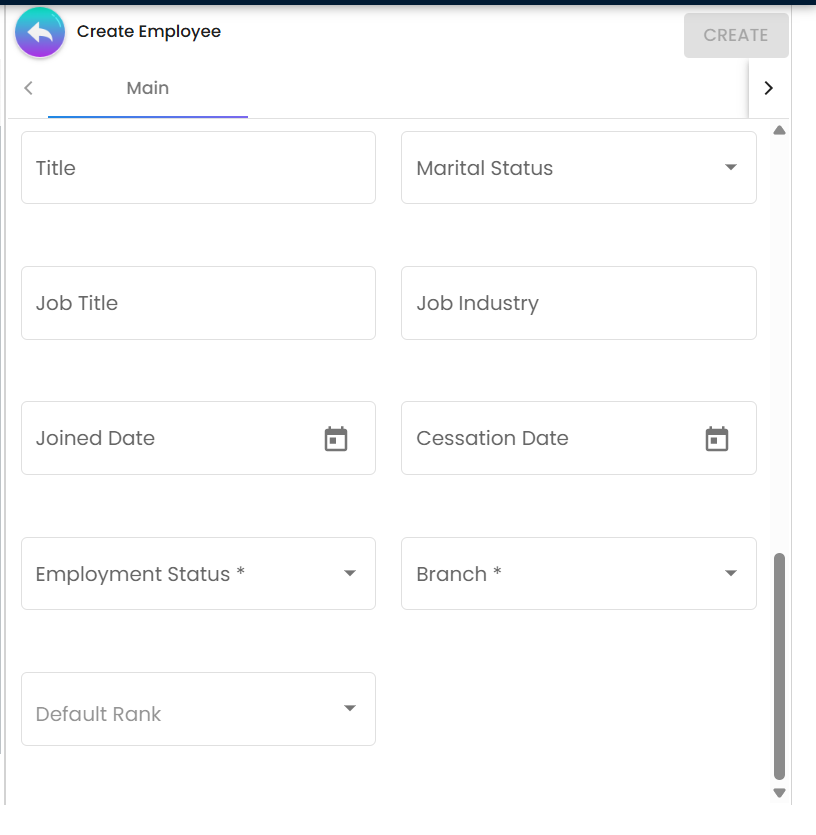
An employee record is one create form and eighteen edit tabs, and the size of that is the first thing worth knowing: the create form is a single Main tab with about thirty boxes, and everything else — e-Invoice identity, addresses, contacts, categories, logins, payment configuration, tax rows, org-chart placement, branch and company linking, account managers, spending limits, reporting line, approved leave and engagement-company access — appears only once the person exists.
Two of those tabs behave differently from the rest and catch people out. Main and E-Invoice are saved by the header Save; every other tab saves itself from its own Add or Save button, so a tab you filled in and then navigated away from without pressing its own button is gone, and a change on Main that you abandoned takes nothing else with it. And the fields that decide what happens elsewhere — the identifier other records key on, the e-Invoice identity block, the payment configuration a payroll or claim payment reads — are not on the create form at all.
The two sections below are the field-level detail: what the Main tab’s boxes mean beyond their labels, and what each of the other tabs feeds.
The Main tab, field by field
The create form is a single Main tab, and the edit form’s Main tab is the same set plus the creation and modification stamps. What is worth knowing beyond the labels:
Identity. Employee Name and Employee Nickname are plain text. Employee Code is the unique key
described above; leave it blank to have one generated. Status is the entity status and offers exactly
three values — ACTIVE, TEMP, INACTIVE, defaulting to ACTIVE. There is no DRAFT and no
DELETED on this list; DELETED is what the delete API writes and is why deleted people disappear from
every lookup on this page. Entity Type defaults to EMPLOYEE and is multi-select. Employee Type is
INDIVIDUAL while EMPLOYEE is selected and offers CORPORATE only if you deselect it; the backend
rejects anything else.
Identification. Identity Type and ID Number relabel themselves to Company Registration Number
for a CORPORATE record, and Company Tax Registration ID appears and becomes mandatory in that mode.
These two fields are what a self-billed e-Invoice identifies the person by, which is why hiding them
(below) is not a cosmetic choice.
Personal details. Gender, date of birth, nationality, ethnicity, language code, title, region code,
marital status, job title, job industry and job role are all optional and all individual-only. Marital
status is M / S / O; gender is MALE / FEMALE.
Group Managing Partner — matched case-sensitively, on either of the places the job title is kept
— skips approval entirely: the line is stamped PENDING_DOC_REVIEW with the final
approval date set to now. The title is built into the product and nothing on the screen warns you. Do
not adopt it as a title.Money and tax. Country and Currency; currency is mandatory, starts blank and pre-fills from
DEFAULT_CURRENCY if that has been set. AR / AP Type defaults to AP_EMPLOYEE and is the field that
decides which control account a document against this person posts to — it is read live at posting
time, not snapshotted, so correcting it moves the account on the next posting. Bank Name and Bank
Account No on the header are a convenience pair and are not the Payment Config tab; nothing reads
one from the other.
Contact. Phone Number is validated by the phone component. Email is the field Claims and Engagement resolve the person by; see above.
Employment. Joined Date, Cessation Date and Employment Status are written to join_date,
resign_date and employee_lifecycle_status_code. All three
are labels: no picker, report or posting path in the backend reads the dates, and the lifecycle status
is read by the single claim-cycle query named above. Nothing makes the field mandatory and nothing
back-fills it, so a report built on it shows only the records somebody happened to fill in.
Placement. Branch is mandatory on create and also sets the default company from the branch it belongs to. Team, Department and Division are free text — they are not the Organisation applet’s structures and nothing validates them against anything. Default Rank is the number an org-chart node inherits when it has none of its own.
Free text. Description, Ref 1 and Ref 2 are yours; nothing reads them.
Not on this screen at all: EPF number. The column exists on the entity record and is filterable through the API, and no screen in this applet sets it and no behaviour keys off it.
The other tabs, and what each one feeds
In default order the edit form shows Main, E-Invoice, Peppol Config, Address, Contact, Remark, Category, Login, Payment Config, Tax, Org Chart, Branch Linking, Company Linking, Account Manager, Spending Limit, Report To, Approved Leave and Engagement Company Access. Most are a listing on the left and a create panel on the right with their own Add button; the header Save saves the Main and E-Invoice tabs only — everything else saves itself.
E-Invoice carries the self-billed identity block: a self-billed switch, the person’s name, ID type and number, TIN, contact number and e-mail, a default e-Invoice payment configuration, tourism-tax and SST numbers, MSIC code and business-activity description, SIC code, ATIGA number, FTA information, and a full address. Most of it is mandatory, and it saves with the Main tab’s Save. This is what makes a self-billed e-Invoice to a person possible at all; an incomplete block fails at submission to the regulator, long after you pressed Save.
Peppol Config holds Peppol participant ID links and their notification configuration, consumed by the MyPeppol Admin applet.
Address and Contact write the ordinary entity address and contact lines — address name, type, five address lines, country, state, city, postcode; contact name and ID, designation, office, extension, mobile, fax and other numbers, phone and e-mail. The mobile number and contact name are mandatory on a contact. Note that a contact’s e-mail is not the Main-tab e-mail and is not what Claims resolves on.
Remark is free text against the record.
Category tags the employee with nodes from the Employee Category tree. Read the caution above before you use these for anything downstream.
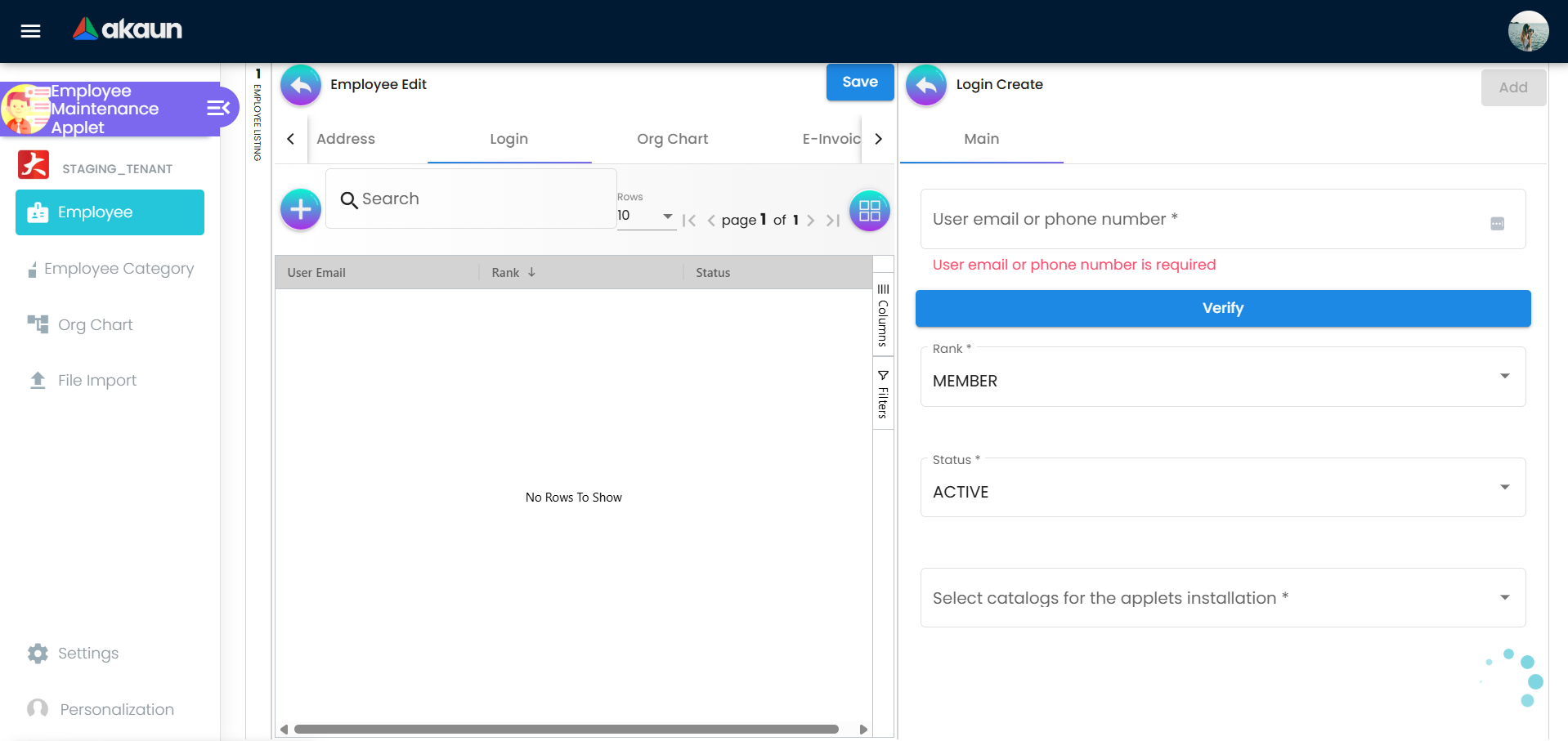
Login is where a person becomes a user. Enter their e-mail or phone, Verify it, then Send
Invite (or Send Tac), and once they have accepted, Invitation Accepted links the login to
the employee. Rank offers
OWNER, ADMIN, MANAGER, MEMBER, GUEST, VISITOR, ANNONYMOUS and Status ACTIVE /
INACTIVE. Verification matches the principal type exactly, so an e-mail will not be found by a phone
lookup and a phone must be entered in the stored format.
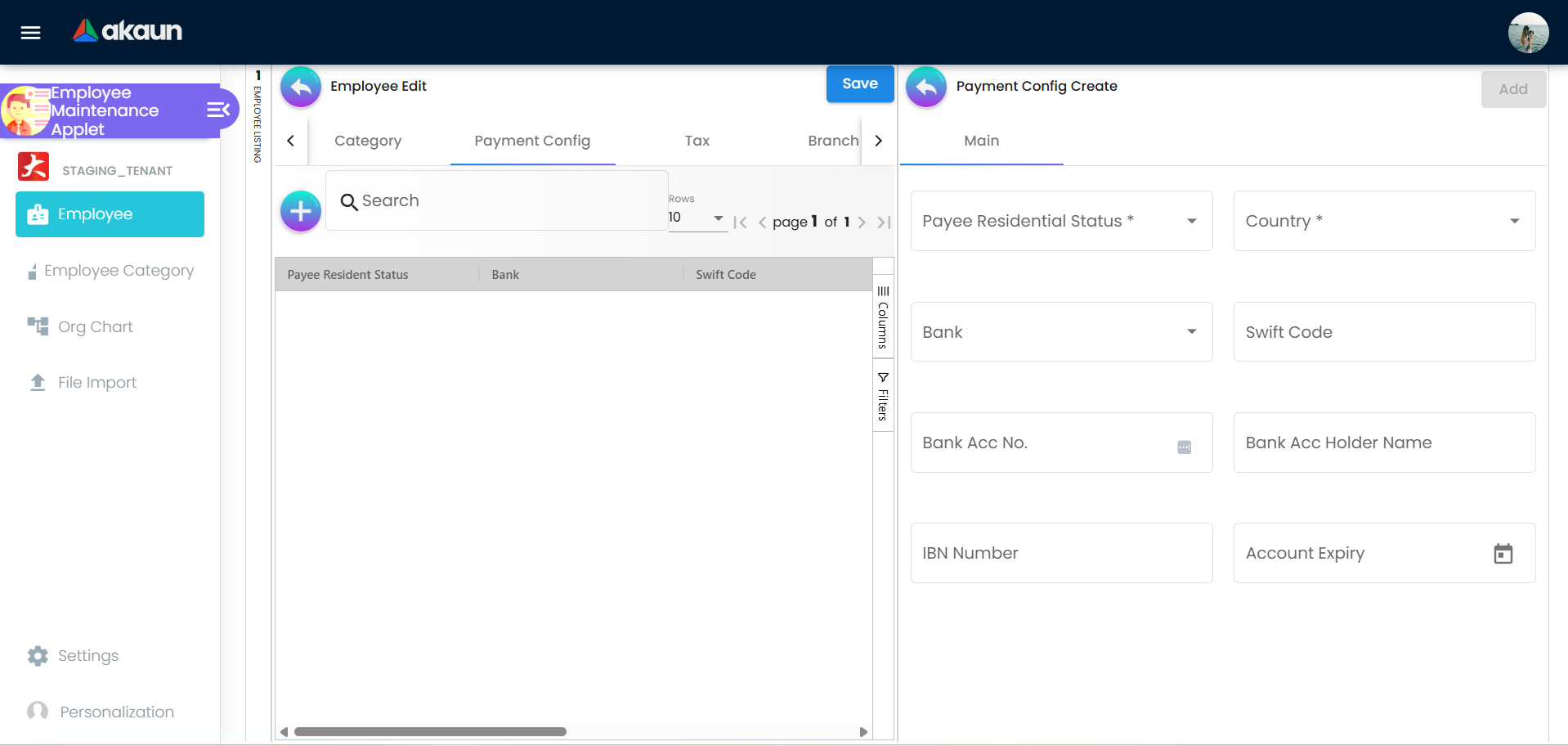
Payment Config records payee residential status and country (both mandatory), bank, SWIFT code, account number, holder name, IBN number and account expiry. It requires a real country code and, when a bank is given, a bank header that exists.
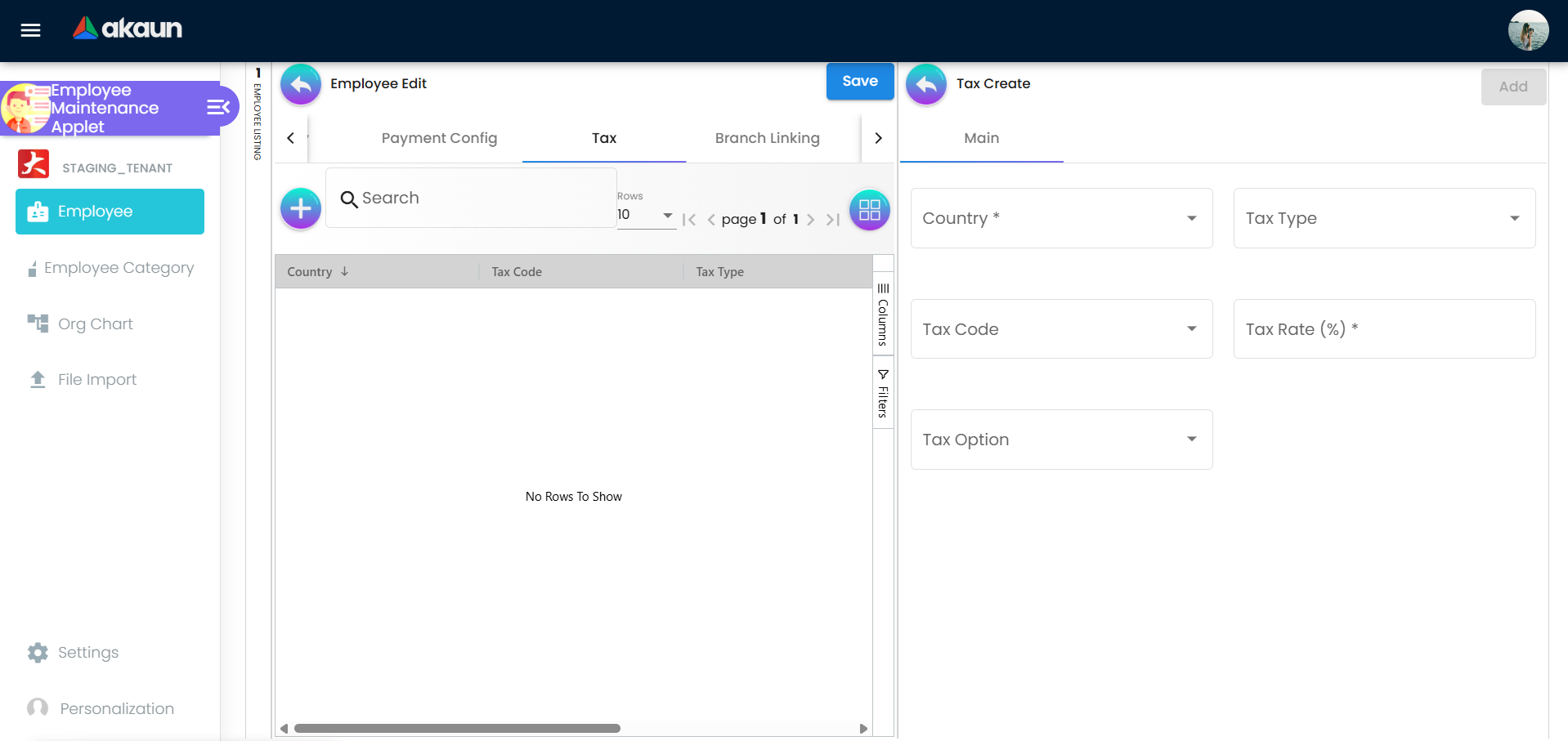
Tax records country, tax type, tax code, rate and tax option — all mandatory — into a TAX_DETAILS
JSON extension row on the entity. The tax-code list filters by the country you pick, so choose the
country first.
Org Chart is read-only here: it shows the charts, companies, designations and ranks the person has been placed in. You place them in the Org Chart menu, not on this tab.
Branch Linking and Company Linking link the employee to branches and companies. One link per
company and employee, enforced with
…COMPOSITE_CONSTRAINT_COMPANY_GUID_AND_EMPLOYEE_HDR_GUID_ALREADY_EXISTS. Branch links do more than
document the person’s branches: a document applet can be configured to offer only employees linked
to the document’s branch in its salesperson picker. That switch is
FILTER_EMPLOYEE_BY_BRANCH, it ships everywhere the shared field-configuration screen does, and it is
off until somebody turns it on. Where it is on, an employee with no branch link is invisible as a
salesperson and nothing says why.
Account Manager links this employee to the customers they manage — the inverse of the account-manager field on a customer.
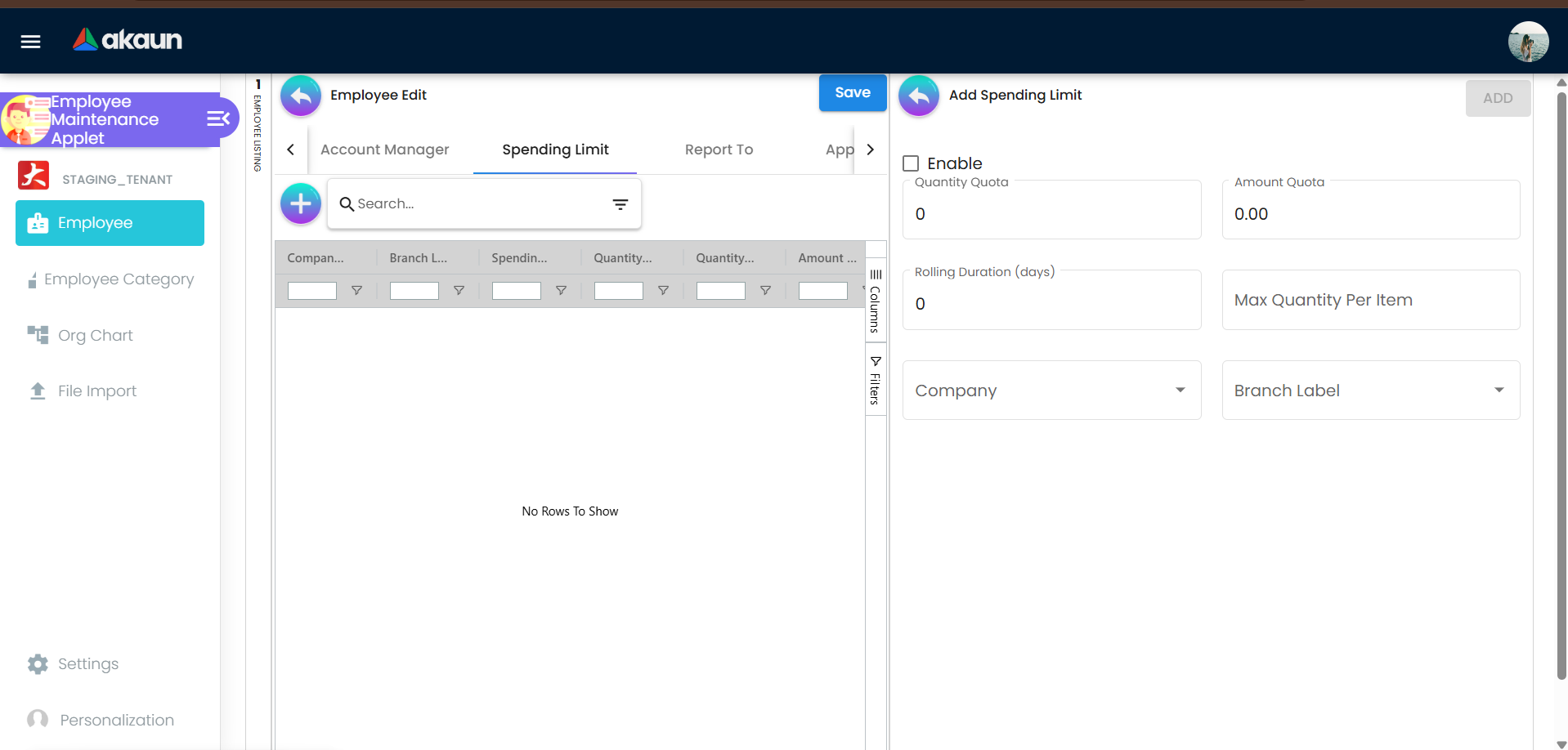
Spending Limit is narrower than it looks. A limit line carries an Enable switch, a quantity quota,
an amount quota, a rolling duration in days, a maximum quantity per item, a mandatory company and a
branch label. It is consumed on cash bills only — INTERNAL_SALES_CASHBILL and no other document
type — and only when this person is the entity the document
is billed to, not when they are its salesperson. It is enforced in one place only: the POS General
till. When the cashier picks this person as the customer, the till refuses an item that would take
the bill past the quantity quota, the amount quota or the per-item maximum, with a message such as
Customer account has reached the maximum quantity quota for this month. A limit that is already
suspended is different: the till shows the message once and then stops checking, so items can still be
added to that bill. Nothing else refuses a document. Once a cash bill is finalised, BigLedger adds it to
the usage, and when usage reaches a quota the line’s status is set to SUSPENDED. That stops further
counting, because the lookup only considers unsuspended lines. A cash bill entered anywhere other than
the POS General till is counted but never refused. Voiding the document reverses the usage and lifts the
suspension. If the person has more than one limit in a company, the branch label decides which one
the till checks and which one is charged, and the two can differ. See What a label changes once you
link it on the Organization page.
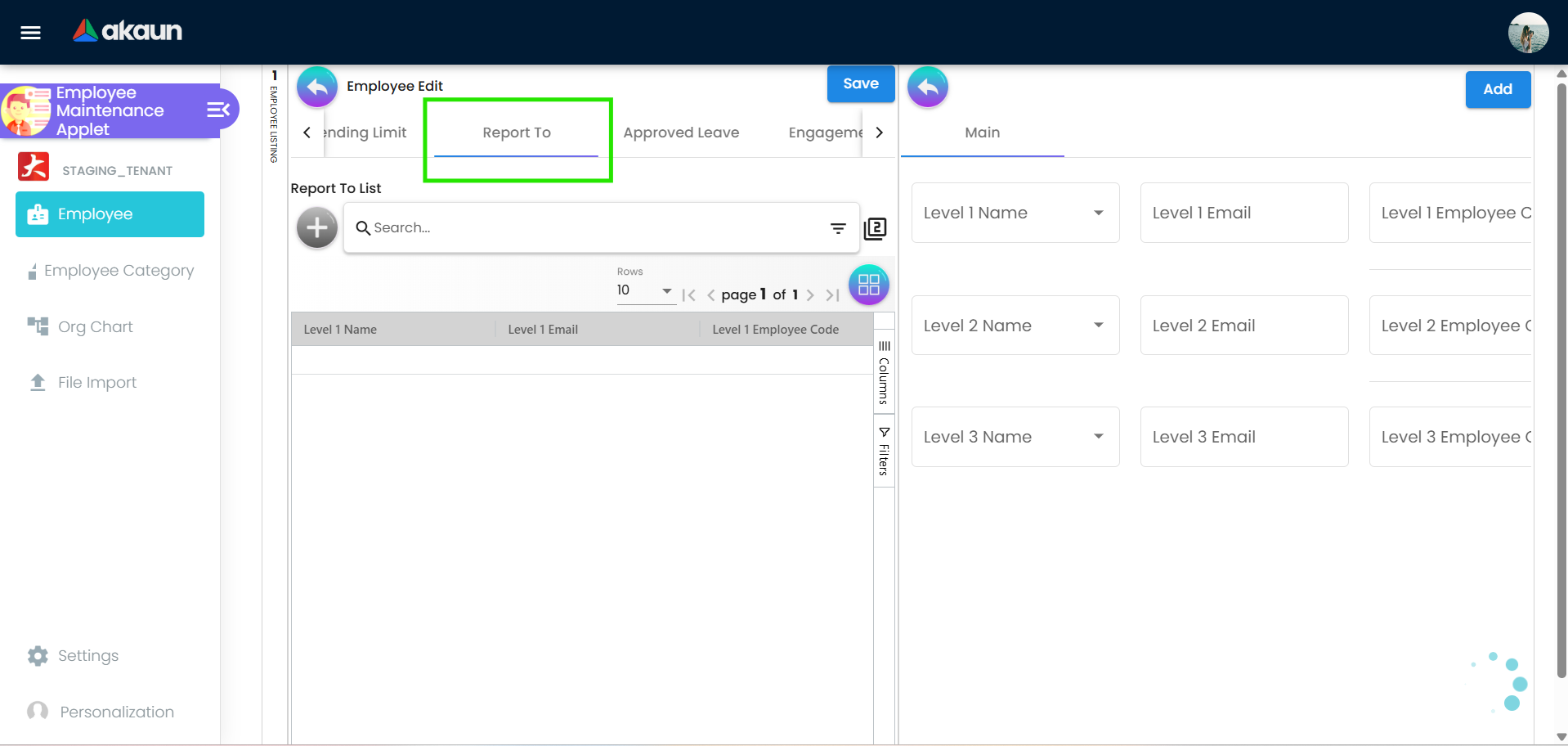
Report To records up to three levels of manager — name, e-mail and employee code per level, chosen from the employee list. Nothing outside this applet uses them: no other screen, report or approval reads them. Claim approvers are configured in the Claim Cycle applet, against an employee with an approval level and rank — not from this tab.
Engagement Company Access adds companies a person may see engagements for. The default is their Default Company alone; this tab and the engagement company-to-company links widen it.
Configuration
Before you can use it
- Companies and branches in the Organisation applet — the create form requires a branch; Branch Linking, Company Linking, the spending-limit company and the org chart company all pick from there.
- Tax codes in Tax Configuration if you will use the Tax tab.
- Logins — a person must already have accepted an invitation into the tenant, or be verified by e-mail or phone on the Login tab, before a login link can be added; ranks and catalogs come from Tenant Admin.
- An employee prefix and running number, if you intend to leave codes blank and let the backend generate them.
Applet settings
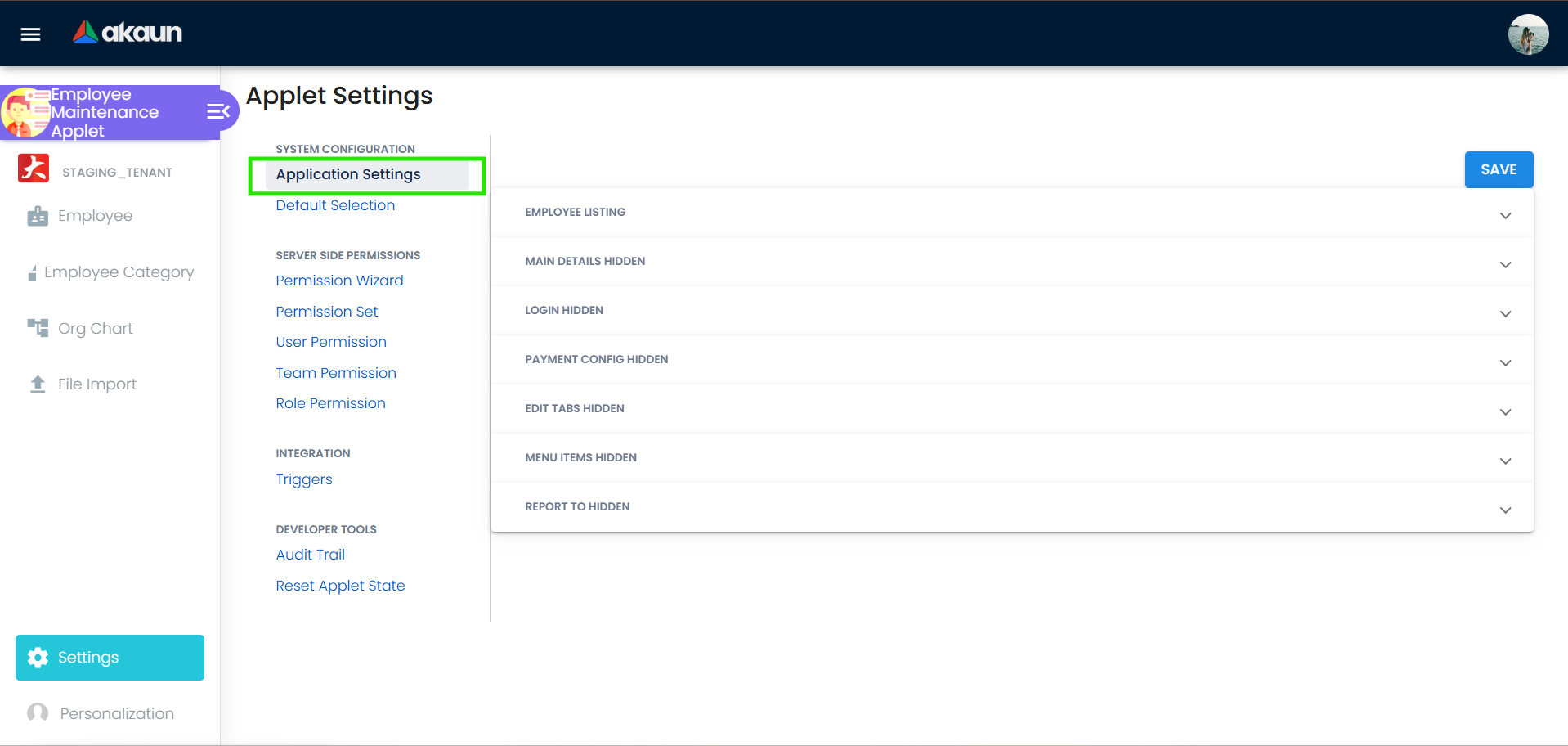
Settings › Application Settings is this applet’s own screen rather than the shared one, and almost everything on it hides a listing column, a form field or a whole tab — flip one and you can see what it did. The four below are the ones that change what the applet will let you do, and the three notes after them are the ones people get wrong. How settings are stored and who they apply to.
| Setting | What changes | Default when never saved | Advisory or hard |
|---|---|---|---|
INSTALL_ALL_APPLETS_ON_INVITE | The Login Create panel gains a mandatory Select catalogs for the applets installation picker, and the invitation then carries catalog_config: [{catalog_guid, install_all_applets: true}], so the new staff login arrives with every applet in the chosen catalogues already installed. The catalogue is the boundary. Installing everything inside a catalogue somebody composed on purpose — the screens a branch manager needs on day one — is the fastest sound way to onboard; installing a catalogue that has grown into everything the tenant has is how a new clerk ends up with the whole finance suite. Compose the catalogue for the role and check what is in it before you pick it | Off, patched explicitly (?? false) rather than left undefined — this is the one key on the screen with a real default | The picker is advisory; Send Invite and Send Tac refuse to send until a catalogue is chosen, and what the platform then installs is real |
HIDE_EMPLOYEE_CREATE_BUTTON(a HIDE_ key with a row on purpose — see the note below) | Removes the + button from both employee listings, so nobody can create an employee through the screen — including you. File Import still creates them, and so does the API, so this is a data-entry policy rather than a control | Shown | Advisory — the button is not rendered. Nothing stops a POST |
DEFAULT_CURRENCY — on Default Selection | The currency pre-selected on the create form. Currency is mandatory and starts blank, so until this is set every new employee needs somebody to pick one, and an employee created in the wrong currency carries it into claims and payment configuration | Blank, and mandatory — the form cannot be saved until a currency is picked | Advisory — a pre-filled value |
EMPLOYEE_CONTAINER_DETAILS_TAB_ORDER | Re-orders the edit-form tabs: tabs named in the stored list keep that order and anything new is appended. Set by dragging the tabs under Details Tab Ordering on Default Selection. Saving that screen stores the order it shows even if nobody dragged anything, and from then on a tab added by a later release lands at the end of the edit form rather than where the release put it | The shipped tab order | Advisory |
HIDE_EMPLOYEE_CREATE_BUTTON has a row because of what it does not do. Its effect on the screen is
visible, but the reason people reach for it — stopping employees being created — is not what it
achieves, and settings_exception: in this page’s front matter records that. The other seventy-odd
HIDE_ keys on this screen genuinely do only what they say.
Three more things about that screen that are not on it:
- Hiding a field on the edit tab does not always hide it on the create form. The create form reads fourteen of the Main Details keys: nine that only hide the field (bank name and account number, country, department, division, job role, language code, region code, team) and five that hide it and disable the control (employee code, nickname, entity type, identity type, ID number). The other twenty-two Main Details hides — name, status, employee type, gender, date of birth, currency, description, the two references, AR/AP type, phone, e-mail, nationality, ethnicity, title, marital status, job title, job industry, joined and cessation dates, employee status and default rank — are read by the edit screen only, so a field you hid there is still there when somebody creates an employee. The hide-and-disable distinction matters for what gets saved: a hidden field that is still enabled (Country, say) submits whatever it holds, while a hidden-and-disabled one (ID Number) submits nothing.
- Some hides also disable the control, so nobody can set the value on screen.
HIDE_EMPLOYEE_CODE,HIDE_EMPLOYEE_NICKNAME,HIDE_IDENTITY_TYPE,HIDE_ID_NUMBERandHIDE_DEFAULT_COMPANYdisable the matching edit control as well as hiding it, and the first four disable the create form’s control too — as doesHIDE_E_TYPE(Entity Type), which on the edit screen hides without disabling. File Import does not read these settings: an import file still sets employee code, identity type and ID number. Identity type and ID number are what an e-Invoice identifies a person by, so hiding them is not purely cosmetic. REPORT_TOandAPPROVED_LEAVEread as features and behave as hides. Switch either on and the Report To or Approved Leave tab disappears. So do the nineLEVEL_1_*/LEVEL_2_*/LEVEL_3_*keys, which hide the Report To fields and columns rather than enabling levels.
On the screen and doing nothing
MAX_QTY— declared in the settings model, and the value the applet actually reads is an extension on the employee record, not an applet setting. Setting it here changes nothing; the spending limit is per employee.HIDE_CLAIMSis mislabelled. The switch says Claims and there is no Claims tab; what it removes is the Org Chart left-menu entry. Somebody looking for why Org Chart vanished will not think to look under Claims.HIDE_CREATED_DATE— the Main tab’s Creation Date field is bound to it and no control on any settings screen sets it, so that field cannot be hidden from the product. The listing column is a different key,HIDE_CREATION_DATE, which does work. Likewise the Main tab’s Modified Date is bound toHIDE_MODIFIED_BY, so hiding Modified By hides both.- The document-applet inheritance —
HIDE_UNIT_PRICE_*, the custom-status flags and theHIDE_*_TABkeys are declared here because the settings model was copied from a document applet. No control, no reader. - Personalization › Default Selection offers Default Branch and Default Location and saves them, and no component in this applet reads either.
Document behaviour settings
Not applicable — this is a master-data applet with no document statuses, posting or printables.
Who can change what
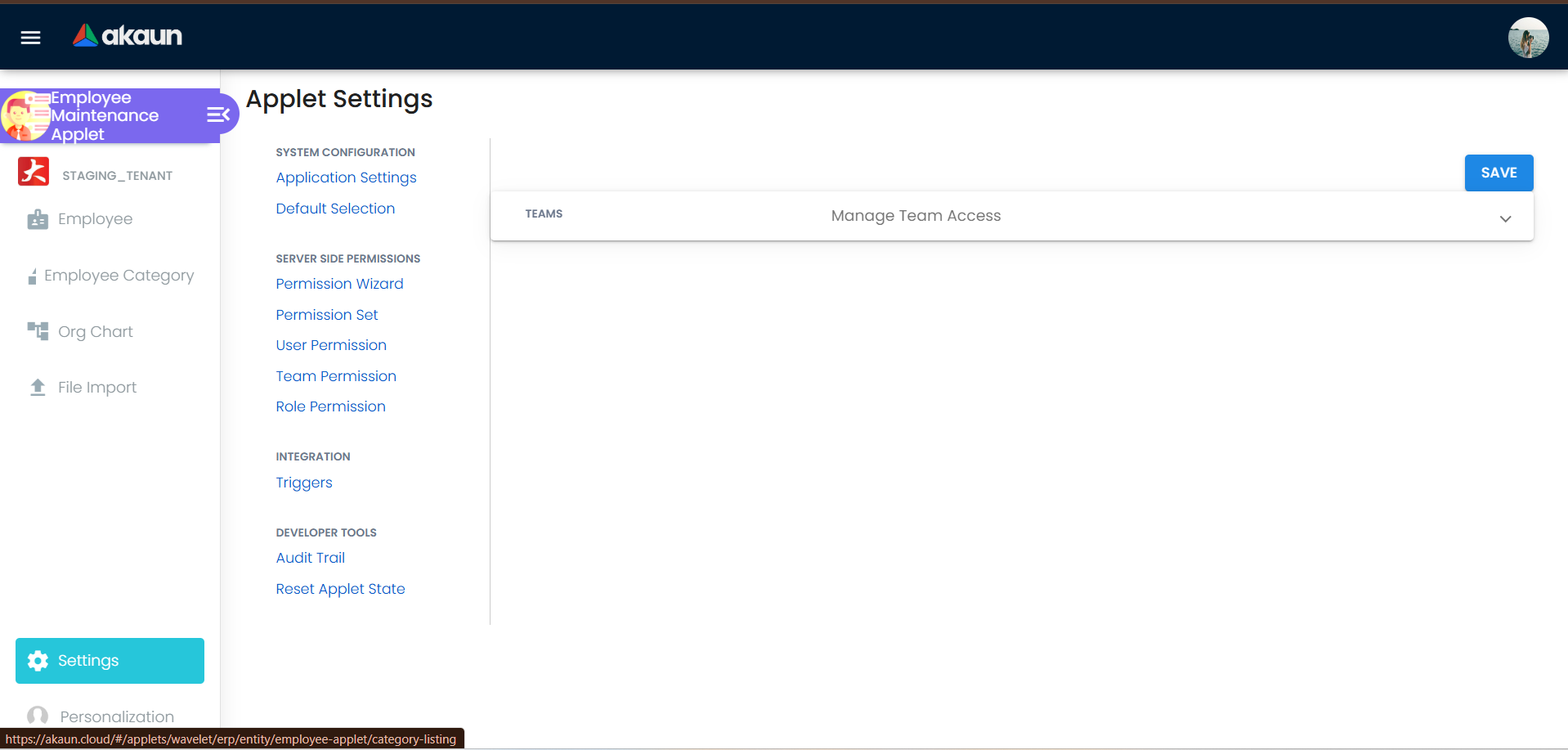
- Client-side permissions: the applet has none, and checks no
SHOW_*permission codes. Feature Visibility therefore offers only the shared Manage Team Access panel; theHIDE_*settings above are the only way to remove controls, and they apply to everyone, so the screen cannot show one team a different employee form from another. What one team may do is a server-side permission: a team holding the employee read permission without the create permission sees the + button and is refused when it saves (File Import has its own create permission). - Server-side permissions: Permission Wizard / Set / User / Team / Role are the shared containers,
with the
PermissionResolvermapping permission targets to Company, Branch, Location, Entity, Applet, Team, Tenant and Hostname lookups. Deleting an entity through the API needsTNT_API_ENTITY_DELETEplus the type handler’s own delete permission.
File Import
Upload a CSV on the File Import screen — choose a file, pick the delimiter, ADD. The accepted column
headers come from EmployeeImportFileColumnNames:
EMPLOYEE_CODE, EMPLOYEE_NAME, EMPLOYEE_TYPE, IDENTITY_TYPE, ID_NUMBER, COMP_TAX_REG_NUMBER, DOC_CURRENCY, DESC, PHONE_NUMBER, EMAIL, CATALOG_CODE, RANK, BILLING_NAME, BILLING_EMAIL, BILLING_PHONE, BILLING_ADDRESS_LINE1…5, BILLING_COUNTRY, BILLING_STATE, BILLING_CITY, BILLING_POSTCODE, SHIPPING_NAME, SHIPPING_EMAIL, SHIPPING_PHONE, SHIPPING_ADDRESS_LINE1…5, SHIPPING_COUNTRY, SHIPPING_STATE, SHIPPING_CITY, SHIPPING_POSTCODE
Only EMPLOYEE_NAME and DOC_CURRENCY are validated as mandatory; the ID-number and identity-type checks are commented out. There is no branch, department, report-to, join-date or status column, so a file import cannot produce a record the salesperson picker will offer if that picker is filtered by branch — the links have to be added in the UI afterwards.
The import is processed by the EMPLOYEE_IMPORT_FILE_HELPER_PROCESSOR queue: the file moves to
VALIDATING_DATA, the mandatory columns are checked, and then each row is matched against an existing
entity by employee code if one is given and, failing that, by ID number, company tax registration
number, e-mail, then phone. A match is updated — name, type, ID, currency, e-mail, phone, tax
number, description, addresses — and has is_employee set; anything unmatched is created. Any row
failure marks the whole file FAILED with the reason in User Error Message; a clean run ends DONE.
is_employee on them. Supply EMPLOYEE_CODE for
anybody new.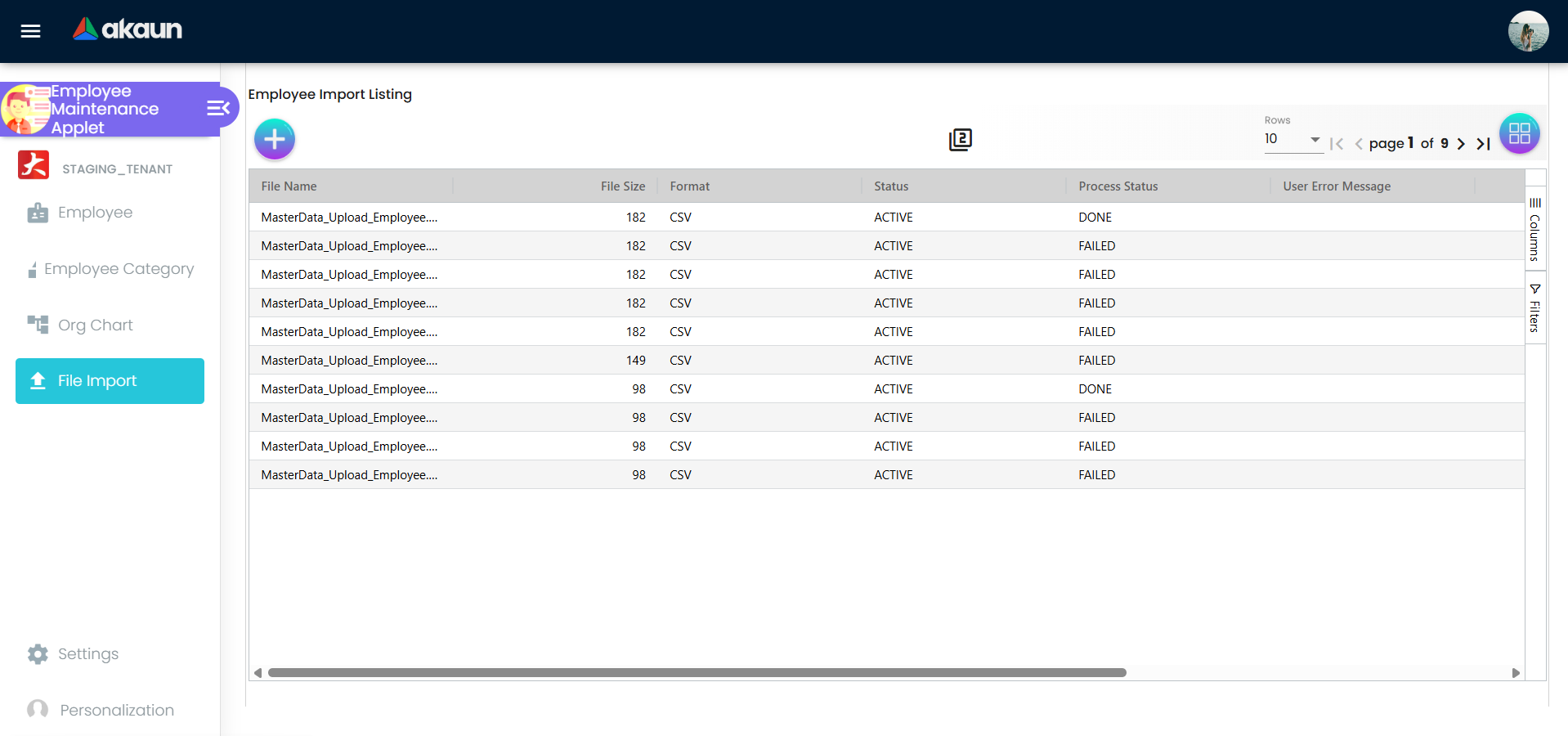
Lifecycle and effects
This applet writes master data. Nothing here posts to the ledger or moves stock, and saving an employee does not start a document primary processor.
- Create and edit go through the entity API.
EntityDataConsistencyObjectenforces the rules in The duplicate rules, plus a non-null status and atxn_typeofINDIVIDUALorCORPORATE. - Sub-records validate themselves. Payment methods need a country code that exists and, with a bank, a bank header that exists. Spending limits need an existing company and a status. Company links are one per company and employee. No backend data-consistency object exists for the login-subject link.
- Login invitation calls the back-office invitation endpoint with
add_user_to_tenant: true; after the person accepts, Invitation Accepted looks up the login principal —EMAIL_USERNAMEorMOBILE_USERNAME— and stores its subject guid on the link. - Webhooks fire the entity webhook queue on create and update, including rows created by File
Import, and an entity delete fires a
<type>_DELETEDwebhook. - The processors that touch an employee record run elsewhere. Seven are registered ACTIVE
master-side; two of them are subscribed to a document finalise and a document void
(
ENTITY_SPENDING_LIMIT_PROCESSORandVOID_ENTITY_SPENDING_LIMIT_PROCESSOR), and the rest — the file-import helper, the entity webhook, the spending-limit reset and the two entity-merging processors — are invoked directly by whatever needs them. Registered, subscribed, scheduled and running are four different facts; the front matter records which is which.
What this applet will not do
- Delete an employee. There is no delete action anywhere in the employee container. Deletion happens through the Entity applet or the API.
- Run payroll, or hold a salary. There is no pay field on the record; the Payment Config tab records where money would be sent, not how much.
- Record leave. The Approved Leave tab saves nothing.
- Route an approval. Report To is stored and read by nothing outside this applet. Approvers live in the Claim Cycle applet.
- Block a spend outside the till. A spending limit is enforced only by the POS General till as items are added. Anywhere else it counts and suspends, and never refuses a document.
- Enforce an employment lifecycle. Resigned, terminated and absconded are labels. Only one query anywhere reads them.
- Hold an EPF number, or any other statutory payroll identifier, from any screen.
- Gate itself by permission. It publishes no client-side permission codes at all.
Troubleshooting
| Symptom | Cause | Fix |
|---|---|---|
Save fails with …EMPLOYEE_CODE_ALREADY_EXISTS | Another non-deleted entity — of any type, not only an employee — already has that exact code | Change the code, or clear it and let the backend generate one |
Save fails with …EMPLOYEE_CODE_SHOULD_NOT_BE_SET | A code was supplied but EMPLOYEE is not among the entity types | Add EMPLOYEE to Entity Type, or clear the code |
| Save is refused as a duplicate employee ID | employee_id — a second unique key with no field on the form — collides with another record | Clear it through the API, or use a different value |
| Claims or Engagement says “Cannot find your email … from Employee Applet” | No employee record carries the address the person logs in with | Set that exact address in Email on the Main tab |
| The person can submit a claim but their claim list is empty | The Main-tab e-mail resolves them, but the Login tab has no active link for their login | Add the login on the Login tab and make sure its status is ACTIVE |
| Two people keep getting each other’s claims | Two employee records share one e-mail and the resolver takes the first match | Give each person their own address, or retire the duplicate record |
| A salesperson cannot be found in a document’s picker | On Sales Invoice and the POS till, their entity status is not ACTIVE; on Sales Order, Quotation, Delivery Order, Credit Note and most other document applets, they carry no Employee Category — or FILTER_EMPLOYEE_BY_BRANCH is on in that applet and they have no Branch Linking row for that branch | Set the status back to ACTIVE, add an Employee Category on the Category tab, or add the branch link |
| A commission rule on employee category matches nothing | The rule reads the entity’s category list; this applet’s Category tab writes category labels instead | Do not build a scheme on employee category until the two are joined up |
| A leaver is still approving claims | Employment Status is a label; only TERMINATED is read, and only by the reviewer lookup | Remove their reviewer row in the Claim Cycle applet, and set the entity status to INACTIVE |
| An org-chart node shows the wrong rank after Default Rank was corrected | The node’s rank is seeded only when the node has none | Clear the node’s rank and save it again |
| Login tab: “User has not accepted invitation link in email” | Invitation Accepted was clicked before the invitee registered | Wait for them to accept, then click again; or use Verify for an existing user |
| Login tab: “Please select at least one catalog to install applets…” | INSTALL_ALL_APPLETS_ON_INVITE is on and no catalog was chosen | Pick a catalog, or switch the setting off |
| Login tab: Verify finds nothing for an e-mail that exists | Verification matches the principal type exactly (EMAIL_USERNAME vs MOBILE_USERNAME) and phone numbers must be in the stored format | Enter the identifier exactly as registered |
File Import ends FAILED with “EMPLOYEE NAME is Invalid” / “DOC CURRENCY is Invalid” | A mandatory column is empty on at least one row | Fill every row’s EMPLOYEE_NAME and DOC_CURRENCY and re-upload |
| File Import silently updated an existing customer instead of creating an employee | Without EMPLOYEE_CODE the row is matched against all entities by ID, tax number, e-mail then phone | Supply EMPLOYEE_CODE for new staff |
| Employee Category or Org Chart menu is missing | HIDE_CATEGORY or the mislabelled HIDE_CLAIMS switch is on | Switch it off and Save |
| A field hidden on the edit form still shows on the create form | Most Main-Details switches are read by the edit template only | Expected; see Applet settings |
| Approved leave entries never appear | The tab has no save path | Record leave elsewhere |
Related applets
Every applet below either shares the entity table with this one or reads a field out of a record you maintain here. Two of the rows exist to answer the same question — I am in the wrong applet, which is the right one? — and they are the two things people come here to do and cannot: delete somebody (Entity Maintenance) and pay somebody (Payroll Admin).
| Applet | Why you end up there |
|---|---|
| Customer Maintenance | The same entity table through the customer lens, and the fullest description anywhere of the shared entity model and of the snapshot a document takes. It is also the applet that does write the LIST_CATEGORY_GUID extension the Category tab here does not, which is why that extension is common on entity records and is not evidence this tab is feeding it. The Account Manager tab here is the inverse of the customer’s account-manager link. |
| Entity Maintenance | Edits an entity of any type, and is where an employee is deleted — there is no delete action anywhere in this applet. |
| Supplier · Merchant | The other two lenses on the same record. A person who is both is one row, not two. |
| Organisation | Companies and branches for the default branch and the linking tabs, the org charts the Default Rank seeds, and a branch’s default sales agent — which is a pointer at an employee that nothing here warns you about when you deactivate one. |
| Payroll Admin | Where the salary, pay group and statutory numbers live; this applet holds none of them. The bank account a salary is paid into is the other way round: it is a Payment Config row on this record, which the payroll roster names, and the bank file refuses to generate while anyone due pay has no account number. Payment Config records where money is sent, not how much. |
| Claim · Claim Cycle | The claimant lookup that resolves a login to this record by e-mail, and the applet where approvers are configured — Report To on this page routes nothing. A leaver who is still approving claims is removed there, not here. |
| Tax Configuration | The tax codes the Tax tab offers. |
| My E-Invoice Portal · MyPeppol Admin | Consume the E-Invoice and Peppol Config tabs for self-billed e-Invoices. A missing TIN or identity number fails at submission there, not at save here. |
| Tenant Admin | The logins, ranks and applet catalogs the Login tab links to and installs. |
Related documentation
- The four modules an employee record serves: Core · HR & Payroll · Claims · E-Invoice.
- Configure and run monthly payroll — the guide that picks up where this record stops, at the payroll roster.