Inventory Item Maintenance
The stock-keeping record behind every stock-tracked item, created for you when a Basic Item is created in Doc Item Maintenance. Know this first: as read for this page, the item editor’s own Save never enables, so day-to-day changes to an item are made in Doc Item Maintenance; multi-UOM, min/max levels, the imports, the traces and the reports do work here.
Your job, and the screen for it
| The job | Screen or tab | Read |
|---|---|---|
| Change an item’s details | Doc Item Maintenance — here, Item Edit › Main cannot save | Item Edit — Main; Doc Item Maintenance |
| Add the units an item is bought or sold in | Item Edit › Multi Uom tab | Multi Uom |
| Set minimum and maximum levels per location in bulk | Min-Max Quantity Import File | Min-Max Quantity Import File |
| Follow one serial number across documents and locations — draft documents included | Trace Serial No | Trace Serial No |
| See how old the stock on hand is — its Qty and Amount cells are blank today | Stock Aging Report | Stock Aging Report |
| Check a new item is set up right once stock has moved | Items listing; the Location and Stock Card tabs | Verify one SKU in five places |
Overview
The Inventory Item Maintenance applet holds the stock-keeping record of an item — the record that stock ledgers, stock balances, serial numbers, bins and costing layers are keyed on. Its commercial twin (price, tax, e-Invoice classification, what a document line can pick) lives in the Doc Item Maintenance applet; when a Basic Item is created there, the backend creates the inventory record automatically and links the two. This applet is where you maintain what the doc item does not: inventory category groups and categories, alternative units of measure, per-location minimum and maximum quantities, serial-number registers and traces, and the stock aging report.
It is opened by the warehouse or inventory controller rather than the merchandiser. It sits behind every stock movement: a purchase invoice, a GRN Stock In, a sale, transfer, adjustment or stock take writes ledger lines against the record kept here. A standard goods received note writes none; the purchase invoice that follows it does.
Read this before you plan work in it. As read for this page, the item editor’s own Save button can never enable, so the Main tab, the Item Category tab and the Dimensions tab cannot be saved from here; the Company tab’s Add and the Manage Image Add write nothing. What does work from this applet is the create screen, multi-UOM, per-location min/max levels, the process-template replace, the two imports, the two traces and the reports. The reasons are in Screens and menus and the day-to-day maintenance of an item is done in Doc Item Maintenance.
A short introduction to the applet:
Where it fits
| Direction | Applet / document | Why |
|---|---|---|
| Upstream (usually creates the record) | Doc Item Maintenance | Creating a Basic Item there queues an automatic creation job, which looks for an inventory record with the same code and creates one if there is none, copying code, code aliases, name, description, UOM, type, sub-item type, currency, scan code, EMP status and dimensions and linking the two. When it finds one — an item you created here first — it writes the link on the doc item’s side only, and the inventory record’s FI Item Code stays blank. Later doc-item status changes are pushed to the inventory record; nothing else is |
| Upstream | Organisation | Companies for the Company tab; the branch and location masters behind the Location tab, the min/max import and the stock aging filters |
| Upstream | Organisation | Locations that serial-number and min/max imports resolve by code |
| Upstream | Chart of Account | The optional GL Code on the Main tab (stored as an item extension) |
| Downstream | Stock Balance, Stock Availability, Stock Report | Balances, availability and reports are per inventory item and location. Stock Availability can show the Min Qty / Max Qty set here as columns; Stock Balance does not show them |
| Downstream | Stock Take, POS General, sales and purchase documents (Sales Invoice, Purchase Invoice, …) | Every stock-moving line carries this record’s guid. A stock-take scan resolves what was typed in this order: item code, then a multi-UOM line’s EAN, then the item’s EAN, then a serial number with a balance at that location |
| Downstream | Stock Adjustment, Stock Transfer | Movements read back by the Stock Card tab and by the Trace Serial No listing |
| Sibling | Process Maintenance | The Process Template tab lists the manufacturing process templates whose rows name the item, and can replace their output item |
Modules: Core, Inventory.
The two records, and what each one decides
Every stock-tracked item is two records with one code: the doc item, which a document line picks, and this inventory record, which the stock ledger is keyed on. The split is what lets a service, a deposit or a delivery charge sit on an invoice without ever being counted — and it is the commonest wrong turn on this screen, because each record has its own applet and the two look alike. Knowing which record owns a fact answers most of what the screen cannot:
| The fact | Lives on | What that means here |
|---|---|---|
| Selling price, tax code, pricing scheme, e-Invoice classification and e-Invoice UOM | the doc item | Nothing on this screen changes what a document says or what LHDN receives. A blank classification is substituted at submission as 022 Others, and no field on this record shows that it was |
| Quantity on hand, the location it sits at, its cost, its serial numbers, its minimum and maximum levels | this record | The balance row per location, the balance row per company and every stock ledger line carry this record’s guid. A Basic Item line reaches inventory only through the doc item’s link to this record; with that link blank, the finalised invoice writes no stock line and no cost, and nothing tells you |
| Code, name, type, tracking mode (Sub Item Type), EAN, currency, dimensions | both — copied once from the doc item when this record is auto-created | After that they drift independently. The EAN is the one that bites: the till scans the doc item’s, the stock take and this listing scan this record’s |
| Status | the doc item pushes it here, with the three limits under Lifecycle › Status | Set it on the doc item; the Status drop-down on the Main tab here is a different column |
In practice the doc item is created first and this record arrives a second or two later on a queue. The reverse order — this applet first, the doc item after — works for stock, but leaves the link written on the doc item’s side only (Lifecycle › Linking), so the status push never reaches this record.
Screens and menus
The left menu has these entries (Field Settings can hide the last five):
| Menu | Route | What it is for |
|---|---|---|
| Items | item-listing | Listing, create and edit screens for inventory items |
| Category Groups | group-category-listing | Groups of inventory categories |
| Categories | category-listing | Inventory categories, optionally nested under a parent, each belonging to a group |
| Trace Serial No | trace-serial-no-listing | Movement history of one serial number across documents, locations, service jobs and data fixes |
| Import File | file-import | CSV import of serial numbers |
| Min-Max Quantity Import File | stock-min-max-import | CSV import of per-location minimum / maximum quantities |
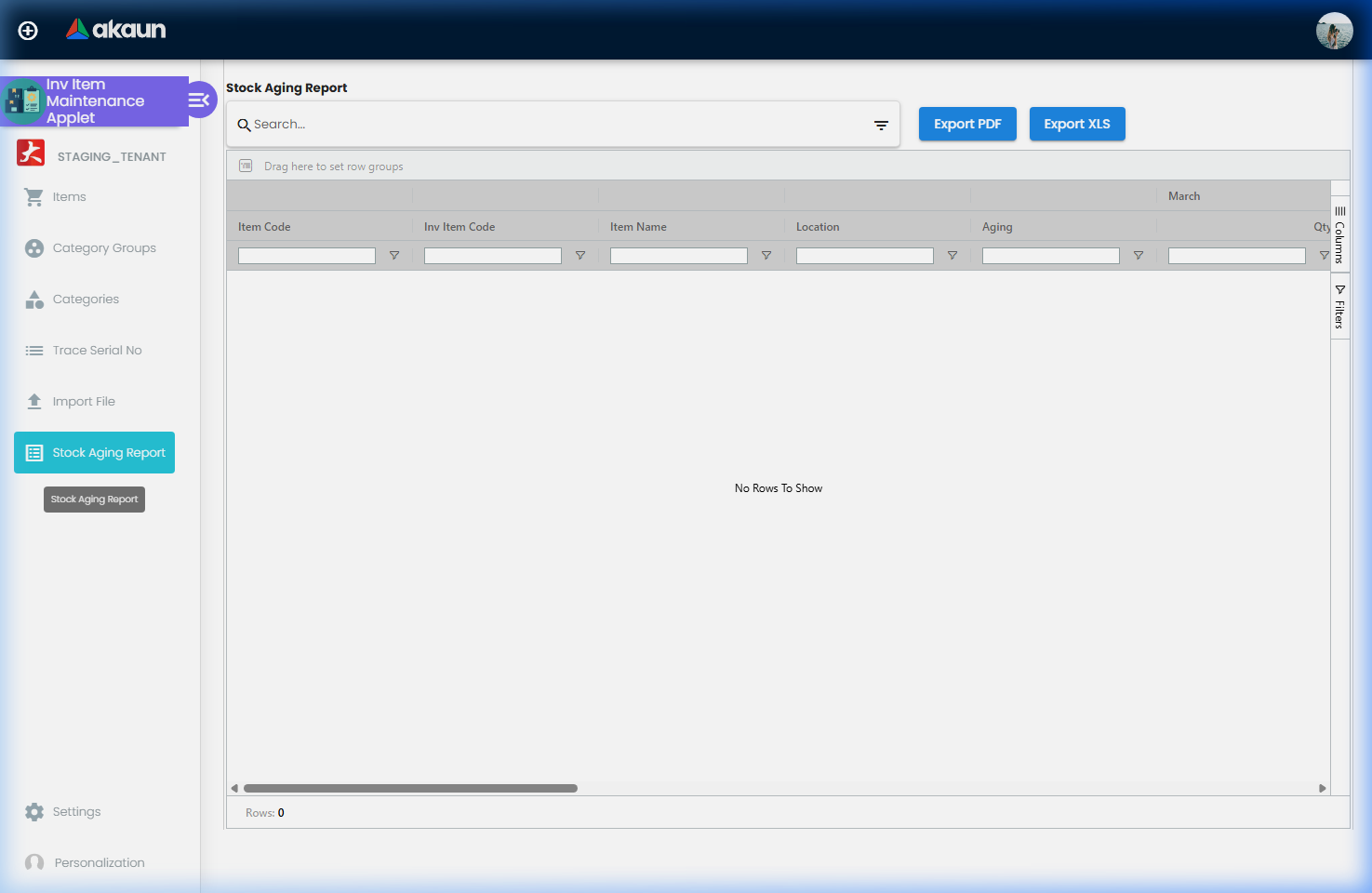
| Stock Aging Report | stock-aging-report | FIFO layers of on-hand stock bucketed by receipt month |
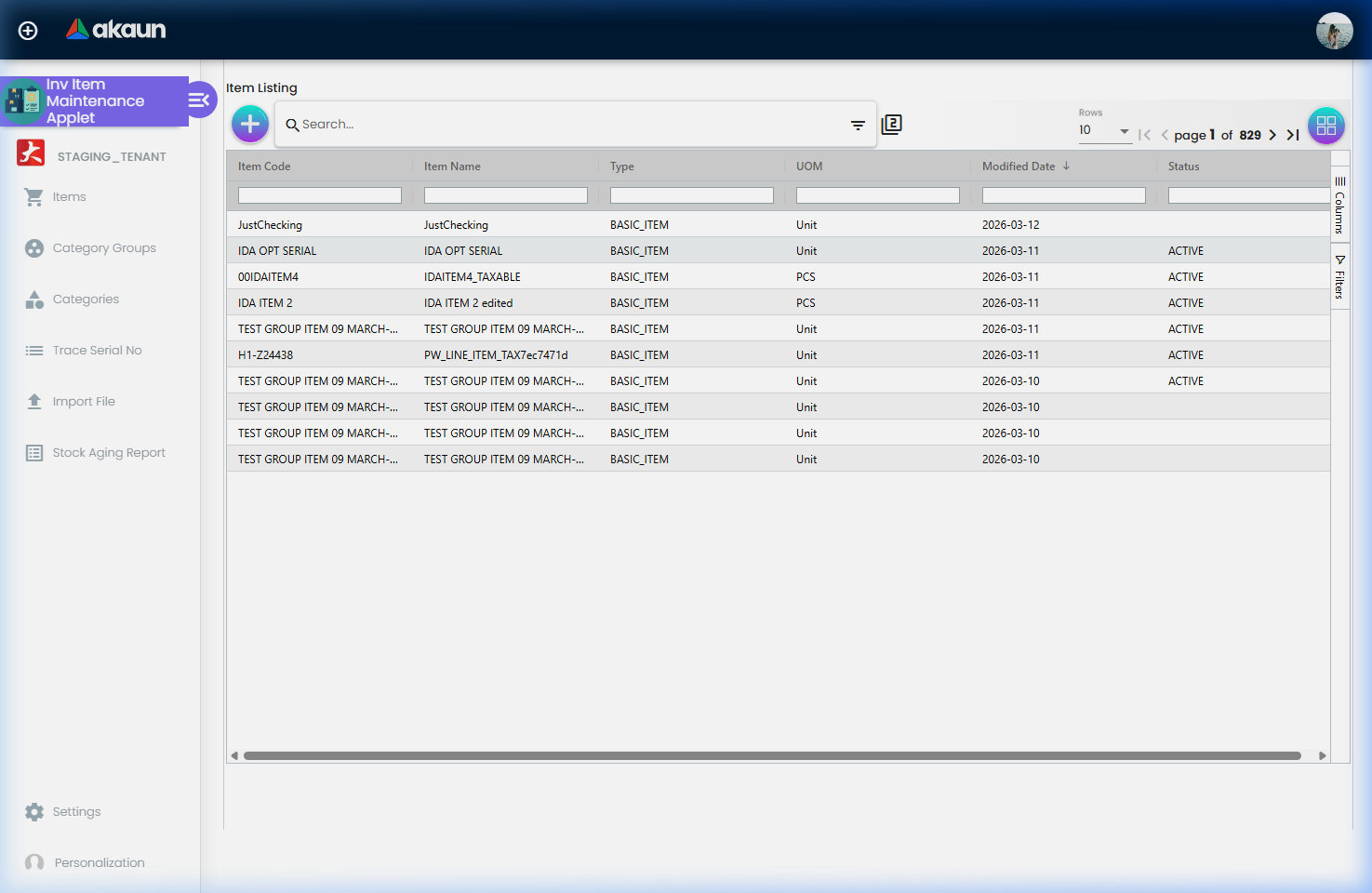
Items listing. Columns: Item Code, Item Name, Type, UOM, Modified Date (default sort, descending), Status — the record’s own status, not the Status drop-down on the Main tab (see Fields). Four things about it are not on the screen:
- It lists Basic Items and kits only. The listing asks the server for those two types and no other. The create screen offers eight types; an item created as Service, Bundle, Coupon, Warranty, Batch & Expiry, Grouped Item or Doc Header Adjustment saves and then never appears here — the API and the doc-item side still see it.
- The quick search matches the EAN too. The quick search is a case-insensitive contains-match on the code, the name and the EAN, so scanning a barcode into the search box finds the item — if the barcode is on this record and not only on the doc item (see EAN Code below).
- The Location filter means “has a balance row there”, not “is stocked there”. A location whose only balance row was created by setting a min/max level matches; a location the item has never touched does not.
- Export is bounded. With no advanced search active, Export (CSV or Excel) takes the current page only; with a search active it pages the whole result from the server, up to 200 rows × 50 pages, then fetches every location balance of every item, five items at a time. It is one of three bulk reads of min/max levels, with Stock Availability’s Min and Max columns and a replenishment run’s Min/Max Qty/Loc tab, and it is not a full-catalogue export unless the catalogue is under 10,000 items and you have filtered first.
There is no delete button on the listing or the edit screen; the API delete is described under Lifecycle.
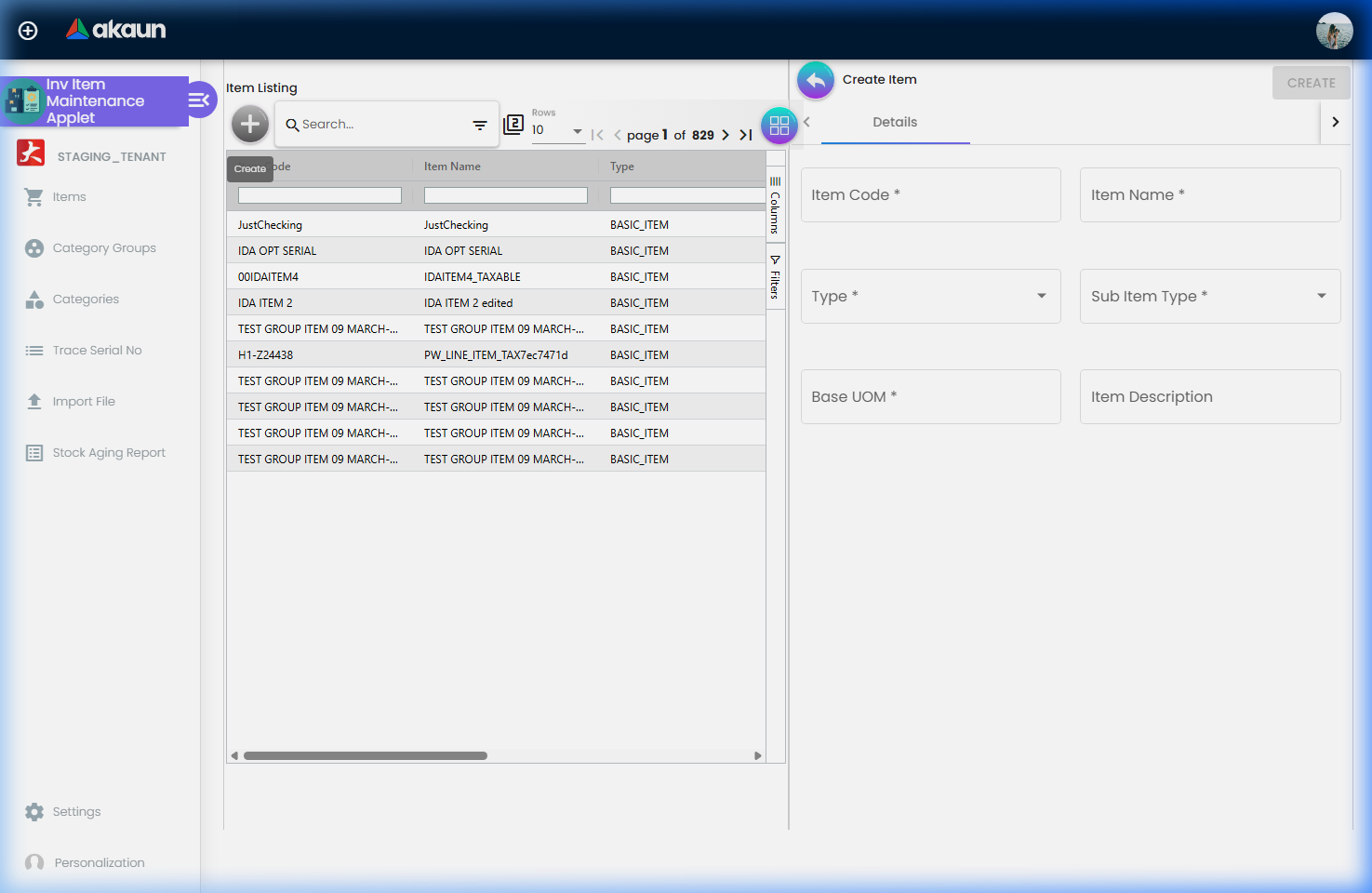
Create Item is a single Details tab: Item Code, Item Name, Type, Sub Item Type, Base UOM, Item Description.
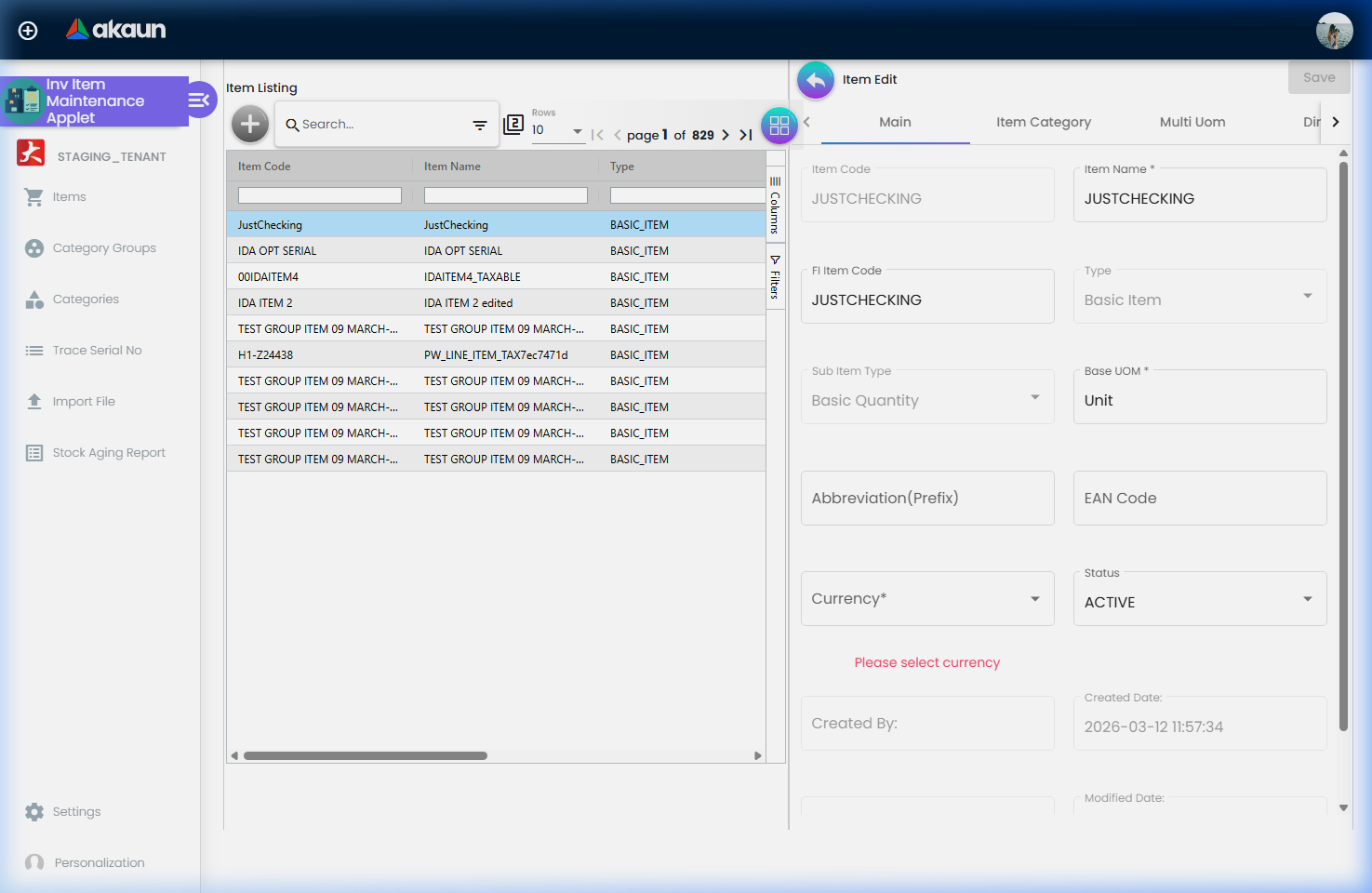
Item Edit has the tabs below (Field Settings can hide all but Main and Item Category). The tab list is what the screen already shows you; what it does not show is which tabs can actually save, which is why they are tabled:
| Tab | What it holds | What happens when you save |
|---|---|---|
| Main | Code, name, FI Item Code, type and sub-item type (read-only), GL Code, Base UOM, Abbreviation (Prefix), EAN Code, Currency, Status, audit fields | Nothing — the Save button cannot enable. The form carries a hidden required field that nothing on the screen fills in, so the form never becomes valid and the button never enables. This has been so since the applet was first published |
| Item Category | The inventory categories linked to the item, added from the category picker | Add and Remove change the screen only; the links are written by the Main tab’s Save — so they are never written |
| Multi Uom | Alternative units with a ratio to the base UOM and their own EAN code | Works. Each create or edit re-reads the item and saves the whole item |
| Dimensions | Height, length, width, weight | Feeds the Main form — saved by the Main tab’s Save, so never |
| Manage Image | Item images by category (Main, Promotion, Additional) with an optional campaign window | Add is not wired to anything: nothing is uploaded and no message appears, and the image listing points at a file location the server does not serve. Edit can only delete |
| Location | One row per location: Min Qty and Max Qty (editable cells), Stock Bal Qty; selecting a serialised item’s row lists its serial numbers there | Works, silently. Leaving an edited cell posts both levels for that row at once; no message appears on success or failure |
| Company | The companies the item is linked to | Add builds the link on screen, posts nothing, shows a green Success for half a second and returns; it has never written anything. Remove on an existing link works; its Save fails in the browser |
| Stock Card | Ledger lines for a location and date range | Read-only |
| Process Template | Manufacturing process templates whose BOM names the item, with a Replace action | Works, with a wide blast radius — see Fields › Process Template |
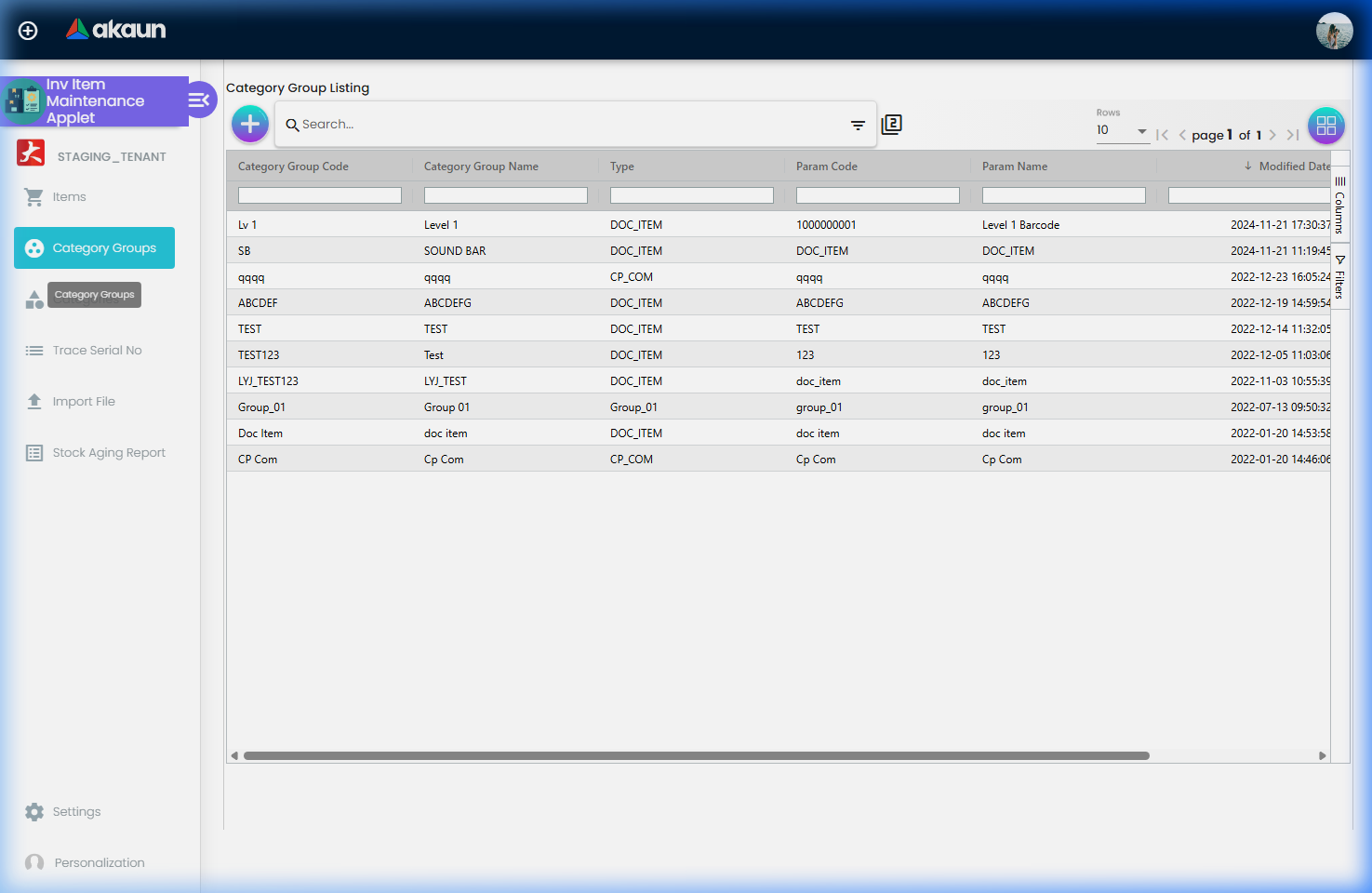
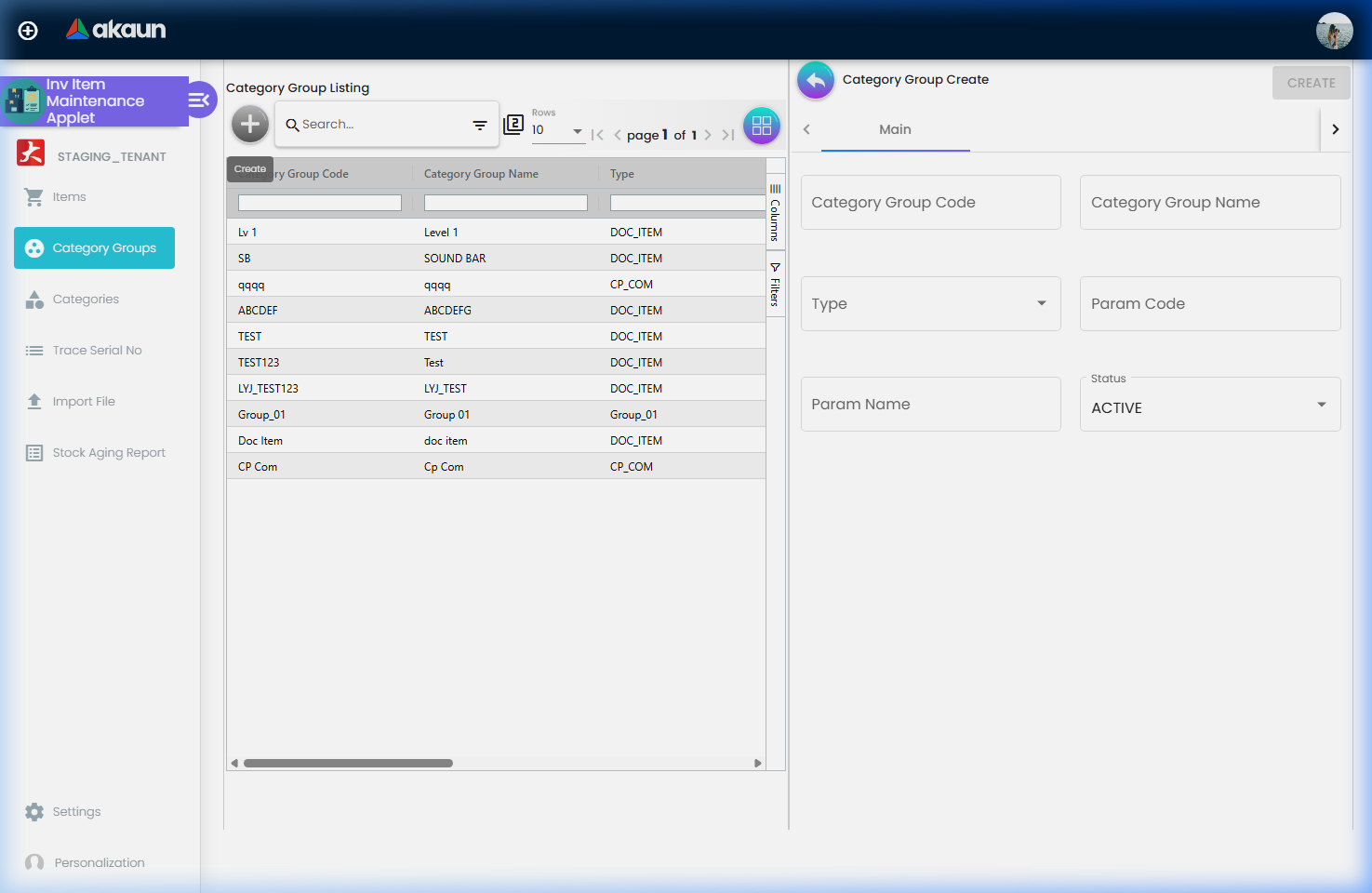
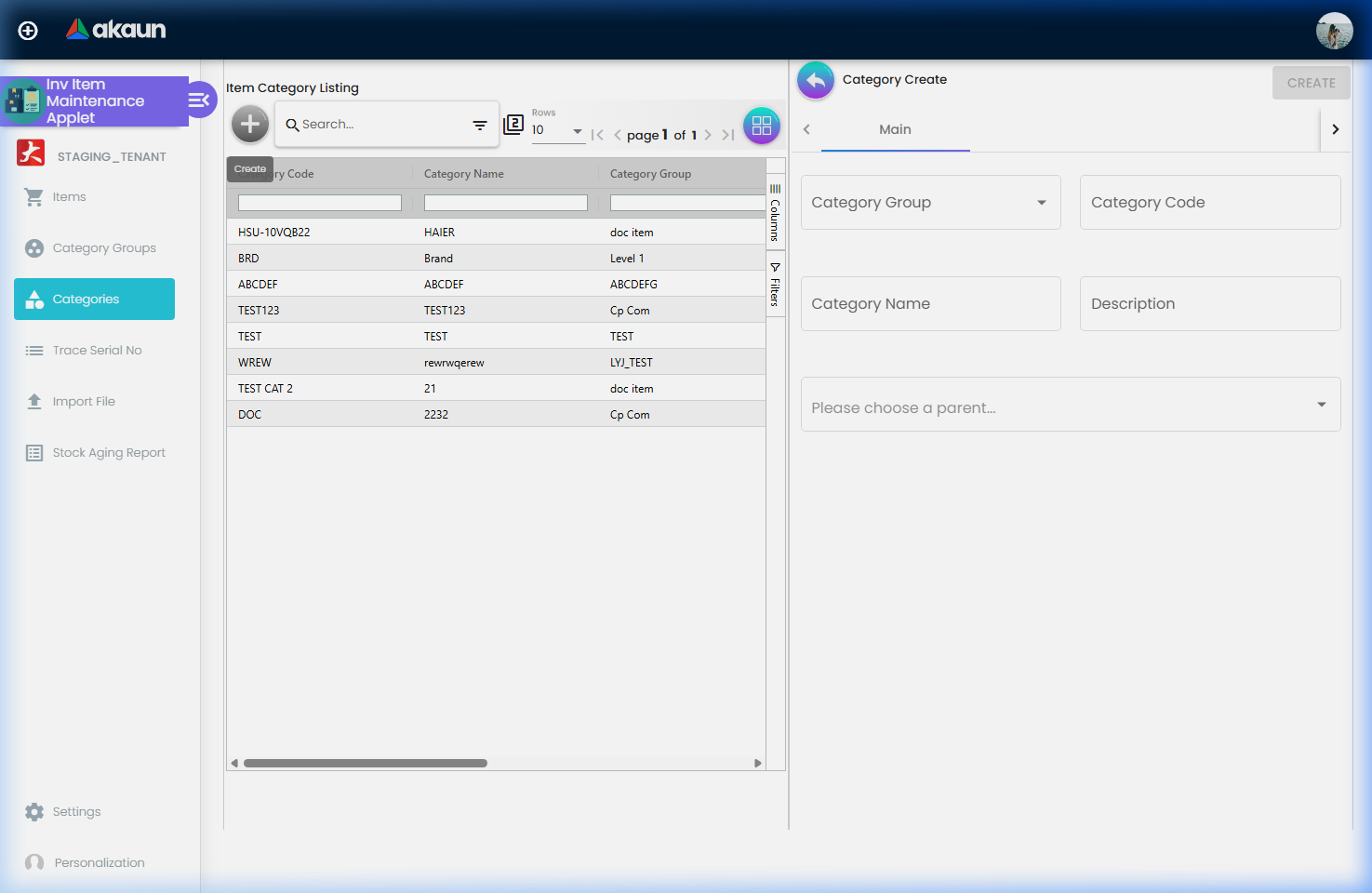
Category Groups and Categories have the same two-level shape as the ones in Doc Item Maintenance: a group (department) holds categories (aisles), and a category may have a parent category. They are not the same lists, though. The categories you create here are inventory categories, kept apart from the document-item categories, and a category made in one applet does not appear in the other.
What inventory categories are for. Their one reader outside this applet is Stock Level Monitoring, which watches stock by category: for example, it can warn you when a store runs low on flagship smartphones. A category watches only the items that are linked to it. Items are linked on the Item Category tab, and that tab cannot save at present (see Item Edit above). So a category you create today has no items in it, and a monitoring template that uses it reports nothing, without saying why. Categories that already have items, linked before this problem or through the API, keep working.
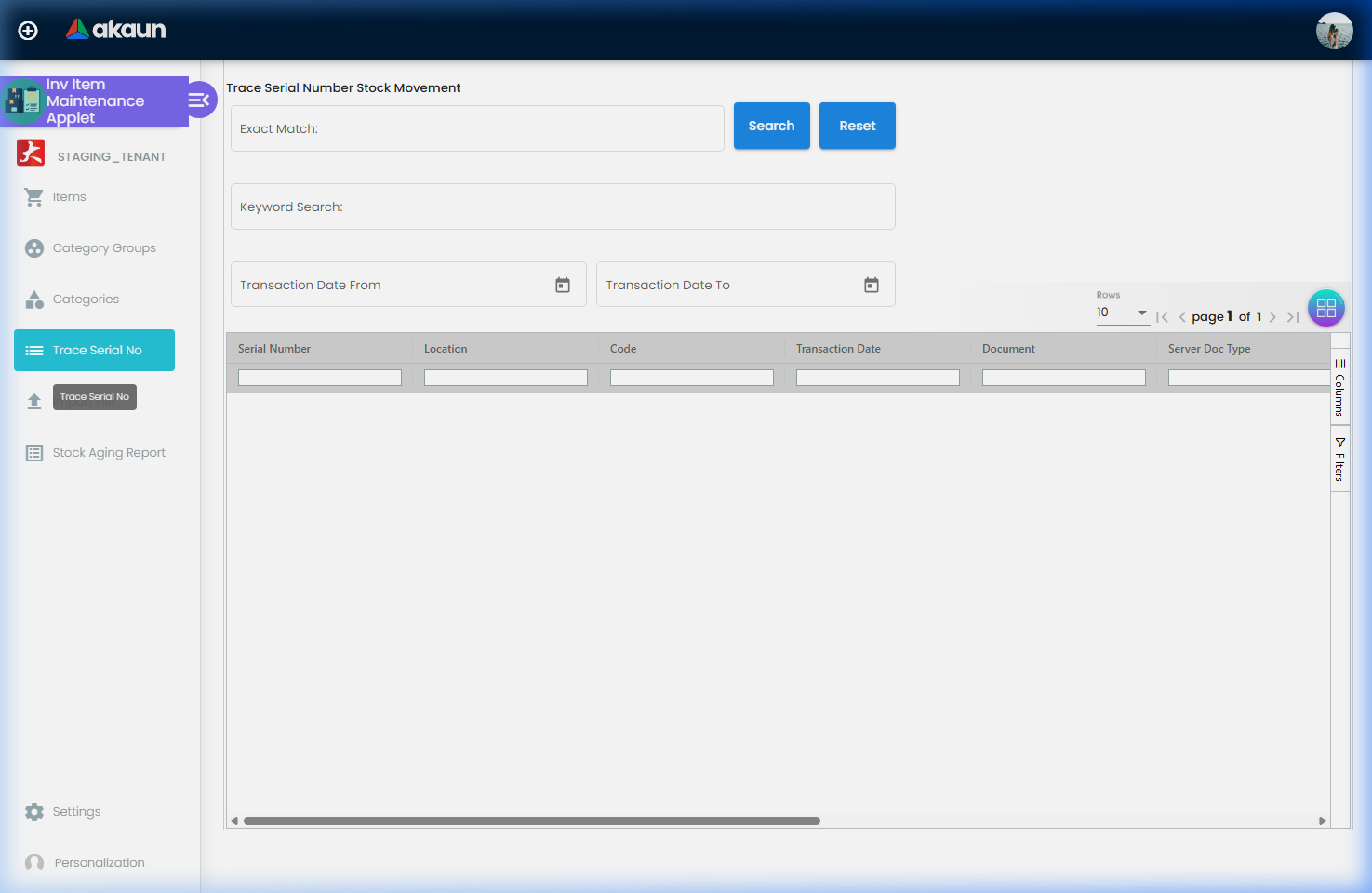
Trace Serial No shows every movement of a serial — Serial Number, Location, Code, Transaction Date, Document, Server Doc Type, Customer/Supplier, Reference, Quantity (base quantity × signum), and, only for users holding the two client-side permissions below, Item Price and Total Transaction Amount. The rows are a union of more than the ledger: inventory sub-lines, serial locks held by draft documents, service-job issue and replacement serials, serial-number data-fix history, non-stock-take-in lines and coupon redemptions. A serial that is on a draft invoice therefore already appears here, at that document, before anything has moved.
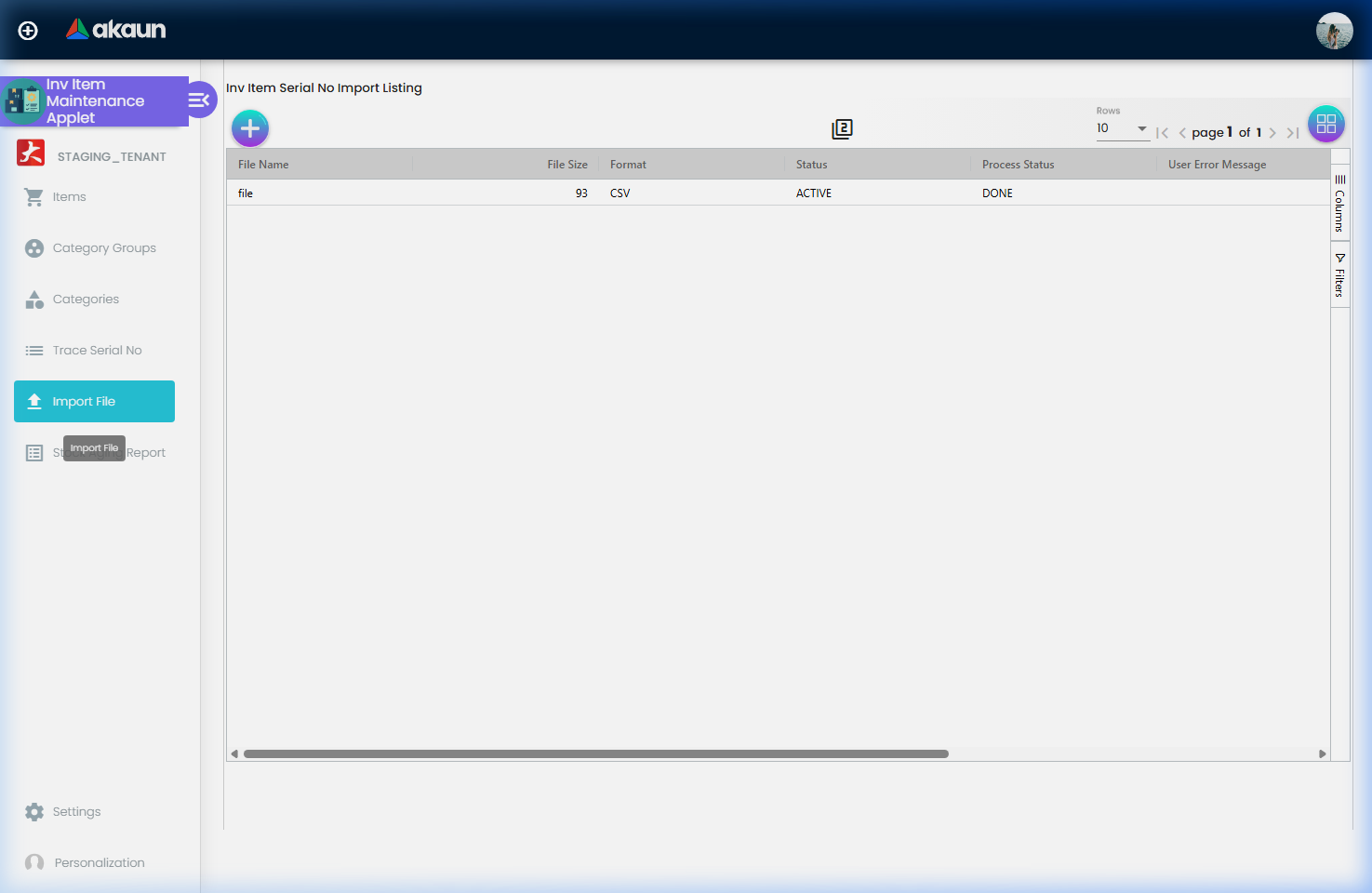
Import File (serial numbers) and Min-Max Quantity Import File follow the platform’s CSV import pattern: upload a .csv, the server queues a job, and the listing shows Process Status. The two behave differently on a bad row, and the serial import’s helper grid shows nothing — both under Fields.
Stock Aging Report shows, per item and location, the on-hand quantity and amount split into one column group per month of receipt.
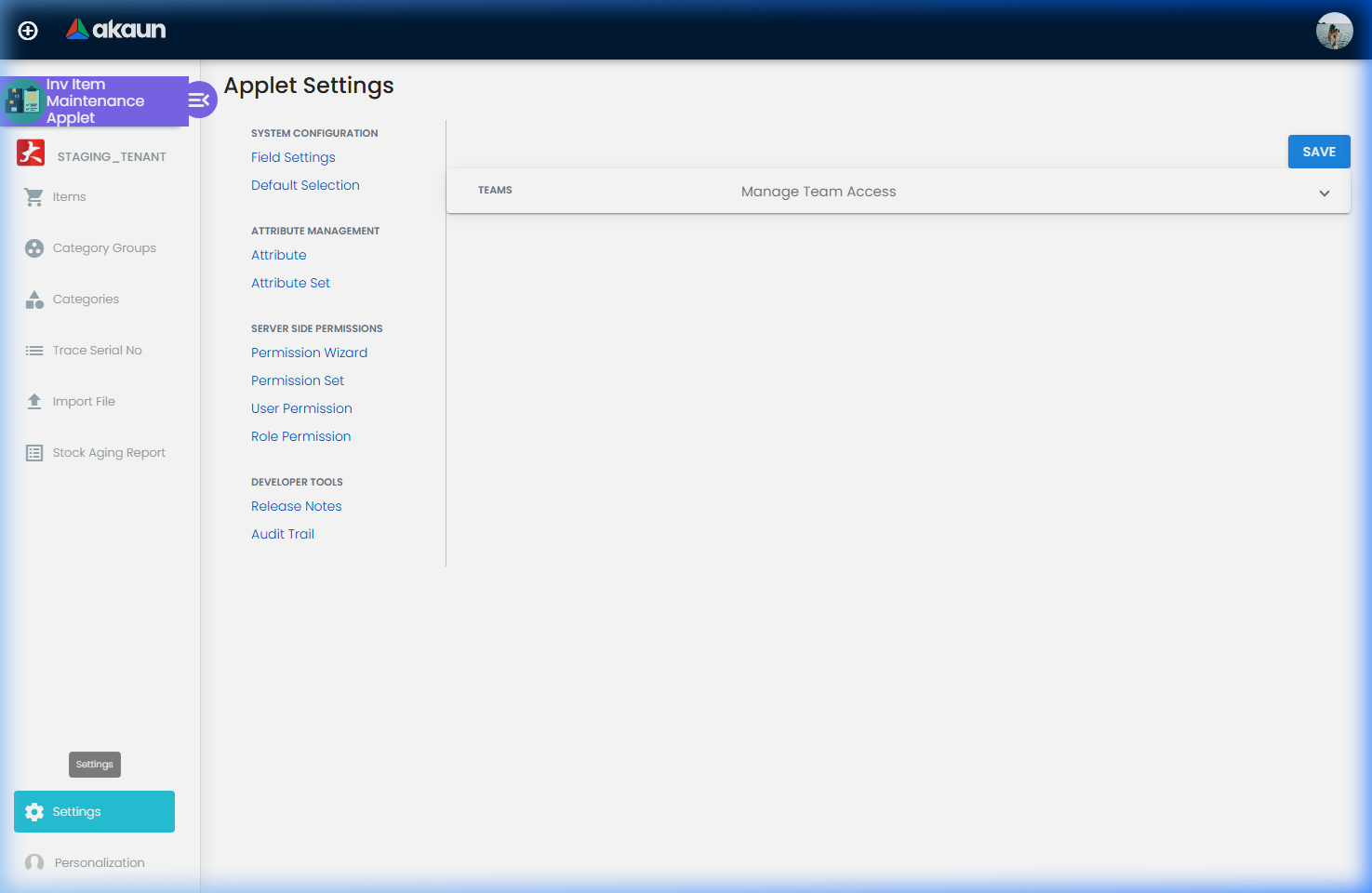
Settings (gear icon) offers System Configuration › Field Settings, Default Selection, Email Notification, Attribute Management › Attribute, Attribute Set, the server-side permission screens (Permission Wizard, Permission Set, User Permission, Role Permission, Team Permission, Client Side Permission), Webhook, Feature Visibility and Developer Tools › Release Notes, Audit Trail. Personalization offers Field Settings, Default Selection and Sidebar. The two Attribute Management entries have no screen behind them — clicking them lands on the settings landing page.
Configuration
Before you can use it
- A doc item, if the item is to be sold or bought. Document lines pick a doc item; the inventory record is only the stock side. Creating a Basic Item in Doc Item Maintenance creates and links the inventory record for you. An item created directly in this applet has no doc item (FI Item Code is blank) and cannot appear on a document until a doc item with the same code is created — at which point the auto-creation finds this record and links it from the doc item’s side only.
- Companies and branches in Organisation. The Company tab here cannot link an item to a company (above); do it from the doc item.
- Locations in Organisation — the Location tab, both imports and the stock aging filters resolve locations by code.
- GL codes in Chart of Account only if you want the optional GL Code on the Main tab.
- Server-side permissions. Item create / update / delete are checked against
TNT_API_INVENTORY_ITEM_CREATE / UPDATE / DELETEand reads againstTNT_API_INVENTORY_ITEM_READ; Trace Serial No requires one ofTNT_API_INVENTORY_TRANSACTION_SUB_LINE_OWNER / ADMIN / READ; the Stock Aging Report requires one ofAPI_TNT_DM_ERP_STOCK_AGING_REPORT_OWNER / ADMIN / READ— its own family, not theSTOCK_REPORTone the other stock reports use; the Process Template Replace requiresAPI_TNT_DM_MRP_PROCESS_TEMPLATE_UPDATE. Grant them through Settings › Permission Wizard. - A sender e-mail for the min/max alert: the alert uses your company’s custom sender from the messaging channel configuration and falls back to the platform default.
Applet settings
Settings › Field Settings. There is nothing here that changes what this applet will let you do. The screen is fourteen slide toggles, every one of which removes a menu entry or an edit tab — flip one and you can see what it did within two seconds. How settings are stored and who they apply to.
Two things about that screen are worth knowing before you use it, and neither is visible on it:
- The toggles are tenant-wide and they do not restrict anybody. Hiding Trace Serial No takes the menu entry away from everyone in the group, and the route still works if somebody types or bookmarks the URL. If your reason for hiding a screen is that a number on it is sensitive, a toggle here is the wrong instrument — see Who can change what below.
- Hiding the Location tab closes this applet’s screen path to min/max levels. Those levels are read by Stock Availability, by Stock Replenishment runs and by the min/max alert e-mail below. After the tab is hidden they can be set only through the Min-Max Quantity import file or a replenishment run’s Min/Max Qty/Loc tab, so hide it deliberately and tell whoever maintains the levels.
Email Notification (Settings › Email Notification) is not a field setting but a scheduler job,
and it is the most consequential thing in this applet’s Settings menu. The create form fixes the job
code and name to MIN_MAX_QTY_STOCK_BALANCE_CRON_NOTIFICATION_PROCESSOR, defaults the cron
expression to 0 0 * * * (daily at midnight), and requires a list of recipient e-mails and a list
of locations — both are stored on the scheduled job itself; the edit form adds an ACTIVE / INACTIVE status. When it runs, the job
selects, for the chosen locations only, ACTIVE balance rows of ACTIVE items at ACTIVE locations
whose ledger quantity is below the minimum or above the maximum level — a level of 0 means
“no level”, so a zero max never fires — and sends one e-mail per recipient, a summary
body plus a CSV attachment, subject Min/Max Qty Stock Balance Alert. With no locations, no
recipients, or no violations it logs and skips silently, so “we stopped getting the alert”
and “nothing is out of range” look identical from the outside. Each row on the listing is an
independent job: nothing makes the code unique, so two rows mean two e-mails per run. The listing shows only rows with this code and their
Last Run Time, which is the one place a run leaves a trace you can see.
On the screen and doing nothing
- The Item Category toggle in the Edit Tabs Hidden panel. It saves, and nothing reads it in this applet or on the server; the Item Category tab has no condition on it, so the tab stays exactly where it was. This is the one a reader is most likely to chase, because the thirteen toggles beside it all work. (The Doc Item Maintenance applet has its own key of the same name, which is live there.)
- The four toggles in the Department Settings panel — Segment, G/L Dimension, Profit Center, Project. They have no form control at all, so they are not merely unread: pressing SAVE does not write them anywhere, and they return to their original position when you reopen the screen.
- The item-price and total-transaction-amount hides — declared internally and read by nothing. They are not on any settings screen and no control anywhere writes them. They are named here because they look exactly like the answer to “how do I stop people seeing item cost on Trace Serial No?” and they are not; the answer is a permission, below.
- The gen-doc listing switch,
PRINTABLE, and theINCLUDE_*/ENABLE_*department keys — declared but unused by this applet: no control and no reader here. Nobody looks for these, and they are listed once here so the list is complete.
Default Selection (Settings › Default Selection and Personalization › Default Selection) renders Default Branch and Default Location drop-downs, and cannot save: the screen is not connected to the record it writes into, so the first change to either drop-down fails in the browser and nothing is stored. In any case nothing in this applet reads a default branch or location. Treat both screens as absent.
Settings in other applets that control this applet
| Setting / behaviour | Where it is set | Effect here |
|---|---|---|
| Item creation and status | Doc Item Maintenance | Creating a Basic Item there creates (or finds, by code) the inventory record. Changing the doc item’s status pushes the same status to the inventory record — with the three exceptions under Lifecycle › Status |
| Item categories and category groups | This applet › Category Groups / Categories | Inventory categories are this applet’s own list, separate from the Doc Item Maintenance categories. A category or group made there does not appear here, and the reverse is also true |
| Scan code (EAN) | Doc Item Maintenance › Item › EAN Code | The doc item and the inventory record each hold their own EAN; the auto-creation copies it once, after which the two can diverge. Barcode lookups that fail on one side but not the other are the symptom; a support data-fix copies the doc item’s code onto the inventory record |
| Company links | Doc Item Maintenance › Company | The links to the inventory record are written from that side; this applet’s Company › Add writes nothing |
| Min / max levels | This applet (Location tab or import) | Shown by Stock Availability (not Stock Balance); used by the min/max e-mail and replenishment runs |
Who can change what
Client-side permissions this applet defines: two, both live, both on the same screen.
| Permission code | What appears when it is granted |
|---|---|
SHOW_SN_ITEM_PRICE | The Item Price column on Trace Serial No — transaction amount ÷ base quantity |
SHOW_SN_TOTAL_TRANSACTION_AMOUNT | The Total Transaction Amount column on the same screen |
This is the setting-and-permission pair on this applet, and they point in opposite directions. The two keys that look like the answer — the item-price and total-transaction-amount hides — are not wired to anything (above). What actually governs those two columns is the pair of permissions here, and they are grant-only: the component starts with both columns hidden, sets them visible if the permission is present, and never sets them back. So the default is hidden for everybody, the only way to show a column is to grant it, and there is no setting that takes the column away again from a user who has the grant — you remove the grant.
No other client-side permission is read by the applet. In particular the menu and tab toggles above
have no SHOW_* counterpart, so there is no way to hide a tab from most people and reopen it for
a few — it is hidden for everyone or nobody.
Server-side: the item, min/max, serial-import, replace and report endpoints check the permissions listed under Before you can use it; an unpermitted call returns the platform’s not-authorised response.
Fields
Create Item — Details
The create screen takes an item code, a name, a type, a sub-item type, a base unit of measure and a description, upper-cases the code and the name, and creates the record ACTIVE with no currency and no doc item. Three of those inputs carry more than the screen says:
| Field | What the screen does not say |
|---|---|
| Item Code | Checked twice: the browser searches the code first and stops with The Item code … already Exist, then the server checks again among items that are not deleted. Because the API delete is a soft delete (Lifecycle), a deleted item’s code is reusable, and the old record keeps its ledger history under the same code |
| Type | Eight values are offered, but the listing shows Basic Items and kits only — anything else you create here is reachable afterwards only through the API and the doc-item side. Read-only here after save, as is Sub Item Type. A Doc Item import of the same code rewrites both on the doc item, and this record follows for a Basic Item |
| Base UOM | Free text, compared as typed; the multi-UOM duplicate check later compares against it case-insensitively |
What CREATE does today. The browser posts the item, then records an item event as a second request — the event type is copied from the doc-item applet and does not mean a doc item was created. On the server, a Basic Item’s create then unconditionally tries to stamp the new record onto its doc item; an item created here has no doc item, so that step fails after the item has been inserted, and the insert is not rolled back. What you see is an Error Item Create toast; what has happened is that the item exists, appears in the listing on refresh, and has no event row. Retrying the same code gives already Exist. This is filed; until it changes, treat the error toast on a Basic Item as “created, check the listing”, and create through Doc Item Maintenance when you can.
Item Edit — Main
The Main tab shows the code (read-only), name, FI Item Code (read-only), type and sub-item type (disabled), GL Code, Base UOM, Abbreviation (Prefix), EAN Code, Currency, Status and the four audit fields. None of it can be saved from this screen (Screens and menus), so the rows below say what each field means and where it is otherwise written, not what the Save would do:
| Field | What the screen does not say |
|---|---|
| FI Item Code | The code of the linked doc item. Blank when the item was created here — including after a doc item with the same code has been created and linked to it, because the auto-creation writes the link on the doc item’s side only. Blank here therefore does not mean unlinked |
| EAN Code | The barcode on this record — the value the listing’s quick search and the stock-take scan resolve. The till does not read it: a POS barcode scan matches the doc item’s EAN and joins this record only for the stock figure. Copied once from the doc item at auto-creation; edits to either side afterwards do not cross, so the two drift apart silently. The save path (were it enabled) writes it only when non-empty — the field cannot be cleared from the UI; the same is true of the four dimensions, the GL code and the abbreviation |
| Currency | Required by the form — but not by the auto-creation path, which copies the doc item’s currency, empty included. Nothing downstream is documented as reading the currency on this record |
| Status | Two values, ACTIVE and INACTIVE. Written as a separate item-status attribute, not the record status the listing filters on and Doc Item Maintenance synchronises. An item with no such attribute shows ACTIVE here whatever its record status is. OBSOLETE values exist in the data and were written by something other than this screen, which offers only the two |
| GL Code | Hidden by the HIDE_GL_CODE toggle. Read by nothing in this applet beyond the form; whether a posting reads it is the Chart of Account page’s question, not this one’s |
Multi Uom
The create form takes a UOM name, a ratio, a sort code, the read-only base UOM, a status (default ACTIVE) and an EAN code; the edit form the same, plus a Delete. Lines are saved with the whole item, and lines you did not send are kept.
| Field / action | What the screen does not say |
|---|---|
| UOM | The duplicate check compares case-insensitively against every line, including deleted ones, so a UOM you deleted cannot be re-added; and the message — Item UOM already exist — is shown as a green success toast |
| Ratio | The input is numeric with no minimum, so zero and negatives are accepted by the form |
| Sort-Code | Required by the form’s validator though not marked on the template — the button stays disabled without it |
| EAN Code | The barcode on the line. It is the one a stock-take scan resolves before the item’s own EAN, so a carton barcode here and a unit barcode on the item both work |
| Delete (edit form) | Sets the line’s status to DELETED and saves; the row stays and still blocks its UOM name (above) |
The create button’s brief Success state is cosmetic — it flips before the request returns — and the second toast is what tells you the save landed.
Location
The grid lists every balance row the item has and then every other location as a 0 / 0 / 0 row. Min Qty and Max Qty are editable in the cell; Stock Bal Qty is the ledger quantity.
| Column / action | What the screen does not say |
|---|---|
| Min Qty, Max Qty | Leaving the cell posts both levels of that row at once. No message on success and none on failure — re-open the tab to confirm. 0 means “no level” to the alert. Editing a 0 / 0 / 0 row creates the balance row, which then counts as “stocked at that location” for the listing’s Location filter |
| Row click | Clicking anywhere but the two editable cells opens the serial list for that location — a serialised item’s rows do more than they look |
Company, Manage Image, Stock Card, Process Template
- Company — the listing’s second column is labelled Stock Bal Qty but is bound to the company name. Add writes nothing and Remove works (Screens and menus).
- Manage Image — Image Category (Main, Promotion, Additional), Image Name, Start / End date, Public, file (PNG or JPEG only, checked in the browser). Nothing is uploaded: the create action has no handler. The images you see on an auto-created item were not put there by this screen.
- Stock Card — Location and a date range, all three required; the Txn Line tab lists Doc No., Description, Txn Date and Qty Ledger, filtered by the line’s transaction date.
- Process Template › Replace — select templates, pick a replacement item, save. The replacement is applied in one pass: every output row of every selected template becomes the new item, whatever item those rows held — the current item is not part of the condition. Input rows are untouched, and the code, name and UOM are snapshotted at that moment. The update runs under a 30-second timeout and returns success either way, so on a large selection the toast can precede the update.
Category Group and Category
A category group takes a code, a name, a type (CP_COM, DOC_ITEM, INV_ITEM_CATEGORY), a param
code and a param name, all required, and a status; a category takes its group, a code, a name, an
optional description, an optional parent from the tree, and (on edit) a status.
| Field | What the screen does not say |
|---|---|
| Category Code | Upper-cased on create, not on edit; and no uniqueness check exists on either path, in the browser or on the server, so two categories can share a code, and the listing will show both |
| Parent | Cannot be cleared once set: the edit form writes it only when a value is chosen. Choosing the category itself is silently treated as no parent |
| Level Value (column on the Item Category tab) | Always empty for categories made here and computed by nothing; the column is meaningful only for labels written by other services |
| Type (group) | Decides which applet’s screens list the group; a group typed DOC_ITEM is invisible to this applet’s category picker |
The category edit screen also has a Manage Image tab (image name required). The item-to-category link is checked for duplicates only in the browser, not on the server.
Trace Serial No
Exact Match, Keyword Search and a Transaction Date From / To. Both serial inputs are upper-cased before they are sent; Exact Match compares the whole serial and Keyword Search is a case-sensitive contains-match, so a serial stored in lower case is found by neither. The date range is applied to the generic document header’s date: set a range and every row that has no document header — data-fix history, service-job rows — drops out of the result.
Import File (serial numbers)
CSV only; the Download template button saves MasterData_Upload_InvItemSerialNumber.csv
with the columns sn_id, sn_type, item_code, location_code, namespace, quantity_balance,
quantity_base, sn_description. The rows are staged first; a second job then resolves each
row and creates the serial number.
| Rule | What the screen does not say |
|---|---|
| Mandatory columns | Only item_code, sn_id and location_code are checked; the message names five. A blank sn_type or namespace is written as blank |
| Item and location | Resolved by exact code among non-deleted items and by location code; the errors are Could not find inv_item_GUID for item … and THE LOCATION IS NOT FOUND |
| Create only | Every valid row is a create; the import cannot update. A serial that already exists for that item code is rejected. The import cannot move a serial or correct its balance |
| Process Status | A bad row sets the header FAILED and the loop carries on; when the loop ends the header is set DONE regardless. DONE therefore means “finished”, not “every row written” |
| Where the row errors go | The helper grid on the edit screen is wired to the columns of a different import and so shows empty cells for every row. The row messages are concatenated into the header’s User Error Message column on the listing |
The above is as read from the code rather than as exercised.
Min-Max Quantity Import File
CSV with a selectable delimiter (PIPE, COMMA, SEMICOLON or TAB; a sample file per delimiter).
Columns: INV_ITEM_CODE, LOCATION_CODE, MIN_QTY, MAX_QTY.
| Rule | What the screen does not say |
|---|---|
| Code validation is all-or-nothing | Codes are resolved in bulk and marked INV ITEM CODE is Invalid / LOCATION CODE is Invalid per row; if any row is marked, the file ends FAILED and no row is written. Fix every code and re-upload the whole file |
| Blank MIN_QTY / MAX_QTY | Becomes 0 — which the alert reads as “no level”. A blank max therefore switches an existing max off |
| What it calls | The same update as the Location tab, per row, creating balance rows where none exist |
Unlike the serial import, this helper grid shows each row’s two error columns and its validation status.
Stock Aging Report — filters and columns
Filters: Item Code (contains), Location (multi-select), Date As, Item Type, Item Status, Calculate Base On (moving-average cost by default, or any of the replacement, manual, FIFO, LIFO, reference, delta and rebate price columns), and ten Item Category levels. Columns: Item Code, Inv Item Code, Item Name, Type, Sub Type, UOM, Location, Aging (the product aging cycle text set by the item file import — not a computed age), then a Qty / Amount pair for the Date As month and the five before it, and a 6 Month+ pair.
How the number is made. The server replays the stock ledger lines dated from 2022-01-01 up to (not including) Date As in date order, consuming each outbound quantity from the oldest inbound layers first; a shortage is carried and eats the next receipt. Surviving layers are grouped by item, by location when a Location filter is set and by company when it is not, and by receipt month; the amount is the layer quantity × the chosen price column as stamped on the receiving line, not today’s value.
| Behaviour | What the screen does not say |
|---|---|
| Qty and Amount cells | Blank today. Since a server change on 2026-01-31 the report screen and the server disagree about the shape of the result, so the cells stay empty. |
| The 2022 floor | The replay starts at 2022-01-01, fixed in the applet. Stock received before 2022 is not a layer; the outbound movements that consumed it become a carried shortage that eats post-2022 receipts. Tenants with pre-2022 ledger lines get an understated report |
| Date As | Exclusive: movements dated on the Date As day itself are not counted. Blank defaults to 2099-12-31 |
| No Location filter | Layers are keyed by company: a transfer between two locations of one company nets to nothing, and the Location column is not a location |
| Export PDF / XLS | Exports the grid as shown, blanks included |
Lifecycle and effects
This is a master-data applet: it has no document type, no quantity or amount signum, no journal posting and no posting queue. Nothing here posts to the general ledger or moves stock.
Behind the Save button
A save in this applet is finished when the request returns. The server validates the record, then writes three tables in one step — the item header, its attributes and its lines — and that is all: no job is queued, no webhook fires and no event is raised by this applet’s own create or update. The doc-item save is the opposite — it raises a webhook and queues the inventory auto-creation — which is why “I saved it and nothing happened” is a doc-item question and never one for this screen. The one exception is the Basic Item create described under Fields, which goes on to stamp the new record onto a doc item that an item created here does not have, and fails after the insert.
A min/max edit on the Location tab writes the item’s balance row at that location directly, creating the row if there is none; it does not move stock and it does not wake the alert job.
Everything about quantity and cost happens elsewhere and later. When a stock-moving document is finalised — a separate endpoint, not a save — a primary job processor fans out to secondary processors, one of which writes the stock ledger line against this record’s guid, carries the running balance and moving average forward on the item’s balance rows, and then writes the computed cost back onto the document line. Nothing on this screen’s Main tab ever shows a cost; the figures land on the document and on the doc item’s Costings tab, both keyed on the record you are looking at.
What it writes.
| Action | What is written |
|---|---|
| Create item | The inventory record, then an item event from the browser |
| Multi-UOM create / edit / delete; image delete | The item’s UOM lines and image attributes — saved with the whole item: the header is replaced, attributes and lines are upserted |
| Min / max | The minimum and maximum level on the item’s balance row at that location (row created if absent); the min/max import writes the same thing |
| Process template replace | The output rows of the selected process templates |
| Serial-number import | An import header and its staged rows, then the serial numbers (create only), through two queued jobs |
| Category group / category | This applet’s own inventory category groups and categories (the inventory labels) — a separate list from the Doc Item Maintenance categories, whatever the matching screens suggest |
| Email notification | A scheduled job row (see Email Notification above) |
Not written by any screen here: the Main-tab fields, category links, dimensions, images, company links (Screens and menus).
What it only reads. Trace Serial No, Stock Card, the Location tab’s balances, the Process Template tab and the Stock Aging Report.
Server validation on save — the messages you may see:
- Blank code.
- Duplicate code — another non-deleted inventory item has the same code (on update, any other item with that code). The comparison is exact-case; the screens upper-case, the API does not.
- Blank name.
INVENTORY_ITEM_HDR_OBJECT_guid_fi_mst_item_DOES_NOT_EXIST— the record points at a doc item that does not exist.- Duplicate external key (ETL / EMP-synced items).
Status and delete. The record status (ACTIVE / INACTIVE / DELETED) is what queries filter on. Doc Item Maintenance pushes its own status onto the inventory record as part of the doc-item update, with three limits worth knowing: the push always reaches the default record (the one the doc item links to); it reaches a record linked only from the doc item’s side only if that record is itself linked to a different doc item — so an item created here and later found by code is never touched; and an INACTIVE push onto such a non-default record is skipped while any location still holds stock. Every push also prefixes the record’s remarks with a marker, which is how you can tell a pushed status from a set one. The Status drop-down on the Main tab writes the separate item-status attribute instead and does not change the record status.
No screen in this applet offers a delete; the record goes one of two ways. Deleting the doc item in
Doc Item Maintenance deletes it too: once that delete’s checks pass (no document or stock ledger line, bin,
customer or supplier price, delivery job or production output names the item), a background job soft-deletes
the inventory record as well, unless another live doc item still links to it. The API delete goes straight to it: after the
TNT_API_INVENTORY_ITEM_DELETE check it marks the record, its attributes and its lines DELETED
in one step — a soft delete. This path does not check
for existing transactions on the server (the UI’s involved in transaction: cannot delete guard was
removed with the button), the ledger keeps its lines under the deleted guid, and the code becomes
reusable by a new record.
Linking to the doc item is one-directional and asynchronous: creating a doc item queues an automatic creation job, which looks for a non-deleted inventory item with the same code. If there is none it creates one, copying code, code aliases, name, description, UOM, type, sub-item type, currency, scan code, EMP status and dimensions and linking it to the doc item; if there is one it only stamps that record onto the doc item (Basic Items only, only if blank). Later edits made here are not copied back to the doc item, and later doc-item edits other than status are not copied here.
The background jobs this page names
- Doc-item to inventory auto-creation — queued by every path that creates a doc item (the Doc Item Maintenance screen, merged items, item creation from a document line, the item file import); not on a clock. Its failures are recorded in the scheduler’s error log, which is the first place to look when a Basic Item has no inventory record.
- Serial-number import and min/max import — two queued jobs each, started by the upload itself; nothing runs until a file is uploaded.
- Min/max alert — runs from the row that Settings › Email Notification creates; nothing adds that row for you, and Last Run Time on that listing is the only trace of a run. If you look for it in the Scheduler applet it is
MIN_MAX_QTY_STOCK_BALANCE_CRON_NOTIFICATION_PROCESSOR; the similarly namedMIN_MAX_QTY_EMAIL_NOTIFICATION_PROCESSORbelongs to document posting and is not this applet’s.
The SKU that was set up wrong — a worked situation
The scenario behind most of this page is one support sees often enough to have a standing answer for. GadgetSphere lists a new flagship smartphone, code GS-SP-FLAG-256. Whoever set it up opened this applet first, created it as a Basic Item with a plain-quantity Sub Item Type — no serial numbers — and mistyped the EAN. Every one of those three choices breaks somewhere else, and none of them breaks here.
It is on no document. Document lines pick doc items, and this record has none. The buyer finds out when the code is missing from the purchase-order picker. The fix is to create the doc item with the same code in Doc Item Maintenance; the auto-creation then finds this record and links it — from the doc item’s side only. FI Item Code here stays blank, and a status change on the doc item will never reach this record (Status, above). Stock will move correctly from now on.
The EAN was typed again on the doc item, correctly this time. The till scans the phone without complaint, because the till reads the doc item’s barcode. The first stock take at GS-KV-01 says the EAN does not exist while the full code works, because the count reads this record’s. The two never re-converge on their own; the Save button here does not enable, so the repair is the scan-code alignment data-fix under Troubleshooting, run by support, which copies the doc item’s code across.
The tracking mode is the expensive one. Fifty handsets arrive on a purchase invoice as plain quantities and are sold through the till over the next months. Then a customer brings one back under warranty, and the shop has no record of which handset it sold them, because a plain-quantity item never asks for one. Both edit screens lock the type and the tracking mode after the first save, and a Doc Item import can rewrite the field — but rewriting it does not put serial numbers on two hundred ledger lines that were written without them. The history is what the lock protects. Support’s standing answer, and the right one: create a new code with serial tracking, use it from now on, and set the old code to Obsolete rather than deleting it, because its documents still reference it.
Moving the leftover stock is a person’s job, and it sets the new code’s cost. The units still on the shelf under the old code go out with a stock adjustment and in under the new one. A stock adjustment is one of the documents the moving average listens to, so the value on the adjustment-in line becomes the new code’s opening cost; an adjustment at zero gives the new code a zero average until the next purchase invoice. Whoever owns the item master — usually the inventory controller — decides tracking before the first purchase order, because the first finalised movement of any kind closes the door, and confirms it with the check below rather than by looking at the record.
Verify one SKU in five places
Thirty seconds once a stock-moving document exists. The figures below are GadgetSphere’s: GS-KV-01 already holds 10 of the item at RM 3,400.00, booked by an opening stock adjustment, and a purchase invoice for 50 at RM 3,520.00 has just been finalised at that location.
- Items listing here. Search the code. It is listed, with Type Basic Item. Not listed means it was created as another type, or the doc item’s inventory link never arrived.
- The doc item’s Main tab shows an Inv Item Code. That is the link that puts stock lines against this record; FI Item Code on this side may be blank and that is not a failure.
- Location tab. The
GS-KV-01row reads Stock Bal Qty 60. A reading of 10 means the invoice’s line never reached inventory — the doc item’s link was blank when it was finalised, or the stock job failed (the scheduler’s error log is the first place to look). A reading of 50 means the opening ten were never booked. - Stock Card tab, that location, today’s date: the invoice’s line with Qty Ledger 50. The same line appears on the invoice’s TraceDocument under Inv Txn (for a foreign-currency invoice, on its ringgit copy).
- The doc item’s Costings tab: moving average RM 3,500.00 (RM 34,000 plus RM 176,000 over 60 units) and last purchase cost RM 3,520.00. Use a purchase invoice for this check, not a goods receipt: a standard Purchase GRN moves no stock and no cost, so after one the tab stays empty however long you wait; a GRN Stock In brings the moving average and leaves the last purchase cost alone. A last purchase cost that is blank beside a moving average that moved means the receipt was a GRN Stock In.
Then scan the barcode twice — into this listing’s quick search and into the till. Both find the item. If only one does, the two EANs have drifted, and the data-fix above is the repair. For a serialised item there is a sixth place: click the GS-KV-01 row on the Location tab and count sixty serials.
What it will not do
- It will not price, tax or classify the item. Those live on the doc item, and a wrong e-Invoice classification is substituted at submission with no message anywhere. The merchandiser checks the doc item’s E-Invoice and Pricing Scheme tabs before the first sale; the doc-item page carries that check.
- It will not move stock or compute a cost. Only a finalised document does, through the processor chain above. When a balance or a cost looks wrong, the Stock Card tab finds the document that wrote it; the record itself is never the cause.
- It will not repair history when the type or tracking mode is changed. Ledger lines written without serial numbers stay without them. The inventory controller decides tracking before the first purchase order, and a wrong decision is corrected with a new code (the situation above).
- It will not push anything to the doc item, and takes nothing from it after creation. A name, EAN or dimension changed on the doc item is not copied here, and this record’s Main tab does not save. Whoever changes a doc item’s EAN scans both the till and this listing afterwards; an EAN that finds the item in one and not the other goes to support for the alignment data-fix.
- It will not tell you that the two records disagree, or that a status push was skipped because stock was still on hand. Both are found by a person: the stock-take scan for the EAN, and the Items listing with the status filter at ACTIVE for an item the doc item says is inactive.
Related applets
- Doc Item Maintenance — the commercial twin; creates and links the inventory record, keeps its own document-item categories apart from the inventory categories here, owns the price, tax and e-Invoice data, and is where an item’s name, EAN, company links and images are actually maintained today.
- Stock Balance and Stock Availability — show the balances and serial numbers keyed on this record; Stock Availability also shows the min/max levels.
- Stock Take — counts against this record; scan lookups resolve the EAN codes held here, on the item and on its multi-UOM lines.
- Stock Adjustment, Stock Transfer, Purchase Invoice, Purchase GRN Stock In, Sales Invoice, POS General — the documents whose ledger lines the Stock Card tab and Trace Serial No read back.
- Stock Report — the other stock reports built on the same engine.
- Organisation — locations, companies and branches referenced by the tabs and imports.
- Chart of Account — the optional GL Code extension.
- Process Maintenance — the process templates listed on the Process Template tab.
Troubleshooting
| Symptom | Cause | Fix |
|---|---|---|
| The Save button on Item Edit › Main never enables, whatever you fill in | A hidden required field nothing fills in; the form is never valid. Category, dimensions, GL code, abbreviation, EAN, currency and status all go through this Save | Maintain these values from the doc item (auto-copied on creation) or through the API. Multi-UOM, min/max, process-template replace and company Remove have their own paths and work |
| Error Item Create on a Basic Item, and the item is in the listing anyway | The insert succeeded and the request failed on the follow-up doc-item lookup (Fields › Create Item) | Refresh the listing; do not re-create. Create Basic Items in Doc Item Maintenance |
| I created an item and cannot find it in the listing | Its type is not Basic Item or kit; the listing filters on those two | Search it through the API or the doc-item side; the record is there |
| Company › Add shows Success and the company is not listed | The Add button writes nothing | Link the company from Doc Item Maintenance › Company |
| Manage Image › Add does nothing, no message | The create action has no handler and no upload endpoint exists | Manage images on the doc item |
| “Please select currency” on an item you did not create | Items created in this applet, and many auto-created ones, have no currency; the edit form requires one | Choosing one does not enable Save (above); set it through the API if something needs it |
| “An error has occured. Please try again…” on save | Another non-deleted inventory item has the same code — often one auto-created from a doc item with that code | Search the listing for the code (status filter ACTIVE and INACTIVE); reuse or rename |
| Barcode scans find the item in one applet but not another; the stock take says the EAN does not exist while the full code works | The doc item’s EAN and this record’s EAN have diverged (only copied once at auto-creation). Customer reports have traced to exactly this | Set the EAN on the doc item, then ask support to run the scan-code alignment data-fix, which lists the mismatches and copies the doc item’s code across. The EAN box here cannot be saved |
| I deactivated the doc item and the inventory item is still ACTIVE | Either stock remains at some location (the INACTIVE push is skipped, Lifecycle › Status), or the inventory record was created here first and linked by code, so no push ever reaches it | Clear the stock first, or set the header status through the API; the Main-tab Status drop-down is a different column |
| Trace Serial No returns nothing for a serial you can see on a document | Exact Match compares the whole serial, the keyword search is case-sensitive, and both inputs are upper-cased before the query; serials entered with leading or trailing spaces on the document are stored with them (a known open issue) | Use Keyword Search with the visible upper-case part of the serial; clear the date range; correct the serial on the source document |
| Trace rows disappear when I set a date range | The range is applied to the generic document’s date; rows with no document header (data fixes, service jobs) fail the filter | Trace without a range and read the dates off the rows |
| Serial-number import shows DONE and the serials are not there | A row failed (unknown item or location code, blank mandatory column, or a serial that already exists for that item) and the header was set DONE at the end regardless; the helper grid shows nothing | Read the User Error Message column on the listing; fix the rows; re-upload only the failed rows (the successful ones would now be duplicates) |
| Min-max import ends FAILED and nothing was written | At least one row has an invalid item or location code; the file is rejected whole | Correct every flagged row in the helper grid; re-upload |
| Min/max e-mail never arrives | The job has no recipients, no locations, is INACTIVE, or no balance in the chosen locations is outside its levels; a level of 0 is no level; the processor logs and skips in every case | Check Settings › Email Notification — locations and recipients; confirm the levels on the Location tab; Last Run Time on the listing shows whether it ran |
| Stock Aging Report shows rows with empty Qty and Amount | Since a server change on 2026-01-31 the report screen and the server disagree about the shape of the result | Product fix. Until then use the stock reports in Stock Report |
| Stock Aging Report is empty, or understates old stock | No ledger lines between 2022-01-01 and Date As for the selected locations / categories; stock received before 2022 is outside the replay; or the user lacks API_TNT_DM_ERP_STOCK_AGING_REPORT_* | Widen the filters; grant the permission (the STOCK_REPORT family does not cover this report) |
| Process Template › Replace changed a template’s output to the wrong item | Replace rewrites every OUTPUT row of every selected template, not only rows holding this item | Select templates one at a time; correct the template in Process Maintenance |
| Serial count at a location differs from the quantity balance | Serial-number rows, location balances and the ledger are three separate ledgers with no enforced invariant; duplicate or missing serial rows after imports or migrations are a known open platform issue, and a negative serial balance is one of the shapes it takes | Use the Location tab’s serial list to find the odd rows; correct with a stock adjustment, not by editing serial rows |
| Default Selection throws or does nothing | Both Default Selection screens are unbound (see Applet settings) | None — nothing reads those defaults |
| The Item Category toggle in Field Settings does not hide the tab | The toggle is saved but never read here | None; product fix |
| Cannot filter the listing by Item Type | Fixed — the advanced search now has an Item Type select | Open the filter icon beside the search box |
| Mobile layout, translations, audit trail | Not yet implemented | — |
Related documentation
- Purchasing guides and Creating a purchase order — where inventory items first meet a document.
- Inventory module and Core module.
- Doc Item Maintenance — read it first; most day-to-day item maintenance happens there.