Merchant Admin
Set up the outside businesses that sell or collect payments through your platform. A merchant is an entity record, the same kind as a customer or supplier, with its own payment-gateway credentials, contracts and rate cards; it is not where your own companies and branches live, which is the Organisation applet. What is saved here is read by the gateway callbacks, the Peppol and e-Invoice applets and the monthly merchant report.
Overview
Merchant Admin is the merchant view of BigLedger’s shared entity master. A merchant is the same kind of record as a customer, supplier or employee, flagged as a merchant and carrying two payment-gateway credentials of its own — a PGW Merchant Code and a Merchant Key. This applet is where you create that record, attach everything the platform needs to deal with the merchant (Peppol participant IDs, portal logins, checkout return URLs, tax codes, bank accounts, addresses, contacts, company links, merchant branches, credit terms and limits, a logo) and then write the commercial side as merchant contracts, each with rate cards, payment channels and charge rates.
It is opened by the platform or finance administrator who onboards partner businesses that sell or collect payments through the tenant — an e-commerce arm running third-party sellers, or a group company that operates its own payment gateway. Upstream it needs companies, tax codes and settlement methods; downstream the payment-gateway callbacks, the Peppol / e-Invoice applets and the monthly merchant transaction report read what is saved here.
A recorded walkthrough of the applet (merchant setup, contracts and rate cards, payment configuration, tax and billing, reports, audit trail):
Where it fits
| Direction | Applet / document | Why |
|---|---|---|
| Upstream | Organisation | Companies for the Contract Company picker and the Company Linking tab; branches for the Merchant Branch tab |
| Upstream | Tax Configuration | Tax codes offered on the Tax & Billing tab and the Merchant Branch control-account section |
| Upstream | Chart of Account | GL codes and subledgers for the Merchant Branch control account |
| Upstream | Cashbook | Settlement methods read by the Payment Config tab |
| Upstream | Tenant Admin | Confirmed tenant logins that the Login tab verifies and invites |
| Sibling | Entity Maintenance, Customer Maintenance, Supplier, Employee Maintenance | Same records; each sibling edits its own entity type |
| Downstream | Payment-gateway callbacks | Verify callback signatures with the merchant key copied onto the payment transaction |
| Downstream | My Peppol Admin, My E-Invoice Admin | Peppol participant IDs and the e-Invoice notification methods saved on the merchant |
| Downstream | Merchant monthly report job | Reads the merchant’s rate cards and charge rates to price each payment channel per month; the result is the applet’s Report menu |
| Downstream | Seller Applet | A login linked to the merchant entity maintains that seller’s marketplace products and store stock balances and works the seller orders allocated to it |
| Sibling | Merchant Access (MerchantAccessApplet, no wiki page) | The merchant-side applet; a separate build, see Related applets |
Modules: Core, E-Commerce, E-Invoice.
Screens and menus
Left menu (the registry name is Merchant Admin and the UI banner still says Merchant Applet):
| Menu | What it is for |
|---|---|
| Merchant | Listing, create and edit of merchant entities — the main working area |
| Contract | Listing, create and edit of merchant contracts with their rate cards and charge rates |
| Report | The monthly merchant transaction summary — read-only |
| Audit Trail | Entity events written by this applet: Create Merchant, Edit Merchant, Create Charge Rate, Update Payment Channels… |
Gear (Settings) menu: System Configuration › Field Settings, Default Selection; the shared settings frame adds Server Side Permissions (Permission Wizard, Permission Set, User / Team / Role Permission), Integration › Triggers (webhooks) and Developer Tools › Audit Trail, Reset Applet State. Only Field Settings, Default Selection, Permission Set, User / Team / Role Permission and Triggers actually open in this applet; Permission Wizard, the developer Audit Trail and Reset Applet State are links that land back on the merchant listing. Feature Visibility opens (it is the default settings page) but has no menu link. Personalization lists Field Settings (which does not open) and Default Selection; a Sidebar screen exists without a menu entry.
Merchant listing
Columns: Merchant ID, Merchant Name, Merchant Company, Status, Creation Date, Updated Date. Keyword search plus column filters. + opens the create form; clicking a row opens the edit form.
Create form
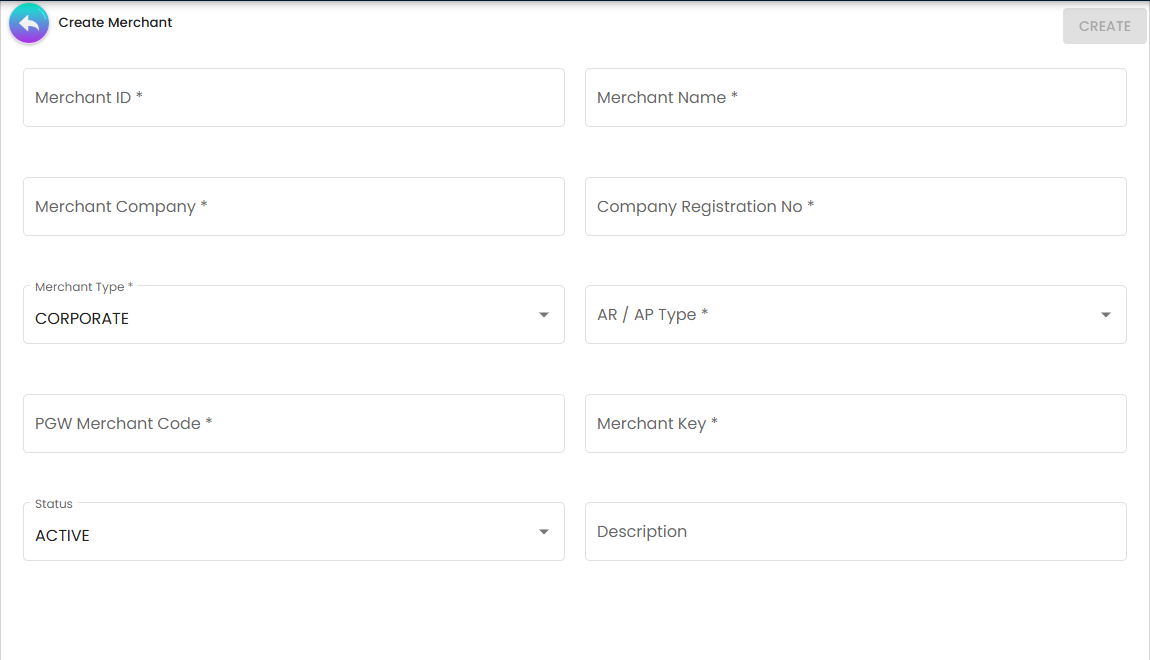
A single panel. CREATE is enabled only when every starred field is filled (see Fields). Status defaults to ACTIVE, Merchant Type to CORPORATE and Entity Type to MERCHANT.
Edit form
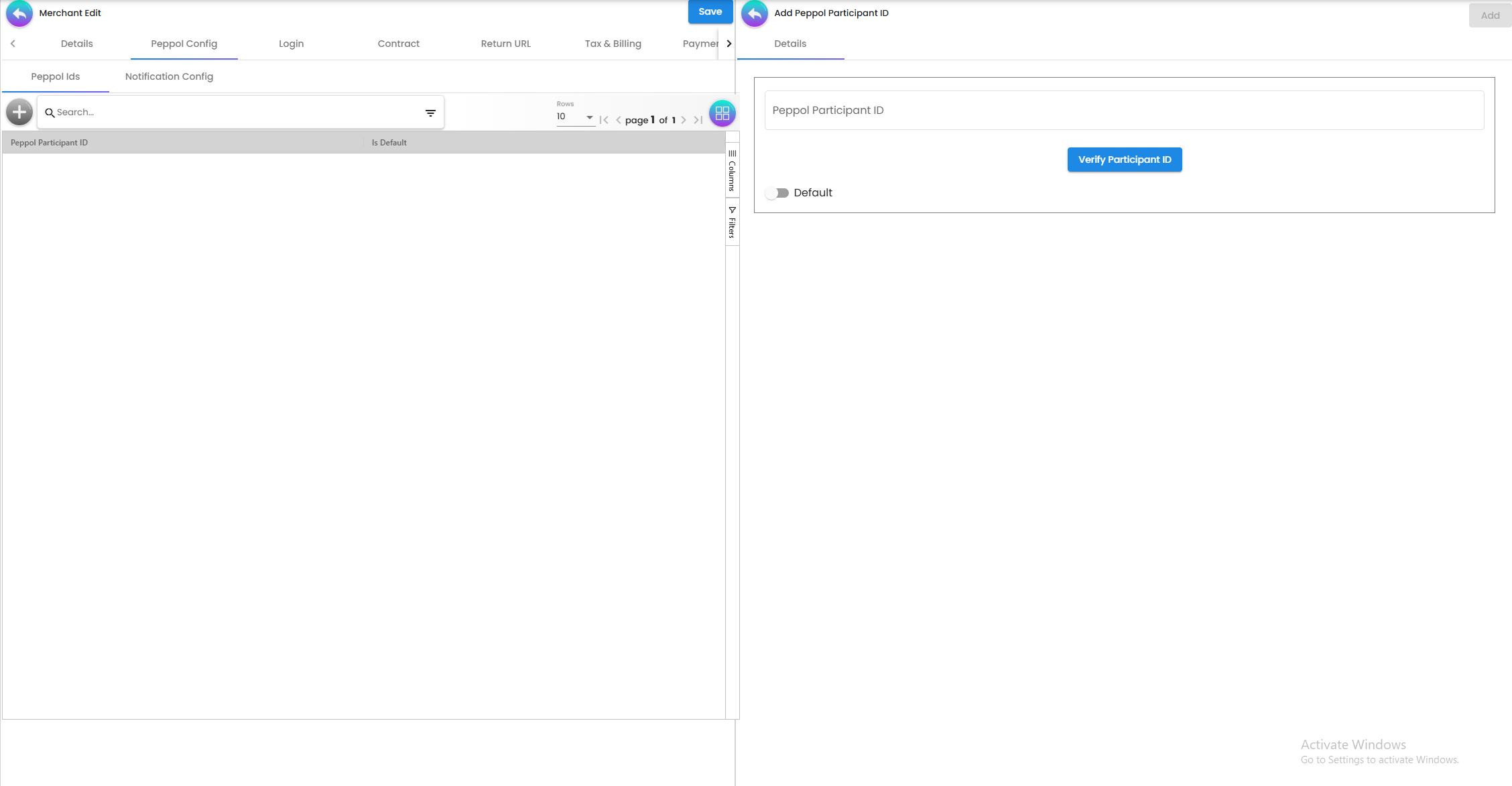
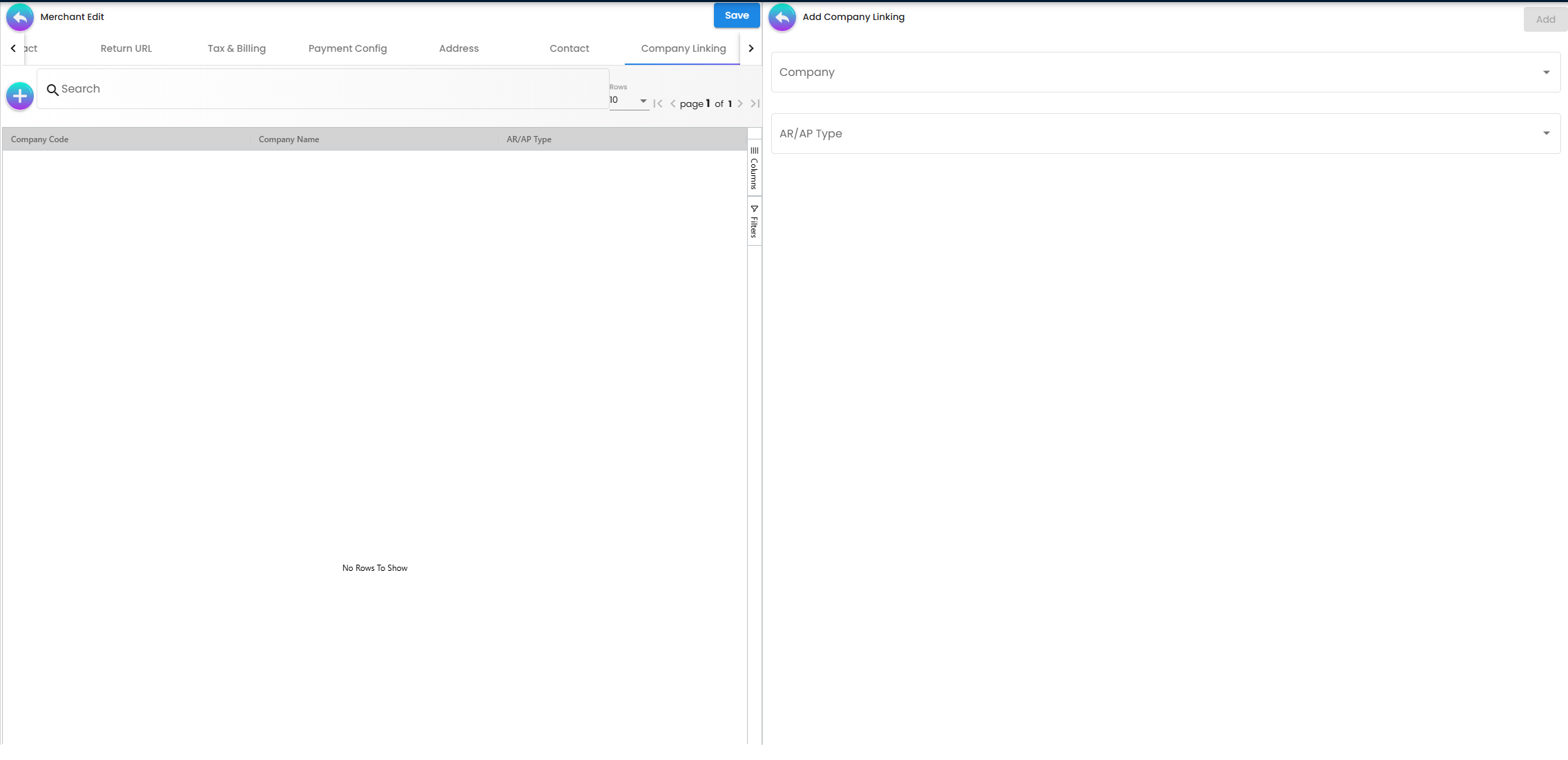
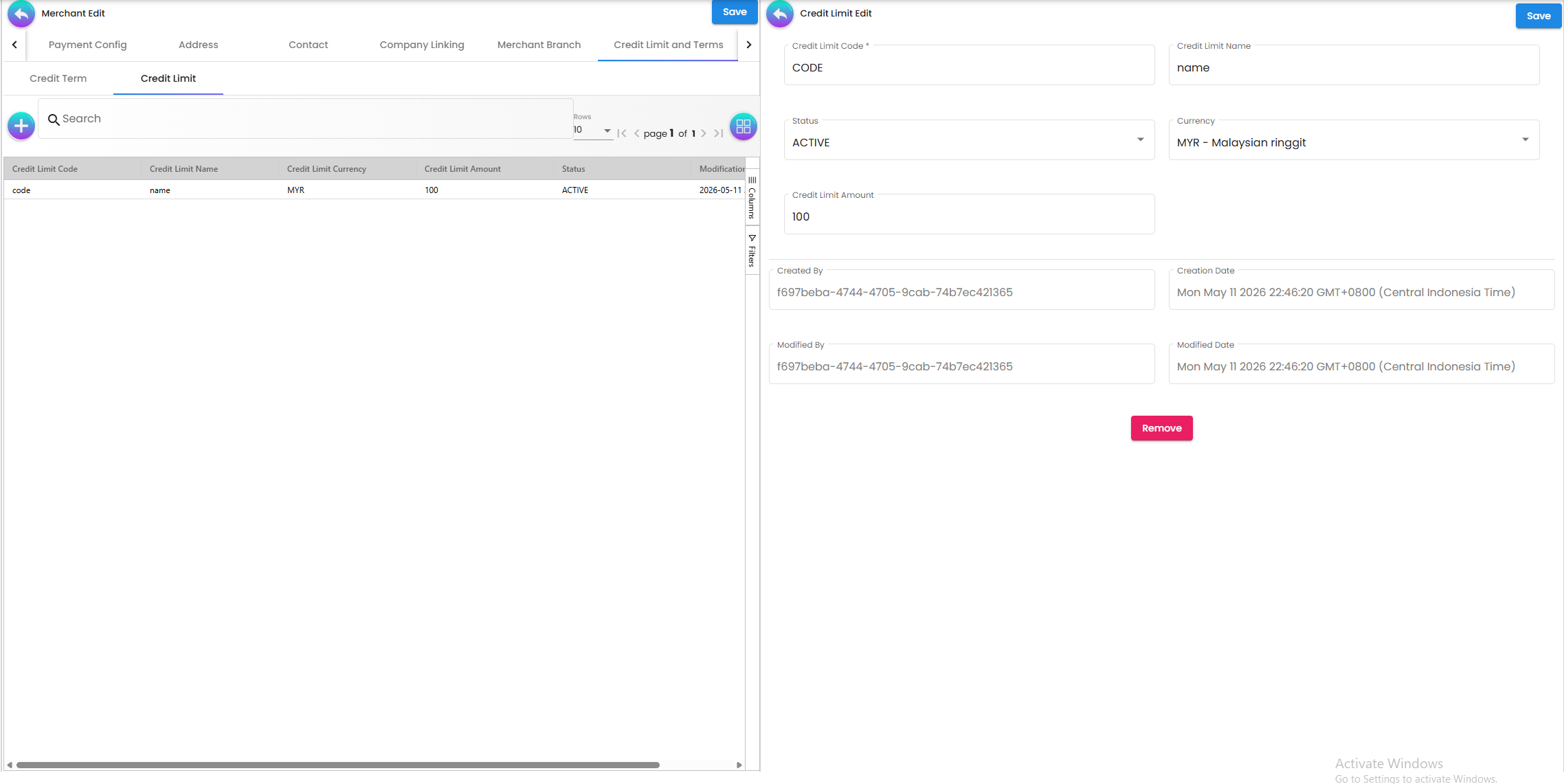
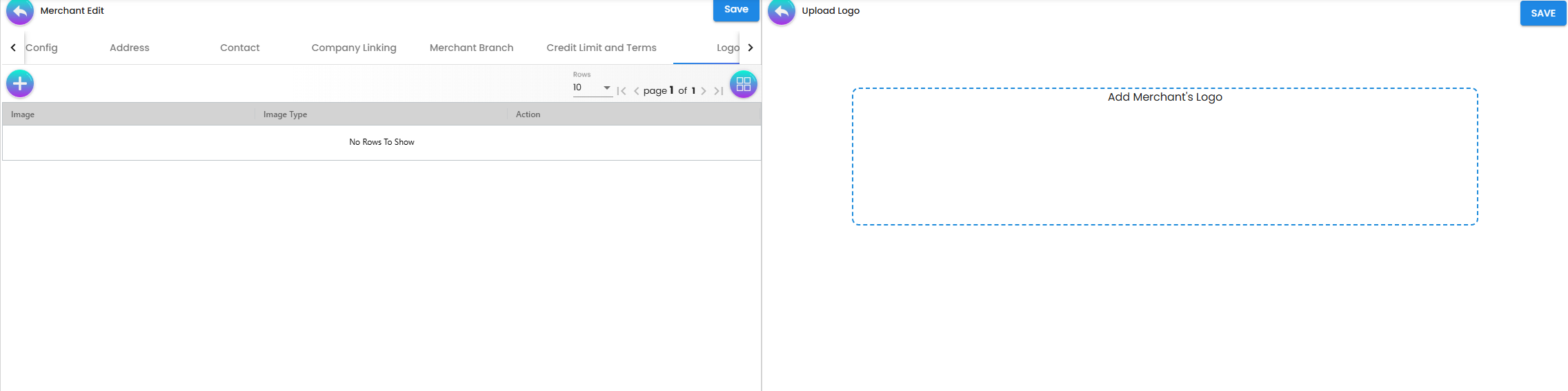
Tabs, in order: Details, Peppol Config (inner tabs Peppol Ids, Notification Config), Login, Contract, Return URL, Tax & Billing, Payment Config, Address, Contact, Company Linking, Merchant Branch, Credit Limit and Terms (inner tabs Credit Term, Credit Limit), Logo.
How the tabs save differs:
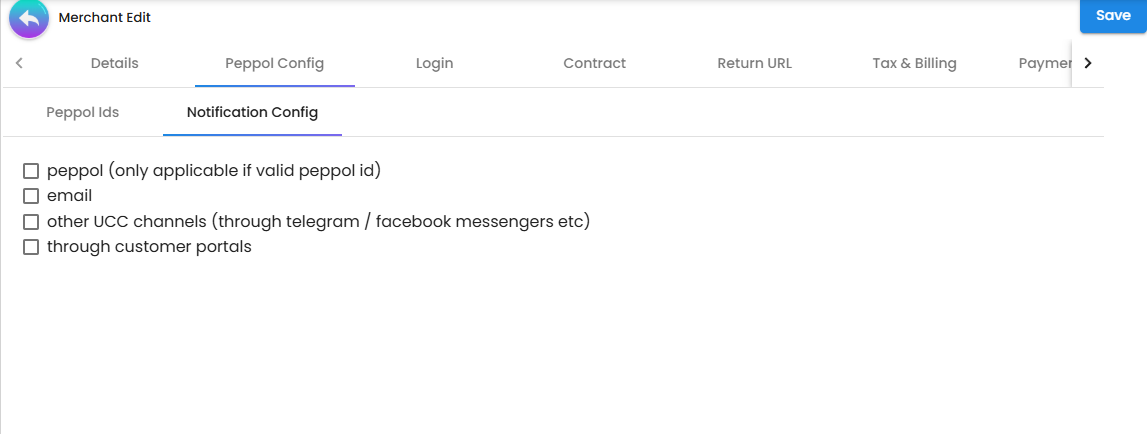
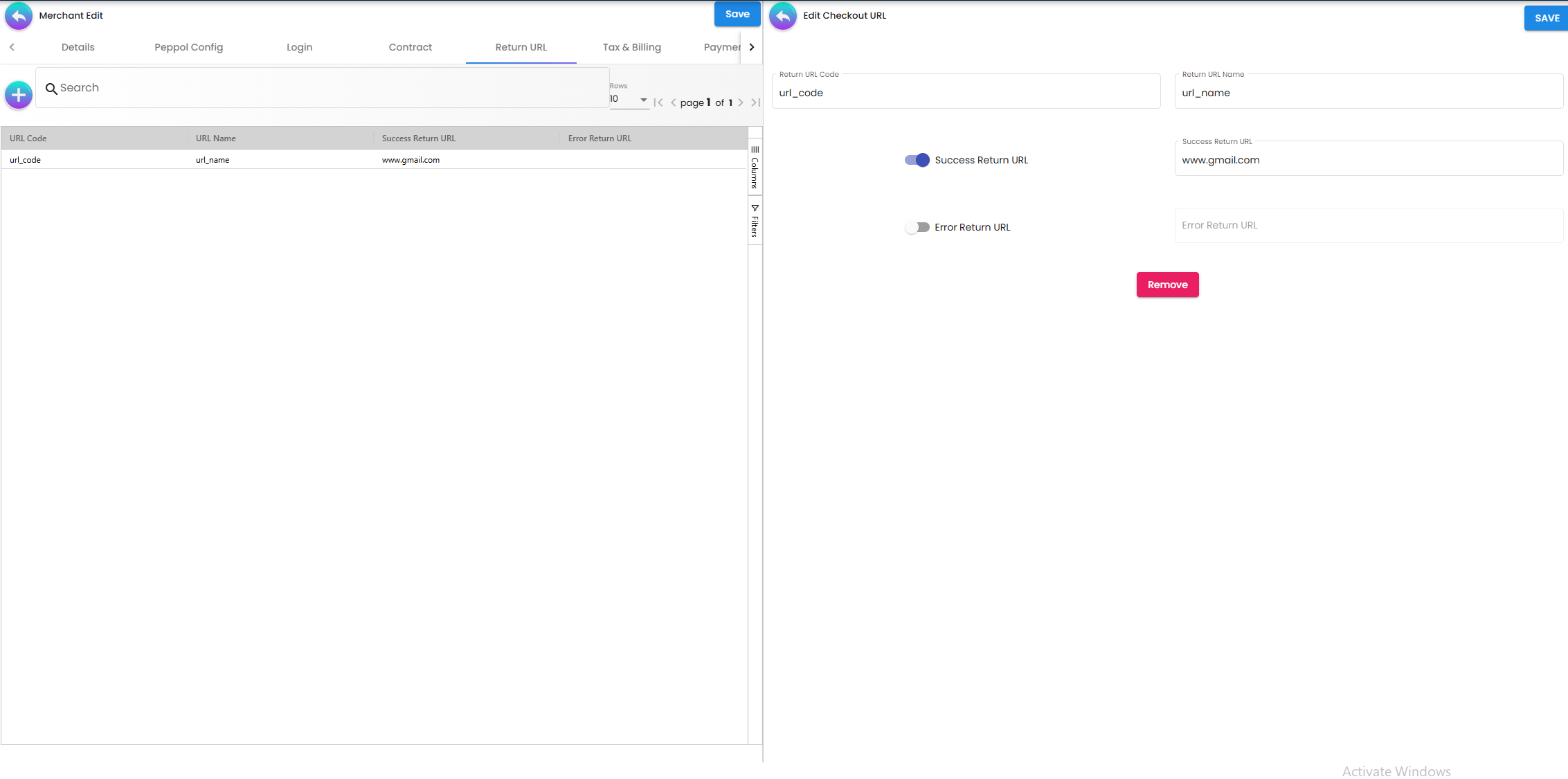
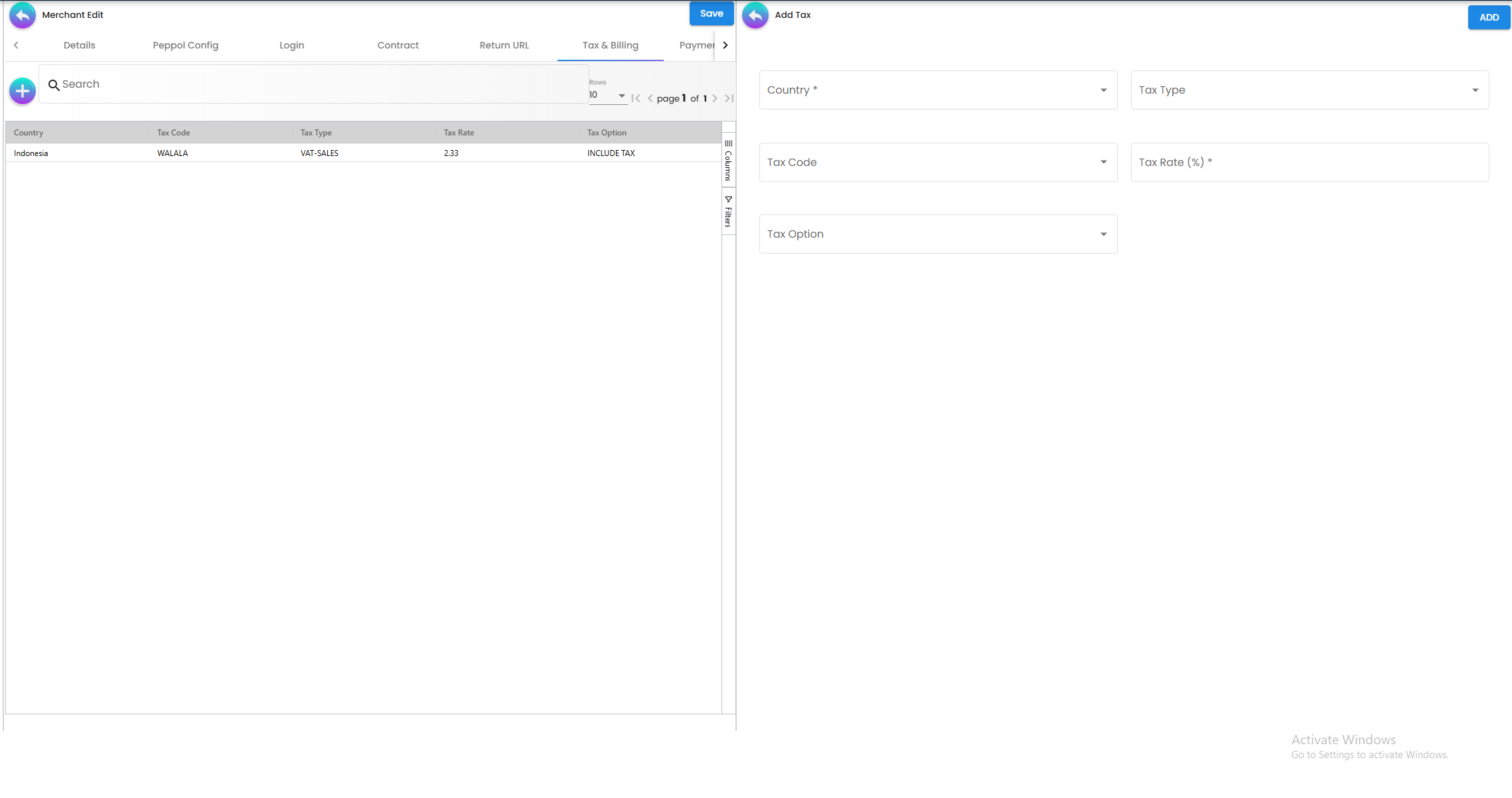
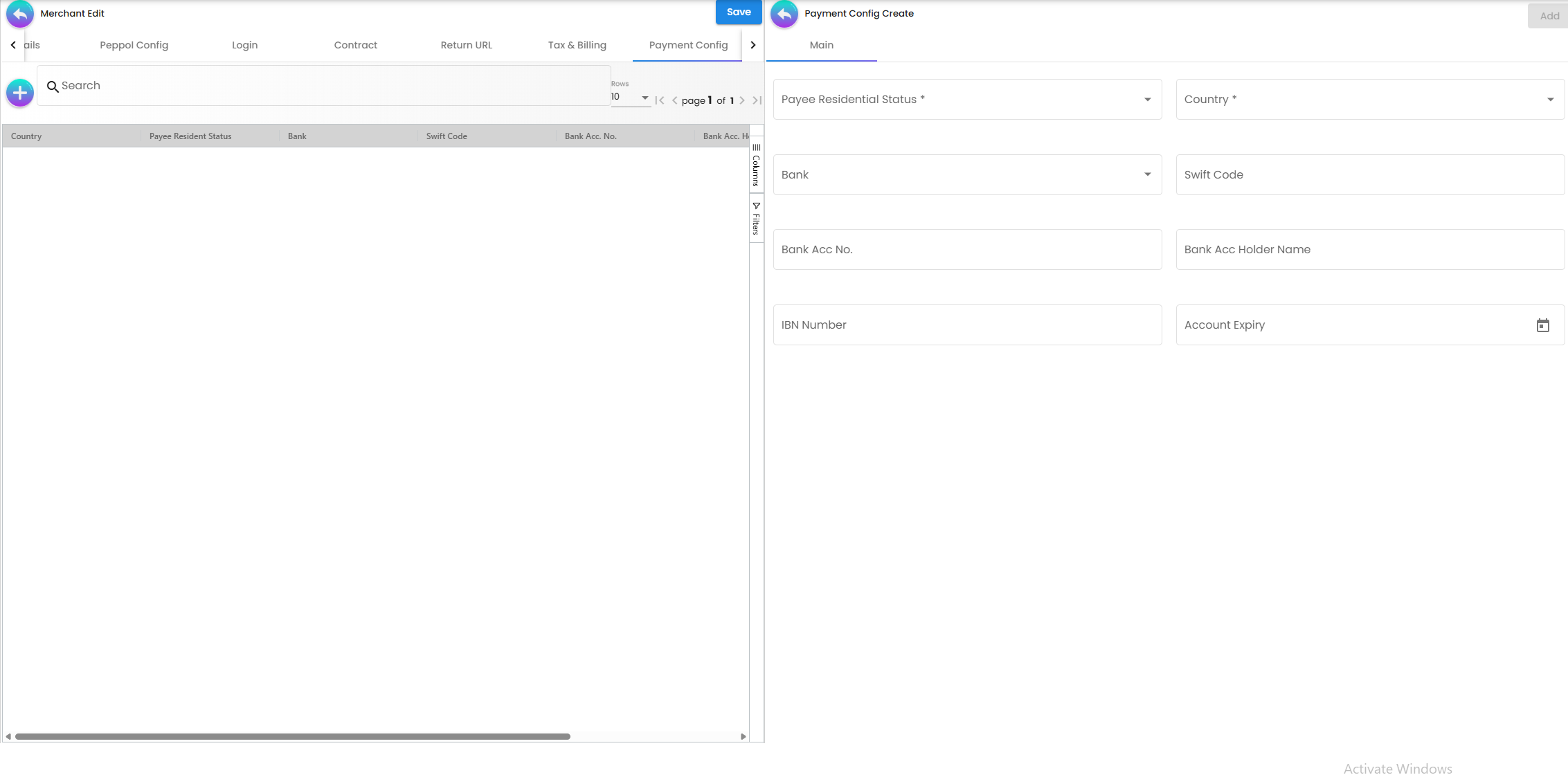
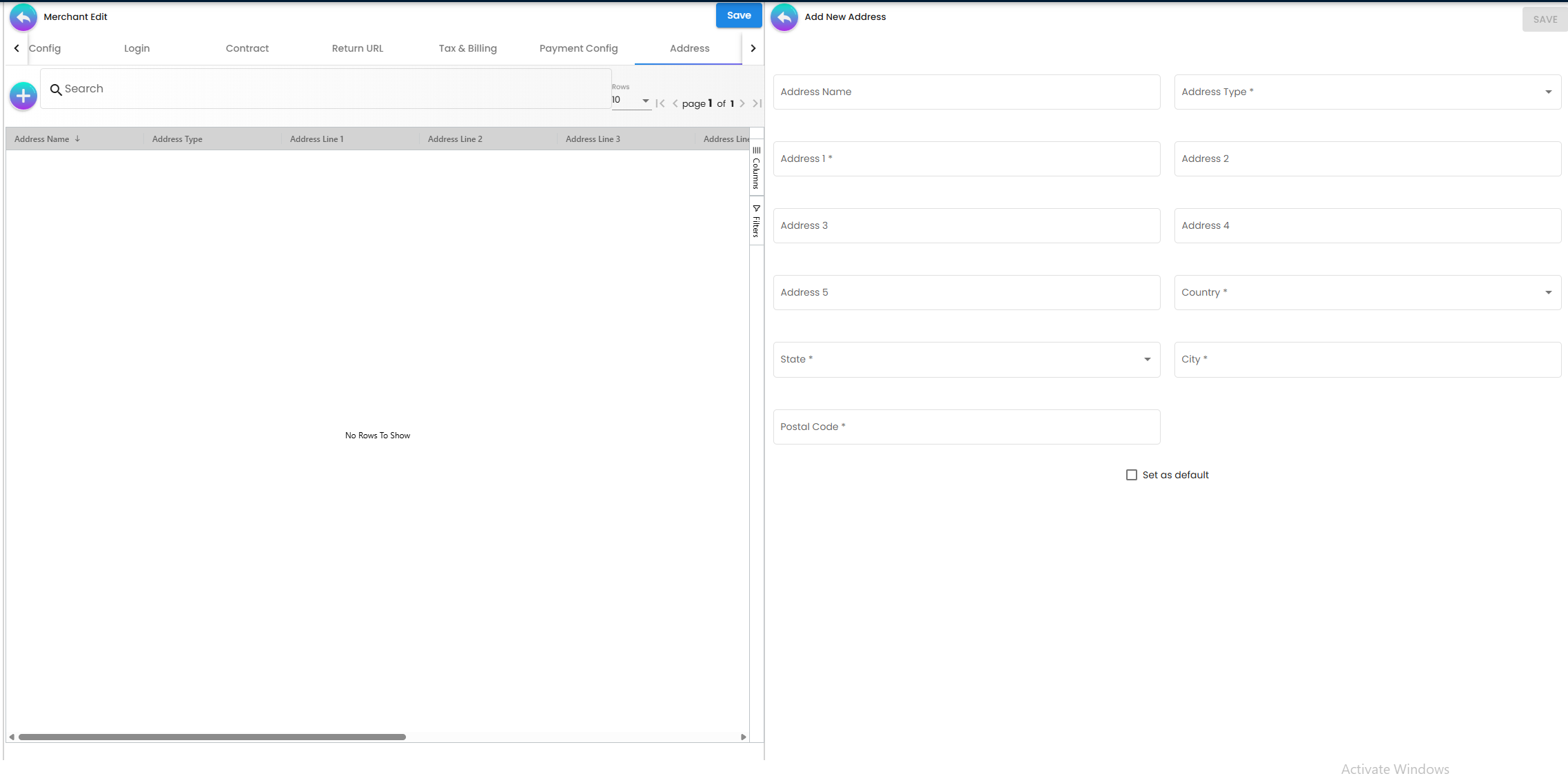
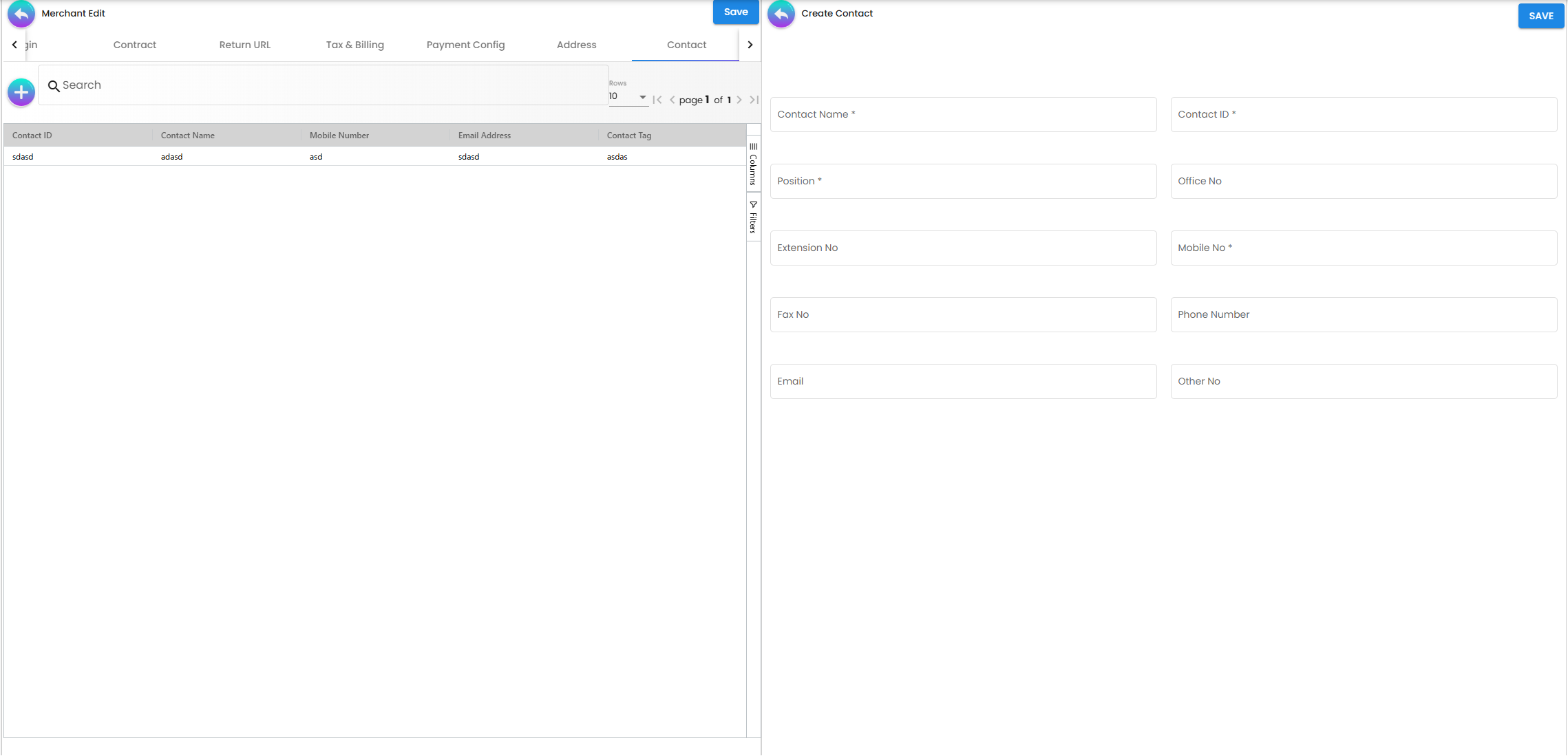
- The header Save writes the Details tab, the Notification Config checkboxes and every row staged on Return URL, Tax & Billing, Payment Config, Address, Contact, Credit Term and Credit Limit in one save of the whole merchant. Until you press Save those rows exist only in the browser.
- Peppol Ids, Login, Contract, Company Linking, Merchant Branch and Logo save immediately when you press Add / Save / Create inside the panel.
- Remove on the Details tab deletes the merchant at once — there is no confirmation dialog (see Lifecycle and effects).
Contract screens
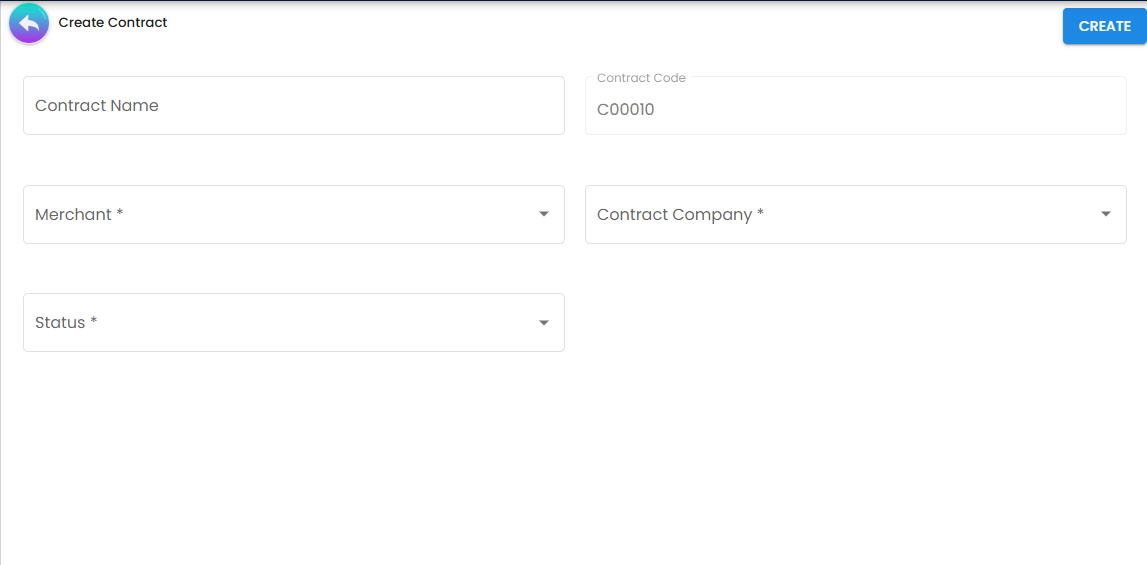
Contract listing columns: Contract Code, Contract Name, Contract Company, Merchant Contract Key, Status, Creation Date, Updated Date. Create has Contract Name, Contract Code (computed, read-only), Merchant, Contract Company and Status. Edit has tabs Details, Rate Card and Annex; the contract opened from a merchant’s own Contract tab shows Details, Rate Card and Audit Trail instead. Inside Rate Card: a rate-card listing (Rate Card Code, Rate Card Name, Rate Card Status) → payment-channel listing for the selected card → charge-rate listing per channel, each level with its own create / edit panel.
Report
Listing columns: Merchant ID, Merchant Name, Payment Channel, Currency, PC Charge Name 1-4 and PC Charge 1-4 (%/$), VAT %, Unrecoverable VAT %, network charges per transaction ($ and %), network Charge Name 1-4 and Charge 1-4, # of Txn, Total Amount, Download. Clicking a row opens a read-only view of the same charges. The column group labelled with the payment network’s own name in the UI is described generically here.
Audit Trail
Listing columns: Merchant Name, Action, Event Code, User, Date — the entity events this applet writes. It is a log of actions, not a before/after field diff.
Configuration
Before you can use it
- Companies in the Organisation applet — every contract needs a Contract Company (BigLedger refuses a contract without one), and the Company Linking tab picks from the same list. Branches are needed for the Merchant Branch tab.
- Tax codes in Tax Configuration — Tax & Billing filters by the chosen country; the Merchant Branch panel offers SST/GST and WHT codes and the MyInvois tax type codes.
- GL codes and subledgers in Chart of Account for the Merchant Branch control account.
- Settlement methods in the Cashbook applet — read by Payment Config.
- Banks and countries — the Payment Config Bank and Country lists come from the platform’s shared bank and country lists.
- Merchant code prefix / running number — the create form never sends a merchant code, so BigLedger generates one from the merchant running number plus the tenant’s merchant prefix. The Merchant ID you type is a different thing: a display identifier only.
- Server-side permissions — creating a merchant needs
TNT_API_ERP_MERCHANT_ENTITY_CREATE(or the merchant-entity owner / admin permission); update and delete need the matching_UPDATE/_DELETEcodes. Contract, rate-card and charge-rate writes need the tenant owner / admin role or the corresponding permission, with the contract’s company as the permission target.
Applet settings
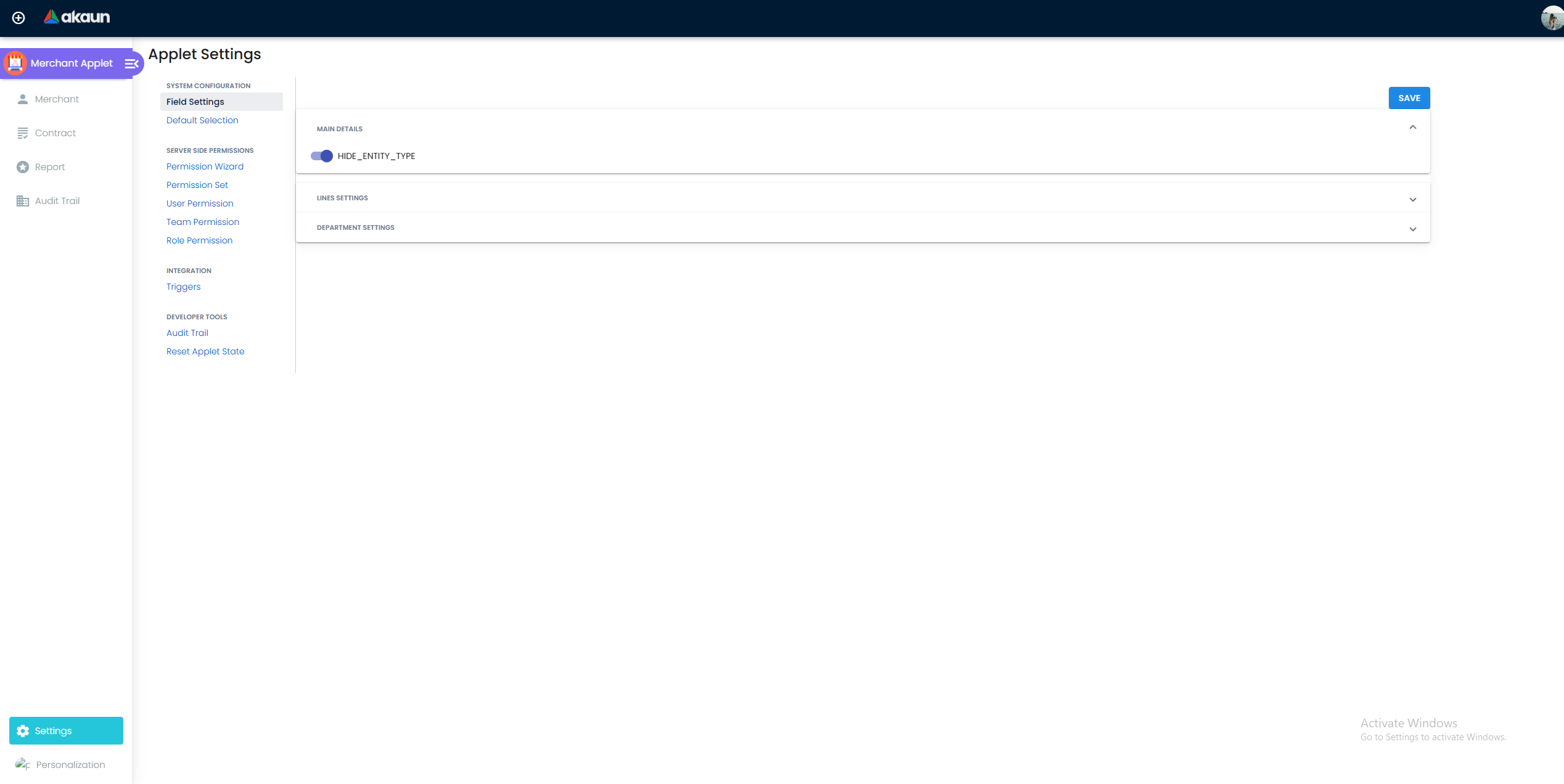
Settings are applet-local: Field Settings is this applet’s own screen, saved as the applet’s tenant-wide settings. The shared document-applet Field Configuration screen is not used. Anyone with access to the Settings menu can change them; they apply tenant-wide.
| Setting | What it controls | Default | Effect when changed |
|---|---|---|---|
HIDE_E_TYPE (labelled HIDE_ENTITY_TYPE, panel Main Details) | Hides the Entity Type multi-select on the create form | Off (a never-saved tenant has no value, so the field shows) | On: the control is disabled and hidden, so the create request carries no entity-type flags; BigLedger still flags the record as a merchant because it was created from this applet. CUSTOMER / SUPPLIER / EMPLOYEE cannot be added at creation. The edit form ignores this setting — Entity Type is always visible there |
That is the only setting that is declared, rendered, persisted and consumed. Also on the screen but not saved:
- Lines Settings — Unit Discount, SST/VAT/GST, WHT, Blanket Order — and Department Settings — Segment, G/L Dimension, Profit Center, Project: eight slide toggles connected to nothing. They are a copy of a document-applet panel.
- Default Selection (Default Branch, Default Location): the pickers try to write
DEFAULT_BRANCH/DEFAULT_LOCATIONinto a settings container that is never loaded, so choosing a value fails, and SAVE does nothing. Nothing reads either key from the applet settings these screens write, and the backend does not read them at all. They are not dead names, though: the shared branch and location multi-selects pre-fill fromDEFAULT_BRANCH/DEFAULT_LOCATIONon the per-user settings — which no screen in this applet writes. - Personalization › Default Selection: same code, same result.
Document behaviour settings
Not applicable — master data; no statuses beyond the entity and contract status fields, no posting, no printables.
Settings in other applets that control this applet
None found: the applet reads no company, branch or other-applet settings.
Feature visibility / permissions
- Client-side permissions: none are defined for this applet, and the applet checks no
SHOW_*codes. Feature Visibility is the shared Manage Team Access screen only. - Server-side permissions: the Permission Set / User / Team / Role screens are the shared ones; in this applet a permission target can be a Company, Branch, Location, Applet, Tenant, Team, Hostname, Merchant Contract, Merchant Rate Card, Payment Channel, Merchant Rate, Entity Credit Limit, Entity Credit Term, GL Code, Tax Code, Country, Entity (merchant), Login, Currency, Contract Rate or settlement-method Item.
Fields
Create form
| Field | Meaning | Required | Notes / validation |
|---|---|---|---|
| Merchant ID | Display identifier | Yes | Stored as a display identifier, separate from the generated merchant code; no uniqueness check |
| Company Registration No / ID Number | Registration or identity number | Yes | Max 100; label follows Merchant Type (CORPORATE → Company Registration No, INDIVIDUAL → ID Number) |
| Entity Type | Multi-select CUSTOMER, SUPPLIER, EMPLOYEE, MERCHANT | Yes (when shown) | Default MERCHANT; hidden by HIDE_ENTITY_TYPE; choosing EMPLOYEE forces Merchant Type to INDIVIDUAL. Sets the customer / supplier / employee / merchant flags on the record |
| Merchant Type | CORPORATE / INDIVIDUAL | Yes | Default CORPORATE |
| AR / AP Type | AR_TRADE, AR_OTHER, AR_MERCHANT, AP_TRADE, AP_OTHER, AP_MERCHANT, AP_EMPLOYEE | Yes | If blank BigLedger defaults to AP_TRADE for suppliers, else AR_TRADE |
| PGW Merchant Code | The name a payment request uses for this merchant | Yes, on this form | A payment request names its merchant by this code, and BigLedger checks the request’s signature with the Merchant Key it finds under the code — so it must match, character for character, what the gateway integration sends. Nothing checks that another merchant does not already carry it, and the listing’s search does not look at it; if two merchants carry the same code, key lookups for that code stop working and so do its payments (read, not run). Keeping the codes unique is the onboarding administrator’s job: check the new code against the gateway provider’s merchant list before CREATE. No length limit here; 100 on the Details tab |
| Merchant Key | Gateway signing key | Yes | Shown in clear text; copied onto each payment transaction at transaction time |
| Status | ACTIVE / TEMP / INACTIVE | No | Default ACTIVE; a blank status is set to ACTIVE server-side |
The Details tab of the edit form has the same fields (all of Merchant ID, Merchant Name, Merchant Company, registration number, Entity Type, Merchant Type, AR/AP Type, PGW Merchant Code and Merchant Key mandatory, each max 100) plus Remove.
Peppol Config
- Peppol Ids — Peppol Participant ID (with Verify Participant ID, which calls the Peppol participant lookup by ISO 6523 scheme and ID), Default toggle, Delete. Saved immediately.
- Notification Config — four checkboxes: peppol (only applicable if valid peppol id), email, other UCC channels (through telegram / facebook messengers etc), through customer portals. Saved by the header Save as the merchant’s e-Invoice notification methods.
Login
| Field | Meaning | Required | Notes |
|---|---|---|---|
| User email | Tenant login to link | Yes | Verify Email tries to add the address as a tenant user: if it succeeds or the user already exists, the confirmed login is linked; if the user is not found, the Send Invite button appears (the invitation also creates an entity for the new user) |
| Rank | OWNER, ADMIN, MANAGER, MEMBER, GUEST, VISITOR, ANNONYMOUS | Yes | Default MEMBER |
| Status | ACTIVE / INACTIVE | Yes | Default ACTIVE |
Add links the login immediately. Listing columns: User Email, Rank, Status, Modified Date.
Return URL
Return URL Code, Return URL Name, Success Return URL toggle + URL, Error Return URL toggle + URL. Saved with the header Save.
Tax & Billing
Country (required), Tax Type, Tax Code, Tax Rate (%) (required), Tax Option (required). Tax types include SST service-tax input / output entries; codes are the tax codes of the chosen country. Saved with the header Save.
Payment Config
Payee Residential Status (RESIDENT / NON-RESIDENT, required), Country (required), Bank, Swift Code, Bank Acc No., Bank Acc Holder Name, IBN Number, Account Expiry (date). Saved with the header Save.
Address, Contact
- Address — Address Name, Address Type (required), Address 1 (required), Address 2-5, Country / State / City / Postal Code (required), Set as default. Saved with the header Save.
- Contact — Contact Name, Contact ID, Position, Mobile No (required), Office No, Extension No, Fax No, Phone Number, Email, Other No. Saved with the header Save.
Company Linking, Merchant Branch
- Company Linking — Company and AR/AP Type, both required; Add saves the link at once and is refused if the company is already linked. The edit panel shows Company Code, Company Name, Registration No. and AR/AP Type.
- Merchant Branch (panel title Create Customer Branch) — Selected Entity (read-only), Code, Name, Description, Mapping Value 01-05, Address Name, Email, Phone Number, Address Line 1-5, Country, State, City, Postal Code, Control Account Code, Account AR/AP Type, Account GL Code, Account Subledger, Output Tax Type + SST/GST/VAT, Output WHT Type + WHT, Input Tax Type + SST/GST/VAT, Input WHT Type + WHT, Einvoice Tax Type Code. Saved immediately; the edit panel adds DELETE.
Credit Limit and Terms
- Credit Term — Existing Credit Term or New Credit Term: Credit Term Name, Credit Term Code (required), Status, Set Year / Month / Day, Add Year / Month / Day. Saved with the header Save.
- Credit Limit — Credit Limit Code (required), Credit Limit Name, Status, Currency, Credit Limit Amount. Saved with the header Save.
Contract
| Field | Meaning | Required | Notes |
|---|---|---|---|
| Contract Code | Read-only | Browser computes the highest existing numeric part + 1, formatted C00001…; no backend uniqueness check on the code | |
| Merchant | The merchant this contract belongs to | Yes, on this form | BigLedger refuses a merchant that does not exist but accepts none at all — a contract with no merchant is a TEMPLATE (see Type) |
| Contract Company | Your company on the contract | Yes | BigLedger rejects a missing or unknown company |
| Status | ACTIVE / DEACTIVATE on create; ACTIVE / INACTIVE on edit | Yes | The two forms offer different lists, so a contract created as DEACTIVATE opens on the Edit tab with Status empty, and saving it makes you pick ACTIVE or INACTIVE. What a DEACTIVATE or INACTIVE contract stops outside this applet was not confirmed for this page — the monthly report job does not read it — so before relying on it to stop a merchant’s payments, ask BigLedger support |
| Merchant Contract Key | Generated | Ten random alphanumerics assigned by BigLedger; must be unique | |
| Type | Derived | Read-only | TEMPLATE when the contract has no merchant, PERSONAL otherwise. The create form insists on a merchant, so every contract made here starts PERSONAL. Caution (read, not run): the Edit tab’s Save writes the contract back with no merchant, and without the gateway settings the form does not show, so a saved PERSONAL contract reopens as TEMPLATE. Test it on one contract you can recreate: note its Type, change only the name, Save, reopen. If it reads TEMPLATE, leave contracts that carry live payments unedited and create a new contract instead |
Rate card, payment channel, charge rate
- Rate Card — Rate Card Code (generated
RC_nnnn, read-only), Rate Card Name (required), Status, Description. - Payment channel — a rate-card line linking the card to a payment channel and payment provider.
- Charge Rate — Charge Rate Name (required), Rate (required), rate logic. Up to four named charge rates per channel are what the monthly report shows as PC Charge Name 1-4.
Lifecycle and effects
This is a master-data applet: no server document type, no amount or quantity signum, no journal, no stock processor and no open-queue rows. It writes:
| What | How |
|---|---|
| Merchant — the entity record with its display ID, company info, return URLs, tax rows, payment config, credit terms, credit limits, logo and contacts | One save of the whole merchant from the header Save |
Entity event (CREATE_MERCHANT, EDIT_MERCHANT, CREATE_CHARGE_RATE, UPDATE_PAYMENT_CHANNELS, …) | Written by the applet after each save |
| Peppol ID, login link, company link, merchant branch | Saved immediately from the panel |
| Contract, rate card, charge rate | Saved immediately from the Contract screens |
It reads the monthly merchant transaction summary for the Report menu. Those rows are produced by the merchant monthly report job, which is run for given months and years, groups payment transactions per merchant and payment channel, copies the VAT rate from the merchant’s tax rows and fills the charge columns from the merchant’s charge rates. The applet has no button to run it.
Backend validation that stops a save:
- Merchant: a status must be present; a merchant code on a record that is not flagged as a merchant is rejected; a duplicate merchant code or merchant ID is rejected. Codes are upper-cased and stripped of spaces before the check.
- Contract: company, contract key, revision, status, dates and created / updated user are all mandatory and must exist; a merchant is optional to BigLedger but must exist when given (the create form is what insists on one); a duplicate contract key is rejected.
- Rate card and charge rate: the same kind of existence checks.
Status. Merchant status is ACTIVE / TEMP / INACTIVE; the merchant listing and every downstream lookup by entity type filter on the merchant flag, not on status, so an INACTIVE merchant still appears wherever merchants are listed. Contract status is ACTIVE / DEACTIVATE on the create form and ACTIVE / INACTIVE on the edit form, and is not read by the monthly report job.
Delete. Remove deletes the merchant at once. BigLedger deletes the record, its extensions, lines and login links physically after deleting attached files, and fires the MERCHANT_DELETED webhook; it does not check for contracts, payment transactions or documents that reference the entity. Contracts are separate records and survive pointing at a merchant that no longer exists. Contract Remove deletes the contract the same way.
What reads the credentials. Payment-gateway callbacks verify their signature with the merchant key copied onto the payment transaction when it was created — so rotating the Merchant Key affects new transactions only.
Related applets
- Entity Maintenance — the type-agnostic view of the same records; use it to see a merchant that is also a customer or supplier, or to maintain the category trees.
- Customer Maintenance, Supplier, Employee Maintenance — the other entity-type views; a merchant with CUSTOMER in its Entity Type appears in Customer Maintenance with the credit terms and limits set here.
- Organisation — companies for contracts and company linking; branches for merchant branches.
- Tax Configuration — tax codes for Tax & Billing and the merchant branch control account.
- Chart of Account — GL codes and subledgers for the merchant branch control account.
- Cashbook — settlement methods read by Payment Config.
- My Peppol Admin, My E-Invoice Admin — consume the Peppol participant IDs and notification methods saved on the merchant.
- Seller Applet — the seller-side workspace of a merchant registered here: its products, stock balances and allocated orders.
- Tenant Admin — the tenant users that the Login tab verifies and invites.
- Merchant Access (registry code
MerchantAccessApplet) — a separate ACTIVE applet with its own build, intended as the merchant-side counterpart of this administrator view. It has no page on this wiki and nothing about its behaviour is documented here.
Troubleshooting
| Symptom | Cause | Fix |
|---|---|---|
| CREATE stays grey | One of the starred fields is empty — Merchant ID, Name, Company, registration number, Entity Type (when shown), Merchant Type, AR/AP Type, PGW Merchant Code, Merchant Key | Fill every starred field; Description is the only optional one |
| Entity Type is missing on the create form but visible on edit | HIDE_ENTITY_TYPE is on in Field Settings; the edit form does not honour it | Expected. Turn the setting off to set CUSTOMER / SUPPLIER / EMPLOYEE at creation, or add them afterwards on the Details tab |
| Merchant saved without the CUSTOMER flag although CUSTOMER was expected | With HIDE_ENTITY_TYPE on, the disabled control is excluded from the request, so only the merchant flag is set | Edit the merchant and add the type on the Details tab |
| Two merchants with the same Merchant ID | Merchant ID is a display identifier and is never checked for uniqueness; the unique key is the generated merchant code, which this applet never displays | Search by name; use Entity Maintenance (keyword search matches the merchant code) to tell them apart |
merchant_code already exists on an import or API call | Another entity already carries that merchant code (…MERCHANT_CODE_ALREADY_EXISTS); codes are compared after upper-casing and removing spaces | Leave the code blank so the running number generates it, or pick an unused one |
| Rows added on Return URL / Tax & Billing / Payment Config / Address / Contact / Credit Term / Credit Limit disappear | They are staged in the browser until the header Save is pressed | Press Save on the Merchant Edit header, not only the panel’s Save / Add |
| Merchant vanished after clicking Remove | Remove deletes immediately, without confirmation, and physically | Recreate the merchant; contracts that pointed at it still exist in the Contract listing but show no merchant |
| Contract listing shows a contract with an empty Merchant Name / edit shows Type = TEMPLATE | The contract has no merchant — the merchant was deleted, the contract was created as a template, or (read, not run) it was saved from the Edit tab, which writes it back without its merchant | Create a new contract for the merchant; templates cannot be re-pointed from the UI. Test the Edit-tab behaviour on one contract before editing any other (see Type under Contract) |
| Two contracts with the same Contract Code | The code is computed in the browser as max + 1; two users creating at the same time get the same number and BigLedger does not check the code for uniqueness | Rename one; the contract key, not the code, is the unique identifier |
| Verify Email says User … not found | The e-mail is not registered as a login in this tenant | Press Send Invite; the invitation creates the login and an entity for it. Link the login once the user has confirmed |
| Verify Email succeeded but the user now appears in Tenant Admin | Verify works by attempting to add the address as a tenant user; success means it was added | Expected side effect |
| Report menu is empty | The monthly summary is filled only by the merchant monthly report job, run for explicit months and years | Ask support to schedule or run the job (PGW_MERCHANT_MONTHLY_REPORT_PROCESSOR in the Scheduler applet) for the months needed |
| Report shows charges of 0 or blank charge names | The job copies charge rates from the merchant’s rate cards grouped by name (up to four); the merchant’s contract has no rate card lines for that channel | Add the rate card, the payment channel and the charge rates under Contract › Rate Card, then rerun the job |
| Payment-gateway callback fails with signature mismatch after the Merchant Key was changed | Callbacks are verified against the key copied onto the payment transaction when it was created, not the current merchant key | Transactions started before the change keep the old key; only new transactions use the new one. Do not change the key while transactions are in flight |
| Default Selection does nothing / console error on choosing a branch | The screen is not wired, and nothing in this applet reads DEFAULT_BRANCH / DEFAULT_LOCATION from the applet settings it writes to | Nothing to configure; see Applet settings |
| Settings links Permission Wizard, Audit Trail, Reset Applet State return to the merchant listing | The shared settings frame lists them but this applet does not have those screens | Use Permission Set / User / Team / Role Permission; the applet’s own Audit Trail is the left-menu item |
| Personalization › Field Settings does nothing | Listed in the menu without a screen behind it | Use Settings › Field Settings |
Related documentation
- Master Data applets
- Entity Maintenance — the shared entity model this applet edits
- E-Commerce module and E-Invoice module