Shipping Pricebook Applet
Purpose and Overview
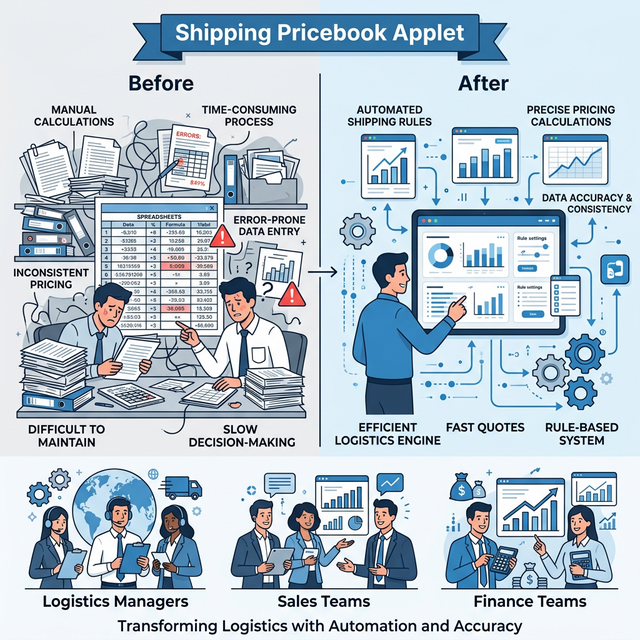
The Shipping Pricebook Applet is a sophisticated logistics engine designed to automate and standardize the calculation of shipping-related fees. In a modern trading or e-commerce environment, shipping costs are rarely static; they fluctuate based on delivery regions, item characteristics, customer profiles, and service levels.
Key Features Overview
Who Benefits from This Applet?
Logistics & Operations Managers:
- Automated Precision: Eliminate manual fee entry errors and ensure consistent application of delivery charges.
- Dynamic Surcharges: Easily manage fluctuating costs like fuel surcharges or peak-season handling fees without changing base prices.
- Zonal Control: Define specific rates for different geographic regions (e.g., local delivery vs. international sea freight).
Sales & Customer Service Teams:
- Real-time Quotes: Instantly provide accurate shipping and handling costs to customers during the order process.
- Policy Enforcement: Automatically apply “Free Shipping” or discounted rates for VIP customers or high-value orders based on predefined rules.
- Transparency: Clear visibility into why specific fees were applied, reducing customer disputes.
Finance & Accounting Teams:
- Full Cost Recovery: Ensure that all logistics-related expenses (handling, fuel, transport) are captured and recovered from the customer.
- Audit Integrity: Maintain a complete audit trail of fee calculations for every transaction.
- Revenue Protection: Prevent under-billing caused by missing or outdated shipping rates.
What Problems Does This Solve?
The “Manual Shipping Guesswork” Problem: Traditional systems often rely on staff to “eye-ball” shipping costs. Common issues include:
- Inconsistent charging between different sales reps.
- Forgotten fuel surcharges leading to margin erosion.
- Difficulties in handling complex “if-this-then-that” shipping logic manually.
The Shipping Pricebook Solution:
- Logic-Driven Fees - Fees are triggered only when specific conditions (Rules) are met.
- Priority Logic - Multiple pricebooks can coexist, with the system intelligently selecting the most relevant one.
- Multi-Layered Calculations - Combine standard shipping, handling, and fuel surcharges into a single automated workflow.
- Granular Control - Apply rules at the Header (entire order), Multi-Line (item groups), or Single-Line (specific product) level.
Key Features Inventory
Key Concepts
Understanding the Shipping Framework
Every shipping calculation must address three fundamental aspects. The Shipping Pricebook Applet provides structured handling:
| Aspect | Component | Practical Example |
|---|---|---|
| Who is it for? | Pricebook Group | VIP Customers, Retail Outlets, International Dealers |
| What triggers it? | Rules Logic | If Region is “North America” AND Order Weight > 100kg |
| How is it charged? | Treatment Type | Flat $50 fee OR 5% of Transaction Amount |
Pricebook Hierarchy Structure
Think of the shipping fee logic as a structured flow that narrows down from general categories to specific charges:
  graph TD
    PB[Shipping Pricebook] --> PS1[Priceset: Free Shipping]
    PB --> PS2[Priceset: Heavy Goods Surcharge]
    PB --> PS3[Priceset: Standard Logistics]

    PS1 --> R1[Rule: Amount > $1000]
    PS1 --> T1[Treatment: $0 Fee]

    PS2 --> R2[Rule: Weight > 50kg]
    PS2 --> T2[Treatment: $50 Handling]

    PS3 --> R3[Rule: Default]
    PS3 --> T3[Treatment: $15 Shipping]
Flow Through the Hierarchy:
- Pricebook: The broad container (e.g., “B2B Standard Rates”).
- Priceset: A specific scenario (e.g., “West Malaysia Distribution”).
- Rules: The “If” conditions (e.g., “Must be Branch HQ”).
- Priority: Lower numerical value = Higher precedence.
- Treatment: The final financial calculation logic.
The “Golden Triangle” of Shipping Logic
To effectively manage the system, it is crucial to understand how Rules, Priority, and Treatments interact.
| Component | Analogy | Definition | Example |
|---|---|---|---|
| Rules | The “Gatekeeper” | The specific conditions that must be true for a fee to apply. | Region = “Sabah” |
| Priority | The “Tie-Breaker” | Decides which rule wins if multiple match an order. | Priority 1 vs Priority 100 |
| Treatment | The “Bill” | The actual math of the fee calculation. | 5% Fuel Surcharge |
Quick Start Guide
Get up and running quickly with these essential workflows.
For Sales Team: Check Applied Fees
Goal: Understand why a shipping fee was applied to your order in 3 steps.
- Open Document: Go to your Sales Order or Invoice.
- Review Header: Look for the Shipping Info tab.
- Check Details: The system displays the active Pricebook Header and the breakdown of Shipping, Handling, and Fuel charges.
Pro Tip: If fees seem missing, verify that the Customer Member Class matches the rules in the active pricebook.
For Logistics Managers: Create a Regional Surcharge
Goal: Add a $20 handling fee for all deliveries to “East Malaysia” in 5 steps.
- Navigate: Go to Shipping Pricebook Listing and open your primary pricebook.
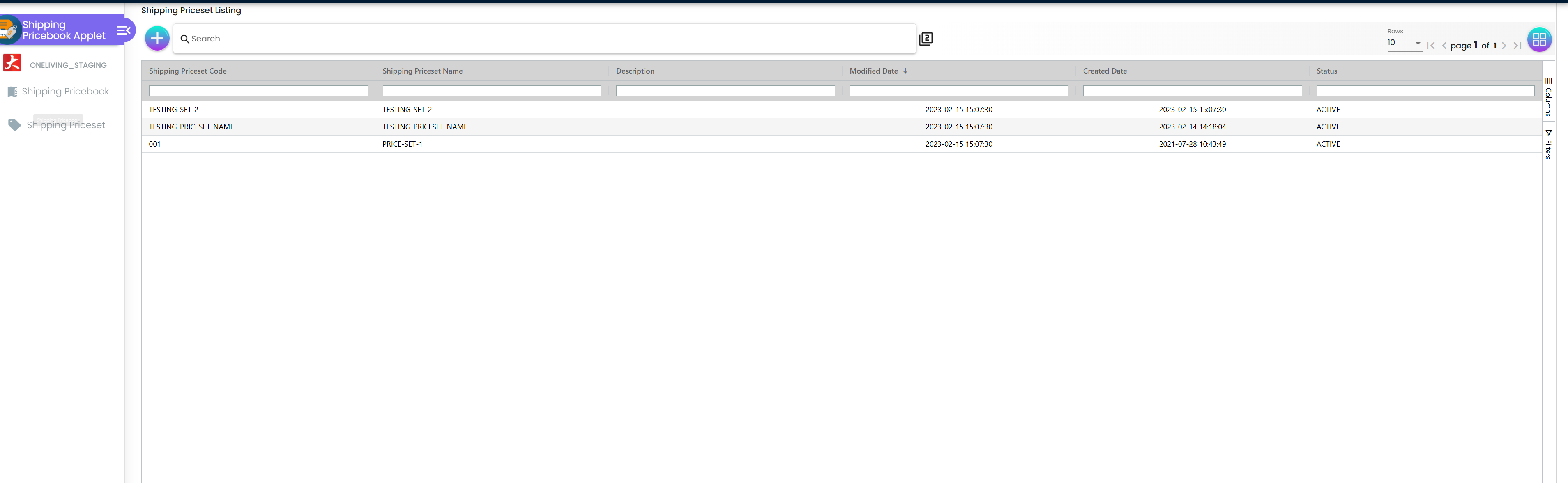
Navigate to the Priceset module to manage all your pricing scenarios. - Create Priceset: Click "+" (Add Priceset) → Name it “East Malaysia Surcharge” → Set Priority to
50.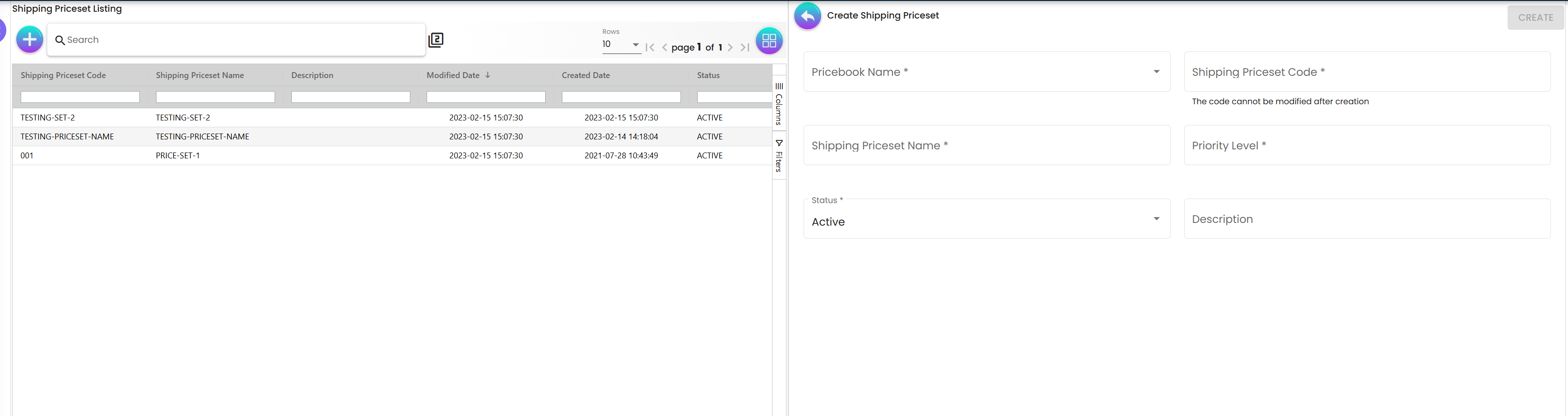
Configure priority and negate logic for your new handling fee rule. - Add Regional Rule:
- Go to Rules - Doc Hdr tab.
- Click “Add Delivery Region Rule”.
- Select “Sabah” and “Sarawak” from the list.
- Set Treatment:
- Go to Treatment tab.
- Check Handling Fee.
- Set Price Source to Absolute and Value to
20.00.
- Finalize: Click Create.
For Admins: Initial System Setup
Goal: Configure the foundational settings for the Shipping Pricebook engine.
- Prepare Master Data: Ensure all Delivery Regions, Zonal Codes, and Member Classes are up to date.
- Toggle Applet Settings (
Settings > Applet Settings):- Default Branch/Location: Pre-fills origin data for new pricebooks.
- Visibility Rules: Hide specific pricing fields if sales reps should only see the final total.
- Validate Logic:
- Create a “Draft” Priceset with a high priority (e.g.,
1). - Attempt to create a mock Sales Order matching the draft rules.
- Verify fees appear correctly before setting the Priceset to
Active.
- Create a “Draft” Priceset with a high priority (e.g.,
Understanding the Rules Engine
The Applet provides layers of rules to handle every possible business scenario.
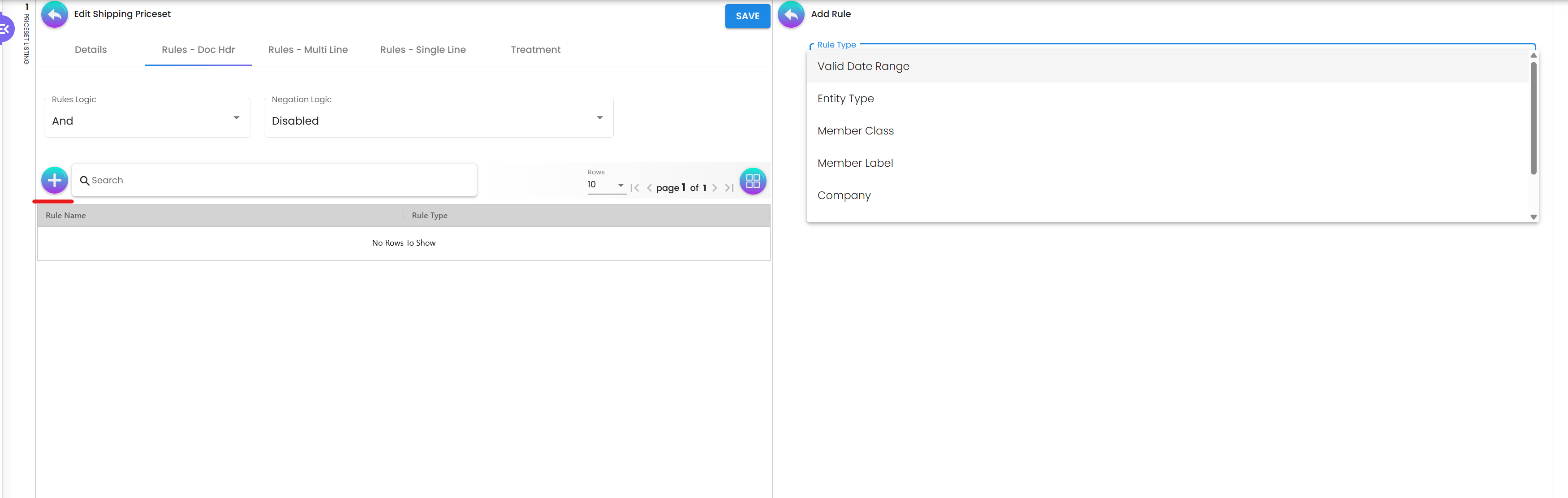
1. Header Rules (Doc Hdr)
Logic that applies to the entire document. Supported Rule Types:
- Valid Date Range: Trigger specific rates only during promotional periods.
- Delivery Region: Destination-based pricing (States, Cities, Postcodes).
- Entity Rules: Special rates for specific Member Classes, Member Labels, or Entity Types.
- Corporate Rules: Restrict pricebooks to specific Branches or Companies. Real-Life Example: Applying a “Holiday Shipping Surcharge” for orders originating from the “Kuala Lumpur” Branch during a specific Valid Date Range.
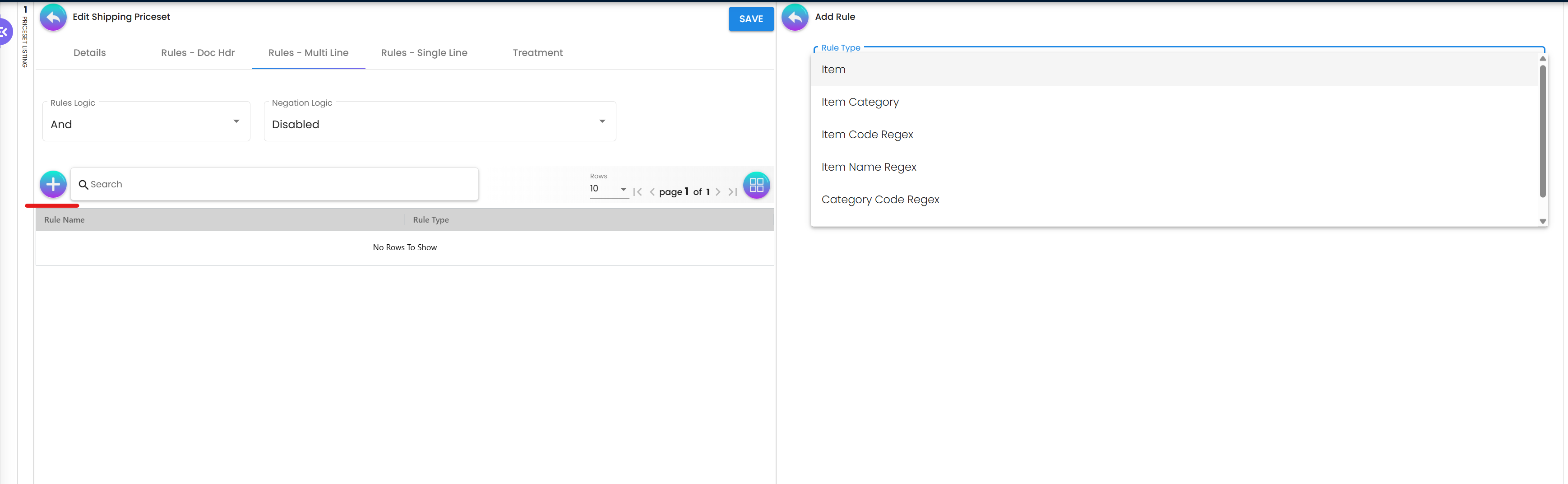
2. Multi-Line Rules
Logic that checks for combinations of items across the entire cart. Supported Rule Types use item criteria but evaluate the order as a whole grouped entity:
- Item Matches: Group by specific Item, Item Category, or use Regex on Item Code/Name. Real-Life Example: Applying a fee if the total quantity of items matching the “Office Supplies” Item Category exceeds 10 units in the order.
3. Single-Line Rules
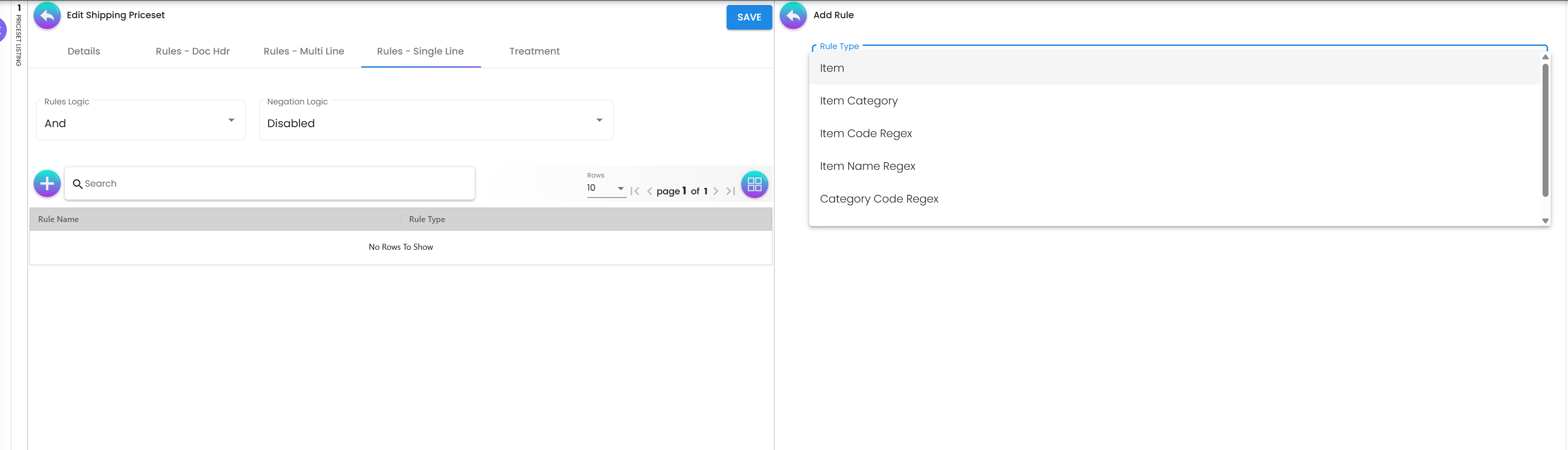
Logic that applies individually to specific items within the cart. Supported Rule Types:
- Item & Item Category: Target explicit products or broad classes.
- Regex Matching: Code/Name matching via Item Code Regex, Item Name Regex, Category Code Regex, or Category Name Regex. Real-Life Example: Automatically adding a “Special Handling” fee if a specific “Glassware” item is detected in the cart, evaluated on a per-piece basis.
Regional Rules Deep Dive
The regional engine is the most common way to trigger shipping fees. It supports three levels of geographic granularity.
How Regional Rules Work
When an order is created, the system checks the Delivery Address of the customer and maps it against the Rules in the active Priceset.
Visual Example:
Order Destination: 88000, Kota Kinabalu, Sabah
━━━━━━━━━━━━━━━━━━━━━━━━━━━━━━━━━━━━━━━
Rule A: State = Sabah (Match!)
Rule B: Postcode = 88xxx (Match!)
Rule C: Zone = East Malaysia (Match!)
Real-World Scenarios
Scenario 1: The “Free Shipping” Threshold
Strategy: Give free shipping to Selangor customers for orders > RM 500.
Rule Logic:
  - Rule 1 (Doc Hdr): Delivery Region = "Selangor"
  - Rule 2 (Doc Hdr): Transaction Amount > 500
Treatment:
  - Standard Shipping = Absolute 0.00
Result: Orders meeting both criteria get RM 0 shipping fees automatically.
Scenario 2: The Fuel Surcharge Adjustment
Strategy: Apply 5% fuel surcharge to all heavy equipment shipments.
Rule Logic:
  - Rule 1 (Single Line): Item Category = "Heavy Equipment"
Treatment:
  - Fuel Surcharge = Multiply (0.05) against Transaction Amount
Result: Every heavy item in the cart adds 5% of its value to the Fuel Surcharge line.
Configuration & Settings
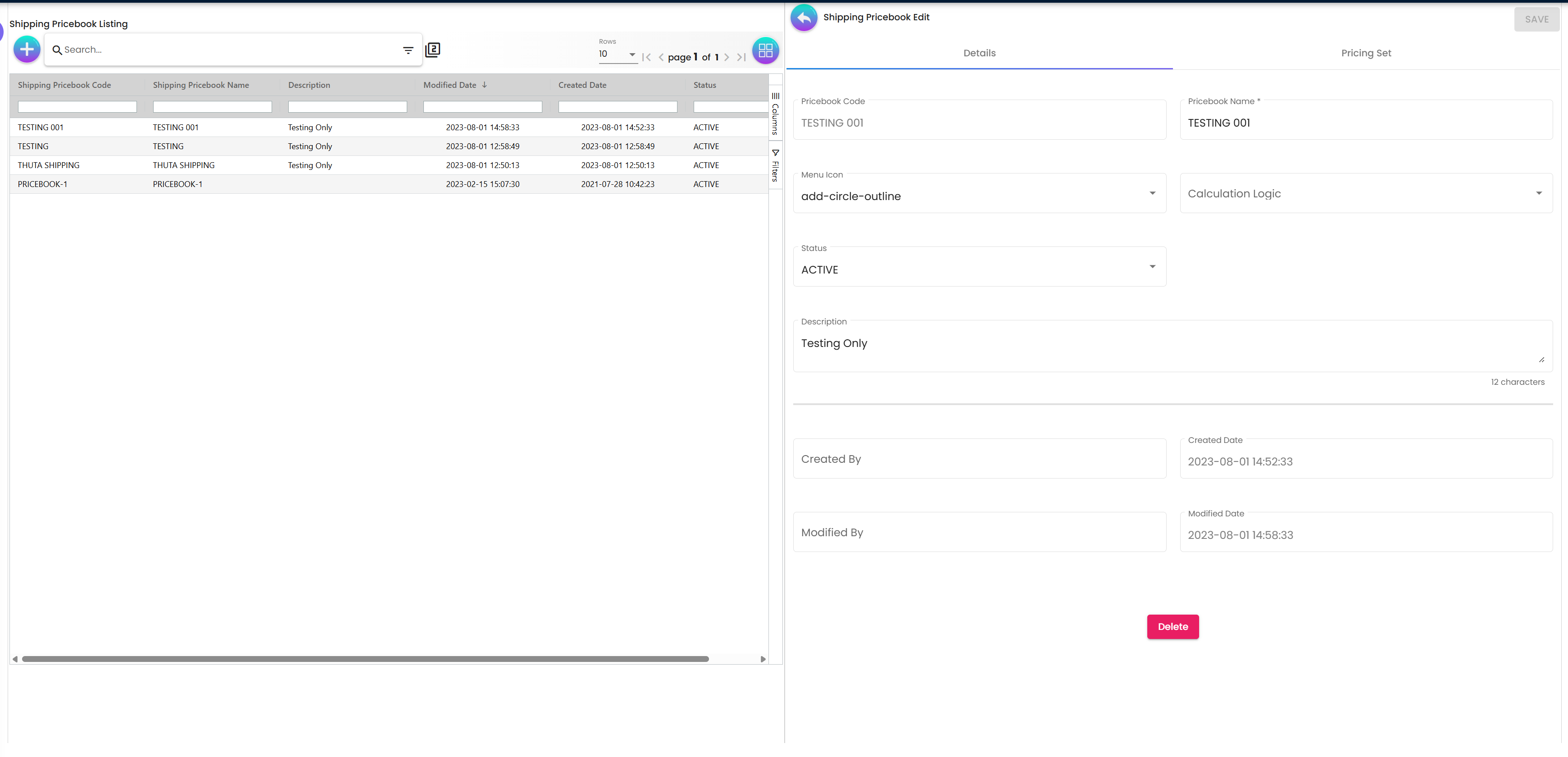
Creating a Shipping Pricebook
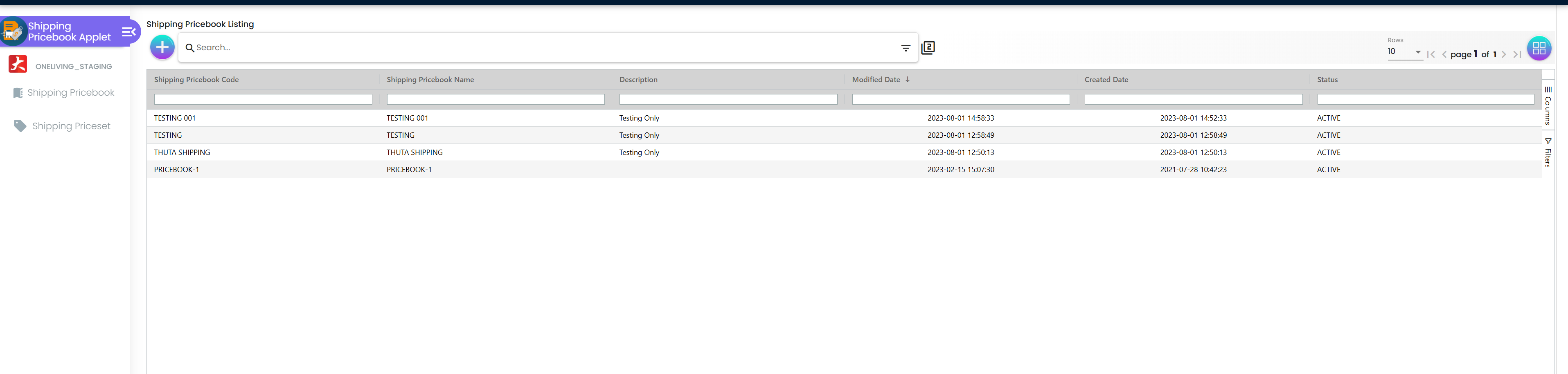
The pricebook serves as the master container for all subsequent policies.
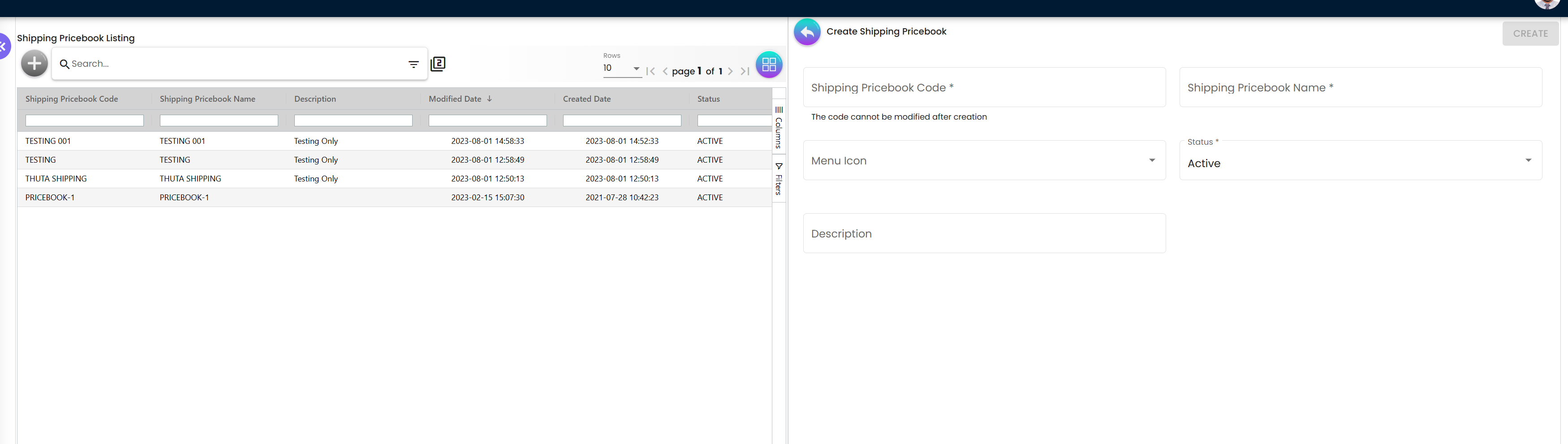
| Field | Purpose | Example |
|---|---|---|
| Code | Unique ID for the pricebook | DOMESTIC_STD_2024 |
| Name | Descriptive name for users | Standard Domestic Rates |
| Status | Controls if the engine uses this book | ACTIVE |
| Icon | Visual indicator on the dashboard | airplane-outline |
Setting up a Priceset
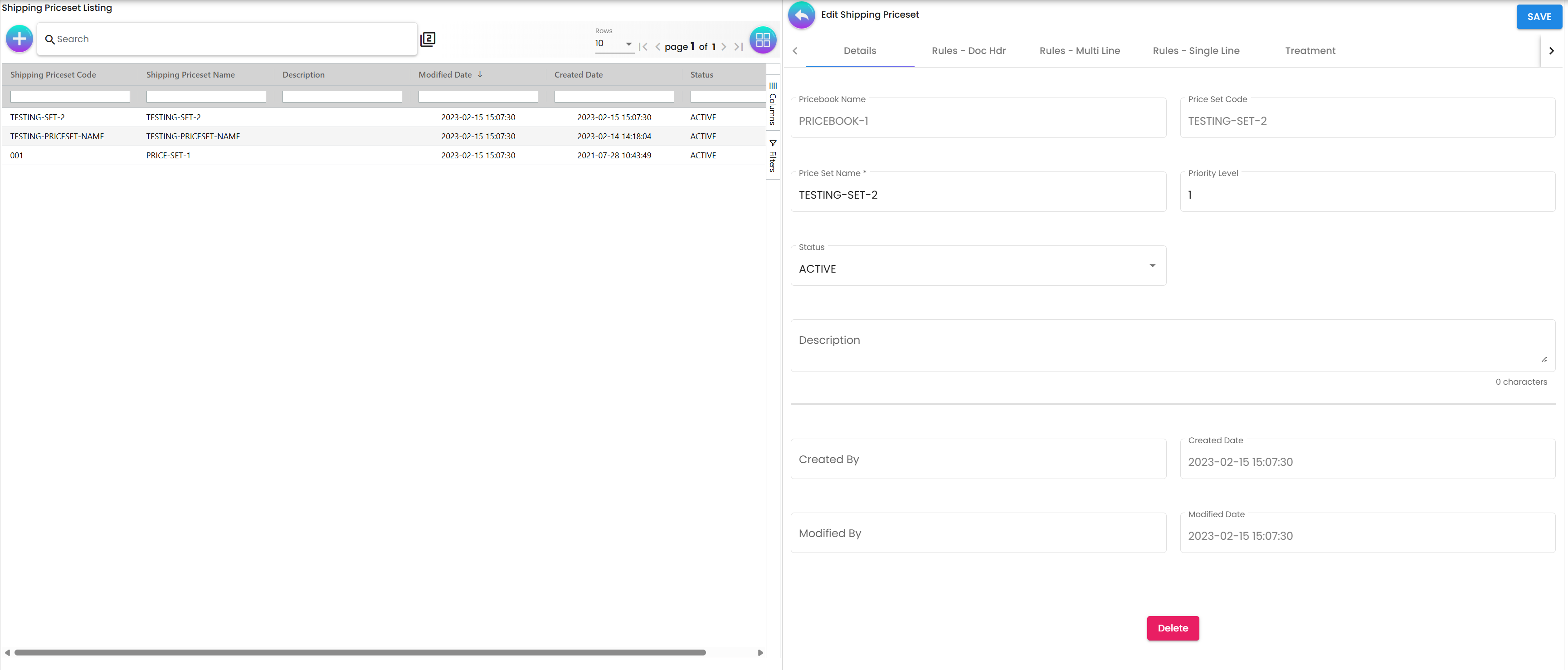
Within each Pricebook, you build nested Pricesets representing unique scenarios.
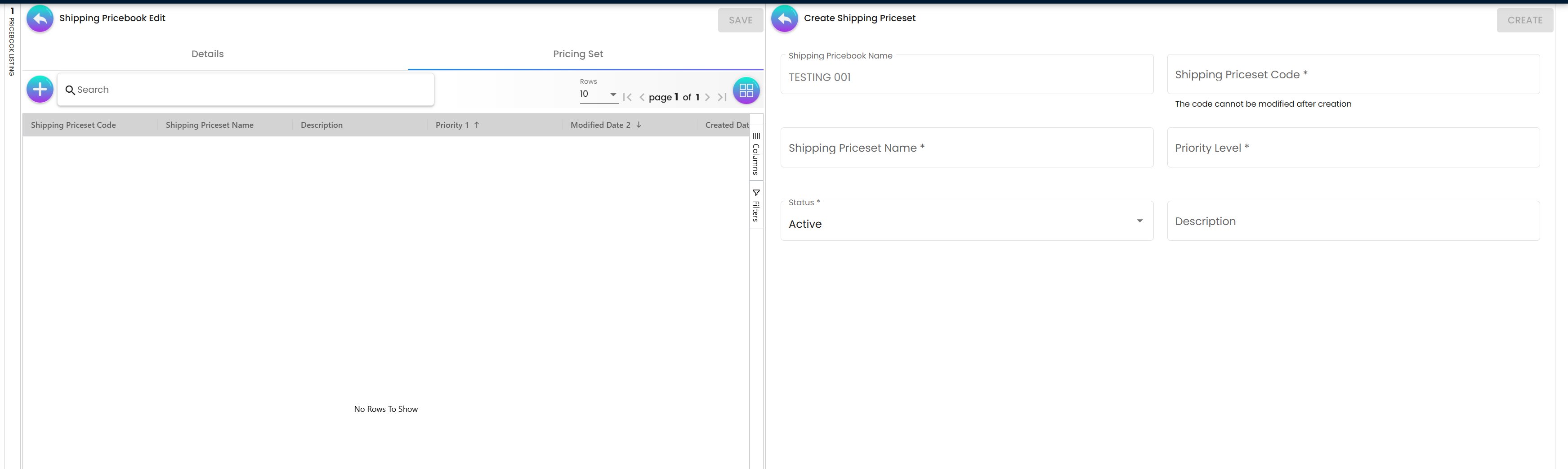
| Field | Purpose | Importance |
|---|---|---|
| Priority Level | Order of execution | Critical: A Priceset with Priority 1 will override Priority 100. |
| Rules Logic | How rules combine | AND (All must match) vs OR (Any can match). |
| Negation Logic | Reverse the rule | Enabled means “Apply to everything EXCEPT the selected rule”. |
Understanding Treatment Calculations
After rules are matched, the system applies the configured Treatments. You can enable up to three distinct fee types per Priceset: Standard Shipping Fee, Handling Fee, and Fuel Surcharge.
Each fee is calculated using a combination of Price Sources and Operators:
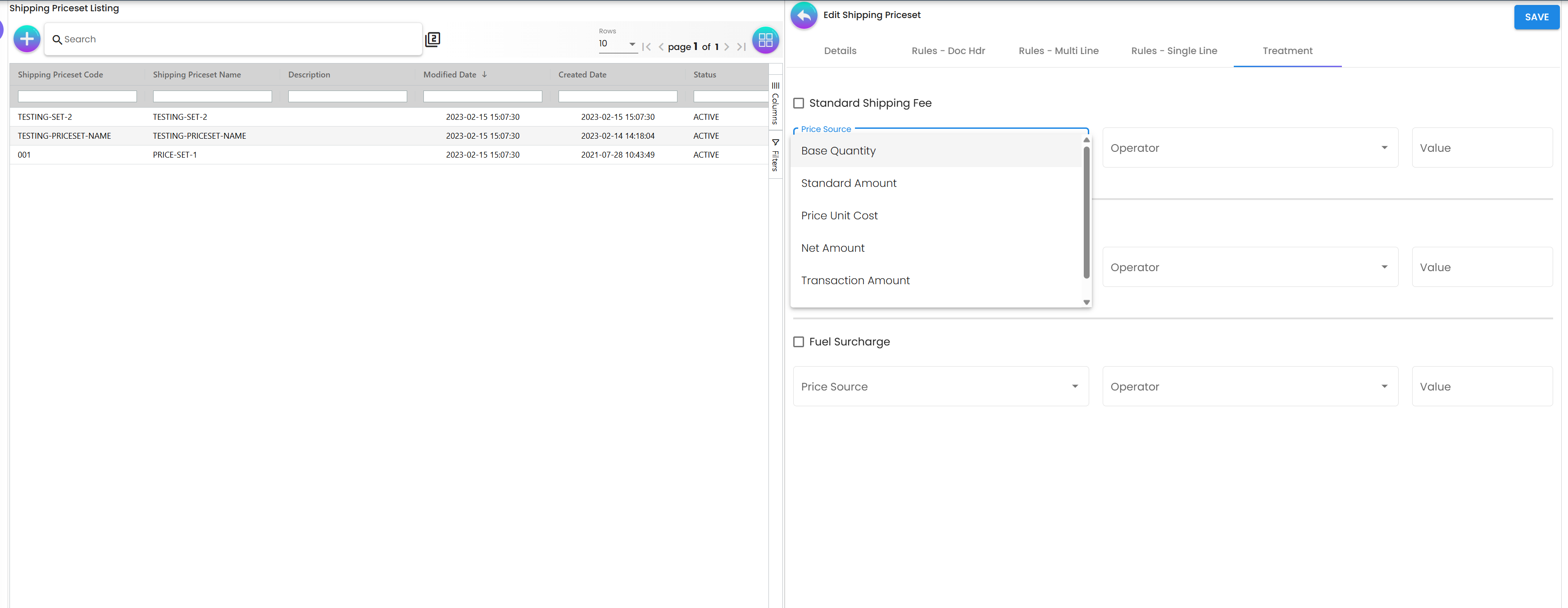
| Price Source | Operator Options | Real-Life Example |
|---|---|---|
| Standard Amount | Multiply, Absolute, Add, Subtract | Fixed $15 Standard Shipping Fee using Absolute. |
| Base Quantity | Multiply, Absolute, Add, Subtract | $2 Handling Fee per item, using Multiply by Quantity. |
| Transaction Amount | Multiply, Absolute, Add, Subtract | 5% Fuel Surcharge, using Multiply against Transaction Amount (0.05). |
| Pricing Scheme | N/A (Uses linked scheme table) | Complex weight-based logic reading from a dynamic Tier Scheme. |
| Price Unit Cost / Net Amount | Multiply, Absolute, Add, Subtract | Advanced margin-based freight adjustments. |
Applet Integration & Permissions
The Shipping Pricebook Applet includes built-in settings for deeper system integration:
- Webhooks: Automatically push shipping fee calculations to external 3PL or e-commerce systems in real-time.
- Feature Visibility: Toggle specific pricing fields on/off depending on the user’s role to simplify the interface.
- Granular Permissions: Control exactly who can view, create, or modify pricebooks using User, Team, and Role permission sets.
- Field Settings: Customize the mandatory/optional status of form fields to match your organization’s workflow.
FAQ
Q1: What happens if two pricesets have the same priority? A: The system will select the first one created. It is Best Practice to always give unique priority numbers to avoid ambiguity.
Q2: Can I charge a handling fee ONLY for fragile items? A: Yes. Use a Single-Line Rule targeting the “Fragile” item category. The handling fee will only be calculated for those specific items in the cart.
Q3: Does the system support “Weight-Based” shipping? A: Yes, via the Pricing Scheme integration. You can map weight bands (e.g., $5 per kg) to the Treatment value.
Q4: Can I test rules without affecting the entire company? A: Yes. Create a Priceset and add a Member Class Rule where the class is “UAT_TESTING”. Only customers assigned that class will trigger the new rates.
Q5: How are taxes handled on shipping fees? A: Shipping fees inherit the tax settings from the G/L Account and Financial Item they are mapped to in the Finance module.
Summary
The Shipping Pricebook Applet transforms shipping from a manual guesswork process into a precise, automated financial control. By leveraging a hierarchy of rules and flexible fee treatments, BigLedger ensures your logistics team maintains healthy margins while providing transparent pricing to your customers.