Shipping Pricebook
Define conditional shipping charges for your storefront: a price book holds price sets that say who qualifies, which cart items count, and what is charged as a standard fee, a handling fee and a fuel surcharge. Only the CP Commerce storefront applies them, in the shopper’s browser at checkout; nothing in the back office evaluates a shipping price book. The storefront loads only Active price books, so setting a book Inactive withdraws it as a shipping method; a price set’s Status is not read, so an Inactive price set still applies until you delete it.
Your job, and the screen for it
| The job | Screen or tab | Read |
|---|---|---|
| Offer a shipping method at checkout — the shopper reads the book’s name | Shipping Pricebook › + | Shipping Pricebook — create and edit |
| Add the rates inside it — the lowest Priority Level that qualifies sets the fee, so give every set its own number | The book’s Pricing Set tab, or Shipping Priceset › + | Shipping Priceset — create |
| Say who and which carts qualify — Single Line is never evaluated, Valid Date Range does not time a promotion, a Delivery Region rule’s own negation is ignored (negate the tab); finish or delete empty rules | Price set › Rules - Doc Hdr, Rules - Multi Line › + | Shipping Priceset — Rules tabs |
| Set what is charged — every Price Source is read as the cart’s Standard Amount; choose an operator every time | Price set › Treatment (Standard Shipping Fee, Handling Fee, Fuel Surcharge) | Shipping Priceset — Treatment tab |
| Withdraw a shipping method or a rate — set the book Inactive or delete it; a rate (price set) has to be deleted, because an Inactive price set is still evaluated | Details tab: the book’s Status set to Inactive and saved, or Delete on the book or the price set | Lifecycle and effects |
| Switch shipping fees on for a website and create the SERVICE item the fee is charged on | CP Commerce Admin applet › Website Edit › Details; Doc Item Maintenance applet | Before you can use it |
Overview
The Shipping Pricebook applet is where an e-commerce or logistics administrator defines conditional shipping charges: a Shipping Pricebook is a named container, and each Shipping Priceset inside it says who qualifies (entity type, member class, member label, company, branch, delivery region, date range), which items in the cart it looks at (items, categories, code or name patterns, with minimum quantity, minimum amount and weight bands) and what is charged (a Standard Shipping Fee, a Handling Fee and a Fuel Surcharge, each with a price source, an operator and a value).
The applet only maintains this master data. The rules are applied by one consumer: the CP Commerce storefront. At checkout the shopper picks a shipping price book as the Shipping method, the storefront evaluates its price sets in the browser and writes the resulting fee as a line for the website’s shipping-fee service item on the shopping cart. Nothing in the ERP back office (POS, sales documents, the server) evaluates shipping price books.
Where it fits
| Direction | Applet | Relationship |
|---|---|---|
| Upstream | Doc Item Maintenance | Items, item categories and pricing schemes referenced by line rules and treatments; item weight and dimensions feed the weight bands; the SERVICE item that carries the fee |
| Upstream | Organization | Companies and branches for Company / Branch rules |
| Upstream | Customer Maintenance | Entity types (customer / supplier / employee) matched by Entity Type rules |
| Upstream | Membership Admin | Member classes and member labels for the member rules |
| Consumer | CP Commerce Admin | Website settings that switch the shipping-fee process on, choose the Shipping Pricebook option, the default price book and the shipping-fee item |
| Consumer | Shopping Cart | The storefront writes the computed fee as a DRAFT-cart line; the cart converts to a Sales Order that carries it as a normal service line |
| Sibling | Pricebook | Same rule / treatment design applied to discounts and points, on its own tables and with its own consumers |
Screens and menus
The applet has two menu entries, Shipping Pricebook and Shipping Priceset, plus Settings and Personalization.
| Screen | Path | What it shows |
|---|---|---|
| Shipping Pricebook listing | Shipping Pricebook | Columns Shipping Pricebook Code, Name, Description, Modified Date (sorted descending), Created Date, Status; server-side paging, deleted books excluded |
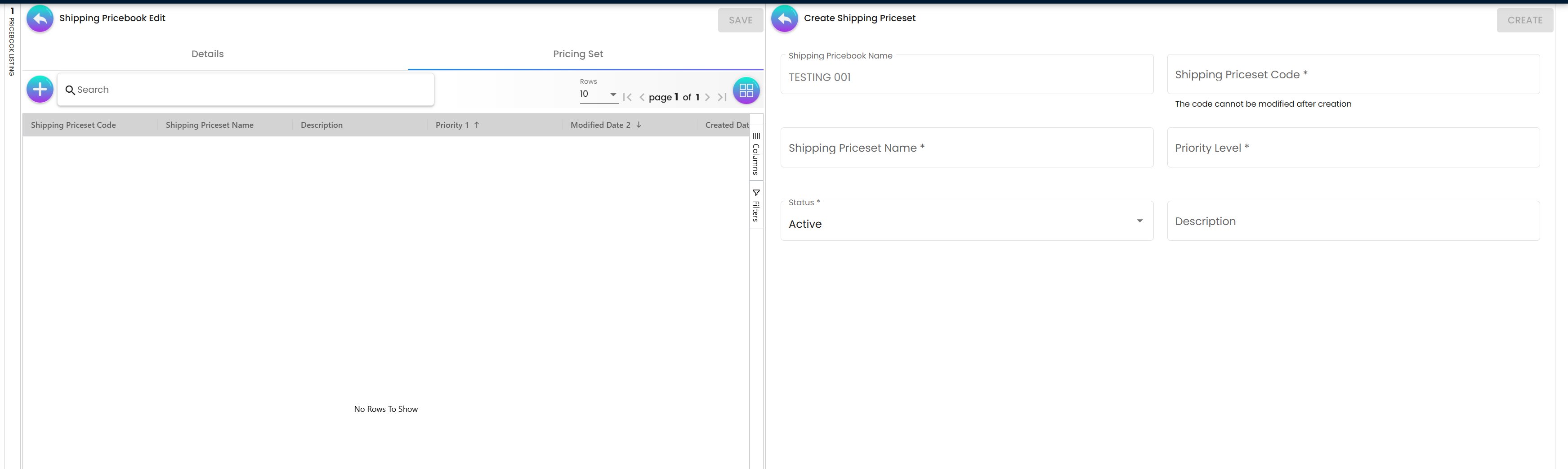
| Shipping Pricebook create | Shipping Pricebook → + | Code, Name, Menu Icon, Status, Description |
| Shipping Pricebook edit | select a row | Tabs Details (code, name, menu icon, calculation logic, status, description, audit fields, Delete) and Pricing Set (the book’s price sets with Priority column, search, create and edit) |
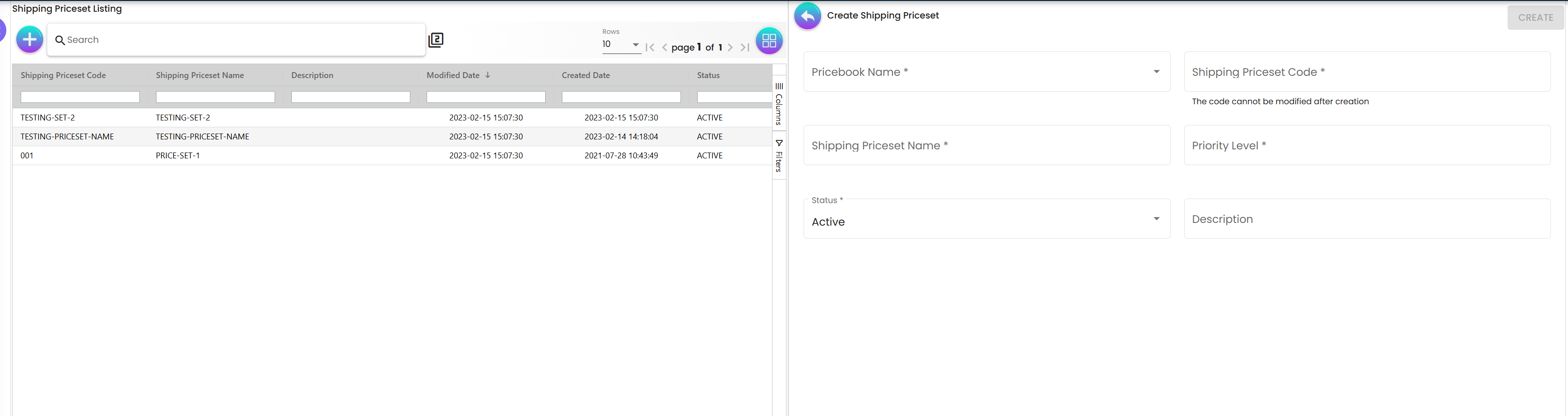
| Shipping Priceset listing | Shipping Priceset | Every price set of every price book, loaded all at once (no server paging): Code, Name, Description, Modified Date, Created Date, Status |
| Shipping Priceset create | Shipping Priceset → + | Pricebook Name (searchable select), Code, Name, Priority Level, Status, Description |
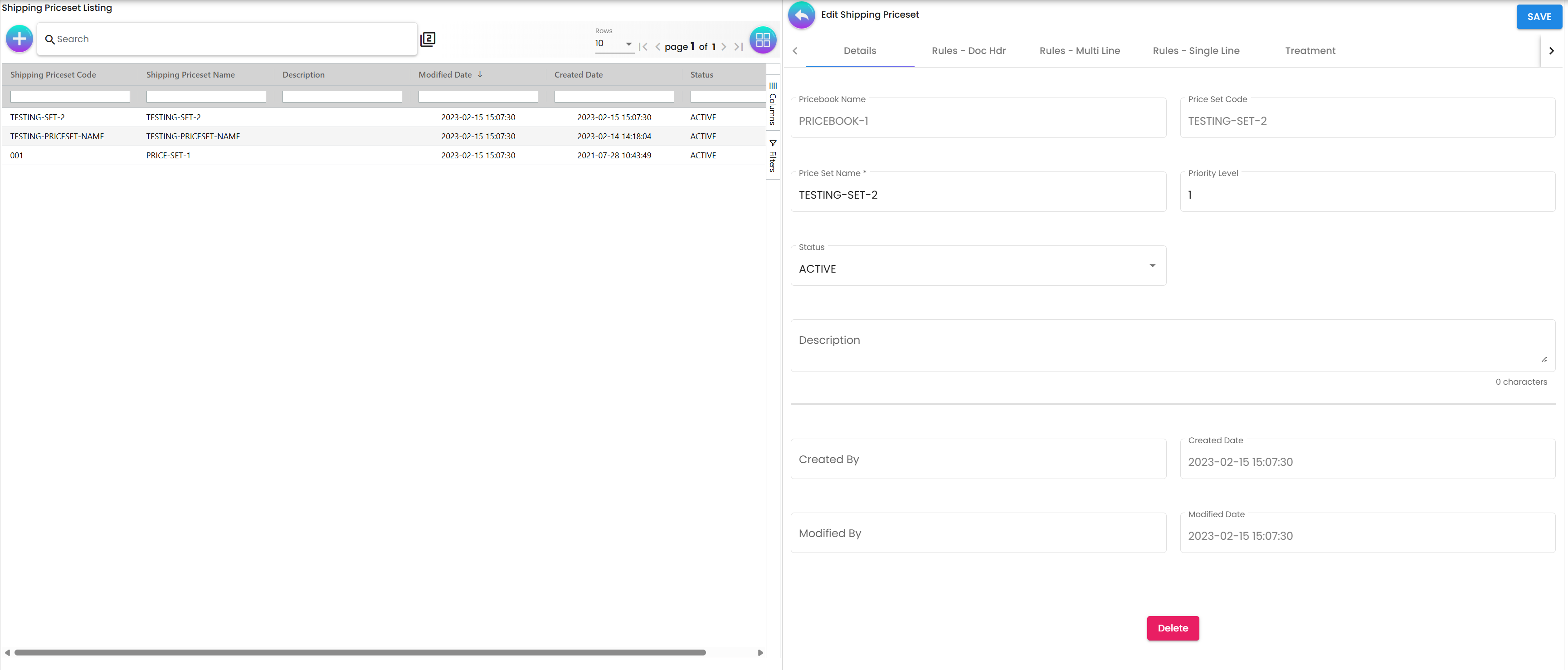
| Shipping Priceset edit | select a row | Tabs Details, Rules - Doc Hdr, Rules - Multi Line, Rules - Single Line, Treatment |
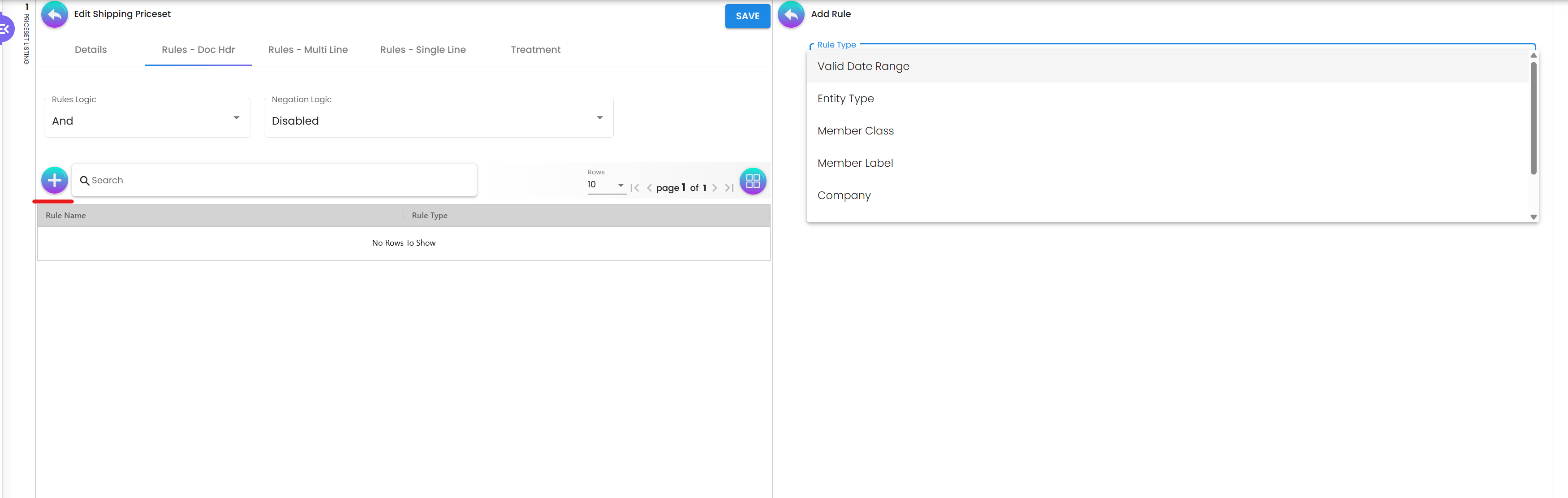
| Add Rule | + on a Rules tab | Rule Type selector, then the type-specific form or selection grid |
| Settings | gear → Settings | Menu: Field Settings, Default Selection; the Settings landing page is Feature Visibility, and the webhook and permission-set / user / team / role permission listings are reachable without a menu entry |
| Personalization | gear → Personalization | Default Selection (branch / location; non-functional, see Configuration), Sidebar |
There are two editors for a price set: the Shipping Priceset menu, and the nested editor on the Pricing Set tab of a Shipping Pricebook. Unlike the Pricebook applet, both offer the same rule types and the same three treatments and save the same price set.
Configuration
Before you can use it
- A website with the shipping-fee process switched on in CP Commerce Admin → Website Edit → Details: tick Enable Shipping Fee Process, choose Shipping Fee Options = Shipping Pricebook, pick the Default Shipping Price Book Code and the Item Code for Shipping Fee. Without the item the storefront computes no line (the fee shows as RM 0.00); without the option the storefront runs the delivery-charge path instead (see Settings in other applets).
- A SERVICE item for the fee in Doc Item Maintenance (transaction type Service). Its GL and tax settings decide how the fee posts once the cart becomes a sales order.
- Items and categories exist in Doc Item Maintenance for item / category rules; pricing schemes exist if a treatment uses Price Source = Pricing Scheme.
- Companies and branches exist in Organization for Company / Branch rules; member classes and labels exist in Membership Admin for the member rules.
- Delivery regions with a State value for Delivery Region rules — the storefront matches the shopper’s shipping-address state against the region’s State (see Lifecycle).
- Tenant permissions. Every applet action checks
API_TNT_DM_ERP_SHIPPING_PRICE_BOOK_OWNER/ADMINor the matchingCREATE/UPDATE/DELETE/READpermission, assigned in the Permission Set screen. The storefront does not need any of them: it reads price books through a website-scoped path that only checks the website itself.
Applet settings
The applet has its own Settings screens, but none of them does anything:
- Field Settings shows eight slide toggles (Lines Settings: Unit Discount, SST/VAT/GST, WHT, Blanket Order; Department Settings: Segment, G/L Dimension, Profit Center, Project) and a SAVE button. They are display only — nothing is saved and nothing reads them.
- Default Selection shows Default Branch and Default Location. Changing a value throws an error in the browser console and nothing is saved; no part of the applet uses a default branch or location.
- Personalization → Default Selection has the same defect.
There is no working applet setting.
Settings in other applets that control this applet
| Setting | Where it is set | Effect on shipping price books |
|---|---|---|
| Enable Shipping Fee Process | CP Commerce Admin → Website Edit → Details | Master switch; when off the storefront never calculates a shipping fee |
| Shipping Fee Options (Shipping Pricebook / Delivery Charges / Delivery Charges by Country / Delivery Charges by Region) | same screen | Only Shipping Pricebook uses this applet. The delivery-charge options are calculated on the server; the price book option is evaluated in the shopper’s browser as described under Lifecycle |
| Default Shipping Price Book Code | same screen, shown for the Shipping Pricebook option | The price book pre-selected as Shipping method at checkout (the shopper’s choice wins, else this default) |
| Item Code for Shipping Fee | same screen | The SERVICE item the computed fee is written against (quantity 1). With no item the storefront adds no line and shows RM 0.00 |
| Pick-up in store | website configuration | Adds a PICK UP IN STORE entry to the Shipping method list; choosing it skips the shipping address and the fee |
| Item flagged free shipping | item master data used by the storefront | Lines whose item is flagged free shipping are left out of the item / category data the rules evaluate. Their amounts still count in the cart total the fee is calculated from, so a Multiply, Add or Subtract fee charges on them too. Only an Absolute fee ignores them |
Feature visibility / permissions
No client-side permission definitions exist for this applet, so the Feature Visibility screen and the role / team / user permission listings under Settings have nothing applet-specific to gate. Access is decided by the tenant permissions listed under Before you can use it; the API returns not authorised when none of them is assigned.
Fields
Code and name boxes on the create forms stop you typing anything but letters, digits, space, hyphen and underscore, and whatever you type is upper-cased and trimmed on save, up to 255 characters. The filter works on keystrokes only, so pasted text is not filtered, and the name box on the price book’s edit form has no filter at all.
Shipping Pricebook — create and edit
The create form asks for the Shipping Pricebook Code, Shipping Pricebook Name, Menu Icon, Status and Description. The edit form’s Details tab shows the same fields, with the code read-only, and adds Calculation Logic, the four audit fields (Created By, Created Date, Modified By, Modified Date) and Delete. SAVE stays greyed out until you touch a field. The rows below are the ones where the screen does not tell you what happens next.
| Field | What the screen does not tell you |
|---|---|
| Shipping Pricebook Code | It cannot be changed once created, and the backend does not check uniqueness, so two books can share a code. Only the name reaches the shopper |
| Shipping Pricebook Name | This is the text the shopper reads under Shipping method at checkout. It is saved in capitals, so a book you call “Express delivery” appears as EXPRESS DELIVERY. Write it for the shopper, not for your team |
| Menu Icon | You pick from about 1,300 icon names, listed as text with a search box and no preview. The storefront draws the icon next to the name. Once set, an icon cannot be removed: saving with the picker empty keeps the old one, so pick a different icon instead |
| Status | The default is Active. The storefront loads only Active books, so an Inactive book is not offered to shoppers (see Lifecycle) |
| Description | Your team sees it and the shopper never does, because the storefront reads only the name and the icon. The create form stops at 255 characters. The edit form counts characters but does not stop you, and the database holds only 255, so a longer description fails when you save |
| Calculation Logic | Offers Sequential Match, Amount Lowest, Amount Highest and four points options. The storefront treats every value as Sequential Match (see Lifecycle), so the order of your price sets is what decides |
| Delete | Marks the book, its settings and its price sets deleted and keeps the record. Deleting withdraws the book for good; setting its Status to Inactive also takes it off the storefront, and can be undone |
Shipping Priceset — create
The create form asks for Pricebook Name (on the Shipping Priceset menu only, because the nested form already knows its book), Shipping Priceset Code, Shipping Priceset Name, Priority Level, Status and Description. The name and description are for your team: the storefront never shows a price set to the shopper.
| Field | What the screen does not tell you |
|---|---|
| Pricebook Name | The list holds every price book that has not been deleted, including Inactive ones. Its search box matches only what you type in lower case. The names are stored in capitals, so typing EXPRESS finds nothing but typing express finds it |
| Shipping Priceset Code | It cannot be changed once created and is not checked for uniqueness |
| Priority Level | This field is required and decides everything at checkout. The storefront tries price sets from the lowest number up, and the first one that qualifies sets the fee. A set with no number goes last. Two sets with the same number keep whatever order the server returned them in, so give every set its own number |
| Status | The default is Active. Inactive price sets are still evaluated at checkout. Delete a set to stop it applying |
Creating a price set adds it to the book with three empty rule groups (Doc Hdr, Multi Line and Single Line, each with Rules Logic And and Negation Logic Disabled) and no treatments, and saves the whole book.
Shipping Priceset — Rules tabs
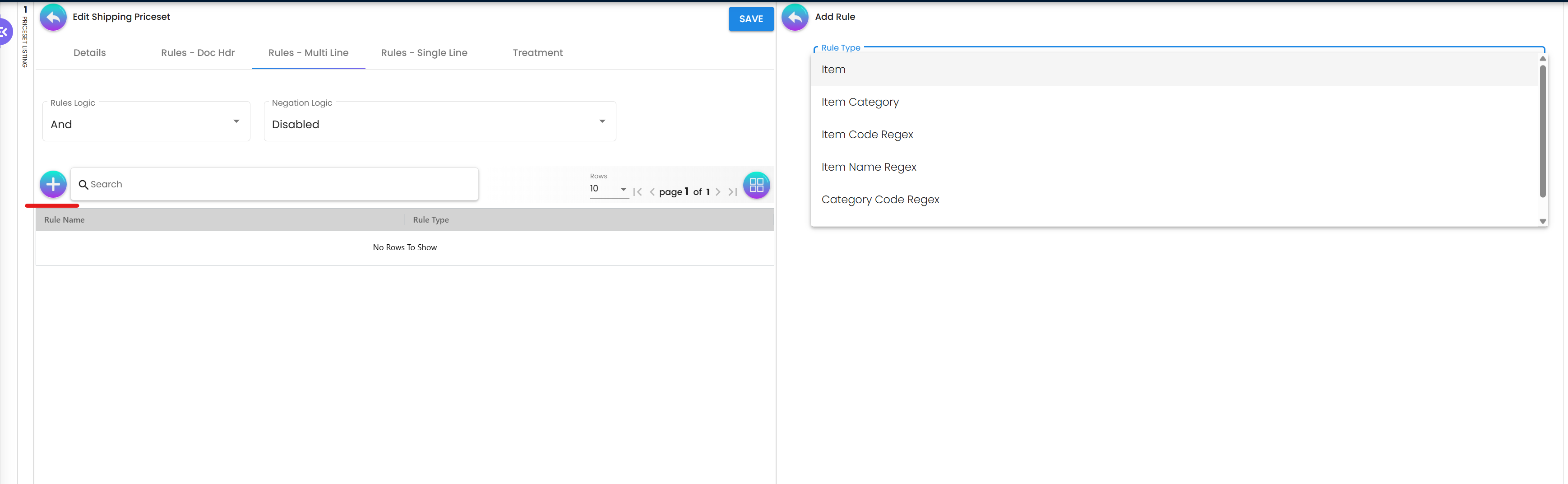
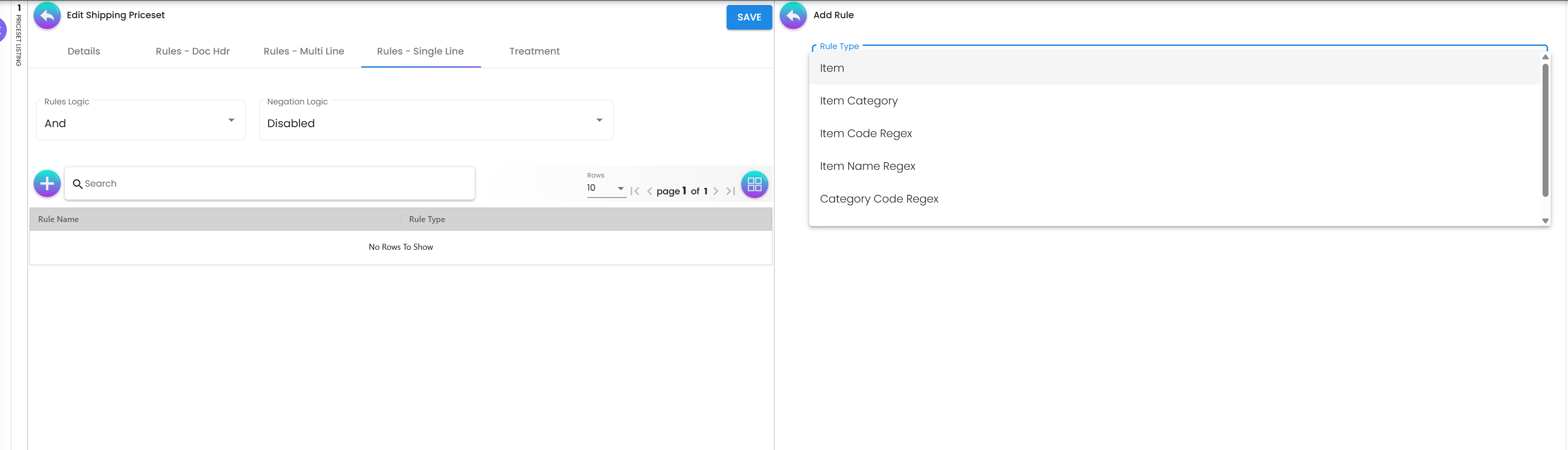
Each Rules tab has Rules Logic (And / Or) and Negation Logic (Enabled / Disabled) for the whole group, a grid of Rule Name · Rule Type, and a + that opens Add Rule. Every rule form has a required Rule Name and its own Negation Logic, but checkout ignores the Delivery Region rule’s own negation (see below). The rule form saves each rule straight away, without waiting for the price set’s SAVE button.
An Entity Type rule saves the boxes you tick on its own form. Every other rule except Valid Date Range is created empty, and you fill it in a second step by selecting companies, branches, classes, labels, regions, items, categories or patterns. A rule left with nothing ticked or selected fails at checkout, whatever its negation. Under the default And, one empty rule stops the whole price set from ever applying, so finish every rule you start or delete it.
| Tab | Rule Type | What you enter, and what checkout does with it |
|---|---|---|
| Rules - Doc Hdr | Valid Date Range | Period Unit (Day(s) / Month(s) / Year(s)), Relative Period (number), Absolute Period From / To (date pickers). Checkout ignores all of them (see Lifecycle), so this rule cannot time a promotion |
| Rules - Doc Hdr | Entity Type | Tick All Customer, All Supplier or All Employee. Checkout compares them with the customer record of the signed-in shopper. A shopper with no customer record on the session has no entity type and never matches. A record flagged as both customer and employee matches either box. A price set holds one Entity Type rule; a second is refused with Entity type rule already exist! |
| Rules - Doc Hdr | Member Class, Member Label | Select classes or labels. Checkout reads the shopper’s membership card and labels, so a shopper with neither never matches. One rule of each type per price set: add more classes to the existing rule rather than a second rule, which is refused with Rule already exist! |
| Rules - Doc Hdr | Company, Branch | Select companies or branches. Checkout compares them with the company and branch the storefront books the cart under, which come from the website’s configuration, not from the shopper. These rules tell one website apart from another when both use the same price book; they cannot tell one shopper from another. One rule of each type per price set |
| Rules - Doc Hdr | Delivery Region | Select regions from a grid showing Code, Delivery Region, State and Country. Only the State takes part: checkout matches it against the shipping address’s state, ignoring case. The rule’s own Negation Logic is ignored, so an “every region except Sabah” rule behaves as “Sabah only”. To exclude a region, put the rule alone on the tab and set the tab’s Negation Logic instead. One Delivery Region rule per price set |
| Rules - Multi Line, Rules - Single Line | Item, Item Category | Min Quantity, Min Amount (“measured against the selected items only, after discount”), Total Weight From / To, Total Volumetric Weight From / To, Divisor, then the item / category selection grid |
| Rules - Multi Line, Rules - Single Line | Item Code Regex, Item Name Regex, Category Code Regex, Category Name Regex | Name and the regular expression, added to a list |
Shipping Priceset — Treatment tab
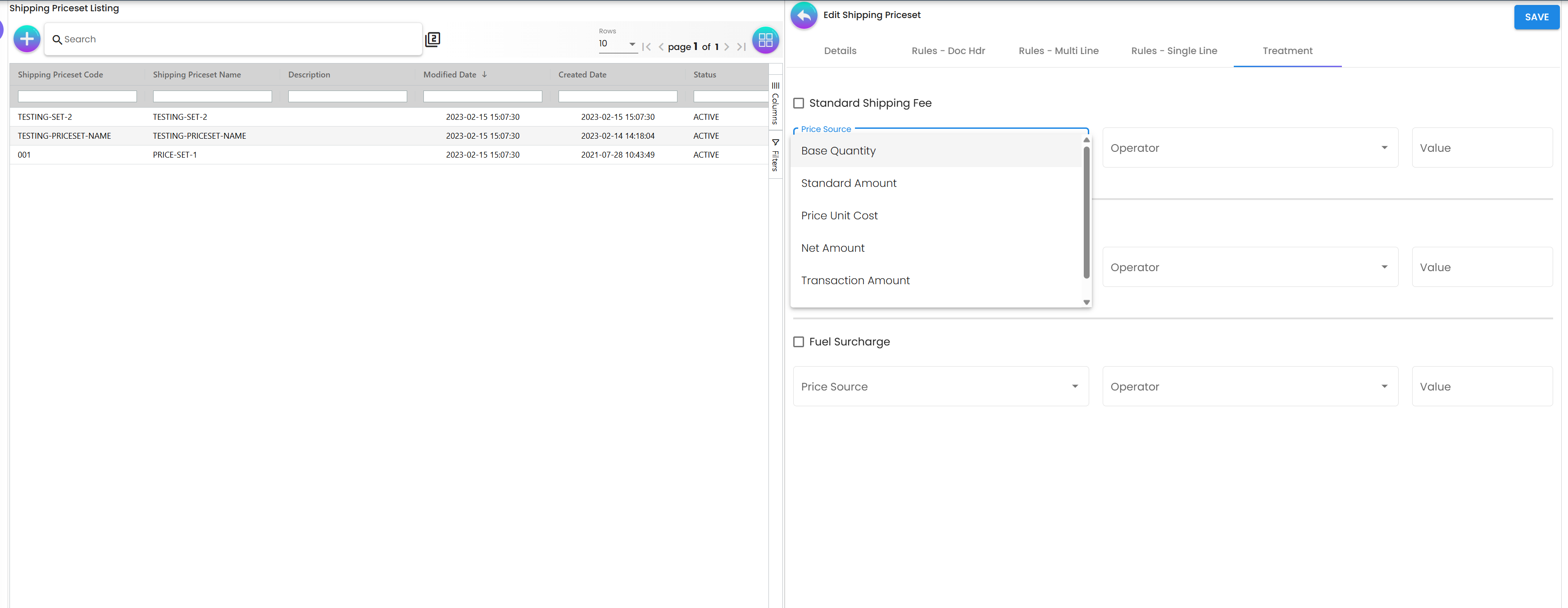
Three independent blocks, each enabled by its checkbox: Standard Shipping Fee, Handling Fee and Fuel Surcharge. Unticking a block removes its treatment on save.
| Field | Meaning | Required | Notes / validation |
|---|---|---|---|
| Price Source | The cart figure the fee is meant to be derived from | No | Offers Base Quantity, Standard Amount, Price Unit Cost, Net Amount, Transaction Amount and Pricing Scheme. Checkout reads every one of them as Standard Amount, summed over the cart’s lines. Only the Standard Shipping Fee block’s choice is consulted at all (see Lifecycle) |
| Operator | What is done to the cart total of that price source | No | Multiply charges total × Value (use 0.05 for 5%). Absolute charges Value whatever is in the cart. Add charges total + Value. Subtract charges total − Value. A ticked block with no operator is treated as Add, which charges the whole cart value plus Value as shipping. Choose one every time |
| Value | The number the operator uses | No | Numeric input, no validation |
| Pricing Scheme | Shown only when Price Source = Pricing Scheme | No | The item pricing schemes defined in Doc Item Maintenance |
| Auto apply to all child items | Standard Shipping Fee block only | No | “When a group item is selected in this priceset’s rules, also match every child item of that group in the cart”; read while evaluating item rules |
Lifecycle and effects
What the applet writes. Every save writes the whole price book — its details, settings and price sets together. Price set Delete keeps the price set and marks it deleted. Price book Delete soft-deletes the book and everything in it. Update, delete and price set actions also write an audit event (book updated / deleted, price set created / updated / deleted); the book created event is never written, because of a defect in the create step.
Backend validation. On save the server checks that the book and each price set are structurally consistent — identifiers, revision and status present, and every price set belonging to the book it is saved under — and rejects the save with a data-consistency error naming the failed check. Nothing validates the rule or treatment contents and nothing checks code uniqueness.
No posting. A shipping price book is master data: no document type, no journal, no stock movement. The fee reaches the ledger only as an ordinary service-item line on the sales order the cart converts into, and posts by that item’s GL and tax configuration.
How the storefront applies it (the only consumer). All of this runs in the shopper’s browser:
- Load. The storefront asks for Active price books only, oldest first, so an Inactive or deleted book is not loaded or offered.
- Choose. The Shipping method block at checkout lists every loaded price book by name and icon (plus PICK UP IN STORE when enabled) with the website default pre-selected; the shopper’s choice wins, else the website default.
- Qualify. The storefront sorts the book’s price sets by Priority Level ascending (missing → last; ties keep API order), drops DELETED ones — Inactive price sets are still evaluated — and keeps those whose Doc Hdr rules and Multi Line rules both pass. The Single Line tab is never evaluated. Within a group, Rules Logic And / Or and the group’s Negation Logic are honoured, and so is each rule’s own negation, except on a Delivery Region rule.
- Select. The first qualifying set wins. Calculation Logic on the book is read but every value behaves as Sequential Match.
- Compute. Aggregate = Σ of the Standard Amount of every cart line, including lines whose item is flagged free shipping. Every Price Source choice, including Pricing Scheme, falls through to Standard Amount, and the aggregate is the same whether or not Standard Shipping Fee is ticked. Each ticked treatment applies its operator to that same aggregate: Multiply = aggregate × value, Absolute = value, Add = aggregate + value, Subtract = aggregate − value. A ticked treatment with no operator is treated as Add, and an unticked treatment contributes 0. Fee = Standard + Handling + Fuel, rounded to two decimals.
- Write. The fee becomes a quantity-1 line for the website’s shipping-fee item (the previous shipping line is marked deleted), the cart revision is checked, and the coupon engine is re-run so a free-shipping voucher can discount the line.
Rule coverage at checkout.
| Rule Type | Evaluated as |
|---|---|
| Entity Type | Cart entity has any of the selected types |
| Member Class, Member Label | Cart member’s class guid / label guids include any selected |
| Company, Branch | Cart company / branch guid equals any selected |
| Delivery Region | Shipping address state equals (case-insensitive) the State of any selected region; region code, country and postcode are not compared. The rule’s own Negation Logic is not applied; the tab’s is |
| Item, Item Category, code / name regexes | Selected items / categories / patterns present in the cart with the Min Quantity, Min Amount (after discount, selected items only), total weight and volumetric weight bands; group items expand to child lines when Auto apply to all child items is on |
| Valid Date Range | Mapped to a node with null start and end dates, so it always passes; with Negation Enabled it never passes. The dates and period entered in the applet are not used |
| Any rule other than Valid Date Range with nothing ticked or selected | Evaluates to false, even with its own Negation Enabled, and with the default And disables the whole price set (a known gap noted in the mapper) |
Related applets
- Pricebook — the discount / sales-price / points sibling with the same rule and treatment design; its consumers (POS, sales documents, OCR) never read shipping price books.
- CP Commerce Admin — owns the website switches that decide whether, with which price book and against which item the storefront charges shipping.
- Shopping Cart — the fee is a line of the DRAFT cart; the coupon engine may discount it.
- Doc Item Maintenance — the shipping-fee SERVICE item, the items and categories in line rules, the pricing schemes offered in the Treatment tab, and the weight / dimensions used by weight bands.
- Organization — companies and branches for Company / Branch rules.
- Membership Admin — member classes and labels for member rules.
- Customer Maintenance — entity types for Entity Type rules.
- Sales Order — receives the fee as a service line when the cart converts.
Troubleshooting
| Symptom | Cause | Fix |
|---|---|---|
| Checkout charges a fixed fee (e.g. RM 20) although the shopper does not match the rules you expected (gh:bigledger/wavelet-cp-commerce#57, #67) | The first price set in Priority Level order whose Doc Hdr and Multi Line rules pass wins; a price set with no rules always qualifies; Single Line rules are ignored; Inactive price sets are still evaluated | Give every price set a distinct Priority Level, put the most specific sets on the lowest numbers, move item conditions to the Multi Line tab, and delete (not deactivate) sets that must not apply |
| A price set never applies even though its rules look right | An Item / Item Category / regex rule was saved with nothing selected; it evaluates to false and, under And, disables the whole set | Open the rule and delete it, or select items |
| Valid Date Range has no effect (promotion rate applies outside the dates, or never applies) | The storefront evaluates the rule with null dates: it always passes, and with Negation Enabled never passes | Do not rely on date rules for shipping; on the day, set the book Inactive (it leaves checkout) or delete the price set that must stop applying — an Inactive price set still applies |
| Delivery Region rule does not match an address in the right region | Only the address state text is compared with the region’s State (case-insensitive); postcode, city and country are ignored | Make the region’s State exactly the value the storefront stores in the shipping address; create one region per state spelling |
| Handling Fee or Fuel Surcharge is calculated on the wrong base | All three blocks work from one base, the sum of the cart lines’ Standard Amount. No block’s Price Source changes it, and unticking Standard Shipping Fee does not zero it, so a Handling Fee of Multiply 0.02 still charges 2% of the cart | Express every charge as a fixed amount (Absolute) or as a multiple of the cart’s Standard Amount. Before going live, put a known cart through the storefront and check the fee against your rate card |
| Calculation Logic = Amount Lowest / Highest makes no difference | The storefront always takes the first qualifying price set in priority order | Order the price sets by Priority Level instead |
| An Inactive price set still changes the shipping fee | The storefront reads Status on the price book, not on its price sets; only a deleted price set is skipped | Delete the price set, or set the whole book Inactive |
| No Shipping method block, or fee always RM 0.00 | Website has Enable Shipping Fee Process off, Shipping Fee Options is not Shipping Pricebook, no Default Shipping Price Book Code, or no Item Code for Shipping Fee (no item → no line) | Complete the website Details section in CP Commerce Admin |
| Price Source = Base Quantity, Net Amount, Transaction Amount, Price Unit Cost or Pricing Scheme makes no difference | Checkout reads every price source as Standard Amount | Use Absolute for flat rates, and model tiers, such as by weight or by order value, as several price sets with their own rules and Priority Levels. Whoever sets up shipping re-checks a sample cart’s fee after every price set change |
| An “every region except…” Delivery Region rule charges only the excluded region | The rule’s own Negation Logic is ignored at checkout | Put the Delivery Region rule alone on the Rules - Doc Hdr tab and set the tab’s Negation Logic to Enabled, or list the regions you do want |
| Old price sets carry duplicate treatment entries | An earlier version of the applet appended a duplicate treatment entry whenever the set had exactly one treatment | Open the price set and Save once: the current version collapses duplicates, keeping the last entry per type |
| Default Selection throws or does not keep Branch / Location | The settings screen is not connected to anything that saves | Nothing to configure here; the applet reads no default branch or location |
| “Could not calculate the shipping fee because the cart kept changing” | The cart revision changed while the fee was being computed; the storefront retries a bounded number of times and then gives up | Retry checkout once the cart is stable |
Related documentation
- CP Commerce Admin — website Shipping Fee Options, default shipping price book, shipping-fee item and shipping providers.
- Pricebook — discounts, sales prices and membership points with the same rule engine design.
- E-Commerce module and Core module.