Tax Configuration
Watch these as presentations — 4 on this page, slides with narration.
The tenant’s one list of tax codes and rates, read by every sales, purchase and POS document when a line is taxed. It does not decide which account tax posts to — that comes from the company’s default GL codes for output and input tax, set in Chart of Account → Companies → the company → Default GL Codes.
Overview
Tax Configuration holds the tenant’s list of tax codes — one row per code, each carrying a code string, a description, a tax type, a rate and a country. It is master data only: it moves no stock, posts no journal and calculates nothing. Its output is the drop-down that appears on a document line whenever tax is charged, and the rate that the backend stamps onto that line when the document is saved.
A finance administrator normally sets the codes up once at implementation and then touches them only when a statutory rate changes. Every taxable transaction in the tenant — sales, purchasing, POS, e-commerce, self-billed e-Invoicing — reads from this one list.
OUTPUT_TAX (sales-side documents) and INPUT_TAX (purchase-side documents), maintained in Chart of Account → Companies → the company → Default GL Codes (not in Organization, whose company screen has no such tab). See Lifecycle and effects.Where it fits
| Direction | What | Why |
|---|---|---|
| Before | Chart of Account | The company default GL code links OUTPUT_TAX and INPUT_TAX, each with a subledger, must exist before the first taxed document; without them the tax line is dropped silently (see below). |
| Beside | MY-SST Applet | Maintains the same tax-code list through its own Tax Code screens, and consumes it for SST-02 filing. |
| After | Document Item Maintenance, Inventory Item Maintenance | Items can carry a default tax code that pre-fills the document line. |
| After | Sales Invoice (Internal), Purchase Invoice (Internal) and every other taxable document | Read the list into the line-level SST and WHT drop-downs. |
| After | MyInvois Admin | Sends the line’s stamped tax rate and amount to LHDN (the e-Invoice tax type comes from a different field — see below). |
| After | Financial Report | Reports on the resulting OUTPUT_TAX / INPUT_TAX ledger balances. |
Screens and menus
The applet has a single menu item, Tax Configuration, which opens a two-column listing / create / edit workspace.
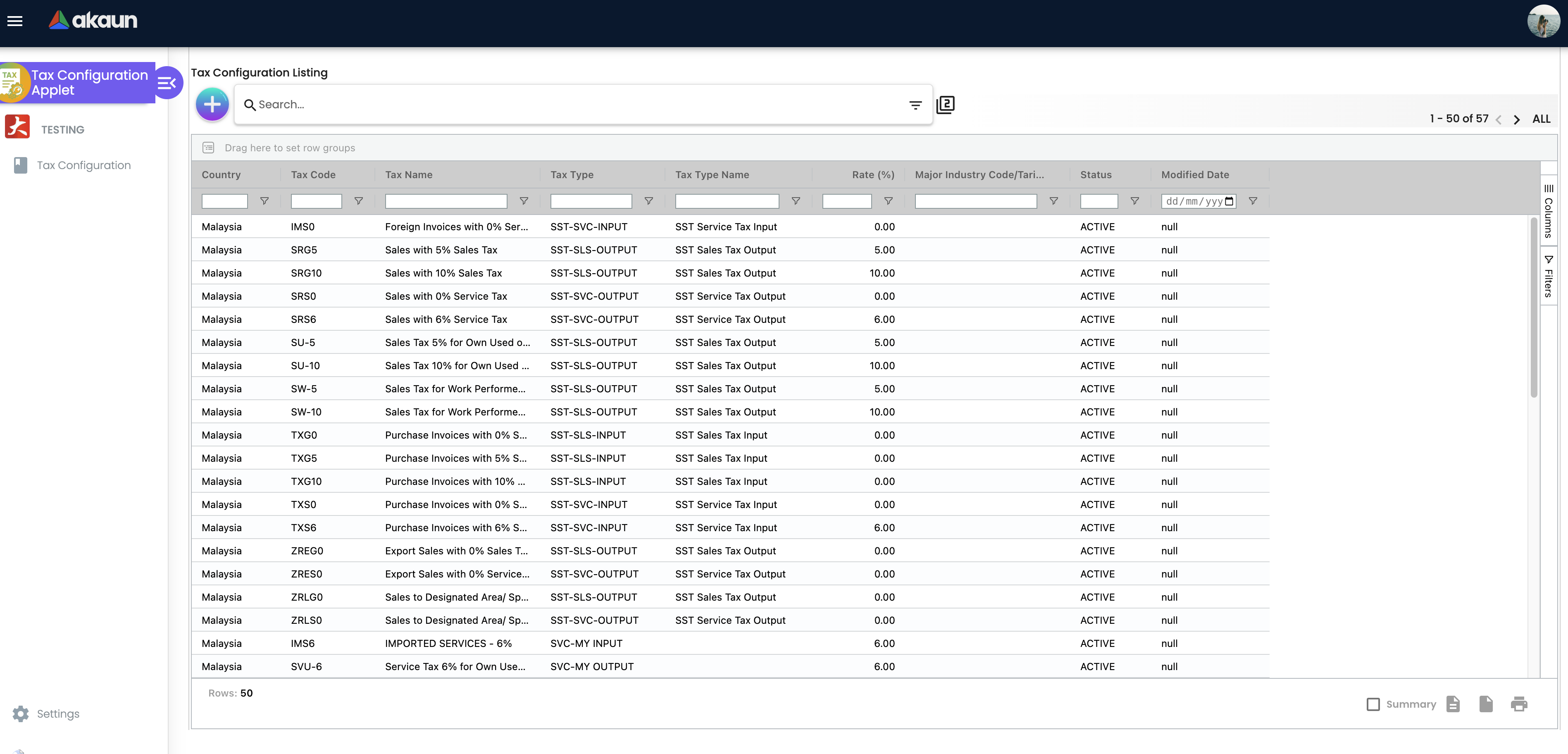
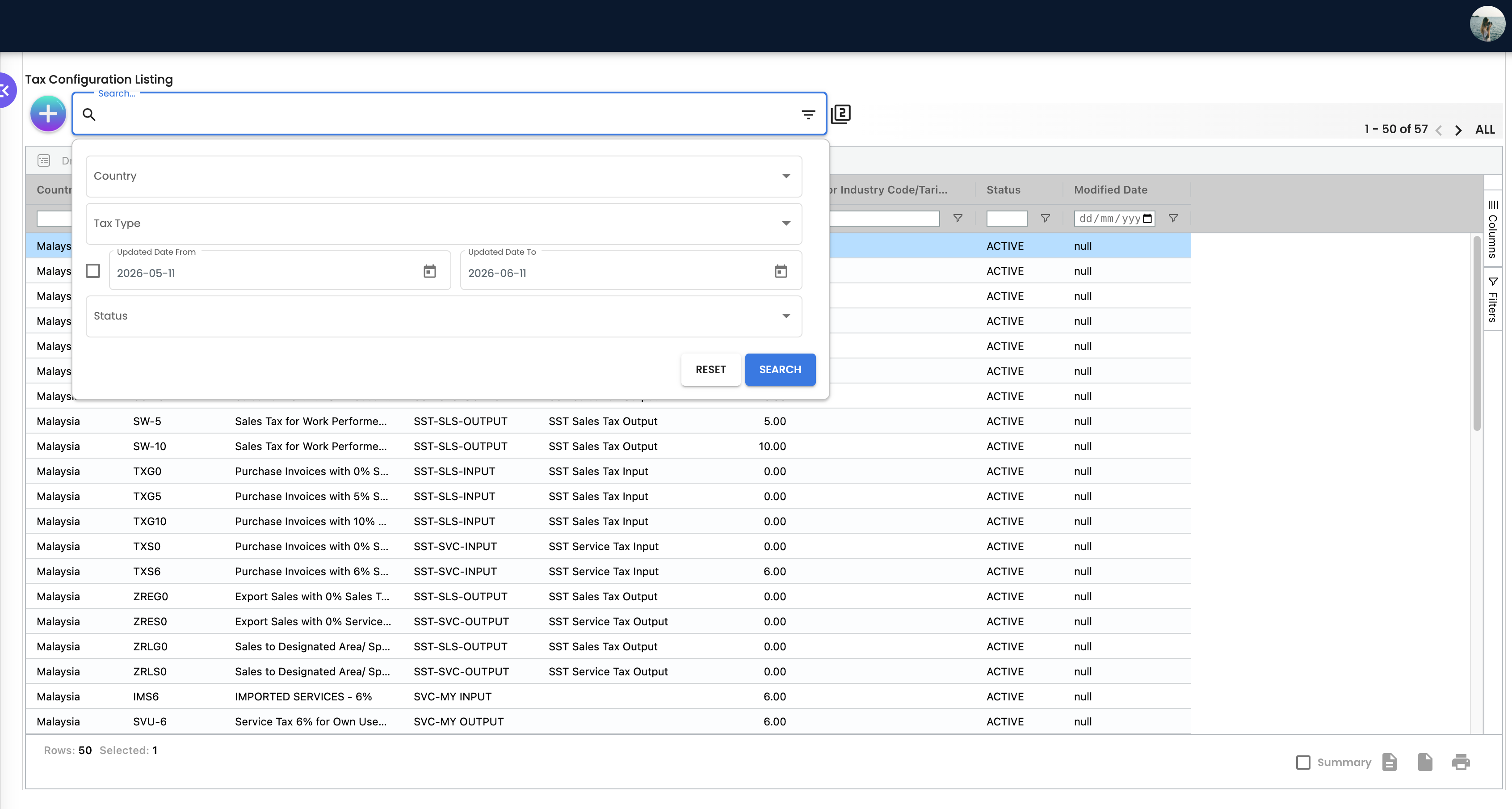
Listing. An ag-Grid with floating filters, row grouping, a status bar (total / selected / aggregation) and CSV, Excel and print export. It loads 50 rows at a time, newest-modified first, and filters to ACTIVE rows by default — inactive codes are invisible until you set the Status filter in advanced search. The free-text search box covers country, tax code, tax name and tax type and rejects keywords shorter than three characters (“Search keyword must more than 2 characters.”). The Rate column is stored as a fraction and displayed multiplied by 100.
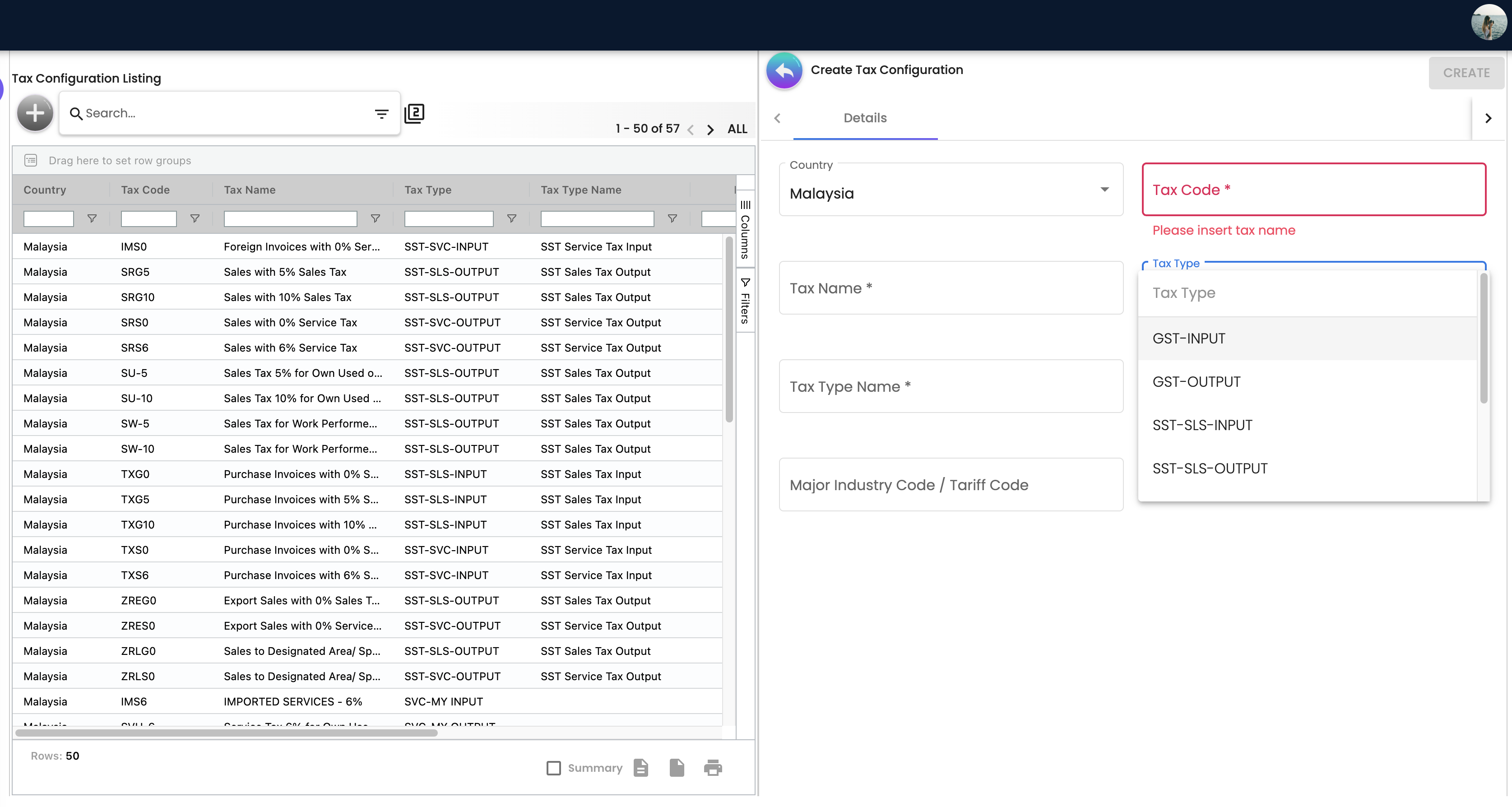
Create. One tab, Details. The + button opens it in the second column.
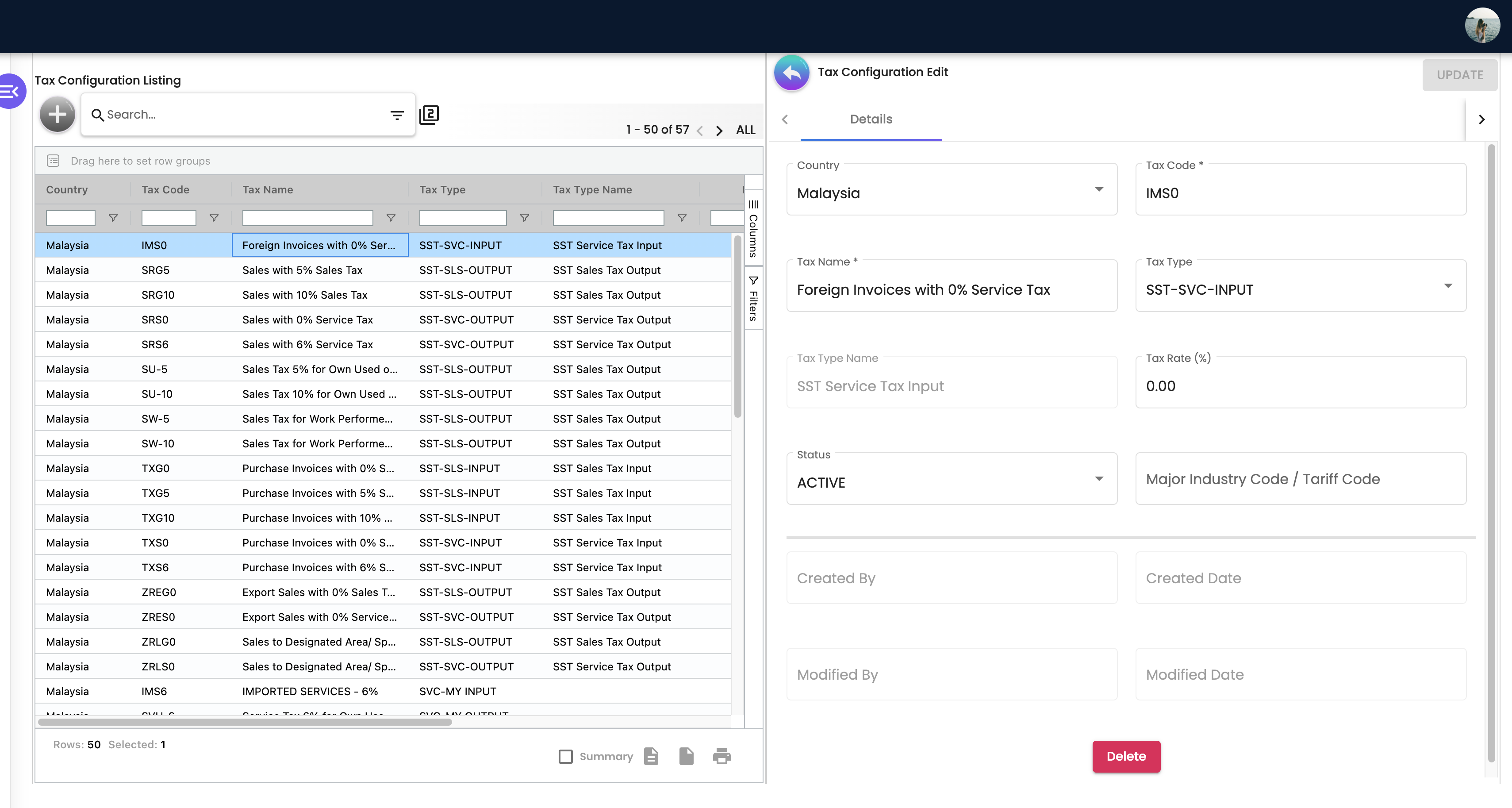
Edit. Clicking a listing row opens the same fields plus Status, the read-only audit block (Created By / Created Date / Modified By / Modified Date) and a Delete button. UPDATE stays disabled until the form is both valid and dirty.
Settings and Personalization. Reached from the gear at the bottom of the sidebar. The applet contributes two entries under System Configuration — Field Settings and Default Selection — and the shared settings shell adds Server Side Permissions (Permission Wizard, Permission Set, User Permission, Role Permission) and Developer Tools (Release Notes). Personalization offers Field Settings and Default Selection.
Three settings screens exist with no menu entry — Webhook, Feature Visibility and a placeholder card headed “Audit Trail” with no content — and are reachable only by URL.
Configuration
Before you can use it
| Prerequisite | Where | Why |
|---|---|---|
Company default GL code link OUTPUT_TAX with a subledger | Chart of Account → Companies → the company → Default GL Codes | Without it the tax line of every sales-side journal is dropped silently. There is no error: the customer’s line is built from the lines that remain, so it absorbs the tax and the journal posts. Your SST payable account is short, and trade debtors no longer agrees with the customer ageing. Only a customer with no AR/AP type makes the journal fail its balance check instead. |
Company default GL code link INPUT_TAX with a subledger | Chart of Account → Companies → the company → Default GL Codes | The same on purchase-side documents: the supplier’s line absorbs the tax, and the input tax you can claim back sits in no GL account. |
| GL codes for the tax liability / recoverable accounts | Chart of Account | The GL codes and subledgers the two links above point at. |
Server permission TNT_API_TAX_CODE_CFG_* | Settings → Server Side Permissions | Every screen in this applet is gated on these. |
Nothing else is required. The Country list is served from the platform’s country assets, and a tax code needs no company, branch, location or numbering configuration.
Applet settings
This applet embeds no inline settings gear on any screen.
No working applet setting exists. Both configuration screens are unfinished, and nothing in the applet reads a setting value:
| Screen | What you see | What actually happens |
|---|---|---|
| Settings → Field Settings | Two panels, Lines Settings (Unit Discount, SST/VAT/GST, WHT, Blanket Order) and Department Settings (Segment, G/L Dimension, Profit Center, Project), plus a SAVE button | None of the eight toggles is wired to anything and SAVE does nothing. Nothing is stored and nothing changes. |
| Settings → Default Selection | Applet Default Settings with Default Branch and Default Location | Choosing a branch or location raises an error, and SAVE saves nothing. Even if it saved, DEFAULT_BRANCH and DEFAULT_LOCATION are read by nothing in this applet — a tax code has no branch or location. |
| Personalization → Default Selection | User Default Settings, “This will override Applet Default Settings” | The same two unwired controls. |
| Personalization → Field Settings | — | The menu entry leads to the applet’s 404 page. |
The behaviour that is configurable — which codes appear, at what rate, for which country — is the tax-code data itself, documented under Fields.
Settings in other applets that control this applet
| Setting | Where it is set | Effect here |
|---|---|---|
Company default GL code links OUTPUT_TAX / INPUT_TAX | Chart of Account → Companies → the company → Default GL Codes | Decides which account every tax amount lands in. Not visible or overridable per tax code. |
| Item Tax Applicable tick | Document Item Maintenance → item → Tax tab | The gate. With it off, none of the item’s tax fields is copied onto a document line, however they are filled in. Nothing on the document tells you the tick is off, so when a line comes out untaxed despite a tax code on the item, check this first. |
| Item default tax code | Document Item Maintenance / Inventory Item Maintenance | Pre-selects one of these codes on a document line — the item’s output triple on a document whose type contains SALES, its input triple on one containing PURCHASE, and neither on any other type. |
| Customer or supplier Tax tab | Customer / Supplier → Tax | One of these codes per country, with its rate copied from the code and an include-or-exclude-tax choice. It is a fallback: the line editor’s price picker offers it only when the item has no pricing scheme to offer, so an item with a price always brings its own tax. It restricts nothing — any line can still be given another code. Registration numbers are on the record’s Main and E-Invoice tabs, not here. |
Feature visibility / permissions
Access is server-side only — the owner/admin pair plus one action code per operation:
| Operation | Permission code |
|---|---|
| Open the listing / read a code | TNT_API_TAX_CODE_CFG_READ |
| Create | TNT_API_TAX_CODE_CFG_CREATE |
| Update | TNT_API_TAX_CODE_CFG_UPDATE |
| Delete | TNT_API_TAX_CODE_CFG_DELETE |
| Any of the above | TNT_API_TAX_CODE_CFG_OWNER, TNT_API_TAX_CODE_CFG_ADMIN |
The same read codes gate the listing and the tax-code drop-down other applets use.
There are no client-side permissions for this applet — no HIDE_*/SHOW_* handling and no menu filtering. Everything a user can reach in the applet, they can reach in full — buttons are never hidden by role, only refused by the API.
Fields
One tab, Details. Create and Edit expose the same fields; Status and the audit block appear on Edit only.
| Field | Meaning | Required | Notes / validation |
|---|---|---|---|
| Country | The jurisdiction the code belongs to | Yes | Searchable drop-down, but only four countries are offered: Malaysia, Singapore, Thailand, Indonesia. The list is intersected against the applet’s own tax-type map, so no other country can be selected. Stored as the country name (Malaysia), not a code. Changing it on Edit clears Tax Type. |
| Tax Code | The short code shown on documents | Yes | Max 255 characters. Forced to upper case on save. Unique across the tenant — enforced by the database, not by the form. The validation hint under this field mistakenly reads “Please insert tax name”. |
| Tax Name | Human description | Yes | Max 255 characters. The validation hint under Tax Code refers to this field. |
| Tax Type | The behaviour class of the code | Yes | Drop-down filtered by Country (see the table below). |
| Tax Type Name | Friendly name of the selected type | Derived | Read-only; filled in from Tax Type. |
| Tax Rate (%) | Percentage, entered as 6.00 for 6% | No (defaults to 0.00) | Only validator is maximum 100. Stored as a fraction (0.06) rounded to two decimal places — see Troubleshooting. |
| Major Industry Code / Tariff Code | Free-text classification | No | Max 255 characters. Read by nothing — the MY-SST applet keeps its own tariff codes. |
| Status | ACTIVE or INACTIVE | Edit only | Defaults to ACTIVE on the server if not supplied. See the warning below about what INACTIVE does not do. |
| Created By / Created Date / Modified By / Modified Date | Audit | Read-only | The two “By” fields are resolved to the user’s e-mail-style login and stay blank when no such login principal exists for that subject. |
Tax types offered, by country
| Country | Tax types |
|---|---|
| Malaysia | GST-INPUT, GST-OUTPUT, SST-SLS-INPUT, SST-SLS-OUTPUT, SST-SVC-INPUT, SST-SVC-OUTPUT, WITH-INPUT, WITH-OUTPUT |
| Singapore, Thailand, Indonesia | VAT-SALES, VAT-PURCHASE |
A type whose code contains WITH is a withholding type; every other type is a sales / purchase tax type. That split is what separates the two document-side drop-downs — see Lifecycle and effects.
ACTIVE. The document-side tax drop-downs load every code that is not DELETED, so an inactive code is still selectable on a new invoice. To take a code out of circulation you must Delete it — and Delete is permanent for that code string (see Troubleshooting).Lifecycle and effects
What this applet writes. One tax-code record per code. No document, no journal, no stock movement, no queue entry.
| Action | Effect |
|---|---|
| CREATE | The server defaults the status to ACTIVE and stamps the audit dates. The only validation is that the two rate values are present; a duplicate tax code is refused by the database, not by a validator. Toast on success: “The Tax Config has been created”. |
| UPDATE | The applet re-fetches the stored row, overlays the form and sends the whole record back, so it rewrites both rate values and both type values. The only update validation is that the record exists and the two rates are present. |
| DELETE | A soft delete: the row’s status is set to DELETED and it stays in the table. There is no confirmation dialog — the button acts on the first click. |
Two rates are stored together — a transaction rate and a filing rate — and they are read by different screens. This applet always sets both to the same value, and so does the MY-SST applet’s Tax Code screen; there is no screen for making them differ. They are not interchangeable, though, and knowing which is which is how you answer “where did that rate come from”:
| Rate | Who reads it |
|---|---|
| Transaction rate | The document line. The line-level SST and WHT drop-downs stamp this onto the line, and the document save refreshes the line from it. |
| Filing rate | Every master-data screen that caches a rate — the item’s Tax tab, and the customer and supplier Tax tabs. |
Both maintenance surfaces write both columns together, so in normal use the two hold the same value and the distinction costs you nothing. It is worth knowing because nothing reconciles them: a row changed outside those two screens can leave the document rate and the filing rate disagreeing, and no screen and no validator would tell you.
How a document picks the rate up. When a document is saved with a line that carries a tax code but no tax type, the save looks the code up (any code that is not DELETED), copies its tax type onto the line and overwrites the line’s rate with the tax code’s transaction rate. From then on the line holds its own snapshot: changing a rate here does not restate documents that were already saved.
That refresh only fires when the line has a code and no type — which is not the common case. A line assembled from the item already carries both, so the rate it was given stands. Four routes put a rate on a line, and they do not read the same copy. The first is the one you watch happen; the others arrive already filled in:
| Route | Where the line’s rate comes from |
|---|---|
| Someone picks a code in the line editor’s SST drop-down | The tax code’s current transaction rate, rounded to two decimal places by the line editor |
| The line is built from a pricing resolution in a document applet | The item’s pricing-scheme link, which took a copy of the item’s output/input tax code, type and rate when the pricing link was created and is not refreshed by a later item edit |
| The item has no pricing scheme, so the price picker falls back to the customer or supplier | The code and rate on that record’s Tax tab, which copied the filing rate when the row was saved |
| A document arrives through the document-import API | The item’s stored output tax rate (a SALES type) or input tax rate (a PURCHASE type), and only if the item’s Tax Applicable tick is on |
So one tax rate can exist in five places at once — the tax code, the item, the pricing-scheme link, the customer or supplier record and the document line — and changing it here changes the first only. When a line’s tax is not the one you expected, trace it back in this order: the line, then the pricing scheme it was priced from, then the customer’s or supplier’s Tax tab, and only then this listing. This is the honest answer to “I changed the rate and the invoice still charges the old one”.
How the tax amount posts. The tax journal line is built from the document line’s tax amount, and its GL code and subledger come from the company default GL code link for the document type — OUTPUT_TAX for sales-side types (Sales Invoice, Cash Bill, Receipt Voucher …) and INPUT_TAX for purchase-side types. Signs follow the line: an outbound (negative-signum) line debits tax, an inbound line credits it. The tax code itself contributes nothing to this decision.
TOTAL_DEBITS_AND_TOTAL_CREDITS_NOT_BALANCES. Before go-live, check both OUTPUT_TAX and INPUT_TAX have a company default with a subledger.Where the codes are read.
- Line-level SST/GST drop-down (shared by the document applets’ line editors). Loads every non-
DELETEDcode, then filters on tax type: on a SALES document it keeps only types containingSST-SLS-OUTPUT,SST-SVC-OUTPUTorGST-OUTPUT; everywhere else it keeps types containingINPUTorPURCHASE. A blank entry is prepended so a line can be left untaxed. - Line-level WHT drop-down (shared the same way). Keeps every code with a withholding type, with no sales/purchase split. Nothing seeds a withholding code, so unless somebody here has created a tax code with a
WITH-*type, this drop-down is empty and the line’s withholding fields cannot be filled at all. An empty picker is the expected state, not a fault — create the code first. - MY-SST filing — the SST-02 workings group transactions by tax code.
- e-Invoice — the outbound MyInvois line takes its rate and its tax amount from the document line’s stamped values. The LHDN taxable type is a separate field with its own list, and it is not this applet’s tax type — but it is not independent of this applet either. See the callout below.
Six rows in this listing are not tax codes, and one of them is called 06 Not Applicable.
The platform seeds six rows with tax type EINVOICE, country Malaysia, rate 0.00 and status ACTIVE — codes 01 Sales Tax, 02 Service Tax, 03 Tourism Tax, 04 High-Value Goods Tax, 05 Sales Tax on Low Value and 06 Not Applicable. They are the LHDN taxable-type names, parked in the tax-code table. No document path reads them. EINVOICE contains neither OUTPUT nor INPUT nor PURCHASE, so the line-level SST drop-down filters them out on both sides; they have no withholding type, so the WHT drop-down does too; and the item’s Tax tab offers only the eight Malaysian GST-*/SST-*/WITH-* types. They appear in this applet’s listing and nowhere else, and their Tax Type Name column is blank (see Troubleshooting).
They are not where the 06 on your e-invoices comes from. Editing or deleting them changes nothing about what LHDN receives. The taxable type on an e-invoice line is worked out from the line’s tax amount — see the next callout.
This applet decides the LHDN taxable type — through the amount, not through a tax-type field. When a finalised document is turned into the record that goes to LHDN, the line’s taxable type is set from its tax amount, in four branches:
| The line’s tax amount | The taxable type the line had | What LHDN is told |
|---|---|---|
| null | anything | 06 Not Applicable (and the amount becomes zero) |
| zero | anything | 06 Not Applicable |
| non-zero | blank | 01 Sales Tax |
| non-zero | 06 | 01 Sales Tax |
| non-zero | anything else (02…05) | kept as it is — the only case a chosen value survives |
Three of the four branches overrule a value somebody chose on the item; the fourth fills a blank. So a zero-rate tax code, an untaxed line or an item with Tax Applicable off all reach LHDN as 06 Not Applicable, whatever the item’s E-Invoice tab says — and a taxed line can never be reported as 06. This is not a tendency you could beat with better master data — the branch is taken on the tax amount alone, so 06 and a non-zero tax amount cannot occur together, and 01 cannot appear on a zero-tax line.
This does not make the line wrong — 06 is what a genuinely untaxed line should carry. It makes the E-Invoice tab’s taxable-type field mostly decorative, and it means a wrong 06 is fixed by the rate on the line, never by the item.
Verify the set-up with one test invoice
Run this once per company after the tax codes and the company’s default GL codes are in place, and again whenever either changes. It takes about ten minutes and uses the same invoice as the Chart of Account check, so one invoice answers both pages. Give it to the person who prepares the SST return: they are the one who pays for a wrong answer, and the person who changed a rate or a default should not be the one who signs it off.
1. Key it. In GadgetSphere Sdn Bhd, raise a sales invoice to a customer whose AR/AP type is trade: one laptop at RM 2,000, with your 6% output tax code on the line. Before you finalise, the line should show RM 120 tax and the invoice RM 2,120. A different rate did not come from this listing — trace it through the four routes above, and correct the line before you go on.
2. Finalise it, then wait. Saving posts nothing. Finalise queues a background job and the screen comes back before the journal exists, and that job reads the company’s default GL codes when it runs, not when you saved. Reopen the invoice after a short while and open its Journal Txn. Right is three lines:
| Account | Debit | Credit |
|---|---|---|
Trade debtors, DEBTOR-TRADE-RETAIL | RM 2,120 | |
Laptop sales, SALES-LAPTOP | RM 2,000 | |
SST payable, LIAB-SST-OUTPUT | RM 120 |
What each wrong result means:
| You see | What it means | What to do |
|---|---|---|
| Debtor RM 2,000, no tax line, and no message anywhere | The company’s output tax default OUTPUT_TAX is missing or has no subledger. The tax code is not the cause; the job dropped the tax line and the customer line absorbed it | Map it under Chart of Account → Companies → Default GL Codes, then Repost the invoice on Trace Document and run this step again |
| Three lines, but the RM 120 credit sits on another account | The output tax default points at the wrong GL code. Every taxed sale of this company lands there, whatever the tax code | Correct the default, then repost what posted in the meantime |
| A Journal Txn that stays empty | The job failed after the screen had already returned, so the invoice reads FINAL with no journal. A missing trade receivable default is the usual cause; Resolve on Trace Document’s Missing Journal shows the reason, for that one MISSING_DEFAULT_GL_CODE: DEBTOR | Map the default the reason names, then Resolve |
| Debtor RM 120 and no sales line | Neither the laptop nor the company has a sales code — a Chart of Account problem, not a tax one | The Chart of Account check |
So a missing tax mapping is never announced: you find it here, or when the SST payable balance falls short of the return. A cash bill from the till posts its tax through the same job and the same default, so this one test covers the counter too. For the input-tax side, run the mirror on a purchase invoice; the tax line is then a debit to the account behind the company’s input tax default. A USD purchase from GadgetSphere’s Singapore distributor finalised through the Data API gets no journal at all, tax included (why).
3. Read the e-invoice line. If the company is enabled for e-invoicing, a background run picks the invoice up after it is finalised, never on save, and builds its record in My E-Invoice Admin → To IRB E-Invoice. Open the record’s Lines tab. Right is Sub Total 2,000.00, Tax Amount 120.00, and in the E-invoice Tax Type column the type on the laptop’s E-Invoice tab — for a 6% service tax, the item should carry service tax there. That column is what LHDN is told.
| You see in E-invoice Tax Type | What it means |
|---|---|
06 - Not Applicable | The line reached the record with a zero tax amount. The tax code or rate on the line is at fault, not the item — fix the line’s tax |
01 - Sales Tax where you charge service tax | The laptop’s E-Invoice tab has no taxable type (or has 06), and a taxed line with none is reported as sales tax. Set 02 - Service Tax on the item. A finalised document keeps the type its lines were given |
| The type you expect, Tax Amount 120.00, but the journal in step 2 had no tax line | Both are working as built: the e-invoice reads the document line, the journal reads the company default. LHDN has the right tax and your ledger is short — fix the default (step 2, first row) |
Two things on that screen mislead. Clicking the line opens a form whose Tax Type box shows the type as the document carried it, before the defaults above were applied, so it can be blank while the column reads 01 - Sales Tax; trust the column. And its Tax Rate reads 0.06, because the rate is held as a fraction.
After the first return. At each SST period end, the credits to SST payable for the period should equal the output tax on the SST-02 working, which groups transactions by tax code. A gap the size of one document’s tax points back to step 2.
Related applets
- Chart of Account — owns the GL codes and subledgers that the tax mappings point at.
- Chart of Account — its Companies → Default GL Codes tab owns the company default GL code links
OUTPUT_TAXandINPUT_TAX, which are the real tax-to-account mapping. - MY-SST Applet — a second maintenance surface over the same tax-code table, plus tax years, tariff codes and SST-02 filing.
- Document Item Maintenance and Inventory Item Maintenance — carry the default tax code that pre-fills a document line.
- Customer and Supplier — a Tax tab holding one of these codes per country, used as the line’s tax only when the item has no pricing scheme.
- Sales Invoice (Internal) and Purchase Invoice (Internal) — the two highest-volume consumers of the list.
- MyInvois Admin — carries the rate and amount to LHDN.
- Financial Report — reports the resulting tax account balances.
Troubleshooting
| Symptom | Cause | Fix |
|---|---|---|
| No error, but the tax GL account is short of the tax on your documents, and trade debtors or trade creditors no longer agrees with the ageing | The company default GL code link for OUTPUT_TAX (sales) or INPUT_TAX (purchase) is missing, or exists with an empty subledger. The tax journal line is dropped with no error and the customer’s or supplier’s line absorbs it. (If that customer or supplier has no AR/AP type, the posting job fails with TOTAL_DEBITS_AND_TOTAL_CREDITS_NOT_BALANCES instead; the document stays FINAL.) | Add or complete the link in Chart of Account → Companies → the company → Default GL Codes, including the subledger, then re-post. |
| A tax code you deactivated still appears on new invoices | The document drop-downs load every code that is not DELETED; only this applet’s listing filters to ACTIVE. | Delete the code rather than deactivating it — but read the next row first. |
| You cannot re-create a tax code you deleted: create fails on the code | Delete only marks the row deleted; it remains, and the uniqueness rule still covers it. | Choose a different code string, or have the row cleaned up at database level. |
| A rate saved as 8.5% comes back as a whole percent | Both create and edit compute rate / 100 and then round to two decimal places, so any fractional percentage collapses to the nearest whole percent (8.5% → 0.09 or 0.08 depending on floating point). | Use whole-percent rates. The MY-SST applet’s Tax Code screen writes both rate columns without rounding, so a fractional rate can reach the table from there — but the sales-invoice line editor rounds the rate to two decimal places again when it stamps the rate onto a line, so a fractional rate does not survive onto a document. Treat whole percents as the only rates this table can carry reliably. |
| Clicking a row opens a blank Edit column, or the applet errors | Edit resolves the stored country by matching it against the four supported country names. A row whose country is anything else — for example MYS, which the MY-SST applet writes — finds no match and the screen fails to render. | Edit those rows from the MY-SST applet, or have the country normalised to the full name. |
| Tax Type Name is blank in the listing for some rows | The listing translates the stored type through the applet’s fixed type map. Anything outside the ten known GST-*, SST-*, WITH-*, VAT-* values has no entry and shows empty. In practice these are the platform’s own six EINVOICE rows (see Lifecycle and effects), plus the two legacy SVC-MY INPUT / SVC-MY OUTPUT rows the platform seeds into every tenant. | Cosmetic, and do not “fix” the EINVOICE rows by re-typing them — they are inert, and giving one a real type would put it into the document drop-downs. |
| Advanced search by Tax Type never finds withholding codes | The Tax Type filter offers all ten types but always filters the sales / purchase tax type, and withholding types are stored separately. | Search withholding codes by keyword (the free-text box covers the code and description) instead. |
| Advanced search by Country returns nothing for some rows | The Country filter matches full country names. Rows written with a three-letter code do not match. | Same cause and fix as the blank-Edit row above. |
| A VAT sales code never appears on a Singapore, Thai or Indonesian sales invoice | The shared sales-side drop-down keeps only SST-SLS-OUTPUT, SST-SVC-OUTPUT and GST-OUTPUT; VAT-SALES is not in that list. VAT-PURCHASE does appear on the purchase side because its name contains “PURCHASE”. | Known gap in the shared line editor. Until it is fixed, use a Malaysian output type for the sales side or apply tax at header level. |
| An API integration that filters tax codes by their input / output flag stops seeing an input code after it was edited here | Editing an input code clears both flags. Nothing inside BigLedger reads them — posting and the document drop-downs go by tax type — but the API honours them as a filter. | Filter on the tax type instead, or re-set the flag through the API, until the edit screen is fixed. |
| A user sees the applet but every action returns “not authorized” | The applet has no client-side permission gating, so buttons stay visible even without TNT_API_TAX_CODE_CFG_*. | Grant the correct server permission under Settings → Server Side Permissions. |
| The Permission Wizard link in Settings goes to a 404 page | The shared settings shell renders the link for every applet, but this applet has no permission-wizard-listing route. | Use Permission Set / User Permission / Role Permission instead. |
Related documentation
- Chart of Accounts Setup — where the tax accounts and their default mappings come from.
- Journal Entries — how a posted tax amount reads in the ledger.
- Financial Accounting module
- Core module