Workflow Design Applet
Define the status tracks that document applets attach per company: the statuses, the transitions between them, and which roles may move a document along. This is not the Document Approval engine; approval sequences with e-mails are set up on separate Approval Settings screens, and the two do not read each other.
Overview
Workflow Design is the tenant-wide catalogue of workflow processes. A process is a named set of statuses joined by transitions; document applets attach one process per company and then show the document’s current status and the statuses the signed-in user is allowed to move it to. The applet itself creates no documents, moves no stock and posts no journal — it only maintains workflow master data.
It is a tenant-administrator screen (applet type TNT-ADMIN in the registry). You open it once when configuring a company’s approval track, then rarely again.
Where it fits
| Direction | What | Why |
|---|---|---|
| Before | Tenant Admin | Transitions are gated by roles and by role-to-user assignment. Both are maintained there. Without them a transition offers nobody anything. |
| Before | Organization | A process is attached to a company, so the companies must exist first. |
| Here | Workflow Design | Defines processes, the global status catalogue, resolutions, transitions, transition roles, subscribers, actions and cross-process triggers. |
| After | Document applets’ Settings → Workflow Settings | Links a process to a company + this applet’s document type. Only linked processes appear in the applet’s Application Settings. |
| After | Document applets’ Settings → Application Settings → Workflow | WORKFLOW_PROCESS_GUID picks the process for new documents; FINAL_STATUS_GUID picks the status at which the FINAL button becomes available. |
| At runtime | Any document carrying a workflow process | The status drop-down on the document is filled with the available process statuses, filtered by the signed-in user’s roles. |
Document applets that offer the workflow status drop-down include Sales Order, Sales Invoice, Sales Quotation, Sales Credit Note, Sales Debit Note, Sales Return, Purchase Order, Purchase Requisition, Purchase Return, Packing Order, Delivery Order (Internal), RMA, Car Workshop and Stock Take.
Screens and menus
The applet opens on Process.
| Sidebar item | What it lists |
|---|---|
| Process | Every workflow process. Columns: Name, Description, Type, Created By, Date Created, Updated By, Date Updated. Only a Create button — no export, no print. |
| Process Status | The global status catalogue (Code, Name, Description). Statuses are not owned by a process; a process borrows them. |
| Process Resolution | The global resolution catalogue (Code, Name, Description). |
| Action | Actions — an action belongs to a process and an action type. |
| Action Type | Free-text categories for actions. |
Process create versus process edit
Create Process has three tabs — Details, Status, Transition — but only Details works: the Status and Transition tabs are empty grids with no Add control. Statuses and transitions can only be added after the process is saved.
Edit Process has three working tabs:
- Main — Name, Description, Type, Starting Status.
- Status — the statuses linked to this process, with Sequence no. The + button opens the global Process Status catalogue as a multi-select list; ticking rows and saving links each ticked status to the process.
- Transition — the transitions of this process. Opening one gives five sub-tabs: Details, Transition Triggers, Role, Subscriber, Action.
Settings and personalization
Settings is reached from the sidebar gear. The navigation is drawn by the shared settings shell, so it shows three groups.
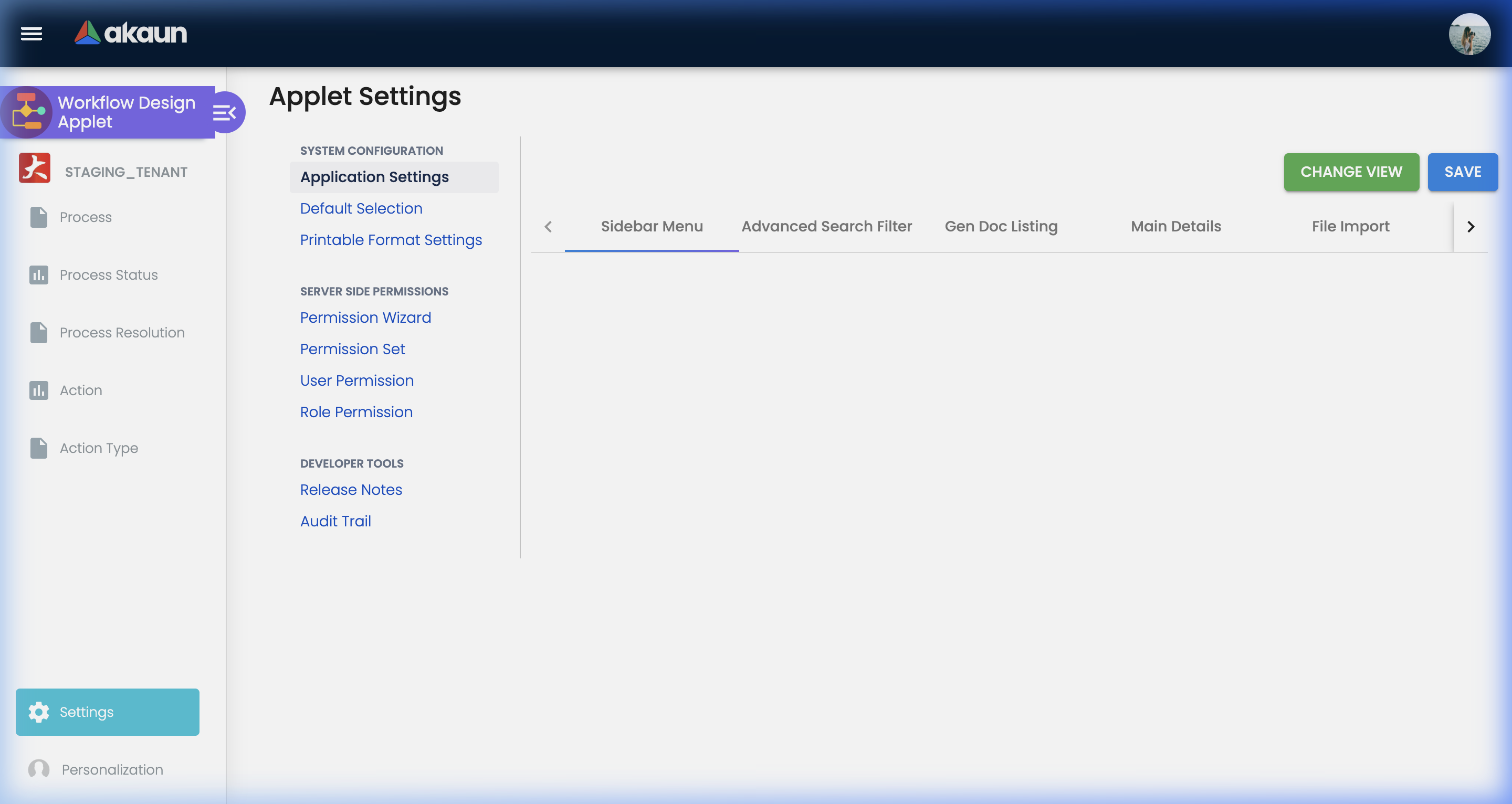
Personalization offers one screen, Default Selection (personal Default Branch / Default Location).
Configuration
Before you can use it
| Prerequisite | Where | Why it matters |
|---|---|---|
| Roles, and users assigned to them | Tenant Admin | A transition with no Role row is invisible to everyone — see Lifecycle and effects. |
| At least one company | Organization | The company-to-process link is per company. |
| Server-side permissions on the workflow endpoints | Settings → Permission Wizard / Permission Set / User Permission / Role Permission | Every screen here is gated by the TNT_API_DM_WF_MD_* permission family. |
| A document applet whose Workflow Settings you can reach | e.g. Purchase Order | A process that is never linked to a company + applet is inert. |
Applet settings
Application Settings opens the shared settings screen that every document applet carries, not one built for this applet. (The applet also ships its own settings screen, but it is unreachable and its eight toggles do nothing — the same dead stub found in several other master-data applets. Ignore it; it is not what you see in the browser.)
Because the shared screen has not been tailored for this applet, it shows every generic control and none of them is read by Workflow Design: the only setting it consumes is PRINTABLE.
WORKFLOW_PROCESS_GUID and FINAL_STATUS_GUID. Saving them stores settings against this applet, and nothing in Workflow Design ever reads them. Configure documents from the document applet’s own settings screen.The settings that do exist:
Only a tenant administrator reaches these screens; both write the applet’s tenant-wide settings (Personalization writes the per-user equivalent).
| Setting | Screen | What it controls | Default | Effect when changed |
|---|---|---|---|---|
PRINTABLE | Printable Format Settings → set as default | The printable format marked default in this applet’s printable list. | Unset (no default row) | Changes which row the listing flags as default. The applet has no print button, so nothing else changes. |
DEFAULT_BRANCH | Settings → Default Selection | Written and read back by this screen only. | Empty | None elsewhere — no screen in Workflow Design is branch-scoped. |
DEFAULT_LOCATION | Settings → Default Selection | As above. Auto-filled from the chosen branch’s main location. | Empty | None elsewhere. |
DEFAULT_COMPANY | Settings → Default Selection | Not a control; set silently from the chosen branch’s company. | Empty | None elsewhere. |
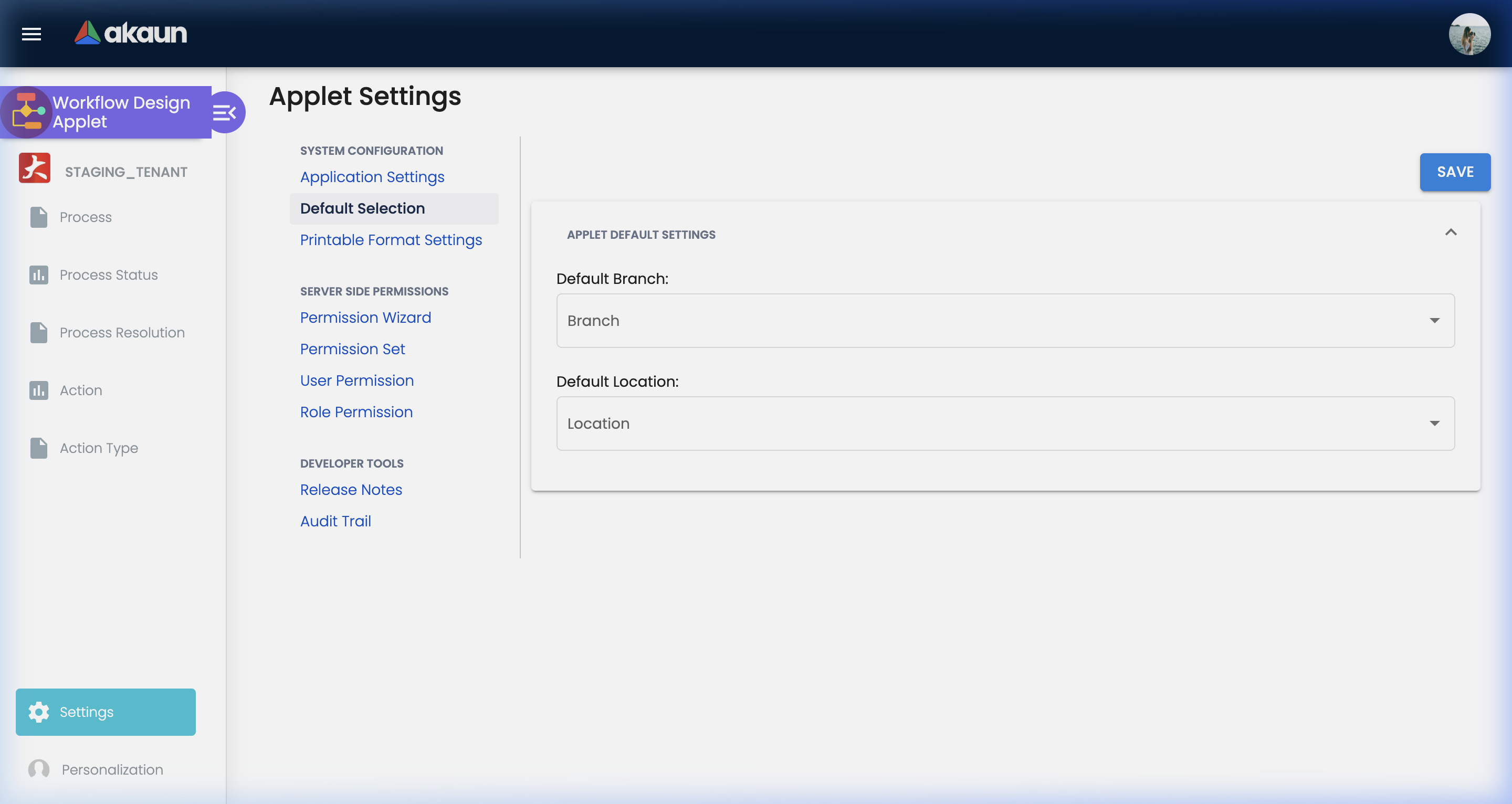
Personalization → Default Selection renders the same two controls and saves them as personal settings; they are equally unused.
Printable Format Settings lists and uploads printable formats, but its filter is hard-coded to the Blanket Purchase Order document type (a copy-paste left over from the applet this one was forked from). It therefore shows blanket-purchase-order printables, and any format added here is tagged as one.
Two screens exist with no navigation link. The Webhook and Feature Visibility screens are reachable, but the shared settings shell has their menu group hidden. Clicking the gear lands you on Feature Visibility. The Webhook screen is reachable only by typing its URL (settings/webhook).
Conversely, the shared shell renders a Release Notes link under Developer Tools that this applet does not have; following it falls through to the 404 page.
Settings in other applets that control this applet
Nothing in another applet changes how Workflow Design behaves. These are the settings that decide where a process you design here is actually used:
| Setting | Where it is set | Effect |
|---|---|---|
| Company ↔ process link | Document applet → Settings → Workflow Settings → Company Listing → Create | Records the company, the process (its code copied from the process name), the document type and the applet. Until this link exists the process is invisible to that applet. |
WORKFLOW_PROCESS_GUID | Document applet → Settings → Application Settings → Workflow Selection | The drop-down lists only company-process links created from the current applet. Choosing one makes new documents start on that process. |
FINAL_STATUS_GUID | Same panel, appears once a process is chosen | The status at which the document’s FINAL button is offered. Options come from the process’s status links. |
The Workflow Settings screen exists in the purchasing family (Purchase Order, Purchase Requisition, Purchase Return, Consignment Purchase Order, Purchase Order Supplier Access), in Packing Order, Outbound Delivery Order, Job Sheet, RMA, Cashflow Projection and in the sales quotation / order / invoice / proforma / credit note / debit note / return / refund note family.
Feature visibility / permissions
No client-side permission definitions exist for this applet, so the Client Side Permission screen has nothing to grant and no SHOW_* / HIDE_* code applies here.
Access is therefore entirely server-side. Each screen is guarded by one of the TNT_API_DM_WF_MD_* permission groups, each with OWNER / ADMIN / MEMBER / CREATE / UPDATE / DELETE / READ members:
| Screen | Permission group |
|---|---|
| Process listing, create, edit | TNT_API_DM_WF_MD_PROCESS_* |
| Process Status catalogue | TNT_API_DM_WF_MD_PROCESS_STATUS_* |
| Statuses linked to a process | TNT_API_DM_WF_MD_PROCESS_STATUS_LINK_* |
| Transitions | TNT_API_DM_WF_MD_TRANSITION_* |
| Transition → Role | TNT_API_DM_WF_MD_TRANSITION_ROLE_LINK_* |
| Transition → Action | TNT_API_DM_WF_MD_TRANSITION_ACTION_* |
| Action / Action Type | TNT_API_DM_WF_MD_ACTION_*, TNT_API_DM_WF_MD_ACTION_TYPE_* |
| Resolutions | TNT_API_DM_WF_MD_RESOLUTION_*, ..._RESOLUTION_LINK_* |
The available-status lookup that documents make at runtime checks TNT_API_DM_WF_MD_PROCESS_STATUS_READ. A user without it gets a not-authorised response rather than an empty list.
Fields
Process (Details tab)
| Field | Meaning | Required | Notes |
|---|---|---|---|
| Name | Process name. Also copied as the process code when a company link is created. | Yes | No uniqueness check anywhere — two processes may share a name. |
| Description | Free text. | Marked required on the screen but not enforced | The asterisk shows and the form still saves empty — so a blank description is not a sign something failed |
| Type | SEQUENTIAL, PARALLEL, CYCLIC or CONDITIONAL. | Yes | Label only — nothing in BigLedger behaves differently for one type or another. |
| Starting Status | Edit tab only. The status a new document starts on. | No | Options come from the process’s own status links, so it can only be set after statuses are linked. |
Module, Applet, Company, Branch and Location controls are hidden on both the create and the edit form. The applet never populates them; company scoping happens in the document applet’s Workflow Settings instead.
Process Status (global catalogue)
A catalogue status has a Code, a Name and a Description; Code and Name carry the required marker.
The Code is what your staff see on a document. The Workflow Status drop-down on the Purchase Order form and on the shared sales-document form lists each status by its catalogue Code, not its Name, and reads it live — change a Code here and the drop-down shows the new one the next time a document is opened. Nothing checks that a Code is unique, so two statuses both coded APPROVED are indistinguishable in that drop-down. Choose short codes a clerk can act on, and keep the longer wording for the Name.
A new status is saved the moment you leave the Code box, not when you press Create. The first box you fill and leave sends a new status to BigLedger carrying that one value, a toast says it was created, and the button changes from Create to Update; Update then writes all three boxes. So:
- Typing a Code and pressing Back leaves a status in the catalogue with no Name.
- Filling Name before Code creates two statuses — one carrying only the name, then the one you meant.
- Update is never disabled and the backend does not insist on a Code or a Name, so a half-filled status saves without complaint.
Fill Code first, then Name, then press Update. When you finish a batch of statuses, look down the Process Status listing for rows with a blank Code or Name and delete them before anyone links them to a process.
Status linked to a process (Edit → Status → open a row)
Code is read-only here — copied from the catalogue at link time. Name and Description are also copied at link time and can be edited on the link; editing them does not change the catalogue, and renaming the catalogue status does not change this copy. SAVE stays disabled while Name is empty — and while Code is empty, which you cannot fix here: a link to a catalogue status that was saved with no Code can never be saved, so correct the Code in the catalogue and relink the status.
| Field | Where it shows up | Notes |
|---|---|---|
| Name | The final status picker in a document applet’s Workflow Selection settings, and the From / To Status lists when you build a transition. | Not the document’s status drop-down — that shows the catalogue Code (above). A transition’s name is built from these names when the transition is saved, so renaming a link later does not rename transitions that already exist. |
| Sequence number | Orders the status drop-down on RMA service notes, the only document form that asks for statuses in sequence. | Whole number, 0 or more; left empty when a status is first linked. The Purchase Order and sales-document forms ask for the unordered list and ignore it. If one catalogue status is linked to several processes, the ordered list uses its lowest sequence number across all of them. |
| Resolution | When a document is moved to this status, the Purchase Order and sales-document forms look up this link and show the resolution’s code, read-only, as Workflow Resolution. | Optional; a status with no resolution leaves that box blank. |
A DELETE button (two-click confirm) removes the link.
Process Resolution
Code (required), Name (required), Description.
Transition (Edit → Transition → +)
Pick a From Status (the status the document is on) and a To Status (the status it may move to). Both lists are this process’s linked statuses, labelled by the link Name, and SAVE stays disabled until both are chosen. Choosing the same status in both clears the other list — a check made in the browser only.
The transition Name is generated, not typed: "<From name> --> <To name>", from the link names at the moment you save. Nothing refuses a second transition with the same From and To. A duplicate is not harmless: the Purchase Order and sales-document forms ask for their status list without removing repeats, so the target status appears twice in the drop-down — and it does the same when one person holds two roles that are both on the transition.
Transition sub-tabs
| Sub-tab | Fields | What it records |
|---|---|---|
| Role | Role Code and Role Name, both drop-downs over the tenant’s roles. | The role allowed to take this transition. Nothing else on the row is populated. |
| Subscriber | Role Code / Role Name, same drop-downs. | A role to notify. Individual users cannot be subscribed from this screen. |
| Action | Action (drop-down over the process’s actions), Description. | An action attached to the transition. |
| Transition Triggers | Trigger type (Transition to Transition / Target Status), Process, then either Transition or Target Status. | A cross-process trigger of type Transitions or Target Status. |
Action and Action Type
Action Type: Name, Description. Action: Name (required), Process (required), Action Type (required), Status ACTIVE/INACTIVE (required), Description.
Lifecycle and effects
Workflow Design is master data. It writes no document, no stock movement and no journal; it has no server document type, no amount or quantity signum and no posting. It still carries the Blanket Purchase Order document type from the applet it was forked from, used only by the Printable Format Settings filter.
What it writes
Everything this applet saves is workflow master data: processes, the global status catalogue, the statuses linked to each process, resolutions, transitions, transition roles, transition subscribers, actions and action types, transition actions, and cross-process triggers.
Row status is a plain ACTIVE / DELETED value on every record. Create and update check that referenced records exist and that audit and status fields are filled — nothing more. There is no uniqueness check, no “status belongs to this process” check and no in-use check on delete: deleting a status removes it without asking whether any process or document references it.
How a document consumes a process
- Design. Create the process, link statuses, set the Starting Status, add transitions, and give each transition at least one Role.
- Link. In the document applet: Settings → Workflow Settings → pick a company → pick the process. This records the link for that applet and document type.
- Select. In the same applet: Settings → Application Settings → Workflow Selection → choose the process (
WORKFLOW_PROCESS_GUID) and, optionally, the final status (FINAL_STATUS_GUID). - New document. The document form reads
WORKFLOW_PROCESS_GUID, fetches the process, and stamps the process and its Starting Status onto the document header. - Editing. The form asks BigLedger for the statuses available from the document’s current status. The answer is built from the process’s transitions, restricted to those whose Role the signed-in user holds. The current status is prepended to the result, so the drop-down always offers “stay where you are” plus whatever the user’s roles permit.
- Saving. The chosen status is written to the document header, together with its code from the status catalogue.
The one real gate: FINAL_STATUS_GUID
Where a document applet implements it, the FINAL button is hidden until the document’s current workflow status equals FINAL_STATUS_GUID (the Sales Order V2 view combines it with HIDE_GENDOC_FINAL_BUTTON, SHOW_FINAL_BUTTON, row status ACTIVE and posting status DRAFT). Leaving FINAL_STATUS_GUID unset disables the gate — the button shows at any status.
This is button visibility, not a backend rejection: a FINAL posted through the API is not checked against the workflow status.
What transition actions, subscribers and triggers actually do
| Object | Executed by |
|---|---|
| Transition Action / Action Type | Nothing. They can be created, edited and deleted; no background job, notification or posting path reads them. |
| Transition Subscriber | Nothing. There is no workflow notification processor. |
| Transition Trigger | Only Service Note / RMA. When a service issue changes status, BigLedger looks up the transition that matches the old→new change, finds the triggers that start from it, and updates the service issue’s internal / customer / supplier status. For Transitions triggers it first checks that the target is currently on the transition’s From Status; for Target Status it sets the status directly. No equivalent exists for generic documents. |
So: e-mails, SMS, webhooks and “database updates on status change” are not implemented for workflow processes. Anything a status change should trigger elsewhere has to come from the Document Approval engine, or from the platform’s webhook subscriptions — and none of the platform’s webhook data events is a workflow status change.
Related applets
- Tenant Admin — supplies the roles and the role-to-user assignments that decide who may take a transition.
- Organization — the companies a process is linked to.
- Employee — designations and staff records behind the people who approve.
- Purchase Order and Purchase Requisition — carry both a Workflow Settings screen (this applet’s processes) and the separate Approval Settings screens of the Document Approval engine.
- Sales Order, Sales Invoice, Sales Quotation, Sales Credit Note, Sales Debit Note, Sales Return — attach a process per company and show the status drop-down.
- Packing Order and Delivery Order (Internal) — warehouse-side consumers.
- RMA and Car Workshop — service-note documents; the only consumers whose transition triggers are executed.
- Stock Take — stamps the process’s Starting Status onto a session and offers the same transition list, but enforces nothing.
Troubleshooting
| Symptom | Cause | Fix |
|---|---|---|
| The status drop-down on a document is empty except the current status. | Available statuses come only from transitions that have a Role the user holds. A transition with no Role row, or a user in none of the linked roles, yields nothing. | Open Edit Process → Transition → the transition → Role and add at least one role; check in Tenant Admin that the user is assigned to it. |
| A process does not appear in a document applet’s Workflow Selection drop-down. | The drop-down shows only company links created from the current applet. No company link, or a link created from a different applet, means no option. | Create the link from that applet’s Settings → Workflow Settings, not from another one. |
| New documents have no workflow status at all. | WORKFLOW_PROCESS_GUID is unset in the applet’s Application Settings, or the process has no Starting Status — the form stamps the Starting Status, which is empty until you set it in Edit Process → Main. | Set both. Starting Status can only be chosen after statuses are linked to the process. |
| The FINAL button never appears. | FINAL_STATUS_GUID is set to a status the document has not reached, and the user’s roles offer no transition to it. | Either clear FINAL_STATUS_GUID or give the approving role a transition into that status. |
| The FINAL button appears too early. | FINAL_STATUS_GUID is unset, so the gate is off. | Set it to the approved status. |
| A status was renamed but the document’s status drop-down still shows the old wording. | The drop-down shows the catalogue Code, not either Name. Renaming the catalogue status or the link changes nothing there. | Change the Code in Process Status. The link’s own Name, which the final-status picker shows, was copied at link time — edit it on the link row (Edit Process → Status → open the row). |
| Statuses come back in a strange order. | Only RMA service notes ask for statuses in sequence, and they sort on each link’s Sequence number, which is empty when a status is first linked. Other document forms apply no order at all. | On RMA, set Sequence number on each status link. On other documents the order cannot be set from this applet. |
| One status appears twice in a document’s drop-down. | The same From → To transition was added twice, or the user holds two roles that are both on that transition. | Delete the duplicate transition, or remove one of the two roles from it. |
| The same status appears twice in a process. | Nothing prevents linking the same catalogue status twice. | Delete the duplicate link. |
| A deleted status leaves documents showing a status that no longer exists. | Deleting a status performs no in-use check. | Re-create the status, or move the affected documents before deleting. |
| Transition Actions and Subscribers are configured but no notification is ever sent. | Working as built — nothing executes them (see Lifecycle and effects). | Use the Document Approval engine’s notifications, or an applet trigger. |
| A trigger saves with an empty target. | The trigger form’s SAVE button is never disabled, and the Transition control stays required even in Target Status mode. | Re-open the trigger and confirm the target process and transition/status are set. |
| Printable Format Settings lists formats that belong to purchase documents. | The listing filter is hard-coded to the Blanket Purchase Order document type. | Known defect; do not manage printables from this applet. |
| Clicking Release Notes in the settings navigation lands on a 404. | The shared settings shell renders the link; this applet has no Release Notes screen. | Known defect. |
| A saved Application Settings toggle here changes nothing on any document. | Application Settings on this applet renders the shared generic-document set, and Workflow Design consumes only PRINTABLE. | Configure documents from the document applet’s own Application Settings. |
Related documentation
- Core module — where this applet sits.
- Purchase Order — the reference example of Workflow Settings plus the separate Approval Settings.
- Tenant Admin — roles, teams and permission sets.