OCR Cash Bill
Overview
OCR Cash Bill is the back-office console for a receipt-to-points loyalty programme. A member photographs a cash bill issued by some other business — a pharmacy, a clinic, an electronics shop — and uploads it from the e-commerce storefront or in store. The platform runs the image through AWS Textract, turns the extracted text into a structured OCR Generic Document, matches the merchant and each line item against reference data the applet maintains, and — once a reviewer finalises the document — converts the matched lines into membership points on the member’s card.
This applet is where a reviewer looks at what the machine read, corrects the item mapping, rejects the fakes and the duplicates, and presses FINAL. It is the only screen on which any of that is visible.
JournalPostingTypeHandler entry and no stock processor (see Lifecycle and effects). The only
thing FINAL produces is a bl_crm_membership_points_txn_line row. The “OCR Company” master data
holds third-party merchants, not companies in your own group.Where it fits
| Direction | Applet / component | Why |
|---|---|---|
| Upstream | The storefront or in-store upload (.../ocr/scanned-docs/upload-file/login-entity-ep) | Where the member’s photograph actually enters the system; doc_source_channel records ECOMMERCE or STORE |
| Upstream | AWS Textract AnalyzeExpense | The extraction engine. bl_ocr_scanned_doc_hdr.algorithm_provider is always AWS_TEXTRACT |
| Beside | Pricebook | The price book whose price sets carry a POINT treatment is what decides how many points a matched line is worth |
| Beside | Scheduler — job-processor subscriptions | Nothing happens on FINAL unless a subscriber job template is enabled against BLG_OCR_GENERIC_DOCUMENT_PRIMARY_PROCESSOR |
| Beside | Item Maintenance | An OCR Item is linked to one of your financial items; that link is what carries into the points transaction |
| Downstream | Membership Admin | The points land on the member’s card and roll into the current balance |
Screens and menus
Eight screens are routed. Six are linked from the sidebar; two are routed but commented out of
menu-items.ts and are reachable only by typing the URL.
| Menu item | Route | What it is |
|---|---|---|
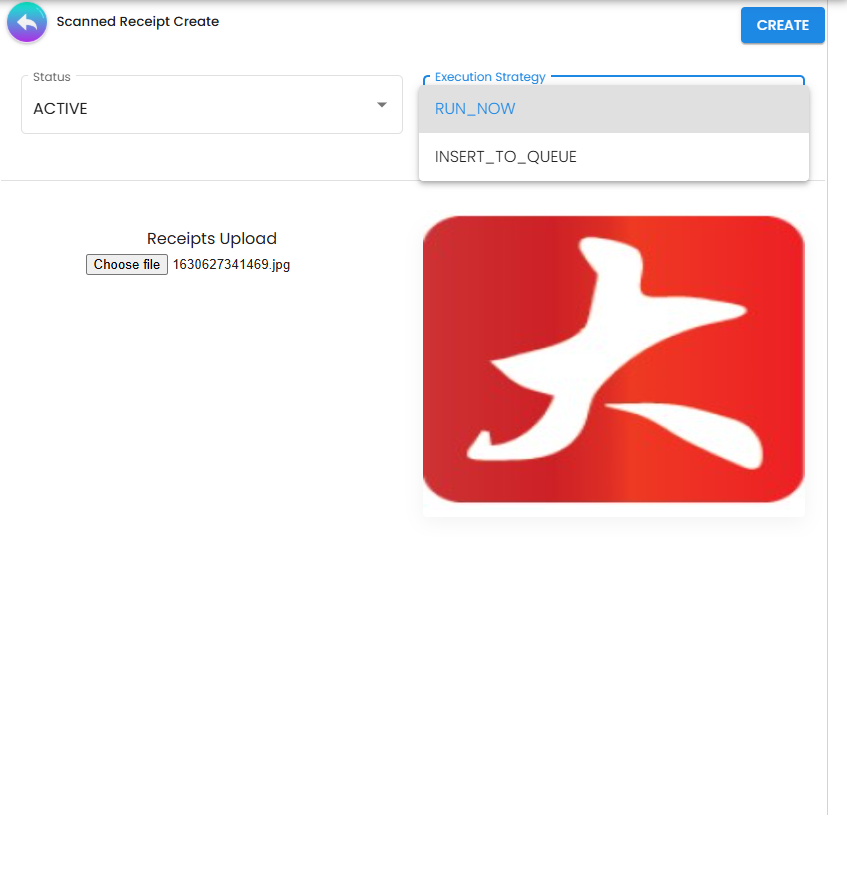
| Scanned Receipt | scanned-receipt | The raw upload record — image, status, verification status, and the Textract output. Create here to upload a receipt from the back office |
| OCR Generic Doc | ocr-generic-doc | The review screen and the applet’s landing page. One row per extracted receipt: doc no, receipt date, merchant, confidence level, verification status, process status, posting status |
| OCR Generic Doc Line Item | ocr-generic-doc-line-item | The same lines, listed flat across all documents, with the Select Financial Item picker |
| OCR Company | ocr-company | Third-party merchant master: code, name, description, country, address, postal code, city |
| OCR Item | ocr-item | Merchant item master: the item code and name as that merchant prints them, and the link to your financial item |
| OCR Scanned Doc Report | ocr-report | Asynchronous CSV export. Set optional created/updated date ranges, press Generate CSV, then download from the row’s action button when its status reaches DONE |
| (not linked) | ocr-branch | OCR Branch master. Routed, and the container is built, but the menu entry is commented out |
| (not linked) | inv-item | An inventory-item listing. Routed, menu entry commented out |
Two broken links are visible in the chrome rather than the content:
- The shared settings sidebar hard-codes Permission Wizard, Release Notes and Audit Trail;
none of the three is registered in
app.routing.ts, so all three 404. (Permission Set, User Permission and Role Permission are routed and work.) - Personalization → Field Settings 404s:
personalizationItemsnamesfield-settings, but that route is registered undersettings, not underpersonalization.
Configuration
Before you can use it
| Prerequisite | Where | Why |
|---|---|---|
A price book with a POINT treatment | Pricebook | The points processor throws PRICE_BOOK_MEMBERSHIP_POINT_TREATMENT_DETAILS_NOT_FOUND if the matched price-set line has no point treatment |
| A points currency | Membership Admin (PTS CCY Module) | The point treatment names a points-currency GUID; a missing one throws PRICE_BOOK_MEMBERSHIP_POINT_TREATMENT_POINT_CCY_NOT_FOUND |
| A membership card for the uploading login subject | Membership Admin | Without one the points processor throws INVALID_MEMBERSHIP_HDR_GUID, and the FINAL button fails earlier still (see Troubleshooting) |
An enabled job-processor subscription on BLG_OCR_GENERIC_DOCUMENT_PRIMARY_PROCESSOR, carrying fiCompanyGuid, fiBranchGuid and priceBookHdrGuid | Job-processor maintenance | The primary processor fans out to enabled subscribers only. With none enabled, FINAL updates the status and awards nothing, silently |
| Financial items to map OCR items onto | Item Maintenance | bl_ocr_generic_doc_line.fi_item_hdr_guid becomes item_hdr_guid on the points transaction line |
Applet settings
Settings › Field Settings. This applet does not use the shared Field Configuration screen that most document applets use — it has its own two-toggle screen, and both toggles change what the listing’s advanced search offers you rather than what it looks like. Both are off until somebody saves them, and an applet with no saved settings row behaves as though both are off. How settings are stored and who they apply to.
The first toggle, HIDE_CUSTOMER_ADVANCED_SEARCH, takes the Customer criterion off the OCR
Generic Doc listing’s advanced search. It is a hide toggle and you can see what it did immediately,
but one consequence is not on the screen: the criterion’s label, data type, form control and options
are all deleted from the search model before the panel renders, so a saved search that used Customer
stops filtering by it rather than warning you. Absent means shown — the consuming code simply does
not take the branch (advanced-search-ocr.component.ts L49).
The second changes what the panel can do, so it gets a row:
| Setting | What changes | Default when never saved | Advisory or hard |
|---|---|---|---|
ENABLE_MEMBER_ADVANCED_SEARCH — the screen’s label is the identifier | Adds a multi-select Member criterion to the front of the advanced search on the OCR Generic Doc listing. This is the one to switch on if the back office chases one member’s receipts rather than one merchant’s — without it there is no way to search the queue by member at all | Absent. The criterion is only added when the key is true (advanced-search-ocr.component.ts L58) | Neither: it changes what you can search by, not what the server will accept |
Both keys are read by exactly one component — the listing’s search panel. No other screen consults them, and neither reaches the server.
HIDE_CUSTOMER_ADVANCED_SEARCH. That is unusual, and it is why the table
above prints the identifier as the setting’s name: here the identifier is the reader’s label.On the screen and doing nothing
Settings › Default Selection renders four controls — Default Branch, Default Location, Default Company and Default Timezone — and saves all four into the applet’s settings. No screen in this applet reads any of them. Picking a branch does fill Default Company from that branch’s company and Default Location from its main location, so the four values stay internally consistent; they simply have no consumer, and a new OCR document does not open pre-filled with them.
DEFAULT_TIMEZONEis the one to be careful about, because a time zone is the kind of setting a reader will assume is being applied to the receipt dates they are looking at. It is not applied anywhere.DEFAULT_BRANCH,DEFAULT_LOCATIONandDEFAULT_COMPANYbehave the same way. The only code that reads them back is the settings screen itself, re-displaying what you saved.
Grepped across the applet project, blg-shared-utilities and the Java backend at the commits in
sources.settings: below — outside the two settings screens and the model interface, no reference.
Personalization › Default Selection is worse than unread: it cannot save. The component is
routed directly, but it is written to receive its data through an @Input() and to hand its result
back through an @Output() — and Angular binds neither on a component named in a route. The
subscription that would have populated its working copy is commented out, so the first change to
either drop-down throws TypeError: Cannot read properties of undefined (reading 'bl_applet_exts')
and the SAVE button emits into nothing. Treat the screen as absent. (Recorded as a product finding;
this page documents what happens today.)
Settings in other places that control this applet
Four validation thresholds are read by the backend, not by the applet, from app_cfg_main rows
on the tenant database where code = 'OCR_GENERIC_DOC_VALIDATION' and txn_type is the key below.
The value is taken from the row’s descr column and parsed as an integer; an absent or unparseable
row falls back to the default.
Key (app_cfg_main.txn_type) | What it controls | Default when unset |
|---|---|---|
OCR_SUBMISSION_LIMIT_DURING_PERIOD | How many receipts one login subject may submit in the current calendar month before every further one is auto-rejected | 7 |
OCR_OUTDATED_RECEIPT_PERIOD_IN_DAYS | How old a STORE-channel receipt may be | 1 |
OCR_OUTDATED_RECEIPT_PERIOD_IN_DAYS_FOR_ECOMMERCE | The same for ECOMMERCE-channel receipts | 14 |
OCR_SUBMISSION_LIMIT_PERIOD_IN_DAYS | Declared as a constant and never read. The submission window is hard-coded to “since the first day of the current month” | — |
Three further thresholds are compiled in and cannot be configured at all: the verification pass mark (60, mean Textract confidence across the fields used), the merchant name-similarity threshold (0.9) and the item-matching threshold (0.7).
Who can change what
Client-side permissions this applet defines: none. The registry holds zero active client-side
permission definitions for applet code OCR Cash Bill, so neither Field Settings toggle can be
reopened for one team and closed for another — each is an all-or-nothing tenant-wide switch, and
anyone who can open the applet’s Settings section can flip it. If you need two groups of back-office
staff to see different search panels, this applet cannot do it.
Server-side permissions are per endpoint, from TntOcrPermissions. Each of the five resources —
OCR Company, OCR Branch, OCR Item, OCR Scanned Doc, OCR Generic Document — has the same seven-verb
set (_OWNER, _ADMIN, _MEMBER, _CREATE, _UPDATE, _DELETE, _READ). Two are worth
singling out:
- Pressing FINAL from the back office requires
API_TNT_DM_OCR_GENERIC_DOCUMENT_OWNER,_ADMINor_UPDATEon that document. - The same action on the member-facing endpoint is authorised differently: it checks only
isUserLoginEntity(caller, entity_hdr_guid)— that the caller is the entity on the document — and no OCR permission at all.
Fields
OCR Generic Doc — Main Details
| Field | Meaning | Editable | Notes |
|---|---|---|---|
| Doc No | The receipt number Textract read (server_doc_1) | No | Frequently blank; duplicate detection falls back to date + merchant + item codes + total when it is |
| Amount | Computed in the browser as the sum of amount_txn across the lines — not the extracted header total | No | A mismatch against the extracted header total is what sets verification status to FLAGGED |
| Receipt Date | txn_date from the receipt | Yes | Changing it dispatches an immediate update; it is the field the outdated-receipt rule tests |
| Created Date | When the OCR document row was written | No | |
| Company | The matched OCR Company name | Via Select OCR Company | |
| Verification Status | PASS, FAIL, FLAGGED | No — the control is [disabled]="true" | Machine-set; see Lifecycle |
| Process Status | PENDING_REVIEW, DUPLICATE, REJECTED | Yes | APPROVED is deliberately removed from the drop-down — only the server may set it |
| Reason to Reject | One of six fixed strings | Yes, and only while Process Status is REJECTED | Cleared automatically when Process Status moves off REJECTED; the control is disabled once the document is FINAL |
| Status | ACTIVE, CLOSE | Yes | Choosing CLOSE raises a client-side confirmation dialog only |
| Updated By | Name of the last editor | No | |
| Point Amount / Point Type / Point Currency | The points awarded | No | These three fields are rendered only when posting status is FINAL. Before that the panel has nowhere to show them |
| Uploaded Image | The receipt photograph, with a rotate control and a zoom dialog | — |
The six rejection reasons are fixed in the applet, not configurable: Outdated receipt,
Non-related receipt, Duplicated receipt, Incomplete details, Exceeded Monthly Submission
Limit (Max. 7 receipts per month), More than 1 receipt. The parenthetical “Max. 7” in the fifth is
a label, not the limit — the limit is the configurable OCR_SUBMISSION_LIMIT_DURING_PERIOD
above, and the label does not follow it.
OCR Generic Doc Line Item
| Field | Meaning | Required | Notes |
|---|---|---|---|
| OCR Generic Doc No | The parent document | No | Read-only |
| Financial Item | Your item, chosen through Select Financial Item | Yes | Shows N/A until set. Setting it also creates a permanent OCR-item → financial-item link (see below) |
| Item Code / Item Name / Description | As the merchant printed them, upper-cased | — | Populated from the matched OCR Item |
| Company | The merchant | — | Shows Unknown where the OCR Item was auto-created without a merchant |
| Remarks | Free text | No | |
| Quantity | Yes | ||
| Unit Price | Yes | ||
| Status | ACTIVE, DELETED, INACTIVE | — |
Lifecycle and effects
Posting proof
| Server document type | None. bl_ocr_generic_doc_hdr is not a financial document and does not appear in ServerDocTypes |
| Amount signum | Not applicable — OcrGenericDocumentDataConsistencyObject declares 42 validators, all referential (GUIDs, dates, status, revision, foreign keys). It sets no signum |
| Quantity signum | Not applicable, same source |
| Dr/Cr equation | None. The document type has no JournalPostingTypeHandler entry and JournalPostingService is never reached |
| GL precedence | Not applicable — no GL code is resolved anywhere in the OCR pipeline |
| Stock processor | None. No bl_inv_txn_line is written |
| What VOID reverses | There is no VOID. The posting status has exactly one value, FINAL, and the applet offers no way back |
| What FINAL does produce | One bl_crm_membership_points_txn_line per matched line, and bl_ocr_generic_doc_hdr.posting_membership = POSTED |
The pipeline
    flowchart TD
    U["Member uploads a receipt photo<br/>(storefront or in store)"] --> SD["bl_ocr_scanned_doc_hdr / _line<br/>created by the upload endpoint"]
    SD -->|queue OCR_SCANNED_DOC_PROCESSOR| TX["AWS Textract AnalyzeExpense<br/>algorithm_provider = AWS_TEXTRACT"]
    TX -->|queue OCR_GENERIC_DOC_PROCESSOR| GD["bl_ocr_generic_doc_hdr / _line"]
    GD --> M["Merchant match · item match · validation<br/>confidence, duplicates, limits, age"]
    M --> RV["Reviewer opens OCR Generic Doc<br/>corrects the item mapping"]
    RV -->|FINAL| PP["BLG_OCR_GENERIC_DOCUMENT_PRIMARY_PROCESSOR"]
    PP -->|enabled subscribers only| PB["Membership points from price book"]
    PP -->|enabled subscribers only| PU["Point update from line point_amount"]
    PB --> PT["bl_crm_membership_points_txn_line<br/>posting_membership = POSTED"]
    PU --> PT
    PT --> BAL["Membership control account<br/>and current balance updated"]
What the server decides before a human sees it
Extraction. OcrTextractAnalysisService calls Textract’s AnalyzeExpense and maps summary
fields to the header and line-item groups to the lines. Each mapped value carries a confidence that
is itself the mean of Textract’s type, label and value confidences.
Verification status. The header’s confidence_level is the mean confidence across the fields
actually used. 60 or above is PASS, below is FAIL — the same rule is applied independently to
each line. Afterwards, if the extracted header total does not exactly equal the sum of the line
amounts (or the header total is missing), a PASS is downgraded to FLAGGED.
Merchant matching. The extracted merchant name is compared against existing OCR Companies at a
0.9 similarity threshold; below that a new OCR Company is created. Two named pharmacy chains are
special-cased by name in specificFillAndValidateByCompany — for those merchants, repeated lines
for the same OCR item are collapsed into one line with the quantity set to the repeat count, the
remaining lines marked DELETED, and the printed amount reinterpreted as a unit price.
Item matching. Each scanned line is scored against every OCR Item belonging to that merchant. The score combines item code (weight 10), item name (weight 10) and unit price (weight 3), with the string comparisons taking the better of Jaccard and Levenshtein similarity on upper-cased values. The best candidate wins if it scores 0.7 or higher; otherwise a new OCR Item is created and linked with a score of 1.0. If the winning OCR Item already has a financial-item link, that link is copied onto the line immediately.
Duplicate detection. If the receipt number was extracted, a duplicate is any existing document
with the same number and merchant within ±1 hour of the same receipt date. If it was not, the match
is on merchant, ±1 hour, the same set of scanned item codes and an identical line total. A match
sets the scanned receipt to DUPLICATE / FAIL and reuses the existing document rather than
creating a second one.
Auto-rejection. Four rules run, and only the first one that fires is recorded: monthly
submission limit reached; receipt older than the configured window or dated more than a day in the
future; more than one of receipt-number, date and total detected (read as “more than one receipt in
the photo”); or incomplete details — no merchant, no receipt date, or any line without a matched OCR
item. Any of them sets the scanned receipt to REJECTED / FAIL and writes the reason onto the
header.
Status model
| Status | Values | Who sets it |
|---|---|---|
| Verification status | PASS, FAIL, FLAGGED | Server only. The UI control is disabled |
| Process status | PENDING_REVIEW, DUPLICATE, REJECTED, APPROVED | Reviewer sets the first three; APPROVED is written only by the points processor, at the moment the points are created |
| Posting status | FINAL (or empty) | The reviewer, by pressing FINAL |
| Membership posting | POSTED (or empty) | The points processor. It is the idempotency guard — both point processors skip a document already marked POSTED |
What FINAL actually runs
Pressing FINAL first resolves the member: if the header has no membership_hdr_guid, the applet
looks up the membership card by the document’s login subject and entity, writes it back to both the
generic document and the scanned receipt, then calls
PUT .../ocr/generic-documents/update-posting-status/backoffice-ep/{guid}. On both paths it also
sets rejection_reason to null — finalising a rejected receipt erases the reason it was
rejected.
The backend saves the status and, only when it equals FINAL, enqueues
BLG_OCR_GENERIC_DOCUMENT_PRIMARY_PROCESSOR. That processor does no work of its own: it reads the
enabled subscriber job templates for its queue code and enqueues each one, merging the template’s
fiCompanyGuid, fiBranchGuid and priceBookHdrGuid into the event. Two subscribers exist:
BLG_OCR_GENERIC_DOCUMENT_MEMBERSHIP_POINTS_PRICE_BOOK_PROCESSOR— the normal path. It requires all three configured GUIDs and throwsFI_COMPANY_GUID_IS_NULL,FI_BRANCH_GUID_IS_NULLorPRICE_BOOK_HDR_GUID_IS_NULLif any is missing. It evaluates the price book’s single-line rules against each document line, computes the point value, writes the points back onto the line (point_type = REWARD, currency, validity window, amount), creates the membership points transaction lines, marksposting_membership = POSTEDand finally sets the scanned receipt toAPPROVED. All of that runs in one transaction.OCR_GENERIC_DOCUMENT_POINT_UPDATE_PROCESSOR— an alternative that skips the price book entirely and creates one points line per document line that already has apoint_amount.
The two write different columns on bl_crm_membership_points_txn_line: the price-book processor
fills ocr_doc_hdr_guid / ocr_doc_line_guid, the point-update processor fills the generic
doc_hdr_guid / doc_line_guid. Anything reading points back to their source receipt has to handle
both.
The learning link
Setting a line’s Financial Item does more than fix that line. OcrGenericDocumentService creates a
bl_ocr_fi_mst_item_link row if one does not exist, stamps fi_item_hdr_guid onto the OCR Item
itself, and then back-fills every other non-FINAL generic-document line that carries the same OCR
item and the same merchant and has no financial item yet. One correction can therefore change many
open documents at once, and it is the mechanism by which a merchant’s catalogue becomes
self-maintaining.
Related applets
- Pricebook — the price book named on the job-template subscription is what converts a matched line into a number of points; its Calculation Logic is honoured by this processor and by almost nothing else.
- Membership Admin — the member’s card, and the balance the points land in.
- The points currency the price-book treatment names is defined in Membership Admin’s PTS CCY Module.
- Item Maintenance — the financial items OCR items are mapped onto.
- Scheduler — job-processor plumbing; the OCR pipeline is entirely queue-driven and nothing here runs synchronously with the reviewer’s click.
Troubleshooting
| Symptom | Cause | Fix |
|---|---|---|
FINAL succeeds, posting status shows FINAL, no points appear and Process Status never reaches APPROVED | OcrGenericDocPrimaryProcessor fans out only to enabled subscriber job templates. With none enabled it enqueues nothing and returns normally — no error, no log line on the document | Enable a subscriber job template against BLG_OCR_GENERIC_DOCUMENT_PRIMARY_PROCESSOR and set fiCompanyGuid, fiBranchGuid and priceBookHdrGuid on it |
| Pressing FINAL throws in the browser and the document does not change | The member lookup takes resp.data[0] unguarded. If the uploading login subject has no membership card for that entity the array is empty and the effect throws before any request is sent | Create the membership card, or set membership_hdr_guid on the document first |
Points processor logs PRICE_BOOK_MEMBERSHIP_POINT_TREATMENT_DETAILS_NOT_FOUND | The price set that matched has no treatment of type POINT | Add a point treatment to that price-set line, or narrow the price set so it stops matching |
Points processor logs INVALID_MEMBERSHIP_HDR_GUID | The document’s membership_hdr_guid does not resolve to a membership card | As above |
| A receipt is rejected as Exceeded Monthly Submission Limit although the member submitted fewer than the configured number | The count is of every OCR generic document for that login subject since the first of the month — rejected and duplicate ones included, not just awarded ones | Configure OCR_SUBMISSION_LIMIT_DURING_PERIOD with that in mind; the window itself is not configurable |
| A receipt is rejected as Outdated receipt on the day it was issued | The default window is one day for store-channel uploads. A receipt from the previous day fails it | Set OCR_OUTDATED_RECEIPT_PERIOD_IN_DAYS on the tenant’s app_cfg_main |
Verification status is FLAGGED on an otherwise clean receipt | Extracted header total ≠ sum of the line amounts. Very common where Textract reads a subtotal, a rounding line or a service charge inconsistently | Correct the line amounts; the flag is advisory and does not block FINAL |
| A rejected receipt loses its rejection reason | The FINAL effect nulls rejection_reason on both of its paths before calling the endpoint | Record the reason elsewhere before finalising, or do not finalise rejected receipts |
| FINAL can be pressed again on an already-final document | The button carries no disabled binding. The re-run is harmless — both points processors skip a document whose posting_membership is already POSTED — but the status endpoint is called again | — |
| The point-update processor silently produces nothing | processData catches Exception and only logs the message. A line without a matched financial item throws a NullPointerException inside the loop and the whole document is abandoned mid-way | Map every line to a financial item before finalising |
| Settings → Permission Wizard, Release Notes or Audit Trail is a 404 | The shared settings sidebar hard-codes those three links; this applet registers none of them | — |
| Personalization → Field Settings is a 404 | The menu entry points at field-settings, which is registered under settings | Use Settings → Field Settings |
Personalization → Default Selection saves nothing and the console shows Cannot read properties of undefined | Directly-routed component with unbound @Input()/@Output(), and the subscription that would populate its state is commented out | Use Settings → Default Selection — though its four keys are not read anywhere either |
Related documentation
- Membership applets — the rest of the loyalty family.
- Membership module — where this sits in the product.