PDG Applet
Purpose and Overview
The PDG Applet (Product Distribution Guide) and OPDG Applet (Outlet Product Distribution Guide) are designed to streamline and optimize product display planning and outlet-specific distribution management across all Senheng outlets.
Key Features Overview
Who Benefits from This Applet?
Outlet Managers & Staff:
- Quickly configure outlet-specific product displays
- Ensure compliance with company display standards
- Easily adjust for outlet type and size
Head Office & Planners:
- Centralized control of display guidelines
- Efficient rollout of new display plans
- Data-driven planning by outlet segmentation
IT & Admin Teams:
- Streamlined applet installation and user management
- Role-based access and permissions
What Problems Does This Solve?
The Manual Display Planning Problem:
Traditional product display planning is manual, error-prone, and inconsistent across outlets. Common issues include:
- Lack of standardization by outlet type/size
- Time-consuming updates for new products or promotions
- Difficult tracking of compliance and execution
- No easy way to tailor plans for unique outlet needs
The PDG/OPDG Applet Solution:
- Centralized guidelines – Define display rules once, apply everywhere
- Outlet-specific planning – Managers can adjust for local needs
- Category-driven – Plan by product group, type, or brand
- Easy import/upload – Bulk update plans via Excel
- Full traceability – Audit who changed what, when
Key Features Overview
Key Concepts
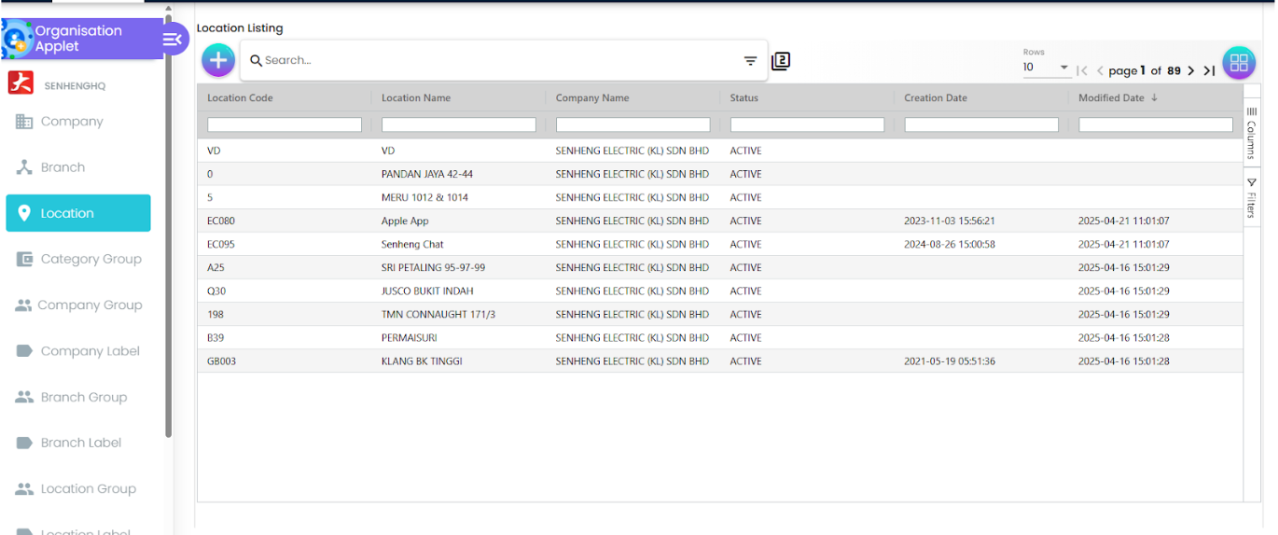
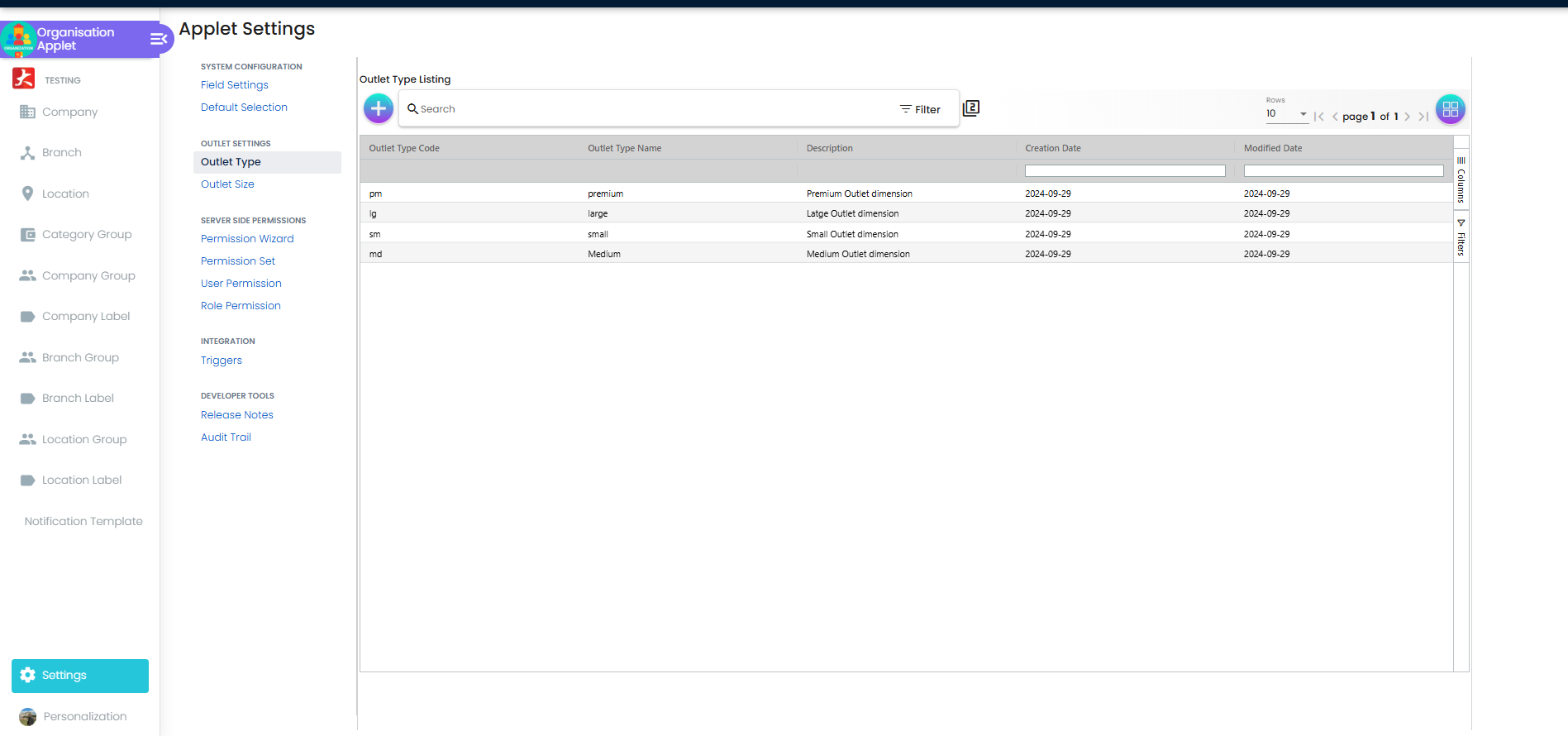
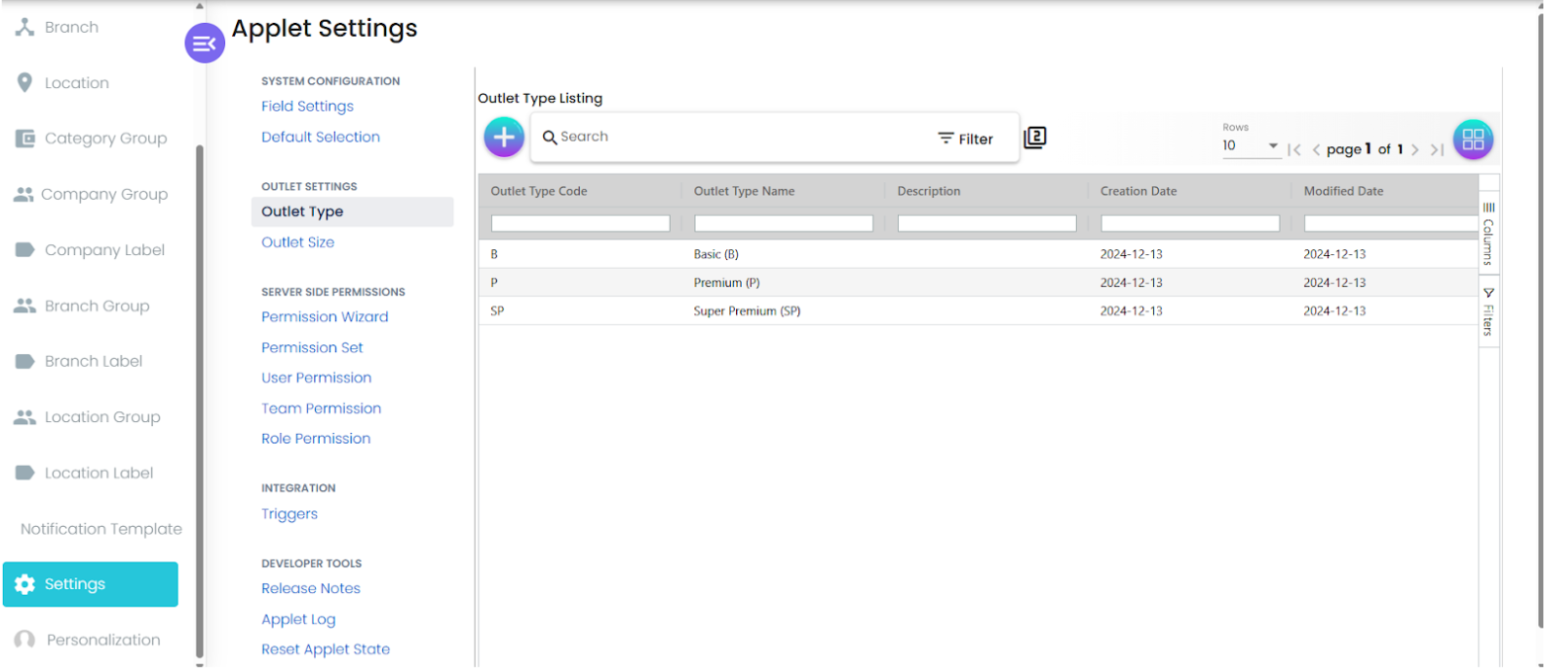
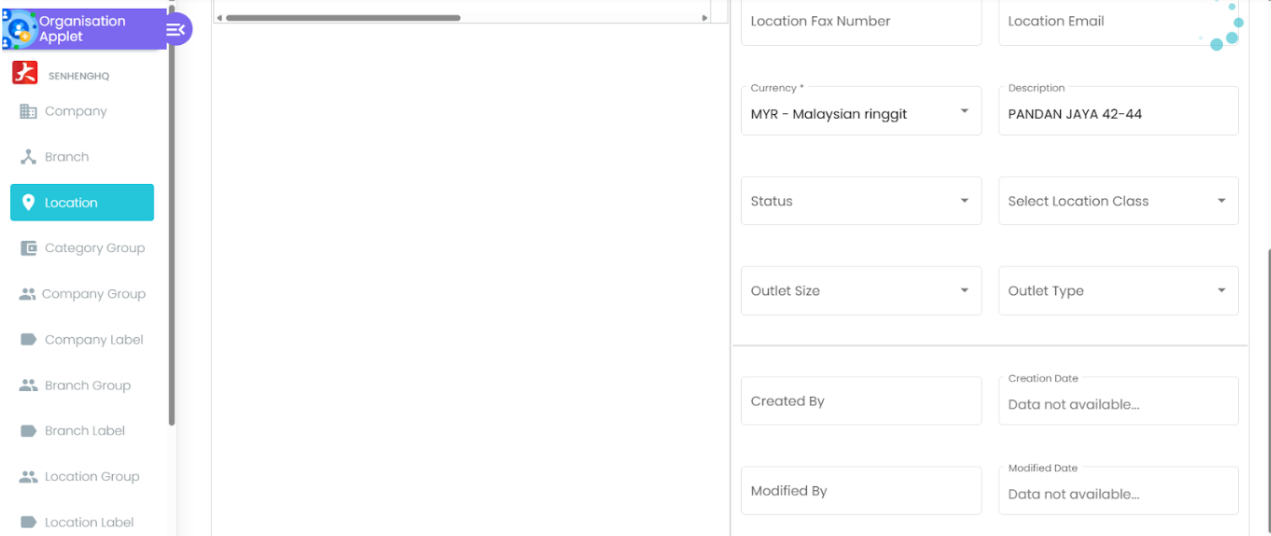
Outlet Type and Size
Each outlet is categorized by type (e.g., Basic, Premium, Super Premium) and size (e.g., <5K, 5K–7K, etc.) to ensure appropriate product distribution.
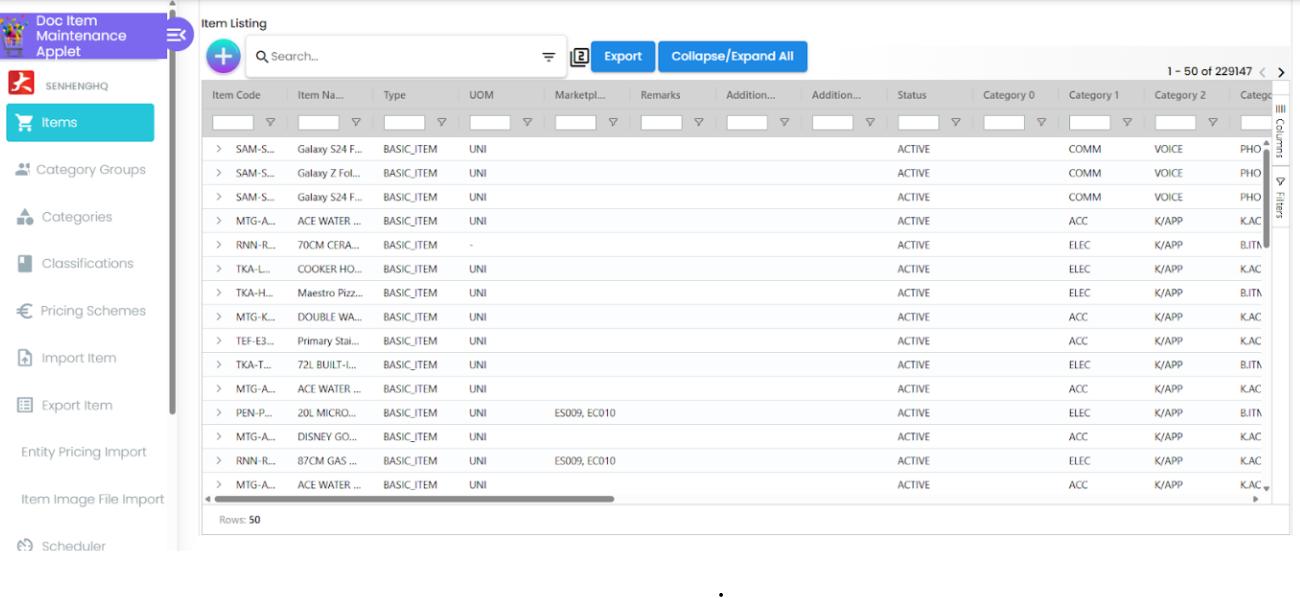
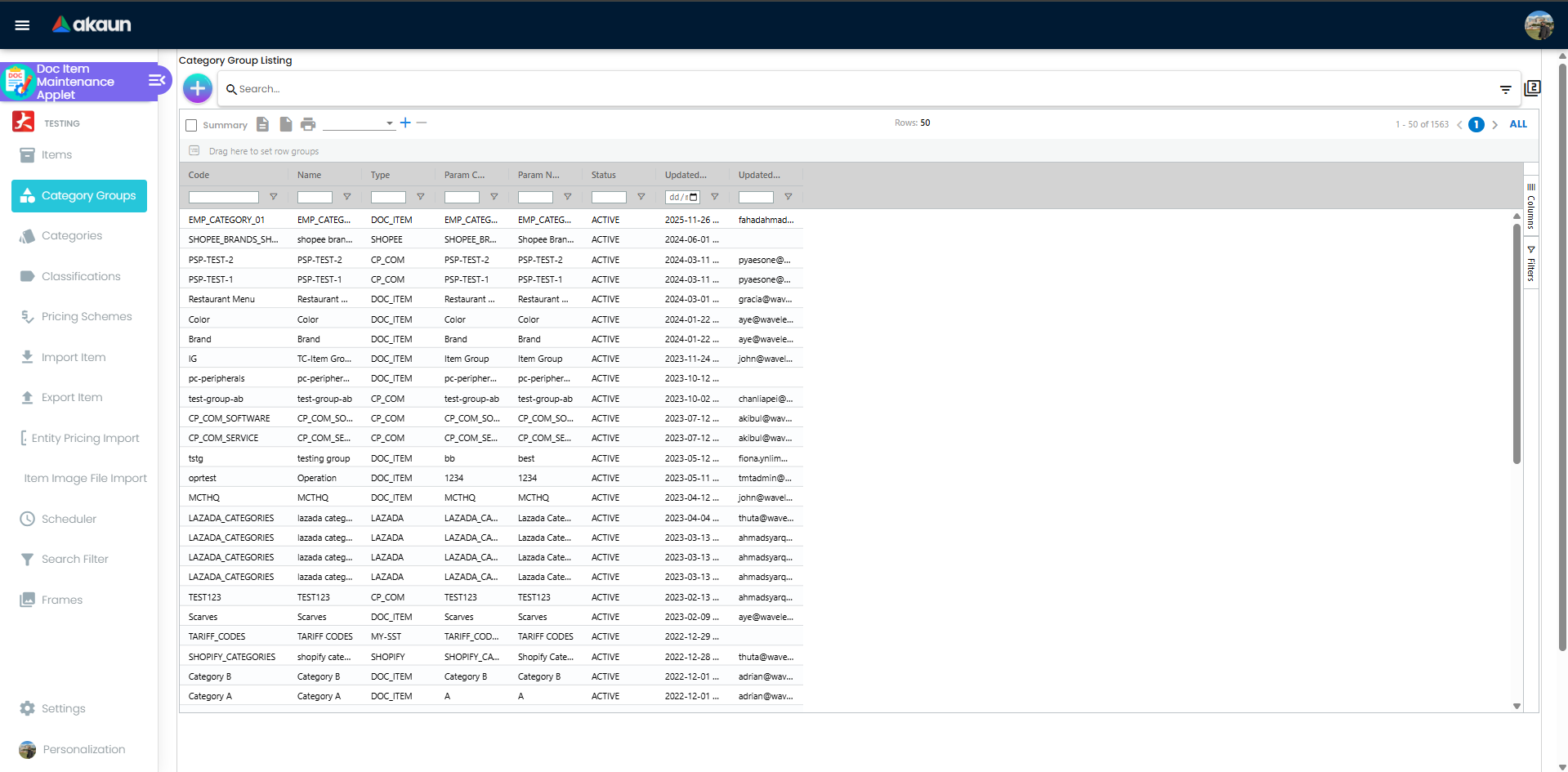
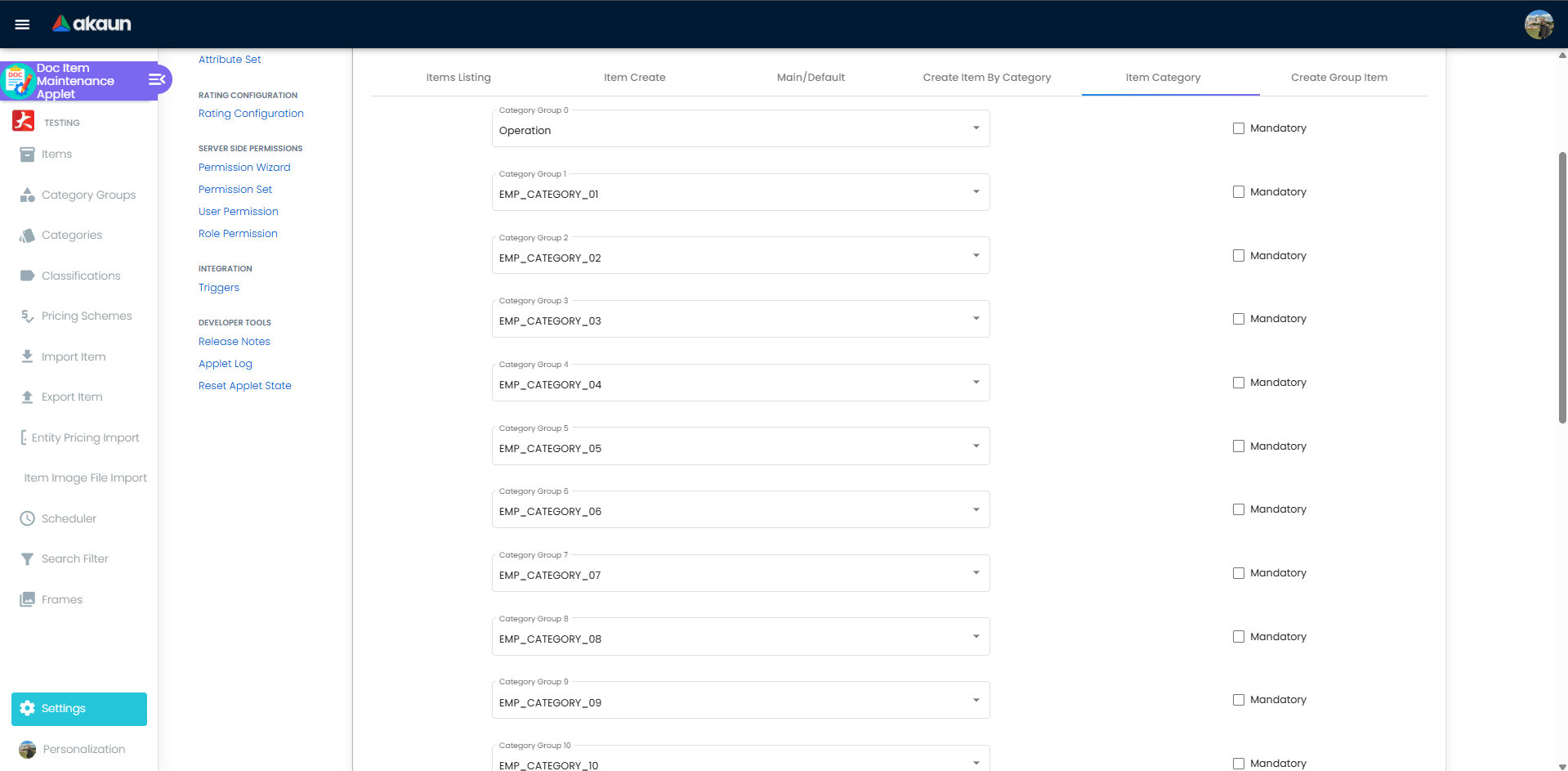
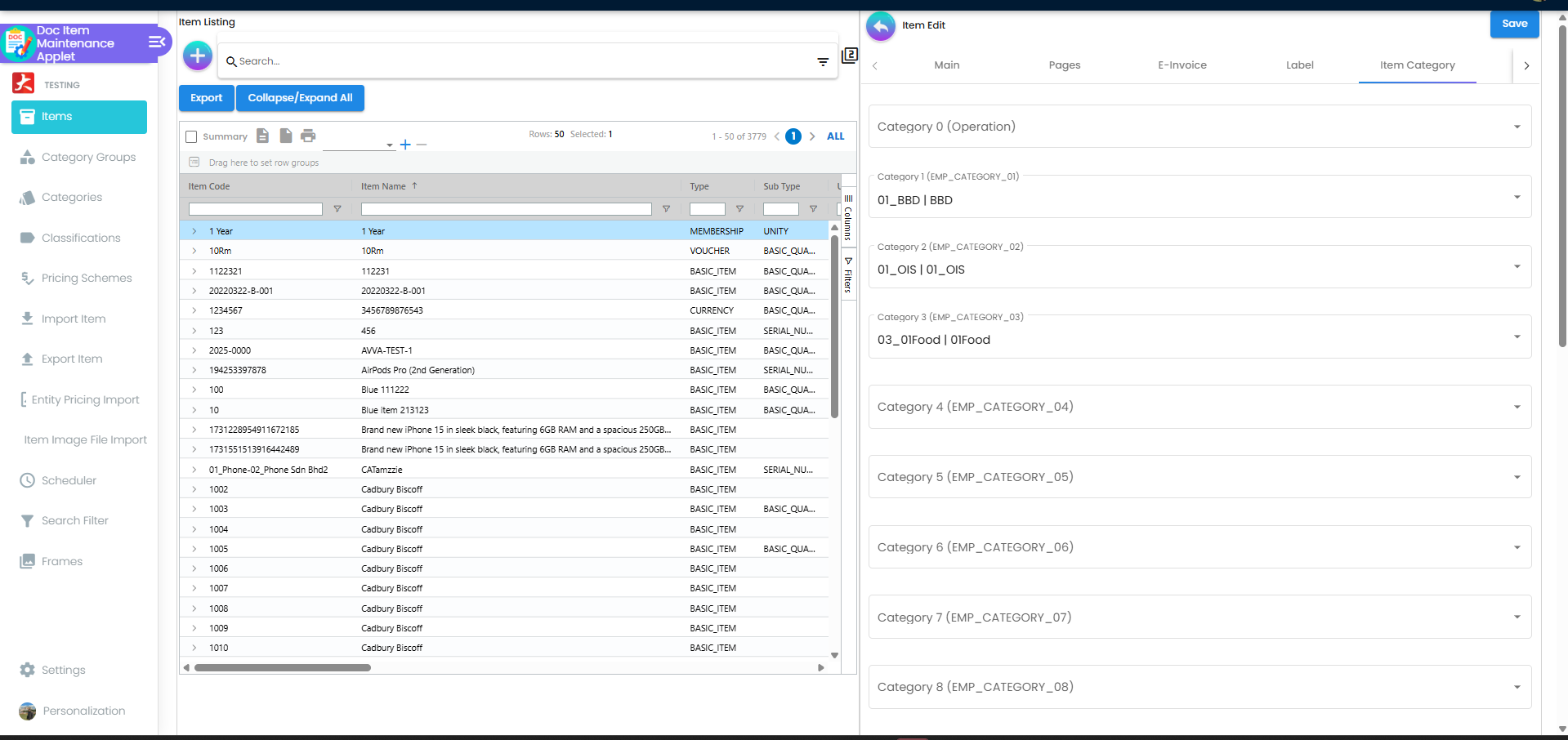
Items Category Groups
Product categorization is structured using category groups, categories, and items. This enables granular planning and reporting.
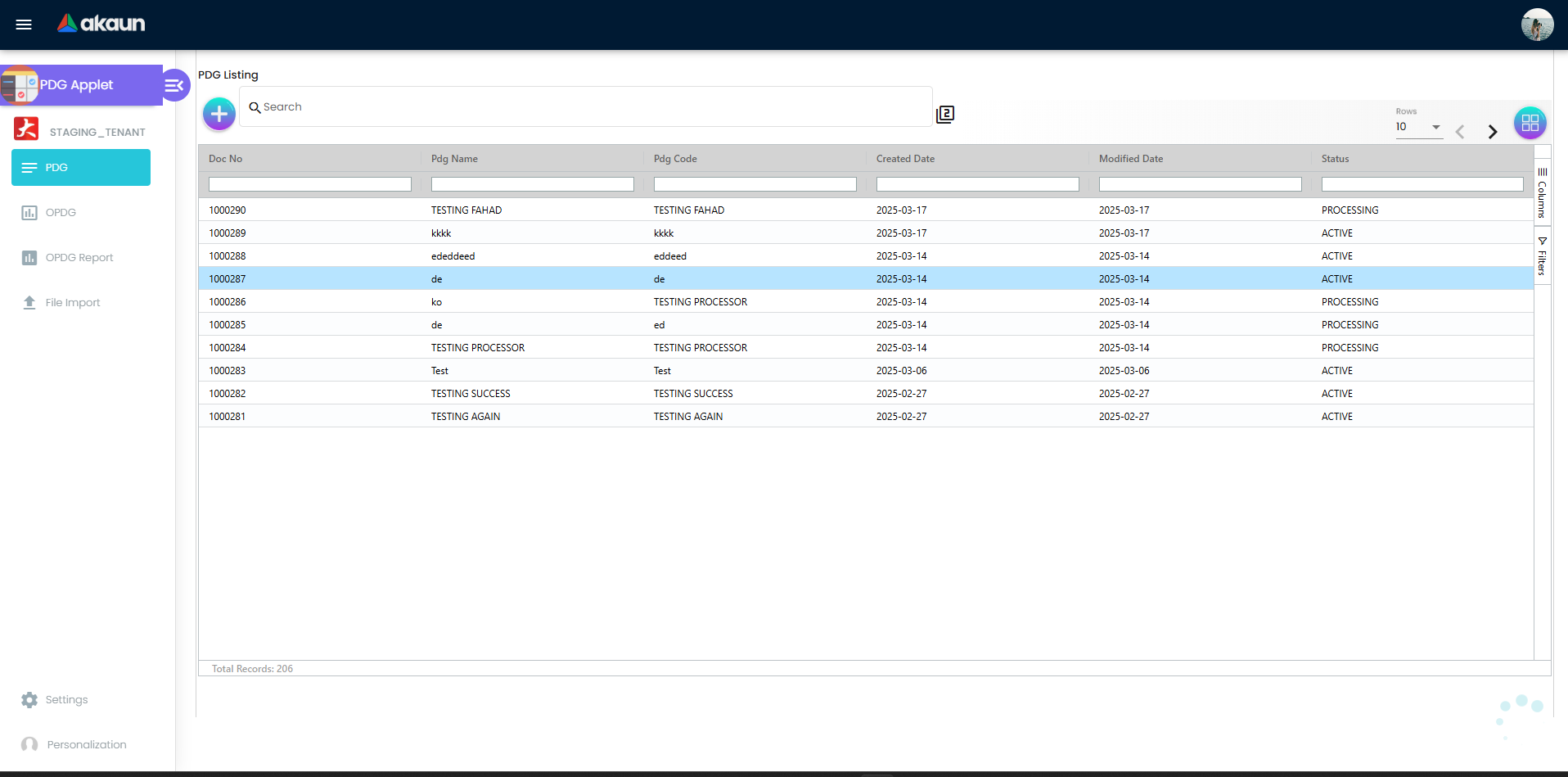
PDG Listing
PDG Creation & Editing
Create a new Product Distribution Guide (PDG) to define display rules by outlet type, size, and product category.
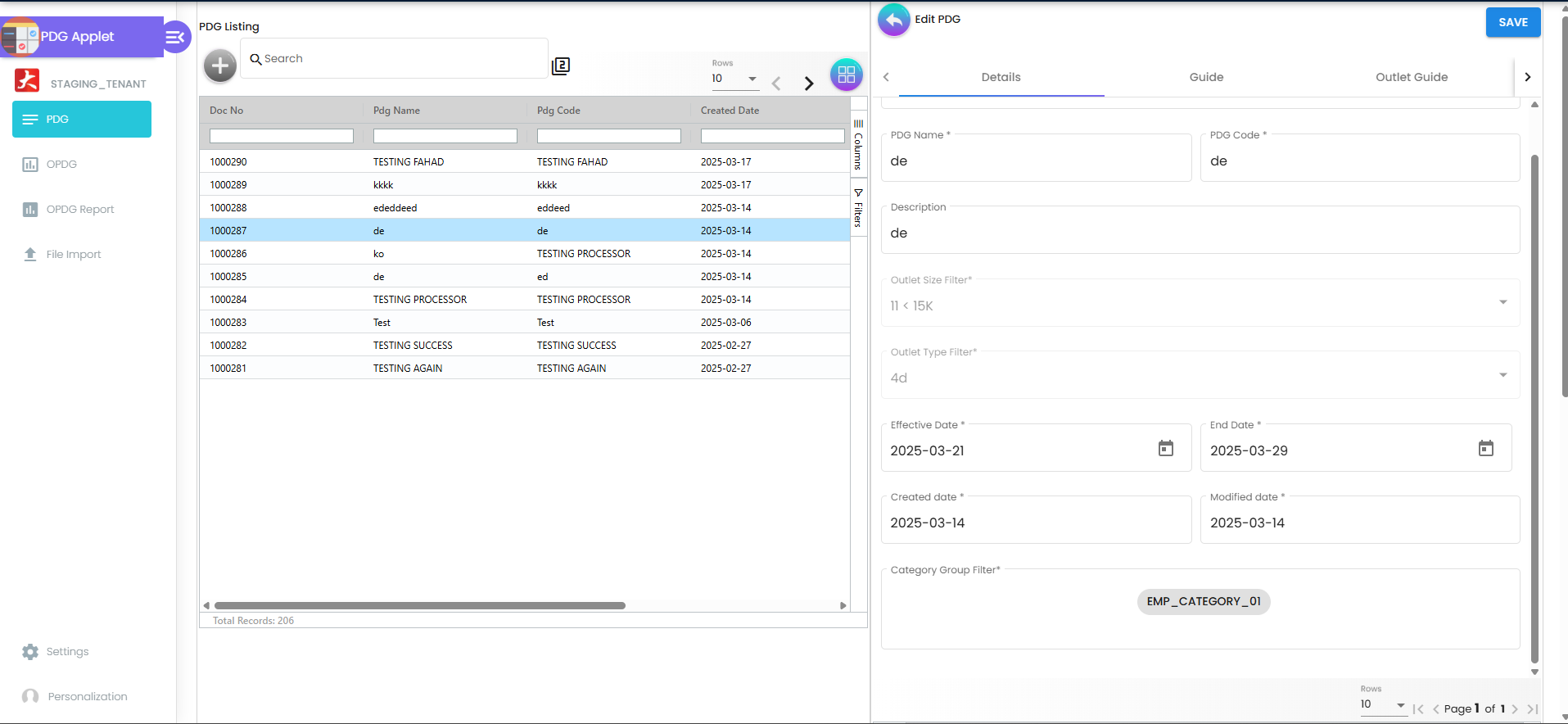
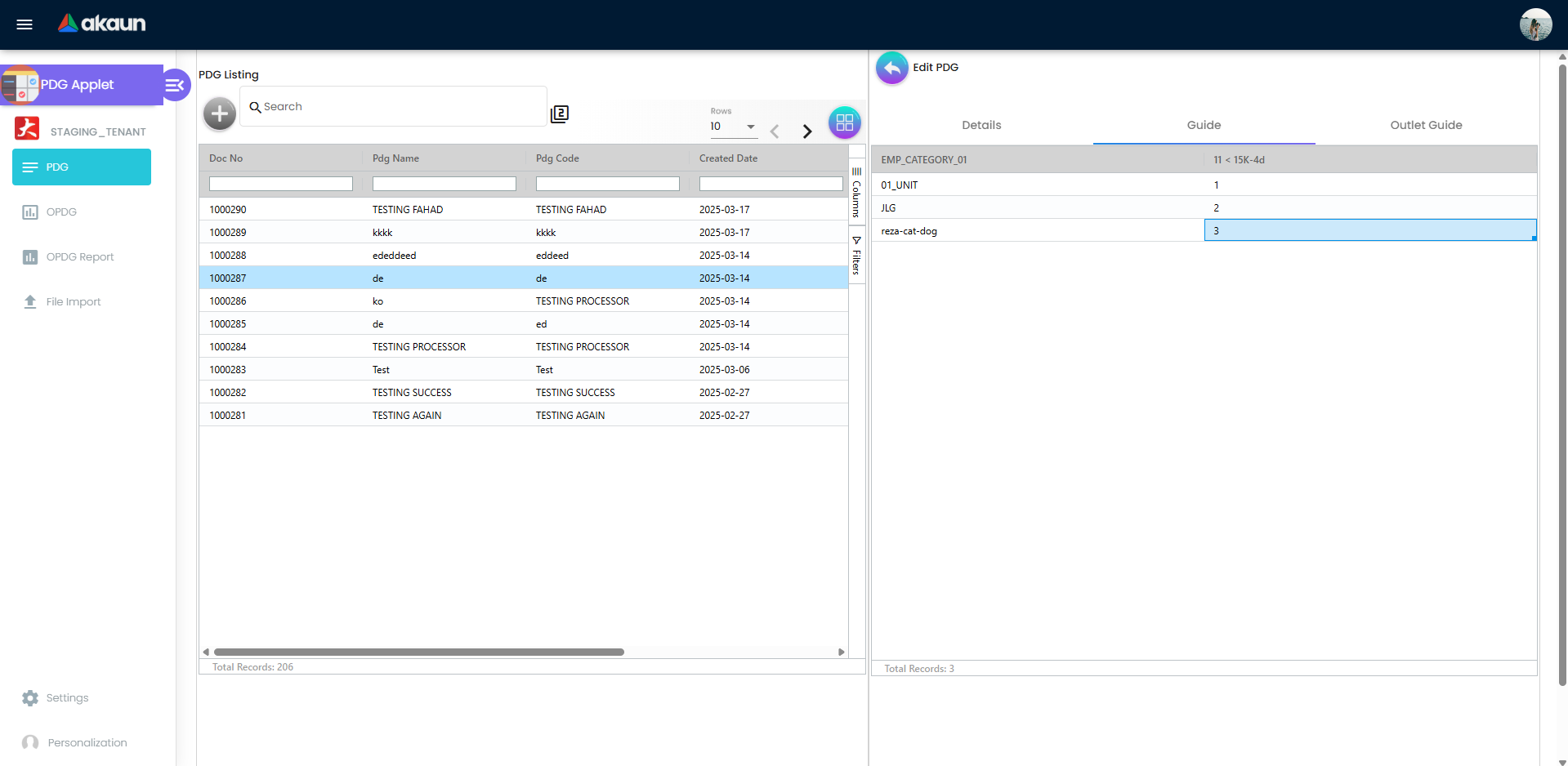
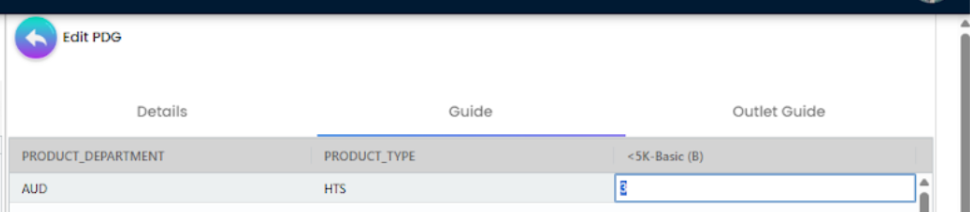
⚠️ Tip: The system only generates combinations of selected category groups that are actually used by at least one item, for performance and clarity.
OPDG Creation & Customization
Create an Outlet Product Distribution Guide (OPDG) based on a PDG, then tailor it for a specific outlet.
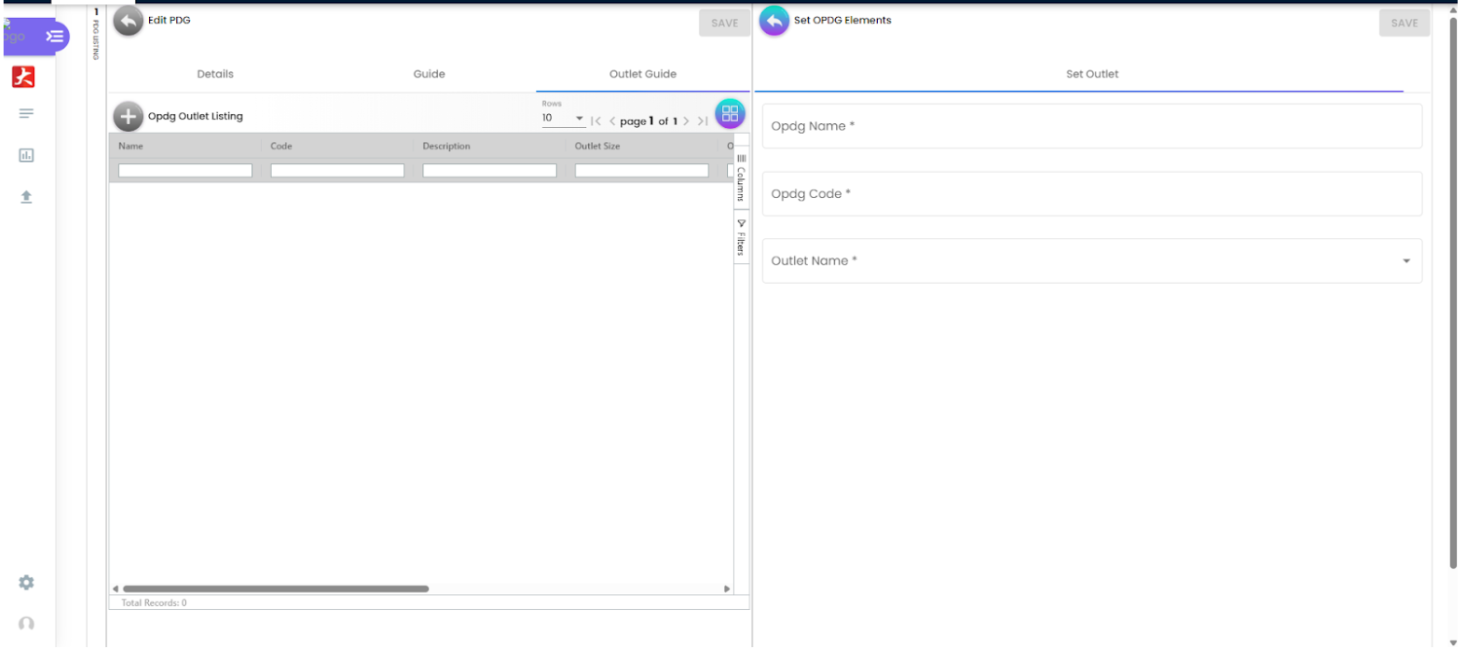
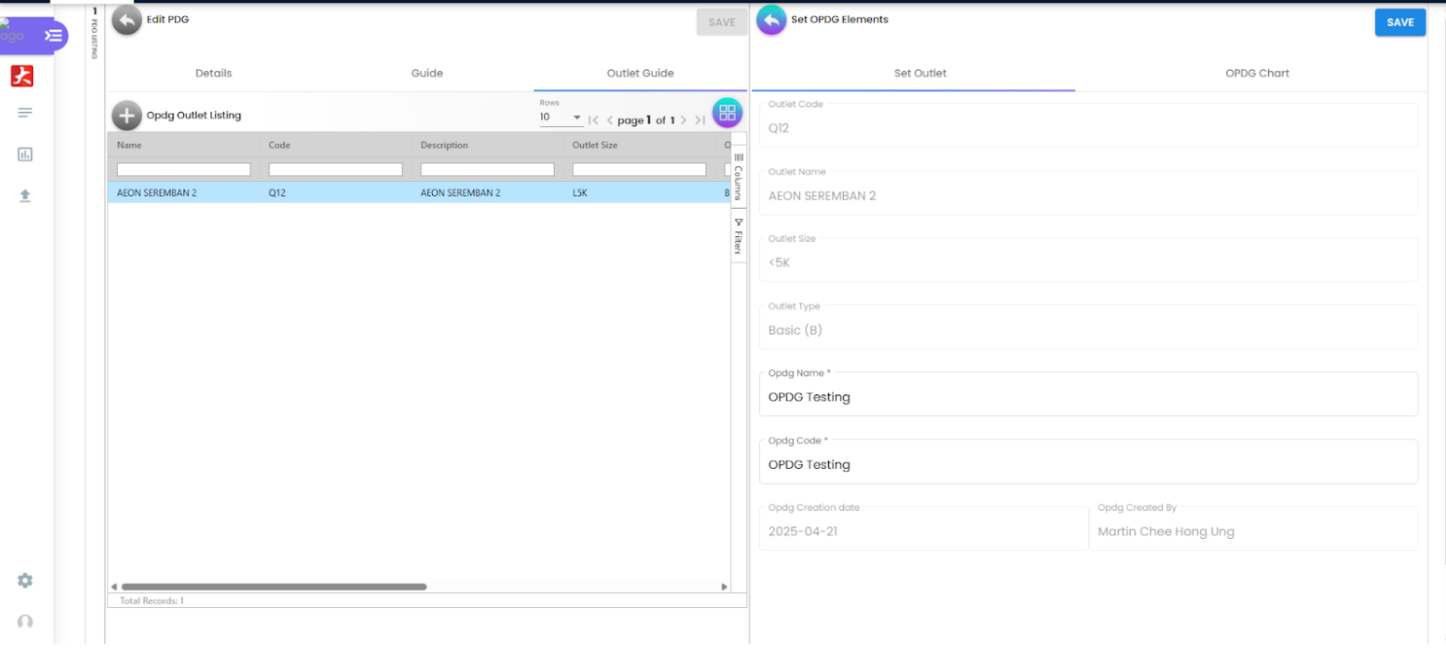
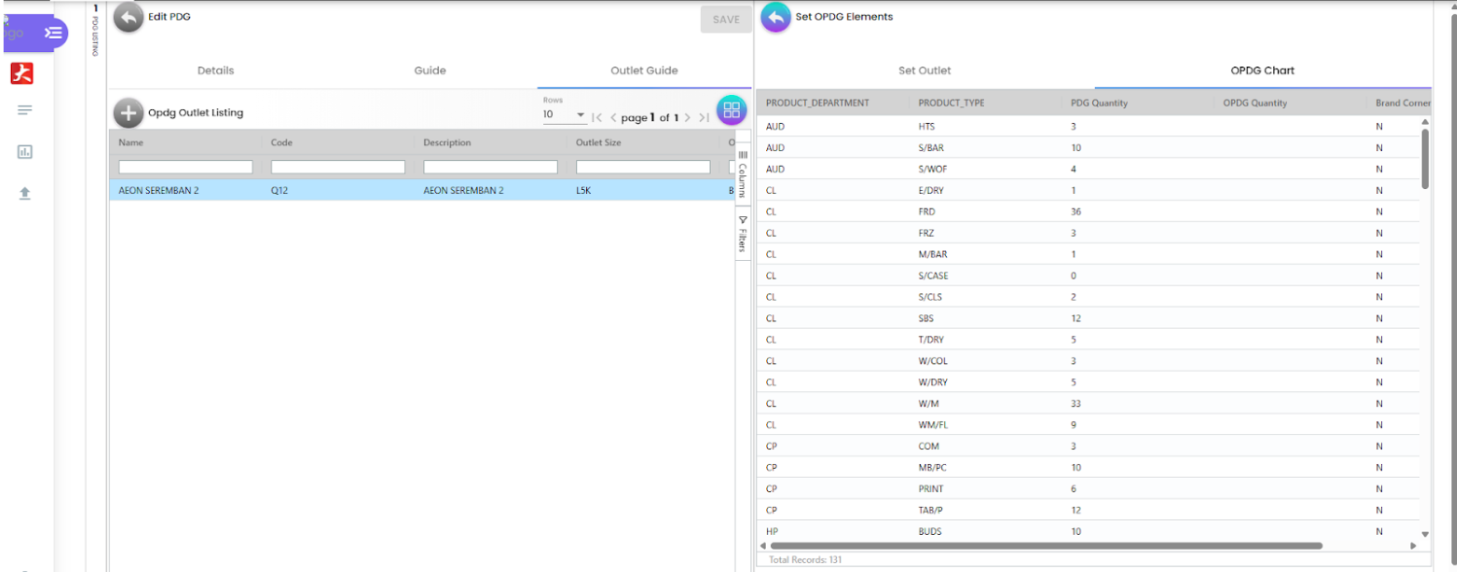
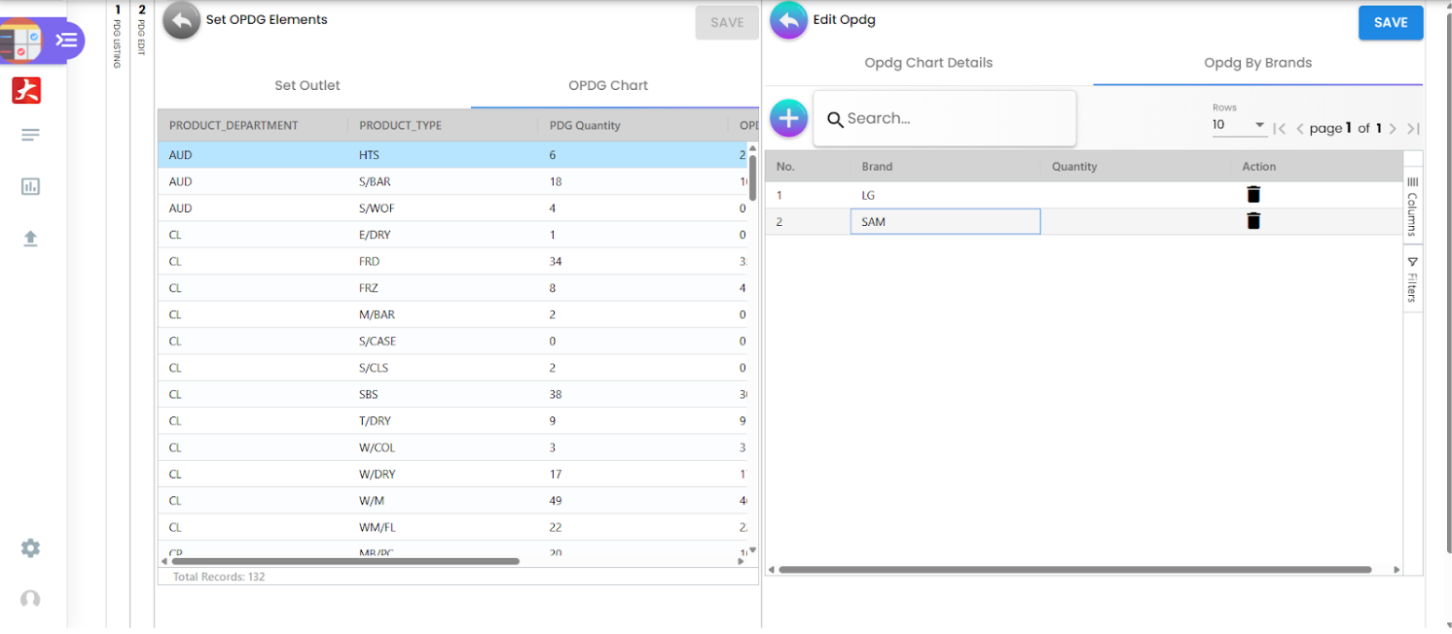
Brand Corner Setup:
- Set the OPDG quantity (e.g., 10)
- Set Brand Corner to Y (Yes) to allocate by brand
- Add rows for each brand and assign quantities (must total the OPDG quantity)
- If Brand Corner is N, just enter the total OPDG quantity
OPDG Report Listing
This report provides a detailed view of each outlet’s OPDG quantity, the corresponding PDG quantity, brand, and brand quantity. It helps managers and planners track product distribution at a granular level for every outlet.
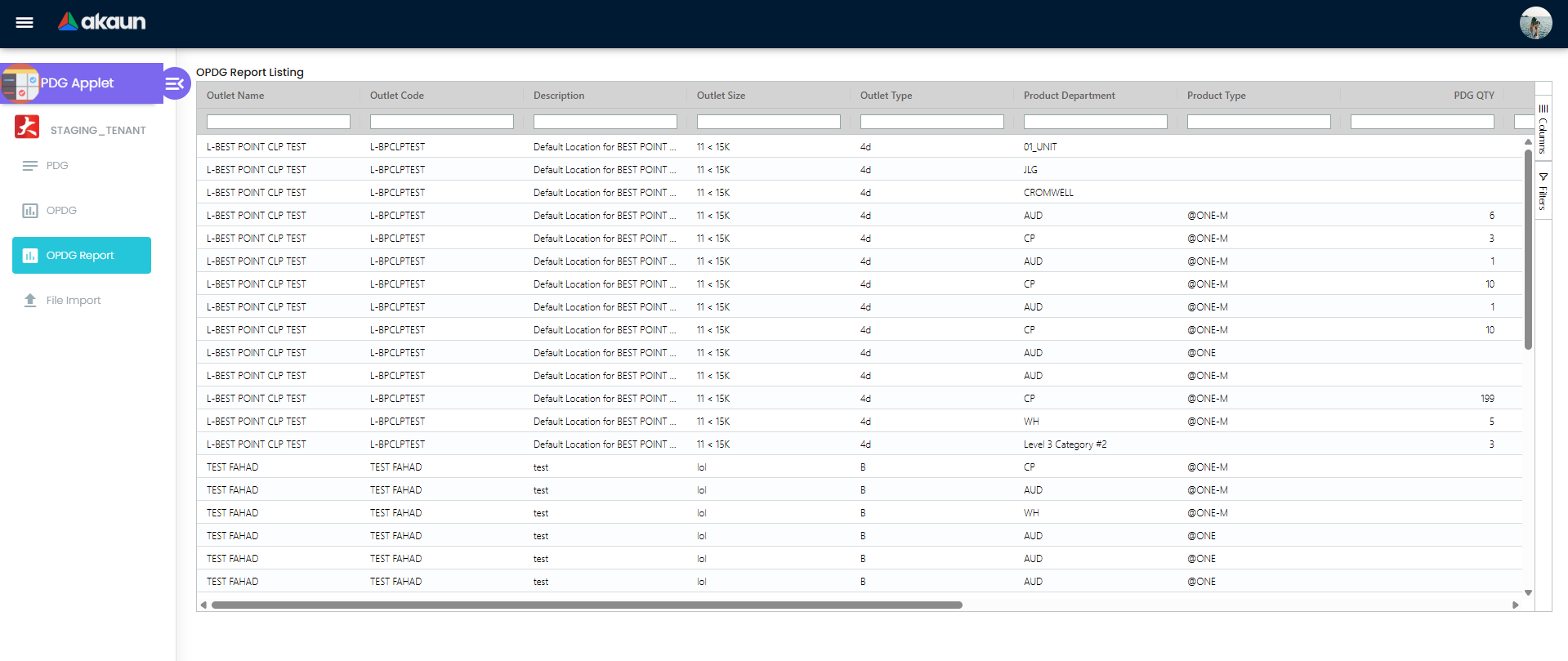
Report Columns:
- Outlet Name
- Outlet Code
- Description
- Outlet Size
- Outlet Type
- Product Department
- Product Type
- PDG QTY (Recommended display quantity from PDG)
- OPDG QTY (Actual quantity set for outlet)
- Brand
- Brand QTY (Quantity allocated per brand)
This listing allows you to:
- Compare OPDG QTY vs PDG QTY for compliance and adjustments
- See brand-level allocations for each outlet
- Filter and sort by outlet, product group, or brand
- Audit and review distribution plans across all outlets
Use this report to ensure each outlet is following the recommended guidelines and to quickly identify any discrepancies or customizations made at the outlet level.
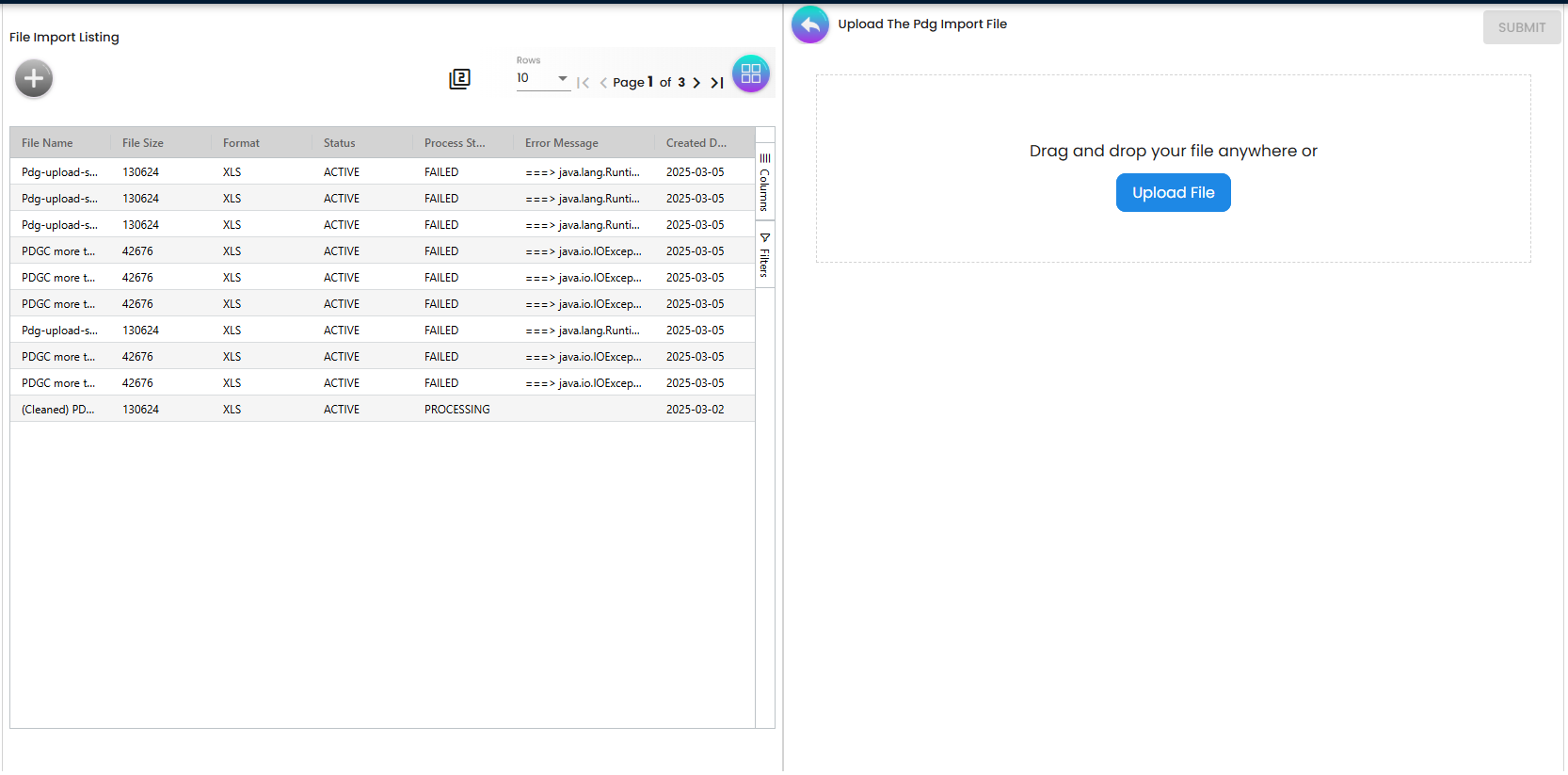
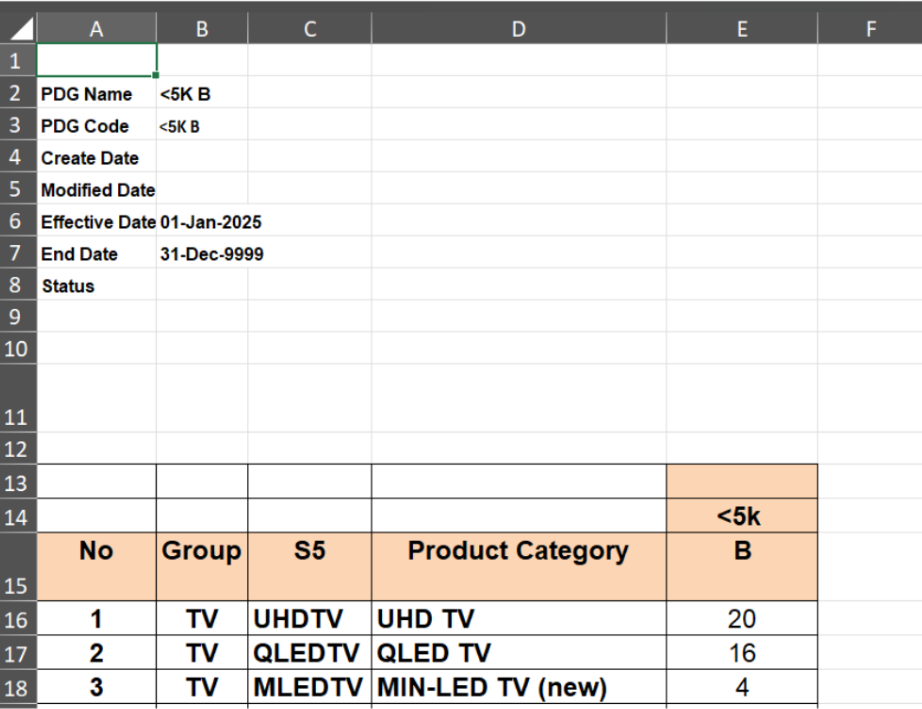
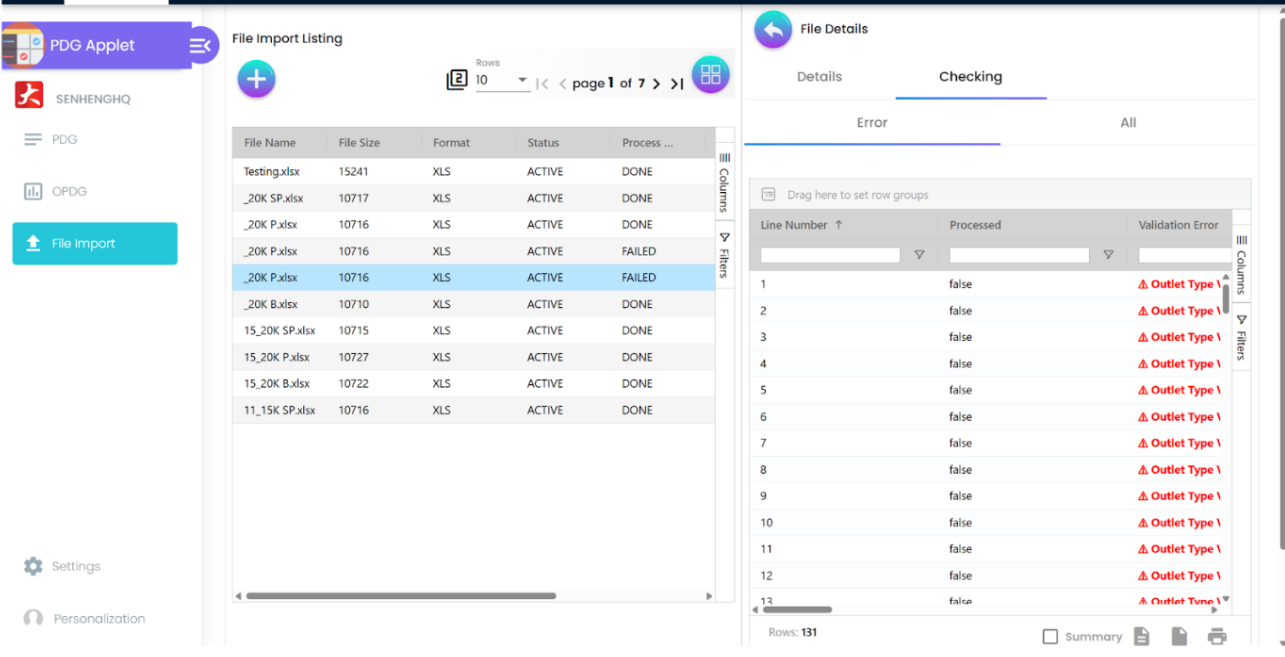
PDG Import/Upload
Bulk upload or update PDG templates using Excel for fast rollout.