Blanket Purchase Order Applet (Supplier Access)
Blanket Purchase Order Applet (Supplier Access) user guide still under progress
Work in Progress: This documentation is currently under development. Visual assets (screenshots) and further details will be added soon.
What is a blanket purchase order (supplier access)?
A blanket purchase order (BPO) is a long-term agreement with a buyer: you agree scope (items, prices, limits) and validity up front, then the buyer can create releases or related orders against that agreement over time—without negotiating every single order from scratch.
The Blanket Purchase Order (Supplier Access) applet is the supplier-facing workspace in BigLedger for those agreements. You use it to see blanket POs shared with your organisation, work on header and line details where your process allows, export a PDF copy, and open report screens for operational review. Your buyer may use the separate Blanket Purchase Order applet on their side; both sides stay on the same type of document, with permissions and visibility controlled by each company.
What this applet is for
This applet helps suppliers and supplier-portal users manage blanket purchase order records: a listing of agreements, create flow (when your role allows), view and edit an open document across Main, Supplier Info, and Line Items, plus Export to PDF on the view screen. The sidebar also includes Report, BPO Detailed Report, Settings, and Personalization when your administrator enables them.
Depending on configuration, you may also step through supporting screens (for example supplier selection, shipping or billing address, add or edit line item, batch selection) in the same way as other Wavelet document applets.
What problems does this solve?
Without a dedicated supplier workspace, blanket agreement data often lives in email, spreadsheets, or disconnected files, so version control and auditability suffer.
With this applet, you get:
- A single listing (“Blanket Purchase Order Supplier Access Listing”) with search and column layout options.
- Structured documents with clear areas for main details, supplier (account) information, and lines.
- PDF export from the view workflow so you can file or share the official layout your company configured.
- Report and BPO Detailed Report list views (detailed report supports date range filters) for review and analysis.
- Settings and permissions that your admin can tune so each role sees only what they should.
Who uses it
| Who | Typical use |
|---|---|
| Supplier sales / account teams | Open agreements, confirm lines and commercial details, export PDFs. |
| Supplier operations | Review validity and line scope before fulfilling releases the buyer sends separately. |
| Supplier admins | Configure defaults, printable formats, and who can create or edit BPOs. |
Benefits by role
Commercial / account management
- One place to open the latest blanket agreement instead of hunting through email.
- Export supports internal approval or filing.
Operations
- Line Items tab shows what is covered under the agreement (subject to what the buyer posted and your edit rights).
Administrators
- Application settings, field settings, default selection, and printable format behaviour align the applet with your company policy.
Key Features
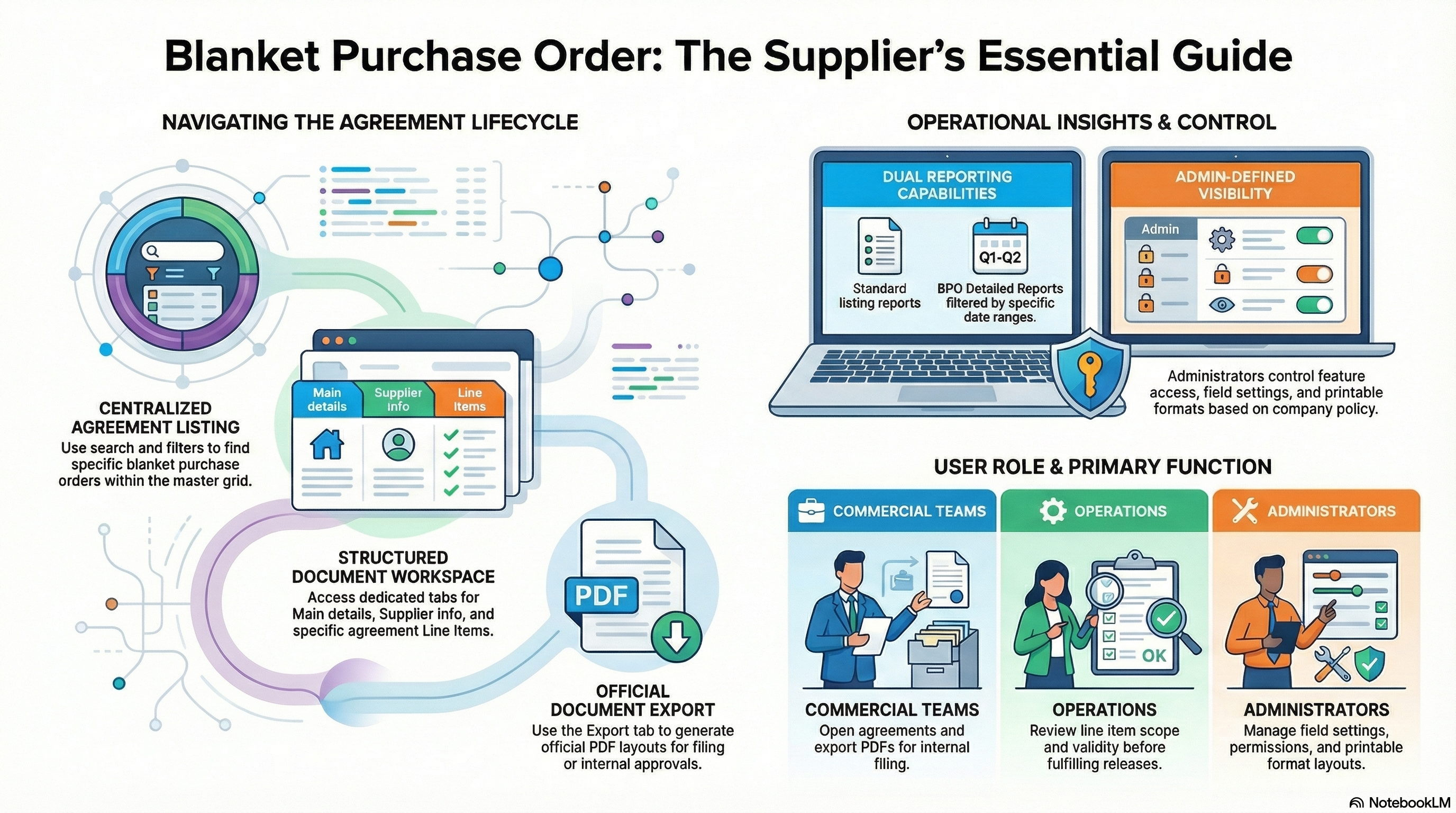
Key concepts for supplier access BPO
| Piece | What it is | In this applet |
|---|---|---|
| Listing | Grid of blanket POs with search and pagination. | Titled Blanket Purchase Order Supplier Access Listing; open a row to drill in. |
| Document header | Agreement shell—dates, references, limits, status (labels depend on tenant). | Main tab on Create Blanket Purchase Order or View Blanket Purchase Order. |
| Supplier Info | Account-side details for the party on the agreement. | Supplier Info tab (uses the shared account-entity pattern). |
| Lines | Items, quantities, amounts covered by the blanket. | Line Items tab; add/edit flows may open Add Line Item or Edit Line Item panels. |
| Export | Printable / PDF output. | Export tab on the view screen; action such as EXPORT AS PDF (wording may match your format). |
| Reports | Read-only list reports. | Report and BPO Detailed Report in the sidebar; detailed report uses Start Date / End Date. |
Quick Start Guide
Start with your role, then use the step-by-step sections below.
For supplier users: find and open an agreement
Goal: Locate a blanket PO and open it for review or export.
- Open Blanket Purchase Order in the sidebar (main listing).
- Use search and column tools to find the document (your visible columns depend on settings).
- Click the row to open View Blanket Purchase Order (or the create flow if your admin enabled it and you start new agreements from the portal).
- Review Main, Supplier Info, and Line Items.
- Open Export and generate a PDF if your process requires a file copy.
Full detail: Blanket purchase order listing and document
For supplier users: create a new blanket PO (when allowed)
Goal: Start a new agreement record and save it.
- From the listing, use the action your training describes to open Create Blanket Purchase Order (if Create is not visible, you may be view-only—ask your admin).
- Complete Main (transaction date, validity, references, limits—fields follow your field settings).
- Open Supplier Info and select the correct supplier / account when prompted (pickers may be labelled Select Customer or similar in the UI—choose the entity your company uses for the buyer–supplier link).
- Add lines on Line Items (add line, item, quantities, amounts as shown).
- Click CREATE (and use RESET only if you intend to clear the draft).
Full detail: Create flow
For analysts: run the detailed report by date
Goal: Review BPO activity for a period.
- Open BPO Detailed Report from the sidebar.
- Choose Start Date and End Date.
- Run the report using the action your screen provides and read the grid results.
Full detail: Reports
Step-by-step detail (all roles)
Blanket purchase order listing and document
Listing
- Screen title: Blanket Purchase Order Supplier Access Listing.
- Use advanced search, pagination, column toggle, and grid options as in other Wavelet listings.
- Selecting a row opens the next column: typically View Blanket Purchase Order for existing data.
View Blanket Purchase Order
- Back returns to the listing when enabled.
- Tabs:
- Main — header fields.
- Supplier Info — entity / account details.
- Line Items — grid of lines; actions may open view/add/edit line sub-screens.
- Export — triggers PDF generation / download for the current document (success and error messages are shown on screen).
- A DELETE control may appear at the bottom; whether it is active depends on permissions and business rules—do not assume you can delete posted agreements.
Create Blanket Purchase Order
- RESET clears the draft form.
- CREATE submits the new document (you should see a success confirmation when the save completes).
- Tabs: Main, Supplier Info, Line Items (same ideas as view; Settlement / Department header tabs may be hidden in your build).
Line item and picker flows
When you add or edit lines, the applet may navigate to auxiliary screens (examples from the product: Select Shipping Address, Select Billing Address, Select Customer / supplier picker, Add Supplier, Select Batch No, Select Settlement, Select Contact Person). Follow the Back control to return to the previous step. Exact availability depends on feature visibility and field settings.
Reports
Report
- Title: Blanket Purchase Order Supplier Access Report Listing.
- Server-side grid with search and column tools; use it for the standard report layout your company configured.
BPO Detailed Report
- Title: Blanket Purchase Order Supplier Access Detailed Report Listing.
- Filter by Start Date and End Date, then refresh or search per your UI.
- Use this when you need a time-bounded extract rather than scrolling only the main listing.
Settings (for administrators)
Open Settings from the sidebar. Default landing is often Feature Visibility; other areas are grouped as below.
| Area | What it is for |
|---|---|
| Application Settings | Applet-specific toggles (for example whether to hide BPO number on certain screens—exact label: HIDE BPO NO). |
| Field Settings | Required/hidden fields on forms. |
| Default Selection | Company / branch / location defaults for new documents. |
| Printable Format Settings | Layout used for printed or PDF output. |
| Webhook | Integrations that fire when data changes. |
| Feature Visibility | Which menus and features users see. |
| Permission set / User / Team / Role permission listing | Who can list, create, edit, export, or report. |
Personalization (separate menu) may include Default Selection (personal) and Sidebar order.
Works with other purchase documents
Blanket POs on the supplier side are the counterpart to agreements your customer maintains in Blanket Purchase Order. Releases or knock-off purchase orders are usually created on the buyer’s tenant; your portal focuses on the agreement record and lines your organisation is responsible for.
Related guides:
- Blanket Purchase Order Applet — buyer-side agreement and release context.
- Internal Purchase Order Supplier Access Applet — similar supplier-portal pattern for standard POs.
Frequently asked questions
How is this different from the internal Blanket Purchase Order applet?
The internal applet is used by the buying organisation to author agreements and manage releases. This supplier access applet is for your organisation when you log in with supplier-portal access to the same document type.
Why does my screen say “Select Customer” when I am a supplier?
Some shared components reuse customer wording. In context of a purchase blanket PO, you are usually picking the buyer’s entity or supplier master link your implementation uses—follow your training or ask your admin.
Can I change prices after the buyer posted the agreement?
Often no or only in draft states; policy is defined by your trading relationship and system permissions. When in doubt, contact the buyer’s procurement team.
Where did the Create button go?
Feature visibility or permissions may hide creation. Your listing may be read-only by design.
Export failed—what should I check?
Confirm printable format is set up, you have network access to the print service, and you still have permission to export. Retry after speaking with admin if the error persists.
What is the difference between Report and BPO Detailed Report?
Report is the general listing report. BPO Detailed Report adds date range filters for a narrower period.
If something is wrong
| Problem | What to try |
|---|---|
| I cannot see Blanket Purchase Order or reports | Ask admin to check feature visibility and your role permissions. |
| CREATE or line Save is disabled | Complete required fields (field settings); confirm you are not in a read-only view. |
| Wrong supplier or address on the document | Re-open Supplier Info and use the correct picker; some fields may lock after posting. |
| PDF export errors | See FAQ; involve admin for printable format configuration. |
| Detailed report returns no rows | Widen Start Date / End Date; confirm you are on the correct branch or company default. |
Still stuck? Capture the document reference (if any), screen name, and time, then contact your BigLedger administrator or internal help desk.