Blanket Purchase Order Supplier Access
The supplier’s read-only window on the blanket agreements a buyer has raised on it: a login linked to the supplier entity lists those agreements, opens them, exports a PDF, and runs two reports showing how much of each agreement purchase orders have already drawn down. No screen here creates, saves or deletes, and a blanket agreement carries no money or stock anyway. A column hidden in Application Settings still reaches the supplier’s browser with the rest of the row, so hide one to tidy the screen, never to keep a figure from them.
Overview
Blanket Purchase Order Supplier Access is the supplier-facing copy of the Blanket Purchase Order applet. It is installed in the buying organisation’s tenant and opened by a login that has been linked to a supplier entity; that login sees only the blanket agreements raised on its own entity, opens them read-only, exports a PDF, and runs two supplier-scoped reports that show how much of each agreement has already been drawn down by purchase orders.
The applet reads the same documents as the buyer-side applet, filtered by the supplier behind the login rather than by role permissions. Nothing in this applet writes: there is no way to create an agreement, no Save on the view or line-item screens, and DELETE is permanently disabled. That is true of every control you can reach; the applet’s store still carries create and edit effects that would POST and PUT the buyer-side endpoint, dead today because the Create and Save buttons that would fire them are commented out.
Where it fits
| Position | Document / applet | Why |
|---|---|---|
| Module | Purchasing | Supplier-facing end of the blanket-agreement chain. |
| The document | Blanket Purchase Order | The same documents. Buyers create and finalise there. |
| Upstream (access) | Supplier | The supplier’s login must be linked to the supplier entity before anything appears here. |
| Drawn down by | Purchase Order (Internal) | The reports join each agreement line to the PO lines that knocked it off, and show PO quantity, balance quantity and PO amount. |
| Sibling supplier applets | Purchase Order Supplier Access, Purchase GRN Supplier Access, Supplier Delivery Order | The same login-link filter, applied to the other purchase-side documents. |
Screens and menus
The sidebar has three working menus plus Settings and Personalization:
| Menu | What it is |
|---|---|
| Blanket Purchase Order | The listing, and the read-only document view behind it. |
| Report | A second grid over the same listing, with a fixed seven-column layout. |
| BPO Detailed Report | Date-ranged agreement-versus-PO report (see below). |
| Settings | Application Settings, Field Settings, Default Selection, Printable Format Settings, plus Webhook, Feature Visibility and the permission listings. |
| Personalization | Per-user Default Selection and sidebar order. |
Listing
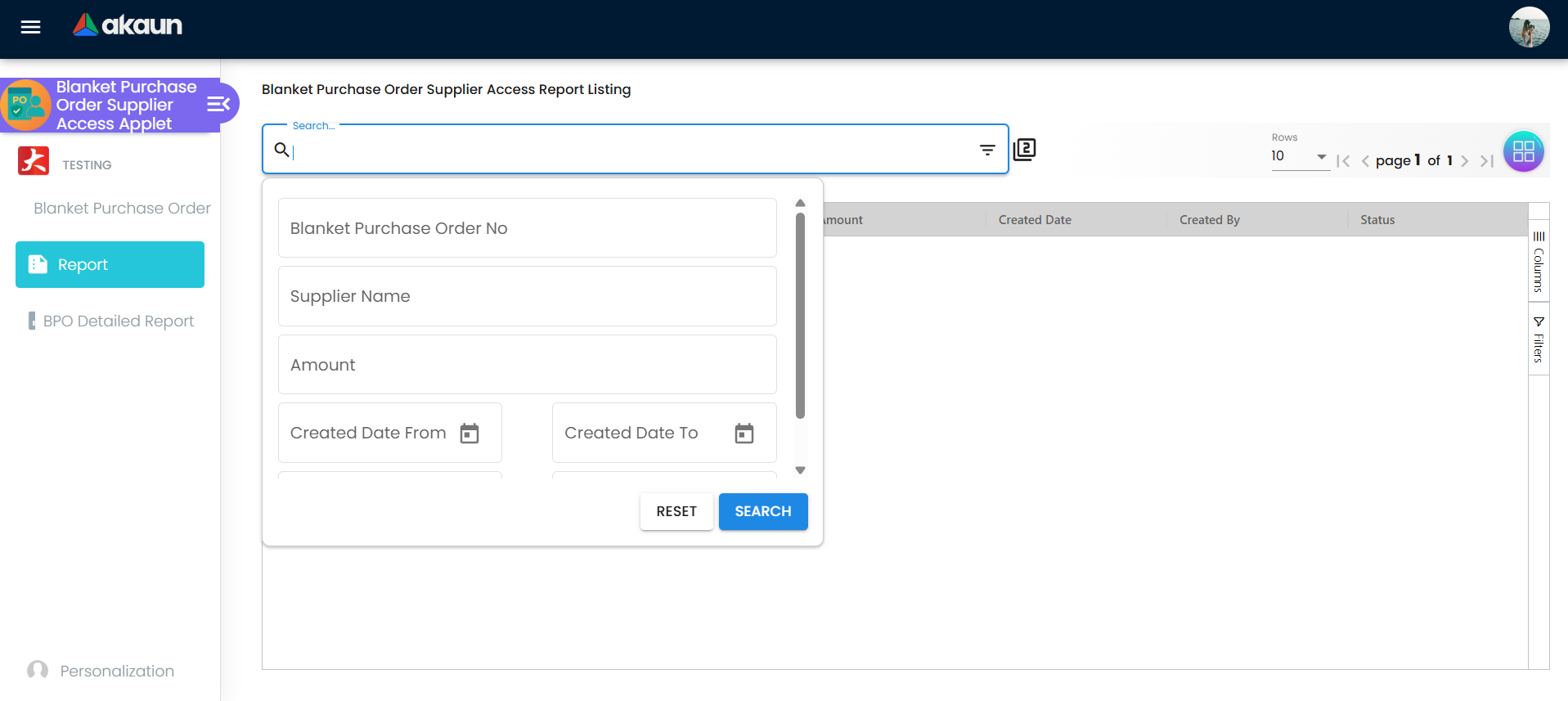
Columns, in order: BPO No, Company, Branch Code, Supplier Name, Amount, Updated Date, Created Date, Transaction Date, Purchaser, Created By, Status. Most recently updated first, and each of the eleven columns can be hidden by an Application Setting (see Configuration).
Only two things happen on this screen: Advanced Search (BPO No, Company, Supplier Name, Amount, Created Date from/to, Transaction Date from/to) and clicking a row, which opens the document view. There is no create (+) button.
The company, branch, location, creator and purchase agent are each looked up separately from the rest of the row. When a lookup is refused, the cell shows the returned error code instead of the value, which is why a supplier login that lacks company or branch read rights sees error codes in the Company, Branch Code or Purchaser columns while the rest of the row is correct.
Document view
Opening a row shows View Blanket Purchase Order with four tabs:
| Tab | Contents |
|---|---|
| Main | Branch, Company and Location drop-downs, Start Date (read-only), Status, Reference No., Validity, Purchase Agent, Remarks. |
| Supplier Info | Entity Id, Entity Name, Email, Phone Number, Supplier Type — all read-only except Entity Id, which has no save path. |
| Line Items | Item Code, Item Name, Valid Date, UOM, Unit Price, Qty, Txn Amount. Clicking a line opens a detail pane. |
| Export | EXPORT AS PDF works; EXPORT AS CSV, EXPORT AS DOCX and EXPORT AS ZIP are disabled. |
The DELETE button under the tabs is permanently disabled. The RESET, Print and Save buttons that the buyer-side applet shows in the same header are absent here, so edits made in the Main tab or through Add Line Item live in the browser only and are lost when you leave the screen.
Reports
Report re-runs the listing query and shows a fixed seven columns: BPO No, Company, Supplier Name, Amount, Created Date, Created By, Status. It has no date filter of its own; use its advanced search.
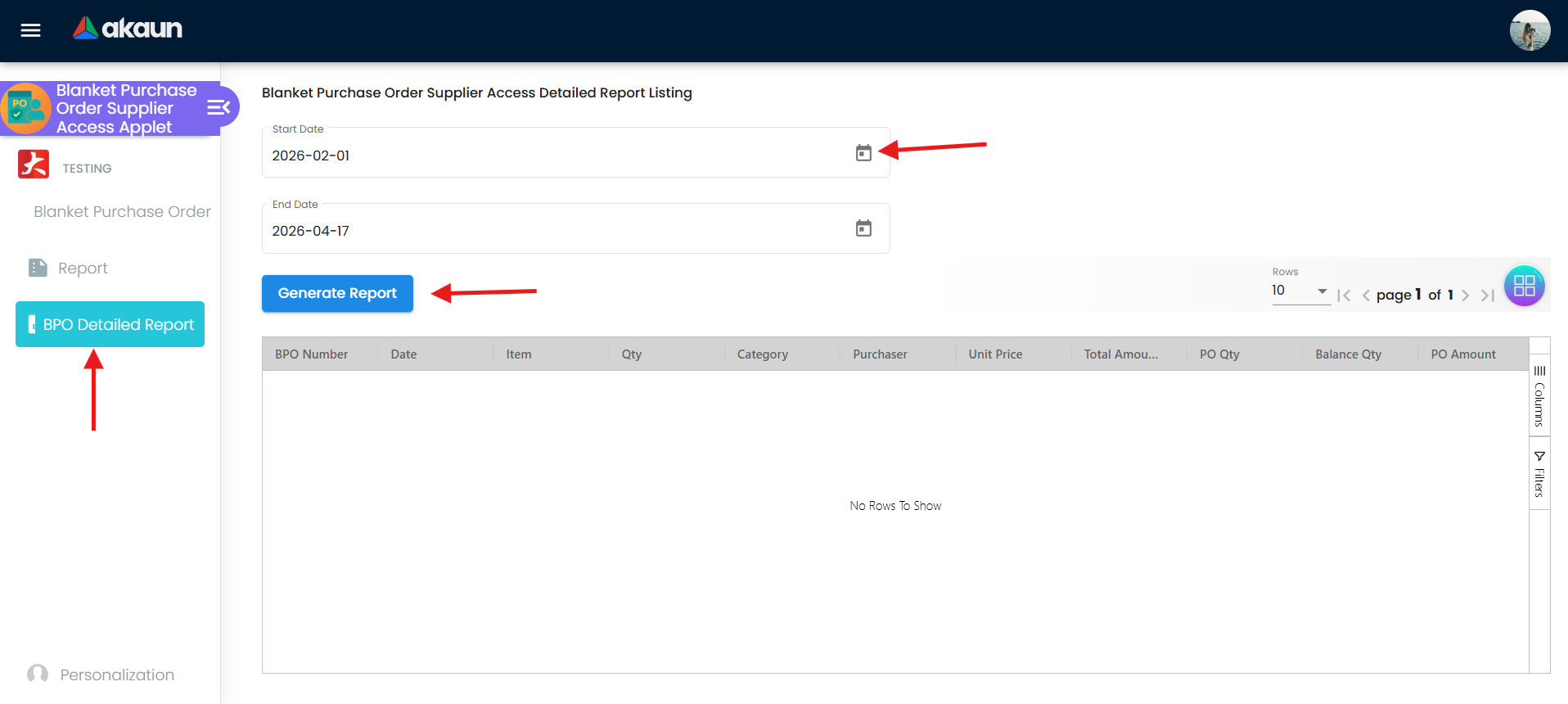
BPO Detailed Report takes a start and end date and groups the result by BPO Number, Date, Item and Qty. Its columns are BPO Number, Date, Item, Qty, Category, Purchaser, Unit Price, Total Amount, PO Qty, Balance Qty, PO Amount, where PO Qty is the quantity already knocked off by purchase orders, Balance Qty is agreement quantity minus that, and Category is the label linked to the supplier login. The date range defaults to the start of the month two months ago through today, and the report is run once when the screen opens.
Configuration
Before you can use it
| Prerequisite | Where it is set | Why it matters |
|---|---|---|
| The supplier’s login is linked to the supplier entity | Supplier → Login, with the link active | Every screen shows only agreements on entities the login is actively linked to. No active link, no rows — whatever permissions the login holds. |
| The applet is installed for that login | Tenant Admin | Without it the screens never load. |
| Blanket agreements exist and are not temporary or deleted | Blanket Purchase Order | The supplier sees agreements at any other status, including DRAFT. |
| A printable format for the export | Blanket Purchase Order → Printable Format Settings | See the warning under Printable Format Settings — the export ignores this applet’s own printable-format list. |
Applet settings
Settings › Application Settings holds eleven slide toggles and not one of them changes what this applet will let a supplier do — each removes a single column from the listing grid, and the label on each toggle is the raw identifier of the column it removes. Flip one and you can see what it did. How settings are stored and who they apply to.
Two things about that screen are not visible on it. The column layout is applied once, when the listing opens, so a change shows up the next time the listing is opened rather than while you are looking at it. And the toggles are tenant-wide across every supplier login, so hiding Amount hides it from all of your suppliers at once — there is no per-supplier variant, and this applet has no client-side permissions with which to put a column back for anybody. A toggle only hides the column: the figure is still sent to the supplier’s browser with the rest of the row. Use these to keep a column off a screen where it does not belong, never to keep a number from an outside party.
Unlike the rest of the supplier-access family, this applet has its own Field Settings screen, not the
shared one, so the shared HIDE_* line settings do not apply here, and
neither does the inline settings gear the larger document applets carry.
On the screen and doing nothing
Default Selection and Personalization › Default Selection save, but have no effect: only a create flow would use them, and this applet has none.
Document behaviour settings
Not applicable. No status flow, posting, workflow or e-Invoice option is exposed by this applet: it has no Workflow Settings route (unlike its buyer-side counterpart), and no screen sends a status change.
Printable Format Settings
Who can change what
This applet has no client-side permissions, so the Client Side Permission and Feature Visibility screens have nothing to grant. The SHOW_* line-column permissions that the other supplier-access applets carry do not exist for this one.
What decides what a supplier sees is the supplier link, not a role permission: the listing, both reports and the PDF export show only agreements on the supplier the login is linked to, and the detailed report returns at most 500 agreements per run. Two things still depend on permissions — the Company, Branch, Location and Purchaser cells (see Listing), and the applet being installed for the login.
Fields
The document view reuses the buyer’s form, so its controls look editable. None of them saves anything:
- Main tab — Branch, Company, Location, Status, Validity and Purchase Agent carry the buyer’s required-field markers; Start Date is read-only; Location is filtered by the selected branch. Status can be changed on screen and is never saved.
- Supplier Info tab — every field is read-only except Entity Id, which accepts typing and has no way to save it.
Line Items grid
Two columns on the Line Items grid are not what their headers say:
- Valid Date shows the line’s category value, not a date.
- Unit Price is computed — net amount plus discount, divided by the base quantity — so a line with zero quantity shows
InfinityorNaN.
Lifecycle and effects
A Blanket Purchase Order carries no money and no stock: finalising it posts no journal and moves no stock, and voiding it on the buyer side only releases the quantities still open for purchase orders to draw down. This applet writes nothing at all.
What the supplier login can and cannot reach:
- List, search and run the reports — works, filtered to the login’s supplier. Temporary and deleted agreements are left out unless the search names a status.
- Open an agreement — works without any read permission; the view is built from the row already listed.
- Export PDF — works when the one fixed printable format it asks for exists (see Printable Format Settings).
- Create, save or delete — not reachable from any screen.
Related applets
- Blanket Purchase Order — where the agreement is created, finalised and voided.
- Purchase Order (Internal) — draws down the agreement; its knock-off quantities are what the detailed report’s PO Qty and Balance Qty columns show.
- Purchase Order Supplier Access — the same supplier login, for the orders raised against the agreement.
- Supplier — where the supplier entity and its login link are maintained.
- Supplier Delivery Order — the write-capable supplier applet, for comparison.
Troubleshooting
| Symptom | Cause | Fix |
|---|---|---|
| The listing is empty although the buyer says agreements exist | The login has no active link to the supplier entity, or the agreements were raised on a different entity record for the same supplier | Link the login to the supplier in the Supplier applet; confirm the agreements’ supplier is that same entity. |
Company, Branch Code, Purchaser or Created By show a code such as CLIENT_AUTH_USER_NOT_AUTHORIZED | Those cells are looked up separately, and each lookup needs a read permission the supplier login may lack; a refusal prints its code in the cell | Grant the supplier login read access to that master data, or hide the columns with HIDE_COMPANY / HIDE_BRANCH_CODE / HIDE_PURCHASER / HIDE_CREATED_BY. |
| EXPORT AS PDF shows a failure toast and downloads nothing | The export always asks for one fixed printable format, not the format configured for the tenant | Report it to BigLedger; there is no workaround from this applet. Export from the buyer side meanwhile. |
| Hiding a column in Application Settings changes nothing | The column layout is applied once, when the listing opens | Leave the listing and come back, or reload the applet. |
| An edit in the Main tab or an added line disappears | There is no Save — neither on the header nor on the line items — so changes stay in the browser | Ask the buyer to make the change in the Blanket Purchase Order applet. |
| The DELETE button never responds | It is permanently disabled | Expected. Deletion is a buyer-side action. |
| BPO Detailed Report is empty for a period you know has activity | The date range filters by transaction date, not the created date, and the result is capped at 500 agreements | Narrow the range, and check the transaction dates on the agreements rather than when they were entered. |
A line shows Infinity or NaN under Unit Price | The Unit Price column divides by the base quantity; a zero-quantity line divides by zero | Ask the buyer to correct the line quantity. |
Related documentation
- Blanket Purchase Order applet — the buyer-side reference for the same document.
- Purchasing module
- Supplier applet — the login link that switches this applet on.