Blanket Purchase Order Applet
Record a long-term price and quantity agreement with one supplier; it orders nothing by itself. Purchase orders drawn down from it in the Purchase Order applet do the ordering, and each agreement line’s Purchase Order sub-tab shows what has been drawn; the applet’s Report is a listing of agreements and shows no drawn or outstanding quantity. Finalising an agreement posts no journal, raises no stock on order and draws down no budget. What it does write is the open-queue row that draw-downs consume; if the document-flow pair is not enabled, no row exists and nothing on the screen says so.
Your job, and the screen for it
| The job | Screen or tab | Read |
|---|---|---|
| Record a price and quantity agreement with a supplier — it orders nothing | Blanket Purchase Order › create, then FINAL | What the agreement commits you to |
| Order against the agreement — the whole remaining quantity, part of it, or split evenly across locations | Purchase Order (Internal): KO For › Blanket Purchase Order, the line-level picker (for a partial or uneven quantity), or Multi-PO | Drawing down from a Purchase Order |
| See how much of each line has been drawn down | View screen, the agreement line’s Purchase Order sub-tab | Where the remaining quantity comes from |
| Know what stops a release exceeding the agreement — the screens do, the backend does not | The release screens in Purchase Order (Internal) | What happens if a release would exceed the agreement |
| Review agreements over a date window | Report | Report |
Overview
The Blanket Purchase Order applet records a long-term purchase agreement with one supplier: a validity window, the items covered and their agreed prices and quantities. It does not order anything by itself. Once the agreement is FINAL, buyers draw it down from the Purchase Order (Internal) applet, whose KO For → Blanket Purchase Order tab knocks quantities off the agreement’s lines; each line’s Purchase Order sub-tab then shows what has been drawn and what remains — the applet’s Report does not; it is a seven-column listing of agreements. Procurement staff create and finalise agreements; finance and procurement managers read the Report to find an agreement, and open it to see the draw-down.
What the agreement commits you to, and what it does not
A blanket purchase order is an agreement, and the engine treats it as one. Its document type
INTERNAL_BLANKET_PURCHASE_ORDER is declared with amount signum 0 and quantity signum 0, and
both zeros decide
what finalising one can and cannot do:
- No journal, at any size. Journal posting builds a journal line only for document lines whose amount signum is non-zero. A finalised agreement for RM 2 million produces no accounting entry at all — nothing in creditors, nothing in purchases, nothing in input tax. The Amount column on the listing is the value of the agreement, and it will never appear in a trial balance.
- No stock, and no reservation. Stock posting skips every line whose quantity signum is zero. Agreeing 5,000 units does not raise stock on order, does not move stock availability, and reserves nothing at the supplier. Only the purchase orders drawn from the agreement do that.
- No budget. FINAL runs four optional validations — serial numbers on signum-zero lines, stock balance, sell-below-cost, and redeemed points — and none of them consults a budget. Committing to an agreement does not draw down a budget figure and cannot be refused by one.
- No GL mapping required. Because no journal line is built, no default GL code is looked up, so FINAL cannot fail for a missing one. This is the one purchase document where an incomplete chart of accounts costs you nothing.
What the agreement does commit is a price and a quantity ceiling per item, and both are carried by one thing: the line open-queue row that FINAL writes. Everything the agreement is for lives in that row. If it is not created — because the document-flow pair is not enabled — the agreement is a record with no mechanism behind it, and the screens give no hint of the difference.
The validity window is recorded and gates nothing. Start Date and Validity in Day(s) compute Valid Date, stored with the document. The only things that read the end date are this applet’s own Main tab, which computes it, and its create-screen Lines grid, which prints it in a Valid Date column. No release screen, no backend check and no other applet consults it. An expired agreement keeps appearing in the purchase order knock-off list until its lines are exhausted or somebody voids it.
Where it fits
| Position | Document / applet | Why |
|---|---|---|
| Module | Purchasing | Front end of the procurement chain for recurring purchases. |
| Upstream | Supplier, Doc Item Maintenance, Pricebook | The agreement names one supplier entity and a set of items with agreed unit prices; pricing schemes seed the line prices. |
| Downstream | Purchase Order (Internal) | The only consumer. Its create screen’s KO For → Blanket Purchase Order tab lists open blanket-order lines (line open queue, pair INTERNAL_BLANKET_PURCHASE_ORDER → INTERNAL_PURCHASE_ORDER) and copies them into the PO. |
| Downstream (drill-down) | Purchase GRN (Internal) | The backend report follows each drawn-down PO line to its GRN quantities. |
| Supplier-facing copy | Blanket Purchase Order Supplier Access | Lets a supplier’s own login see the agreements raised on them. |
| Sibling | Purchase Quotation (Internal) | The other pre-order document the PO can knock off from. |
What makes an agreement actually drawable. A blanket purchase order does nothing on its own. The
document-flow pair INTERNAL_BLANKET_PURCHASE_ORDER → INTERNAL_PURCHASE_ORDER has to be configured
and enabled before a finalised agreement offers anything in the purchase order’s KO For →
Blanket Purchase Order tab — a pair that exists but is switched off leaves you with an agreement
that looks right and releases nothing, with no message to say so. And because the line open queue
deletes a row when it reaches zero rather than keeping it at zero, an empty tab is also exactly what
a fully drawn-down agreement looks like. Check the pair before you conclude the agreement is
exhausted.
Screens and menus
The sidebar has two working menus plus Settings and Personalization:
| Menu | Route | What it is |
|---|---|---|
| Blanket Purchase Order | blanket-purchase-order | The listing, with create / view / bulk actions. |
| Report | blanket-purchase-order-report | A read-only grid of agreements by date window (see Report below). |
| Settings | settings/… | Application Settings (field-settings), Default Selection, Printable Format Settings, Branch Settings, Webhook, Feature Visibility, Client Side Permission, Role Pricing Scheme Link, Permission Wizard / Permission Set / User / Team / Role Permission. |
| Personalization | personalization/personal-default-selection | Per-user Default Selection (branch, location, inline configuration). |
No menu is hidden by a setting.
Listing
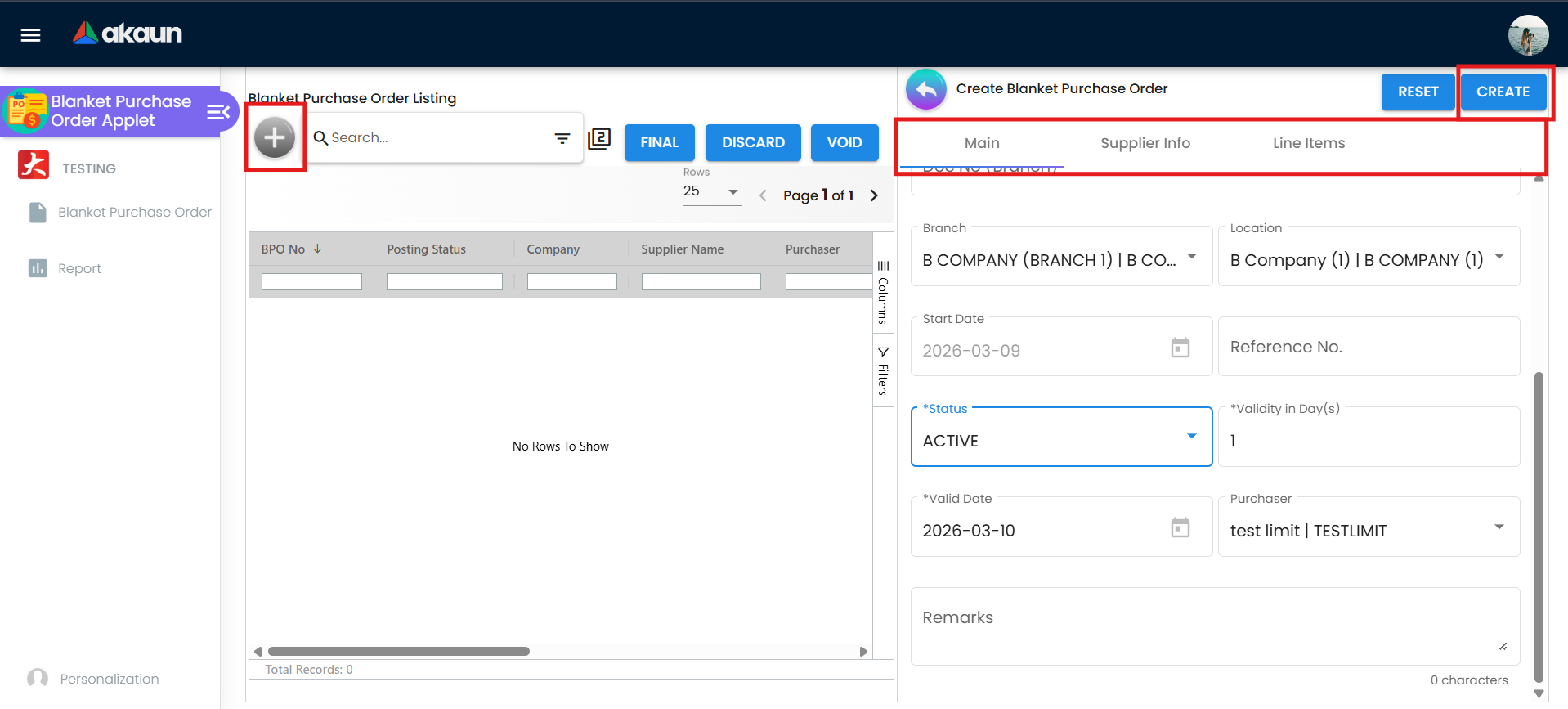
Columns: BPO No, Posting Status, Company, Supplier Name, Purchaser, Amount, Updated Date, Creation Date, Transaction Date, Created By, Status. The grid loads the user’s branches for the last month by default and sorts by Updated Date descending. Advanced Search narrows by supplier, branch, creation date and transaction date.
Bulk actions above the grid:
| Button | What it does | Shown when |
|---|---|---|
| FINAL | Posts every selected DRAFT. | HIDE_GENDOC_FINAL_BUTTON is off, or the user holds SHOW_GENDOC_FINAL_BUTTON. |
| DISCARD | Sets every selected DRAFT to DISCARDED. | Same rule with HIDE_GENDOC_DISCARD_BUTTON / SHOW_GENDOC_DISCARD_BUTTON. |
| VOID | Voids every selected FINAL document. | Same rule with HIDE_GENDOC_VOID_BUTTON / SHOW_GENDOC_VOID_BUTTON. |
There is no print, e-mail or export bulk action on this listing.
Create screen
The + button opens Create Blanket Purchase Order with three tabs — Main, Supplier Info, Line Items. A Settlement tab and a Department Hdr tab exist but are switched off in the build, so department tags are entered on the view screen after the first save. CREATE is enabled only when the Main form and the supplier entity are valid.
View screen
Opening a saved document shows View Blanket Purchase Order as tabs — or stacked panels when VERTICAL_ORIENTATION is on — in the order set under Default Selection → Details Tab Ordering:
Main Details, Account and Lines are always present; no setting removes them. The remaining tabs can each be taken away, and a reader who cannot find one is usually looking at a setting rather than a permission:
| Tab | What it carries that is not obvious | Hidden by |
|---|---|---|
| Doc Link | Copied From / Copied To grids of linked documents (Doc No, Branch, Server Doc Type, Status, Date). | HIDE_DOC_LINK_TAB; HIDE_DOC_LINK_FROM / HIDE_DOC_LINK_TO hide one grid |
| Department Hdr | Header segment, dimension, profit centre, project. | HIDE_DEPARTMENT_HDR_TAB |
| Export | Print with a printable format (EXPORT AS PDF). | HIDE_EXPORT_TAB; HIDE_EXPORT_AS_PDF_BUTTON hides the button |
| Attachments | Uploaded files. | HIDE_ATTACHMENT_TAB |
Header buttons: SAVE, FINAL, DISCARD, VOID, RESET and DELETE.
FINAL and DISCARD appear while the record’s status is ACTIVE and its posting status is either DRAFT or blank. The blank case is not hypothetical — blanket purchase orders with an empty posting status do exist. The backend fills DRAFT when the caller sends nothing, on create and again on update, so a blank status means the row reached the database by a path that set it explicitly, or predates that default. If you see an empty Posting Status on the listing, the document is a draft and the FINAL button will work on it.
VOID appears only when posting status is exactly FINAL; clicking it on anything else toasts This
document has not been finalized yet. DELETE appears only when the master setting
SHOW_DOCUMENT_DELETE_BUTTON is on and the document is not FINAL, VOID or DISCARDED.
Each line opens with sub-tabs Main, Serial Number, Batch Number, Bin Number, Purchase Order, Doc Link, Department. The Purchase Order sub-tab (hidden by HIDE_PURCHASE_ORDER_TAB) lists the POs that drew this line down: Purchase Order No., Item Code, Item Name, Purchase Order Qty, Delivered Qty, Open Qty, UOM, Unit Price, Status.
Report
Screenshot withdrawn; a recapture from a demo tenant is on the list.
Columns: BPO No, Company, Supplier Name, Amount, Created Date, Created By, Status. Filters: document number, creation-date range, transaction-date range. Clicking a row opens the agreement in the view screen. That is all it is: behind it is the ordinary agreement search plus a company, branch and location lookup per row, not the backend’s blanket-purchase report endpoints, which nothing in this applet calls. So the Report shows no drawn, outstanding or GRN quantity per line; for those, open the agreement and read each line’s Purchase Order sub-tab. The BPO Detailed Report in the supplier-access twin is the screen that calls the report endpoint, and it shows the supplier’s own agreements only.
A page titled Batch No Booking is registered in the applet’s page list (fields Batch No, Quantity, Unit Price, amounts, tax, Packing Date, Delivery Date, Remarks) but no screen navigates to it.
Drawing down from a Purchase Order
The release step lives in the Purchase Order (Internal) applet, not here:
Screenshot withdrawn; a recapture from a demo tenant is on the list.
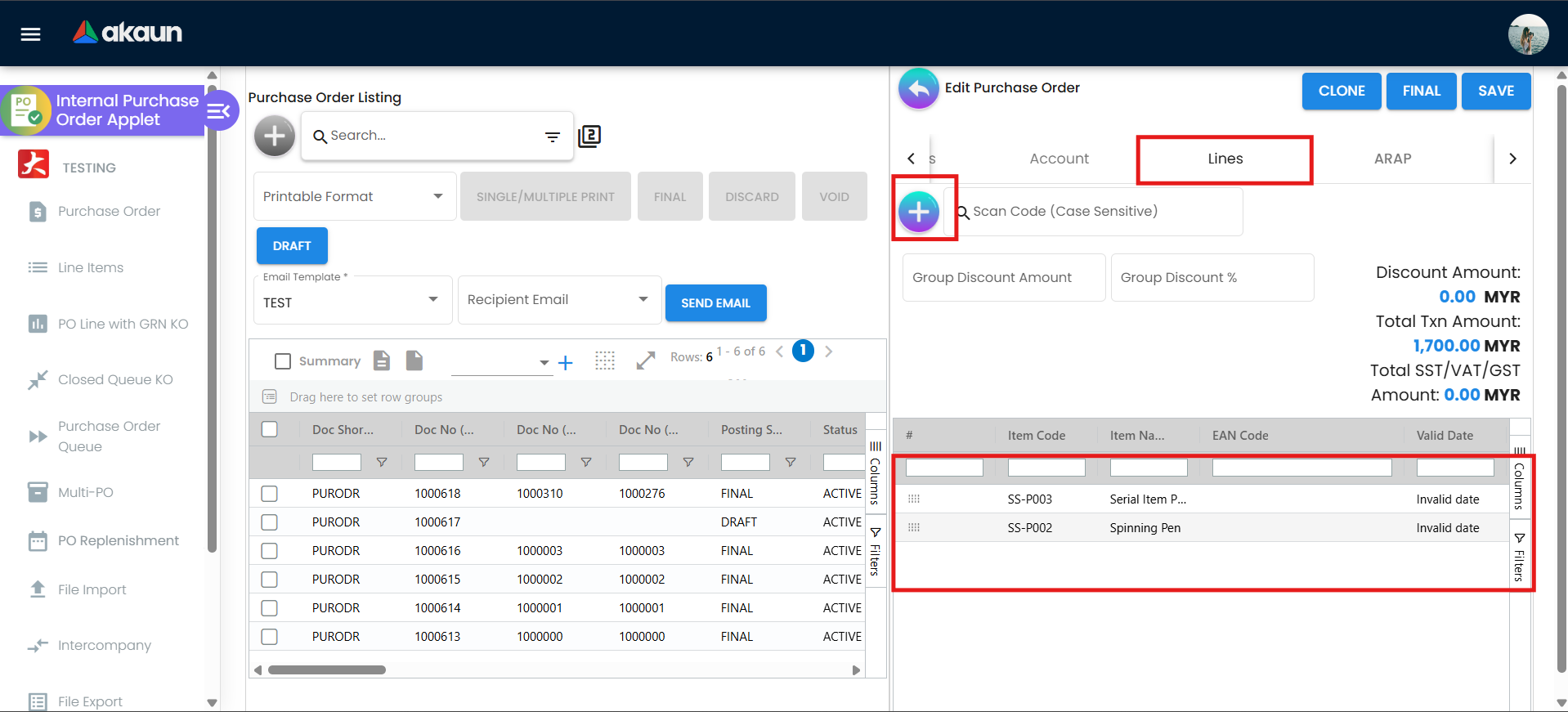
- Purchase Order (Internal) → + → complete Main Details and Account.
- Open KO For → Blanket Purchase Order, select the agreement row(s), click KNOCK OFF.
- Check Lines, click CREATE, then FINAL the PO from its listing.
The tab appears only when the company’s document-flow configuration has the pair INTERNAL_BLANKET_PURCHASE_ORDER → INTERNAL_PURCHASE_ORDER enabled with flow type LINE, and it lists rows from the line open queue for that pair. Only agreements whose lines have open-queue rows — i.e. FINAL agreements — can be selected.
There are three release routes into a purchase order, and they behave differently.
- The header-level KO For → Blanket Purchase Order tab takes whole agreement lines and imports the entire remaining quantity of each. There is no quantity box on it.
- The line-level picker, reached from a purchase order line rather than the header, shows Base Qty., Bal. Qty. and an editable To Knockoff, which starts at the full balance and lets you type a partial quantity. If you need to release 200 of an agreed 5,000, that is the screen to use.
- Multi-PO releases into several orders at once and splits the remaining quantity evenly across the locations you select — an integer share each, with the remainder spread one unit at a time, and zero-quantity lines skipped. One agreement line becomes one order line per location. Nothing on the screen says the split is even, and it is not editable there, so if the branches need different quantities use route 2 once per branch instead.
Where the remaining quantity comes from
This is the number people argue about, and the two screens derive it two different ways.
The stored figure. FINAL writes one open-queue row per agreement line, carrying the open quantity.
Two filters there are invisible from the screen: only lines whose transaction type is PNS — ordinary
item lines — enter the queue, and the starting quantity already nets off any links the line carries, so
re-finalising an agreement cannot double-count what has been drawn. The header-level knock-off tab reads
that stored value straight off the row and shows it as the line’s open quantity.
The recomputed figure. Every time a purchase order links to an agreement line, the backend does not subtract from a running total — it recomputes the whole figure from the agreement line and every link on it: open quantity = agreed quantity + the sum of (linked quantity × the link’s sign) over all links on that line. The line-level picker computes the same sum in the browser before you have knocked anything off. Because a release link carries a negative sign, the sum walks the agreed quantity down.
Two consequences a reader cannot see:
- A correction is self-healing. Because the figure is derived rather than decremented, editing a purchase order line’s quantity, deleting a linked line, or voiding the purchase order does not leave the agreement permanently drawn down. Deleting the link restores the open-queue row — recreating it if it had already gone — and caps the restored quantity at the agreement line’s own quantity so a double restore cannot inflate it. The restore happens only while the company still has a knock-off pair enabled from the blanket purchase order; switch the pair off and a void, a discard or a deleted link gives nothing back, silently.
- A fully drawn line disappears rather than showing zero. When the recomputed open quantity reaches zero or below, the open-queue row is permanently deleted, not set to zero. So an exhausted agreement vanishes from the knock-off list entirely. An empty knock-off list means “nothing left to draw”, not “something is broken” — and it is indistinguishable on screen from an agreement whose open-queue rows were never written because the document-flow pair was not enabled when it was finalised. The line’s own Purchase Order sub-tab is where you tell the two apart: rows there mean it was drawn down, no rows mean it never entered the queue.
There is also a CANCEL action on the knock-off list that removes a whole agreement from the queue without touching the agreement itself (toast The selected document has been removed from the queue). It is not a soft filter: it takes the agreement out of the release pool for everyone, and it acts on the first selected row only, whatever else is ticked. Use VOID on the agreement if you want the state to be visible on the document.
What a release copies, and what it leaves behind
Knocking off does not create a live link to the agreement — it copies the agreement line onto a new purchase order line and records a link between the two. What travels:
- The agreed unit price (standard and transaction, and the by-UOM variants), the discount, the tax and withholding codes with their rates and amounts, and the line’s computed amounts. This is the whole point of the agreement: the purchase order is priced at what was agreed, not re-priced from today’s pricebook.
- The item, UOM and UOM-to-base ratio, the line remarks, the accounting dimensions (segment, dimension, profit centre, project), the delivery branch and location, any serial, batch and bin references, and the reference, rebate and min/max price fields.
- The quantity: the whole remaining quantity on the header tab, or the figure you typed on the line-level picker.
What does not travel: the agreement header. The purchase order takes its own supplier, its own branch, its own dates, its own header remarks and its own numbering. And because the line is a copy, editing the agreement afterwards changes nothing on purchase orders already released — the price you see on an old order is the price that was agreed on the day it was drawn.
The supplier on an agreement that is a year old
When you pick the supplier, the applet copies the supplier’s details onto the agreement rather than pointing at the record: code, name with the chosen contact appended, e-mail, phone and supplier type go into the document’s entity block, and the chosen addresses into the billing and shipping blocks. The backend fills the same block only when it arrives empty and never refreshes one that is already there. An agreement is precisely the document where that matters, because it may be drawn on for twelve months:
- A reprint matches what was agreed. If the supplier moves office or changes its tax number in month six, the agreement still shows what was true when it was signed. That is what makes it evidence.
- Correcting the copy corrects one document. Editing the address here changes this agreement and not the supplier record; pushing the correction back to master data is a separate, deliberate act.
- Each released purchase order takes its own fresh copy. The knock-off copies lines, not the header, so the order carries the supplier’s details as they stand on the day it is raised. Two documents in the same chain legitimately showing two different addresses is the design, not drift.
- One path does rewrite history, and it is the right one. Merging two supplier records refreshes the snapshot on every document pointing at the survivor — see Supplier → Entity merging.
What happens if a release would exceed the agreement
No release screen will let you over-draw. The line-level picker rejects a To Knockoff greater than the balance outright — the cell refuses any value above the balance, and a line left at zero is not taken — and the header tab imports exactly the remaining quantity and offers no box to change it.
The backend does not enforce the ceiling on the knock-off path. The check exists, as a separate knock-off quantity validation call. It sums every existing link on the agreement line plus the new one and refuses with “The quantity to be knocked off exceeds the generic doc line quantity”. The call that actually creates the links does not run it, and no applet screen calls it either. So the ceiling is a screen behaviour, not an engine rule. An integration that posts document links through the API gets no ceiling unless it runs the validation itself first, and nothing warns it. If you write one, call it.
Configuration
Before you can use it
| Prerequisite | Where | Why |
|---|---|---|
| Company, branch, location | Organisation | Company, branch and location are required on Main. Branch MAIN_LOCATION fills the default location. |
| Supplier entity | Supplier | The Supplier Info / Account tab requires an entity. |
| Items | Doc Item Maintenance | Every agreement line is an item; unit prices can be seeded from a pricing scheme (Pricebook, linkable per branch or role under Branch Settings → Pricing Scheme / Role Pricing Scheme Link). |
| Tax codes | Tax Configuration | Optional SST/GST and WHT codes on lines. No GL mapping is needed — nothing posts. |
| Fiscal period open | Chart of Account → fiscal years | FINAL is refused when the transaction date is in a LOCK_ALL / LOCK_TXN period — this generic check applies although no journal is created. |
| Document-flow configuration | Company document-flow configuration | The pair INTERNAL_BLANKET_PURCHASE_ORDER → INTERNAL_PURCHASE_ORDER, flow type LINE, enabled, is what creates open-queue rows on FINAL and what shows the PO applet’s Blanket Purchase Order knock-off tab. Without it, FINAL succeeds but nothing can draw the agreement down. |
| Permissions | This applet → Settings → Permission Wizard / Client Side Permission | Server-side create / read / update / delete on the document; client-side switches below. |
Applet settings
Settings live in three places in the build your users are running: Default Selection and Branch
Settings are this applet’s own screens, and Application Settings (field-settings) is the shared
settings screen used across applets. The shared screen has no section specific to this applet, so
it shows only its general sections. Anyone who can reach the Settings
menu can change the master settings for everyone.
ENABLE_INLINE_APPLET_CONFIG. The version currently served
to tenants predates it and contains no gear. Any key marked Gear below therefore has no control on
any screen you can open today; it can only be changed by writing the applet settings directly. Do
not go looking for the gear icon, and do not tell a customer to switch it on.Every key below is declared, saved, and read by the applet. The Control column says where it can be switched: Shared is the Application Settings screen, Gear means the control exists only in the newer version and is unreachable in the build you are running. Keys that fail one of the checks are listed separately at the end.
Settings → Default Selection (default-selection):
| Setting | What it controls | Default | Effect when changed |
|---|---|---|---|
DEFAULT_BRANCH | Branch pre-selected on new agreements; choosing it also stores DEFAULT_COMPANY and DEFAULT_LOCATION (branch MAIN_LOCATION). | Empty — patched from the saved value, null when nothing was saved. | New agreements open with these values; a personal default overrides them. |
DEFAULT_LOCATION | Location pre-selected on new agreements. | Empty. | Set for you when you pick DEFAULT_BRANCH — it takes the branch’s MAIN_LOCATION. If the branch has no MAIN_LOCATION, nothing is stored and every new agreement opens with an empty, required Location field. |
DEFAULT_TOGGLE_COLUMN | SINGLE or DOUBLE column layout of the create / view forms. | Empty (single). | Two-column layout. |
DEFAULT_ORIENTATION | HORIZONTAL (tabs) or VERTICAL (stacked panels) for the view screen. | Empty (tabs). | Panels; the EXPAND_* keys below decide which open. |
BLANKET_PURCHASE_ORDER_DETAILS_TAB_ORDER | Drag-and-drop order of the view tabs (Main, Account, Lines, Doc Link, Department Hdr, Export, Attachments). | Code order. | Tabs re-order for everyone. |
Settings → Application Settings (shared screen, ungated sections) and the inline gear. Every toggle starts off (the form is built empty and patched from saved values). Where a key has a control only in the gear, the Control column says so.
| Setting | What it controls | Default | Control | Effect when changed |
|---|---|---|---|---|
DEFAULT_TRANSACTION_DATE | The transaction-date window the listing loads on open. | Unset → last month to today. | Shared | 1_month, 1_week, 1_day set the window explicitly. |
SORT_ORDER | Listing sort column. | Unset → Updated Date. | Shared | Sorts by the chosen column, descending. |
DISABLE_GEN_DOC_LISTING | Stops the listing auto-loading. | Off. | Shared, gear | The grid opens empty until someone searches. Worth turning on where the agreement count is large enough that the default last-month window is slow; it is the only lever on this listing’s load cost, because the date window and sort are the only other tunables. |
HIDE_GENDOC_FINAL_BUTTON, HIDE_GENDOC_DISCARD_BUTTON, HIDE_GENDOC_VOID_BUTTON, HIDE_GENDOC_SAVE_BUTTON | Remove FINAL / DISCARD / VOID / SAVE from the listing and view screens. | Off. | Shared, gear | Hidden for everyone; the matching SHOW_GENDOC_*_BUTTON client-side permission reopens the button on the listing and the view. |
HIDE_EXPORT_AS_PDF_BUTTON | Remove EXPORT AS PDF from the Export tab. | Off. | Shared, gear | Button hidden. |
HIDE_SERVER_DOC_1, HIDE_SERVER_DOC_2, HIDE_SERVER_DOC_3 | Hide the tenant / company / branch number fields on Main Details of an existing agreement. They change nothing on the listing: its only number column, BPO No, is the tenant number and stays visible whatever these are set to, and there is no company or branch column to hide. | Off. | Shared, gear | On Main Details the field is hidden unless the user holds SHOW_DOC_NO_*. |
HIDE_TRANSACTION_DATE, HIDE_CREATED_DATE, HIDE_UPDATED_DATE | Hide the date columns on the listing. | Off. | Shared, gear | Column removed (SHOW_TRANSACTION_DATE reopens the first). |
HIDE_CLIENT_DOC_TYPE | Hide the client document type. | Off. | Shared, gear | Field hidden. |
HIDE_AMOUNT_MAIN_LISTING, HIDE_LISTING_BRANCH | Offered as Amount / Branch listing-column hides. | Off. | Gear only | Nothing. The gear saves them and no code reads them; both columns stay whatever you set. |
HIDE_LOCATION, HIDE_REMARKS | Hide the named Main field. | Off. | HIDE_LOCATION shared + gear; HIDE_REMARKS gear only | Field removed. |
HIDE_PURCHASER, HIDE_REFERENCE | Offered as Main-field hides. | Off. | Gear only | Nothing. Saved by the gear, read by no code; the Purchaser and Reference fields stay. |
HIDE_ENTITY_DETAILS_TYPE, HIDE_ENTITY_DETAILS_EMAIL, HIDE_ENTITY_DETAILS_PHONE_NUMBER | Hide supplier type / e-mail / phone on the Account tab. | Off. | Shared, gear | Field removed. |
HIDE_BILL_TO_TAB, HIDE_SHIP_FROM_TAB, HIDE_INTERCOMPANY_TAB | Offered as Account sub-tab hides. | Off. | Shared, gear | Nothing. The only template line that would read the first two is commented out, and nothing reads the third; the Account tab’s sub-tabs stay. |
HIDE_DOC_LINK_TAB, HIDE_DOC_LINK_FROM, HIDE_DOC_LINK_TO, HIDE_DEPARTMENT_HDR_TAB, HIDE_EXPORT_TAB, HIDE_ATTACHMENT_TAB | Remove view tabs or one Doc Link grid. | Off. | HIDE_ATTACHMENT_TAB shared + gear; the rest gear only | Tab / grid removed. |
HIDE_PURCHASE_ORDER_TAB | Remove the line-level Purchase Order sub-tab. | Off. | Gear only | Draw-down history per line no longer visible. |
VERTICAL_ORIENTATION | Stacked panels instead of tabs on the view screen. | Off. | Shared | Panels; EXPAND_MAIN_DETAILS, EXPAND_ACCOUNT, EXPAND_LINE_ITEMS, EXPAND_DOC_LINK, EXPAND_DEPARTMENT_HDR, EXPAND_EXPORT, EXPAND_ATTACHMENT open the named panel by default. |
HIDE_QTY_BASE, HIDE_QTY_UOM, HIDE_UOM_TO_BASE_RATIO | Quantity columns on lines. | Off. | Shared, gear | Hidden unless the matching SHOW_QTY_* permission is held. |
HIDE_UNIT_PRICE_STD_PRICING_SCHEME, HIDE_UNIT_PRICE_STD_INCL_TAX, HIDE_UNIT_PRICE_STD_EXCL_TAX, HIDE_UNIT_PRICE_STD_UOM_INCL_TAX, HIDE_UNIT_PRICE_STD_UOM_EXCL_TAX, HIDE_UNIT_PRICE_NET_EXCL_TAX, HIDE_UNIT_PRICE_NET_UOM_EXCL_TAX, HIDE_UNIT_PRICE_TXN, HIDE_UNIT_PRICE_TXN_UOM_INCL_TAX, HIDE_LAST_PURCHASE_PRICE | Unit-price columns on lines. | Off. | Shared, gear | Hidden unless the matching SHOW_UNIT_PRICE_* / SHOW_LAST_PURCHASE_PRICE permission is held. |
HIDE_UNIT_DISCOUNT, HIDE_UNIT_DISCOUNT_UOM_EXCL_TAX, HIDE_DISCOUNT_AMOUNT_EXCL_TAX, HIDE_AMOUNT_STD_EXCL_TAX, HIDE_AMOUNT_NET_EXCL_TAX, HIDE_AMOUNT_TXN | Discount and amount columns on lines. | Off. | Shared, gear | As above, with SHOW_UNIT_DISCOUNT* / SHOW_AMOUNT_*. |
HIDE_LINE_ITEM_LISTING_TXN_AMOUNT, HIDE_LINE_ITEM_LISTING_UOM | Offered as Lines-grid column hides. | Off. | Gear only | Nothing. Saved by the gear, read by no code; both columns stay. |
HIDE_TAX_CONFIG_SELECTION, HIDE_WHT_CONFIG_SELECTION | Tax and WHT selectors on lines. | Off. | Shared, gear | Hidden unless SHOW_TAX_CONFIG_SELECTION / SHOW_WHT_CONFIG_SELECTION is held. |
HIDE_BATCH_NUMBER, HIDE_BIN_NUMBER, HIDE_SERIAL_NUMBER | Line sub-tabs for batch, bin and serial numbers. | Off. | Shared, gear | Sub-tab removed. |
HIDE_SEGMENT, HIDE_DIMENSION, HIDE_PROFIT_CENTER, HIDE_PROJECT; MANDATORY_SEGMENT, MANDATORY_DIMENSION, MANDATORY_PROFIT_CENTER, MANDATORY_PROJECT | Hide or require each accounting dimension. | Off. | HIDE_* shared + gear; MANDATORY_* shared | Hidden, or required at save. |
Read at runtime without a declaration (rendered and read, though not part of the applet’s declared settings list):
| Setting | What it controls | Default |
|---|---|---|
ENABLE_INLINE_APPLET_CONFIG | Nothing, in the build you are running: the gear it reveals is not there (see the warning above). In the newer version it reveals an in-page gear icon, tenant-wide or per user. | Off. |
SHOW_DOCUMENT_DELETE_BUTTON | Show the DELETE button on the view screen for non-FINAL documents. | Off (read from the same master settings store as the keys above). |
HIDE_TRACKING_ID, HIDE_PERMIT_NO | Hide the tracking ID / permit number fields. | Off. |
Read but with no control anywhere: ENABLE_FILTER_BY_TODAYS_TXN (declared and read, never rendered). PRINTABLE is written by Printable Format Settings when a format is marked default and read by the Export tab.
Declared but never read (present in the model only, with no control on any screen — not documented as settings): ENABLE_CUSTOM_STATUS_1..5, ENABLE_CUSTOM_STATUS_HDR_1..5, ENABLE_CUSTOM_STATUS_LINE_1..5, LIST_CUSTOM_STATUS_*, NAME_CUSTOM_STATUS_*, the SST and WHT enable flags, a subject-GUID field, HIDE_ACCOUNT_BILLING_CONTACT, HIDE_ACCOUNT_SHIPPING_CONTACT.
Offered on a settings screen and read by nothing in this applet: the four ENABLE_* Department toggles (segment, dimension, profit centre, project) on the shared Field Configuration screen — the applet carries a local copy of that screen in its source, but its Field Settings route points at the shared one, and the MANDATORY_* four beside them are read, as validators on the line Department tab; and on the same shared screen the print-button and send-e-mail-button hides and the eight expand toggles (delivery details, delivery trips, KO for, main AR/AP, main contra, posting, settlement, trace document). Switching any of them changes nothing here — there is no print, e-mail, AR/AP, contra, settlement or trace-document screen in this applet, and the department toggles gate nothing. The same hides are honoured elsewhere — the print one by the Purchase Order, Purchase GRN, Receipt Voucher, Stock Requisition and Stock Transfer listings, the e-mail one by eighteen document applets including the Purchase Order and Sales Invoice — which is where the expectation comes from.
Document behaviour settings
| Behaviour | Where it is set | Notes |
|---|---|---|
| Posting status on create | No control — new agreements are DRAFT. | |
| Validity dates | Main tab: Start Date + Validity in Day(s) compute Valid Date; stored with the document. | Recorded, printed and reported; nothing enforces them. See What the agreement commits you to above. |
| Spending cap | None. | The ceiling this document type carries is a quantity, per line, and nothing anywhere compares the value of the orders released against the agreement’s amount — the open queue stores a quantity and the knock-off validation compares quantities. If you need a committed-spend limit, it has to live in the purchase order approval path, not here. |
| Quantity cap | Per agreement line, enforced by the release screens only. | See What happens if a release would exceed the agreement above. |
| Printable formats | Settings → Printable Format Settings. Branch Settings → Printable Format overrides per branch. | Used by the Export tab’s EXPORT AS PDF. |
| Approval workflow | No exposed control. | |
| Webhooks | Settings → Webhook (shared component). | Fires on document events. |
Branch settings
Settings → Branch Settings — pick a branch on the left. Sub-tabs: Branch Details (read-only name, code, company; the Sales Agent picker, Rounding Five Cent with a rounding item, Group Discount Item), Default Settlement Method, Item Category Filter, Menu List, Pricing Scheme, Printable Format. The Sales Agent control writes the branch’s default sales agent; the create screen’s Purchase Agent field is not pre-filled from it.
Feature visibility / permissions
Server-side. Every API call on the document is gated by
TNT_API_DOC_INTERNAL_CUSTOM_INTERNAL_BLANKET_PURCHASE_ORDER_{CREATE,READ,UPDATE,DELETE}_TGT_GUID,
each assignable with a target of type Company, Branch, Location or Entity through Permission
Wizard or Permission Set.
Client-side permissions seeded for this applet (assign under Settings → Client Side Permission):
| Permission code | Effect |
|---|---|
SHOW_TRANSACTION_DATE | Show the transaction date even when HIDE_TRANSACTION_DATE is on. |
HIDE_PRICE | Hides the standard unit price (excl. and incl. tax) and unit discount fields on the view screen’s add-line form for the holder. |
BLANKET_PURCHASE_ORDER_DISPLAY_PRICING | Seeded, but not checked anywhere in the applet — assigning it changes nothing. |
The applet code also checks SHOW_DOC_NO_TENANT / SHOW_DOC_NO_COMPANY / SHOW_DOC_NO_BRANCH, SHOW_GENDOC_FINAL_BUTTON / SHOW_GENDOC_DISCARD_BUTTON / SHOW_GENDOC_VOID_BUTTON / SHOW_GENDOC_SAVE_BUTTON, SHOW_QTY_*, SHOW_UNIT_PRICE_*, SHOW_UNIT_DISCOUNT*, SHOW_DISCOUNT_AMOUNT_EXCL_TAX, SHOW_AMOUNT_*, SHOW_LAST_PURCHASE_PRICE, SHOW_UOM_TO_BASE_RATIO, SHOW_TAX_CONFIG_SELECTION and SHOW_WHT_CONFIG_SELECTION — each reopens a column or button that the matching HIDE_* setting removed. None of these is seeded for this applet; BigLedger has to add them to its permission list before Client Side Permission can grant them.
Settings → Feature Visibility (shared) can hide menus per team.
Fields
Main (create) / Main Details (view)
| Field | Meaning | Required | Notes / validation |
|---|---|---|---|
| Doc No (Tenant / Company / Branch) | Running numbers. | System | The tenant number is given when the agreement is first saved; the company and branch numbers at FINAL. The New screen works on a temporary document, and the save that makes it a real draft stamps the tenant number — so a saved draft already shows its BPO No on the listing and you can quote it to a supplier, but its company and branch numbers stay blank until it is posted. Shown per SHOW_DOC_NO_*. |
| Company, Branch, Location | Owning company, branch and location. | Yes | Defaults from Default Selection / personal defaults. The branch decides who can see the agreement in the release list: the knock-off tab filters on the buyer’s permitted branches. Whether agreements from different suppliers or branches can be combined onto one order depends on which order screen is used — see the caution below. |
| Start Date | First day of the agreement. | Yes | On an existing document it falls back to the transaction date. |
| Validity in Day(s) | Length of the agreement. | Yes | Changing it, or the start date, recomputes Valid Date. |
| Status | ACTIVE / INACTIVE. | Yes | Default ACTIVE. FINAL and DISCARD buttons appear only while ACTIVE. |
| Reference No. | Free text. | No | This is the field a buyer searches the release list by: the purchase order’s knock-off tab searches on it in its advanced search. Put the supplier’s contract or quotation number here and the person releasing against it can find the agreement without knowing its document number. |
| Purchase Agent | Employee responsible (entity picker). | No | Not pre-filled from Branch Settings → Sales Agent, despite the branch carrying one. Fill it by hand or leave it blank. |
| Remarks | Free text. | No | Header remarks stay on the agreement. They are not copied onto the purchase orders released from it — only the line remarks travel. Anything the buyer must see at release time belongs on the line. |
Supplier Info (create) / Account (view)
| Field | Meaning | Required | Notes / validation |
|---|---|---|---|
| Entity (Supplier) | The supplier the agreement is with. | Yes | A new supplier can be created inline (name, type, AR/AP type and currency required). |
| Entity branch, contacts, Bill To / Ship From addresses | Supplier branch, contact person, addresses. | No | Contact creation requires a contact name; addresses require type, city, state, country and postal code. |
Lines
| Field | Meaning | Required | Notes / validation |
|---|---|---|---|
| Item Code / Item Name | The item covered. | Yes | The item identity is what the release copies and what the line-level picker aggregates a balance by. A line must also be an ordinary item line (transaction type PNS) to enter the open queue at all — anything else is recorded on the agreement and can never be drawn down. |
| Quantity Base, Quantity by UOM, UOM to Base Ratio | Agreed quantity — this is what the PO knock-off draws down. | Quantity yes | |
| Unit Price STD (excl. / incl. tax), by UOM | Agreed unit price. | No | Editable per line; seeded from the pricing scheme. Hidden for holders of HIDE_PRICE. |
| Unit Discount, Discount Amount | Line discount. | No | Copied onto the released purchase order line along with the price, so the agreed discount is honoured without anyone re-entering it. |
| Unit Price Net, STD Amount, Amount Net | Derived amounts. | Derived (always present) | These are the agreement line’s totals, for the full agreed quantity. They never reach a ledger — see the posting proof below — and the released purchase order recomputes its own. |
| SST/GST code, %, amount; WHT code, %, amount | Tax lines. | No | Recorded so the agreed tax treatment carries to the release; no tax is accrued or reported from this document. The tax codes themselves are copied to the purchase order line. |
| Remarks | Line text. | No | Travels to the purchase order line at release, unlike the header remarks. This is the only free text that reaches the buyer automatically. |
| Serial / Batch / Bin sub-tabs | Stock references. | No | Batch requires batch number, issue and expiry date, quantity; bin requires bin code, container measure and quantity. |
| Department sub-tab | Segment, dimension, profit centre, project. | Per MANDATORY_* | Header values default. |
Lifecycle and effects
| Status | Meaning | Allowed next |
|---|---|---|
| DRAFT | Editable. Lines not yet available for knock-off. | FINAL, DISCARDED |
| FINAL | Locked. Lines have open-queue rows that Purchase Orders can draw down. | VOID |
| VOID | Reversed. The void reason is stored with the document. | none |
| DISCARDED | Abandoned draft. | none |
Backend checks on FINAL: the document must not already be FINAL (Generic Document has already been posted to FINAL), and the transaction date must not fall in a LOCK_ALL / LOCK_TXN fiscal period. The applet’s own DISCARD dialog and the VOID toast are client-side.
What FINAL does: applies the transaction-date rule, generates the running numbers, and starts the posting run and the message-template queue. The posting run then reads the company’s document-flow configuration and, for the enabled pair INTERNAL_BLANKET_PURCHASE_ORDER → INTERNAL_PURCHASE_ORDER, writes one open-queue row per line. Those rows are what the PO applet’s knock-off tab lists and decrements.
Posting proof block
| Item | Value |
|---|---|
| Server document type | INTERNAL_BLANKET_PURCHASE_ORDER |
| Amount signum | 0, and it is checked on create and update — send anything else and the document is rejected |
| Quantity signum | 0, filled on every line rather than checked, so a caller cannot opt a line into stock movement |
| Dr/Cr equation | None. A journal line is built only when a line’s amount signum is non-zero, so no line qualifies and no journal is created. |
| Handler | No dedicated journal handler for this type; the generic purchase fallback would select CREDITOR / PURCHASE / INPUT_TAX, but no line reaches it. |
| GL precedence | Not applicable — no GL line is built; no default GL mapping is required for FINAL. |
| Hard stops in posting | None from posting. The locked-period and already-FINAL checks are the only backend refusals. |
| Stock processor | None. Stock posting skips every line whose quantity signum is 0. |
| Open queue | One row per ordinary item line (PNS) for each enabled flow pair that starts from this type, netted against any links the line already carries. The release then recomputes the open quantity from the line quantity and every link, and deletes the row when it reaches zero. |
| What VOID reverses | VOID sets the status and the reason and starts the void posting run, which permanently deletes every open-queue row where this document is the source and marks its links deleted. There is no journal to reverse. |
| Back to DRAFT | Not offered by this applet’s UI; a backend path exists for other callers. |
Treat voiding as one-way, and know that the two directions do opposite things.
Voiding the agreement deletes its open-queue rows outright rather than flagging them, so the remaining quantity is destroyed, not parked. Purchase orders already released are untouched — they keep their lines, their prices and their document links. To keep drawing, raise a new agreement. The listing’s FINAL button does not skip voided agreements, and the server refuses FINAL only for a document that is already FINAL, so a voided agreement can be sent to FINAL again; whether that rebuilds the deleted open-queue rows has not been verified, so do not rely on it. Use DISCARD on a draft you do not want, and VOID only when you mean the agreement to be over.
Voiding a purchase order that drew the agreement down runs the same step from the other side: its links are marked deleted, and removing a link puts the quantity back on the agreement — recreating the open-queue row if it had already been deleted for reaching zero, and capping the restored figure at the agreement line’s own quantity. A cancelled order therefore returns its allocation automatically, provided the blanket purchase order → purchase order pair is still enabled when you void; nobody has to adjust the agreement.
What it will not do
Stated plainly, because each of these is a thing customers ask for and a thing the screen does not deny:
- It will not stop an order being placed outside the agreement. A buyer can raise an ordinary purchase order for the same item and supplier and never touch the agreement. Nothing reconciles the two, and the agreement’s Report will not show the leakage.
- It will not cap spend. The ceiling is a quantity per line. No value is compared against anything.
- It will not expire. The validity window is recorded, printed and reported, and no code path consults it at release time.
- It will not schedule anything. There are no call-off dates, no delivery schedules and no reminders on this document; the Batch No Booking page in the applet’s page list (Packing Date, Delivery Date) is registered but no screen navigates to it.
- It will not approve. There is no approval route, state or setting in this applet — the only states are draft, final, void and discarded.
- It will not price a purchase order raised later from scratch. The agreed price reaches an order only through the knock-off. Typing the item onto a purchase order by hand takes the pricebook price, not the agreement’s.
- It will not tell the supplier. The agreement can be printed or exported as PDF, and the Supplier Access applet lets a supplier’s own login read it, but nothing is sent: this listing has no print, e-mail or export bulk action, and the print- and e-mail-button hides on Application Settings are read by nothing here because there is no such button to hide.
Related applets
- Purchase Order (Internal) — the only document that draws the agreement down (KO For → Blanket Purchase Order).
- Blanket Purchase Order Supplier Access — the supplier-facing view of the same documents.
- Purchase GRN (Internal) — the backend report follows PO lines to GRN quantities.
- Purchase Quotation (Internal) — the other pre-order document the PO can knock off.
- Supplier, Organisation, Doc Item Maintenance, Tax Configuration, Pricebook — master data it depends on.
Troubleshooting
| Symptom | Cause | Fix |
|---|---|---|
| The Blanket Purchase Order tab is missing under KO For in Purchase Order (Internal) | The company’s document-flow configuration has no enabled INTERNAL_BLANKET_PURCHASE_ORDER → INTERNAL_PURCHASE_ORDER pair with flow type LINE. | Enable the pair in the company document-flow configuration; the tab appears on the next load. |
| The agreement is FINAL but does not appear in the knock-off list | No open-queue rows were written for it: the flow pair was enabled after the agreement went FINAL, or the lines have been fully drawn down (drawn quantity equals agreed quantity). | Void and re-create the agreement after enabling the pair, or check the line’s Purchase Order sub-tab for remaining Open Qty. |
| KNOCK OFF imports nothing | The selected agreement lines have no open quantity left, so no open-queue row exists to copy. | Open the agreement line’s Purchase Order sub-tab: rows there mean it has been drawn down in full, no rows mean it never entered the queue (see the next row). |
| On Multi-PO, KNOCK OFF refuses with The selected documents contain different entities or branches | That screen requires every selected agreement to share the supplier and branch of the first one. The ordinary single-purchase-order screen carries the same guard switched off, so there it does not fire at all. | Select one supplier’s agreements at a time on Multi-PO. On the ordinary screen, check the Supplier Name and Branch columns yourself before knocking off — nothing will stop you mixing them. |
| FINAL refused with The selected date falls within a locked fiscal period | Transaction date in a LOCK_ALL / LOCK_TXN period — the check applies even though nothing posts. | Change the date or reopen the period. |
| Generic Document has already been posted to FINAL | Two users (or bulk FINAL plus the view screen) finalised the same draft. | Refresh; no action needed. |
| VOID toasts This document has not been finalized yet | The view screen’s VOID runs only on FINAL documents. | Use DISCARD for a draft. |
| FINAL / DISCARD / VOID button missing for one user only | HIDE_GENDOC_*_BUTTON is on and the user lacks the SHOW_GENDOC_*_BUTTON permission (not seeded). | Turn the setting off, or ask BigLedger to add the code to this applet’s permission list, then grant it under Client Side Permission. |
| A setting toggle in Application Settings does nothing | It is one of the keys listed under Declared but never read. | No fix needed; it has no effect in this applet. |
A HIDE_* toggle you need is not on the Application Settings screen | It is marked Gear in the Control column, and the inline gear is not in the served build (see the warning under Applet settings). | There is no screen for it today. Either leave the key at its default or have the applet settings written directly; do not spend time hunting for the gear icon. |
| The Report shows VOID or DRAFT agreements | The report query filters on the date window and excludes only deleted records, not on posting status. | Read the Status column, or use the listing’s Advanced Search for a posting-status filter. |
| Unit-price fields are missing on the add-line form for one user | The user holds the HIDE_PRICE client-side permission. | Remove the permission if the user should see prices. |
| DELETE button missing on a draft | SHOW_DOCUMENT_DELETE_BUTTON is off, or the document is FINAL / VOID / DISCARDED. | Turn the setting on; use DISCARD or VOID for posted documents. |
Related documentation
- Purchasing module and its related applets
- Purchase Order (Internal) — the knock-off side of the release step