Consignment Purchase Order Applet (Internal)
Overview
The Consignment Purchase Order Applet (Internal) records your request to a consignor (a supplier who keeps ownership of the goods) to place stock with you: which items, how many, at what reference price, delivered where and when. Buyers create it by hand, by knocking off a blanket purchase order, purchase quotation or purchase requisition, or from a CSV; the warehouse later receives against it with a Consignment GRN, and the consignor is settled through Consignor Purchase Billing.
Its engine document type is INTERNAL_PURCHASE_CONSIGNMENT_ORDER with amount signum 0 and quantity signum 0: finalising it posts nothing to the General Ledger, to stock or to the supplier’s account. What FINAL does is lock the document and — if the company’s knock-off configuration says so — put its lines into the open queue where the Consignment GRN finds them.
The window title is Internal Consignment Purchase Order Applet; the listing is Consignment Purchase Order Listing.
Where it fits
| Position | Document / applet | Why |
|---|---|---|
| Module | Purchasing, Inventory | Procurement document for consigned stock; it never moves stock itself. |
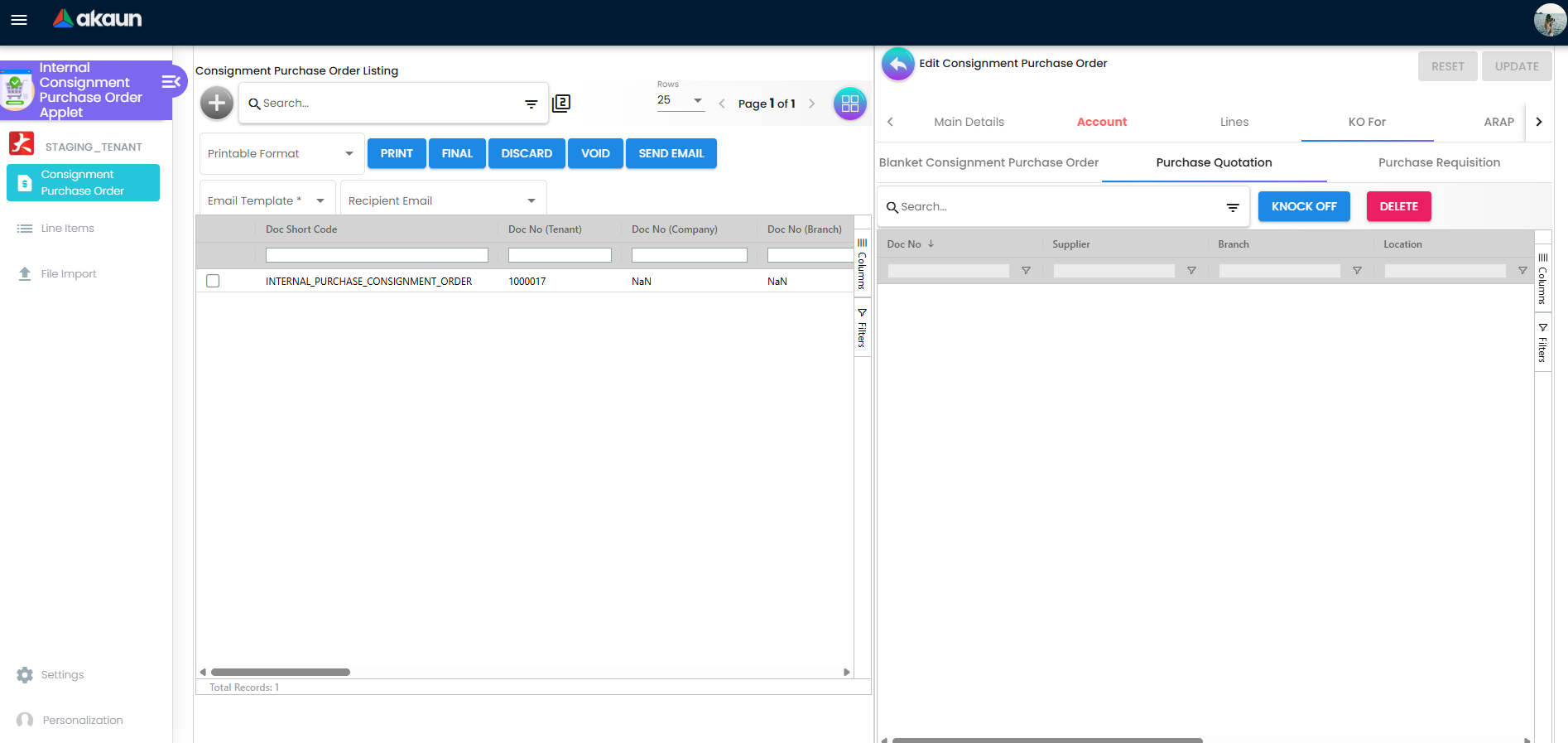
| Upstream | Blanket Purchase Order, Purchase Quotation (Internal), Purchase Requisition (Internal) | The KO For tab on the create screen pulls open lines from these three types (INTERNAL_BLANKET_PURCHASE_ORDER, INTERNAL_PURCHASE_QUOTATION, INTERNAL_PURCHASE_REQUISITION). The first sub-tab is labelled Blanket Consignment Purchase Order but searches the ordinary blanket purchase order type — there is no separate blanket consignment document. |
| Downstream | Consignment GRN Applet (Internal) | Its KO For → Consignment Purchase Order tab reads open-queue rows typed INTERNAL_PURCHASE_CONSIGNMENT_ORDER → INTERNAL_PURCHASE_CONSIGNMENT_GRN and copies qty_open onto the GRN line. This is the only applet in the repository set that knocks this document off. |
| Downstream (later) | Consignment GIN, Consignment Return, Consignor Purchase Billing, Consignment Billing | Consumption, return and settlement of the consigned stock start from the GRN, not from this order. |
| Sibling | Purchase Order (Internal) | The ordinary commitment-to-buy order. Same screens, different document type, different downstream (Purchase GRN / Purchase Invoice). |
| Configuration | Organisation → Company → Knock Off Configuration | The company flow-configuration rows (bl_fi_comp_gendoc_flow_config) decide whether FINAL creates open-queue rows for this type — see Lifecycle. |
Screens and menus
| Menu | Route | What it is | Hidden by |
|---|---|---|---|
| Consignment Purchase Order | consignment-purchase-order | Listing (left) with create / edit pane (right). | — |
| Line Items | line-items | Cross-document line grid: Consignment Purchase Order No, Item Code / Name, Qty, Unit Price (Inclusive of Tax), SST/VAT/GST, Txn Amount, Delivery, Transaction Date. Requires the server-side READ permission. | — |
| File Import | file-import | CSV upload (create, edit, listing). | — |
| Settings | settings/… | Application Settings, Default Selection, Printable Format Settings, Workflow Settings, Email Template, Webhook, Feature Visibility, Client Side Permission, Role Pricing Scheme Link, Permission Wizard / Set / User / Team / Role Permission. | — |
| Personalization | personalization/personal-default-selection | Per-user Default Selection. | — |
There are no HIDE_…_MENU settings in this applet: menu-items.ts has three fixed entries and app.component.ts does not call updateMenuItem. Feature Visibility (shared) is the only way to hide a menu per team.
Listing
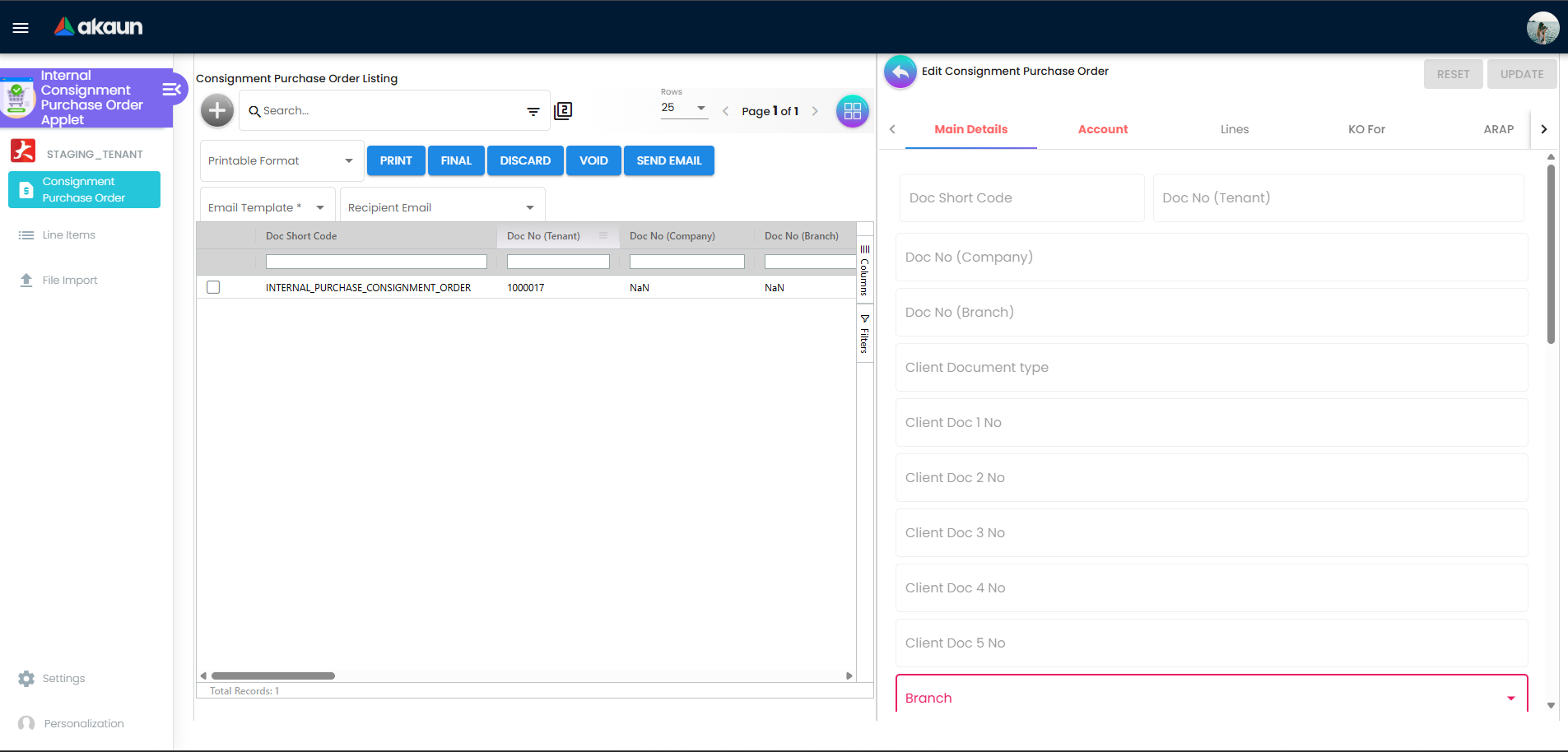
Toolbar: Printable Format picker + PRINT (disabled until a format is chosen), FINAL, DISCARD, VOID, Email Template + Recipient Email + SEND EMAIL. Bulk FINAL keeps only rows whose posting_status is not FINAL and whose status is ACTIVE; bulk VOID keeps only FINAL + ACTIVE rows; other selected rows are silently skipped. The default date window is the last month, or today only when ENABLE_FILTER_BY_TODAYS_TXN is stored. Column state is saved per user.
Create screen
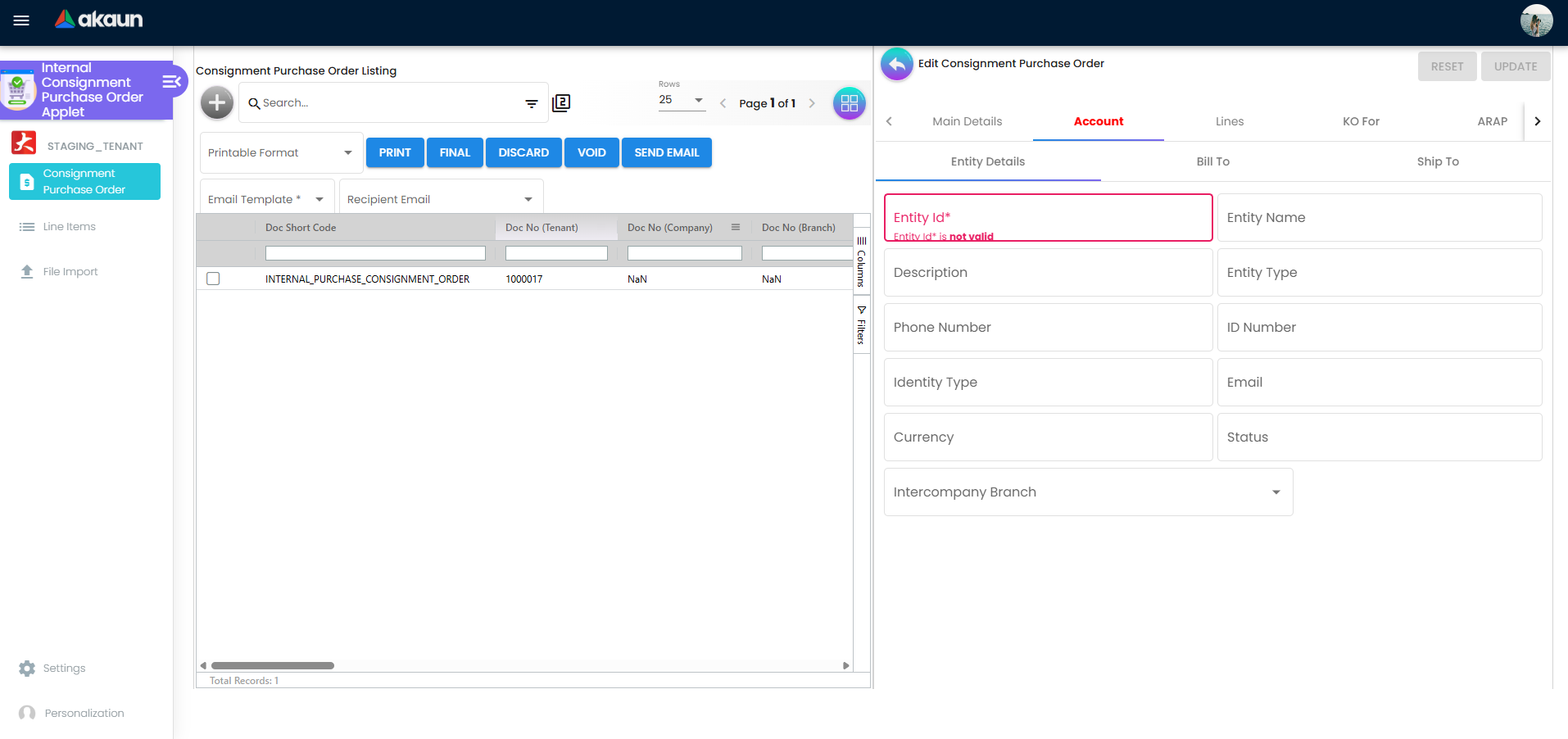
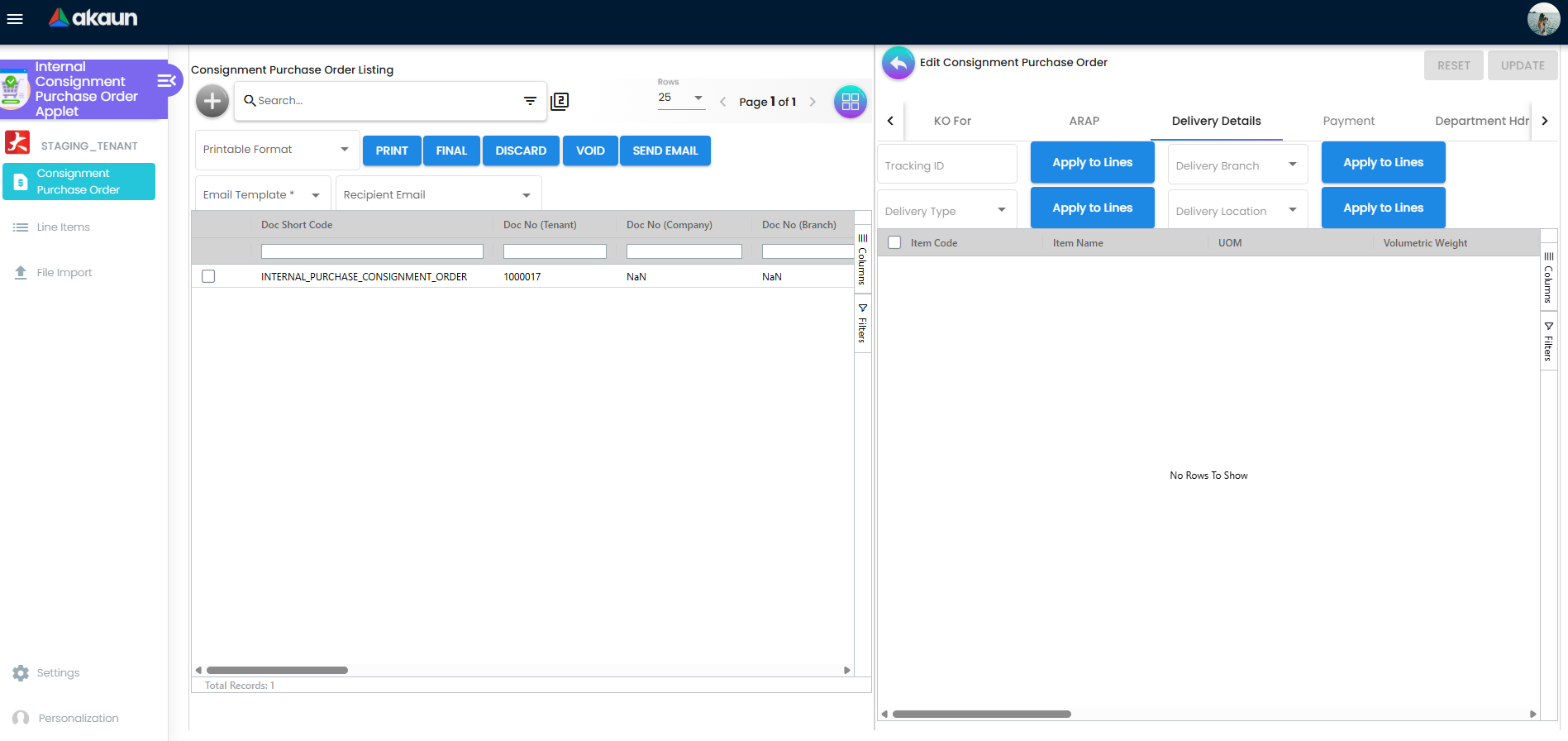
Buttons RESET and CREATE (enabled only when Main Details is valid, the supplier is valid and at least one line exists — disableCreate()). Tabs, in fixed order: Main Details, Account (Entity Details / Bill To / Ship To), Lines, Delivery Details (HIDE_DELIVERY_DETAILS_TAB), Payment (HIDE_MAIN_PAYMENT_TAB), KO For (HIDE_KO_FOR_TAB), Department Hdr (HIDE_DEPARTMENT_HDR_TAB). Leaving with unsaved changes opens Do You Wish To Save Your Changes?.
Edit screen
Header buttons: RESET, FINAL (draft + ACTIVE only; hidden by HIDE_GENDOC_FINAL_BUTTON unless the user holds SHOW_GENDOC_FINAL_BUTTON; disabled while any line has an invalid serial number), DISCARD (same conditions with the DISCARD pair), UPDATE (needs the server-side UPDATE permission, or tenant admin / owner). The VOID button on the edit pane is commented out in the template — VOID is a listing action only. A red DELETE button (two clicks to confirm, draft only) appears when SHOW_DOCUMENT_DELETE_BUTTON is stored in the applet settings; it hard-deletes the document through the API.
Tabs, in the order saved under Default Selection → Details Tab Ordering (CONSIGNMENT_PURCHASE_ORDER_DETAILS_TAB_ORDER, added under intranet #1093): Main Details, Account, Lines, KO For, ARAP, Delivery Details, Payment, Department Hdr, TraceDocument, Contra, Doc Link, Attachments, Export. With VERTICAL_ORIENTATION the tabs become expansion panels and the EXPAND_* keys choose which open by default.
File Import
File Import → + uploads a .csv (File type not supported otherwise). Sample Format for Consignment Purchase Order downloads MasterData_Upload_ConsignmentPurchaseOrder.csv; the only column the applet names in code is REQUESTED_DELIVERY_DATE, the rest come from the sample. Import rows show File Name, File Size, Import Format, File Type, Status, Process Status and Error Message.
Configuration
Before you can use it
| Prerequisite | Where | Why |
|---|---|---|
| Company, branch, location | Organisation | Branch and location are required header controls; DEFAULT_BRANCH / DEFAULT_LOCATION pre-fill them and derive DEFAULT_COMPANY. |
| Knock Off Configuration for the company | Organisation → Company → Knock Off Configuration | An enabled row with source INTERNAL_PURCHASE_CONSIGNMENT_ORDER and target INTERNAL_PURCHASE_CONSIGNMENT_GRN (bl_fi_comp_gendoc_flow_config, config_type = KO). Without it FINAL creates no open-queue rows and the Consignment GRN cannot find the order. |
| Supplier entities | Supplier | Account tab. The inline Create Supplier form reads DEFAULT_CUST_TYPE, DEFAULT_COUNTRY and DEFAULT_CURRENCY from the applet settings; ENABLE_BRANCH_FILTER limits the picker to suppliers linked to the branch. |
| Items | Doc Item Maintenance | Lines. |
| Tax codes | Tax Configuration | Line tax / WHT selectors. |
| Forex rates | Forex | A document whose currency differs from the base currency needs a non-zero rate; the applet refuses to save with The currency rate cannot be ZERO. and the backend refuses FINAL with FOREX_DOC_REQUIRES_NON_ZERO_XRATE. |
| Printable format and e-mail template | This applet → Printable Format Settings, Email Template | Needed for PRINT, SEND EMAIL and the auto pop-up after FINAL. |
| Permissions | Permission Wizard / Set | Server-side TNT_API_DOC_INTERNAL_PURCHASE_CONSIGNMENT_ORDER_{CREATE,UPDATE,READ,DELETE}_TGT_GUID with targets. |
Applet settings
Where settings live (read from app.routing.ts at commit 1447f23): the Application Settings route loads the shared FieldConfigurationComponent from blg-shared-utilities, so the toggles you see are the shared screen’s, not this applet’s. The applet-local field-configuration component (one toggle, Last Purchase Price, plus eight unbound sliders) is not routed and never renders. Default Selection and Personalization → Default Selection are applet-local. There is no per-screen settings gear and no Branch Settings menu.
Anyone with the applet’s Settings menu can change them; there is no per-row authority difference. Every toggle defaults to off (nothing is stored until the first Save; the shared screen has no per-applet pre-selection for this applet code, so a fresh tenant sees every field and tab). One more consequence of sharing the screen: its tab-hide and KO For sections render only for applet codes listed in its getTabValue() map (internalPurchaseOrderApplet, internalconsignmentGRNApplet, …). internalConsignmentPurchaseOrderApplet is not in the map, so the tab-hide toggles this applet reads have no control on a live tenant (listed below).
Settings → Default Selection (applet-local; Save writes all keys, Reset nulls them)
| Setting | What it controls | Default | Effect when changed |
|---|---|---|---|
DEFAULT_BRANCH, DEFAULT_LOCATION (derives DEFAULT_COMPANY) | Branch and location pre-selected on a new order. | none | New orders open with them; a personal default overrides the tenant default. |
DEFAULT_VALIDITY_DAYS | Validity in Day(s) — how far after the transaction date the End Date defaults. | none | Main Details pre-fills End Date. |
CONSIGNMENT_PURCHASE_ORDER_DETAILS_TAB_ORDER | Drag-and-drop order of the 13 edit tabs. | code order | Re-orders the edit tabs for everyone; new tabs are appended. |
DEFAULT_PRICING_SCHEME | The Pricing Scheme picker on this screen. | — | Not functional: the picker is rendered but has no form control, is not saved and is read nowhere. |
Personalization → Default Selection (per user): DEFAULT_BRANCH, DEFAULT_LOCATION (auto-filled from the branch’s MAIN_LOCATION), DEFAULT_TOGGLE_COLUMN (single / double column) and DEFAULT_ORIENTATION (tabs vs panels).
Settings → Application Settings (shared screen). Keys that are rendered there and read by this applet:
| Group | Keys | What they control |
|---|---|---|
| Listing | DISABLE_GEN_DOC_LISTING, SORT_ORDER, HIDE_AMOUNT_TXN_MAIN_LISTING, HIDE_DESCRIPTION, HIDE_SEND_EMAIL_BUTTON, HIDE_GENDOC_FINAL_BUTTON, HIDE_GENDOC_DISCARD_BUTTON, HIDE_GENDOC_VOID_BUTTON | Listing load, sort direction, listing columns, and the FINAL / DISCARD / VOID / SEND EMAIL buttons on listing and edit (each HIDE_GENDOC_* is overridden per user by the matching SHOW_GENDOC_* client-side permission). |
| FINAL and print | ENABLE_AUTO_POPUP, SHOW_DOCUMENT_DELETE_BUTTON | Opens the PDF (INTERNAL_PURCHASE_CONSIGNMENT_ORDER_PRINT_SERVICE) after FINAL from the edit pane — with no default printable it toasts No Default Printable Selected; shows the hard-delete button. |
| Header | HIDE_SERVER_DOC_1..3, HIDE_CLIENT_DOC_TYPE, HIDE_CLIENT_DOC_1..5, HIDE_TRACKING_ID, HIDE_PERMIT_NO, HIDE_VALIDITY_DATE, REQUIRE_VALIDITY_DATE, HIDE_LOCATION, HIDE_DELIVERY_BRANCH, HIDE_DELIVERY_LOCATION | Main Details and Delivery Details visibility; REQUIRE_VALIDITY_DATE adds a required validator to the validity dates. |
| Account | ENABLE_BRANCH_FILTER | Supplier picker limited to suppliers linked to the branch (Supplier not linked to branch otherwise). |
| Lines | HIDE_UNIT_PRICE_STD_PRICING_SCHEME, HIDE_UNIT_PRICE_STD_INCL_TAX, HIDE_UNIT_PRICE_STD_EXCL_TAX, HIDE_UNIT_PRICE_STD_UOM_INCL_TAX, HIDE_UNIT_PRICE_STD_UOM_EXCL_TAX, HIDE_UNIT_PRICE_NET_UOM_EXCL_TAX, HIDE_UNIT_PRICE_NET_EXCL_TAX, HIDE_UNIT_PRICE_TXN, HIDE_UNIT_PRICE_TXN_UOM_INCL_TAX, HIDE_UNIT_DISCOUNT, HIDE_UNIT_DISCOUNT_UOM_EXCL_TAX, HIDE_QTY_BASE, HIDE_QTY_UOM, HIDE_UOM_TO_BASE_RATIO, HIDE_AMOUNT_STD_EXCL_TAX, HIDE_DISCOUNT_AMOUNT_EXCL_TAX, HIDE_AMOUNT_NET_EXCL_TAX, HIDE_AMOUNT_TXN, HIDE_TAX_CONFIG_SELECTION, HIDE_WHT_CONFIG_SELECTION, HIDE_LAST_PURCHASE_PRICE, HIDE_TOTAL_TXN_AMOUNT, HIDE_TOTAL_SST_VAT_GST_AMOUNT, HIDE_COSTING_DETAILS, HIDE_DELIVERY_INSTRUCTION, ENABLE_DRAFT_LOCK_SERIAL_NUMBER_CHECKING | Line form fields and grid totals (create screen and the Line Items editor); the last key makes draft serial numbers lock-checked. |
| Tabs and ARAP | HIDE_ATTACHMENT_TAB, HIDE_ARAP_PNS, HIDE_ARAP_SETTLEMENT, HIDE_ARAP_DOC_OPEN, HIDE_ARAP_CONTRA, HIDE_ARAP_BAL | The Attachments tab and the ARAP sub-grids. (The other tab-hide keys have no control for this applet code — see below.) |
| Layout | VERTICAL_ORIENTATION, EXPAND_MAIN_DETAILS, EXPAND_ACCOUNT, EXPAND_LINE_ITEMS, EXPAND_KO_FOR, EXPAND_DELIVERY_DETAILS, EXPAND_MAIN_ARAP, EXPAND_DEPARTMENT_HDR, EXPAND_TRACE_DOCUMENT, EXPAND_DOC_LINK, EXPAND_ATTACHMENT, EXPAND_EXPORT, EXPAND_MAIN_CONTRA | Panel layout instead of tabs and which panels start open. |
PRINTABLE (the default printable format) is not a toggle: it is written by Printable Format Settings → set as default and read by the listing, the Export tab and the auto pop-up.
Rendered on the shared screen but read nowhere in this applet (switching them does nothing): HIDE_ACCOUNT_BILLING_CONTACT, HIDE_ACCOUNT_SHIPPING_CONTACT, HIDE_LINE_ITEMS_GL_CODE, EXPAND_SETTLEMENT, EXPAND_POSTING, EXPAND_DELIVERY_TRIPS.
Read at runtime without a control on any settings screen for this applet code (they take effect only if the key is already stored in the applet’s settings JSON, e.g. by support): the tab-hide keys HIDE_KO_FOR_TAB, HIDE_DELIVERY_DETAILS_TAB, HIDE_MAIN_PAYMENT_TAB, HIDE_PAYMENT_TAB, HIDE_DEPARTMENT_HDR_TAB, HIDE_MAIN_ARAP_TAB, HIDE_ARAP_TAB, HIDE_TRACE_DOCUMENT_TAB, HIDE_MAIN_CONTRA_TAB, HIDE_CONTRA_TAB, HIDE_DOC_LINK_TAB, HIDE_EXPORT_TAB (each hides the named tab on create / edit; the HIDE_MAIN_* / plain pairs are equivalent on the edit pane) and ENABLE_MULTIPLE_KO (one line may knock off several source lines) — their controls sit in shared-screen sections gated by getTabValue() / appletCode === 'internalPurchaseOrderApplet'; ENABLE_SERIAL_NUMBER_VALIDATION_FINAL (sends validate_serial_signum_zero = true with FINAL so the backend checks serial and batch quantities despite the 0 quantity signum) — rendered only for the delivery-order codes; ENABLE_FILTER_BY_TODAYS_TXN (listing date window = today); DEFAULT_CUST_TYPE, DEFAULT_COUNTRY, DEFAULT_CURRENCY (inline supplier creation).
Declared in applet-settings.model.ts only — no control, not read: INCLUDE_* / ENABLE_* for SST, WHT, Segment, Dimension, Profit Center, Project; ENABLE_CUSTOM_STATUS_* (15 keys); VALIDITY_DATE_REQUIRED; DEFAULT_PRICING_SCHEME. Custom statuses and department-tag enforcement are therefore not configurable here.
Document behaviour settings
| Behaviour | Where it is set | Notes |
|---|---|---|
| Open-queue creation on FINAL | Organisation → Company → Knock Off Configuration (bl_fi_comp_gendoc_flow_config). | The only lever over what FINAL does. See Lifecycle. |
| Serial / batch check on FINAL | ENABLE_SERIAL_NUMBER_VALIDATION_FINAL — stored value only; no control for this applet code. | Without it the backend skips serial and batch quantity checks for this signum-0 type. |
| Backdating | Client-side permission PO_ALLOW_BACKDATE_TRANSACTION. | Without it the transaction date picker’s minimum is today. |
| Printables | Printable Format Settings (Format Code / Name, template) and PRINTABLE. | PRINT on the listing, Export tab, auto pop-up. |
Email Template (templates with txn_type = INTERNAL_PURCHASE_CONSIGNMENT_ORDER_EMAIL_TEMPLATE). | SEND EMAIL on the listing needs a template and a recipient. | |
| Workflow | Workflow Settings — per company, attach a workflow process (Company Code, Description, Doc Short Code). | Main Details shows the resulting Workflow Status / Workflow Resolution read-only; no approval screens exist in this applet. |
| Webhooks | Settings → Webhook. | Shared component. |
| Approval, closing, intercompany, e-Invoice | — | No exposed control found: no Approval Settings, Approval Monitor, CLOSE button or intercompany menu in app.routing.ts / menu-items.ts at 1447f23; the type is not an e-Invoice document. |
Settings in other applets that control this applet
| Setting | Where it is set | Effect here |
|---|---|---|
Knock Off Configuration row INTERNAL_PURCHASE_CONSIGNMENT_ORDER → INTERNAL_PURCHASE_CONSIGNMENT_GRN, is_enabled | Organisation → Company | FINAL creates one open-queue row per PNS line; the Consignment GRN’s KO tab lists the order. Disabled or missing → nothing to knock off. |
Fiscal period lock (LOCK_ALL / LOCK_TXN) | Organisation fiscal years | FINAL is rejected with The selected date falls within a locked fiscal period. |
| Supplier ↔ branch links | Supplier | With ENABLE_BRANCH_FILTER, only linked suppliers can be picked. |
| Forex rate for the document currency | Forex | Required non-zero on save and on FINAL for foreign-currency orders. |
Feature visibility / permissions
Server-side (TntErpPermissions): TNT_API_DOC_INTERNAL_PURCHASE_CONSIGNMENT_ORDER_CREATE_TGT_GUID, …_UPDATE_TGT_GUID, …_READ_TGT_GUID, …_DELETE_TGT_GUID. The edit pane enables UPDATE for the UPDATE permission or for TNT_TENANT_ADMIN / TNT_TENANT_OWNER; the Line Items menu checks READ.
Client-side: the registry has no bl_applet_client_side_perm_dfn rows for internalConsignmentPurchaseOrderApplet (checked 2026-09-05), so none of the codes below can be granted through Client Side Permission until they are seeded. Codes the code checks:
| Group | Codes (checked in code, not seeded) |
|---|---|
| Buttons | SHOW_GENDOC_FINAL_BUTTON, SHOW_GENDOC_DISCARD_BUTTON, SHOW_GENDOC_VOID_BUTTON (re-show a HIDE_GENDOC_* button per user) |
| Header | SHOW_DOC_NO_TENANT, SHOW_DOC_NO_COMPANY, SHOW_DOC_NO_BRANCH, SHOW_CLIENT_DOC_TYPE, SHOW_CLIENT_DOC_1..5, SHOW_TRANSACTION_DATE, SHOW_DESCRIPTION, PO_ALLOW_BACKDATE_TRANSACTION |
| Lines and pricing | PURCHASE_ORDER_DISPLAY_PRICING, HIDE_PRICE, SHOW_UNIT_PRICE_* (nine keys mirroring the HIDE_UNIT_PRICE_* settings), SHOW_UNIT_DISCOUNT, SHOW_UNIT_DISCOUNT_UOM_EXCL_TAX, SHOW_QTY_BASE, SHOW_QTY_UOM, SHOW_UOM_TO_BASE_RATIO, SHOW_AMOUNT_STD_EXCL_TAX, SHOW_DISCOUNT_AMOUNT_EXCL_TAX, SHOW_AMOUNT_NET_EXCL_TAX, SHOW_AMOUNT_TXN, SHOW_TOTAL_TXN_AMOUNT, SHOW_TOTAL_SST_VAT_GST_AMOUNT, SHOW_TAX_CONFIG_SELECTION, SHOW_WHT_CONFIG_SELECTION, SHOW_LAST_PURCHASE_PRICE, SHOW_COSTING_DETAILS |
| Listing / ARAP | SHOW_AMOUNT_TXN_MAIN_LISTING, SHOW_ARAP_PNS, SHOW_ARAP_SETTLEMENT, SHOW_ARAP_DOC_OPEN, SHOW_ARAP_CONTRA, SHOW_ARAP_BAL |
PURCHASE_ORDER_DISPLAY_PRICING matters most: the line grid hides price and amount columns for every user who is not tenant OWNER or ADMIN and does not hold it (ClientSidePermissionChecker.checkPermission). With no seeded definition, ordinary buyers cannot see prices.
Fields
Main Details
| Field | Meaning | Required | Notes / validation |
|---|---|---|---|
| Branch, Location | Ordering branch and receiving location. | Yes (Validators.required) | Pre-filled from Default Selection / personal defaults; HIDE_LOCATION hides the location control, so keep a default location configured. |
| Company | Owning company. | System | Derived from the branch. |
| Doc Short Code, Doc No (Tenant / Company / Branch) | Type and running numbers. | System | HIDE_SERVER_DOC_1..3; running numbers are assigned on FINAL. |
| Client Document type, Client Doc 1–5 No | Consignor’s references. | No | HIDE_CLIENT_DOC_*. |
| Transaction Date | Order date. | Yes | Earlier than today only with PO_ALLOW_BACKDATE_TRANSACTION; must be in an unlocked fiscal period to FINAL. |
| Validity in Day(s), End Date | Validity of the request. | With REQUIRE_VALIDITY_DATE | End Date = transaction date + DEFAULT_VALIDITY_DAYS. |
| Purchaser | Employee raising the order. | Marked * in the label | No validator in code — the asterisk is cosmetic. |
| Credit Terms, Credit Limit | Consignor terms, informational. | No | No settlement is posted from this document. |
| Base Currency, Currency Rate | Document vs company currency. | Rate non-zero when currencies differ | The currency rate cannot be ZERO. on save; FOREX_DOC_REQUIRES_NON_ZERO_XRATE on FINAL. |
| Reference, Remarks, External Remarks | Free text. | No | |
| Tracking ID, Permit No | References. | No | HIDE_TRACKING_ID, HIDE_PERMIT_NO. |
| Workflow Status, Workflow Resolution | Set by the company workflow. | System | Read-only. |
Account
| Field | Meaning | Required | Notes |
|---|---|---|---|
| Entity Id (supplier) | The consignor. | Yes (Validators.required) | Picker, with inline supplier create / edit (name, type, code, currency, ARAP type required there). |
| Entity Name, Description, Entity Type, Phone, ID Number, Identity Type, Email, Currency, Status | Read-only echo of the supplier. | — | |
| Intercompany Branch | Drop-down on Entity Details. | No | Stored on the header; no intercompany processing exists in this applet. |
| Bill To, Ship To | Address sub-tabs. | No | Pre-filled from the supplier. |
Lines
| Field | Meaning | Required | Notes / validation |
|---|---|---|---|
| Item (Item Code / Name) | From Search Item. | Yes | CREATE needs at least one line; there is no per-line quantity or price validator. |
| Quantity, Quantity by UOM, UOM, UOM to Base Ratio, Quantity Base | Requested quantity. | No validator | qty_open in the open queue equals the quantity. |
| Unit Price STD / Net / Transaction (incl. / excl. tax, by UOM), Unit Discount, STD Amount, Discount Amount, Amount Net, Txn Amount, Tax Amount | Reference pricing. | No | Hidden per HIDE_UNIT_PRICE_* / PURCHASE_ORDER_DISPLAY_PRICING. Nothing is posted from these amounts. |
| SST/GST/VAT, WHT, WHT Amount | Tax selectors. | No | HIDE_TAX_CONFIG_SELECTION, HIDE_WHT_CONFIG_SELECTION. |
| Purchase Quotation No., Purchase Requistion No., Blanket Consignment Purchase Order | Source references on a knocked-off line. | No | Filled by KO For. |
| Segment, G/L Dimension, Profit Centre, Project | Department tags. | No | Not enforceable here (the ENABLE_* keys are model-only). |
| Batch Number / Expiry Date, Bin Code, Serial Number | Stock references. | No | Serial validation at FINAL only with ENABLE_SERIAL_NUMBER_VALIDATION_FINAL. |
| Delivery Details, Delivery Instruction, Delivery Remarks | Per-line delivery. | No | HIDE_DELIVERY_INSTRUCTION. |
| Remarks, Description | Line text. | No |
Delivery Details, Payment, Department Hdr, Contra
| Tab | Fields | Notes |
|---|---|---|
| Delivery Details | Tracking ID, Delivery Type, Delivery Branch, Delivery Location, each with Apply to Lines. | Header values copied to the ticked lines. |
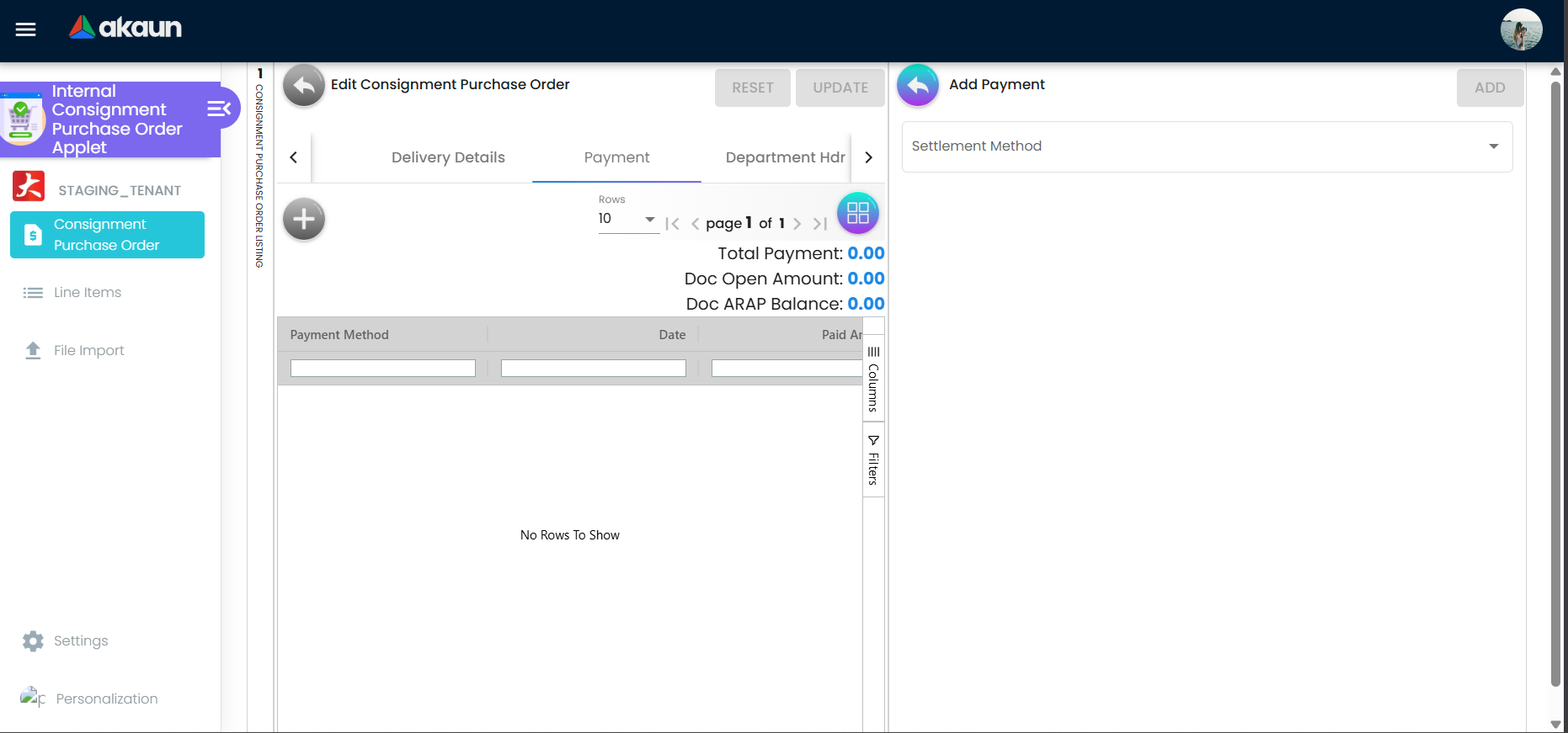
| Payment | Settlement Method, Date, Paid Amount; totals Total Payment, Doc Open Amount, Doc ARAP Balance. | The tab is inherited from the sales-side template: every settlement line it writes is typed INTERNAL_RECEIPT_VOUCHER (INTERNAL_PAYMENT_VOUCHER only for CASH_BACK). Because the document has amount signum 0 there is nothing to settle and the totals stay 0.00 — do not record consignor payments here; use Consignor Purchase Billing. |
| Department Hdr | Segment, G/L Dimension, Profit Centre, Project. | |
| Contra | Contra against the consignor’s documents. | Same signum caveat as Payment. |
Lifecycle and posting
| Status | Meaning | Allowed next |
|---|---|---|
DRAFT (status ACTIVE) | Editable. | FINAL (listing or edit), DISCARD (listing or edit), DELETE (edit, when enabled) |
| FINAL | Locked; running numbers assigned; open-queue rows created when configured. | VOID (listing only) |
| VOID | Cancelled after FINAL. | none |
| DISCARDED | Abandoned draft; its open-queue rows are marked DISCARDED. | none |
On FINAL the applet sends posting_status = FINAL (plus validate_serial_signum_zero when enabled). The backend (GenericDocumentService.updatePostingStatus) runs validateGenericDocumentOnFinal: non-zero forex rate; serial, bin and batch quantity checks (serial / batch only for signum-0 types when the flag is sent); the stock-balance check is skipped for a signum-0 line (validateStockBalanceForSignumZero = false); and the fiscal-period lock (FISCAL_PERIOD_LOCKED). It then saves, assigns running numbers, queues the generic-document primary processor and the message-template processor, and for a foreign-currency document creates a base-currency shadow first. The GenericDocLineOpenQueueProcessor reads the company’s flow configuration for server_doc_type_1 = INTERNAL_PURCHASE_CONSIGNMENT_ORDER (config_type = KO, is_enabled) and, for each enabled target type, inserts one bl_fi_generic_doc_line_open_queue row per ACTIVE PNS line with qty_open = line quantity, then sets posting_ko = POSTED. KnockOffWatchdogService re-queues FINAL documents whose posting_ko is still null, and line-open-queues/data-fix-missing-queue is the manual repair endpoint.
Posting proof (backend at 871dbf5): server document type INTERNAL_PURCHASE_CONSIGNMENT_ORDER · amount signum 0 · quantity signum 0 (InternalPurchaseConsignmentOrderDataConsistencyObject, registered in GenericDocumentTypeHandler L776) · Dr/Cr equation: none — the type has no JournalPostingTypeHandler entry, so no journal, ARAP or tax transactions are produced · GL precedence: not applicable · stock processor: none · VOID reverses nothing in the ledgers; VoidKnockOffProcessor marks the document’s open-queue rows DELETED so the Consignment GRN can no longer knock it off (a VOID after a GRN has already knocked the line off does not touch the GRN).
Knock-off by the Consignment GRN: its KO tab queries open-queue rows with line_open_queue_server_doc_type_1 = INTERNAL_PURCHASE_CONSIGNMENT_ORDER and …_2 = INTERNAL_PURCHASE_CONSIGNMENT_GRN, copies qty_open into the GRN line’s quantity_base, and writes a bl_fi_generic_doc_link with quantity_contra = qty_open; GenericDocLinkService then reduces qty_open. Deleting the GRN link restores the open quantity.
| Ledger | Effect of FINAL |
|---|---|
| General Ledger | none |
| Stock | none |
| Supplier account (ARAP) | none |
| Open queue | one row per line, only for target types in the company’s Knock Off Configuration |
Related applets
- Consignment GRN Applet (Internal) — receives consigned stock against this order (the only knock-off consumer).
- Consignment GIN Applet (Internal), Consignment Return Applet (Internal) — consumption and return of the consigned stock, from the GRN onward.
- Consignor Purchase Billing Applet (Internal), Consignment Billing Applet (Internal) — settlement with the consignor; where payments belong.
- Consignee Stock Transfer — moving consigned stock between locations.
- Purchase Order (Internal) — the ordinary purchase order; same screens, different downstream.
- Blanket Purchase Order, Purchase Quotation (Internal), Purchase Requisition (Internal) — KO For sources.
- Supplier, Organisation, Doc Item Maintenance, Tax Configuration, Forex — master data.
Troubleshooting
| Symptom | Cause | Fix |
|---|---|---|
| The Consignment GRN’s KO tab does not list a FINAL order | The company has no enabled Knock Off Configuration row INTERNAL_PURCHASE_CONSIGNMENT_ORDER → INTERNAL_PURCHASE_CONSIGNMENT_GRN, so FINAL created no open-queue rows (posting_ko stays null); or the order was VOIDed / DISCARDED; or its lines are fully knocked off. | Add and enable the row in Organisation → Company → Knock Off Configuration (intranet #4638 asks for duplicate source/target rows to be blocked there). For orders finalised before the row existed, run data-fix-missing-queue for the type, or wait for the knock-off watchdog. |
| Buyers see no prices on the Lines grid | The user is not tenant OWNER / ADMIN and does not hold PURCHASE_ORDER_DISPLAY_PRICING; the code is not seeded for this applet. | Use an admin-rank user, or have the client-side permission definition seeded, then grant it. |
| FINAL rejected with The selected date falls within a locked fiscal period | Transaction date in a LOCK_ALL / LOCK_TXN period. | Change the date or reopen the period (message wording improved under intranet #1616). |
Cannot save: The currency rate cannot be ZERO. / FINAL rejected with FOREX_DOC_REQUIRES_NON_ZERO_XRATE | Document currency differs from the base currency and the rate is empty or 0. | Enter the rate or maintain it in Forex. |
| FINAL button missing on the edit pane or listing | HIDE_GENDOC_FINAL_BUTTON is on and the user lacks SHOW_GENDOC_FINAL_BUTTON (which cannot be granted until seeded); or the document is not DRAFT + ACTIVE. | Turn the setting off. |
| FINAL disabled on the edit pane | A line’s serial numbers failed the draft validation (hasInvalidSerial). | Fix the serial numbers on the line. |
| Bulk FINAL / VOID did nothing for some rows | Bulk FINAL skips rows already FINAL or not ACTIVE; bulk VOID skips rows that are not FINAL + ACTIVE; nothing is reported for skipped rows. | Filter the listing by posting status before selecting. |
| Supplier not linked to branch when picking a supplier | ENABLE_BRANCH_FILTER is on and the supplier has no link to the order’s branch. | Link the supplier to the branch or turn the setting off. |
| Cannot backdate the transaction date | No PO_ALLOW_BACKDATE_TRANSACTION (not seeded for this applet). | Seed and grant, or date the order today. |
| PDF does not open after FINAL; No Default Printable Selected | ENABLE_AUTO_POPUP is on but no printable format is set as default (PRINTABLE empty). | Set a default in Printable Format Settings. |
| Payment tab totals stay 0.00 and payments have no effect | The document has amount signum 0 and the tab writes sales-side receipt-voucher lines. | Record consignor settlement in Consignor Purchase Billing. |
| Edit tabs appear in an unexpected order or a tab is missing | Default Selection → Details Tab Ordering was saved with a different order; or a HIDE_*_TAB key is stored in the applet settings (no UI control for this applet code — it can only have been written by support or copied from another applet’s settings). | Re-order in Default Selection; have the stored key cleared. |
| CSV upload refused: File type not supported | Non-CSV file. | Upload .csv from the sample format. |
| Import fails on a column | Column not in MasterData_Upload_ConsignmentPurchaseOrder.csv. | Download the current sample and match its headers. |
| Screen flickers or throws ExpressionChangedAfterItHasBeenChecked on open | Fixed in the 2026 refactor (intranet #3507, #4102). | Update the applet. |
| Mobile layout unusable | Responsive UI (intranet #4786) and translations (#5052) are open work items. | Use a desktop browser. |
Related documentation
- Purchasing module and its use cases
- Consignment purchasing guide
- Sibling reference: Purchase Order (Internal)