Consignment Return Applet (Internal)
Overview
The Consignment Return Applet (Internal) records consigned goods going back to the consignor and reverses the value that the Consignment GRN put on the books. Warehouse or procurement staff create it — by hand, by pulling lines from a purchase invoice on the Search tab, or by knocking off a purchase document on KO For — and finance closes its balance by contra against the consignor’s documents or by a settlement.
Its engine document type is INTERNAL_PURCHASE_CONSIGNMENT_RETURN with amount signum +1 and quantity signum 0. FINAL posts Dr Consignment Liability / Cr Consignment Stock (the mirror of the GRN’s entry) and leaves an ARAP balance on the consignor; it does not move stock. The backend overwrites the applet’s own quantity signum (the applet constant says −1) with 0 on every line, and the type is not in the moving-average cost list, so warehouse quantities and MA cost are untouched by a consignment return.
The window title is Internal Consignment Return Applet; the listing is Internal Consignment Return Listing; the document short code is CSGRTN.
Where it fits
| Position | Document / applet | Why |
|---|---|---|
| Module | Purchasing, Inventory, Financial Accounting | Posts a journal and an ARAP balance; lives in the consignment purchase family. |
| Upstream (value) | Consignment GRN Applet (Internal) | The GRN books consigned stock (Dr Consignment Stock / Cr Consignment Liability); the return reverses it. There is no KO tab for the Consignment GRN — the link is by value, and by contra on the Contra tab. |
| Upstream (lines) | Purchase Invoice (Internal) | The Search tab (Search By Invoice / By Supplier / By Serial Number) lists purchase-invoice lines and creates document links INTERNAL_PURCHASE_INVOICE → INTERNAL_PURCHASE_CONSIGNMENT_RETURN. |
| Upstream (knock-off) | Purchase GRN (Internal), Purchase Invoice (Internal), Purchase Order (Internal), Purchase Requisition (Internal), Supplier Delivery Order | The five KO For sub-tabs. They are the ordinary purchase documents — the applet is a fork of the Purchase Return (Internal) applet with a different document type. |
| Downstream | Payment Voucher (Internal), contra | The return’s positive ARAP balance is closed by contra (Contra tab) or by a settlement line. |
| Sibling | Purchase Return (Internal) | Same screens; the ordinary return moves stock out (quantity signum −1) and posts to Creditor / Purchase Return. |
| Not linked | Consignment Purchase Order, Consignment GIN | No other applet in the repository set knocks off or searches INTERNAL_PURCHASE_CONSIGNMENT_RETURN. |
Screens and menus
| Menu | Route | What it is |
|---|---|---|
| Consignment Return | consignment-return | Listing (left) with create / edit pane (right). |
| Line Items | line-items | Cross-document line grid. Requires the server-side READ permission; prices hidden without INTERNAL_PURCHASE_CONSIGNMENT_RETURN_DISPLAY_PRICING. |
| Settings | settings/… | Application Settings, Default Selection, Printable Format Settings, Webhook, Feature Visibility, Permission Wizard / Set / User / Team / Role Permission, Client Side Permission, Role Pricing Scheme Link. |
| Personalization | personalization/personal-default-selection | Per-user default branch and location. |
No HIDE_…_MENU settings, no File Import, no Email Template and no Workflow Settings exist in this applet (menu-items.ts, app.routing.ts at 16378cc).
Listing
Toolbar: FINAL (hidden by HIDE_FINAL_BUTTON unless the user holds SHOW_FINAL_BUTTON) and VOID (hidden by HIDE_GENDOC_VOID_BUTTON). There is no PRINT, DISCARD or SEND EMAIL button on the listing. Bulk FINAL and VOID act on the ticked rows. Columns include Doc Short Code, Doc No (Tenant / Company / Branch), Posting Status and Branch; the default date window is the last month, or today only when ENABLE_FILTER_BY_TODAYS_TXN is stored.
Create screen
Buttons RESET and CREATE (disableCreate(): Main Details valid, supplier valid, at least one line). Tabs: Search (Search By Invoice / By Supplier / By Serial Number — purchase-invoice lines), Main Details, Account (Entity Details / Bill To / Ship To), Lines, Delivery Details, Settlement, KO For, Department Hdr, Contra.
Edit screen
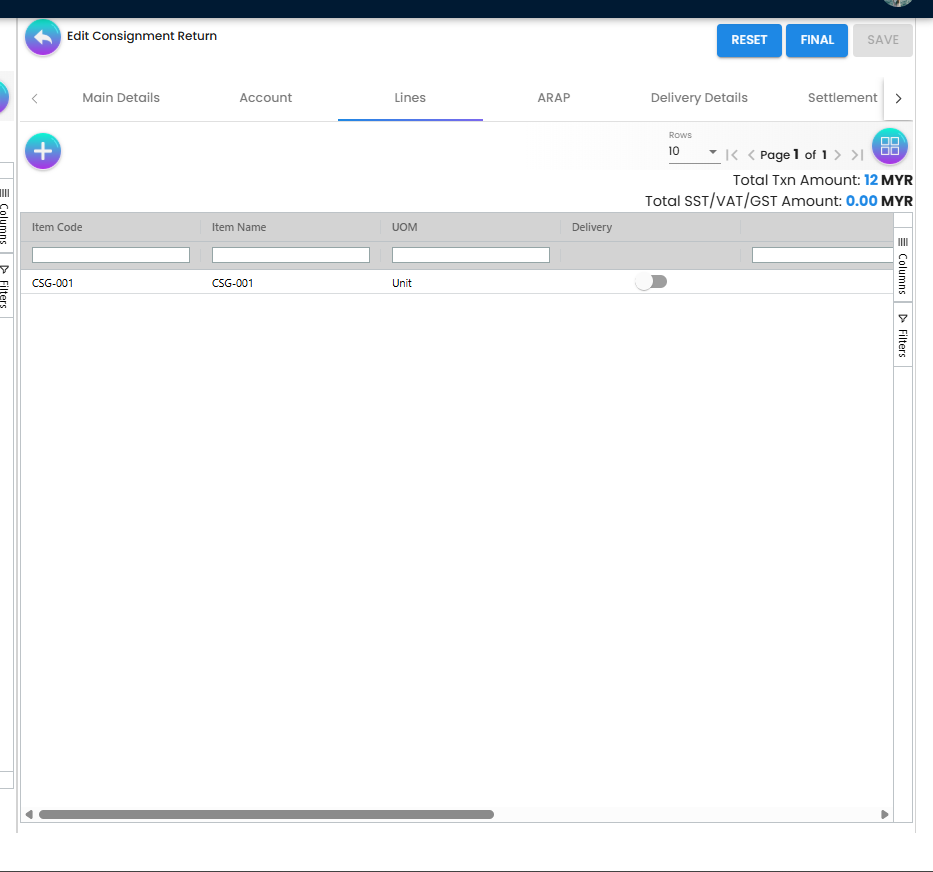
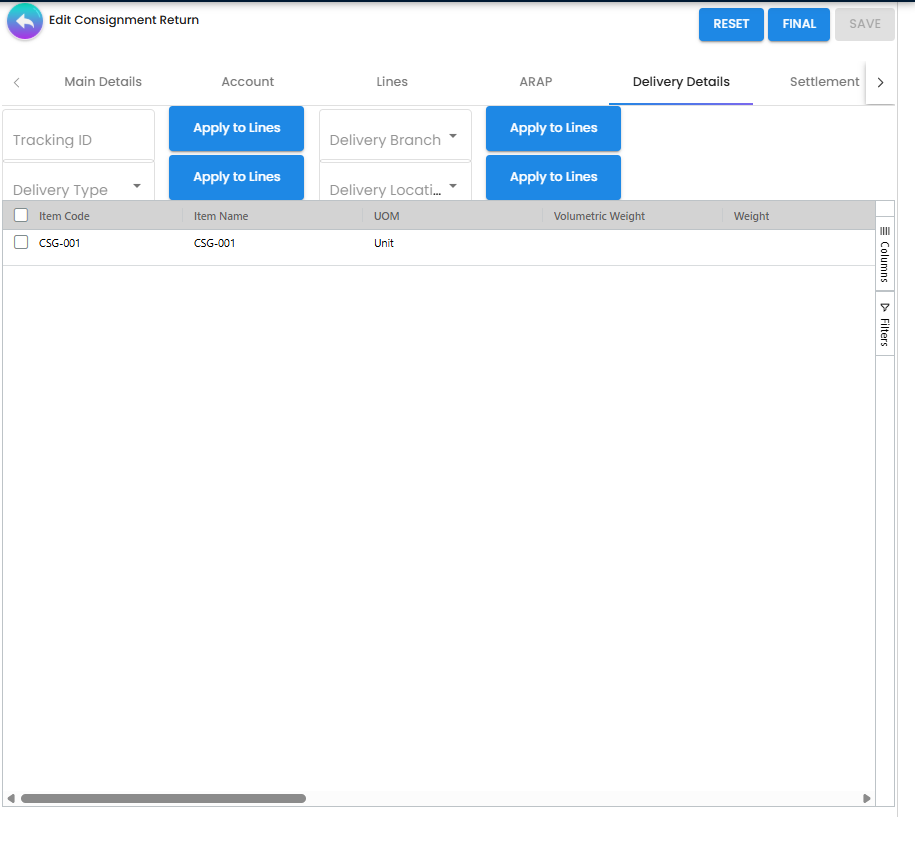
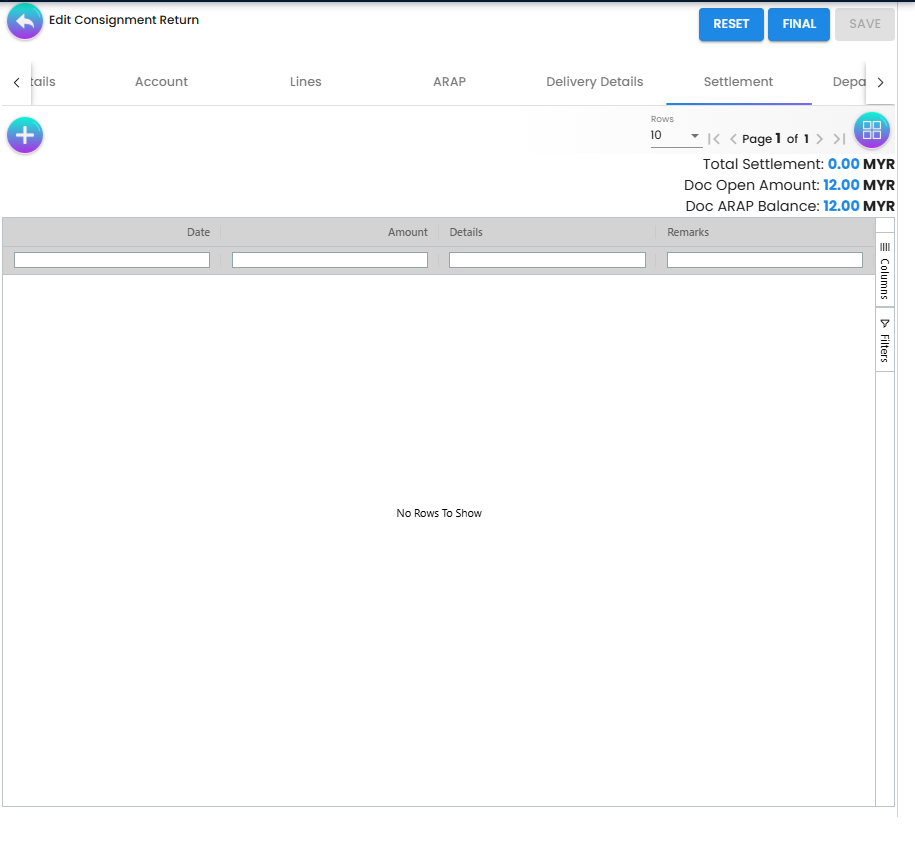
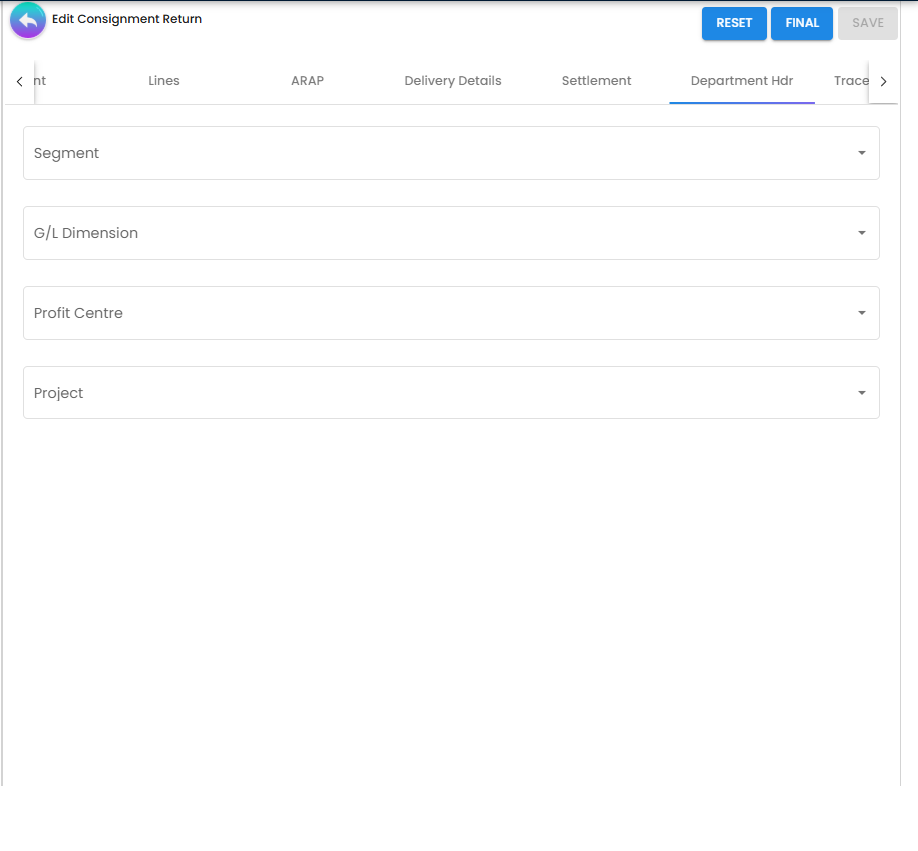
Header buttons: RESET, FINAL (always rendered; the backend refuses an already-FINAL document with Generic Document has already been posted to FINAL), SAVE (disableSave() mirrors disableCreate(); also needs the server-side UPDATE permission or tenant admin / owner). The VOID button on the edit pane is commented out — VOID is a listing action. A red DELETE button (draft only) appears when SHOW_DOCUMENT_DELETE_BUTTON is stored in the applet settings.
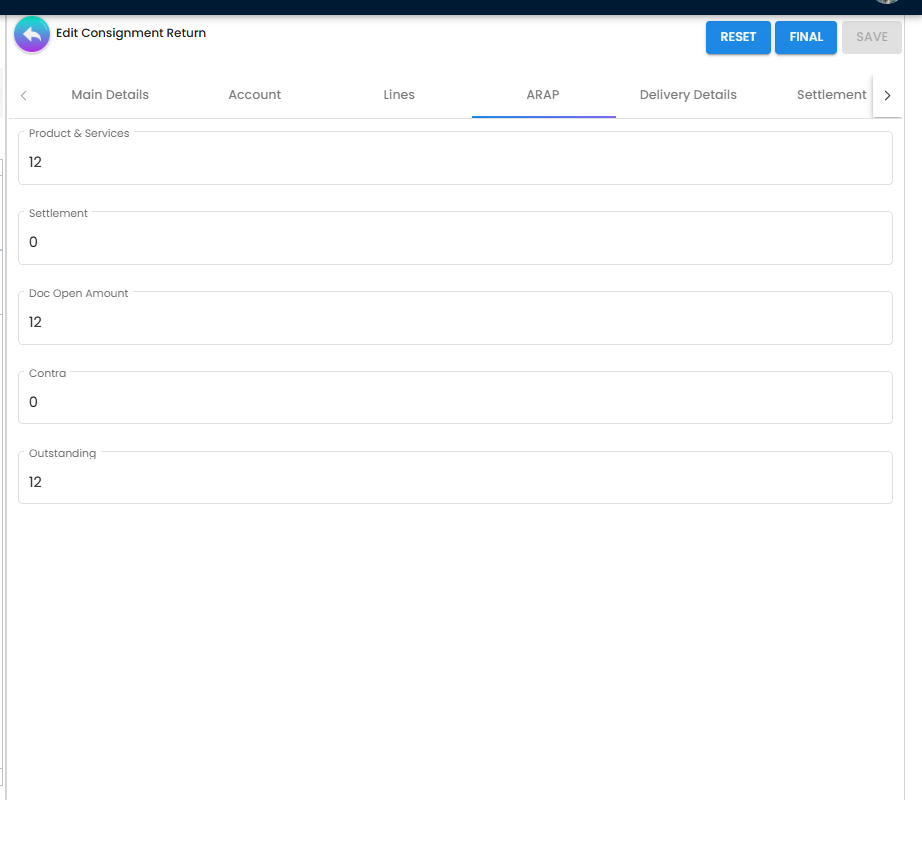
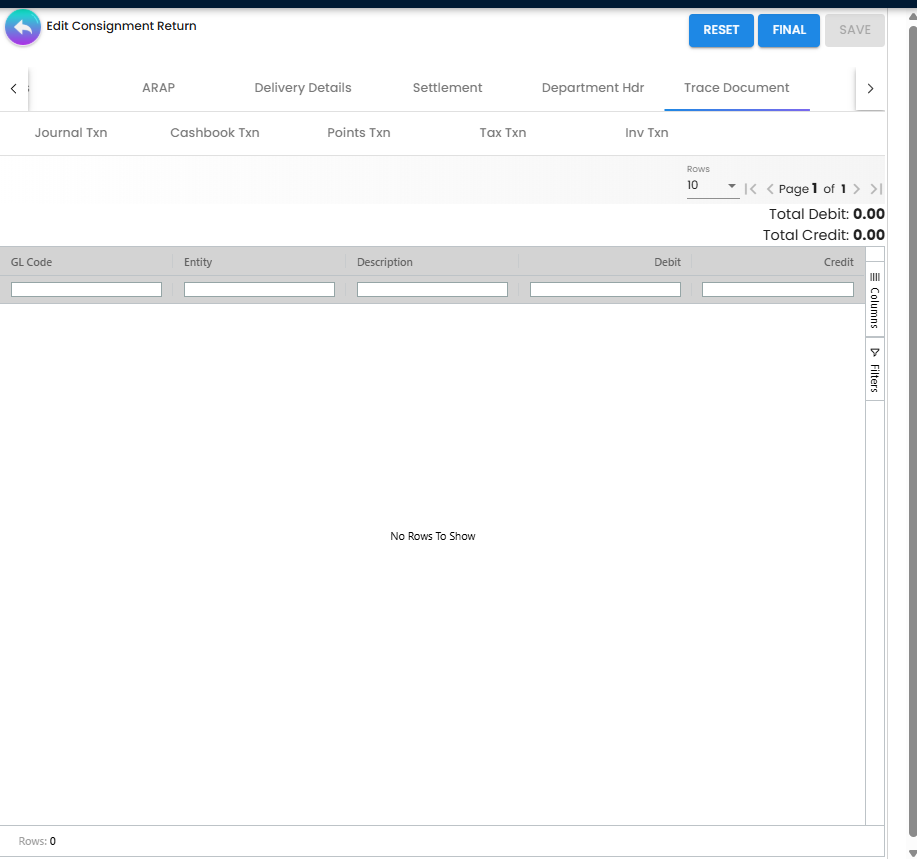
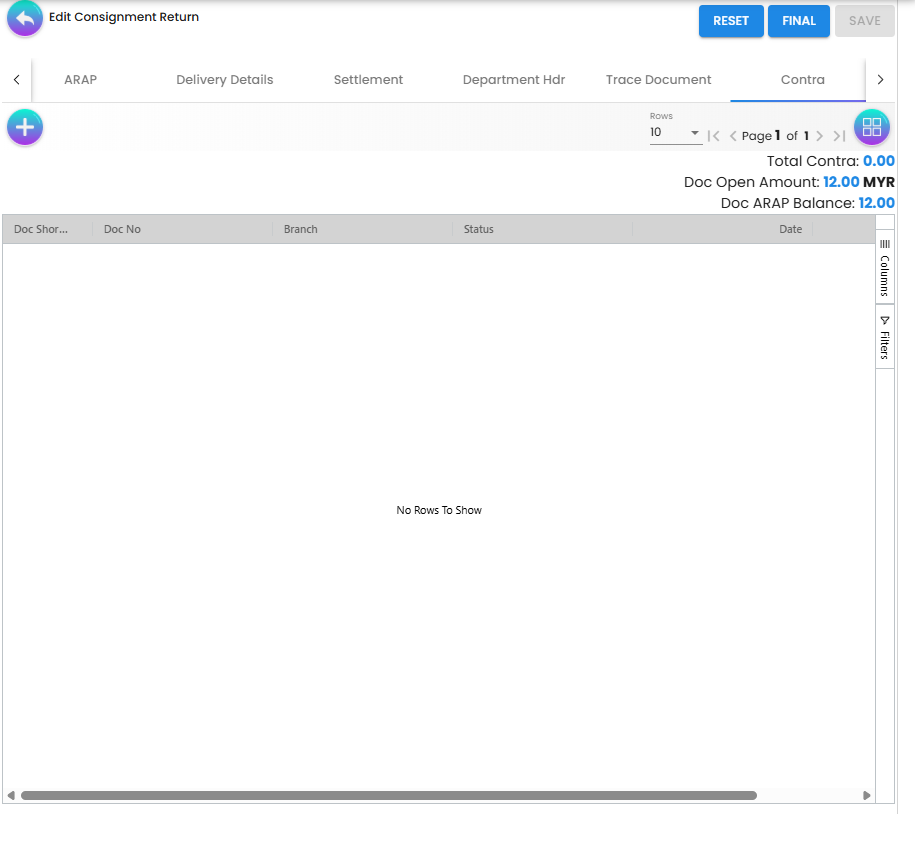
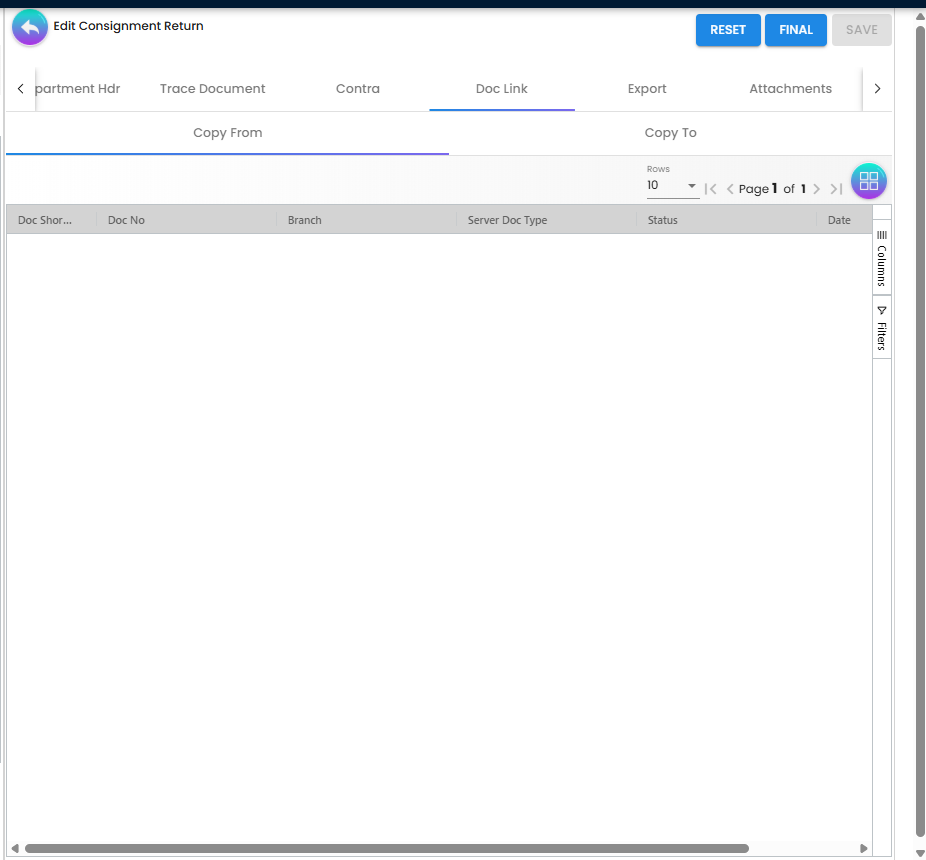
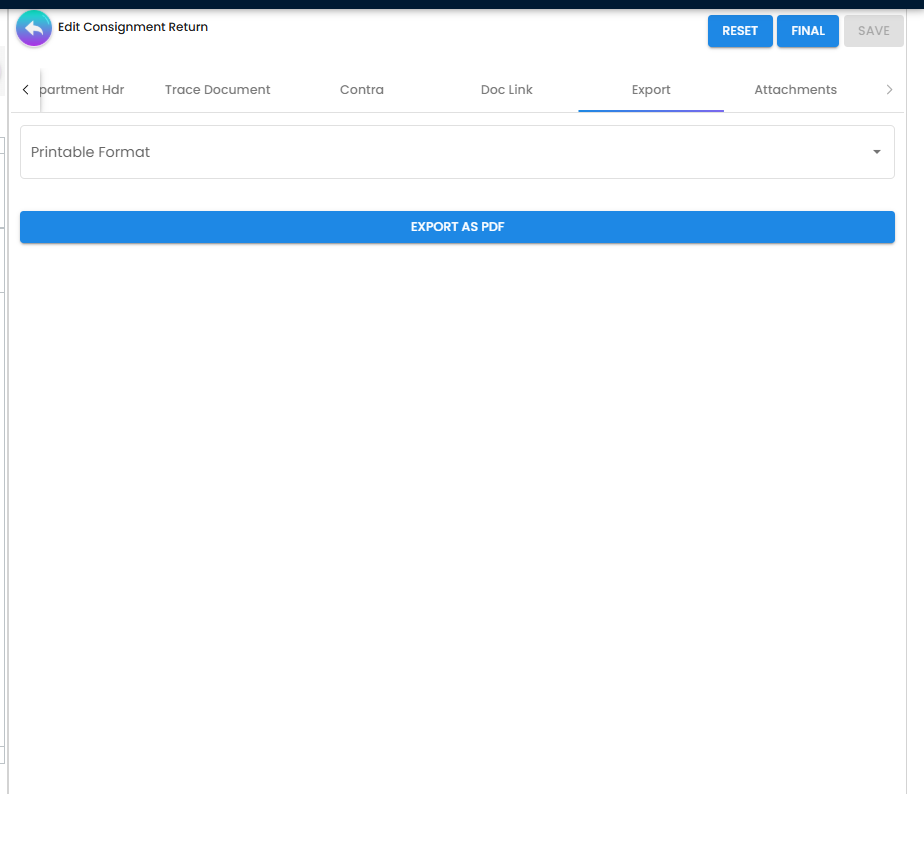
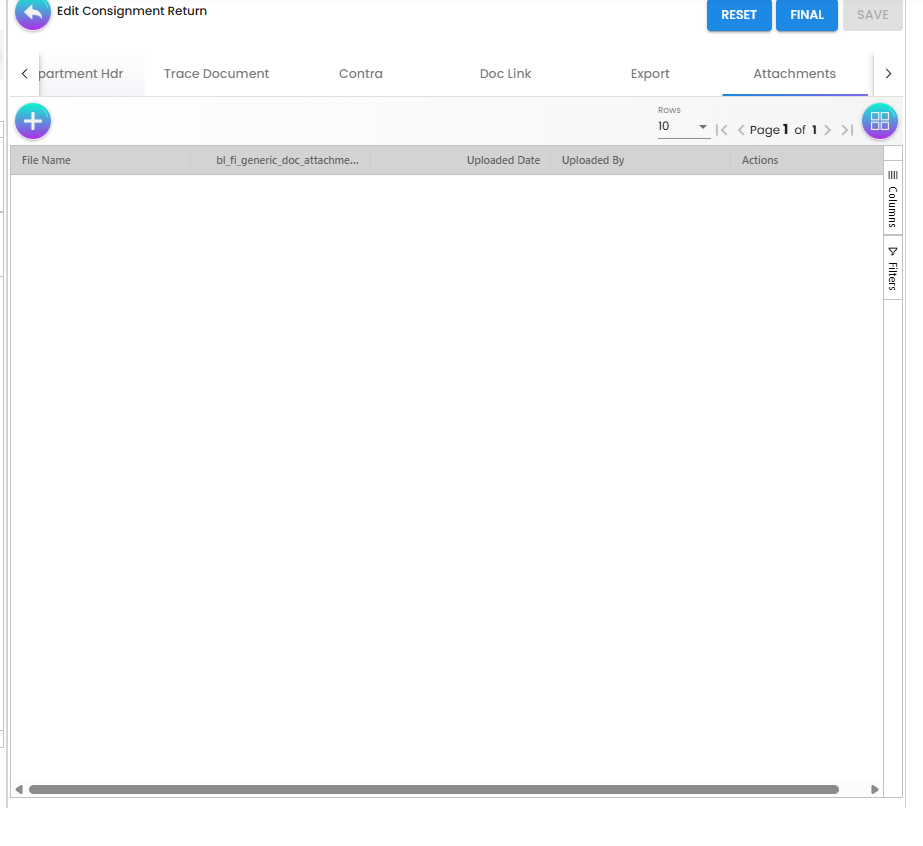
Tabs in fixed order (this applet has no Details Tab Ordering): Main Details, Account, Lines, ARAP, Delivery Details, Settlement, Department Hdr, Trace Document (Journal Txn / Cashbook Txn / Points Txn / Tax Txn / Inv Txn), Contra, Doc Link (Copy From / Copy To), Export, Attachments.
Configuration
Before you can use it
| Prerequisite | Where | Why |
|---|---|---|
Company default GL codes CONSIGNMENT_LIABILITY, CONSIGNMENT_STOCK, INPUT_TAX (and PURCHASE_DISCOUNT if discounts are used) | Chart of Account → company default GL mapping | The PURCHASE_CONSIGNMENT journal handler maps entity → CONSIGNMENT_LIABILITY, return lines → CONSIGNMENT_STOCK, tax → INPUT_TAX. The entity mapping throws MISSING_DEFAULT_GL_CODE: CONSIGNMENT_LIABILITY when absent; an unmapped line is silently omitted and FINAL then fails on the unbalanced journal. |
| Company, branch, location | Organisation | Branch, location and purchaser are required header controls. |
| Supplier (consignor) entities | Supplier | Account tab; the AR/AP type is ignored for consignment (the handler always uses CONSIGNMENT_LIABILITY). |
| Items | Doc Item Maintenance | Lines. Item-company GL links and line GL codes are not consulted for consignment types. |
| Tax codes | Tax Configuration | Line tax / WHT selectors. |
| Printable format | This applet → Printable Format Settings | Export tab. |
| Permissions | Permission Wizard / Set | TNT_API_DOC_INTERNAL_PURCHASE_CONSIGNMENT_RETURN_{CREATE,UPDATE,READ,DELETE}_TGT_GUID. |
Applet settings
Where settings live (app.routing.ts at 16378cc): Application Settings loads the shared FieldConfigurationComponent from blg-shared-utilities; the applet-local field-configuration component in settings-container/ is not routed. Default Selection and Personalization → Default Selection are applet-local. No per-screen gear, no branch settings.
Anyone with the applet’s Settings menu can change them. Every toggle defaults to off (nothing stored until the first Save; no per-applet pre-selection on the shared screen for this code).
Settings → Default Selection: DEFAULT_BRANCH, DEFAULT_LOCATION (derives DEFAULT_COMPANY) — pre-selected on a new return; a personal default overrides. Nothing else (no validity days, no tab ordering, no pricing scheme).
Personalization → Default Selection: DEFAULT_BRANCH, DEFAULT_LOCATION per user.
Settings → Application Settings (shared screen). Keys rendered there and read by this applet (45):
| Group | Keys | What they control |
|---|---|---|
| Listing | DISABLE_GEN_DOC_LISTING, SORT_ORDER, HIDE_DESCRIPTION, HIDE_FINAL_BUTTON, HIDE_GENDOC_VOID_BUTTON | Listing load and sort; the FINAL button (re-shown per user by SHOW_FINAL_BUTTON); the VOID button. Note this applet reads HIDE_FINAL_BUTTON, not HIDE_GENDOC_FINAL_BUTTON. |
| Header | HIDE_SERVER_DOC_1..3, HIDE_CLIENT_DOC_TYPE, HIDE_CLIENT_DOC_1..5, HIDE_LOCATION, HIDE_DELIVERY_BRANCH, HIDE_DELIVERY_LOCATION | Main Details visibility (HIDE_LOCATION hides a required control — keep a default location). |
| Lines | HIDE_UNIT_PRICE_STD_PRICING_SCHEME, HIDE_UNIT_PRICE_STD_INCL_TAX, HIDE_UNIT_PRICE_STD_EXCL_TAX, HIDE_UNIT_PRICE_STD_UOM_INCL_TAX, HIDE_UNIT_PRICE_STD_UOM_EXCL_TAX, HIDE_UNIT_PRICE_NET_UOM_EXCL_TAX, HIDE_UNIT_PRICE_NET_EXCL_TAX, HIDE_UNIT_PRICE_TXN, HIDE_UNIT_PRICE_TXN_UOM_INCL_TAX, HIDE_UNIT_DISCOUNT, HIDE_UNIT_DISCOUNT_UOM_EXCL_TAX, HIDE_QTY_BASE, HIDE_QTY_UOM, HIDE_UOM_TO_BASE_RATIO, HIDE_AMOUNT_STD_EXCL_TAX, HIDE_DISCOUNT_AMOUNT_EXCL_TAX, HIDE_AMOUNT_NET_EXCL_TAX, HIDE_AMOUNT_TXN, HIDE_TAX_CONFIG_SELECTION, HIDE_WHT_CONFIG_SELECTION, HIDE_COSTING_DETAILS | Line form fields and grid columns. |
| ARAP | HIDE_ARAP_PNS, HIDE_ARAP_SETTLEMENT, HIDE_ARAP_DOC_OPEN, HIDE_ARAP_CONTRA, HIDE_ARAP_BAL | ARAP tab rows and listing columns. |
PRINTABLE (default printable format) is written by Printable Format Settings → set as default and read by the Export tab.
Rendered on the shared screen but read nowhere in this applet: HIDE_TRACKING_ID, HIDE_PERMIT_NO, HIDE_LAST_PURCHASE_PRICE. The VERTICAL_ORIENTATION / EXPAND_*, HIDE_GENDOC_FINAL_BUTTON, HIDE_GENDOC_DISCARD_BUTTON, ENABLE_AUTO_POPUP and REQUIRE_VALIDITY_DATE toggles shown on the shared screen are not in this applet’s model and have no effect here; the shared screen’s tab-hide section does not render at all for internalConsignmentReturnApplet (not in its getTabValue() map), and DISABLE_LINE_ITEM_QUEUE_LISTING — declared in the model — has a control only for the requisition applet and is read nowhere here.
Read at runtime without a control: ENABLE_FILTER_BY_TODAYS_TXN (listing window = today).
Declared in applet-settings.model.ts only — no control, not read: INCLUDE_* / ENABLE_* for SST, WHT, Segment, Dimension, Profit Center, Project; ENABLE_CUSTOM_STATUS_* (15 keys).
Document behaviour settings
| Behaviour | Where it is set | Notes |
|---|---|---|
| Journal accounts | Company default GL codes CONSIGNMENT_LIABILITY, CONSIGNMENT_STOCK, INPUT_TAX, PURCHASE_DISCOUNT. | Fixed by the PURCHASE_CONSIGNMENT handler; line GL codes and item-company links are bypassed for consignment types (JournalPostingService L139). |
| Stock | — | Not configurable: quantity signum is forced to 0 by the DCO; no stock or MA effect. |
| Printables | Printable Format Settings, PRINTABLE. | Export tab → EXPORT AS PDF. |
| Backdating | — | No PO_ALLOW_BACKDATE_TRANSACTION check in this applet; the transaction date is free, subject to the fiscal-period lock. |
| Serial validation | — | The applet does not send validate_serial_signum_zero; serial / batch quantity checks are skipped for this signum-0 type. |
| Webhooks | Settings → Webhook. | Shared component. |
| Approval, workflow, e-mail, file import, e-Invoice | — | No exposed control found (routes and menu items checked at 16378cc); the type is not an e-Invoice document. |
Settings in other applets that control this applet
| Setting | Where it is set | Effect here |
|---|---|---|
Company default GL mapping for CONSIGNMENT_LIABILITY | Chart of Account | FINAL throws MISSING_DEFAULT_GL_CODE: CONSIGNMENT_LIABILITY when missing. |
Company default GL mapping for CONSIGNMENT_STOCK, INPUT_TAX | Chart of Account | Missing → the line is omitted and FINAL fails with TOTAL_DEBITS_AND_TOTAL_CREDITS_NOT_BALANCES. |
Fiscal period lock (LOCK_ALL / LOCK_TXN) | Organisation | FINAL rejected with The selected date falls within a locked fiscal period. |
| Forex rate for the document currency | Forex | Non-zero rate required on FINAL (FOREX_DOC_REQUIRES_NON_ZERO_XRATE). |
Feature visibility / permissions
Server-side (TntErpPermissions): TNT_API_DOC_INTERNAL_PURCHASE_CONSIGNMENT_RETURN_CREATE_TGT_GUID, …_UPDATE_TGT_GUID, …_READ_TGT_GUID, …_DELETE_TGT_GUID. SAVE on the edit pane needs UPDATE or TNT_TENANT_ADMIN / TNT_TENANT_OWNER; Line Items needs READ.
Client-side: the registry has no bl_applet_client_side_perm_dfn rows for internalConsignmentReturnApplet (checked 2026-09-05). Codes the code checks, none grantable until seeded:
| Group | Codes (checked in code, not seeded) |
|---|---|
| Buttons | SHOW_FINAL_BUTTON (re-shows a hidden listing FINAL) |
| Header | SHOW_DOC_NO_TENANT, SHOW_DOC_NO_COMPANY, SHOW_DOC_NO_BRANCH, SHOW_CLIENT_DOC_TYPE, SHOW_CLIENT_DOC_1..5, SHOW_TRANSACTION_DATE, SHOW_DESCRIPTION |
| Lines and pricing | PURCHASE_CONSIGNMENT_RETURN_DISPLAY_PRICING (create / edit Lines grid) and INTERNAL_PURCHASE_CONSIGNMENT_RETURN_DISPLAY_PRICING (Line Items menu) — two different codes for the same purpose; SHOW_UNIT_PRICE_* (nine), SHOW_UNIT_DISCOUNT, SHOW_UNIT_DISCOUNT_UOM_EXCL_TAX, SHOW_QTY_BASE, SHOW_QTY_UOM, SHOW_UOM_TO_BASE_RATIO, SHOW_AMOUNT_STD_EXCL_TAX, SHOW_DISCOUNT_AMOUNT_EXCL_TAX, SHOW_AMOUNT_NET_EXCL_TAX, SHOW_AMOUNT_TXN, SHOW_TAX_CONFIG_SELECTION, SHOW_WHT_CONFIG_SELECTION, SHOW_COSTING_DETAILS |
| ARAP | SHOW_ARAP_PNS, SHOW_ARAP_SETTLEMENT, SHOW_ARAP_DOC_OPEN, SHOW_ARAP_CONTRA, SHOW_ARAP_BAL |
Price columns are hidden for every user who is not tenant OWNER or ADMIN and lacks the display-pricing code (ClientSidePermissionChecker.checkPermission).
Fields
Main Details
| Field | Meaning | Required | Notes / validation |
|---|---|---|---|
| Branch, Location | Returning branch and location. | Yes (Validators.required) | Pre-filled from Default Selection / personal defaults. |
| Purchaser | Employee responsible. | Yes (Validators.required) | Unlike the consignment PO, this one is enforced. |
| Company | Owning company. | System | Derived from the branch. |
| Doc Short Code, Doc No (Tenant / Company / Branch) | CSGRTN and running numbers. | System | Assigned on FINAL. |
| Client Document type, Client Doc 1–5 No | Consignor references. | No | HIDE_CLIENT_DOC_*. |
| Transaction Date | Return date. | Yes | Must fall in an unlocked fiscal period to FINAL. |
| Delivery Branch, Delivery Location | Where the goods leave from. | No | HIDE_DELIVERY_BRANCH, HIDE_DELIVERY_LOCATION. |
| Currency, Currency Rate | Document currency. | Rate non-zero when currencies differ | |
| Reference, Remarks, Description | Free text. | No |
Account
| Field | Meaning | Required | Notes |
|---|---|---|---|
| Entity Id (supplier) | The consignor. | Yes (Validators.required) | Picker with inline create / edit (name, type, currency, ARAP type required there). |
| Entity Name, Status, Entity Type, Identity Type, ID Number, Currency, Email, Description, Phone Number | Read-only echo of the supplier. | — | |
| Bill To, Ship To | Address sub-tabs. | No |
Lines
| Field | Meaning | Required | Notes / validation |
|---|---|---|---|
| Item | From Search Item, the Search tab or KO For. | Yes | CREATE / SAVE need at least one line. |
| Quantity, UOM, ratio | Returned quantity. | No validator | Recorded on the line; not posted to stock (quantity signum 0). |
| Unit prices, discounts, amounts, tax, WHT | Value of the return. | No | The amounts drive the journal and ARAP. |
| Serial Number, Batch, Bin | Stock references. | No | On the Search tab, a serialised invoice line needs the serial numbers to return (Please Select Serial Number) and a quantity (Please Enter Return Qty). |
| Delivery toggle / details | Per-line delivery. | No | |
| Segment, G/L Dimension, Profit Centre, Project | Dimensions. | No | Header dimensions fill lines that have none. |
Settlement, Contra, Department Hdr
| Tab | Fields | Notes |
|---|---|---|
| Settlement | Settlement Method, Date, Amount, Details, Remarks; totals Total Settlement, Doc Open Amount, Doc ARAP Balance. | Settlement lines are typed INTERNAL_RECEIPT_VOUCHER for every method except CASH_BACK (INTERNAL_PAYMENT_VOUCHER) — the sales-side typing inherited from the template; the ARAP balance still closes. |
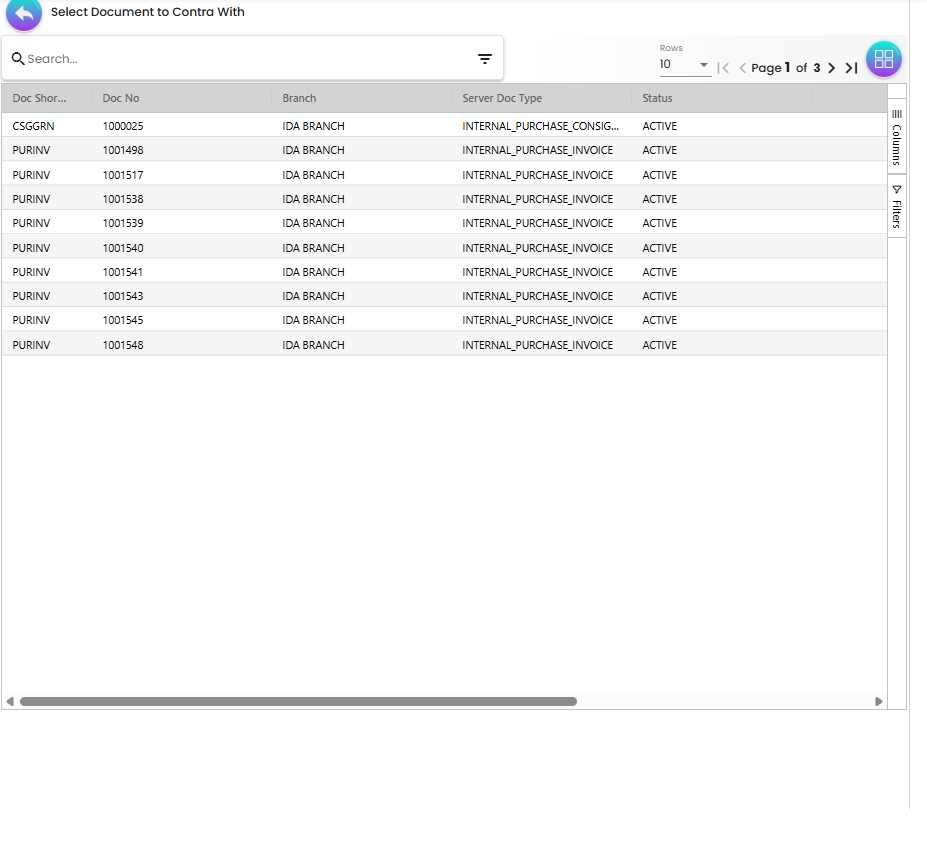
| Contra | Documents of the consignor to offset against. | Open documents with a balance; the capture above shows a Consignment GRN and purchase invoices. |
| Department Hdr | Segment, G/L Dimension, Profit Centre, Project. |
Lifecycle and posting
| Status | Meaning | Allowed next |
|---|---|---|
| DRAFT | Editable. | FINAL (listing or edit), DELETE (edit, when enabled) |
| FINAL | Posted: journal written, ARAP balance open. | VOID (listing) |
| VOID | Reversed. | none |
There is no DISCARD in this applet.
On FINAL the backend (GenericDocumentService.updatePostingStatus → validateGenericDocumentOnFinal) checks the forex rate, bin quantities and the fiscal-period lock (serial / batch checks are skipped because the applet does not send validate_serial_signum_zero; the stock-balance check does not apply to signum-0 lines), saves, assigns running numbers, creates a base-currency shadow for a foreign-currency return, and queues the primary processor, which writes the journal and the ARAP record.
Posting proof (backend at 871dbf5): server document type INTERNAL_PURCHASE_CONSIGNMENT_RETURN · amount signum +1 · quantity signum 0 (InternalPurchaseConsignmentReturnDataConsistencyObject L16–17; fillQuantitySignumAndAmountSignumForLine overwrites whatever the applet sent) · journal handler: no entry of its own — JournalPostingService L65–74 maps INTERNAL_PURCHASE_CONSIGNMENT_GRN and …_RETURN to the PURCHASE_CONSIGNMENT handler (JournalPostingTypeHandler L95–103) and marks the document isConsignmentStockIn · Dr/Cr per line:
| Account | Dr | Cr | Source of GL code |
|---|---|---|---|
Consignment Liability (CONSIGNMENT_LIABILITY, used in place of Creditor — resolveArap returns it for consignment types) | Net of all lines | Company default — mandatory, throws MISSING_DEFAULT_GL_CODE. | |
Consignment Stock (CONSIGNMENT_STOCK, via PNS_RETURN) | Line amount | Company default only — line GL codes and item-company links are skipped when isConsignmentStockIn. | |
Input Tax (INPUT_TAX) | Tax amount | Company default. | |
Purchase Discount (PURCHASE_DISCOUNT) | Discount | Company default. |
· GL precedence: company default only for consignment types (the usual line → header → item-company → company chain is bypassed) · stock processor: none — quantity signum 0 and the type is not in StockBalanceHelper.MA_WA_SERVER_DOC_TYPES · what VOID reverses: the journal and the ARAP balance; nothing in stock.
| Ledger | Effect of FINAL |
|---|---|
| General Ledger | Dr Consignment Liability / Cr Consignment Stock (+ tax, discount) |
| Supplier account (ARAP) | Positive balance = value the consignor owes back; closed by contra or settlement |
| Stock | none |
| Open queue | none (no downstream document knocks a consignment return off) |
Related applets
- Consignment GRN Applet (Internal) — the document whose value this one reverses; contra target.
- Consignment GIN Applet (Internal) — consumption of consigned stock (the stock-moving counterpart, quantity signum −1).
- Consignment Purchase Order Applet (Internal) — start of the consignment flow.
- Consignor Purchase Billing Applet (Internal), Consignment Billing Applet (Internal) — settlement with the consignor.
- Purchase Return (Internal) — the ordinary return this applet is forked from; it does move stock.
- Purchase Invoice (Internal), Purchase GRN (Internal), Purchase Order (Internal), Purchase Requisition (Internal), Supplier Delivery Order — Search and KO For sources.
- Payment Voucher (Internal) — settlement of the balance.
- Chart of Account, Supplier, Organisation, Doc Item Maintenance, Tax Configuration — master data.
Troubleshooting
| Symptom | Cause | Fix |
|---|---|---|
FINAL fails with MISSING_DEFAULT_GL_CODE: CONSIGNMENT_LIABILITY | The company has no default GL code for CONSIGNMENT_LIABILITY. Line GL codes and the supplier’s AR/AP type cannot substitute for consignment types. | Map it in Chart of Account → company default GL codes. |
FINAL fails with TOTAL_DEBITS_AND_TOTAL_CREDITS_NOT_BALANCES | CONSIGNMENT_STOCK (or INPUT_TAX) has no company default; the line is dropped from the journal silently. | Map the missing default and FINAL again. |
| Stock did not decrease after the return | Expected: quantity signum is 0 for this type; the return is a value document only. | Record the physical movement with a Consignment GIN / stock adjustment according to your process. |
| Trace Document → Journal Txn is empty on a FINAL document | The posting failed after the status change (see the two rows above) or the processor has not run yet. | Check the default GL mapping; wait for the queue; re-FINAL is refused (Generic Document has already been posted to FINAL). |
| FINAL rejected with The selected date falls within a locked fiscal period | Transaction date in a LOCK_ALL / LOCK_TXN period. | Change the date or reopen the period (message reworded under intranet #1616). |
FINAL rejected with FOREX_DOC_REQUIRES_NON_ZERO_XRATE | Foreign-currency return with no rate. | Enter the rate or maintain it in Forex. |
| Please Select Serial Number / Please Enter Return Qty on the Search tab | A serialised purchase-invoice line was ticked without choosing serial numbers or a quantity. | Choose the serial numbers; the quantity follows. |
| Buyers see no prices on Lines | Not OWNER / ADMIN and no PURCHASE_CONSIGNMENT_RETURN_DISPLAY_PRICING (unseeded; the Line Items menu checks a different code, INTERNAL_PURCHASE_CONSIGNMENT_RETURN_DISPLAY_PRICING). | Use an admin-rank user or have both codes seeded and granted. |
| FINAL button missing on the listing | HIDE_FINAL_BUTTON on and no SHOW_FINAL_BUTTON (unseeded). | Turn the setting off. |
| VOID button missing | HIDE_GENDOC_VOID_BUTTON on, or the row is not FINAL. | Turn the setting off. |
| Cannot find the Consignment GRN on KO For | KO For offers only the ordinary purchase documents (GRN, invoice, order, requisition, supplier DO). | Enter the lines directly or via the Search tab, then offset the GRN on the Contra tab. |
| Settlement line typed as a receipt voucher on a purchase document | Inherited sales-side typing in add-settlement. | Cosmetic for the ARAP balance; report if it disturbs cashbook reports. |
| Screen throws ExpressionChangedAfterItHasBeenChecked on open | Fixed in the 2026 refactor (intranet #3508, #4101). | Update the applet. |
| Mobile layout unusable / labels not translated | Responsive UI (#4787) and translations (#5053) are open work items. | Use a desktop browser. |
Related documentation
- Purchasing module and Inventory module
- Consignment purchasing guide
- Sibling reference: Purchase Return (Internal)