Consignor Purchase Billing Applet (Internal)
Overview
The Consignor Purchase Billing Applet (Internal) records, for one consignor (a supplier who keeps ownership of the stock in your shops) and one billing period, which consigned items became billable and for how much. Each record has a header (period, company, branch, location, purchaser, status), the consignor, and one line per item with an opening quantity, net purchases, closing quantity, the resulting Quantity To Bill and its value and tax. The applet stores this in its own billing tables; it is not a generic document, so it has no FINAL step, posts no journal, moves no stock and creates no creditor balance. The amount you actually owe the consignor still has to be recorded as a supplier invoice and paid through a payment voucher.
The window title is Consignor Purchase Billing Applet; the sidebar entry is Internal Consignor Purchase Billing. It is the purchase-side counterpart of the Consignment Billing Applet (Internal), which bills your customers for stock you consigned to them.
Where it fits
| Position | Applet / document | Relationship |
|---|---|---|
| Module | Purchasing, Inventory | Consignment-purchase family |
| Upstream (source of the figures) | Consignment GRN (Internal), Consignment GIN (Internal), Consignment Return (Internal), Stock Balance | The GRN and GIN are the documents that move consigned stock; the opening, net-purchase and closing quantities you type on a billing line come from them. The applet does not read them itself (see Lifecycle). |
| Upstream (commitment) | Consignment Purchase Order (Internal) | The order that placed the stock with you. Not linked to the billing. |
| Master data | Supplier, Employee, Organisation, Doc Item Maintenance, Tax Configuration | Consignor entity, purchaser, company/branch/location, consignment-flagged items, SST/WHT codes |
| Downstream | Purchase Invoice (Internal), Payment Voucher (Internal) | Nothing in the code links a billing to them; they are where the creditor balance and the payment are recorded. |
| Sales-side mirror | Consignment Billing Applet (Internal), Customer Consignment | You are the consignor there; here you are the consignee. |
Screens and menus
Sidebar: one entry, Internal Consignor Purchase Billing, which opens the listing. Settings and Personalization are the applet-level menus (below).
Consignor Purchase Billing Listing — server-side grid with columns Company Name, Branch, Consignor, Consignor Name, Start Date, End Date, Status, sorted by last update. Create (+) starts a new billing; clicking a row opens it for editing. The advanced-search box is the one inherited from the Purchase Order template (see Troubleshooting — it does not search billings). There is no FINAL, VOID, DELETE or PRINT button on the listing.
Create Consignor Purchase Billing — tabs Main Details, Account, Line Item, Payment; one button, CREATE. Edit Consignor Purchase Billing adds an Export tab and the buttons RESET and SAVE.
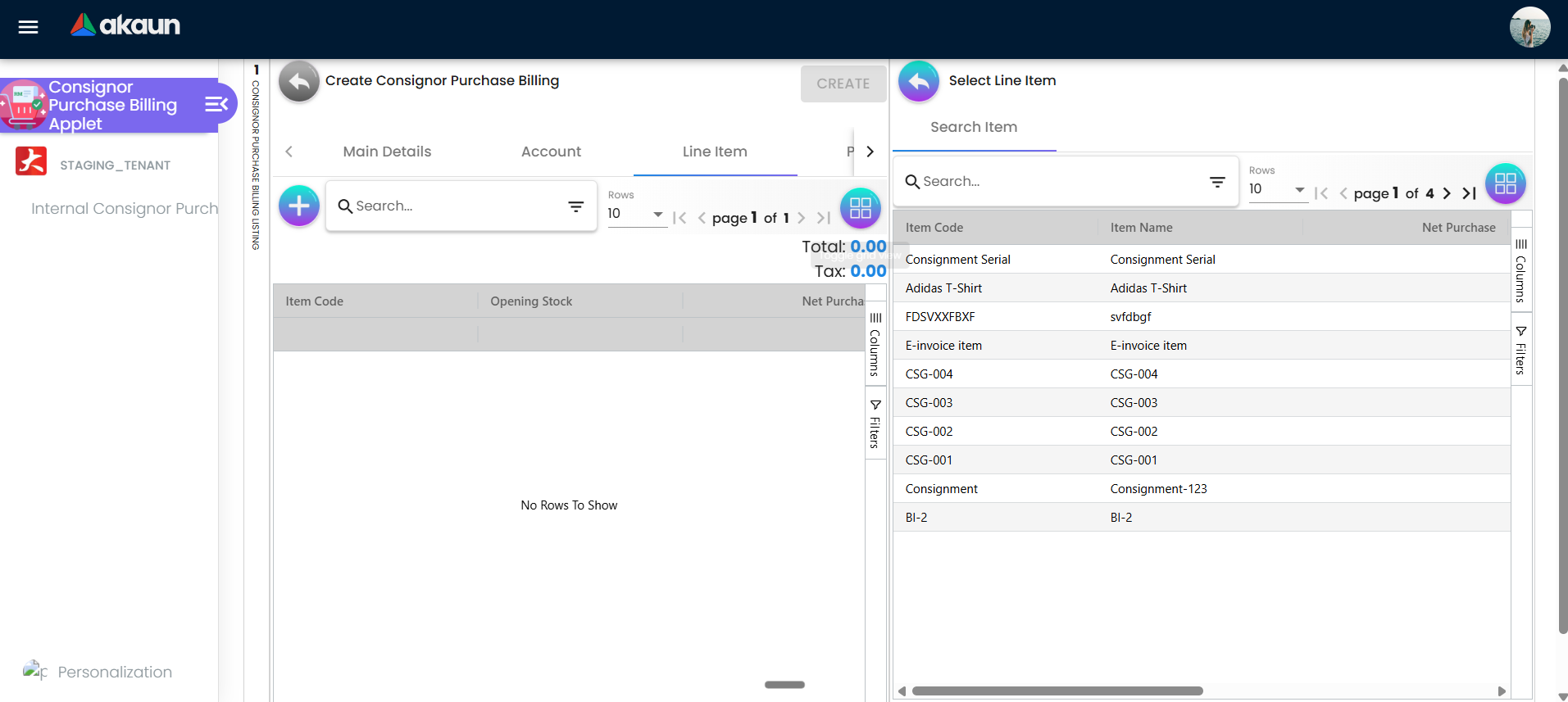
Select Line Item → Search Item — the item picker behind + on the Line Item tab. It lists only items whose consignment flag is set (columns Item Code, Item Name, Net Purchase, Closing Stock, Billed Quantity, Quantity To Bill — the last four are empty placeholders; the picker does not compute them). Choosing an item opens Add Item with two tabs, Item Details (price, quantity, discount, SST, WHT) and Calculations (opening, net purchase, closing, quantity to bill), and an ADD button.
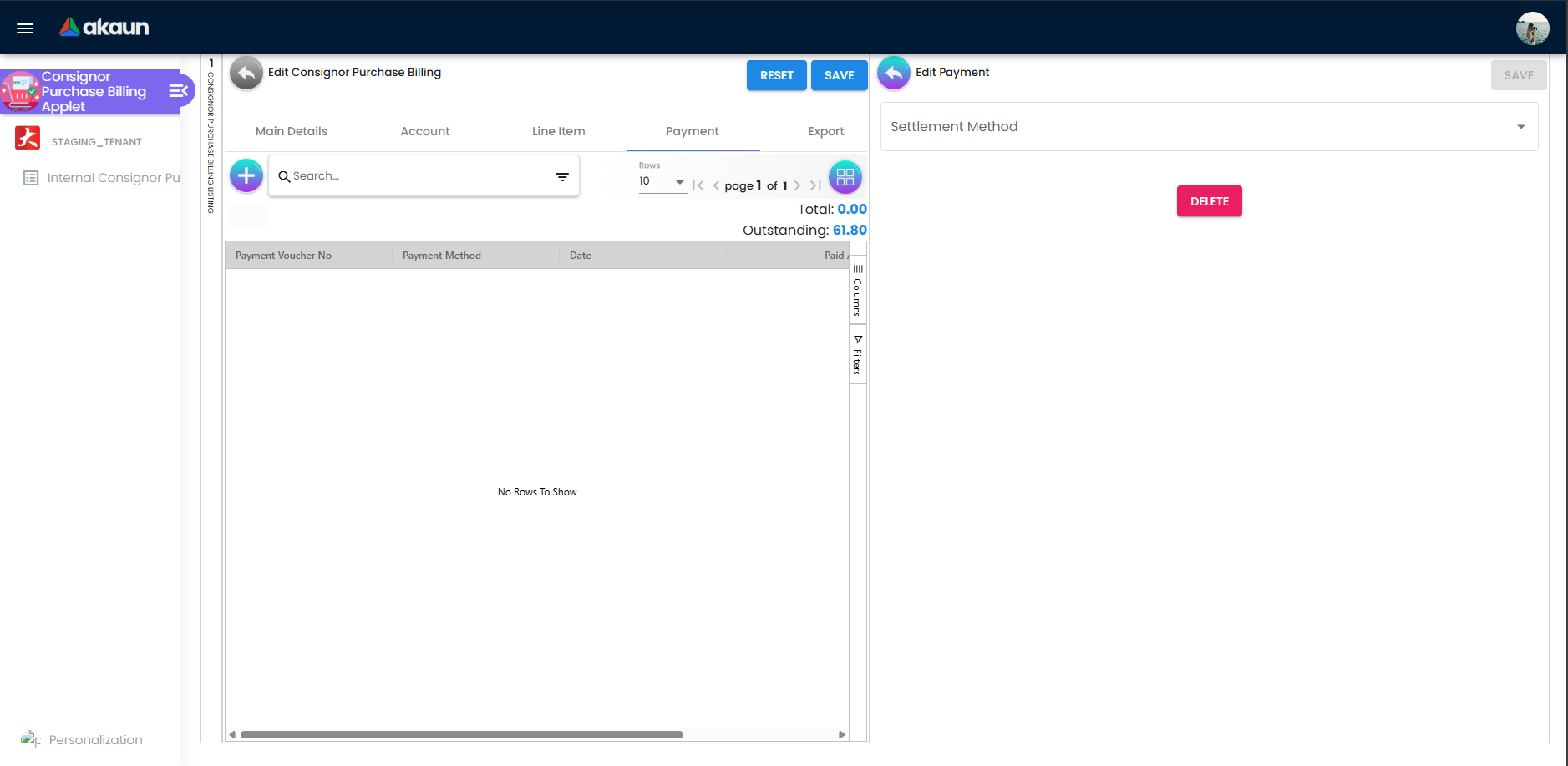
Payment tab — a grid (Payment Voucher No, Payment Method, Date, Paid Amount, Remarks) with Total and Outstanding above it, + to open Add Payment (settlement-method picker and method-specific fields), and click-through to Edit Payment (SAVE / DELETE). Read Lifecycle before using it: nothing entered here is saved.
Export tab (edit only) — Printable Format drop-down and EXPORT AS PDF.
Settings menu (what an administrator sees, in order): System Configuration → Field Settings, Default Selection; Server Side Permissions → Permission Wizard, Permission Set, User Permission, Role Permission; Developer Tools → Release Notes. Opening Settings lands on Feature Visibility, which is routed but not in the menu; Printable Format Settings and Webhook are likewise reachable only by URL (settings/printable-format-settings, settings/webhook). Permission Wizard and Release Notes have no route in this applet and show the 404 page. Personalization lists Field Settings (no route — 404), Default Selection and Sidebar.
Configuration
Before you can use it
| Prerequisite | Where | Why |
|---|---|---|
| Company, branch and location | Organisation | Branch and location are the only header fields the form requires; the company is overwritten on save with the branch’s company. The backend rejects a header whose company guid is null or unknown (…_HDR_OBJECT_GUID_COMP_IS_NULL / …_COMP_DOES_NOT_EXIST) and a branch, location or entity guid that does not exist. |
| The consignor as a supplier entity | Supplier | Picked on the Account tab. Neither the form nor the backend insists on one (the entity check runs only when a guid is present) — see Troubleshooting for why you should always pick one. |
| Employee records | Employee | The Purchaser Agent picker lists employees. |
| Items with the consignment flag set | Doc Item Maintenance | Search Item filters on consignment_flg = true; an ordinary item never appears. The line’s default price is the item’s base-UOM price. |
| SST / WHT tax codes | Tax Configuration | The Item Details tab has SST and WHT pickers. |
Settlement-method items (SETTLEMENT_TYPE extension) | Doc Item Maintenance | Populate the Payment tab’s Settlement Method list. Only needed if you want the tab to render; it cannot save. |
Server-side permissions API_TNT_DM_ERP_CONSIGNOR_PURCHASE_BILLING_* | Settings → Permission Set / User Permission / Role Permission | See Feature visibility / permissions. |
Not needed: default GL codes, document numbering, cashbooks, e-Invoice settings. The billing posts nothing and has no document number (the header has no number column; the listing has no number column either).
Applet settings
Settings live in applet-local components: settings/default-selection renders the applet’s own DefaultSettingsComponent and settings/field-settings renders the applet’s own (empty) FieldConfigurationComponent. The shared FieldConfigurationComponent from blg-shared-utilities is not routed and no screen embeds the inline gear (app-applet-settings-toggle). The settings model declares 31 keys; only one passes all four proofs (declared, rendered, persisted, consumed). Any user who can open Settings can change it.
| Setting | What it controls | Default | Effect when changed |
|---|---|---|---|
PRINTABLE (Printable Format Settings → set as default) | The printable format pre-selected in the Export tab’s drop-down. | none — the drop-down is empty until a default is chosen | Persisted into the applet’s APPLET_SETTINGS extension and read into the Export tab. It has no effect on the PDF itself, because the export effect ignores the selected format (see Lifecycle). |
Screens that look like settings but change nothing (checked at applet commit 823e05d):
- Default Selection (
DEFAULT_BRANCH,DEFAULT_LOCATION): two drop-downs and a SAVE button. The route renders the component with no save handler and the code that loads the stored value is commented out, so the screen always opens blank, SAVE emits nothing, and changing a drop-down dereferences an unset container. Main Details never reads these keys. The same applies to Personalization → Default Selection. - Field Settings: eight slide-toggles (Unit Discount, SST/VAT/GST, WHT, Blanket Order; Segment, G/L Dimension, Profit Center, Project) bound to nothing and a SAVE button with no handler. The corresponding model keys (
INCLUDE_*,ENABLE_*,ENABLE_CUSTOM_STATUS_*) are declared only; no component reads them and the document form shows every field regardless.
Document behaviour settings
No exposed control found (routes and settings components checked at commit 823e05d). There is no FINAL / VOID, no numbering, no approval workflow, no e-Invoice flag and no posting to configure.
Settings in other applets that control this applet
| Setting | Where it is set | Effect here |
|---|---|---|
| Consignment flag on the item | Doc Item Maintenance | Only flagged items appear in Search Item. |
Base-UOM price on the item (price_json.item_base_uom_pricing) | Doc Item Maintenance, Pricebook | Default Unit Price on Item Details; the applet also loads the pricing-scheme links it finds. |
Supplier extensions GLCODE_INFO, ID_NO, CURRENCY | Supplier | Copied into the read-only Account card (entity_hdr_json) for display only. |
SETTLEMENT_TYPE on settlement-method items | Doc Item Maintenance | Decides which fields Add Payment shows (CASH, CASH_BACK, CREDIT_CARD, VOUCHER, BANK_TRANSFER, MEMBERSHIP_POINT_CURRENCY, CHEQUE). |
Feature visibility / permissions
Client-side: the registry holds 0 client-side permission definitions for InternalConsignorPurchaseBillingApplet (checked 2026-09-05) and the applet calls no permission check, so the Feature Visibility screen is empty and nothing in the UI — prices included — is hidden per role.
Server-side (TntErpPermissions, enforced by the controller):
| Permission | Endpoint it gates |
|---|---|
API_TNT_DM_ERP_CONSIGNOR_PURCHASE_BILLING_CREATE | POST (CREATE button) |
…_UPDATE | PUT (SAVE button); target-scoped to the billing row |
…_DELETE | DELETE by guid — hard-deletes header and lines; no button calls it |
…_READ | GET, GET by guid, GET query (listing). A row the user may not read comes back with only its guid and status PERMISSION_DENIED. |
…_OWNER, …_ADMIN | Satisfy every check above; tenant owner / admin also bypass |
…_MEMBER | Defined but not checked by any endpoint |
Fields
Main Details
| Field | Meaning | Required | Notes / validation |
|---|---|---|---|
| Start Date / End Date | Billing period | No | Stored as date_start / date_end; no order check between them. |
| Company | Owning company | No (form) | Overwritten on CREATE and SAVE with the selected branch’s company; the backend requires a valid company guid. |
| Branch | Owning branch | Yes | Must exist. |
| Location | Store the consigned stock sits in | Yes | Filtered by branch; must exist. |
| Purchaser Agent | Employee responsible | No | Label carries an asterisk but there is no validator. Opens Main Select Purchaser Listing (employees); stored in property_json.purchaser. Read-only on edit — it cannot be changed after save. |
| Status | ACTIVE / INACTIVE | Yes | Plain status column; INACTIVE rows still list and still open. |
| Reference, Remarks | Free text | No | Stored in property_json; the Remarks field shows a character count. |
Account
A read-only card (Entity ID, Entity Name, Status, Email, Phone, GL Code, ID Number, Entity Type, Identity Type, Description, Currency) filled from the supplier picked in Select Consignor Listing. The picker embeds supplier create/edit sub-screens (addresses, contacts, tax, branches, categories, item pricing, companies, logins, payment configuration). No field is validated, so CREATE / SAVE do not wait for a consignor.
Line Item — Item Details
| Field | Meaning | Required | Notes / validation |
|---|---|---|---|
| Item Code / Item Name | From Search Item | Yes (code read-only) | |
| Unit Price STD (Excl. / Incl. of tax), by UOM variants, Unit Price Net, Unit Price Transaction | Prices | No | Defaults from the item’s base-UOM price; ≥ 0. |
| Unit Discount, Unit Discount by UOM | Per-unit discount | No | ≥ 0 |
| Quantity Base | Quantity priced | Yes | Whole number ≥ 1. This is a separate figure from Quantity To Bill — the two are not tied together. |
| Quantity by UOM, UOM to Base Ratio | UOM conversion | No | Ratio read-only |
| STD Amount, Discount Amount, Amount Net | Computed | Net required | STD = price × quantity; Net = STD − discount |
| SST/GST/VAT code, rate, Tax Amount, Net Amount incl. tax | Tax | No | Code from the SST picker; rate and amount read-only |
| WHT code, rate, WHT Amount | Withholding tax | No | Code from the WHT picker |
| Txn Amount | Net + tax − WHT | Yes | ≥ 0 |
| Remarks | Line remark | No |
Line Item — Calculations
| Field (label as shown) | Meaning | Required | Notes / validation |
|---|---|---|---|
| Openning Quantity | Consigned stock on hand at the start of the period | On the form (≥ 1) — but ADD checks only the Item Details form, so it is not enforced | Default 1; a cleared field is reset to 1 |
| Net Purchaser | Net consigned stock received during the period | No | Default 0.00; cleared → 1 |
| Closing Stock | Consigned stock on hand at the end | No | Default 0.00; cleared → 1 |
| Quantity To Bill | Opening + Net Purchase − Closing, recalculated on every change | No | Computed with integer parsing — decimals are dropped before the sum. Editable; the last computed value wins if you change an input again. |
The line saved is bl_fi_csg_billing_line with guid_fi_item, opening_qty, net_purchase_qty, closing_qty, net_billing_qty, the six amount columns, csg_type = PNS, status = ACTIVE. guid_inv_item and net_purchase_grn_qty are never filled.
Payment — Add Payment
| Settlement method | Fields shown |
|---|---|
| CASH | Date, Amount, Remarks |
| CASH_BACK | Date, Cash Back, Amount, Cash Back for Settlement (read-only), Remarks |
| CREDIT_CARD | Date, Amount, Remarks, Card No, Name on Card, Card Issuer, Type, Card Expiry (year, month), CVV |
| VOUCHER | Voucher #, Amount, Remarks |
| BANK_TRANSFER | Date, Amount, Transaction No, Remarks |
| MEMBERSHIP_POINT_CURRENCY | Date, Point CCY, Amount, Point Currency for Settlement, Remarks |
| CHEQUE | Date, Amount, Cheque No, Remarks |
Amount ≥ 0.01 and every listed field is required before ADD enables. Of all of this only Amount is copied onto the line (amount_net, amount_txn); method, date and reference are discarded, and the line is never persisted (next section).
Export
Printable Format — formats whose transaction type is INTERNAL_CONSIGNOR_CONSIGNMENT, pre-selected from PRINTABLE; EXPORT AS PDF.
Lifecycle and effects
Statuses. ACTIVE and INACTIVE, chosen on the form; the backend fills ACTIVE when the value is missing. There are no transitions, no FINAL and no VOID — a billing can be edited at any time in either status. Rows with status DELETED are excluded from every query, but nothing in the applet sets that status; the only removal path is the backend DELETE endpoint, which hard-deletes the header and its lines.
Posting proof block
| Item | Value |
|---|---|
| Server document type | None. The applet writes bl_fi_csg_billing_hdr / bl_fi_csg_billing_line through …/erp/internal-consignor-purchase-billings, not bl_fi_generic_doc_*. (INTERNAL_CONSIGNOR_CONSIGNMENT, short code CSRCON, does exist as a generic type with amount and quantity signum 0, but the applet only uses that name as the printable-format transaction type and never creates such a document.) |
| Amount signum / quantity signum | Not applicable — no generic lines are sent. |
| Dr / Cr equation | None. JournalPostingService and JournalPostingTypeHandler contain no handler for the billing tables. |
| GL precedence | Not applicable. |
| Stock processor | None. StockBalanceHelper and the inventory transaction tables are never written. |
| Open-queue rows (Knock Off Configuration) | None created; no downstream document can pick a billing up. |
| What VOID reverses | There is no VOID. |
What CREATE sends. The header from the form (company replaced by the branch’s company; csg_type left null; the six amount columns and amount_open_balance summed client-side from the lines) plus the PNS lines. Payment lines are not included. The backend validates existence of the company, branch, location, entity and item guids and fills guid, dates, status and revision; it does not validate any amount or quantity. The success toast reads “The purchase order has been created successfully” (inherited text).
What SAVE sends. The header from the form, and the lines exactly as they were loaded from the server. The edit effect never copies the draft line state into the request (the assignment is commented out), and the line editor on the edit screen writes its changes into the generic-line state rather than the billing-line state. Lines you add, change or delete on the edit screen therefore disappear after SAVE; the PUT that would persist a single line (editConsignorLineItemInit) has no caller. Header changes (dates, branch, location, status, reference, remarks, consignor) are saved.
Payments. Add Payment → ADD runs a guard that compares the amount with the header object rather than its open balance; the comparison is never true, so every attempt ends with the snack-bar “Payment Exceeds Outstanding” and nothing is added to the draft. Even a line that got past the guard would not be sent (see CREATE / SAVE above) and would lack the csg_type = STL_MTHD the Payment grid filters on when it loads a billing. No payment voucher, cashbook entry or creditor knock-off is involved at any point.
Quantity To Bill. Computed in the browser as opening + net purchase − closing. The backend has a calculation endpoint (POST …/item/calc: opening stock from the inventory transaction lines, net purchase from ordinary purchase GRN + GIN lines, and a quantity-to-bill that adds the closing figure) but the applet never calls it; the three quantities are whatever you type.
Export. EXPORT AS PDF calls the Purchase Order print endpoint (internal-purchase-orders/print-jasper-pdf/{billing guid}) with a hard-coded print-service class and template guid; the format chosen in the drop-down is not sent. Expect the error toast unless that template accepts a billing guid; the success toast, if any, reads “Purchase Order Exported Successfully”.
Related applets
- Consignment GRN (Internal) and Consignment GIN (Internal) — the documents that receive and issue consigned stock and therefore the source of the opening, net-purchase and closing quantities; neither is linked to the billing by the code.
- Consignment Purchase Order (Internal) — the commitment that placed the stock; its own Payment tab is equally non-functional and its page points here.
- Consignment Return (Internal) — returns to the consignor that should reduce the net-purchase figure you bill.
- Purchase Invoice (Internal) and Payment Voucher (Internal) — where the amount owed to the consignor becomes a creditor balance and is paid; the billing itself does neither.
- Consignment Billing Applet (Internal) and Customer Consignment — the sales-side mirror, where you are the consignor.
- Supplier, Employee, Organisation, Doc Item Maintenance, Pricebook, Tax Configuration — master data the form reads.
- Stock Balance — where to look up the opening and closing quantities before typing them.
Troubleshooting
| Symptom | Cause | Fix |
|---|---|---|
| ADD on Add Payment always shows Payment Exceeds Outstanding, whatever the amount | The guard compares the amount with the header object, not its balance (payment.effects.ts). | Payments cannot be recorded in this applet as shipped. Pay the consignor through a Payment Voucher against a purchase invoice. |
| Lines added, changed or deleted on the edit screen are gone after SAVE | SAVE sends the lines as loaded from the server; the draft line state is never copied into the request. | Get the lines right on the Create screen. To change a saved billing’s lines, create a new billing for the period. |
| CREATE / SAVE stays disabled | Branch or Location empty, Status not chosen, or no line on the Line Item tab. Consignor and Purchaser are not checked. | Fill Branch, Location and Status; add at least one line. |
| Success toast says “purchase order” | Inherited toast text. | The billing was created; confirm in the listing. |
Listing fails to load, or a row shows CLIENT_VALIDATION_GUID_DOES_NOT_EXIST in the Consignor columns | The listing looks up each row’s branch, company and consignor. A deleted consignor yields the error code in its columns; a billing saved with no consignor (allowed by the form and the backend) makes the lookup dereference a null guid and the grid load fails. | Always pick a consignor before CREATE. If a bad row exists, remove it through the DELETE endpoint (needs …_DELETE permission; no button exists). |
| Advanced search never finds anything | The search box is the Purchase Order one: its sub-query runs against bl_fi_generic_doc_hdr, whose guids never match a billing. | Use the column filters in the grid instead. |
| Item is not in Search Item | Its consignment flag is off. | Set the flag in Doc Item Maintenance. |
| Quantity To Bill ignores decimals, or a cleared quantity turns into 1 | Inputs are parsed as integers; an empty opening / net / closing field is reset to 1. | Enter whole units; do not leave a quantity blank — type 0 explicitly for net purchase or closing stock. |
| Default Selection does not remember the branch / location | The screen has no save handler and never loads the stored value. | Choose branch and location on each billing. Tracked as an open enhancement (intranet #1084). |
| Export produces an error, or a purchase-order layout | The Export tab calls the Purchase Order print endpoint with a hard-coded template; the chosen format is ignored. | No working export in this applet; report the billing from the database or the Purchase Report. |
| Settings opens on an empty Feature Visibility page; Permission Wizard, Release Notes or Personalization → Field Settings show 404 | No client-side permissions are seeded for this applet; those three menu entries have no route here. | Use Permission Set / User Permission / Role Permission for access control; ignore the empty screens. |
Backend error API_TNT_DM_ERP_CONSIGNOR_PURCHASE_BILLING_HDR_OBJECT_GUID_COMP_IS_NULL or …_COMP_DOES_NOT_EXIST | The branch’s company could not be resolved. | Check the branch’s company in Organisation. |
…_HDR_OBJECT_GUID_BRANCH_DOES_NOT_EXIST / …_STORE_DOES_NOT_EXIST / …_ENTITY_HDR_DOES_NOT_EXIST / …_LINE_OBJECT_FI_ITEM_GUID_DOES_NOT_EXIST | A referenced master record was deleted between selection and save. | Re-select the record. |
| Applet opens on the 404 page | The route table redirects the applet root to a child named purchase-order, which does not exist. | Click Internal Consignor Purchase Billing in the sidebar; the normal launch URL goes straight to the listing. |
Open work items on the applet (for context, not user action): Angular 14 migration done (repo issue #2); a supplier-access variant is requested (repo issue #1); mobile-responsive UI (intranet #4788), internationalisation (intranet #5054) and sub-query removal (general-task #6498) are open; an External Documents Date on Main Details was requested and closed (intranet #4717) but is not in the code at commit 823e05d.