Packing Order (Internal) Applet
Purpose and Overview
The Internal Packing Order Applet is your workspace for documenting goods leaving your warehouse toward the buyer. Each packing order records the dispatching branch and location, the items being shipped, and how the movement links to upstream documents such as Sales Orders, Jobsheets, Quotations, and Delivery Orders.
In Simple Terms: Think of it as your dispatch paperwork, digitised in one place—you record what is going out, pull line detail from existing orders when your process allows, and finalise the document so receiving can reconcile against what you shipped.
Key Features Overview
Who Benefits from This Applet?
Supplier Operations & Warehouse Staff:
- Centralised view of all outbound packing orders
- Fast line creation via Search Item or Knock-Off (KO)
- Real-time tracking of shipment statuses
- Print-ready delivery documentation for drivers
Logistics Coordinators:
- Clear visibility into which branch and location stock is dispatched from
- Ability to reconcile outbound movements with upstream orders
Administrators:
- Full control over field requirements, KO availability, permission sets, and printable layouts
What Problems Does This Solve?
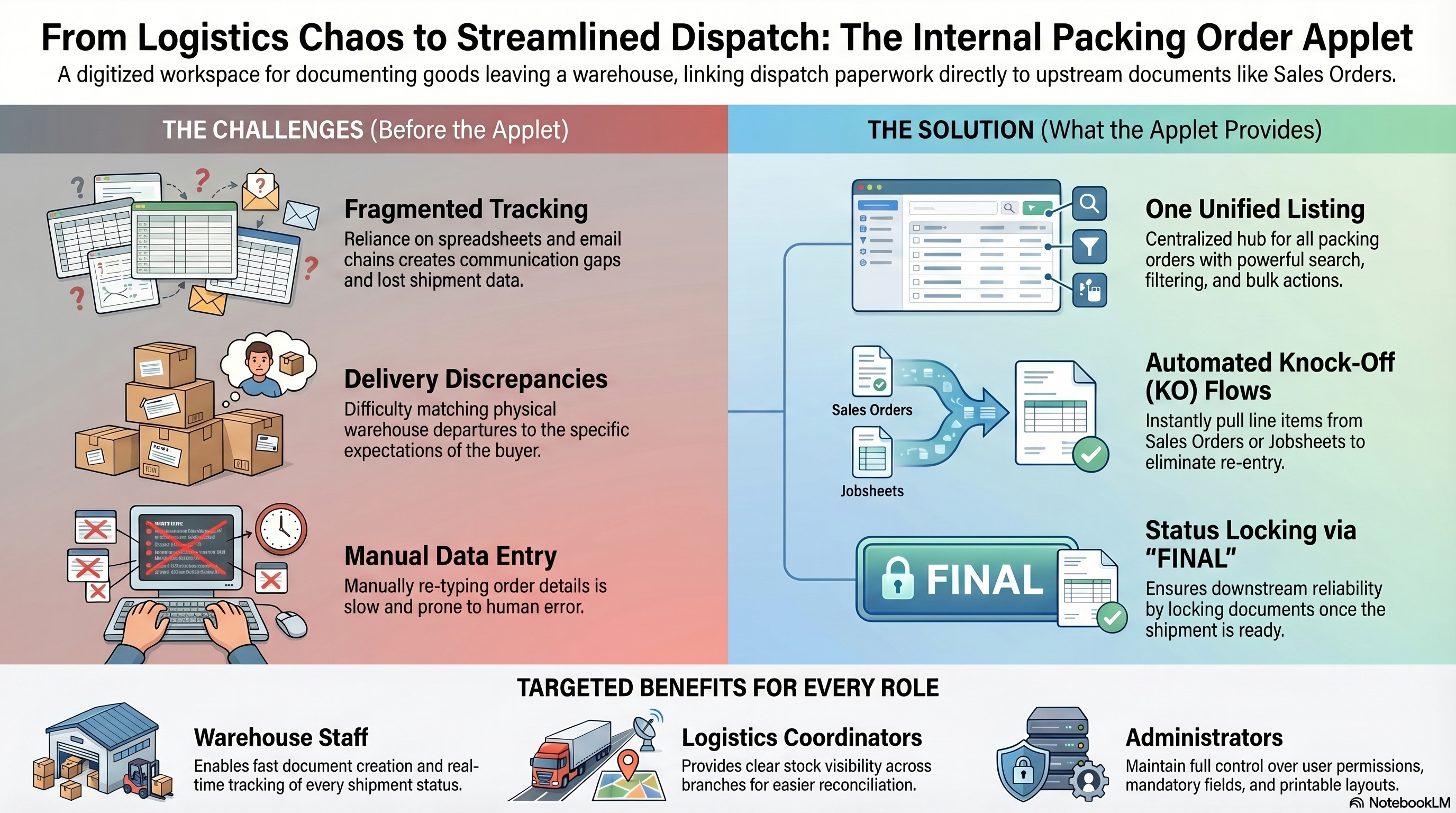
Without a central record, outbound shipments are tracked in spreadsheets or email chains, making it difficult to match what left the warehouse to what the buyer expects. This applet solves that by providing:
- One unified listing for all packing orders with search, filtering, and bulk actions
- Structured details capturing the exact branch, location, and movement classification
- Automated knock-off flows to pull items directly from Sales Orders, Jobsheets, Quotations, or Delivery Orders—eliminating manual re-entry
- Financial summaries on each order: Total Transaction Amount, SST/VAT/GST, and Rounding
Key Concepts
Document Flow
Open Listing → Create (+) → Fill Main Details → Save → Add Lines (Manual or Knock-Off) → Matchings (optional) → Finalise (when ready to dispatch)
Technical Terms Explained
| Term | What It Means |
|---|---|
| Branch | Your organisational site or division. The order records which branch the goods leave from. |
| Location | A specific warehouse or dispatch point under your branch. |
| Conversion Code / Name | The system’s classification for this outbound stock movement type. Your admin defines the allowed values. |
| KO (Knock-Off) | Automatically importing line items from an existing document (Sales Order, Jobsheet, Quotation, or Delivery Order) instead of typing them in manually. |
| Matchings | A tab used to link this packing order to other related documents in the system. May be empty if your workflow does not require it. |
| Posting Status | Indicates whether the order is still editable or has been finalised. |
| Jobsheet | An internal tracking document detailing materials and labour for a production job. Used here as a source document for knock-off. |
Quick Start Guide
1. Manual Packing Workflow
Goal: Create an ad-hoc packing order and manually select items to dispatch.
- Navigate: Under the applet sidebar, click Manual Packing.
- Create: Click the + button (Create) at the top of the listing.
- Fill Main Details:
- Select the dispatching Branch and Location.
- Select the required Conversion Code and Conversion Name.
- Save: Click SAVE. The document is generated and you can now add lines.
- Add Lines: Go to the Lines tab.
- Click the + (Add) button.
- Use the Search Item tab to browse your catalogue and enter the dispatched quantities.
- Click Back to return to the Lines grid.
- Finalise: Once all items are added, click FINAL to lock the document for dispatch.
2. Operator Queue Workflow
Goal: Process a pre-assigned packing job from the warehouse queue.
- Navigate: Under the applet sidebar, click Operator Queue.
- Select Task: Find a pending task assigned to you or your station, and click the row to open it.
- Process Lines: Navigate to the Lines tab to review the items that must be packed.
- Update Status/Finalise: Pack the items physically, ensure quantities match, and click FINAL (or trigger the relevant workflow status) to complete your queue task.
3. Knock-Off (KO) Workflow
Goal: Pull items automatically from an upstream document (like a Sales Order).
- Navigate: Open or create a packing order (e.g., via Manual Packing → +).
- Save Details: Ensure your Main Details are filled and click SAVE.
- Import Lines: Go to the Lines tab and click the + button.
- Switch to the required KO tab (e.g., KO For Sales Order or KO For Jobsheet).
- Search for the specific Sales Order or Jobsheet number.
- Select the source document to automatically import all pending line items.
- Adjust & Finalise: Adjust quantities if delivering a partial shipment, then click FINAL.
Understanding Your Sidebar Modules
This applet handles several operational flows. Depending on your company’s configuration, you will interact with the following modules in your sidebar:
Core Packing Operations
| Module | What It Is | How To Use It |
|---|---|---|
| Manual Packing | For ad-hoc or complex orders where operators must define the packing structure manually. | Click Manual Packing → List displays all manual orders. Click + to create a new one, fill details, and add lines. |
| Operator Queue | The digital task list for warehouse floor staff. Tasks are pushed here automatically. | Click Operator Queue → Find your assigned task → Click row to open → Pack the indicated items → Finalise. |
| Packing Request | Formal requests routed from sales or logistics to the packing team, initiating the outbound process. | Click Packing Request → Review incoming requests → Convert requests into actable packing orders. |
Specialized Manufacturing (Coil)
| Module | What It Is | How To Use It |
|---|---|---|
| Auto Coil Operator | An interface for machine operators handling coiled goods (steel, wire) via automated winding integration. | Click Auto Coil Operator → Select machine line → Review automated output lengths → Confirm packing. |
| Auto Coil Supervisor | The management console for automated coil lines. | Click Auto Coil Supervisor → Monitor output rates, approve operator overrides, and track performance metrics. |
Production & Exception Handling
| Module | What It Is | How To Use It |
|---|---|---|
| Job Order | Links outbound packing directly to specific manufacturing work orders. | Click Job Order → Select the manufacturing job → Pack the finished goods produced from that job. |
| Packing Containers | Manages reusable physical containers (pallets, crates, drums) and their tare weights. | Click Packing Containers → Create or update container records to track what items are packed into. |
| Scrap & Short | The exception-handling hub for damaged materials (Scrap) or missing stock (Short). | Click Scrap & Short → Log any items damaged during packing or document why an order is short. |
System & Testing
| Module | What It Is | How To Use It |
|---|---|---|
| TESTING | A diagnostic sandbox for administrators and developers. | Click TESTING → Test barcode scanner integrations or weight scale hardware without affecting live data. |
Create and Edit Details
When you open a document from any of the sidebar modules (e.g., creating a new Manual Packing order), you will enter the detailed document view.
Available Actions (Top Right):
- Back: Return to the listing.
- RESET: Discard unsaved changes and reload the last saved state. (Warning: Cannot undo a SAVE).
- SAVE: Commits your current data. Disabled if required fields are missing.
- FINAL: Locks the document. (Conditional: Only appears when the document is active and you have permission).
Document Tabs Explained
Transactions utilise a generic tab structure to organise data. Depending on your admin’s setup, you will see some or all of these tabs:
1. Main Details
This tab captures the core operational scope of the movement:
- Branch / Location: Exactly where the goods are leaving from (Mandatory).
- Transaction Date: The operational date of dispatch.
- Conversion Code & Name: The internal category of this movement (Mandatory).
- Description / Remarks: Notes for internal reference.
- Reference / Document No: External tracking numbers for logistics.
2. Account
This tab houses the financial and logistical entity data associated with the receiver:
- Entity Details: Links to the specific Customer or Intercompany Branch receiving the goods.
- Credit Terms / Limit: Read-only financial constraints associated with the selected entity.
- Ship To: The physical delivery address where the items are being dispatched.
- Bill To: The invoicing address for the selected entity.
3. Matchings & Contra
Used for linking documents and reconciling values:
- Matchings: Links this internal packing order to other associated documents (e.g., grouping a packing order with a specific delivery manifest).
- Contra: Displays associated contra entries if the shipment involves offsetting balances between debtor and creditor accounts.
4. Lines (Adding Items & Knock-Off)
The Lines tab defines precisely what is leaving the warehouse.
- Click + (Add) inside the Lines tab.
- The Select Item screen opens, presenting multiple sourcing methods:
| Source Tab | When To Use It | Workflow |
|---|---|---|
| Search Item | Standalone manual packing | Browse or scan item codes from the catalogue, enter quantities. |
| KO For Sales Order | Fulfilling a sales order | Search Sales Order No → Automatically import pending lines. |
| KO For Jobsheet | Dispatching produced goods | Search Jobsheet No → Automatically import produced lines. |
| KO For Quotation | Packing quoted items | Search Quotation No → Automatically import quoted lines. |
| KO For Delivery Order | Fulfilling a DO | Search Delivery Order No → Automatically import pending deliveries. |
Note: The Line grid also automatically calculates the Total Txn Amount and any associated SST/VAT/GST for the dispatched items.
For Administrators
Settings Overview
The applet shares the standard BigLedger settings structure. Key areas include:
| Setting | Purpose |
|---|---|
| Default Selection | Set default Branch or Location for new documents |
| Field Settings | Control which fields appear and whether they are mandatory |
| Printable Format Settings | Configure the layout of printed packing orders |
| Webhook | Set up automated notifications or external system integrations |
| Feature Visibility | Control which menus and actions appear for each role |
| Permissions | Manage who can create, edit, finalise, or view packing orders |
| Personalization | Allows individual users to set personal defaults (e.g., preferred branch) without affecting company-wide settings |
Related Applets
| Applet | How It Relates |
|---|---|
| Supplier Delivery Order Applet | Another supplier-facing logistics document; delivery planning may link to packing orders |
| Internal Purchase GRN Applet | Buyer-side goods receipt; packing orders from the supplier align with receiving on the buyer side |
| Blanket Purchase Order Applet (Supplier Access) | Supplier portal for blanket agreements; packing activity may occur within the same procurement context |
FAQ
Process Questions
Q: Can I deliver a partial quantity from a Sales Order? A: Yes. When using the Knock-Off flow, adjust the imported item quantity to match only what you are loading onto the truck. You can create additional packing orders for the remaining items later.
Q: What if I accidentally finalised the wrong quantity? A: Once finalised, the document is locked. Depending on your company policy, you may need to void it or create a manual return/adjustment.
Q: How do I print the packing order for my driver? A: Once your Main Details and Lines are saved, click the Print icon on the Edit screen to generate a PDF.
Q: Which upstream documents can I knock off from? A: Depending on your configuration, you can knock off from Sales Orders, Jobsheets, Sales Quotations, and Delivery Orders. Only the tabs enabled by your admin will appear.
System Questions
Q: Why is SAVE disabled? A: The Main Details form must be valid. Ensure Branch, Location, Conversion Code, and Conversion Name are all filled in.
Q: A button is missing (e.g., FINAL) — why? A: Button visibility depends on the document state and your permissions. For example, FINAL only appears on active, unfinalised documents. If a button is missing, check with your administrator.
Q: What is the Matchings tab for? A: It links this packing order to other documents in the system. If the tab is empty, your workflow may not require matching for this document type.
Q: I don’t see a KO tab (e.g., KO For Sales Order) — what’s wrong? A: KO tabs are conditional and controlled by your administrator. If a tab is missing, that particular knock-off flow has not been enabled for your company.
Glossary
- Branch — Your organisational site or division. The packing order records which branch the outbound movement is from.
- Conversion Code / Name — The system’s classification for this outbound stock movement type within inventory rules.
- Feature Visibility — Company settings that control which menus and actions appear for each role.
- Final (FINAL) — Marks the document as complete and locks it from further editing.
- Jobsheet — An internal tracking document detailing materials and labour for a production job. Used here as a source for knock-off.
- Knock-Off (KO) — Automatically importing line items from an existing document instead of manual entry.
- Location — A specific warehouse or dispatch point under the selected branch.
- Matchings — Links this packing order to other related documents when your workflow requires it.
- Internal Packing Order — Supplier-originated evidence of goods dispatched toward the buyer.
- Posting Status — Whether the document is still editable or has been finalised.