Purchase Credit Note Supplier Access Applet
Purpose and Overview
The Purchase Credit Note Supplier Access Applet gives your suppliers a dedicated, read-only portal to view Purchase Credit Notes issued by your organisation. When your buying team reduces an amount owed to a supplier—due to a return, overcharge, rebate, or agreement—the supplier can log in and immediately see the credit note details, line items, and supporting attachments, eliminating the need for back-and-forth email communication.
Applet Value & Benefits
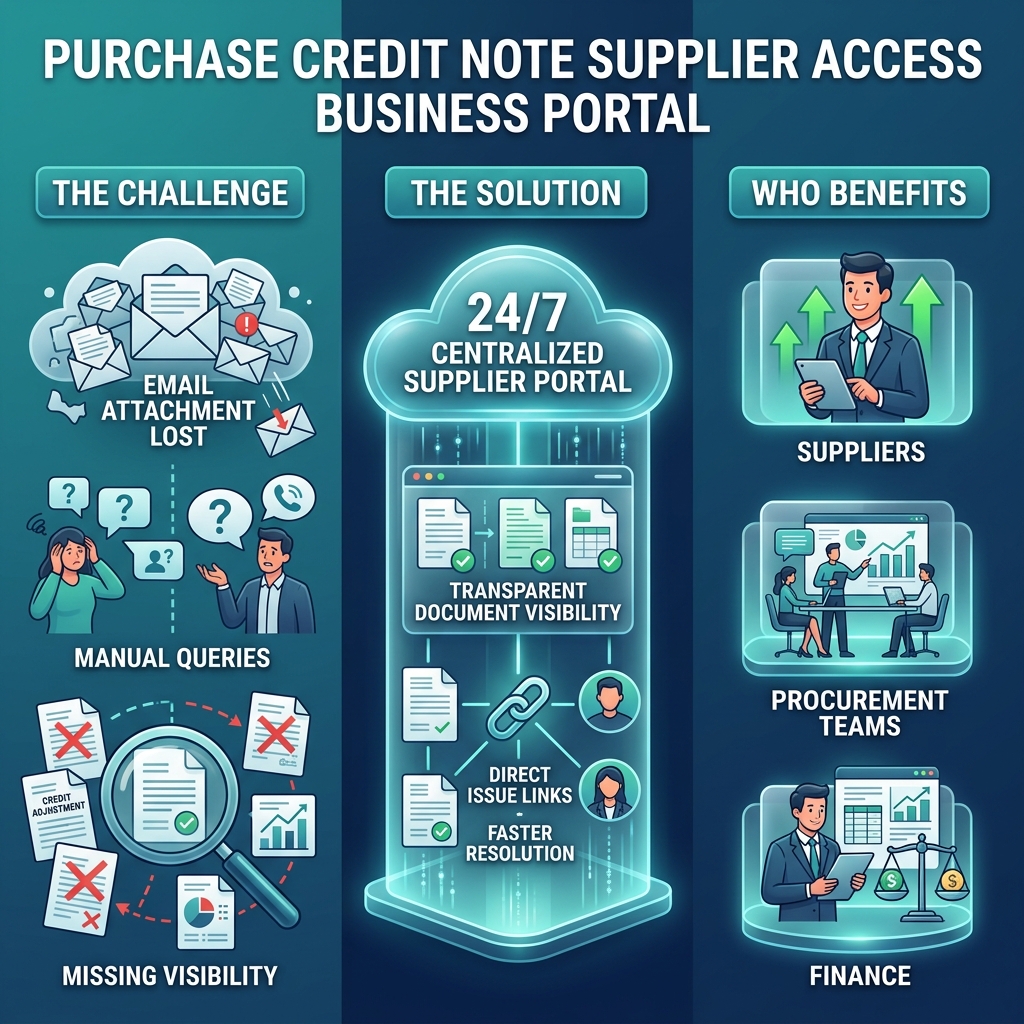
Who Benefits from This Applet?
Suppliers & Vendor Users:
- View all credit notes your buying organisation has issued against you
- Verify credit note amounts, line details, and reasons without calling or emailing
- Download attachments and export credit note documents for your own records
- Reconcile your accounts receivable against the buyer’s credit adjustments
Procurement & Buyer Teams:
- Eliminate “can you send me the credit note again?” requests from suppliers
- Provide a self-service portal so suppliers can access their own data 24/7
- Reduce disputes by giving suppliers full transparency into credit adjustments
- Maintain a clear audit trail of what each supplier can see
Finance & Accounts Payable:
- Suppliers can verify credit note amounts before applying them to outstanding invoices
- Fewer reconciliation disputes due to mismatched amounts or missing documents
- Aligned document visibility speeds up supplier statement reconciliation
- Reduce manual effort in responding to supplier payment queries
IT & System Admins:
- Centralised supplier access control via permission sets
- Configurable default branch/location and field visibility
- Webhook integration for connecting to supplier ERP systems
What Problems Does This Solve?
The Supplier Credit Note Visibility Problem:
Without a dedicated portal, suppliers frequently face these challenges:
- Credit notes are emailed manually and often lost or misfiled
- Suppliers cannot verify which credit notes have been issued without calling AP
- Disputes arise from mismatched amounts between buyer and supplier records
- Finance teams spend significant time answering supplier queries about credit adjustments
- No single source of truth—suppliers rely on PDFs that may become out of date
The Purchase Credit Note Supplier Access Solution:
- Credit note listing — Filter by date, branch, status, and amount to find relevant credit notes fast
- Full document view — Header details, account info, line items, payment, department, contra, doc links, and attachments—all in one place
- Line items view — Flat list of all credit note lines across documents for easy reconciliation
- Issue links — Drill into linked issues or tasks for full context on why a credit was raised
- Settings & personalisation — Configure default branch, field visibility, and print formats for a tailored supplier experience
Key Features Overview
Key Concepts
Understanding Credit Notes and Supplier Access
| Aspect | Component | Practical Example |
|---|---|---|
| Who is viewing? | Supplier / vendor user | Supplier XYZ logs in and sees only credit notes where they are the supplier |
| What is being viewed? | Purchase Credit Note & line items | Credit note adjusting an overcharge on Invoice #INV-2026-1045 |
| How is it accessed? | Listing → Document View → Line Items → Issue Links | Search → open credit note → open line → view linked issue |
Document Type & Posting Status
This applet works with documents of type Internal Purchase Credit Note. The listing shows only credit notes with a posting status of FINAL (completed/approved documents). Draft, void, or discarded credit notes are not visible in the supplier portal.
Main Navigation
Sidebar
├── Purchase Credit Note  → Credit note listing (default landing)
├── Line Items            → Flat list of all credit note lines
├── Settings              → Default selection, field settings, printable format,
│                           webhook, feature visibility, permissions
└── Personalisation       → Default selection, sidebar
Quick Start Guide
Get up and running quickly with these essential workflows.
For Suppliers: View Your Credit Notes
Goal: Find and open a credit note issued to you in a few steps.
- Navigate: Go to Purchase Credit Note from the sidebar (default landing)
- Search (optional):
- Click the search / filter icon above the grid to open Advanced Search
- Filter by: Branch, Purchaser, Posting Status, Transaction Date, Created Date, Updated Date, Amount range, GL Dimensions, Profit Centre, or Project
- Or use the grid’s floating column filters directly (e.g., Credit Note No, Supplier, Branch)
- Open a Credit Note: Click any row in the grid to open View Purchase Credit Note
- Explore tabs: Navigate through Main Details, Account, Lines, Payment, Department Hdr, Contra, Doc Link, Attachments, and Export
- Drill to a line: In the Lines tab, click a line row to open View Line Item; from there, open View Issue for any linked tasks or issues
- Export PDF: Click the Export tab to download a printable PDF copy for your own accounting records.
- Return: Use the Back button (top left of the view) to return to the listing
What you see in the listing: Credit Note No, Supplier Name, Branch, Transaction Date, Total Amount, Posting Status, Created By, Updated Date.
Pro Tip: Use the Transaction Date or Created Date filter to focus on a specific month or period—ideal for month-end reconciliation with your own accounts receivable records.
For Suppliers: Work with Line Items
Goal: See all credit note lines in a flat list, or drill into a specific line.
Option A – From a Credit Note document:
- Open a credit note from Purchase Credit Note (click a row)
- Go to the Lines tab
- View each line: Item/Description, UOM, Quantity, Unit Price, Tax, Transaction Amount
- Click a line row to open View Line Item
- From the line view, open View Issue for linked issues/tasks (if any)
- Use Back to return to the credit note or the listing
Option B – From the Line Items page (flat list across all credit notes):
- Go to Line Items from the sidebar
- You see Supplier Purchase Credit Note Line Items Listing — all lines across all credit notes you can access
- Filter by: Credit Note No., Item Code, Item Name, or Transaction Amount range
- Click a row to open View Line Items (line detail view)
- From the line view, open Line Item View Issue to see linked issues (details, comments, worklog, subtasks)
- Use Back to navigate back to the line items list
For Admins: Initial Setup
Goal: Make the applet ready for supplier users.
Step 1: Default Selection (Settings > Default Selection)
- Set the default Branch and Location pre-filled when the applet loads
- Useful when most supplier users deal with a single branch
Step 2: Field Settings (Settings > Field Settings)
- Configure which fields are visible in the listing and document views
- Hide fields that are irrelevant to your supplier users
Step 3: Printable Format Settings (Settings > Printable Format Settings)
- Define the layout for printed or exported credit note documents (headers, footers, fields)
- Create a clean, branded document suitable for suppliers
Step 4: Feature Visibility (Settings > Feature Visibility)
- Control which sidebar items and features are accessible to supplier users
- For example, hide admin-only features from the supplier-facing view
Step 5: Permissions (Settings > Permissions)
- Client-side Permission Listing — Client-side permission sets
- Permission Wizard Listing — Fast role permission assignments
- Permission Set Listing — Define and manage role-based permission sets
- User / Team / Role Permission Listing — Assign permissions by user, team, or role to ensure suppliers only see their own data
Step 6: Webhook (Settings > Webhook) (if applicable)
- Configure outbound webhooks to notify supplier systems when a new credit note is finalised
Step 7: Test
- Log in as a supplier test user and confirm they can only see credit notes where they are the supplier
- Verify tabs, drill-downs, attachments, and export all work as expected
Ongoing: Review Feature Visibility and Permissions whenever you onboard a new supplier to the portal.
New to the applet?
- Suppliers — Start with Purchase Credit Note to see your credit adjustments, then open one and explore Lines and Attachments to understand the full document
- Use Line Items when you need to reconcile a specific item or amount across multiple credit notes
- Admins — Review Configuration & Settings below before inviting supplier users to the portal
Credit Note Listing
The main landing view shows all finalised Purchase Credit Notes your supplier account is linked to, with server-side pagination and optional advanced search.
Typical columns:
- Credit Note No
- Supplier Name
- Branch
- Purchaser Name
- Transaction Date
- Total Amount
- Currency
- Posting Status
- Created By
- Updated Date
Advanced search criteria (examples): Supplier, Branch, Purchaser, Posting Status (DRAFT / FINAL / VOID / DISCARDED), Transaction Date, Created Date, Updated Date, Amount range, GL Dimensions, Segments, Profit Centres, Projects.
View Purchase Credit Note Details
After opening a credit note from the listing, you see View Purchase Credit Note with a Back button and multiple tabs. All data is read-only—suppliers cannot edit, void, or delete any document.
Document View Tabs
| Tab | Purpose |
|---|---|
| Main Details | Supplier, Branch, Location, Purchaser, Transaction Date, Credit Terms, Reference No, Currency, Tracking ID (read-only) |
| Account | Account-level information and AP account details linked to the credit note |
| Lines | Individual credit line items: Description, UOM, Qty, Unit Price, Tax Code, Tax Amount, Total Amount. Click a line to open View Line Item |
| Payment | Payment references or settlement details linked to this credit note |
| Department Hdr | Department, Segment, Dimension, Profit Centre, and Project at header level |
| Contra | Contra documents or offset entries linked to this credit note |
| Doc Link | Linked document references (e.g., original invoice, return note) |
| Attachments | Files attached to the credit note; click to open View Attachment |
| Export | Export options to generate a PDF or download the credit note in the configured format |
Navigation: The Back button returns you to the listing. From the Lines tab, you can drill into View Line Item and then to View Issue for linked issues/tasks.
Line Items — Supplier View
The Line Items sidebar route shows Supplier Purchase Credit Note Line Items Listing—a flat grid of all credit note lines the logged-in supplier can access, across all credit note documents.
Use it to:
- See every credit line across multiple credit notes in one view
- Search by Credit Note No., Item Code, Item Name, or Transaction Amount (range)
- Open View Line Items for a selected line, then Line Item View Issue for linked issues (details, comments, worklog, subtasks)
All lines are filtered to document type Internal Purchase Credit Note with ACTIVE status.
Line Item View and Issue Links
View Line Item shows a single credit note line in full detail. From here you can open View Issue (or Line Item View Issue from the Line Items page) to review:
- Issue type, number, summary, and description
- Comments and activity log
- Worklog entries
- Subtasks and linked issues
- Attachments and planning data (if configured)
This creates a direct link between a credit adjustment and the underlying reason—whether it’s a purchase return, a quality dispute, or a pricing correction—providing full traceability from financial document to operational task.
Configuration & Settings
Access Settings from the sidebar to configure applet behaviour and access controls.
Default Selection (Settings > Default Selection)
- Branch: Pre-fill the default branch when the applet loads for all users
- Location: Pre-fill the default location
These values are stored in applet extension parameters (e.g., DEFAULT_BRANCH, DEFAULT_LOCATION) and scope the listing to the most relevant data for your supplier users automatically.
Field Settings (Settings > Field Settings)
Control which fields are visible in the listing and document views. Use this to simplify the interface for supplier users by hiding internal fields irrelevant to vendors (e.g., internal GL dimensions they don’t need to see).
Printable Format Settings (Settings > Printable Format Settings)
Define one or more print/export layouts for credit note documents—including header, footer, company logo, and which fields to display. Use for generating clean, supplier-friendly PDF credit notes from the Export tab.
Webhook (Settings > Webhook)
Configure outbound webhooks so external systems (e.g., supplier ERP, procurement platforms) are automatically notified when a new credit note is finalised in your system.
Feature Visibility (Settings > Feature Visibility)
Control which sidebar items and features are visible to which user roles. For example, limit supplier users to Purchase Credit Note and Line Items only, hiding internal admin options entirely.
Permissions
| Setting | Purpose |
|---|---|
| Client-side Permission Listing | Client-side permission sets for UI-level control |
| Permission Wizard Listing | Fast role permission assignments |
| Permission Set Listing | Define and manage named permission sets |
| User / Team / Role Permission Listing | Assign permissions to individual users, teams, or roles |
Proper permission setup ensures each supplier user can only see credit notes where they are the named supplier — preventing cross-supplier data exposure.
Personalisation
Default Selection (Personalisation > Default Selection)
Individual supplier users can set their own default Branch and Location so they don’t need to re-select filters on every visit. Particularly useful for suppliers who work across multiple branches.
Sidebar (Personalisation > Sidebar)
Each user can customise which sidebar items are displayed and in what order, creating a navigation experience tailored to their most-used features.
FAQ
Q: Why can’t I see any credit notes in the listing? A: There are two common reasons: (1) No finalised credit notes have been issued with your supplier account linked, or (2) your user account does not have the required permissions for this applet. Only credit notes with posting status FINAL are shown. Contact the buyer’s AP team or system admin to verify your supplier link and access rights.
Q: How do I find a specific credit note by date or amount? A: Click the search / filter icon above the listing to open Advanced Search. Filter by Transaction Date (From / To) and/or Amount range. You can also type directly into the floating column filters (e.g., Credit Note No or Supplier Name) without opening the full search panel.
Q: What is the difference between Purchase Credit Note and Line Items in the sidebar? A: Purchase Credit Note is document-centric — you see one full credit note at a time, with all its header information and tabs. Line Items is line-centric — you see a flat grid of every individual credit line across all your credit notes, making it easier to reconcile by product/item or verify a specific adjustment amount without opening each credit note individually.
Q: Can I edit or dispute a credit note through this portal? A: No. This applet is read-only for suppliers. You cannot edit, void, or reject a credit note through this portal. If you believe a credit note is incorrect, contact the buyer’s Procurement or AP team directly and provide the credit note number. All edits and adjustments are handled internally by the buyer’s team.
Q: How do I download a copy of a credit note for my records? A: Open the credit note from the listing, then go to the Export tab to generate and download the credit note in the configured print format (typically PDF). You can also use the Attachments tab to access any supporting documents the buyer has attached.
Q: Can I see the original invoice that the credit note is linked to? A: Yes. Open the credit note and go to the Doc Link tab. This shows all linked document references, including the original purchase invoice that the credit note was raised against. Note that you may not have direct access to view the linked invoice depending on your permissions.
Q: What does it mean when a credit note is not showing in my listing? A: If a credit note was issued to you but doesn’t appear, it may be: (a) still in Draft or review (not yet FINAL), (b) voided or discarded after issuance, or (c) linked to a different supplier account in the system. Check with the buyer’s AP team and provide the credit note number for investigation.
Q: Can I receive automated notifications when a new credit note is issued? A: Automated notifications depend on your buyer’s configuration. If the buyer has set up webhooks for this applet, their system can push notifications to your email or ERP system automatically. Ask the buyer’s IT or AP team whether this integration is available for your account.