Purchase Credit Note Supplier Access (Internal)
The supplier-facing copy of the buyer’s Purchase Credit Note applet: a login linked to a supplier entity reads the credit notes the buyer has posted against it — header, lines, settlements, the Doc Link tab and the attachment list — and can change none of it. Read the name the buyer’s way round: here a purchase credit note raises what the buyer owes you, an extra charge on the same side as the invoice; goods you took back or an overcharge you credited appear as a Purchase Return or a Purchase Debit Note instead. A price hidden by a setting still reaches the supplier’s browser, so a figure you cannot let them see has to be kept off the document.
Overview
Purchase Credit Note Supplier Access (Internal) is the supplier-facing copy of the Purchase Credit Note (Internal) applet. It is installed in the buying organisation’s tenant; a login that has been linked to a supplier entity opens it to read the credit notes the buyer has posted against that supplier — header, lines, settlements, linked documents and the list of attachments. A Contra tab is there too, and is always empty.
This is not the credit note you send. In this platform a buyer’s purchase credit note raises what the buyer owes you — it records an extra charge after the invoice, on the same side as the invoice. When you credit the buyer for goods sent back, or for an overcharge, the buyer records that as a Purchase Return (goods come back to you, and it shows in Purchase Return Supplier Access) or as a Purchase Debit Note (money only, and there is no supplier view of it). The names follow the buyer’s own ledger, so they read the opposite way round from yours. When your customer self-bills you on e-Invoice, the same note reaches MyInvois as a self-billed debit note, which is the direction it really moves.
The applet is read-only by construction. It has no create screen, no save or delete control anywhere, and all four Export buttons are disabled. Its listing always filters to FINAL, so a supplier sees a credit note only after the buyer has finalised it — drafts and discarded notes never appear.
Where it fits
| Position | Document / applet | Why |
|---|---|---|
| Module | Purchasing, Financial Accounting | Increases what the buyer owes the supplier (see Lifecycle and effects). |
| The document | Purchase Credit Note (Internal) | Same rows. Creation, FINAL, VOID and contra all happen there. |
| Upstream (access) | Supplier | The supplier’s login must have an active link to the supplier entity. |
| Drawn from | Purchase Order (Internal), Purchase GRN (Internal), Supplier Delivery Order, or typed from scratch | The buyer can import open lines from these three documents and nothing else. A purchase return is never copied into a credit note: the return is a separate document that lowers what the buyer owes, and it has no step that produces one. The Doc Link tab lists whatever this note was actually linked to. |
| Sibling supplier applets | Purchase Invoice Supplier Access, Purchase Return Supplier Access, Purchase GRN Supplier Access | Same shape, same login-link filter, other documents. |
Screens and menus
Two menus, plus Settings and Personalization:
| Menu | What it is |
|---|---|
| Internal Purchase Credit Note | The listing and the document view behind it. |
| Line Items | A flat listing of credit-note lines across all the supplier’s credit notes. |
| Settings | Field Settings, Default Selection, Printable Format Settings, plus Webhook, Feature Visibility, Client Side Permission and the permission listings. |
| Personalization | Personal Default Selection and sidebar order. |
Listing
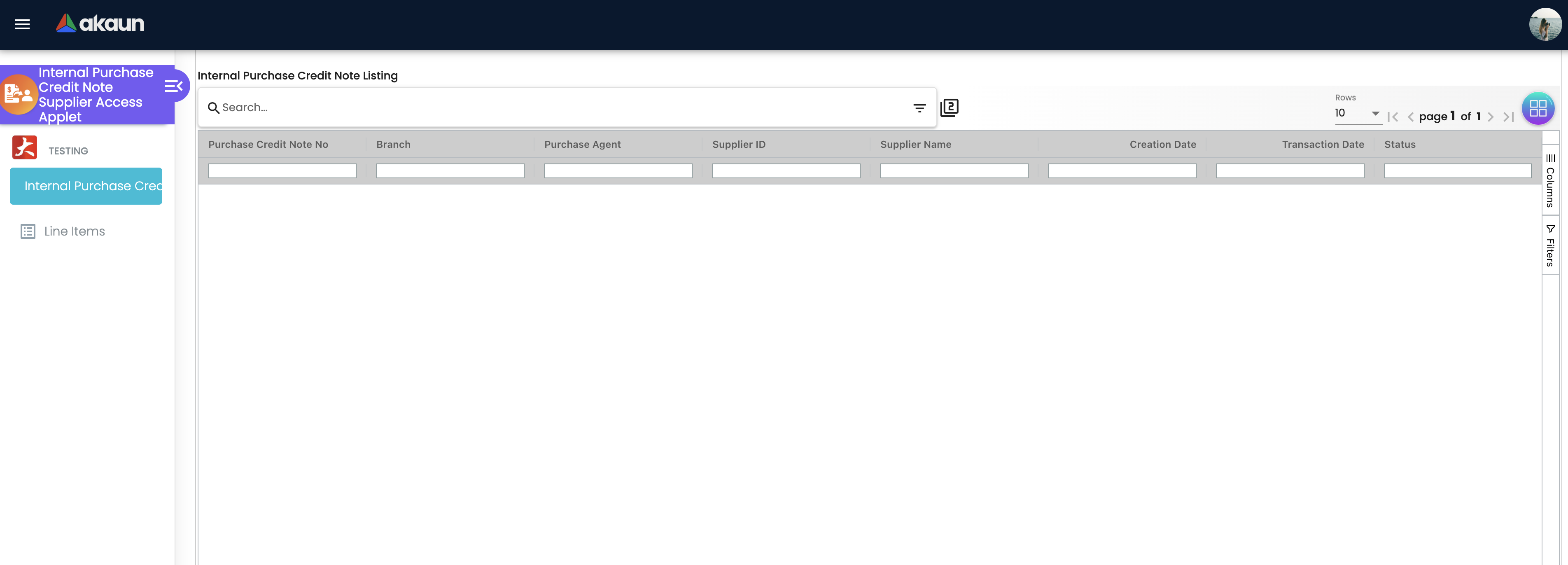
Columns: Purchase Credit Note No, Branch, Purchase Agent, Supplier ID, Supplier Name, Creation Date, Transaction Date, Status. Most recently updated first, and always filtered to FINAL.
The branch, supplier and purchase agent are each looked up separately from the rest of the row. The supplier lookup needs a supplier read permission; when the branch or supplier lookup is refused, the error code is written into the cell, so a login without supplier read rights sees an error code under Supplier Name and Supplier ID; the purchase agent falls back to an empty cell.
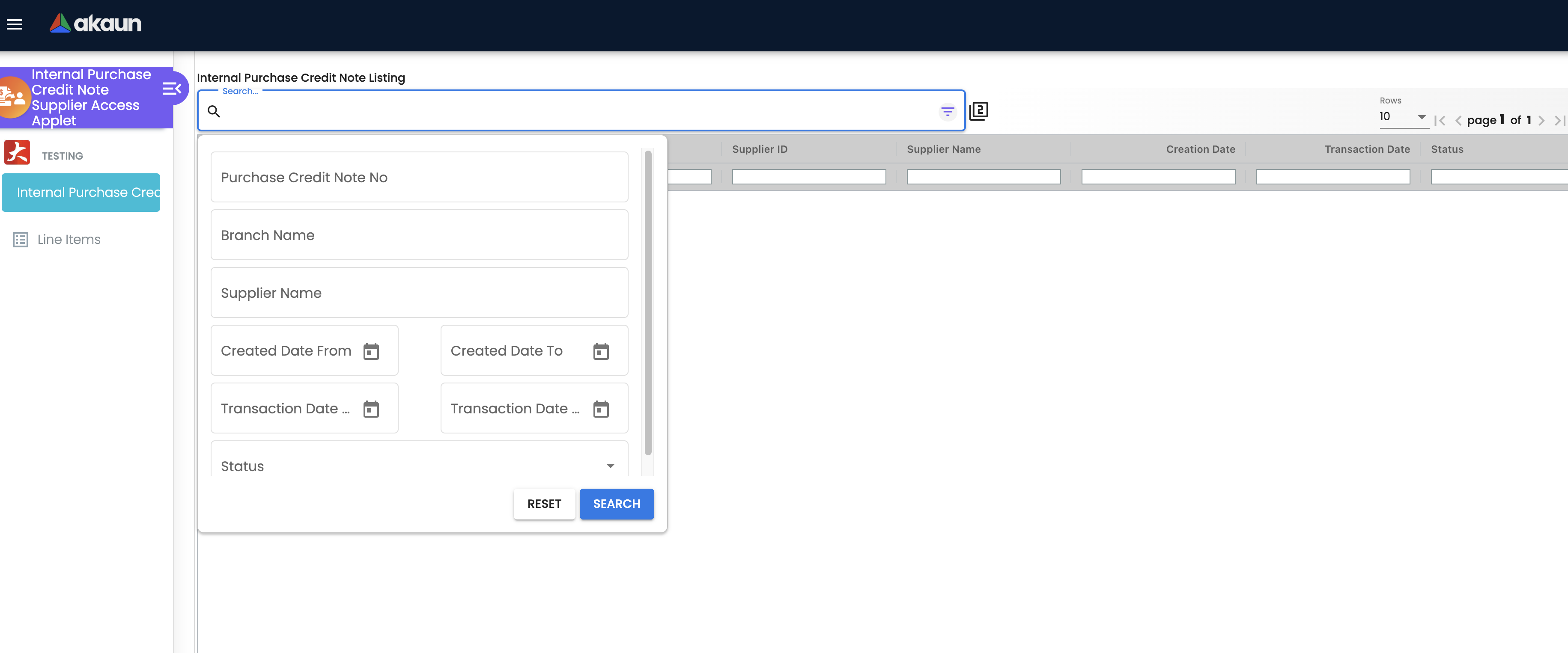
Document view
Clicking a row opens the credit note with nine tabs, all read-only:
| Tab | Contents |
|---|---|
| Main Details | Branch, Location, Purchaser, Transaction Date, Credit Terms, Due Date, Reference, Remarks, Permit No, Currency, Tracking Id — every control marked read-only. |
| Account | Supplier entity details, billing address, shipping address — the copy taken when the buyer raised the note, not the supplier’s current record. It includes a GL Code box: the GL code on the buyer’s own record for this supplier, which the supplier can therefore read. |
| Line Items | The credit note’s lines; clicking one opens the line detail (see Line Items below). |
| Payment | The settlement lines recorded on the note itself: Payment Method, Date, Paid Amount, Remarks. Outstanding under the grid is this note’s item lines minus those settlement lines — not the supplier’s account balance, and it does not fall when the buyer pays through a separate payment voucher. The currency beside Total and Outstanding is always blank. |
| Department Hdr | The names of the buyer’s own segment, dimension, profit centre and project on the header, looked up live — so where the login may read them, the supplier sees what the buyer calls its profit centres and projects. If any one of the four is empty on the note, or any lookup is refused, the whole tab stays blank (read, not run). |
| Contra | Columns for Server Doc Type, Status, Date and Amount Contra, but the grid never loads, so the tab is empty on every note whatever the buyer has contra’d. Ask the buyer for contra details. |
| Doc Link | Copy From and Copy To grids — the documents linked to this credit note (Doc No, Branch, Server Doc Type, Status, Date). |
| Attachment | File Name, Doc Type, Size, Status, Date. Metadata only — there is no download. |
| Export | All four buttons (PDF, CSV, DOCX, ZIP) are disabled. |
Line Items
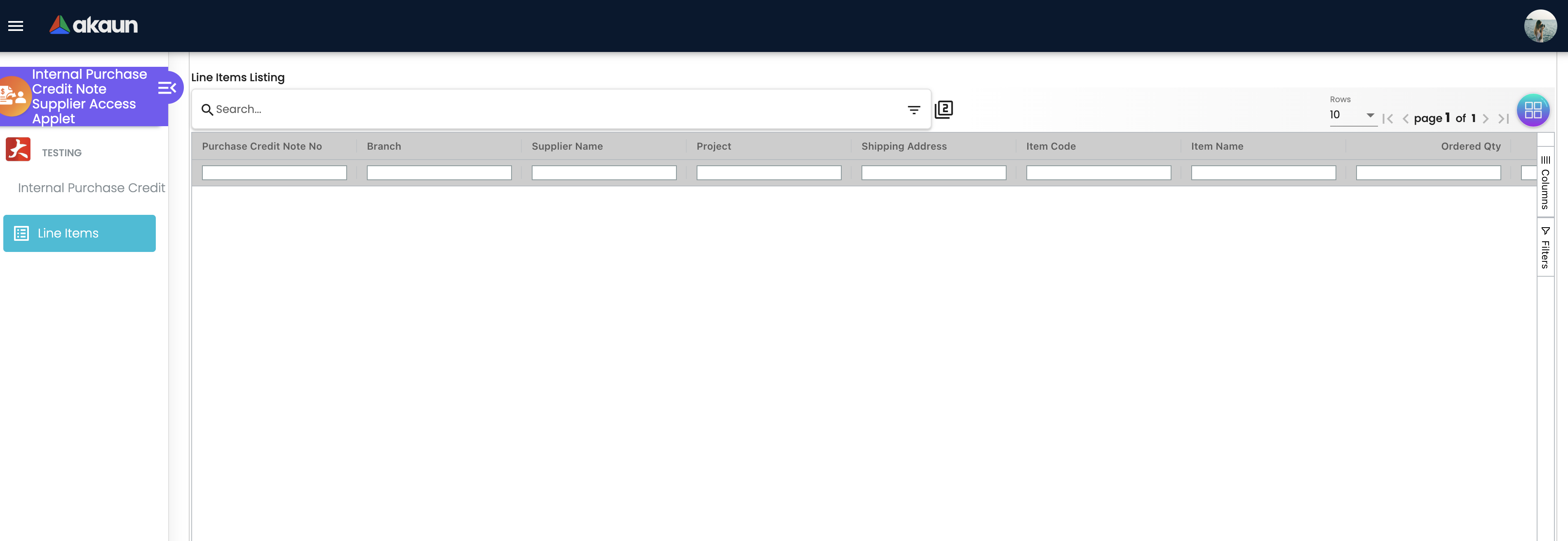
Columns: Purchase Credit Note No, Branch, Supplier Name, Project, Shipping Address, Item Code, Item Name, Ordered Qty, Open Qty, Amount TXN, Creation Date, Requested Delivery Date, Delivery Status, Remarks. Only item lines are listed, and again only from FINAL credit notes.
Open Qty on this grid is a value stamped on the line when the document was drawn from an earlier one, not a live outstanding balance, and empty on almost every purchase line. The reasoning and the evidence are on Purchase Invoice Supplier Access, which carries the identical column.
Opening a line shows Item Details (with Main Details, Delivery Instruction, Department, Doc Link and Delivery Details), Serial Number, Costing Details, Pricing Details and Issue Link tabs.
Configuration
Before you can use it
| Prerequisite | Where it is set | Why it matters |
|---|---|---|
| The supplier’s login is linked to the supplier entity | Supplier → Login, with the link active | Every screen shows only documents on entities linked to this login. No link, no rows. |
| The applet is installed for that login | Tenant Admin | Without it the login cannot open the applet, and the branch and purchase-agent cells cannot be filled. |
| The credit note is FINAL | Purchase Credit Note (Internal) | The listing shows FINAL credit notes only. |
Applet settings
Settings › Field Settings is the shared field-configuration screen filtered to this applet, and
there is nothing on it that changes what this applet will let a supplier do. The 18 settings
that take effect all hide one field on a line — base quantity, the price and
discount columns, the tax and withholding-tax pickers, the Costing Details tab. Each gives way to the
matching permission, so a supplier login holding the matching SHOW_* permission sees the field anyway.
Flip one and you can see what it did.
How settings are stored and who they apply to.
Nothing writes these toggles for you, and until somebody opens this screen and saves it the applet has no stored settings at all and runs on its defaults. So when a supplier reports that a column has disappeared, a settings change is the least likely explanation — look at what was granted, and to whom, before you look here.
One thing about that screen is not visible on it, and on a portal your suppliers log in to it matters more than it does anywhere else in the product.
HIDE_* key only decides whether the box around a
value is drawn.
Anyone who can open the document in a browser can read what the form is holding. These toggles keep your
buying prices off a supplier’s screen; they do not keep them out of a supplier’s browser. If a figure
must genuinely not reach an outside party, it has to be kept off the document rather than hidden on it.DEFAULT_BRANCH and DEFAULT_LOCATION are rendered and saved by the applet-local Default Selection
screen and read by nothing here — there is no create form to default. PRINTABLE is saved by Printable Format Settings and never reaches the export, which is disabled here. Everything else the
shared screen offers for this applet code is saved and never read, because this applet has no buttons,
no status flow and no write path for those keys to act on.
Document behaviour settings
Not applicable. This applet exposes no status, posting, workflow or e-Invoice control; FINAL, VOID and contra all happen in the buyer-side applet.
Who can change what
Twenty-two client-side permissions can be granted for this applet: SHOW_COSTING_DETAILS, SHOW_DISABLE_EDITING_AMOUNT_TXN_SETTING, and 20 SHOW_* codes matching the line fields above (including SHOW_UNIT_PRICE_STD_EXCL_TAX, SHOW_UNIT_PRICE_STD_INCL_TAX and SHOW_UNIT_PRICE_STD_PRICING_SCHEME, whose matching HIDE_* keys this applet does not use). Grant them per role in Settings → Role Permission Listing to re-open a field the tenant-wide HIDE_* setting has closed.
No role permission governs what a supplier login can read: the supplier link alone decides which credit notes it sees. The one lookup that does need a permission is the supplier lookup that fills the Supplier Name and Supplier ID columns.
Fields
Every field on every tab is read-only; the tables under Screens and menus list them. There is no create or edit form in this applet, so there are no validators to document.
Lifecycle and effects
This applet writes nothing to the document. What the supplier is looking at is the buyer’s credit note, which moves no stock and, in this platform, posts on the same side as a purchase invoice — Dr purchase or expense and input tax, Cr the supplier’s creditor account — so it increases what the buyer owes. Voiding it on the buyer side posts the reverse journal and removes the note from the e-Invoice queue and from aging. The full journal, and where each GL code comes from, is on Purchase Credit Note (Internal). A voided note disappears from this listing only if its posting status stops being FINAL.
Related applets
- Purchase Credit Note (Internal) — the buyer-side applet that creates, finalises, voids and contras these notes.
- Purchase Invoice Supplier Access (Internal) — the invoice this credit note adds to, in the same portal.
- Purchase Return Supplier Access (Internal) — goods the buyer sent back to you. A return lowers what the buyer owes and is not followed by a credit note; the two move the balance in opposite directions.
- Supplier — where the login link is created.
Troubleshooting
| Symptom | Cause | Fix |
|---|---|---|
| The listing is empty | Either the login has no active supplier link, or the buyer’s credit notes are still DRAFT — the listing shows FINAL only | Check the link in the Supplier applet; ask the buyer to finalise the note. |
| A credit note the buyer says exists is missing, and others show | It is DRAFT, DISCARDED, or was raised on a different supplier entity record | Confirm the status and the entity on the buyer side. |
| Supplier Name / Supplier ID show an error code | Those cells come from a supplier lookup that needs a read permission; the refusal code is printed into the cell | Grant the login read access to supplier master data, or hide the columns from the grid’s column tool panel. |
| Purchase Agent is blank | The purchase-agent entity lookup failed, or the note has no purchase agent | Expected when the buyer left the purchase agent empty. |
| Export buttons do nothing | All four are disabled | Ask the buyer to send the PDF from the buyer-side applet. |
| The Contra tab is empty although the buyer has contra’d the note | The tab’s grid is never loaded in this applet | Ask the buyer; contra is visible only in the buyer-side applet. |
| An attachment cannot be opened | The Attachment tab lists file metadata only; there is no download | Ask the buyer for the file. |
| A line field is missing for one role and present for another | The tenant-wide HIDE_* setting is on and only some roles hold the matching SHOW_* client-side permission | Adjust either in Settings → Field Settings (tenant-wide) or Settings → Role Permission Listing (per role). |
| Changing Default Selection has no effect | This applet has no create form; DEFAULT_BRANCH and DEFAULT_LOCATION are saved but never read | Expected. |