Purchase Debit Note (Internal)
Bring a supplier’s balance down after their invoice has posted: an overcharge, a price correction, a short delivery or a rebate. In BigLedger’s naming this document always lowers what you owe and never moves stock; to record an extra charge from a supplier, use a Purchase Credit Note or a further purchase invoice.
Overview
The Purchase Debit Note (Internal) applet records a debit note that your company raises against a supplier. Finalising one reduces the amount you owe that supplier: the backend posts a debit to the supplier’s payable account and a credit to the purchase account (or to the GL code chosen on each line), and the document then sits alongside payment vouchers as something that knocks off outstanding purchase invoices. Accounts-payable clerks open it after a purchase invoice has been posted and the supplier’s balance needs to come down — an overcharge, a price correction, a short delivery, a rebate.
A short introduction to the applet:
It is one of the four purchase-side adjustment documents in the platform (server document type INTERNAL_PURCHASE_DEBIT_NOTE). It carries amounts but never moves stock. It can be keyed manually, pulled from an existing purchase invoice through the Search Document tab, uploaded from a CSV through File Import, or created automatically by intercompany processing when a related company finalises a Sales Debit Note (Internal) against your company.
INTERNAL_PURCHASE_DEBIT_NOTE, amount signum +1), not per setting.Where it fits
| Position | Document / applet | Why |
|---|---|---|
| Module | Purchasing, Financial Accounting, E-Invoice | Purchase-side adjustment that posts to the General Ledger and is an e-Invoice purchase document type. |
| Upstream | Purchase Invoice (Internal) | The invoice whose value is being reduced. The Search Document → Purchase Invoice tab lists FINAL purchase invoices, copies their lines into the debit note and links the two documents. |
| Upstream (knock-off) | Purchase Order (Internal), Purchase GRN (Internal) | The create screen’s KO For tab lets a debit-note line knock off an open purchase-order or GRN line. |
| Upstream (intercompany) | Sales Debit Note (Internal) | When intercompany processing is set up between two companies in the tenant, finalising the seller’s Sales Debit Note queues a Purchase Debit Note in the buyer’s company. |
| Downstream | Payment Voucher (Internal), the Contra tab | The debit note’s open balance is consumed by contra against purchase invoices. The Purchase Report treats INTERNAL_PURCHASE_DEBIT_NOTE and INTERNAL_PAYMENT_VOUCHER as the two settlement document types against purchase invoices. |
| Downstream | Creditor Report | Shows the debit note’s ARAP balance against the supplier. |
| Downstream | My E-Invoice Admin | INTERNAL_PURCHASE_DEBIT_NOTE is in the platform’s e-Invoice purchase-document set; a FINAL debit note enters the purchase-document matching queue (or the submission flow when marked self-billed). |
| Sibling | Purchase Credit Note (Internal), Purchase Return (Internal) | The other purchase adjustment documents. Purchase Return also has amount signum +1 but moves stock; Purchase Credit Note has amount signum −1 (same side as an invoice). |
Screens and menus
The applet’s sidebar has three working menus plus Settings and Personalization:
| Menu | Route | What it is |
|---|---|---|
| Purchase Debit Note | internal-purchase-debit-note | The listing, with create / edit / bulk actions. |
| Line Items | line-items | A cross-document grid of every debit-note line, for analysis and line-level edits. |
| File Import | debit-note-file-listing | CSV upload that creates many debit notes at once. Removed from the sidebar when the HIDE_FILE_IMPORT_MENU setting is on and the user lacks the SHOW_FILE_IMPORT_MENU client-side permission. |
| Settings | settings/… | Default Selection, Application Settings (field-settings), Printable Format Settings, Webhook, Feature Visibility, Branch Settings, Email Template, Client Side Permission, Role Pricing Scheme Link, Permission Wizard / Permission Set / User / Team / Role Permission, Release Notes, Applet Log. |
| Personalization | personalization/personal-default-selection | Per-user Default Selection. |
Listing
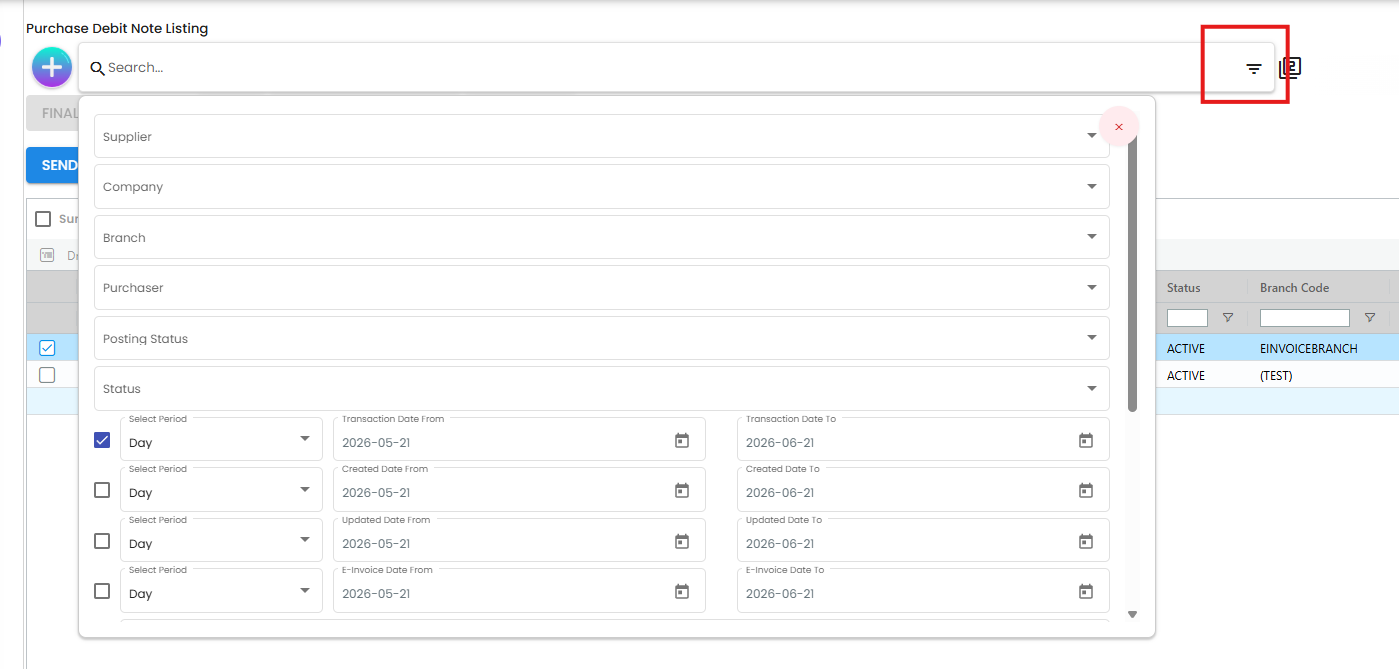
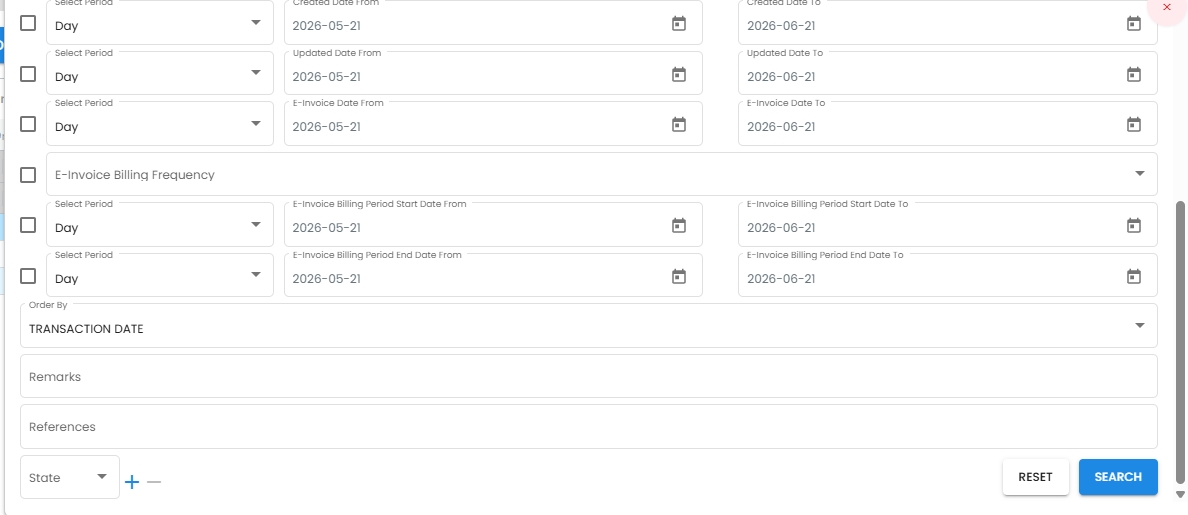
The listing shows documents filtered by the applet’s default posting status and date window (see Applet settings). Open the hamburger icon for Advanced Search; its Posting Status multi-select is the only way to see DISCARDED drafts.
Bulk actions on the listing

| Button | What it does | When it is disabled |
|---|---|---|
| FINAL | Posts every selected DRAFT (journal, ARAP, queues). | No row selected, or a selected row is not DRAFT. |
| DISCARD | Sets every selected DRAFT to DISCARDED. No GL impact. Client-side confirmation dialog Are you sure you want to DISCARD selected documents? | No row selected, or a selected row is not DRAFT. |
| VOID | Reverses every selected FINAL document. Client-side confirmation dialog Are you sure you want to VOID selected documents? | No row selected, or a selected row is not FINAL. |
| SINGLE/MULTIPLE PRINT | Generates PDFs of the selection with the default printable format. | The applet setting PRINTABLE (default printable format) is not set. |
| SELF-BILLED | Sets einvoice_self_billed = true on the selection so the e-Invoice is treated as a self-billed document. On a FINAL note it also takes the note out of the purchase-document matching queue and queues it for e-Invoice submission, and it is refused while the company’s e-Invoice status is not Enabled or the note is already queued. | No row selected. |
| SEND EMAIL | Emails PDFs of the selection using the Email Template, Recipient Email and CC List fields on the same row. | The applet setting HIDE_SEND_EMAIL_BUTTON is on (hides the button and its three fields). |
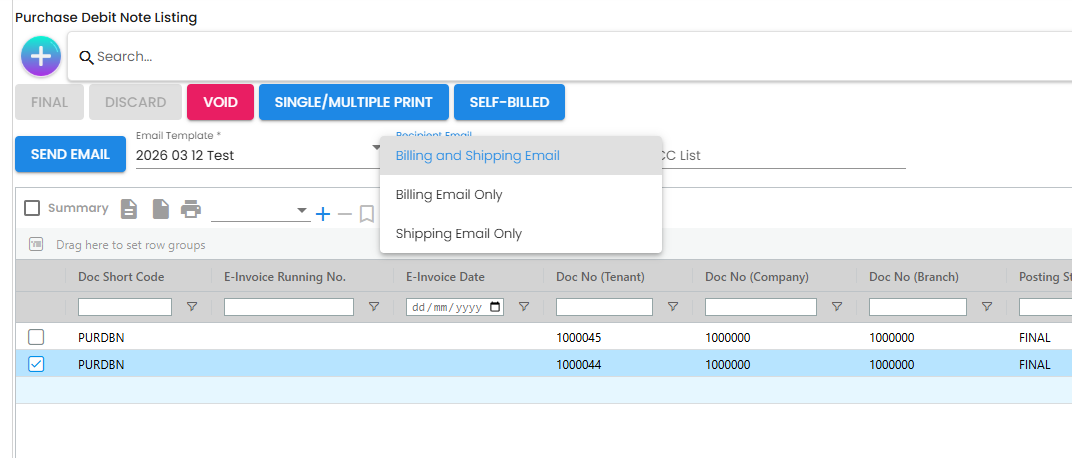
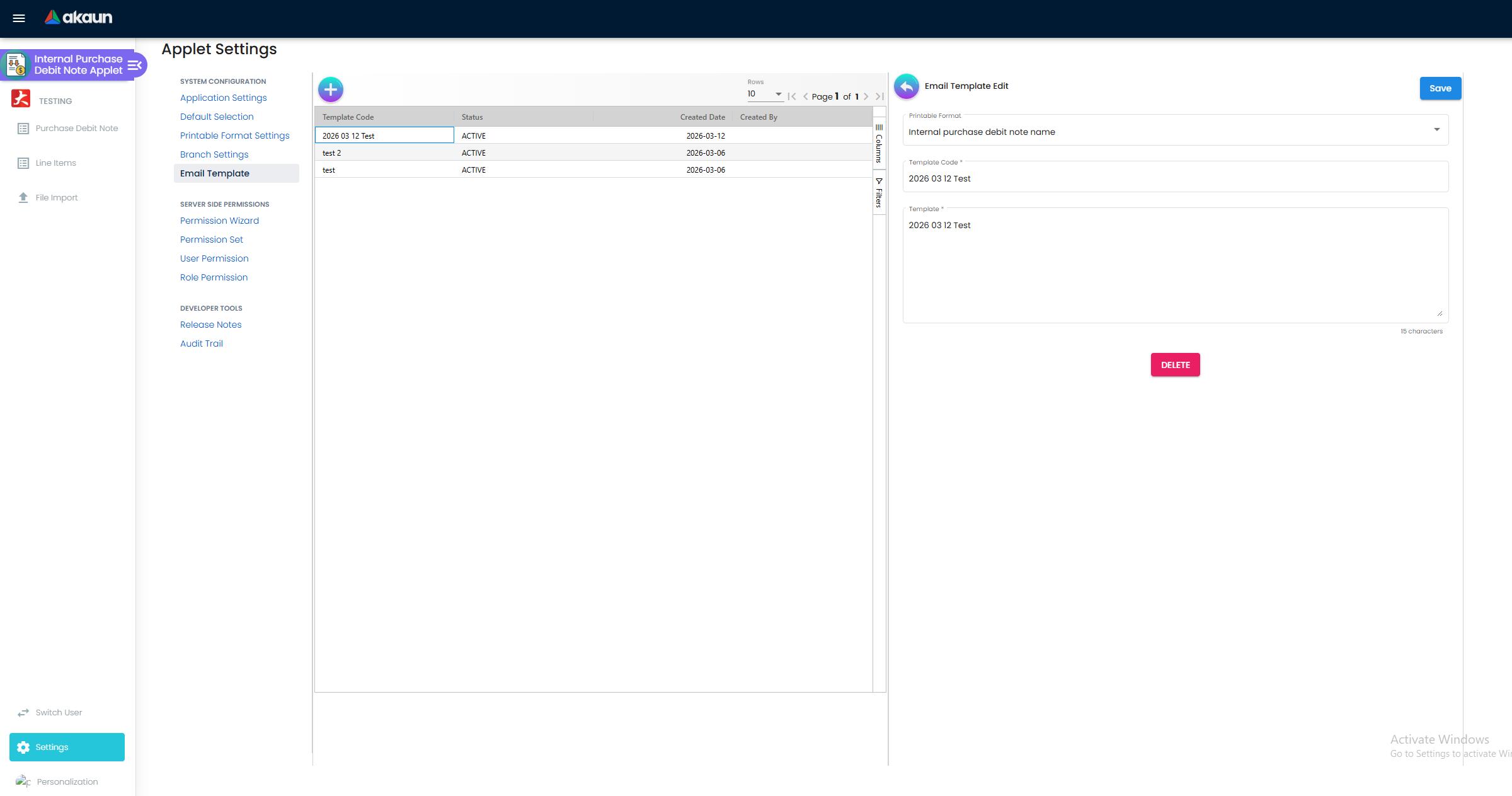
Documents are grouped by recipient address; a document with no address for the chosen recipient type is skipped and reported. The template list is applet-local — it comes from this applet’s Settings → Email Template.
Create and edit forms
The create screen (the + button) has seven tabs: Main Details, Account, Line Items, Payment, Department Hdr, KO For and Contra. Payment, Department Hdr and KO For disappear when HIDE_MAIN_PAYMENT_TAB, HIDE_DEPARTMENT_HDR_TAB or HIDE_KO_FOR_TAB is on.
The edit screen (opening a saved document) has the full set of tabs below — or stacked expansion panels when VERTICAL_ORIENTATION is on. Their order is set in Settings → Default Selection → Details Tab Ordering.
| Tab | Purpose | Hidden by |
|---|---|---|
| Search Document | Find a FINAL purchase invoice and pull its lines in (posting_statuses: ["FINAL"]). Creates a document link (INTERNAL_PURCHASE_INVOICE → INTERNAL_PURCHASE_DEBIT_NOTE). Only offered while the document is still a draft. | HIDE_SEARCH_BY_DOCUMENT_BUTTON |
| Main Details | Once the note is FINAL, VOID or DISCARDED, branch, location, transaction date, currency, rate and the server document fields lock — but the five external document references and their dates stay editable, so a supplier’s late document number can still be recorded on a posted note. | — |
| E-Invoice | Sub-tabs Submission, Progress, Notification, Cancellation, Matched History and (when ENABLE_IMPORT_EXPORT is on) Import/Export. Buttons: Submit, Send, Request for Rejection, Pushback to Queues, Export, Select From Another Supplier. | — |
| Account | Picking an entity branch replaces the Bill To and Ship To addresses with that branch’s own, and choosing None blanks them — so pick the branch first and adjust the addresses after. Supplier and entity branch lock once the note is FINAL, VOID or DISCARDED. | — |
| Lines | Line items with pricing, tax, WHT, department tags, costing details. | — |
| ARAP | Product-and-services amount, settlement, contra, document open and balance for this document. | HIDE_MAIN_ARAP_TAB |
| Payment | Settlement lines (settlement method, amount, date). | HIDE_MAIN_PAYMENT_TAB |
| Department Hdr | Header-level segment, dimension, profit centre, project. | HIDE_DEPARTMENT_HDR_TAB |
| Trace Document | Journal, cashbook, tax and inventory transactions the posting created. | HIDE_TRACE_DOCUMENT_TAB |
| Contra | Offset this debit note against the supplier’s outstanding purchase invoices. | HIDE_MAIN_CONTRA_TAB |
| Doc Link | Links to and from other documents. | HIDE_DOC_LINK_TAB |
| Attachment | Uploaded supporting files. | HIDE_ATTACHMENT_TAB |
| Export | Print the document with a printable format. | HIDE_EXPORT_TAB |
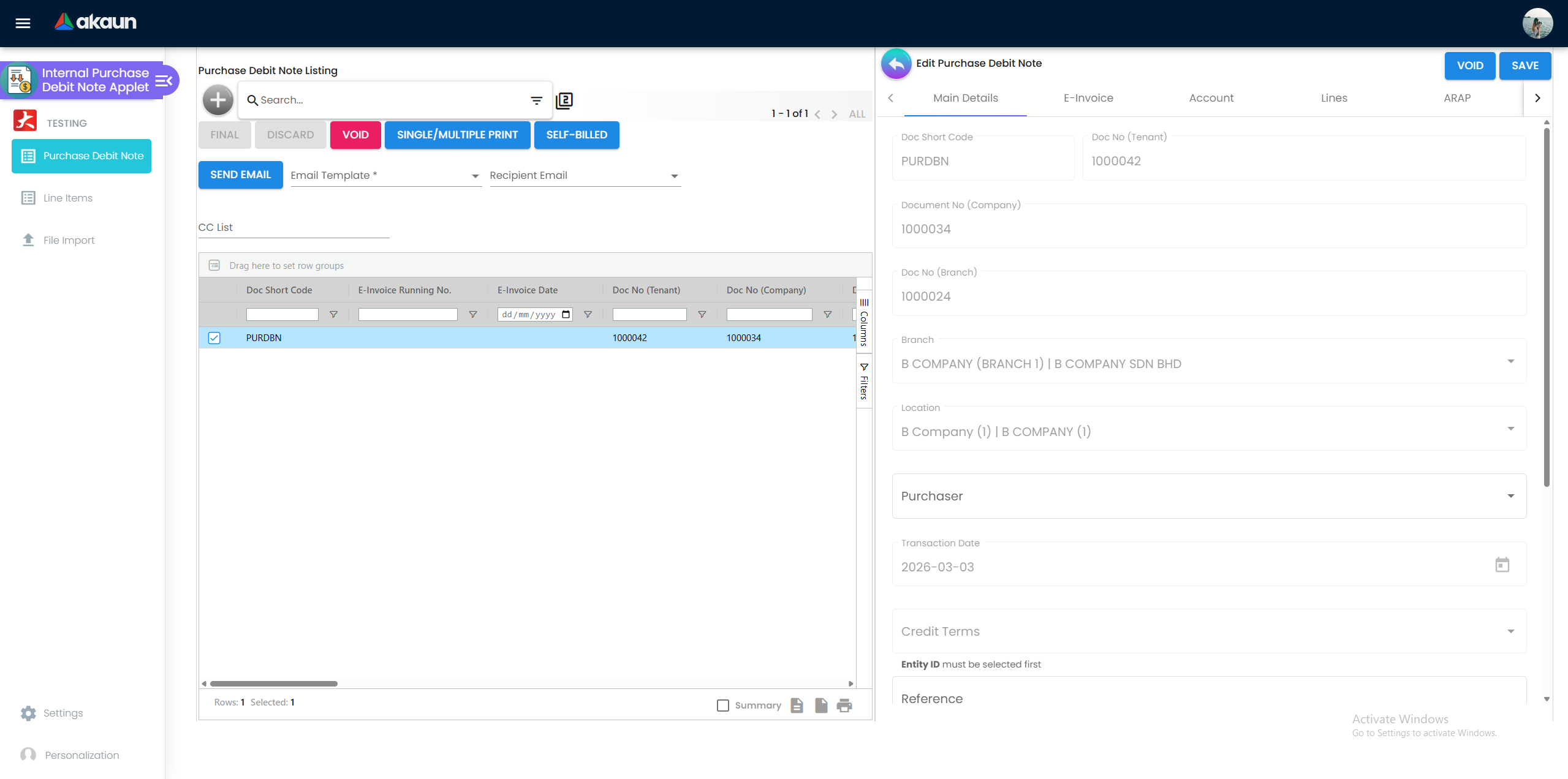
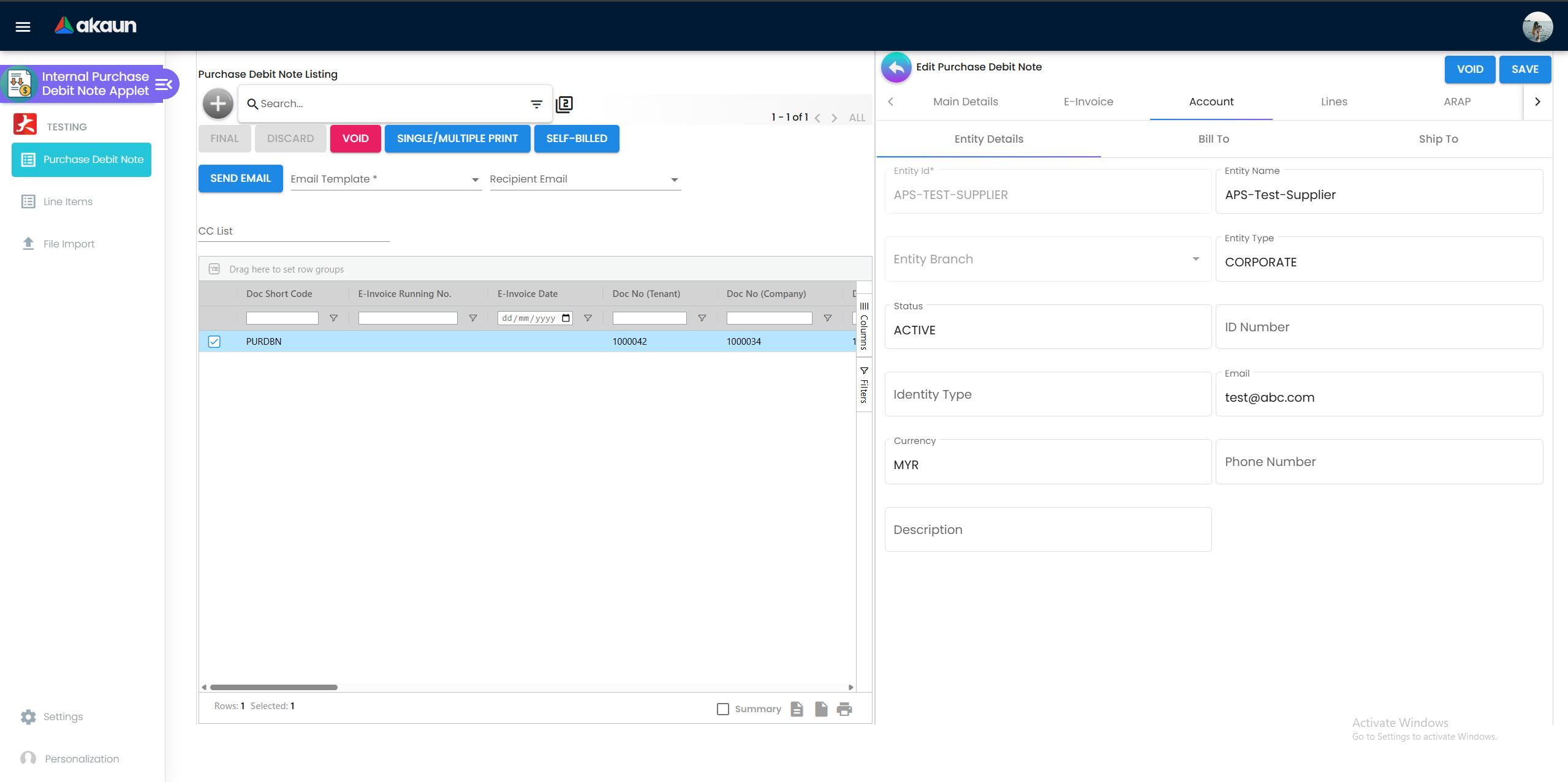
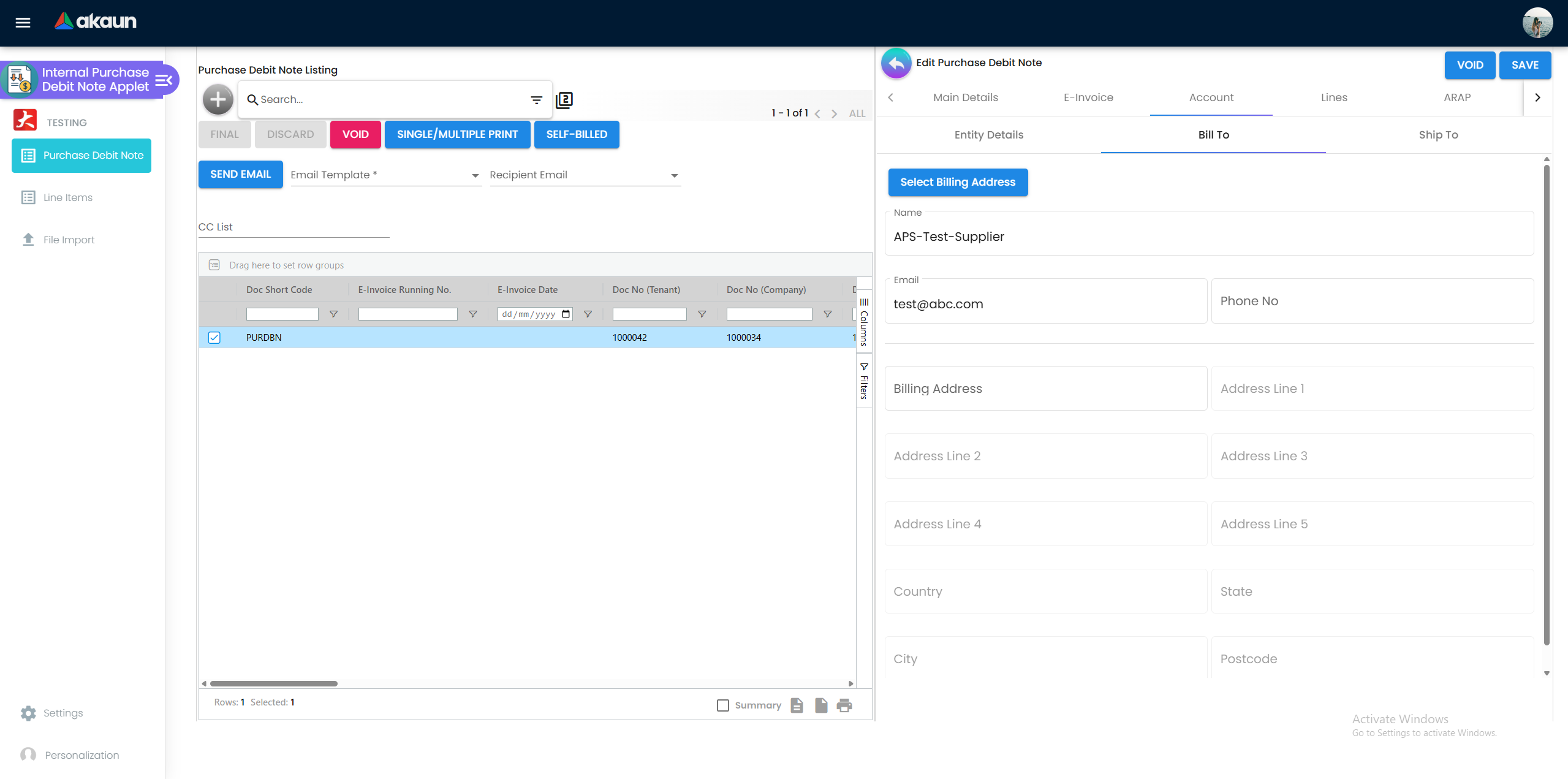
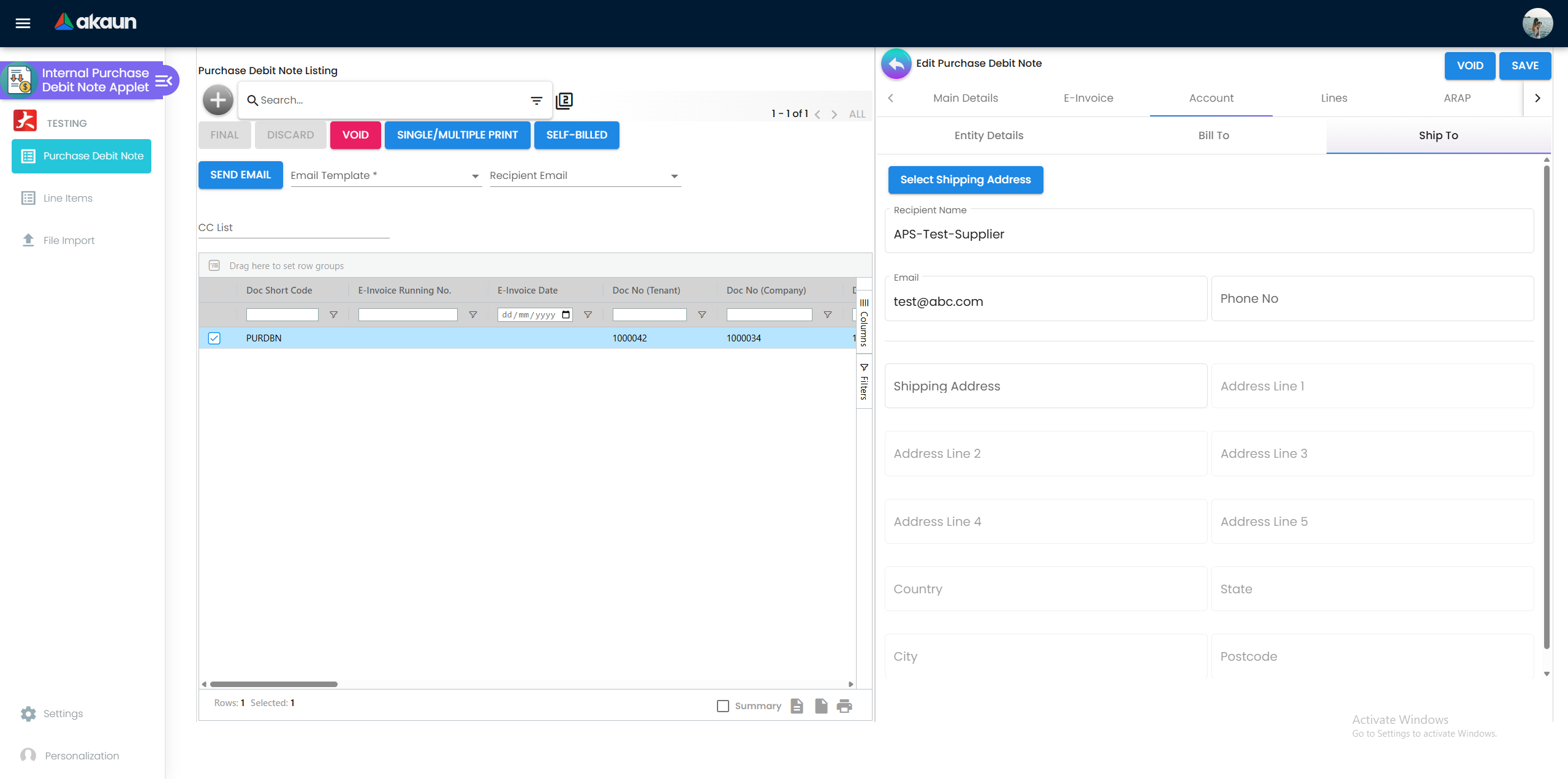
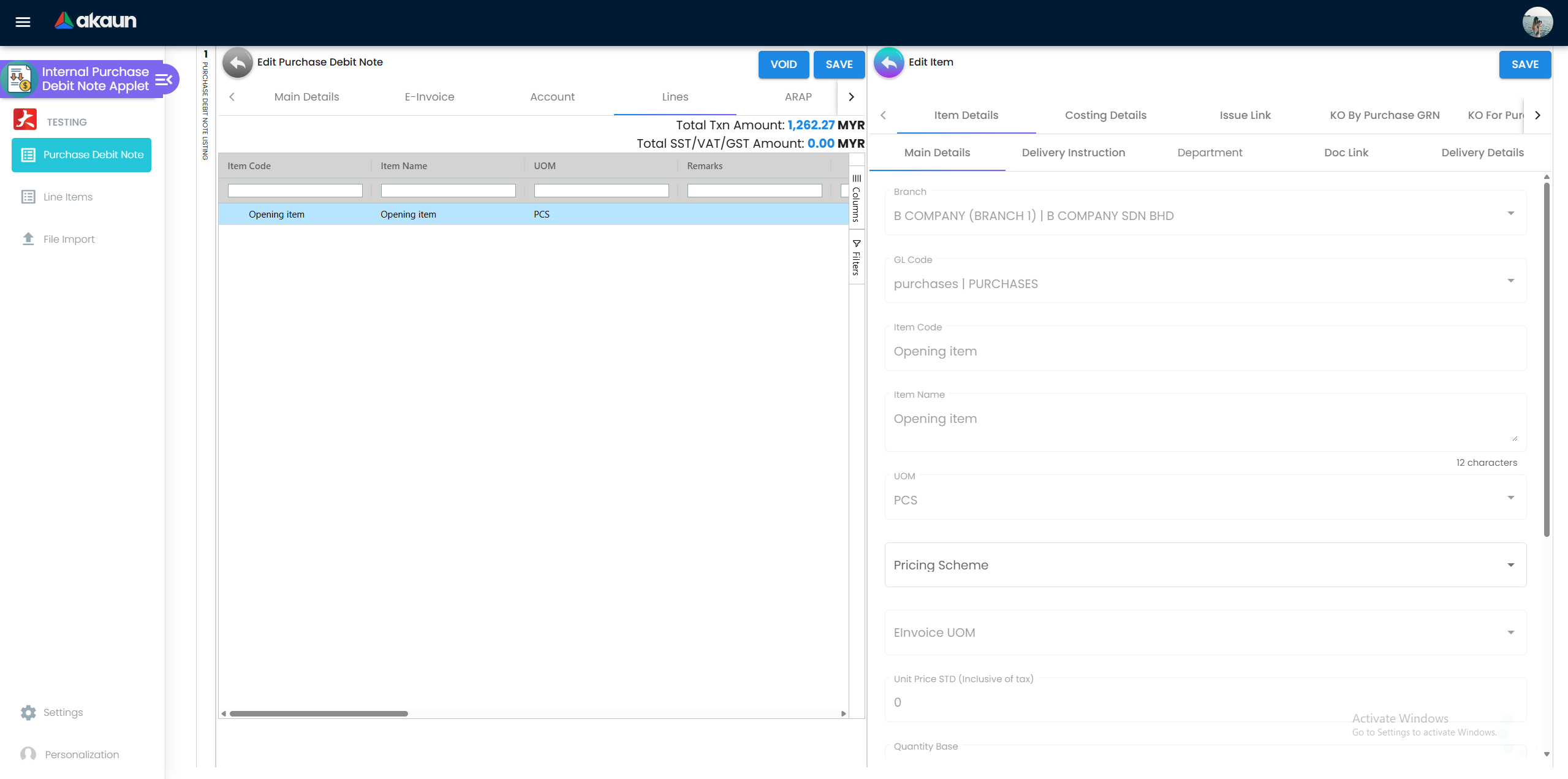
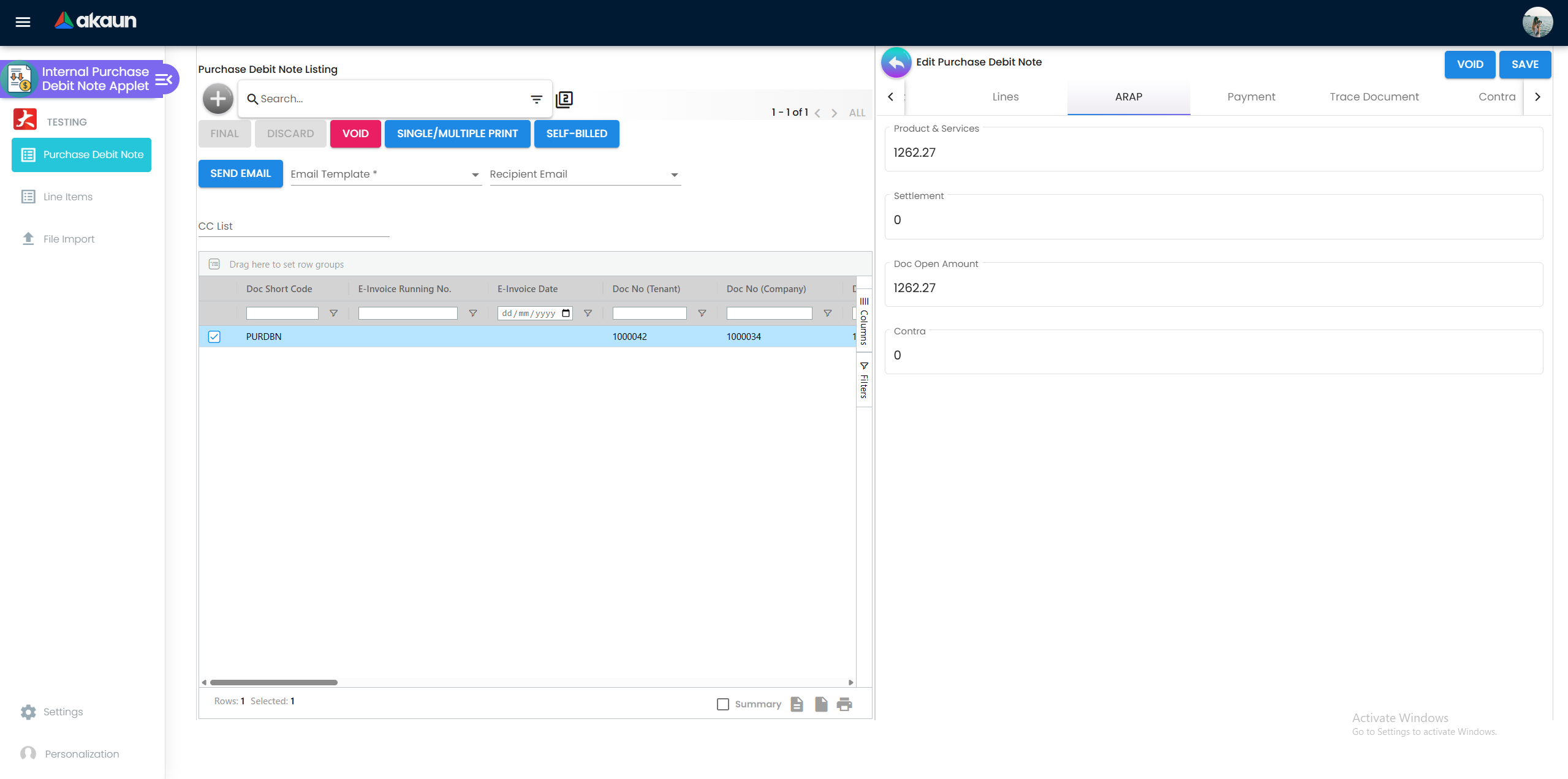
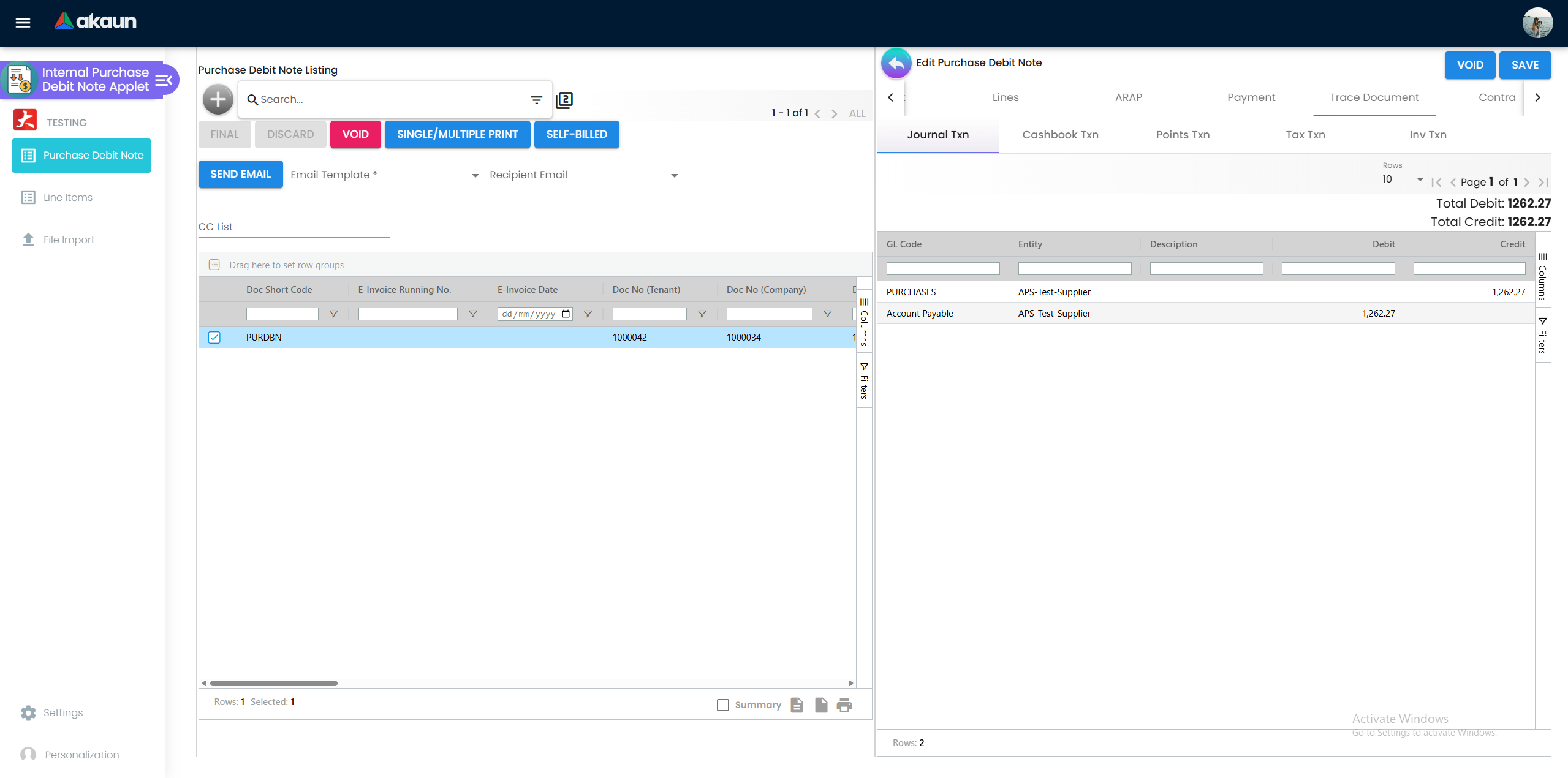
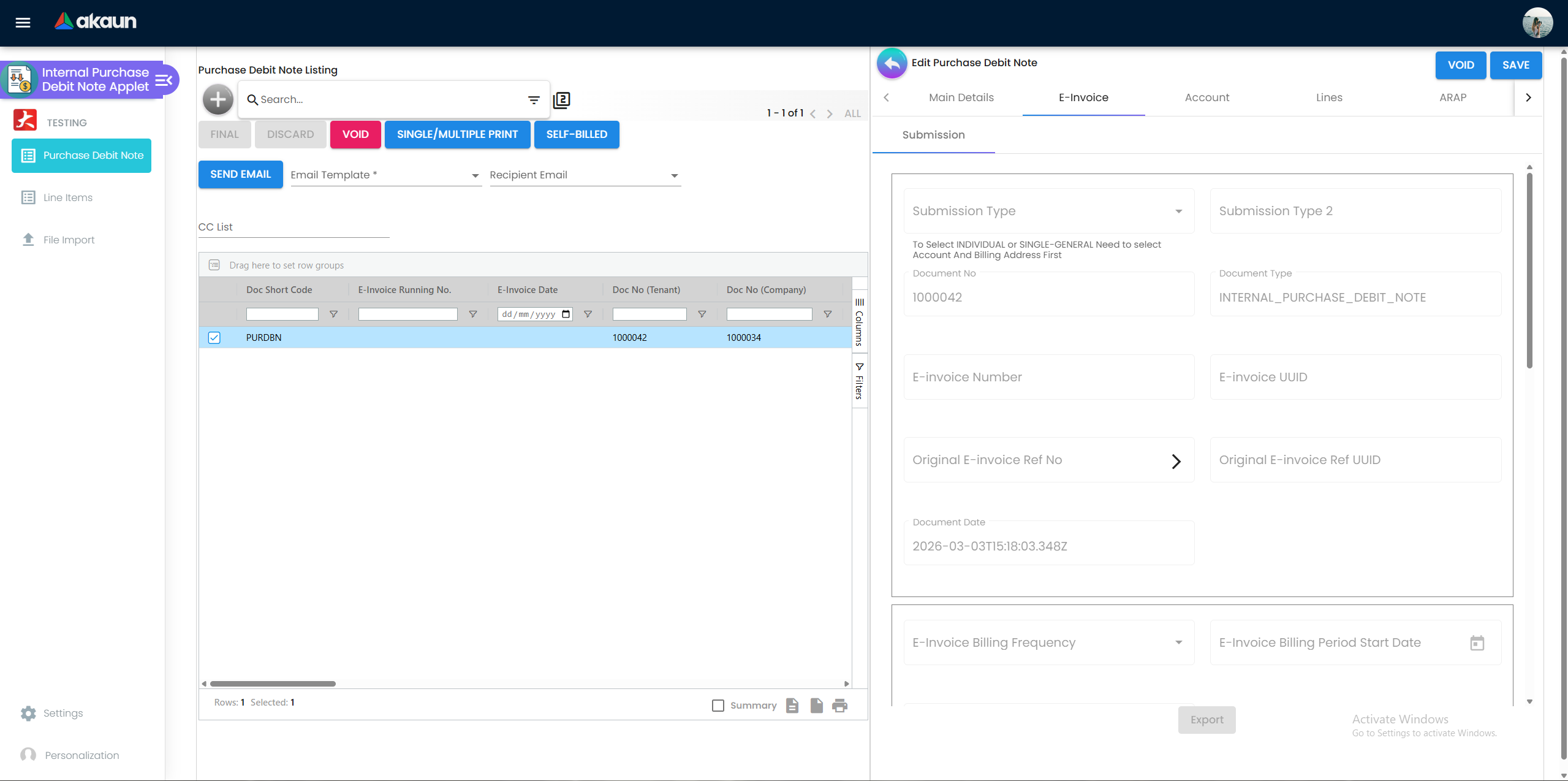
Screenshot withdrawn; a recapture from a demo tenant is on the list.
File Import
File Import creates many debit notes from one CSV. Download Sample Format for Purchase Debit Note, fill it, choose the delimiter, drop the file and click ADD. Open the import record and use the Checking tab to see one grid row per CSV row; rows with a validation error are highlighted and the message lands in the paired … Validation Error column. Filter that column to see errors only. The Main tab shows file name, size, format, process status and any top-level error.
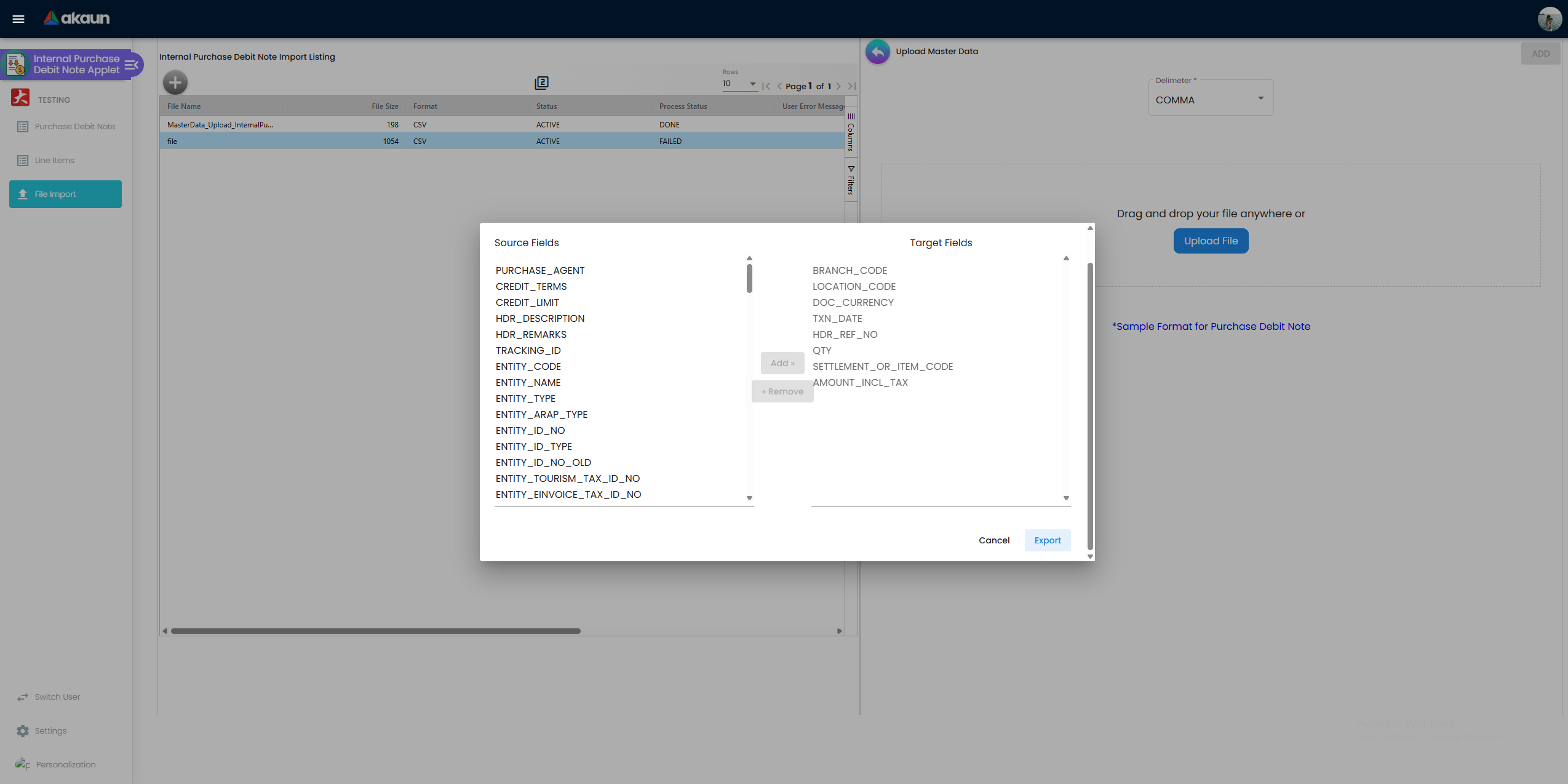
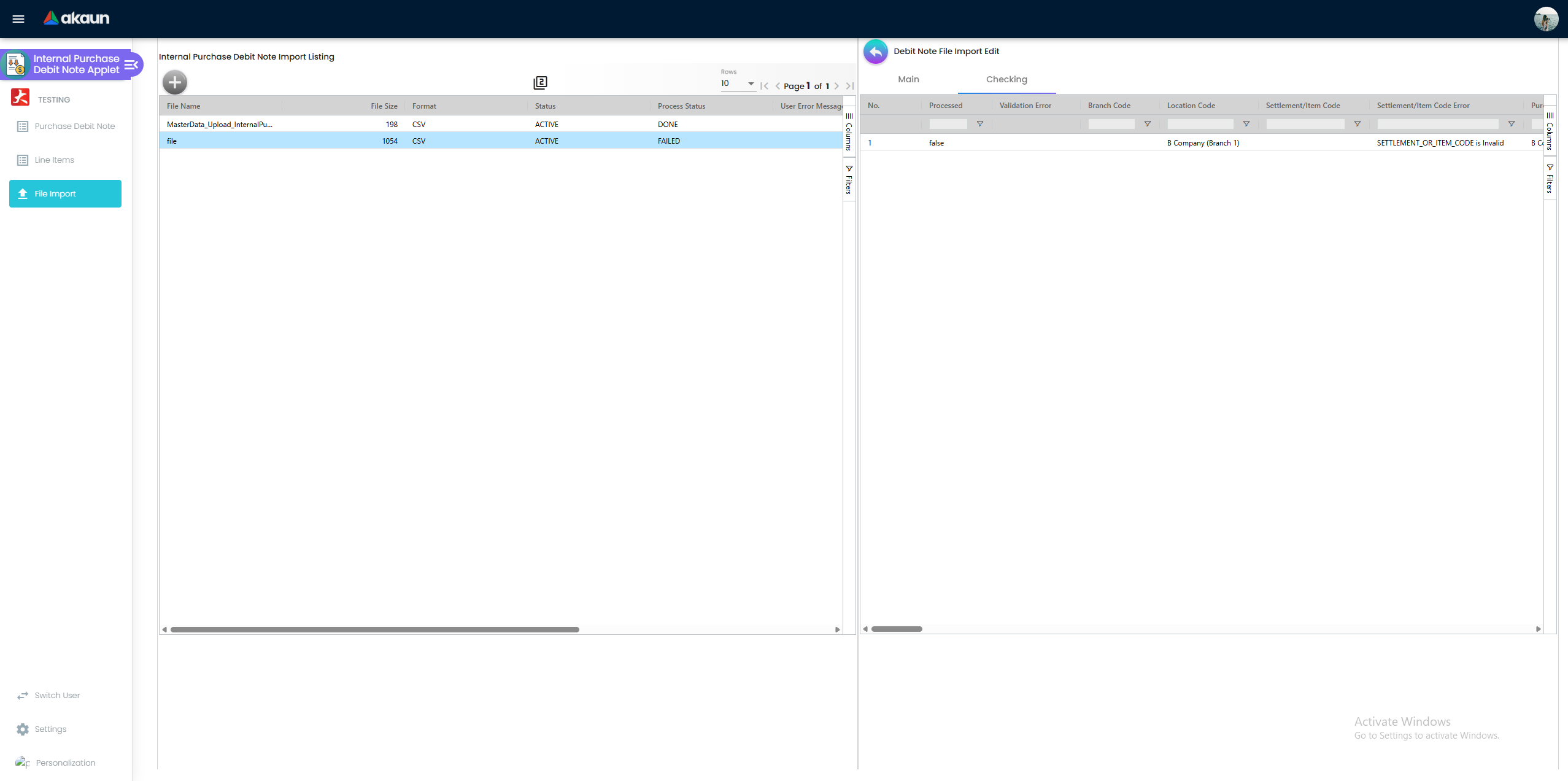
The CSV carries header columns repeated on every line of the same document (branch, location, purchaser, transaction number and date, reference, credit terms, description, remarks, currency, tracking ID, entity code, billing and shipping name/email/phone/address, supplier TIN and e-Invoice identity fields, segment / dimension / profit centre / project, GL code, settlement amount and remarks) and line columns (item reference number, transaction type, quantity, UOM, amount and unit price including tax, GST and WHT code and %, batch, bin, tracking ID, serial number, posting status). Common rejections: an unknown branch, location, entity, item or tax code; a blank or non-numeric amount; a posting status that is not DRAFT, FINAL, VOID or DISCARDED; and a column header that does not match the sample.
Configuration
Before you can use it
| Prerequisite | Where | Why |
|---|---|---|
| Company, branch, location | Organisation | Company, branch and location are the three required header fields. Branch MAIN_LOCATION fills the default location. |
| Supplier entity | Supplier | The Account tab selects an entity flagged as supplier; whether it is a trade or non-trade payable decides whether the posting goes to CREDITOR (AP trade) or CREDITOR_NON_TRADE (AP other). |
| Company default GL codes | Chart of Account → company GL-code links | The creditor mapping (CREDITOR or CREDITOR_NON_TRADE) is a hard stop in the posting job, not at FINAL: FINAL changes the status and enqueues the job; the job then throws MISSING_DEFAULT_GL_CODE: CREDITOR and the note stays FINAL with no journal until the link exists and the journal is built from Financial Report › Error Checking › Trace Document (Missing Journal → Resolve). PURCHASE and INPUT_TAX are the last fallback for lines and tax lines; if nothing resolves, the journal line is silently omitted, and the supplier’s line — built from what remains — absorbs it, so the journal posts wrong with no error; it fails its balance check only when the supplier has no AR/AP type — see Lifecycle and effects. |
| Items with a purchase GL code | Doc Item Maintenance | Each line is an item. A PNS line’s GL code resolves as line GL code → document header GL code → item-company link with txn code PURCHASE → company default PURCHASE. |
| Tax codes | Tax Configuration | GST/SST and WHT codes on lines. Selectors hidden when HIDE_TAX_CONFIG_SELECTION / HIDE_WHT_CONFIG_SELECTION are on. |
| Cashbook / settlement methods | Cashbook | Only if you record a settlement on the Payment tab: a settlement-method item must map to a cashbook with a GL code, else the posting job fails after FINAL with MISSING_CASHBOOK: STL_MTHD [code] / MISSING_GL_CODE: STL_MTHD [code] and the note stays FINAL with no journal. |
| Fiscal period open | Chart of Account → fiscal years | FINAL is refused with The selected date falls within a locked fiscal period — when the transaction date is in a LOCK_ALL / LOCK_TXN period. |
| e-Invoice setup | My E-Invoice Admin | Needed only if the document takes part in e-Invoice processing. skip_einvoice on the document, the branch or the supplier bypasses it. |
| Permissions | This applet → Settings → Permission Wizard / Client Side Permission | Server-side create/read/update/delete on INTERNAL_PURCHASE_DEBIT_NOTE; client-side switches listed below. |
Applet settings
Settings → Application Settings is the shared Field Configuration screen; Settings → Default Selection
holds the header pre-fills. Close to 200 keys reach this applet, and most of them begin HIDE_ or EXPAND_ —
one switch per field, column, tab or button, and you see what one did the moment you save. This is a
supporting document with little policy of its own, so the list below is short and that is the whole
finding: five keys change what the applet will let you do, and one of them reaches the e-Invoice.
How settings are stored and who they apply to.
| Setting | What changes | Default when never saved | Advisory or hard |
|---|---|---|---|
Copy shipping details onto the e-Invoice as you edit themENABLE_IMPORT_EXPORT | Every edit to the shipping information and the shipping address on the Account tab is copied into the debit note’s e-Invoice shipping details as well. On a document that will be submitted to LHDN this is the difference between the shipping details on the tax document tracking the document you are looking at and being whatever was typed there first | Off — the e-Invoice shipping details are edited only on their own tab and does not follow the Account tab | Advisory — it decides which store actions the screen dispatches |
Let staff type over the standard unit priceENABLE_EDITING_UNIT_PRICE_STD | Makes Unit Price (Std) editable on a line — the basis of Std Amount and of the discount the line reports, and on a purchase document the figure the supplier’s list price is measured against. Leaving it off is what keeps that basis stable | Read-only | Advisory — the control is disabled in the browser |
Lock the line amount so it can only come from quantity x priceDISABLE_EDITING_AMOUNT_TXN | Locks the line’s transaction amount, so the amount can only come from quantity × price and cannot be typed over. On a debit note — the document that lowers what you owe a supplier — that is the difference between a claim derived from the lines and a number somebody chose. The toggle itself is only visible on the settings screen to a holder of the SHOW_DISABLE_EDITING_AMOUNT_TXN_SETTING permission | Off — the amount can be typed over | Advisory — the control is disabled in the browser |
Let each payment line carry its own dateENABLE_EDIT_PAYMENT_DATE | Lets a payment line carry its own date. With it off the applet overwrites every payment line’s date with the document header’s date, which is the date the cashbook entry carries and the date bank reconciliation matches on | Off — payment line dates follow the header, silently | Advisory, and it is a rewrite rather than a lock |
Lock the exchange rate on the headerCANNOT_EDIT_CURRENCY_RATE | Disables Currency Rate on the header, fixing the base-currency value of the debit note and the exchange difference recognised against the payable it adjusts. No per-user exception is registered for this applet | Editable | Advisory — the field is disabled in the browser |
ENABLE_DUPLICATE_REFERENCE_CHECK behaves as it does on the Purchase Order applet: a red message under the Reference field, no save block, and no filter by supplier.
Two things to know before you change anything on this screen. First, the name in italics under each setting is the applet’s internal key. It is there so you can match what you are looking at to what support asks you about; it is not a stable name and it can be renamed, replaced or dropped when the applet is updated, so do not build a script or an integration around one. Second, a setting can be switched back but it cannot be returned to never saved: the first time anybody saves this screen, every toggle on it is written into your tenant’s settings at whatever it was showing, and the applet stops falling back to its own built-in default. The Default when never saved column above is what you give up at that moment — worth reading before the first save rather than after. Checked against the product on 17 September 2026.
Eight settings this applet reads have no switch on its Application Settings. The shared screen
decides which switches to show by the applet’s code, and for these it checks a different spelling, with
hyphens where the platform’s code for this applet has underscores: HIDE_FILE_IMPORT_MENU, HIDE_REFERENCE, HIDE_REMARKS,
HIDE_CURRENCY, HIDE_BASE_CURRENCY, HIDE_CREDIT_TERMS, SHOW_CUSTOM_DOC_NO and
ENABLE_IMPORT_EXPORT. The six header settings in that list are on the Main Details gear once
ENABLE_INLINE_APPLET_CONFIG is switched on. The File Import menu switch and ENABLE_IMPORT_EXPORT, the
first row of the table above, have no switch anywhere in this applet; a value that is already stored still
takes effect.
On the screen and doing nothing
These keys are on the settings screens and change nothing.
- The four Department enable keys (dimension, profit centre, project, segment) — declared in the
model with a form control on the shared screen but no toggle rendered anywhere, and read by nothing
here. Their
MANDATORY_*andHIDE_*partners work, so a dimension can be hidden or made compulsory and shows unless hidden; its enable key cannot be turned on. The same four are inert on Purchase Order, Payment Voucher and Receipt Voucher — it is a property of the shared panel, not of this applet. - Filter by today’s transactions — declared, rendered nowhere, persisted with the rest, no reader.
Document behaviour settings
| Behaviour | Where it is set | Notes |
|---|---|---|
| Posting status on create | No control — new documents are DRAFT. DEFAULT_POSTING_STATUS only filters the listing. | |
| Transaction date on FINAL | The FINAL request’s date_txn_logic (USE_FINAL, USE_CREATED, USE_UPDATED) applies only when the header’s use transaction date flag is off. | Backend rule; no applet toggle. |
| Printable formats | Settings → Printable Format Settings (Format Code, Format Name, uploaded template). Marking one as default writes the PRINTABLE key. Branch Settings → Printable Format overrides it per branch. | Required for SINGLE/MULTIPLE PRINT, SEND EMAIL and ENABLE_AUTO_POPUP. |
| Email templates | Settings → Email Template — Printable Format, Template Code (dropdown label and email subject), Template (body). | Applet-local. |
| Approval workflow | No exposed control found (routes and settings components checked). | The workflow columns on the document (xtn_process_*) exist in the data model but this applet has no approval screen or binding. |
| e-Invoice | E-Invoice tab → Submission; skip_einvoice on the document, on the branch or on the supplier bypasses processing; SELF-BILLED on the listing sets einvoice_self_billed. | A FINAL purchase document of a company whose e-Invoice status is ENABLED and which is not self-billed goes to the purchase-document matching queue, where the supplier’s issued e-Invoice is matched against it. Use Select From Another Supplier to correct the issuer details before submitting a self-billed one. |
| Webhooks | Settings → Webhook (shared component). | Fires on document events. |
Branch settings
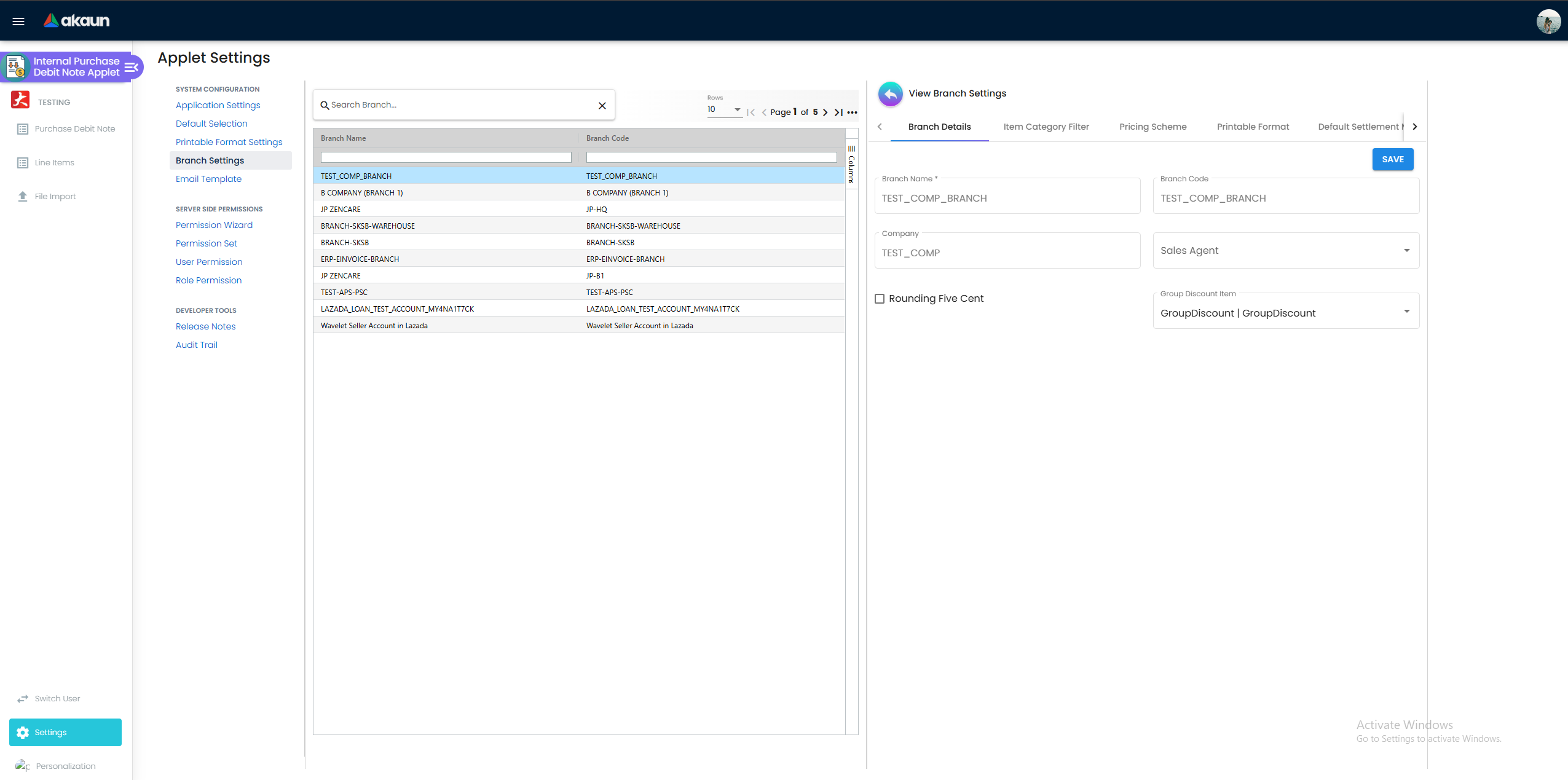
| Sub-tab | What it controls |
|---|---|
| Branch Details | Read-only Branch Name, Branch Code, Company; Sales Agent; Rounding Five Cent with a rounding item; Group Discount Item used for header-level discounts. |
| Default Settlement Method | Settlement method pre-selected on the Payment tab for this branch. |
| Item Category Filter | Item categories the line picker offers at this branch. |
| Menu List | Sidebar menus shown to users at this branch. |
| Pricing Scheme | Pricing schemes used to derive line prices at this branch (also linkable to roles under Role Pricing Scheme Link). |
| Printable Format | Branch default printable format, overriding PRINTABLE. |
app-sales-man picker and it writes the branch’s default_sales_entity_hdr_guid. Nothing in this applet reads that value back — the create screen does not pre-fill Purchaser from it. Purchaser is filled only by ENABLE_EMPLOYEE_LOGIN_AUTO_DETECTION or by hand.Who can change what
Server-side. Every API call on the document is gated by
TNT_API_DOC_INTERNAL_PURCHASE_DEBIT_NOTE_{CREATE,READ,UPDATE,DELETE}_TGT_GUID, each assignable with a
target of type Company, Branch, Location or Entity through Permission Wizard or Permission Set.
File Import has its own set,
API_TNT_DM_ERP_INTERNAL_PURCHASE_DEBIT_NOTE_IMPORT_FILE_HDR_{ADMIN,CREATE,READ,UPDATE,DELETE,OWNER,MEMBER}
(READ / UPDATE / DELETE targeted by Company, Branch or Location). These are the only permissions that can
return a 403.
Client-side permissions registered for this applet: 34 ACTIVE, one DELETED. Thirty-one of them are
price, quantity, discount, amount or tax columns on the line grid, each the SHOW_* partner of a
HIDE_* setting. They are worth granting as one bundle to the people who negotiate with suppliers, and
not one at a time.
The two that are not a column:
SHOW_COSTING_DETAILS— the costing sub-panel on a line.SHOW_DISABLE_EDITING_AMOUNT_TXN_SETTING— a permission that gates a setting. The Lock Amount toggle is shown on the Application Settings screen only to a holder. An administrator who cannot find that toggle is missing a permission on their own account.
Registered and doing nothing. IPDN_HIDE_TRACKING_ID_AND_PERMIT_NO is ACTIVE in the registry and
nothing uses it. Granting it
does not hide Tracking ID or Permit No from anybody; the fields are governed by the HIDE_TRACKING_ID and
HIDE_PERMIT_NO settings for the whole tenant. Its companion IPDN_DISPLAY_TRACKING_ID_AND_PERMIT_NO is
DELETED and cannot be granted at all. Earlier versions of this page described the first as a working
per-user hide.
Checked in code and missing from the registry, so no role can hold them: SHOW_GENDOC_FINAL_BUTTON,
SHOW_GENDOC_DISCARD_BUTTON, SHOW_GENDOC_VOID_BUTTON, SHOW_CLONE_BUTTON and SHOW_FILE_IMPORT_MENU.
Each is the intended escape from the matching HIDE_* setting, so hiding one of those buttons or that
menu hides it from everyone until BigLedger adds the code to this applet’s permission list.
Settings → Client Side Permission only grants a code the list already holds; it cannot create one.
Settings → Feature Visibility (shared) hides whole menus per team and is a different mechanism again.
Fields
Main Details
| Field | Meaning | Required | Notes / validation |
|---|---|---|---|
| Company | Legal entity that owns the document. | Yes | Filled from the branch. Drives GL-code lookup and the fiscal-period lock. |
| Branch | Branch recording the liability reduction. | Yes | Default from DEFAULT_BRANCH or the personal default. |
| Location | Stock location on the header. | Yes | Default from the branch’s MAIN_LOCATION. No stock movement is posted. |
| Purchaser | Employee responsible. | No | Auto-filled only when ENABLE_EMPLOYEE_LOGIN_AUTO_DETECTION is on. |
| Tenant / Company / Branch Doc No | Three running numbers. | System | Generated by the backend when the document goes FINAL; shown per SHOW_DOC_NO_* permission. SHOW_CUSTOM_DOC_NO exposes a custom number field. |
| Transaction Date | Accounting date. | Not enforced by the form | At FINAL it is refused with The selected date falls within a locked fiscal period when the company’s period is closed with LOCK_ALL or LOCK_TXN. Changing it rewrites every Payment line’s date to match unless ENABLE_EDIT_PAYMENT_DATE is on. Locks at FINAL, VOID or DISCARDED; the picker is inactive without the SHOW_TRANSACTION_DATE permission. |
| Credit Terms | Supplier terms in days. | No | Hidden by HIDE_CREDIT_TERMS. |
| Reference, Remarks, Description | Free text. | No | Duplicate Reference. banner when ENABLE_DUPLICATE_REFERENCE_CHECK is on — a warning, not a block. Remarks become the journal header description. |
| Permit No, Tracking ID | Statutory / logistics references. | No | Hidden by HIDE_PERMIT_NO / HIDE_TRACKING_ID or by IPDN_HIDE_TRACKING_ID_AND_PERMIT_NO. |
| Currency, Base Currency, Currency Rate, Forex Source | Document currency and rate. | Currency yes | Rate locked by CANNOT_EDIT_CURRENCY_RATE and after FINAL. The backend re-validates the exchange rate at FINAL. |
| Server Doc 1–3 | Platform document numbers. | System | Hidden by HIDE_SERVER_DOC_*. |
| Client Doc Type, Client Doc 1–5 | Supplier’s own document references. | No | Shown per SHOW_CLIENT_DOC_* permission. |
| External Documents (Quotation, Order, Delivery Order, Invoice, Others) + dates | Five reference / date pairs (xtn_doc_ref_1..5). | Per MANDATORY_… settings | Panel rendered only for this applet in Application Settings. |
Account
| Field | Meaning | Required | Notes / validation |
|---|---|---|---|
| Entity (Supplier) | Supplier being debited. | Yes (entityId required validator) | Must be an entity flagged as supplier; its AR/AP object type selects CREDITOR (AP trade) vs CREDITOR_NON_TRADE (AP other). Entity skip_einvoice bypasses e-Invoice. |
| Entity Branch | One of the supplier’s own branches (the list is that supplier’s, not yours). | No | Choosing one overwrites Bill To and Ship To with that branch’s addresses; None blanks both; picking a different supplier clears it. |
| Bill To / Ship To | Name, email, phone, address lines, country, state, city, postcode. | No | Billing / shipping email feed SEND EMAIL. |
| E-Invoice identity | TIN, ID type, ID number, SST number. | For e-Invoice only | Editable inline; Select From Another Supplier copies from another entity. |
Lines
| Field | Meaning | Required | Notes / validation |
|---|---|---|---|
| Item | Item or GL-code item. | Yes | GL_CODE items skip the numeric validators below. |
| Quantity | Units. | Yes (qty required, minimum 1) | Quantity signum is 0 — no stock movement. |
| UOM, UOM ratio | Unit of measure and how many base units it holds. | No | Picking a UOM fills the ratio from the item; the ratio stays editable. Quantity is held in base units: Quantity by UOM is quantity ÷ ratio, and typing it sets quantity to that figure × ratio, rounded. The ratio and quantity are read as whole numbers in the calculation, so a ratio of 2.5 is worked as 2. The UOM picker follows the pricing-scheme setting (HIDE_UNIT_PRICE_STD_PRICING_SCHEME), not a UOM setting. |
| Unit price (std / txn / net, incl. and excl. tax, per UOM) | Pricing. | netAmt, netAmtWithTax, txnAmt required for non-GL items | Minimum 0. Standard price editable only with ENABLE_EDITING_UNIT_PRICE_STD; transaction amount locked by DISABLE_EDITING_AMOUNT_TXN. |
| Unit discount, discount amount | Line discount, taken off before tax. | No | The two are one figure: discount amount = unit discount × quantity, and typing the amount divides it back into the unit discount. Tax and WHT are then worked on the price after discount. |
| Tax code, tax %, tax amount | GST/SST. | No | Tax % ≥ 0. Posts to the company default INPUT_TAX. |
| WHT code, WHT %, WHT amount | Withholding tax. | No | WHT % is read-only and comes from the WHT code’s rate. WHT amount = amount after discount × WHT %, and it is subtracted from the line total (net + tax − WHT). The posting writes no journal line for it — the purchase line posts the net amount, the tax line the tax, and the supplier line their total — so record the withheld tax separately if you use it. |
| Branch (line) | Branch for the journal line. | Yes | Defaults to the header branch. |
| Segment, Dimension, Profit Centre, Project | Accounting tags. | Per MANDATORY_… | Fall back to header values on the journal line. |
| GL code (line) | Overrides the purchase GL code for this line — first in the precedence. | No | Hidden by HIDE_LINE_ITEMS_GL_CODE. |
| Batch, Bin, Serial, Tracking ID | Stock references. | No | Batch / bin sub-forms require batch number, dates and quantity; bin code and quantity. |
| e-Invoice classification, tax type, UOM, tariff code, country of origin | e-Invoice line data. | For e-Invoice only | |
| Remarks | Line text. | No | Becomes the journal line description. |
Payment, Department Hdr, Contra
| Tab | Fields | Notes |
|---|---|---|
| Payment | Settlement method, amount, date, remarks. | Date editable only with ENABLE_EDIT_PAYMENT_DATE. The applet refuses a line above the outstanding balance with the snack-bar Payment Exceeds Outstanding — a client-side check. |
| Department Hdr | Segment, Dimension, Profit Centre, Project. | Header defaults for every journal line. |
| Contra | Target purchase invoice, contra amount, date. | Date editable only with EDIT_CONTRA_TXN_DATE. |
Lifecycle and effects
| Status | Meaning | Allowed next |
|---|---|---|
| DRAFT | Editable. No journal, no ARAP. | FINAL, DISCARDED |
| FINAL | Posted. Header locked. | VOID |
| VOID | Reversed. Reason stored in void_reason. | none |
| DISCARDED | Abandoned draft. Hidden from the default listing. | none |
Backend checks on FINAL:
| Check | Result when it fails |
|---|---|
| Document is not already FINAL | HTTP 403 Generic Document has already been posted to FINAL |
| Exchange rate consistent for a forex document | exchange-rate errors |
| Serial / batch / bin quantities consistent | serial, batch or bin validation errors |
Transaction date not in a LOCK_ALL / LOCK_TXN fiscal period | The selected date falls within a locked fiscal period. |
The listing’s DISCARD and VOID confirmation dialogs are client-side prompts, not backend checks.
What FINAL does once validation passes: sets Skip E-Invoice from the document / branch / supplier, applies the transaction-date logic, generates the running numbers, creates a base-currency shadow document for a forex document and posts that instead, and starts the main posting job and the message-template (email / notification) job. The journal, the payable amounts and the e-Invoice matching are produced by the follow-on jobs your tenant has switched on.
What posting does
| Item | Value |
|---|---|
| Document type | INTERNAL_PURCHASE_DEBIT_NOTE |
| Direction | Reduces what you owe the supplier; moves no stock |
| The journal | Each goods line credits the purchase account; tax lines credit INPUT_TAX; the balancing supplier line debits CREDITOR / CREDITOR_NON_TRADE. Net effect Dr Creditor / Cr Purchase, Cr Input Tax — the supplier balance falls. The ordinary purchase journal applies: supplier CREDITOR, goods PURCHASE, tax INPUT_TAX. |
| Which GL code a goods line uses | line GL code → document header GL code → the item’s company GL link for PURCHASE (ROUNDING for a header-adjustment item) → company default PURCHASE. A line whose GL code cannot be found at any level is silently left out of the journal; the same applies to a tax line without an INPUT_TAX default. |
| Hard stops in posting (after FINAL) | The journal job, not FINAL, fails: MISSING_DEFAULT_GL_CODE: CREDITOR / CREDITOR_NON_TRADE when the payable account is unmapped; MISSING_CASHBOOK: STL_MTHD [code] / MISSING_GL_CODE: STL_MTHD [code] for a settlement line whose method has no cashbook or GL code; TOTAL_DEBITS_AND_TOTAL_CREDITS_NOT_BALANCES: Total Debits: …, Total Credits: … when an omitted line leaves the journal unbalanced, which happens only when the supplier has no AR/AP type (with one, the supplier line absorbs the omitted line and the journal posts wrong, with no error — see Troubleshooting); NO_JOURNAL_CREATED when no line could be built at all. FINAL has already succeeded when these fire; the note stays FINAL with an empty Journal Txn grid on its Trace Document tab. No screen shows which of these fired until the posting is re-run: Resolve in Financial Report’s Trace Document shows the reason if pressed before the cause is fixed, CREATE on Ledger And Journal’s Missing Journal shows only its code, and BigLedger support can read it. |
| Settlement lines | Each Payment-tab line posts to the settlement method’s cashbook GL and reduces the creditor line by the same amount. |
| Stock | None. A FINAL debit note writes no inventory transaction. |
| What VOID reverses | VOID sets the status and reason, voids the forex shadow document if one exists, removes the document from the e-Invoice submission queue and from historical aging, and starts the void jobs; the journal void job posts the mirror-image journal. |
| Back to DRAFT | Not offered by this applet. |
Which void jobs run — journal reversal, payables, e-Invoice — is your tenant’s job configuration, not an applet setting.
VOID and document links. VOID is refused while any later document still has an active link from this debit note; the message lists those documents by type and number, and they are voided first. A contra is not a document link: a debit note that has already been contra’d against invoices is still voidable from the listing, and the void takes the contra with it. Reverse the contra first if the settlement history must stay consistent.
Contra and settlement. The purchase report and the payment voucher treat a FINAL debit note like a payment: its positive ARAP balance is consumed by contra against purchase invoices of the same supplier and currency.
Intercompany. When the seller’s Sales Debit Note goes FINAL, the matching Purchase Debit Note is created in the buyer’s company as a DRAFT with the same lines (unless the pairing rule has Auto Final Target Doc); it posts nothing until you FINAL it. Do not finalise it as it arrives: the seller’s note raised what you owe, and this document type lowers it, so the two companies’ books would differ by twice the note. See Sales Debit Note › Intercompany for what to record instead.
Related applets
- Purchase Invoice (Internal) — the document being reduced; Search Document pulls its lines in.
- Purchase Credit Note (Internal) — the opposite-sign adjustment (amount signum −1, increases the supplier balance).
- Purchase Return (Internal) — same sign as this document but moves stock out.
- Purchase Order (Internal) and Purchase GRN (Internal) — knock-off targets on the create screen.
- Payment Voucher (Internal) — the other settlement document against purchase invoices.
- Sales Debit Note (Internal) — intercompany source that auto-creates this document in the buying company.
- Creditor Report and Purchase Report — where the balance and settlement show up.
- Chart of Account, Doc Item Maintenance, Tax Configuration, Supplier, Organisation, Cashbook — master data it depends on.
- My E-Invoice Admin — e-Invoice queues and portal status for purchase documents.
Troubleshooting
| Symptom | Cause | Fix |
|---|---|---|
Note is FINAL and Trace Document → Journal Txn is empty. The reason BigLedger support reads is MISSING_DEFAULT_GL_CODE: CREDITOR (or CREDITOR_NON_TRADE); no screen shows it until the posting is re-run: Resolve in Trace Document shows the full reason, and CREATE on Ledger And Journal’s Missing Journal shows only its code | The company has no default GL-code link for the supplier’s AR/AP type; FINAL succeeded and the journal job failed afterwards. | Add the link in Chart of Account → company default GL codes, then Financial Report › Error Checking › Trace Document → Missing Journal → Resolve. Resolve, pressed while the cause is still there, posts nothing and shows the reason in the check’s message, so it doubles as the diagnosis. |
Note is FINAL, no journal, and the reason BigLedger support reads is TOTAL_DEBITS_AND_TOTAL_CREDITS_NOT_BALANCES (Resolve, pressed before the fix, shows Total Debits: …, Total Credits: …) | A line (or its tax line) could not resolve a GL code at any level — line, header, item-company link, company default PURCHASE / INPUT_TAX — and was dropped from the journal without a message, and the supplier has no AR/AP type, so no supplier line absorbed it. | Map PURCHASE and INPUT_TAX for the company, or set a GL code on the line, then Missing Journal → Resolve in Financial Report’s Trace Document. |
| No error, but trade creditors no longer agrees with the creditor ageing, and purchases or input tax are short by the same amount | A line resolved no GL code and was left out of the journal; the supplier’s line was built from the lines that remained, so it absorbed the amount and the journal posted. The note is FINAL with a journal, so Trace Document finds nothing, and the supplier statement and ageing (built from documents) look right. Before go-live, check every code this note uses has a company default, or every item its own | Map PURCHASE and INPUT_TAX for the company, or set a GL code on the line. Then open each affected note in Error Checking › Trace Document and press Repost beside Posting Journal: it deletes the short journal and builds it again from the note, now with every line. Repost successful means it worked. A failed Repost shows nothing, and it has already deleted the old journal, so open the Journal Txn grid afterwards: if it is empty, press Resolve on the Missing Journal check, which posts the journal or shows why it cannot. Or post a correcting journal yourself. |
Note is FINAL with an empty Journal Txn grid; the reason BigLedger support reads is MISSING_CASHBOOK / MISSING_GL_CODE: STL_MTHD [code] | A settlement line uses a settlement-method item with no cashbook, or a cashbook without a GL code — the journal job failed after FINAL. | Map the settlement item to a cashbook with a GL code, then Missing Journal → Resolve in Financial Report’s Trace Document. Where your company also writes cashbook lines for this document’s payment lines, that line is missing too, and Trace Document does not restore it for this document type: ask BigLedger support. |
| The selected date falls within a locked fiscal period | Transaction date is in a LOCK_ALL / LOCK_TXN period. | Change the date or reopen the period. |
| Generic Document has already been posted to FINAL | Two users (or bulk FINAL plus the edit screen) posted the same draft. | Refresh; no action needed. |
| FINAL from the edit screen posted stale values | Older builds let FINAL run with unsaved edits (fixed with the “FINAL button to check before SAVE” change). | Update the applet; on older builds click SAVE before FINAL. |
No PDF opens after FINAL although ENABLE_AUTO_POPUP is on | No default printable format (PRINTABLE) — toast No Default Printable Selected. | Mark a format as default in Printable Format Settings. |
| SINGLE/MULTIPLE PRINT greyed out | Same cause — PRINTABLE unset. | Same fix. |
| SEND EMAIL missing | HIDE_SEND_EMAIL_BUTTON is on. | Turn it off in Application Settings. |
| File Import menu missing | HIDE_FILE_IMPORT_MENU is stored on and the user lacks SHOW_FILE_IMPORT_MENU. | Application Settings has no switch for it in this applet (see Applet settings), so ask BigLedger to add SHOW_FILE_IMPORT_MENU to this applet’s permission list, then grant it under Client Side Permission. |
| FINAL / VOID / DISCARD button missing for one user only | HIDE_GENDOC_*_BUTTON is on and the user lacks the SHOW_GENDOC_*_BUTTON permission (not seeded by default). | Turn the setting off, or ask BigLedger to add the code to this applet’s permission list, then grant it under Client Side Permission. |
| A toggle in Application Settings does nothing | It is one of the keys listed under Declared but never read — the applet does not consume it. | No fix needed; the key has no effect in this applet. |
Import rows rejected for AMOUNT_TAX_GST or the e-Invoice tax-exemption columns | Older sample files predate the columns added for purchase uploads. | Download the current Sample Format and re-map. |
| Document went into e-Invoice processing although it should not | No skip flag. | Tick Skip E-Invoice on the document, or set skip_einvoice on the branch or the supplier. |
| The supplier’s balance went down, not up | Expected — this document has amount signum +1 (Dr Creditor). | Use a Purchase Credit Note (Internal) or a purchase invoice for a supplier’s extra charge. |
| Debit note not offered in the Payment Voucher contra picker | Different currency, non-FINAL status, or zero ARAP balance. | Check doc_ccy, posting status and the ARAP tab. |
| A DRAFT shows lines you did not key | It was generated from a related company’s Sales Debit Note by intercompany processing. | Review, then FINAL or DISCARD; the source is on Trace Document / Doc Link. |
| Clone does nothing | Clone runs as a background job and polls up to three times. | Wait for Cloned Document Ready; if Cloned document not found, reload the listing or clone again. |
Related documentation
- Purchasing module and its related applets
- MyInvois setup and e-Invoice validation — the guides that cover purchase-side e-Invoice processing
- Purchase Credit Note (Internal) — the companion reference page