Purchase GRN (Internal)
Record that a supplier’s goods have physically arrived. A standard GRN posts nothing to stock and nothing to the General Ledger; the purchase invoice that knocks it off books the stock and the supplier liability. If stock must move at the moment of receipt, the separate GRN Stock In applet does that.
Overview
The Purchase GRN (Internal) applet records that goods from a supplier have physically arrived: which items, how many, at which branch and location, against which purchase order, with serial, batch and bin details where the item needs them. Warehouse staff create it when a delivery lands (by hand, by knocking off a finalised purchase order, or by copying a previous GRN); accounts payable then knocks the GRN off with a purchase invoice.
Its engine document type is INTERNAL_PURCHASE_GOODS_RECEIVED_NOTE with amount signum 0 and quantity signum 0. A standard GRN therefore posts nothing to stock and nothing to the General Ledger; FINAL locks it and opens its lines in the open-queue so the purchase invoice can knock them off. The stock movement and the supplier liability are booked by the Purchase Invoice (Internal) (quantity signum +1, amount signum −1). Tenants that need stock to move at the moment of receipt use the separate Purchase GRN Stock In (Internal) applet instead — see Lifecycle and posting.
A short introduction to the applet:
Where it fits
| Position | Document / applet | Why |
|---|---|---|
| Module | Purchasing, Inventory | Receiving document; its open lines appear in stock availability as “GRN not yet invoiced”. |
| Upstream | Purchase Order (Internal) | KO For → Purchase Order (create), Search Purchase Order and the Import tab (edit) pull open PO lines; the PO applet’s PO Line with GRN KO report shows ordered versus received. |
| Alongside | AP Automation | Its B2B matching queue gives this GRN a row of its own, joined to the PO and to the supplier’s API-only delivery document where they exist (never to a Supplier Delivery Order). A supplier e-Invoice matches the GRN through Client Doc 3, not the External Delivery Order box. |
| Upstream (copy) | Another Purchase GRN | Search Purchase GRN clones the lines of a finalised GRN into a new draft. |
| Intercompany | Sales Invoice (Internal), Delivery Order (Internal) | Intercompany processing pairs a Sales Invoice → GRN and an outbound Delivery Order → GRN between two companies of the tenant (signums 0 / 0); the Search By Intercompany Sales Invoices tab is the manual confirmation screen. |
| Downstream | Purchase Invoice (Internal) | The invoice knocks off GRN lines (KO For → Purchase GRN) or is generated by the GRN-to-invoice converter; it books stock in and the creditor. |
| Downstream | Purchase Return (Internal) | The backend registers the GRN as a previous document for purchase returns. |
| Reporting | Stock Availability, Purchase Report | Open GRN → invoice queue rows and DRAFT GRN lines are separate columns in stock availability; purchase analysis joins PO, GRN and invoice. |
| External | Purchase GRN Supplier Access (Internal) | Supplier-facing view of the same document type. |
| Sibling | Purchase GRN Stock In (Internal), Purchase GIN (Internal) | The stock-moving receipt (the other receiving pair), and a goods-issue note toward a supplier. The GIN is a dispatch record like this one — it reverses nothing; goods really go back on a Purchase Return. |
Screens and menus
| Menu | Route | What it is | Hidden by |
|---|---|---|---|
| Internal Purchase GRN | internal-purchase-grn | Listing, create, edit. | — |
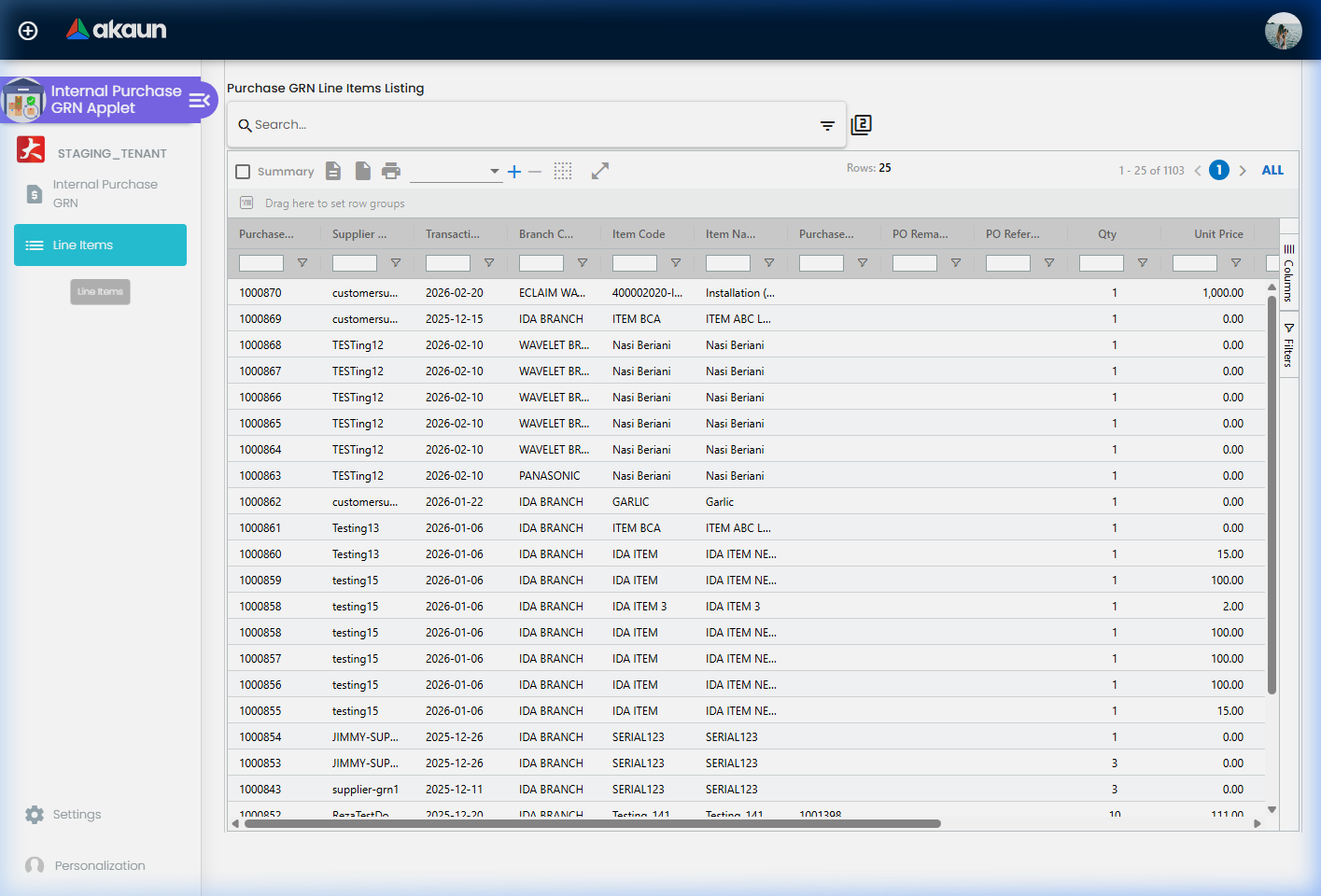
| Line Items | line-items | Cross-document line grid (item details, serial, batch, bin, costing, pricing, issue link). | HIDE_LINE_ITEMS_MENU unless SHOW_LINE_ITEMS_MENU |
| File Export | file-export | Generate a CSV for a transaction-date range; listing shows Report Name, Doc Type, Status, Error Message. | HIDE_FILE_EXPORT_MENU unless SHOW_FILE_EXPORT_MENU |
| Audit Trail | audit-trail | Change log. | HIDE_AUDIT_TRAIL_MENU |
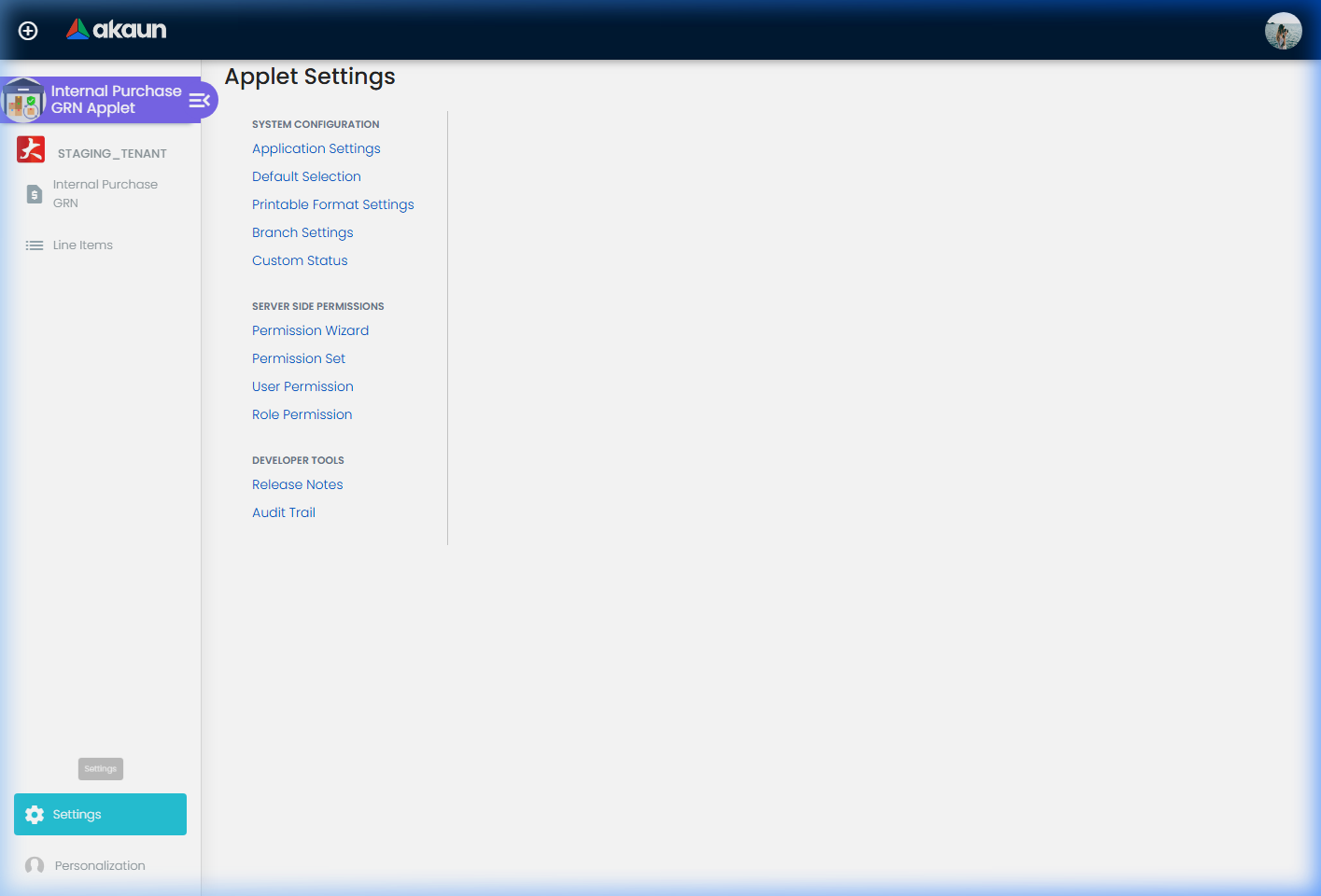
| Settings | settings/… | Application Settings, Default Selection, Printable Format Settings, Branch Settings, Custom Status, Custom Resource Bundle Configuration, Custom Field Placement, Spreadsheet View configuration; also Webhook, Feature Visibility, Client Side Permission, Role Pricing Scheme Link, Permission Wizard / Set / User / Team / Role Permission, Release Notes, Applet Log. | — |
| Personalization | personalization/personal-default-selection | Per-user Default Selection (merged over the tenant defaults). | — |
There is no File Import menu, no approval menu and no intercompany queue menu in this applet.
Listing
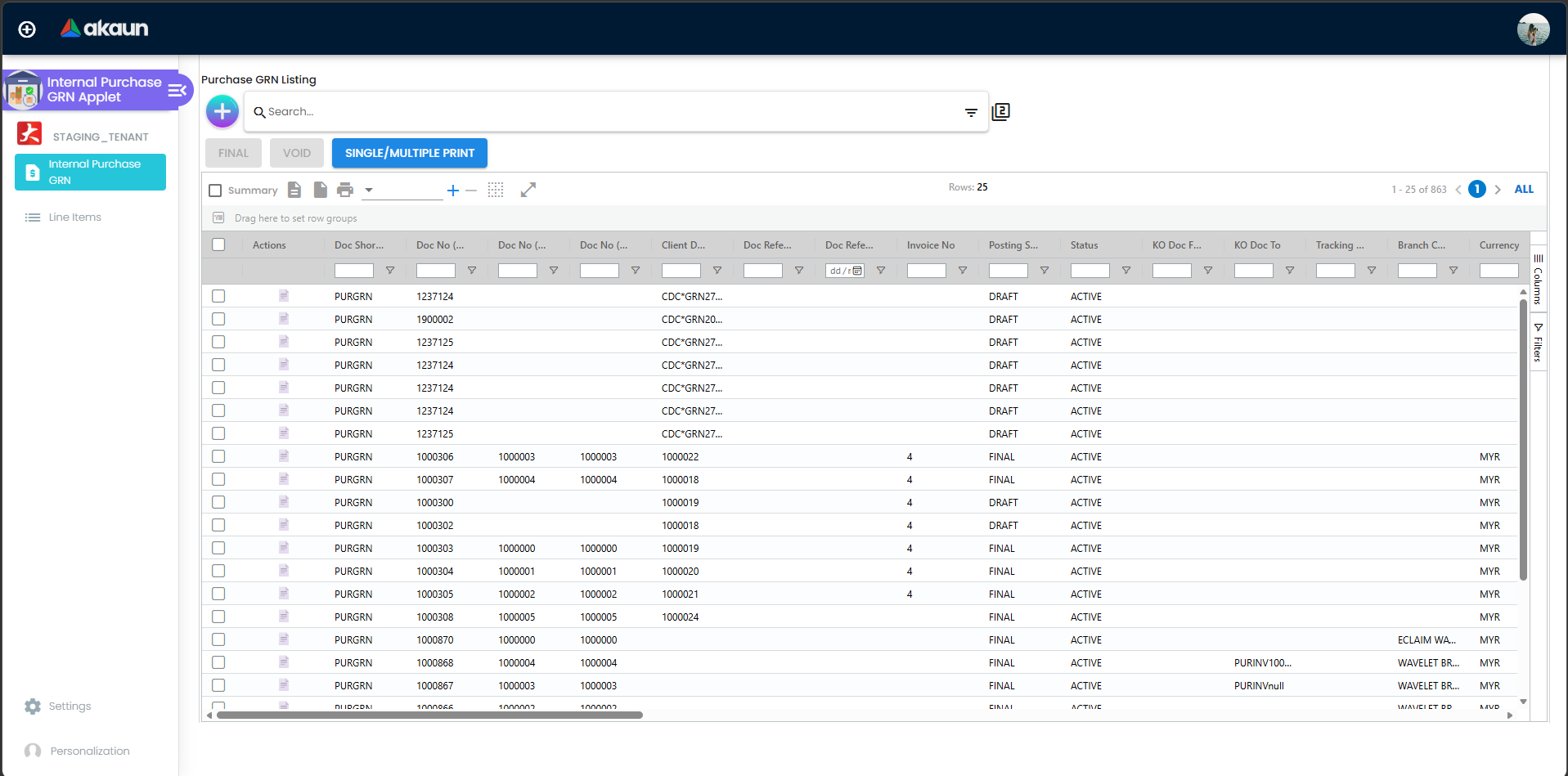
Filters by DEFAULT_POSTING_STATUS, DEFAULT_STATUS and DEFAULT_TRANSACTION_DATE; the quick search runs over the document number and the client document numbers unless FUZZY_SEARCH_COLUMNS says otherwise. Bulk actions: FINAL, DISCARD, VOID and bulk print with a printable-format picker (PRINTABLE). ENABLE_AUTO_POPUP opens the PDF after FINAL (triggered from the FINAL-success effect since 2026). ENABLE_UNSAVED_ITEM_RECOVERY recovers lines typed into a form that was left without saving.
Create screen
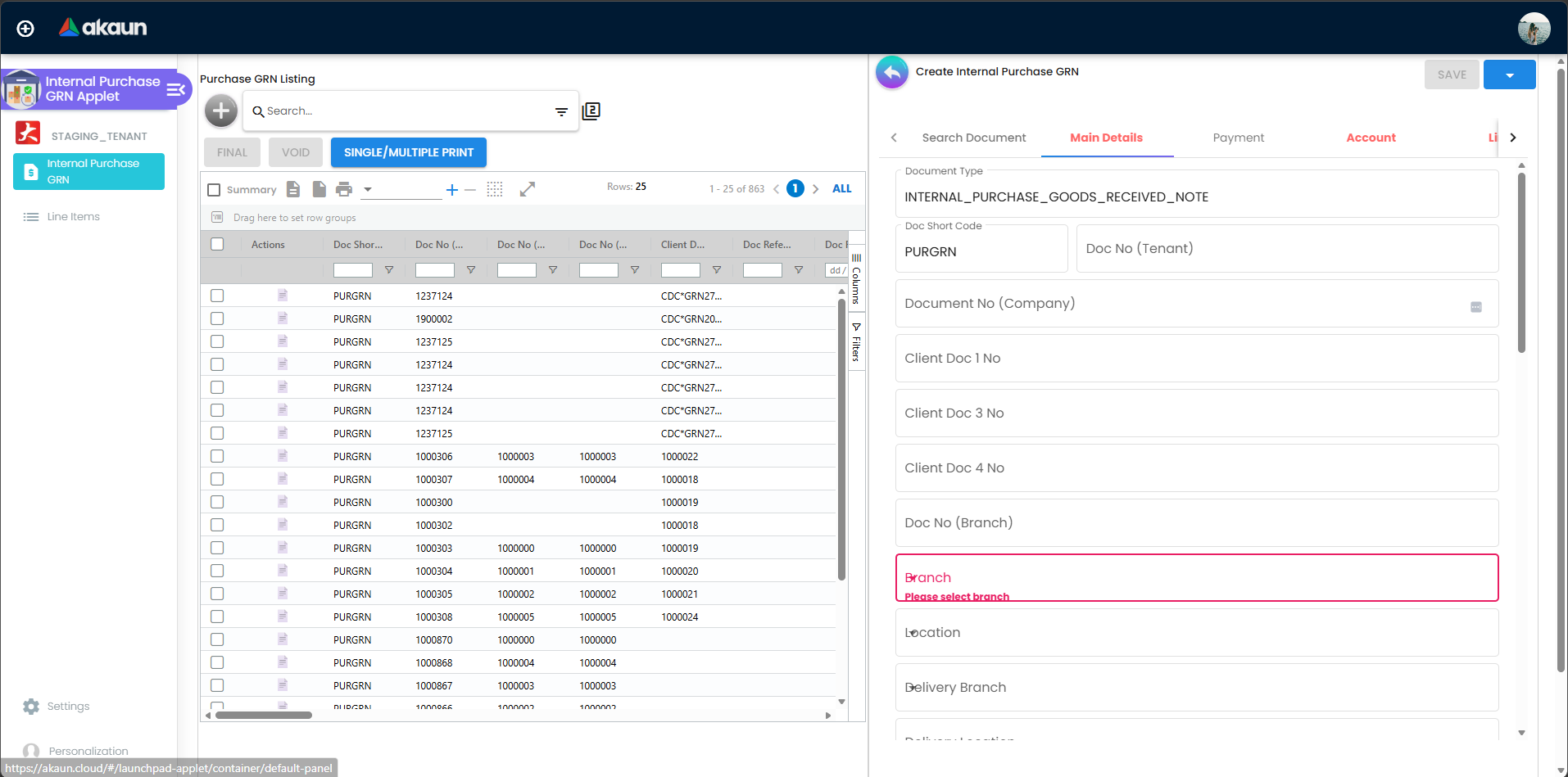
Tabs: Main Details, Account, Lines, KO For (Purchase Order only; hidden by HIDE_KO_FOR_TAB; ENABLE_MULTIPLE_KO lets one GRN line knock off several PO lines), Delivery Details (HIDE_DELIVERY_DETAILS_TAB), Payment (HIDE_MAIN_PAYMENT_TAB), Department Hdr (HIDE_DEPARTMENT_HDR_TAB), Import (pick ACTIVE purchase orders and their lines from a document grid) and, for users holding SHOW_INTERCOMPANY_PGRN_SCREEN, Search By Intercompany Sales Invoices with a Confirm Intercompany Transaction action.
Edit screen
Header buttons: SAVE, FINAL, DISCARD (draft), VOID (FINAL only), CLONE (background job, polls up to three times; HIDE_CLONE_BUTTON / SHOW_CLONE_BUTTON).
Panels, in the order set by Default Selection → Details Tab Ordering: Search Document (new documents only; sub-tabs Search Purchase Order and Search Purchase GRN; HIDE_SEARCH_BY_DOCUMENT_BUTTON, HIDE_SEARCH_PURCHASE_GRN_TAB, HIDE_PO_COMPANY_CODE, HIDE_PO_SERVER_DOC_TYPE, HIDE_ADD_ALL_TO_PURCHASE_GRN), Main Details, Account, Lines (inline grid with Standard View / Spreadsheet View, PO order-quantity columns from the open queue, stock-balance column with SHOW_ITEM_STOCK_BALANCE), Delivery Details, KO For (new documents only), Payment, Department Hdr, Trace Document, Contra, Doc Link, Export, Attachments and Status (custom statuses; HIDE_STATUS_TAB). VERTICAL_ORIENTATION turns the tabs into expansion panels; the EXPAND_* keys choose which open by default. SIMPLIFIED_UI collapses the form into a single receiving screen and, together with HIDE_GENDOC_SAVE_BUTTON, refuses to leave a draft that has not been finalised.
Settings
Configuration
Before you can use it
| Prerequisite | Where | Why |
|---|---|---|
| Company, branch, location | Organisation | Branch and location are required header fields; DEFAULT_BRANCH / DEFAULT_LOCATION pre-fill them. The location on the GRN is copied to the invoice, so a wrong or later-deactivated location leaves stock “stuck” when the invoice posts. |
| Supplier entities | Supplier | Account tab. ENABLE_SELECT_MODE and ALLOW_TO_CREATE_EDIT_ACCOUNT let receivers create a supplier from the picker. |
| Items with inventory links | Doc Item Maintenance, Inventory Item Maintenance | Lines; serial / batch / bin sub-item types decide which line sub-tabs appear. |
| Purchase orders (optional) | Purchase Order (Internal) | Only FINAL, not CLOSED, not fully knocked-off POs appear in KO For / Search Purchase Order. |
| Tax codes | Tax Configuration | Line tax and withholding tax selectors. |
| Pricing schemes | Pricebook | Branch Settings → Pricing Scheme and Role Pricing Scheme Link derive unit prices shown on lines. |
| Document flow configuration | Company (gendoc flow config) | Decides which open-queue rows FINAL creates (GRN → Purchase Invoice) and whether an invoice is auto-generated and in which posting status (see Lifecycle). |
| Permissions | Permission Wizard / Set, Client Side Permission | Server-side create / read / update / delete on INTERNAL_PURCHASE_GOODS_RECEIVED_NOTE with targets; client-side switches below. |
Applet settings
Settings → Application Settings is the shared Field Configuration screen; Settings → Default Selection
holds the header pre-fills and one control that is not a pre-fill at all (see DATE_TXN_LOGIC below);
Settings → Custom Status holds the five header and five line custom statuses. Over 300 keys reach this
applet and more than half of them begin HIDE_ or EXPAND_ — one switch per field, column, panel or button, and
you see what one did the moment you save. The eight below change what the applet will let you do, and two
of them are decided by the server.
How settings are stored and who they apply to.
| Setting | What changes | Default when never saved | Advisory or hard |
|---|---|---|---|
Which date the receipt carries — Transaction Date Logic on Default SelectionDATE_TXN_LOGIC | The date the goods-received note carries, and the date FINAL checks against a locked period. A plain GRN posts no stock and no journal, so no balance moves with it; the purchase invoice takes its own date. The applet sends the setting with every finalise and the server overwrites the transaction date from it: USE_FINAL takes the finalise timestamp, USE_CREATED the date the document was created, USE_UPDATED the date it was last edited, USE_DATE_TXN leaves the date you keyed alone. Set this to USE_FINAL and a GRN keyed with last month’s delivery date is dated this month — which is exactly what some groups want and exactly what others discover at year end | USE_DATE_TXN — the keyed date stands | Hard — the server rewrites the field at finalise |
Check that serial and batch numbers add up before it can be finalisedENABLE_SERIAL_NUMBER_VALIDATION_FINAL | Sent to the server with every finalise, from the listing and from the edit screen alike. The server then requires serial and batch quantities to match the line quantity before it will post. Without it a serialised receipt can be finalised with fewer serial numbers than units, and the shortfall only surfaces when somebody tries to sell one. The same switch turns on the check that refuses a serial already in the company’s register; with it off, a GRN (which moves no stock) is not checked, and a duplicate serial is first refused when the purchase invoice is finalised | Off — nothing is checked | Hard when on — the server refuses the finalise |
Refuse to save a receipt that reuses a supplier invoice numberDISALLOW_DUPLICATE_INVOICE | Turns the supplier-invoice-number warning into a validation error. The Main Details form runs an async validator against existing GRNs; with this off you get the existing document numbers listed and can save anyway, with it on the form reports the invoice as already existing and the document cannot be saved. This is the applet’s control against paying the same supplier invoice twice, and it is the only duplicate check in the purchase workflow that is a hard form error rather than a red message | Off — duplicates are reported and permitted | Advisory in the sense that the browser decides it, and stronger than the duplicate-reference check on every neighbouring applet: the Save is refused, not annotated |
Allow the same serial number against two different itemsALLOW_DUPLICATE_SERIAL_NUMBER_ACROSS_DIFFERENT_ITEMS | Off — the default — a serial number that already appears against another item on the same GRN is flagged Duplicate Serial Number and the receipt cannot be finalised. On, the same serial may be received against two different items. Switch it on only if your supplier genuinely reuses serial ranges across product codes; it is the check that stops one scanning mistake becoming two stock records | Off — duplicates across items are refused | Advisory — a line-level validation in the browser |
Let one document knock off several source documentsENABLE_MULTIPLE_KO | Lets one GRN knock off several source documents — several purchase orders, requisitions or invoices — instead of exactly one. Without it, a delivery that satisfies two orders needs two GRNs, and the open-queue balances on both orders only clear when both exist. | Off — one source document per GRN | Advisory — it decides whether the picker lets you tick a second document |
Let staff type over the standard unit priceENABLE_EDITING_UNIT_PRICE_STD | Makes Unit Price (Std) editable on a line. A plain GRN moves no stock and posts nothing, so the edit values nothing by itself: it changes the price a purchase invoice copies when it knocks this receipt off, and that invoice is what books the stock and moves the moving-average cost. Switch it on only where the person keying the receipt is the person who knows what was actually paid | Read-only — only this key makes it editable | Advisory — the control is disabled in the browser |
Lock the exchange rate on the headerCANNOT_EDIT_CURRENCY_RATE | Disables Currency Rate on the header, so the rate that arrives with the currency is the rate on the receipt. A plain GRN posts nothing, so this rate values nothing in the ledger; the stock is valued in base currency at the rate on the purchase invoice that books it. No per-user exception is registered for this applet | Editable (a FINAL document disables it regardless) | Advisory — the field is disabled in the browser |
Stop each line inheriting the budget on the headerDISABLE_LINES_FOLLOWING_HDR_BUDGET | Stops each new line inheriting the header’s vote book, budget fiscal period, budget item and budget register. With it off — the default — a line silently carries the header’s budget, which is what the commitment is measured against; with it on, each line must be pointed at its own budget or it carries none | Off — lines inherit the header budget | Advisory — it decides which values are pre-filled onto the line |
SHOW_ITEM_STOCK_BALANCE is a column here and nothing more. The applet does ask the server to
check stock balances at finalise when it is on — but the server already does that by default, so the
key changes nothing either way. It would not matter if it did: the server’s stock check only measures
lines that take stock out, and a goods-received note brings stock in. On the
Sales Invoice applet the same key is a real
control; here it draws a column.Two things to know before you change anything on this screen. First, the name in italics under each setting is the applet’s internal key. It is there so you can match what you are looking at to what support asks you about; it is not a stable name and it can be renamed, replaced or dropped when the applet is updated, so do not build a script or an integration around one. Second, a setting can be switched back but it cannot be returned to never saved: the first time anybody saves this screen, every toggle on it is written into your tenant’s settings at whatever it was showing, and the applet stops falling back to its own built-in default. The Default when never saved column above is what you give up at that moment — worth reading before the first save rather than after.
On the screen and doing nothing
- The four Department enable keys (dimension, profit centre, project, segment) — declared in the
model with a form control on the shared screen but no toggle rendered anywhere, and nothing in
this applet acts on them. Their
MANDATORY_*andHIDE_*partners work, so a dimension can be hidden or made compulsory and shows unless hidden; its enable key cannot be turned on. The same four are inert on Purchase Order, Purchase Debit Note, Payment Voucher and Receipt Voucher — it is a property of the shared panel, not of this applet.
DEFAULT_LANGUAGE_CODE is not one of these — it works, and an earlier version of this page said it did
not. The Resource Bundle picker on Default Selection is stored separately from the other applet
settings — once for the applet and once per user — and the applet reads it back at start-up, taking the
personal choice in preference to the applet’s, to select the translation bundle every label on the screen
comes from. Custom Resource Bundle Configuration is not an alternative to it but sits on top of it: the
custom overrides are applied only when the resolved language code equals the tenant code.
Document behaviour settings
| Behaviour | Where it is set | Notes |
|---|---|---|
| Stock and GL posting | Not configurable in this applet. | Fixed by the backend signums (0 / 0): no inventory transaction lines, no journal. Use Purchase GRN Stock In for a receipt that moves stock. |
| Open-queue rows created on FINAL | Company document-flow configuration (source type = GRN, consuming type = the document that knocks it off). | Stock availability counts GRN → Purchase Invoice rows as GRN qty and DRAFT GRN lines as GRN draft qty. |
| Automatic purchase invoice | Company document-flow configuration with the auto-convert queue; the flow decides whether the generated invoice is DRAFT or FINAL. | The GRN is copied into a Purchase Invoice (amount signum −1). A GRN that already has an invoice link is skipped. |
| Transaction date | DATE_TXN_LOGIC (Default Selection). | See above. The date picker stores the created time rather than midnight UTC (2026 fix), so the day no longer shifts in Malaysian time. |
| Serial validation on FINAL | ENABLE_SERIAL_NUMBER_VALIDATION_FINAL, ALLOW_DUPLICATE_SERIAL_NUMBER_ACROSS_DIFFERENT_ITEMS. | Backend additionally checks that each serial’s count equals the line quantity and that a serial does not already exist in the company (purchase-side check applies to signum-0 documents when requested). |
| Printables | Printable Format Settings (Format Code, Format Name, template); PRINTABLE; Branch Settings → Printable Format; permission PRINTABLE_FORMAT_WITH_NO_PRICE. | Bulk print from the listing; Export panel on the document. |
| Custom fields and labels | Custom Field Placement (Main Details, Account, Intercompany, line areas …), Custom Resource Bundle Configuration, Spreadsheet View configuration (Column Label, Line View Mode). | A tenant custom field coded last_no on the header is pre-filled with the previous GRN’s number on a new document, for reference only. |
| e-Invoice | Not applicable — a GRN is not an e-Invoice document type. | |
| Approval workflow | Not available in this applet. | No approval settings, submit or approval-request screens exist; FINAL is not gated by approval. |
| Webhooks | Settings → Webhook. |
Branch settings
| Sub-tab | What it controls |
|---|---|
| Branch Details | Read-only branch name / code / company; default agent; rounding and group-discount items. |
| Default Settlement Method | Pre-selected settlement method on the Payment panel. |
| Item Category Filter | Item categories offered at this branch. |
| Menu List | Sidebar menus per branch. |
| Pricing Scheme | Branch pricing schemes. |
| Printable Format | Branch default printable format. |
Who can change what
Server-side. INTERNAL_PURCHASE_GOODS_RECEIVED_NOTE create / read / update / delete with targets
(company, branch, location, supplier) through Permission Wizard / Permission Set. These are the only
permissions that can return a 403.
Client-side permissions. Most are the SHOW_* partner of a HIDE_* setting — a price, quantity, amount or tax column, or a header field. The four that decide
something:
ALLOW_TO_CREATE_EDIT_ACCOUNT— creating or editing a supplier from inside the receipt, which needs theENABLE_SELECT_MODEsetting on as well. A setting and a permission that have to agree.INTERNAL_PURCHASE_GRN_DISPLAY_PRICINGandSHOW_COSTING_DETAILS— whether a warehouse user sees what the goods cost. Read the limit below before treating either as a control.PRINTABLE_FORMAT_WITH_NO_PRICE— the printable a receiving clerk hands the driver, without prices on it. This is the one that actually keeps a figure off paper.SHOW_INTERCOMPANY_PGRN_SCREEN— the intercompany receipt screen.
In the permission list and doing nothing. Three codes can be granted but nothing in the applet
acts on them: IPGRN_HIDE_TRACKING_ID_AND_PERMIT_NO (the Tracking ID and
Permit No fields follow the HIDE_TRACKING_ID and HIDE_PERMIT_NO settings for the whole tenant),
SHOW_AMOUNT_TXN_MAIN_LISTING and SHOW_CLONE_BUTTON. Granting any of them changes nothing.
Checked by the applet but missing from the permission list, so no role can hold them and the matching HIDE_*
setting cannot be undone for anybody: SHOW_LINE_ITEMS_MENU, SHOW_FILE_EXPORT_MENU,
SHOW_GENDOC_FINAL_BUTTON, SHOW_GENDOC_DISCARD_BUTTON, SHOW_GENDOC_SAVE_BUTTON,
SHOW_GENDOC_VOID_BUTTON, SHOW_BUDGET, SHOW_SEGMENT, SHOW_GL_DIMENSION, SHOW_PROFIT_CENTER,
SHOW_PROJECT, SHOW_QUOTATION, SHOW_ORDER, SHOW_DELIVERY_ORDER, SHOW_INVOICE, SHOW_OTHERS,
SHOW_REMARKS_MAIN_LISTING, SHOW_QTY_MAIN_LISTING, SHOW_AMOUNT_MAIN_LISTING. Settings → Client
Side Permission grants only codes already on the list and does not add new ones, so ask BigLedger to
add a code before you plan on a per-role exception. (SHOW_REFERENCE_MAIN_LISTING was added to the
list in September 2026 and can now be granted.)
And one asymmetry worth knowing before you hide a button. The edit screen’s FINAL and VOID buttons
follow HIDE_GENDOC_FINAL_BUTTON and HIDE_GENDOC_VOID_BUTTON alone — neither the registered
SHOW_FINAL_BUTTON nor the code-side SHOW_GENDOC_FINAL_BUTTON restores them for a holder. Only DISCARD
honours its override. Hide FINAL here and nobody can finalise a goods-received note from the edit screen.
SHOW_UNIT_PRICE_*, SHOW_AMOUNT_* and
SHOW_COSTING_DETAILS codes decide which columns one user’s line grid draws. The receipt and its lines
are fetched by the same API call for everybody, so the amounts are already in that browser whether the
column is rendered or not. If a figure must not reach a person, withhold the API permission — or, for a
document that leaves the building, use PRINTABLE_FORMAT_WITH_NO_PRICE, which is the one control here
that removes a number rather than hiding it.Feature Visibility (shared) hides whole menus per team and is a different mechanism again.
Fields
Main Details
| Field | Meaning | Required | Notes / validation |
|---|---|---|---|
| Branch, Location | Receiving branch and stock location. | Yes | Defaults from Default Selection / personal defaults; the location is copied to lines and to the invoice created from the GRN. |
| Company | Owning company. | System | Follows the branch you pick, and it is the scope of the company document number the receipt is given at FINAL. |
| Purchaser | Buyer / receiver. | No | HIDE_PURCHASER; ENABLE_EMPLOYEE_LOGIN_AUTO_DETECTION pre-fills the login’s employee. |
| Doc Short Code, Doc No (Tenant / Company / Branch) | Type and running numbers. | System | The tenant number exists from the first save; the company and branch numbers appear only at FINAL, so a draft shows the first and not the other two — The generic document › The five BigLedger assigns. The short code PURGRN is added when the number is shown, not stored in it. |
| Transaction Date | Receipt date. | Yes | Overridden on FINAL by DATE_TXN_LOGIC when set. |
| Reference, Remarks, Description | Free text. | No | ENABLE_DUPLICATE_REFERENCE_CHECK warns on a reused reference. |
| Permit No, Tracking ID | References. | No | IPGRN_HIDE_TRACKING_ID_AND_PERMIT_NO. |
| Currency, Base Currency, Currency Rate, Forex Source | Document currency. | Currency yes | Rate locked by CANNOT_EDIT_CURRENCY_RATE. |
| Client Doc Type, Client Doc 1–5 (+ dates) | References from outside BigLedger. | No | Read-only until a setting makes each number editable; its date follows the same switch. Client Doc 3 is the one purchase matching reads: the tracker that pairs a purchase order, the supplier’s delivery order and this receipt compares it, ignoring case, with the delivery-order number, so a receipt with Client Doc 3 blank or mistyped does not pair up on its own. The listing’s search box looks in all five by default. Once saved, a number can be replaced but not emptied — The five your own system fills in. |
| External Quotation / Order / Delivery Order / Invoice / Others (+ dates), External Remarks | The supplier’s own document numbers, typically the delivery-order and invoice numbers. | Per MANDATORY_… | Duplicate warnings per number; DISALLOW_DUPLICATE_INVOICE blocks a reused supplier invoice number. Editable after FINAL. |
| Budget (vote book, fiscal period) | Budget consumed by the receipt. | No | Shown with SHOW_BUDGET. |
| Custom statuses (header) | Up to five statuses of your own, set on the Status tab. | No | Defined in this applet’s Settings › Custom Status: a name and a list of values per slot, each slot switched on separately. A switched-on slot also becomes a listing column under its name. The receipt stores the value’s wording, not a link to the list, so renaming a value later leaves earlier receipts with the old word. |
Main Details also shows the supplier’s Credit Terms and Credit Limit, for reference only.
Account
| Field | Meaning | Required | Notes |
|---|---|---|---|
| Supplier | Entity flagged as supplier. | Yes | Picker; create/edit inline with ALLOW_TO_CREATE_EDIT_ACCOUNT. |
| Entity branch | Supplier branch. | No | HIDE_ENTITY_BRANCH_DROPDOWN. |
| Bill To, Ship To | Address sub-tabs. | No | HIDE_BILL_TO_TAB, HIDE_SHIP_TO_TAB. |
Lines
| Field | Meaning | Required | Notes / validation |
|---|---|---|---|
| Item | Item master entry (basic item, alias or group item). | Yes | Group items expand into child items (Child Items tab); GL-code items are allowed but move no stock. |
| Quantity, UOM, ratio | Received quantity. | Yes | For serialised items the quantity is read-only and follows the number of serials entered (SERIAL_NUMBER_QTY_FOLLOW_BASIC_QTY); the backend rejects a mismatch. |
| Order Qty columns | Ordered and still-open quantity of the knocked-off PO line. | System | From the PO open queue. |
| Unit price (std / txn / net), discounts, rebate price | Pricing carried from the PO or pricing scheme. | No | Amounts do not post anywhere on a GRN; they are copied to the invoice. |
| Serial numbers | One per unit; typed, scanned or imported (Serial Number Import). | For serialised items | Duplicates within the document are flagged Duplicate Serial Number. |
| Batch (number, expiry, issue date), Bin | Batch and bin references. | Bin with MANDATORY_BIN_NUMBER | Bin quantities are validated on FINAL. |
| GL code | Line GL code. | No | HIDE_LINE_ITEMS_GL_CODE. |
| Remarks, warning | Line text; the warning column carries validation remarks and stays as it was once the document is FINAL. | No | |
| Custom statuses (line) | Five free status slots per line. | No | No line form in this applet offers them, although Settings › Custom Status lets you define line statuses. A line knocked off a purchase order copies the PO line’s five values, so they carry whatever the purchase order applet meant by them. |
Each line also carries tax and withholding-tax codes, a delivery branch, location and instruction, and the analysis tags — segment, dimension, profit centre, project and budget, any of which a mandatory-field setting can require.
Delivery Details, Payment, Department Hdr, Contra
| Panel | Fields | Notes |
|---|---|---|
| Delivery Details | Delivery Branch, Delivery Location, Delivery Type, Tracking ID. | HIDE_DELIVERY_BRANCH, HIDE_DELIVERY_LOCATION. |
| Payment | Settlement method, amount, date. | A deposit recorded against the receipt; branch default settlement method. |
| Contra | Contra against the supplier’s documents. | EDIT_CONTRA_TXN_DATE. |
The Department Hdr tab holds the same segment, dimension, profit centre and project tags for the receipt as a whole.
Lifecycle and effects
| Status | Meaning | Allowed next |
|---|---|---|
| DRAFT | Editable; lines counted as GRN draft qty in stock availability. | FINAL, DISCARDED |
| FINAL | Locked (external reference numbers and custom statuses stay editable); lines queued for knock-off. | VOID |
| VOID | Cancelled (processed by the backend’s void queue). | none |
| DISCARDED | Abandoned draft. | none |
FINAL is enabled when the document is ACTIVE, not locked by another process, has at least one line (a zero-amount GRN is allowed) and HIDE_GENDOC_FINAL_BUTTON is off. With ENABLE_SERIAL_NUMBER_VALIDATION_FINAL the applet first re-checks serial and batch quantities and refuses lines flagged Duplicate Serial Number.
What FINAL does. The backend validates serial numbers (count equals quantity; purchase-side “already exists in company” check for signum-0 documents when requested), bin quantities and the fiscal period, stamps the transaction date per DATE_TXN_LOGIC, and creates open-queue rows for the consuming document types configured for the company (normally GRN → Purchase Invoice). Because both signums are 0:
| Ledger | Effect of FINAL |
|---|---|
| Stock | none — a line whose quantity signum is 0 writes no stock transaction, so stock balances do not change. |
| General Ledger | none — this document type has no journal posting. |
| Open queue | one row per line (GRN → invoice), shown as GRN qty in stock availability until the invoice consumes it. |
The receipt becomes stock and a liability when the invoice is finalised:
| Document | Quantity signum | Amount signum | Stock | General Ledger |
|---|---|---|---|---|
| Purchase GRN (Internal) — this applet | 0 | 0 | none | none |
| Purchase GRN Stock In (Internal) | +1 | −1 | stock in at the GRN location | Dr Inventory Not Invoiced / Cr Creditor Not Invoiced (with purchase discount, return and input tax sub-ledgers) |
| Purchase Invoice (Internal) | +1 | −1 | stock in, last purchase cost updated | Dr Purchase (or item GL) + Input Tax / Cr Creditor |
| Purchase Invoice No Stock In (Internal) | 0 | −1 | none | Dr Purchase / Cr Creditor (pairs with GRN Stock In) |
So the two supported receipt-to-bill paths are GRN (0/0) → Purchase Invoice (+1/−1) and GRN Stock In (+1/−1) → Purchase Invoice No Stock In (0/−1). Mixing them (a GRN Stock In knocked off by a full Purchase Invoice, or a standard GRN followed by an invoice with no stock in) either double-counts stock or never books it.
Intercompany. When a sales invoice or outbound delivery order in one company of the tenant targets another company, intercompany processing can create the mirror GRN (signums 0 / 0); users with SHOW_INTERCOMPANY_PGRN_SCREEN confirm it from Search By Intercompany Sales Invoices.
VOID is offered only on a FINAL document (This document has not been finalized yet otherwise) and is processed in the background; for a foreign-currency GRN the base-currency shadow is voided with it. A GRN that an invoice (or any later document) has already knocked off cannot be voided: the backend refuses with Generic Document cannot be changed to VOID because it has already been linked with the following documents: and lists them by type and number. Void those first, last one first — Doc Link shows you the list before you press the button.
Related applets
- Purchase Order (Internal) — the order this receipt knocks off; its PO Line with GRN KO report and Purchase Order Queue show what is still outstanding.
- Purchase Invoice (Internal) — knocks off the GRN and books stock and the creditor; the backend can generate it automatically.
- Purchase Invoice No Stock In (Internal) and Purchase GRN Stock In (Internal) — the alternative pair where the receipt, not the invoice, moves stock.
- Purchase GIN (Internal) — goods issued back to the supplier.
- Purchase Return (Internal) — return against a received document.
- AP Automation — matches supplier e-Invoices to this GRN by the delivery-order number in its Client Doc 3.
- Purchase GRN Supplier Access (Internal) — supplier portal view.
- Sales Invoice (Internal), Delivery Order (Internal) — intercompany sources.
- Stock Availability — shows GRN and GRN-draft quantities as incoming stock.
- Purchase Report — analysis across PO, GRN and invoice.
- Supplier, Organisation, Doc Item Maintenance, Inventory Item Maintenance, Tax Configuration, Pricebook — master data.
Troubleshooting
| Symptom | Cause | Fix |
|---|---|---|
| Stock balance did not increase after the GRN was finalised | Expected: the standard GRN has quantity signum 0 and writes no inventory transaction. | Finalise the purchase invoice knocked off from the GRN; or switch the receiving flow to Purchase GRN Stock In + Purchase Invoice No Stock In. |
| Stock still missing after the invoice was finalised | The GRN (and the invoice copied from it) carried a location that was later deactivated or belongs to another branch; the stock-balance refresh could not land. | Correct the location on the documents and ask support to re-queue the current-stock-balance refresh for the affected items and location. |
| Invoice created from the GRN is DRAFT, not FINAL (or the reverse) | The company document-flow configuration sets the posting status of the generated invoice. | Change the flow configuration; it is read at conversion time. |
| No invoice was generated for a finalised GRN | The GRN already has a document link to an invoice, or the auto-convert validation (stock check) failed and the queue row is being retried. | Check Doc Link on the GRN; look at the auto-convert queue with support. |
| FINAL button missing | No lines yet, document not ACTIVE, locked by a running job, or HIDE_GENDOC_FINAL_BUTTON on. | Add a line; wait for the lock; turn the setting off — no per-user permission restores FINAL in this applet. |
| Duplicate Serial Number remark on a line and FINAL refused | The same serial appears on another item in the document. | Correct the serial, or turn on ALLOW_DUPLICATE_SERIAL_NUMBER_ACROSS_DIFFERENT_ITEMS if the tenant genuinely reuses serials across item codes. |
| Serial number already exists for company on FINAL | The serial is already in stock in this company (purchase-side check). | Check the earlier receipt; issue the serial out first, or correct the number. |
| Quantity base and serial number quantity does not match | Line quantity differs from the number of serials. | Enter one serial per unit; with SERIAL_NUMBER_QTY_FOLLOW_BASIC_QTY the quantity follows the serial count. |
| Duplicate Reference Number PURGRN … / Duplicate Invoice Number PURGRN … | ENABLE_DUPLICATE_REFERENCE_CHECK found the same number on another GRN; with DISALLOW_DUPLICATE_INVOICE the invoice number is a hard error. | Use the correct supplier number; clear the setting if the numbers legitimately repeat. |
| PO missing from KO For / Search Purchase Order | The PO is not FINAL, has been CLOSED, its lines are fully knocked off, or a HIDE_… key hides the tab. | Check the PO applet’s Purchase Order Queue / Closed Queue KO; review HIDE_KO_FOR_TAB, HIDE_SEARCH_BY_DOCUMENT_BUTTON. |
| Knocked-off lines appear in a different order from the PO | Fixed in 2026 (line ordering consistency). | Update the applet. |
| PDF pop-up after FINAL arrives late or times out | Older builds waited a fixed delay inside FINAL. | Update the applet (pop-up now fires from the FINAL-success effect); needs ENABLE_AUTO_POPUP and PRINTABLE. |
| Listing shows only ACTIVE documents on first load regardless of settings | Older builds hard-coded the status filter. | Update the applet; set DEFAULT_STATUS. |
| A hide toggle in Application Settings has no effect | Two fields could not be hidden before the 2026 fix; other keys may not be read by this applet at all. | Update the applet; only the keys listed above are read. |
| Transaction date shows one day earlier than keyed | Older builds stored the picker value as midnight UTC. | Update the applet. |
| Custom fields placed on the GRN do not appear | The applet did not refresh custom-field placements on start (fixed 2026). | Update the applet; check Custom Field Placement. |
| Supplier DO number is locked or missing | The external delivery-order field is hidden by HIDE_EXTERNAL_DELIVERY_ORDER, or an older build locked external references after FINAL. | Turn the key off; update the applet (external references are editable after FINAL since 2026). |
| Line Items or File Export menu missing | HIDE_…_MENU on and the user lacks the (unseeded) SHOW_…_MENU permission. | Turn the setting off. A grant needs the code on the permission list first, and only BigLedger can add it there. |
| The selected date falls within a locked fiscal period | Date in a locked period. | Change the date or reopen the period. |
Related documentation
- Purchasing module and its related applets
- Standard procurement workflow — PR → PO → GRN → Purchase Invoice → Payment
- Direct GRN workflow — receiving without a purchase order