Purchase GRN Stock In Applet (Internal)
Put a delivery into stock, and update its cost, the moment it arrives, then match the supplier’s bill later on the invoice type that does not stock in. This is the posting sibling of the plain GRN, and each company should use one pair or the other: mixing the two double-counts stock.
Overview
The Purchase GRN Stock In Applet (Internal) records the physical receipt of goods from a supplier and books them into stock on FINAL. It is the receiving document for tenants that want inventory and cost updated the moment the goods arrive, with the supplier’s invoice matched later. Warehouse or receiving staff create it against a Purchase Order (or by searching items directly); finance follows it with a Purchase Invoice No Stock In.
This applet is one of two receiving documents on the purchase side and the two behave very differently in the backend:
| Document | Server document type | Quantity | Amount | What FINAL does |
|---|---|---|---|---|
| Purchase GRN Stock In (this applet) | INTERNAL_PURCHASE_GRN_STOCK_IN (short code PURGRNSI) | +1 | −1 | Creates inventory transactions, updates the item’s moving-average cost, posts a journal to Inventory Not Invoiced / Creditor Not Invoiced, opens the lines for the PI No Stock In. |
| Purchase GRN (Internal) | INTERNAL_PURCHASE_GOODS_RECEIVED_NOTE | 0 | 0 | Records receipt only; the Purchase Invoice moves stock and books the creditor. |
Pick one pair per company and configure the Knock Off Configuration accordingly; mixing them double-counts stock (see Troubleshooting).
Where it fits
Modules: Purchasing and inventory.
| Direction | Document / applet | Relationship |
|---|---|---|
| Upstream | Purchase Order (Internal), Purchase Requisition (Internal), Purchase Invoice (Internal) | Knock-off sources. The KO For tab offers Purchase Order; the line editor’s KO sub-tabs (PO, PR, PI) appear only when the company’s Knock Off Configuration has an enabled LINE row for that source type. |
| Downstream | Purchase Invoice No Stock In (Internal) | The invoice that settles a GRN Stock In. The backend converter PurchaseGRNStockInToPurchaseInvoiceNoInStockConverter can create it automatically from the open queue. |
| Reversal | Purchase Return (Internal) | Sends goods back to the supplier (quantity −1, amount +1). Purchase GIN (Internal) is a dispatch record only (0/0) and does not reverse this document’s stock. |
| Sibling | Purchase GRN (Internal) | The non-posting receipt, paired with the ordinary Purchase Invoice. |
| Supplier-side view | Purchase GRN Supplier Access (Internal), Supplier Delivery Order | External views of receipts and deliveries. |
| Stock enquiries | Stock Availability, Stock Balance | Stock Availability’s Details listing counts DRAFT GRN Stock In lines as GRN Stock In draft balance (HIDE_GRN_STOCK_IN_DRAFT_BALANCE option) and open PO→GRN Stock In queue rows as po_qty. Neither is in the main listing’s Available figure, which counts only open sales orders and plain GRNs not yet invoiced. A FINAL GRN Stock In is in it through the balance itself. |
Screens and menus
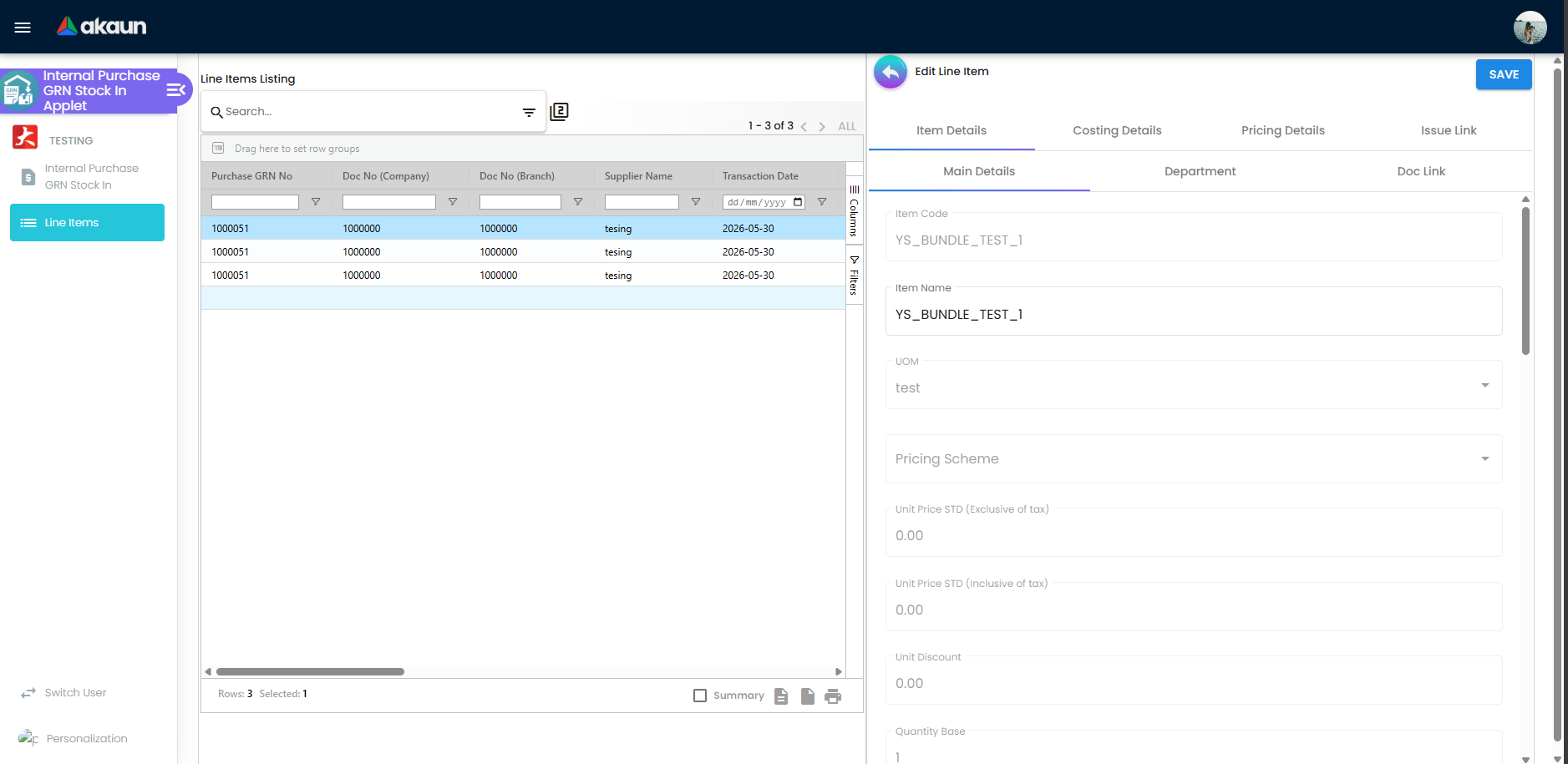
The applet has two menu items: Internal Purchase GRN Stock In (the document listing) and Line Items (every GRN Stock In line across documents; the File Export menu is present in the code but commented out).
Listing. Columns: Doc Short Code (PURGRNSI), Doc No (Tenant / Company / Branch), Invoice No and the other external references, Supplier Name, Branch, Transaction Date, posting status, AR/AP balance columns and ordered / received / outstanding quantity and amount columns; every column is governed by a HIDE_* setting with a matching SHOW_* permission (see Configuration). Toolbar buttons: FINAL (multi-select, DRAFT rows only), DISCARD (DRAFT rows), VOID (FINAL rows), SINGLE/MULTIPLE PRINT, and an opt-in DRAFT button that sends FINAL documents back to draft. A DEFAULT_TRANSACTION_DATE preset and the DEFAULT_STATUS filter shape the initial query.
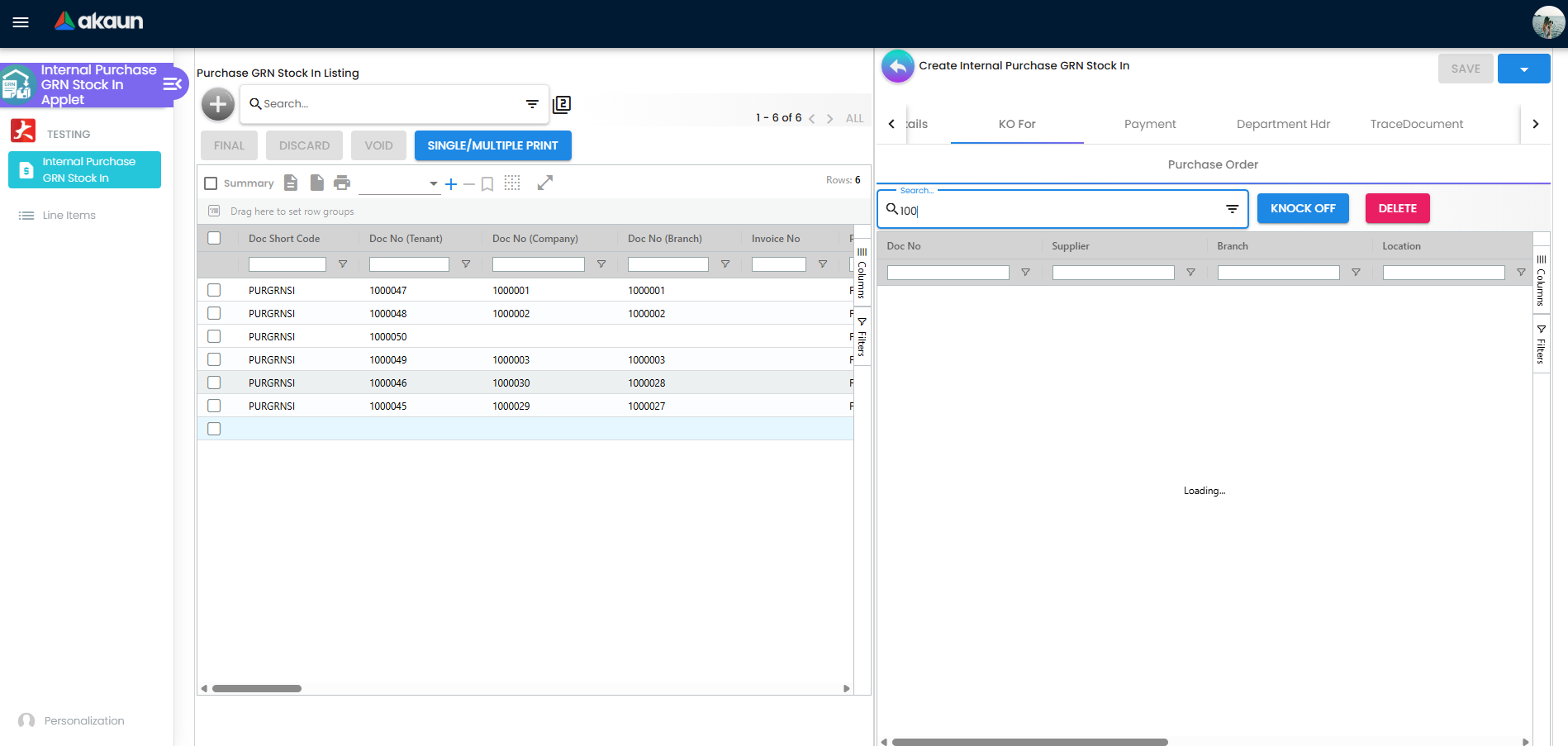
Create form tabs: Search (intercompany, permission-gated), Main Details, Account, Lines, Delivery Details, Payment, KO For (Purchase Order), Department Hdr. CREATE is enabled once Main Details is valid, a supplier is selected and at least one line exists.
Edit form tabs (order configurable in Default Selection): Search Document (TEMP documents only: Search Purchase Order and Search Purchase GRN, which clones a FINAL GRN Stock In), Main Details, Account, Lines, Delivery Details, KO For (TEMP only), Payment, Department Hdr, TraceDocument, Contra, Doc Link, Export, Attachments, Status. Buttons: RESET, SAVE, FINAL, VOID, DISCARD and (when the applet extension SHOW_DOCUMENT_DELETE_BUTTON is set on the applet record) a two-click DELETE for non-FINAL documents. All tabs can be rendered as vertical expansion panels (VERTICAL_ORIENTATION).
Line editor (Add / Edit Line Item): Item Details (Main Details, Delivery Instruction, Child Items for grouped / bundle items, Department, Doc Link in edit mode, Multi Discount, Delivery Details), Serial Number / Batch Number / Bin Number (shown according to the item’s sub_item_type), Costing Details, Pricing Details, Issue Link. The Lines tab itself offers Search Item plus KO For Purchase Order / Requisition / Invoice sub-tabs.
Settings menu (System Configuration): Application Settings, Default Selection, Printable Format Settings, Branch Settings, Custom Status; the routes also expose Webhook, Feature Visibility, Release Notes, Applet Log and the shared permission listings (client-side permission, role pricing scheme link, permission wizard, permission set, user / team / role permission). Personalization: Default Selection and Sidebar.
Configuration
Before you can use it
- Company, branch and locations in Organisation. Branch, Company and Location are required on the header; Delivery Branch / Delivery Location default to them. Stock is booked to the line’s delivery location, else the line’s store, else the header location, else the branch’s default location (
InventoryTransactionLineFactory), so every receiving branch needs a default location. - Default GL codes for the company:
INVENTORY_NOT_INVOICED,CREDITOR_NOT_INVOICEDand, when tax lines exist,INPUT_TAX(company GL-code links, set up through Chart of Account / the company’s default GL mapping). WithoutCREDITOR_NOT_INVOICEDthe journal job throwsMISSING_DEFAULT_GL_CODE: CREDITOR_NOT_INVOICED; withoutINVENTORY_NOT_INVOICEDthe purchase lines are silently omitted: with no tax on the GRN nothing is left and the job fails withNO_JOURNAL_CREATED, but if some lines (or tax lines) still resolved, the accrual line is built from them and the journal posts short with no error. The job fails withTOTAL_DEBITS_AND_TOTAL_CREDITS_NOT_BALANCESonly when the supplier has no AR/AP type. - Knock Off Configuration for the company (Organisation → Company → Knock Off Configuration): an enabled
INTERNAL_PURCHASE_ORDER → INTERNAL_PURCHASE_GRN_STOCK_INrow so POs appear in KO For, and anINTERNAL_PURCHASE_GRN_STOCK_IN → INTERNAL_PURCHASE_INVOICE_NO_STOCK_INrow so FINAL GRNs are queued for the invoice. The same row’s second posting status decides whether the auto-created PI No Stock In is DRAFT or FINAL. - Suppliers in Supplier; the entity’s AR/AP type is read but overridden to
CREDITOR_NOT_INVOICEDfor this document type. - Items in Doc Item Maintenance / Inv Item Maintenance: only basic / alias items with an inventory item link (or serialised coupons) create inventory transactions; grouped and bundle items post through their component links.
- Tax codes in Tax Configuration if input tax is captured on lines.
- Running numbers for
INTERNAL_PURCHASE_GRN_STOCK_INare assigned by the backend on FINAL. - Backend permissions:
TNT_API_DOC_INTERNAL_PURCHASE_GRN_STOCK_IN_CREATE / READ / UPDATE / DELETE_TGT_GUID. The KO For and Search Purchase Order screens additionally read the…_DELIVERY_BRANCH_READtarget so a user can receive into a delivery branch they are not a member of.
Applet settings
Where settings live:
| Screen | Component | What it holds |
|---|---|---|
Settings → Application Settings (field-settings) | The shared settings screen | The HIDE_* / ENABLE_* toggles below. The shared screen covers this applet’s Search, Department Hdr, KO, Contra, Doc Link, Attachments, Export, Status, Delivery Details and Payment tabs and its purchase-family keys — 117 of the 212 keys this applet has. |
| Inline gear | On 8 screens: listing (41 keys), edit form (32), create form (9), Main Details (33), Line Items listing (5), line editor (8), Item Details (4), line Main Details (22) | Master and personal overrides for the listed keys. Five keys are gear-only for this applet (HIDE_AMOUNT_MAIN_LISTING, HIDE_CREDIT_TERMS, HIDE_REFERENCE, HIDE_REMARKS, HIDE_TRACE_DOCUMENT_TAB). |
| Settings → Default Selection | This applet’s own screen | Default Branch, Default Location (auto-filled with the branch’s main location), Unit Price Decimal Precision, and drag-and-drop Details Tab Ordering (INTERNAL_PURCHASE_GRN_DETAILS_TAB_ORDER). |
| Settings → Printable Format Settings | This applet’s own listing with “set default” | PRINTABLE (default print template for Export and bulk print). |
| Settings → Branch Settings | This applet’s own screen, per branch | Branch Details, Default Settlement Method, Item Category Filter, Menu List, Pricing Scheme, Printable Format (per-branch default template for this document type, used by Export ahead of PRINTABLE). |
| Settings → Custom Status | This applet’s own screen | Five header statuses (ENABLE_ / NAME_ / LIST_CUSTOM_STATUS_HDR_1…5). Line statuses can be set up but are never used. |
| Personalization → Default Selection | This applet’s own screen | Personal Default Branch / Location; your personal values win over the applet-wide ones. |
Master settings are changed by OWNER / ADMIN users through the Settings menu or the gear’s master mode; personal mode on the gear and Personalization are open to every user. Defaults: every toggle below is off / empty unless the row says otherwise — the shared screen patches the stored value or false, and the document code treats an absent key as “not hidden”.
The table lists the keys that are shown on a settings screen or gear, saved, and actually used by this applet.
| Setting | What it controls | Default | Effect when changed |
|---|---|---|---|
DEFAULT_TRANSACTION_DATE | Listing date preset (1_day, 1_week, 1_month) | empty | Empty is not “no filter” — it behaves as one month, so the listing always opens on the last month’s GRNs and an older one is found only by searching. The preset applies to the first load; the Line Items listing follows the same setting. |
DEFAULT_POSTING_STATUS, SORT_ORDER | Listing default filter and ordering | empty | Shared listing behaviour. |
DISABLE_GEN_DOC_LISTING | Suppresses the listing’s first load | off | The grid opens empty instead of running the default search. It does not lock anything — Create still works, rows still open, and a search you run yourself still fills the grid. Use it where the default month’s worth of GRNs is large enough to make the screen slow to open. The Purchase GIN applet’s key of the same name behaves differently and does lock the listing. |
ENABLE_AUTO_POPUP | Print after FINAL | off | After a FINAL from the listing, the documents are printed with the default template. It needs a default in Printable Format Settings: without one the FINAL still goes through and the print fails with No Default Printable Selected. |
ENABLE_SELECT_MODE | Select Supplier listing | off | Adds a Select / Create-Edit switch to the supplier picker, and only for users who may also create and edit suppliers. The picker starts in Select mode, where a click picks the supplier; in Create/Edit mode a click opens that supplier’s record for editing instead of putting it on the GRN. |
HIDE_GENDOC_FINAL_BUTTON, HIDE_GENDOC_VOID_BUTTON, HIDE_GENDOC_DISCARD_BUTTON, HIDE_GENDOC_SAVE_BUTTON | Listing and edit-form action buttons | off | Hide the button for everyone; the matching SHOW_GENDOC_* client-side permission re-shows it per role (not seeded, see below). HIDE_GENDOC_SAVE_BUTTON is read by the edit template only. |
HIDE_SERVER_DOC_1, HIDE_SERVER_DOC_2, HIDE_SERVER_DOC_3, HIDE_CLIENT_DOC_TYPE, HIDE_CLIENT_DOC_1…5 | Document-number and client-document columns / fields | off | Hidden on the listing and Main Details; SHOW_DOC_NO_TENANT / COMPANY / BRANCH and SHOW_CLIENT_DOC_* permissions re-show them. |
HIDE_EXTERNAL_QUOTATION, HIDE_EXTERNAL_ORDER, HIDE_EXTERNAL_DELIVERY_ORDER, HIDE_EXTERNAL_INVOICE, HIDE_EXTERNAL_OTHERS (fallback keys HIDE_QUOTATION, HIDE_ORDER, HIDE_DELIVERY_ORDER, HIDE_INVOICE, HIDE_OTHERS) | External Quotation / Order / Delivery Order / Invoice / Others number and date fields and listing columns | off | The HIDE_EXTERNAL_* key wins when set; otherwise the bare key is read. |
HIDE_ARAP_PNS, HIDE_ARAP_SETTLEMENT, HIDE_ARAP_DOC_OPEN, HIDE_ARAP_CONTRA, HIDE_ARAP_BAL | AR/AP amount columns on the listing | off | HIDE_MAIN_ARAP_TAB (gear, no model key) hides all five at once. |
HIDE_AMOUNT_TXN_MAIN_LISTING, HIDE_AMOUNT_MAIN_LISTING, HIDE_QTY_MAIN_LISTING | Amount ordered / received / outstanding and quantity columns on the listing | off | Either amount key hides the amount columns. |
HIDE_ACCOUNT_TAB_DETAILS, HIDE_ACCOUNT_BILLING_CONTACT, HIDE_ACCOUNT_SHIPPING_CONTACT | Account tab and its Bill To / Ship To panels; Supplier Name listing column | off | SHOW_ACCOUNT_TAB_DETAILS permission re-shows the tab. |
HIDE_LOCATION, HIDE_DELIVERY_BRANCH, HIDE_DELIVERY_LOCATION | Main Details location fields and the KO grids’ delivery columns | off | With HIDE_DELIVERY_LOCATION on, selecting a location copies branch and location into the delivery fields silently. |
HIDE_CREDIT_TERMS, HIDE_REFERENCE, HIDE_REMARKS, HIDE_PERMIT_NO, HIDE_TRACKING_ID, HIDE_CREATED_BY_DETAILS, HIDE_BASE_CURRENCY, HIDE_CURRENCY, HIDE_DESCRIPTION | Main Details fields | off | Hide the field. The first three are gear-only for this applet code. |
CANNOT_EDIT_CURRENCY_RATE, SHOW_FOREX_DATA_SOURCE | Currency rate field | off | The first locks the rate as filled in. The second replaces the currency and rate fields with a forex data-source picker rather than adding one. Either way, Save on an existing foreign-currency GRN refuses a rate of zero with The currency rate cannot be ZERO. |
ENABLE_EMPLOYEE_LOGIN_AUTO_DETECTION | Purchaser | off | On create, the purchaser is looked up from the logged-in user’s employee record. |
ENABLE_DUPLICATE_REFERENCE_CHECK | Reference / external numbers | off | Warns when the same reference already exists on another GRN Stock In. |
HIDE_SEARCH_BY_DOCUMENT_BUTTON, HIDE_DELIVERY_DETAILS_TAB, HIDE_TRACE_DOCUMENT_TAB, HIDE_DOC_LINK_TAB, HIDE_EXPORT_TAB, HIDE_ATTACHMENT_TAB, HIDE_STATUS_TAB | Edit-form tabs | off | Hide the tab; SHOW_EXPORT_TAB permission re-shows Export. |
EXPAND_MAIN_DETAILS, EXPAND_ACCOUNT, EXPAND_LINE_ITEMS, EXPAND_DELIVERY_DETAILS, EXPAND_KO_FOR, EXPAND_SETTLEMENT, EXPAND_DEPARTMENT_HDR, EXPAND_TRACE_DOCUMENT, EXPAND_MAIN_CONTRA, EXPAND_DOC_LINK, EXPAND_EXPORT, EXPAND_ATTACHMENT, VERTICAL_ORIENTATION | Vertical layout | off | Stacked expansion panels; the EXPAND_* flags choose the panel opened by default. |
MAKE_ATTACHMENT_TAB_COMPULSORY | Attachments | off | Enforced on an existing GRN’s edit form only: opened with no attachment, its SAVE and FINAL stay greyed out and the Attachments tab is marked. The check is made when the GRN is opened. A new GRN can be created without one, and FINAL from the listing does not check at all — so a reviewer who finalises in bulk bypasses it. |
HIDE_SERIAL_NUMBER, HIDE_BATCH_NUMBER, HIDE_BIN_NUMBER, HIDE_BATCH_ISSUE_DATE, HIDE_BATCH_EXPIRY_DATE | Line editor tracking tabs and batch date fields | off | Hide the tab / field; the backend still validates whatever is stored (see Lifecycle). |
HIDE_COSTING_DETAILS, HIDE_PRICING_DETAILS, HIDE_ISSUE_LINK, HIDE_DOC_LINK, HIDE_DELIVERY_DETAILS, HIDE_DELIVERY_INSTRUCTION, HIDE_DEPARTMENT | Line editor tabs | off | Hide the tab; SHOW_COSTING_DETAILS permission re-shows Costing Details. |
HIDE_SEGMENT, HIDE_DIMENSION, HIDE_PROFIT_CENTER, HIDE_PROJECT | Department tab pickers (header and line) | off | Hide the dimension. |
HIDE_QTY_BASE, HIDE_QTY_UOM, HIDE_UOM_TO_BASE_RATIO, HIDE_UNIT_PRICE_STD_PRICING_SCHEME, HIDE_UNIT_PRICE_STD_INCL_TAX, HIDE_UNIT_PRICE_STD_EXCL_TAX, HIDE_UNIT_PRICE_STD_UOM_INCL_TAX, HIDE_UNIT_PRICE_STD_UOM_EXCL_TAX, HIDE_UNIT_PRICE_NET_EXCL_TAX, HIDE_UNIT_PRICE_NET_UOM_EXCL_TAX, HIDE_UNIT_PRICE_TXN, HIDE_UNIT_PRICE_TXN_UOM_INCL_TAX, HIDE_UNIT_DISCOUNT, HIDE_UNIT_DISCOUNT_UOM_EXCL_TAX, HIDE_AMOUNT_STD_EXCL_TAX, HIDE_DISCOUNT_AMOUNT_EXCL_TAX, HIDE_AMOUNT_NET_EXCL_TAX, HIDE_AMOUNT_TXN, HIDE_TAX_CONFIG_SELECTION, HIDE_WHT_CONFIG_SELECTION, HIDE_LAST_PURCHASE_PRICE, HIDE_GROUP_DISCOUNT_PERCENTAGE, HIDE_LINE_ITEMS_GL_CODE | Line Main Details quantity / price / tax fields | off | Hide the field for everyone; the matching seeded SHOW_* permission re-shows it for a role. |
HIDE_TOTAL_TXN_AMOUNT, HIDE_TOTAL_SST_VAT_GST_AMOUNT | Totals on the Lines tab | off | Re-shown by SHOW_TOTAL_TXN_AMOUNT / SHOW_TOTAL_SST_VAT_GST_AMOUNT. |
ENABLE_EDITING_UNIT_PRICE_STD | Unit Price STD | off | Makes the standard price editable (the shared screen shows this control for every applet). |
DISABLE_EDITING_AMOUNT_TXN | Transaction amount on lines | off | Normally, typing a line amount keeps the standard price and books the difference as a discount per unit — so an amount typed to match the supplier’s invoice turns into a discount on the line. This switch locks the amount so it can only follow the price. |
ENABLE_ITEM_NAME_MAX_LIMIT, ITEM_NAME_MAX_LIMIT, DISABLE_LINE_ITEM_NAME_EDIT | Item Name on lines | off / empty | Character counter and limit; lock the name. |
ENABLE_MULTIPLE_KO | KO For and line KO grids | off | Allows selecting lines from several source documents in one knock-off; otherwise the grid is single-document. |
EDIT_CONTRA_TXN_DATE | Contra tab | off | Off, a contra is dated with the date of the document it is set against, not today — so a contra against last quarter’s invoice lands in last quarter. On, the date starts at today and can be changed. |
DEFAULT_BRANCH, DEFAULT_LOCATION, DEFAULT_COMPANY (Default Selection, also personal) | New-document header | empty | Applied as Branch / Location / Company when a document is created (branch from the picker wins if one was chosen first). |
DEFAULT_DECIMAL_PRECISION (Default Selection) | Unit price decimals on lines | 2 (DEFAULTS.DECIMAL_PRECISION) | Sets the decimal places and step of every price field. This is the “3 decimal places for unit price” request. |
INTERNAL_PURCHASE_GRN_DETAILS_TAB_ORDER (Default Selection) | Edit-form tab order | Search Document, Main Details, KO For, Account, Lines, Delivery Details, Payment, Department Hdr, TraceDocument, Contra, Doc Link, Export, Attachments, Status | Saved order applied to the edit form; new tabs are appended. |
PRINTABLE (Printable Format Settings) | Default template | empty | Pre-selects the template on Export and bulk print; a Branch Settings → Printable Format default for the branch overrides it. |
Custom Status (ENABLE_ / NAME_ / LIST_CUSTOM_STATUS_HDR_1…5) adds up to five header status pickers to the Status tab; they label a GRN and gate nothing (see Workflow / approval below).
Read at runtime without a model declaration (set them through a gear or by API): HIDE_KO_FOR_TAB, HIDE_MAIN_PAYMENT_TAB, HIDE_DEPARTMENT_HDR_TAB, HIDE_MAIN_CONTRA_TAB, HIDE_MAIN_ARAP_TAB, EXPAND_PAYMENT, EXPAND_STATUS, HIDE_LISTING_BRANCH, HIDE_TRANSACTION_DATE (listing columns), SHOW_DRAFT_BUTTON (opt-in listing button that returns FINAL documents to DRAFT; also a permission code), HIDE_LINE_ITEM_PRICING (Lines-tab price columns, paired with the INTERNAL_PURCHASE_GRN_DISPLAY_PRICING permission), DISABLE_ADD_WHEN_KO (blocks Search Item once a knock-off exists), SHOW_ITEM_STOCK_BALANCE, DISABLE_ITEM_LISTING, HIDE_MULTI_DISCOUNT, ENABLE_DRAFT_LOCK_SERIAL_NUMBER_CHECKING, DISABLE_DEFAULT_SETTING_ADVANCE_SEARCH, FUZZY_SEARCH_COLUMNS, DEFAULT_STATUS.
Read without any control for this applet code (declared and consumed, but gated out of the shared screen and on no gear): ENABLE_SERIAL_NUMBER_VALIDATION_FINAL (the flag it sends on FINAL is irrelevant here because the lines are signum +1 and always validated, but it also makes FINAL first ask the serial-number check about every serialised line and stop with Unable to post the document to FINAL: Serial numbers are invalid. if any serial comes back invalid; that pre-check is the key’s one real effect in this applet, and nothing on its settings screens can switch it), SERIAL_NUMBER_QTY_FOLLOW_BASIC_QTY, HIDE_CREDIT_LIMIT, HIDE_EXTERNAL_REMARKS, HIDE_FILE_EXPORT_MENU, ENABLE_FILTER_BY_TODAYS_TXN, DEFAULT_ORIENTATION, DEFAULT_DECIMAL_STEP (derived from the precision), and the fifteen MANDATORY_* keys (MANDATORY_QUOTATION / ORDER / DELIVERY_ORDER / INVOICE / OTHERS and their _DATE twins, MANDATORY_BIN_NUMBER, MANDATORY_SEGMENT / DIMENSION / PROFIT_CENTER / PROJECT) that add Validators.required to the external-document and department fields.
Declared and rendered but never read (saved and ignored): EXPAND_DELIVERY_TRIPS, EXPAND_MAIN_ARAP, EXPAND_POSTING, and the 41 model-only keys (DISALLOW_DUPLICATE_INVOICE, SHOW_VOID_BUTTON, DEFAULT_TOGGLE_COLUMN, HIDE_MAIN_DETAILS_*, ENABLE_ / INCLUDE_ dimension, SST and WHT flags, and the line-level custom status keys). The gears also carry HIDE_REASON, SHOW_GL_DIMENSION, SHOW_SEGMENT, SHOW_PROFIT_CENTER, SHOW_PROJECT as settings; the listing reads the last four as opt-in column settings or permissions.
Document behaviour settings
- Posting is not configurable in the applet: FINAL is fixed at quantity +1 / amount −1 (see Lifecycle). The FINAL request carries at most two flags, and neither changes what the server does here:
validate_serial_signum_zero(fromENABLE_SERIAL_NUMBER_VALIDATION_FINAL), because a +1 document’s serials are always checked, andvalidate_stock_balance: true(whenSHOW_ITEM_STOCK_BALANCEis on), which is already the backend default and only checks negative-signum lines. - Serial numbers before FINAL: on every line save the applet calls
validateMultiSerialNumberswithtxn_type: PURCHASEandserver_doc_types: [INTERNAL_PURCHASE_GRN_STOCK_IN, INTERNAL_PURCHASE_INVOICE]; serials already live in the company are flagged and the FINAL button is disabled while a line carries an invalid serial. Batch lines must have batch quantities that add up to the line quantity. - Status flow options:
SHOW_DRAFT_BUTTON(setting or permission) exposes the FINAL → DRAFT action;HIDE_GENDOC_*hide FINAL / VOID / DISCARD;SHOW_DOCUMENT_DELETE_BUTTONon the applet’sAPPLET_SETTINGSextension exposes DELETE. - Printables: Jasper templates from Printable Format Settings; default from Branch Settings → Printable Format, else
PRINTABLE. ThePRINTABLE_FORMAT_WITH_NO_PRICEpermission restricts the Export picker to templates in theno_pricecategory. Export offers EXPORT AS PDF only (CSV / DOCX / ZIP are commented out) and is disabled for VOID documents. - Workflow / approval: none wired. Custom Status is a label, not a gate.
- e-Invoice: not applicable to this document type.
Feature visibility / permissions
51 client-side permissions are defined for this applet and 48 of them are used: the SHOW_* counterparts of the listing columns (SHOW_DOC_NO_TENANT / COMPANY / BRANCH, SHOW_CLIENT_DOC_TYPE, SHOW_CLIENT_DOC_1…5, SHOW_TRANSACTION_DATE, SHOW_ARAP_PNS / SETTLEMENT / DOC_OPEN / CONTRA / BAL, SHOW_AMOUNT_TXN_MAIN_LISTING, SHOW_DESCRIPTION), the line price / quantity / tax columns (SHOW_UNIT_PRICE_*, SHOW_UNIT_DISCOUNT*, SHOW_AMOUNT_*, SHOW_DISCOUNT_AMOUNT_EXCL_TAX, SHOW_QTY_BASE / UOM, SHOW_UOM_TO_BASE_RATIO, SHOW_TAX_CONFIG_SELECTION, SHOW_WHT_CONFIG_SELECTION, SHOW_LAST_PURCHASE_PRICE, SHOW_COSTING_DETAILS, SHOW_TOTAL_TXN_AMOUNT, SHOW_TOTAL_SST_VAT_GST_AMOUNT), SHOW_ACCOUNT_TAB_DETAILS, SHOW_EXPORT_TAB, SHOW_DRAFT_BUTTON, SHOW_INTERCOMPANY_PGRN_SCREEN (the create form’s intercompany Search tab), ALLOW_TO_CREATE_EDIT_ACCOUNT (create / edit suppliers from the picker), PRINTABLE_FORMAT_WITH_NO_PRICE, and INTERNAL_PURCHASE_GRN_DISPLAY_PRICING (unit price, tax, discount and amount columns on the Lines tab and the Line Items listing; OWNER / ADMIN rank passes automatically).
Seeded but never checked: SHOW_FINAL_BUTTON, SHOW_DISABLE_EDITING_AMOUNT_TXN_SETTING, IPGRN_HIDE_TRACKING_ID_AND_PERMIT_NO. Checked but not seeded: SHOW_GENDOC_FINAL_BUTTON, SHOW_GENDOC_VOID_BUTTON, SHOW_GENDOC_DISCARD_BUTTON (the re-show pairs of the HIDE_GENDOC_* settings), SHOW_LISTING_BRANCH, SHOW_QTY_MAIN_LISTING, SHOW_QUOTATION / ORDER / DELIVERY_ORDER / INVOICE / OTHERS, SHOW_GL_DIMENSION / SEGMENT / PROFIT_CENTER / PROJECT — until they are seeded a tenant-wide hide of those items cannot be reopened per role.
Feature Visibility and Webhook are the shared screens; the applet adds nothing to them.
Fields
Main Details
| Field | Meaning | Required | Notes / validation |
|---|---|---|---|
| Company, Branch, Location | Owning company, branch and the store the goods are booked to (guid_store) | Yes (all three, Validators.required) | Branch fills Company and Currency; Location list is filtered by branch; defaults from Default Selection. |
| Delivery Branch, Delivery Location | Where the goods physically arrive | No | Default to Branch / Location; written to the header and copied to each knocked-off line. |
| Transaction Date | Document date | Defaults to today | Checked against locked fiscal periods on FINAL. |
| Purchaser | Responsible buyer (employee) | No | Auto-filled with ENABLE_EMPLOYEE_LOGIN_AUTO_DETECTION. |
| Credit Terms, Credit Limit | Supplier terms | No | Each list is the supplier’s own terms and limits from its record. With exactly one, it is filled in for you; changing supplier clears a choice the new supplier does not have; a supplier with no credit terms leaves the field locked and empty. The choice is kept on the GRN’s copy of the supplier details and locks at FINAL. |
| Reference, Remarks, External Remarks, Description, Permit No, Tracking ID | Free text | No unless a MANDATORY_* key is set | Remarks has a character counter; ENABLE_DUPLICATE_REFERENCE_CHECK warns on duplicates. |
| External Quotation / Order / Delivery Order / Invoice / Others, each with a Date | Supplier’s document numbers (xtn_doc_ref_1…5, _date) | No unless MANDATORY_* | Added in 2026; shown on the listing as columns. |
| Client Document Type, Client Doc 1…5 No | Tenant-defined numbering | No | Hidden by HIDE_CLIENT_DOC_*. |
| Currency, Base Currency, Currency Rate | Document currency | No | From the branch; rate locked by CANNOT_EDIT_CURRENCY_RATE. |
| Created By / Date, Modified By / Date | Audit fields | read-only | Hidden by HIDE_CREATED_BY_DETAILS. |
Account
| Field | Meaning | Required | Notes / validation |
|---|---|---|---|
| Entity (Supplier) | Supplier entity | Yes (CREATE stays disabled without it) | Picked from Select Supplier; new suppliers can be created inline with ALLOW_TO_CREATE_EDIT_ACCOUNT. |
| Bill To / Ship To | Addresses | No | Picked from the supplier’s billing and shipping addresses, then copied onto the GRN — correcting the supplier’s address later changes the next GRN, not this one. The rest of the supplier block is also a copy, filled by the server only when it arrives empty. |
Lines
| Field | Meaning | Required | Notes / validation |
|---|---|---|---|
| Item | Item code / name | Yes | From Search Item, or copied by KO For Purchase Order / Requisition / Invoice (open lines only). A knocked-off line is linked to its source document. |
| Qty | Quantity received (quantity_base) | Yes | Validators.required, min(1); default 1. |
| Unit price, discount, tax, WHT fields | Purchase cost | No | All min(0); the line’s amount_txn is what the inventory transaction and moving-average cost use, so a zero-price stock-in leaves the item’s cost unestablished. |
| Serial numbers | Per-unit serials | When the item is serialised and optional_sn is not set | Validated against the company on save and on FINAL (a serial number that already exists in the company is refused); count must equal Qty. |
| Batch: batch no, issue date, expiry date, qty | Batch tracking | Yes on the Batch tab | Batch quantities must sum to Qty; date fields hidden by HIDE_BATCH_ISSUE_DATE / HIDE_BATCH_EXPIRY_DATE. |
| Bin: bin code, container measure, container qty, qty | Bin tracking | Yes on the Bin tab | Backend rejects zero / missing container values. |
| Delivery Details (per line) | Delivery branch and location for this line | No | Copied from the header; the backend books the inventory transaction to the line’s delivery_location_guid first. |
| Department (segment, dimension, profit centre, project) | Analysis codes | No unless MANDATORY_* | Copied to the journal lines. |
| Costing Details, Issue Link | Placeholder tabs | — | Neither shows real data. Costing Details is an empty grid on every line; Issue Link shows one built-in sample row that is not linked to any issue. Nothing on either tab is saved. For a line’s cost, look at the item in Stock Availability after FINAL. |
Of the line editor’s other tabs, Pricing Details lists the purchase unit price the item carries in each pricing scheme, for reference while you price the line; Doc Link and Multi Discount are optional.
Delivery Details, Payment, Contra
| Field | Meaning | Required | Notes / validation |
|---|---|---|---|
| Delivery Details tab | Per-line delivery type, shipping branch, shipping location, tracking ID grid | No | Location list is the branch’s linked locations. |
| Payment lines | Settlement-method lines (txn_type STL_MTHD, written as INTERNAL_RECEIPT_VOUCHER / INTERNAL_PAYMENT_VOUCHER lines) | No | Sales-side component reused on a purchase document; the amount guard compares with amount_open_balance. Settle the supplier on the PI No Stock In / Payment Voucher instead. |
| Contra | Contra entries against other FINAL documents | No | Transaction date editable with EDIT_CONTRA_TXN_DATE. |
Lifecycle and effects
Statuses: DRAFT (new documents; SAVE keeps them here) → FINAL → VOID. DRAFT documents can be DISCARDED (listing or edit form, confirmation dialog) and FINAL documents can be returned to DRAFT with the opt-in DRAFT button. FINAL is a separate step from Save (with a one-second delay and a serial pre-check); a second FINAL is refused with HTTP 403 “Generic Document has already been posted to FINAL”. VOID and DRAFT are refused (“cannot be changed to VOID because it has already been linked with the following documents: PURINVNSI-…”, or “to draft” for DRAFT) when a downstream document has knocked this one off. DELETE (edit form, non-FINAL only, two clicks) deletes the document; only the screen stops you deleting a FINAL one. Search Purchase GRN clones a FINAL GRN Stock In into a new document.
What posting does:
| Fact | Value |
|---|---|
| Document type | INTERNAL_PURCHASE_GRN_STOCK_IN, short code PURGRNSI |
| Direction | Stock in, and a liability not yet invoiced |
| The journal | For each goods line: Dr Inventory Not Invoiced (net amount); Dr Input Tax for the tax; then one header line Cr Creditor Not Invoiced for the total. Purchase discount / return lines exist for negative lines. |
| Which GL code | header GL → the item’s company GL link for INVENTORY_NOT_INVOICED → company default INVENTORY_NOT_INVOICED. The line’s own GL code is skipped for this document. The creditor line always uses the company default CREDITOR_NOT_INVOICED, and posting fails with MISSING_DEFAULT_GL_CODE: CREDITOR_NOT_INVOICED if it is missing. |
| Stock | One inventory transaction per goods line; location = the line’s delivery location → the line’s store → the header’s store → the branch’s default location. The receipt’s amount is added to the company moving-average cost and the unit moving-average cost is recomputed. |
| Onward to the invoice | When the company’s Knock Off Configuration has the GRN Stock In → PI No Stock In row, the lines are opened for that invoice; with automatic conversion switched on, the invoice is created for you — DRAFT or FINAL according to that row (FINAL by default). |
| What VOID reverses | The void jobs your tenant has switched on reverse the stock (negated inventory lines, serial numbers unlocked, stock balance refreshed), post the reverse journal, close the lines opened for the invoice, and reverse tax and contra entries. Stock and cost are therefore reversed, but the moving-average cost is recomputed on the reversal, not restored to the pre-receipt value. |
| Back to DRAFT | Offered here, and it is not a rewind. The listing carries a DRAFT button (hidden unless SHOW_DRAFT_BUTTON is enabled or the matching permission is held) that acts in bulk on the selected FINAL rows. It releases the knock-offs and document links and reverses no posting (the only follow-on job the platform registers for this step is the one that releases knock-offs): the stock, journal and cashbook postings stay as FINAL left them, and a second FINAL therefore posts nothing new — the stock step silently writes nothing because the document is already marked posted. Edit between the two and the document and the stock ledger disagree with no message anywhere. So DRAFT is the right tool when the receipt matched the wrong purchase order, and the wrong one when the receipt itself is wrong. If it has posted, VOID it and key a new one — see What a Void Undoes. |
What FINAL actually does:
- Validation: forex rate; serial numbers — no duplicates within the document, count equal to the line quantity, and because this is stock coming in, every serial must not already exist in the company; bins; a refusal when the transaction date is inside a
LOCK_ALL/LOCK_TXNperiod. Stock-balance checks apply only to negative lines. - Update the header, assign running numbers, set the finalised date.
- Start the main posting job, which applies the company’s include / exclude list and sets off the inventory, journal, knock-off, tax and webhook jobs. The inventory job marks the stock as posted and refreshes the current stock balance; the journal job posts the entries above; the knock-off job opens the GRN Stock In lines for the PI No Stock In and, if automatic conversion is switched on for your tenant, creates that invoice.
Related applets
- Purchase Invoice No Stock In (Internal) — the invoice that follows this document (quantity 0 / amount −1); on FINAL it moves the liability from Creditor Not Invoiced / Inventory Not Invoiced to the trade creditor, but only when it carries a link to a GRN Stock In.
- Purchase GRN (Internal) — the non-posting receipt for tenants that book stock on the Purchase Invoice; the intercompany Search tab in this applet actually creates that document type, not a GRN Stock In (see Troubleshooting).
- Purchase Invoice (Internal) — the other stock-moving purchase document (+1 / −1); never pair it with a GRN Stock In for the same delivery.
- Purchase Order (Internal), Purchase Requisition (Internal) — knock-off sources. An open PO → GRN Stock In queue row shows as incoming quantity only on Stock Availability’s Details screens; the main Available figure leaves purchase orders out until the goods are received.
- Purchase Return (Internal) — takes received goods back out of stock and debits the supplier; Purchase GIN (Internal) only documents the dispatch.
- Purchase GRN Supplier Access (Internal), Supplier Delivery Order — supplier-facing counterparts. Note the registry’s
documentation_urlfor this applet currently points at the supplier-access page. - Stock Availability, Stock Balance, Stock Adjustment — where the posted quantities and costs are visible and corrected.
- Supplier, Organisation, Chart of Account, Doc Item Maintenance, Inv Item Maintenance, Tax Configuration — master data and default GL codes the posting depends on.
Troubleshooting
| Symptom | Cause | Fix |
|---|---|---|
Journal job fails with MISSING_DEFAULT_GL_CODE: CREDITOR_NOT_INVOICED after FINAL | The company has no default GL code for CREDITOR_NOT_INVOICED; the document is already FINAL and stock is posted, only the journal is missing. | Add the company default GL code, then re-post the journal (createJournalGenDocRePosting / journal re-post tool). |
Journal job fails with TOTAL_DEBITS_AND_TOTAL_CREDITS_NOT_BALANCES, or NO_JOURNAL_CREATED | No INVENTORY_NOT_INVOICED (or INPUT_TAX) GL could be resolved for one or more lines, so those lines were silently omitted — and either the supplier has no AR/AP type, so there is no accrual line to absorb them (TOTAL_DEBITS_AND_TOTAL_CREDITS_NOT_BALANCES), or no line resolved at all (NO_JOURNAL_CREATED). Line-level GL codes are ignored for this document type. | Set the header GL, the item-company link with txn code INVENTORY_NOT_INVOICED, or the company default; re-post. |
| No error, but the goods-received-not-invoiced accrual and stock-not-invoiced accounts are short of what the GRNs received | Some lines resolved no INVENTORY_NOT_INVOICED (or INPUT_TAX) GL and were left out; the CREDITOR_NOT_INVOICED line was built from the lines that remained, so the journal balanced and posted short. Trace Document finds nothing because a journal exists. Before go-live, check both codes have a company default, or every item its own link | Set the header GL, the item-company link or the company default; repost the affected GRNs. |
| Stock went to the wrong location, or lines of one document landed in different locations | Each line is booked to its own delivery_location_guid, then guid_store, then the header location, then the branch default. Lines knocked off from a PO carry the PO line’s delivery location; lines from Search Item carry the header location at the time they were added. | Check the per-line Delivery Details before FINAL; correct with a stock transfer or Stock Adjustment after. |
| Stock counted twice (once on GRN Stock In, once on Purchase Invoice) — “double entry” | Both documents are +1 stock documents. The Knock Off Configuration routed the GRN Stock In into an ordinary Purchase Invoice, or the invoice was raised separately. | Use only the GRN Stock In → PI No Stock In pair (quantity 0) for companies that receive with this applet; void the duplicate. |
| Sales report shows 100 % gross profit / zero cost for items received here | The stock-in lines carried amount_txn = 0, so nothing was added to the company moving-average cost. | Enter the purchase price on the GRN Stock In lines before FINAL. A landed cost does not help: this screen takes none, and a landed cost entered elsewhere is kept in its own figures beside the moving average and never added to it. Correct existing items with Reset MA / stock adjustment after review. |
| PO still shows as open in Stock Availability after it was knocked off to a GRN Stock In | The queue row INTERNAL_PURCHASE_ORDER → INTERNAL_PURCHASE_GRN_STOCK_IN was not updated. | Run the queue repair / data-fix-missing-queue; check the Knock Off Configuration row is enabled. |
| KO For lists no purchase orders | The PO is not FINAL, is fully received, or the company has no enabled INTERNAL_PURCHASE_ORDER → INTERNAL_PURCHASE_GRN_STOCK_IN Knock Off Configuration row; the search also needs at least three characters and read permission on the PO’s branch or delivery branch. | Fix the configuration; the KO grid reads the open queue, not the PO listing. |
| The line editor’s KO For Purchase Requisition / Invoice sub-tabs are missing | Those sub-tabs render only when the company’s Knock Off Configuration has an enabled LINE flow row for INTERNAL_PURCHASE_REQUISITION / INTERNAL_PURCHASE_INVOICE. | Add the row. |
| FINAL fails with a serial number “already exists for company” error | A serial on the document is already in stock (or was received on another draft); +1 documents always run this check. | Remove or correct the serial; check for duplicate migration imports. |
| FINAL button greyed on the edit form | A serialised line has an invalid serial, or a batch line’s batch quantities do not add up to the line quantity; on the listing, FINAL needs every selected row to be DRAFT with amount_net > 0. | Fix the line; a zero-amount document can be finalised from the edit form only. |
| FINAL fails with “The selected date falls within a locked fiscal period” | The transaction date is in a locked period. | Change the transaction date or reopen the period. |
| VOID (or DRAFT) refused: “cannot be changed to VOID because it has already been linked with the following documents: PURINVNSI-…” | A PI No Stock In (or other document) has knocked this GRN off. | Void the downstream document first. |
| Line Items menu shows “No Data” | Known listing issue; the query is by line server document type. | Reload; report with the tenant if it persists. |
| Ordinary users see no prices on the Lines tab or Line Items listing | INTERNAL_PURCHASE_GRN_DISPLAY_PRICING is not granted (OWNER / ADMIN rank passes automatically); HIDE_LINE_ITEM_PRICING hides the same columns tenant-wide. | Grant the permission to the buyer role. |
| Unit price cannot take three decimals | DEFAULT_DECIMAL_PRECISION in Default Selection is 2. | Change it there; it applies to every price field. |
| Document created from the intercompany Search tab does not move stock | The intercompany Search tab creates a Goods Received Note (no stock, no money) from the sales invoice, not a GRN Stock In; it appears in the Purchase GRN (Internal) applet. | Receive intercompany deliveries with an ordinary PO knock-off, or use the GRN + Purchase Invoice pair for that company. |
A HIDE_GENDOC_* button cannot be re-enabled for one role | The SHOW_GENDOC_FINAL / VOID / DISCARD_BUTTON permission codes are checked but not seeded for this applet. | Ask BigLedger to add the codes to this applet’s permission list, then grant them; the client-side permission listing grants only codes already on it. |
| Cannot find the “Attachment tab compulsory” switch | It is not on the edit-form gear. | It is on Settings → Application Settings, in the Attachment panel beside Hide Attachment Tab; its label is the key itself, MAKE_ATTACHMENT_TAB_COMPULSORY, unless your language file names it. |
| Labels are English only | Internationalisation is not implemented. | None yet. |
Related documentation
- Purchasing module
- Purchase Invoice No Stock In (Internal) — the invoice leg of this pair
- Purchase GRN (Internal) — the non-posting alternative
- Standard procurement workflow — where receiving sits in the PO → GRN → invoice flow