Purchase Invoice No Stock In (Internal)
Record a supplier’s invoice for stock that a GRN Stock In has already booked into inventory. Finalising books what you owe the supplier and, when the invoice is linked to the receipt it settles, clears the accruals that receipt raised; it never moves stock, so raising a stock-moving invoice for the same delivery counts the stock twice. Capture the tax on one document of the pair only: the accrual is reversed on the total including tax while the receipt accrued the net, so the two accrual accounts reconcile exactly only for tax-free lines.
Overview
The Purchase Invoice No Stock In (Internal) applet records the supplier’s invoice for goods that were already booked into stock by a Purchase GRN Stock In. On FINAL it books the trade creditor and, when the invoice is linked to the GRN Stock In it settles, clears the Creditor Not Invoiced / Inventory Not Invoiced accruals that the GRN Stock In raised — it never creates an inventory transaction (quantity signum 0, amount signum −1). Finance or accounts-payable staff create it against a FINAL GRN Stock In (or a Purchase Order), and BigLedger can create it automatically from the GRN Stock In open queue.
It is the second document of one of the two receiving pairs on the purchase side:
| Pair | Receipt document | Invoice document |
|---|---|---|
| GRN Stock In + PI No Stock In (this applet) | Purchase GRN Stock In — INTERNAL_PURCHASE_GRN_STOCK_IN, quantity +1 / amount −1: moves stock, updates cost, accrues Inventory Not Invoiced / Creditor Not Invoiced | This applet — INTERNAL_PURCHASE_INVOICE_NO_STOCK_IN (short code PURINVNSI), quantity 0 / amount −1: no stock, books the trade creditor and reverses the accrual |
| GRN + Purchase Invoice | Purchase GRN — 0 / 0, receipt record only | Purchase Invoice — +1 / −1, moves stock and books the creditor |
The old framing of this applet as an invoice “for services and overheads” is wrong: nothing in the product restricts the items — any item type is accepted — but the journal is designed around a preceding GRN Stock In. An invoice for a service can be raised here, but the ordinary Purchase Invoice with a non-inventory item does the same without the accrual leg.
Where it fits
Modules: Purchasing and Financial Accounting.
| Direction | Document / applet | Relationship |
|---|---|---|
| Upstream | Purchase GRN Stock In | The receipt this invoice settles. The header KO For tab offers Purchase GRN Stock In when the company’s Knock Off Configuration has an enabled LINE row INTERNAL_PURCHASE_GRN_STOCK_IN → INTERNAL_PURCHASE_INVOICE_NO_STOCK_IN; BigLedger creates this document automatically from that queue. |
| Upstream | Purchase Order, Purchase GRN, Purchase Requisition, Supplier Delivery Order | Other knock-off sources: KO For offers Purchase Order and Purchase GRN; the line editor’s KO sub-tabs (PO, GRN, PR, Supplier DO) appear per enabled LINE flow row. A link from any of these also triggers the accrual-reversal journal leg (see Lifecycle). |
| Downstream | Purchase Return, Purchase Credit Note, Purchase Debit Note, Payment Voucher | Return, adjustment and settlement of the creditor balance; a RETURN link from a Purchase Return blocks VOID in the applet. |
| Sibling | Purchase Invoice | The stock-moving invoice of the other pair. Raising it for goods already received on a GRN Stock In counts the stock twice. |
| Supplier-side view | Purchase Invoice Supplier Access | External view of purchase invoices. |
| e-Invoice | MY e-Invoice Admin | The applet carries an E-Invoice tab and a SELF-BILLED action, but the e-Invoice submission pipeline does not yet handle this document type (see Document behaviour settings). |
Screens and menus
Menu items: Internal Purchase Invoice No Stock In (listing), Line Items (every line across documents), File Import, File Export.
Listing. Columns (each governed by a HIDE_* setting with a matching SHOW_* permission): Doc Short Code (PURINVNSI), E-Invoice Running No. and E-Invoice Date, Doc No (Tenant / Company / Branch), Branch, Transaction Date, Client Doc Type and Client Doc 1–5, the AR/AP amount columns (PNS, Settlement, Doc Open, Contra, Balance), Amount, the five External document numbers with their dates, Description, Document Links, Reference, Posting Status, Status, Currency. Toolbar: FINAL (multi-select, every row DRAFT), DISCARD (DRAFT rows), VOID (FINAL rows), SINGLE/MULTIPLE PRINT (needs PRINTABLE), and SELF-BILLED. DEFAULT_TRANSACTION_DATE, DEFAULT_POSTING_STATUS, DEFAULT_STATUS, SORT_ORDER and FUZZY_SEARCH_COLUMNS shape the initial query; the filter panel adds Supplier, Company, date ranges (transaction, created, updated, e-Invoice billing period, e-Invoice date, external document dates) and Order By.
Create form tabs: Main Details, Account, Line Items, Delivery Details, Payment, KO For, Department Hdr (the last four hide with HIDE_DELIVERY_DETAILS_TAB, HIDE_MAIN_PAYMENT_TAB, HIDE_KO_FOR_TAB, HIDE_DEPARTMENT_HDR_TAB). There is no intercompany Search tab in this applet. CREATE is enabled when Main Details is valid, a supplier is selected and at least one line exists.
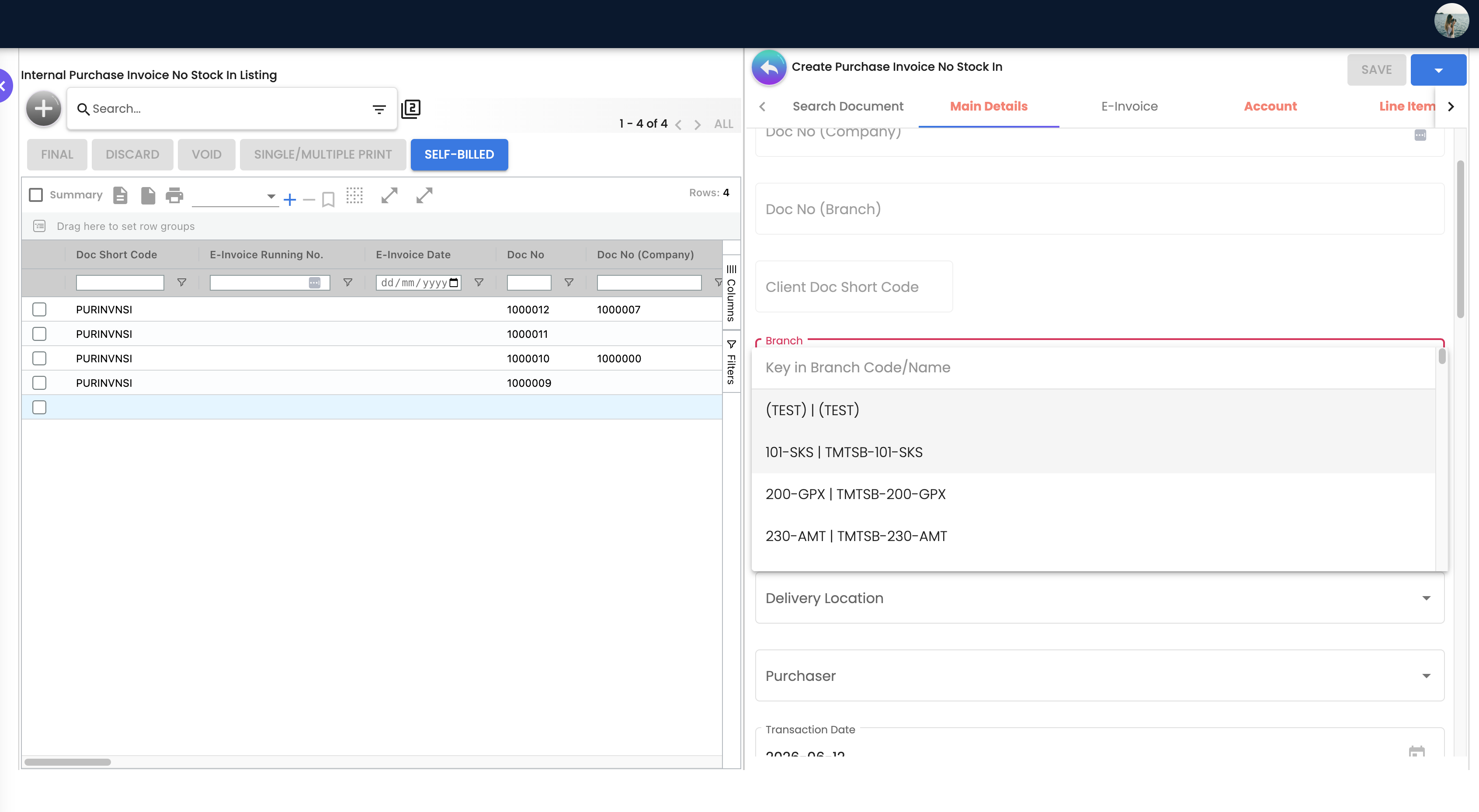
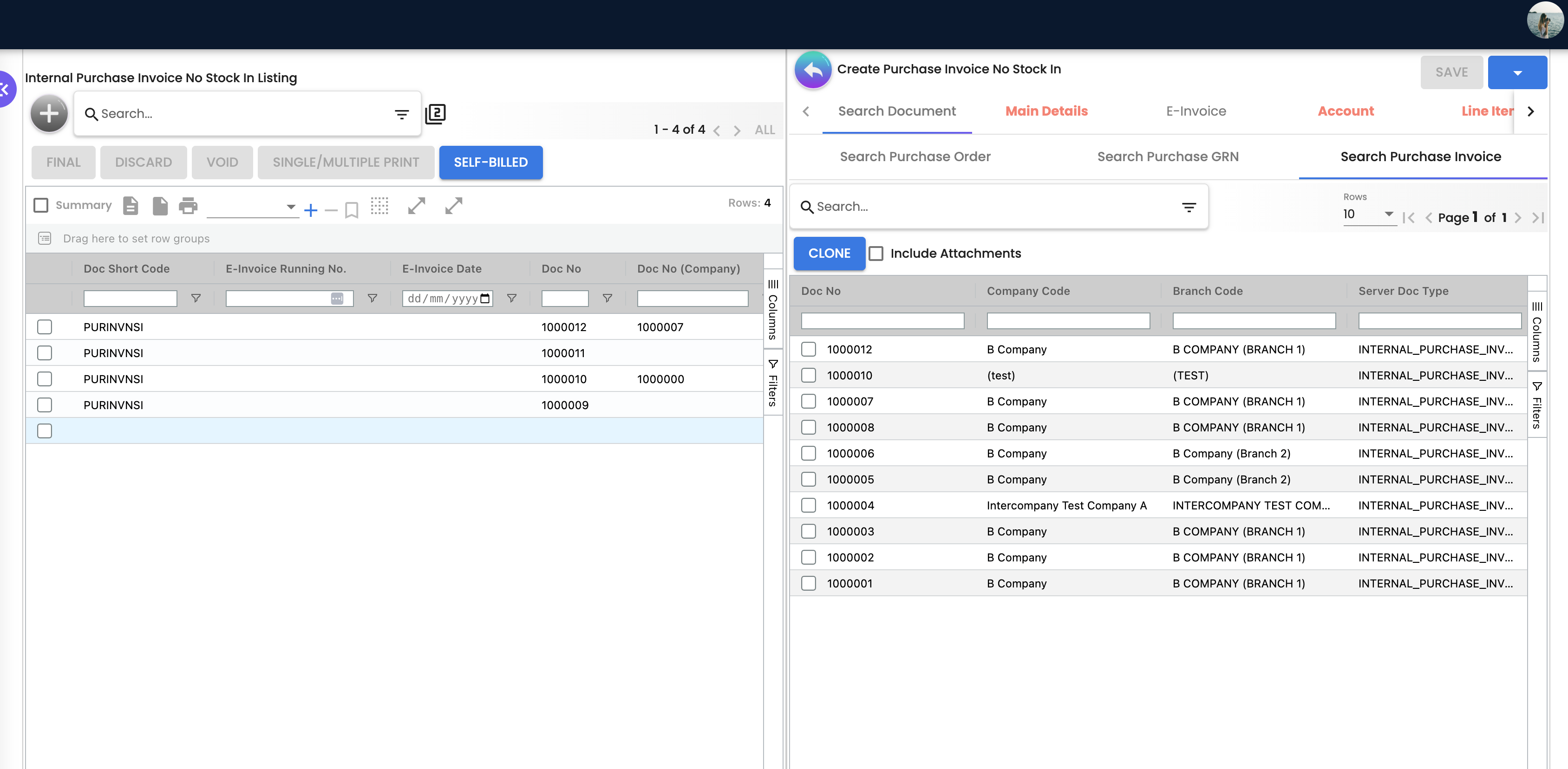
Edit form tabs (order configurable in Default Selection): Search Document (TEMP documents only — Search Purchase Order, Search Purchase GRN, Search Purchase Invoice, which clones a FINAL document of this type), Main Details, E-Invoice, Account, Line Items, KO For (TEMP only), Delivery Details, ARAP, Payment, Department Hdr, Posting, TraceDocument, Contra, Doc Link, Attachment, Export. Buttons: currency switch (forex documents), FINAL, VOID, SAVE, DISCARD, and a CLONE menu entry; a two-click DELETE appears for non-FINAL documents when SHOW_DOCUMENT_DELETE_BUTTON is set for the applet. All tabs can render as vertical expansion panels (VERTICAL_ORIENTATION).
Line editor (Add / Edit Line Item): Item Details (Main Details, Delivery Instruction, Department, Doc Link, Delivery Details, Multi Discount, Related Documents), Serial Number / Batch Number / Bin Number (by the item’s sub-item type), Costing Details, Issue Link, Group Item. Pricing Details appears only when a line is opened from the Line Items menu, not from the invoice itself. The Lines tab offers Search Item (item types BASIC_ITEM, MADE_TO_ORDER, BUNDLE, NSTI, VOUCHER, ACCOUNT_CODE), a Landed Cost amount with ALLOCATE / CONFIRM, and KO sub-tabs per enabled flow row.
Settings menu (System Configuration): Application Settings, Default Selection, Printable Format Settings, Branch Settings; also Webhook, Feature Visibility, Release Notes, Applet Log and the permission screens (client-side permission, permission wizard, permission set, user / team / role permission, role pricing scheme link). Personalization: Default Selection and Sidebar.
Configuration
Before you can use it
- Company, branch and location in Organisation. Branch and Location are required on the header; Delivery Branch / Delivery Location default to them. No inventory transaction is created, so the location only travels to the journal and the knocked-off lines.
- Default GL codes for the company:
CREDITOR(orCREDITOR_NON_TRADE, chosen by the supplier’s AR/AP type),PURCHASEfor lines without their own GL code,INPUT_TAXwhen tax is captured, and — for every invoice that carries a knock-off link —CREDITOR_NOT_INVOICEDandINVENTORY_NOT_INVOICED. Set them through Chart of Account and the company’s default GL mapping. Missing creditor,CREDITOR_NOT_INVOICEDorINVENTORY_NOT_INVOICEDcodes make the journal job fail withMISSING_DEFAULT_GL_CODE: <code>; a missingPURCHASE/INPUT_TAXcode silently drops the line and the job fails withTOTAL_DEBITS_AND_TOTAL_CREDITS_NOT_BALANCES. - Knock Off Configuration for the company (Organisation → Company → Knock Off Configuration): an enabled
LINErowINTERNAL_PURCHASE_GRN_STOCK_IN → INTERNAL_PURCHASE_INVOICE_NO_STOCK_INso FINAL GRN Stock Ins are queued for this invoice and the Purchase GRN Stock In KO tab renders; the same row’s target posting status decides whether the auto-created invoice is DRAFT or FINAL (default FINAL). Rows forINTERNAL_PURCHASE_ORDER,INTERNAL_PURCHASE_GOODS_RECEIVED_NOTE,INTERNAL_PURCHASE_REQUISITIONandINTERNAL_OUTBOUND_DELIVERY_ORDERenable the other KO tabs. Downstream rows (INTERNAL_PURCHASE_INVOICE_NO_STOCK_IN → …) decide whether FINAL opens the lines for a Purchase Return or a Payment Voucher. - Suppliers in Supplier: the entity’s AR/AP type picks the creditor account.
- Items in Doc Item Maintenance — any item type is accepted; an item-company GL link with txn code
PURCHASEoverrides the company default for that item. - Tax codes in Tax Configuration if input tax is captured on lines. Capture the tax on one document of the pair only (see Lifecycle).
- Running numbers for
INTERNAL_PURCHASE_INVOICE_NO_STOCK_INare assigned on FINAL. - Server-side permissions:
TNT_API_DOC_INTERNAL_PURCHASE_INVOICE_NO_STOCK_IN_CREATE / READ / UPDATE / DELETE_TGT_GUIDplus…_DELIVERY_BRANCH_READfor documents whose delivery branch the user is not a member of. Marking a document self-billed additionally needsAPI_TNT_DM_ERP_MY_E_INVOICE_TO_IRB_UPDATE.
Applet settings
Where settings live:
| Screen | Component | What it holds |
|---|---|---|
| Settings → Application Settings | shared Application Settings screen | The HIDE_* / ENABLE_* toggles below, including the tab-hide toggles and the transaction-amount lock. |
Inline gear (shown when ENABLE_INLINE_APPLET_CONFIG is on) | on the listing, edit form, Main Details, Account and its sub-panels, line editor, Item Details, Lines tab, ARAP, Department Hdr, Doc Link, Export, Payment, supplier picker and supplier edit | Master and personal overrides for the keys shown on that screen. Some keys are available only through the gear (HIDE_CREDIT_TERMS, HIDE_CREDIT_LIMIT, HIDE_REFERENCE, HIDE_REMARKS, HIDE_EXPORT_TAB, HIDE_FILE_IMPORT_MENU, HIDE_FILE_EXPORT_MENU, HIDE_LISTING_BRANCH, HIDE_EINVOICE_NUMBER, HIDE_EINVOICE_DATE, HIDE_SETTLEMENT_TAB, HIDE_SUPPLIER_*_TAB, EXPAND_E_INVOICE, EXPAND_PAYMENT, ENABLE_SELECT_MODE, SHOW_CUSTOM_DOC_NO, the bare HIDE_QUOTATION / ORDER / DELIVERY_ORDER / INVOICE / OTHERS, ENABLE_IMPORT_EXPORT). |
| Settings → Default Selection | applet’s own screen | Default Branch, Default Location (auto-filled with the branch’s main location), Unit Price Decimal Precision, Transaction Date Logic, and drag-and-drop Details Tab Ordering (PURCHASE_INVOICE_NO_STOCK_IN_DETAILS_TAB_ORDER). |
| Settings → Printable Format Settings | applet-local listing with “set default” | PRINTABLE (default Jasper template GUID for Export and bulk print). |
| Settings → Branch Settings | applet-local, per branch | Branch Details, Item Category Filter, Pricing Scheme, Printable Format (per-branch default template, read by Export ahead of PRINTABLE), Default Settlement Method. |
| Personalization → Default Selection | applet’s own screen | Personal Default Branch / Location / Company, Toggle Column (DEFAULT_TOGGLE_COLUMN), Default Item Search Item Type, Tab Orientation (DEFAULT_ORIENTATION); personal values override the master ones. |
Master settings are changed by OWNER / ADMIN users through the Settings menu or the gear’s master mode; personal mode on the gear and Personalization are open to every user. Defaults: every toggle below is off / empty unless the row says otherwise — an absent key counts as “not hidden”. A fresh tenant therefore sees every field until Application Settings is saved once.
The table lists the keys the applet actually reads.
| Setting | What it controls | Default | Effect when changed |
|---|---|---|---|
DEFAULT_TRANSACTION_DATE | Listing date preset (1_day, 1_week, 1_month) | empty (one month back) | Listing opens pre-filtered. |
DEFAULT_POSTING_STATUS, DEFAULT_STATUS, SORT_ORDER, FUZZY_SEARCH_COLUMNS | Listing default filters, ordering (by last update) and the columns the keyword search hits | empty | Shared listing behaviour. |
DISABLE_GEN_DOC_LISTING | Suppresses the listing’s first load | off | The grid opens empty instead of running the default search. It does not lock anything — Create still works and rows still open. Use it where the default search is slow. The Purchase GIN applet’s key of the same name behaves differently and does lock the listing. |
ENABLE_AUTO_POPUP | Print after listing FINAL | off | Bulk-prints the selected documents after FINAL (the edit-form variant is commented out). |
HIDE_GENDOC_FINAL_BUTTON, HIDE_GENDOC_VOID_BUTTON, HIDE_GENDOC_DISCARD_BUTTON, HIDE_GENDOC_SAVE_BUTTON, HIDE_PRINT_BUTTON, HIDE_CLONE_BUTTON, HIDE_EXPORT_AS_PDF_BUTTON | Listing / edit-form action buttons | off | Hide the button for everyone; SHOW_GENDOC_FINAL / VOID / DISCARD_BUTTON client-side permissions re-show the first three per role (seeded for this applet). |
HIDE_SERVER_DOC_1…3, HIDE_CLIENT_DOC_TYPE, HIDE_CLIENT_DOC_1…5, HIDE_EINVOICE_NUMBER, HIDE_EINVOICE_DATE, HIDE_LISTING_BRANCH, HIDE_TRANSACTION_DATE, HIDE_DESCRIPTION, HIDE_DOCUMENT_LINKS, HIDE_AMOUNT_TXN_MAIN_LISTING | Listing columns (and the matching Main Details fields) | off | Hidden; the SHOW_* permission in the listing column map re-shows them. Read on this listing: the three number columns (Doc No, Doc No (Company), Doc No (Branch)) are hidden when the listing opens, and a hidden column is also taken out of the grid’s own column panel, so a user cannot put it back from there. |
HIDE_EXTERNAL_QUOTATION, HIDE_EXTERNAL_ORDER, HIDE_EXTERNAL_DELIVERY_ORDER, HIDE_EXTERNAL_INVOICE, HIDE_EXTERNAL_OTHERS (fallback keys HIDE_QUOTATION, HIDE_ORDER, HIDE_DELIVERY_ORDER, HIDE_INVOICE, HIDE_OTHERS) | External Quotation / Order / Delivery Order / Invoice / Others number and date fields and columns | off | The HIDE_EXTERNAL_* key wins when set; otherwise the bare key is read. |
HIDE_ARAP_PNS, HIDE_ARAP_SETTLEMENT, HIDE_ARAP_DOC_OPEN, HIDE_ARAP_CONTRA, HIDE_ARAP_BAL | AR/AP columns on the listing and the ARAP tab | off | HIDE_MAIN_ARAP_TAB hides the whole tab. |
HIDE_ACCOUNT_BILLING_CONTACT, HIDE_ACCOUNT_SHIPPING_CONTACT, HIDE_BILL_TO_TAB, HIDE_SHIP_TO_TAB, HIDE_ENTITY_BRANCH, HIDE_ENTITY_DETAILS_CURRENCY / STATUS / IDENTITY_TYPE / DESCRIPTION / TYPE / ID_NUMBER / EMAIL / PHONE_NUMBER | Account tab panels and entity fields | off | Hide the panel / field. |
HIDE_SUPPLIER_CATEGORY_TAB, HIDE_SUPPLIER_LOGIN_TAB, HIDE_SUPPLIER_PAYMENT_CONFIG_TAB, ENABLE_SELECT_MODE | Inline supplier edit / picker | off | Hide supplier-edit tabs; row-selection mode in the picker. |
HIDE_LOCATION, HIDE_DELIVERY_BRANCH, HIDE_DELIVERY_LOCATION, HIDE_CREDIT_TERMS, HIDE_CREDIT_LIMIT, HIDE_REFERENCE, HIDE_REMARKS, HIDE_EXTERNAL_REMARKS, HIDE_PERMIT_NO, HIDE_TRACKING_ID, HIDE_SOURCE_DOC_NO, HIDE_CREATED_BY_DETAILS, HIDE_BASE_CURRENCY, HIDE_CURRENCY, SHOW_CUSTOM_DOC_NO | Main Details fields | off | Hide (or, for SHOW_CUSTOM_DOC_NO, show) the field. |
CANNOT_EDIT_CURRENCY_RATE, SHOW_FOREX_DATA_SOURCE | Currency rate field | off | CANNOT_EDIT_CURRENCY_RATE greys out both rate boxes on every document, not only on FINAL ones. The rate can then change only through the applet: 1 when the currency is your base currency, a current market rate fetched when you change Currency or press the live-rate button beside the box (the button stays usable), or 0 when you choose a supplier whose currency differs from the document’s. The fetched rate is today’s, not the rate for the Transaction Date, and a failed lookup changes nothing and shows no message. SHOW_FOREX_DATA_SOURCE replaces the Currency picker and rate boxes with a Forex Data Source picker and one rate box: choosing a source sets Currency to that source’s foreign currency and fills the rate with the source’s most recent recorded sell rate, whatever its date. A source with no recorded rate leaves the rate as it was. Either way nothing compares the rate with the one on the supplier’s invoice, so whoever finalises a foreign-currency invoice checks the rate against the supplier’s document, or your bank’s rate for that date, before FINAL. |
ENABLE_EMPLOYEE_LOGIN_AUTO_DETECTION | Purchaser | off | On a TEMP document the purchaser is looked up from the logged-in user’s employee record. |
ENABLE_DUPLICATE_REFERENCE_CHECK | Reference | off | Warns when the same reference already exists on another PI No Stock In. |
HIDE_SEARCH_BY_DOCUMENT_BUTTON, HIDE_KO_FOR_TAB, HIDE_DELIVERY_DETAILS_TAB, HIDE_MAIN_ARAP_TAB, HIDE_MAIN_PAYMENT_TAB, HIDE_DEPARTMENT_HDR_TAB, HIDE_POSTING_TAB, HIDE_TRACE_DOCUMENT_TAB, HIDE_MAIN_CONTRA_TAB, HIDE_DOC_LINK_TAB, HIDE_ATTACHMENT_TAB, HIDE_EXPORT_TAB | Create / edit-form tabs | off | Hide the tab. The E-Invoice tab has no hide key. |
EXPAND_MAIN_DETAILS, EXPAND_E_INVOICE, EXPAND_ACCOUNT, EXPAND_LINE_ITEMS, EXPAND_KO_FOR, EXPAND_DELIVERY_DETAILS, EXPAND_MAIN_ARAP, EXPAND_PAYMENT, EXPAND_DEPARTMENT_HDR, EXPAND_POSTING, EXPAND_TRACE_DOCUMENT, EXPAND_MAIN_CONTRA, EXPAND_DOC_LINK, EXPAND_ATTACHMENT, EXPAND_EXPORT, VERTICAL_ORIENTATION | Vertical layout | off | Stacked expansion panels; EXPAND_* chooses the panel opened by default. |
HIDE_SERIAL_NUMBER, HIDE_BATCH_NUMBER, HIDE_BIN_NUMBER, HIDE_BATCH_ISSUE_DATE, HIDE_BATCH_EXPIRY_DATE, HIDE_COSTING_DETAILS, HIDE_ISSUE_LINK, HIDE_DOC_LINK, HIDE_DOC_LINK_FROM, HIDE_DOC_LINK_TO, HIDE_DELIVERY_DETAILS, HIDE_DELIVERY_INSTRUCTION, HIDE_DEPARTMENT, HIDE_MULTI_DISCOUNT, HIDE_RELATED_DOCUMENTS, HIDE_DELIVERY_TRIPS | Line editor tabs | off | Hide the tab. |
DISALLOW_LINE_ITEM_EDIT | Edit Line Item | off | Hides the line SAVE controls; the ALLOW_LINE_ITEM_EDIT permission (not seeded) re-enables them per role. |
HIDE_SEGMENT, HIDE_DIMENSION, HIDE_PROFIT_CENTER, HIDE_PROJECT | Department pickers (header and line) | off | Hide the dimension; the listing reads SHOW_GL_DIMENSION / SEGMENT / PROFIT_CENTER / PROJECT as opt-in column settings or permissions. |
HIDE_QTY_BASE, HIDE_QTY_UOM, HIDE_UOM_TO_BASE_RATIO, HIDE_UNIT_PRICE_STD_PRICING_SCHEME, HIDE_UNIT_PRICE_STD_INCL_TAX, HIDE_UNIT_PRICE_STD_EXCL_TAX, HIDE_UNIT_PRICE_STD_UOM_INCL_TAX, HIDE_UNIT_PRICE_STD_UOM_EXCL_TAX, HIDE_UNIT_PRICE_NET_EXCL_TAX, HIDE_UNIT_PRICE_NET_UOM_EXCL_TAX, HIDE_UNIT_PRICE_TXN, HIDE_UNIT_PRICE_TXN_UOM_INCL_TAX, HIDE_UNIT_DISCOUNT, HIDE_UNIT_DISCOUNT_UOM_EXCL_TAX, HIDE_AMOUNT_STD_EXCL_TAX, HIDE_DISCOUNT_AMOUNT_EXCL_TAX, HIDE_AMOUNT_NET_EXCL_TAX, HIDE_AMOUNT_TXN, HIDE_TAX_CONFIG_SELECTION, HIDE_WHT_CONFIG_SELECTION, HIDE_LAST_PURCHASE_PRICE, HIDE_GROUP_DISCOUNT_PERCENTAGE, HIDE_LINE_ITEMS_GL_CODE | Line Main Details quantity / price / tax / GL fields | off | Hide for everyone; the seeded SHOW_* permission re-shows the field for a role. |
HIDE_TOTAL_TXN_AMOUNT, HIDE_TOTAL_SST_VAT_GST_AMOUNT, HIDE_LANDED_COST | Totals and the Landed Cost allocation controls on the Lines tab | off | Hide. |
SHOW_BUDGET | Budget pickers (vote book, fiscal period, budget item, register) on line Main Details | off | Shows the budget controls. |
ENABLE_ITEM_NAME_MAX_LIMIT, ITEM_NAME_MAX_LIMIT, DISABLE_LINE_ITEM_NAME_EDIT | Item Name on lines | off / empty | Character counter and limit; lock the name. |
ENABLE_MULTIPLE_KO | KO For and line KO grids | off | Allows lines from several source documents in one knock-off. |
EDIT_CONTRA_TXN_DATE, ENABLE_EDIT_PAYMENT_DATE | Contra and Payment tabs | off | Payment: the settlement line always has a date picker, but with ENABLE_EDIT_PAYMENT_DATE off every settlement line is re-dated to the invoice’s Transaction Date whenever the invoice changes, so a date you picked does not stay (read, not run). Switch it on if you record payments made on a different day from the invoice, or record those payments on a Payment Voucher dated the day the money left. Contra: with EDIT_CONTRA_TXN_DATE off the contra is dated with the Doc Date on the contra form, which starts as the other document’s own date, and the Transaction Date box is read-only. With it on, the contra takes the Transaction Date box, which starts at today. The supplier’s statement of account shows the offset on that date. |
DEFAULT_BRANCH, DEFAULT_LOCATION, DEFAULT_COMPANY (Default Selection, also personal) | New-document header | empty | Applied as Branch / Location / Company when a document is created. |
DEFAULT_DECIMAL_PRECISION (Default Selection) | Unit price decimals on lines | 2 (DEFAULTS.DECIMAL_PRECISION, allowed 2–4) | Sets the decimal places and step of every price field. |
| Transaction Date Logic (Default Selection) | Nothing in this applet | USE_DATE_TXN | Offered on Default Settings and read by nothing here: this applet never sends the chosen logic with its finalise call, so the transaction date is always the one on the form. The Sales Invoice applet does send it from the same setting, which is where the expectation comes from. |
PURCHASE_INVOICE_NO_STOCK_IN_DETAILS_TAB_ORDER (Default Selection) | Edit-form tab order | Search Document, Main Details, E-Invoice, Account, Line Items, KO For, Delivery Details, ARAP, Payment, Department Hdr, Posting, TraceDocument, Contra, Doc Link, Attachment, Export | Saved order applied to the edit form; new tabs are appended. |
PRINTABLE (Printable Format Settings) | Default template | empty | Pre-selects the template on Export and enables bulk print; a Branch Settings → Printable Format default for the branch overrides it. |
DEFAULT_TOGGLE_COLUMN, DEFAULT_ORIENTATION, DEFAULT_ITEM_SEARCH_ITEM_TYPE (Personalization) | Listing column layout, tab orientation, Search Item type filter | empty | SINGLE shows the listing and an open document one at a time; DOUBLE shows them side by side. DEFAULT_ORIENTATION overrides the master VERTICAL_ORIENTATION for this user in either direction (VERTICAL for stacked panels, HORIZONTAL for tabs), and stacked panels bring the one-column view with them unless DOUBLE is chosen. On a screen 768 pixels wide or narrower the applet always uses one column. Default Item Search Item Type is saved but nothing reads it: Search Item opens unfiltered whatever you pick, so narrow it by item type in the Search Item search panel each time. |
Available only through a gear: DISABLE_ITEM_LISTING, ENABLE_DRAFT_LOCK_SERIAL_NUMBER_CHECKING, HIDE_PRICING_DETAILS, SHOW_ITEM_STOCK_BALANCE, HIDE_LINE_ITEM_PRICING (Lines-tab price columns, paired with the INTERNAL_PURCHASE_INVOICE_NO_STOCK_IN_DISPLAY_PRICING permission), SHOW_GL_DIMENSION / SEGMENT / PROFIT_CENTER / PROJECT.
Honoured by the applet but offered on no settings screen or gear (ask support to set them): DEFAULT_DECIMAL_STEP (derived from the precision), HIDE_E_INVOICE_TAB, HIDE_SUPPLIER_CODE, HIDE_EMAIL, HIDE_PHONE_NUMBER, HIDE_SIC_CODE_AND_BUSINESS_ACTIVITY_DESCRIPTION (all on the inline supplier edit), HIDE_MAIN_DETAILS_INVOICE, HIDE_MAIN_DETAILS_EXTERNAL_DOC_1_DATE, and the six MANDATORY_* keys the form actually applies (MANDATORY_REFERENCE, MANDATORY_INVOICE, MANDATORY_SEGMENT, MANDATORY_DIMENSION, MANDATORY_PROFIT_CENTER, MANDATORY_PROJECT).
Shown on a settings screen but never read (saved and ignored): the eight knock-off by / for switches (their Knock Off Settings screen has no menu entry and opens only from its address, and it also saves Automatically Scan Item To The Listing and Validate Serial Numbers, which nothing reads either), Allow different payee than selected entity (honoured by the Payment Voucher and Purchase Invoice), the two Copy From Configuration toggles (commented out of the template, so not even shown), ENABLE_BRANCH_FILTER, ENABLE_IMPORT_EXPORT, EXPAND_DELIVERY_TRIPS, EXPAND_SETTLEMENT, HIDE_SETTLEMENT_TAB, HIDE_SST_VAT_GST_AMOUNT, HIDE_CREATED_DATE, HIDE_UPDATED_DATE, and the card / batch HIDE_* / MANDATORY_* keys of the payment panel.
Document behaviour settings
- Posting is not configurable in the applet: FINAL is fixed at quantity 0 / amount −1 (see Lifecycle). Stock-balance checks apply to stock-moving lines only, so none run for this document.
- Serial and batch numbers before FINAL: the edit form disables FINAL while a serialised line has an invalid serial or a batch line’s batch quantities do not add up to the line quantity; the listing FINAL refuses a row only when a serialised line has no serial numbers at all. These are form-side checks: on the server, neither the serial count nor whether the serials exist is checked for this document type, because its lines move no stock and the applet asks for no serial validation.
- Serials already received on the GRN Stock In come back invalid here. When this applet checks a serial number on a line, it asks whether the serial is already in stock anywhere in the company, and marks it invalid if it is (Serial Number already exist in location …), whatever the settings. A serial received by the Purchase GRN Stock In is in stock, so keying or scanning it on this invoice is refused in that way, and the edit form keeps FINAL greyed out while the line holds it.
- Status flow options:
HIDE_GENDOC_*hide FINAL / VOID / DISCARD;SHOW_DOCUMENT_DELETE_BUTTONset for the applet exposes DELETE. There is no FINAL → DRAFT button in this applet (the seededHIDE_DRAFT_BUTTONpermission is never checked). - Transaction date: the Transaction Date Logic setting on Default Selection is read by nothing here; the date on the form is the date that is finalised.
- Printables: Jasper templates from Printable Format Settings; default from Branch Settings → Printable Format, else
PRINTABLE. Export offers EXPORT AS PDF only (CSV / DOCX / ZIP are disabled placeholders). The seededPRINTABLE_FORMAT_WITH_NO_PRICEpermission is not checked by this applet. - e-Invoice (self-billed): the listing’s SELF-BILLED action marks the selected documents self-billed, removes them from the purchase-matching queue and queues them for submission; the E-Invoice tab shows Submission, Progress, Notification, Cancellation and Matched History panels, and the edit form hides VOID once e-Invoice is enabled for the document. However, the submission pipeline handles only the ordinary Purchase Invoice, Self-Billed Invoice, Debit Note, Credit Note and Refund Note types — not this one — so a document marked self-billed here does not reach LHDN as a self-billed invoice. A change to add it is open. Use the ordinary Purchase Invoice for self-billed submissions today.
- Workflow / approval: none wired. Intercompany: not available in this applet; intercompany conversion from a sales invoice creates an ordinary Purchase Invoice, not this type.
- File Import: CSV only, PIPE or COMMA delimiter, template
Purchase_Invoice_Master_Data_Template.csv; the Checking tab lists per-line validation errors (for exampleBRANCH_VALIDATE_ERRORwhen the branch code is not the tenant’s). File Export generates a CSV for a transaction-date range asynchronously.
Feature visibility / permissions
Client-side permissions the applet checks: SHOW_GENDOC_FINAL / VOID / DISCARD_BUTTON (re-show the hidden buttons on the edit form), SHOW_DOC_NO_TENANT / COMPANY / BRANCH, SHOW_CLIENT_DOC_TYPE, SHOW_CLIENT_DOC_1…5, SHOW_TRANSACTION_DATE, the line price / quantity / tax columns (SHOW_UNIT_PRICE_*, SHOW_UNIT_DISCOUNT*, SHOW_AMOUNT_*, SHOW_DISCOUNT_AMOUNT_EXCL_TAX, SHOW_QTY_BASE / UOM, SHOW_UOM_TO_BASE_RATIO, SHOW_TAX_CONFIG_SELECTION, SHOW_WHT_CONFIG_SELECTION, SHOW_LAST_PURCHASE_PRICE, SHOW_COSTING_DETAILS), SHOW_INTERCOMPANY_PI_SCREEN, HIDE_PRICE, and INTERNAL_PURCHASE_INVOICE_NO_STOCK_IN_DISPLAY_PRICING (unit price, tax, discount, amount and landed-cost columns on the Lines tab and the Line Items listing; OWNER / ADMIN rank passes automatically).
Offered in the Permission Set screen but never checked: SHOW_FINAL_BUTTON, SHOW_SAVE_BUTTON, SHOW_PRINT_BUTTON, SHOW_CLOSE_BUTTON, SHOW_SEND_EMAIL_BUTTON, HIDE_DRAFT_BUTTON, HIDE_EMAIL_PAYMENT_URL_BUTTON, HIDE_CUSTOM_DOC_NO, HIDE_DELIVERY_LOCATION, HIDE_FOREX_DATA_SOURCE, EDIT_CURRENCY_RATE, DISABLE_EMPLOYEE_LOGIN_AUTO_DETECTION, REQUIRE_VALIDITY_DATE, SHOW_VALIDITY_DATE, SHOW_REASON, SHOW_SOURCE_DOC_NO, SHOW_BASE_CURRENCY, SHOW_CURRENCY, SHOW_CREDIT_LIMIT, SHOW_CREDIT_TERMS, SHOW_CREATED_BY_DETAILS, SHOW_DELIVERY_BRANCH, SHOW_LOCATION, SHOW_REFERENCE, SHOW_REMARKS, SHOW_EXTERNAL_REMARKS, SHOW_DISABLE_EDITING_AMOUNT_TXN_SETTING, IPI_HIDE_TRACKING_ID_AND_PERMIT_NO. Checked but not offered in the Permission Set screen: SHOW_GENDOC_SAVE_BUTTON, SHOW_LISTING_BRANCH, SHOW_AMOUNT_MAIN_LISTING, SHOW_ARAP_PNS / SETTLEMENT / DOC_OPEN / CONTRA / BAL, SHOW_EINVOICE_NUMBER / DATE, SHOW_DESCRIPTION, SHOW_DOCUMENT_LINKS, SHOW_QUOTATION / ORDER / DELIVERY_ORDER / INVOICE / OTHERS, SHOW_FILE_IMPORT_MENU, SHOW_FILE_EXPORT_MENU, SHOW_SERIAL_NUMBER, SHOW_GL_DIMENSION / SEGMENT / PROFIT_CENTER / PROJECT, SHOW_INTERCOMPANY_TAB, ALLOW_TO_CREATE_EDIT_ACCOUNT, ALLOW_LINE_ITEM_EDIT — until they are added there, a tenant-wide hide of those items cannot be reopened per role, and inline supplier creation from the Account tab is unavailable.
Feature Visibility and Webhook are the standard screens; the applet adds nothing to them.
Fields
Main Details
| Field | Meaning | Required | Notes / validation |
|---|---|---|---|
| Doc Short Code, Doc No (Tenant / Company / Branch), Client Doc Short Code | Document numbers | read-only | Assigned on FINAL; hidden by HIDE_SERVER_DOC_* / HIDE_CLIENT_DOC_*. |
| Branch, Location | Owning branch and store | Yes | Branch fills Company and Currency; defaults from Default Selection. |
| Delivery Branch, Delivery Location | Where the goods were received | No | Default to Branch / Location; copied to knocked-off lines. |
| Transaction Date | Document date | Defaults to today | Finalised as entered — the Transaction Date Logic setting is not read by this applet; checked against locked fiscal periods. |
| Purchaser | Responsible buyer (employee) | No | Auto-filled with ENABLE_EMPLOYEE_LOGIN_AUTO_DETECTION. Trap: Credit Terms, Credit Limit and Permit No are saved only while a Purchaser is chosen. With Purchaser empty, whatever you pick or type in those three is dropped on save without a message; Tracking ID is saved either way. Pick the Purchaser first (or switch auto-detection on), and reopen one invoice after saving to check the three are still there. This is read from the applet’s code, not yet run: try it once on a test invoice before relying on it. |
| Credit Terms, Credit Limit | The terms and credit line this supplier gives you | No | The lists offer the purchase credit terms and limits saved on the chosen supplier, and a supplier with exactly one of each has it picked for you. Both are kept on the invoice as text, and the print service reads Credit Terms from that text. Neither does anything else. No due date is produced: the Due Date input is switched off in this applet and the server does not derive one, so reports that show a due date show none for an invoice keyed here. And nothing checks the invoice against Credit Limit, because the only credit check at FINAL (a refusal for a blacklisted customer) runs on sales documents only. Paying on time is the job of whoever plans the payment run: they count the terms from the date on the supplier’s own invoice (record it in External Invoice and its date). Staying inside the credit line is the purchasing lead’s job: compare the supplier’s balance on the creditor ageing with the agreed limit before raising the next Purchase Order. |
| Reference, Remarks, External Remarks, Description, Permit No, Tracking ID | Free text | No unless MANDATORY_REFERENCE | ENABLE_DUPLICATE_REFERENCE_CHECK warns on duplicates. Permit No is lost without a Purchaser (see Purchaser). |
| External Quotation / Order / Delivery Order / Invoice / Others, each with a Date | Supplier’s document numbers and dates | No unless MANDATORY_INVOICE | Enter the supplier’s invoice number in External Invoice. |
| Client Document Type, Client Doc 1…5 No | Tenant-defined numbering | No | Hidden by HIDE_CLIENT_DOC_*. |
| Currency, Base Currency, Currency Rate | Document currency | No | From the branch; rate locked by CANNOT_EDIT_CURRENCY_RATE. The figure saved is the first box (1 MYR = … USD for a US-dollar invoice in a ringgit company); the second is its inverse, and base-currency amounts are the document amounts divided by the saved figure. SAVE on the edit form refuses a zero rate on a forex document (“The currency rate cannot be ZERO.”); CREATE does not check, and FINAL refuses it on the server (“Exchange rate is required for a foreign currency document”). |
| Created By / Date, Modified By / Date | Audit fields | read-only | Hidden by HIDE_CREATED_BY_DETAILS. |
Account
| Field | Meaning | Required | Notes / validation |
|---|---|---|---|
| Entity (Supplier) | Supplier entity | Yes (CREATE stays disabled without it) | Picked from Select Supplier; inline create / edit needs the ALLOW_TO_CREATE_EDIT_ACCOUNT permission (not seeded). |
| Bill To / Ship To | The supplier’s addresses, copied onto this invoice | No | Choosing a supplier replaces both with the supplier’s name, email and phone and clears any address already picked, so pick the supplier first and the addresses after. Choosing one of the supplier’s branches fills both from that branch; the pickers list the addresses saved on the supplier. The copy stays with the invoice: a later change to the supplier record does not reach it, and printing reads the Bill To contact from it. Ship To is the supplier’s address, not where you received the goods; that is Delivery Branch / Delivery Location on Main Details. |
Lines
| Field | Meaning | Required | Notes / validation |
|---|---|---|---|
| Item | Item code / name | Yes | From Search Item, or copied by a KO sub-tab (open-queue lines only). A knocked-off line records a knock-off link to its source line. |
| Qty | Quantity invoiced | Yes | Minimum 1; default 1. Does not move stock. |
| Unit price, discount, tax, WHT, net / transaction amount fields | Purchase value | Transaction, net and net-with-tax amounts required, none below 0 | Decimal places from DEFAULT_DECIMAL_PRECISION; DISABLE_EDITING_AMOUNT_TXN locks the transaction amount. |
| GL Code | Line-level purchase account | No | Wins over header GL, item-company link and company default for this document type. Hidden by HIDE_LINE_ITEMS_GL_CODE. |
| Landed Cost | Amount allocated across lines (ALLOCATE / CONFIRM) | No | Hidden by HIDE_LANDED_COST. Kept on the invoice lines and reaches no stock figure on this document type; see Lifecycle and effects. |
| Serial numbers | Per-unit serials | When the item is serialised | The form checks each serial and refuses one already in stock in the company; the server checks neither the count nor whether the serials exist for this document type. |
| Batch: batch no, issue date, expiry date, qty | Batch tracking | Yes on the Batch tab | Batch quantities must sum to Qty (checked on the form); date fields hidden by HIDE_BATCH_ISSUE_DATE / HIDE_BATCH_EXPIRY_DATE. |
| Bin: bin code, container measure, container qty, qty | Bin tracking | Yes on the Bin tab | Required on the form only; no inventory transaction results. |
| Department (segment, dimension, profit centre, project) | Analysis codes | No unless MANDATORY_* | Copied to the journal lines; header values are the fallback. |
| Budget (vote book, fiscal period, budget item, register) | Budget control | No | Shown only with SHOW_BUDGET. |
| Costing Details, Pricing Details | Cost and price reference tabs | No | Costing Details is always empty, in all three line editors (Add, Edit on the invoice, and the Line Items menu): its grid is never filled. The cost of these goods was set by the GRN Stock In (see Lifecycle), so look there. Pricing Details exists only in the Line Items menu. It lists every pricing scheme in your tenant rather than this item’s price in each, and a price typed into its grid is not saved; change a purchase price in the pricing scheme itself. |
The line editor also has Delivery Details, Issue Link, Doc Link, Multi Discount and Related Documents tabs; the header’s Delivery Details tab (below) fills the line delivery fields for every line at once.
Delivery Details, Payment, Contra, KO For
| Field | Meaning | Required | Notes / validation |
|---|---|---|---|
| Delivery Details tab | Tracking ID, delivery type, delivery branch / location with Apply to Lines | No | Bulk-assigns the per-line delivery fields. |
| Payment lines | Settlement-method lines | No | A settlement date you pick is kept only with ENABLE_EDIT_PAYMENT_DATE; otherwise the line takes the invoice’s Transaction Date. The journal resolves the cashbook GL per settlement item and throws MISSING_CASHBOOK: STL_MTHD [code] when none exists. |
| Contra | Contra entries against other FINAL purchase documents | No | Date editable with EDIT_CONTRA_TXN_DATE. |
| KO For (header) | Purchase GRN, Purchase GRN Stock In, Purchase Order grids | No | Each grid renders only with an enabled LINE flow row for that source type; ENABLE_MULTIPLE_KO allows several source documents. |
Lifecycle and effects
Statuses: DRAFT (new documents; SAVE keeps them here) → FINAL → VOID. DRAFT documents can be DISCARDED (listing or edit form, confirmation dialog). A second FINAL is refused with “Generic Document has already been posted to FINAL”. VOID is refused by the applet when an active RETURN link to an INTERNAL_PURCHASE_RETURN exists (“The invoice has already been linked with a purchase return”, client-side toast) or when e-Invoice is enabled for the document; the server refuses VOID when any downstream document has knocked this one off. DELETE (edit form, non-FINAL only, two clicks) is guarded on the form only. Search Purchase Invoice clones a FINAL PI No Stock In into a new document, optionally with attachments.
Posting proof block:
| Fact | Value |
|---|---|
| Server document type | INTERNAL_PURCHASE_INVOICE_NO_STOCK_IN, short code PURINVNSI |
| Amount signum | −1 (checked on create and update) |
| Quantity signum | 0 — BigLedger overwrites whatever the form sends |
| Dr/Cr equation | For each PNS line: Dr Purchase (net amount, line GL if set); Dr Input Tax for the tax amount; one header line Cr Creditor (supplier AR/AP type → CREDITOR / CREDITOR_NON_TRADE) for the sum. Only when the document has at least one active knock-off link where this invoice is the target (from a GRN Stock In, PO, GRN, PR or Supplier DO — the source type is not checked): a second pair Dr Creditor Not Invoiced / Cr Inventory Not Invoiced for the same total (net plus tax). Purchase discount / return sub-ledgers exist for negative lines. |
| GL precedence | Line GL code → header GL code → item-company link (PURCHASE txn code) → company default PURCHASE. Creditor: company default for the resolved AR/AP code, MISSING_DEFAULT_GL_CODE: CREDITOR if absent. Accrual legs: company defaults CREDITOR_NOT_INVOICED and INVENTORY_NOT_INVOICED, each failing with MISSING_DEFAULT_GL_CODE if absent. |
| Stock processor | None. Inventory transactions are created only for lines with a non-zero quantity signum, and this type does not touch the moving-average cost. Stock and cost were booked by the GRN Stock In. |
| Open queue / auto-create | The automatic conversion copies a FINAL GRN Stock In, sets amount signum −1, writes one knock-off link per line (so the accrual leg fires), takes posting status from the Knock Off Configuration row’s target posting status (default FINAL) and, when FINAL, assigns running numbers and posts. Downstream rows in the Knock Off Configuration decide whether FINAL opens this invoice’s lines for a Purchase Return or a Payment Voucher. |
| What VOID reverses | VOID posts the reverse journal (all legs above), marks this document’s open-queue rows deleted (the GRN Stock In lines become open again), and reverses the tax and ARAP contra entries. No inventory reversal, because none was posted. |
What FINAL actually does:
- Apply the transaction-date logic, then validate: forex rate check; at most a serial repeated within the document (the serial-count and batch-quantity checks are skipped for this type, whose lines move no stock); bin checks; a refusal when the transaction date is inside a
LOCK_ALL/LOCK_TXNperiod. Serial existence and stock-balance checks are skipped for zero-signum lines. - Update the header, assign running numbers, stamp the finalised date.
- Start the posting run, which applies the company’s posting include / exclude list and fans out to the journal, open-queue, tax, ARAP and webhook postings. The inventory posting finds no movement lines.
Tax on the pair. The accrual-reversal leg uses the invoice’s total including tax, while the GRN Stock In debited INVENTORY_NOT_INVOICED for the net only and INPUT_TAX for the tax. Capturing tax on both documents therefore debits input tax twice and leaves INVENTORY_NOT_INVOICED with a credit residual equal to the tax; capturing it only on the invoice leaves the same residual on the accrual accounts. The accounts reconcile exactly only for tax-free lines. Reconcile Creditor Not Invoiced against Inventory Not Invoiced monthly until this is changed.
A landed cost entered here stays on the invoice. ALLOCATE splits the amount you type across the lines on screen (by quantity, by transaction amount, or equally), and nothing is saved until CONFIRM. CONFIRM stores each line’s share, and that share divided by the line’s quantity, on the invoice line, and runs the landed-cost job at once. That job works through the stock movement the same line wrote, and a line of this document writes none, so on this invoice it stops there: the moving average does not move (it is built from the stock documents’ transaction amounts, never from a landed amount), the Landed Cost MA figures on the item’s Costings tab do not move, the GRN Stock In’s movement is untouched, and no journal is posted. What you owe is unchanged too: the freight bill itself reaches your books through the account its own line posts to. If the goods’ cost should carry the freight, that is a Reset MA after review. On the ordinary Purchase Invoice, whose lines do move stock, the same CONFIRM copies each share onto the line’s movement and recalculates the separate landed-cost figures, but only if that movement already exists when you press it, and the moving average is left alone there as well.
Related applets
- Purchase GRN Stock In (Internal) — the receipt this invoice settles; its FINAL raised the accrual this document reverses.
- Purchase GRN (Internal) and Purchase Invoice (Internal) — the other receiving pair; never mix pairs for the same delivery.
- Purchase Order (Internal), Purchase Requisition (Internal), Supplier Delivery Order — other knock-off sources; a link from any of them also triggers the accrual-reversal journal leg.
- Purchase Return (Internal) — returns goods and debits the supplier; an active return link blocks VOID here.
- Purchase Credit Note (Internal), Purchase Debit Note (Internal), Payment Voucher (Internal) — adjust and settle the creditor balance shown on the ARAP tab.
- Purchase Invoice Supplier Access (Internal) — supplier-facing view.
- MY e-Invoice Admin — where self-billed submissions are monitored; this document type is not yet in the pipeline.
- Supplier, Organisation, Chart of Account, Doc Item Maintenance, Tax Configuration — master data and default GL codes the posting depends on.
Troubleshooting
| Symptom | Cause | Fix |
|---|---|---|
Journal job fails with MISSING_DEFAULT_GL_CODE: CREDITOR_NOT_INVOICED or …: INVENTORY_NOT_INVOICED after FINAL | The invoice carries a knock-off link, so the accrual-reversal leg runs, and the company has no default GL code for that txn code. The document is already FINAL; only the journal is missing. | Add the company default GL codes, then re-post the journal. |
Journal job fails with MISSING_DEFAULT_GL_CODE: CREDITOR | The supplier’s AR/AP type resolves to a creditor code the company has no default for. | Add the default (CREDITOR or CREDITOR_NON_TRADE) or fix the supplier’s AR/AP type. |
Journal job fails with TOTAL_DEBITS_AND_TOTAL_CREDITS_NOT_BALANCES | A line had no resolvable purchase GL (no line GL, header GL, item-company PURCHASE link or company default) or no INPUT_TAX default, so the line was silently omitted, and the supplier has no AR/AP type, so no supplier line absorbed it. | Set the GL code on the line or the company default; re-post. |
| No error, but trade creditors no longer agrees with the creditor ageing, and purchases or input tax are short by the same amount | A line resolved no GL code and was left out of the journal; the supplier’s line was built from the lines that remained, so it absorbed the amount and the journal posted. A RM 1,060 invoice (RM 1,000 goods, RM 60 SST) with no PURCHASE code posts debit input tax RM 60, credit trade creditors RM 60; once you pay RM 1,060, trade creditors carries a RM 1,000 debit. The invoice is FINAL with a journal, so Trace Document finds nothing, and the supplier statement and ageing (built from documents) look right. Before go-live, check every code this invoice uses has a company default, or every item its own | Set the GL code on the line or the company default; repost the affected invoices. |
| Creditor Not Invoiced and Inventory Not Invoiced never net to zero although every GRN Stock In has been invoiced | The reversal leg is posted with the invoice total including tax, while the GRN Stock In accrued net only (see Lifecycle). | Capture tax on one document only and reconcile the residual (equal to the input tax) monthly; raise a change request. |
| The accrual accounts move on an invoice that was knocked off from a Purchase Order, with no GRN Stock In | The reversal leg fires on any active link where this document is the target, whatever the source document type. | Use the ordinary Purchase Invoice for PO-only flows; reverse with a manual journal. |
| Stock counted twice | A stock-moving Purchase Invoice was raised for goods already received on a GRN Stock In, or the Knock Off Configuration routes the GRN Stock In into INTERNAL_PURCHASE_INVOICE. | Route INTERNAL_PURCHASE_GRN_STOCK_IN → INTERNAL_PURCHASE_INVOICE_NO_STOCK_IN; void the duplicate. |
| KO For shows no Purchase GRN Stock In tab, or the grid is empty | The company has no enabled LINE row INTERNAL_PURCHASE_GRN_STOCK_IN → INTERNAL_PURCHASE_INVOICE_NO_STOCK_IN, the GRN Stock In is not FINAL, or its lines are fully invoiced; the grid reads the open queue, not the GRN listing. | Add / enable the row; run the queue repair for stale rows. |
| Auto-created invoice appears as DRAFT (or as FINAL when a review step was expected) | The target posting status on the Knock Off Configuration row; the default is FINAL. | Set the row’s target posting status. |
| SELF-BILLED marks the document but nothing reaches LHDN, or the e-Invoice type is blank | The e-Invoice submission pipeline does not yet handle this document type. | Submit self-billed e-Invoices from the ordinary Purchase Invoice until the type is added. |
| SELF-BILLED fails with “E-Invoice status not enabled for company” or “already in posting queue / batch pool” | Company e-Invoice status is not ENABLED, or the document is already queued. | Enable e-Invoice for the company; check the queue in MY e-Invoice Admin. |
| VOID button missing on a FINAL document | e-Invoice is enabled for the document, or HIDE_GENDOC_VOID_BUTTON is set and the role lacks SHOW_GENDOC_VOID_BUTTON. | Cancel the e-Invoice first; grant the permission. |
| VOID refused: “The invoice has already been linked with a purchase return”, or “cannot be changed to VOID because it has already been linked with the following documents: …” | A Purchase Return (checked on the form) or any downstream document (checked on the server) has knocked this invoice off. | Void the downstream document first. |
| FINAL fails with “The selected date falls within a locked fiscal period” | The date you entered is in a locked period (this applet does not rewrite it at FINAL). | Change the date or reopen the period. |
| FINAL button greyed on the edit form | A serialised line has an invalid serial, or a batch line’s quantities do not add up. | Fix the line. |
| Line grid columns appear in a confusing order when opened from a GRN Stock In | Known default column-order issue across PO / GRN / PI applets. | Reorder columns and rely on the saved layout. |
| Application Settings lacks a tab the applet uses | The shared screen’s tab sections are keyed by applet code; sections not mapped for this code do not render. | Use the inline gear (ENABLE_INLINE_APPLET_CONFIG) for those keys. |
| Ordinary users see no prices on the Lines tab or Line Items listing | INTERNAL_PURCHASE_INVOICE_NO_STOCK_IN_DISPLAY_PRICING is not granted (OWNER / ADMIN rank passes automatically); HIDE_LINE_ITEM_PRICING hides the same columns tenant-wide. | Grant the permission. |
| Unit price cannot take three decimals | DEFAULT_DECIMAL_PRECISION in Default Selection is 2. | Change it there (2–4). |
| Cannot create a supplier from the Account tab | ALLOW_TO_CREATE_EDIT_ACCOUNT is checked but not offered in the Permission Set screen for this applet. | Ask BigLedger to add the code to this applet’s permission list, then grant it; the client-side permission listing grants only codes already on it. |
File import rows fail with BRANCH_VALIDATE_ERROR | The branch code in the CSV does not match a branch of the tenant. | Correct the code; re-upload. |
| Labels are English only; layout breaks on mobile | Internationalisation and a responsive layout are not yet available. | None yet. |
Related documentation
- Purchasing module and Financial Accounting module
- Purchase GRN Stock In (Internal) — the receipt leg of this pair
- Standard procurement workflow and Direct GRN workflow — where the GRN Stock In → PI No Stock In pair sits in the PO → receipt → invoice flow