Purchase Invoice Supplier Access (Internal)
Watch this as a presentation — 1 on this page, slides with narration.
Answer a supplier’s question, has my invoice been entered and has anything been paid against it, from their own login: the invoices you have finalised against that supplier, with lines, settlements so far, contra records and linked documents. It is read-only and shows finalised invoices only. Open Qty on a line is a stamp taken at knock-off, not a live balance, and on most lines it is blank; hiding a price keeps it off the screen, not out of the browser.
Overview
Purchase Invoice Supplier Access (Internal) is the supplier-facing copy of the Purchase Invoice (Internal) applet. A login linked to a supplier entity opens it inside the buyer’s tenant and reads the invoices the buyer has posted against that supplier: header, lines, settlements recorded so far, contra records, the documents the invoice links to, and the attachment list.
It is read-only — no create screen, no save, no delete — and the listing pins posting_statuses = FINAL, so an invoice appears only after the buyer finalises it. This is the supplier’s answer to “has my invoice been entered, and has anything been paid against it?”
Where it fits
| Position | Document / applet | Why |
|---|---|---|
| Module | Purchasing, Financial Accounting | The payable the buyer owes the supplier. |
| The document | Purchase Invoice (Internal) | Same rows; creation, FINAL, payment, contra and VOID happen there. |
| Upstream (access) | Supplier | The login must be linked, ACTIVE, to the supplier. |
| Upstream (document) | Purchase Order Supplier Access (Internal), Purchase GRN Supplier Access (Internal) | The order and receipt the invoice is knocked off against; both appear in Doc Link. |
| Downstream | Purchase Credit Note Supplier Access (Internal), Purchase Return Supplier Access (Internal) | What follows when the invoice is adjusted. |
Screens and menus
| Menu | Route | What it is |
|---|---|---|
| Internal Purchase Invoice | internal-purchase-invoice | The listing and the document view behind it. |
| Line Items | line-items | A flat listing of invoice lines across the supplier’s invoices. |
| Settings | settings/… | Field Settings, Default Selection, Printable Format Settings (menu), plus Webhook, Feature Visibility, Client Side Permission and the permission listings (routes). |
| Personalization | personalization/… | Personal Default Selection and sidebar order. |
Listing
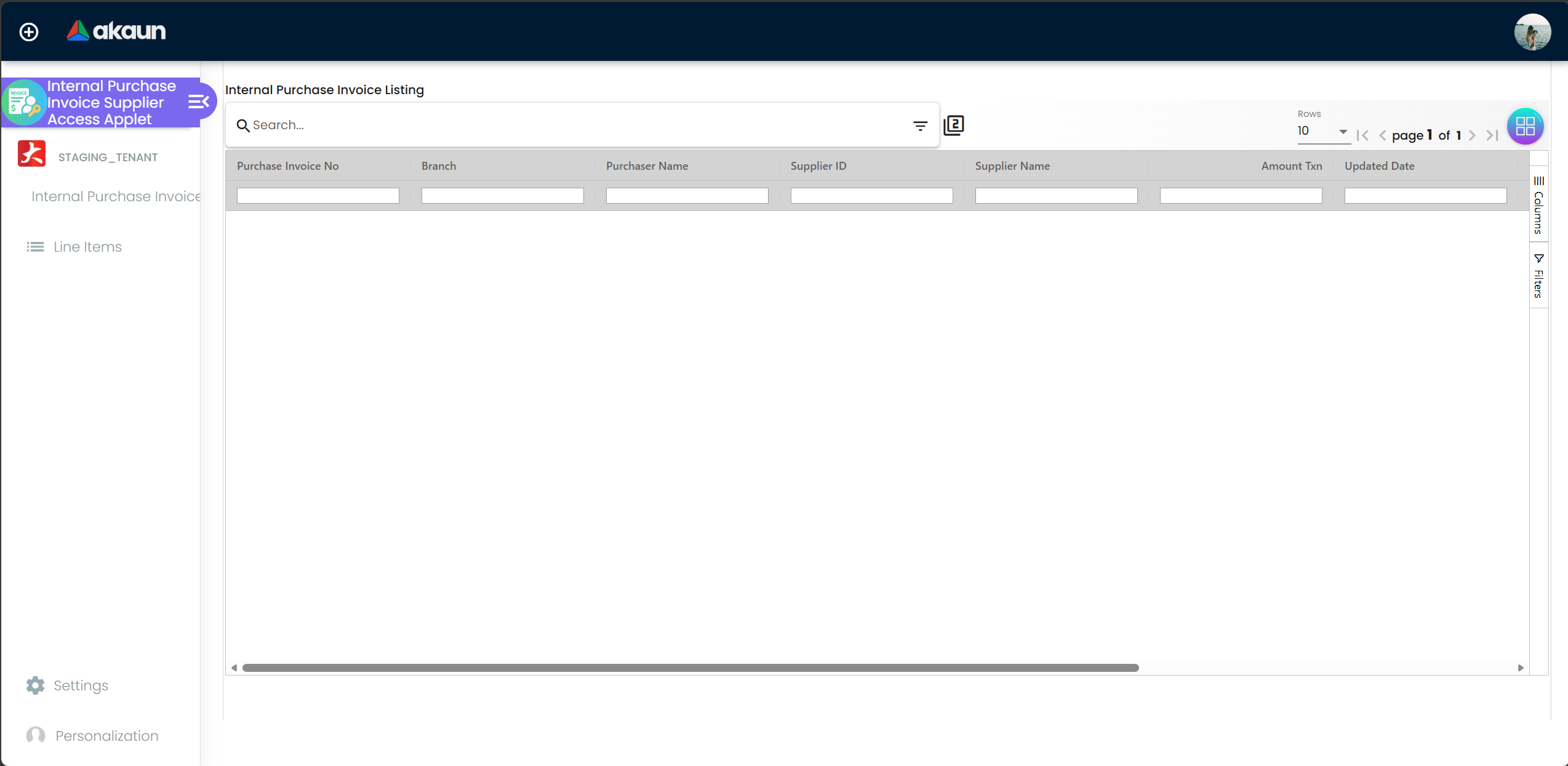
Columns: Purchase Invoice No, Branch, Purchaser Name, Supplier ID, Supplier Name, Amount Txn, Updated Date, Created Date, Transaction Date, Status. Sorted by updated_date descending, with posting_statuses = FINAL always applied.
Rows are completed with a branch lookup, a supplier lookup and a purchaser lookup; a failed lookup prints its error code into the cell rather than blanking the row.
Document view
Nine read-only tabs: Main Details (Branch, Location, Transaction Date, Credit Terms, Due Date, Reference, Remarks, Permit No, Currency, Tracking ID), Account (supplier entity, billing and shipping address), Line Items, Payment (the settlements recorded against the invoice), Department Hdr (Segment, Dimension, Profit Center, Project), Contra (ARAP contra records), Doc Link (Copy From / Copy To), Attachment (file metadata) and Export.
On the Export tab, EXPORT AS PDF is enabled; CSV, DOCX and ZIP are disabled. See Troubleshooting — the PDF request is built against an endpoint that does not exist.
Line Items
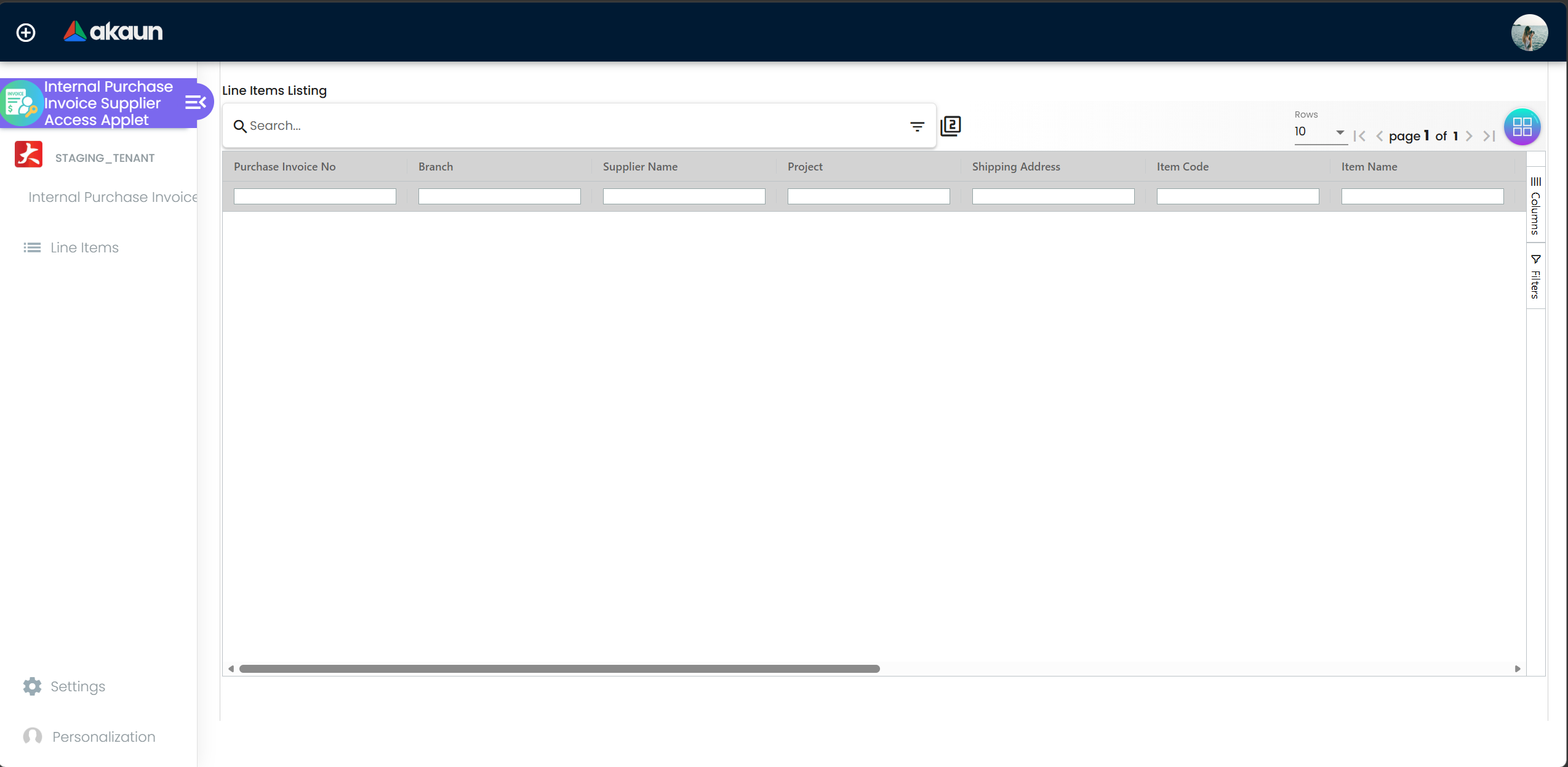
Columns: Purchase Invoice No, Branch, Supplier Name, Project, Shipping Address, Item Code, Item Name, Ordered Qty, Open Qty, Amount TXN, Creation Date, Requested Delivery Date, Delivery Status, Remarks. Opening a line shows Item Details, Serial Number, Costing Details (hidden by HIDE_COSTING_DETAILS unless the role holds SHOW_COSTING_DETAILS), Pricing Details and Issue Link.
Open Qty here is a stamp, not a running balance — and on almost every line it is blank. It is a figure recorded on the invoice line itself, not the platform’s live outstanding quantity, and nothing keeps it up to date. The only way a purchase line gets a value is the buyer’s own knock-off screen, which records how much was still open at the moment the invoice was drawn from a goods received note or a purchase order. (Copied documents and recurring templates carry the figure across as it was, and the Purchase Order applet’s CLOSE button sets it to zero.) Nothing else changes it, ever.
Read as a stamp it is doing a real job — it records how much was still open when this invoice was raised, which is evidence of what was agreed and should not change afterwards, the same reasoning as the entity snapshot on a document. Read as “how much is still to come” it is wrong. And because the only path that puts a real figure there is the buyer’s own knock-off screen, a purchase invoice keyed straight in — the ordinary case — leaves the column null. So the usual thing a supplier sees in this column is nothing at all.
The live outstanding figure exists, and this portal does not expose it. It is kept up to date as knock-offs are saved, disappears when it reaches zero, and is what the buyer’s own reports and stock availability read. How that number is kept, and the three ordinary reasons it reads high, is The order still shows a quantity outstanding.
Configuration
Before you can use it
| Prerequisite | Where it is set | Why it matters |
|---|---|---|
| The supplier’s login is linked to the supplier | Supplier → Login (ACTIVE) | Everything is limited to the suppliers the login is linked to. |
| The applet is installed for that login | Tenant Admin | Provides the applet token at start-up. |
| The invoice is FINAL | Purchase Invoice (Internal) | The listing pins posting_statuses = FINAL. |
Applet settings
Settings › Field Settings is the shared field-configuration screen filtered to this applet, and
there is nothing on it that changes what this applet will let a supplier do. Of the 50 keys the
applet declares, the 19 it actually reads all hide one field on a line — base quantity, the price and
discount columns, the tax and withholding-tax pickers, the Costing Details tab. Each is written
!HIDE_X || SHOW_X, so a supplier login holding the matching SHOW_* permission sees the field anyway.
Flip one and you can see what it did.
How settings are stored and who they apply to.
And because every one of them is written !HIDE_X || SHOW_X, a permission overrides the setting in
both directions — so the setting can be off and the field still visible. When a supplier reports that a
column has disappeared, look at what was granted, and to whom, before you look here.
One thing about that screen is not visible on it, and on a portal your suppliers log in to it matters more than it does anywhere else in the product.
HIDE_* setting only decides whether the box around a value is
drawn. Anyone who can open the document in a browser can read what the form is holding. These toggles keep your
buying prices off a supplier’s screen; they do not keep them out of a supplier’s browser. If a figure
must genuinely not reach an outside party, it has to be kept off the document rather than hidden on it.DEFAULT_BRANCH and DEFAULT_LOCATION are shown and saved by this applet’s own Default Selection
screen and used by nothing here — there is no create form to default. PRINTABLE is saved by Printable Format Settings and used by nothing else; the export does not consult it. Everything else the
shared screen offers for this applet code is saved and never read, because this applet has no buttons,
no status flow and no write path for those keys to act on.
Document behaviour settings
Not applicable. FINAL, VOID, payment, contra and e-Invoice submission all belong to the buyer-side applet.
Who can change what
The registry seeds 20 client-side permission codes for this applet, all ACTIVE as of 2026-09-06 — the SHOW_* half of the pairs above plus SHOW_COSTING_DETAILS and SHOW_UNIT_PRICE_TXN. Grant them per role in Settings → Role Permission Listing.
Server-side, the read path is filtered by the supplier link and skips permission checks; the supplier, branch and purchaser lookups that fill the grid are ordinary permission-checked endpoints.
Fields
Every field is read-only; the tab tables above list them. No create or edit form exists, so there are no validators.
Lifecycle and effects
This applet writes nothing. The buyer-side document behaves as follows.
| Property | Value |
|---|---|
| Document type | INTERNAL_PURCHASE_INVOICE |
| Direction | A payable, and stock in |
| The journal | Dr Purchase (line net) · Dr Input tax · Cr Creditor (invoice total); discounts to PURCHASE_DISCOUNT, settlement forex differences to FOREX_GAIN/FOREX_LOSS. |
| Which GL code | Line GL → header GL → the item’s company PURCHASE default → company default PURCHASE; the creditor mapping is mandatory and fails with MISSING_DEFAULT_GL_CODE. |
| Stock | The invoice is the purchase-side stock-in document. |
| What VOID reverses | Reverse journal, negated stock lines, knock-offs released, contra and tax reversed, removal from the e-Invoice queue and aging. |
| Action in this applet | Result |
|---|---|
| List / search / open | Works with only the supplier link. |
| Export PDF | Does not work — see Troubleshooting. |
| Create / save / delete | Not offered. |
What happens to this invoice that the portal never shows
Finalising a purchase invoice starts more than the portal reveals, and one consequence matters to the supplier reading it.
When the buyer’s company has e-invoicing switched on, the document is not flagged self-billed, and the supplier record carries a tax identification number, finalisation writes a row into the buyer’s purchase-document matching pool — the buyer’s reference, the transaction date, the amount and the supplier’s tax number, held so that a supplier e-invoice arriving later can be paired with it. It is a standing index, not a backlog: a row waits indefinitely and that is its normal state.
No supplier can see that pool. It is reachable only by the buyer, with the buyer’s own e-invoice permissions; there is no supplier-access screen for it. Nothing in this portal reflects whether a supplier e-invoice has been paired with an invoice on screen.
It is also a narrower mechanism than its name suggests. Pairing happens only for supplier documents that reach the buyer electronically — over Peppol, or through the OCR e-mail intake — and only when four values agree exactly: the supplier’s tax number, the reference number, the amount and the document date. A buyer’s keyed reference rarely matches a supplier’s own character for character, so most rows never pair, by arithmetic rather than by fault. The buyer-side procedure, including what to do about the large majority of suppliers whose e-invoices never arrive electronically at all, is Incoming Supplier E-Invoices.
None of this touches the invoice itself: matching posts nothing, changes no status, and moves no tax. An invoice that appears in this portal is as real, and as payable, whether or not anything was ever paired with it.
Related applets
- Purchase Invoice (Internal) — the buyer-side applet.
- Purchase GRN Supplier Access (Internal) — the receipt behind the invoice.
- Purchase Order Supplier Access (Internal) — the order behind the receipt.
- Purchase Credit Note Supplier Access (Internal) — adjustments to the invoice.
- Supplier — where the login link is created.
Troubleshooting
| Symptom | Cause | Fix |
|---|---|---|
| The listing is empty | No ACTIVE supplier link for the login, or every invoice is still DRAFT (the listing pins posting_statuses = FINAL) | Check the link in the Supplier applet; ask the buyer to finalise. |
| EXPORT AS PDF shows a failure toast and no file | The export asks the server for a print it does not offer, with a fixed print format that belongs to a different document | Ask the buyer to send the PDF from the buyer-side applet. The applet needs a fix; there is no configuration that makes this work. |
| Supplier Name / Supplier ID show an error code | Those cells come from the permission-checked supplier endpoint | Grant the login read access to supplier master data, or hide the columns. |
| The Payment tab is empty on an invoice the supplier has been paid for | Settlements are recorded against the invoice only when the buyer enters them there; a payment made from a payment voucher or a contra appears under Contra instead | Check the Contra tab, then ask the buyer’s finance team. |
| An attachment cannot be opened | The Attachment tab lists metadata only | Ask the buyer for the file. |
| A line field is missing for one role and present for another | A tenant-wide HIDE_* is on and only some roles hold the matching SHOW_* permission | Adjust in Settings → Field Settings or Settings → Role Permission Listing. |
| Changing Default Selection has no effect | No create form exists; the two keys are saved but never read | Expected. |