Purchase Order (Internal)
Commit to buy from a supplier before anything arrives. Finalising a purchase order posts nothing to stock, and nothing to the General Ledger unless the header Group Discount is used (a known issue, described under Troubleshooting): it locks the order and opens its lines so a GRN and a purchase invoice can knock them off, and CLOSE clears whatever is still open.
Overview
The Purchase Order (Internal) applet records your company’s commitment to buy from a supplier — items, quantities, prices, delivery details and terms — before anything is received or invoiced. Buyers create it (by hand, from a requisition, quotation or blanket order, from a CSV, or from a stock-replenishment run), approvers sign it off, and the warehouse and finance knock its lines off with a GRN and a purchase invoice.
Its engine document type is INTERNAL_PURCHASE_ORDER with amount signum 0 and quantity signum 0: a purchase order posts nothing to the General Ledger or to stock. The one exception is the header Group Discount, whose line posts a journal for the discount alone (see Troubleshooting). FINAL locks it and opens its lines in the open-queue so downstream documents can knock them off; CLOSE empties that queue.
    flowchart TD
  PR["Purchase Requisition"] --> PO
  PQ["Purchase Quotation"] --> PO
  BPO["Blanket Purchase Order"] --> PO
  REP["Replenishment run"] --> PO
  CSV["CSV import"] --> PO
  PO["Purchase Order — draft"]
  PO -. "only where approval rules exist" .-> AP["Submit, then Approve or Reject<br/>routed by branch designation and approval rank"]
  AP --> FIN
  PO --> FIN["FINAL<br/>locks the document and opens its lines in the queue.<br/>Posts nothing to stock, and nothing to the ledger<br/>unless a header Group Discount is used."]
  FIN --> GRN["Purchase GRN / GRN Stock In<br/>receives the goods"]
  FIN --> PI["Purchase Invoice<br/>posts payables and the ledger"]
  FIN --> DN["Purchase Debit / Credit Note"]
  FIN --> CL["CLOSE<br/>sets every line's open quantity to 0<br/>and deletes the queue rows"]
Where it fits
| Position | Document / applet | Why |
|---|---|---|
| Module | Purchasing, Inventory | Procurement document; replenishment reads stock balances. |
| Upstream | Purchase Requisition (Internal), Purchase Quotation (Internal), Blanket Purchase Order, another Purchase Order | Search Document (edit) and KO For (create) pull lines from these. A PR → PO conversion can be made mandatory in Approval Monitor. |
| Downstream | Purchase GRN (Internal), Purchase GRN Stock In (Internal), Supplier Delivery Order | Receipt documents knock off PO lines from the open queue; PO Line with GRN KO reports the match. |
| Downstream | Purchase Invoice (Internal), Purchase Invoice No Stock In (Internal) | Invoices knock off PO lines; PO Line with PI KO reports it. |
| Downstream (adjustments) | Purchase Debit Note (Internal), Purchase Credit Note (Internal) | Both can knock off open PO lines from their create screens. |
| Intercompany | Sales Order (Internal) | Intercompany processing pairs INTERNAL_PURCHASE_ORDER ↔ INTERNAL_SALES_ORDER between two companies of the tenant; the Intercompany menu is the manual confirmation queue. |
| External | Purchase Order Supplier Access (Internal) | Supplier-facing view of the same document type. |
| Reporting | Purchase Report | Purchase analysis across PO, GRN and invoice. |
Screens and menus
| Menu | Route | What it is | Hidden by |
|---|---|---|---|
| Purchase Order | purchase-order | Listing, create, edit. | — |
| Line Items | line-items | Cross-document line grid with inline edit. | HIDE_LINE_ITEMS_MENU unless SHOW_LINE_ITEMS_MENU |
| PO Line with GRN KO | po-line-with-grn-ko | PO lines against GRN knock-offs (ordered vs received), and the only screen with a per-row Close button — it closes one queue row and records it. No confirmation. | HIDE_PURCHASE_ORDER_LINE_WITH_GRN_KO_MENU unless SHOW_PURCHASE_ORDER_LINE_WITH_GRN_KO_MENU |
| PO Line with PI KO | po-line-with-pi-ko | Report: PO lines against purchase-invoice knock-offs. | HIDE_PO_LINE_WITH_PI_KO_MENU |
| Closed Queue KO | closed-queue-report | Queue rows closed by hand from PO Line with GRN KO — not rows that were knocked off or emptied by CLOSE. | HIDE_CLOSED_QUEUE_KO_MENU unless SHOW_CLOSED_QUEUE_KO_MENU |
| Purchase Order Queue | purchase-order-queue | Open-queue rows (outstanding PO lines) — not the approval queue. | HIDE_PURCHASE_ORDER_QUEUE_MENU unless SHOW_PURCHASE_ORDER_QUEUE_MENU |
| Multi-PO | multi-po | Create several POs in one pass (own draft and KO screens). | HIDE_MULTI_PURCHASE_ORDER_MENU unless SHOW_MULTI_PURCHASE_ORDER_MENU |
| PO Replenishment → Replenishment Runs / Events / Template | stock-replenishment* | Stock-driven PO generation (below). | HIDE_PURCHASE_ORDER_REPLENISHMENT_MENU unless SHOW_PURCHASE_ORDER_REPLENISHMENT_MENU |
| File Import / File Export | file-import, file-export | CSV in and out. | HIDE_FILE_IMPORT_MENU / HIDE_FILE_EXPORT_MENU unless SHOW_FILE_IMPORT_MENU / SHOW_FILE_EXPORT_MENU |
| Intercompany | intercompany | Manual intercompany transaction queue (UNPROCESSED / PROCESSED; Confirm Intercompany Transaction). | HIDE_INTERCOMPANY_MENU unless SHOW_INTERCOMPANY_MENU |
| Approval Request / Approval History | approval-request, approval-history | Approve or reject submitted POs; audit past decisions. | HIDE_APPROVAL_REQUEST_MENU / HIDE_APPROVAL_HISTORY_MENU unless SHOW_… |
| PO Free Gift | po-free-gift | Free-gift rules attached to POs (main items → gift items; ENABLE_MULTIPLE_MAIN_ITEMS, FREE_GIFT_TOP_LEVEL_LOGIC AND/OR, SIMPLIFIED_UI). | shown only with SHOW_PO_FREE_GIFT_MENU |
| Audit Trail | audit-trail | Change log. | HIDE_AUDIT_TRAIL_MENU |
| Settings | settings/… | Application Settings, Default Selection, Printable Format Settings, Branch Settings, Workflow Settings, Email Template, Branch Designation, Approval Settings, Approval Monitor, Custom Resource Bundle Configuration, Custom Field Placement, Spreadsheet View configuration, Webhook, Feature Visibility, Client Side Permission, Role Pricing Scheme Link, Permission Wizard / Set / User / Team / Role Permission, Release Notes, Applet Log. | — |
| Personalization | personalization/personal-default-selection | Per-user Default Selection. | — |
Listing
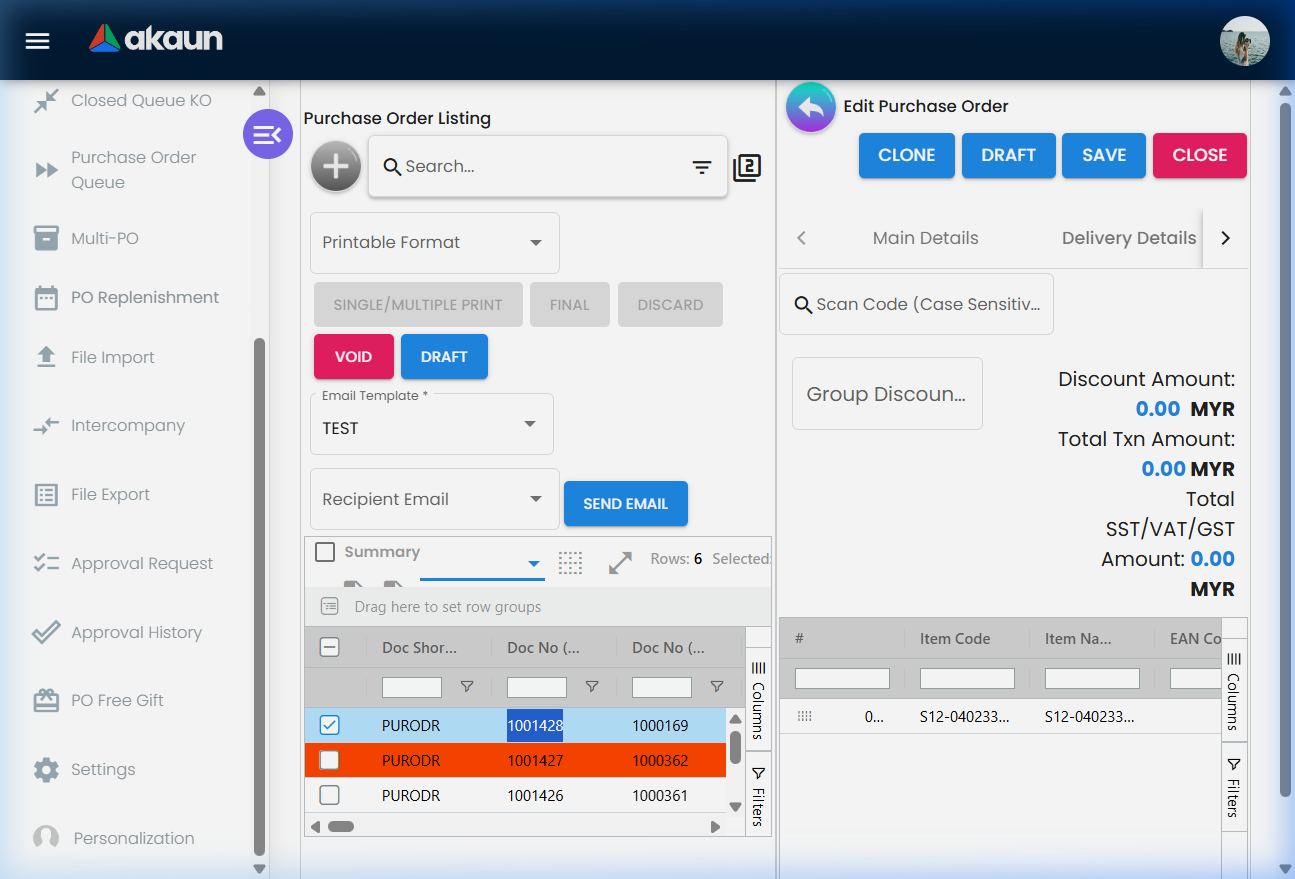
Filters by the default posting status and date window; Advanced Search for everything else. Bulk actions: FINAL, DISCARD, VOID (disabled when the selection contains a row in the wrong status), DRAFT (see below) and SINGLE/MULTIPLE PRINT with a printable-format picker (hidden by HIDE_PRINT_BUTTON; ENABLE_PRINT_FINAL_GEN_DOC_ONLY limits printing to FINAL documents). Under them sits the Send Email bar.
DRAFT takes finalised orders back to draft. It appears only where Show Draft Button is on in
Application Settings or the user holds the SHOW_DRAFT_BUTTON permission, and the edit screen offers
the same button on a FINAL order. From the listing it acts on the ticked rows that are FINAL and active
and silently skips the rest — tick only drafts and voids and nothing happens, with no message. What
it does to each order:
- It is refused once anything has knocked the order off. If a GRN or a purchase invoice already links to it, the order stays FINAL and the message names the documents in the way. So DRAFT is for an order nobody has acted on yet — a wrong price or quantity caught before the goods arrive.
- The order leaves every knock-off picker. Its open-queue rows are deleted, so no GRN or invoice can pick it up until it is finalised again, which creates them afresh from the corrected lines.
- Its own sources get their quantity back. The links to the requisition, quotation or blanket order it was raised from are released, on the same condition as a void — see Where the open quantity comes from.
- It keeps its numbers. Re-finalising does not hand out new ones, because numbers are only given to a document that has none.
- It is recorded as a draft event on the order. Nothing is unposted, because a purchase order posts nothing — which is why DRAFT is safe here and is not on the documents that do post (the background is on What a void undoes).
- An approved order goes back to draft too. DRAFT neither consults the approval nor resets it: the corrected order is finalised with a plain FINAL, which the approval does not gate (What the approval path does and does not enforce). If approval matters, decide who may hold this button before you switch it on.
Send Email e-mails the ticked orders as PDFs. Pick an Email Template (the list holds the templates made in Settings → Email Template, first one pre-selected) and a Recipient Email, tick the orders, press SEND EMAIL. Hidden entirely by Hide Send Email Button in Application Settings. Behind the button:
- One e-mail per ticked order, with that order printed to a PDF attached, using the printable format
chosen on the template — not the one in the print picker beside it. The file is named
PURCHASE_ORDER_<document number>_<today's date>.pdf. - The subject line is the template’s Template Code, and the body is its Template text, sent as typed. Nothing in the text is filled in from the order, so a template that says “Dear supplier” says it to every supplier. Give templates a code that reads well as a subject.
- Who receives it is the e-mail on the order’s own Billing info, Shipping info, or both — the three Recipient Email choices. Those are copies taken from the supplier record when the supplier was picked, so correcting the supplier’s e-mail later does not redirect orders already raised; fix it on the order’s Account tab first. Billing and Shipping refuses an order unless both addresses are filled. The success message says the e-mail went “to the supplier”; it went to whatever address was on the order.
- It goes from a no-reply address built from your tenant code, with no reply-to, so a supplier’s reply does not come back to your buyer. Put a real contact in the template text.
- Drafts are sent like anything else. The send e-mail to final documents only switch is not read by this applet (see On the screen and doing nothing), so a draft can reach a supplier looking like a commitment.
- What it records: the address it sent to is written onto the order (overwriting the previous one) — nothing else. No event, no copy of the e-mail, no attachment on the order. Keep your own record if you need proof of what was sent and when.
- Silent no-ops: with no Recipient Email chosen, or with no template set up, pressing SEND EMAIL does nothing and says nothing; an order with no address at all on the side you chose can stop it the same way, and then the orders the run had not reached are not sent either. If nothing happens, check those three before pressing again.
Create screen
Buttons: RESET and CREATE — CLONE, SAVE and FINAL belong to the edit screen, once the order exists. Tabs: Main Details, Account, Lines, KO For (hidden by HIDE_KO_FOR_TAB), Delivery Details, Payment, Department Hdr. KO For has sub-tabs for Blanket Purchase Order, Purchase Quotation and Purchase Requisition; ENABLE_MULTIPLE_KO allows one line to knock off several source lines.
Edit screen
Header buttons: SAVE, FINAL, DISCARD (draft), VOID (FINAL), DRAFT (FINAL only, and only with Show Draft Button or the SHOW_DRAFT_BUTTON permission — the same action as the listing’s DRAFT), CLONE (background job, polls three times), CLOSE (sets every line’s open quantity to 0 and deletes the open-queue rows; hidden by HIDE_CLOSE_BUTTON; confirmation dialog).
Tabs, in the order set by Default Selection → Details Tab Ordering: Search Document (Search Blanket Purchase Order / Purchase Order / Purchase Quotation / Purchase Requisition), Main Details, Account, Lines (inline grid v2 with stock-balance column when SHOW_ITEM_STOCK_BALANCE), KO For, ARAP, Delivery Details, Payment, Department Hdr, Trace Document, Contra, Doc Link, Attachments, Export, Events, and Generic Doc Approval (Submit / Approve / Reject).
File Import and Export
File Import → + → Upload Master Data → Sample Format for Purchase Order opens the column picker and downloads MasterData_Upload_InternalPurchaseOrderData.csv. CSV only; delimiter PIPE, COMMA, SEMICOLON or TAB must match the file; ADD enables after a file is attached. Results appear on the import listing (Status, Process Status, User Error Message).
| Mandatory column | Meaning |
|---|---|
BRANCH_CODE | Owning branch. |
TXN_DATE | Transaction date. |
HDR_REF_NO | Header reference. |
DOC_CURRENCY | Document currency. |
ENTITY_CODE | Supplier code. |
SETTLEMENT_OR_ITEM_CODE | Item (or settlement) code. |
QTY | Line quantity. |
Common optional columns: UOM, UNIT_PRICE_INCL_TAX / AMOUNT_INCL_TAX, TAX_GST_CODE, BASE_DOC_X_RATE, billing and shipping address columns, SEGMENT_CODE, GL_DIMENSION_CODE, PROFIT_CENTRE_CODE, PROJECT_CODE, line remarks. A column header that is not in the sample is rejected (wrong-column check, 2026). File Export downloads the filtered listing.
PO Replenishment
| Menu | What it holds |
|---|---|
| Replenishment Template | Reusable rule set: company, location, item filters and the item list with manual minimum / maximum / reorder quantities and a Fulfill Option. |
| Replenishment Events | Named schedules (event code, name, cycle start / end, recurring rule, Action Logic) linked to a template. |
| Replenishment Runs | An execution: current and previous run window, per item the company and location balances, reserved, in-transit, open-PO, sales-order-in-queue and last-30-days sales quantities, the calculated reorder quantity (Location Qty Reorder Calculation, Company Quantity Recommend AI), the requested and approved quantities, and the generated purchase orders. |
Intercompany
The Intercompany menu lists queue rows created by branch intercompany rules when a PO is finalised: UNPROCESSED rows (source PO, target document type, configuration used) wait for CONFIRM INTERCOMPANY TRANSACTION; PROCESSED rows are the audit trail. The engine pairs INTERNAL_PURCHASE_ORDER → INTERNAL_SALES_ORDER (and the reverse) with quantity and amount signum 0. The Intercompany sub-tab on the Account tab (HIDE_INTERCOMPANY_TAB) is a different thing: it shows the link on the document itself.
Multi-PO: one entry, one order for each location
Use Multi-PO when one supplier restocks several stores and you want to key the buy once. Say the regional distributor is sending wireless earbuds to four Klang Valley branches and two in Penang. Enter the supplier, the purchaser and the six store locations, then add the items. The purchaser is required even though the form does not mark it: without one, Save fails on the server. Each item you add becomes one row, with a column for every location you chose. Every column starts at the quantity you entered. Change the columns store by store, and use the stock balance shown under each store to see who actually needs more.
What Save creates. Save does not produce one large order. It produces one draft purchase order for each location. Each order carries only that location’s lines, and it is set to deliver to that location. It also takes the company and branch the location belongs to, so one Multi-PO can produce orders in different companies of your group. After that they are ordinary orders. You review, approve, finalise and receive each one from the Purchase Order listing, and nothing finalises them together. The Multi-PO entry keeps the name and code you gave it, the supplier, the purchaser, the locations and when it ran. Open it to see the orders it made, and select an order number to view that order.
Before you rely on it, know what the Multi-PO entry will not do:
- It does not edit the orders. Changing the Multi-PO entry afterwards saves nothing. To change a quantity, open that store’s order in the Purchase Order listing.
- Deleting it does not delete the orders. It removes only the Multi-PO entry. The orders it made stay in the Purchase Order listing as drafts until you discard them there.
- A knock-off against a blanket purchase order is a second step. If you knocked off a blanket purchase order on the KO For tab, the links to it are written after the orders exist, one order at a time. If you see Failed to create links for N PO(s), those orders were created but are not linked to the blanket order, so its open quantity was not reduced. Check each order’s KO For tab before you receive against it.
- A failed save can leave an empty entry. If Save reports Creating POs failed, the Multi-PO entry can still appear in the list with no orders under it. Check the Purchase Order listing before you try again, and delete the empty entry.
Configuration
Before you can use it
| Prerequisite | Where | Why |
|---|---|---|
| Company, branch, location | Organisation | Branch and location are required header fields; DEFAULT_BRANCH / DEFAULT_LOCATION pre-fill them. |
| Document flow configuration | Company (Organisation → Company → Knock Off Configuration) | Decides which follow-on documents FINAL opens the order up to (PO → GRN, PO → Purchase Invoice). Only the source → target pairs present in the configuration are opened; with no pair, FINAL succeeds and opens nothing, so the GRN’s KO For cannot find the order. |
| Supplier entities | Supplier | Account tab. ENABLE_SELECT_MODE + ALLOW_TO_CREATE_EDIT_ACCOUNT let buyers create a supplier from the picker; ENABLE_BRANCH_FILTER limits the picker to the branch’s suppliers. |
| Items | Doc Item Maintenance | Lines. EXCLUDE_ACCOUNT_CODE_ITEM_TYPE_AT_ITEM_SEARCH keeps GL-code items out of the picker. |
| Pricing schemes | Pricebook | DEFAULT_PRICING_SCHEME and Branch Settings → Pricing Scheme derive unit prices; Role Pricing Scheme Link ties schemes to roles. |
| Tax codes | Tax Configuration | Line tax and WHT. |
| Employees with designations | Employee and Settings → Branch Designation | Approval routing uses designation and approval rank per branch. |
| Approval rules | This applet → Approval Settings, Approval Monitor | Optional. Only if POs must be approved or must originate from a requisition — approvals are off until a setting exists. See Document Approvals. |
| Forex rates | Forex | Foreign-currency POs need a rate; CANNOT_EDIT_CURRENCY_RATE locks it unless the user holds EDIT_CURRENCY_RATE. |
| Permissions | Permission Wizard / Set, Client Side Permission | Server-side create / read / update / delete on INTERNAL_PURCHASE_ORDER with targets; client-side switches below. |
Applet settings
Settings → Application Settings is the shared Field Configuration screen; Settings → Default Selection
holds the header pre-fills (default branch and location, validity days, decimal precision, currency,
pricing scheme, tab order). More than 360 keys reach this applet and most of them begin HIDE_ or EXPAND_ —
one switch per field, column, tab, button or menu entry, and you can see what one did the moment you save.
The eight below change what the applet will let you do, or what the server does when the order is
finalised. How settings are stored and who they apply to.
| Setting | What changes | Default when never saved | Advisory or hard |
|---|---|---|---|
Show the stock balance beside each item — the shared screen labels it Disallow negative stock for basic itemSHOW_ITEM_STOCK_BALANCE | The label promises a stock control and on this applet there is not one to promise. The key does add a stock figure to the item search and to the inline line grid, and the edit screen does not send it anywhere: the finalise handler builds a payload carrying validate_stock_balance and then dispatches an action that takes no payload, so the object is discarded. Treat this as what it is on this applet — a column toggle — and read the note below before you rely on the label | Absent, and because the applet never sends the field the server’s own default (true) applies on every finalise | Advisory here. The flag is real; the check it names finds nothing to measure on this document type |
Stop staff saving changes to a lineDISALLOW_LINE_ITEM_EDIT | Removes the SAVE button from the line-item editor, so a line can be opened and read and not changed. The fields are still live and the user can still type into them, which makes the failure look like a lost click rather than a policy. The standing exception is the ALLOW_LINE_ITEM_EDIT permission, on the Purchase Order and Multi-PO line editors alike | Off — the SAVE button is shown | Advisory — a button that is not rendered |
Pin the purchaser to whoever is logged inLOCK_PURCHASER_TO_CURRENT_USER | Pins the Purchaser on the header to the logged-in employee, so each buyer’s orders carry their own name. The escape is SHOW_ALL_PURCHASERS — which is not in the registry for this applet, so no role can be given it and the lock, once on, applies to the purchasing manager too | Off — any purchaser can be chosen | Advisory — the control is locked in the browser |
Let staff type over the standard unit priceENABLE_EDITING_UNIT_PRICE_STD | Makes Unit Price (Std) editable on a line. That figure is the basis of Std Amount and of the discount the line reports, and on a purchase document it is what the supplier’s list price is compared against | Read-only | Advisory — the control is disabled in the browser |
Stop each line inheriting the budget on the headerDISABLE_LINES_FOLLOWING_HDR_BUDGET | Stops each new line inheriting the header’s vote book, budget fiscal period, budget item and budget register. With it off — the default — a line silently carries the header’s budget, which is what the budget check later measures the commitment against; with it on each line must be pointed at its own budget or it carries none | Off — lines inherit the header budget | Advisory — it decides which values are pre-filled onto the line |
Only let finalised documents be printedENABLE_PRINT_FINAL_GEN_DOC_ONLY | Batch printing from the listing silently drops every selected row that is not FINAL, and tells you “Please select one or more documents with a FINAL posting status” rather than printing them. It is the control that stops a draft order reaching a supplier looking like a commitment | Off — drafts print with everything else | Advisory — a filter on what the print job receives |
Lock the exchange rate on the headerCANNOT_EDIT_CURRENCY_RATE | Disables Currency Rate on the header, so the rate that arrives with the currency is the rate the order commits at, and therefore the base-currency value of the commitment and the exchange difference recognised when the invoice lands. The registry carries an EDIT_CURRENCY_RATE code that looks like the per-user exception, and no code in this applet reads it — see below | Editable | Advisory — the field is disabled in the browser |
Warn when a reference has been used beforeENABLE_DUPLICATE_REFERENCE_CHECK | Watches the Reference field and shows a red Duplicate Reference PURORD… line under it when another purchase order already carries that reference. It does not stop the save, and it does not filter by supplier — the query matches on the reference and the document type only | Off — no check runs | Advisory — a message under a field |
One more switch changes what the server does at FINAL: ENABLE_SERIAL_NUMBER_VALIDATION_FINAL (on Application Settings the toggle carries the key itself as its label). It is off by default, and with it off FINAL does not look at serial numbers or batches on a purchase order at all. With it on, every serialised line must carry exactly as many serial numbers as its quantity, none of them may already exist in the company, and batch quantities must add up the same way, so the order becomes the list of serials you expect to receive. That is useful when a supplier sends the serial list with the order. Switched on for any other reason, it refuses every serialised order that has no serials yet, at FINAL.
true, saving that applet’s settings screen with the toggle at
off is what turns the check off. If you are looking for the control that stops an order committing more
than you can deliver, it is not here.Two things to know before you change anything on this screen. First, the name in italics under each setting is the applet’s internal key. It is there so you can match what you are looking at to what support asks you about; it is not a stable name and it can be renamed, replaced or dropped when the applet is updated, so do not build a script or an integration around one. Second, a setting can be switched back but it cannot be returned to never saved: the first time anybody saves this screen, every toggle on it is written into your tenant’s settings at whatever it was showing, and the applet stops falling back to its own built-in default. The Default when never saved column above is what you give up at that moment — worth reading before the first save rather than after. Checked against the product on 17 September 2026.
On the screen and doing nothing
These settings are on the screen and change nothing on a purchase order.
- The four Department enable keys (dimension, profit centre, project, segment) — declared in the
model with a form control on the shared screen but no toggle rendered anywhere, and doing nothing here.
The panel’s
MANDATORY_*andHIDE_*partners are the controls you can see, and they work, so a dimension can be hidden or made compulsory and shows unless hidden; its enable key cannot be turned on. - Send e-mail to final documents only — shown and saved, and read by nothing in this applet. The Receipt Voucher, Sales Return and Sales Invoice applets do read it; Purchase Order does not, so a draft order can still be e-mailed.
- Filter by today’s transactions — declared in the model with no control anywhere; does nothing here.
DEFAULT_LANGUAGE_CODE is not dead, and an earlier version of this page said it was. The Resource
Bundle picker on Default Selection is saved separately from the other settings — once for the applet
and, from Personalization, once per user. At start-up the applet prefers your personal choice and labels
the whole screen from that translation bundle.
ENABLE_UNSAVED_ITEM_RECOVERYis not dead but is inert almost everywhere: the banner it controls lives in the shared simplified-UI line grid, which this applet renders only whenSIMPLIFIED_UIis on. Turn the recovery key on without the simplified UI and nothing appears.
Document behaviour settings
| Behaviour | Where it is set | Notes |
|---|---|---|
| Approval routing | Settings → Approval Settings — Approval Setting Code / Name, Server Doc Type, Submitter Designation Code, Approver Designation, Min / Max Approval Amount, Total Required Approval Levels, Approval Levels Configuration, Approval Logic, Approval Quorum. Settings → Branch Designation — per branch, the employees with Designation, Approval Level and Approval Rank. Settings → Workflow Settings — the workflow process (Process Code, Server Doc Type, Company) attached to the document. | Submit from the Generic Doc Approval tab creates an approval request; approvers act in Approval Request. FINAL itself is not blocked by approval status — enforce it by hiding FINAL (HIDE_GENDOC_FINAL_BUTTON) for submitters. Approval causes FINAL: the order is finalised as soon as a request is APPROVED or the approval carries a final-approval date — on the first approval, not when the last configured level approves. |
| Open-queue rows created on FINAL | Company document-flow configuration (server_doc_type_1 = INTERNAL_PURCHASE_ORDER, server_doc_type_2 = the consuming type). | Without the PO → GRN (or PO → Purchase Invoice) row no downstream document can knock the order off and Purchase Order Queue shows nothing for it; posting_ko records what was created. |
| Requisition-first policy | Settings → Approval Monitor — rule From Server Doc Type INTERNAL_PURCHASE_REQUISITION To INTERNAL_PURCHASE_ORDER, Is Document Conversion Required, Remarks. | When required, submitting for approval checks for a document link from a requisition; otherwise the tab shows Purchase Order needs to be converted from Purchase Requisition and refuses. |
| Closing | CLOSE button (HIDE_CLOSE_BUTTON, SHOW_CLOSE_BUTTON / SHOW_CLOSE_PO permissions). | Zeroes qty_open on every line and deletes the open-queue rows; the PO drops out of GRN / invoice knock-off pickers. |
| Backdating | Nothing. | The applet checks for a permission PO_ALLOW_BACKDATE_TRANSACTION and nothing follows from it — see the warning below. Who may change the date at all is a different permission, SHOW_TRANSACTION_DATE: without it the Transaction Date field is greyed out. The only date restriction on the value itself is the locked fiscal period. |
| Printables | Printable Format Settings (Format Code, Format Name, template); PRINTABLE; Branch Settings → Printable Format; permission PRINTABLE_FORMAT_WITH_NO_PRICE for a no-price layout; HIDE_PRICE permission hides prices on screen. | |
Settings → Email Template (Template Code, Template) with INTERNAL_PURCHASE_ORDER_EMAIL_TEMPLATE; the send e-mail to final documents only switch on Application Settings is read by nothing here, so a draft can be e-mailed. | The listing’s Send Email bar (Listing) and the Export tab’s email action. | |
| Custom fields and labels | Custom Field Placement (per screen area: Account, Add Child Item, Add Contra, Add Payment, address lines …), Custom Resource Bundle Configuration, Spreadsheet View configuration (Column Label, Line View Mode). | Rename labels, place custom fields, switch the line grid to spreadsheet view. |
| e-Invoice | Not applicable — a purchase order is not an e-Invoice document type. | |
| Webhooks | Settings → Webhook. |
Branch settings
| Sub-tab | What it controls |
|---|---|
| Branch Details | Read-only Branch Name / Code / Company; Sales Agent (default purchaser); Rounding Five Cent + rounding item; Group Discount Item (read Troubleshooting before using the Group Discount boxes on an order: the discount line posts a journal). |
| Default Settlement Method | Pre-selected settlement method on the Payment tab. |
| Item Category Filter | Item categories offered at this branch. |
| Menu List | Sidebar menus per branch. |
| Pricing Scheme | Branch pricing schemes. |
| Printable Format | Branch default printable format. |
Who can change what
Server-side. INTERNAL_PURCHASE_ORDER create / read / update / delete with targets (company, branch,
location, supplier, employee) through Permission Wizard / Permission Set. These are the only
permissions that can return a 403.
Client-side permissions registered for this applet: 123 ACTIVE, eight DELETED — by a distance the largest set
on any applet in this workflow. The great majority are the SHOW_* partner of a HIDE_* setting, one per
field or column. The ones that decide something:
ALLOW_LINE_ITEM_EDIT— the standing exception toDISALLOW_LINE_ITEM_EDIT; a holder keeps the SAVE button on the line editor.ALLOW_TO_CREATE_EDIT_ACCOUNT— creating or editing a supplier from inside the order, which needsENABLE_SELECT_MODEon as well. A setting and a permission that have to agree.SHOW_DISABLE_EDITING_AMOUNT_TXN_SETTING— a permission that gates a setting: the Lock Amount toggle is only rendered on the Application Settings screen for a holder. An administrator who cannot find that toggle is missing a permission on their own account, not a setting.SHOW_DRAFT_BUTTON,SHOW_CLOSE_PO,HIDE_DOCUMENT_DELETE_BUTTON— returning a FINAL order to draft, closing an order line that will never be received, and taking the delete button away.
Ten registered permissions on this applet do nothing. DISABLE_CREDIT_LIMIT_FILTER,
DISABLE_DRAFT_LOCK_SERIAL_NUMBER_CHECKING, DISABLE_EDITING_UNIT_PRICE_STD,
DISABLE_EMPLOYEE_LOGIN_AUTO_DETECTION, DISABLE_ITEM_NAME_MAX_LIMIT, DISABLE_PRINT_FINAL_GEN_DOC_ONLY,
DISABLE_SERIAL_NUMBER_VALIDATION_FINAL, EDIT_CURRENCY_RATE, VALIDATE_STOCK_BALANCE and
ENABLE_ITEM_LISTING are all ACTIVE in the registry and do nothing. Every one of them reads as the per-user exemption from a setting the applet
really does have — the currency-rate lock, the standard-price lock, the print-FINAL-only filter, the
serial-number check. Granting any of them changes nothing for the holder, and an administrator who grants
one and moves on has left a control in place that they believe they have opened. Two more —
REQUIRE_VALIDITY_DATE and DISABLE_GEN_DOC_LISTING — are registered as permissions and read only as
settings, so granting
them does nothing either; both are already doing their job from the settings screen.
EDIT_CURRENCY_RATE in particular does nothing anywhere, and VALIDATE_STOCK_BALANCE is not the stock
check other applets run at FINAL, whatever its name suggests.
PO_ALLOW_BACKDATE_TRANSACTION restricts nothing.
The applet looks for it, and holding it changes nothing on screen — no date picker is limited either way — and the server does not
check it. It is not in the permission registry either. The same is true in the Consignment Purchase Order applet. What
does gate the date is SHOW_TRANSACTION_DATE: without it the Transaction Date field is greyed out, and with it any date
can be chosen. So a purchase order can be dated into the past by anyone who can change the date at all. If you need that control, it is fiscal-period
locking that gives it to you — that one is enforced at FINAL by the server.PURCHASE_ORDER_DISPLAY_PRICING, HIDE_PRICE
and the twenty-odd SHOW_UNIT_PRICE_* / SHOW_AMOUNT_* codes decide which columns one user’s line grid
draws. The order and its lines are fetched by the same API call for everybody, so the amounts are already
in that browser whether the column is rendered or not. If a figure must not reach a person, withhold the
API permission, not the column.Feature Visibility (shared) hides whole menus per team and is a different mechanism again.
Fields
The create and edit screens put every field in front of you with its label, so what follows is not a list of them. It is the shorter list of fields that do something the label does not say, plus a plain statement of which ones must be filled before the document saves.
Main Details carries the branch, location, company, purchaser, the document short code and the three running numbers, transaction date, validity date, due date and ETA, credit terms and credit limit, reference, remarks and description, permit number and tracking id, currency and rate and forex source, the five client-document references, the five external document references with their dates and external remarks, the budget vote book and fiscal period, and the two workflow fields. Account carries the supplier and the supplier’s branch, with sub-tabs for Bill To, Ship From, Intercompany, Supplier Category, Supplier Login and Supplier Payment Config. Lines carry the item, quantity and unit of measure with its conversion ratio, the three unit prices and the discount and rebate columns, tax and withholding-tax code and rate, line branch and delivery branch and location, GL code, segment, dimension, profit centre, project and budget, batch number with expiry and issue date, bin, serial and EAN, per-line delivery instructions and shipment tracking dates, and line remarks.
What the CREATE button will not let past: an invalid Main Details form — where branch and location
are the two controls marked required — an invalid supplier form on the Account tab, or no lines at all. Everything else on the header is optional until a
MANDATORY_… setting makes it compulsory, and each of those has a partner HIDE_… that takes the field
off the screen entirely.
| Field | What it does beyond what it says |
|---|---|
| Transaction Date | Not just the order date — it is the date every downstream check uses. A date inside a locked fiscal period refuses the FINAL with The selected date falls within a locked fiscal period. Backdating is not otherwise restricted: the permission that reads as though it controls it does not (see below). |
| Doc No (Tenant / Company / Branch) | Two moments, not one. The tenant number — the Doc No on the listing — is given out when the order is created, so every draft has one and a draft that is discarded still uses it up. The company, branch and location numbers are given out at FINAL, only to an order that has none yet, so an order taken back to DRAFT and finalised again keeps all of them. An earlier version of this page said no number was stamped before FINAL; that was true of the company and branch numbers only. |
| Validity Date | Defaults to the transaction date plus DEFAULT_VALIDITY_DAYS. It is a statement to the supplier and nothing enforces it: an expired order still knocks off. |
| Purchaser | LOCK_PURCHASER_TO_CURRENT_USER pins it to the signed-in employee. The escape hatch SHOW_ALL_PURCHASERS is read by the screen but is not registered for this applet, so no role can be granted it — the lock, once on, applies to the purchasing manager too. |
| Currency Rate | The rate decides the base-currency value of the whole commitment and therefore the exchange difference recognised when the invoice lands. CANNOT_EDIT_CURRENCY_RATE disables the field; the registry’s EDIT_CURRENCY_RATE code looks like the per-user exception and is read by nothing (see below). |
| Reference | With ENABLE_DUPLICATE_REFERENCE_CHECK a red Duplicate Reference… line appears under it when another purchase order carries the same reference. It does not stop the save, and it does not filter by supplier — the query matches the reference and the document type only. |
| Budget (vote book, fiscal period, item, register) | Sets the budget tags the order reports against. It does not consume budget — see What FINAL does below. With DISABLE_LINES_FOLLOWING_HDR_BUDGET off (the default) each new line silently inherits these four from the header. |
| Quantity (line) | The ordered quantity is also the starting open quantity, and the open quantity is what every downstream document draws on. Changing it on a FINAL order does not move the queue row. |
| Batch, Bin, Serial | Validated at FINAL, not at save. A missing bin with MANDATORY_BIN_NUMBER on fails the FINAL after the document has already been written. Serial and batch quantities are checked on a purchase order only when ENABLE_SERIAL_NUMBER_VALIDATION_FINAL is on; with it off (the default) FINAL does not look at them. |
| Segment, Dimension, Profit Centre, Project (line) | These four are the ones that travel: the goods-receipt note’s knock-off copies all four codes and their guids onto the receipt line. The budget fields on the same line do not travel. |
The supplier details on the order are a copy, not a link
The order does not read through to the supplier record. The supplier’s identity block — name, e-mail,
GL code, identity type and number, entity type, status, description — is copied onto the document
and then left alone. The backend does the copying in
GenericDocumentDataConsistencyObject.fillMissingDataForUpdate, and the condition is the
part worth knowing: it fills the block only when it arrives empty. Nothing refreshes a block that
is already there.
What follows from that, none of it visible on the screen:
- Correcting the supplier’s master record does not correct orders already raised, and correcting a
detail on one order does not correct the supplier. Those are two separate acts. The order screen does
the second only from the Select Supplier pane in Create/Edit Mode (the pane’s Enable Select Mode
switch plus the
ALLOW_TO_CREATE_EDIT_ACCOUNTpermission), and saving there changes the supplier record, not orders already raised. That is the design, not an oversight: a purchase order is evidence of what was agreed, and a document that silently rewrote itself when a supplier changed its bank details would be worthless as evidence. - What the stored copy holds and what a printed copy shows are two different questions. The standard print service hands the layout both the stored snapshot and a live lookup of the supplier record made at print time, and which of the two a given field shows depends on the template. So do not promise a supplier that a reprint will match the original until you have reprinted one and looked.
- If you swap the supplier on a draft that has already been saved, the account changes and the copied block does not, because it is no longer empty. The two then disagree. Whether the snapshot is meant to follow a supplier change on an unposted draft is an open question, not a rule we can state.
- Four Main Details fields ride inside that same block — Tracking ID, Credit Terms, Credit Limit and Permit No — and the applet writes them only when the Purchaser box has a value. With no purchaser on the header, a permit number or a credit term typed on the screen is not stored. Tracking ID survives anyway because it also has a column of its own; Permit No, Credit Terms and Credit Limit do not.
This is the platform-wide pattern, not a quirk of purchase orders. The same copy-at-issue behaviour is described from the master-data side on the Supplier applet page.
Delivery Details, Payment, Department Hdr, Contra, Events
Delivery Details repeats the delivery branch, location and addresses at header level for a single drop; the per-line delivery fields win where both are filled. Payment records a deposit against the order, and the row it writes is a settlement line, not a goods line — it never enters the open queue and nothing downstream knocks it off. Department Hdr sets the four dimensions at header level, and they are only defaults: every journal and every downstream line takes its dimensions from the line first and the header second. Contra offsets the order against the supplier’s own documents. Events is the generic-document event log, and on this document type it is the only in-applet evidence of what the processors did after you pressed FINAL.
What pressing FINAL actually does
FINAL is two steps from the edit screen and one from the listing. From the edit screen the applet first saves the whole document — so whatever is on the screen is saved — and only then finalises it. From the listing, the bulk FINAL only finalises, so it posts the document as stored, not as last displayed. The listing’s FINAL has no confirmation dialog, where DISCARD and VOID both confirm.
ENABLE_SERIAL_NUMBER_VALIDATION_FINAL is on (see Applet settings). An earlier version of this page said the stock check was requested; it is not. Nothing changes for
the reader in the end, because the server’s stock check measures only lines that take stock out, plus
five sales document types, and a purchase order is in neither set. Treat SHOW_ITEM_STOCK_BALANCE here as what it is: a column toggle on the item search and
the line grid.On the server, FINAL does five things in order: it works out Skip E-Invoice from the supplier; validates the document; saves it; gives out the company, branch and location numbers; and then starts one job — the main posting job — plus the message-template (e-mail) job. The webhook is raised for sales invoices only, so a purchase order raises no webhook, however the Webhook settings screen reads.
Everything else is follow-on jobs of that one, and most of them run for every document type and decide for themselves whether they have anything to do:
| Follow-on job | Does it do anything for a purchase order |
|---|---|
| Open the order for knock-off | Yes — this is what creates the outstanding quantities the GRN and invoice knock off |
| Journal posting, stock | Run, and write nothing: a purchase order moves no money and no stock. The exception is a header Group Discount, which posts a journal (below) |
| Budget register | Runs and does nothing — it acts on sales and purchase invoices only |
| Intercompany transaction | Yes where branch intercompany rules exist — it is what puts a row on the Intercompany menu |
| Spending limit, min/max quantity alert, and many others | Run for every document type; each decides for itself |
| Shopping-cart sales order, membership item update and a few more | No — they are for sales orders only |
Two facts matter more than the rows. First, a follow-on job only runs for a tenant whose trigger configuration switches it on. A tenant with none switched on would finalise documents and see nothing happen afterwards — worth knowing before you conclude that a job is broken. Second, a company can carry an include or exclude list of these jobs, applied before anything runs. It is the supported way to stop one job running for one company, it is invisible from every screen, and nothing sets it unless somebody asks BigLedger for it — so if a company’s postings differ from its siblings’, ask whether it has one.
| Ledger | Effect of FINAL |
|---|---|
| General Ledger | none — amount signum 0, except a header Group Discount line, which keeps a sign of its own and posts (below) |
| Payables | none — no ARAP row is written by a purchase order |
| Stock | none — quantity signum 0. The ordered quantity is visible to replenishment as Location Qty Open Purchase Order, which is read from the open queue, not from stock |
| Budget register | none. Budget is consumed by the purchase invoice, not by the order |
| Open queue | one row per goods line per enabled flow configuration |
GS-KV-01 with a RM 200 group discount: the screen shows RM 9,800, and the
ledger gets Dr Purchases RM 200 / Cr Creditor RM 200, with the supplier on the credit line. When the
supplier’s invoice is later posted at the discounted RM 9,800, purchases and what you owe that supplier
both end at RM 10,000: the order’s journal has undone, in the books, the discount you negotiated, and the
extra RM 200 owed matches no invoice. How you spot it: a journal appears against a purchase order. A
purchase order has no other journal, so any journal whose source document is a purchase order is this
one. Until it is fixed, give the discount as a line discount on each item, or on the purchase invoice,
and leave the Group Discount boxes empty. For an order already FINAL, reverse the stray entry with a
journal entry.Where the open quantity comes from, and when it is released
The number the GRN and the invoice screens show as outstanding is not stored on the order’s line. It lives in its own table, one row per line per configured flow, and it is created by the open-queue processor when the order is finalised.
What the processor creates:
- It looks up the company’s Knock Off Configuration for source type
INTERNAL_PURCHASE_ORDER. With no enabled row, FINAL succeeds and creates nothing, and no downstream screen can find the order. This is the single commonest reason a GRN cannot see a purchase order that is plainly FINAL. - It creates one queue row for each enabled configuration. A company with both PO → GRN and PO → Purchase Invoice configured gets two rows per line, each carrying the same open quantity.
- Only goods lines qualify: the line’s transaction type must be
PNSand its own document type must match the header’s. A settlement line — the deposit on the Payment tab — never appears. - The opening quantity is the line’s base quantity less anything already knocked off it. A line whose open quantity works out to exactly zero gets no row at all, which reads on screen as the order not existing rather than as the order being complete.
- For a foreign-currency order the processor works from the base-currency shadow document, not from the one you typed.
What consumes it — and when. Twice, by two different sums. The goods-receipt note and the purchase invoice both knock the order off through KO For, and the balance moves at two moments:
- When you tick the order in KO For, on the draft. The knock-off works out what is left on each order line from the earlier links of the same document type only (receipts for the receipt’s row, invoices for the invoice’s row), copies that remainder onto the draft and subtracts it from the matching queue row. So a receipt still in draft is already holding the order’s quantity.
- Every time the receipt or invoice is saved or finalised from its edit screen. Both applets send the document’s links back to the server, and there the balance is recomputed from scratch: the order line’s ordered quantity plus the signed sum of every link on that line, whatever document type it points at (a knock-off counts negative).
Either way, if the result is above zero the row is updated, and if it is zero or below the row is deleted permanently. A fully received order has no queue row — the completeness of an order is recorded by an absence, which is why Purchase Order Queue showing nothing means either “no configuration” or “all received” and you cannot tell which from that screen alone.
The two sums disagree as soon as a company configures both PO → GRN and PO → Purchase Invoice. KO For treats them as two independent balances; the save treats them as one. Receive six of ten, then knock the order off on an invoice: KO For counts invoices only, so it offers all ten, and you cut the line to the six received. Ticking took all ten, so the invoice’s row went to zero and was deleted; saving with six would normally bring it back with four — but the save counts the receipt’s six as well, 10 − 6 − 6 = −2, so the row stays gone and, when the last four arrive, no invoice can knock them off the order. Whether the two flows are meant to share one open quantity or hold one each is an open question with the product team (it is the save-time recompute that shares it); until it is answered, configure only the flow you actually use.
When it comes back. Deleting a knock-off link — voiding or discarding the goods-receipt note, or removing the line that knocked the order off — puts the open quantity back, and recreates the queue row from the link quantity if it had already been deleted, capped at the order line’s own quantity. So a receipt entered against the wrong order can be undone and the order reopens — provided knock-off from purchase orders is still enabled for the company at the moment the link is let go. The same condition applies to all three ways of letting go: a void, a discarded or deleted draft, and a line removed from the receipt and saved. The check is for any enabled pair from the purchase order; where the queue row had already gone to zero, it is recreated only for the PO → GRN (or PO → invoice) pair itself, so that pair must still be enabled. Disable the pairs first and nothing is given back — no message, no log — and the order stays short.
Closing by hand, and the two different Closes. The CLOSE button on the order sends two calls at once: a full PUT with every line’s open quantity set to zero, and a delete of all the order’s queue rows. That is a permanent delete: it writes nothing to the Closed Queue KO report. The report is fed by a different action — the red Close button in the Queue Close Action column of the PO Line with GRN KO report, which closes one queue row and copies it into the closed-queue table first. If you want a record of why an order was abandoned half-received, close the lines from that report; the document-level CLOSE leaves no trace beyond the zeroed quantities. The per-row Close has no confirmation dialog.
From order to goods receipt to invoice — what carries across
Receiving is done from the GRN’s screen, not from this one: Purchase GRN → KO For → Purchase Order, or Search Purchase Orders on an existing draft. The knock-off is a field-by-field copy, and knowing what it copies tells you what is worth getting right on the order.
Copied onto the receipt line: the item code and description, the whole open quantity as the received quantity, standard and transaction unit prices including the per-UOM variants, tax code and rate and tax amount, withholding-tax code and rate and amount, the item remarks, the delivery location, the multi-level discount block, the reference-price and rebate columns, and the four dimensions — project, GL dimension, profit centre and segment — as both codes and guids.
Not copied: the budget fields, the header’s remarks, and the purchaser.
A partial receipt is the normal case and it works. The knock-off brings the full open quantity across; you reduce the quantity on the receipt line, and the line editor updates the link’s contra quantity with it. The order’s open quantity is then recomputed against the reduced figure and the queue row survives with the balance, so the rest can be received on a second GRN. What does not work is editing the quantity anywhere that bypasses that editor — the link keeps the quantity it was created with, and the order is knocked off by more than was received.
Over-receiving is not blocked here. Nothing on the purchase order refuses a receipt larger than the order; the arithmetic simply drives the open quantity to zero or below and the queue row disappears.
The purchase invoice knocks the order off the same way, through its own KO For tab, and it is the invoice — not the order and not the receipt — that posts payables, the ledger and the budget.
What the approval path does and does not enforce
Approval is optional and off until an Approval Settings row exists. Submit from the Generic Doc Approval tab writes an approval record; approvers act from Approval Request; Approval History is the audit trail.
What it does not do is stop anyone finalising the order. Nothing in the applet’s FINAL path consults
the approval status, and the server does not either — the only way to make approval a gate is to take
the FINAL button away from submitters with HIDE_GENDOC_FINAL_BUTTON and to withhold the update
permission. A reader who configures a three-level approval and assumes the document is locked until
level three has configured nothing of the sort.
APPROVED — the second condition is satisfied by the first approver,
whatever Total Required Approval Levels says. The levels above still exist and are still asked, but
the order is already FINAL and already in the open queue by the time they see it. If your control
depends on the last level, this is not the mechanism that gives it to you.Approval Monitor enforces the one thing approval does enforce: with a PR → PO rule and Is Document Conversion Required ticked, submission is refused for an order that has no requisition behind it, with Purchase Order needs to be converted from Purchase Requisition. That check runs at submit, not at FINAL, so an order that is never submitted is never asked the question.
What it will not do
- It will not post anything — unless the header Group Discount is used, which posts a journal it should not (see Troubleshooting). Otherwise: no journal, no payable, no stock movement, no budget consumption. If you are looking for the accounting effect of a purchase, it is on the invoice.
- It will not stop you ordering more than the budget, more than the stock you can hold, or more than you have received capacity for. The budget fields are tags; the stock toggle is a column.
- It will not enforce its own approval. See above.
- It will not raise a webhook. The webhook queue is fed for sales invoices only.
- It will not e-invoice. A purchase order is not an e-Invoice document type in Malaysia, and nothing on this applet submits to LHDN.
- It will not warn you before knocking off more than was received — no over-receipt check exists on this side.
- It will not tell you the Knock Off Configuration is missing. FINAL succeeds, quietly, and the order is invisible downstream.
- Email templates and the approval workflow are not set up on the order; both are configured in their own settings screens, and the workflow process itself is designed in Workflow Design.
Lifecycle and effects
| Status | Meaning | Allowed next |
|---|---|---|
| DRAFT | Editable; nothing is in the open queue. It already has its tenant number; the company and branch numbers wait for FINAL. | FINAL, DISCARDED |
| FINAL | Locked; the goods lines are in the open queue and the company and branch numbers are stamped. | VOID, CLOSE, DRAFT (where the button is switched on and nothing has knocked it off) |
| CLOSED (via CLOSE) | Still FINAL. Every line’s open quantity is zero and the queue rows are gone — permanently, with nothing written to Closed Queue KO. | — |
| VOID | Cancelled. | none |
| DISCARDED | Abandoned draft. | none |
On FINAL the backend validates bin quantities (and serial and batch quantities only with ENABLE_SERIAL_NUMBER_VALIDATION_FINAL on), refuses a locked fiscal period,
creates a base-currency shadow for a foreign-currency order, stamps the company, branch and location numbers and queues the
primary processor. Intercompany rules may queue a mirror INTERNAL_SALES_ORDER for manual confirmation
on the Intercompany menu.
For an integration: this document type holds exactly one registration in the backend’s document-type
map, with its four permissions in the declared order, and exactly one URL slug reaches it —
…/erp/generic/internal-purchase-orders/…. Unlike some
of its siblings there is no second, differently-gated slug for the same type.
Related applets
- Purchase Requisition (Internal) — optional first step; can be made mandatory in Approval Monitor.
- Purchase Quotation (Internal) and Blanket Purchase Order — other knock-off sources.
- Purchase GRN (Internal), Purchase GRN Stock In (Internal), Supplier Delivery Order — receipt against the order.
- Purchase Invoice (Internal), Purchase Invoice No Stock In (Internal) — billing against the order.
- Purchase Debit Note (Internal), Purchase Credit Note (Internal) — adjustments that can knock off PO lines.
- Purchase Order Supplier Access (Internal) — supplier portal view.
- Sales Order (Internal) — intercompany mirror.
- Purchase Report — analysis.
- Supplier, Organisation, Doc Item Maintenance, Tax Configuration, Pricebook, Workflow Design — master data and workflow.
Troubleshooting
| Symptom | Cause | Fix |
|---|---|---|
| Purchase Order needs to be converted from Purchase Requisition on Submit | Approval Monitor rule PR → PO has Is Document Conversion Required ticked and the PO has no link from a requisition. | Build the PO from Search Purchase Requisition / KO For, or untick the rule. |
| A backdated order was expected to be refused and was not | PO_ALLOW_BACKDATE_TRANSACTION does not restrict anything (see Who can change what). | Use fiscal-period locking, which does. |
| A menu (File Import, Replenishment, Intercompany, Approval …) is missing | The HIDE_…_MENU setting is on and the user lacks the matching SHOW_…_MENU permission. | Turn the setting off or grant the permission. |
| GRN cannot find the PO | The PO is not FINAL, has been CLOSED, or its lines are fully knocked off — or the company has no INTERNAL_PURCHASE_ORDER → INTERNAL_PURCHASE_GOODS_RECEIVED_NOTE row in its Knock Off Configuration, so FINAL created no open-queue row. | Check Purchase Order Queue / Closed Queue KO; if the queue is empty for every PO, add the flow row under Organisation → Company → Knock Off Configuration and repair existing orders with the watchdog / data-fix-missing-queue. |
| PDF pop-up after FINAL arrives late or times out | Older builds triggered the pop-up on a fixed delay inside FINAL. | Update the applet (2026 change moved it to the FINAL-success effect); needs ENABLE_AUTO_POPUP and PRINTABLE. |
| Group item shows blank or wrong child rows | Rendering bug fixed in 2026. | Update the applet. |
| Purchaser is locked to you | LOCK_PURCHASER_TO_CURRENT_USER without SHOW_ALL_PURCHASERS. | Turn the setting off. SHOW_ALL_PURCHASERS is checked by the applet but is not in its permission list, so no role can be given it. |
| Line will not open for editing on a draft | DISALLOW_LINE_ITEM_EDIT without ALLOW_LINE_ITEM_EDIT. | Grant the permission. |
| Import rejected for an unknown column | Wrong-column check (2026). | Download the current Sample Format. |
| Import rows fail on supplier or item code | ENTITY_CODE / SETTLEMENT_OR_ITEM_CODE not found. | Fix the codes; read User Error Message on the import listing. |
| GRN or invoice cannot see a FINAL order that was received in part | The open-queue row is deleted the moment the recomputed open quantity reaches zero, and with both PO → GRN and PO → Purchase Invoice configured the two flows draw on the same quantity. | Check PO Line with GRN KO; configure only the flow you actually use. |
| Closed Queue KO is empty although orders have been closed | The document-level CLOSE deletes the queue rows permanently and writes nothing to that report; only the per-row Close button on PO Line with GRN KO fills it. | Close the lines from the report when you need the record. |
| A journal appears against a FINAL purchase order (Dr Purchases, Cr Creditor), for exactly the order’s group discount | The header Group Discount line is saved with a posting sign of its own, so FINAL posts it while every other line posts nothing. A known issue, reported to engineering. Read from the code and seen on live orders | Give the discount on the lines (line discount) or on the purchase invoice instead of the Group Discount boxes. For an order already FINAL, reverse the entry with a journal entry |
| The selected date falls within a locked fiscal period | Date in a locked period. | Change the date or reopen the period. |
Related documentation
- Purchasing module and its related applets
- Standard procurement workflow, Direct GRN workflow, Invoice-first workflow
- Settings walkthrough video: