Purchase Quotation (Internal)
Records the price a supplier has quoted you — supplier, items, quantities, unit prices, tax and terms — as a document of its own that can be compared, printed and later pulled into a Purchase Order, usually after an approved Purchase Requisition has been knocked off into it. Finalising it moves no stock, posts no journal and raises no supplier balance; its only lasting effect is opening its lines for the order to find, and that happens only when the company’s Knock Off Configuration has the quotation-to-order flow enabled. Knock off before the first save: the KO For tab exists only while the document is unsaved.
Overview
The Purchase Quotation (Internal) applet records the price a supplier has quoted you — supplier, items, quantities, unit prices, tax and terms — as a document of its own, so the quote can be compared, printed and later pulled into a Purchase Order. Purchasers open it after a Purchase Requisition has been approved (the requisition lines can be knocked off into the quotation) and before the order is placed.
It is a record-only document: server document type INTERNAL_PURCHASE_QUOTATION (short code PURQUO) carries quantity signum 0 and amount signum 0. Finalising it moves no stock, posts no journal and raises no creditor balance; its only side effect is the document-link / open-queue bookkeeping that lets a Purchase Order find it. The old description of the applet as enforcing “posting integrity” and “financial auditability” through the ledger is wrong — nothing reaches the ledger from here.
Where it fits
Module: Purchasing.
| Direction | Document / applet | Relationship |
|---|---|---|
| Upstream | Purchase Requisition (Internal) | The only source the KO For tab offers. A FINAL requisition with open lines can be knocked off into a new quotation; the quotation copies the requisition’s supplier, branch, location, delivery details and remaining line quantities (see Lifecycle). |
| Downstream | Purchase Order (Internal) | The PO applet’s KO For tab has a Purchase Quotation sub-tab (koPQ) that renders when the company’s Knock Off Configuration has an enabled LINE row INTERNAL_PURCHASE_QUOTATION → INTERNAL_PURCHASE_ORDER; a FINAL quotation is queued for it. |
| Sibling | Blanket Purchase Order | The other pre-order document a PO can knock off from. |
| Reference | Purchase GIN (Internal) | Lists the quotation among its eight source-document pickers. |
| Sales-side twin | Sales Quotation (Internal) | Same 0/0 shape on the sales side; the two applets share the shared-utilities settings screen. |
| Delivery | Delivery & Installation | The header Delivery Details tab is a read-only list of the delivery jobs attached to the quotation. |
Screens and menus
Menu items: Purchase Quotation (listing) and Line Items (every quotation line across documents). There is no file import / export menu and no inline settings gear in this applet.
Listing. Columns: Doc Short Code (PURQUO), Doc No, Posting Status, Branch Code, Supplier Name, Purchaser, Amount (the only column governed by a setting / permission pair: HIDE_AMOUNT_MAIN_LISTING / SHOW_AMOUNT_MAIN_LISTING), Created By, Created Date, Updated Date, Transaction Date. Toolbar: Create (+), FINAL (multi-select; rows already FINAL are skipped), DISCARD (hidden by HIDE_GENDOC_DISCARD_BUTTON; only ACTIVE rows that are DRAFT or have no posting status), VOID (hidden by HIDE_GENDOC_VOID_BUTTON; only ACTIVE + FINAL rows). The listing loads the last three months by default unless DISABLE_GEN_DOC_LISTING is on, in which case nothing is loaded. The filter panel offers document number, keyword, supplier, branch, sales agent and created-date range; results are capped at 50 per query. There is no print button on the listing.
Create form tabs: Main Details, Account, Lines, Delivery Details, Payment, Department Hdr. CREATE is enabled when Main Details is valid, a supplier is selected and at least one line exists. CREATE stores the document with status TEMP and opens it in the edit form.
Edit form tabs (fixed order — there is no tab-ordering setting in this applet): Main Details, Account, Lines, Delivery Details, Payment, KO For (rendered only while the document is still TEMP and HIDE_KO_FOR_TAB is off), Department Hdr, Contra, Doc Link, Attachments, Export. Buttons: FINAL (DRAFT documents only), SAVE (hidden by HIDE_GENDOC_SAVE_BUTTON; on a TEMP document SAVE converts it to ACTIVE / DRAFT), DISCARD at the foot of the form (same rule as the listing). There is no VOID button on the edit form — VOID is a listing action only — and although the component carries a two-click DELETE handler gated by the applet record’s SHOW_DOCUMENT_DELETE_BUTTON, the template never renders it.
Line editor (Add / Edit Line Item): Item Details (Main Details, Delivery Instruction, Department — hidden by HIDE_DEPARTMENT — and, in edit mode, Doc Link and Delivery Details), Grouped Item (grouped items only), Serial Number / Batch Number / Bin Number (by the item’s sub_item_type), Costing Details (HIDE_COSTING_DETAILS, re-shown per role by SHOW_COSTING_DETAILS) and Issue Link. The Pricing Details tab is commented out of the template. The Lines tab grid hides its three price columns unless the role holds PURCHASE_QUOTATION_DISPLAY_PRICING.
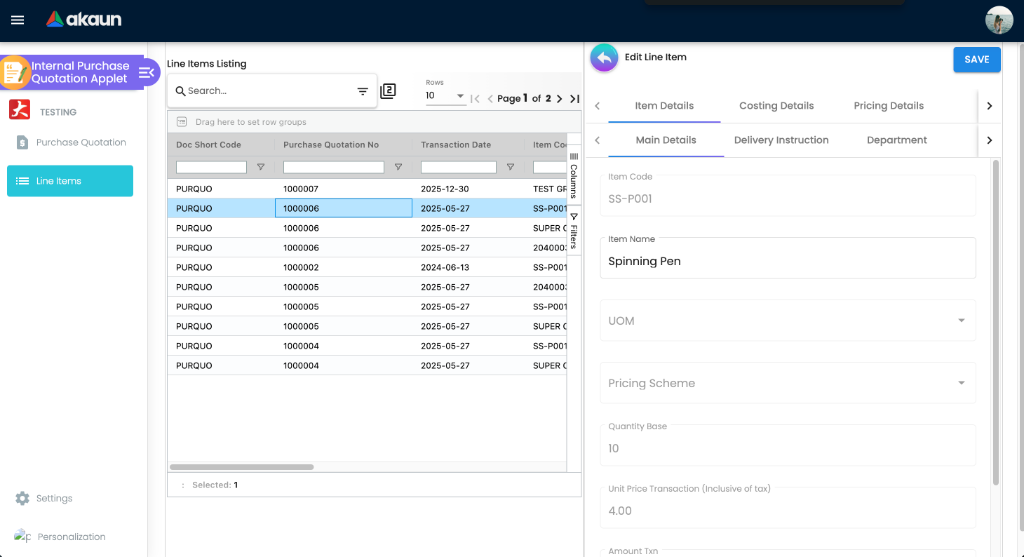
Line Items page: columns Doc Short Code (hidden by HIDE_DOC_SHORT_CODE_PREFIX), Purchase Quotation No, Transaction Date, Item Code, Item Name, Qty, Unit Price (HIDE_UNIT_PRICE_TXN / SHOW_UNIT_PRICE_TXN), Tax Amount (HIDE_SST_VAT_GST_AMOUNT / SHOW_SST_VAT_GST_AMOUNT), Amount (HIDE_AMOUNT_TXN / SHOW_AMOUNT_TXN).
Settings menu (System Configuration): Application Settings, Default Selection, Printable Format Settings, Branch Settings; the routes also expose Webhook, Feature Visibility and the shared permission listings (client-side permission, permission wizard, permission set, user / team / role permission). Personalization: Default Selection and Sidebar.
Configuration
Before you can use it
- Company, branch and location in Organisation. Branch, Company and Location are required on the header. The location is stored on the header (
guid_store) but no inventory transaction is ever created from it. - Suppliers in Supplier. The Account tab requires an entity (
entityIdrequired); the supplier’s credit terms populate the Credit Terms drop-down. - Items in Doc Item Maintenance. Any item type is accepted; serialised / batch / bin items open the matching sub-tab in the line editor.
- Tax codes in Tax Configuration only if you want tax shown on the quote — nothing is posted.
- No GL codes are needed. A quotation posts nothing (see Lifecycle).
- Knock Off Configuration for the company (Organisation → Company → Knock Off Configuration). Two rows matter:
- an enabled
LINErowINTERNAL_PURCHASE_REQUISITION → INTERNAL_PURCHASE_ORDER— this is what the quotation’s KO For tab actually checks, because the tab was copied from the Purchase Order applet: the Purchase Requisition sub-tab appears only when that PR→PO row is enabled, and the requisition picker lists requisitions open for ordering. A tenant that configures only a PR→PQ row never sees the tab. - an enabled
LINErowINTERNAL_PURCHASE_QUOTATION → INTERNAL_PURCHASE_ORDERso that FINAL quotations are queued for the Purchase Order’s Purchase Quotation sub-tab.
- an enabled
- Backend permissions:
TNT_API_DOC_INTERNAL_PURCHASE_QUOTATION_CREATE / READ / UPDATE / DELETE_TGT_GUID; knocking off additionally needsAPI_TNT_DM_ERP_GENERIC_DOC_LINKS_CREATE. The KO For tab also requires that the user holdsTNT_API_DOC_INTERNAL_PURCHASE_ORDER_CREATE_TGT_GUIDor is tenant admin / owner — a purchase-order permission, another leftover of the copy. - Printable formats (Jasper templates) in Printable Format Settings if you want the Export tab to produce a PDF.
Applet settings
Where settings live:
| Screen | Where | What it holds |
|---|---|---|
Settings → Application Settings (field-settings) | The shared settings screen | The HIDE_* / ENABLE_* toggles below. The KO, Payment, Account, External Document and tab-hide sections are not offered for this applet, so a good part of its settings have no control here. The price / discount / tax line toggles are pre-selected as hidden when nothing has been saved yet. |
| Settings → Default Selection | This applet’s own screen | Default Branch, Default Location (auto-filled with the branch’s main location), Default Language. |
| Settings → Printable Format Settings | This applet’s own listing with “set default” | PRINTABLE (the default print template). |
| Settings → Branch Settings | This applet’s own screen, per branch | Branch Details, Item Category Filter, Pricing Scheme, Printable Format (per-branch default template, used by Export ahead of PRINTABLE), Default Settlement Method. |
| Personalization → Default Selection | This applet’s own screen | Personal Default Branch / Location / Language; a personal value wins over the applet-wide one. |
Applet-wide settings are changed by OWNER / ADMIN users through the Settings menu; Personalization is open to every user. Saving merges what you change into the stored settings. Defaults: every toggle below is off / empty unless the row says otherwise — but the shared screen pre-selects the price / discount / tax line toggles as hidden, so the first Save of Application Settings hides the standard-price, UOM-price, discount, tax and WHT line fields unless you untick them.
The table lists the settings that are shown, saved and actually used by this applet.
| Setting | What it controls | Default | Effect when changed |
|---|---|---|---|
DISABLE_GEN_DOC_LISTING | What the listing loads when the applet opens | off | On: the listing opens empty instead of loading the last three months, so the applet opens quickly where quotations are numerous. It hides nothing: Search still finds quotations (an empty search loads every quotation, most recently updated first, with no three-month limit), and after a SAVE, FINAL, VOID or DISCARD the listing reloads the last three months whatever this says. Do not use it to keep quotations out of anyone’s sight. |
HIDE_GENDOC_VOID_BUTTON, HIDE_GENDOC_DISCARD_BUTTON, HIDE_GENDOC_SAVE_BUTTON | Listing VOID / DISCARD buttons, edit-form DISCARD and SAVE | off | Hide the button for everyone; no SHOW_* permission re-shows them in this applet. |
HIDE_SERVER_DOC_TYPE, HIDE_DOC_SHORT_CODE_PREFIX | Document Type field on Main Details / Contra; Doc Short Code column and prefixed document numbers | off | Hide the field / column (HIDE_DOC_SHORT_CODE_PREFIX switches Main Details to the un-prefixed Doc No). |
HIDE_PERMIT_NO, HIDE_TRACKING_ID | Permit No and Tracking ID on Main Details | off | Hide the field. |
HIDE_DELIVERY_BRANCH, HIDE_DELIVERY_LOCATION | Delivery Branch / Delivery Location columns of the KO For requisition picker | off | Hide the column. There is no delivery branch / location field on this applet’s own Main Details. |
ENABLE_EMPLOYEE_LOGIN_AUTO_DETECTION | Purchaser | off | On a TEMP document the purchaser is looked up from the logged-in user’s employee record. |
HIDE_DEPARTMENT | Department tab of the line editor | off | Hides the tab; when hidden the department form no longer blocks the line SAVE. |
HIDE_SEGMENT, HIDE_DIMENSION, HIDE_PROFIT_CENTER, HIDE_PROJECT | Dimension pickers on the line Department tab | off | Hide the picker (a hidden picker is only skipped by validation when the matching MANDATORY_* key is off). |
HIDE_COSTING_DETAILS | Costing Details tab of the line editor | off | Hides the tab; SHOW_COSTING_DETAILS (seeded) re-shows it per role. |
HIDE_UNIT_PRICE_STD_PRICING_SCHEME, HIDE_UNIT_PRICE_STD_INCL_TAX, HIDE_UNIT_PRICE_STD_EXCL_TAX, HIDE_UNIT_PRICE_STD_UOM_INCL_TAX, HIDE_UNIT_PRICE_STD_UOM_EXCL_TAX, HIDE_UNIT_PRICE_NET_EXCL_TAX, HIDE_UNIT_PRICE_NET_UOM_EXCL_TAX, HIDE_UNIT_PRICE_TXN, HIDE_UNIT_PRICE_TXN_UOM_INCL_TAX, HIDE_UNIT_DISCOUNT, HIDE_UNIT_DISCOUNT_UOM_EXCL_TAX, HIDE_QTY_BASE, HIDE_QTY_UOM, HIDE_UOM_TO_BASE_RATIO, HIDE_AMOUNT_STD_EXCL_TAX, HIDE_DISCOUNT_AMOUNT_EXCL_TAX, HIDE_AMOUNT_NET_EXCL_TAX, HIDE_AMOUNT_TXN, HIDE_TAX_CONFIG_SELECTION, HIDE_WHT_CONFIG_SELECTION | Price, quantity, discount, tax and WHT fields of the line editor (and the matching Line Items page columns) | off; the shared screen pre-selects these keys (HIDE_UNIT_PRICE_STD_EXCL_TAX, …_STD_UOM_*, …_NET_*, …_TXN_UOM_INCL_TAX, HIDE_UNIT_DISCOUNT*, HIDE_QTY_UOM, HIDE_UOM_TO_BASE_RATIO, HIDE_AMOUNT_STD/NET_EXCL_TAX, HIDE_DISCOUNT_AMOUNT_EXCL_TAX, HIDE_TAX_CONFIG_SELECTION, HIDE_WHT_CONFIG_SELECTION) as hidden until saved | Hide the field; the same-named SHOW_* client-side permission (all seeded) re-shows it per role. |
ENABLE_ITEM_NAME_MAX_LIMIT, ITEM_NAME_MAX_LIMIT | Item Name on lines | off / empty | Character counter and maxlength validation on the line’s Item Name. |
DEFAULT_BRANCH, DEFAULT_LOCATION (Default Selection, also personal) | New-document header | empty | Applied as Branch / Location when a document is created. |
| Default Language (Default Selection, also personal) | UI language of the applet | applet default (en) | The shared session effect reads the language code at sign-in to pick the translation file; the language GUID saved beside it is read by nothing. |
PRINTABLE (Printable Format Settings) | Default template on the Export tab | empty | Pre-selects the template; a Branch Settings → Printable Format default for the document’s branch overrides it. |
Read at runtime but with no control anywhere for this applet code (declared and consumed, gated out of the shared screen by showKOTab, showPaymentTab or an applet-code list, and there is no gear): HIDE_AMOUNT_MAIN_LISTING (listing Amount column — only the SHOW_AMOUNT_MAIN_LISTING permission can act on it, and that code is not seeded), HIDE_KO_FOR_TAB, ENABLE_MULTIPLE_KO (multi-row selection in the requisition picker), ENABLE_EDIT_PAYMENT_DATE, MANDATORY_SEGMENT, MANDATORY_DIMENSION, MANDATORY_PROFIT_CENTER, MANDATORY_PROJECT (line Department validators), and the sixteen card HIDE_* / MANDATORY_* keys of the Payment panel. They can only be set by API.
Rendered and saved but never read by this applet: HIDE_LAST_PURCHASE_PRICE, HIDE_VALIDITY_DATE (there is no validity-date field), the default company (written from the branch on the Default Selection screen). SHOW_DOCUMENT_DELETE_BUTTON is read into a flag that no template in this applet uses, and blg-shared-utilities only renders its toggle, so switching it on shows no DELETE button: a quotation you no longer want is discarded (DRAFT) or voided (FINAL) instead. Model-only (no control, never read): the fifteen ENABLE_CUSTOM_STATUS_* keys, ENABLE_ / INCLUDE_ dimension, SST and WHT flags, the default pricing scheme and validity days, the validity-date-required flag, and the edit-settlement-date switch (which the shared screen’s gate hides for this applet).
Document behaviour settings
- Posting is not configurable: FINAL is fixed at quantity 0 / amount 0 (see Lifecycle). The applet sends
{ posting_status: "FINAL" }with nodate_txn_logicand no validation flags, so the backend defaults apply — both irrelevant to a zero-signum document. - Status flow options:
HIDE_GENDOC_VOID / DISCARD / SAVE_BUTTONonly. There is no FINAL → DRAFT action, no clone, no listing print and no auto-print after FINAL. - Transaction date: the Main Details date picker is disabled unless the role holds the
SHOW_TRANSACTION_DATEclient-side permission; without it every quotation carries the creation date. - Knock-off: a single KNOCK OFF action per document, while the document is still
TEMP. The picker selects one requisition (several whenENABLE_MULTIPLE_KOis on) and copies its open lines and header fields onto the quotation, which becomes ACTIVE / DRAFT — after which the KO For tab disappears. - Printables: Jasper templates from Printable Format Settings; default from Branch Settings → Printable Format, else
PRINTABLE. The Export tab offers EXPORT AS PDF only (DOCX / ZIP are disabled placeholders). The per-branch default was added for this applet in late 2025. - e-Invoice, workflow / approval, intercompany: none wired.
Feature visibility / permissions
24 client-side permissions are defined for this applet, and every one of them works: the twenty SHOW_UNIT_PRICE_* / SHOW_UNIT_DISCOUNT* / SHOW_QTY_* / SHOW_UOM_TO_BASE_RATIO / SHOW_AMOUNT_STD|NET_EXCL_TAX / SHOW_AMOUNT_TXN / SHOW_DISCOUNT_AMOUNT_EXCL_TAX / SHOW_TAX_CONFIG_SELECTION / SHOW_WHT_CONFIG_SELECTION codes (re-show a line field hidden by the matching HIDE_* setting), SHOW_COSTING_DETAILS (re-shows the Costing Details tab), SHOW_TRANSACTION_DATE (unlocks the transaction-date picker), PURCHASE_QUOTATION_DISPLAY_PRICING (shows the Unit Price, Tax and Amount columns on the Lines tab grid; without it they are hidden and removed from the column chooser) and HIDE_PRICE — a hide permission: a role that holds it loses every price field in the line editor’s Main Details regardless of settings. The two mechanisms are independent: a role can hold PURCHASE_QUOTATION_DISPLAY_PRICING and HIDE_PRICE at once and see prices on the grid but not on the form.
Checked in code but not seeded (cannot be granted from the permission screens until seeded): SHOW_AMOUNT_MAIN_LISTING (listing Amount column) and SHOW_SST_VAT_GST_AMOUNT (Line Items page Tax column).
Feature Visibility and Webhook are the shared screens; the applet adds nothing to them.
Fields
Main Details
| Field | Meaning | Required | Notes / validation |
|---|---|---|---|
| Document Type, Doc Short Code, Doc No (Tenant / Company / Branch) | Type and numbers | read-only | Numbers are assigned by the backend on FINAL; hidden by HIDE_SERVER_DOC_TYPE / HIDE_DOC_SHORT_CODE_PREFIX. |
| Branch, Company, Location | Owning branch, its company, store | Yes | Branch fills Company and Currency; defaults from Default Selection; changeable until the quotation is FINAL — the form locks them only for FINAL, VOID and DISCARDED documents. |
| Purchaser | Employee responsible | No | Employee picker (is_employee = true); auto-filled on a TEMP document by ENABLE_EMPLOYEE_LOGIN_AUTO_DETECTION. |
| Transaction Date | date_txn | No | Disabled unless the role holds SHOW_TRANSACTION_DATE. |
| Credit Terms | Supplier’s terms | No | Disabled until a supplier is selected; options come from the supplier record. |
| Reference, Remarks | Free text; Reference is the natural place for the supplier’s own quotation number, so the order can be traced back to the supplier’s paper | No | A box you empty and save keeps its old text: the screen writes only a box that has something in it (read, not run — test on one draft: clear Remarks, SAVE, reopen). To remove text, type a replacement such as a dash. A knock-off from a requisition replaces both with the requisition’s, so fill them after knocking off. |
| Permit No, Tracking ID | Free text | No | Hidden by HIDE_PERMIT_NO / HIDE_TRACKING_ID. |
| Currency | The currency the supplier quoted in (doc_ccy) | No | Set from the branch and changeable until FINAL. Changing it relabels the amounts; nothing converts them, and there is no rate field. Because this screen never records the company currency beside it, the exchange-rate check at FINAL has nothing to compare, and a quotation in a foreign currency finalises without a rate (read, not run). A knock-off from a requisition replaces it with the requisition’s currency. Comparing a USD quote from a regional distributor with a ringgit quote is the purchaser’s arithmetic, at a rate they write down, before the supplier is chosen. |
Account
| Field | Meaning | Required | Notes / validation |
|---|---|---|---|
| Entity ID / Name, Status, Email, Phone, ID Number, Entity Type, Identity Type, Description | Supplier | Entity ID required | Chosen through the supplier picker, which can also create a supplier inline (name, type, AR/AP type and currency required) and edit one (Main, Category, Login, Payment Config, Tax tabs). |
| Bill To, Ship To | Billing / shipping contacts and addresses | No | Sub-tabs of Account; copied from the supplier’s addresses. |
Lines (line editor → Item Details → Main Details)
| Field | Meaning | Required | Notes / validation |
|---|---|---|---|
| Item Code, Item Name | Item | Yes | From Search Item; Item Name limited by ITEM_NAME_MAX_LIMIT when enabled. |
| Blanket PO No / Sales Quotation No / Purchase Order No / Purchase Requisition No | Source document of a copied line | read-only | Shown only for lines that arrived through a knock-off (itemType set). |
| UOM, Pricing Scheme | The unit the supplier quotes in; your own price list for the item | No | Picking a UOM sets its ratio to the base unit: Qty stays in base units and Qty by UOM is Qty ÷ ratio. Picking a pricing scheme copies that scheme’s purchase price into the standard unit price and recalculates the line; the branch’s default scheme is pre-selected in the picker. That price is your list, not the supplier’s quote — type the supplier’s figure over it; the gap between the two is what whoever approves the purchase looks at. Both pickers disappear together when the pricing-scheme price is hidden by setting and the role holds no permission to re-show it. |
| Qty | Quantity in base units (quantity_base) | Yes, ≥ 1 | Below 1 is refused, and an emptied box returns to 1. The amounts are worked out on the whole-number part: 2.5 is saved as 2.5 but priced as 2 (read, not run — test on one line: 2.5 at RM 10.00 should give a Txn Amount of RM 25.00, not RM 20.00). Until that is confirmed fixed, whoever enters a fractional quantity checks Txn Amount against quantity × price before saving the line. |
| Unit Price STD (excl / incl tax, per UOM), Unit Discount, Unit Price NET, Unit Price TXN | Price ladder | No, ≥ 0 | Each pair is a HIDE_* setting with a SHOW_* permission; all hidden for a role holding HIDE_PRICE. |
| STD Amount, Discount Amount, Net Amount, Tax (SST/GST/VAT) code and amount, WHT code and amount, Txn Amount | Computed amounts | Net Amount, Net Amount with tax and Txn Amount required, ≥ 0 | Computed client-side from the price ladder. |
The Department tab (segment, dimension, profit centre, project) applies Validators.required per MANDATORY_* key; the Delivery Instruction tab holds the line’s delivery note; serial / batch / bin sub-tabs validate batch_no, qty, issue_date, expiry_date, bin_code, container_qty, container_measure as required.
Other header tabs
| Tab | Content |
|---|---|
| Delivery Details | Read-only grid of delivery jobs linked to the document: Trip No, Driver, Vehicle, Job start / end, Delivery Status, Recipient. Nothing is entered here. |
| Payment | Settlement lines (settlement method, amount, card / cheque / transaction references; ENABLE_EDIT_PAYMENT_DATE unlocks the date). The lines are sent with the document but the backend forces their amount signum to 0 (see Lifecycle), so they never settle anything. |
| Department Hdr | Header G/L Dimension, Profit Centre, Project and Segment. Nothing posts from a quotation, so their use here is as the default for lines: each line’s Department tab has Copy from Hdr ticked by default and takes these four values, then keeps its own copy — changing the header later leaves lines already added as they were until each is reopened with the tick on. A knock-off from a requisition replaces all four with the requisition’s. Locked at FINAL. |
| Contra | Contra entries against other FINAL documents; the amount is limited on the screen to the target’s balance. A quotation carries no amounts of its own to offset. |
| Doc Link | Copied From (the requisition) / Copied To (the purchase order). |
| Attachments | File upload; attachments of a knocked-off requisition are copied onto the quotation by the backend. |
| Export | EXPORT AS PDF downloads the quotation through the template in the box, from a draft as well as a FINAL quotation, as a file named after the document number. When the document’s branch has a default template in Branch Settings, that template is printed whatever the box shows (read, not run — test: on one quotation from such a branch, pick a different template and export). To print another layout, ask whoever maintains Branch Settings to clear that branch’s default. |
Lifecycle and effects
Statuses: TEMP (created, not yet saved — the only state in which KO For works) → ACTIVE with posting status DRAFT (after SAVE or after a knock-off) → FINAL → VOID. DISCARDED is reached from DRAFT.
| Action | Where | What the server checks |
|---|---|---|
| SAVE (TEMP) | edit form | Saves the quotation as ACTIVE, with no amounts that post. |
| KNOCK OFF | KO For tab | Refused with Target Gen Doc is not in TEMP status once the document has been saved, The selected documents contain different entities or branches. for a multi-select across suppliers or branches, and The quantity to be knocked off exceeds the generic doc line quantity. when every selected line is already fully linked to a quotation. Copies each ACTIVE source line with what remains after earlier quotations, links each back to its requisition line, copies supplier, branch, location, delivery, dimensions, references and attachments from the requisition, and sets the quotation to ACTIVE / DRAFT. |
| FINAL | listing (multi) or edit form | Finalises, then marks the document’s links FINAL too. The server checks the fiscal-period lock and bins; its exchange-rate check needs the company currency on the document, which this screen never records, so it does not stop a quotation. Serial numbers are not checked on a quotation. |
| VOID | listing | Generic Document cannot be change to VOID! unless the document is FINAL, and is refused when this quotation has already been knocked off into another document — a quotation already turned into a purchase order cannot be voided until that link is removed. |
| DISCARD | listing / edit form | Generic Document cannot be discarded! for FINAL or VOID documents or a status other than ACTIVE / DRAFT. |
What posting does
- Document type:
INTERNAL_PURCHASE_QUOTATION, short codePURQUO. - Money and stock: neither, on every line — the Payment tab’s settlement lines included; a quotation sent through the API as anything else is rejected.
- Journal: none. If journal posting is switched on for every FINAL in your tenant, its job fails with
NO_JOURNAL_CREATEDfor each quotation while the document itself stays FINAL. - Stock: none, and no effect on cost.
- Opening it for the purchase order: on FINAL, each goods line is opened for every
INTERNAL_PURCHASE_QUOTATION → <target>row enabled in the company’s Knock Off Configuration. Without a PQ → PO row the Purchase Order applet cannot find the quotation. - What VOID reverses: nothing financial — it records the void and its reason, and tidies up the links.
Knock-off and the requisition’s open quantity. The picker shows what the requisition still has open for ordering, and a knock-off into a quotation does not reduce that — the requisition can still be ordered directly. It reduces a requisition’s open-for-quotation quantity only if the company has the PR → PQ row enabled. What does stop a second quotation of the same line is the knock-off itself, which will not copy more than remains after earlier quotations.
Related applets
- Purchase Requisition (Internal) — the only knock-off source; the requisition’s own page should say that a quotation does not consume its PR → PO open quantity.
- Purchase Order (Internal) — the document a FINAL quotation is queued for (
koPQsub-tab, PQ → PO flow row). - Blanket Purchase Order — the sibling pre-order document.
- Purchase GIN (Internal) — lists quotations among its source pickers.
- Sales Quotation (Internal) — the sales-side equivalent.
- Supplier, Organisation, Doc Item Maintenance, Tax Configuration — master data the form reads.
- Delivery & Installation — source of the Delivery Details grid.
Troubleshooting
| Symptom | Cause | Fix |
|---|---|---|
| The KO For tab is missing on a new quotation. | The tab renders only while the document is TEMP (before the first SAVE) and only when the company’s Knock Off Configuration has an enabled LINE row INTERNAL_PURCHASE_REQUISITION → INTERNAL_PURCHASE_ORDER — the applet checks the purchase-order row, not a PR → PQ row. HIDE_KO_FOR_TAB (API-only) also hides it. | Enable the PR → PO row for the company; create a fresh quotation and knock off before saving. |
| The KO For picker is empty although requisitions are FINAL. | The picker lists PR → PO open-queue rows for the quotation’s branch; requisitions finalised before that flow row was enabled have no queue rows, and the picker is filtered to the header branch. | Enable the row, then run the open-queue repair for the affected requisitions, or raise the quotation in the requisition’s branch. |
Error Target Gen Doc is not in TEMP status when knocking off. | The quotation was already saved (or already knocked off once); the backend allows a knock-off only on a TEMP document. | Create a new quotation; select several requisitions in one go (needs ENABLE_MULTIPLE_KO). |
Error The quantity to be knocked off exceeds the generic doc line quantity. | Every line of the selected requisition is already fully linked to another quotation. | Open the existing quotation (Doc Link → Copied To on the requisition) or discard it. |
Error The selected documents contain different entities or branches. | Multi-select across requisitions with different suppliers or branches. | Knock off one supplier / branch at a time. |
| Transaction Date is greyed out. | The picker is disabled unless the role holds the SHOW_TRANSACTION_DATE client-side permission; every quotation is dated on creation. | Grant SHOW_TRANSACTION_DATE to the purchasing role. |
| Prices are missing on the Lines grid, or on the line form for one role. | The Lines grid hides Unit Price / Tax / Amount unless the role holds PURCHASE_QUOTATION_DISPLAY_PRICING; the line form hides every price field for a role holding HIDE_PRICE, and hides individual fields per HIDE_* setting (pre-selected as hidden after the first Application Settings save). | Grant PURCHASE_QUOTATION_DISPLAY_PRICING, remove HIDE_PRICE, untick the HIDE_UNIT_PRICE_* toggles or grant the matching SHOW_* codes. |
| The Amount column cannot be re-shown for a role. | HIDE_AMOUNT_MAIN_LISTING has no control in this applet and its SHOW_AMOUNT_MAIN_LISTING permission is not seeded; the same applies to SHOW_SST_VAT_GST_AMOUNT on the Line Items page. | Clear the key through the API, or ask BigLedger to add the two codes to this applet’s permission list. |
| Cannot void: “…already been linked with the following documents”. | The quotation has an ACTIVE link to a purchase order. | Discard or unlink the purchase order line first, then void. |
Generic Document cannot be change to VOID! | The row is not FINAL (VOID is offered only for ACTIVE + FINAL rows; a stale grid can show a discarded row). | Refresh the listing. |
Generic Document cannot be discarded! | The document is FINAL or VOID. | Use VOID for a FINAL document. |
| FINAL fails for a locked fiscal period. | The transaction date falls in a locked fiscal period. | Unlock the period or change the date (needs SHOW_TRANSACTION_DATE). |
A journal job appears in the queue with NO_JOURNAL_CREATED after finalising quotations. | The company’s posting_final_json subscribes every FINAL to the journal processor; a 0/0 document produces no journal lines. | Expected; nothing to post. Exclude the type from the subscription if the noise matters. |
| The Purchase Order’s Purchase Quotation sub-tab does not show a FINAL quotation. | No enabled INTERNAL_PURCHASE_QUOTATION → INTERNAL_PURCHASE_ORDER row in the company’s Knock Off Configuration when the quotation was finalised, so no open-queue rows exist. | Enable the row and repair the queue for the quotation. |
| Export prints with the wrong template. | Branch Settings → Printable Format for the document’s branch overrides the applet-wide PRINTABLE default and, when set, the template picked in the Export box too. | Set or clear the branch default. |
| CREATE / SAVE stays disabled. | Main Details invalid (Branch, Company, Location), no supplier on the Account tab, or no lines. | Complete those three. |
| UI labels blank after an upgrade. | The translation service was not initialised in the deployed bundle (fixed in the December 2025 build). | Redeploy the current build. |
Related documentation
- Standard Procurement Workflow — where a supplier quotation sits between requisition and order.
- Purchasing module — the module page and its applet list.