Purchase Requisition (Internal)
Record what your company needs to buy, for which branch and from which preferred supplier, before anyone contacts a supplier; purchasing then raises the purchase order from it. Finalising moves no stock and posts no journal, it only opens the lines for a purchase order, and approvals stay off until someone sets them up.
Overview
A purchase requisition is your company’s formal way of saying “we need to buy this.” Before a supplier is contacted, a requester records what is needed, how much, for which branch and from which preferred supplier; a manager approves it if your company has switched approvals on; purchasing then raises a Purchase Order from it. Think of it as a pre-approved shopping list: the requisition is the internal request, the purchase order is the commitment to the supplier.
The Purchase Requisition (Internal) applet is where requesters create requisitions, approvers act on them (Approval Request / Approval History), operations review lines across documents (Line Items, Line Items Queue) and administrators configure fields, approval routing and printing. It is a record-only document: server document type INTERNAL_PURCHASE_REQUISITION (short code PURREQ) carries quantity signum 0 and amount signum 0 — finalising it moves no stock and posts no journal. What FINAL does do is put the requisition’s lines in the open queue so a Purchase Order can knock them off.
Approvals here are optional and off until you build them — a tenant with no Approval Settings row raises, finalises and converts requisitions with nobody signing anything. Where this applet differs from its inventory cousin, the Stock Requisition, is that it gives you the whole loop from the UI: Approval Settings and Branch Designation are read by the backend when a requisition is submitted, approvers get e-mails and an Approval Request queue, and the first approval recorded sets the requisition to FINAL — later levels still run, for the record. FINAL is never blocked while an approval is pending. The details are in Lifecycle and effects and in the Document Approvals guide.
Where it fits
Module: Purchasing.
| Direction | Document / applet | Relationship |
|---|---|---|
| Upstream | Jobsheet | The only source the KO For tab offers (the Purchase Order, Purchase GRN and Purchase Quotation sub-tabs exist in code but are commented out). A FINAL jobsheet with open lines is knocked off into a new requisition; it needs the company Knock Off Configuration row Jobsheet → Purchase Requisition (LINE). |
| Downstream | Purchase Order (Internal) | The PO applet’s KO For › Purchase Requisition and Search Purchase Requisition pull FINAL requisition lines from the open queue; needs the company row Purchase Requisition → Purchase Order. The PO’s Approval Monitor can make a requisition link mandatory before a PO may be submitted for approval. |
| Downstream | Purchase Quotation (Internal) | Its KO For tab can knock off requisition lines (see that page — it reads the PR → PO flow row). |
| Downstream (backend only) | Purchase Order | The backend can copy a FINAL requisition into a new PO (DRAFT, or FINAL when the company flow config says so). It is reachable through the API and a scheduled job, not from any button in this applet. |
| Optional | Purchase GRN (Internal) | The GRN’s line-level knock-off can target a requisition (the Purchase GRN → Purchase Requisition knock-off row); the PR-side sub-tab for it is commented out. |
| Reporting | Purchase Report | Reads finalised purchase invoices, no-stock-in invoices and returns, which is where a requisition’s purchases end up; the requisition itself is read in this applet’s Line Items and Line Items Queue. |
| Inventory twin | Stock Requisition (Internal) | Same 0/0 shape for a stock request between locations. It has the Approval Settings screen but no way to submit a requisition against it; this applet has the whole loop. |
Screens and menus
Walkthrough video of the applet.
| Menu (sidebar) | What it is | Hidden by |
|---|---|---|
| Internal Purchase Requisition | Listing → create / edit. | — |
| Line Items | One grid of lines from all requisitions. Not the same as the Lines tab inside one document. | HIDE_LINE_ITEMS_MENU unless the SHOW_LINE_ITEMS_MENU permission is granted |
| Line Items Queue | Open-queue rows of FINAL requisitions waiting for a Purchase Order (INTERNAL_PURCHASE_REQUISITION → INTERNAL_PURCHASE_ORDER), with an APPROVE button. | HIDE_LINE_ITEMS_QUEUE_MENU / SHOW_LINE_ITEMS_QUEUE_MENU |
| Approval Request | The approver’s inbox: approval requests addressed to the logged-in employee. Approve / Reject with remarks. | HIDE_APPROVAL_REQUEST_MENU / SHOW_APPROVAL_REQUEST_MENU |
| Approval History | Every submission, approval and rejection record. | HIDE_APPROVAL_HISTORY_MENU / SHOW_APPROVAL_HISTORY_MENU |
| Settings | Application Settings, Default Selection, Printable Format Settings, Branch Settings, Workflow Settings, Branch Designation, Approval Settings; Webhook, Feature Visibility, Client Side Permission, Role Pricing Scheme Link, Permission Wizard / Set / User / Team / Role Permission, Release Notes, Applet Log. | — |
| Personalization | Personal Default Selection, Sidebar. | — |
The sidebar filter is generic: for every menu the applet computes HIDE_<STATE>_MENU (an applet setting) and SHOW_<STATE>_MENU (a client-side permission) and hides the item when the setting is on and the permission is absent. Only the two approval SHOW_…_MENU codes are registered (see Feature visibility).
Listing. Columns: Doc Short Code, Doc No (Tenant / Company / Branch), Posting Status, Status, Print Status, Branch Code, Currency, Supplier Name, Description, Purchaser, Amount Txn, ARAP columns, Qty Ordered / Received / Outstanding, Amount Ordered / Received / Outstanding, dates, Created / Modified by, Client Doc Type / 1–5, Quotation / Order / Delivery Order / Invoice / Others references, GL Dimension, Segment, Profit Center, Project, Remarks, References, KO Doc From / To. Buttons: + (create), FINAL, VOID, SINGLE/MULTIPLE PRINT, and the ag-grid export bar. The listing’s format drop-down is switched off, so listing print always uses the applet’s default printable (Printable Format Settings), never a branch’s; the Export tab inside a requisition starts from the branch’s default printable and falls back to the applet’s.
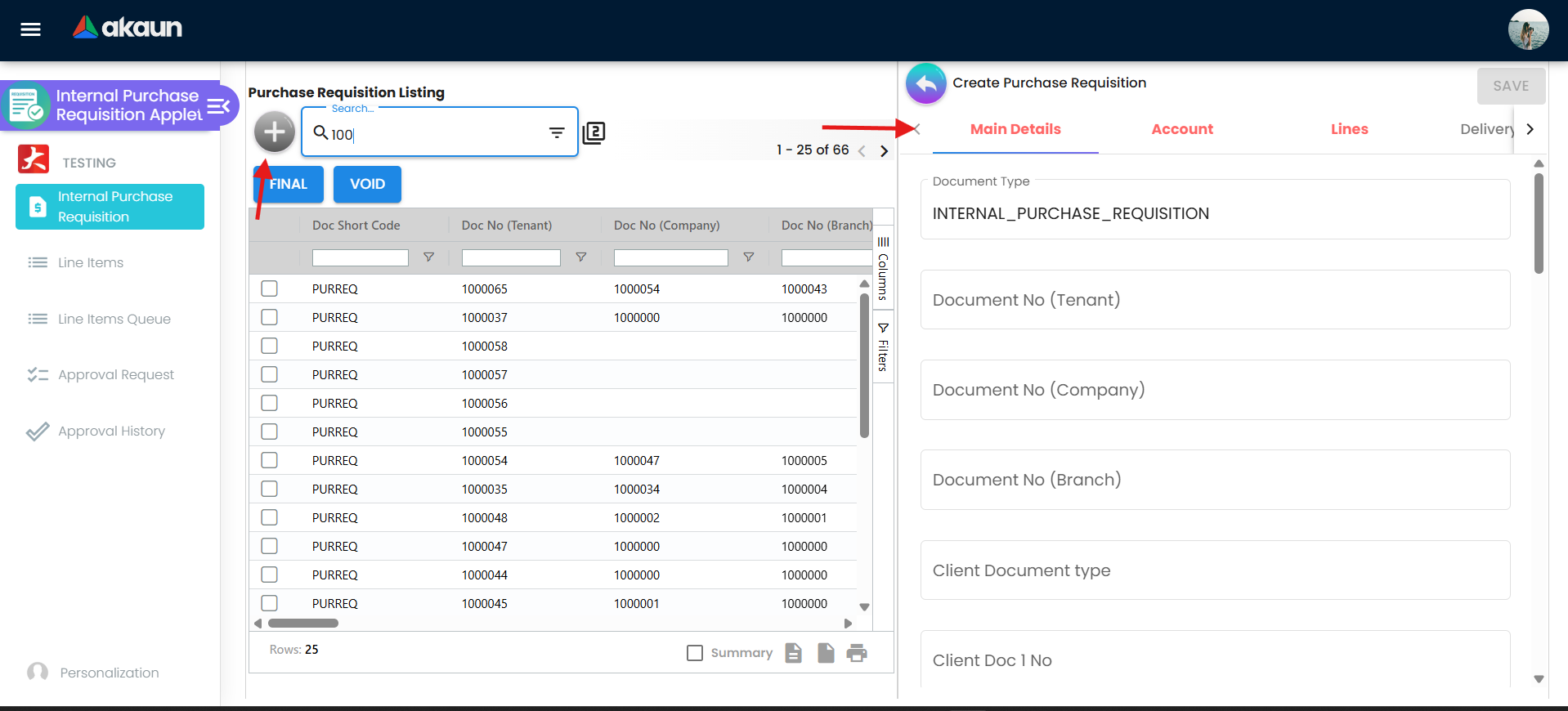
Create screen — tabs Main Details, Account, Line Items, then Delivery Details, Payment, Department Hdr and KO For, each of the last four hidden by its HIDE_…_TAB setting. CREATE saves a TEMP document and converts it to ACTIVE; RESET clears the draft.
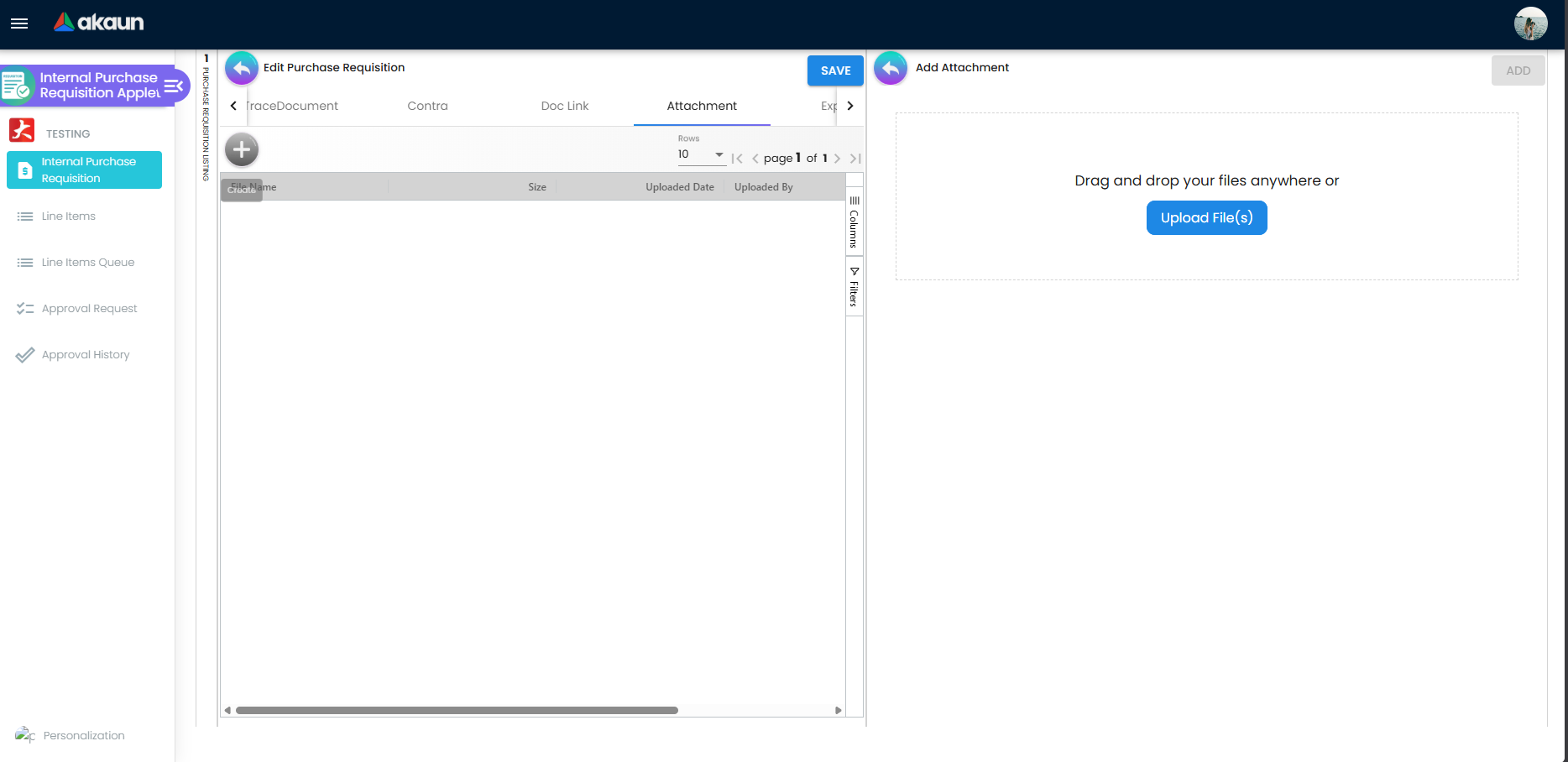
Edit screen — tabs in the order set by Default Selection → Details Tab Ordering: Main Details, Account, Lines, Delivery Details, KO For (TEMP documents only), ARAP, Payment, Department Hdr, TraceDocument, Contra, Doc Link, Attachment, Export, Generic Doc Approval. Buttons: RESET and FINAL (DRAFT documents), SAVE, DISCARD (ACTIVE + DRAFT). With VERTICAL_ORIENTATION (or a personal DEFAULT_ORIENTATION of VERTICAL) the tabs become expansion panels; the EXPAND_* settings choose which panel opens first.
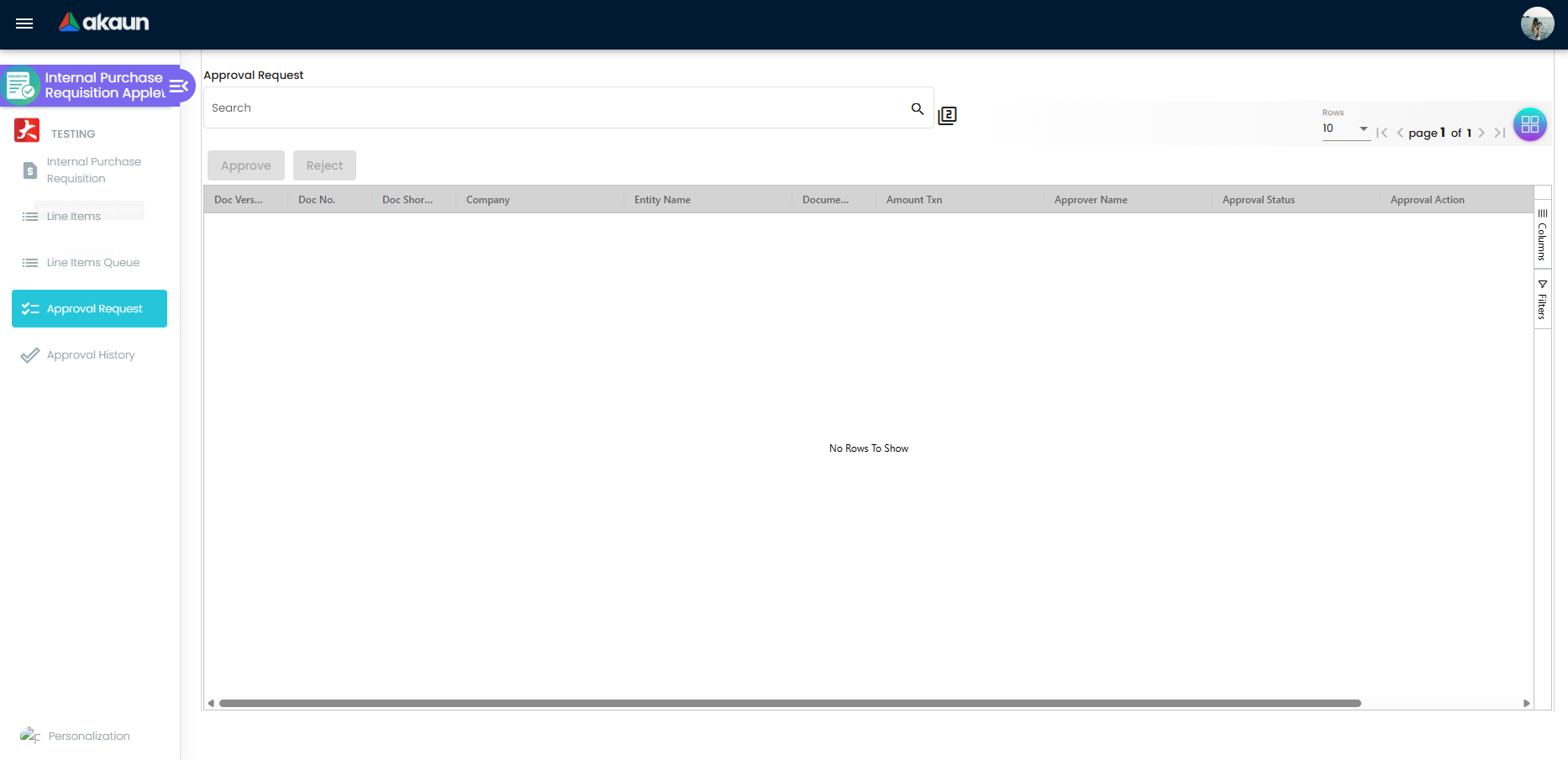
Approval Request lists the approval requests addressed to the logged-in employee — for every document type, not only requisitions, so a purchase order waiting for the same person appears here too; read the document number before approving — with the document number, company, entity, date, amount, approver, status and remarks. Select a row and click Approve or Reject; a dialog collects remarks. Opening a row shows Main Details and Lines read-only.
Line Items Queue shows open-queue rows (Txn Date, Base Qty, Balance Qty, Knock Off Qty, Outlet PO / SO balance, Outlet Balance) and an APPROVE button. Rows with zero knock-off quantity cannot be selected. See Lifecycle for what the approval does — and does not — change.
Configuration
Before you can use it
| Prerequisite | Where | Why |
|---|---|---|
| Company, branches, locations | Organisation | Branch and Location are required on Main Details; the branch list is filtered by the user’s TNT_API_DOC_INTERNAL_PURCHASE_REQUISITION_READ_TGT_GUID targets (tenant admins / owners see all). Delivery branch reads need TNT_API_DOC_INTERNAL_PURCHASE_REQUISITION_DELIVERY_BRANCH_READ. |
| Document numbering | Organisation → running numbers for INTERNAL_PURCHASE_REQUISITION | Doc No (Tenant / Company / Branch) are assigned on save. |
| Suppliers | Supplier | The Account tab requires an entity; ENABLE_SELECT_MODE + the ALLOW_TO_CREATE_EDIT_ACCOUNT permission let users create or edit a supplier from the picker. |
| Items, UOM, tax codes | Doc Item Maintenance, Tax Configuration | Line prices, UOM ratios, SST / WHT codes. No GL codes are needed — nothing posts. |
| Knock Off Configuration rows | Organisation → Company → Knock Off Configuration | Purchase Requisition → Purchase Order (so FINAL creates open-queue rows the PO can find, and the Line Items Queue has anything to show); Jobsheet → Purchase Requisition if you use KO For. Without the first row FINAL still succeeds — the PO simply cannot find the requisition. |
| Employees with designations | Employee + this applet’s Branch Designation | Approvers are employee entities linked to a branch designation; the submitter is an employee entity. |
| Approval e-mail templates | Applet template messages GENERIC_DOC_APPROVAL_PENDING_APPROVAL_NOTIFICATION and NO_REPLY_EMAIL_ADDRESS | Approvers are e-mailed on each pending request; without the template the approval still proceeds and the Email Notification Error column records “Cannot get AppletTemplateMessage template_type = …”. |
| Printable format | Settings → Printable Format Settings | Print needs at least one format and a default (PRINTABLE). Neither print door asks the server to attach the approval history (the request that adds it is never sent from this applet), so do not count on approvers’ names on the printout unless your template has been built to fetch them itself. |
Applet settings
Settings live in five places; all are tenant-wide except the last:
- Shared Application Settings — the table below.
- Inline gear — a gear icon is embedded on 20 screens (listing, edit header, main details, account, entity details, billing / shipping contact, supplier edit, line items grid, item details, line doc link, department header, payment, payment edit, ARAP, export, doc link, line-items queue). It shows only when the user has switched on Personalization → Default Selection → Enable Inline Applet Config (
ENABLE_INLINE_APPLET_CONFIG, personal). 100 keys are editable there; they are the same tenant-wide values. - Default Selection (applet-local) — Default Branch, Default Location (and the branch’s company) and Details Tab Ordering (
PURCHASE_REQUISITION_DETAILS_TAB_ORDER, drag-and-drop of the 14 edit tabs). - Printable Format Settings — the default printable (
PRINTABLE). - Personal Default Selection — Default Branch, Default Location, Enable Inline Applet Config (overrides the tenant defaults for that user).
Anyone with access to the applet’s Settings menu can change them; the applet has no separate settings permission. Values are read by the document screens only after the first Save — a fresh tenant sees every tab and column until Application Settings has been saved once.
Every key in the table is rendered on the shared screen and/or a gear, saved, and read by the applet. Defaults are the shared screen’s initial value: unchecked (false) for toggles, empty for selections, unless stated.
| Setting | What it controls | Default | Effect when changed |
|---|---|---|---|
HIDE_DELIVERY_DETAILS_TAB, HIDE_MAIN_PAYMENT_TAB, HIDE_DEPARTMENT_HDR_TAB, HIDE_KO_FOR_TAB | Optional tabs on the create screen (and the first three on the edit screen). | off | Tab disappears; KO For also disappears from the edit screen because it only shows on TEMP documents. |
HIDE_MAIN_ARAP_TAB, HIDE_TRACE_DOCUMENT_TAB, HIDE_MAIN_CONTRA_TAB, HIDE_DOC_LINK_TAB, HIDE_ATTACHMENT_TAB, HIDE_EXPORT_TAB, HIDE_GENERIC_DOC_APPROVAL_TAB | Edit-screen tabs. | off | Hidden for everyone except users holding the matching SHOW_EXPORT_TAB / SHOW_GENERIC_DOC_APPROVAL_TAB permission (both registered). HIDE_GENERIC_DOC_APPROVAL_TAB also hides the APPROVE button and the Approval Status column of the Line Items Queue. Added for tenants that do not use approvals. |
HIDE_GENDOC_FINAL_BUTTON, HIDE_GENDOC_VOID_BUTTON, HIDE_GENDOC_DISCARD_BUTTON, HIDE_GENDOC_SAVE_BUTTON | FINAL / VOID on the listing and edit header, DISCARD and SAVE on the edit screen. | off | The listing re-enables FINAL / VOID for users with SHOW_GENDOC_FINAL_BUTTON / SHOW_GENDOC_VOID_BUTTON (checked in code, not registered). Hiding FINAL for requesters is the only way to force the approval route — see Lifecycle. |
HIDE_PRINT_BUTTON, HIDE_EXPORT_AS_PDF_BUTTON | Print on the listing; Export as PDF on the Export tab. | off | Print re-enabled by the registered SHOW_PRINT_BUTTON permission. |
DISABLE_GEN_DOC_LISTING, DISABLE_LINE_ITEM_QUEUE_LISTING | Stop the main listing / Line Items Queue from loading rows until the user searches. | off | Large tenants use this to avoid a full-table load on open. |
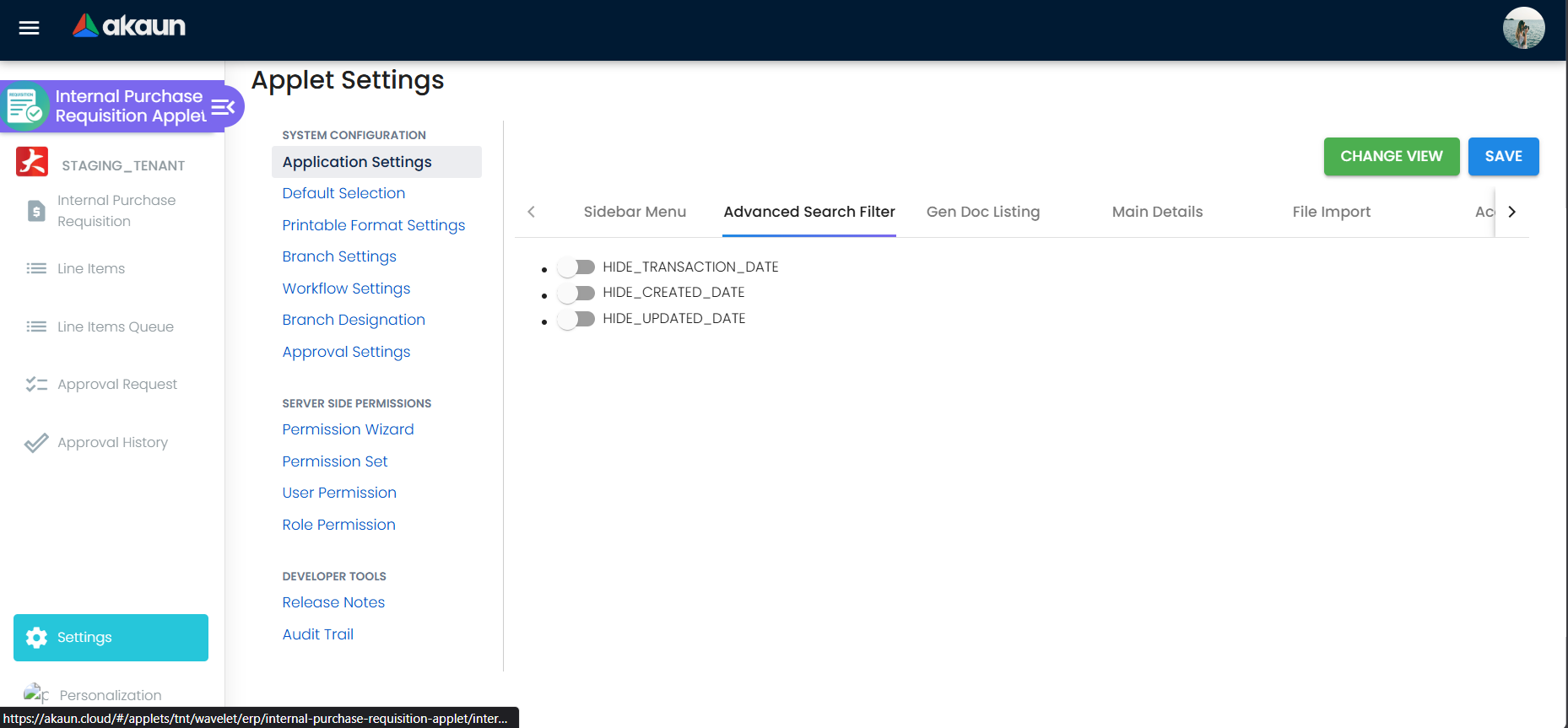
HIDE_SERVER_DOC_1/2/3, HIDE_CLIENT_DOC_TYPE, HIDE_CLIENT_DOC_1…5, HIDE_ARAP_PNS/SETTLEMENT/DOC_OPEN/CONTRA/BAL, HIDE_DESCRIPTION, HIDE_TRANSACTION_DATE, HIDE_CREATED_DATE, HIDE_UPDATED_DATE | Listing columns and the corresponding Main Details fields / search filters. | off | Each column has a registered SHOW_… permission that re-enables it per role. |
SHOW_GL_DIMENSION, SHOW_SEGMENT, SHOW_PROFIT_CENTER, SHOW_PROJECT | Opt-in listing columns for the header dimensions. | off | Column appears when the setting or the same-named permission is on. |
HIDE_DIMENSION, HIDE_SEGMENT, HIDE_PROFIT_CENTER, HIDE_PROJECT, HIDE_DEPARTMENT | Dimension fields on the Department Hdr tab and the line Department tab. | off | Field hidden; header values still copy to lines. |
HIDE_UNIT_PRICE_STD_PRICING_SCHEME, HIDE_UNIT_PRICE_STD_INCL_TAX, HIDE_UNIT_PRICE_STD_EXCL_TAX, HIDE_UNIT_PRICE_STD_UOM_INCL_TAX, HIDE_UNIT_PRICE_STD_UOM_EXCL_TAX, HIDE_UNIT_PRICE_NET_UOM_EXCL_TAX, HIDE_UNIT_PRICE_NET_EXCL_TAX, HIDE_UNIT_DISCOUNT, HIDE_UNIT_DISCOUNT_UOM_EXCL_TAX, HIDE_UNIT_PRICE_TXN_UOM_INCL_TAX, HIDE_UNIT_PRICE_TXN, HIDE_QTY_BASE, HIDE_QTY_UOM, HIDE_UOM_TO_BASE_RATIO, HIDE_AMOUNT_STD_EXCL_TAX, HIDE_DISCOUNT_AMOUNT_EXCL_TAX, HIDE_AMOUNT_NET_EXCL_TAX, HIDE_AMOUNT_TXN, HIDE_TAX_CONFIG_SELECTION, HIDE_WHT_CONFIG_SELECTION, HIDE_LAST_PURCHASE_PRICE, HIDE_TOTAL_TXN_AMOUNT, HIDE_SST_VAT_GST_AMOUNT | Individual price, quantity, tax and amount fields on the line form and the line grid. | off | Each has a registered SHOW_… permission (except the two totals) so a purchasing role can see prices while a cashier cannot. |
HIDE_COSTING_DETAILS, HIDE_PRICING_DETAILS, HIDE_ISSUE_LINK, HIDE_SERIAL_NUMBER, HIDE_BATCH_NUMBER, HIDE_BIN_NUMBER | Sub-tabs of the line form. | off | Costing Details is re-enabled by the registered SHOW_COSTING_DETAILS permission. |
HIDE_TRACKING_ID, HIDE_PERMIT_NO, HIDE_REMARKS, HIDE_CREATED_BY_DETAILS, HIDE_LOCATION, HIDE_DELIVERY_BRANCH, HIDE_DELIVERY_LOCATION, HIDE_DELIVERY_DETAILS, HIDE_DELIVERY_INSTRUCTION, HIDE_DOC_LINK, HIDE_DOC_LINK_FROM, HIDE_DOC_LINK_TO | Main Details fields, line delivery fields and doc-link grids. | off | Field or grid hidden. |
HIDE_BILL_TO_TAB, HIDE_SHIP_FROM_TAB, HIDE_ACCOUNT_BILLING_CONTACT, HIDE_ACCOUNT_SHIPPING_CONTACT, HIDE_ENTITY_DETAILS_STATUS/IDENTITY_TYPE/CURRENCY/DESCRIPTION/TYPE/ID_NUMBER/EMAIL/PHONE_NUMBER | Account tab: sub-tabs, contact blocks and entity fields. | off | Hidden. |
HIDE_CURRENCY, SHOW_FOREX_DATA_SOURCE, CANNOT_EDIT_CURRENCY_RATE | Currency, forex data-source picker and rate on Main Details. | off | The rate field locks; the forex picker appears. |
ENABLE_SELECT_MODE, ENABLE_BRANCH_FILTER | Supplier picker: allow create / edit from the picker (with ALLOW_TO_CREATE_EDIT_ACCOUNT); filter suppliers by the document’s branch. | off | — |
DISALLOW_LINE_ITEM_EDIT | Make saved lines read-only on the edit screen. | off | Overridden per role by the ALLOW_LINE_ITEM_EDIT permission (checked, not registered). |
ENABLE_EDIT_PAYMENT_DATE | Offered on the gear of the Payment tab and of Edit Payment. | off | Saved, but nothing in this applet consults it, so switching it on or off changes nothing: the Date box on Add and Edit Payment is always editable, and a Voucher payment is always stamped with today’s date whatever the box says. It matters less than on an invoice, because payment lines on a requisition post nothing (see Fields → Payment). |
DEFAULT_TRANSACTION_DATE | How far back the main listing and the Line Items menu look when they first open (1_day, 1_week, 1_month). | empty | Empty behaves as one month. The window applies to the first load only and is a filter on the transaction date, so a requisition dated earlier is not missing: widen the dates in Advanced Search to find it. |
SORT_ORDER | Which date orders the main listing: Created Date, Updated Date or Transaction Date. | empty (Updated Date) | Always newest first; there is no ascending choice, and the line grids are not affected (the Line Items menu is always by last update). With nothing chosen, Advanced Search pre-selects Transaction Date as its order while the first load is by last update, so the rows can reorder the first time you press Search. That mismatch is read from the code, not tried: open the listing, note the top row, press Search without changing anything and see whether it moves. |
VERTICAL_ORIENTATION + EXPAND_MAIN_DETAILS, EXPAND_ACCOUNT, EXPAND_LINE_ITEMS, EXPAND_KO_FOR, EXPAND_MAIN_ARAP, EXPAND_DELIVERY_DETAILS, EXPAND_DEPARTMENT_HDR, EXPAND_TRACE_DOCUMENT, EXPAND_MAIN_CONTRA, EXPAND_DOC_LINK, EXPAND_ATTACHMENT, EXPAND_EXPORT, EXPAND_SETTLEMENT, EXPAND_POSTING, EXPAND_DELIVERY_TRIPS | Panel layout instead of tabs; which panel opens first. | off | EXPAND_SETTLEMENT, EXPAND_POSTING, EXPAND_DELIVERY_TRIPS name panels this applet does not have. |
DEFAULT_BRANCH, DEFAULT_LOCATION, DEFAULT_COMPANY (Default Selection) | Pre-selected branch / location on a new requisition. | empty | Personal Default Selection overrides them per user. |
PURCHASE_REQUISITION_DETAILS_TAB_ORDER (Default Selection) | Order of the 14 edit tabs / panels. | code order | New tabs added later are appended. |
PRINTABLE (Printable Format Settings) | Default printable format for Print. | empty | — |
DEFAULT_POSTING_STATUS and DEFAULT_STATUS are on the shared Application Settings screen and set what the lists show when they open: DEFAULT_STATUS filters the main listing, DEFAULT_POSTING_STATUS both the main listing and Line Items. Set the posting status to DRAFT for a desk that only chases unfinished requisitions; leave it at All when people look for finalised ones, or they will think a requisition has vanished.
Keys read at runtime that the Application Settings screen does not offer for this applet (they cannot be set there): DEFAULT_TOGGLE_COLUMN (one- or two-column layout of the listing and line screens), HIDE_EMPLOYEE_RANKING (Branch Designation › Employee Ranking tab), the two relabel switches — branch to job group, company to entity — (labels on the Branch Designation screens), HIDE_QUOTATION / HIDE_ORDER / HIDE_DELIVERY_ORDER / HIDE_INVOICE / HIDE_OTHERS, SHOW_REMARKS_MAIN_LISTING, SHOW_REFERENCE_MAIN_LISTING (listing columns), HIDE_LISTING_BRANCH (listing column, on the listing’s gear), HIDE_SETTLEMENT_TAB (on the Payment tab’s gear), HIDE_SUPPLIER_CATEGORY_TAB, HIDE_SUPPLIER_LOGIN_TAB, HIDE_SUPPLIER_PAYMENT_CONFIG_TAB (on the supplier editor’s gear), and the menu keys HIDE_LINE_ITEMS_MENU and HIDE_LINE_ITEMS_QUEUE_MENU. Application Settings does offer DISABLE_ITEM_LISTING (item picker), SHOW_DOCUMENT_DELETE_BUTTON (saved, but the edit screen has no delete button), HIDE_QTY_MAIN_LISTING and HIDE_AMOUNT_MAIN_LISTING (also on the listing’s gear), HIDE_APPROVAL_REQUEST_MENU and HIDE_APPROVAL_HISTORY_MENU.
Declared but never read (saving them changes nothing): INCLUDE_* and ENABLE_* for SST / WHT / dimension / profit centre / project / segment, ENABLE_CUSTOM_STATUS_* (15 keys), the filter-by-today’s-transactions switch, the e-invoice expand toggle.
ENABLE_EDITING_UNIT_PRICE_STD does work here: the line form’s Unit Price STD box is read-only until it is on, and its switch is on the shared Application Settings screen. Turn it on only if requesters are expected to quote a price; otherwise the price the item master gives is the one the purchase order inherits.
Document behaviour settings
| Area | Screen | What it does |
|---|---|---|
| Approval routing | Settings → Approval Settings — Approval Setting Code, Name, Submitter Designation Code, Branch, Server Doc Type (INTERNAL_PURCHASE_REQUISITION or INTERNAL_PURCHASE_ORDER), Total Required Approval Levels, then per level: Approval Quorum (≥ 1), Approval Logic (ANY_TO_APPROVE / ALL_TO_APPROVE), Min / Max Approval Amount, Approver Designation. | Chosen by the submitter on the Generic Doc Approval tab. The backend builds the approval sequence from it (levels, quorum). Min Approval Amount decides how many levels apply: at submission the backend counts the levels whose minimum is at or below the requisition’s amount and builds only that many, in level order, whatever Total Required Approval Levels says. With minimums of RM 0, RM 5,000 and RM 20,000, a RM 3,000 requisition needs level 1 only and a RM 8,000 one needs levels 1 and 2. Keep the minimums rising with the level and give level 1 a minimum of 0: a requisition below every minimum gets no level at all. The amount used is the one captured when the approval was created on the Generic Doc Approval tab (taken from the document only if that was empty), so edit the lines first and create the approval last. Approval Logic, Max Amount and Approver Designation are copied to the sequence but not evaluated — only the quorum count advances a level. |
| Approvers | Settings → Branch Designation → branch → Submitter Designation (labelled Approval Designation in panel view): Name, Code, Approval Setting, Description, then Approver tab: employees with an Approval Level (designation code, approval setting, employee, level). | On submission the backend selects approvers whose link matches the approval setting and whose designation code equals the submitter’s designation code, one sequence row per approver per level. |
| Employee Ranking | Branch Designation → branch → Employee Ranking: employee + Approval Rank 1–10. Hidden by HIDE_EMPLOYEE_RANKING. | Written by this applet; nothing reads it. Configuration only. |
| Workflow status | Settings → Workflow Settings → company → attach a workflow process (server doc type fixed to INTERNAL_PURCHASE_REQUISITION). | Main Details then offers Workflow Status (the process’s statuses, default pre-selected) and Workflow Resolution. Stored on the document; the backend FINAL path does not read them — this is a label, not a gate. Processes are designed in the Workflow Design applet. |
| Posting | none | Fixed by the backend: 0/0 signums, no journal (see Lifecycle). The only applet-side levers are the FINAL / VOID / DISCARD button toggles. |
| Printing | Settings → Printable Format Settings; per branch under Branch Settings → Printable Format | The listing shows the document’s Print Status. Listing print uses the applet default only; the branch default applies to the Export tab inside a requisition. |
| Branch Settings | Settings → Branch Settings → branch: Branch Details, Item Category Filter, Pricing Scheme, Printable Format, Default Settlement Method. | Per-branch item filter for the picker, pricing scheme for line prices, default printable. Default Settlement Method and the branch’s sales agent are written to the branch record itself, not to a requisition setting, so changing them here changes the default for every applet that reads the branch’s settlement method. |
| e-Invoice | none | Requisitions are not e-Invoice documents; no submission flags exist. |
Settings in other applets that control this applet
| Setting | Where it is set | Effect here |
|---|---|---|
| Knock Off Configuration rows PR → PO, Jobsheet → PR, GRN → PR | Organisation → Company → Knock Off Configuration | Whether FINAL creates open-queue rows for the PO / whether the KO For and downstream pickers find anything. |
| Approval Monitor rule PR → PO (“Is Document Conversion Required”) | Purchase Order → Settings → Approval Monitor | Forces every PO submitted for approval to be linked from a requisition. Set there, felt here as “every PO must start from a PR”. |
| Validate stock on the flow configuration (AUTO rows) | Organisation → Knock Off Configuration | Only relevant if the backend conversion PR → PO is used: the converter validates the requisition like a FINAL first. |
| Applet template messages | Applet Store / tenant admin | Two e-mails exist and no more: one to each approver when a level becomes theirs, and one to the submitter when an approver rejects. Nobody is e-mailed when a requisition is finally approved, so the submitter learns it from the Approval Status on the Generic Doc Approval tab; tell requesters to look there rather than wait. Without the pending-approval template nothing is sent to anyone and the request still waits for its approvers; without the no-reply address the e-mail is still sent, from a default BigLedger sender that your approvers’ mail filters may not know. The template’s title becomes the subject, with a built-in subject when it has none. An approver whose record has no e-mail address is skipped. The Email Notification Status and Email Notification Error on the Generic Doc Approval tab hold one value per request, rewritten for each approver in turn, so with two approvers at a level a successful e-mail to the second clears the error left by the first (read from the code, not tried). The status is therefore a hint, not a register: after the first submission at each level, ask every approver on it whether the e-mail arrived. See see Document approvals. |
Feature visibility / permissions
Server-side (targeted) permissions checked by the applet: TNT_API_DOC_INTERNAL_PURCHASE_REQUISITION_READ_TGT_GUID (branch targets filter the listing and the branch drop-down), …_CREATE_TGT_GUID (the + button), …_UPDATE_TGT_GUID (SAVE), …_DELIVERY_BRANCH_READ, plus TNT_TENANT_ADMIN / TNT_TENANT_OWNER which bypass all three. The backend additionally requires API_TNT_DM_ERP_GEN_DOC_LINE_OPEN_QUEUE_APPROVE (or owner / admin) for the Line Items Queue APPROVE, and TNT_DM_ERP_GEN_DOC_APPROVAL_CONVERSION_MONITOR_READ for the PO-side monitor check.
Client-side permissions (50 registered for this applet): INTERNAL_PURCHASE_REQUISITION_DISPLAY_PRICING (a show permission with a hide default: the price columns of the Lines grid and the Line Items menu are hidden for every role that does not hold it), ALLOW_TO_CREATE_EDIT_ACCOUNT, SHOW_APPROVAL_REQUEST_MENU, SHOW_APPROVAL_HISTORY_MENU, SHOW_EXPORT_TAB, SHOW_GENERIC_DOC_APPROVAL_TAB, SHOW_PRINT_BUTTON, SHOW_TRANSACTION_DATE (unlocks the Transaction Date picker — without it the date is fixed at creation), SHOW_COSTING_DETAILS, SHOW_LAST_PURCHASE_PRICE, SHOW_DESCRIPTION, SHOW_DOC_NO_TENANT/COMPANY/BRANCH, SHOW_CLIENT_DOC_TYPE, SHOW_CLIENT_DOC_1…5, SHOW_ARAP_* (5), SHOW_GL_DIMENSION, SHOW_SEGMENT, SHOW_PROFIT_CENTER, SHOW_PROJECT, SHOW_TAX_CONFIG_SELECTION, SHOW_WHT_CONFIG_SELECTION, and the 16 price / quantity SHOW_* codes. Each SHOW_* re-enables what the matching HIDE_* setting hides, per role.
Checked in code but not registered (granting them is impossible until they are): SHOW_GENDOC_FINAL_BUTTON, SHOW_GENDOC_VOID_BUTTON, SHOW_LINE_ITEMS_MENU, SHOW_LINE_ITEMS_QUEUE_MENU, SHOW_LISTING_BRANCH, SHOW_QTY_MAIN_LISTING, SHOW_AMOUNT_MAIN_LISTING, SHOW_QUOTATION / SHOW_ORDER / SHOW_DELIVERY_ORDER / SHOW_INVOICE / SHOW_OTHERS, SHOW_REMARKS_MAIN_LISTING, SHOW_REFERENCE_MAIN_LISTING, ALLOW_LINE_ITEM_EDIT, HIDE_PRICE. Registered but never checked by this applet’s code: IPR_HIDE_TRACKING_ID_AND_PERMIT_NO.
Feature Visibility and the permission screens under Settings are the shared components (webhooks, permission sets, user / team / role permissions, role → pricing-scheme link).
Fields
Main Details
| Field | Meaning | Required | Notes |
|---|---|---|---|
| Document Type | INTERNAL_PURCHASE_REQUISITION | — | Read-only. |
| Document No (Tenant / Company / Branch) | Running numbers | — | Assigned on save; read-only. |
| Client Document type, Client Doc 1–5 No | Free references | No | Read-only after save; hidden by HIDE_CLIENT_DOC_*. |
| Company / Branch / Location | Requesting branch and location | Branch, Location required | Branch list limited to the user’s read targets; defaults from Default Selection. |
| Purchaser | Employee raising the request | No | Picker; name is resolved on save. |
| Transaction Date | Requisition date | Yes (pre-filled) | Picker enabled only with SHOW_TRANSACTION_DATE. |
| Credit Terms, Due Date | Copied to the later PO | No | — |
| Reference, Remarks, Permit No, Tracking ID | Free text | No | The listing’s search box looks in Reference as well as the document numbers, so a job or project code typed there is how a requester finds the requisition again. Permit No is saved only when a Credit Terms is chosen, and Credit Terms stays greyed out until the supplier has credit terms on its record, so for a supplier with no credit terms a Permit No typed here is dropped at CREATE or SAVE without a message. Reference, Remarks and Tracking ID can be changed but not emptied: clearing the box and saving keeps the old text. After FINAL, Permit No and Tracking ID lock while Reference and Remarks stay editable. Both traps are read from the code, not tried; on one requisition type a Permit No with no Credit Terms, save, reopen and look. Tracking ID also has a box on the Delivery Details tab whose Apply to Lines writes it to every line, ticked or not. |
| Base Currency, Currency, Currency Rate, forex source | Document currency | Currency defaults to the supplier’s | Rate locked by CANNOT_EDIT_CURRENCY_RATE. |
| Workflow Status, Workflow Resolution | Status from the company workflow process | No | Only when Workflow Settings has a process for the company. |
| Delivery Branch / Location | Header delivery target, copied to every line on CREATE | No | Hidden by HIDE_DELIVERY_BRANCH / HIDE_DELIVERY_LOCATION. |
| Created / Modified by and dates | Audit | — | Read-only; HIDE_CREATED_BY_DETAILS. |
Account — Entity Details (Entity Id required, Entity Name, Status, Entity Type, Identity Type, ID Number, Currency, Description, Email, Phone Number — all read-only from the supplier), Bill To and Ship To address and contact blocks.
Lines (Item Details) — Item Code / Name (picker; grouped, serial, batch and bin items open their sub-tab), Quantity Base (required, ≥ 1), Quantity by UOM, UOM to Base Ratio, Unit Price STD excl. / incl. tax, by UOM, Unit Discount (by UOM), Unit Price Net, STD Amount, Discount Amount, Amount Net (required), SST/GST/VAT code and Tax Amount, WHT code and amount, Unit Price Transaction incl. tax, Txn Amount (required), Remarks, Last Purchase Price; reference fields Jobsheet / Purchase Quotation / Purchase GRN / Purchase Order / Purchase Requisition / Supplier Delivery Order No. Sub-tabs: Grouped Item, Serial / Batch / Bin Number, Costing Details, Pricing Details, Issue Link, Delivery Details, Delivery Instructions, Department, Doc Link. Prices may be zero; a requisition may carry zero prices.
Delivery Details — Tracking ID, Shipping Branch, Delivery Type, Shipping Location.
Department Hdr — Segment, G/L Dimension, Profit Centre, Project (copied to lines).
Payment — settlement lines (method, amount, date). Present because the form is cloned from the invoice family; a requisition has no ARAP balance, so these lines have no accounting effect.
Generic Doc Approval › Create Approval — Select Submitter (employee entity, required by the backend), Submitter Designation / Code / Name (filled from the approval setting and employee), Doc No, Doc Type, Amount Txn (from the document), Approval Setting (required; only settings whose server doc type is INTERNAL_PURCHASE_REQUISITION), Total Required Approval Levels (from the setting).
Lifecycle and effects
Statuses. Status TEMP → ACTIVE on CREATE; posting status DRAFT → FINAL (listing or edit-screen FINAL, or the last approval) → VOID (listing, FINAL + ACTIVE rows only). DISCARD (edit screen; ACTIVE + DRAFT only — a FINAL document cannot be discarded) removes a never-finalised requisition. Only ACTIVE documents can be edited.
Posting proof block
| Item | Value |
|---|---|
| Server document type | INTERNAL_PURCHASE_REQUISITION (PURREQ) |
| Amount signum | 0 — checked on create and update (refused otherwise); the applet sends 0, so create and save agree with the backend. |
| Quantity signum | 0 — filled on every line; no inventory transaction lines are generated. |
| Dr / Cr equation | none — no journal on FINAL. |
| GL precedence | not applicable. |
| Stock processor | none. Serial numbers on lines are still validated on FINAL when the request asks for signum-zero validation. |
| What FINAL does | Assigns running numbers, locks the document, and — when the company Knock Off Configuration has an enabled PR → PO row — creates open-queue rows that the Purchase Order applet consumes. The locked-period check applies. |
| What VOID reverses | The open-queue rows; nothing else. The backend refuses VOID (Generic Document cannot be changed to VOID because it has already been linked with the following documents: …) when an ACTIVE link has this requisition as source — i.e. after a PO has knocked it off. |
Knock-off. KO For › Jobsheet lists open-queue rows INTERNAL_JOBSHEET → INTERNAL_PURCHASE_REQUISITION, copies the selected lines into the draft and creates the document links on CREATE. Selecting a jobsheet also copies its header details into Main Details; the delivery branch does not follow the branch. In panel (vertical) view the Jobsheet panel is additionally gated by the company flow config — but by the wrong row: its visibility follows Jobsheet → Sales Invoice, not Jobsheet → Purchase Requisition.
Approval workflow (the part that is enforced by the backend):
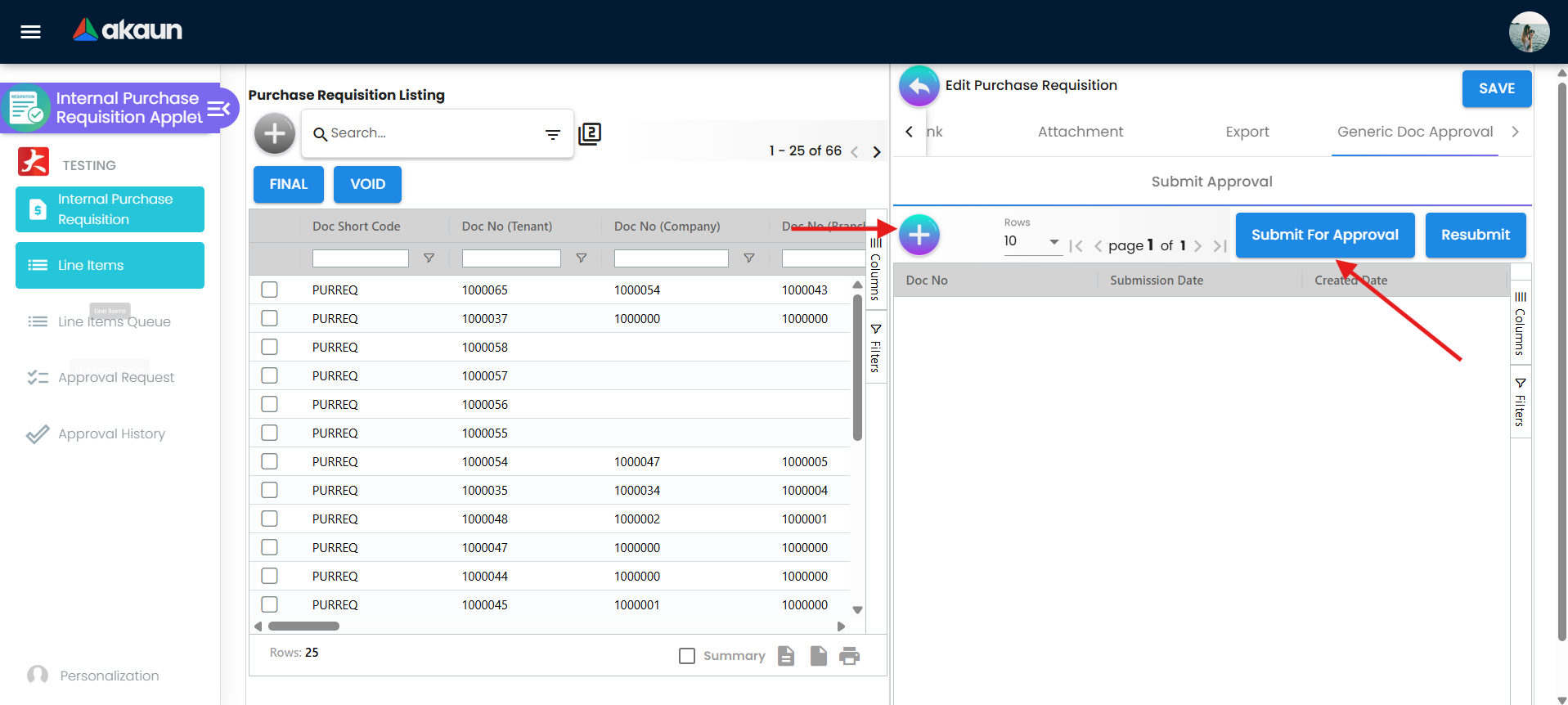
- Create approval (Generic Doc Approval tab, +, Save) — records the document, submitter entity and approval setting. Refused if the document does not exist or already has an approval.
- Submit For Approval — the submission is rejected when: the submitter entity is missing (
SUBMITTER_ENTITY_HDR_GUID_IS_NULL); the approval setting is missing (APPROVAL_SETTING_GUID_IS_NULL); no branch designation with the submitter’s designation code exists for that approval setting (Submitter designation_code is not created…); that designation has no approver links (There is no approver assigned…); the approvers cover fewer distinct levels than Total Required Approval Levels (EmployeeBranchDesignationLink_IS_NOT_FULLY_CONFIGURED); or the submitter has a resign date in the past (SUBMITTER_IS_RESIGNED). On success the header becomesPENDING_APPROVALand the approval is queued for processing. - Processing builds the approval sequence — one row per approver per level up to the required levels, quorum = min(approvers at that level, configured quorum) — writes a SUBMITTED / RESUBMITTED history row, then creates the approval requests for the lowest level and e-mails each approver (template
GENERIC_DOC_APPROVAL_PENDING_APPROVAL_NOTIFICATION; the mail contains a decision-form link). Failures are recorded as Processor Posting Status / Sequence Posting Status (PROCESSOR_FAIL_APPROVAL_SETTING_NOT_FOUND,PROCESSOR_FAIL_APPROVAL_SEQUENCE_IS_EMPTY,FAILED_TO_INSERT_TO_QUEUE, …) and are visible as columns on the Generic Doc Approval tab. - Approve / Reject (Approval Request menu or the e-mail form) — records the decision and remarks. Approve marks the same-level sequence rows APPROVED, bumps the quorum count, deletes the acting request and re-runs the sequencing: when the quorum is met the current level’s remaining requests are deleted and the next level’s requests are created; when every level is approved and the required level count is reached, the header gets its final-approval date, status APPROVED and the remarks are concatenated. Reject sets the header REJECTED with the rejection date and remarks, deletes the sequence rows and all requests, and e-mails the submitter. Resubmit restarts from step 3. There is no Withdraw button.
- Auto-FINAL. After an approval is recorded the requisition itself is set to FINAL through the normal FINAL path, with its validations. The test that triggers it is satisfied by any approval, so the requisition is finalised at the first approval action, not only at the last level. Later levels still run for the record. If that FINAL is refused — the transaction date is in a locked period, say, or a foreign-currency rate is missing — the refusal is only written to the server log: the approval shows APPROVED and the requisition stays DRAFT, with no message on any screen. After approving, check that the requisition’s posting status is FINAL, and finalise it by hand once the cause is fixed.
What the workflow does not do: nothing stops a user from clicking FINAL on the listing or edit screen without any approval — FINAL never reads the approval status. Hide the FINAL button from requesters (HIDE_GENDOC_FINAL_BUTTON; with SHOW_GENDOC_FINAL_BUTTON unregistered nobody can re-enable it) if approval is meant to be mandatory.
Line Items Queue › APPROVE marks the selected open-queue rows approved (permission …_LINE_OPEN_QUEUE_APPROVE). On its own it is a marker. It becomes a gate when the Purchase Order applet’s SHOW_APPROVED_PR_LINE is on (PO Application Settings, panel KO For Purchase Requisition): the PO’s Add Line Item › KO For Purchase Requisition tab then lists only approved rows. That is the way to let a buyer turn only approved lines of a requisition into an order. The gate covers that tab only: the PO’s header-level KO For › Purchase Requisition does not apply the filter, so hide or avoid it where approval must hold.
PR → PO conversion (backend). The backend can map a FINAL requisition to a new purchase order (amount signum 0; DRAFT, or FINAL with running numbers and posting when the flow configuration says FINAL) and sync the links. It refuses non-FINAL sources (SOURCE_DOCUMENT_NOT_FINAL) and already-converted ones (SOURCE_DOCUMENT_ALREADY_KO). It is reachable through the API, and through a scheduled job a tenant may subscribe to; this applet exposes none of it — the PO applet’s KO For is the normal path.
Related applets
- Purchase Order (Internal) — the next document; knocks requisition lines off, carries the Approval Monitor rule and its own approval flow.
- Purchase Quotation (Internal) — can be raised from requisition lines before the order.
- Purchase GRN (Internal) — optional line-level knock-off target for a requisition.
- Purchase Invoice (Internal) — end of the chain; the requisition number is carried on PO and invoice lines as a reference.
- Stock Requisition (Internal) — the inventory-side request; same signums, Approval Settings screen present but no way to submit against it there.
- Purchase Report — reporting.
- Supplier, Employee, Organisation, Doc Item Maintenance, Tax Configuration — master data the form depends on.
- Workflow Design — designs the process whose statuses appear in Workflow Status.
Troubleshooting
| Symptom | Cause | Fix |
|---|---|---|
| Submit For Approval returns Submitter designation code … is yet to be created | No branch designation with that code exists for the chosen approval setting. | Branch Designation → branch → Submitter Designation: create one whose Code equals the setting’s Submitter Designation Code and whose Approval Setting is the same setting. |
There is no approver assigned… or EmployeeBranchDesignationLink_IS_NOT_FULLY_CONFIGURED | The designation has no Approver rows, or the approvers’ levels cover fewer levels than Total Required Approval Levels. | Add approvers to the designation with levels 1…N. |
| Submitted, but nobody sees it in Approval Request | The primary / sequence processor failed; check the Sequence Posting Status and Processor Posting Status columns on the Generic Doc Approval tab (PROCESSOR_FAIL_APPROVAL_SEQUENCE_IS_EMPTY = approvers’ designation code does not match the submitter’s). | Align the designation code on the approver links with the setting’s submitter designation code. |
| Approver was not e-mailed; Email Notification Error shows Cannot get AppletTemplateMessage… | The tenant has no GENERIC_DOC_APPROVAL_PENDING_APPROVAL_NOTIFICATION template. | Create the template message (and NO_REPLY_EMAIL_ADDRESS). The request still appears in Approval Request. |
| Requisition went FINAL after the first of two approvals | See Lifecycle step 5. | Treat level 1 as the effective gate, or ask for the condition to be fixed. |
| Requester finalised without approval | FINAL is never blocked by approval status. | Turn on HIDE_GENDOC_FINAL_BUTTON; route everyone through Generic Doc Approval. |
| Approved, but the requisition is still DRAFT and the PO cannot find it | The FINAL that the approval triggers was refused (locked period, missing exchange rate); the refusal is only logged. | Fix the cause and press FINAL on the requisition. |
| A small requisition went through more approval levels than expected, or a large one fewer | The level count comes from Min Approval Amount and the amount captured when the approval was created, not from the current total. | Check the level minimums; delete and re-create the approval after editing lines. |
| Generic Doc Approval tab errors on tenants that do not use approvals | The tab is shown for every tenant by default. | Turn on HIDE_GENERIC_DOC_APPROVAL_TAB; grant SHOW_GENERIC_DOC_APPROVAL_TAB to the roles that need it. |
| Purchase Order cannot find a FINAL requisition | No enabled Knock Off Configuration row Purchase Requisition → Purchase Order when it was finalised, so no open-queue rows were created. | Add the row; then ask BigLedger to re-run the open-queue repair, or void and re-finalise. |
| KO For › Jobsheet is empty | No Jobsheet → Purchase Requisition row, or the jobsheet is not FINAL / already fully knocked off. | Add the row; check the jobsheet’s open quantities. |
| Print says success but no PDF, or No Doc to print | Print needs a default printable format; a role without SHOW_PRINT_BUTTON while HIDE_PRINT_BUTTON is on cannot print at all. | Set the default in Printable Format Settings; grant the permission. |
| Cannot VOID: …already been linked with the following documents | A PO (or quotation) has knocked the requisition off. | Void the downstream document first. |
| FINAL refused for a locked period | The transaction date falls in a locked period. | Change the date (needs SHOW_TRANSACTION_DATE) or unlock the period. |
| Prices visible to a role that should not see them | The price HIDE_* settings are off, or the role holds the matching SHOW_* permission / INTERNAL_PURCHASE_REQUISITION_DISPLAY_PRICING. | Turn on the HIDE_UNIT_PRICE_* / HIDE_AMOUNT_* settings and grant the SHOW_* codes only to purchasing. |
Related documentation
- Purchasing module
- Standard procurement workflow
- Purchase Order (Internal) — approval and Approval Monitor on the order side