Internal Purchase Return Applet
Purpose and Overview
The Internal Purchase Return Applet is a specialized tool designed to manage the end-to-end process of returning goods to suppliers. It serves as the critical link between your warehouse operations (inventory) and financial accounts (payables), ensuring that every return is accurately recorded, tracked, and reconciled.
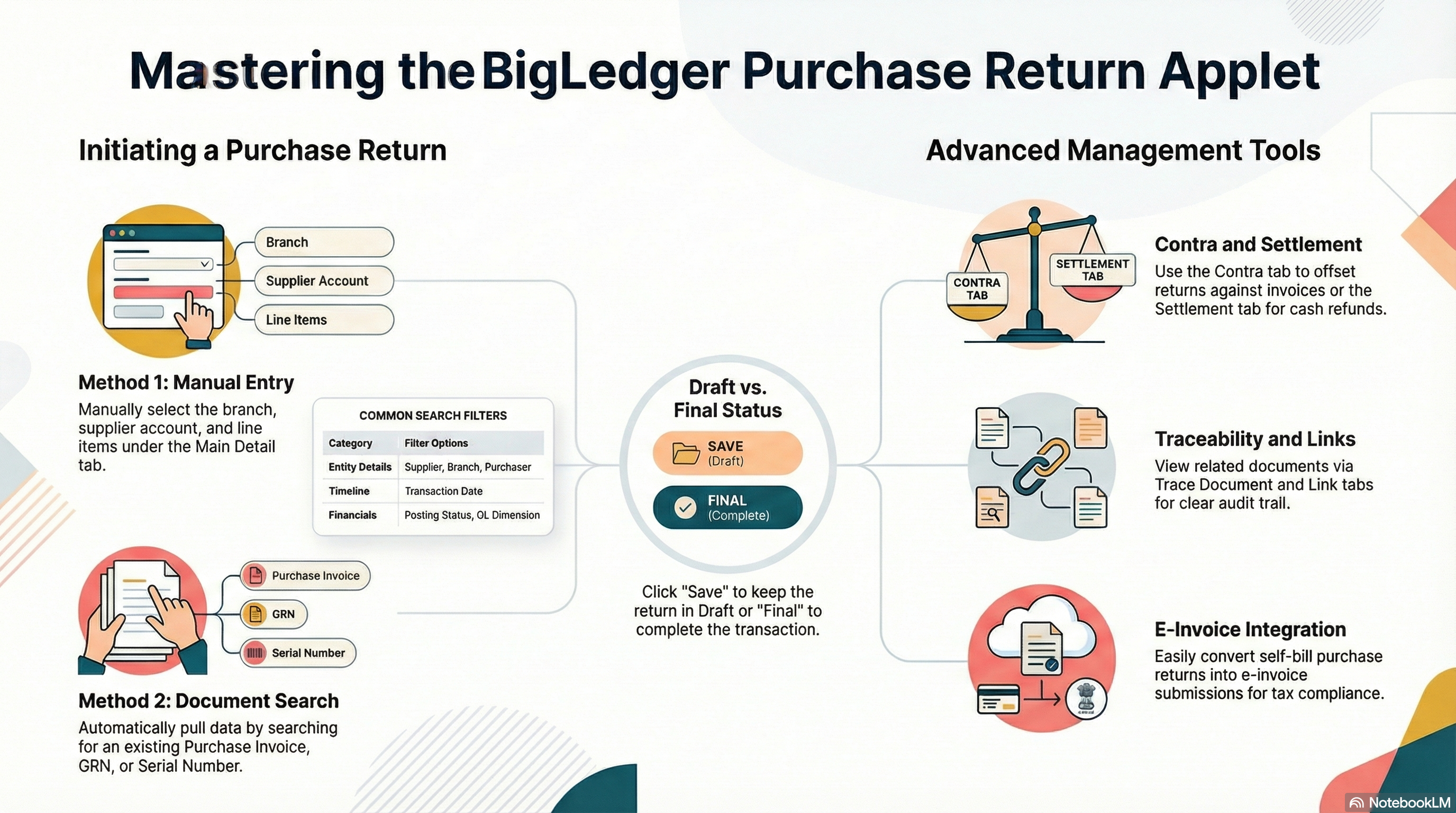
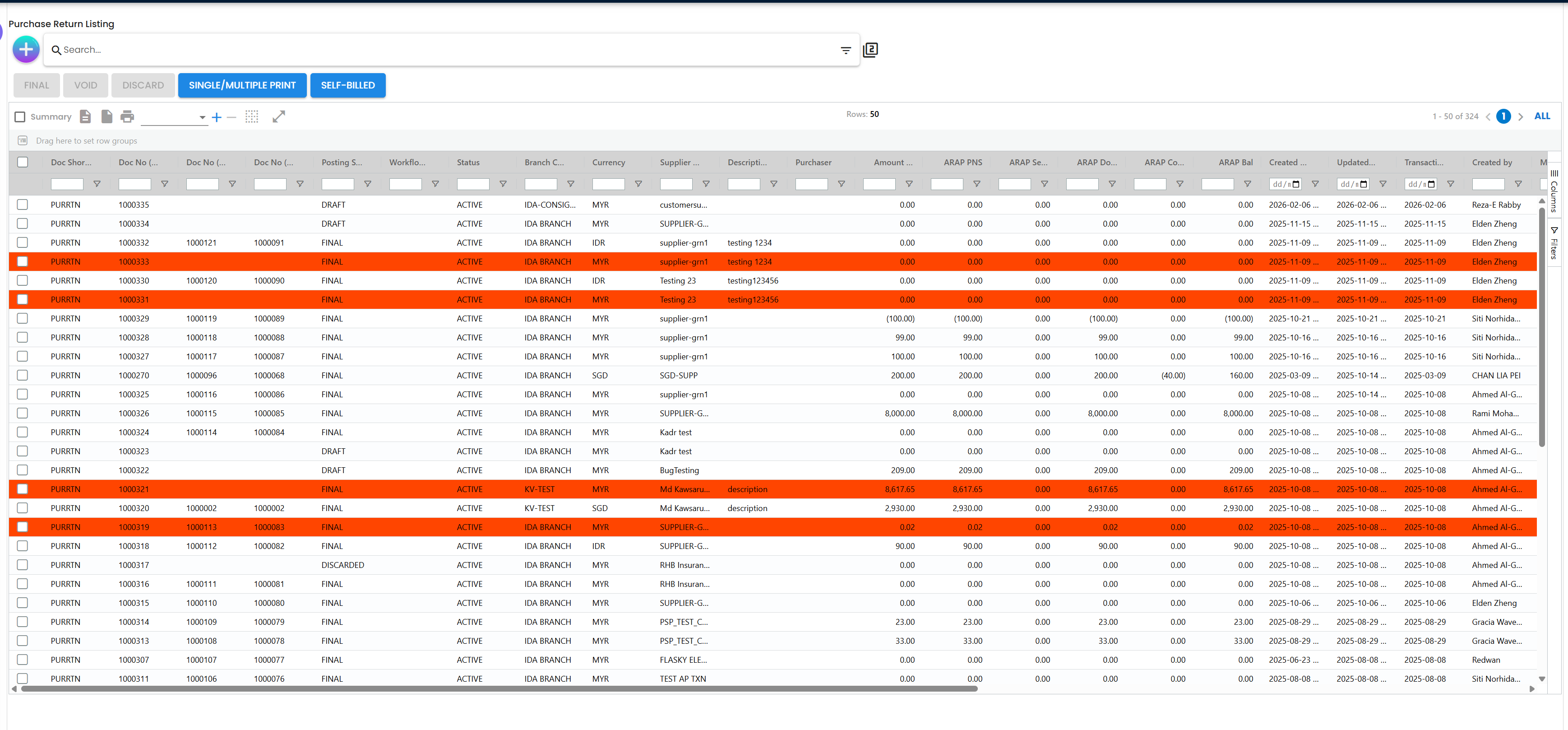
Key Features Overview
Who Benefits from This Applet?
Procurement & Warehouse Teams:
- Inventory Accuracy: Automatically deducts returned stock from inventory upon finalization.
- Traceability: Links returns directly to original Purchase Orders or GRNs.
- Efficiency: “Copy from Document” feature reduces data entry errors by 80%.
Finance Teams:
- AP Reconciliation: Automatically updates supplier aging and credit balances.
- Flexible Settlement: Supports Cash Refunds, Credit Notes, or Contra-offsets.
- Compliance: Generates necessary self-billed e-Invoices for tax purposes.
Management:
- Vendor Analysis: Identify poor-quality suppliers by tracking return frequency and reason codes.
- Audit Integrity: Maintains a permanent link between physical stock exit and financial credit.
What Problems Does This Solve?
The Manual Return Problem:
- Lost Credits: Finance isn’t notified of returns, so the company pays for goods it no longer has.
- Inventory “Ghost” Stock: Goods leave the warehouse but remain on the balance sheet.
- Tax Errors: Inconsistent handling of SST/GST adjustments without proper Debit Notes.
The Applet Solution:
- Unified Posting: One “Finalize” action updates Stock, GL, and Supplier Aging simultaneously.
- Linkage Validation: Prevents “over-returning” (returning more than was originally purchased).
- Settlement Tracking: Ensures every return is either paid back in cash or offset against an invoice.
Key Features at a Glance
Key Concepts
The “Golden Trio” of Returns
To effectively manage the system, it is crucial to understand how Physical Stock, Supplier Credit, and Document Linkage work together.
| Component | Role | System Impact |
|---|---|---|
| Document Link | The “Proof” | Validates the original purchase price and quantity. |
| Inventory Update | The “Physical” | Deducts stock from the selected Warehouse/Location. |
| AP Ledger | The “Financial” | Generates a Credit Balance in the Supplier’s account. |
Document Hierarchy Structure
Think of the purchase return within the broader procurement flow:
Procurement Lifecycle
│
├── Purchase Order (PO) ──→ What we planned
│   │
│   └── Goods Received (GRN) ──→ What arrived
│       │
│       └── Purchase Invoice (PI) ──→ What we owe
│           │
│           └── PURCHASE RETURN (PR) ──→ What we sent back
│               │
│               ├── Contra ──→ Resets PI balance
│ └── Settlement ──→ Records cash refundDocument Status Lifecycle
Understanding the state transitions is essential for effective management.
| Stage | Status | System Action | Financial Impact |
|---|---|---|---|
| 1. Creation | Draft | Return recorded, not yet posted | No GL/Stock Impact |
| 2. Finalization | Final | Stock deducted, AP credited | Stock Reduced + AP Credit Posted |
| 3. Settlement | Settled/Contra | Financial closure recorded | Supplier Balance Cleared |
Quick Start Guide
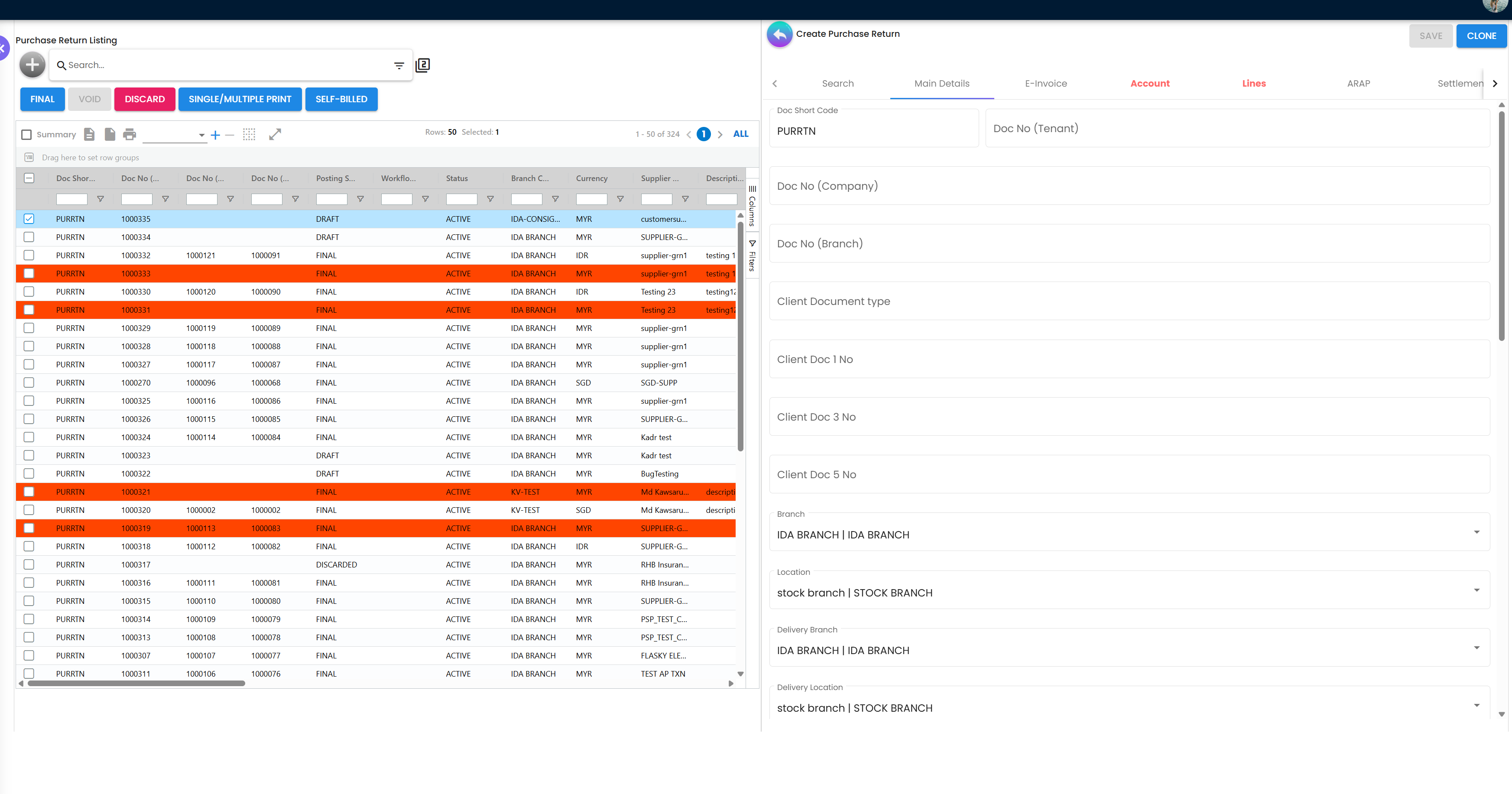
For Procurement/Warehouse: Create a Return
Goal: Record a return for damaged goods and update inventory.
- Navigate: Go to Purchase Return > "+" (Add).
- Link Document: Click “Search Existing Document” and select the original GRN or PI.
- Pick Items: Select the items to return and specify the Return Quantity.
- Review: Check the Location (from where stock will be deducted).
- Finalize: Click Final. Inventory is now officially reduced.
For Finance: Process a Settlement
Goal: Close the return once the supplier provides a refund or credit.
- Open Return: Locate the finalized PR document.
- Choose Path:
- Contra: Use the return to offset another unpaid invoice from the same supplier.
- Settlement: Record a cash refund received via Bank/Cash.
- Confirm: Save. The PR status will update to reflect the financial closure.
For Administrators: Initial Setup
Goal: Prepare the applet for the procurement team.
- Default Selection: Set the default “Return Warehouse” in
Settings > Default Selection. - Field Settings: Enable “Reason Code” as a mandatory field in
Settings > Field Settings. - Perms: Assign the “Purchase Return Finalizer” permission set to relevant leads.
- Print Format: Upload the company logo to
Settings > Printable Format Settings. - Test: Perform a test return and verify the GL impact in Document Tracing.
Workflow Guide
Creating a Purchase Return
Method 1: Manual Entry Use this when returning goods without a specific source document reference (e.g., for goods received without invoice).
- Click "+" (Add) from the main Purchase Return listing.
- Select the Supplier (Entity ID).
- Choose the Branch and Location (where the goods are physically stored).
- Set the Transaction Date.
- Click “Add Item” to add line items manually, specify Item codes and return quantities.
- Add a Reason Code or Remarks for audit purposes.
- Save as Draft, then review before finalizing.
Method 2: Create from Existing Document (Recommended) Use this when returning against an original GRN or Purchase Invoice for accurate costing and linkage.
- Click “Search Existing Document” on the create form.
- Search by original GRN or PI number.
- Select the document — all item, price, and supplier details auto-populate.
- Adjust Return Quantity per line (cannot exceed original received quantity).
- Save as Draft → Finalize after verification.
Management & Control
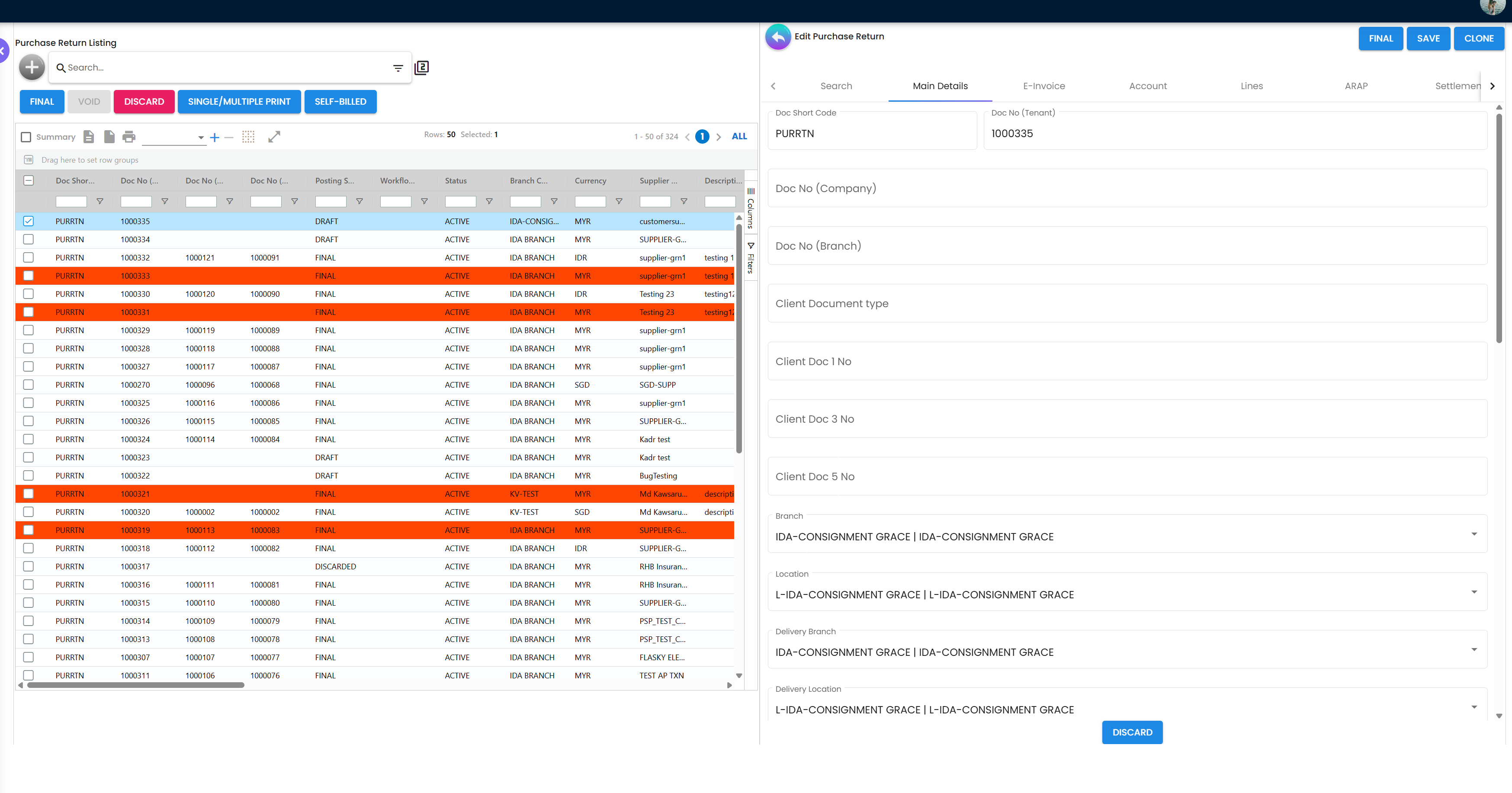
1. Status Monitoring
- Draft: Working documents. No financial impact. Freely editable.
- Final: Legal documents. Locked. Requires a reversal to undo.
- Voided/Cancelled: Reversed document. The system preserves the record but nullifies the financial posting.
2. Handling Exceptions Sensitive actions (e.g., returning quantities above the original GRN, return date outside the purchase period) may require manager approval based on Workflow Settings.
Feature Deep Dive
Contra (Offsetting Invoices)
This is the most common settlement method. It allows you to “knock off” the value of a return against what you still owe the supplier on other invoices.
- Workflow: PR Document > Contra Tab > Select Outstanding Invoices > Apply.
- Impact: Reduces your Accounts Payable (AP) without any bank transaction.
- Use Case: You returned RM 500 of goods and have a RM 2,000 invoice outstanding. The contra offsets the return against the invoice, leaving only RM 1,500 payable.
Settlement (Recording Refunds)
Use this when a supplier physically returns money to you (e.g., a bank transfer).
- Workflow: PR Document > Settlement Tab > Enter Bank/Cash Account > Enter Amount > Save.
- Impact: Reduces your AP balance and records a receipt in your bank/cash book.
- Use Case: Supplier agrees to issue a refund and transfers the amount back to your company account.
e-Invoice Compliance
Automatically handles LHDN self-billed requirements for purchase returns.
- Self-Billed: Generates a self-billed debit note if required by tax regulations.
- Validation: Sends data to LHDN to receive a UUID for the return transaction.
- Applicability: Relevant for suppliers who are not registered for e-Invoicing, where you as the buyer are required to self-bill.
ARAP Impact
Every finalized Purchase Return creates an automatic accounting entry in the Accounts Payable (AP) ledger.
| Event | Debit | Credit |
|---|---|---|
| Finalize Return | Inventory / COGS Adjustment | Accounts Payable |
| Contra Applied | Accounts Payable | Purchases Return |
| Cash Refund Received | Bank/Cash | Accounts Payable |
Document Tracing
The Trace button provides a complete forensic audit trail.
- Financials: Review the exact Journal Entries (e.g., Debit Inventory / Credit AP) generated.
- Inventory: Verify which Batch or Serial Number was removed from which Location.
- Upstream: See the original GRN and PI this return was derived from.
- Downstream: See any Contra or Settlement documents linked to this return.
Attachments
Store documentary evidence directly on the return record.
- Use Case: Attach supplier damage photos, quality reject certificates, or signed return authorization forms (RMA).
- Format: Supports PDF, JPG, PNG, and other common file types.
- Access: Attachments are visible to all users with read access to the document.
Line Reports
For deep analysis, the Line Reports view breaks down all purchase returns into individual row items. This allows for granular reporting, such as:
- “Total returns for Supplier X this quarter”
- “Most frequently returned item category”
- “Returns by reason code”
- “Return value as a % of purchases per branch”
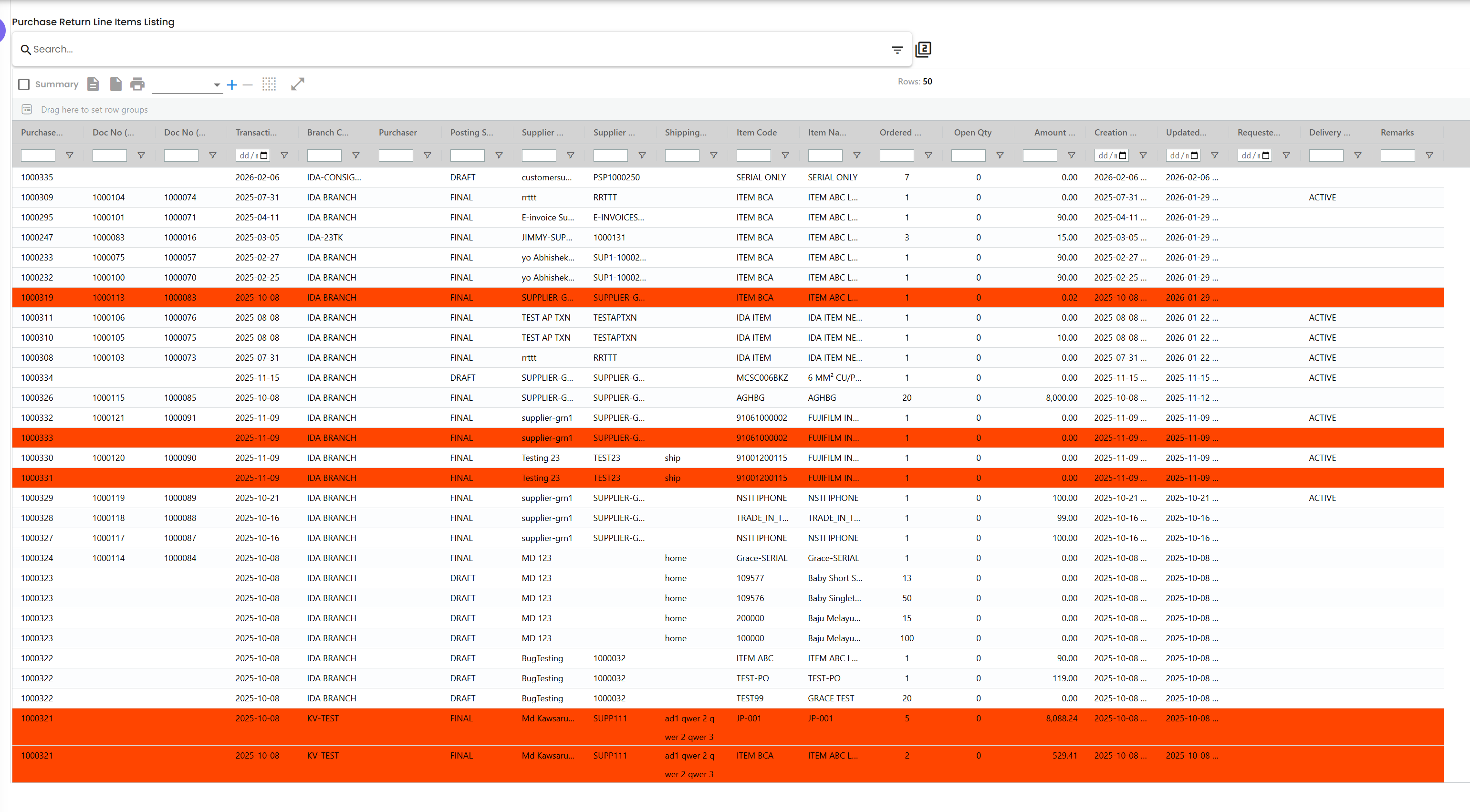
Printable Format (Debit Note)
When finalizing a Purchase Return, the system can generate a Debit Note — a formal notice to the supplier that their account has been debited.
- Configuration: Customize the Debit Note layout in
Settings > Printable Format Settings. - Options: Add company logo, business registration numbers, custom footers.
- Use: Send directly to the supplier as formal documentation of the return.
Configuration & Settings
Customize the interface to match your workflow.
Personalization Menu
Access the Personalization menu to adapt the applet to your specific role.
- Default Settings: Set Default Branch and Location to avoid repetitive selection.
- View Layouts: Switch between Horizontal (Data-dense) or Vertical (Visual) orientation.
Admin Configuration
System Administrators can fine-tune behavior via the Settings panel.
- Default Selection: Set default branch, location, and other pre-fill values.
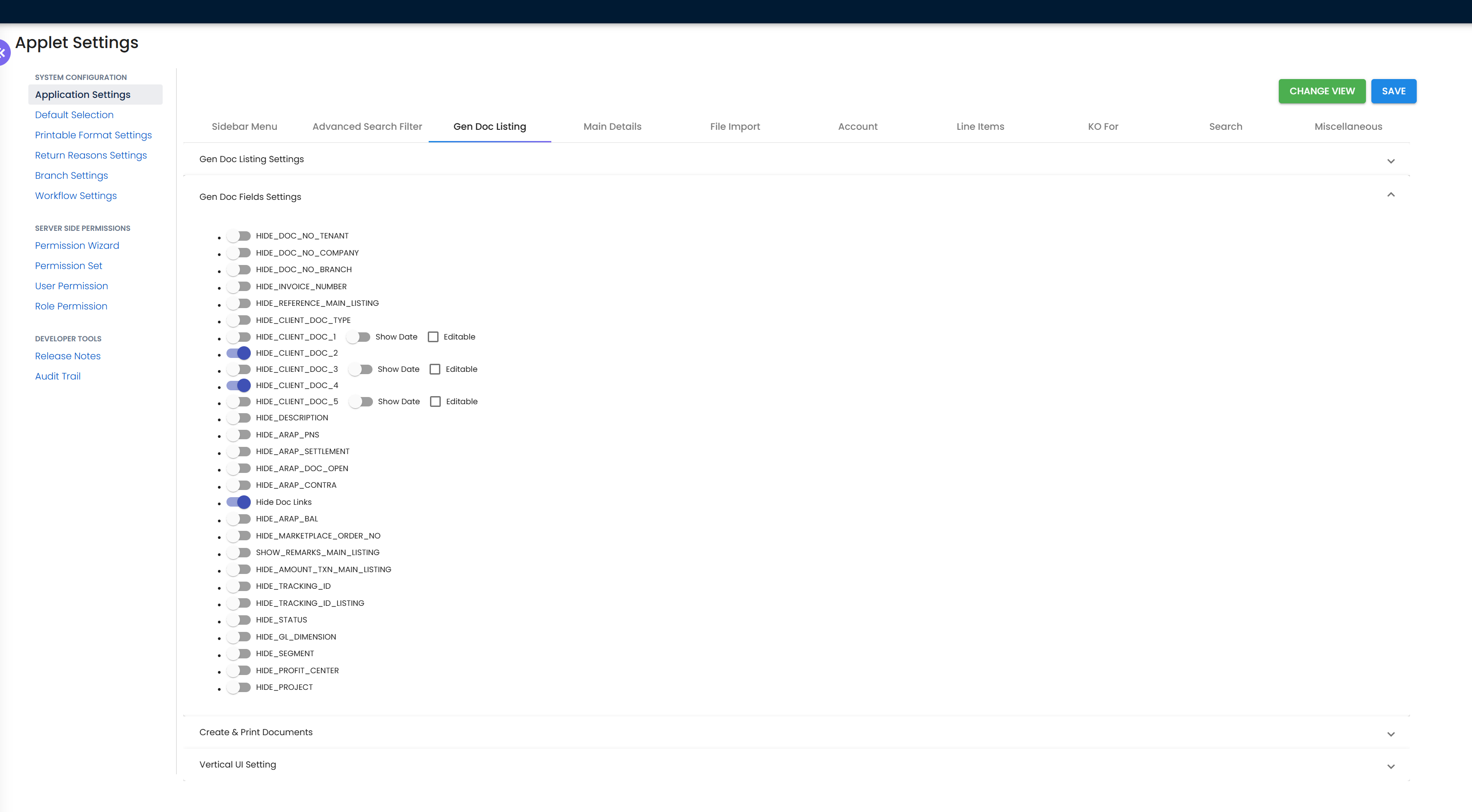
- Field Settings: Toggle visibility of fields like Reason Code, Permit No, etc.
- Printable Format Settings: Customize the Debit Note PDF layout with company branding.
- Webhooks: Set up event-driven notifications to external systems.
Applet Reference
This section provides a comprehensive reference of all menu items, settings, permissions, and configurable features.
Menu Items
| Menu Item | Description | Route Path |
|---|---|---|
| Purchase Return | Main listing of all purchase return transactions | /purchase-return |
| Line Items | Detailed line-by-line item reports for granular analysis | /line-items |
| Settings | Administrative configuration panel | /settings |
| Personalization | User-specific preference settings | /personalization |
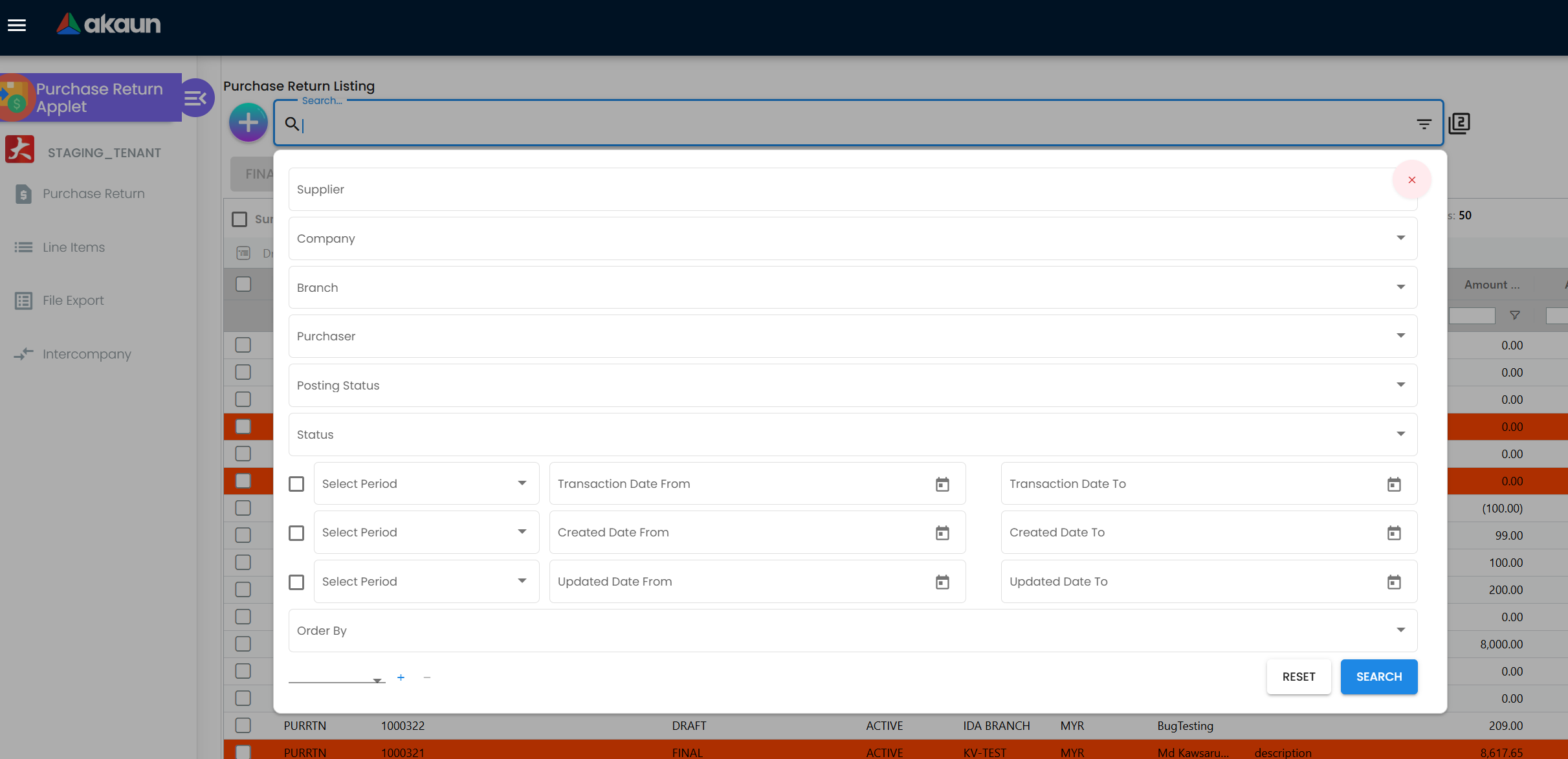
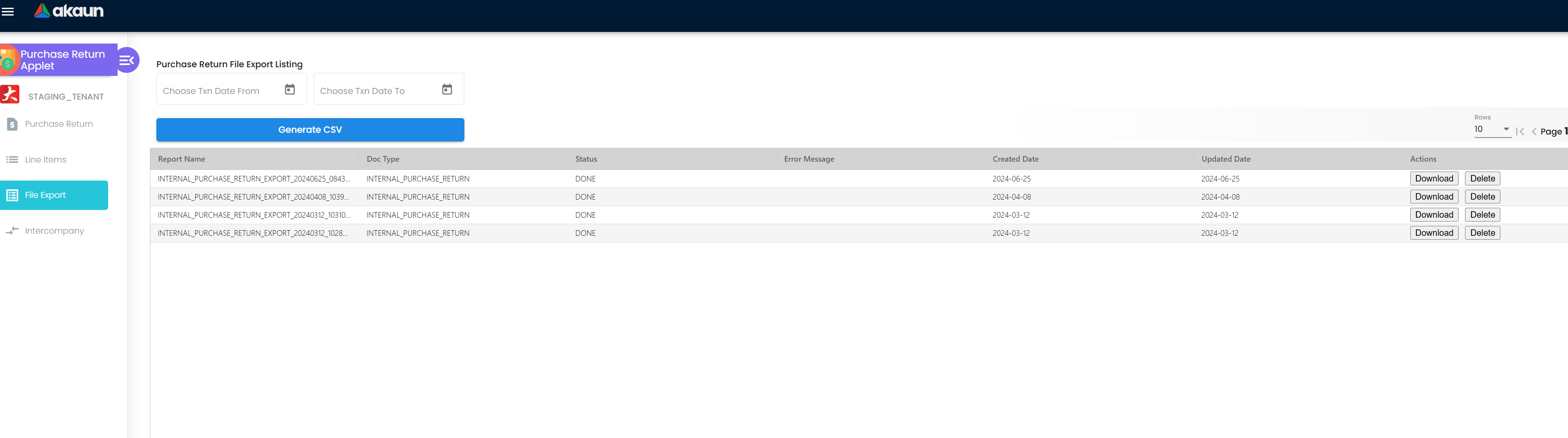
Settings Sub-Menu Items
| Setting | Description | Route Path |
|---|---|---|
| Default Selection | Configure default branch, location, and other selection defaults | /settings/default-selection |
| Field Settings | Toggle visibility and behavior of form fields | /settings/field-settings |
| Printable Format Settings | Customize PDF layouts for Debit Note, etc. | /settings/printable-format-settings |
| Email Template | Configure automated email templates for notifications | /settings/email-template |
| Webhook | Set up event-driven integrations with external systems | /settings/webhook |
| Feature Visibility | Control which features are visible to users | /settings/feature-visibility |
| Branch Settings | Configure branch-specific behaviors and defaults | /settings/branch-settings |
| Workflow Settings | Define approval workflows and business rules | /settings/workflow-settings |
| Permission Set Listing | Manage predefined permission sets | /settings/permission-set-listing |
| User Permission Listing | Configure individual user permissions | /settings/user-permission-listing |
| Team Permission Listing | Configure team-based permissions | /settings/team-permission-listing |
| Role Permission Listing | Configure role-based permissions | /settings/role-permission-listing |
| Client-Side Permission Listing | Manage UI/display-level permissions | /settings/client-side-permission-listing |
| Permission Wizard | Guided setup for permission configuration | /settings/permission-wizard-listing |
| Release Notes | View applet version history and updates | /settings/release-notes |
| Applet Log | Audit log of applet activities and changes | /settings/applet-log |
Settings Configuration Guide
This section provides detailed explanations of each settings option, including their purpose, use cases, and best practices.
Default Selection Settings
Purpose: Streamline data entry by pre-populating commonly used values, reducing repetitive selections and minimizing user error.
| Field | Description | Benefit |
|---|---|---|
| Default Branch | Pre-fills the operating branch for new returns. | Saves 2 clicks per entry; ensures returns are recorded to the right entity. |
| Default Location | Sets the “Returns” or “Reject” bin as the default deduction point. | Prevents accidental deduction from active “Good Stock” locations. |
| Default Currency | Default trading currency for the return. | Reduces conversion errors for cross-currency supplier relationships. |
Best Practice: Configure Default Location to a dedicated “Returns/Reject” bin. This separates returned stock visually and physically from saleable inventory.
Field Settings
Purpose: Control which fields are visible, required, or hidden based on user roles and business requirements. This enforces data governance and simplifies the user interface.
Key Use Cases:
Enforcing Return Reasons
- Make Reason Code mandatory to ensure every return has a documented reason.
- Benefit: Enables downstream reporting on return reasons (e.g., “Defective Goods” vs “Over-Delivery”) for supplier performance reviews.
Compliance Fields
- Show/hide Permit No for businesses with regulatory goods (e.g., controlled chemicals, pharmaceuticals).
- Make External Remarks mandatory for returns that require supplier acknowledgment notes.
- Benefit: Meets regulatory documentation requirements without cluttering the UI for unaffected flows.
Financial Sensitivity
- Hide Unit Cost from warehouse staff (only visible to finance team).
- Benefit: Prevents cost price disclosure to operational staff who don’t need it.
Printable Format Settings
Purpose: Customize the appearance and content of the Debit Note PDF to match company branding and meet supplier/legal requirements.
Debit Note
- Purpose: Official document sent to suppliers acknowledging the return and the corresponding credit owed.
- Customization Options:
- Company logo and header branding
- Business registration number and tax registration details
- Custom footer text (e.g., bank account details for refund transfer)
- Toggle visibility of Original Invoice No., Unit Cost, Return Reason
- Approval signature lines
Best Practices:
- Include the Original Invoice Number in the printable format so suppliers can cross-reference the return against their records.
- Add bank account details in the footer to facilitate supplier cash refunds.
- Test printable formats before going live to ensure regulatory information is correct.
Email Template Settings
Purpose: Automate supplier communications with consistent, professional messaging at key transaction milestones.
Common Email Triggers:
Return Finalized
- Automatically send the Debit Note PDF to the supplier’s email.
- Include the original invoice reference and return reason.
- Benefit: Formal, immediate notification reduces supplier disputes.
Return Draft Created
- Alert the finance team or purchasing manager that a new return has been initiated.
- Benefit: Prevents returns from sitting in Draft status without review.
Webhook Settings
Purpose: Enable real-time integration with external systems by sending event notifications when key actions occur.
Common Webhook Use Cases:
ERP/Accounting Integration
- Trigger: Purchase Return finalized
- Action: Post debit entry to external accounting software
- Benefit: Eliminates double-entry, ensures real-time AP sync
Procurement System Alerts
- Trigger: Return quantity exceeds 10% of original PO line
- Action: Notify procurement manager for supplier review
- Benefit: Automates supplier quality management triggers
Feature Visibility Settings
Purpose: Control which applet features are accessible to users, allowing you to enable/disable functionality based on business needs.
| Feature Code | Menu/Feature Controlled |
|---|---|
HIDE_LINE_ITEMS_MENU | Line Items report menu visibility |
HIDE_SETTLEMENT_TAB | Settlement tab on the document form |
HIDE_CONTRA_TAB | Contra tab on the document form |
Workflow Settings
Purpose: Define business rules and approval workflows to enforce governance.
Common Approval Workflows:
High-Value Returns
- Rule: Return value > configured threshold (e.g., RM 10,000)
- Action: Require manager approval before finalization
- Benefit: Additional scrutiny for large financial adjustments
Quantity Over-Return Prevention
- Rule: Return quantity exceeds 100% of original received quantity
- Action: System blocks submission; requires override approval
- Benefit: Prevents fraudulent or erroneous over-returns
Backdated Returns
- Rule: Transaction date < today - 7 days
- Action: Require approval from accounts manager
- Benefit: Prevents financial period manipulation
Permission Settings (Advanced)
The applet provides four layers of permission control for granular access management:
Permission Sets
- Purpose: Pre-configured bundles of permissions assigned in bulk.
- Example: “Purchase Return Viewer” has READ only; “Purchase Return Finalizer” has CREATE + FINALIZE.
User Permissions
- Purpose: Override or extend permissions for specific individuals.
- Example: Give one senior buyer DELETE permission while others cannot delete.
Team Permissions
- Purpose: Grant permissions based on team membership.
- Example: “Purchasing Team A” can only see returns for Branch A.
Role Permissions
- Purpose: Permissions tied to organizational roles.
- Example: “Warehouse Manager” role has FINALIZE authority.
Client-Side Permissions
- Purpose: UI-level feature visibility.
- Example: Hide the “Finalize” button from users who don’t have finalization rights.
Release Notes & Applet Log
Release Notes
- Purpose: Track applet version history and feature changes.
- Audience: Administrators and power users.
Applet Log
- Purpose: Forensic audit trail of system changes and administrative actions.
- Logged Actions: Settings changes (who changed what, when), permission modifications, feature enable/disable events.
- Use Case: Troubleshoot issues and demonstrate compliance to auditors.
Personalization Sub-Menu Items
| Setting | Description | Route Path |
|---|---|---|
| Personal Default Selection | Set personal defaults for branch, location, etc. | /personalization/personal-default-selection |
| Sidebar | Customize sidebar layout and menu visibility | /personalization/sidebar |
Frequently Asked Questions (FAQ)
Q1: Can I return more than what was originally received in the GRN? A: No. If you link to a source document, the system prevents you from entering a return quantity higher than the available balance. This maintains audit integrity and prevents fraudulent over-returns.
Q2: What happens if I return an item that has different batches? A: You must select the specific batch number during the return process. This ensures the correct First-In-First-Out (FIFO) cost is deducted from the right inventory batch.
Q3: Is a Purchase Return the same as a Debit Note? A: In this applet, yes — conceptually. Finalizing a Purchase Return generates the financial equivalent of a Debit Note to the supplier, signifying that they owe you money (or that you owe them less on outstanding invoices).
Q4: Can I handle multi-currency returns? A: Yes. If you purchased in USD, the system will process the return in USD, maintaining the exchange rate used in the original transaction to avoid currency fluctuation errors in inventory valuation.
Q5: What if the supplier replaces the item instead of issuing a refund? A: Still process the Purchase Return to clear the defective stock from your inventory. Then process a new GRN or Purchase Invoice when the replacement goods arrive. Do not skip the return — it ensures your inventory count remains accurate.
Q6: What is the difference between Contra and Settlement? A:
- Contra is a paper-based offset. You use the credit from the return to reduce what you owe on another invoice. No cash changes hands.
- Settlement is a cash-based resolution. The supplier physically transfers money back to you, and you record it as a receipt in your bank or cash book.
Q7: If I finalize a Purchase Return by mistake, can I undo it? A: You cannot “un-finalize” directly. You must create a reversal or contact an administrator to void the document, depending on your configured workflow settings. Always review the document carefully before clicking Final.
Q8: Do I need to create a separate Debit Note for the supplier? A: No. The finalized Purchase Return document is the Debit Note. You can print it directly using the Printable Format configured in Settings, and send it to your supplier as formal documentation.
Summary
The Internal Purchase Return Applet provides a structured, auditable environment for handling the complex logistics and financials of returning goods to suppliers. By strictly linking returns to original purchases and ensuring proper settlement (Contra or Cash Refund), organizations can prevent revenue leakage, maintain impeccable inventory records, and remain compliant with tax regulations (including LHDN e-Invoice requirements).
The key to success with this applet is:
- Always link to source documents — this guarantees correct costing.
- Finalize promptly — Draft returns don’t update inventory; delays create phantom stock discrepancies.
- Close the loop with Contra or Settlement — An unsettled Purchase Return means a Credit Balance in your AP that isn’t being utilized.