Purchase Report
See what you bought, from whom and at what cost, from the supplier documents that actually post: finalised invoices and returns, line by line or rolled up per item with the closing stock balance. Orders, GRNs and draft invoices never appear. A Purchase Invoice (No Stock In) is read but adds a row of zeros, so a period with those invoices reports less than the payables they created, with no message.
Overview
The Purchase Report applet answers “what did we buy, from whom, at what cost?” from the purchase documents that actually post: finalised Purchase Invoices and Purchase Returns. Accounts-payable staff, buyers and finance managers open it to see purchase lines with their linked GRN and purchase order numbers, or the same data rolled up per item with quantity, cost and closing stock balance, and to export either grid.
It is read-only. Purchase orders, GRNs and draft invoices do not appear in it — a purchase shows up only once its invoice (or return) is FINAL. Purchase Invoices (No Stock In) are read but contribute nothing: every one of their columns computes to zero, for the reason set out under Lifecycle and effects.
Where it fits
| Position | Document / applet | Why |
|---|---|---|
| Module | Purchasing, Inventory | Purchase analysis; stock balance per location is joined in. |
| Source documents | Purchase Invoice (Internal), Purchase Invoice No Stock In (Internal), Purchase Return (Internal) | The only document types the queries read (posting_status = FINAL, base-currency shadows excluded). Returns carry a negative quantity signum and reduce the totals; no-stock-in invoices carry zero and add nothing at all. |
| Linked references | Purchase GRN (Internal), Purchase Order (Internal) | The GRN No column comes from the invoice’s document links to GRNs; PO No from the GRN’s links to purchase orders. |
| Settlement | Payment Voucher (Internal), Purchase Debit Note (Internal) | The backend’s purchase-report service also serves invoice settlement detail (payment vouchers and debit notes against an invoice) used by the payables reports. |
| Related reports | Creditor Report, Stock Balance | Supplier balances and stock positions. |
Screens and menus
| Menu | Route | What it is | Hidden by |
|---|---|---|---|
| Purchase Report | purchase-report-by-document | One row per purchase line, grouped by document. | HIDE_PURCHASE_REPORT_BY_DOCUMENT_MENU unless SHOW_PURCHASE_REPORT_BY_DOCUMENT_MENU |
| Purchase Report By Item Code | purchase-report-by-item-code | One row per item (and branch / location / pricing scheme) with totals. | HIDE_PURCHASE_REPORT_BY_ITEM_CODE_MENU unless SHOW_PURCHASE_REPORT_BY_ITEM_CODE_MENU |
| Settings | settings/… | Application Settings, Default Selection; also Webhook, Client Side Permission, Permission Wizard / Set / User / Team / Role Permission, Release Notes. | — |
| Personalization | personalization/… | Personal Default Selection, Sidebar. | — |
Purchase Report (by document)
Screenshot withdrawn; a recapture from a demo tenant is on the list.
Advanced Search (the shared general search panel; a period is mandatory): keyword (item code, name, description, scan code, alternate codes, remarks — at least three characters), Period (date from / to), Date Type (which header date the period applies to: transaction date by default, created date, updated date or the supplier document’s reference date — there is no finalised date and no due date to choose), Supplier, Salesman (the purchaser recorded on the document), Item Type, Item Status, Item Code, Calculate Base On, Branch and up to twenty item-category groups. There is no company or location filter; to report one location, export and filter the Location column. Each search field can be hidden with its HIDE_SEARCH_* key.
A search typed into the keyword box alone, without running the Advanced Search panel, covers 1 January 2022 to the end of 2099 whatever period the panel shows, so a document dated before 2022 never appears that way. Run the panel with a period when you need older purchases.
Calculate Base On picks which item price or cost is multiplied by quantity to fill Unit Cost / Cost Amt (and Purchase Cost on the item-code report): moving-average cost (cost_ma, the default), replacement cost, reference price 1–3, delta price 1–3, rebate price 1–3, sales minimum / maximum price or purchase minimum / maximum price. Once Application Settings has been saved, the list offers only the bases whose ADVANCED_SEARCH_SHOW_<BASIS> switch is on (the purchase maximum price, for example, needs the switch labelled for it); with none on, the list is empty and the report stays on moving-average cost. There is no permission that adds a basis for one user.
That makes it a price-discipline check as well as a costing one. Switch on the purchase minimum and maximum bases, run the same month twice, and Cost Amt shows what the lines would have cost at each item’s agreed price limits beside Amount Net, what you actually paid. A line paid above the purchase maximum stands out without opening a single invoice.
Columns: Doc No, Date, Doc Type, Doc Reference Date, Ref. No, Company, Branch, Location, Supplier, Item Code, Item Name, Type, Sub Type, UOM, Serial #, Qty, Unit Price, Unit Cost, Cost Amt, Gross Amount, Amount Disc, Amount Net, Amount Tax, Amount Txn, GRN No, PO No, and the five external references (Quotation, Order, Delivery Order, Invoice, Others). Each row is one item on one document (a serialised line keeps its serial numbers together on that row). The report defines no per-document subtotal, only a total footer, so sort or filter on Doc No to read one document. The grid’s status bar exports the current result to Excel/CSV; the column toggle lets each user show or hide columns.
Purchase Report By Item Code
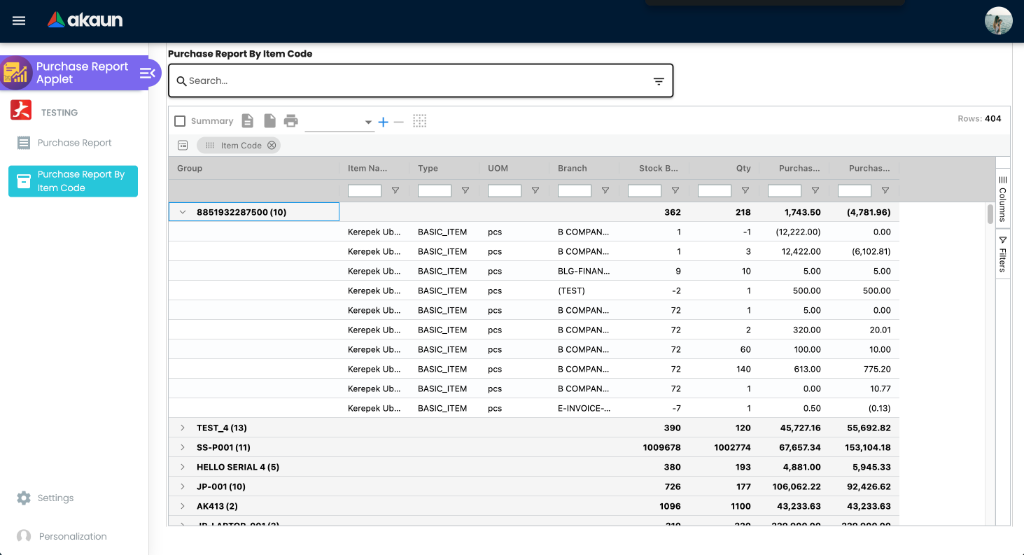
Same search panel, less Salesman, plus Optional, which starts ticked at Hide GL Code Type: GL-code lines are left out of this report until you untick it, while the by-document report always includes them — the usual reason the two reports’ totals differ. Columns: Item Code, Item Name, Type, UOM, Branch, Location, Category 1–20, Qty, Purchase Amount, Purchase Cost (per Calculate Base On), Stock Balance (the location’s balance as at the end of the period). Rows are per item per branch, location and pricing scheme, and also per document currency, exchange rate and the item name typed on the line, so one item bought in ringgit and in US dollars, or renamed on one invoice, appears on more than one row.
Settings
Configuration
Before you can use it
| Prerequisite | Where | Why |
|---|---|---|
| Finalised purchase invoices / returns | Purchase Invoice (Internal), Purchase Return (Internal) | Only FINAL documents of the three types are read. |
| Document links GRN → invoice and PO → GRN | Purchase GRN (Internal), Purchase Order (Internal) | GRN No and PO No are empty for invoices keyed without knock-off. |
| Item master with categories and prices | Doc Item Maintenance, Inventory Item Maintenance | Category 1–20 columns and the Calculate Base On prices come from the item and its line snapshot. |
| Branches, locations, suppliers | Organisation, Supplier | Filters and defaults. |
| The purchase report’s own read permission | Permission Wizard / Set | Both reports check the purchase-report permission (owner, admin, or read targeted to a branch), not read access to purchase invoices. |
Applet settings
Settings → Default Selection, and its per-user twin under Personalization, save a default branch and location that neither report reads. The search panel opens with no branch or location chosen whatever they say, so choose the branch in the search each time; setting a default changes nothing.
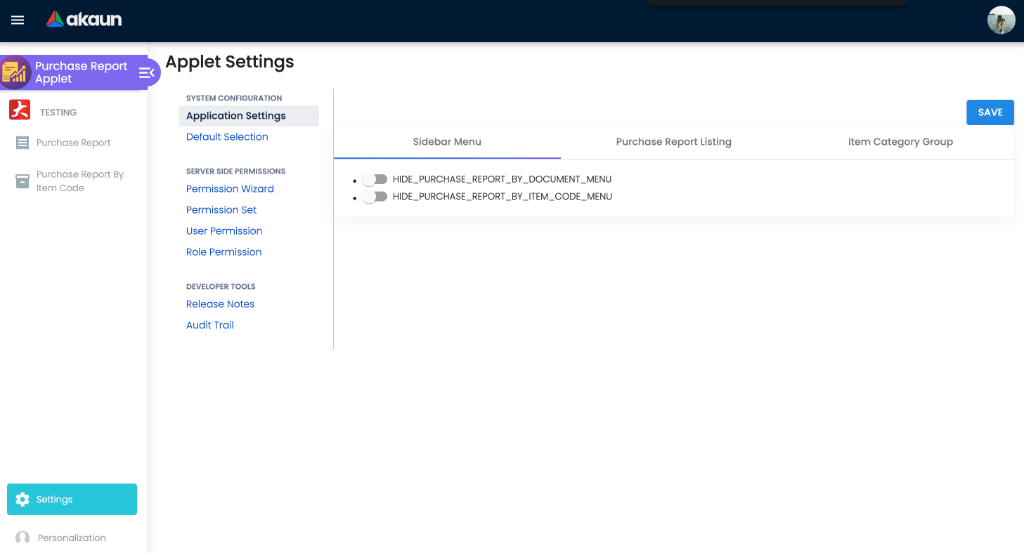
Settings → Application Settings — this applet keeps its own field-configuration screen (tabs By Document, By Item Code, Item Category Group, plus the sidebar toggles) and reads these keys; the shared screen’s generic document toggles do not apply:
| Group | Keys | What they control |
|---|---|---|
| Sidebar | HIDE_PURCHASE_REPORT_BY_DOCUMENT_MENU, HIDE_PURCHASE_REPORT_BY_ITEM_CODE_MENU | Hide either report for everyone; a SHOW_…_MENU client-side permission reopens it per user. |
| By Document columns | HIDE_DOC_NO, HIDE_DATE, HIDE_DOC_TYPE, HIDE_DOC_REFERENCE_DATE, HIDE_REF_NO, HIDE_COMPANY, HIDE_BRANCH, HIDE_LOCATION, HIDE_SUPPLIER, HIDE_ITEM_CODE, HIDE_ITEM_NAME, HIDE_TYPE, HIDE_SUB_TYPE, HIDE_UOM, HIDE_SERIAL_NUMBER, HIDE_QTY, HIDE_UNIT_PRICE, HIDE_MA_COST, HIDE_GROSS_AMOUNT, HIDE_AMOUNT_DISC, HIDE_AMOUNT_NET, HIDE_AMOUNT_TAX, HIDE_AMOUNT_TXN, HIDE_GRN_NO, HIDE_PO_NO, HIDE_QUOTATION, HIDE_ORDER, HIDE_DELIVERY_ORDER, HIDE_INVOICE, HIDE_OTHERS, HIDE_GL_CODE_TYPE | Column visibility. HIDE_MA_COST hides Unit Cost / Cost Amt (the SHOW_MA_COST permission restores them); the external-reference columns have matching SHOW_QUOTATION … SHOW_OTHERS permissions. |
| By Item Code columns | HIDE_ITEM_CODE, HIDE_ITEM_NAME, HIDE_TYPE, HIDE_UOM, HIDE_BRANCH, HIDE_LOCATION, HIDE_QTY, HIDE_PURCHASE_AMOUNT, HIDE_MA_COST, HIDE_STOCK_BALANCE | Column visibility. |
| Item category groups | HIDE_ITEM_CATEGORY_GROUP_1 … HIDE_ITEM_CATEGORY_GROUP_20 | Hide a category column and its search filter. |
| Search fields | HIDE_SEARCH_ITEM_CODE, HIDE_SEARCH_PERIOD, HIDE_SEARCH_DATE_TYPE, HIDE_SEARCH_SUPPLIER, HIDE_SEARCH_SALESMAN, HIDE_SEARCH_ITEM_TYPE, HIDE_SEARCH_ITEM_STATUS, HIDE_SEARCH_CALCULATE_BASE_ON, HIDE_SEARCH_OPTIONAL | Remove fields from the Advanced Search panel (added 2026 with the inline configuration gear). |
| Calculate Base On | the advanced-search cost-basis switches (MA cost, replacement cost, reference / delta / rebate prices 1-3, sales min and max, purchase min and max) | Decide which bases the Calculate Base On list offers, read by the shared search panel both reports use. Once settings are saved, a basis that is not ticked is not offered; tick none and the list falls back to offering every basis, as it does before any settings are saved. |
| Layout | ENABLE_INLINE_APPLET_CONFIG | Shows the inline configuration gear on the search panel and grids. |
Keys declared in the settings model but not used by these screens (custom statuses, the SST and WHT enable flags, dimension include flags, PRINTABLE) have no effect.
Document behaviour settings
Not applicable — the applet creates no documents and has no printable formats; export is the grid’s Excel/CSV export.
Feature visibility / permissions
- Server-side: both reports require the purchase-report permission family (owner, admin, or read targeted to one or more branches). Read access to the purchase documents themselves is not what is checked.
- Client-side permissions checked in code:
SHOW_PURCHASE_REPORT_BY_DOCUMENT_MENU,SHOW_PURCHASE_REPORT_BY_ITEM_CODE_MENU,SHOW_MA_COST,SHOW_QUOTATION,SHOW_ORDER,SHOW_DELIVERY_ORDER,SHOW_INVOICE,SHOW_OTHERS. (TheSHOW_ADVANCED_SEARCH_<OPTION>cost-base permissions are no longer checked: the shared search panel dropped them in July 2026, so only the settings above decide the list.) None are seeded in the registry forpurchaseReport— ask BigLedger to add them to this applet’s permission list before assigning; Settings → Client Side Permission only grants codes already on it. - Personalization → Sidebar hides menus per user.
Fields
The applet has no create or edit forms. The search fields and the columns of both grids are listed under Screens and menus; the only validations are Please enter both Date From and Date To before searching and Search keyword must more than 2 characters.
Lifecycle and effects
This applet is a report. It creates no document, writes no row and holds no state of its own: both grids are one call each to the tenant’s purchase-report service, and everything you see is computed at the moment you press SEARCH, from the purchase documents as they stand right then. Nothing is snapshotted, so a report run twice over the same period will differ if a document was finalised, voided or edited in between — and re-running it is the correct way to refresh a figure, because there is no cache to clear.
What the service reads, and the four filters that decide whether your document is in it
| Source | The live documents and their lines — no reporting copy, so the report is as current as the documents |
| Server document types | INTERNAL_PURCHASE_INVOICE, INTERNAL_PURCHASE_RETURN, INTERNAL_PURCHASE_INVOICE_NO_STOCK_IN |
| Posting status | FINAL on the header. A draft purchase invoice is invisible here, and so is a voided one |
| Base-currency shadows | Excluded. A foreign-currency purchase writes a second, base-currency document; counting both would double every USD purchase |
| Line transaction type | Item lines only, and lines whose own status is DELETED are dropped. A line deleted from a finalised document leaves the report even though the document stays |
| Date | The period is applied to one header date column, chosen by Date Type — transaction date by default, otherwise the created date, the updated date or the supplier document’s reference date. Two people running “the same month” with different Date Types get different answers, and neither is wrong. The general ledger dates a posting by its transaction date, so Date Type = transaction date is the one to use when you compare with the ledger |
Every quantity and every amount is scaled by the line’s quantity signum
The report does not sum amount_net; it sums amount_net * quantity_signum, line by line, and the
same for gross, discount, tax, transaction amount and each of the fifteen cost bases. The signum is
the value the document type’s data-consistency object stamps onto every line it writes:
| Document type | Quantity signum | Amount signum | What the report does with it |
|---|---|---|---|
| Purchase Invoice (Internal) | +1 | −1 | Counts positive |
| Purchase Return (Internal) | −1 | +1 | Counts negative, so returns net against invoices in the same period |
| Purchase Invoice No Stock In (Internal) | 0 | −1 | Multiplies to zero. See the caution below |
A No-Stock-In purchase invoice contributes a row of zeros. Its lines carry quantity signum 0 — that is how the document type avoids moving stock — and because this report scales money by the quantity signum as well as quantity, every column on that row computes to zero: qty, gross, discount, net, tax, transaction amount and cost. The document is read, matched and grouped; it simply adds nothing. So a period whose purchases include no-stock-in invoices will report a purchase total lower than the payables those invoices created, with no message and nothing obviously missing.
A no-stock-in line always carries a quantity signum of 0, so no amount of adjusting this report’s filters or date range will make one appear in it. Reconcile those documents through the Creditor Report or the general ledger, not here.
Where the cost columns come from, which is not where people expect
Unit Cost / Cost Amt and Purchase Cost are not looked up from the item master when you run
the report. They are read from the price and cost columns stored on the document line when the
document was written — cost_ma_price_company, cost_replacement_price_company, ref_price1..3,
delta_price1..3, rebate_price1..3 and the four sales/purchase min-max prices — multiplied by
quantity and by the signum. Calculate Base On only chooses which of those stored columns is read.
Two consequences worth knowing before you argue with the number: a cost base the line never captured reports as zero, not as an error; and changing an item’s moving-average cost today does not change what last month’s report says, because last month’s lines still carry last month’s figure. That is usually what you want, and it is the opposite of how most people assume a report works.
Foreign-currency documents are shown in company currency
For a document whose currency differs from the company’s, the browser divides every amount on the row by the document’s exchange rate before showing it, so Amount Net, Amount Txn and the rest read in company currency, not in the supplier’s currency. A USD 1,000 invoice at a rate of 4.40 shows as about RM 4,400. To see an invoice in its own currency, open the invoice itself.
The cost figure (Unit Cost, Cost Amt, Purchase Cost) goes through the same division. The stored cost columns it is built from are company-cost columns, and whether they are held in company currency on a foreign-currency line has not been settled, so before relying on cost for imported purchases, compare one foreign-currency line’s Unit Cost with the item’s moving-average cost in stock. If they differ by roughly the exchange rate, read cost for those documents from the stock side instead.
Where Stock Balance comes from
The Stock Balance column is not a sum of movements and not today’s balance. It is the
bal_qty carried on the most recent inventory transaction line for that item and location dated
before the day after your period end — the running balance the inventory ledger had already stored on
that movement row. An item with no movement before that date shows an empty balance rather than zero,
and the figure is per location, so an item held in two locations appears twice with two balances.
What it does not do
No journal, no stock movement, no document, no e-Invoice, no job processor, no scheduled refresh.
Nothing in this applet writes to the tenant database at all. The two SHOW_… client-side permissions
it checks are not seeded in the registry (0 definitions for purchaseReport, queried 2026-09-19),
so BigLedger has to add them to the applet’s permission list before they can be granted.
Related applets
- Purchase Invoice (Internal), Purchase Invoice No Stock In (Internal), Purchase Return (Internal) — the documents reported.
- Purchase GRN (Internal), Purchase Order (Internal) — sources of the GRN No and PO No columns.
- Payment Voucher (Internal), Purchase Debit Note (Internal) — settlement documents the same backend service reports against invoices.
- Creditor Report — supplier balances; Stock Balance — the balance the Stock Balance column is taken from.
- Supplier, Organisation, Doc Item Maintenance, Inventory Item Maintenance — master data behind the filters and columns.
Troubleshooting
| Symptom | Cause | Fix |
|---|---|---|
| Please enter both Date From and Date To before searching | The period is mandatory (message reworded in 2026). | Set both dates. |
| Search keyword must more than 2 characters | Keyword shorter than three characters. | Type at least three characters or clear the keyword. |
| A purchase order or GRN is missing from the report | Only FINAL purchase invoices, no-stock-in invoices and purchase returns are read. | Finalise the invoice; use the PO applet’s PO Line with GRN KO report for ordered-versus-received. |
| A No Stock In purchase invoice shows with every figure zero | Its lines carry quantity signum 0, and this report scales amounts by the quantity signum as well as quantities | This is how the report works today, and no setting or filter changes it. Reconcile those invoices through the Creditor Report or the ledger |
| Totals do not match the General Ledger | A different Date Type or period; draft invoices (never in the report); No Stock In invoices (zero here, full value in the ledger); or GL-code lines left out of the item-code report by Optional. | Use Date Type = transaction date and the same period, run the by-document report, and set the No Stock In invoices aside. Amounts are already in company currency (see Foreign-currency documents), so compare against the ledger’s base amounts. |
| GRN No / PO No blank | The invoice was keyed directly (no GRN link) or the GRN was not knocked off from a PO. | Expected; check Doc Link on the invoice. |
| Unit Cost / Cost Amt show zero or an unexpected figure | Calculate Base On points at a price the item lines do not carry (e.g. rebate price 3). | Choose moving-average cost or a price the item has. |
| Cost columns missing for some users | HIDE_MA_COST on and the user lacks SHOW_MA_COST. | Ask BigLedger to add SHOW_MA_COST to this applet’s permission list (it is not seeded), then grant it. |
| A report menu is missing | HIDE_PURCHASE_REPORT_BY_*_MENU on, or hidden under Personalization → Sidebar. | Turn off the setting, grant the SHOW_…_MENU permission, or unhide in Sidebar. |
| Stock Balance looks wrong | It is the location balance at the end of the selected period, not today’s balance. | Adjust the period or use the Stock Balance applet. |
| Returns make quantities negative | Purchase returns carry a negative signum and net against invoices. | Expected. |