Supplier Delivery Order Applet
Supplier Delivery Order Applet user guide still under progress
Work in Progress: This documentation is currently under development. Visual assets (screenshots) and further details will be added soon.
Executive Summary
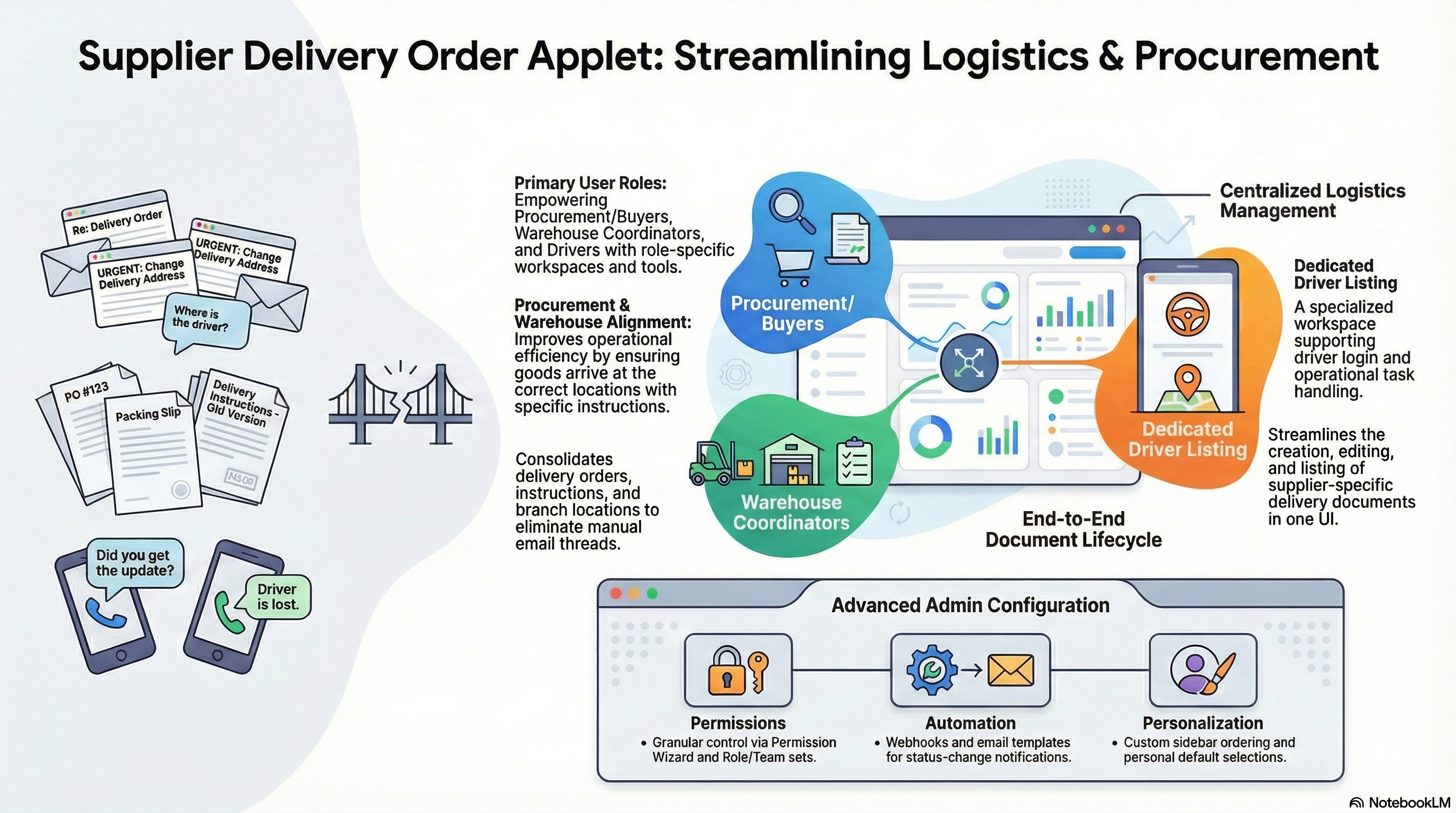
The Supplier Delivery Order Applet lets your organization record and manage supplier delivery orders in one place: maintain documents tied to suppliers, capture delivery instructions (branch, location, regions), and support driver workflows via a dedicated listing. It uses the same configurable document pattern as other Wavelet procurement applets, with permissions, printable formats, webhooks, and personalization aligned to your tenant.
supplier-delivery-orders).Purpose and Overview
Primary Functions
- Supplier delivery order documents — List, create, and edit delivery orders filtered for supplier entities; manage headers, lines, and related account/shipping context through the standard multi-column document UI.
- Delivery details — Capture and maintain delivery branch, delivery location, delivery regions, and line-level delivery instructions where configured.
- Document lifecycle — Support workflow actions appropriate to your setup, including voiding a delivery order when your process allows it, and working with draft / temporary delivery order creation where enabled.
- Driver listing — Access a Driver Listing workspace for driver-related login and operational flows (sidebar entry depends on Feature Visibility and permissions).
- Tenant configuration — Use Settings for field definitions, printable formats, custom status, email templates, webhooks, feature visibility, and the full permission stack (wizard, sets, user/team/role, client-side).
- Personalization — Users can adjust sidebar order and personal default selection for faster repeat entry.
Business Value
Delivery orders document what is expected from suppliers and where goods should arrive, improving alignment between procurement, warehouse, and logistics. Centralizing this in BigLedger reduces ad-hoc spreadsheets and email threads, keeps an audit-friendly history on the document, and allows integrations (e.g. webhooks) to notify external systems when statuses change.
Key Features
Document lifecycle and listing
- Default landing: Supplier Delivery Order Listing (create new, open existing, follow your configured workflow).
- Rich document UI: main details, account/supplier context, line items, and delivery-related fields consistent with other generic document applets.
Delivery and logistics
- Header-level delivery branch and delivery location when used by your configuration.
- Line-level delivery instructions (e.g. dates, remarks) where enabled on the template.
- Driver Listing route for driver-facing workflows managed in this applet.
Configuration and compliance
- Custom status, field settings, and printable format settings to match company policy.
- Permission Wizard, permission sets, user/team/role permissions, and client-side permissions for granular access.
- Webhooks and email templates for automation and notifications.
Feature summary table
| Area | What users get |
|---|---|
| Listing | Search and open supplier delivery orders; start new documents. |
| Edit / create | Full document form: supplier, lines, delivery fields, attachments per setup. |
| Drivers | Driver Listing for configured driver workflows. |
| Admin | Settings and personalization as listed under Configuration. |
Target Users and Roles
Primary Users
- Procurement / buyers — Create and maintain supplier delivery orders, align with purchase commitments, and track delivery-oriented fields.
- Warehouse / logistics coordinators — Confirm delivery locations, branches, and instructions tied to incoming goods.
- Operations admins — Configure fields, statuses, permissions, and printable outputs.
Secondary Users
- Drivers — Use Driver Listing when your rollout includes driver access to this applet.
- Finance (read-only) — May review documents for reconciliation with GRN/invoice processes, subject to permissions.
Required Permissions
- Minimum access: Applet View (or equivalent) to open listing and read documents allowed by your permission model.
- Recommended: Edit on relevant permission sets for users who create or update delivery orders.
- Administrative access: Admin / configuration roles for Settings (field settings, webhooks, permission wizard, feature visibility, etc.).
Prerequisites and Dependencies
System Requirements
- Minimum BigLedger Version: Confirm with your implementation team (Wavelet ERP stack).
- Database dependencies: Standard generic document / supplier-delivery-order tables supplied with the platform module.
- Network: As per your tenant (HTTPS, SSO if enabled).
Required Applets / master data
- Supplier (vendor) master data — Delivery orders are tied to supplier entities; suppliers must exist and be flagged appropriately for your listing filters.
- Branch / location — If delivery branch and location are used, maintain Branch and Location master data.
Optional dependencies
- Internal Purchase Order Applet — For organizations that link delivery planning to POs (process varies by configuration).
- Internal Purchase GRN Applet — For receiving workflows after delivery; relationship depends on tenant setup.
Installation and Setup Guide
Initial installation
- Access the applet — From the launchpad, open Supplier Delivery Order Applet (exact menu label may follow your Feature Visibility and sidebar personalization).
- License / entitlement — Ensure the applet is enabled for your tenant (tenant administrator).
- Sign-in — Use credentials with at least View on this applet to verify the Supplier Delivery Order Listing loads.
Quick setup checklist
- Confirm supplier master data and supplier flags used by delivery order search.
- Review Settings > Feature Visibility so Supplier Delivery Order Listing and Driver Listing appear for the right roles.
- Configure Settings > Permission Wizard (or sets) so procurement and logistics roles can create/edit documents.
- Optional: Settings > Default Selection for default branch or filters.
- Optional: Settings > Printable Format Settings for PDF/layouts.
Detailed setup process
Administrators should walk through Configuration below in order: defaults and field settings first, then permissions, then email/webhooks, then personalization pilots with key users.
Configuration
Company-level settings
Use Settings in the applet sidebar (paths below are route segments; labels in UI may vary slightly by theme).
| Area | Route (reference) | Purpose |
|---|---|---|
| Default selection | settings/default-selection | Defaults for new documents (e.g. branch/location). |
| Field settings | settings/field-settings | Mandatory fields, visibility, and field behavior. |
| Printable format settings | settings/printable-format-settings | Layouts for printing/PDF export. |
| Custom status | settings/custom-status | Status values for the document lifecycle. |
| Email template | settings/email-template | Notification templates. |
| Webhook | settings/webhook | Outbound triggers on events/status changes. |
| Feature visibility | settings/feature-visibility | Show or hide sidebar/features per policy. |
Permission configurations
| Area | Route (reference) | Purpose |
|---|---|---|
| Permission Wizard | settings/permission-wizard-listing | Graphical role-to-function mapping. |
| Permission sets | settings/permission-set-listing | Reusable permission packages. |
| User / Team / Role | settings/user-permission-listing, team-permission-listing, role-permission-listing | Fine-grained access. |
| Client-side permissions | settings/client-side-permission-listing | UI-level controls where supported. |
Maintenance and diagnostics
- Release notes —
settings/release-notes - Applet log —
settings/applet-log
User preferences (personalization)
Under Personalization:
- Personal default selection —
personalization/personal-default-selection - Sidebar —
personalization/sidebarto reorder frequent entries.
User Interface Guide
Main navigation
Typical sidebar entries (when visible):
- Supplier Delivery Order Listing — Main grid and entry point (default route).
- Driver Listing — Driver-related workspace.
- Settings — Administrative configuration.
- Personalization — User-specific defaults and sidebar.
Primary screens
Supplier Delivery Order Listing
Purpose: Find and open supplier delivery orders or start a new document.
Key elements:
- Data grid with filters and actions per your permission set.
- Create (+) or open a row to load the document workspace.
Document workspace (create / edit)
Purpose: Maintain header, supplier/account context, line items, and delivery-related fields.
Key elements:
- Main details — Document identity, dates, supplier, delivery branch/location when used.
- Lines — Items, quantities, prices, and delivery instructions on lines when enabled.
- Workflow actions (e.g. submit, approve—depends on your workflow configuration) and void delivery order when your rules allow.
Driver Listing
Purpose: Support driver login and operational flows configured for this applet.
Key elements:
- Listing and actions as implemented in Driver Login container; align training with your tenant’s driver process.
Common workflows
Create a supplier delivery order
- Open Supplier Delivery Order Listing.
- Select + (or equivalent New) to create a document.
- Choose or confirm supplier and complete main details (branch, location, dates as required).
- Add line items and any delivery instructions per line.
- Save and follow your workflow steps (submit/approve) as configured.
Void a supplier delivery order
- Open the document from the listing.
- Use the void delivery order action when available and permitted (implementation respects server rules for the document state).
- Confirm; capture audit trail per platform behavior.
Driver workflow (high level)
- Open Driver Listing from the sidebar (if visible for your user).
- Complete the steps your organization defines for driver authentication and task handling.
Integration Points
Module integration
| Area | Integration purpose |
|---|---|
| Supplier master | Documents resolve to supplier entities; listing filters by supplier context. |
| Inventory / GRN | Delivery orders often precede or complement goods receipt; exact linkage depends on tenant configuration. |
| Purchase orders | May align with PO lines or expectations; confirm with your functional consultant. |
External integrations
- Webhooks — Settings > Webhook for HTTP callbacks on supported events.
- Email — Email template settings for outbound messages.
Related applets
- Internal Purchase Order Applet — Purchase order lifecycle.
- Internal Purchase GRN Applet — Goods receipt.
Use Cases and Examples
Scenario: Schedule a delivery with clear drop-off details
Context: Procurement agrees with a supplier on items and needs a formal delivery order with branch and location.
Flow: Create a new supplier delivery order, attach the supplier, set delivery branch/location, add lines and delivery instructions, then submit through workflow. Warehouse uses the same document for receiving preparation.
Scenario: Driver uses Driver Listing
Context: Logistics assigns drivers who use the applet’s driver entry point.
Flow: Driver opens Driver Listing, completes login/steps as trained, and updates or views tasks per your configuration.
Troubleshooting
Common issues
Listing is empty or missing suppliers
- Symptom: No rows or supplier search returns nothing.
- Check: Supplier records exist and meet supplier flags expected by the applet filter; user has permission to see those documents.
Cannot void a delivery order
- Symptom: Void action missing or error returned.
- Check: Document state and permissions; void is governed by server rules—contact admin if workflow should allow void in this state.
Driver Listing not visible
- Symptom: Sidebar item missing.
- Check: Settings > Feature Visibility and user permissions; Personalization > Sidebar if the item was hidden.
Delivery branch or location not saving
- Symptom: Fields missing or read-only.
- Check: Field settings and default selection; confirm branch/location master data.
Support escalation
If behavior differs from your designed process, gather the document GUID, user role, and screenshot of the error, then contact your BigLedger administrator or support channel.