Supplier Delivery Order Applet
Let a supplier’s own staff raise delivery orders for that supplier and register its drivers as logins. What they create is your ordinary delivery order, which moves no stock and posts nothing, and it cannot be finalised here: finalising, voiding and printing happen in the internal Delivery Order applet.
Overview
The Supplier Delivery Order Applet is a supplier-access applet. A user whose login is linked to one or more supplier records (see Supplier Applet) opens it to create and maintain delivery orders on behalf of those suppliers, and to register the supplier’s drivers as BigLedger logins. The document it writes is the tenant’s ordinary Internal Outbound Delivery Order (INTERNAL_OUTBOUND_DELIVERY_ORDER, short code OBDODR) with the supplier as the document entity — the same document the Delivery Order Applet (Internal) works on, seen through a supplier’s window. A delivery order created here can pull lines from an open Sales Order, appears in the driver’s Driver Delivery Order Applet once a driver is assigned, and is later knocked off by a Sales Invoice.
It is not a purchase-side document: it does not sit between a Purchase Order and a GRN, it moves no stock and posts no journal (see Lifecycle and effects).
Where it fits
| Position | Document / applet | Link |
|---|---|---|
| Upstream (optional) | Sales Order — lines can be knocked off into the delivery order when the company has a SALES ORDER → OUTBOUND DELIVERY ORDER line flow | Sales Order Applet (Internal) |
| Master data | Supplier record the login is linked to; the login itself | Supplier Applet |
| Master data | Company, branch, location; Knock Off Configuration (document flow rows) | Organisation Applet |
| Same document, full applet | Internal Outbound Delivery Order — FINAL, VOID, print, e-mail happen there | Delivery Order Applet (Internal) |
| Downstream | Driver’s view of the delivery orders assigned to them | Driver Delivery Order Applet |
| Downstream | Sales Invoice knocks off FINAL delivery-order lines (OUTBOUND DELIVERY ORDER → SALES INVOICE flow) | Sales Invoice Applet (Internal) |
| Sibling supplier-access applets | Supplier views of the purchase-side documents | Purchase Order Supplier Access, Purchase GRN Supplier Access |
Modules: Purchase Workflow (supplier access), Inventory Workflow (delivery).
Screens and menus
Sidebar: Supplier Delivery Order (listing) and Driver Listing; Settings and Personalization at the bottom.
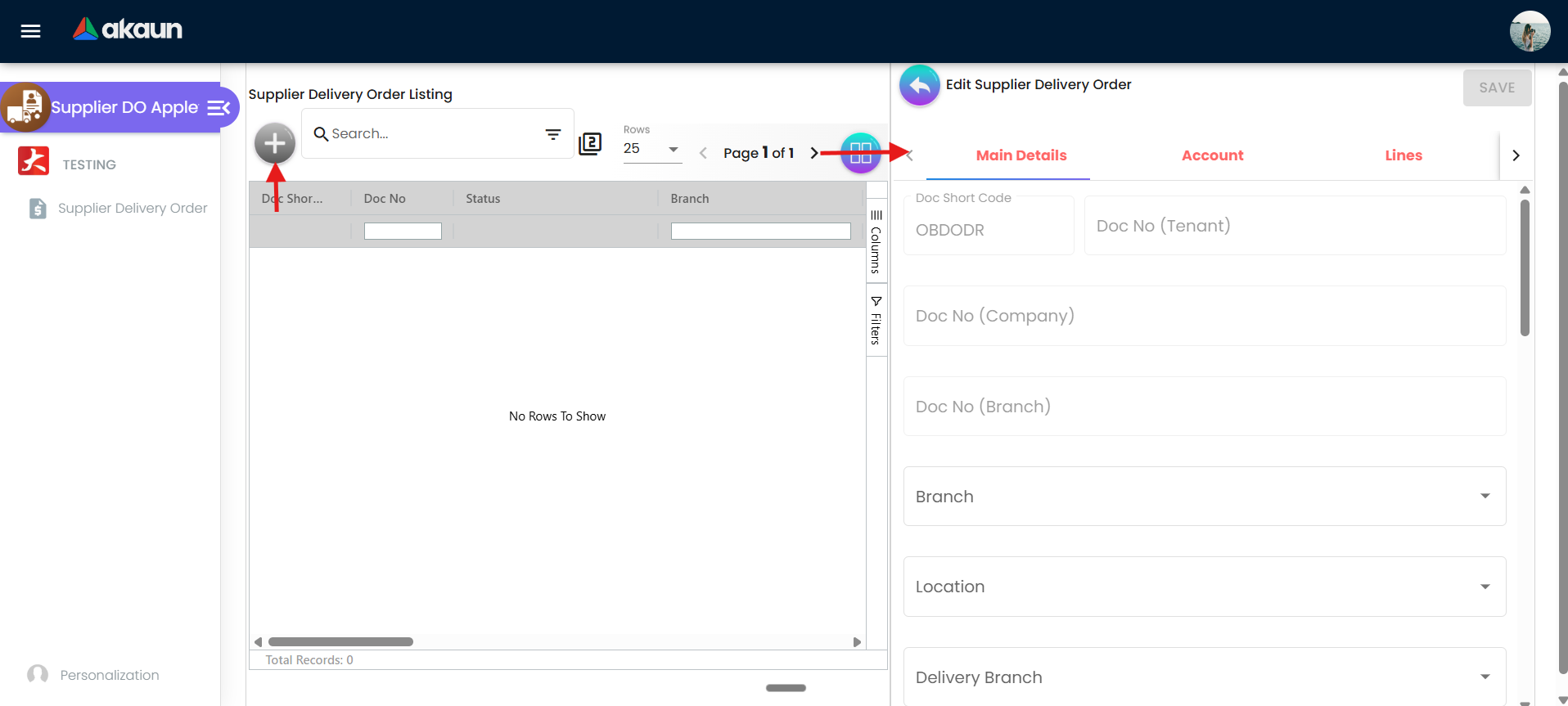
Supplier Delivery Order Listing — grid columns Doc No, Doc Status, Doc Date, Doc validity date, Branch, Location, Destination, Vehicle No, Delivery Date, Created Date, Modified Date; + (Create), search / advanced search, column toggle, pagination. The grid allows multi-select, but the status bar is an empty stub, so there are no batch actions.
Edit Supplier Delivery Order — opened by + or by clicking a row. Tabs Main Details, Account (sub-tabs Entity Details, Bill To, Ship To), Lines. Header actions: SAVE; DELETE below the tabs (two clicks to confirm) when enabled. FINAL, DISCARD, VOID and CLOSE exist as handlers but their buttons are commented out of the template, so they are not shown for anyone.
Lines — line list with + (Add Line Item, disabled once the document is FINAL / VOID / DISCARDED) and totals. Add Line Item opens Line Item Create with tabs Search Item, KO For Sales Order (only when the company has an enabled INTERNAL_SALES_ORDER → INTERNAL_OUTBOUND_DELIVERY_ORDER LINE flow) and KO For Sales Invoice (only when an INTERNAL_OUTBOUND_DELIVERY_ORDER LINE flow exists — the tab is labelled “Sales Invoice” but is wired to pull Sales Invoice lines into the delivery order; see Troubleshooting). Selecting an item opens Add Line Item with Item Details (Main Details, Department, Doc Link, Delivery Details, Delivery Trips) and Pricing Details; editing a saved line adds Serial / Batch / Bin Number, Costing Details and Issue Link tabs.
Driver Listing — grid of driver logins (User, Supplier, Status, Modified Date) for the suppliers the current login is linked to; + opens Driver Login Create (supplier, e-mail or phone, verify / send TAC / send invite, status); a row opens Driver Login Edit (rank, status, Remove).
Settings (System Configuration group): Application Settings, Default Selection, Printable Format Settings, Custom Status, Email Template. Routes also exist for Webhook, Feature Visibility, permission wizard / set / user / team / role / client-side listings, Release Notes and Applet Log; the shared settings shell adds its own permission and developer-tool links. Personalization: Default Selection (Sidebar route exists, not in the menu).
Configuration
Before you can use it
- A login linked to a supplier. The listing, the supplier picker and Driver Listing all start from the suppliers your login is linked to, and show only their documents and drivers. A login with no supplier link sees an empty listing and an empty picker, whatever its permissions. Create the link in the Supplier Applet (Supplier → Login).
- Server-side permission targets for the internal outbound delivery order document type:
TNT_API_DOC_INTERNAL_OUTBOUND_DELIVERY_ORDER_{CREATE,READ,UPDATE,DELETE}_TGT_GUID. The + button needs CREATE (orTNT_TENANT_ADMIN/TNT_TENANT_OWNER); SAVE needs UPDATE; the listing is filtered by the READ targets’ branches. Assign them through Settings → Permission Wizard. - Company, branch, location in the Organisation Applet — Company, Branch and Location are required on Main Details.
- Knock Off Configuration (Organisation → Company) if lines are to be pulled from Sales Orders (
INTERNAL_SALES_ORDER → INTERNAL_OUTBOUND_DELIVERY_ORDER, flow type LINE, enabled) or if Sales Invoices must later find these delivery orders (INTERNAL_OUTBOUND_DELIVERY_ORDER → INTERNAL_SALES_INVOICE). Without the second row FINAL (done in the Internal applet) creates no open-queue rows. - Items with transaction class
PNSin Doc Item Maintenance — the item search filterstxn_class = PNS. - No GL codes, tax codes, cashbooks or document numbering are needed: the document has no journal and the Doc No fields are free text.
Applet settings
Settings live on the shared settings screen (Settings → Application Settings), plus this applet’s own Default Selection (applet-wide) and Personalization → Default Selection (personal). There is no inline gear on any screen. The shared screen shows roughly 400 settings for this applet; the table lists only the ones this applet actually uses on a screen you can reach. Anyone with access to the Settings menu can change them; they apply to the whole tenant.
| Setting | What it controls | Default | Effect when changed |
|---|---|---|---|
DEFAULT_POSTING_STATUS | Posting-status filter applied to the listing on open (ALL, DRAFT, FINAL, VOID, DISCARDED) | unset (no filter) | ALL or unset shows every status; any other value restricts the listing until the user searches |
SORT_ORDER | Listing sort column | unset (updated_date) | Picks the column only: the listing is always newest (highest) first, and a column you click to sort by overrides the setting for that session |
HIDE_LOCATION | Location picker on Main Details | off | Hides the picker; Location stays required, so a document without one cannot be saved (see Troubleshooting) |
HIDE_DELIVERY_BRANCH / HIDE_DELIVERY_LOCATION | Delivery Branch / Delivery Location pickers on Main Details | off | Hides the picker; the header values are still copied to every line on SAVE |
HIDE_CREATED_BY_DETAILS | Created By / Created Date / Modified By / Modified Date block | off | Hides the block |
HIDE_GENDOC_SAVE_BUTTON | The SAVE button on the edit screen | off | With it on there is no way to save — the only other action is DELETE |
SHOW_DOCUMENT_DELETE_BUTTON | DELETE button on the edit screen (read when the screen opens) | off | Shows DELETE for documents that are not FINAL |
HIDE_TOTAL_DISCOUNT_AMOUNT | Total-discount line in the Lines footer | off | Hides the figure |
HIDE_DEPARTMENT | Department tab on Add / Edit Line Item | off | Hides the tab and skips department defaults on the line |
HIDE_DELIVERY_DETAILS | Delivery Details tab on Add / Edit Line Item | off | Hides the per-line delivery branch / location / instructions |
HIDE_DOC_LINK, HIDE_DELIVERY_TRIPS | Doc Link and Delivery Trips tabs (edit mode only) | off | Hides the tab |
HIDE_SERIAL_NUMBER, HIDE_BATCH_NUMBER, HIDE_BIN_NUMBER | Serial / Batch / Bin Number tabs for items of that sub-type | off | Hides the tab; quantities are still validated against serial counts at FINAL time in the Internal applet |
HIDE_COSTING_DETAILS, HIDE_PRICING_DETAILS, HIDE_ISSUE_LINK | Costing, Pricing and Issue Link tabs on Edit Line Item | off | Hides the tab |
ENABLE_ITEM_NAME_MAX_LIMIT + ITEM_NAME_MAX_LIMIT | Caps the item-name length on the line (maxlength on the input); the number field renders only when the toggle is on | off / empty | Longer names are truncated at entry |
HIDE_TAX_CONFIG_SELECTION, HIDE_WHT_CONFIG_SELECTION | SST/VAT and WHT selectors on the line | off | Hides the selector |
HIDE_QTY_BASE, HIDE_QTY_UOM, HIDE_UOM_TO_BASE_RATIO | Quantity columns on the line form | off | Hides the field |
HIDE_UNIT_PRICE_STD_PRICING_SCHEME, HIDE_UNIT_PRICE_STD_EXCL_TAX, HIDE_UNIT_PRICE_STD_INCL_TAX, HIDE_UNIT_PRICE_STD_UOM_EXCL_TAX, HIDE_UNIT_PRICE_STD_UOM_INCL_TAX | Standard unit-price fields | off | Hides the field |
HIDE_UNIT_DISCOUNT, HIDE_UNIT_DISCOUNT_UOM_EXCL_TAX, HIDE_DISCOUNT_AMOUNT_EXCL_TAX | Discount fields | off | Hides the field |
HIDE_UNIT_PRICE_NET_EXCL_TAX, HIDE_UNIT_PRICE_NET_UOM_EXCL_TAX, HIDE_UNIT_PRICE_TXN, HIDE_UNIT_PRICE_TXN_UOM_INCL_TAX | Net / transaction unit-price fields | off | Hides the field |
HIDE_AMOUNT_STD_EXCL_TAX, HIDE_AMOUNT_NET_EXCL_TAX, HIDE_AMOUNT_TXN | Line amount fields | off | Hides the field |
ENABLE_DRAFT_LOCK_SERIAL_NUMBER_CHECKING | Passes checkDraftLock to serial-number validation when a serialised line is added or the document is finalised | off | On: a serial number already locked by another draft document is rejected with “One of the serial numbers is already locked” |
Default Selection (master, applet-local) — DEFAULT_COMPANY, DEFAULT_BRANCH, DEFAULT_LOCATION (branch and location pickers). Used: company and branch are loaded from them when a document opens and Main Details pre-fills the location. RESET nulls the three keys plus DEFAULT_VALIDITY_DAYS.
Personalization → Default Selection — personal DEFAULT_BRANCH, DEFAULT_LOCATION, DEFAULT_COMPANY, DEFAULT_TOGGLE_COLUMN (SINGLE collapses the listing to one column). Personal values win over master when present.
Read at runtime without a live control or without effect (do not expect them to do anything here):
HIDE_GENDOC_FINAL_BUTTON,HIDE_GENDOC_DISCARD_BUTTON,HIDE_GENDOC_VOID_BUTTON,HIDE_CLOSE_BUTTON— rendered on the shared screen, but they govern buttons this applet does not show, so they do nothing.ENABLE_SERIAL_NUMBER_VALIDATION_FINAL— read by the FINAL effect; the shared screen does not render it for this applet code and FINAL is unreachable here.HIDE_DELIVERY_DETAILS_TAB,HIDE_KO_FOR_TAB,HIDE_POSTING_TAB,HIDE_DEPARTMENT_HDR_TAB— read only by the standalone Create screen, which no route or button reaches (+ creates a TEMP document and opens Edit directly); the shared screen does not offer the tab-hide toggles for this applet either.PRINTABLE— read as the default printable format for batch print, which is dead (below); no control writes this key here.DEFAULT_CUST_TYPE,DEFAULT_COUNTRY,DEFAULT_CURRENCY— read by the embedded “create entity” form inside the supplier picker; no control on any screen.ENABLE_CUSTOM_STATUS_{1..5}/_HDR_/_LINE_(Custom Status screen) — shown and saved, but a document’s custom status is always cleared on save, and nothing in this applet uses them.ENABLE_AUTO_POPUP,HIDE_CUSTOMER_CODE— no effect.
Document behaviour settings
- Status flow — no applet setting. SAVE on a new document converts TEMP → ACTIVE/DRAFT; FINAL, VOID, DISCARD and CLOSE have no button in this applet. Use the Delivery Order Applet (Internal) to finalise.
- Printables — Settings → Printable Format Settings lists the delivery-order formats and stores this applet’s default. But printing from this applet cannot work: there is no print button, and the batch print it would use is not supported for this document. Print from the Internal applet.
- Email Template — templates are shared with the Internal applet; this applet cannot send e-mail, so templates created here are only usable from the Internal applet.
- Workflow / approval, e-Invoice — none.
Settings in other applets that control this applet
| Setting | Where it is set | Effect here |
|---|---|---|
| Supplier ↔ login link | Supplier Applet → Login | Defines which suppliers (and therefore which documents and drivers) the user sees |
Knock Off Configuration rows INTERNAL_SALES_ORDER → INTERNAL_OUTBOUND_DELIVERY_ORDER (LINE) | Organisation → Company | Shows the KO For Sales Order tab in Line Item Create |
Knock Off Configuration row INTERNAL_OUTBOUND_DELIVERY_ORDER → INTERNAL_SALES_INVOICE (LINE) | Organisation → Company | Lets FINAL (in the Internal applet) create open-queue rows that the Sales Invoice applet’s KO tab finds; also shows the mislabelled “KO For Sales Invoice” tab here |
posting_final_json include / exclude processor list | Organisation → Company | Decides which FINAL processors run for the document (journal, stock, open queue); the document is signum 0/0 so only the open-queue processor has an effect |
Printable formats for INTERNAL_OUTBOUND_DELIVERY_ORDER | Delivery Order Applet (Internal) → Printable Format Settings | Same records as this applet’s Printable Format Settings screen |
Feature visibility / permissions
- Server-side:
TNT_API_DOC_INTERNAL_OUTBOUND_DELIVERY_ORDER_{CREATE,READ,UPDATE,DELETE}_TGT_GUID(plusTNT_TENANT_ADMIN/TNT_TENANT_OWNERas overrides for create and save). DELETE is enforced by the backend (deletePerm) even when the button is visible. - Client-side codes the screens check:
SHOW_GENDOC_FINAL_BUTTON,SHOW_GENDOC_DISCARD_BUTTON,SHOW_GENDOC_VOID_BUTTON(listing and edit). None is defined for this applet, and granted client-side permissions are never loaded by it anyway, so they cannot take effect here. The Settings → Feature Visibility screen is an empty placeholder.
Fields
Main Details
| Field | Meaning | Required | Notes / validation |
|---|---|---|---|
| Doc Short Code | Backend short code | — | Read-only; always OBDODR |
| Doc No (Tenant) | Tenant-level number | — | Read-only, assigned by the backend |
| Doc No (Company), Doc No (Branch) | The company’s and the branch’s running numbers | — | Read-only: they are assigned by the server, never typed here, and stay blank until it does |
| Location | Stock location (guid_store) | Yes | Hidden by HIDE_LOCATION but still required |
| Delivery Branch, Delivery Location | Where the goods go (delivery_branch_guid, delivery_location_guid) | No | Copied to every line on SAVE, with the codes |
| Delivery Driver | delivery_driver_guid — a driver login registered under Driver Listing | No | Picker of entity-driver links; this is what makes the document appear in the Driver Delivery Order applet |
| Vehicle No | The delivering vehicle’s registration | No | The same field the driver sees and can change in the Driver Delivery Order applet — so what you type is a starting point, and the driver’s correction wins |
| Delivery Date | delivery_date_expected | No | Read-only in this build (populated on load only) |
| Transaction Date | date_txn | No | Read-only; defaults to the creation time and is re-applied by the server on SAVE |
| Base Currency, Currency Rate | base_doc_ccy (disabled), base_doc_xrate | No | SAVE is refused client-side when the currencies differ and the rate is ≤ 0 (“The currency rate cannot be ZERO or negative.”); the backend repeats the check at FINAL (FOREX_DOC_REQUIRES_NON_ZERO_XRATE) |
| Created By / Date, Modified By / Date | Audit block | — | Read-only; hidden by HIDE_CREATED_BY_DETAILS |
Branch (required) is picked from the branches you may read, and fills Company with it. Reference, Ship Via, Tracking ID, Remarks and External Remarks are free text.
Account
| Field | Meaning | Required | Notes / validation |
|---|---|---|---|
| Entity Id | The supplier the document belongs to (doc_entity_hdr_guid) | Yes | Select Supplier lists only suppliers linked to the current login; the tab turns red while empty |
| Status, Identity Type, Currency, Description, Entity Name, Entity Type, ID Number, Email, Phone Number | Snapshot of the selected supplier (doc_entity_hdr_json) | — | Read-only here, and copied from the supplier record the moment you pick the supplier — not read through it afterwards. Correcting the supplier record changes the next document, not this one. See The supplier on this delivery order is a copy |
| Bill To, Ship To | Billing / shipping address and contact | No | Chosen from the supplier’s addresses; only Entity Id is validated |
The supplier on this delivery order is a copy
The nine read-only boxes above are not a window onto the supplier record. When you pick the supplier, BigLedger copies their details onto this document — code, name (with the contact’s name appended when you picked a contact), status, e-mail, phone, GL code, identity number and type, description and currency, plus the billing and shipping contact. The backend fills that block from the supplier record only when it arrives empty, and never refreshes one that is already there.
On a delivery order that matters more than on most documents, because this is the paper a driver and a storekeeper sign for. It has to say who delivered, and under what name and number, on the day the goods arrived — which is the question asked when a receipt is queried a year later.
- Correcting the supplier record does not correct this document. It changes the next one. The correction is made in the Supplier applet as a separate, deliberate act; nothing prompts you to do it, and nothing propagates it backwards.
- One thing does reach documents already raised: a merge. Entity merging rewrites the entity snapshots on every document pointing at the surviving record — see Supplier → Entity merging.
The rule holds across every document-issuing applet.
Lines
| Field | Meaning | Required | Notes / validation |
|---|---|---|---|
| Item | PNS item from the item search | Yes | Item search is limited to txn_class = PNS |
| Quantity (UOM / base) | How many | Yes | Type either. A quantity by UOM is turned into base units and rounded to a whole number (0.3 of a carton of 12 becomes 4); a base quantity is turned back into UOM to two decimals. The base quantity is what is stored and checked, minimum 1 |
| Unit price (std / net / txn), discount, tax, WHT | Pricing columns | Net / tax-inclusive / transaction amounts are required, minimum 0 | Recalculated by the pricing helpers; amount signum is forced to 0 by the backend |
| Serial / Batch / Bin numbers | Per sub-item type | Only when the item’s sub-type needs them | Serial count must equal quantity at FINAL |
| Department (segment, dimension, profit centre, project), Delivery Details, Delivery Trips, Doc Link, Issue Link | Optional tabs | No | Delivery Details falls back to the header delivery branch / location |
The UOM and its ratio to the base unit come from the item and cannot be typed; the ratio is shown read-only.
At least one line is required before SAVE is enabled.
Driver Login (Driver Listing)
| Field | Meaning | Required | Notes / validation |
|---|---|---|---|
| Supplier | Supplier the driver works for (entity_hdr_guid) | Yes | Only the login’s linked suppliers are offered |
| User email or phone number | The driver’s BigLedger login | Yes | E-mail or phone pattern; Verify looks the login up; Send Invite creates it; Send Tac / Verify Tac Code confirm a phone |
| Status | ACTIVE / INACTIVE | Yes | Defaults to ACTIVE |
| Rank (edit only) | Free text stored on the link | No |
Saving links the login to the supplier and, if it is not already there, registers the same login as a driver — the pair the Delivery Driver picker and the Driver Delivery Order Applet rely on.
Lifecycle and effects
Status (status / posting_status) | How you get there | What you can do |
|---|---|---|
| TEMP / — | + on the listing. A TEMP document is created before you type anything | Fill the header, pick the supplier, add lines; SAVE; DELETE |
| ACTIVE / DRAFT | First SAVE (PUT …/internal-outbound-delivery-orders with status = ACTIVE; the backend sets posting_status = DRAFT) | Edit and SAVE again; add / edit / delete lines; DELETE |
| ACTIVE / FINAL | Not reachable from this applet (no button). Finalise in the Delivery Order Applet (Internal) | Header and lines are locked; DELETE hidden |
| VOID, DISCARDED | Not reachable from this applet | Read-only |
| DELETED | DELETE (DELETE …/internal-outbound-delivery-orders/{guid}; needs the DELETE permission) | Row disappears from the listing |
Leaving the edit screen without SAVE leaves the TEMP row behind; TEMP rows are excluded from the listing.
What posting does
- Document type:
INTERNAL_OUTBOUND_DELIVERY_ORDER, whatever this applet calls it. The document is stored as an ordinary delivery order; the only thing that marks it as created here is its client document type,SUPPLIER_DELIVERY_ORDER. Anything that tries to store it under another document type is refused. - Stock and money: neither. No journal, no payable or receivable, and no stock movement — if journal posting runs for it anyway, its job fails with
NO_JOURNAL_CREATED. Open delivery-order quantity is reported as committed stock and counts toward the customer’s open credit. - FINAL (in the Internal applet): fiscal-period lock, a non-zero exchange rate, blacklisted customer, serial count = quantity; then the only follow-on job that does anything here opens the lines for the documents the company’s Knock Off Configuration allows from a delivery order. A FINAL delivery order can be turned into a Sales Invoice.
- VOID (in the Internal applet): refused while any active document has knocked this one off, or when e-Invoice is enabled for the tenant; otherwise its open lines are cancelled. Nothing to reverse in the ledger or stock.
Knock-off links — when lines are pulled in from a Sales Order, the delivery order is linked to it line by line, and the links are re-synced on every SAVE while the document is a draft; the Sales Order’s open quantity is reduced only when the delivery order is FINAL.
Related applets
- Delivery Order Applet (Internal) — the same document type with the full action set; finalise, void, print and e-mail there.
- Driver Delivery Order Applet — drivers registered under Driver Listing see the delivery orders whose Delivery Driver is them.
- Sales Order Applet (Internal) — source of the KO For Sales Order tab.
- Sales Invoice Applet (Internal) — knocks off FINAL delivery-order lines through the company flow row.
- Supplier Applet — supplier records and the supplier ↔ login links that scope everything in this applet.
- Organisation Applet — company, branch, location and Knock Off Configuration.
- Purchase Order Supplier Access and Purchase GRN Supplier Access — the other supplier-facing applets, built on the same login-link filter.
Troubleshooting
| Symptom | Cause | Fix |
|---|---|---|
| Listing is empty although documents exist; Select Supplier shows nothing | The login has no entity_login_subject_link to an entity flagged as supplier — the applet filters every query by those links | Link the login to the supplier in the Supplier Applet (Supplier → Login); check is_supplier on the entity |
| + is greyed out | No …OUTBOUND_DELIVERY_ORDER_CREATE_TGT_GUID target (and not tenant admin / owner) | Grant the create permission target in Settings → Permission Wizard |
| SAVE stays disabled | Company / Branch / Location or Entity Id missing (red tab), or no lines, or no UPDATE permission target | Complete the red tab; add a line; grant the update target |
| Location is required but the picker is missing | HIDE_LOCATION is on — the validator stays | Turn the setting off, or rely on DEFAULT_LOCATION in Default Selection, which pre-fills the hidden control |
| “The currency rate cannot be ZERO or negative.” on SAVE | Header currency differs from the base currency with an empty rate | Enter the rate (client-side check; the backend repeats it at FINAL) |
| “One of the serial numbers is already locked” | ENABLE_DRAFT_LOCK_SERIAL_NUMBER_CHECKING is on and another draft holds the serial | Release the serial from the other draft or pick another unit |
| Where are FINAL / VOID / DISCARD / Print / Email? | Their buttons are commented out of this applet’s templates and the batch-print effect targets an endpoint (supplier-delivery-orders) that the backend does not register | Finalise, void and print in the Delivery Order Applet (Internal); the document is the same row |
The document shows Doc Short Code OBDODR and appears in the Internal delivery-order listing | By design — it is an internal outbound delivery order with the supplier as entity (client_doc_type = SUPPLIER_DELIVERY_ORDER is the only marker) | Filter the Internal listing by entity if the two populations must be kept apart |
| Backend rejects a PUT for an invalid document type | The header server_doc_type was changed from INTERNAL_OUTBOUND_DELIVERY_ORDER (e.g. by an import or a stale client) | Keep the backend value; the applet’s SUPPLIER_DELIVERY_ORDER constant is only used for client_doc_type and for discount / rounding lines |
Discount or rounding lines carry server_doc_type = SUPPLIER_DELIVERY_ORDER while item lines say INTERNAL_OUTBOUND_DELIVERY_ORDER | The applet stamps the two generated lines with its own constant and the backend keeps a non-null line value | Harmless for posting (signum 0) but reports that filter lines by document type will miss them; raised as an applet bug in the lane findings |
| “KO For Sales Invoice” tab appears / does not appear | The tab is gated by any enabled INTERNAL_OUTBOUND_DELIVERY_ORDER LINE flow row and is wired as INTERNAL_SALES_INVOICE → INTERNAL_OUTBOUND_DELIVERY_ORDER (copy of the Internal applet’s tab set) | Treat it as unsupported here; pull lines from Sales Orders only |
| Driver cannot see the delivery order in the Driver Delivery Order applet | Delivery Driver not set on Main Details, or the driver login was created without the entity_driver_link row | Register the driver under Driver Listing (this creates both links), then pick them as Delivery Driver and SAVE |
| Sales Invoice cannot find the delivery order for knock-off | FINAL was never done (this applet cannot), or the company has no enabled INTERNAL_OUTBOUND_DELIVERY_ORDER → INTERNAL_SALES_INVOICE row | Finalise in the Internal applet; add the flow row under Organisation → Company → Knock Off Configuration |
| Reviewer question from the guide tracker: “why does the create screen say Internal Delivery Order?” | The standalone Create screen is unreachable in the current build; + opens Edit Supplier Delivery Order directly | No action — the screenshot above shows the actual flow |
Known issues: the only repo issue is the Angular 14 migration (applet #1, closed 2026-03); the sub-query removal task replaced the listing’s snapshot queries — no functional change.
Related documentation
- Purchase Workflow applets — the supplier-access family this applet belongs to.
- Delivery Order Applet (Internal) — full lifecycle of the same document.
- Driver Delivery Order Applet — the driver’s side.
- Supplier Applet — supplier ↔ login links.
- No user guide covers this applet yet (wiki tracker #151 closed as pending).