Commission Scheme Applet
Purpose and Overview
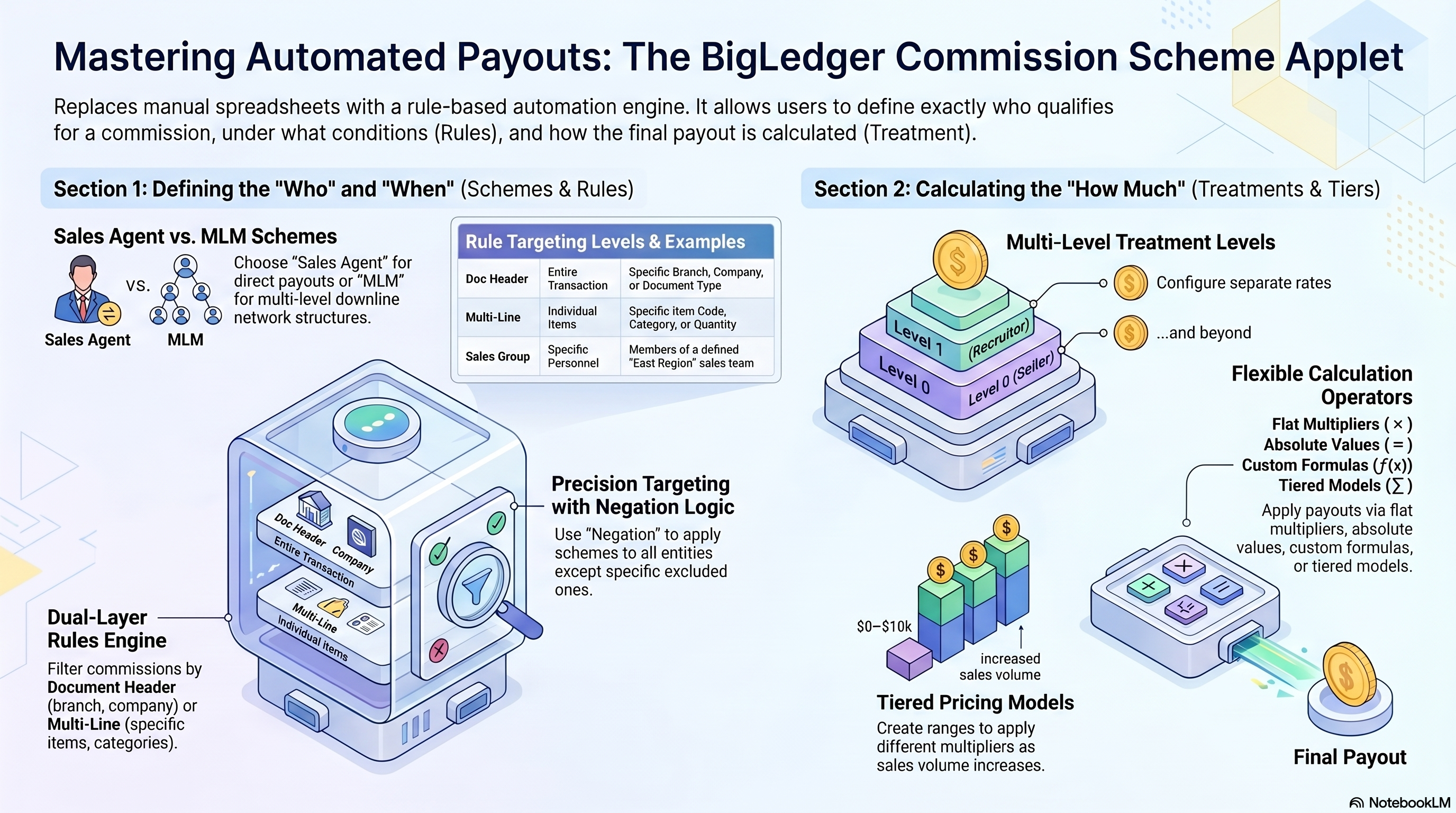
The Commission Scheme Applet gives sales administrators and finance teams a single place to define how salespeople, agents, and affiliates earn commissions. Instead of maintaining manual spreadsheets or chasing finance to calculate payouts, you build the rules once in this applet and the system applies them automatically across all qualifying transactions.
Who Benefits from This Applet?
Sales Administrators:
- Define commission rules for individual agents, teams, or MLM downlines
- Control which document types (invoices, receipts, sales orders) trigger commissions
- Restrict schemes to specific branches, companies, customers, or items
Finance Teams:
- Replace manual commission spreadsheets with automated rule-based calculations
- Configure tiered pricing models with range-based multipliers
- Audit exactly which rules fired for any commission payout
Sales Managers:
- Organize salespeople into Sales Groups for reporting and scheme assignment
- Link multiple salesmen to a group and manage group-level commission logic
- Track commission entitlements by scheme and sales group
MLM / Multi-Level Businesses:
- Configure multi-level downline treatments (Level 0 = self, Level 1 = parent, etc.)
- Set commission rates and membership point awards per level
- Support complex agent network structures
What Problems Does This Solve?
Before this applet, commission calculation typically involved:
- Manual spreadsheets updated after every sales period
- Errors from applying wrong rates to wrong agents or items
- No audit trail linking a commission payment to a specific rule
- Separate configurations for each sales channel or product category
With this applet, you get:
- Rule-based automation — define conditions once; commissions calculate on every qualifying transaction
- Flexible targeting — restrict schemes by branch, company, customer type, item, category, or sales group
- Multi-level support — configure commission chains for downline agent networks
- Pricing Model tiers — set range-based commission rates (e.g. 5% for sales 0–10k, 8% for sales 10k–50k)
- Membership points — award loyalty points alongside or instead of cash commissions
Key Features Overview
Quick Start Guide
Sales Admin: Create Your First Commission Scheme
Goal: Set up a working commission scheme for a sales agent in 5 steps.
- Navigate: Click Commission Scheme in the sidebar
- Create: Click "+" → Enter a Code and Name → Select Commission Type (
SALES_AGENTorMLM) → Click CREATE - Add Rules (on the Edit screen):
- Click the Rules - Doc Hdr tab → Click Add Rule → choose a document-level rule type (e.g. Branch, Sales Group, Document Type) → configure and save
- Click Rules - Multi Line or Rules - Single Line for item-level rules (e.g. Item, Item Category) — see Available Rule Types by Tab
- Set Treatment (on the Treatment tab):
- For Level 0 (Self): choose Price Source (e.g. Doc Line Net Amount), Operator (e.g. MULTIPLY), and Value (e.g. 0.05 for 5%)
- For MLM schemes: click Add Downline to add Level 1 (Parent) with its own rates
- Save: Click SAVE — the scheme is now active and will apply to all qualifying transactions
Pro Tip: Set the scheme Status to ACTIVE to enable it. Set it to INACTIVE to pause without deleting it.
Sales Manager: Set Up a Sales Group
Goal: Organise your salespeople so they can be assigned to commission schemes.
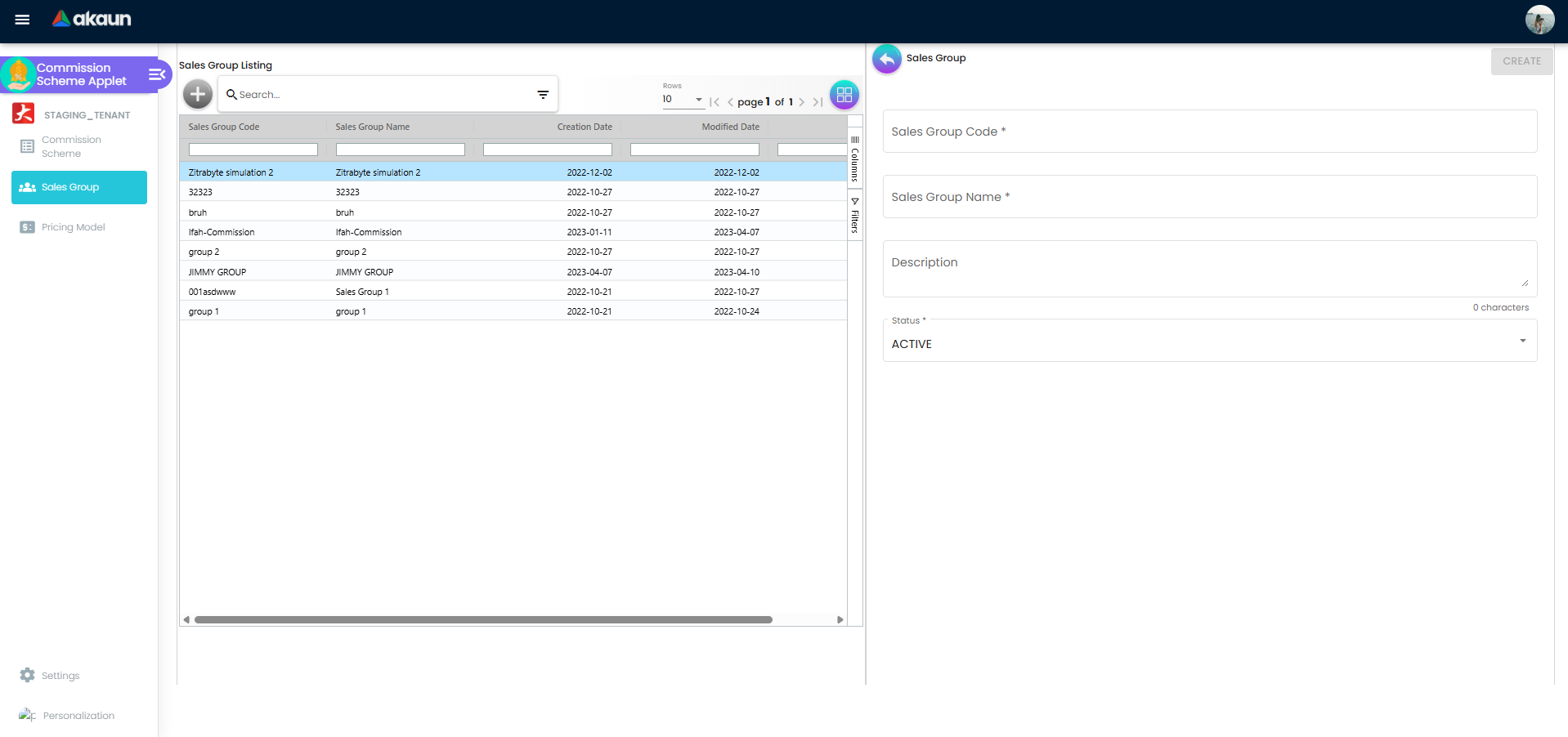
- Click Sales Group in the sidebar
- Click "+" → Enter Sales Group Code and Sales Group Name → Click CREATE
- Open the group you just created → click the Salesman tab
- Click "+" → search for and select a salesman (employee) → CREATE
- Repeat to add all members of this group
Use this group in Commission Scheme rules (via the Sales Group Rule) to limit a scheme to this group’s members only.
Finance Admin: Create a Tiered Pricing Model
Goal: Define a tiered commission table (e.g. different rates for different sales volume ranges).
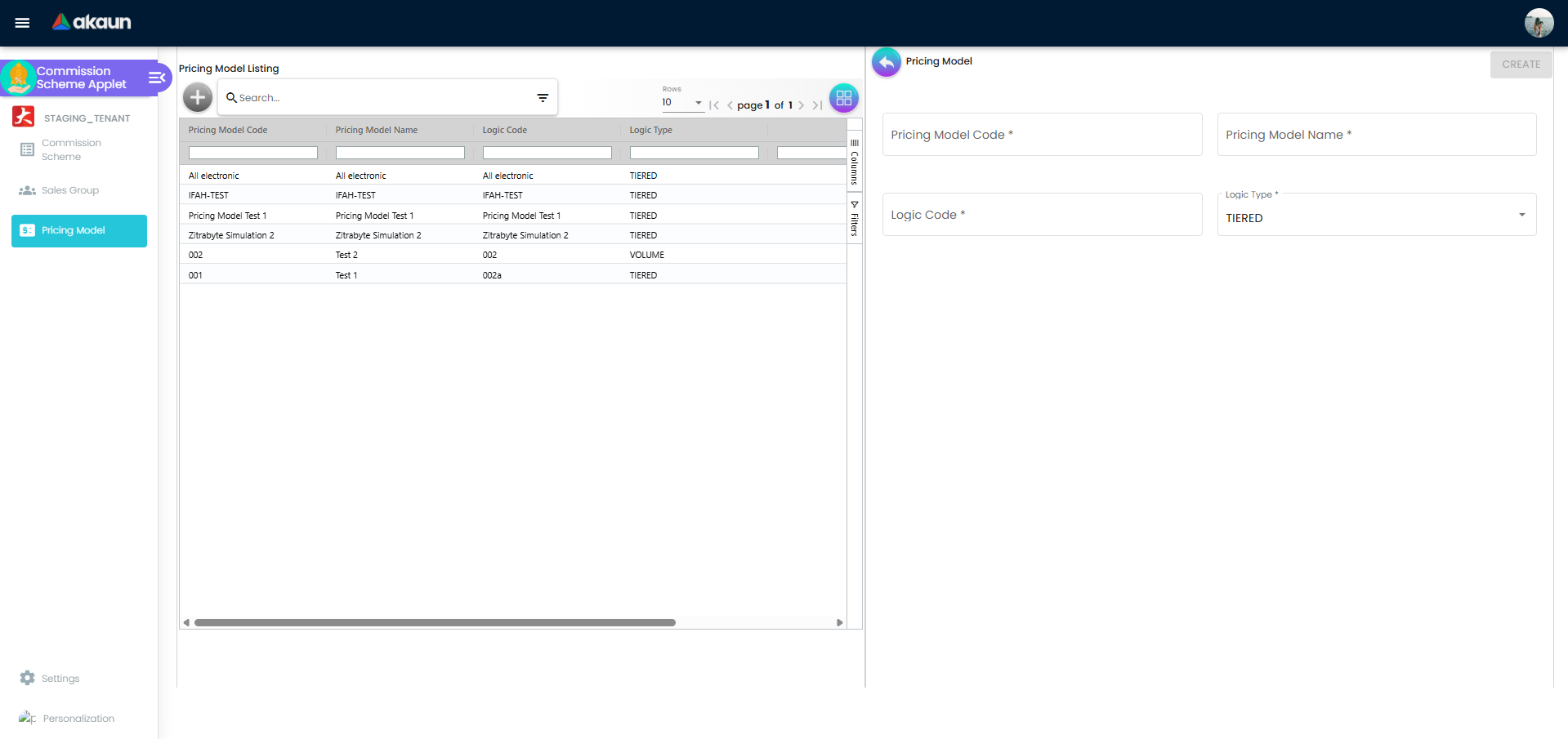
- Click Pricing Model in the sidebar
- Click "+" → Enter Code and Name → Click CREATE
- Open the pricing model → click "+" to add a line
- For each tier, set:
- Range From and Range To (the sales value or quantity band)
- Commission Multiplier or Commission Value (the rate or fixed amount for this band)
- Optionally set Membership Point Multiplier or Value
- Click SAVE
Link this Pricing Model in a Commission Scheme Treatment by selecting PRICING MODEL as the Operator and choosing your model from the dropdown.
Commission Scheme
A Commission Scheme is the top-level container that holds everything: the scheme’s identity, its rules that determine when it applies, and its treatment that determines what is paid.
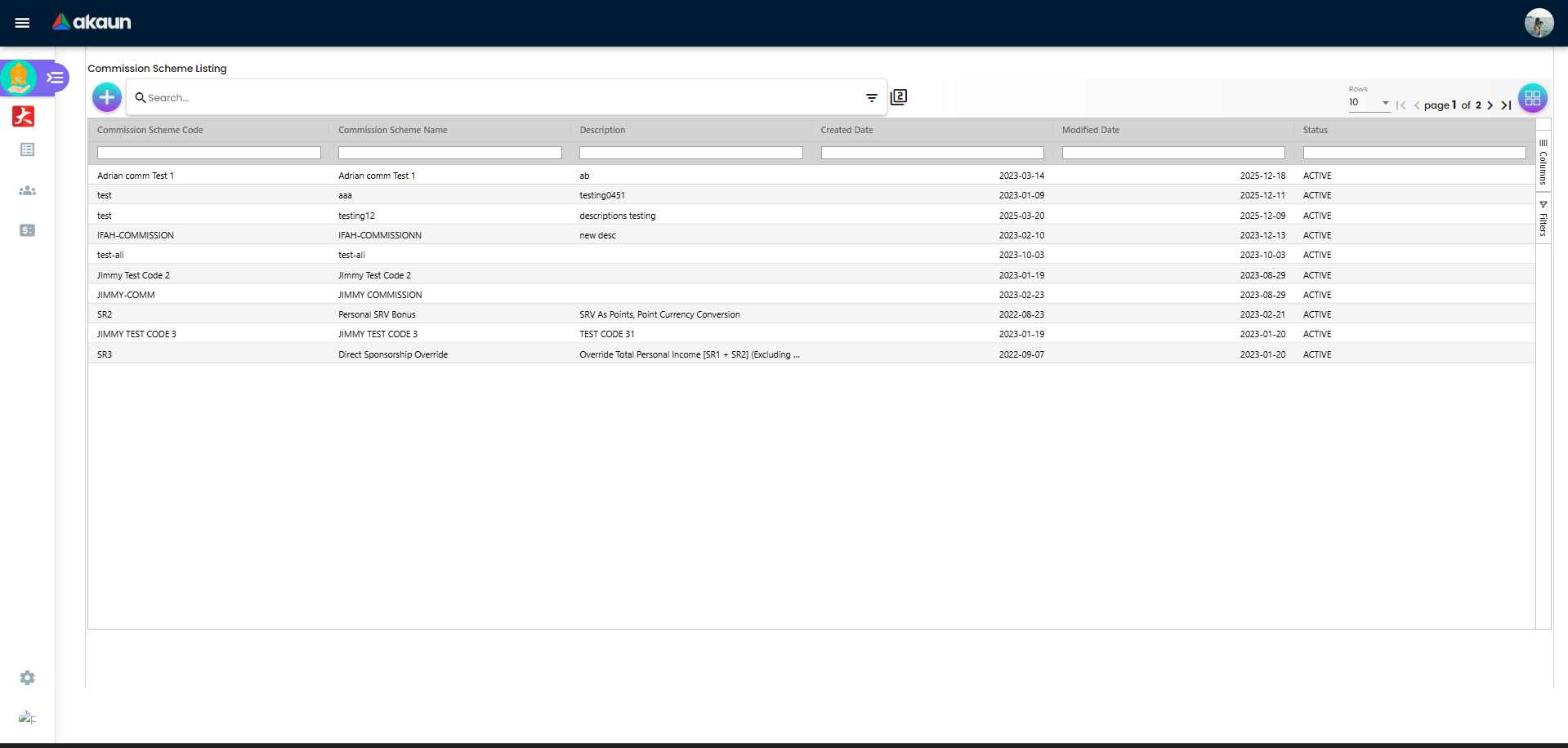
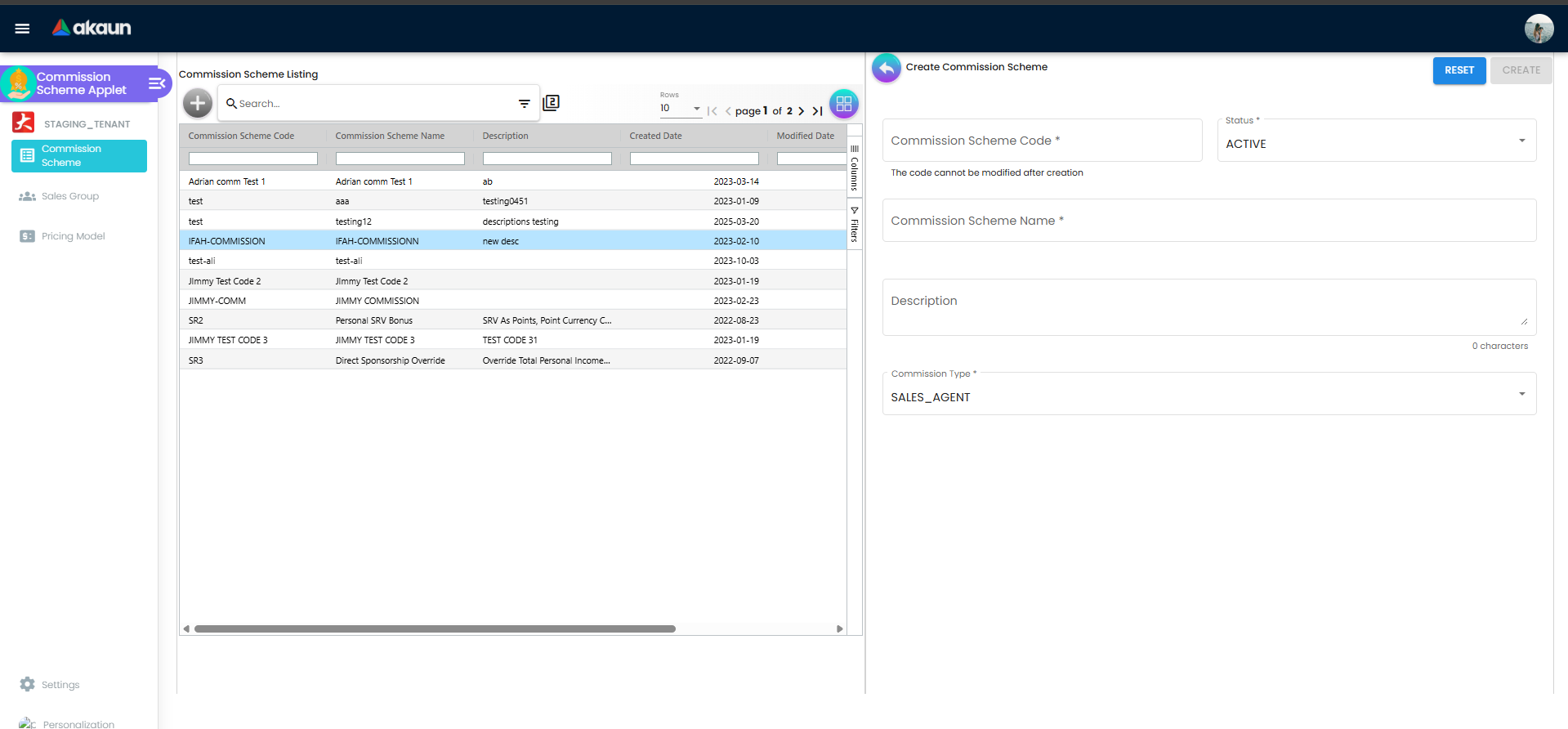
Creating a Commission Scheme
Click Commission Scheme in the sidebar, then click "+". Fill in:
| Field | What to enter |
|---|---|
| Code | A short unique identifier (letters, numbers, hyphens, underscores only) |
| Name | A descriptive name (e.g. “Retail Agent — East Region”) |
| Status | ACTIVE to enable, INACTIVE to pause |
| Description | Optional notes for your team |
| Commission Type | SALES_AGENT for individual agents; MLM for multi-level downline networks |
After clicking CREATE, you are taken to the Edit Commission Scheme screen, which has five tabs:
| Tab | What it is for |
|---|---|
| Main Details | Edit the code, name, status, description, and type |
| Rules - Doc Hdr | Document-level conditions (which branches, companies, customers, document types qualify) |
| Rules - Multi Line | Line-level conditions (which items, categories, or regex patterns qualify) |
| Rules - Single Line | Single-line conditions (an alternative to multi-line for specific setups) |
| Treatment | How commission is calculated per level, including pricing model or formula |
Searching Commission Schemes
Use the search bar or the advanced filter panel to find schemes by:
- Status (
ACTIVE/INACTIVE) - Created Date range
- Modified Date range
- Free-text keyword (matches Code, Name, or Description)
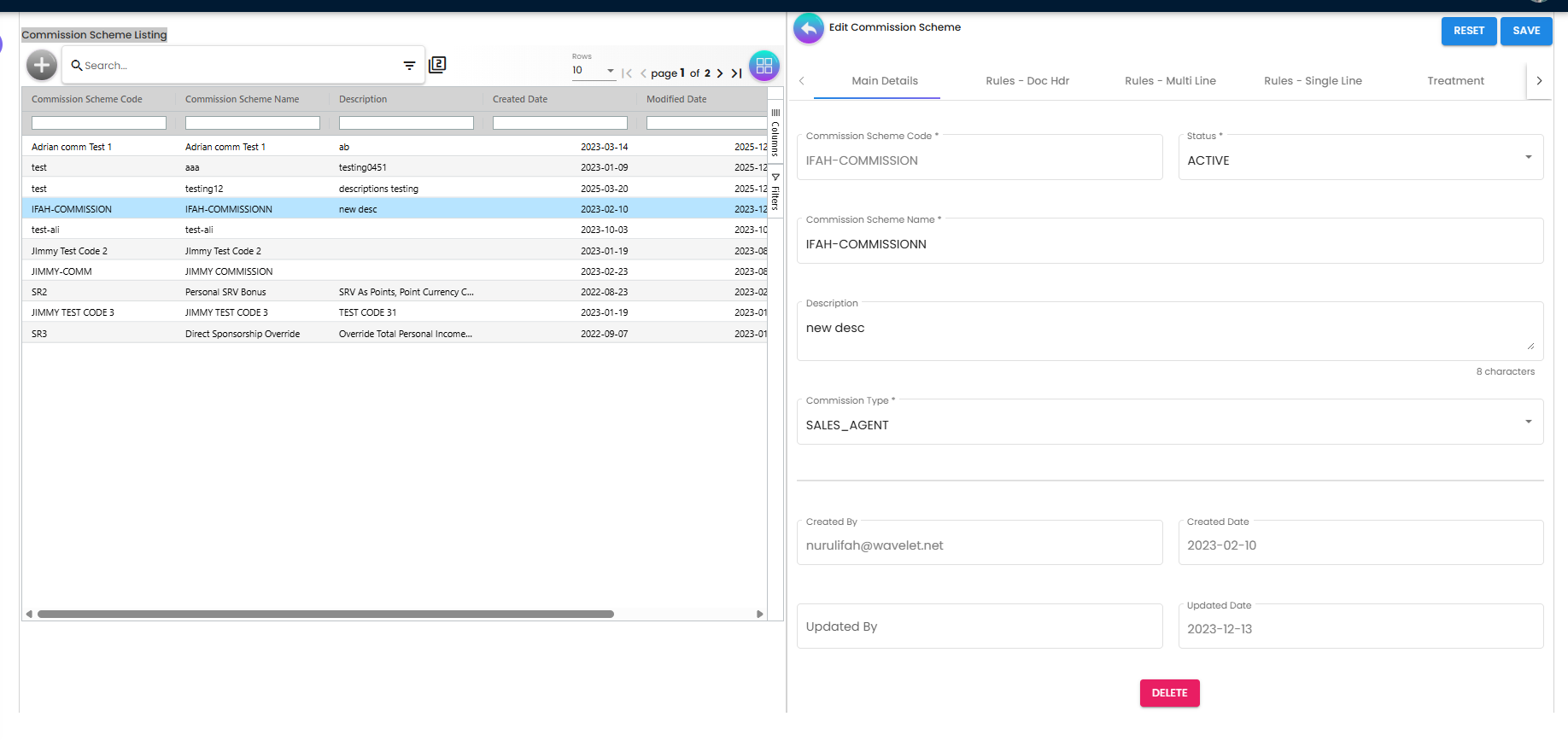
Rules in Detail
Rules are the conditions that must be met before a scheme applies to a transaction. The applet has three rule tabs on the Edit Commission Scheme screen:
| Rules Tab | What it evaluates | When to use it |
|---|---|---|
| Rules - Doc Hdr | The whole document (header level) | Restrict by branch, company, sales team, document type, date range, or customer type |
| Rules - Multi Line | Individual line items across the document | Pay commission only when matching items appear anywhere on the invoice |
| Rules - Single Line | One matched line at a time | Pay commission per qualifying line individually (useful when each line is judged separately) |
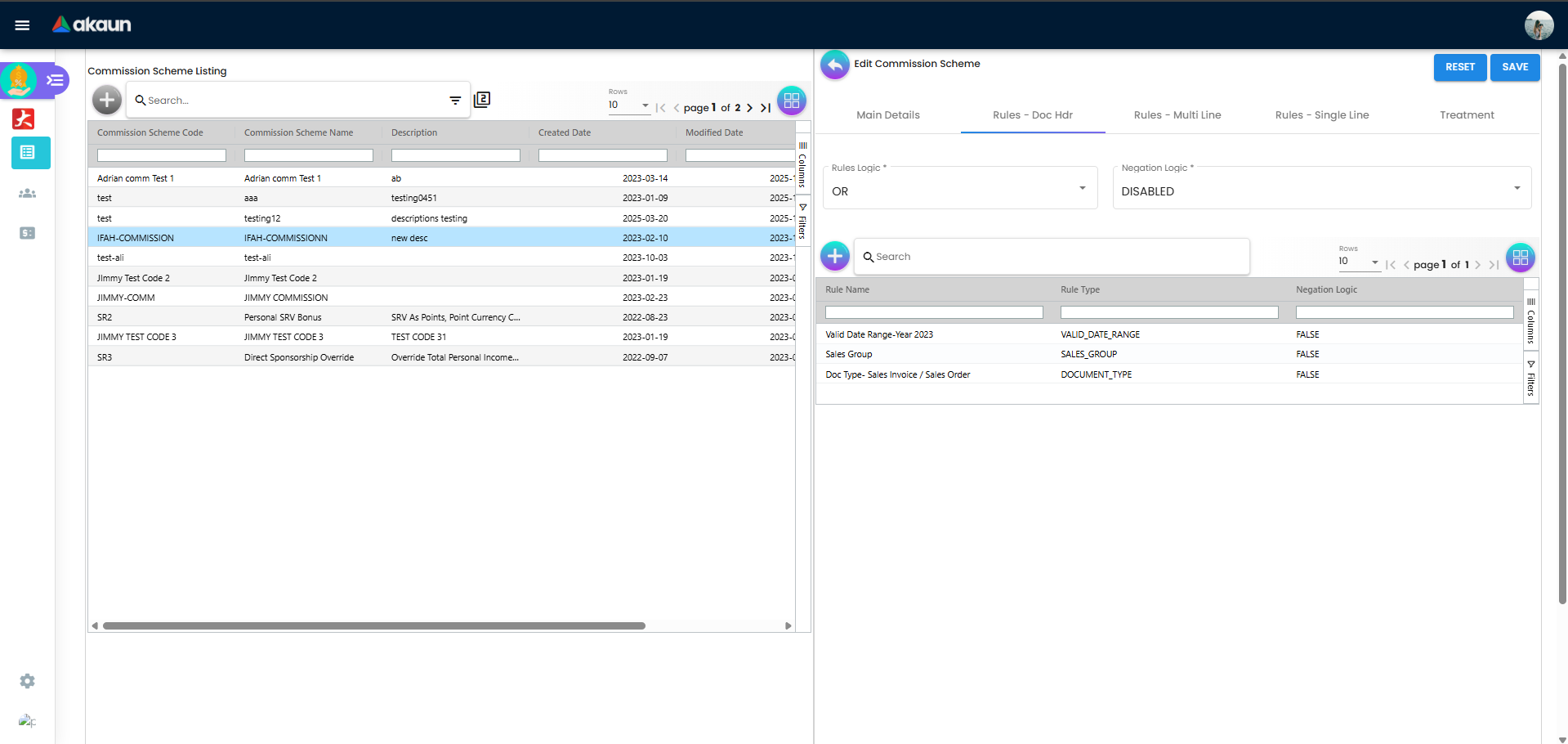
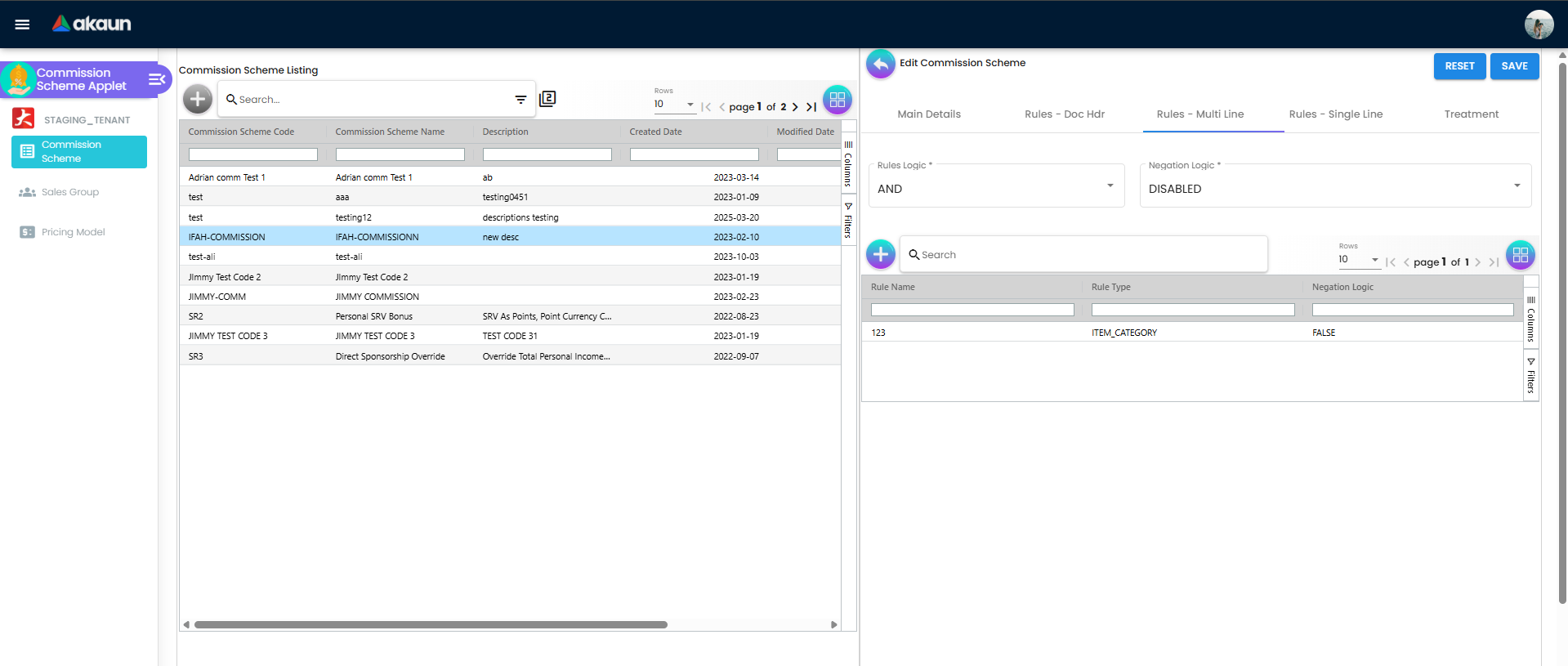
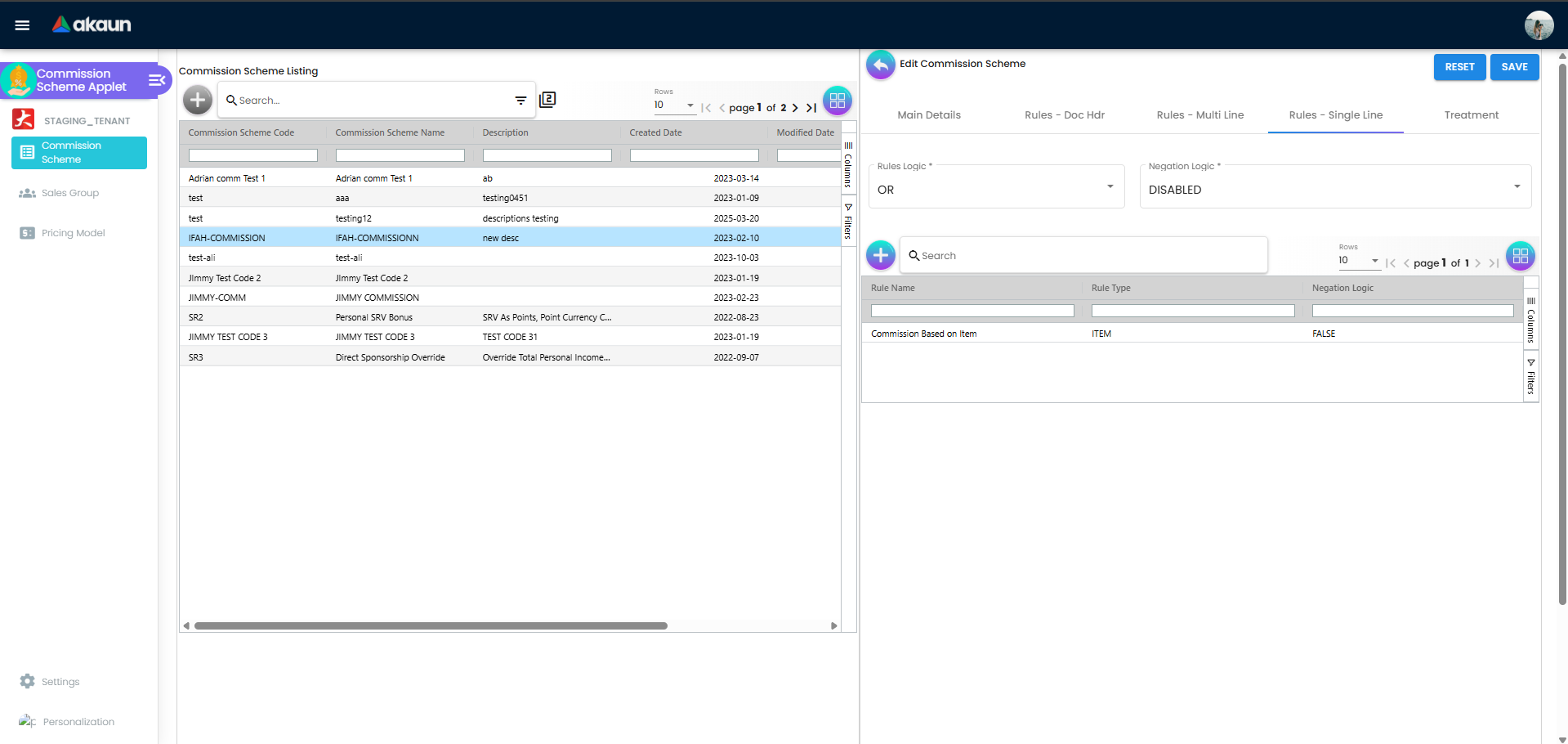
Each rule has:
- Rule Name: a label for this rule
- Negation Logic:
ENABLEDmeans the condition is inverted (“must NOT match this branch”) - Rules Logic (within a rule group):
ANDmeans all conditions must match;ORmeans any one condition must match
Available Rule Types by Tab
Rules - Doc Hdr
Use this tab for document-wide conditions. Each rule type can only be added once per scheme.
| Rule Type | What it targets | Example use |
|---|---|---|
| Valid Date Range | Date range (absolute or relative period) | Scheme active only during Q4 promotional period |
| Entity Type | All entities, or selected entity types (Customer, Supplier, Employee, Merchant) | Apply scheme to all customer-type entities, or only VIP customers |
| Member Class | Membership class groups | Premium members only |
| Member Label | Membership label tags | Customers tagged “Loyalty” |
| Company | Specific companies in your org structure | Limit scheme to Company A only |
| Branch | Specific branches | Only apply scheme to orders from Kuala Lumpur branch |
| Sales Group | Your configured sales groups | Restrict scheme to the “East Region” sales group |
| Document Type | Document types (Sales Invoice, Sales Order, Receipt Voucher, Sales Contract) | Only pay commission on Sales Invoices |
| Employee Category | Employee category classification | Limit scheme to “Senior Agent” category |
Rules - Multi Line and Rules - Single Line
Both tabs share the same rule types. The difference is how the system evaluates matching lines (document-wide vs. per-line). Each rule type can only be added once per tab.
| Rule Type | What it targets | Example use |
|---|---|---|
| Item | Specific inventory items (with optional minimum quantity and amount) | Pay higher rate on Product X with min qty 10 |
| Item Category | Item categories (also supports min qty / amount) | Commission only on Electronics category |
| Item Code Regex | Items whose code matches a pattern | All items starting with “PROMO-” |
| Item Name Regex | Items whose name matches a pattern | All items containing “Bundle” in the name |
| Item Category Code Regex | Categories whose code matches a pattern | Regex-based category matching |
| Item Category Name Regex | Categories whose name matches a pattern | Flexible category targeting |
Real-World Examples: Rules
Example 1 — East Region sales team, invoices only
A retail company wants agents in the East Region to earn commission only on posted Sales Invoices during 2026.
- Open the scheme → Rules - Doc Hdr tab
- Add Sales Group → select “East Region” sales group
- Add Document Type → select Sales Invoice
- Add Valid Date Range → set 1 Jan 2026 to 31 Dec 2026
- Set Rules Logic to
ANDso all three conditions must match
Result: Only East Region agents processing Sales Invoices within 2026 trigger this scheme.
Example 2 — Bonus commission on Electronics category
A distributor pays an extra commission rate only when Electronics items are sold.
- Open the scheme → Rules - Multi Line tab
- Add Item Category → select “Electronics”
- Optionally set a minimum quantity (e.g. min qty 5) so bulk orders qualify
- On the Treatment tab, set a higher commission rate for this scheme
Result: The scheme applies when at least one invoice line matches the Electronics category rule. Use Rules - Single Line instead if you need each qualifying line evaluated and paid separately.
Treatment
The Treatment tab defines how much commission is earned and how it is calculated. For MLM schemes, you configure a treatment per downline level.
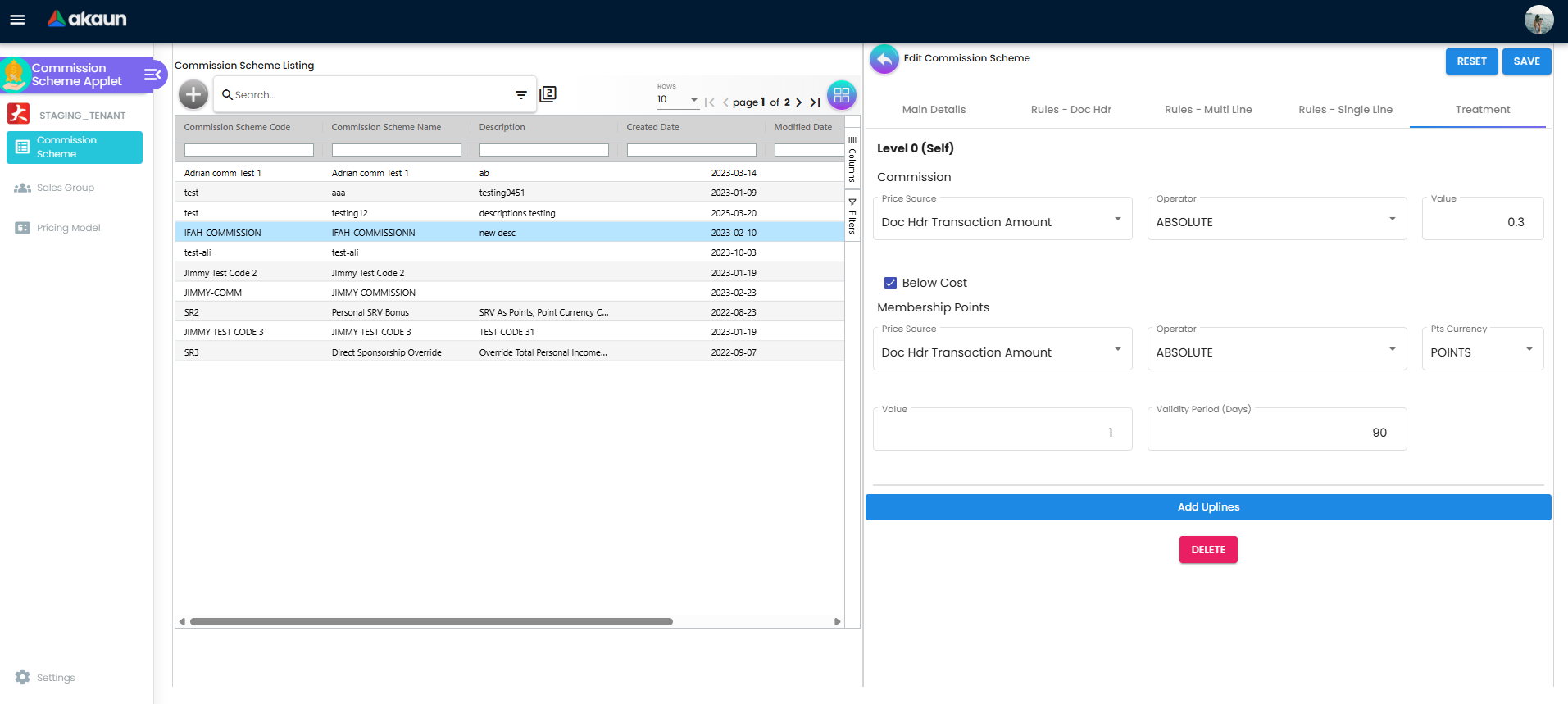
Treatment Levels
| Level | Description |
|---|---|
| Level 0 (Self) | The salesman who made the sale |
| Level 1 (Parent) | The direct upline who recruited Level 0 |
| Level 2+ | Further uplines in the network |
Click Add Downline to add more levels. Remove the last level with the delete button.
Real-World Examples: Treatment
Example 1 — 5% commission on net sales (standard agent payout)
A sales agent earns 5% of the net amount on each qualifying invoice line.
- Open the scheme → Treatment tab → Level 0 (Self)
- Under Commission, set:
- Price Source = Doc Line Net Amount
- Operator = MULTIPLY
- Value =
0.05
- Click SAVE
Result: If a qualifying line has a net amount of RM 1,000, the agent earns RM 50 commission (1,000 × 0.05).
Example 2 — MLM downline with membership points
An MLM business pays the selling agent 8% commission and awards loyalty points to the customer.
- Level 0 (Self) — Commission: Doc Line Transaction Amount × MULTIPLY ×
0.08 - Level 1 (Parent) — Click Add Uplines → Commission: Doc Line Transaction Amount × MULTIPLY ×
0.02 - Membership Points (Level 0) — Doc Line Transaction Amount × MULTIPLY ×
0.05, Validity Period (Days) =30
Result: On a RM 500 sale, the selling agent earns RM 40, their upline earns RM 10, and the customer receives 25 points valid for 30 days.
Understanding Price Source
Price Source is the starting value the system uses before applying the Operator and Value. Think of it as answering: “What number should the commission (or points) be calculated from?”
The final payout depends on all three fields working together:
Commission = Price Source value [Operator] ValueFor example, Doc Line Net Amount + MULTIPLY + 0.05 means: take the line’s net amount and multiply by 5%.
Price Source is configured separately for Commission and Membership Points on each treatment level.
Document Header Price Sources
These use amounts from the whole document (invoice header). Use them when commission should be based on the total document value rather than individual lines.
| Price Source | What value is used | Typical use |
|---|---|---|
| Doc Hdr Standard Amount | The document’s standard (list) amount before discounts | Commission on gross sales before promotions |
| Doc Hdr Net Amount | The document’s net amount after discounts | Commission on actual revenue collected at header level |
| Doc Hdr Transaction Amount | The document’s transaction amount (amount used for posting) | Commission aligned with the posted financial value |
| Doc Hdr Open Balance Amount | The document’s remaining unpaid balance | Commission tied to outstanding receivables (e.g. partial payments) |
Document Line Price Sources
These use amounts from individual invoice lines. This is the most common choice for per-item or per-line commission.
| Price Source | What value is used | Typical use |
|---|---|---|
| Doc Line Standard Amount | The line’s standard (list) price × quantity | Commission on catalogue price before line discounts |
| Doc Line Net Amount | The line’s net amount after line-level discounts | Commission on actual line revenue (most common for sales agents) |
| Doc Line Transaction Amount | The line’s transaction/posting amount | Commission aligned with the financial posting value per line |
Quantity and Cost Price Sources
| Price Source | What value is used | Typical use |
|---|---|---|
| Base Quantity | The quantity sold on the line | Per-unit commission (e.g. RM 2 per item sold) |
| Price Unit Cost | The unit cost of the item | Margin-based commission (pay on profit above cost) |
Pricing Scheme
| Price Source | What value is used | Typical use |
|---|---|---|
| Pricing Scheme | A value looked up from a linked Pricing Scheme table | Complex tiered or weight-based calculations; select the scheme in the Pricing Scheme dropdown that appears when this source is chosen |
NA (Not Applicable)
| Price Source | What value is used | Typical use |
|---|---|---|
| NA | No price source — calculation is skipped for this section | Disable commission or points on a level (e.g. points-only scheme with NA on Commission) |
How Price Source Affects the Final Payout
| If you choose… | And Operator is… | And Value is… | Effect on a RM 1,000 line |
|---|---|---|---|
| Doc Line Net Amount | MULTIPLY | 0.05 | RM 50 commission (5% of net) |
| Doc Line Net Amount | ABSOLUTE | 100 | RM 100 fixed commission per qualifying line |
| Base Quantity | MULTIPLY | 5 | RM 5 × quantity (e.g. 10 units = RM 50) |
| Doc Hdr Net Amount | MULTIPLY | 0.03 | 3% of the entire document net amount (not per line) |
| Pricing Scheme | (scheme lookup) | — | Commission read from the linked pricing scheme table |
| NA | — | — | No commission calculated for this section |
Real-world walkthrough — choosing the right Price Source
A furniture store pays agents 3% commission on net sales, but only on items in the “Living Room” category (configured as a Rules - Multi Line → Item Category rule).
- Correct setup: Price Source = Doc Line Net Amount, Operator = MULTIPLY, Value =
0.03 - Why: Each qualifying Living Room line is evaluated separately. A RM 2,000 sofa line earns RM 60; a RM 500 accessory line earns RM 15.
- Wrong setup: Price Source = Doc Hdr Net Amount — the system would apply 3% to the entire invoice total, including non-Living-Room items that should not earn commission under this scheme.
For Membership Points, the same Price Source options apply. Example: set Price Source = Doc Line Transaction Amount, Operator = MULTIPLY, Value = 0.05, Validity Period = 30 to award 5% of the transaction amount as points that expire after 30 days.
Commission Configuration (per level)
| Field | Options | What it means |
|---|---|---|
| Price Source | Doc Hdr Standard/Net/Transaction Amount, Doc Hdr Open Balance Amount, Doc Line Standard/Net/Transaction Amount, Base Quantity, Price Unit Cost, Pricing Scheme, NA | Which value the commission is calculated on (see Understanding Price Source above) |
| Operator | MULTIPLY, ABSOLUTE, ADD, SUBTRACT, PRICING MODEL, FORMULA, NA | How the value is applied |
| Value | Number | The rate or amount (e.g. 0.05 = 5% for MULTIPLY) |
| Pricing Scheme | Select from configured pricing schemes | Used when Price Source = Pricing Scheme |
| Pricing Model | Select from configured pricing models | Used when Operator = PRICING MODEL (tiered rates) |
| Formula | Custom formula string | Used when Operator = FORMULA (e.g. {PRICE_SOURCE}*(150-{DAY})/150*0.016) |
| Below Cost | Checkbox | Allow commission even when the sale is below cost |
Membership Points Configuration (per level)
Alongside cash commission, you can award membership points. The Price Source field works the same way as commission — see Understanding Price Source for details on each option.
| Field | What it means |
|---|---|
| Price Source | Which value to base the points calculation on |
| Point Currency | The points currency (e.g. “Points”) |
| Operator | MULTIPLY, ABSOLUTE, ADD, SUBTRACT, PRICING MODEL, or NA |
| Value | The points rate or amount |
| Validity Period (Days) | How many days the awarded points remain valid |
| Pricing Scheme | Used when Price Source = Pricing Scheme |
Sales Group
A Sales Group organises your salespeople (employees) into named groups. You can then reference a Sales Group in Commission Scheme rules to restrict a scheme to members of that group.
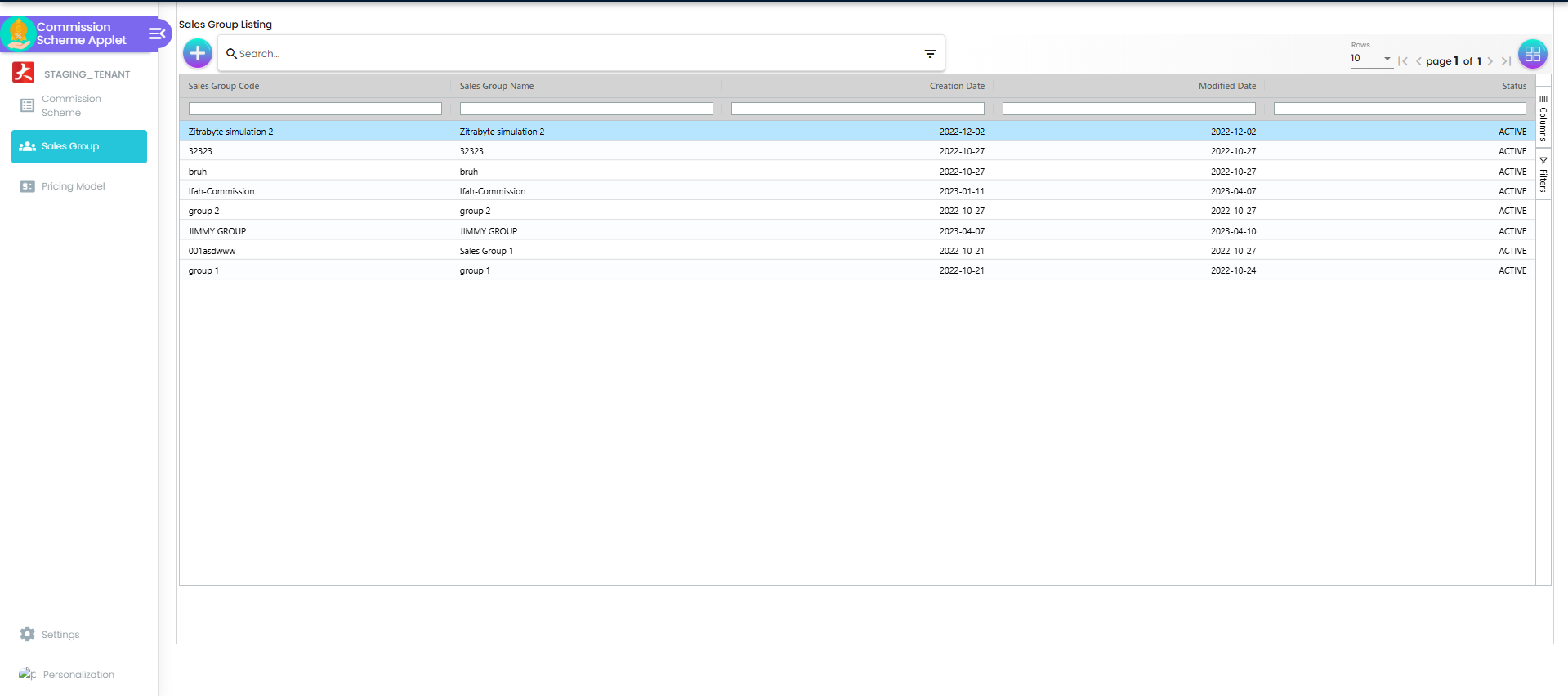
Creating a Sales Group
- Click Sales Group in the sidebar
- Click "+" → enter Sales Group Code (unique), Sales Group Name, and optional Description → set Status → click CREATE
Linking Salesmen to a Group
- Open the Sales Group → go to the Salesman tab
- Click "+" → search for an employee → click CREATE to link them
- To update or remove a link, click an existing salesman row and edit or delete
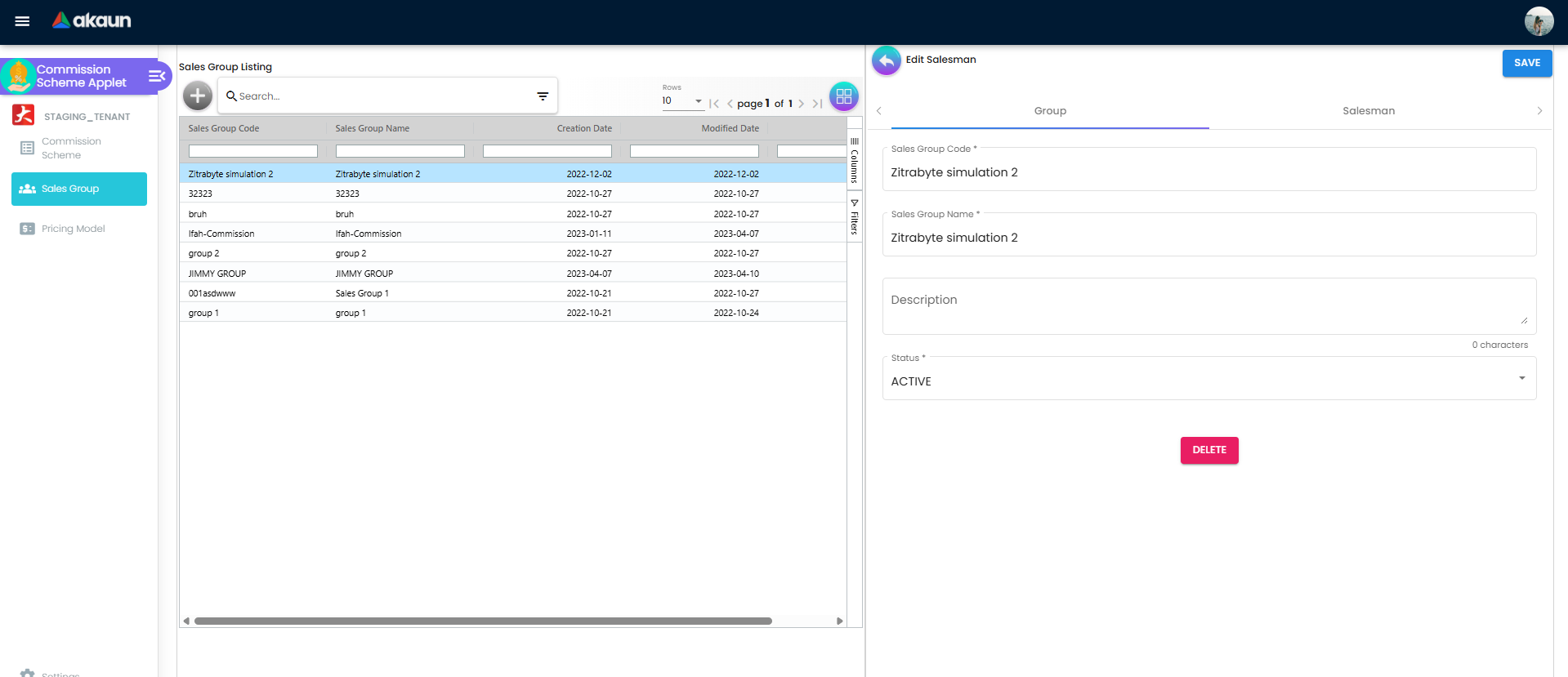
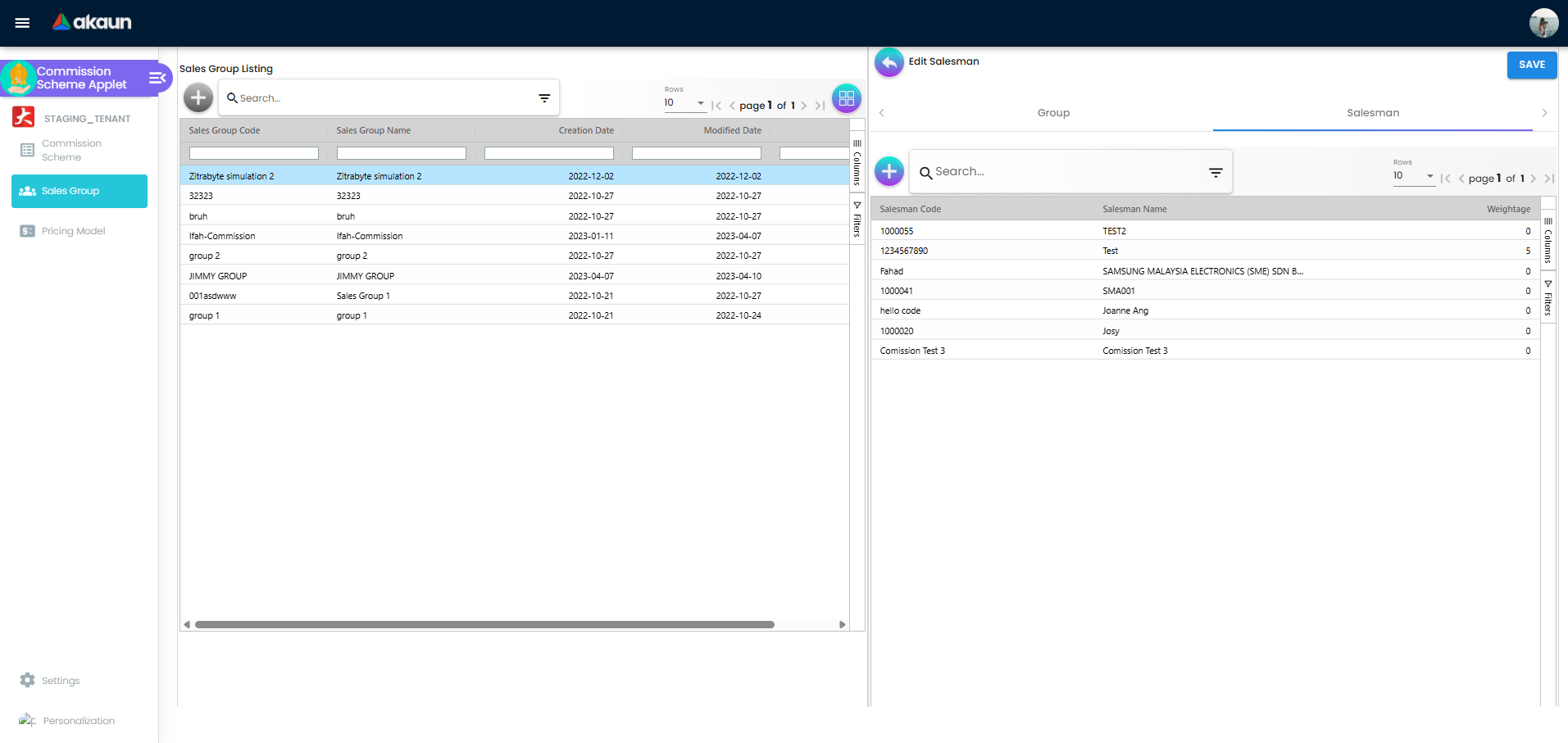
Searching Sales Groups — filter by Sales Group Code, Sales Group Name, Status, Created Date, or Modified Date.
Pricing Model
A Pricing Model is a tiered commission rate table. Instead of a flat percentage, you define ranges (e.g. sales value bands) and the commission multiplier or fixed value that applies in each band.
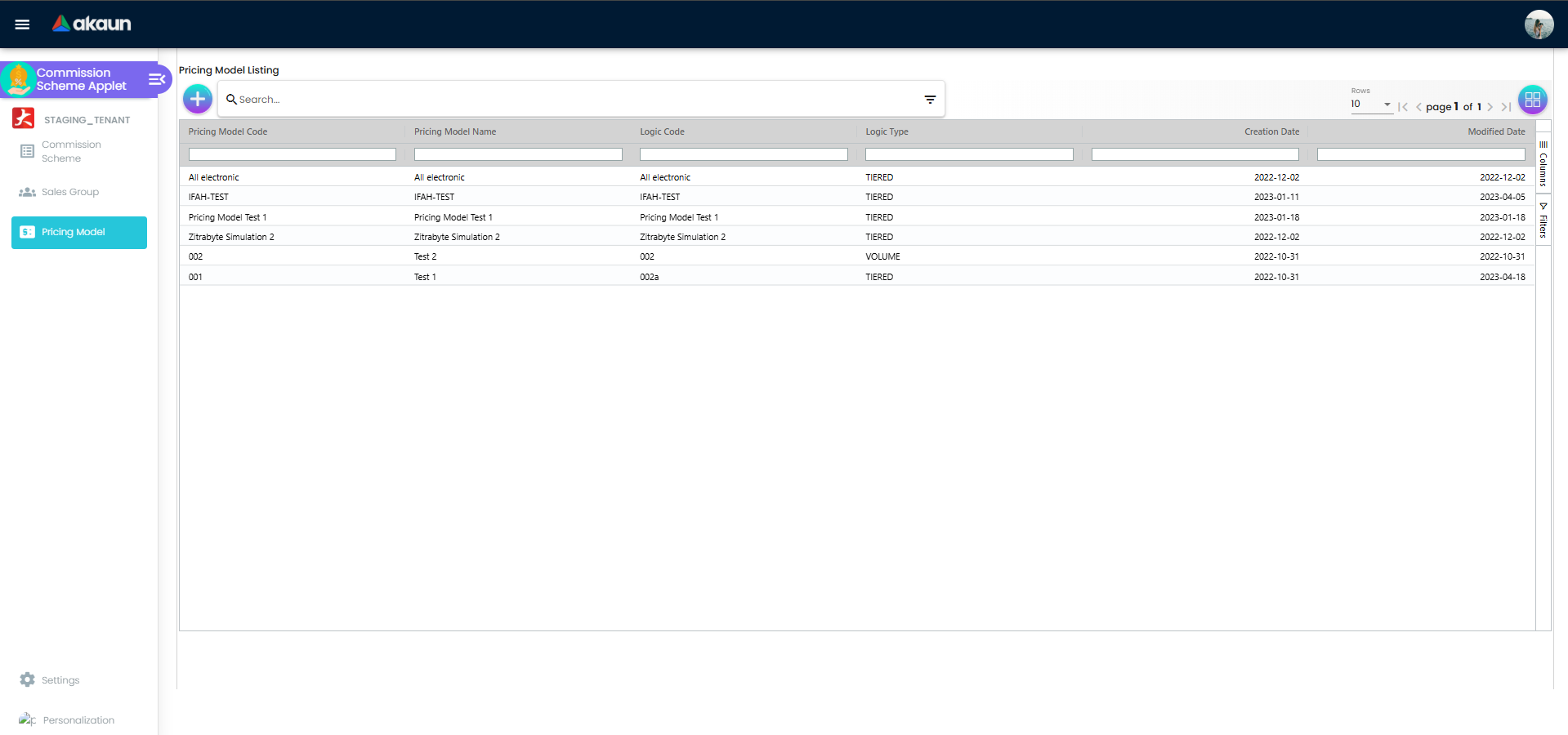
Creating a Pricing Model
- Click Pricing Model in the sidebar
- Click "+" → enter Code and Name → set the Logic Code and Logic Type as required → click CREATE
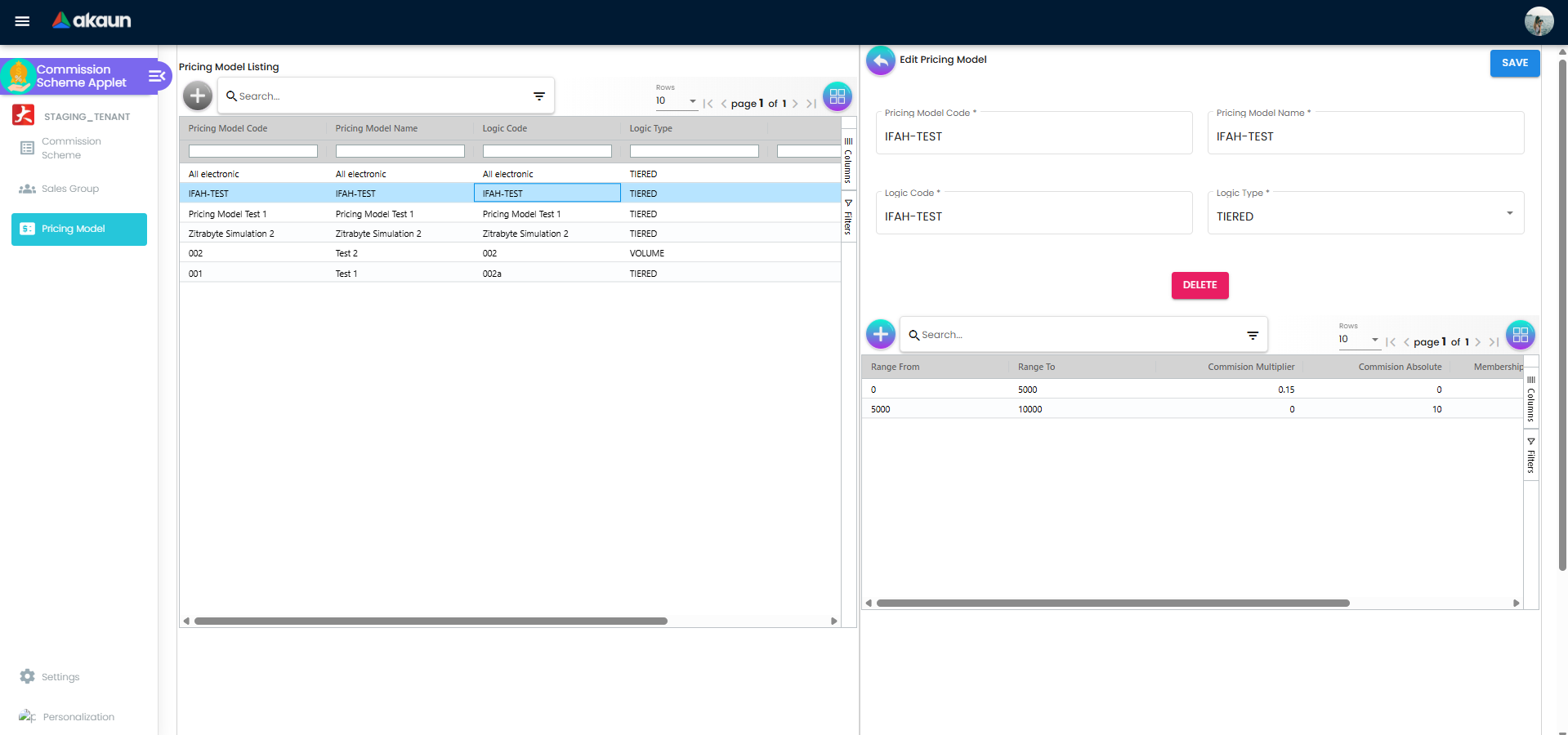
- Open the model → click "+" to add a line
Pricing Model Lines
Each line in a Pricing Model defines one tier:
| Field | What to enter |
|---|---|
| Range From | The lower bound of this tier (e.g. 0) |
| Range To | The upper bound of this tier (e.g. 10000) |
| Commission Multiplier | A rate applied multiplicatively (e.g. 0.05 = 5%) |
| Commission Value | A fixed value alternative to the multiplier |
| Membership Point Multiplier | Points rate for this tier |
| Membership Point Value | Fixed points for this tier |
Example tiered structure:
Range 0 – 10,000      → Commission Multiplier: 0.05  (5%)
Range 10,001 – 50,000 → Commission Multiplier: 0.08  (8%)
Range 50,001+         → Commission Multiplier: 0.10  (10%)
Once saved, reference this Pricing Model in a Commission Scheme Treatment by selecting PRICING MODEL as the Operator.
Configuration & Settings
Field Settings
Go to Settings → Field Settings to configure system-wide options for the applet. Click SAVE after making changes.
Default Selection (Applet-Wide)
Go to Settings → Default Selection to set defaults that apply to all users:
- Default Branch — pre-select a branch for all users
- Default Location — pre-select a location for all users
- Details Tab Ordering — drag and drop the Commission Scheme edit tabs (Main Details, Rules - Doc Hdr, Rules - Multi Line, Rules - Single Line, Treatment) into the order your team prefers. Click SAVE when done
Personal Default Selection
Go to Personalization → Default Selection to set your own preferred branch and location. These override the applet-wide defaults for your user only.
Related Modules and Applets
The Commission Scheme Applet connects with these parts of the system:
| Related Applet / Module | How it connects |
|---|---|
| CP-Commerce Admin Applet | E-commerce websites can have a Commission Scheme tab — the scheme configured there links to schemes you define in this applet |
| Entity Applet | Customer and employee entities used in Entity-type rules come from the Entity Applet |
| Sales Invoice (Internal) Applet | Sales invoices are one of the document types that can trigger a Commission Scheme rule |
| Sales Order Applet | Sales orders can be targeted by Document Type rules in a scheme |
| Receipt Voucher (Internal) Applet | Receipt vouchers are a supported document type for commission triggering |
| Membership Applets | Membership points awarded via the Treatment tab integrate with the membership points system |
| Debtor Report Applet | Use the AR Transaction Report to verify sales transactions that triggered commissions |
Glossary
| Term | What it means |
|---|---|
| Commission Scheme | A named configuration containing rules and a treatment that defines when and how commission is paid |
| Commission Type | SALES_AGENT for direct agent payouts; MLM for multi-level downline network payouts |
| Rule | A condition that a transaction must meet for the scheme to apply (e.g. “must be from Branch KL”) |
| Rules Logic | AND = all rules in the group must match; OR = any rule in the group must match |
| Negation Logic | ENABLED inverts the rule — “must NOT match” instead of “must match” |
| Doc Hdr Rule | A rule evaluated at the document header level (applies to the whole document) |
| Multi Line Rule | A rule evaluated at the line item level (applies per item line) |
| Treatment | The commission calculation definition — price source, operator, value — per downline level |
| Level 0 (Self) | The salesman who directly made the sale |
| Level 1 (Parent) | The salesman’s direct recruiter/upline in an MLM structure |
| Price Source | The monetary or quantity value the commission is calculated on (e.g. Doc Line Net Amount). See Understanding Price Source |
| Operator | How the commission is applied: MULTIPLY (percentage), ABSOLUTE (fixed), ADD, SUBTRACT, PRICING MODEL, or FORMULA |
| Pricing Model | A tiered table mapping sales ranges to commission rates or values |
| Pricing Scheme | An alternative scheme reference used as a price source in treatment calculations |
| Sales Group | A named group of salespeople (employees) that can be referenced in rules |
| Membership Points | Loyalty points awarded alongside or instead of cash commissions |
| Below Cost | A flag that allows commission to be earned even when the sale price is below cost |
| ACTIVE / INACTIVE | Status values — ACTIVE means the scheme is running; INACTIVE pauses it without deleting it |
FAQ
1. What is the difference between Commission Type SALES_AGENT and MLM?
SALES_AGENT is for direct commission — only Level 0 (the salesman who made the sale) earns commission. MLM supports multiple downline levels — you can define different rates for Level 0 (self), Level 1 (their recruiter), Level 2 (the recruiter’s recruiter), and so on.
2. How do I make a scheme apply only to specific items?
Add a rule under Rules - Multi Line (item-level). Choose rule type Item and select the specific items. You can also set a minimum quantity or minimum amount threshold for each item. Alternatively, use Item Category to target a whole category, or use Item Code Regex for pattern matching.
3. Can I have a scheme that applies to all branches except one?
Yes. Add a Branch rule, select the branch you want to exclude, and set Negation Logic to ENABLED. The scheme will apply to all other branches.
4. How does the Pricing Model differ from setting a flat multiplier in Treatment?
A flat multiplier in Treatment applies the same rate regardless of the sales amount. A Pricing Model lets you define different rates for different sales volume bands — for example, 5% on the first RM 10,000 and 8% on anything above. Use PRICING MODEL as the Operator in Treatment and select your model.
5. Can I limit a scheme to a specific sales team?
Yes. Use the Sales Group Rule in Rules - Doc Hdr. First create a Sales Group and add your salespeople to it, then add a Sales Group rule in the scheme pointing to that group.
6. What happens if no rules match a transaction?
If a transaction does not satisfy the rules of a scheme, that scheme does not apply and no commission is calculated for it. The transaction is not affected in any other way.
7. How do I temporarily disable a scheme without losing its configuration?
Open the scheme, go to Main Details, change Status to INACTIVE, and click SAVE. The scheme is preserved but will not trigger on any new transactions until you set it back to ACTIVE.
8. What is Negation Logic used for?
Negation Logic inverts the meaning of a rule. Without negation, the rule means “this condition MUST be true.” With Negation = ENABLED, it means “this condition must NOT be true.” For example, a Company rule with Negation ENABLED means “apply to all companies EXCEPT the ones selected.”
9. Can I award loyalty points instead of cash commission?
Yes. In the Treatment tab for each level, configure the Membership Points section separately from the Commission section. You can award points alongside cash commission, or set the Commission Operator to NA and only configure points.
10. How do I use a formula-based commission calculation?
In Treatment, set Operator to FORMULA and enter your formula in the Formula field. The system supports variable substitution — for example {PRICE_SOURCE}*(150-{DAY})/150*0.016 calculates a time-decaying commission based on the document age. Contact your system administrator for supported formula variables.