Customer Consignment Applet
Record stock you send to a customer’s premises but still own, and stock that comes back: a Transfer Out when stock leaves, a Transfer Receive when unsold stock returns, and a Transfer Queue of every line still out there, so the two documents stay linked. Both move quantity only and post no journal. Billing the customer for what they sold is an ordinary sales invoice, nothing links that invoice back to the Transfer Out, and the invoice line has to carry the consignment location or FINAL is refused for lack of stock at your own branch.
Overview
The Customer Consignment Applet records stock that you send to a customer’s premises but still own, and stock that comes back. Warehouse or store staff raise a Transfer Out when goods leave your location for the customer’s consignment location, and a Transfer Receive when unsold goods return. The Transfer Queue lists every Transfer Out line that has not yet been received back, and lets you create the Receive straight from it so the two documents stay linked. Both documents move quantity only: they carry no value and post no journal. Billing the customer for what they sold is an ordinary sales invoice — there is no consignment-specific customer bill on this platform, and nothing links the invoice back to the Transfer Out, so the quantity reconciliation is yours to do from the Transfer Queue. In particular it is not the Consignment Billing applet, whose name and folder suggest otherwise; see Related applets.
INTERNAL_CUSTOMER_CONSIGNMENT_OUT (short code CCSOUT, quantity signum −1, amount signum 0) and INTERNAL_CUSTOMER_CONSIGNMENT_IN (CCSINN, quantity signum +1, amount signum 0). The customer’s premises are modelled as a stock location of class CCSG (consignee) — the same location class used by Consignee Stock Transfer.Where it fits
| Direction | Document / applet | How it connects |
|---|---|---|
| Upstream | Locations of class CCSG (Consignee Stock Transfer › Consignee Listing, or Organisation) | Transfer Out’s Location To is filtered to CCSG locations; Transfer Receive’s Location From is the CCSG location |
| Upstream | Item Maintenance | Basic items with an inventory link; serial, batch and bin sub-items |
| Upstream (optional knock-off) | Purchase GRN, Stock Requisition, a prior Transfer Receive | Transfer Out › KO For tabs GRN, Stock Requisition and CC-GRN copy open lines from these documents |
| Downstream | Transfer Receive (this applet) | Knocks off Transfer Out lines through the Transfer Queue or the KO For › CC-GIN tab |
| Downstream | Stock Balance, Stock Report | FINAL writes one ledger line at your location and a mirrored line (CSG) at the customer location |
| Sibling | Consignee Stock Transfer | One-document alternative that moves both sides without a queue |
| Sibling | Stock Transfer | Same UI template, but between your own locations and with stock-in-transit |
Screens and menus
Sidebar: Transfer Out, Transfer Queue, Transfer Receive. The applet opens on Transfer Out.
Transfer Out listing (Internal Outbound Customer Consignment Transfer Listing): columns Doc Short Code, Doc No (Tenant / Company / Branch), Posting Status, Tracking ID, Location From, Location To, Transaction Date; buttons + (create — needs the create permission, see below), SINGLE/MULTIPLE PRINT and FINAL for the ticked rows. The filter panel offers Location From, Location To, Created Date From/To and Txn Date From/To.
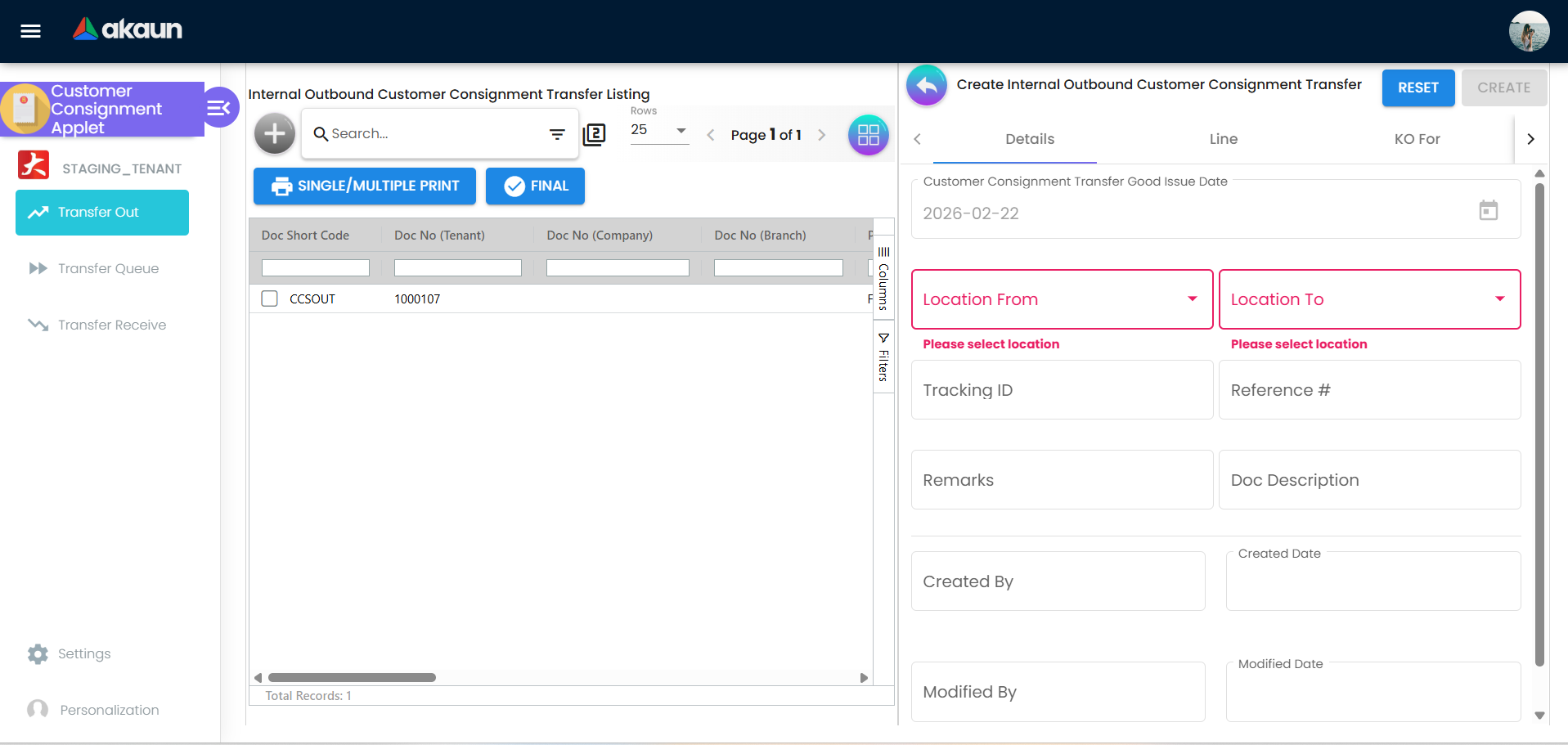
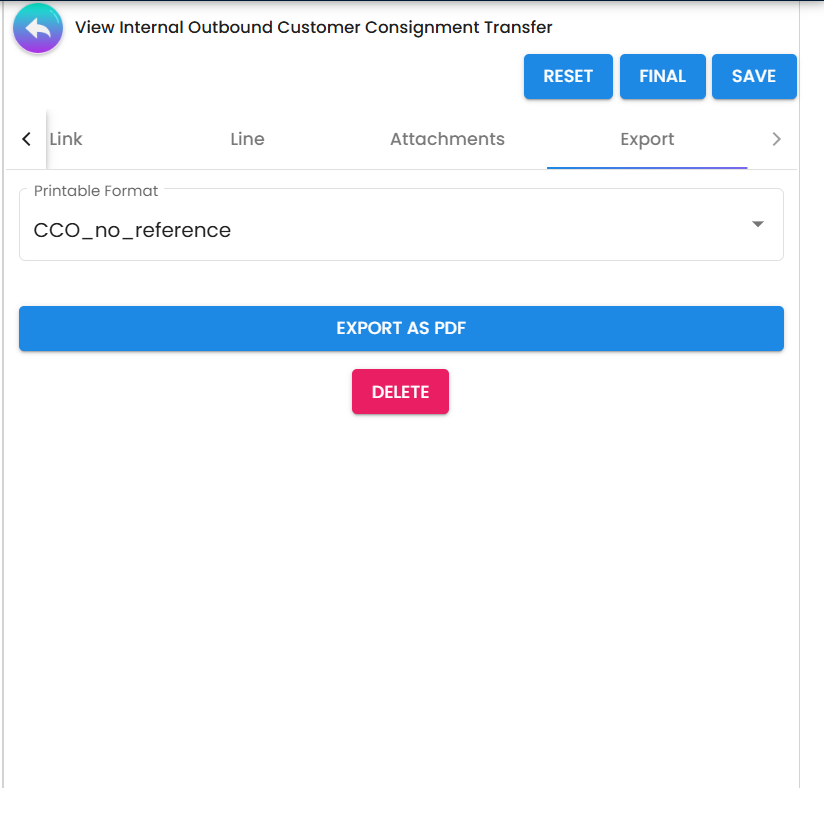
Transfer Out create: tabs Details, Line, KO For (sub-tabs GRN, CC-GRN, Stock Requisition). Transfer Out view: Details, Line, Doc Link, Attachments, Export (order configurable), with RESET, FINAL, SAVE in the header and EXPORT AS PDF / DELETE on the Export tab.
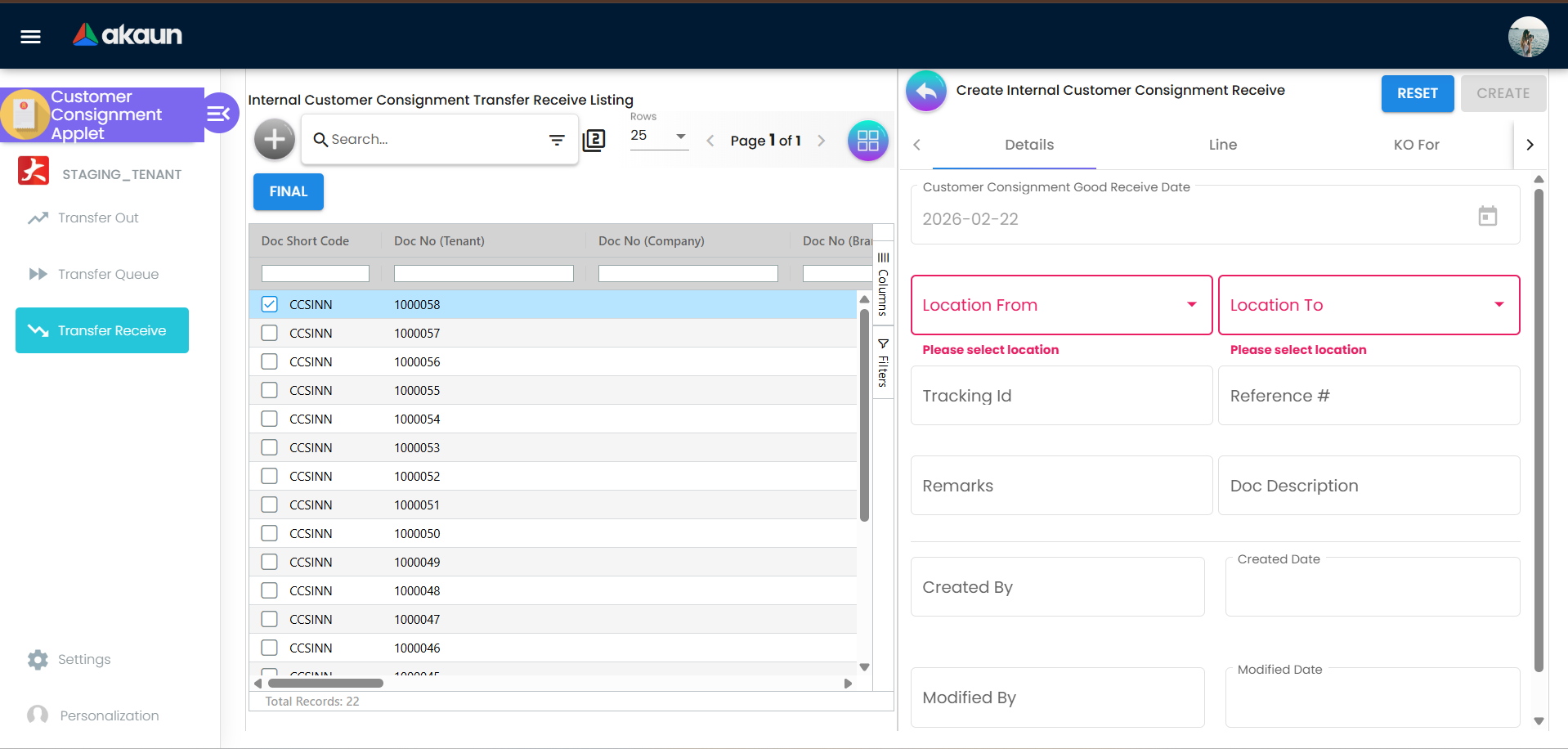
Transfer Queue (Internal Customer Consignment Queue Listing): every FINAL Transfer Out line with open (not yet received) quantity — columns Doc Short Code, Doc No, Posting Status, Tracking ID, Location From, Location To, Transaction Date. There is no create button: clicking a row opens a Transfer Receive pre-filled with the open lines and knock-off links, and a FINAL action posts the ticked Receives in bulk.
Transfer Receive listing (Internal Customer Consignment Transfer Receive Listing): same columns; + and FINAL (no bulk print). Custom status columns appear here when enabled. Transfer Receive create: Details, Line, KO For (sub-tab CC-GIN = open Transfer Out lines); the template also carries Account, Contra, Delivery Details, Department Hdr and Settlement tabs inherited from the stock-transfer template. Transfer Receive view: Main, Line Items, Status, Doc Link, Attachments, Export (order configurable).
Line item dialog (both documents): Item Details, Serial Number, Batch Number, Bin Number.
Settings (gear): System Configuration — Application Settings (shared screen), Default Selection, Outbound Printable Format, Receive Printable Format, Custom Status; Server Side Permissions — Permission Wizard, Permission Set, User Permission, Role Permission (Team Permission is routed but not listed); Developer Tools — Release Notes, Audit Trail. The settings area lands on Feature Visibility, which is routed but not in the menu. Personalization: Default Selection, Sidebar.
Configuration
Before you can use it
- A CCSG location per customer site. Create it in Consignee Stock Transfer › Consignee Listing (Location Class = CCSG) or in the location master. When Location From on a Transfer Out is not itself a CCSG location, the Location To dropdown shows CCSG locations only.
- Location access. The dropdowns list only the locations in the user’s
…_LOCATION_TO_READ_TGT_GUIDpermission target; tenant admins and owners see every location. - Permissions. Use Settings › Permission Wizard with the two seeded templates:
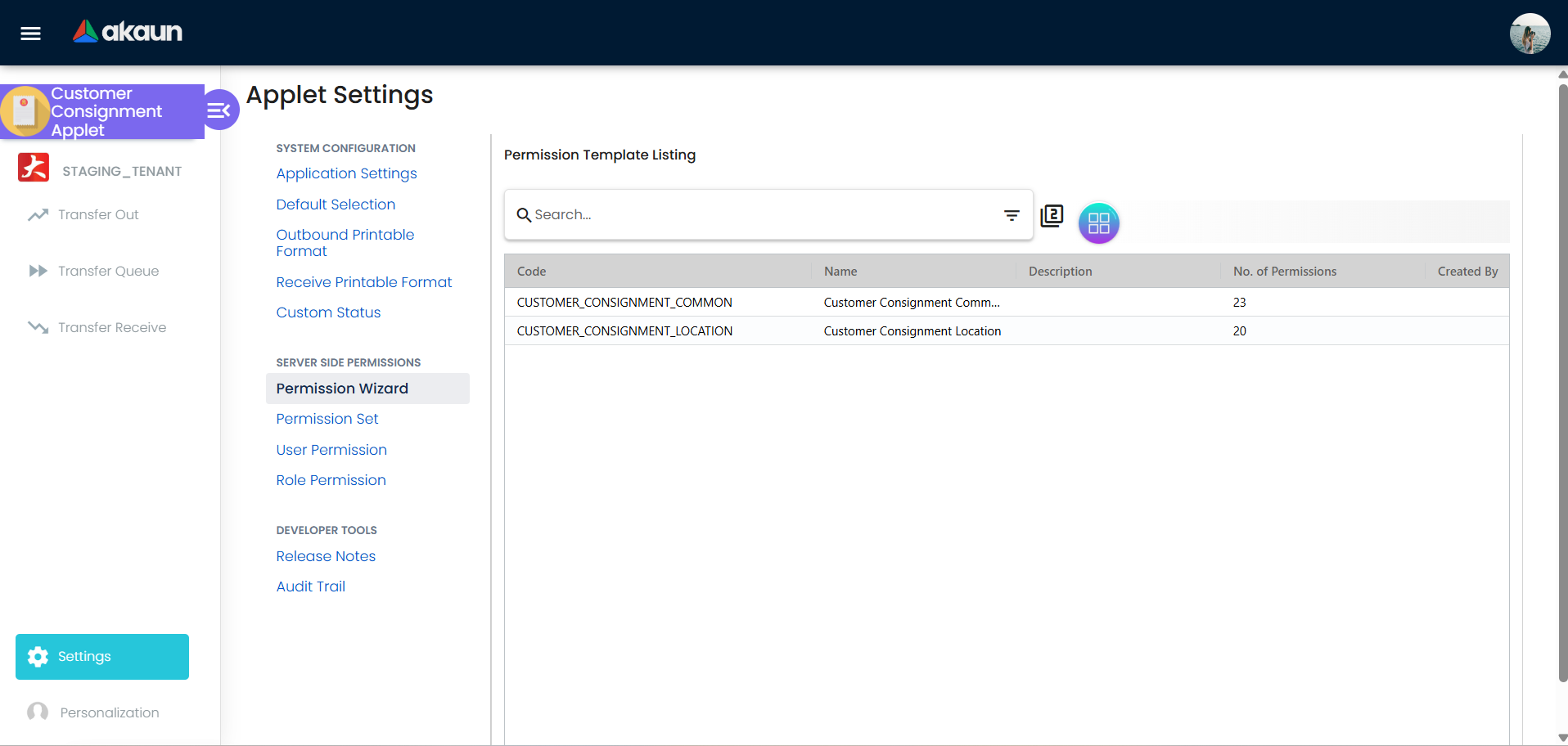
CUSTOMER_CONSIGNMENT_COMMON(23 read permissions for companies, branches, locations, entities, items, serial numbers, tax codes, attachments, document links) andCUSTOMER_CONSIGNMENT_LOCATION(20 per-location permissions). The location template deliberately carries both theTNT_API_DOC_INTERNAL_CUSTOMER_CONSIGNMENT_{IN,OUT}_*permissions that the backend enforces and theTNT_API_DOC_INTERNAL_{INBOUND,OUTBOUND}_STOCK_TRANSFER_*permissions that the applet’s menus and + buttons check — a user needs both sets. - Items must be basic items linked to an inventory item; serial-, batch- and bin-tracked items need their sub-items maintained in Item Maintenance.
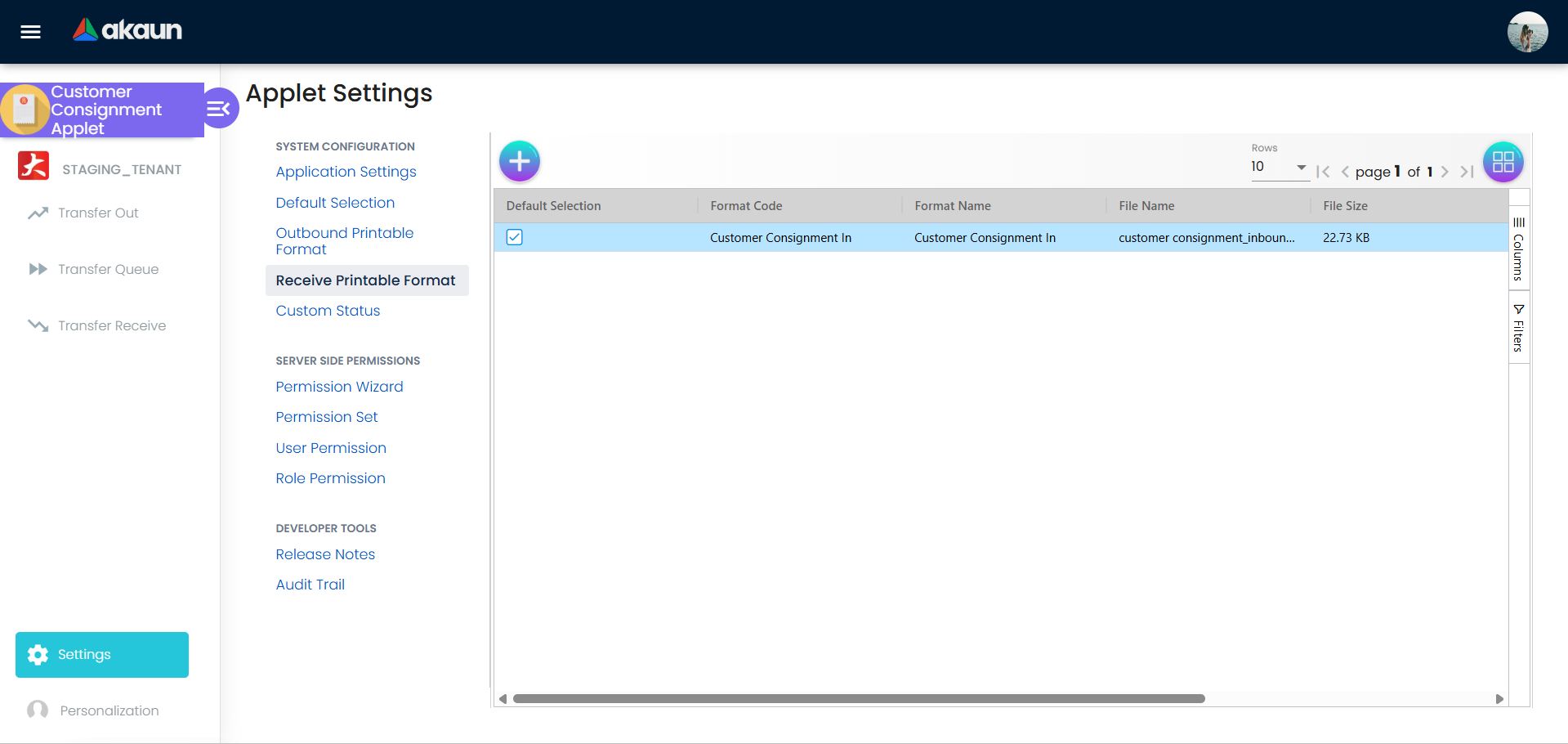
- Printable formats. Upload a Jasper template under Outbound Printable Format and Receive Printable Format and tick Default Selection; bulk printing refuses to run without a default.
- Document numbers — the Tenant, Company and Branch Doc No fields — are generated by the backend per document type, company and location; nothing to configure in the applet.
- Fiscal periods. A locked fiscal period rejects FINAL for both documents (see Lifecycle).
Applet settings
Settings live in four places: the shared Application Settings screen, this applet’s own Default Selection and Custom Status screens, the printable-format screens (saved separately from the other settings), and Personalization › Default Selection (per user). Tenant admins and owners change them; users change only their personal default.
Only the keys below pass all four proofs (declared, rendered, saved, read). The shared screen also shows many HIDE_* toggles (for example HIDE_DOC_NO_TENANT) that this applet never reads — switching them has no effect here.
| Setting | Screen | What it controls | Default | Effect when changed |
|---|---|---|---|---|
SHOW_ITEM_STOCK_BALANCE (“Disallow negative stock for basic item (validate stock balance)”) | Application Settings › Lines Settings | On Transfer Out, shows the stock balance at Location From in the item search and caps the line Quantity at that balance (client validator, basic items only); the listing’s bulk FINAL then also sends validate_stock_balance = true | off (unset) | Turning it off removes the client-side cap and the server check on the Transfer Out view’s FINAL, which sends this value as its validateStockBalance flag and whose route defaults to skip; only the listing’s bulk FINAL still checks stock regardless (see Lifecycle; a known issue, reported to engineering) |
SORT_ORDER (“Sorting Order”) | Application Settings › Gen Doc Listing Settings | Column the three listings are ordered by | date_txn when unset | Listings re-order on next load |
DISABLE_GEN_DOC_LISTING | Application Settings › Gen Doc Listing Settings | When on, the listings do not load rows until you search | off | Faster opening on large tenants; users must search first |
HIDE_CREATED_BY_DETAILS | Application Settings › Doc Settings | Hides the Created By / Modified By / dates block on both Details tabs | off | Block disappears from the create forms |
INTERNAL_OUTBOUND_STOCK_TRANSFER_DETAILS_TAB_ORDER | Default Selection › Outbound Details Tab Order (drag list) | Tab order of the Transfer Out view | Details, Line, Doc Link, Attachments, Export | Saved order applies; tabs added later are appended |
INTERNAL_INBOUND_STOCK_TRANSFER_DETAILS_TAB_ORDER | Default Selection › Inbound Details Tab Order | Tab order of the Transfer Receive view | Main, Line Items, Status, Doc Link, Attachments, Export | As above |
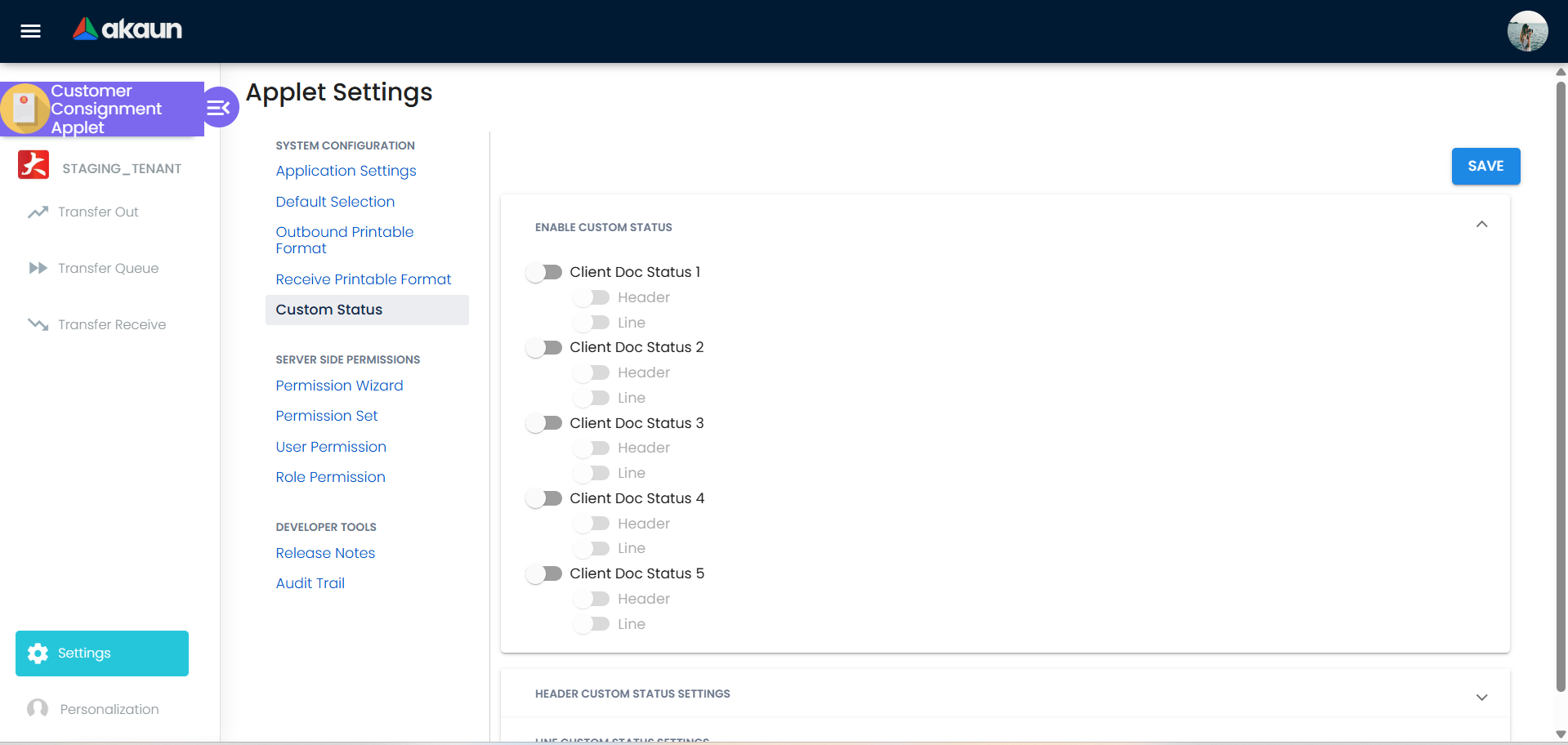
ENABLE_CUSTOM_STATUS_1..5, ENABLE_CUSTOM_STATUS_HDR_n, NAME_CUSTOM_STATUS_HDR_n, LIST_CUSTOM_STATUS_HDR_n | Custom Status | Up to five named header statuses, each with its own value list and a default; shown as extra columns on the Transfer Receive and Transfer Queue listings and on the Receive view’s Status tab | all off | Transfer Out ignores them; the *_LINE_n toggles are written by the Custom Status screen and read by nothing outside it in this applet, and the backend does not know the key names at all |
Default printable format (applet extension INTERNAL_CUSTOMER_CONSIGNMENT_OUT_APPLET_EXT_CODE_PRINTABLE_FORMAT_GUID_… / …_IN_…) | Outbound / Receive Printable Format › Default Selection checkbox | Format used by SINGLE/MULTIPLE PRINT on the Transfer Out listing | none | Bulk print works; the Export tab still needs a manual pick (it reads PRINTABLE, which this applet never writes) |
DEFAULT_LOCATION (personal) | Personalization › Default Selection | Pre-fills Location From on both create forms for that user | none | Overrides the applet-level value |
DEFAULT_BRANCH / DEFAULT_LOCATION back unchanged. Only the tab-order lists on that screen persist. Set a default location per user under Personalization instead.Settings used with no control in this applet: ENABLE_FILTER_BY_TODAYS_TXN (listings default to today from 06:00 instead of the last month), ENABLE_DRAFT_LOCK_SERIAL_NUMBER_CHECKING (serial-number draft-lock check when serials are added) and PRINTABLE (Export tab pre-selection). They can only be set through another applet that shares the same settings screen. DEFAULT_BRANCH is saved by the Default Selection and Personalization screens and used by nothing in this applet — no create form reads it. It works in other document applets, which is why it is offered here.
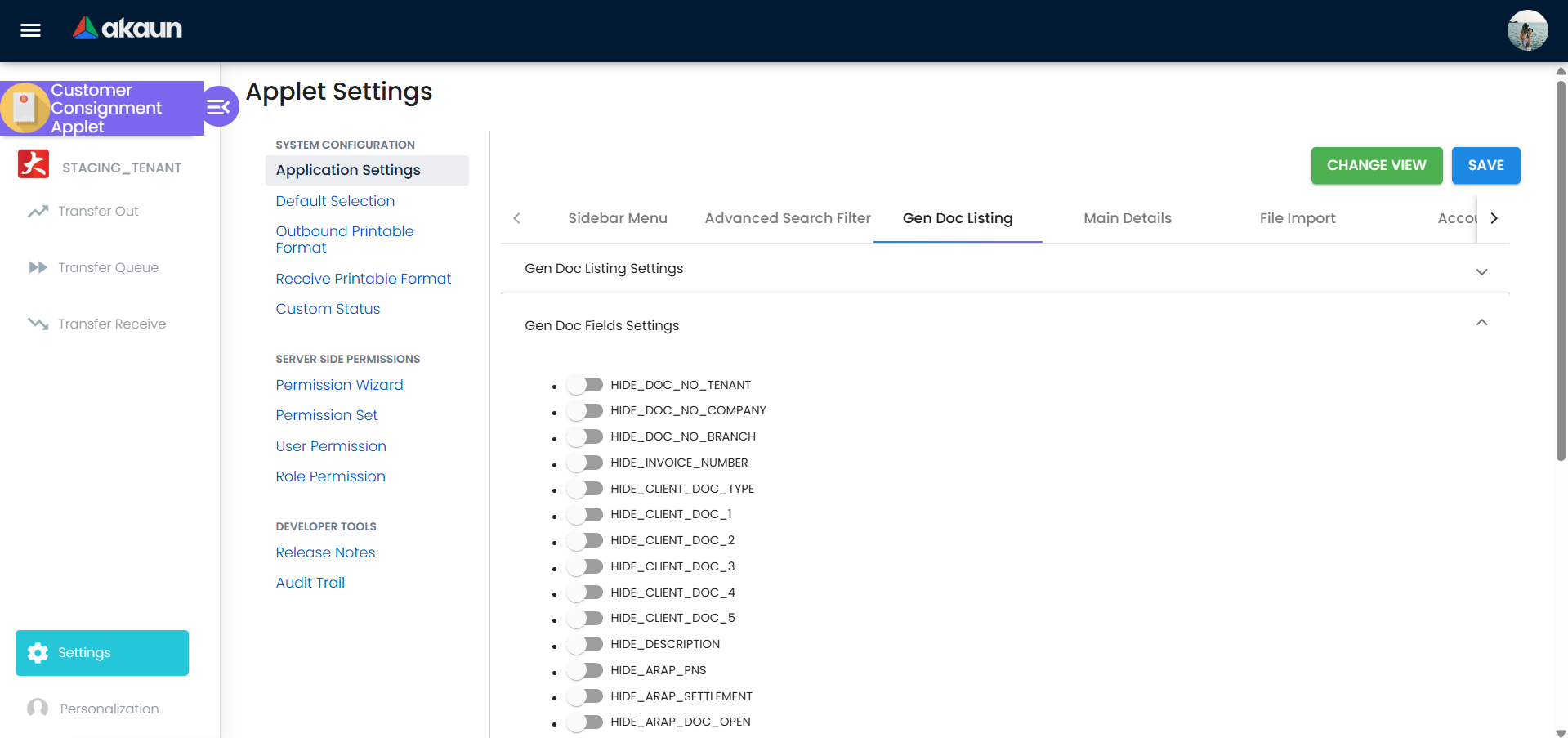
Document behaviour settings
- Posting status: DRAFT → FINAL, from the view header or in bulk from the listing (rows that are not DRAFT/ACTIVE are skipped with a “n/m selected documents cannot be finalized” snackbar). The applet exposes no VOID action; DELETE on the Export tab (click twice to confirm) calls the document delete endpoint.
- Stock validation on FINAL is a backend default, not a setting (see Lifecycle).
- Printables: Jasper templates per direction; Export tab exports one PDF, the Transfer Out listing prints several.
- No approval workflow, no e-Invoice submission, no custom line statuses.
Feature visibility / permissions
No client-side permissions are defined for this applet, yet the screens check four client-side permission codes. Because none is defined, they are all off for every user:
| Code checked in code | What it would unlock |
|---|---|
SHOW_TRANSACTION_DATE | Makes the Good Issue Date / Good Receive Date editable. Without it the field is disabled and stays at today’s date |
SHOW_UNIT_PRICE_STD_PRICING_SCHEME | Shows a pricing-scheme unit price on Transfer Out lines |
EXCLUDE_ACCOUNT_CODE_ITEM_TYPE_AT_ITEM_SEARCH | Excludes account-code items from the item search |
DISABLE_ADD_WHEN_KO | Blocks adding free lines to a document created by knock-off |
Server-side permissions are the two templates above (Settings › Permission Wizard); Permission Set, User, Team and Role screens are the shared assignment screens.
Fields
Transfer Out — Details
| Field | Meaning | Required | Notes / validation |
|---|---|---|---|
| Customer Consignment Transfer Good Issue Date | Transaction date | Yes | Editable only with SHOW_TRANSACTION_DATE. The date shown is not worked out when you press CREATE: it was stamped when this create form was last cleared — when you opened the applet, pressed RESET, came Back out of the form or saved the previous Transfer Out. A tab left open overnight dates the first transfer of the morning yesterday, so glance at the date before CREATE and press RESET if it is not today. Every line takes the header’s date. Changing the box does not change the date the Transfer Out saves, even for a user allowed to edit it (read from the code, not tried): on one draft, change the date, SAVE, reopen and compare before relying on a back-dated transfer. |
| Location From | Your stock location (guid_store) | Yes | Limited to the user’s location target; company is derived from it; pre-filled from the personal default location |
| Location To | Customer’s consignment location | Yes | Filtered to class CCSG unless Location From is itself CCSG |
| Tracking ID, Reference #, Remarks, Doc Description | Your own notes | No | The listing shows Tracking ID, Ref # and Doc Description as columns, and its keyword search looks in all four as well as the document numbers — so the customer’s delivery-order or purchase-order number typed into Reference # is how anyone finds this transfer again. Picking a document on a KO For tab replaces all four with that document’s text, the last one picked winning, so type your own after the knock-off. A Transfer Receive raised from the Transfer Queue arrives with these four already copied from the Transfer Out. Once the draft is saved, a box can be overwritten but not emptied: clear it and SAVE puts the old text back (read from the code, not tried). Tracking ID locks at FINAL. |
| Doc Short Code, Doc No (Tenant / Company / Branch) | Generated numbers | — | Read-only; shown in view mode |
| Created By / Date, Modified By / Date | Audit | — | Read-only; hidden by HIDE_CREATED_BY_DETAILS |
Transfer Receive — Details
| Field | Meaning | Required | Notes / validation |
|---|---|---|---|
| Customer Consignment Good Receive Date | Transaction date | Yes | Stamped the same way as the Transfer Out’s date, when the form was last cleared. On a new Receive the date in the box is not the date the document saves, whichever way you open it. From the Transfer Queue the box is labelled Stock Transfer Good Receive Date and anyone can change it, so a return date typed there is dropped without a message (read from the code, not tried — on one Receive, pick yesterday’s date before CREATE, reopen and see which date it kept). Until that is settled, treat the Receive’s date as the day it was keyed, and write the date the goods actually came back, with the customer’s return-note number, into Remarks and Reference #. |
| Location From | Customer’s consignment location | Yes | Pre-filled from the knocked-off Transfer Out or the personal default location. On a Receive typed from scratch the personal default lands in this box — the customer’s side — so a default set to your own store has to be replaced with the customer’s consignment location here before CREATE, or the Receive takes the stock out of the wrong place |
| Location To | Your receiving stock location (guid_store) | Yes | Limited to the user’s location target |
| Tracking Id, Reference #, Remarks, Doc Description | Your own notes | No | A Receive raised from the Transfer Queue or the KO For › CC-GIN tab copies all four from the Transfer Out, replacing anything already typed. Overwrite Reference # with the customer’s return-note number after the knock-off, so the return can be found by the customer’s own paperwork through the listing’s keyword search, which looks in all four. As on the Transfer Out, a saved box can be overwritten but not emptied (read from the code, not tried). |
Line (both documents)
| Field | Meaning | Required | Notes / validation |
|---|---|---|---|
| Item Code | Item searched from the item master | Yes | The search lists product-and-service items. With SHOW_ITEM_STOCK_BALANCE on, a Transfer Out’s search asks only for items holding stock above zero at Location From, so choose Location From before adding lines: an item missing from the list has nothing there to send. Item Code and Item Name fill in from the item record and cannot be typed; a wrong name is corrected in Item Maintenance. |
| Quantity | Quantity in the chosen UOM | Yes | Minimum 1; on Transfer Out, maximum = ledger balance at Location From for basic items when SHOW_ITEM_STOCK_BALANCE is on |
| Location From / Location To, Tracking ID | Copied from the header | No | Line-level copies |
| Remarks, Doc Reference, Doc Description | Line notes | No | Only Remarks can be typed: it is the line’s own note, and a line copied by knock-off arrives with the source line’s Remarks and Tracking ID. Doc Reference and Doc Description on the line are read-only and stay blank on a line you searched for — they are not the header’s Reference # and Doc Description, which is where the document’s reference belongs (read from the code). |
| GRN No, ST-GRN ID (Out) / ST-GIN ID (Receive) | Source document number | No | Not a reliable record of where a line came from. On the Transfer Out nothing in the applet fills GRN No or ST-GRN ID, and the knock-off tabs on both documents build their lines without the dialog these boxes live in, so they stay hidden (read from the code). To see which GRN, requisition or Transfer Out a line came from, open the document’s Doc Link tab; to see what is still out at the customer, use the Transfer Queue. |
| Serial Number / Batch Number / Bin Number tabs | Sub-item detail | Per item | Quantities must agree with the line on FINAL (backend check) |
Lifecycle and effects
Statuses: DRAFT on create; FINAL from the view or the listing; DELETE from the Export tab. VOID exists in the backend for these document types (it reverses the ledger lines) but has no button in this applet.
Posting proof
| Item | Transfer Out | Transfer Receive |
|---|---|---|
| Document type | INTERNAL_CUSTOMER_CONSIGNMENT_OUT (CCSOUT) | INTERNAL_CUSTOMER_CONSIGNMENT_IN (CCSINN) |
| Money | None — no journal | None |
| Stock | Stock out of Location From and into the document’s second location, as a pair of stock lines — the second marked CSG and timed a tenth of a second later; its cost is recomputed | Stock into Location To and out of Location From, the pair timed a tenth of a second apart the other way |
| What VOID reverses | Every stock line the document created, the CSG pair included, with the draft-locked serial numbers released | Same |
Server checks on FINAL (all hard rejections):
- Serial, bin and batch quantities must match the line quantity.
- Stock balance: checked from one of the two FINAL buttons, not both. The listing’s bulk FINAL goes through
update-posting-statuswithout the flag, and the server defaults it to check — every Transfer Out goods line of a basic item is checked against the stock at Location From; failure returns “Not Enough Stock for item …”. The Transfer Out view’s FINAL goes throughupdate-auto-finaland sendsvalidateStockBalance = SHOW_ITEM_STOCK_BALANCE, and on that route the server defaults the flag to skip — so with the toggle off, or never saved, the view’s FINAL writes a Transfer Out that the stock at Location From cannot cover (a known issue, reported to engineering; the same code sits in the stock-transfer and consignee-stock-transfer applets, since UI ed81ca02 of 2025-11-02). The toggle therefore does two things: it adds the on-screen cap, and it is the only thing that switches the server check on for the view’s FINAL. - Transaction date and company must be present, and Location From must be set.
- A locked fiscal period rejects FINAL. Unlike ordinary stock transfers, consignment transfers are not exempt.
- There is no check that Location From and Location To belong to the same company (open issue, see Troubleshooting).
Open lines and knock-off: when a Transfer Out is FINAL its lines are opened for a Transfer Receive; the Transfer Queue and the Receive’s CC-GIN tab list exactly those. Creating a Receive from the queue copies each open line with its open quantity and links the two, which takes that quantity off the Transfer Out; the Transfer Out’s own KO For tabs work the same way against Purchase GRN, Stock Requisition and a prior Receive (the CC-GRN tab).
Related applets
- Consignee Stock Transfer — creates the CCSG locations this applet transfers to, and offers a single-document issue/receive note without a queue.
- Stock Transfer — the template this applet was derived from; use it for movements between your own locations.
- Stock Requisition and Purchase GRN — documents a Transfer Out can knock off.
- Sales Invoice (Internal) — this is what bills the consignee. The platform has no consignment-specific customer invoice, so when the customer reports what they have used you raise an ordinary sales invoice for those units. Two consequences worth knowing before you key one. A sales invoice relieves stock at the line’s own branch and location, so the line has to carry the consignment location — invoice from your own branch while the goods are still out there and FINAL is refused with “Not Enough Stock for item …”, unless the tenant has turned that check off. And the invoice does not close the Transfer Out: the open queue pairs
INTERNAL_CUSTOMER_CONSIGNMENT_OUTwithINTERNAL_CUSTOMER_CONSIGNMENT_INand nothing else, so the line stays in the Transfer Queue until a Transfer Receive knocks it off. Reconciling what was sold against what is still out there is yours to do. - Consignment Billing Applet (Internal) — not this one, despite the name and the sales folder. It is a purchase document: server type
INTERNAL_PURCHASE_CONSIGNMENT_INVOICE, amount signum −1, an entity picker titled Select Supplier, posting to the internal purchase-invoice route. It is the bill a consignor sends you when the roles are the other way round. Raise it here and you book a payable to a supplier where you meant a receivable from a customer. - Consignor Purchase Billing Applet (Internal) and Consignment GRN Applet (Internal) — the supplier-side (you are the consignee) mirror of this process.
- Stock Balance and Stock Report — where the ledger lines at your location and at the CCSG location show up.
- Organisation — companies, branches and locations.
- Item Maintenance — items, serial numbers, batches and bins.
Troubleshooting
| Symptom | Cause | Fix |
|---|---|---|
| FINAL on a Transfer Out fails with “Not Enough Stock for item …” | The ledger at Location From holds less than the line quantity; the listing’s bulk FINAL always checks, the view’s FINAL only when SHOW_ITEM_STOCK_BALANCE is on | Receive the stock into that location first or reduce the quantity. Turn on SHOW_ITEM_STOCK_BALANCE so the cap is visible while keying — and so the view’s FINAL checks at all |
| A Transfer Out finalised from the view left the stock at Location From negative | SHOW_ITEM_STOCK_BALANCE was off or never saved, so the view’s FINAL asked the server to skip the stock check (a known issue, reported to engineering) | Switch the toggle on and save it once; finalise from the listing when you want the check regardless |
| Location To dropdown is empty or the customer site is missing | Location From is not CCSG, so the list is filtered to class CCSG — the site’s location is not CCSG, or it is outside the user’s location target | Set the location class to CCSG in Consignee Listing; add the location to the user’s …_LOCATION_TO_READ target |
| Date field is greyed out | SHOW_TRANSACTION_DATE is not seeded for this applet | Raise a request to seed the client-side permission; until then the date is the one stamped when the form was last cleared (see Fields) — and on a Transfer Out the box does not change the saved date even once the permission is granted |
| + button missing although the consignment permissions were granted | The applet gates the button on TNT_API_DOC_INTERNAL_OUTBOUND_STOCK_TRANSFER_CREATE_TGT_GUID (and the inbound equivalent), not on the consignment codes | Assign through the CUSTOMER_CONSIGNMENT_LOCATION template, which carries both |
| “Default printable format not configured” on SINGLE/MULTIPLE PRINT | No format ticked as Default Selection | Outbound Printable Format › tick Default Selection |
| Default Branch / Location under Settings › Default Selection revert after SAVE | The controls are not bound to the saved form | Use Personalization › Default Selection per user |
| Stock ended up at another company’s location | No backend check that both locations belong to one company (issue #4, open) | Check the company of Location To before FINAL; keep one CCSG location per customer per company |
| Queue bulk FINAL: “Unable to post the document to FINAL: … Serial numbers are invalid” | A copied line still carries serial numbers marked INVALID | Open the Receive, fix the serial numbers on the line, then FINAL |
| FINAL rejected for a locked period | Transaction date is in a locked period; consignment types are not exempt | A stale form can carry yesterday’s date into last month: press RESET and re-key if the date is wrong. Otherwise whoever owns the fiscal calendar unlocks the period; this applet cannot move a Transfer Out’s date |
| Listing filter Posting Status ignored, page number advancing on empty pages, Location From filter pre-filled on open | Listing bugs reported 2026-04 (issues #5, #6, #10 — fixed); rows-per-page limit (#7) still open | Update the applet; for #7 use the search filters |