Consignment Billing Applet (Internal)
The purchase invoice you owe a consignor once consignment stock has sold: it turns the consignment liability the Consignment GRN recorded into a real amount owed to a supplier, and the consignment stock into a purchase. It moves no stock and touches no customer, sale or output tax. The journal runs after FINAL, and the two consignment accounts come only from the company’s default GL codes — if either is unmapped the document stays FINAL with no journal, and Trace Document is where you find and resolve it.
Overview
The Consignment Billing Applet (Internal) raises the purchase invoice you owe the consignor once consignment stock has been sold. Consignment stock arrives on a Consignment GRN: it sits in your location but the consignor still owns it, recorded as consignment stock against a consignment liability. When it sells, ownership passes to you and the consignor bills you. This applet is where that bill is entered — it turns the consignment liability into a real amount owed to a supplier and turns the consignment stock into a purchase.
Server document type INTERNAL_PURCHASE_CONSIGNMENT_INVOICE, short code CSGINV. The counterparty
is a supplier (the applet’s own entity picker is titled Select Supplier), the internal route
is internal-purchase-invoice, and the file-import screen posts to the internal purchase invoice
import endpoint. It is a purchase-side document in every respect.
Where it fits
| Document | What it does | |
|---|---|---|
| Upstream | Consignment GRN (Internal) | Brings the consignor’s stock into your location (quantity +1) and records Consignment Stock / Consignment Liability. Its open lines are what this applet knocks off. |
| Upstream (optional, per line) | Purchase Order, Purchase Requisition, Purchase GRN, Delivery Order (Internal) | Line-level knock-off tabs, each shown only when the company has enabled that document flow. |
| This applet | Consignment Billing (Internal) | The consignor’s invoice. Converts consignment liability into a payable and consignment stock into a purchase. No stock movement. |
| Sibling | Consignor Purchase Billing (Internal) | The period record of what you owe a consignor. It writes its own billing tables and posts no journal at all — a different artefact from this one. |
| Downstream | Purchase Return (Internal) | A consignment billing document that has been linked to a purchase return can no longer be voided. |
| Reverse direction | Consignment Return (Internal) | Sends unsold consignment stock back to the consignor instead of buying it. |
Screens and menus
The left menu has three entries and no others:
| Menu item | Route | What it shows |
|---|---|---|
| Consignment Billing | internal-purchase-invoice | The listing, plus the create and edit panels |
| Line Items | line-items | A cross-document listing of billing lines, with its own edit panel |
| File Import | file-import | CSV upload of billing data, and the listing of past import batches |
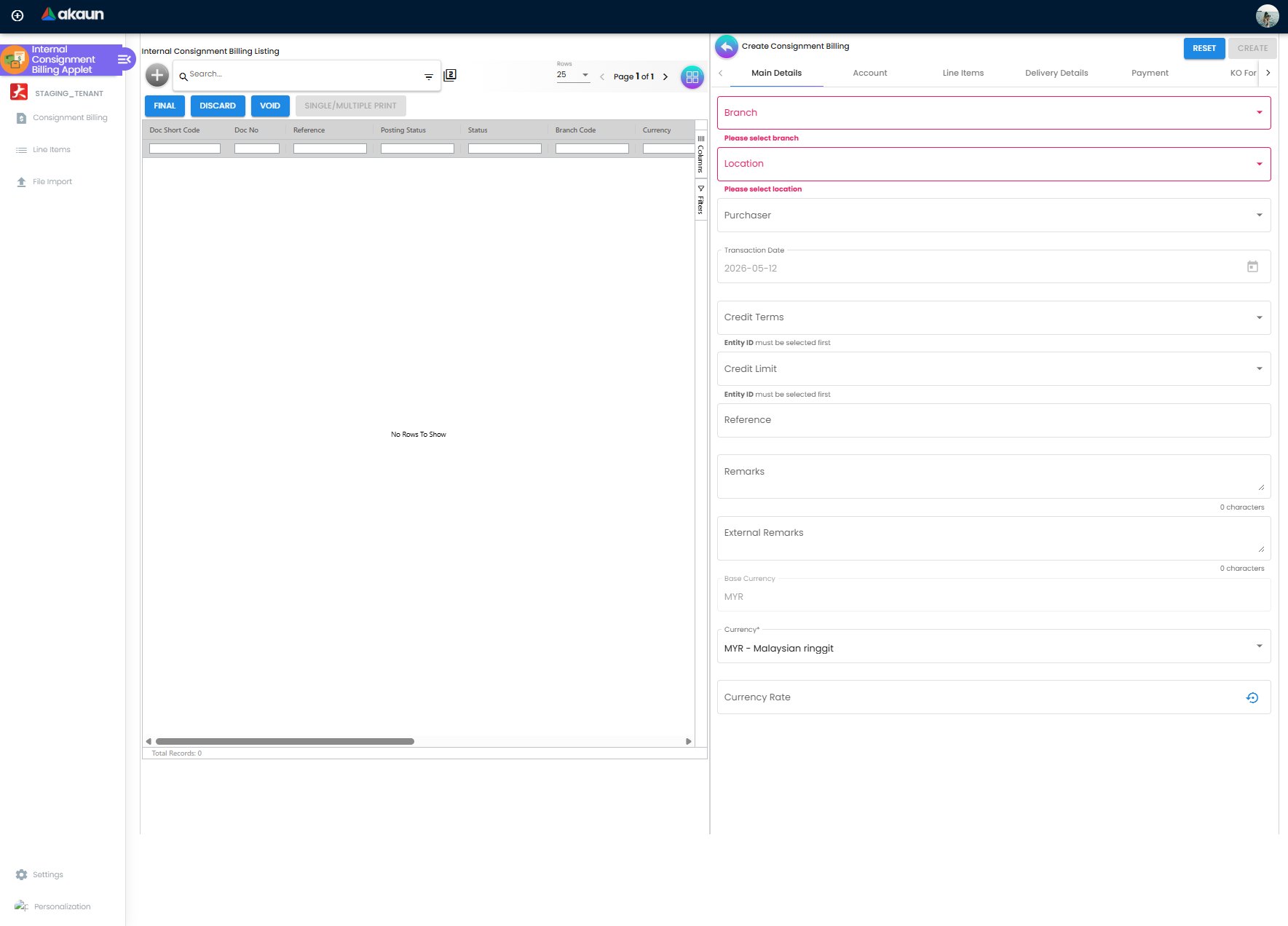
Listing
One grid with 25 columns: Doc Short Code, Doc No, Doc No (Company), Doc No (Branch), Reference, Posting Status, Status, Branch Code, Currency, Supplier Name, Purchaser, Amount Txn, the five ARAP columns (PNS, Settlement, Doc Open, Contra, Balance), Created Date, Transaction Date, Client Doc Short Code and Client Doc 1–5. Above the grid: FINAL, DISCARD, VOID and SINGLE/MULTIPLE PRINT — the print button is disabled until a default printable format is set. Rows are multi-select; the buttons act on the selection.
Create
Seven tabs. Main Details, Account (Entity Details, Bill To and Ship To, with the picker titled Select Supplier) and Line Items are always there — see Fields. CREATE stays greyed out, with no message saying why, until Branch and Location are filled on Main Details, a supplier is chosen on Account and at least one line exists; if you cannot see what is missing, check those four. The other four tabs each disappear when a setting is on:
| Tab | Shown when | Contents |
|---|---|---|
| Delivery Details | HIDE_DELIVERY_DETAILS_TAB off | Delivery branch, location, permit and tracking references |
| Payment | HIDE_MAIN_PAYMENT_TAB off | Settlement lines captured at the point of billing |
| KO For | HIDE_KO_FOR_TAB off | A single sub-tab, Consignment Purchase GRN |
| Department Hdr | HIDE_DEPARTMENT_HDR_TAB off | Dimension, profit centre, project and segment for the header |
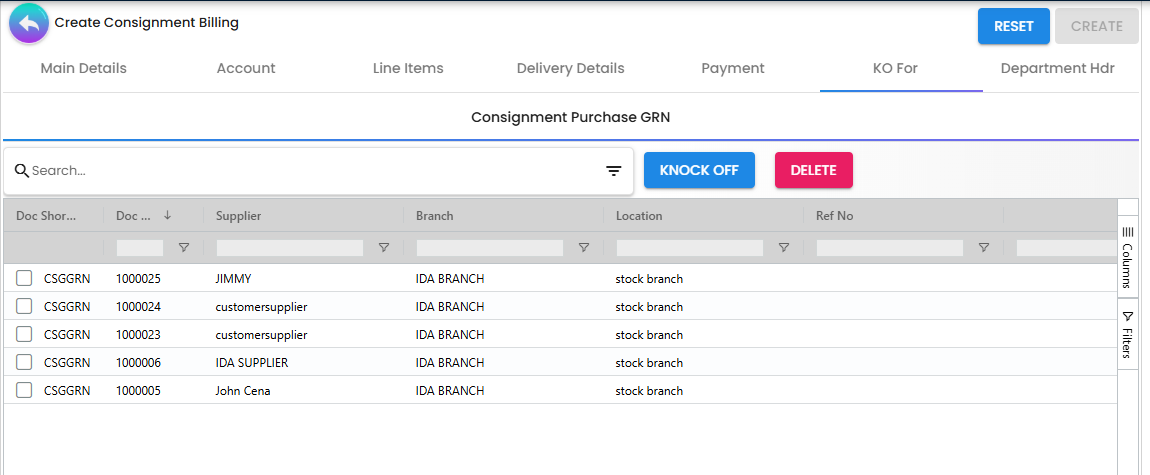
KO For → Consignment Purchase GRN is the intended way to build the document. The grid lists
consignment GRN lines still waiting to be billed — read from the line open queue where
server_doc_type_1 = INTERNAL_PURCHASE_CONSIGNMENT_GRN and
server_doc_type_2 = INTERNAL_PURCHASE_CONSIGNMENT_INVOICE. Selecting rows and pressing KNOCK
OFF copies the GRN header onto the draft and creates one billing line per GRN line, each with a
document link back to the GRN. All rows picked in one document must share the same supplier and the
same branch.
Edit
The edit panel adds six tabs to the create set and drops KO For (knock-off from that point on is per line): ARAP, Posting, TraceDocument, Contra, Doc Link and Attachment. Its buttons are RESET, FINAL, DISCARD, VOID and SAVE, each shown according to the document’s status and the settings in Document behaviour.
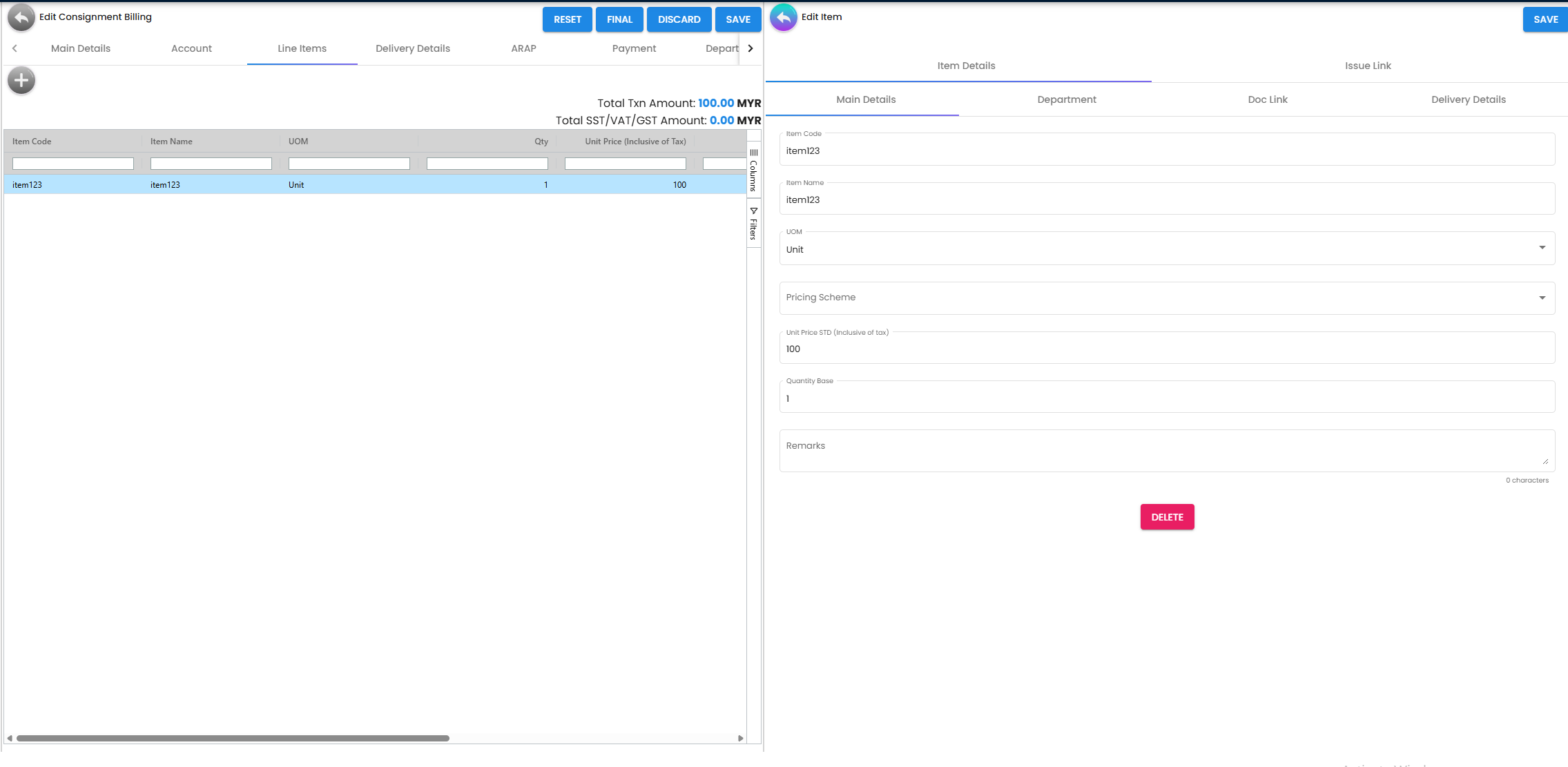
Line editing has its own tab set: Item Details, a sub-item tab (Serial Number, Batch
Number or Bin Number, depending on the item), Costing Details when
HIDE_COSTING_DETAILS is off, Issue Link, and a pair of KO By / KO For tabs for each of
Purchase GRN, Purchase Order, Purchase Requisition and Supplier Delivery Order — each pair rendered
only when the company has enabled that document flow into INTERNAL_PURCHASE_CONSIGNMENT_INVOICE.
File Import
Upload a .csv with a comma or pipe delimiter and press SUBMIT. Sample Format downloads a
template. The screen is the internal purchase invoice importer, and the downloaded template is named
Sales_Invoice_Master_Data_Template.csv regardless of the delimiter chosen.
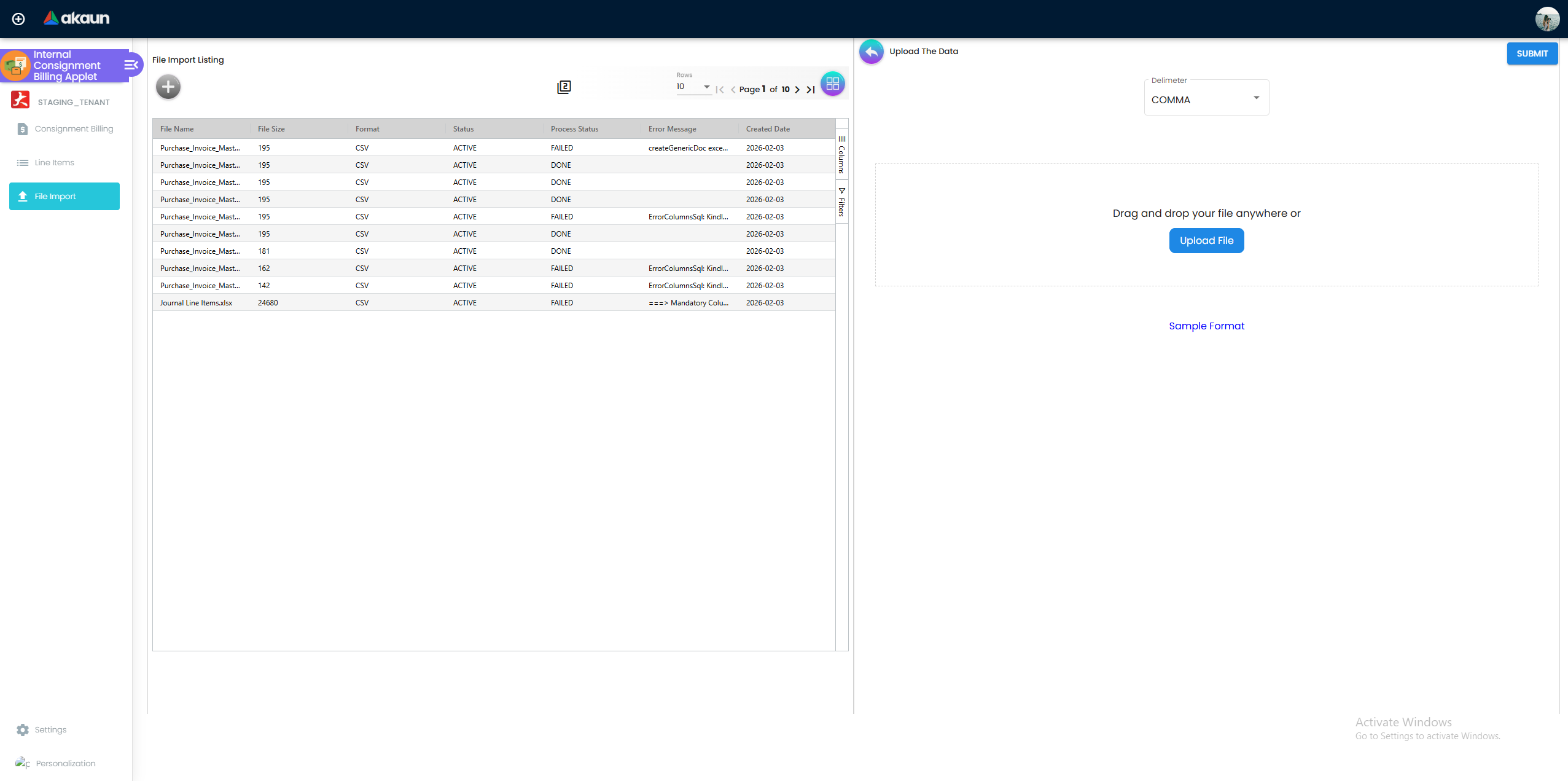
Past batches and their per-row results are on the File Import listing.
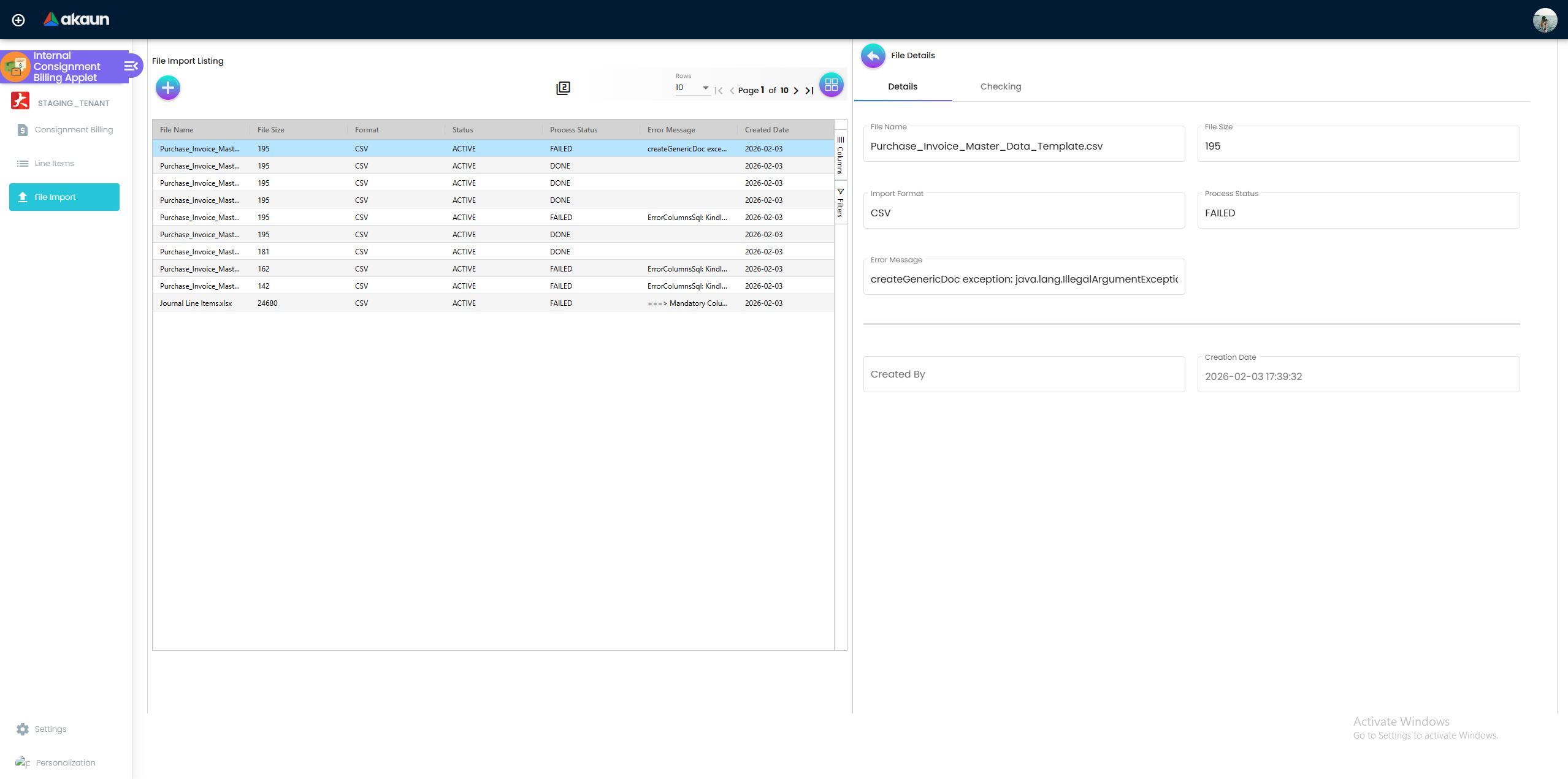
Configuration
Before you can use it
| What | Where | Why |
|---|---|---|
| Branch and location | Organisation | Both are Validators.required on the create form; the document cannot be created without them |
Document numbering for CSGINV | Organisation | Supplies Doc No (Tenant / Company / Branch) |
| Supplier entity with an AR/AP type | Supplier | The journal’s entity line is resolved from the entity’s AR/AP setting |
Default GL codes for CONSIGNMENT_LIABILITY and CONSIGNMENT_STOCK | Chart of Accounts | Both are looked up as company default GL codes and the journal job throws MISSING_DEFAULT_GL_CODE if either is absent. FINAL is not stopped: the job is enqueued after the status change, so the document stays FINAL with no journal until the code is mapped and the job re-run from Financial Report › Error Checking › Trace Document |
Default GL code for the creditor mapping (CREDITOR, or whatever the entity’s AR/AP type resolves to) | Chart of Accounts | The journal job also throws MISSING_DEFAULT_GL_CODE when this is unmapped; same mechanism — FINAL succeeds, the journal is missing |
| Purchase and input-tax GL codes | Chart of Accounts | Resolvable per line, per header, per item-company link or as a company default; an unresolvable line is dropped after FINAL. If the principal has an AR/AP type the creditor line absorbs it and the journal posts wrong with no error; if not, the journal job fails with TOTAL_DEBITS_AND_TOTAL_CREDITS_NOT_BALANCES (see Troubleshooting) |
| Tax codes | Tax Configuration | Line tax; the tax-code selector is hidden by HIDE_TAX_CONFIG_SELECTION |
Knock-off configuration: INTERNAL_PURCHASE_CONSIGNMENT_GRN → INTERNAL_PURCHASE_CONSIGNMENT_INVOICE, enabled | Organisation → Company → Knock Off Configuration | Without an enabled flow row the GRN’s finalised lines never enter the open queue and the KO For grid stays empty |
| A default printable format | Settings → Printable Format Settings | SINGLE/MULTIPLE PRINT is disabled and the after-FINAL pop-up fails without it |
Applet settings
Settings live on the shared settings screen (the field-settings route).
Any tenant administrator with access to the applet’s Settings menu can change these; there is no
per-row authority difference.
The settings menu has exactly three entries: Application Settings (the shared screen), Default Selection, and Printable Format Settings. A Knock Off Settings screen exists as a route and a component but its menu entry is commented out, so it is unreachable. The Personalization menu has one entry, Default Selection.
The applet’s settings model declares 103 keys. Of those, 52 pass all four proofs — declared,
rendered on the shared screen for applet code internalConsignmentBillingApplet, persisted by the
settings service, and read by this applet’s own code. Grouped by what they do:
| Group | Keys | What they control |
|---|---|---|
| Document buttons | HIDE_GENDOC_FINAL_BUTTON, HIDE_GENDOC_VOID_BUTTON, HIDE_GENDOC_DISCARD_BUTTON | Hide FINAL / VOID / DISCARD on both the listing and the edit form |
| Listing | DISABLE_GEN_DOC_LISTING, SORT_ORDER, HIDE_SERVER_DOC_1, HIDE_SERVER_DOC_2, HIDE_SERVER_DOC_3 | Suppress the listing entirely; the column the grid is ordered by (the last-updated date when unset); hide the three document-number columns |
| Header fields | CANNOT_EDIT_CURRENCY_RATE, HIDE_CLIENT_DOC_TYPE, HIDE_CLIENT_DOC_1…HIDE_CLIENT_DOC_5, HIDE_PERMIT_NO, HIDE_TRACKING_ID | Lock the currency rate; hide the client-document reference fields, permit number and tracking id |
| Tabs | HIDE_ATTACHMENT_TAB, HIDE_EXPORT_TAB, HIDE_MAIN_CONTRA_TAB | Hide those three tabs on the edit form |
| ARAP columns | HIDE_ARAP_PNS, HIDE_ARAP_SETTLEMENT, HIDE_ARAP_DOC_OPEN, HIDE_ARAP_CONTRA, HIDE_ARAP_BAL | Hide the five ARAP columns on the listing |
| Line grid and item form | HIDE_QTY_BASE, HIDE_QTY_UOM, HIDE_UOM_TO_BASE_RATIO, HIDE_AMOUNT_TXN, HIDE_AMOUNT_NET_EXCL_TAX, HIDE_AMOUNT_STD_EXCL_TAX, HIDE_DISCOUNT_AMOUNT_EXCL_TAX, HIDE_UNIT_DISCOUNT, HIDE_UNIT_DISCOUNT_UOM_EXCL_TAX, and the eight HIDE_UNIT_PRICE_* keys | Hide individual quantity, price, discount and amount columns and fields |
| Line extras | HIDE_COSTING_DETAILS, HIDE_LAST_PURCHASE_PRICE, HIDE_LOCATION, HIDE_DELIVERY_BRANCH, HIDE_DELIVERY_LOCATION, HIDE_TAX_CONFIG_SELECTION, HIDE_WHT_CONFIG_SELECTION, HIDE_UNIT_PRICE_STD_PRICING_SCHEME | Hide the Costing Details tab, the last-purchase-price hint, the location and delivery selectors, the tax and withholding-tax selectors and the pricing-scheme picker |
| Serial numbers | ENABLE_DRAFT_LOCK_SERIAL_NUMBER_CHECKING | Checks, while a line is being saved, whether another draft already holds the serial number. (Strictly it fails the first proof — the applet’s own model does not declare it — but the shared screen renders it for every applet and this applet sends it to the server, so it behaves as the others in this table) |
| After FINAL | ENABLE_AUTO_POPUP | Opens the printable PDF automatically after a successful FINAL; without a default printable it shows No Default Printable Selected instead |
Each HIDE_* key is paired in code with a SHOW_* client-side permission — the control is hidden
only when the setting is on and the permission is absent. For this applet that per-role escape
hatch does not exist: see Feature visibility and permissions.
Keys read at runtime with no control on the shared screen. Nineteen keys are read by the applet but have nowhere to be set from the Application Settings screen for this applet code:
- Seven tab-hide keys —
HIDE_DELIVERY_DETAILS_TAB,HIDE_MAIN_PAYMENT_TAB,HIDE_MAIN_ARAP_TAB,HIDE_POSTING_TAB,HIDE_TRACE_DOCUMENT_TAB,HIDE_DOC_LINK_TAB,HIDE_DEPARTMENT_HDR_TAB— plusHIDE_KO_FOR_TAB. The shared screen does not offer tab toggles for this applet. HIDE_CURRENCY,HIDE_BASE_CURRENCY,ENABLE_MULTIPLE_KO,DEFAULT_COUNTRY,DEFAULT_CUST_TYPE,DEFAULT_CURRENCY. The last three pre-fill a supplier created inline from the document; no screen of this applet writes them (Default Selection writes branch, location and company only), so they are support-set or absent.PRINTABLE,DEFAULT_BRANCH,DEFAULT_LOCATIONandDEFAULT_COMPANY, which are set on the other settings screens below rather than on Application Settings.
They keep whatever value the tenant already holds. On a tenant that has never saved Application Settings they are simply absent, so every gated tab renders.
Default Selection (applet-wide) has two controls, Default Branch and Default Location,
and writes three keys: DEFAULT_BRANCH, DEFAULT_LOCATION and DEFAULT_COMPANY — the company is
derived from the branch you pick, and picking a branch also pre-fills the location from that
branch’s MAIN_LOCATION. The branch list is restricted to the branches your
TNT_API_DOC_INTERNAL_PURCHASE_CONSIGNMENT_INVOICE_READ_TGT_GUID target allows, unless you are a
tenant admin or owner, in which case it is unrestricted. RESET clears all three to null.
Personalization → Default Selection overrides the applet-wide values for one user and adds a
third control, Default Item Search Item Type (DEFAULT_ITEM_SEARCH_ITEM_TYPE). It saves, but
nothing reads it: the only lines that would apply it to the add-line item search are commented out, so
the search returns the same items whatever you pick.
Printable Format Settings manages the printable formats offered to SINGLE/MULTIPLE PRINT and to
the after-FINAL pop-up. Printing runs through the INTERNAL_PURCHASE_ORDER_PRINT_SERVICE Jasper
service, so the format must be one that service can render.
Document behaviour settings
| Behaviour | Governed by | Effect |
|---|---|---|
| FINAL button visible | HIDE_GENDOC_FINAL_BUTTON off, document ACTIVE, posting status empty or DRAFT, and no line failed serial validation | Sends { posting_status: 'FINAL' } |
| DISCARD button visible | HIDE_GENDOC_DISCARD_BUTTON off, document ACTIVE, posting status empty or DRAFT | Sets the document to DISCARDED |
| VOID button visible | HIDE_GENDOC_VOID_BUTTON off and posting status FINAL | Sends { posting_status: 'VOID' } |
| Print after FINAL | ENABLE_AUTO_POPUP on and PRINTABLE set | Opens the PDF in a new window |
| Fields locked after FINAL | not configurable | Once posting status is FINAL, or status is anything but ACTIVE, SAVE and the line editors are disabled |
There is no approval flow on this document: the applet has no approval tab, no approval settings and no workflow designer, and the shared screen renders no approval controls for this applet code. See document approval for what “approval” means elsewhere in the product.
Settings in other applets that control this applet
| Setting | Where it is set | Effect here |
|---|---|---|
| Knock Off Configuration | Organisation → Company → Knock Off Configuration | Decides whether the KO For grid finds anything, and which of the four per-line KO By / KO For tab pairs render |
| Default GL codes per transaction code | Chart of Accounts | Every GL code the journal resolves; two of them throw when missing |
| Item consignment and item-type flags | Doc Item Maintenance | What the add-line item search returns (DEFAULT_ITEM_SEARCH_ITEM_TYPE is saved but not applied) |
| Company posting configuration | Organisation → Company | Whether the journal processor runs for this document type at all |
Feature visibility and permissions
The applet checks 43 client-side permission codes — SHOW_GENDOC_FINAL_BUTTON,
SHOW_GENDOC_VOID_BUTTON, SHOW_GENDOC_DISCARD_BUTTON, SHOW_DOCUMENT_DELETE_BUTTON,
SHOW_TRANSACTION_DATE, SHOW_DOC_NO_TENANT / _COMPANY / _BRANCH, SHOW_INTERCOMPANY_PI_SCREEN
and one SHOW_* counterpart for each hideable line and ARAP column.
None of them is defined for this applet, so no role, team or user can be granted any of them and every
SHOW_* check comes out false. In practice that means each HIDE_* setting is absolute: switch it on
and the control is gone for everyone, with no per-role exception.
Server-side permissions are unaffected. The applet requests
TNT_API_DOC_INTERNAL_PURCHASE_CONSIGNMENT_INVOICE_READ_TGT_GUID, …_CREATE_TGT_GUID,
…_UPDATE_TGT_GUID, TNT_TENANT_ADMIN and TNT_TENANT_OWNER at start-up; the create button and
the SAVE button are disabled without create and update permission respectively, and the branch
lists on Default Selection and the KO For grid are filtered by the read permission’s branch targets.
A …_DELETE_TGT_GUID definition exists on the backend but the applet never asks for it.
Fields
Main Details
The form also carries External Remarks, and, when their settings allow, Delivery Branch and Delivery Location with an Apply to Lines button that copies them onto every line.
| Field | Meaning | Required | Notes |
|---|---|---|---|
| Doc Short Code, Doc No (Tenant) / (Company) / (Branch) | CSGINV and the three running numbers | — | Shown only once the document exists: the create form has none of them, so you learn the number after CREATE. Read-only; each number hidden by its HIDE_SERVER_DOC_n setting and shown per role by SHOW_DOC_NO_* — which cannot be granted, see above |
| Client Doc Short Code, Client Doc 1–5 No | Reference numbers carried by the document | — | Read-only here and shown only once the document exists, so you cannot type your own reference into them on this form — use Reference. Hidden by HIDE_CLIENT_DOC_TYPE and HIDE_CLIENT_DOC_1…_5 |
| Branch | The branch the document belongs to | Yes | Also drives the location list, sets the company and fills Currency and Base Currency from the branch’s currency |
| Location | The stock location | Yes | Trap: HIDE_LOCATION hides this box but it stays required. With it hidden and no Default Location set under Default Selection, CREATE stays greyed out and nothing on screen says why |
| Purchaser | The employee responsible for the bill | No | Lists employees, narrowed to the employee categories held in the applet’s settings, if any. Trap: Credit Terms, Credit Limit and Permit No are stored with the bill only while a Purchaser is chosen; with Purchaser empty they are dropped on save without a message. See the one-unit check below the table |
| Transaction Date | The document date | — | Defaults to today and can be changed from the calendar until the document is FINAL |
| Credit Terms | One of the supplier’s credit terms | — | The list is empty until a supplier is chosen on Account, then offers that supplier’s terms; a supplier with exactly one is filled in for you. Stored as text on the bill |
| Credit Limit | One of the supplier’s credit-limit entries | — | Filled the same way as Credit Terms and stored as text. Nothing in this applet compares the bill with it, so if a consignor’s limit matters, whoever finalises the bill checks the consignor’s outstanding balance against it first |
| Due Date | Not on this form | — | The input is switched off in the applet, and nothing in the save or FINAL path works one out from Credit Terms, so the bill carries no due date of its own. Whoever schedules supplier payments takes the date from the consignor’s own invoice and its terms, and checks it against the payment run; do not wait for this document to warn you |
| Reference | Free text | — | Becomes the reference number on the journal this bill posts, so it is what you will search for in the ledger. Knock-off from a Consignment GRN copies the GRN’s Reference, Remarks and External Remarks onto the bill: replace the GRN’s reference with the consignor’s invoice number before FINAL. Trap: as read, deleting the text of Reference, Remarks or External Remarks does not clear it — the previous value is kept |
| Remarks | Free text | — | Becomes the journal’s remarks and the description on its tax, supplier and consignment lines. External Remarks does not reach the journal |
| Permit No | Import/export permit reference | — | Hidden by HIDE_PERMIT_NO; stored only while a Purchaser is chosen (see Purchaser) |
| Base Currency | The branch’s currency, for display | — | Read-only and hidden by HIDE_BASE_CURRENCY. Read, not run: the box is left out of what the form saves, and the applet saves MYR as the base currency whatever it shows. For a company whose currency is MYR that changes nothing. If yours is not, a bill in your own currency is treated as foreign — SAVE refuses it with The currency rate cannot be ZERO. until you enter a rate, and a rate of 1 then gives the right figures |
| Currency | The document currency | Marked * | Starts as the branch’s currency. Choosing a supplier resets the rate to 0 and can switch the bill to the currency on the supplier’s record, and a knock-off from a GRN copies the GRN’s currency without its rate — so look at Currency and Currency Rate again after either. Changing Currency by hand fetches a live rate; choosing a supplier does not. Clearing the box keeps the previous currency |
| Currency Rate | Units of the document currency per one unit of base currency (1 MYR = 0.2194 USD, not 4.558) | — | The live-rate button fetches it that way, the base-currency figure in brackets beside the line totals is the amount ÷ this rate, and at FINAL the base-currency copy that carries the posting divides by it. Locked by CANNOT_EDIT_CURRENCY_RATE and at FINAL. SAVE refuses 0 when the document currency differs from base; CREATE and FINAL do not — see the caution below |
| Tracking ID | Logistics tracking reference | — | Hidden by HIDE_TRACKING_ID. As read, a saved Tracking ID shows as an empty box when you reopen the bill but is kept; typing a new one replaces it, and it cannot be cleared |
Check the Purchaser trap with one bill. Leave Purchaser empty, pick a Credit Terms value and type a Permit No, CREATE, then reopen the bill. If both boxes are empty, the trap holds on your tenant: choose a Purchaser, fill them again and SAVE.
Account
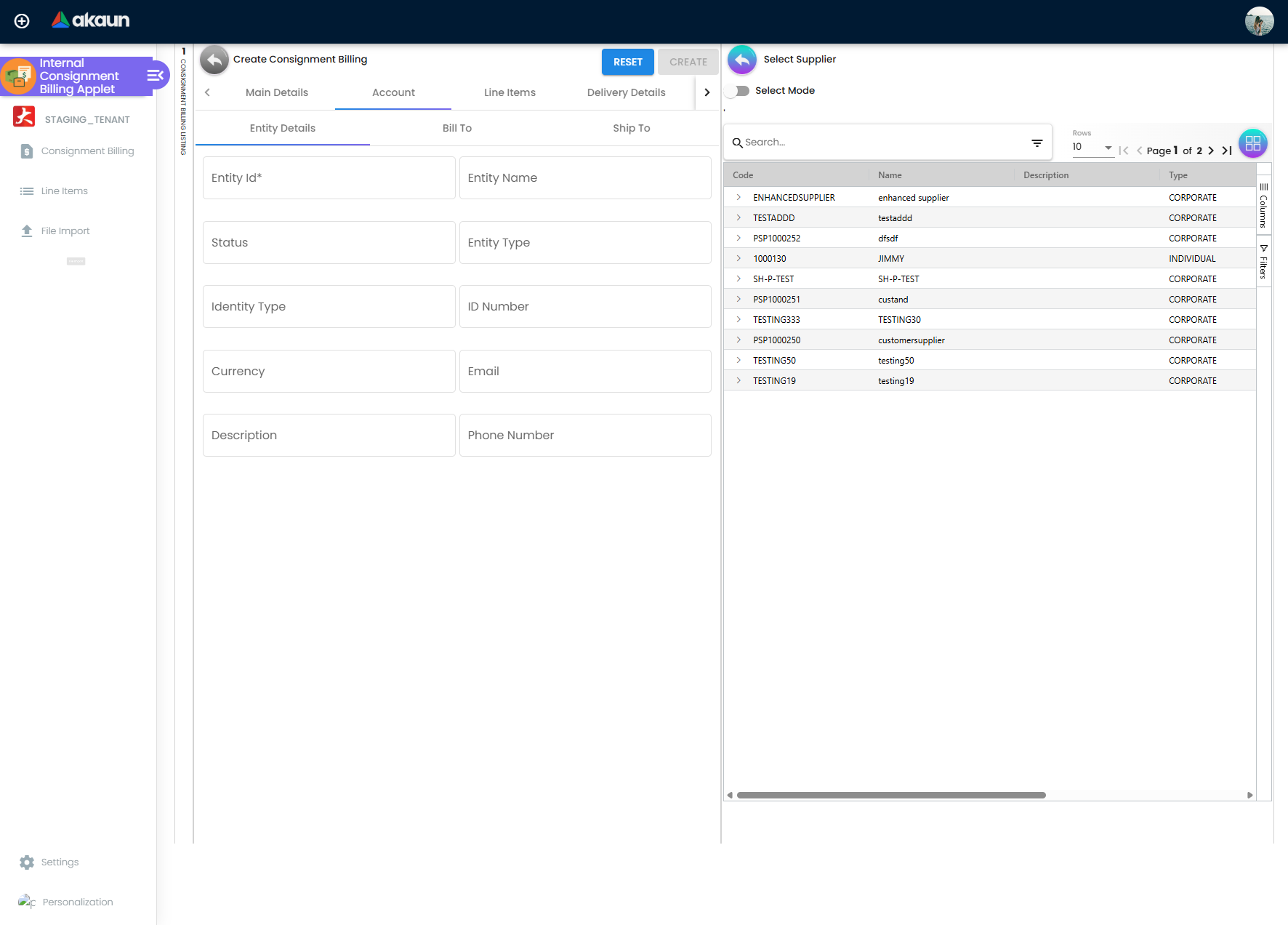
Three sub-tabs. Entity Details shows Entity Id (required), Entity Name, Status, Entity Type, Identity Type, ID Number, Currency, Email, Description and Phone Number, all populated from the selected supplier. Bill To and Ship To hold the two addresses.
Line items
A line starts from an item picked in the item search, which fills Item Code (read-only) and the unit of measure.
| Field | Meaning | Required | Notes |
|---|---|---|---|
| Item Name | Copied from the item | — | Editable. The line keeps its own copy of the name, so an edit here changes this line only and not the item master |
| UOM | Unit of measure | — | Comes with the item; picking another unit takes that unit’s ratio to base. Trap: the UOM picker is hidden together with the pricing-scheme picker by HIDE_UNIT_PRICE_STD_PRICING_SCHEME, so hiding the scheme also stops anyone changing the unit — the line keeps the item’s unit |
| UOM to base ratio | Conversion factor | — | Hidden by HIDE_UOM_TO_BASE_RATIO |
| Pricing Scheme | Price list to apply | — | Hidden by HIDE_UNIT_PRICE_STD_PRICING_SCHEME |
| Unit Price STD (inclusive of tax) and the other seven unit-price variants | Line pricing | Yes (at least one) | Each hidden by its own HIDE_UNIT_PRICE_* key |
| Quantity Base | Quantity billed | Yes | Hidden by HIDE_QTY_BASE |
| Unit Discount / Discount Amount | Line discounts | — | Hidden by HIDE_UNIT_DISCOUNT, HIDE_UNIT_DISCOUNT_UOM_EXCL_TAX, HIDE_DISCOUNT_AMOUNT_EXCL_TAX |
| Tax code | Line tax | — | Hidden by HIDE_TAX_CONFIG_SELECTION |
| Withholding tax | Line WHT | — | Hidden by HIDE_WHT_CONFIG_SELECTION |
| Location / Delivery Branch / Delivery Location | Line-level overrides | — | Hidden by HIDE_LOCATION, HIDE_DELIVERY_BRANCH, HIDE_DELIVERY_LOCATION |
| Remarks | Line note | — | Becomes the description of this line’s purchase line in the journal. The header Remarks describes the tax, supplier and consignment lines |
The line grid totals Total Txn Amount and Total SST/VAT/GST Amount above it.
Lifecycle and effects
| Posting status | Meaning | Allowed next |
|---|---|---|
empty / DRAFT | Saved and editable | FINAL, or DISCARDED |
FINAL | Posted; header and lines locked | VOID |
VOID | Reversed by the void processors | — |
DISCARDED (document status) | Abandoned draft | — |
FINAL is sent from the edit form or from the listing’s bulk FINAL as a posting-status update
{ posting_status: 'FINAL' }. Pressing FINAL on a document that is already FINAL shows This
document has been posted. VOID first checks the document’s own links: if any ACTIVE link
joins this document to an INTERNAL_PURCHASE_RETURN, the applet refuses with The invoice has
already been linked with a purchase return; pressing VOID on a document that is not FINAL shows
This document has not been finalized yet. Both are client-side guards.
What posting does:
| Item | Value |
|---|---|
| Document type | INTERNAL_PURCHASE_CONSIGNMENT_INVOICE, short code CSGINV |
| Direction | Money owed to the consignor; no stock movement — every line is forced to no stock movement, whatever the screen sends |
| The journal | Item and tax lines debit PURCHASE / INPUT_TAX (discounts → PURCHASE_DISCOUNT, returns → PURCHASE_RETURN). The balancing supplier line credits the supplier’s AR/AP account (CREDITOR by default). Then a second, self-balancing pair: debit CONSIGNMENT_LIABILITY, credit CONSIGNMENT_STOCK, both for the document total. It uses the ordinary purchase journal mapping |
| Which GL code | Line GL → header GL → the item’s company default → company default, for the purchase and tax lines. CONSIGNMENT_LIABILITY and CONSIGNMENT_STOCK come only from the company default GL codes and each fails with MISSING_DEFAULT_GL_CODE: <code> when unmapped. The creditor mapping fails the same way |
| Stock | None. No inventory transaction line, no balance change |
| What VOID reverses | The void jobs your tenant has switched on reverse the journal, reopen knocked-off GRN lines and reverse contras; the document is removed from the e-invoice queue and from historical aging. There are no stock lines to reverse |
Two consequences worth knowing. First, a Consignment GRN posts credit CONSIGNMENT_LIABILITY /
debit CONSIGNMENT_STOCK; this document posts exactly the opposite pair, which is how the
consignment holding is cleared as stock is bought. If a company is missing either default GL code,
the GRN and the billing document both still go FINAL — the codes are read by the posting that runs
afterwards, which fails — naming the code, or with NO_JOURNAL_CREATED on a GRN whose stock lines
found no code — and leaves the document FINAL with no journal.
Financial Report › Error Checking › Trace Document on that document reports Missing Journal;
map the code first, then Resolve it there. Second, because the
document total drives that pair, billing a part of a GRN clears only that part of the holding —
the rest stays as consignment stock against consignment liability until it is billed or returned.
Related applets
- Consignment GRN (Internal) — the source of the lines this document bills; its open lines are what the KO For grid reads, and it cannot be voided once billed.
- Consignment GIN (Internal) — the outbound half of the consignment stock pair.
- Consignment Return (Internal) — the alternative to billing: send the stock back instead of buying it.
- Consignment Purchase Order — orders consignment stock from the consignor.
- Consignor Purchase Billing (Internal) — the period-level record of what is owed to a consignor; writes its own tables and posts nothing.
- Purchase Invoice (Internal) — the applet this one is cloned from; the file-import endpoint is shared with it.
- Purchase Return (Internal) — a link to one of these blocks VOID.
- Customer Consignment — the sales-side consignment record, for stock you own that sits at someone else’s location.
- Supplier — the consignor.
- Organisation — branches, locations, document numbering, knock-off configuration and the company posting configuration.
- Chart of Accounts — the
CONSIGNMENT_LIABILITY,CONSIGNMENT_STOCK,PURCHASE,INPUT_TAXand creditor default GL codes. - Tax Configuration — line tax codes.
- Doc Item Maintenance — the items the add-line search returns.
Troubleshooting
| Symptom | Cause | Fix |
|---|---|---|
| KO For → Consignment Purchase GRN grid is empty although finalised consignment GRNs exist | The company has no enabled knock-off flow from INTERNAL_PURCHASE_CONSIGNMENT_GRN to INTERNAL_PURCHASE_CONSIGNMENT_INVOICE, so the GRNs were never opened for billing | Enable the flow in Organisation → Company → Knock Off Configuration, then re-finalise or ask support to repair the open lines |
| KO For grid goes empty as soon as you use its advanced search | The advanced search looks for ordinary goods-received notes while the grid lists consignment GRNs, so the two never overlap | Clear the search and filter with the grid’s own column filters instead |
| The selected document contains a different entity/branch compared to the previous document | A second KO row was picked whose supplier or branch differs from the first | Raise one billing document per supplier and branch |
Document is FINAL, Trace Document → Journal Txn is empty, and the journal job shows MISSING_DEFAULT_GL_CODE: CONSIGNMENT_LIABILITY or : CONSIGNMENT_STOCK | Neither code falls back to a line or header GL code — both come only from the company default GL codes, and the job fails when either is absent. FINAL has already succeeded | Map both in Chart of Accounts, then Financial Report › Error Checking › Trace Document → Resolve |
Document is FINAL and the journal job shows MISSING_DEFAULT_GL_CODE naming a creditor code | The supplier’s AR/AP type resolves to a transaction code that has no company default GL code | Map it, or correct the supplier’s AR/AP type, then re-run the job from Trace Document |
Document is FINAL and the journal job shows TOTAL_DEBITS_AND_TOTAL_CREDITS_NOT_BALANCES | A purchase or tax line could not resolve any GL code (line, header, item-company link and company default all empty) and was silently dropped from the journal, and the principal has no AR/AP type, so no creditor line absorbed it | Set the GL code on the line, on the item-company link, or as a company default, then re-run the job from Trace Document |
| No error, but trade creditors no longer agrees with the creditor ageing, and purchases or input tax are short by the same amount | A line resolved no GL code and was left out of the journal; the principal’s line was built from the lines that remained, so it absorbed the amount and the journal posted. The billing is FINAL with a journal, so Trace Document finds nothing, and the principal statement and ageing (built from documents) look right. Before go-live, check every code this billing uses has a company default, or every item its own | Set the GL code on the line, on the item-company link, or as a company default, then repost the affected billings from Trace Document |
| This document has been posted on pressing FINAL | The document is already FINAL | Refresh the listing |
| This document has not been finalized yet on pressing VOID | The posting status is not FINAL | Use DISCARD for a draft |
| The invoice has already been linked with a purchase return on pressing VOID | An ACTIVE document link joins this document to an INTERNAL_PURCHASE_RETURN | Void the purchase return first |
| The currency rate cannot be ZERO. on SAVE | The document currency differs from the base currency and the rate is 0 | Enter a rate, or clear CANNOT_EDIT_CURRENCY_RATE if the field is locked |
| No Default Printable Selected after a successful FINAL | ENABLE_AUTO_POPUP is on but no PRINTABLE default is set | Set one under Settings → Printable Format Settings |
| SINGLE/MULTIPLE PRINT is greyed out | Same cause — the button is disabled while PRINTABLE is unset | As above |
| The Issue Link tab always shows one row of sample data | The tab is a mock with fixed data | Ignore the tab; it does nothing |
A HIDE_* setting hides a field for everyone including administrators | The paired SHOW_* client-side permission is not defined for this applet, so it can never be granted | Switch the setting back off; there is no per-role exception |
| No tab-hide toggles on Application Settings | The shared screen does not offer tab toggles for this applet | The settings keep whatever value the tenant already holds; there is no supported way to set them from the screen |
| Knock Off Settings cannot be found in the settings menu | It has no menu entry | Use Organisation → Company → Knock Off Configuration, which is what the tabs actually read |
Related documentation
- Consignment purchasing guide — the end-to-end consignment process in user-guide voice.
- Purchasing module and Financial Accounting module.