Delivery Order Applet (Internal)
Tell the warehouse and the driver what goes out to a customer, on which date and by which route. Finalising moves no stock and posts no journal, because the sales invoice or a goods issue does that, and it does not put lines on the pick-pack queue either: someone has to press Send To Queue.
Overview
The Delivery Order Applet (Internal) is the workspace where the office raises, edits and finalises the
outbound delivery order — the document that says these goods are going out to this customer, on this date,
by this route. It is one applet with one document type: INTERNAL_OUTBOUND_DELIVERY_ORDER, short code
OBDODR.
It sits after the order and before (or after) the invoice. Lines are usually not typed in: they are pulled from a Sales Order, a Sales Invoice, a Sales Return, a Purchase GRN or another Delivery Order and knocked off against it, so the source document’s open quantity falls as the delivery order consumes it. Lines reach the Pick Pack Queue only when someone presses Send To Queue on the document’s Delivery Details panel — FINAL by itself puts nothing there. Turning the queued quantity into a delivery job is a separate action, Create Delivery Job, on this applet’s Pick Pack Queue screen or in the Delivery and Installation applet. The warehouse picking queue of the Warehouse Management applet is not fed from a delivery order: its Send To Warehouse Picking Queue button exists only on the Sales Order applet’s Pick Pack Queue screen.
INTERNAL_OUTBOUND_DELIVERY_ORDER carries a
quantity signum of 0 and an amount signum of 0. Finalising one changes nothing in the ledger and
nothing in the stock balance — it commits quantity and drives fulfilment. The stock movement is made by the
Sales Invoice, by Sales GIN (Stock Out), or by a goods issue. See Lifecycle and effects.Where it fits
| Applet | Why | |
|---|---|---|
| Upstream (knock-off sources) | Sales Order (Internal), Sales Invoice (Internal), Sales Return (Internal), Purchase GRN (Internal) | Searched and knocked off to copy lines and the customer into the delivery order |
Upstream (created in DRAFT by) | Warehouse Management | A Packing List can create the delivery order for the office to complete |
| Same document, supplier’s window | Supplier Delivery Order Applet | A supplier raises the same INTERNAL_OUTBOUND_DELIVERY_ORDER against itself; it has no FINAL or VOID control, so finalising happens here |
| Same document, driver’s window | Driver Delivery Order Applet | The assigned driver edits three header fields on the documents raised here |
| Downstream (fulfilment) | Delivery and Installation, Delivery and Installation Driver | The pick-pack queue rows this applet produces (with Send To Queue, see Delivery Details under Fields) are turned into delivery jobs by Create Delivery Job — on this applet’s Pick Pack Queue screen or in Delivery and Installation, the same endpoint (del/jobs/create-job-doc) either way |
| Downstream (knock-off target) | Sales Invoice (Internal), Goods Delivery Note (Internal), Packing Order (Internal) | Invoice after delivery; KO For Delivery Order Item on the delivery note |
| Alongside | Stock Availability | Open delivery-order lines are counted as committed quantity there |
| Governs status routing | Workflow Design | Supplies the process a delivery order’s workflow status is drawn from |
Screens and menus
Routes live under applet/tnt/wavelet/erp/internal-delivery-order-applet — the same
slug the registry’s routerLink uses. The landing screen is Delivery Order: the empty path redirects to
internal-delivery-order, and anything unmatched goes to a 404 component.
Four menu entries are shipped; two more are present in the file but commented out, so Sales Invoice Template and File Import have routes and no way in from the menu.
| Menu | Route | What it is |
|---|---|---|
| Delivery Order | internal-delivery-order | The document listing, create and edit workspace |
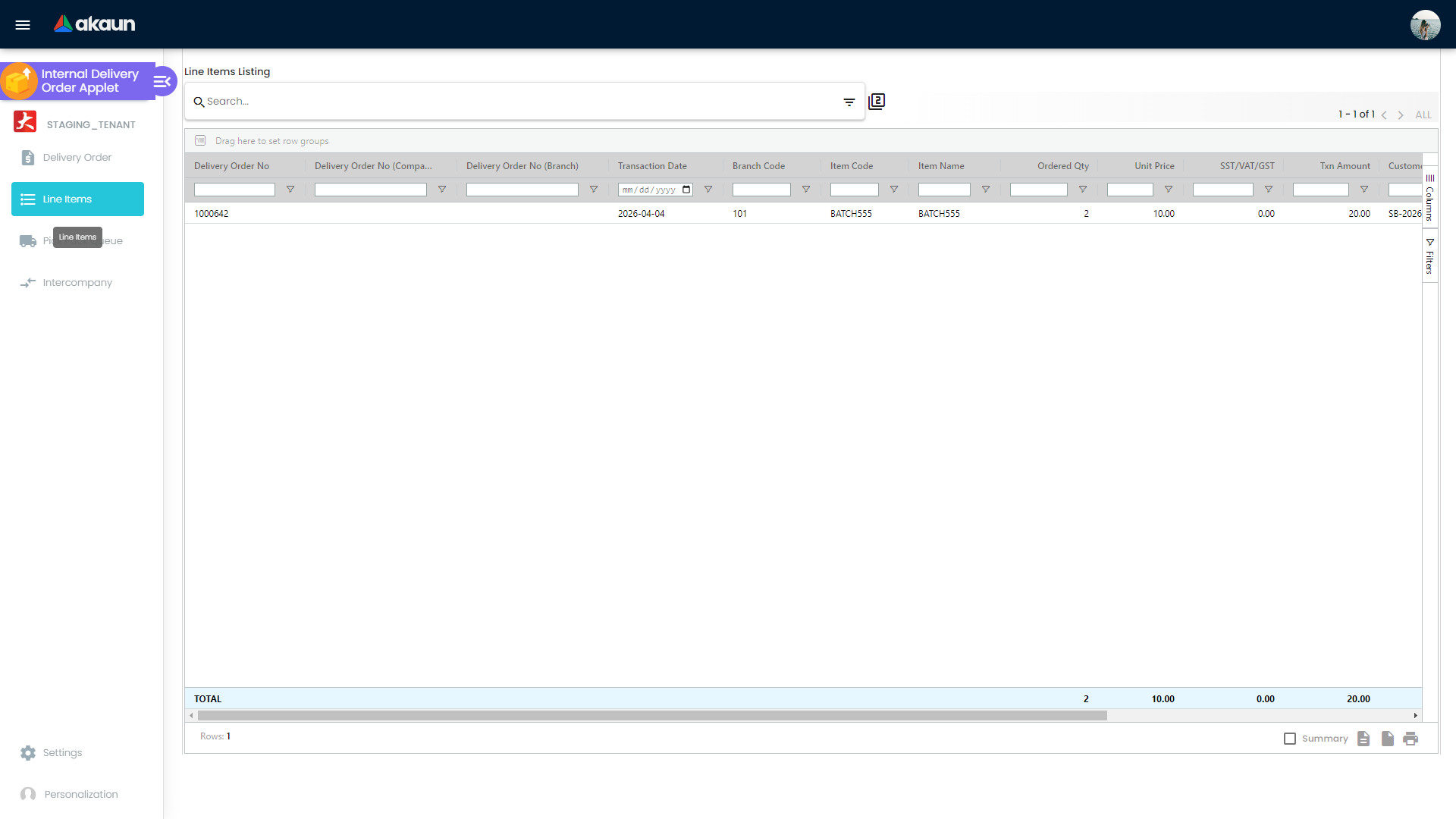
| Line Items | line-items | Line-level view across delivery orders — item, quantity, price, tax, amount, customer, dates, with totals |
| Pick Pack Queue | pick-pack-queue | Pending delivery quantity, and the Create Delivery Job action |
| Intercompany | intercompany | Inbound and Outbound processing queues, each with an UNPROCESSED and a PROCESSED tab |
| (no menu entry) | sales-invoice-template, file-import | Routed but unreachable from the sidebar |
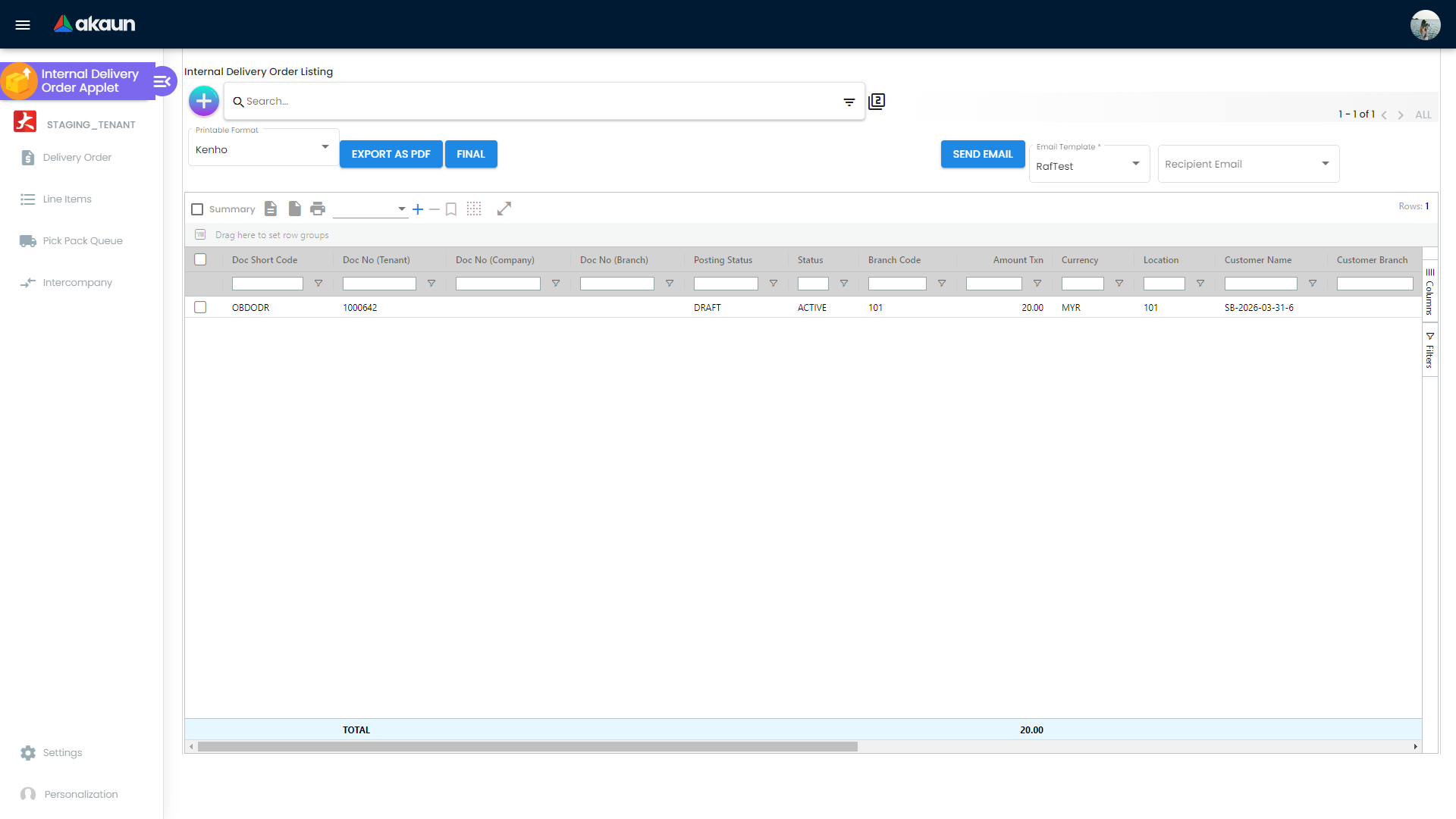
The listing’s action row carries Export as PDF, Final, Draft, Discard, Void and Send
Email. Three of them are hidden by settings rather than by permission — Final by
HIDE_GENDOC_FINAL_BUTTON, Discard by HIDE_GENDOC_DISCARD_BUTTON, Void by HIDE_GENDOC_VOID_BUTTON.
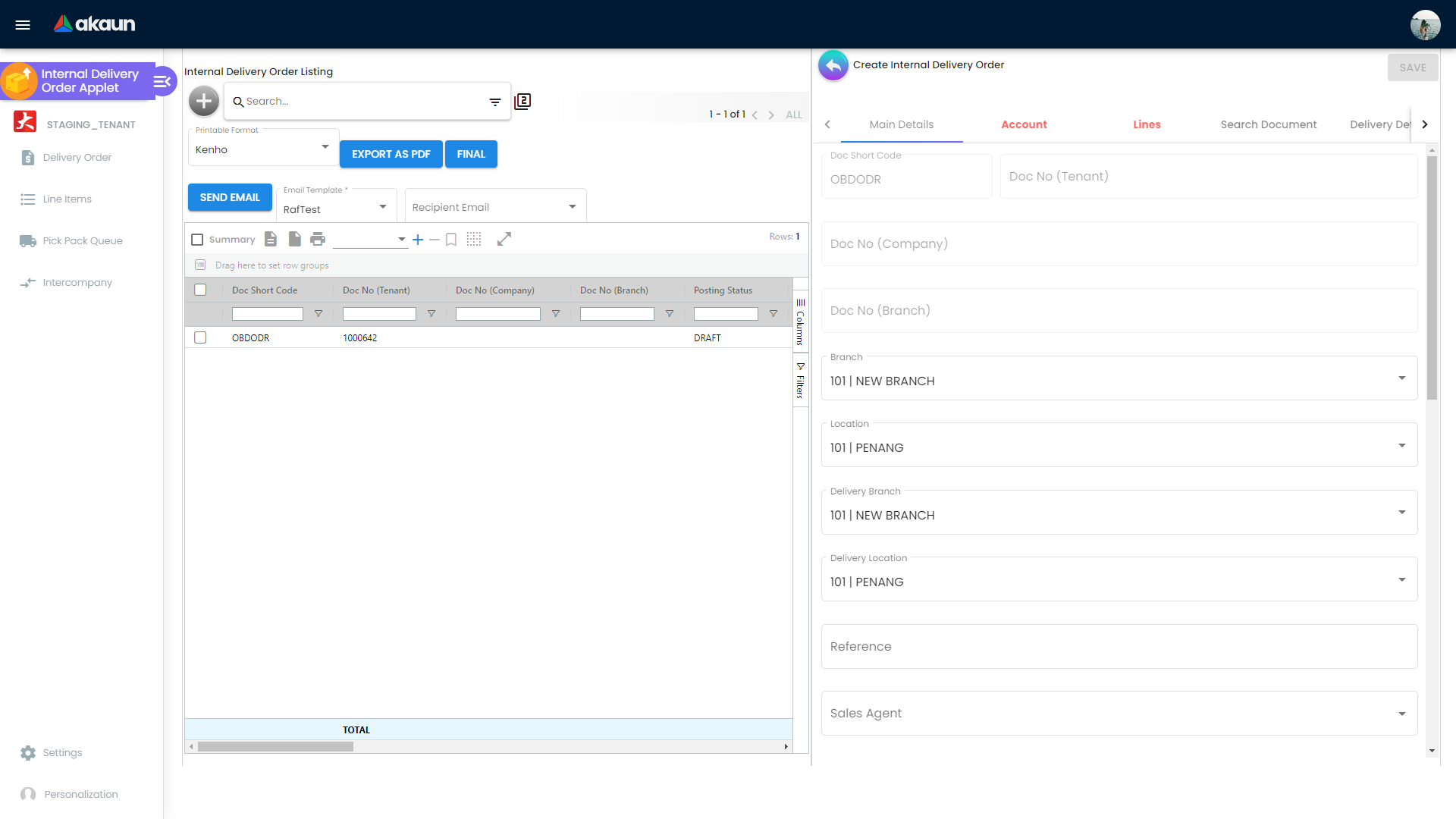
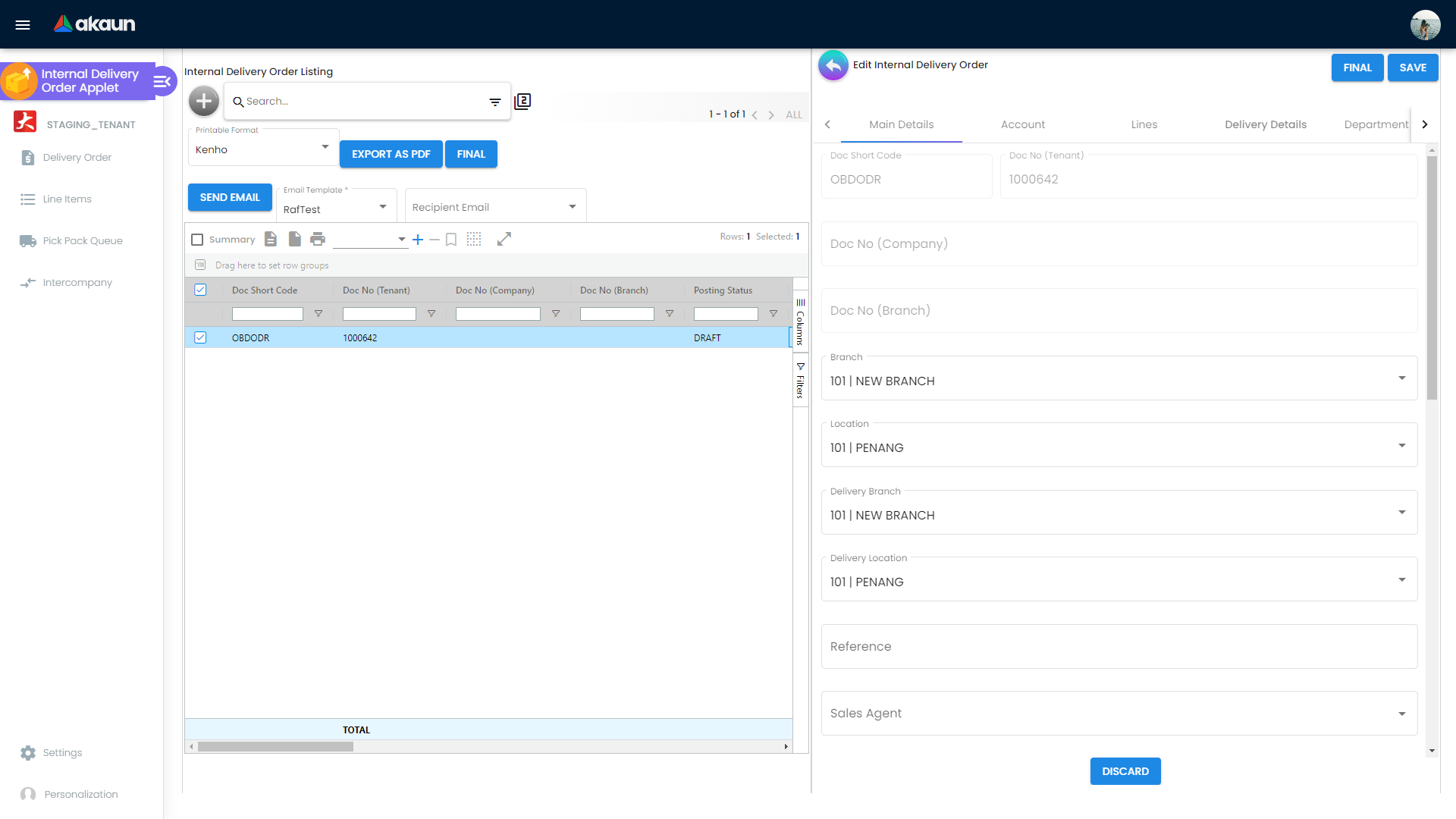
The edit workspace is a set of detail panels. Their order is stored as
INTERNAL_OUTBOUND_DELIVERY_ORDER_DETAILS_TAB_ORDER, and each panel
has its own HIDE_*_TAB and EXPAND_* key in the settings model: Main Details, Account, Line Items, KO For,
Delivery Details, Main AR/AP, Department Hdr, Trace Document, Doc Link, Attachment, Export, Main Contra,
Settlement, Posting, Delivery Trips.
Pick Pack Queue
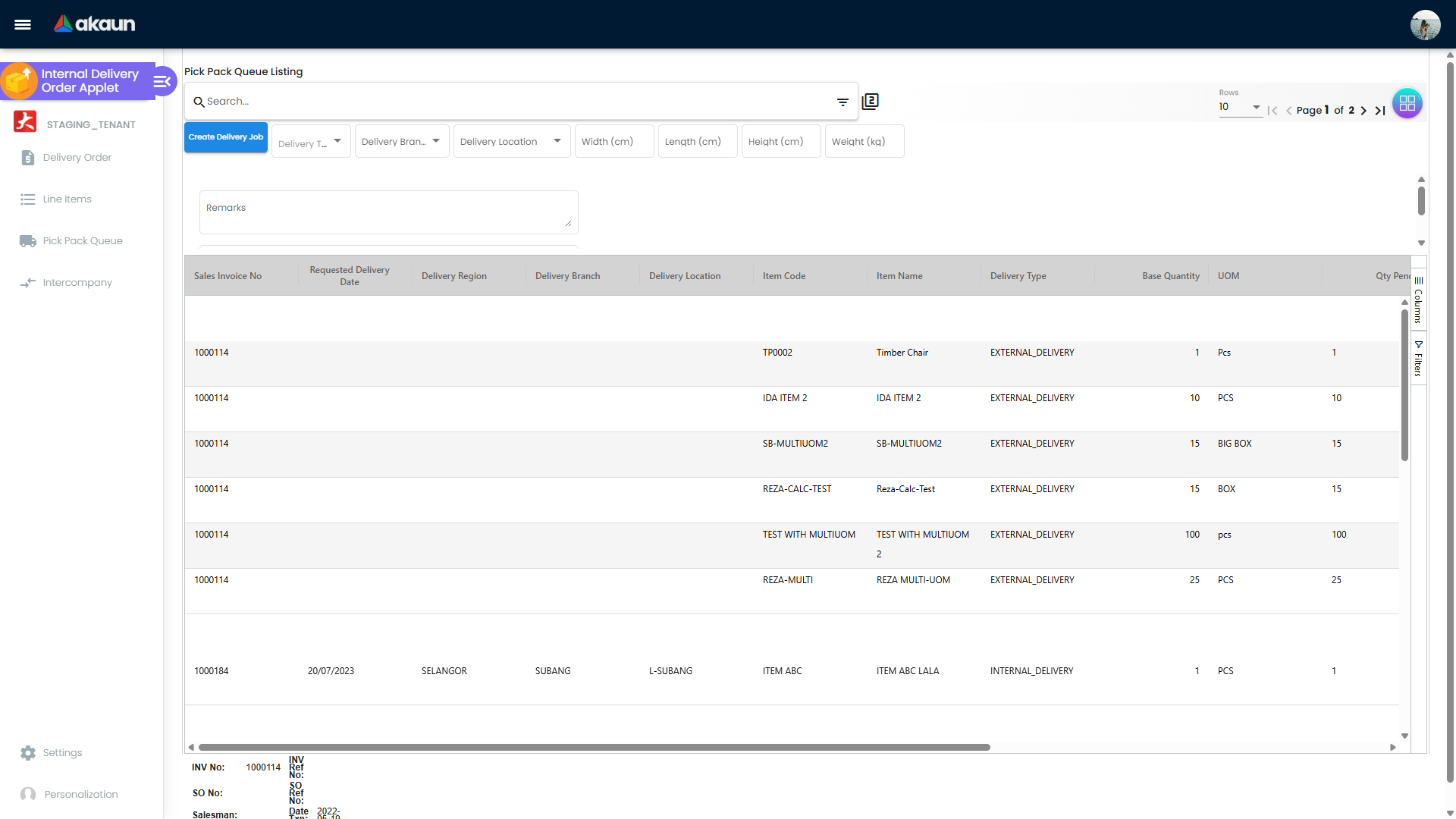
The queue lists the delivery orders’ lines waiting to go out, with the balance still to deliver alongside the location and company stock balances for the same item. Qty To Deliver is editable only up to the balance — a larger figure is not accepted.
Create Delivery Job creates one or more delivery jobs — delivery logic, the four pickup dates, the four
delivery dates and the recipient’s entity, code, name, e-mail and phone — linked to the selected queue
lines. Delivery Type is a three-value drop-down: INTERNAL_DELIVERY, EXTERNAL_DELIVERY, PICKUP.
Intercompany
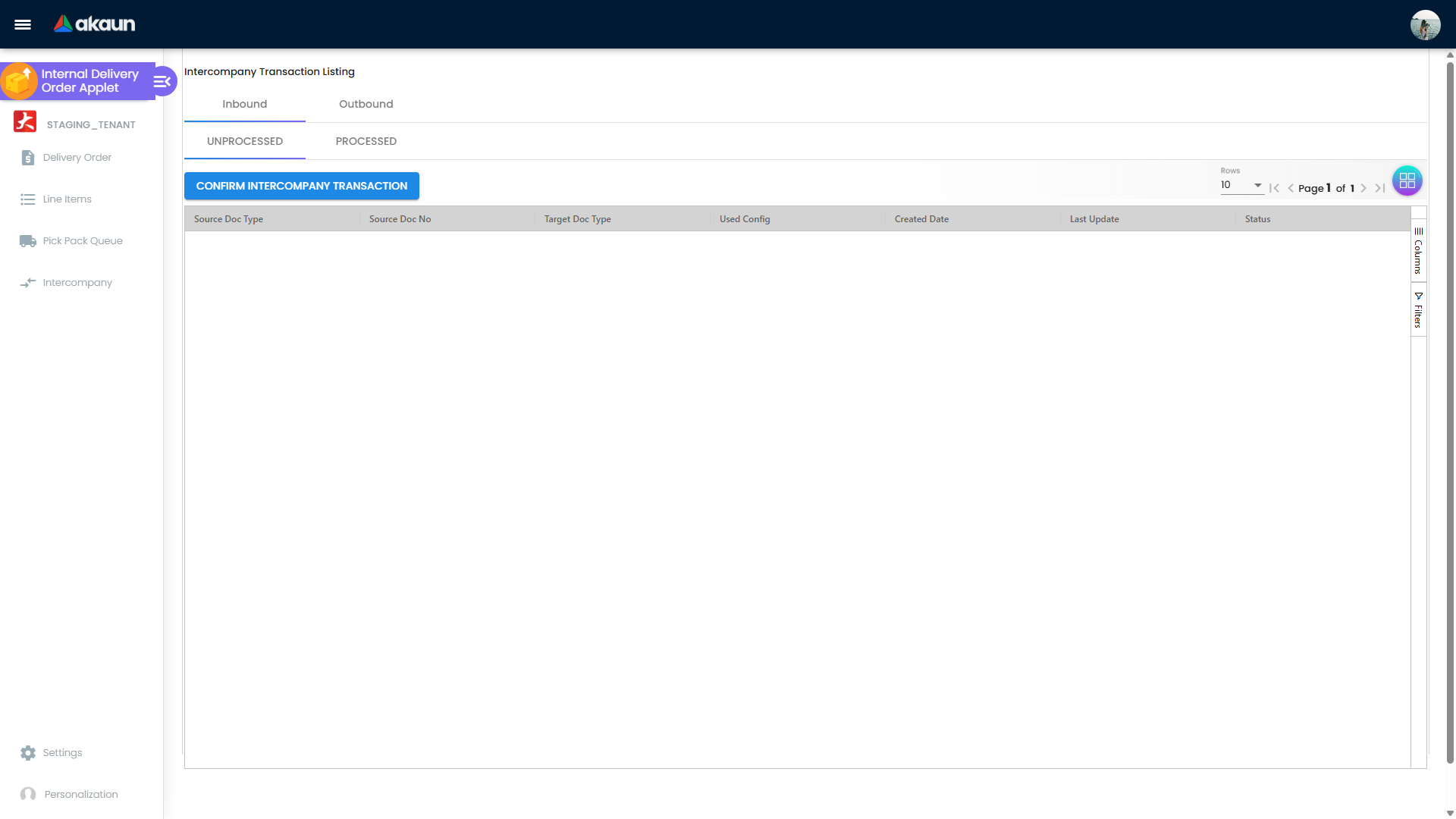
Two streams, Inbound and Outbound, each split into UNPROCESSED and PROCESSED tabs. The only action is CONFIRM INTERCOMPANY
TRANSACTION.
Line Items
Settings (gear) and Personalization menus
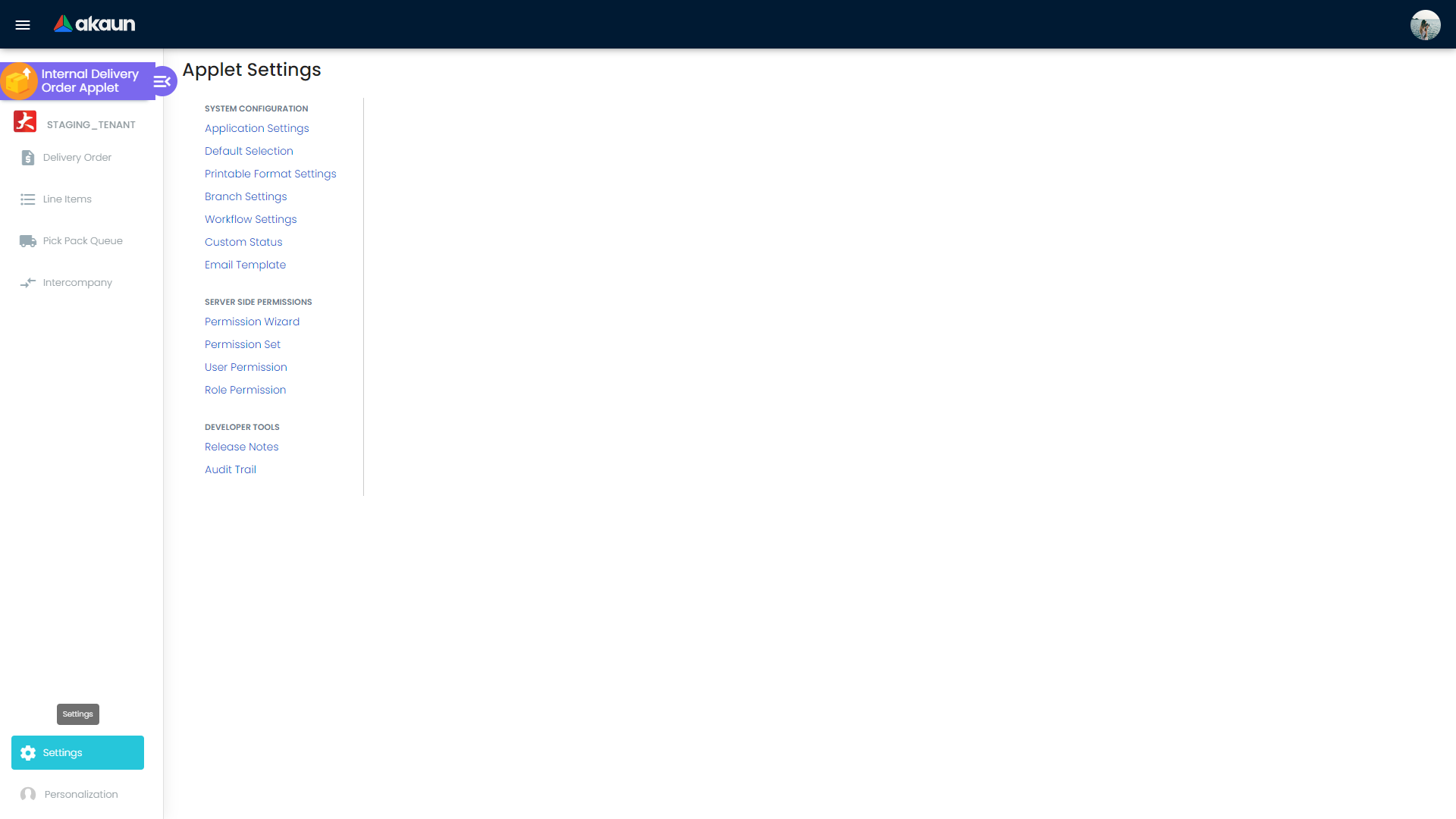
Settings is one group, System Configuration, with nine entries: Application Settings, Default Selection, Printable Format Settings, Branch Settings, Workflow Settings, Custom Status, Email Template, Custom Resource Bundle Configuration, Custom Field Placement. Eleven further routes exist without a menu entry — Feature Visibility, Webhook, Applet Log, Release Notes, and the seven permission screens (permission wizard, permission set, user, team, role and client-side permission listings).
Personalization has a single entry, Default Selection; the sidebar route
exists without one.
Configuration
Before you can use it
- Company, branch and location — the create form defaults come from
DEFAULT_COMPANY,DEFAULT_BRANCHandDEFAULT_LOCATION, set in Organisation and selected here. - Customers — the account panel resolves an entity maintained in Customer Maintenance. A customer flagged as blacklisted cannot be used: FINAL is rejected by the backend (see Lifecycle and effects).
- Document numbering for
INTERNAL_OUTBOUND_DELIVERY_ORDER, otherwise the document has no number. - A printable format (
.jrxml) if the document is to be printed or e-mailed. Uploaded in Printable Format Settings; a branch default is chosen per branch against this document type. - An e-mail template if Send Email is used. Templates are stored with
txn_type = 'INTERNAL_OUTBOUND_DELIVERY_ORDER_EMAIL_TEMPLATE'and listed by the same filter. - A workflow process in Workflow Design if the delivery order is to carry a workflow status.
Applet settings
Where they live. Application Settings is the shared settings screen. Default Selection,
Branch Settings, Workflow Settings, Custom Status, Email Template and Printable Format Settings
are this applet’s own. Default Selection under Personalization is per-login. One of the applet’s own screens is worth naming because it looks like a filter and is not: Branch Settings › Item Category Filter stores up to eleven categories per branch (ITEM_CATEGORY_0..10) in its own link table, and nothing reads those rows except the screen that wrote them — the item search is not narrowed (deep read of 4 October 2026; whether it was meant to narrow the search is Q-1269).
The applet has about 180 settings. The table below
covers the keys whose behaviour is visible in this applet’s own code; the great majority of the remainder
are HIDE_* / EXPAND_* toggles for individual fields and panels, which do exactly what their names say.
Anyone with access to the gear menu can change them; there is no per-row authority split.
| Setting | What it controls | Default | Effect when changed |
|---|---|---|---|
HIDE_LINE_ITEMS_MENU | Hides the Line Items menu entry | false | Hidden only if the login also lacks the SHOW_LINE_ITEMS_MENU client-side permission |
HIDE_PICK_PACK_QUEUE_MENU | Hides Pick Pack Queue | false | Same rule |
HIDE_INTERCOMPANY_MENU | Hides Intercompany | false | Same rule |
HIDE_GENDOC_DISCARD_BUTTON | Removes Discard | false | A user holding the SHOW_GENDOC_DISCARD_BUTTON permission still sees it |
HIDE_GENDOC_VOID_BUTTON | Removes Void | false | Same override, with SHOW_GENDOC_VOID_BUTTON |
DEFAULT_POSTING_STATUS | Posting status the listing opens filtered to | unset | When set and not ALL, the listing opens showing exactly that one posting status |
INTERNAL_OUTBOUND_DELIVERY_ORDER_DETAILS_TAB_ORDER | Order of the edit-workspace panels | the applet’s own tab order | Saved tabs are matched against the current tab list and unknown entries dropped |
VERTICAL_ORIENTATION | Stacked panels instead of horizontal tabs | false | Applies to every document and line screen in the applet |
ENABLE_SERIAL_NUMBER_VALIDATION_FINAL | Asks the server to check serial numbers at FINAL on this document, which moves no stock | false | Without it, serial numbers on a delivery order are not checked at FINAL |
ENABLE_CUSTOM_STATUS_1…5, …_HDR_1…5, …_LINE_1…5 | Turns each of the five custom status groups on, at header and/or line level | false | The status lists themselves are maintained in Custom Status |
WORKFLOW_PROCESS_GUID and Final status | The workflow process the document follows. The Final status selector that appears once a workflow is chosen is read by nothing — here, in the shared code or on the server; the Final button still sends the document to FINAL | unset |
Document behaviour settings
- Status flow. SAVE, Final, Draft, Discard and Void are listing actions; Close is in the edit workspace and can be removed with
HIDE_CLOSE_BUTTON. - Workflow. Workflow Settings maps a company and this document type to a process chosen from Workflow Design. This is status routing, not approval. Nothing in this applet approves anything, and the platform’s generic approval engine does not cover any sales-side document. A workflow status on a delivery order is a label; nothing waits on it.
- Custom Status. Up to five status groups, each activatable at header and at line level, each a list of
{ name, descr, default }. - Printables and e-mail.
.jrxmlformats are uploaded in Printable Format Settings and defaulted per branch against this document type. Send Email on the listing uses a template stored underINTERNAL_OUTBOUND_DELIVERY_ORDER_EMAIL_TEMPLATE; it can be removed entirely withHIDE_SEND_EMAIL_BUTTON. - e-Invoice. None — a delivery order is not a submittable document type, and there is no e-Invoice setting or screen here.
Settings in other applets that control this applet
| Setting | Where it is set | Effect here |
|---|---|---|
| Workflow process definitions | Workflow Design | Supplies the processes Workflow Settings can map to this document type |
| Document flow / knock-off enablement | Company document-flow configuration | Which of the knock-off tabs (Sales Order, Sales Invoice, Sales Return, Purchase GRN) appear |
Packing List conversion (Create DO, Batch Process DO) and DEFAULT_PRICING_SCHEME | Warehouse Management | Delivery orders arrive here already in DRAFT, with the packed base quantity but the UOM quantity and every amount copied from the ordered line — a short shipment of 8 against 10 ordered arrives saying 8 in base units and still priced for 10. Correct it before FINAL. DEFAULT_PRICING_SCHEME only tags the lines with a scheme; it does not reprice them |
Feature visibility / permissions
Two different mechanisms, and they interact:
- Backend document permissions. The applet declares four targets at start-up:
TNT_API_DOC_INTERNAL_OUTBOUND_DELIVERY_ORDER_READ_TGT_GUID,…_CREATE_…,…_UPDATE_…,…_DELETE_…. These are the same four the backend’s document handler enforces. Read is also checked before the document container loads. - Client-side permission codes.
SHOW_LINE_ITEMS_MENU,SHOW_PICK_PACK_QUEUE_MENUandSHOW_INTERCOMPANY_MENUare read from the login’s client-side permissions. A menu is hidden only when the login lacks theSHOW_permission and theHIDE_setting is on — so granting the permission overrides the tenant-wide hide. The same pattern applies to Discard and Void.
The seven permission-administration screens are the shared ones and are reachable only by typing their address — they have no menu entry.
Fields
Reference voice; these are the form fields, not a guide.
Main Details and Account
| Field | Meaning | Required | Notes |
|---|---|---|---|
| Doc No (Tenant / Company / Branch) | The three numbering series | System | Each can be hidden: HIDE_MAIN_DETAILS_DOC_NO_TENANT, …_COMPANY, …_BRANCH |
| Transaction Date | Document date | Yes | Initial value from DEFAULT_TRANSACTION_DATE; hideable with HIDE_TRANSACTION_DATE |
| Reference | Free reference | No | HIDE_REFERENCE, SHOW_REFERENCE_NO |
| Customer (entity) | The account the goods go to | Yes | Blacklisted customers are rejected at FINAL by the backend |
| Currency, Currency Rate, Base Currency | Transaction currency | Yes | HIDE_CURRENCY, HIDE_CURRENCY_RATE, HIDE_BASE_CURRENCY |
| Sales Agent | Agent on the header | No | HIDE_MAIN_DETAILS_SALES_AGENT; ENABLE_SALES_AGENT_AUTOFILL fills it |
| Ship Via, Tracking ID | Carrier and consignment reference | No | HIDE_SHIP_VIA, HIDE_TRACKING_ID |
| Remarks, External Remarks | Internal and customer-facing notes | No | HIDE_REMARKS, HIDE_EXTERNAL_REMARKS, SHOW_REMARKS_WITH_DROPDOWN |
| Workflow Status, Workflow Resolution | The workflow label | No | HIDE_WORKFLOW_STATUS, HIDE_WORKFLOW_RESOLUTION |
| Segment, Dimension, Profit Center, Project, Department | Analysis codes | Depends | MANDATORY_SEGMENT, MANDATORY_DIMENSION, MANDATORY_PROFIT_CENTER, MANDATORY_PROJECT each make one required |
Lines
| Field | Meaning | Required | Notes |
|---|---|---|---|
| Item, Item Name | The item delivered | Yes | ENABLE_ITEM_NAME_MAX_LIMIT with ITEM_NAME_MAX_LIMIT caps the name length |
| Qty (UOM) and Qty (Base) | Delivered quantity in the chosen unit and in base units | Yes | HIDE_QTY_UOM, HIDE_QTY_BASE, HIDE_UOM_TO_BASE_RATIO |
| Unit price family (standard, net, incl./excl. tax, per UOM) | Pricing | No | Eleven separate HIDE_UNIT_PRICE_* keys; ENABLE_EDITING_UNIT_PRICE_STD and DISABLE_EDITING_AMOUNT_TXN control editability |
| Tax Config, WHT Config | Tax selection | Depends | HIDE_TAX_CONFIG_SELECTION, HIDE_WHT_CONFIG_SELECTION (the SST and WHT enable and include flags in the model have no control and no effect) |
| Serial / Batch / Bin number, batch issue and expiry date | Traceability | Depends | Each has a HIDE_* key; serial count is validated at FINAL when ENABLE_SERIAL_NUMBER_VALIDATION_FINAL is on |
| GL Code | Line GL | No | HIDE_LINE_ITEMS_GL_CODE. Present but immaterial — this document posts nothing |
Delivery Details
Three mutually exclusive delivery shapes: Internal Delivery, External Delivery and Pickup. Each
offers the ACTIVE delivery trips. Delivery branch and delivery location can be hidden with
HIDE_DELIVERY_BRANCH and HIDE_DELIVERY_LOCATION.
The same panel carries the line grid behind Send To Queue (the pick-pack queue; see Pick Pack Queue above):
| Field | Meaning | Required | Notes |
|---|---|---|---|
| Qty To Deliver | The quantity to queue for this send | — | Pre-filled with the line quantity |
| Send To Queue (button) | Sends every YES line with its Qty To Deliver to the Pick Pack Queue | — | Cancelling a delivery job puts its row back; sending rows on to the warehouse picking queue removes them. FINAL does not do this; a document that is never sent never appears in the queue. A second send adds to the queued balance |
Voiding a delivery order does not remove its queue rows — the pick/pack void job clears rows for sales orders only. Rows sent from a voided delivery order stay in the Pick Pack Queue until a job consumes them or they are cleared by hand.
Pick Pack Queue row
| Field | Meaning | Required | Notes |
|---|---|---|---|
| Location / Company stock balance | Stock on hand for the item | Read-only | |
| Qty To Deliver | Quantity going out on this job | Yes | Accepted only when ≤ Qty Balance |
| Delivery Type | INTERNAL_DELIVERY / EXTERNAL_DELIVERY / PICKUP | Yes | |
| Delivery Branch, Delivery Location | Where the job dispatches from | Yes | Defaults from the source line |
| Width, Length, Height (cm), Weight (kg), Remarks, Content | Shipment metadata | No | Written onto the delivery job header and printed on the trip’s job details. One set per action: every document you create jobs for in the same go gets the same values, so create jobs one document at a time when parcels differ |
Lifecycle and effects
Statuses. A new document is created as TEMP and becomes ACTIVE on first save; posting status runs
DRAFT → FINAL. VOID and DISCARDED take a document out of the flow; Close ends the knock-off
lifecycle of a FINAL document. Posting status and record status are separate columns in the listing.
What posting does
- Document type:
INTERNAL_OUTBOUND_DELIVERY_ORDER, short codeOBDODR. - Stock and money: neither. A delivery order moves no stock and posts no journal — finalising one posts nothing, and there is no GL code to resolve. Open delivery-order lines are counted as committed quantity by Stock Availability, which is a reservation view, not a movement.
- FINAL-time checks: a blacklisted customer is rejected. The serial validation setting governs the serial-number and batch-number counts on this document’s zero-signum lines; the stock-balance check runs with its server default and skips every zero-signum line regardless, so the setting never touches it.
- What an open delivery order costs you: it is a 0/0 document, but it is not inert. An open delivery order reduces the customer’s available credit and counts as committed stock in Stock Availability until it is invoiced or voided — the two numbers a credit controller and a store will ask about.
- Bulk FINAL from the listing: the request is sent after an unconditional two-second pause and in parallel for every selected row, which is why nothing happens and then everything does.
- What VOID reverses: nothing financial — there is no journal and no stock movement to reverse. VOID takes the document out of the operational flow and releases its knock-off links.
- Back to DRAFT: offered here, and safe here. The listing carries a DRAFT button, hidden unless
SHOW_DRAFT_BUTTONis enabled or the matching permission is held, which returns the selectedFINALrows to draft in bulk. That releases the knock-offs and the document links — and because this document posts nothing there is no posting to leave behind, so the undo really does undo everything this document did. The same is not true of a document that posts: see What a Void Undoes.
What the applet writes besides the document. Delivery jobs, from Create Delivery Job. Settings screens write the applet settings, the workflow mapping, e-mail templates and printable formats.
Related applets
- Sales Order (Internal) — the commonest source; its open lines are what a delivery order knocks off.
- Sales Invoice (Internal) — both a source and a target: invoice then deliver, or deliver then invoice. This is where the stock actually moves.
- Supplier Delivery Order Applet — the same document raised by a supplier against itself; it cannot finalise, so finalising happens here.
- Driver Delivery Order Applet — the driver’s three-field view of the same documents.
- Delivery and Installation — consumes the
pick-pack queue rows this applet sends with Send To Queue and writes
track_delivery_statusback to the document’s header and lines. - Goods Delivery Note (Internal) — an alternative downstream through KO For Delivery Order Item.
- Warehouse Management — creates delivery orders
in
DRAFTfrom a Packing List. - Workflow Design — supplies the processes Workflow Settings maps here.
- Stock Availability — where an open delivery order shows up as committed quantity.
Troubleshooting
| Symptom | Cause | Fix |
|---|---|---|
| Line Items, Pick Pack Queue or Intercompany is missing from the menu | The login lacks the matching SHOW_*_MENU client-side permission and the tenant has the matching HIDE_*_MENU setting on | Either grant the client-side permission to the login, or turn the setting off for everyone. Checking only one of the two explains most of these reports |
| Final, Discard or Void is missing from the listing | HIDE_GENDOC_FINAL_BUTTON / HIDE_GENDOC_DISCARD_BUTTON / HIDE_GENDOC_VOID_BUTTON | Discard and Void can be restored per login with SHOW_GENDOC_DISCARD_BUTTON / SHOW_GENDOC_VOID_BUTTON; Final has no such override and can only be re-enabled by clearing the setting |
| FINAL fails for a particular customer | The customer is blacklisted; disallowBlacklistedCustomer rejects the document | Clear the blacklist flag in Customer Maintenance, or use a different account |
| FINAL fails complaining about serial numbers | Serial-number count must equal quantity_base when signum-zero validation is on | Enter the missing serials, or turn ENABLE_SERIAL_NUMBER_VALIDATION_FINAL off if the tenant does not track them on delivery orders |
| The listing seems to be missing documents | DEFAULT_POSTING_STATUS is set to something other than ALL, so the listing opens filtered to a single posting status | Clear it, set it to ALL, or change the filter in the search bar |
| Qty To Deliver will not accept the number typed | The edit is refused above qty_balance | Deliver what is left, or go back to the delivery order and raise the ordered quantity |
| The delivery order finalised but the stock balance did not move | Working as designed — signums are 0/0 | The movement is made by the Sales Invoice, Sales GIN (Stock Out) or a goods issue, not here |
| Sales Invoice Template and File Import are missing from the menu | Both are routed but their menu entries are commented out | No menu entry opens them. Their routes (/sales-invoice-template and /file-import after the applet’s address) are still registered, so going there directly should open them — read from the routing, not tried, and not a supported path |
Related documentation
- Standard sales workflow — where the delivery order sits in the order-to-cash sequence.
- Partial delivery workflow — delivering an order across several delivery orders.
- POS and Sales module
- Inventory module