Job Sheet (Internal)
Keep the service record of a job while the work happens: customer, unit, technician, parts, labour and what was paid. It moves no stock and posts nothing, not even the money typed on its Payment tab. Stock, revenue and cash move only on the sales invoice you raise separately, so every payment taken must also exist somewhere that posts.
Overview
Job Sheet (Internal) is the service record for a job: which customer, which unit is being worked on, which technician has it, which parts and labour went into it, and what the customer paid. It is the document a workshop or field-service team fills in while the work is happening, and the source document a sales invoice is later raised from.
Where it fits
| Document | What it does | |
|---|---|---|
| Upstream | A customer walking in with a unit, an earlier service note (see RMA (Internal)), or a Car Workshop consultation | The Search tab resolves the owner of the unit and links the note to the job |
| This applet | Job Sheet (Internal) | Records the job. No stock, no journal, no cash. |
| Payment taken on the job | Settlement lines stamped INTERNAL_RECEIPT_VOUCHER on the Payment tab | A record inside the job sheet, not a Receipt Voucher (Internal) document |
| Downstream | Sales Invoice (Internal), raised by hand | This is where stock leaves, the journal posts and the money is recognised |
Screens and menus
Three menu entries: Job Sheet (internal-jobsheet — the listing and the create/edit panel),
Line Items (line-items — a cross-document listing of job-sheet lines), and JO Line with SI KO
(jo-line-with-si-ko — job-order lines matched against sales-invoice knock-offs).
The edit panel has twelve tabs, in this order out of the box: Search, Main Details, Account, Lines,
Delivery Details, Payment, Department Hdr, Contra, Doc Link, Attachments, Export, Convert. The first
four are always present; the other eight each have a HIDE_*_TAB setting on the Application Settings
screen that removes them, and the identifier is the tab name, so a reader who wants one gone can find
it without a table here.
Search is the tab that makes this a service tool rather than a generic document, and it is worth knowing exactly what it does, because it is not what its name suggests:
- Service Note lists the tenant’s service notes (newest-updated first). Clicking one selects that note’s consumer entity onto the Account tab and records the note on the job-sheet header, so the job and the note are joined.
- Serial Number does not search a service history. It uses the sales-return find the document by serial number search, so what comes back is the document line that sold the unit. Clicking a row resolves the buyer from that document and selects them on the Account tab. It copies nothing onto the Lines tab — the part you are about to fit is still yours to add.
- The serial search accumulates. Each search pushes the term onto a list and re-queries with the whole list, and the list is cleared only when you empty the box. Type two serials in a row and the grid shows the lines for both, which looks like a wrong result and is not.
You can reorder the tabs
Settings › Default Selection carries a third, collapsed panel called Details Tab Ordering: a
drag-and-drop list of all twelve tabs, saved as JOBSHEET_DETAILS_TAB_ORDER and read by the edit
panel on every load. A workshop that never takes
payment at the counter can push Payment to the back and bring Lines forward. The order is tenant-wide,
not per user.
Two details the screen does not show. A tab added to the applet after you saved an order is appended at the end rather than at its built-in position, because the edit panel sorts the tabs named in your saved order and then appends the ones it does not find there — so after an upgrade, look at the end of the strip for anything new. And RESET on that screen clears Default Branch and Default Location but re-saves the current tab order rather than restoring the built-in one; to get the built-in order back, drag it back.
Configuration
Before you can use it
| Prerequisite | Where it is set | Why |
|---|---|---|
| A branch and a location | Organisation | The only two fields the create form validates as required |
| Employees tagged with an employee category | Employee Maintenance | Both people-pickers on Main Details list employees filtered by EMPLOYEE_CATEGORY labels; with no label chosen you get every employee, up to 5,000 |
| Items for parts and labour | Inventory Item Maintenance | The Lines tab searches the item master |
| Credit terms on the customer record | Customer Maintenance | The Credit Terms drop-down is disabled until the selected customer carries CREDIT_TERMS rows — and on this screen that matters more than it looks: see the trap under Fields |
| A workflow process, only if you want a status track | Workflow Design | Supplies Workflow Status and Workflow Resolution. A status track filtered by role — not an approval flow |
Where settings live
Settings → Field Settings is the shared settings screen, and its optional sections do render for this applet. Nine are turned on: Search, Delivery Details, Payment, Department Hdr, Contra, Doc Link, Attachments, Export and Convert.
The applet adds Branch Settings (per-branch overrides) and Workflow Settings (which attaches a workflow process per company). Default Selection and Personalization › Default Selection offer the same two defaults plus, on the tenant one, the tab-ordering panel above. Printable Format Settings, Webhook, Feature Visibility, a permission wizard and the five permission screens are also routed. How settings are stored and who they apply to.
Applet settings
Settings › Application Settings. The applet declares 127 keys and around 72 of them have a control
on this screen for this applet code. Nearly all of those hide one field, tab, button or column, and
flipping one shows you what it did — with one exception worth knowing, because it does not only hide:
Hide Sales Agent (main details) is also read as the value of the line form’s hide-sales-agent
setting, so hiding the agent on the header hides it on every line
too. Three keys this page once listed as dead are read after all (deep read of 4 October 2026):
DEFAULT_DECIMAL_PRECISION and DEFAULT_DECIMAL_STEP set the unit-price precision on the line details
form, and PRINTABLE pre-selects the Export tab’s format, the printable-format listing’s default and the
listing’s print. How settings are stored and who they apply to.
These are the settings that change what the applet will let you do:
| Setting | What changes | Default when never saved | Advisory or hard |
|---|---|---|---|
WORKFLOW_PROCESS_GUID | On a new job sheet this is the workflow whose default status is pre-selected. On an existing one the workflow process already on the document wins, so changing this setting never re-points job sheets already created | unset — Workflow Status stays empty and the track does not exist | field disabled in the browser |
JOBSHEET_DETAILS_TAB_ORDER | The order of the edit panel’s tabs, saved from Default Selection › Details Tab Ordering. Tenant-wide, and a tab the applet gains later is appended at the end rather than at its built-in position | unset — the built-in order, Search first | browser only |
salesManLabels | The employee-category labels that narrow the people-pickers. It governs both Techniqian and Sales Agent, because they are the same shared component; narrowing one narrows the other | unset — every employee, first 5,000 | browser only |
SHOW_DOCUMENT_DELETE_BUTTON | Whether DELETE appears at all on the edit panel. Read from the applet-wide settings only, so a personal setting cannot override it | off — no DELETE button | browser only; deletion through the API is unaffected |
ENABLE_EDITING_UNIT_PRICE_STD | Lets a line’s standard unit price be typed over instead of being taken from the item and pricing scheme | off — the price is read-only | field disabled in the browser |
ENABLE_EDIT_PAYMENT_DATE | Lets the date on a settlement line differ from today. With it off, the date control on both the add- and edit-payment forms is disabled | off | field disabled in the browser |
DISABLE_LINES_FOLLOWING_HDR_SALES_AGENT | Stops each new line inheriting the header’s sales agent. Leave it off and the Apply to Lines button beside the picker is the way to push a changed agent down to lines already entered | off — lines follow the header | browser only |
On the screen and doing nothing
DEFAULT_BRANCHandDEFAULT_LOCATION— saved by Default Selection and by Personalization › Default Selection, read back by those same two screens, and read by nothing that creates a job sheet. Setting a default here does not pre-fill a new job sheet. The keys are live elsewhere in the platform — multi-branch, multi-location and cashbook pickers in other applets read them — which is why the setting looks as though it should work.- The default company — the Default Selection screen never saves a value under that key.
- Job status — there is no built-in job-status track (created, in progress, completed, on hold).
The only status track you can drive is the Workflow one. The Status drop-down on Main Details is
the record status (
ACTIVE/INACTIVE), which is a different thing. ENABLE_CUSTOM_STATUS_*, theINCLUDE_*/ENABLE_*dimension-and-tax family,HIDE_ACCOUNT_TAB,HIDE_SETTLEMENT_TAB,HIDE_TRACE_DOCUMENT_TAB, the payment-tab hide, theHIDE_KO_*family — read nowhere in this applet. Some appear on the shared settings screen because other applets use them, so you may see them; setting them here changes nothing.
APPROVAL_CODE here is a card authorisation code, not a document approval. HIDE_APPROVAL_CODE
and MANDATORY_APPROVAL_CODE sit alongside HIDE_CARD_NO, HIDE_CARD_TYPE, HIDE_CVV and
HIDE_CARD_EXPIRY on the Payment tab: they govern the authorisation code your card terminal returns.
Nothing in this applet asks anyone to approve a job sheet.Who can change what
Client-side permissions this applet defines. Twenty-four can be granted for this applet; the applet checks twenty-seven. The two sets do not match, and the gap is load-bearing.
Five codes are checked and cannot be granted, so no role can hold them:
SHOW_GENDOC_FINAL_BUTTON, SHOW_GENDOC_VOID_BUTTON, SHOW_GENDOC_DISCARD_BUTTON,
SHOW_SALES_AGENT and EXCLUDE_ACCOUNT_CODE_ITEM_TYPE_AT_ITEM_SEARCH.
The consequence is a per-role escape hatch that does not work. FINAL, VOID and DISCARD are each shown
when either the matching HIDE_GENDOC_*_BUTTON setting is off or the matching SHOW_* permission
is held — and since the permission can never be held,
the setting is the only control. Turn the setting on and the button is gone for everybody.
Two codes can be granted and are checked by nothing, so granting them does nothing:
INTERNAL_JOBSHEET_DISPLAY_PRICING and SHOW_LAST_PURCHASE_PRICE.
One code is worth knowing about: SHOW_TRANSACTION_DATE is what the Job Sheet Date box is
disabled on when it is absent. The remaining twenty-one are the usual line-column pairs
(SHOW_COSTING_DETAILS, SHOW_QTY_BASE, SHOW_UNIT_PRICE_*, SHOW_AMOUNT_*,
SHOW_TAX_CONFIG_SELECTION and so on), each of which reopens the matching HIDE_* setting for a role.
Server-side permissions. Every call this applet makes is gated by the generic-document permission
family for this type — TNT_API_DOC_INTERNAL_JOBSHEETS_CREATE/READ/UPDATE/DELETE_TGT_GUID. The read target does more than authorise: the branch
drop-down on Main Details is filtered to the branches in that target, unless the user holds
TNT_TENANT_ADMIN or TNT_TENANT_OWNER, in which case it is unfiltered. A user who “cannot find their branch” usually has a targeted
read permission, not a missing branch.
Fields
Main Details
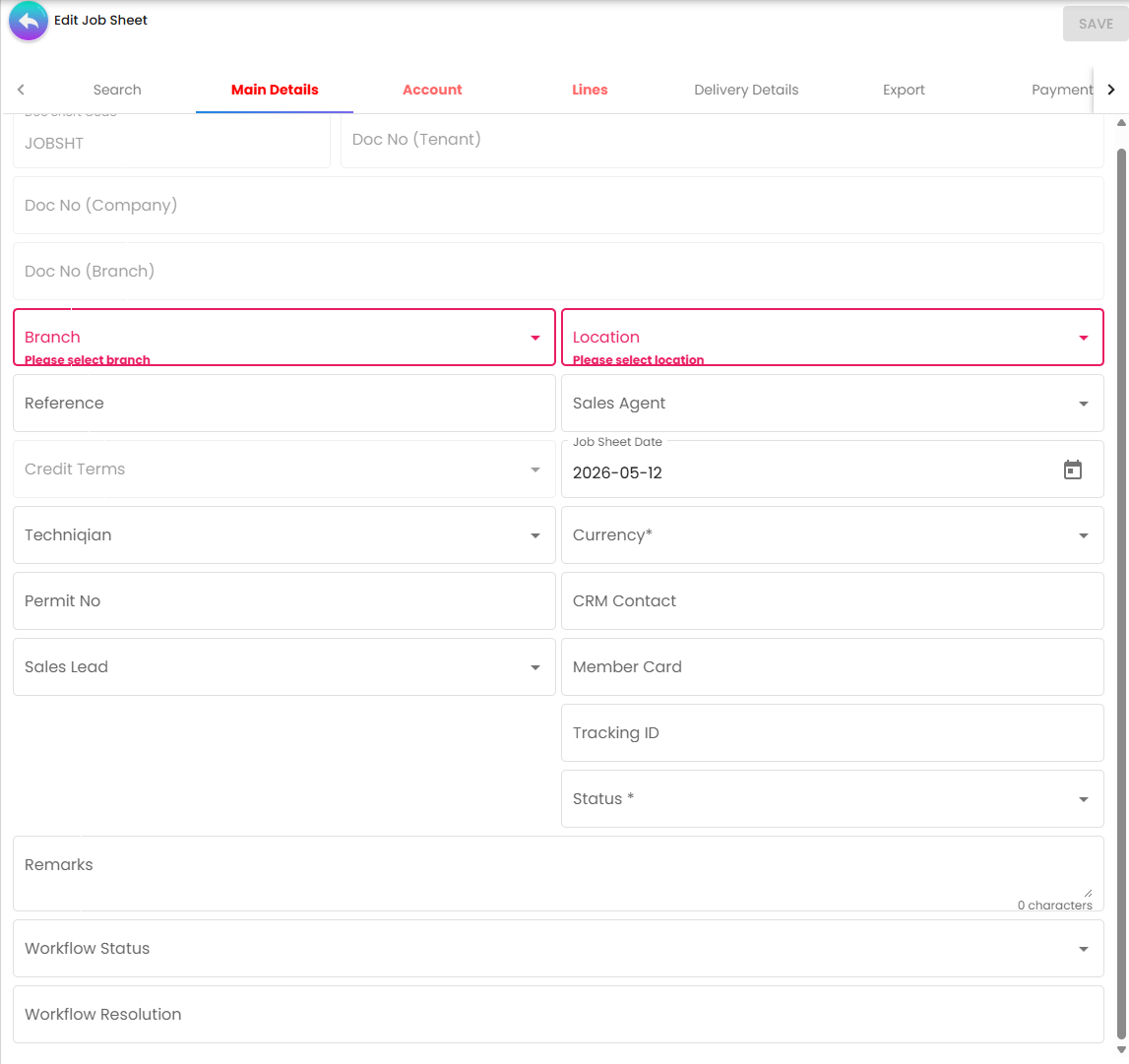
The tab takes the usual document identification — document short code, the three document numbers, branch, location, reference, job sheet date, currency, credit terms, permit number, tracking ID, remarks and a record status — plus the two people (Techniqian and Sales Agent), the two customer-side links (CRM Contact and Member Card), a Sales Lead classification, and the two workflow boxes. A read-only Related Service Notes panel sits at the top of the tab, showing item code and serial number for earlier notes on the same unit.
Branch and Location are the only two required controls. Currency is marked with
an asterisk on screen and carries no validator. Status defaults to ACTIVE.
These are the ones that behave in ways the screen does not show:
| Field | What is actually going on |
|---|---|
| Credit Terms | Disabled, and its list empty, until the customer you picked on the Account tab carries credit terms; the value stored is the term’s name, not its code. It is also the gate described in the trap below |
| Techniqian | A shared people-picker in technician mode, listing employees filtered by EMPLOYEE_CATEGORY labels. It is stored with the customer details on the sheet, not as a field of its own, so the technician is not a listing column, not a report dimension and not filterable |
| Sales Agent | The same component, stored as a field of its own. New lines inherit it unless DISABLE_LINES_FOLLOWING_HDR_SALES_AGENT is on; Apply to Lines appears beside it after a change, in edit mode, to push it onto lines already entered |
| Sales Lead | Not a link to a CRM sales lead. It is a two-value classification — Corporate / Non-Corporate — fixed in the screen and stored with the customer details on the sheet |
| Doc No (Company) and Doc No (Branch) | Rendered as editable inputs while Doc No (Tenant) is read-only, so they look like yours to set. They are not: FINAL re-reads the document numbers from the server before saving, and the running numbers assign them again |
| Job Sheet Date | Disabled unless the SHOW_TRANSACTION_DATE client-side permission is held. The screen can also re-enable the date while the document is not final, so it may be editable for a user without that permission — if it is, this is why |
| CRM Contact / Member Card | Read-only boxes that open a picker. Each stores the link and, separately, the display text. The name you see is the snapshot taken when you picked, not a live lookup |
| Tracking ID | Stored twice — as a field of its own and with the customer details on the sheet. The automatically generated tracking ID fills only a blank one, on a document that is no longer TEMP |
| Workflow Status | The options are the transitions available from the current status, fetched per document, with the current status pushed in front — so the list is short and changes as the job moves. Picking one resolves the Workflow Resolution box, which is read-only and never typed |
| Status | The record status, ACTIVE or INACTIVE — not the job’s progress. A job sheet’s progress lives in Workflow Status or nowhere |
The trap on this tab: five fields are saved only if Credit Terms has a value. Technician, Sales Lead, Tracking ID, Permit No and Credit Terms itself are saved together, and only when Credit Terms has a value. Credit Terms is disabled unless the customer carries credit-terms rows. So for a walk-in customer with no credit terms — the ordinary case in a workshop — the technician you assign is silently discarded, along with the permit number and the sales-lead classification. The symptom is that you pick a technician, save, reopen the job sheet, and the box is empty; there is no error and no toast. Tracking ID survives, because it is also stored as a field of its own (see the table above).
A blank field never replaces a saved value, so nothing on Main Details can be cleared — only overtyped. Emptying Reference and saving leaves the old reference in place.
The customer on a job sheet is the customer as at the day you opened it
Picking the customer copies their details onto the job sheet rather than linking to them — code, name, status, e-mail, phone, GL code, identity number and type, description and currency, plus the billing and shipping contact. The name it stores is the customer’s name with the contact you picked appended to it, so a job sheet opened for one person at a company carries that person’s name for the life of the job even after the contact on the customer record changes.
A job sheet lives longer than most documents, which is what makes this worth knowing. The car comes in on Monday, the part arrives on Thursday, the customer collects a fortnight later. The phone number on the sheet is the one you were given when the job was booked; if the customer record has been updated since, the sheet will not have followed. To call about a live job, use the customer record. To settle what was agreed at booking, use the sheet. Both are right about different moments.
The CRM Contact and Member Card boxes described above behave the same way — each stores the display text as it was when you picked it, not a live lookup. And correcting any of it here corrects this job sheet: the customer record is unchanged, and pushing the correction back to it is a separate act in Customer Maintenance.
Lines
The Lines tab searches the item master and gives each line the usual sub-panels — Item Details, Serial Number, Batch Number, Bin Number, Costing Details, Pricing Details, Issue Link. Parts and labour are both recorded here. Neither affects stock: every line is forced to move nothing, regardless of what the browser sent.
What the Payment tab does and does not do
Adding a payment writes a line on the job sheet, not a separate document. The line carries the settlement method as its item, and is typed as a receipt voucher for cash, card, cheque and the rest, or as a payment voucher for Cash Back (change given), with the card, cheque or cash-back details stored on the line.
Two things follow that the screen cannot tell you:
- Money in and change out carry the same sign. A line’s sign comes from its own receipt- or payment-voucher type, not the job sheet’s, and both get the same positive sign; only the settlement type and the line’s document type tell them apart, which matters if you are reading these lines through the API.
- Nothing posts. A job sheet posts no journal and moves nothing, so a deposit taken against a job is recorded inside the job sheet and reaches no cashbook, no bank reconciliation and no customer balance until the sales invoice is raised. If your workshop takes deposits, reconcile them against the till by hand, or take the deposit on a real Receipt Voucher (Internal).
Lifecycle and effects
Pressing Add already created a document
The listing’s Add button creates a real document on the server at once — status TEMP, no posting
status — before you have typed anything.
That draft may not stay there for ever. A clean-up job permanently deletes documents still in TEMP
once they are more than three hours old — not a soft delete. Whether it runs is decided by your
tenant’s schedule, not by the applet: with it scheduled, an abandoned job sheet is gone by the afternoon;
without it, TEMP drafts accumulate indefinitely. Ask BigLedger which applies to you before you
conclude either way.
From TEMP to ACTIVE, and who does it
The promotion is a save of the whole document as ACTIVE, not a create. Two things
trigger it, and one of them is automatic:
- SAVE, when the record status is still
TEMP. - Automatically, from Main Details, the moment the draft has a branch, a location, a currency, a
customer and at least one line while the status is
TEMP.
The CREATE button on the create panel does nothing by itself. In practice the automatic path has already done the work by the time the button is pressed.
Statuses and buttons
Posting status runs DRAFT → FINAL → VOID, with DISCARDED as an alternative terminal state; the
record status is separately TEMP → ACTIVE.
| Button | Shown when | What it does |
|---|---|---|
| SAVE | HIDE_GENDOC_SAVE_BUTTON is off; disabled while the Main Details form or the Account entity form is invalid | Saves the document (or promotes the TEMP draft, above) |
| FINAL | the document is ACTIVE and its posting status is not already FINAL, VOID or DISCARDED | Saves, then finalises — two separate steps |
| DISCARD | posting status is none of FINAL, VOID, DISCARDED, and the record is ACTIVE | Discards, per document, tolerating partial failure and reporting the count |
| VOID | posting status is already FINAL | Voids |
| DELETE | SHOW_DOCUMENT_DELETE_BUTTON is on and posting status is not FINAL; needs a second confirming click within three seconds | Deletes |
| RESET | always | Clears the draft, or reports This document has been posted when posting status is FINAL |
FINAL is two calls, and only the second one finalises. If the save succeeds and the finalise fails, your edits are saved and the document is still a draft; the toast you get is the failure from the second call. Pressing FINAL on an already-final document is refused by the server with 403 “Generic Document has already been posted to FINAL”, so a double click cannot post twice.
VOID reports a specific message worth recognising: if the document’s lines have been knocked off against another document, the backend refuses and the applet shows “Cannot VOID the Document. The document(s) have been knocked off with another document(s).”
What FINAL sets off
Finalising is shared by every document type, so a job sheet that moves nothing goes through the same machinery as an invoice. What it does for this type:
- Stamps the finalised date as now; the job sheet’s own transaction date is left alone.
- Takes the skip e-invoice flag from the customer record.
- Runs the finalise checks. The stock-balance check is on, and has nothing to check. There is no blacklist check for this type — a customer the Sales Invoice applet would refuse can still have a job sheet finalised; the refusal arrives when the job sheet is billed.
- Starts the posting fan-out. A job sheet has nothing to post, which is why a FINAL job sheet produces no journal and no error.
- Queues message templates, as for every document type.
- Queues member-point rewards only if the company assigns points after a delay of one or more days — the reason a job sheet with a member card sometimes does something and usually does not.
- Refreshes the links to related documents.
- Records the before and after document in the audit trail.
<SERVER_DOC_TYPE>_CREATED event is raised on the plain create path, which this applet never uses:
it creates through the TEMP draft path, and that path raises nothing. Every update — the TEMP→ACTIVE promotion, every SAVE,
and the PUT inside FINAL — raises INTERNAL_JOBSHEET_UPDATED synchronously. The events raised at FINAL are raised for sales
invoices only. So if you are integrating: subscribe to
INTERNAL_JOBSHEET_UPDATED, expect one per save, and read status and posting_status off the
payload to work out which save it was.The Convert tab does nothing at all
The tab renders one button labelled CONVERT TO INTERNAL RECEIPT VOUCHER under the hint “This will cancel the current job sheet”. Pressing it shows a browser alert reading CONVERTING and nothing else: no document is created, nothing is cancelled, no request is sent.
Read the hint as a description of what the button was meant to do — raise a receipt voucher from the Payment-tab settlement lines (not the Lines tab) and delete the job sheet — and take the reassurance that it currently cannot: your job sheet is not at risk of being deleted by pressing it.
Turning job sheets into invoices
There is no button in this applet that raises the sales invoice. You raise it in one of two places:
- One job, one invoice: in Sales Invoice (Internal), re-keying or copying the lines.
- Many jobs, one invoice per customer: in the separate JS Consolidation applet. It has three screens, JS Consolidation Run, JS Consolidation Event and JS Consolidation Template. A run’s view has a Job Sheets tab where you tick the lines to bill and a Sales Invoices tab showing what it made.
JS Consolidation is the job-sheet twin of SO Consolidation: the same four filter lists (company, branch, customer, sales agent), the same template, event and run, and the same grouping, one invoice per company, branch, customer and sales agent. Its own page says how a run works and where it differs from the sales-order one. Four things matter from this side:
- It takes only job sheets at FINAL, so the move to FINAL is the moment a job becomes billable. A job sheet without a sales agent matches nothing.
- The invoice is a draft. It posts nothing and moves no stock until someone finalises it in Sales Invoice (Internal). The job sheet itself still posts nothing, and stays at FINAL after it is billed.
- Within one run, a line is not billed twice. A line that already has an invoice, or carries any status, is skipped when you press GENERATE SI again.
- Across runs, it can be. A later run over the same company and branch, made after more job sheets were finalised, deletes and re-lists every line for that pair, and the lines already billed come back unmarked. When nothing new was finalised, the later run gets no lines at all. The detail is in What a run picks up, and what it destroys.
Your job. Whoever bills finished jobs decides which jobs go on this month’s invoice. The run cannot, because it has no idea what was billed before. Before you tick lines on the Job Sheets tab, check each job sheet against the invoices already raised for that customer. Tick only the jobs not yet billed. Afterwards, match the invoices on the Sales Invoices tab to the job sheets you ticked, one customer and sales agent at a time, and finalise each draft.
Posting proof
A job sheet posts nothing, whatever is typed on it:
- Every line, on create and on update, is forced to move no quantity and no amount — so no stock moves.
- Settlement lines on the Payment tab take their sign from their own receipt- or payment-voucher type, and still post nowhere.
- No journal is produced, so there is no debit/credit and no GL code to choose.
- VOID changes the posting status only; there is nothing posted to reverse.
What it will not do
- It will not bill the job. No convert and no “create invoice from this” in this applet. The invoice is raised in Sales Invoice (Internal), or in bulk by the separate JS Consolidation applet (see Turning job sheets into invoices). Either way, knowing which jobs are already billed is yours to keep.
- It will not hold the money. A payment on the Payment tab is a line on this document and nothing else.
- It will not track the job’s progress on its own. Without a workflow process attached there is no status track, and there is no built-in one.
- It will not approve anything. The workflow is a status track filtered by role, and nothing in this applet requires a second person.
- It will not report on the technician. The technician is stored with the customer details, is not a listing column and is not a reporting dimension — and on a customer without credit terms it is not saved at all.
A first team using this applet should reconcile its first week by hand: check that each job sheet shows the technician you assigned, and that every payment taken at the counter also exists somewhere that posts.
Related applets
- Sales Invoice (Internal) — bills the job; where stock leaves and the journal posts.
- Sales Invoice No Stock-Out (Internal) — for labour-only jobs.
- Car Workshop — the consultation record that can precede a job sheet; it carries the same settings model.
- RMA (Internal) — writes the service notes the Search tab lists.
- Workflow Design — supplies the Workflow Status track.
- Receipt Voucher (Internal) — the real document for money taken at the counter.
- JS Consolidation — bills many FINAL job sheets at once, as draft invoices.
- SO Consolidation — the sales-order twin of JS Consolidation.
Troubleshooting
| Symptom | Cause | Fix |
|---|---|---|
| The technician I picked is empty when I reopen the job sheet | The technician and four other fields are saved only when Credit Terms has a value, and Credit Terms is disabled for a customer with no credit terms | Add credit terms on the customer record, or record the technician in Remarks until it is fixed |
| Clearing Reference and saving leaves the old value | A blank field never replaces a saved value | Type a placeholder rather than clearing |
| SAVE is disabled | Branch or Location is empty, or the Account tab’s entity form is invalid | Fill Branch and Location, and correct the Account tab |
| My branch is missing from the branch drop-down | The list is filtered to TNT_API_DOC_INTERNAL_JOBSHEETS_READ_TGT_GUID’s branch targets | Widen the read permission target, or use a tenant admin or owner login |
| Stock did not change after FINAL | Expected — every line is forced to move no stock | Stock moves on the sales invoice raised from the job sheet |
| No journal after FINAL, and no error either | Expected — a job sheet has nothing to post | The invoice posts the journal |
| Workflow Status is empty | No workflow process is attached for this company, and WORKFLOW_PROCESS_GUID is unset | Settings → Workflow Settings, pick the company, attach a process |
| No VOID button on a FINAL document | HIDE_GENDOC_VOID_BUTTON is on. Granting SHOW_GENDOC_VOID_BUTTON will not help — that permission cannot be granted, so no role can hold it | Turn the setting off in Application Settings |
| Cannot VOID the Document… | The document’s lines are knocked off against another document | Undo the knock-off on the other document first |
| FINAL said nothing and the document is still a draft | FINAL is two steps; the save succeeded and the finalise failed | Re-press FINAL; if it now returns 403 already been posted to FINAL, the document did finalise |
| A job sheet I abandoned yesterday has vanished | The clean-up job permanently deletes TEMP drafts older than three hours, where it is scheduled | Expected; press SAVE before walking away |
| The Convert button pops CONVERTING and does nothing | That is all it does | See above; raise the invoice separately |