Sales Credit Note (Internal)
Lower what a customer owes after their invoice is final: an overbilling, a post-sale discount, a marketplace fee or a service reversal. The credit moves no stock and stays on the customer’s account until you contra it against an open invoice or refund it; if the goods themselves come back, raise a Sales Return instead.
Overview
The Sales Credit Note (Internal) applet reduces what a customer owes after an invoice has been finalised — an overbilling, a post-sale discount, a marketplace fee, a service reversal. It is used by accounts-receivable staff. The credit sits on the customer’s account until it is contra’d against an invoice or refunded through a settlement line or a Sales Refund Note. It never moves stock: for returned goods that must come back into inventory, use Sales Return (Internal).
INTERNAL_SALES_CREDIT_NOTE. Amount signum −1, quantity signum 0 — the backend forces every line’s quantity signum to zero, which is why a credit note can carry any item type without an inventory transaction.Where it fits
| Direction | Document / applet | How it connects |
|---|---|---|
| Upstream | Sales Invoice (Internal), Sales Order (Internal), Delivery Order (Internal), Jobsheet (Internal) | Searched in the Search Document tab to copy lines and the customer into the credit note |
| Upstream | Customer, Chart of Account, Tax Configuration | Customer AR type, default GL codes, tax codes |
| Downstream | Contra tab | Offsets the credit against the customer’s open sales invoices |
| Downstream | Settlement tab, Sales Refund Note (Internal) | Pays the credit out in cash, bank, card, cheque, voucher, points or TT |
| Downstream | My E-Invoice Portal | Credit notes are an e-Invoice document type and reference the original invoice |
| Sibling | Sales Debit Note (Internal) | The opposite adjustment (increases what the customer owes) |
| Sibling | Purchase Credit Note (Internal) | Mirror document created in the buying company for intercompany credit notes |
Contra vs settlement
| Aspect | Contra | Settlement |
|---|---|---|
| Purpose | Offset against the customer’s open invoices | Record money actually paid back |
| Cash movement | No | Yes — posts to the settlement method’s cashbook |
| Typical use | Overbilling correction, credit applied to the next invoice | Bank or cash refund, card reversal, marketplace payout |
| Posting date | The latest transaction date among the documents involved | The settlement line date |
Screens and menus
Route root: applets/tnt/wavelet/erp/internal-sales-credit-note-applet/.
| Menu item | Route | What it shows |
|---|---|---|
| Credit Note | internal-sales-credit-note | Listing with advanced search; create, edit, print, email, clone |
| Line Items | line-items | One row per credit-note line, with customer columns, for reporting |
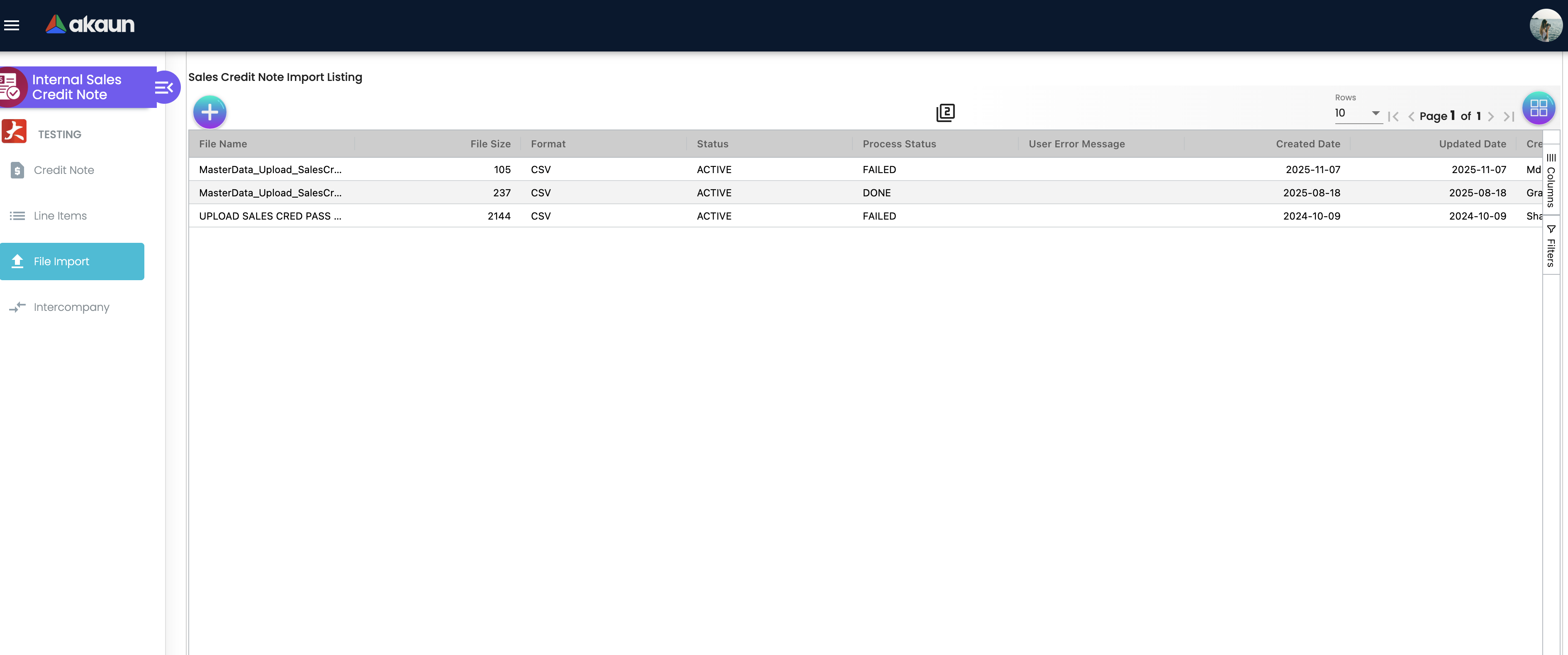
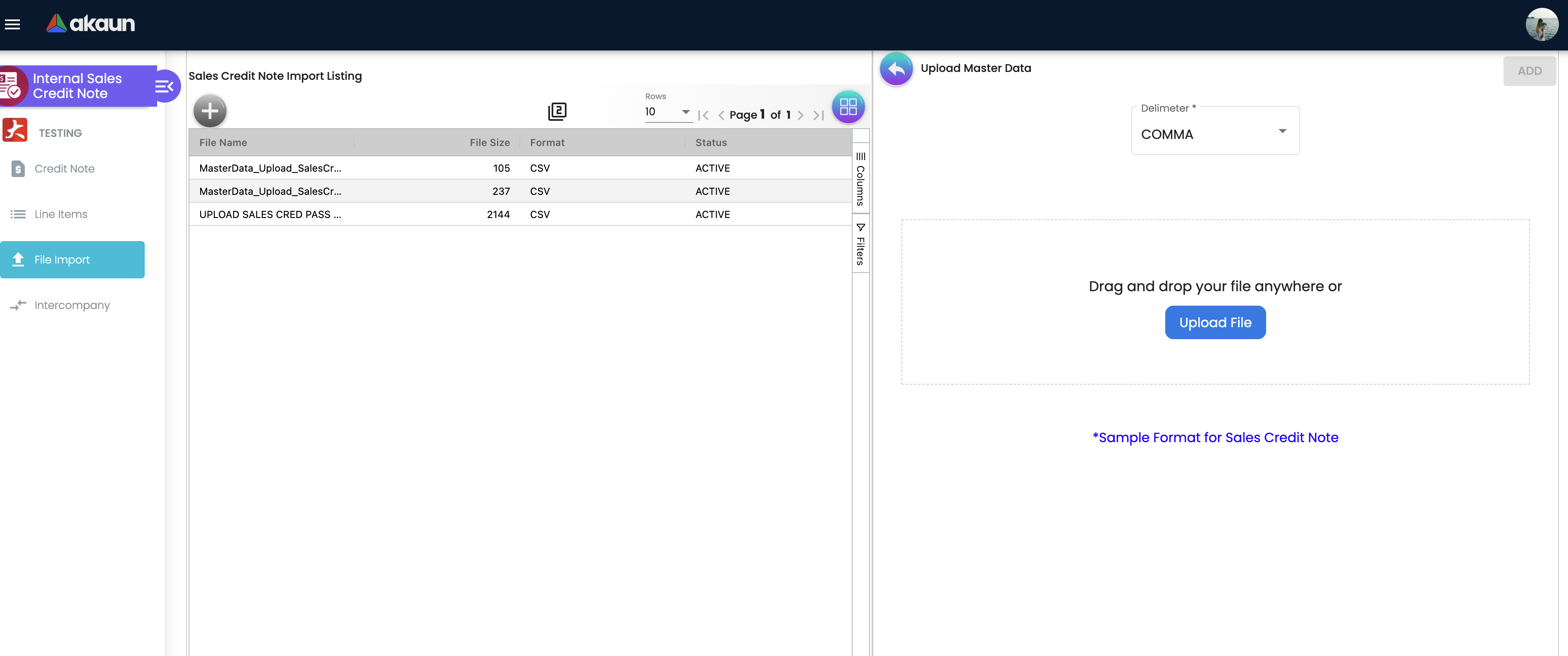
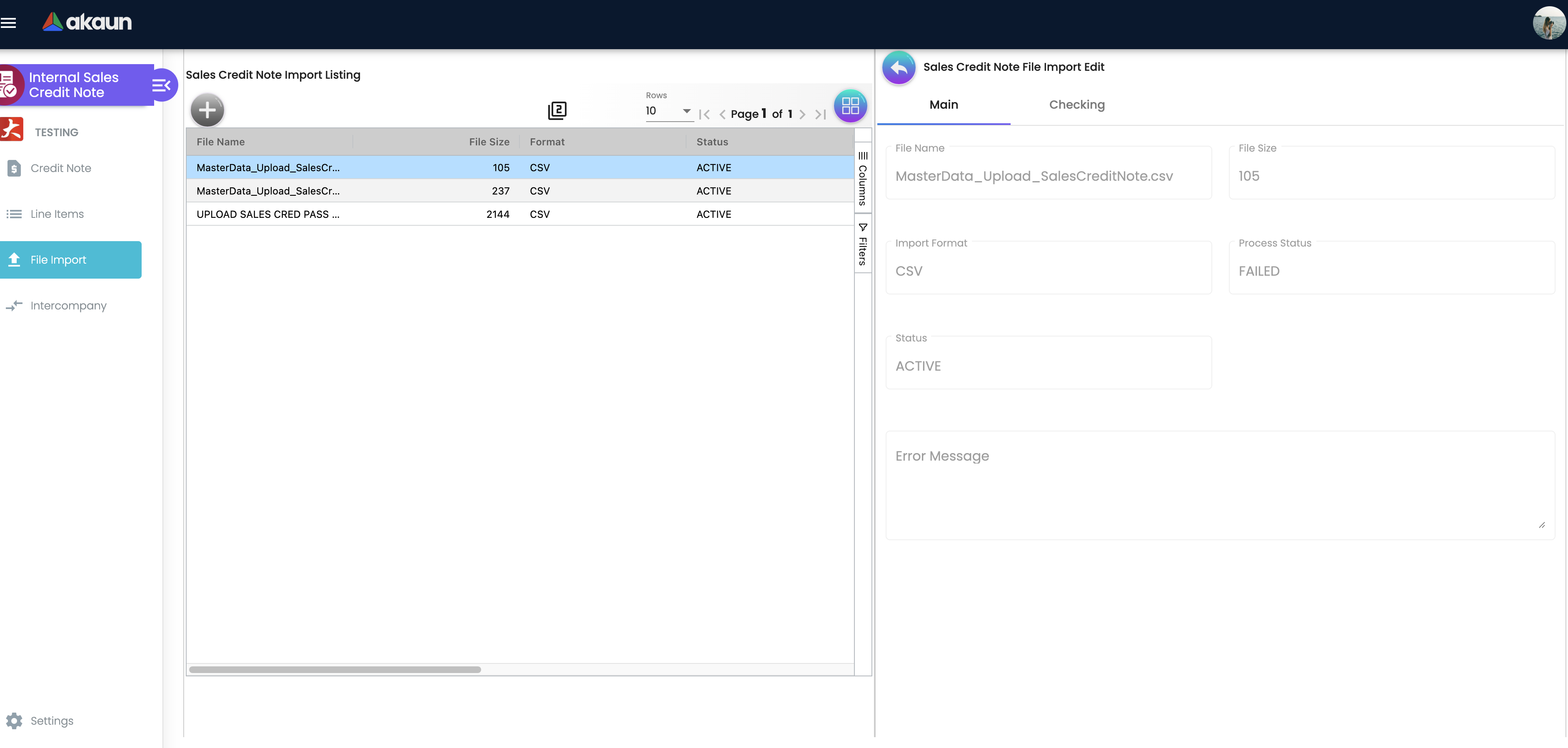
| File Import | file-import | Bulk create credit notes from a delimited file (comma or pipe) with an error-checking listing |
| Intercompany | intercompany | Queue that mirrors a FINAL credit note as a Purchase Credit Note in another company |
| Settings / Personalization | settings/…, personalization/… | Administrator and per-user configuration |
The create / edit form
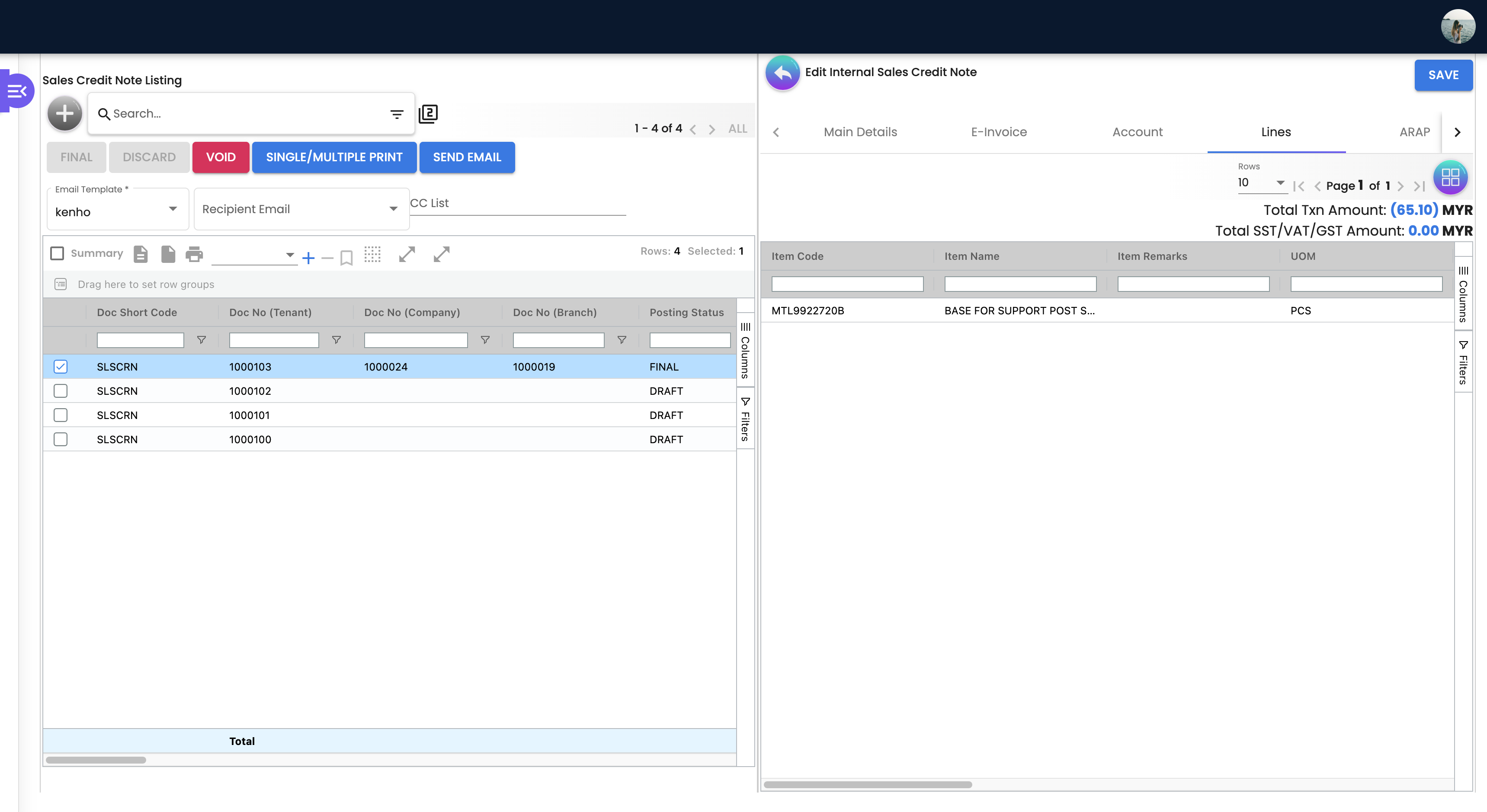
Tabs, in the default order (re-orderable under Settings → Default Selection): Search Document, Main Details, E-Invoice, Account, Lines, ARAP, Settlement, Department Hdr, TraceDocument, Contra, Attachments, Export.
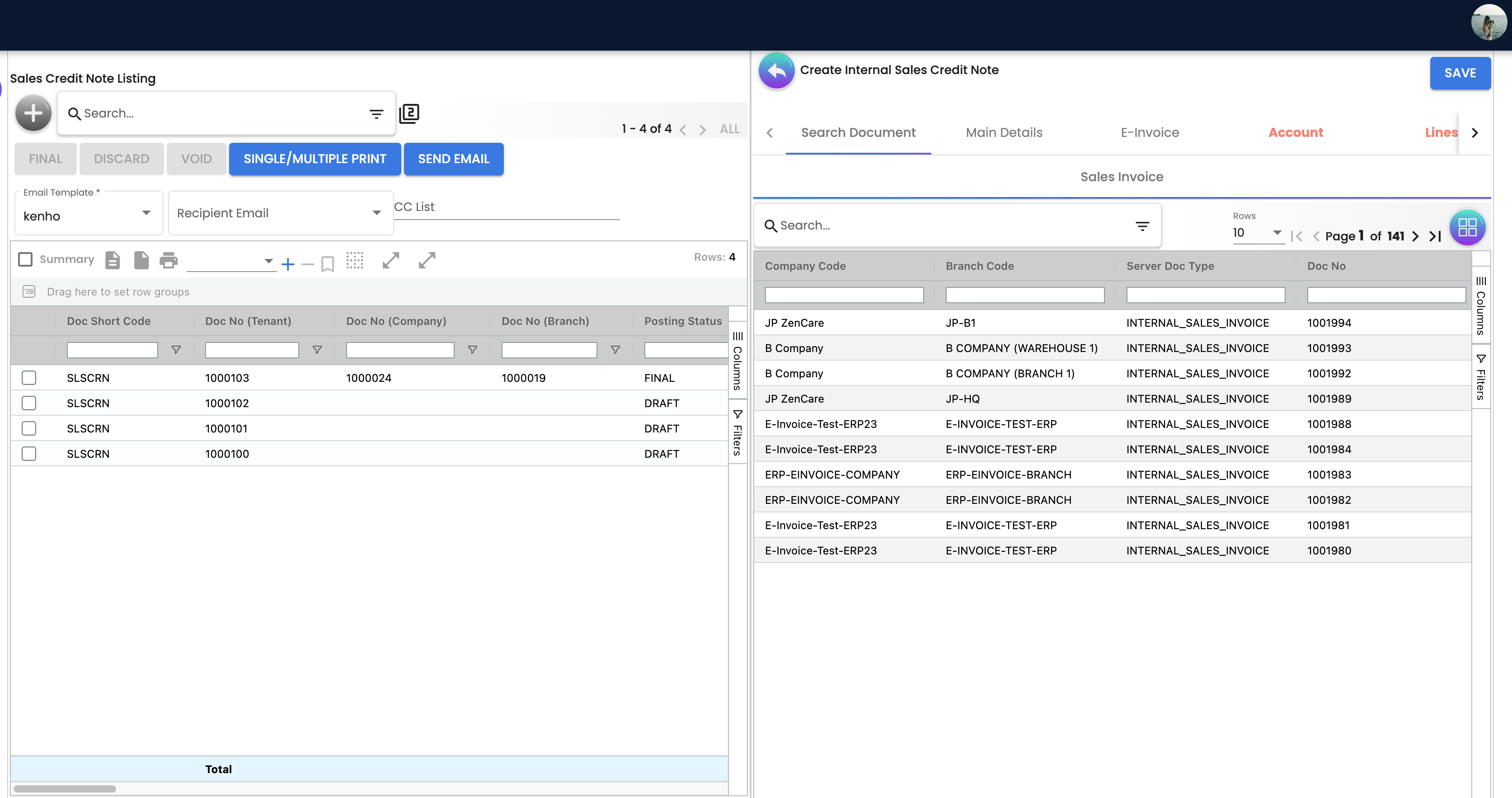
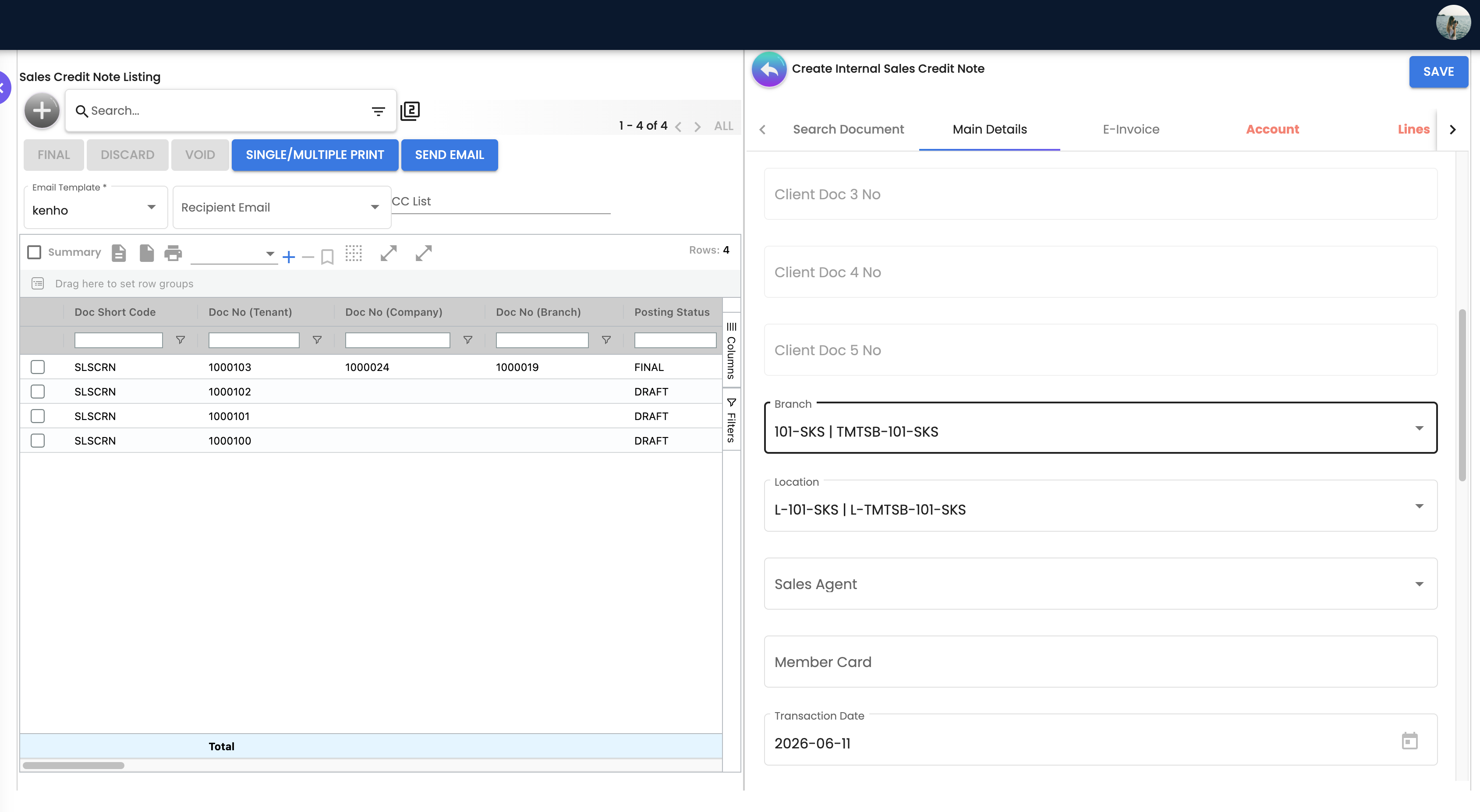
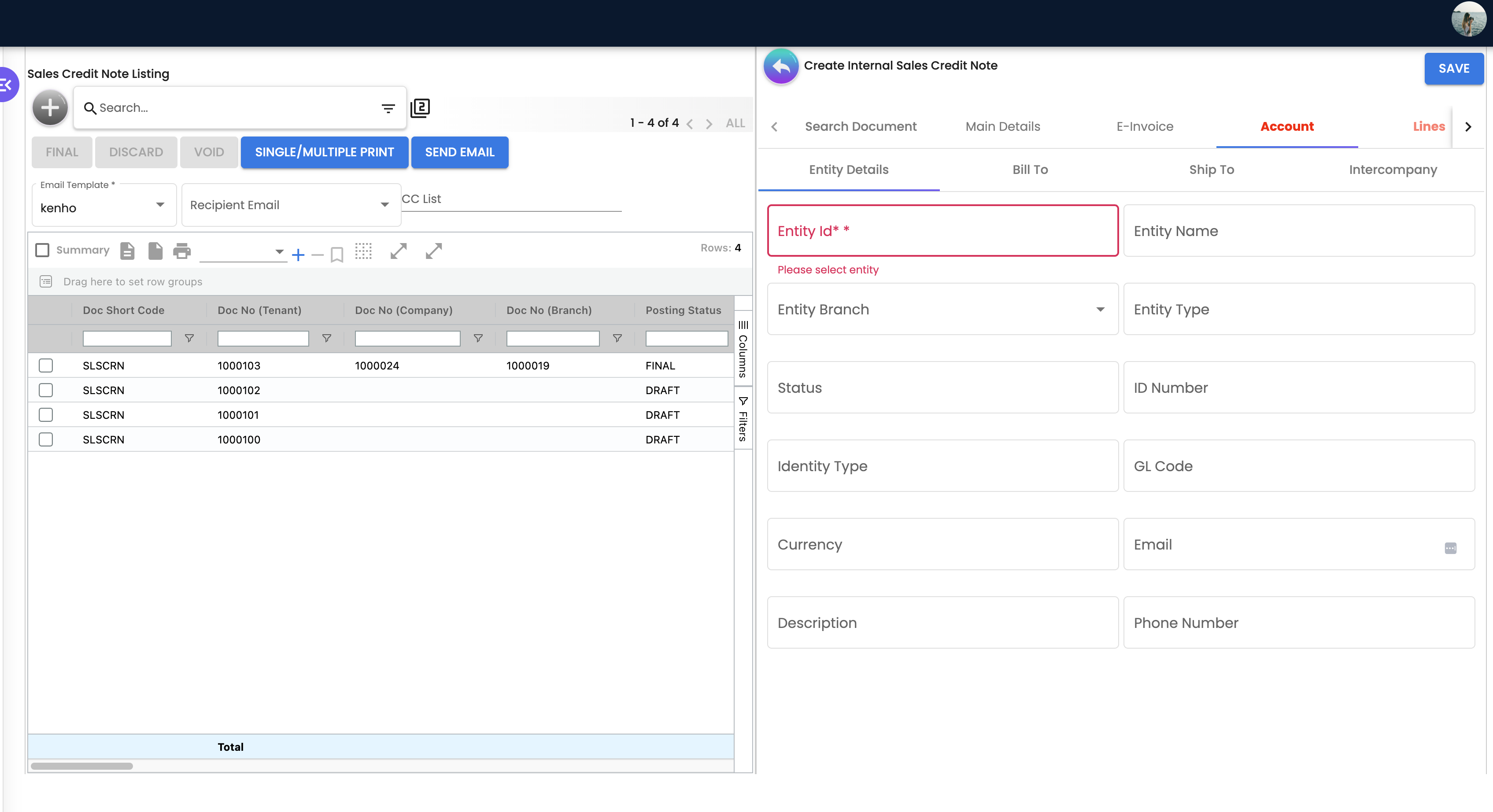
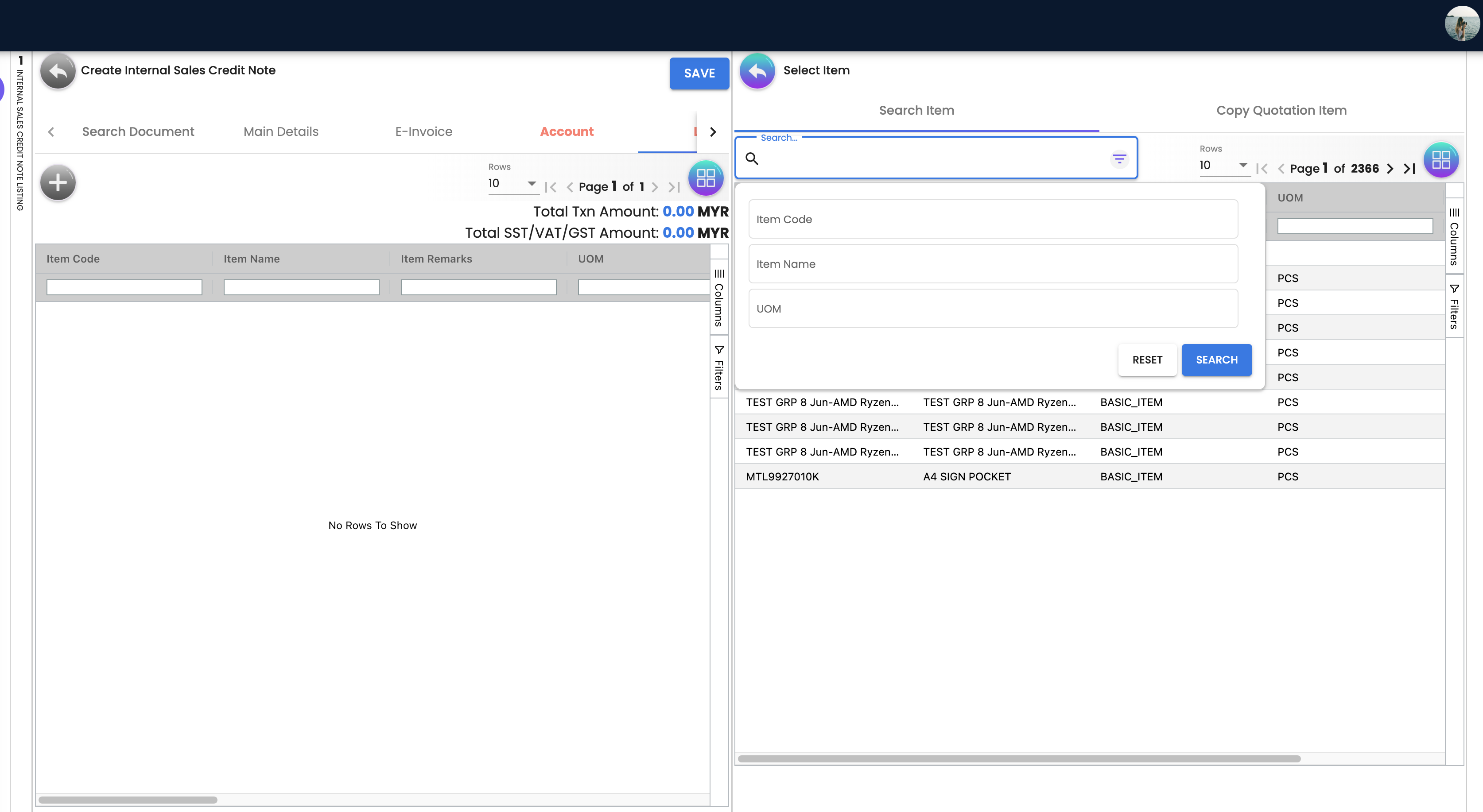
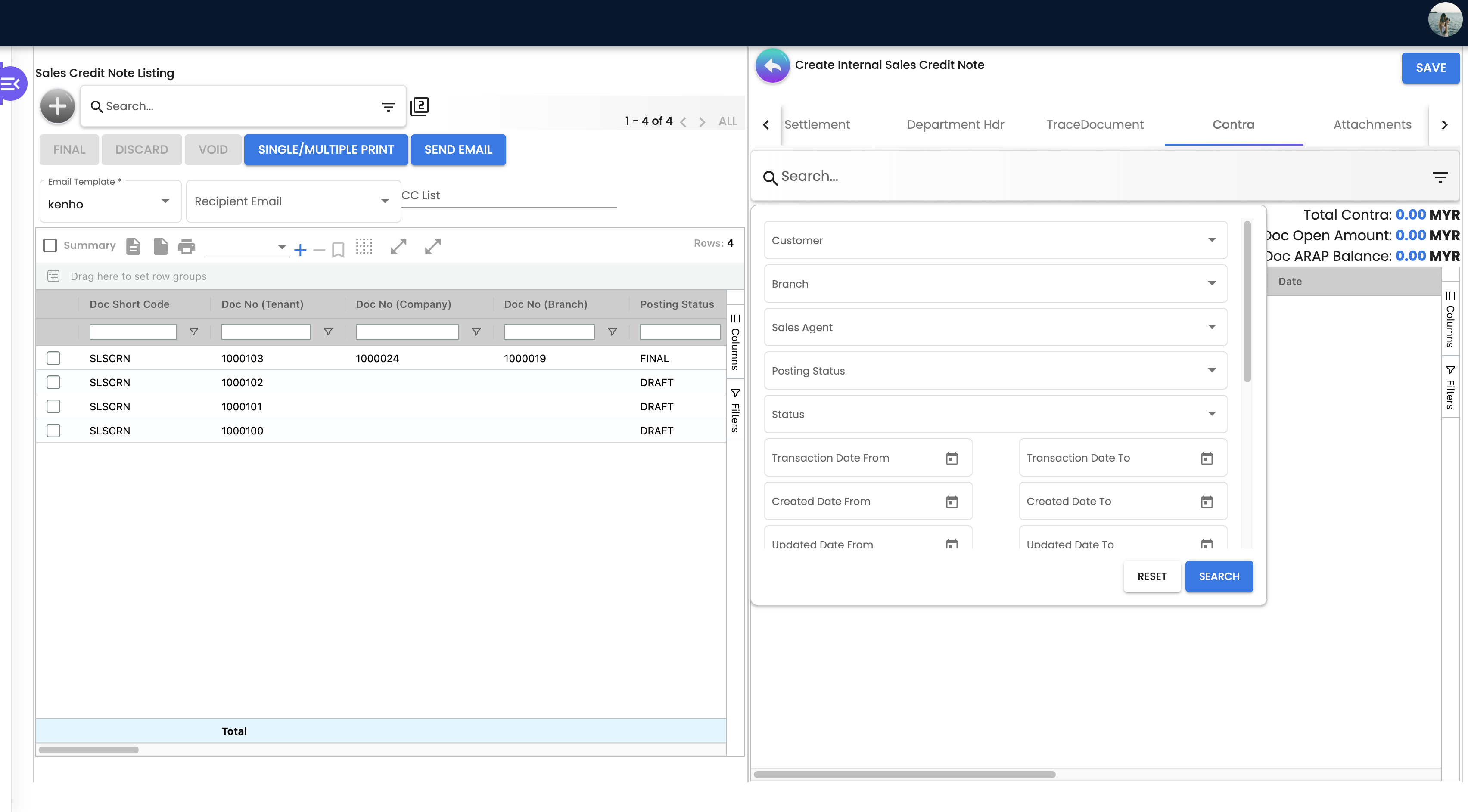
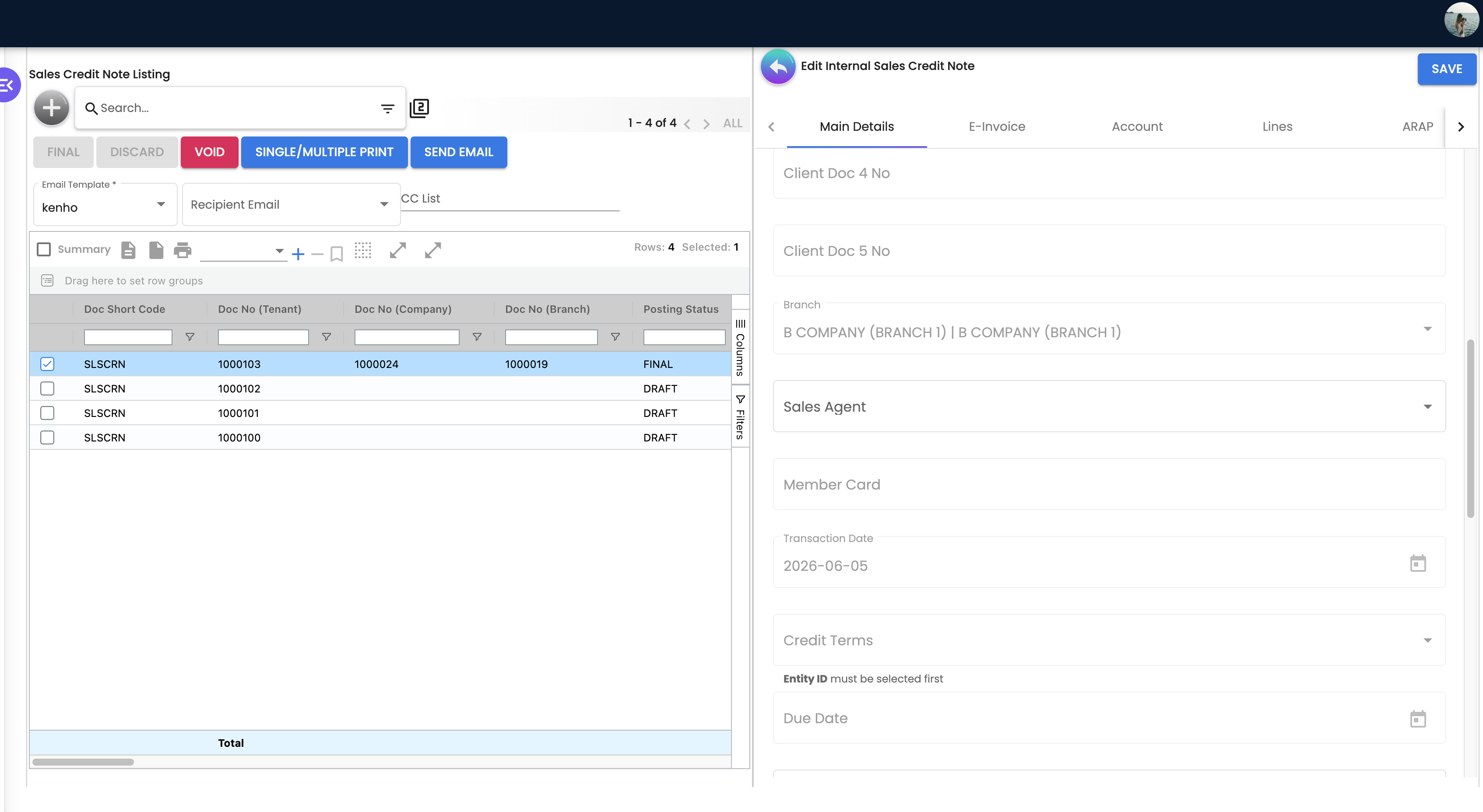
Screenshot withdrawn; a recapture from a demo tenant is on the list.
File import
Settings menu
| Settings entry | Route | Purpose |
|---|---|---|
| Application Settings | settings/field-settings | Shared Field Configuration screen — all hide/show and behaviour toggles |
| Default Selection | settings/default-selection | Default branch, default location, default language, tab order |
| Printable Format Settings | settings/printable-format-settings | Printable formats for INTERNAL_SALES_CREDIT_NOTE |
| Branch Settings | settings/branch-settings | Five tabs per branch: Branch Details, Item Category Filter, Pricing Scheme, Printable Format (the branch’s default credit-note layout, with its own header and footer text) and Default Settlement Method. The default settlement methods are written to the branch record itself, not to this applet, so changing them here changes them for every screen that reads the branch’s defaults. Two tabs do less than they look: the Rounding Five Cent tick on Branch Details is not kept when you save (that save writes only the default sales agent and settlement methods), and the Item Category Filter is stored but this applet’s item search does not apply it |
| Custom Resource Bundle Configuration | settings/translation-settings | Relabel fields and menus (full multi-language support was added in 2026) |
The menu also carries Workflow Settings and Email Template (both under Configuration below), Webhook, Feature Visibility, the permission screens (Permission Set, User, Team, Role, Client-Side Permission, Permission Wizard), Release Notes and Applet Log.
Configuration
Before you can use it
| Prerequisite | Where | Why |
|---|---|---|
| Company, branch, location | Organisation | Header requires branch and location; set defaults under Default Selection |
Company default GL codes DEBTOR / DEBTOR_NON_TRADE, SALES, SALES_DISCOUNT, OUTPUT_TAX, FOREX_GAIN, FOREX_LOSS | Chart of Account | The credit note posts exactly as the invoice does, with the signs reversed. Not checked at FINAL: FINAL changes the status and queues the posting job; the job then fails with MISSING_DEFAULT_GL_CODE: DEBTOR (or DEBTOR_NON_TRADE) when the receivable account is unmapped, and an unmapped SALES / OUTPUT_TAX line is dropped from the journal without a message. The job then fails with TOTAL_DEBITS_AND_TOTAL_CREDITS_NOT_BALANCES or NO_JOURNAL_CREATED only when the customer has no AR/AP type or nothing resolved at all. With an AR/AP type on the customer — the usual case — nothing fails: the dropped line is absorbed by the receivable line and the journal posts wrong (see Troubleshooting). When the job fails, the note stays FINAL with no journal until the mapping exists and the journal is built from Financial Report › Error Checking › Trace Document (Missing Journal → Resolve) |
| Items to credit — either the original inventory/service items or account-code items (item type GL Code) linked to the GL account you want to hit (sales discount, marketplace fee, service reversal) | Inventory Item Maintenance | An account-code item’s GL code is copied onto the line and overrides the company SALES default |
| Customer with AR type and open invoices | Customer | AR type decides DEBTOR vs DEBTOR_NON_TRADE; Contra only finds invoices of the same customer |
| Settlement methods with cashbook and GL code (only if you refund from the Settlement tab) | Cashbook | Otherwise the posting job fails after FINAL with MISSING_CASHBOOK / MISSING_GL_CODE: STL_MTHD [code]; the note stays FINAL with no journal until the method is completed and the journal is built with Missing Journal → Resolve in Financial Report’s Trace Document |
API permissions TNT_API_DOC_INTERNAL_SALES_CREDIT_NOTE_{CREATE,READ,UPDATE,DELETE}_TGT_GUID | Settings → permission listings | Branch/company targets scope what a user sees |
| Workflow process (optional) | Workflow Design | Needed before Final Button Status means anything |
Applet settings
Default Selection (settings/default-selection)
| Setting | Key | What it controls | Default |
|---|---|---|---|
| Default Branch | DEFAULT_BRANCH | Pre-fills branch (and company) | none |
| Default Location | DEFAULT_LOCATION | Pre-fills location | none |
| Default Language | DEFAULT_LANGUAGE_CODE | Language the applet opens in, chosen at sign-in; a personal default set under Personalization wins over this one | tenant default |
| Details tab ordering | SALES_CREDIT_NOTE_DETAILS_TAB_ORDER | Drag-and-drop order of the form tabs | order listed above |
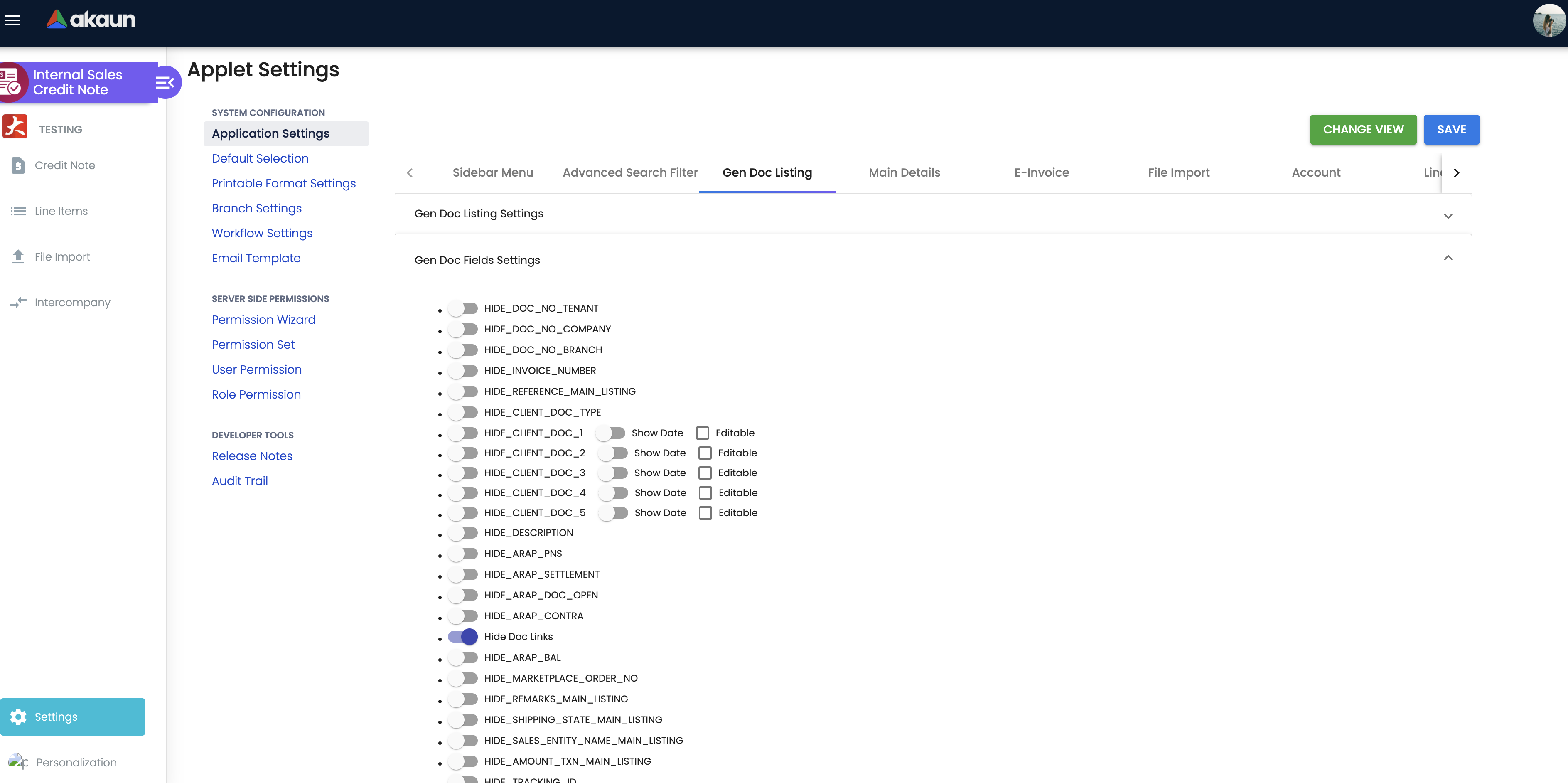
Application Settings (settings/field-settings, shared Field Configuration screen). 194 toggles from this applet’s settings model appear on the screen. Off unless stated.
Behaviour toggles
| Section | Setting | Effect when on |
|---|---|---|
| Gen Doc Listing | DISABLE_GEN_DOC_LISTING, DEFAULT_TRANSACTION_DATE, DEFAULT_POSTING_STATUS, SORT_ORDER | Listing loads only on search; default date range, status filter and sort |
| Gen Doc Listing | Send email to final documents only | Does something different from its label here: with it on, finalising a credit note e-mails it automatically to the customer’s billing e-mail (shipping e-mail as the fallback), with the template matched to the printable; a customer with neither e-mail gets a FINAL that succeeds and a message asking you to fill one in. It does not stop a draft being e-mailed from the listing. On the Sales Invoice, Receipt Voucher and Sales Return applets the same switch is the draft block its label describes |
| Gen Doc Listing | Enable credit limit filter | No effect on a credit note: the key is declared in this applet’s settings model and nothing else in the applet uses it. On the Sales Order and Sales Invoice applets the setting of this name switches on their credit check at FINAL |
| Gen Doc Listing | HIDE_CLONE_BUTTON | Clone button hidden unless the user has SHOW_GENDOC_CLONE_BUTTON |
| Create & Print | ENABLE_AUTO_POPUP | Opens the printable after save |
| Doc Settings | ENABLE_DUPLICATE_REFERENCE_CHECK | Rejects a second credit note with the same Reference |
| Doc Settings | ENABLE_SALES_AGENT_AUTOFILL | Sales agent filled from the customer’s default agent when the entity is selected |
| Doc Settings | ENABLE_EMPLOYEE_LOGIN_AUTO_DETECTION | Employee resolved from the login |
| Doc Settings | Disable lines following header sales agent / … budget | Both are offered and nothing in this applet reads either: lines keep inheriting the header sales agent and budget whatever is switched |
| Doc Settings | CANNOT_EDIT_CURRENCY_RATE, SHOW_FOREX_DATA_SOURCE | Lock the rate; show its source |
| Doc Settings | SHOW_CUSTOM_DOC_NO | Custom document number field |
| Workflow Selection | Final status (appears once a workflow is chosen) | Read by nothing — not by this applet, the shared screens or the server. Picking a status here does not make the Final button apply it; the document goes to FINAL as it always did. Recorded as a product finding |
| Workflow Selection | ENABLE_IMPORT_EXPORT | Import and Export tabs on the form |
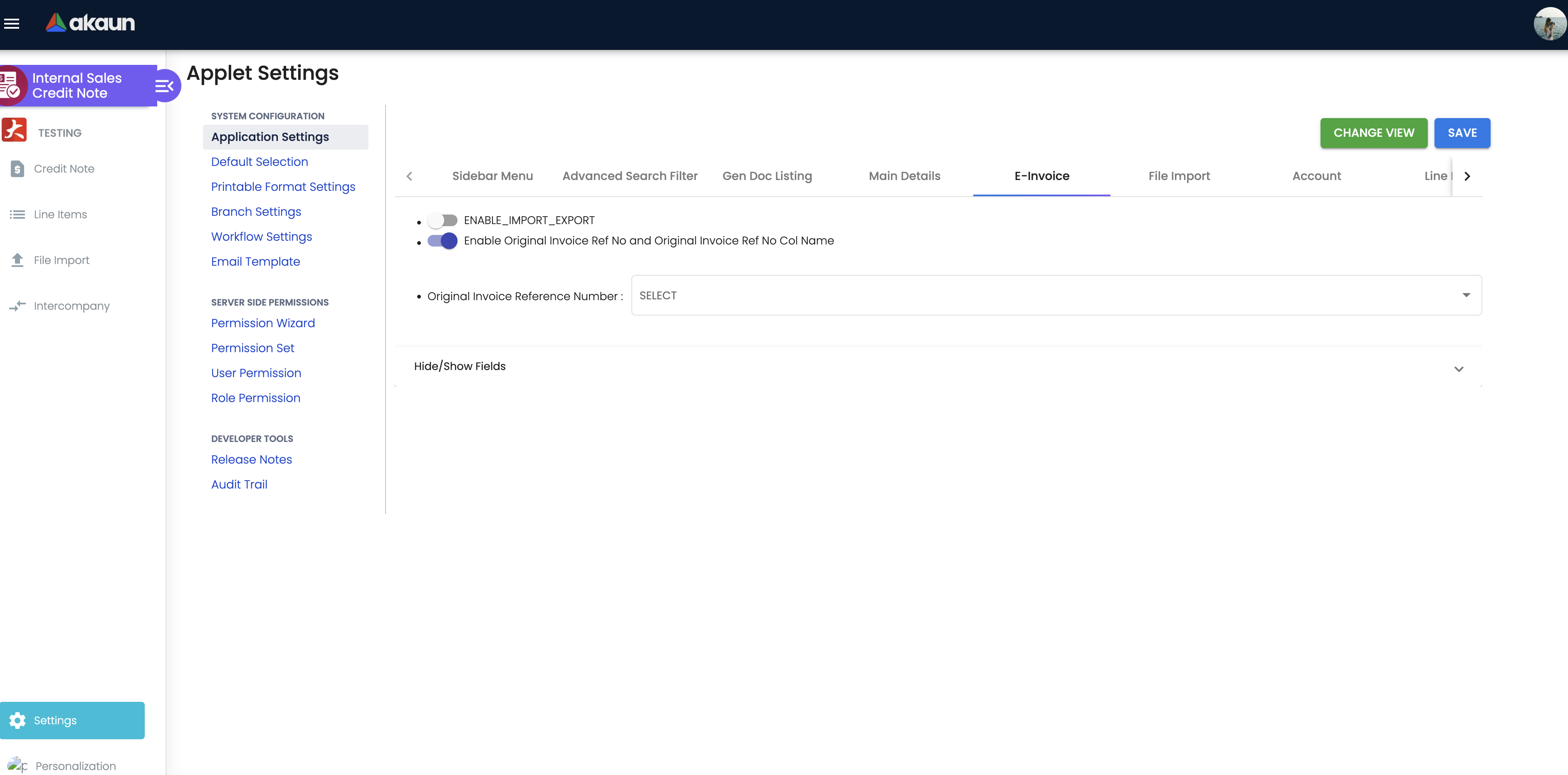
| Workflow Selection (E-Invoice) | ENABLE_ORIGINAL_INVOICE_REF_FIELDS + ORIGINAL_INVOICE_REFERENCE_FIELD | Shows Original Invoice Ref No and its column name on the E-Invoice tab and picks which invoice field is quoted: one of the document numbers or the Reference |
| E-Invoice | SHOW_EMP_REF_NO | Employee reference field on the e-Invoice submission tab. The API upload switch beside it is read by nothing in this applet — no upload tab appears |
| Entity Details | ENABLE_BRANCH_FILTER, ENABLE_VEHICLE_TAB | Customer search by branch; vehicle number |
| Lines | SHOW_ITEM_STOCK_BALANCE | Offered here and read by nothing in this applet: the item search shows no stock column whatever it says (the shared line screen that reads it is not part of this applet) |
| Lines | ENABLE_EDITING_UNIT_PRICE_STD, ENABLE_ITEM_NAME_MAX_LIMIT + ITEM_NAME_MAX_LIMIT, SHOW_PACKING_DIMENSIONS, SHOW_BUDGET | Line editing rules. Disable line item name edit is offered in the same group and read by nothing here: the item name stays editable |
| Line Permission | DISALLOW_SELL_BELOW_MIN_PRICE / …_REPLACEMENT_PRICE / …_MA_COST, DISALLOW_SELL_ABOVE_UNIT_PRICE_STD_INCL_TAX | Offered here and read by nothing in this applet: no price floor or ceiling is checked when a credit-note line is added. The Sales Order and Sales Invoice applets are where these bite |
| Line Permission | DISABLE_EDITING_AMOUNT_TXN | Transaction amount locked to price × quantity |
| Department | MANDATORY_SEGMENT, MANDATORY_DIMENSION, MANDATORY_PROFIT_CENTER, MANDATORY_PROJECT | Each makes that field required on a line’s Department tab, so a line cannot be saved without it |
| KO For | Enable multiple KO, Enable auto final | Both are offered in this applet’s KO For group and read by nothing in it: knock-off still takes one source document, and finalising after a knock-off stays a separate click. Enable multiple KO is live in the Sales Invoice and a dozen other document applets, which is where the expectation comes from; Enable auto final is read by no applet at all — a switch that exists only on the settings screen |
| KO For | ENABLE_EDIT_SETTLEMENT_DATE | Settlement line date editable on the add-settlement form (total unchanged). The edit payment date and edit settlement on final switches other document applets get are not shown for this one |
| Credit Card | Mandatory card number / name / issuer / expiry / approval code / batch / card type / CVV | Offered on this applet’s screen and read by nothing in it: a card settlement line saves with these fields empty whatever is ticked. The Sales Invoice and POS applets honour the same eight switches |
| Contra | EDIT_CONTRA_TXN_DATE | Contra date editable. Hide delete contra beside it is read by nothing in this applet |
| Menus | HIDE_FILE_IMPORT_MENU, HIDE_INTERCOMPANY_MENU | Removes the sidebar item unless the user holds SHOW_FILE_IMPORT_MENU / SHOW_INTERCOMPANY_MENU. Three further menu-hide toggles that exist for other document applets (pick-pack queue, invoice template, file export) are not shown for this one |
Hide / show and expand toggles (cosmetic)
| Section | Toggles (HIDE_… unless stated) |
|---|---|
| Gen Doc Listing | SERIAL_NUMBER, GENDOC_FINAL_BUTTON, GENDOC_DISCARD_BUTTON, GENDOC_VOID_BUTTON, GENDOC_SAVE_BUTTON, SEND_EMAIL_BUTTON |
| Gen Doc Fields | SERVER_DOC_1/2/3, CLIENT_DOC_TYPE, CLIENT_DOC_1…5, DESCRIPTION, ARAP_PNS, ARAP_SETTLEMENT, ARAP_DOC_OPEN, ARAP_CONTRA, ARAP_BAL, MARKETPLACE_ORDER_NO |
| Vertical UI | VERTICAL_ORIENTATION, EXPAND_* per tab |
| Doc Settings | PREFIX, GENERATE_BUTTON, TRACKING_ID, PERMIT_NO, CREATED_BY_DETAILS, SOURCE_DOC_NO, LOCATION, DELIVERY_BRANCH, DELIVERY_LOCATION, MAIN_DETAILS_SALES_AGENT, CRM_CONTACT, BASE_CURRENCY, CURRENCY, CREDIT_TERMS, CREDIT_LIMIT, DUE_DATE, REMARKS, EXTERNAL_REMARKS, REFERENCE, FOREX_HISTORY, MEMBER_CARD, SALES_LEAD |
| E-Invoice | one HIDE_E_INVOICE_* per field (submission type, number, UUID, document no/type/date, billing frequency and period, tax exemption, buyer identity and address) |
| Account | ACCOUNT_BILLING_CONTACT, ACCOUNT_SHIPPING_CONTACT |
| Lines | SALES_AGENT, LINE_ITEM_CLIENT_DOC_1, all UNIT_PRICE_*, UNIT_DISCOUNT*, QTY_BASE, QTY_UOM, UOM_TO_BASE_RATIO, AMOUNT_STD_EXCL_TAX, DISCOUNT_AMOUNT_EXCL_TAX, AMOUNT_NET_EXCL_TAX, AMOUNT_TXN, TAX_CONFIG_SELECTION, WHT_CONFIG_SELECTION, GROUP_DISCOUNT_PERCENTAGE, TOTAL_DISCOUNT_AMOUNT, LINE_ITEMS_GL_CODE, LINE_ITEMS_BRANCH, LINE_LISTING_TOTAL_AMOUNT, LINE_LISTING_TOTAL_QTY, LINE_LISTING_TAX_AMOUNT |
| Department | SEGMENT, DIMENSION, PROFIT_CENTER, PROJECT |
| Line item tabs | BIN_NUMBER, BATCH_NUMBER, COSTING_DETAILS, PRICING_DETAILS, ISSUE_LINK, SALES_HISTORY, SWAP_SERIAL_NUMBER, MULTI_DISCOUNT, DELIVERY_INSTRUCTION, DEPARTMENT, DOC_LINK, RELATED_DOCUMENTS, DELIVERY_DETAILS, DELIVERY_TRIPS, ATTACHMENT_TAB |
| Header tabs | SERVER_DOC_TYPE, DOC_SHORT_CODE_PREFIX, SEARCH_BY_DOCUMENT_BUTTON, DELIVERY_DETAILS_TAB, TRACE_DOCUMENT_TAB, DOC_LINK_TAB, EXPORT_TAB, SETTLEMENT_TAB, POSTING_TAB, DELIVERY_TRIPS_TAB, GROSS_PROFIT_TAB, SEARCH_TAB, COLLECTION_TAB, STATUS_TAB, EXPENSES_TAB, SALES_COMMISSION_TAB, CONVERT_TAB |
| Credit Card | CARD_NO, NAME, CARD_ISSUER, CARD_EXPIRY, APPROVAL_CODE, BATCH, CARD_TYPE, CVV |
Keys in the settings model with no UI (ignore them): ENABLE_CUSTOM_STATUS_*, INCLUDE_* / ENABLE_* department and tax flags, HIDE_KO_BY_* / HIDE_KO_FOR_*, SHOW_REFERENCE_MAIN_LISTING, SHOW_REMARKS_MAIN_LISTING, WORKFLOW_PROCESS_GUID, PRINTABLE.
Document behaviour settings
| Area | How it is configured |
|---|---|
| Status flow | Fixed DRAFT → FINAL → VOID; Discard deletes a draft. No custom statuses. |
| Posting at FINAL | The company’s include/exclude list of which document types post at FINAL — not an applet setting. |
| Workflow | Settings → Workflow Settings (Company, Process, Description) for INTERNAL_SALES_CREDIT_NOTE. |
| Printables | Settings → Printable Format Settings; the listing’s Action column prints with the format resolved per company/branch. |
| Settings → Email Template; CC supported. Send email to final documents only does not block drafts in this applet — it makes FINAL e-mail the credit note automatically; see the Gen Doc Listing row above. | |
| e-Invoice | The Sales Credit Note is an e-Invoice document type; whether it is skipped for e-Invoice follows the customer at FINAL; the original invoice reference travels with the document (see ENABLE_ORIGINAL_INVOICE_REF_FIELDS). |
| Intercompany | Intercompany menu; a Sales Credit Note becomes a Purchase Credit Note in the target company — a type that raises the buyer’s payable, so the buying company should not finalise it as generated (why, and what to record instead). |
Feature visibility / permissions
API: TNT_API_DOC_INTERNAL_SALES_CREDIT_NOTE_{CREATE,READ,UPDATE,DELETE}_TGT_GUID.
Client-side permissions defined for this applet (38, all CLIENT_SIDE_PERM):
| Group | Codes |
|---|---|
| Buttons | SHOW_GENDOC_FINAL_BUTTON, SHOW_GENDOC_VOID_BUTTON, SHOW_GENDOC_DISCARD_BUTTON, SHOW_CONTRA_ADD_BUTTON |
| Pricing and amounts | SHOW_UNIT_PRICE_STD_PRICING_SCHEME, SHOW_UNIT_PRICE_STD_INCL_TAX, SHOW_UNIT_PRICE_STD_EXCL_TAX, SHOW_UNIT_PRICE_STD_UOM_INCL_TAX, SHOW_UNIT_PRICE_STD_UOM_EXCL_TAX, SHOW_UNIT_PRICE_NET_EXCL_TAX, SHOW_UNIT_PRICE_NET_UOM_EXCL_TAX, SHOW_UNIT_PRICE_TXN, SHOW_UNIT_PRICE_TXN_UOM_INCL_TAX, SHOW_UNIT_DISCOUNT, SHOW_UNIT_DISCOUNT_UOM_EXCL_TAX, SHOW_AMOUNT_STD_EXCL_TAX, SHOW_DISCOUNT_AMOUNT_EXCL_TAX, SHOW_AMOUNT_NET_EXCL_TAX, SHOW_AMOUNT_TXN, SHOW_QTY_BASE, SHOW_QTY_UOM, SHOW_UOM_TO_BASE_RATIO, SHOW_TAX_CONFIG_SELECTION, SHOW_WHT_CONFIG_SELECTION, SHOW_COSTING_DETAILS, HIDE_PRICE, SALES_CREDIT_NOTE_DISPLAY_PRICING, SHOW_DISABLE_EDITING_AMOUNT_TXN_SETTING |
| Document numbers | SHOW_DOC_NO_TENANT, SHOW_DOC_NO_COMPANY, SHOW_DOC_NO_BRANCH, SHOW_CLIENT_DOC_TYPE, SHOW_CLIENT_DOC_1…5, SHOW_TRANSACTION_DATE |
The app also looks for SHOW_FILE_IMPORT_MENU, SHOW_INTERCOMPANY_MENU and SHOW_GENDOC_CLONE_BUTTON to re-enable hidden menus and the clone button; these codes are read by the code but are not in the registry for this applet — see Troubleshooting.
Fields
Main Details
| Field | Meaning | Required | Notes |
|---|---|---|---|
| Company, Branch, Location | Issuing company/branch and location | Yes | Location is carried even though no stock moves |
| Transaction Date | Accounting date | Yes | Must be outside locked fiscal periods; PDF dates are normalised to noon UTC to avoid day shifts |
| Currency, Currency Rate | Document currency | Currency yes | Rate required and non-zero when it differs from base |
| Sales Agent | Employee credited | No | Autofill from customer with ENABLE_SALES_AGENT_AUTOFILL |
| Credit Terms, Credit Limit, Due Date, Reference, Remarks, External Remarks | Header attributes | No | Reference can be forced unique |
| Tenant / Company / Branch Doc No | The running numbers | — | Shown when you open an existing credit note (not on the create form), and read-only there. The company and branch numbers are drawn in the same step that makes the document FINAL, so a draft shows them blank |
| Custom Document Number | A composed number (branch prefix, type, year-month, branch number) | — | Shown only when the custom-number setting is on, and only filled for a FINAL document on the few branch codes built into the applet for one deployment. On any other branch it stays empty — turning the setting on does not give you a custom number |
| Client Doc Type, Client Doc 1–5 | Customer-side references | — | Read-only on this form: you cannot type them here |
Account: Entity ID (required); billing and shipping contacts and addresses; Intercompany sub-tab (target company); Vehicle when enabled.
Lines (txn_type = PNS)
| Field | Meaning | Required | Notes |
|---|---|---|---|
| Item | Any item; account-code (GL_CODE) items post to their linked GL account | Yes | Item search is not filtered by type |
| Quantity | Quantity credited | Yes | For GL_CODE items no minimum applies; other items require ≥ 0 |
| Unit price / discount / net / transaction amount, Net Amount, Net Amount with Tax | Value credited | Net and transaction amounts required | Quantity signum is forced to 0 on save |
| Tax Code, Tax Amount, WHT | Tax reversal | From item or scheme | Posts to OUTPUT_TAX |
| GL Code | Overrides the SALES default for this line | No | Filled automatically from a GL_CODE item |
| Batch / Bin sub-tabs | Present for parity with other documents | Batch: batch no, qty, issue and expiry date; Bin: bin code, container measure/qty, qty | No inventory effect |
| Segment, Dimension, Profit Center, Project | Department analysis | No | Hidden by default |
E-Invoice: as the Sales Invoice, plus Original Invoice Ref No and Original Invoice Ref No Col Name when ENABLE_ORIGINAL_INVOICE_REF_FIELDS is on.
Settlement: one line per refund — Bank Transfer, Cash, Cheque, Credit Card, Membership Point Currency, Voucher, TT Payment; date and amount (≥ 0.01) always required, plus the type-specific reference and any card fields marked mandatory.
Contra: select open sales invoices of the same customer and branch; the total contra is read from the document header rather than recomputed.
Lifecycle and effects
| Status | Meaning | Allowed next |
|---|---|---|
| DRAFT | Editable, no posting | FINAL, Discard |
| FINAL | Numbered, posted to GL and AR; settlement editable only if the total is unchanged | VOID — except at a company whose e-invoicing is enabled, where the server refuses VOID (and a return to draft) for every credit note |
| VOID | Reversed with a void reason | none |
FINAL validation (backend, same routine as the invoice): exchange rate present when currencies differ; serial/bin/batch quantities consistent (no-ops when quantity signum is 0); transaction date and company present; date not in a locked fiscal period. Blacklist and stock-balance checks do not run for credit notes.
Journal — the same posting as a sales invoice with amount signum −1, so every invoice entry is reversed:
| Dr | Cr | Amount | GL code source |
|---|---|---|---|
| Sales, or the line’s own GL code (account-code item) | Net amount per line | Line GL code → item-company GL link → company default SALES | |
Output tax (OUTPUT_TAX) | Tax amount | Company default GL | |
Debtor (DEBTOR / DEBTOR_NON_TRADE) | Total including tax | Company default GL, chosen by the customer’s AR type | |
| Debtor | Cashbook GL | Each settlement line (refund paid out) | Settlement method |
A discount on a line is taken off before the line posts: the Sales debit is the line’s net amount, after the discount. Nothing posts to the company’s sales-discount default (SALES_DISCOUNT), on a credit note or on any other document, so a credit note for RM 1,000 less a RM 50 discount debits Sales RM 950 and shows no discount line in Trace Document → Journal Txn. If you want discounts reported apart from sales, the place to see them is the document lines, not the ledger.
No inventory transaction is written (quantity signum 0) and no COGS entry is made.
VOID sets the status and reason, queues the reversal of the journal and AR, and removes the document from the e-Invoice queue.
At an e-invoicing company a credit note cannot be voided from this applet or through the void call. The server refuses with Generic Document cannot be changed to VOID because e-invoice is enabled for every sales credit note of a company whose e-invoice status is enabled — submitted or not, there is no exception. This applet has no button that returns a credit note to DRAFT either. The one route that ends in VOID goes through the e-invoice itself: when a rejection request for the note is approved in the My E-Invoice Portal applet with the processing logic VOID_ORIGINAL_DOC, BigLedger asks LHDN to cancel the e-invoice and, once the cancellation succeeds and no later document is linked to the note, voids it (read from source, not tried). Otherwise correct a wrong credit note with an opposite document: a sales debit note for the amount over-credited, or a fresh invoice.
Related applets
- Sales Invoice (Internal) — the document being corrected; searched in Search Document and offset in Contra.
- Sales Return (Internal) — use instead when goods physically come back.
- Sales Debit Note (Internal) — the opposite adjustment.
- Sales Refund Note (Internal) — pays out a credit balance as a separate document.
- Receipt Voucher (Internal) — credit notes appear as settlement candidates when receipting.
- Purchase Credit Note (Internal) — intercompany mirror.
- My E-Invoice Portal — submission of the credit note with its original-invoice reference.
- Customer, Chart of Account, Cashbook, Tax Configuration — master data.
Troubleshooting
| Symptom | Cause | Fix |
|---|---|---|
Note is FINAL and Trace Document → Journal Txn is empty. The reason BigLedger support reads is MISSING_DEFAULT_GL_CODE: DEBTOR (or DEBTOR_NON_TRADE); no screen shows it until you press Resolve | Company default receivable GL not mapped; FINAL succeeded and the journal job failed afterwards | Map it in Chart of Account, then Financial Report › Error Checking › Trace Document → Missing Journal → Resolve. Resolve, pressed while the cause is still there, posts nothing and shows the reason in the check’s message, so it doubles as the diagnosis |
Note is FINAL, no journal, and the reason BigLedger support reads is TOTAL_DEBITS_AND_TOTAL_CREDITS_NOT_BALANCES or NO_JOURNAL_CREATED (Resolve, pressed before the fix, shows Total Debits: …, Total Credits: …) | SALES or OUTPUT_TAX resolved no GL code (line → header → item-company link → company default) and the line was dropped, and the customer has no AR/AP type, so there was no receivable line to absorb it — or no line resolved at all | Map the missing default in Chart of Account, then Missing Journal → Resolve in Financial Report’s Trace Document |
| No error, but trade debtors no longer agrees with the debtor ageing, and sales or SST are short by the same amount | A line resolved no GL code and was left out of the journal; the customer’s line was built from the lines that remained, so it absorbed the amount and the journal posted. The note is FINAL with a journal, so Trace Document finds nothing, and the customer statement and ageing (built from documents) look right. Before go-live, check every code this note uses has a company default, or every item its own | Map the missing default in Chart of Account. Then open each affected note in Error Checking › Trace Document and press Repost beside Posting Journal: it deletes the short journal and builds it again from the note, now with every line. Repost successful means it worked. A failed Repost shows nothing, and it has already deleted the old journal, so open the Journal Txn grid afterwards: if it is empty, press Resolve on the Missing Journal check, which posts the journal or shows why it cannot. Or post a correcting journal yourself |
| Credit posted to the generic Sales account instead of a discount/fee account | Line used an ordinary item without a GL override | Use an account-code item linked to the right GL, or set the line GL Code (unhide HIDE_LINE_ITEMS_GL_CODE) |
| “The selected date falls within a locked fiscal period.” | Transaction date in a closed period | Change the date or reopen the period (message text was aligned with the Sales Invoice applet) |
| Contra date resets to today after saving | Older build bug | Fixed; EDIT_CONTRA_TXN_DATE allows a deliberate change; the date picker enforces a configurable minimum date |
| Contra tab shows a wrong total | Older build recomputed it | Fixed: Total Contra is read from the document header |
| Line-item edit form opens empty | Race condition in price rounding on older builds | Fixed; upgrade |
Note is FINAL with an empty Journal Txn grid; the reason BigLedger support reads is MISSING_CASHBOOK / MISSING_GL_CODE: STL_MTHD [code] | A settlement method used on the Settlement tab has no cashbook or GL code — the journal job failed after FINAL | Complete it in Cashbook, then Missing Journal → Resolve in Financial Report’s Trace Document. Where your company also writes cashbook lines for this document’s payment lines, that line is missing too, and Trace Document does not restore it for this document type: ask BigLedger support. |
| Import rows fail with a sales-agent error | Agent column value does not match an employee code | Check the sample file’s column names; the error-checking listing names the offending column |
| File Import / Intercompany menu missing for one user | HIDE_FILE_IMPORT_MENU / HIDE_INTERCOMPANY_MENU on, and the SHOW_*_MENU client-side codes are not defined for this applet in the registry | Turn the hide setting off, or ask BigLedger to register SHOW_FILE_IMPORT_MENU, SHOW_INTERCOMPANY_MENU and SHOW_GENDOC_CLONE_BUTTON for InternalSalesCreditNote |
| Second credit note with the same Reference rejected | ENABLE_DUPLICATE_REFERENCE_CHECK | Use a unique reference or turn the check off |
| PDF shows the previous day’s date | Older builds converted dates at midnight | Fixed: transaction dates are forced to noon UTC for printing |