Sales Debit Note (Internal)
Charge a customer more after you have already invoiced them — an under-billing, a late-payment fee, freight that never reached the invoice, or a charge from one company in your group to another. The invoice it corrects is left exactly as it was, and no configuration makes a debit note move stock: if goods are involved, the document you want is a sales invoice or a sales return. It posts through the same ledger map as a sales invoice, so a charge on an item with no account of its own lands in the general sales account and your revenue analysis quietly absorbs fee income.
Overview
A sales debit note charges a customer more after you have already invoiced them: an under-billing, a late-payment or finance charge, freight or handling that never made it onto the invoice, or — inside a group of companies — a charge from one company to another. It raises the customer’s balance; the invoice it corrects is left exactly as it was.
It is usually described as the mirror of the Sales Credit Note, and for the ledger that is true — the two documents share one posting map and differ only in the sign. They are not mirror images of each other as applets, which is the part the screen cannot tell you and the part that catches people out. See Not quite the mirror of a credit note.
INTERNAL_SALES_DEBIT_NOTE: it raises what the customer owes and moves no stock.When you would raise one, and when you would not
| The situation | The document | Why |
|---|---|---|
| You billed RM 4,200 and should have billed RM 4,700 | Sales debit note for RM 500 | The original invoice stays untouched and auditable; the customer receives a separate demand for the difference, and LHDN receives it as a Debit Note against the original e-invoice |
| You billed RM 4,700 and should have billed RM 4,200 | Sales credit note | The opposite sign. A debit note always carries the plus amount sign: the server refuses any document of this type whose amount sign is not +1 |
| The customer is returning goods | Sales return | A debit note moves no stock at all, so a return processed as a debit note leaves the goods sold on your books for ever |
| You have not invoiced this customer yet | Sales invoice | A debit note is not a cheaper invoice. It raises no webhook at FINAL (only when first saved and when deleted), and only the invoice can be the original document another note refers to |
| One company in your group is charging another | Sales debit note with intercompany configured | Creates a Purchase Debit Note in the receiving company — which, as generated, lowers what that company owes instead of raising it; read Intercompany before you rely on it. Sales invoices, returns and credit notes pair too |
Where it fits
| Direction | Document / applet | How it connects |
|---|---|---|
| Upstream | Sales Invoice (Internal) | The only document type the Original E-Invoice picker will list, and only once LHDN has validated it |
| Upstream | Customer, Doc Item Maintenance, Chart of Account, Tax Configuration | The receivable account comes from the customer’s AR/AP type read at posting time; the charge’s account comes from the item |
| Downstream | Receipt Voucher (Internal), the Contra tab | The extra receivable is settled like any other open customer document |
| Downstream | My E-Invoice Portal, My E-Invoice Admin | Submitted to LHDN as document type 03, Debit Note — unless the customer carries the skip flag |
| Sibling | Purchase Debit Note (Internal) | Created in the receiving company by the intercompany pairing — at once in AUTO mode, on Confirm in MANUAL — as a draft that, as generated, lowers what that company owes (Intercompany) |
| Sibling | Sales Credit Note (Internal) | Same ledger map, opposite sign, and a different set of screens |
What the numbers do, and where they come from
The two signums decide everything
The document type is defined by two fixed rules and nothing else:
- Direction: money owed to you goes up. This is checked, not filled. Create or update a debit note in any other direction and the save is rejected as an invalid amount sign. An integration must send it.
- No stock movement. This is forced, not checked. Every line is set to no stock movement on create and on update, whatever it was sent with.
That second one is the load-bearing fact of the whole applet: no sales debit note line moves stock, whatever the line was created with. Nothing configurable changes it and no path writes anything else.
Why that means no stock moves
The stock job looks only at lines that move stock, and every line of a sales debit note is filtered out. So there is no inventory transaction line at all — not a zero-quantity one. Nothing reaches the moving average, nothing reaches cost of sales, no serial number is created or consumed, and no stock balance changes anywhere.
This is deliberate and it is the whole point: you are charging for money, not for goods. If goods are involved, the document you want is a sales invoice or a sales return.
The journal, and the substring that chooses it
There is no entry for INTERNAL_SALES_DEBIT_NOTE in JournalPostingTypeHandler.handlers. The
posting service looks the document type up, misses, and falls through to a chain whose final test is
serverDocType.contains("SALES") ? "SALES". The debit note
therefore posts through the same sub-ledger map as a sales invoice and a sales credit note — a
substring decides it, which is why the three documents can never drift apart and also why a new sales
document type inherits this map whether anyone intended it or not.
| Dr | Cr | Amount | Where the account comes from |
|---|---|---|---|
Debtor (DEBTOR or DEBTOR_NON_TRADE) | Total including tax | The customer’s AR/AP type, read live at posting — not from the document’s snapshot | |
| Sales, or the line’s own GL code | Net amount per line | Line GL code → the item’s company GL link → the company’s default SALES. An account-code item is how a late-payment fee reaches a fee account instead of revenue | |
Output tax (OUTPUT_TAX) | Tax amount | Company default GL | |
| Cashbook GL | Debtor | Each settlement line | The settlement method, which is why a settlement method with no cashbook fails the posting job rather than the save |
Change a customer’s AR/AP type today and every debit note you post tomorrow moves to the new control account — including a debit note raised months ago and only now finalised. That is the one piece of customer data a document does not freeze, and it surprises people who have read that the entity is snapshotted.
What a debit note keeps of the customer
Everything else about the customer is frozen, at the moment you pick them. Choosing a customer writes fifteen fields into the document’s own entity block — customer code, name (with the chosen contact’s name appended), status, e-mail, phone, GL code, identity number and type, entity type, description, currency, the e-invoice tax identifier and the SST number. It also copies the customer’s skip-e-invoice flag onto the document and, when the customer’s currency differs from the document’s, replaces the document currency and resets the exchange rate.
Two consequences worth knowing before you need them:
- A debit note reprinted next year shows the address and tax number that were true when you raised it, not today’s. Nothing refreshes a block that is already filled — the backend only fills the block when it arrives empty. The single exception is entity merging, which deliberately rewrites the snapshots on every document pointing at the surviving record.
- Correcting the customer’s details on this note corrects this note only. Pushing the correction back to the customer record is a separate act. See the Customer applet for the master-data side.
Picking the customer also sets the snapshot’s credit terms back to null; the Main Details form writes them in again, but only on a form submission that carries a sales agent or credit terms. Fill Main Details before you choose the customer and the terms stored on the document may not be the ones on your screen.
What FINAL sets off
FINAL is a separate step, not a save. It does five things in order: works out the skip-e-invoice flag from the customer record again (overwriting whatever the document carried), validates the document, sets the status, gives out any outstanding running numbers, and starts two jobs — the main posting job and the message-template job. From the edit panel the FINAL button first saves the whole document again and only then calls that step, so a change someone else made to the note in between is overwritten by your copy.
FINAL raises no webhook for a debit note — the FINAL-time webhook queue is entered only for
INTERNAL_SALES_INVOICE. The document does raise two others: INTERNAL_SALES_DEBIT_NOTE_CREATED the
moment it is first saved (called at once, and queued again for the webhook job), and
INTERNAL_SALES_DEBIT_NOTE_DELETED when a draft is deleted. An integration that needs debit notes
subscribes to those — and reads the posting status in the payload, because the created event arrives
for a draft and nothing later says that it went FINAL.
Everything else is follow-on jobs of the main posting job — and they run for every finalised document, not for this type. Each decides for itself whether it has anything to do, which is why “nothing happened” is almost never a job that failed to run and almost always a job that ran and found nothing to do.
| Follow-on job | What it does with a sales debit note |
|---|---|
| Journal posting | Writes the journal above. This is where a missing GL code surfaces — after FINAL has already succeeded |
| Cashbook | Posts the settlement lines to the cashbook, if you settled on the document |
| E-invoice posting | Puts the note into the e-invoice pipeline unless the skip flag is set |
| E-invoice matching | Treats it as a sales document, beside the invoice and credit note |
| Intercompany | Creates the mirror Purchase Debit Note in AUTO mode, or a queue row in MANUAL |
| Knock-off | Maintains the open quantity on any document this note knocked off |
| Stock | Runs and does nothing, because every line is filtered out |
| Sales commission, loyalty points and many others | Look, and find nothing to do unless commission rules or loyalty points have been configured for this document type |
On VOID, the tax and knock-off void jobs run for every voided document, not for this type.
The e-invoice
A finalised sales debit note becomes LHDN document type 03, “Debit Note”. A sales credit note is 02; a sales refund note is 04.
The original e-invoice reference is picked by hand on Main Details, and nothing prompts you to pick it. The picker it opens, Select E-Invoice Main Doc Ref No, is hard-filtered to two conditions:
hdr_generic_doc_hdr_server_doc_types = 'INTERNAL_SALES_INVOICE'— so a debit note raised against a cash bill, against an earlier debit note, or against a consolidated e-invoice has nothing to pick;hdr_einvoice_document_statuses = 'Valid'— so an invoice still waiting on LHDN validation is not listed either.
Choosing a row stores three things on the document: the original submission’s guid, its LHDN document guid and its running number. Leave it blank and the submission goes out with no original reference at all — nothing in the applet or the backend requires one.
A blank original reference is the normal state, not the exception. No validator asks for it, the picker is not opened for you, and a note submits perfectly happily without it — so it stays blank unless somebody goes looking for the screen.
A finalised debit note may never reach LHDN at all, if skip_einvoice is set. The flag follows the
customer, and it is recomputed at FINAL — so changing the customer’s skip setting changes what happens
to a draft you finalise afterwards.
NOT_SUBMITTED, which is almost no row, because the list is already filtered to LHDN-validated
invoices. This does not stop you selecting one — the grid selects on (rowClicked) and takes any
row. Click the row, not the checkbox.Not quite the mirror of a credit note
The two documents share one journal map and one set of e-invoice plumbing, and then diverge:
| Sales debit note | Sales credit note | |
|---|---|---|
| Amount signum | +1 | −1 |
| LHDN document type | 03 | 02 |
| Knock-Off Settings screen | Present (and read by nothing — see below) | Not present at all |
| KO For tab | Present: sales order, delivery order, jobsheet | Not present |
So a reader who has learned the credit note will find two screens here that do not exist there. The reverse also holds, and the asymmetry is not documented anywhere in the product — whether the debit note’s knock-off surface is intended to stay is an open question with BigLedger.
Knocking off a sales order, delivery order or jobsheet
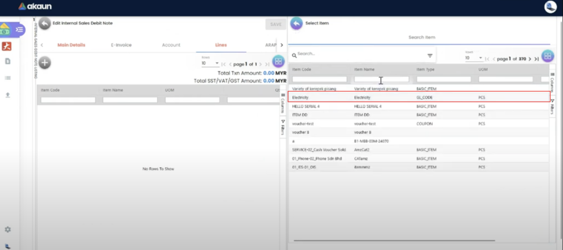
The KO For tab imports lines from an open sales order, delivery order or jobsheet and creates a document link back to the source line.
It takes the whole remaining quantity, every time. There is no quantity box on this screen: the import sets the debit note’s line quantity and the knock-off quantity both to the source line’s entire open quantity — on the sales-order, delivery-order and jobsheet panels alike — and the knock-off always subtracts.
Nothing moves on the source until you save. The import only adds the link to the draft on your
screen. At the Save that creates the note, and again at every later Save or FINAL from the edit screen,
the applet sends the note’s links to the server, and the source line’s remaining quantity is
recomputed, never decremented — qty_open = quantity_base + Σ(quantity_contra × quantity_signum)
over every link on that source line, the same shape documented on
Purchase Order and
Blanket Purchase Order. The recompute only
rewrites a balance row that exists: a line already knocked off to zero, or a company with no knock-off
pair from that source, has no row, and the new link changes nothing there. This applet does not use the
separate knock-off route the purchase invoice and goods receipt use, which takes the balance down on the
draft itself.
Getting it back. Voiding the note, or discarding a saved draft, marks its links deleted and gives the quantity back to the source — while a knock-off pair from that kind of source document is still enabled for the company. Removing a knocked-off line does not give anything back. On a saved draft, Delete on the line marks the line and its link deleted on your screen, but the Save sends the server only the links that are still active, so the link stays active in the database — pointing at a line that is gone — and the source line’s balance stays down by the full quantity. The Delete on the knock-off link’s own panel does nothing at all. Nothing on the server tidies it up later. Until this changes (a known issue, reported to engineering), do not remove a knocked-off line to correct a note: if the note is a draft, discard it and raise a new one; if it is final, void it. Either gives the quantity back while the knock-off pair is enabled. If a line has already been removed, the source order will show less outstanding than is true; discarding or voiding the note still releases it, because the link is still active.
Intercompany
With a branch intercompany setting mapping INTERNAL_SALES_DEBIT_NOTE → INTERNAL_PURCHASE_DEBIT_NOTE
chosen on the note’s Account › Intercompany sub-tab, finalising creates the counterpart document in the
receiving company (AUTO) or writes a queue row and waits for someone in the Intercompany menu
(MANUAL). Either way the counterpart is a draft unless the setting has Auto Final Target Doc.
The counterpart arrives pointing the wrong way. Your sales debit note raises what the sister company owes you. The document generated on its side is a Purchase Debit Note, carrying amount signum +1 — the purchase debit note’s own sign — and in this platform a purchase debit note posts Dr Creditor and lowers what you owe. So if the sister company finalises it as it arrives, its payable to you goes down by the note while your receivable went up, and the two companies’ books differ by twice the note. This has been reported to BigLedger as a defect, together with the matching problem on credit notes.
Until the pairing changes, the receiving company should not finalise the generated note: discard it and record the charge with a Purchase Credit Note (Internal) against the same supplier, which is the purchase document that raises what you owe. If one was already finalised, void it first. The Purchase Credit Note page describes the same problem in the other direction. You know the pair is right when the sister company’s balance on your Debtor Report and your balance on its Creditor Report moved by the same amount.
Which mode you get is a property of the branch intercompany setting, not of the document. Check it before you finalise: in AUTO the counterpart document appears in the other company immediately, with no further confirmation and nobody asked.
Screens and menus
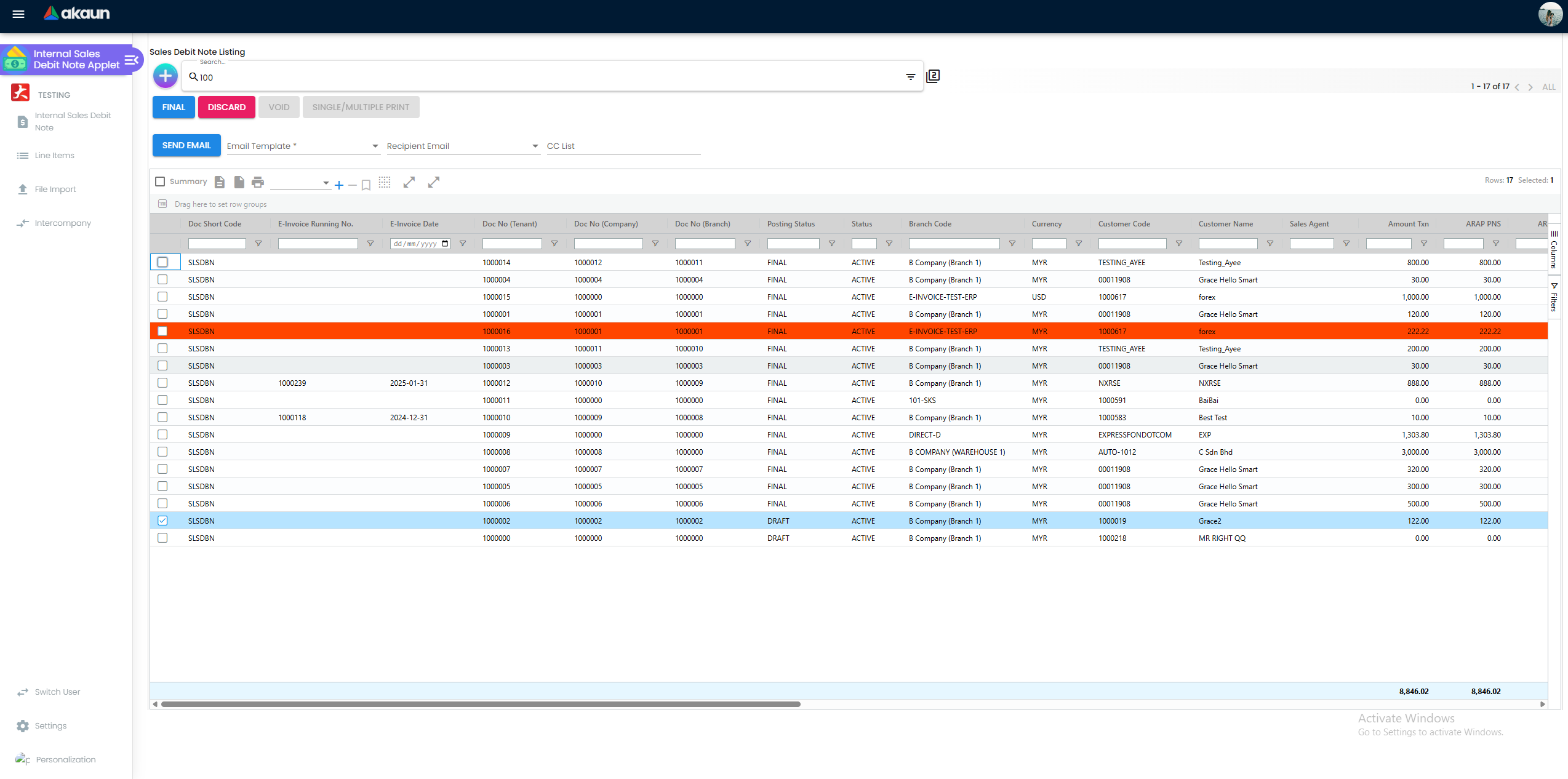
Route root: applets/tnt/wavelet/erp/internal-sales-debit-note-applet/. The listing, the line-item
view and the file import all call the plural slug internal-sales-debit-notes,
which is the one slug the backend registers for this document type — so an integration should use the
same one.
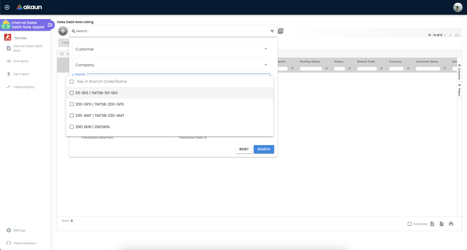
Five sidebar items: the document listing (advanced search, bulk FINAL / DISCARD / VOID / PRINT,
e-mail, clone), Line Items (one row per line, useful for finding which note carried a charge),
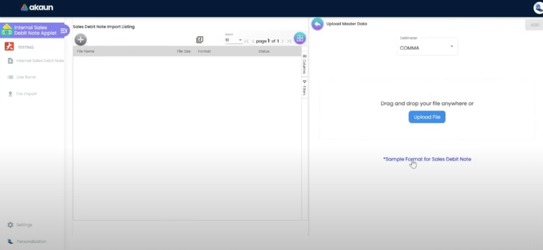
File Import (bulk creation from a delimited file, with a Checking section that lists row errors
before anything is created), Intercompany (the dashboard and the MANUAL-mode queue) and
Settings / Personalization. HIDE_FILE_IMPORT_MENU and HIDE_INTERCOMPANY_MENU remove the middle
two unless the user holds SHOW_FILE_IMPORT_MENU / SHOW_INTERCOMPANY_MENU — neither of which is
registered for this applet, so switching the hide on removes the menu for everybody.

The create / edit form, and what each tab feeds
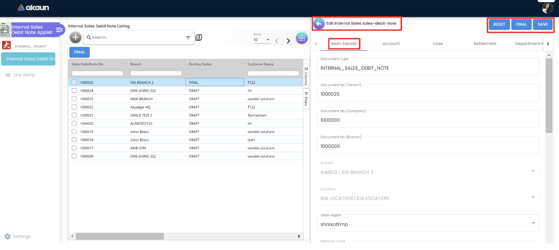
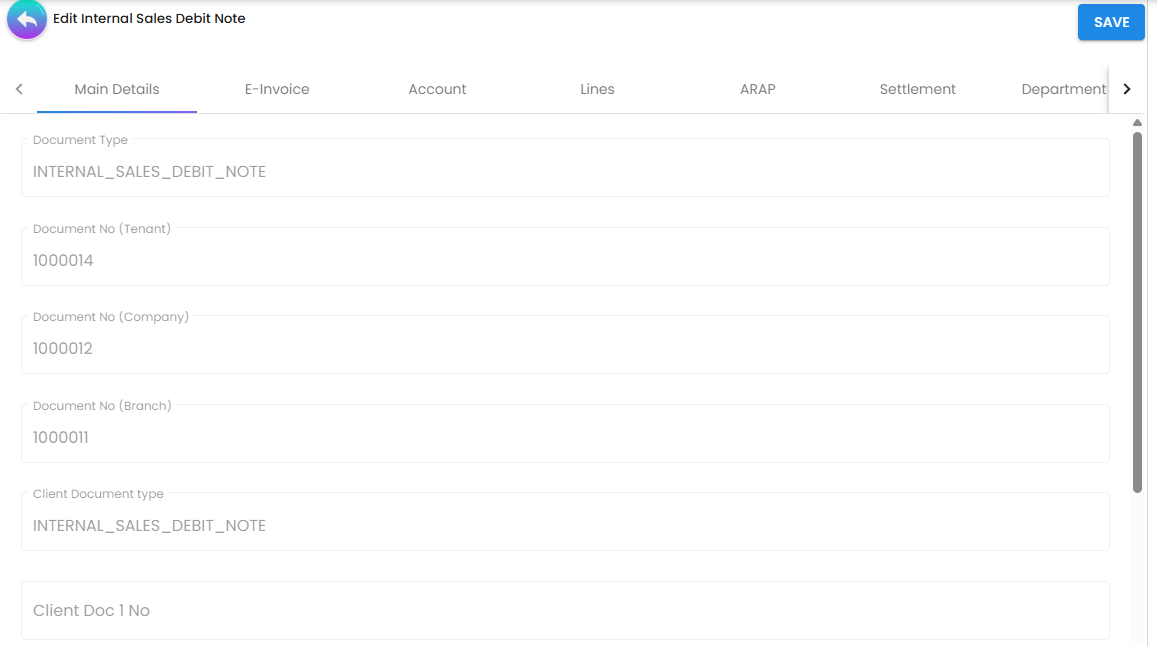
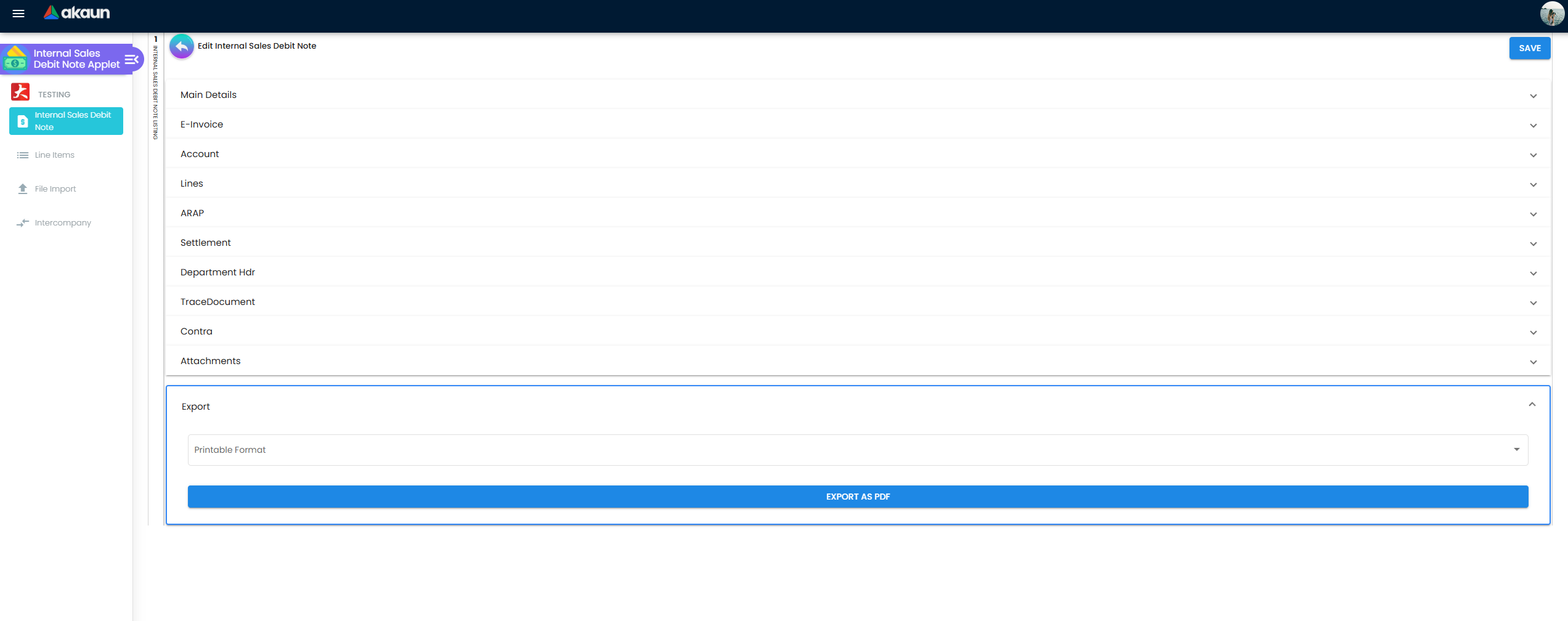
Eleven tabs, re-orderable under Default Selection, and the form runs either as tabs or as stacked
vertical panels (VERTICAL_ORIENTATION). What matters is not what each tab holds — you can see that —
but what it feeds:
Main Details carries the accounting date that the locked-period check tests at FINAL, the currency
and rate, the sales agent the commission processor reads, the reference that
ENABLE_DUPLICATE_REFERENCE_CHECK can force unique, and the Original E-Invoice Reference picker
described above. Account holds the customer snapshot, the billing and shipping contacts, and the
Intercompany sub-tab that decides whether a counterpart document is created in another company.
Lines is where the charge and its GL account are decided; an account-code item posts straight to
its own account and overrides the company SALES default. ARAP, Settlement and Contra
are the money side: the open amount, any settlement taken on the document itself, and offsets against
the customer’s open credit documents. KO For links to a sales order, delivery order or jobsheet and
changes that document’s remaining quantity. Department Hdr sets the header-level segment,
dimension, profit centre and project that the analysis reports slice by — and note that branch and
profit centre are independent dimensions, both carried on the header and on every line.
E-Invoice shows the submission, its progress and LHDN’s notifications. TraceDocument is where
you go when the journal is missing — it shows the posting trace and the linked counterpart document.
Attachments and Export hold files and the PDF.
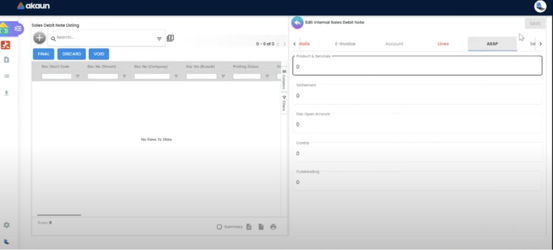
Screenshot withdrawn; a recapture from a demo tenant is on the list.
Screenshot withdrawn; a recapture from a demo tenant is on the list.
The Settings menu
Application Settings opens the shared Field Configuration screen, where the behaviour toggles in
the next section live. Default Selection holds three things only — default branch, default location
and the order of the eleven form tabs. Knock-Off Settings saves six switches that nothing reads
(below). Printable Format Settings binds layouts to INTERNAL_SALES_DEBIT_NOTE; Branch
Settings overrides the header, footer, images and PIN per branch, so a group with 22 branches
maintains 22 letterheads here and not in the layout. Workflow Settings attaches a process from
Workflow Design per company — without it the Workflow
Status field on Main Details has nothing to offer. Email Template supplies the body used by the
listing’s e-mail button; the send e-mail to final documents only switch on Application Settings is read
by nothing in this applet, so a draft can be e-mailed whatever it says (the Sales Invoice, Receipt
Voucher and Sales Return applets honour it). Webhook and Feature Visibility subscribe to events and control team access — note that this
document type raises a webhook when first saved and when deleted, not on FINAL. The permission listings and Permission Wizard are
where the client-side codes below are granted, and Release Notes and Applet Log are history.
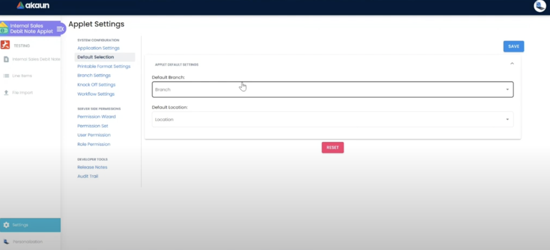
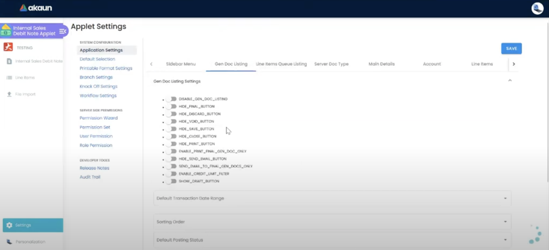
Screenshot withdrawn; a recapture from a demo tenant is on the list.
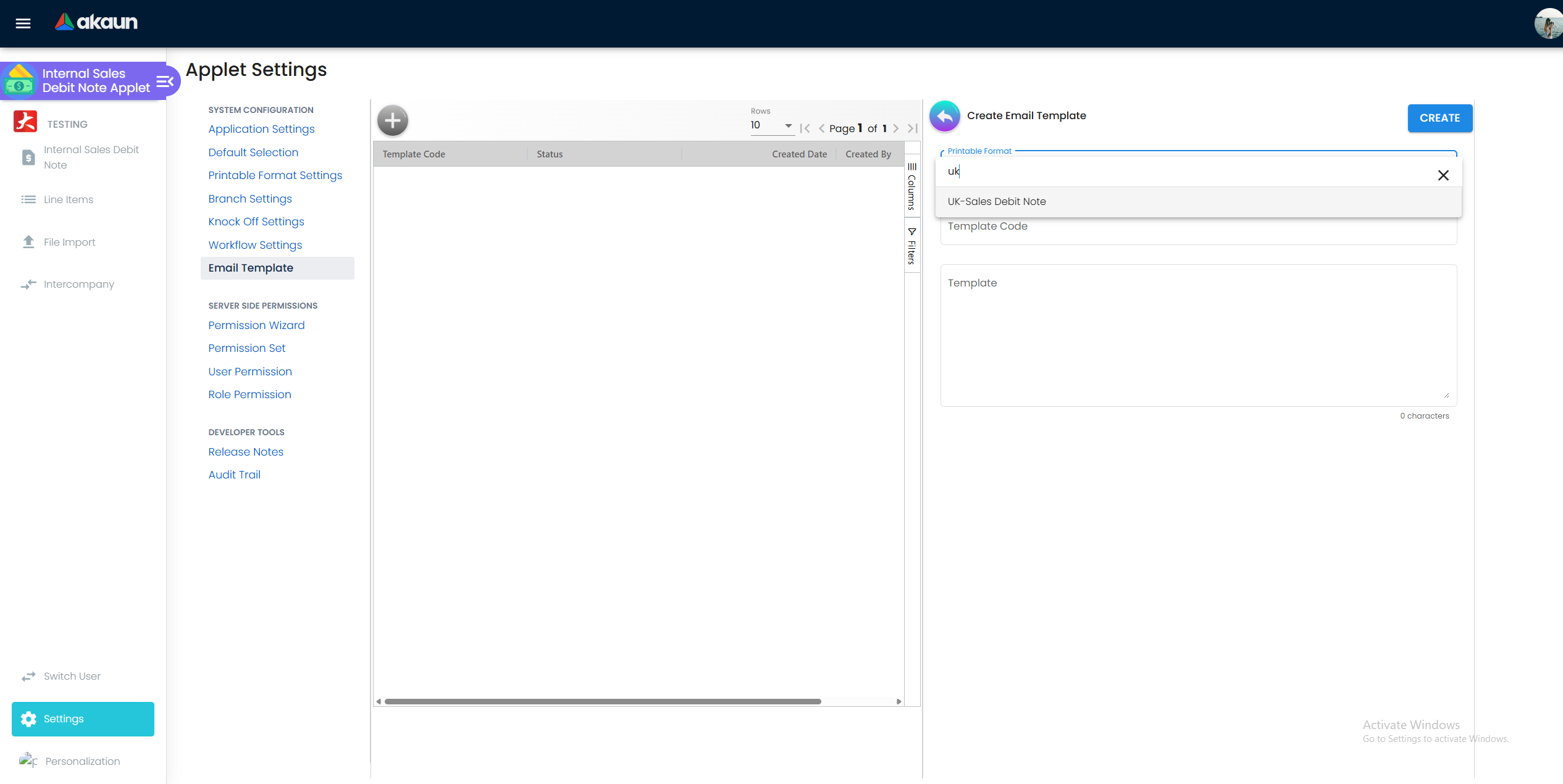
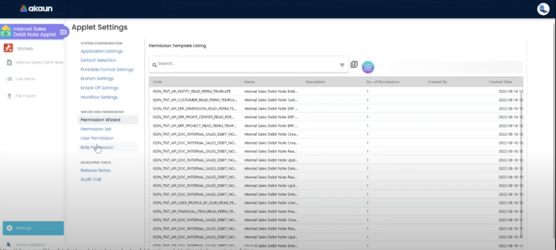
On the screen and doing nothing
Two parts of the Settings area save values that nothing in this applet consults. They are recorded here because a switch that does nothing is worth more to a reader than a switch that is merely described.
| What you see | What it actually does |
|---|---|
Knock-Off Settings — six switches, KNOCK_OFF_BY_{SALES_ORDER,DELIVERY_ORDER,JOBSHEET} and KNOCK_OFF_FOR_{…} | Saved, and used by nothing. The KO For tab and its three panels are drawn whenever the Field Configuration toggle HIDE_KO_FOR_TAB is off, and never consult these six switches |
| Copy From Configuration — an expansion panel with nothing inside it | The two toggles that belong there, Automatically Scan Item To The Listing and Validate Serial Numbers, are commented out of this applet’s template, so the panel is empty and nothing in the applet reads either. Both are real settings in other document applets; this one simply does not offer them |
Configuration
Before you can use it
| Prerequisite | Where | What happens without it |
|---|---|---|
| Company, branch, location | Organisation | The header will not save. Location is recorded and never used — no stock moves |
Company default GL codes DEBTOR / DEBTOR_NON_TRADE, SALES, SALES_DISCOUNT, OUTPUT_TAX, FOREX_GAIN, FOREX_LOSS | Chart of Account | Not checked at FINAL. FINAL succeeds and the posting job fails afterwards — MISSING_DEFAULT_GL_CODE: DEBTOR when the receivable is unmapped, or, when SALES or OUTPUT_TAX is unmapped, a silently dropped line and then TOTAL_DEBITS_AND_TOTAL_CREDITS_NOT_BALANCES / NO_JOURNAL_CREATED only if the customer has no AR/AP type or nothing resolved. With an AR/AP type on the customer — the usual case — nothing fails: the dropped line is absorbed by the receivable line and the journal posts wrong (see Troubleshooting). When the job fails, the note stays FINAL with no journal until the mapping exists and the job is re-driven from Financial Report › Error Checking › Trace Document |
| Account-code items for the charges you raise — late-payment fee, freight, handling — each linked to its GL account | Doc Item Maintenance | Every charge lands in the generic SALES account and your revenue analysis silently absorbs fee income. This is the commonest setup mistake on this document type, and it is invisible until someone reads the P&L |
| Customer with the right AR/AP type | Customer | Trade and non-trade receivables end up in one account. The type is read at posting time, so correcting it fixes future postings and not past ones |
| Tax codes | Tax Configuration | Tax on the charge has nowhere to post and the journal will not balance |
| Settlement methods with a cashbook and GL, if you settle on the document | Cashbook | The posting job fails after FINAL with MISSING_CASHBOOK or MISSING_GL_CODE: STL_MTHD [code] |
| Branch intercompany mapping, for group charges | Branch intercompany configuration | No counterpart document is created and nothing says so — the note simply sits there looking finalised |
TNT_API_DOC_INTERNAL_SALES_DEBIT_NOTE_{CREATE,READ,UPDATE,DELETE}_TGT_GUID | Settings → permission listings | Read gates listing and opening, update gates finalise and void, and the branch targets scope what appears in the listing |
Application Settings — the toggles that change behaviour
Off unless stated. The inline settings gear (ENABLE_INLINE_APPLET_CONFIG) is present in the build
customers run, so a key with no control on the Field Configuration screen can still be reached there.
| Section | Setting | What it changes |
|---|---|---|
| Gen Doc Listing | DISABLE_GEN_DOC_LISTING, DEFAULT_TRANSACTION_DATE, DEFAULT_POSTING_STATUS, SORT_ORDER | The listing loads nothing until you search — worth switching on once a tenant has thousands of notes, since the default is to load them |
| Gen Doc Listing | Print final documents only, Send e-mail to final documents only | Both are offered here and read by nothing in this applet: a draft debit note still prints and still e-mails with them on. The Sales Invoice honours both; the Receipt Voucher and Sales Return honour the e-mail one |
| Gen Doc Listing | Show draft button | Read by nothing in this applet: there is no back-to-DRAFT button here whatever it says (the Sales Order, Sales Quotation, Purchase Order and four other document applets honour it) |
| Gen Doc Listing | HIDE_CLONE_BUTTON | Hides Clone. Cloning is how most people raise a second identical monthly charge, so hiding it has a workflow cost |
| Create & Print | ENABLE_AUTO_POPUP | Opens the printable immediately after save — and therefore before FINAL, on a document with no running number yet |
| Doc Settings | ENABLE_DUPLICATE_REFERENCE_CHECK | Rejects a second debit note carrying a reference already used. The usual reason to want this is one charge per supplier invoice or per month |
| Doc Settings | (no sales-agent lock) | The lock purchaser to current user switch other document applets get is not shown for this one, and nothing here would read it. If what you want is to stop the sales agent being changed after FINAL: the platform leaves it editable on purpose, so a wrongly keyed agent can be corrected without re-issuing the note, and when a customer asked for a lock the direction chosen was an audit trail of the change, not a lock |
| Doc Settings | ENABLE_SALES_AGENT_AUTOFILL, ALLOW_EDIT_SALES_AGENT_FINAL, ENABLE_EMPLOYEE_LOGIN_AUTO_DETECTION, CANNOT_EDIT_CURRENCY_RATE, SHOW_FOREX_DATA_SOURCE, SHOW_CUSTOM_DOC_NO | Behave as on the Sales Invoice, which documents each one. Disable lines following header budget is in the same group and read by nothing here — lines keep following the header budget (the Sales Invoice and Purchase Order honour it) |
| Entity Details | ENABLE_BRANCH_FILTER | Scopes the customer search to the document’s branch. In a group where one customer buys from several branches this hides customers people expect to find. The select mode switch beside it on purchase applets is not shown for this one |
| Lines | ENABLE_EDITING_UNIT_PRICE_STD, ENABLE_ITEM_NAME_MAX_LIMIT + ITEM_NAME_MAX_LIMIT | Line editing rules. The name limit matters when the printable or the e-invoice truncates a long description. Disable line item name edit and SHOW_BUDGET are offered in the same group and read by nothing here: the item name stays editable, and the budget column belongs to a line screen this applet does not use |
| Line Permission | DISABLE_EDITING_AMOUNT_TXN | The transaction amount is locked to price × quantity, which forces a correction to be a new document rather than an edit. Disallow line item edit beside it is read by nothing here — lines stay editable after they are added (the Purchase Order, Purchase Invoice and Purchase Requisition honour it) |
| KO For | Enable multiple KO | Offered in this applet’s KO For group and read by nothing in it: a knock-off still takes one source document (the Sales Invoice honours it). The edit payment date switch is not shown for this applet |
| Contra / Settlement | EDIT_CONTRA_TXN_DATE, ENABLE_EDIT_SETTLEMENT_DATE | Lets the offset or settlement carry a date other than today, which matters at a period boundary |
| Credit Card | MANDATORY_CARD_NO, MANDATORY_NAME, MANDATORY_CARD_ISSUER, MANDATORY_CARD_EXPIRY, MANDATORY_APPROVAL_CODE, MANDATORY_BATCH, MANDATORY_CARD_TYPE, MANDATORY_CVV | Offered on this applet’s screen and read by nothing in it: a card settlement line saves with these fields empty whatever is ticked. The Sales Invoice applet honours the same eight, which is where the expectation comes from |
| Workflow Selection | ENABLE_IMPORT_EXPORT | Adds the Import and Export tabs to the form |
| E-Invoice | SHOW_EMP_REF_NO | Adds the EMP reference field to the e-invoice block |
| Menus | HIDE_FILE_IMPORT_MENU, HIDE_INTERCOMPANY_MENU | Removes the sidebar item for everybody, because the matching SHOW_*_MENU permissions are not registered for this applet. The HIDE_PURCHASE_ORDER_* toggles are drawn but this applet has no such menus, and the file-export menu hide is not shown for this applet at all |
Hide / show and expand toggles (cosmetic; HIDE_… unless stated). They are listed rather than
described because each one hides the field it names, and the index is only useful if it is complete:
| Section | Toggles |
|---|---|
| Gen Doc Listing | SERIAL_NUMBER, GENDOC_FINAL_BUTTON, GENDOC_DISCARD_BUTTON, GENDOC_VOID_BUTTON, GENDOC_SAVE_BUTTON, CLOSE_BUTTON, PRINT_BUTTON, SEND_EMAIL_BUTTON, TRANSACTION_DATE, CREATED_DATE, UPDATED_DATE |
| Gen Doc Fields | SERVER_DOC_1/2/3, CLIENT_DOC_TYPE, CLIENT_DOC_1…5, DESCRIPTION, ARAP_PNS, ARAP_SETTLEMENT, ARAP_DOC_OPEN, ARAP_CONTRA, ARAP_BAL, AMOUNT_TXN_MAIN_LISTING, AMOUNT_MAIN_LISTING, QTY_MAIN_LISTING |
| Vertical UI | VERTICAL_ORIENTATION, EXPAND_* per tab |
| Doc Settings | TRACKING_ID, PERMIT_NO, VALIDITY_DATE, CREATED_BY_DETAILS, LOCATION, DELIVERY_BRANCH, DELIVERY_LOCATION, MAIN_DETAILS_SALES_AGENT, BASE_CURRENCY, CURRENCY, CREDIT_TERMS, DEBIT_TERMS, CREDIT_LIMIT, DUE_DATE, REMARKS, EXTERNAL_REMARKS, REFERENCE, MEMBER_CARD, WORKFLOW_STATUS, WORKFLOW_RESOLUTION |
| External Documents | QUOTATION, ORDER, DELIVERY_ORDER, INVOICE, OTHERS |
| Account | ACCOUNT_BILLING_CONTACT, ACCOUNT_SHIPPING_CONTACT |
| Lines | SALES_AGENT, all UNIT_PRICE_* and UNIT_DISCOUNT* columns, QTY_BASE, QTY_UOM, UOM_TO_BASE_RATIO, AMOUNT_STD_EXCL_TAX, DISCOUNT_AMOUNT_EXCL_TAX, AMOUNT_NET_EXCL_TAX, AMOUNT_TXN, TAX_CONFIG_SELECTION, WHT_CONFIG_SELECTION, LAST_PURCHASE_PRICE, GROUP_DISCOUNT_PERCENTAGE, TOTAL_DISCOUNT_AMOUNT, TOTAL_TXN_AMOUNT, TOTAL_SST_VAT_GST_AMOUNT, LINE_ITEMS_GL_CODE |
| Department | SEGMENT, DIMENSION, PROFIT_CENTER, PROJECT |
| Line item tabs | BIN_NUMBER, BATCH_NUMBER, COSTING_DETAILS, ISSUE_LINK, DELIVERY_INSTRUCTION, DEPARTMENT, DOC_LINK, DELIVERY_DETAILS, ATTACHMENT_TAB |
| Header tabs | KO_FOR_TAB, ARAP_TAB, PAYMENT_TAB, MAIN_PAYMENT_TAB, CONTRA_TAB, MAIN_CONTRA_TAB, SETTLEMENT_TAB, DELIVERY_DETAILS_TAB, DEPARTMENT_HDR_TAB, MAIN_ARAP_TAB, TRACE_DOCUMENT_TAB, DOC_LINK_TAB, EXPORT_TAB |
Keys declared in the settings model with no control anywhere: DEFAULT_CURRENCY,
DEFAULT_DECIMAL_PRECISION / _STEP, the default pricing scheme, DEFAULT_ORIENTATION, the
custom-status and department/tax INCLUDE_* / ENABLE_* flags and WORKFLOW_PROCESS_GUID
(PRINTABLE is set by Printable Format Settings and read by Export and the listing). More useful are
the eight keys this applet reads without declaring them — no model entry, no control, and the ones
that change behaviour: AUTO_SETTLE_CONTRA (the contra picker gains a total-amount box with AUTO SETTLE
and RESET, to spread one amount across the listed documents) and CONTRA_DATE_SAME_AS_DOC_DATE_TXN
(each contra is dated on the note’s own date rather than today, which matters at a period boundary);
DEFAULT_CUST_TYPE and DEFAULT_COUNTRY (the type and country given to a customer created from this
applet’s customer picker); DEFAULT_STATUS and FUZZY_SEARCH_COLUMNS (the listing’s status filter and
search scope); DISABLE_ITEM_LISTING (the item search loads only on a query); and
SHOW_DOCUMENT_DELETE_BUTTON. The inline gear, the API or the settings record is the only way to set
any of them.
Client-side permissions
Thirty-five codes are defined for this applet:
three button codes (SHOW_GENDOC_FINAL_BUTTON, SHOW_GENDOC_VOID_BUTTON,
SHOW_GENDOC_DISCARD_BUTTON), twenty-four pricing and amount codes covering each unit-price,
discount, quantity, tax and costing column, and eight document-number codes
(SHOW_DOC_NO_TENANT, SHOW_DOC_NO_COMPANY, SHOW_DOC_NO_BRANCH, SHOW_CLIENT_DOC_TYPE,
SHOW_CLIENT_DOC_1…5, SHOW_TRANSACTION_DATE).
Three codes the applet checks are not in that list: SHOW_FILE_IMPORT_MENU,
SHOW_INTERCOMPANY_MENU and the clone-button permission. There is no way to grant them here, which is
why the matching settings appear to do nothing. (The draft-button permission is not checked by this
applet at all — see the settings table.)
Fields
Main Details. Company, branch and location are required; location is recorded and drives nothing.
The transaction date is the accounting date, and it is tested against the fiscal calendar at FINAL, not
at save. Currency rate becomes required when the document currency differs from base, and
CANNOT_EDIT_CURRENCY_RATE locks it to the rate table. Client Doc 1–5 are free external references —
the usual use is the original invoice number, and a courier or claim reference.
Account. Entity ID is required. Everything else on this tab is the snapshot described above.
Lines (txn_type = PNS). The item decides the account: an account-code (GL_CODE) item posts
straight to its own GL account, which is the tidiest way to land a charge that is not a stock
movement. Quantity and UOM are required and are used to compute the amount — they do not
move stock, because the line’s quantity signum is forced to zero. Net and transaction amounts are
required; the prices auto-calculate from the tax-inclusive figure. The line’s GL Code field overrides
the company SALES default when the item does not.
The Batch and Bin sub-tabs are present for parity with stock documents. You can fill them in and nothing will ever read them, because no inventory transaction is created. The one exception is the serial-number count check described in the KO For warning, which does fire.
Settlement needs a date and an amount, plus whatever MANDATORY_* card fields the tenant has
switched on. Contra offsets the note against the customer’s open credit documents. File Import
requires a delimiter, and the Checking section lists row-level errors before the file is processed.
Lifecycle and effects
| Status | What it means | What can follow |
|---|---|---|
| DRAFT | Editable, nothing posted, no running number yet | FINAL, or Discard |
| FINAL | Numbered; the primary processor is queued and the fan-out begins. FINAL succeeding does not mean the journal exists — that is a separate job, and it is where GL mapping errors surface | VOID only — this applet has no return to DRAFT — and not even VOID at a company whose e-invoicing is enabled: the button is hidden there and the server refuses it |
| VOID | Reversed with a void reason; the void processors reverse the journal and tax, release any knock-offs, and remove the document from the e-invoice queue | nothing |
At an e-invoicing company a debit note cannot be voided from this applet or through the void call. The applet hides VOID when the company’s e-invoice status is enabled, and the server refuses it anyway — Generic Document cannot be changed to VOID because e-invoice is enabled — for every sales debit note of such a company, submitted or not. The applet has no button that returns a debit note to DRAFT either. The one route that ends in VOID goes through the e-invoice itself: when a rejection request for the note is approved in the My E-Invoice Portal applet with the processing logic VOID_ORIGINAL_DOC, BigLedger asks LHDN to cancel the e-invoice and, once the cancellation succeeds and no later document is linked to the note, voids it (read from source, not tried). Otherwise correct a wrong debit note with an opposite document: a sales credit note for the amount over-charged.
A note can also carry no posting status at all — the column is nullable and nothing backfills it — and the document is still finalisable from that state.
FINAL validates: the exchange rate when currencies differ, duplicate serial numbers within the document (the serial count is not checked on this applet’s zero-signum lines — see the KO For note above), the presence of a transaction date and company, and that the date is not inside a locked fiscal period. Blacklist and stock-balance checks do not apply to this document type.
What it will not do
- Move stock, in any configuration. Every line is filtered out of inventory processing on quantity signum, and no setting exposes that signum.
- Change the invoice it corrects. There is no link between a debit note and the invoice it tops up other than the optional e-invoice reference and whatever you type in the remarks.
- Raise a webhook on FINAL. The FINAL-time webhook queue is entered for
INTERNAL_SALES_INVOICEand nothing else. First save and delete do raiseINTERNAL_SALES_DEBIT_NOTE_CREATED/_DELETED; nothing announces FINAL. - Knock off part of a source line. The KO For screens take the whole open quantity or nothing.
- Point at anything but a validated sales invoice as its original e-invoice.
- Let you inspect or re-drive a stuck file import. The import does not run as an ordinary background job, so it does not appear on the job maintenance screen — the same shape recorded on Purchase Credit Note.
Related applets
Three of these are documents a reader reaches this page by mistake instead of, and the rest are the master data this note reads at the moment it posts.
| Applet | Why you end up there |
|---|---|
| Sales Invoice (Internal) | The document being topped up, the only type the Original E-Invoice picker will list, and the only one in this family that raises a webhook on FINAL. If you have not invoiced this customer yet, raise an invoice — a debit note is not a cheaper one. |
| Sales Credit Note (Internal) | The opposite sign for an overcharge. Same ledger map, LHDN type 02 instead of 03, and a different set of screens — it has no Knock-Off Settings and no KO For tab, so a reader who learned one will find the other unfamiliar. A debit note always carries the plus amount sign; the server refuses any other. |
| Sales Return (Internal) | What to use when goods come back. A debit note moves no stock in any configuration, so a return processed as one leaves the goods sold on your books for ever. |
| Purchase Debit Note (Internal) | The counterpart this note creates in the receiving company when branch intercompany is in AUTO mode. In MANUAL mode it is what somebody has to raise out of the Intercompany queue. |
| Purchase Credit Note (Internal) | The purchase-side equivalent, and the page that records the same file-import shape described under What it will not do above. |
| Receipt Voucher (Internal) | Where the extra receivable is settled, on the Contra tab, like any other open customer document. |
| My E-Invoice Portal · My E-Invoice Admin | Submission to LHDN as document type 03, and where a rejected note is corrected — the buyer block on an e-invoice is fixed there, not on the note and not on the customer. |
| Customer Maintenance | The AR/AP type that decides the receivable account, read live at posting time rather than from the document’s snapshot, and the skip-e-invoice flag recomputed at FINAL. Both explain a note that posted to an account you did not expect. |
| Chart of Account | Where DEBTOR, DEBTOR_NON_TRADE, SALES and OUTPUT_TAX are mapped. FINAL never checks them, so an unmapped default produces a FINAL document with no journal and an error only the job carries. |
| Doc Item Maintenance · Tax Configuration | The account-code and service items four-fifths of the estate puts these charges on, and the tax codes behind the output-tax line. |
| Cashbook | The settlement side, once the extra receivable is paid. |
| Workflow Design | Where a document workflow would be defined, if your tenant runs one over this type. |
Troubleshooting
| Symptom | Cause | Fix |
|---|---|---|
Note is FINAL and Trace Document → Journal Txn is empty. The reason BigLedger support reads is MISSING_DEFAULT_GL_CODE: DEBTOR or DEBTOR_NON_TRADE; no screen shows it until you press Resolve | The receivable GL for the customer’s AR/AP type is unmapped. FINAL never checks it | Map it in Chart of Account, then Financial Report › Error Checking › Trace Document → Missing Journal → Resolve. Resolve, pressed while the cause is still there, posts nothing and shows the reason in the check’s message, so it doubles as the diagnosis |
FINAL, no journal; the reason BigLedger support reads is TOTAL_DEBITS_AND_TOTAL_CREDITS_NOT_BALANCES or NO_JOURNAL_CREATED (Resolve, pressed before the fix, shows Total Debits: …, Total Credits: …) | SALES or OUTPUT_TAX resolved to no account and the line was dropped from the journal silently, and the customer has no AR/AP type, so no receivable line absorbed it — or nothing resolved at all | Map the missing default, then Missing Journal → Resolve in Financial Report’s Trace Document |
| No error, but trade debtors no longer agrees with the debtor ageing, and sales or SST are short by the same amount | A line resolved no GL code and was left out of the journal; the customer’s line was built from the lines that remained, so it absorbed the amount and the journal posted. The note is FINAL with a journal, so Trace Document finds nothing, and the customer statement and ageing (built from documents) look right. Before go-live, check every code this note uses has a company default, or every item its own | Map the missing default. Then open each affected note in Error Checking › Trace Document and press Repost beside Posting Journal: it deletes the short journal and builds it again from the note, now with every line. Repost successful means it worked. A failed Repost shows nothing, and it has already deleted the old journal, so open the Journal Txn grid afterwards: if it is empty, press Resolve on the Missing Journal check, which posts the journal or shows why it cannot. Or post a correcting journal yourself |
| Save rejected as an invalid amount sign | An integration sent no amount signum, or sent −1 | Send amount_signum = 1. The quantity signum does not need sending — the server overwrites it |
| Charge landed in the generic Sales account | An ordinary item with no GL override was used | Use an account-code item linked to the right account, or set the line’s GL Code |
| The charge posted to the wrong receivable account, and the invoice it corrects posted to the right one | The customer’s AR/AP type changed between the two postings — it is read live, not from the snapshot | Correct the customer, then re-drive this document’s posting job. Past documents do not move |
| “The selected date falls within a locked fiscal period.” | The transaction date is in a closed period | Change the date, or reopen the period |
| The e-invoice was rejected for a missing original reference | Nothing in BigLedger requires one, so the field stays blank unless somebody opened the picker | Pick the original invoice on Main Details, click the row rather than the checkbox, and resubmit |
| Nothing appears in the Original E-Invoice picker | The list carries only sales invoices already validated by LHDN | Wait for the invoice’s validation, or raise the note without the reference if the original was a cash bill or a consolidated submission |
| The note was never submitted to LHDN and no error was raised | The customer carries the skip-e-invoice flag; it is recomputed from the customer at FINAL | Clear the flag on the customer record and finalise afterwards — changing it on a note already FINAL does nothing |
| No counterpart Purchase Debit Note appeared | No intercompany rule was chosen on the note, the branch has no such rule, the rule is MANUAL, or the pairing failed | Complete the mapping and choose it on the note; in MANUAL mode the note is waiting under Intercompany › Unprocessed. A failed pairing lands in the same list and no screen shows its status or message, so a row whose Used Config is an AUTO rule is a failure |
| Knock-Off Settings were saved and the KO For tab did not change | Those six switches are read by nothing in this applet | Use the Field Configuration toggle HIDE_KO_FOR_TAB to hide the tab |
| The Copy From Configuration panel is empty | Its two toggles are commented out of the template | Nothing to do — it is an empty panel, not a loading failure |
| File Import or Intercompany menu missing for one user | The HIDE_*_MENU toggle is on and the matching SHOW_*_MENU permission is not registered for this applet | Turn the hide off; there is no per-user grant available |
| Clone or “back to Draft” missing although the setting is on | Same cause — the permissions are not registered here | Request the codes be registered for this applet |
| Import rows rejected | A row failed validation: customer, item or GL not found | Read the Checking section, fix the master data and re-upload |
Related documentation
- Credit Sales Workflow — the guide this applet sits in.
- Financial Accounting module · E-Invoice module — the two modules this document belongs to.
- Sales Workflow applets — every document in the sales family.
- The neighbouring applets, and why you would open each, are in Related applets above.