Sales GIN (Internal)
Purpose and overview
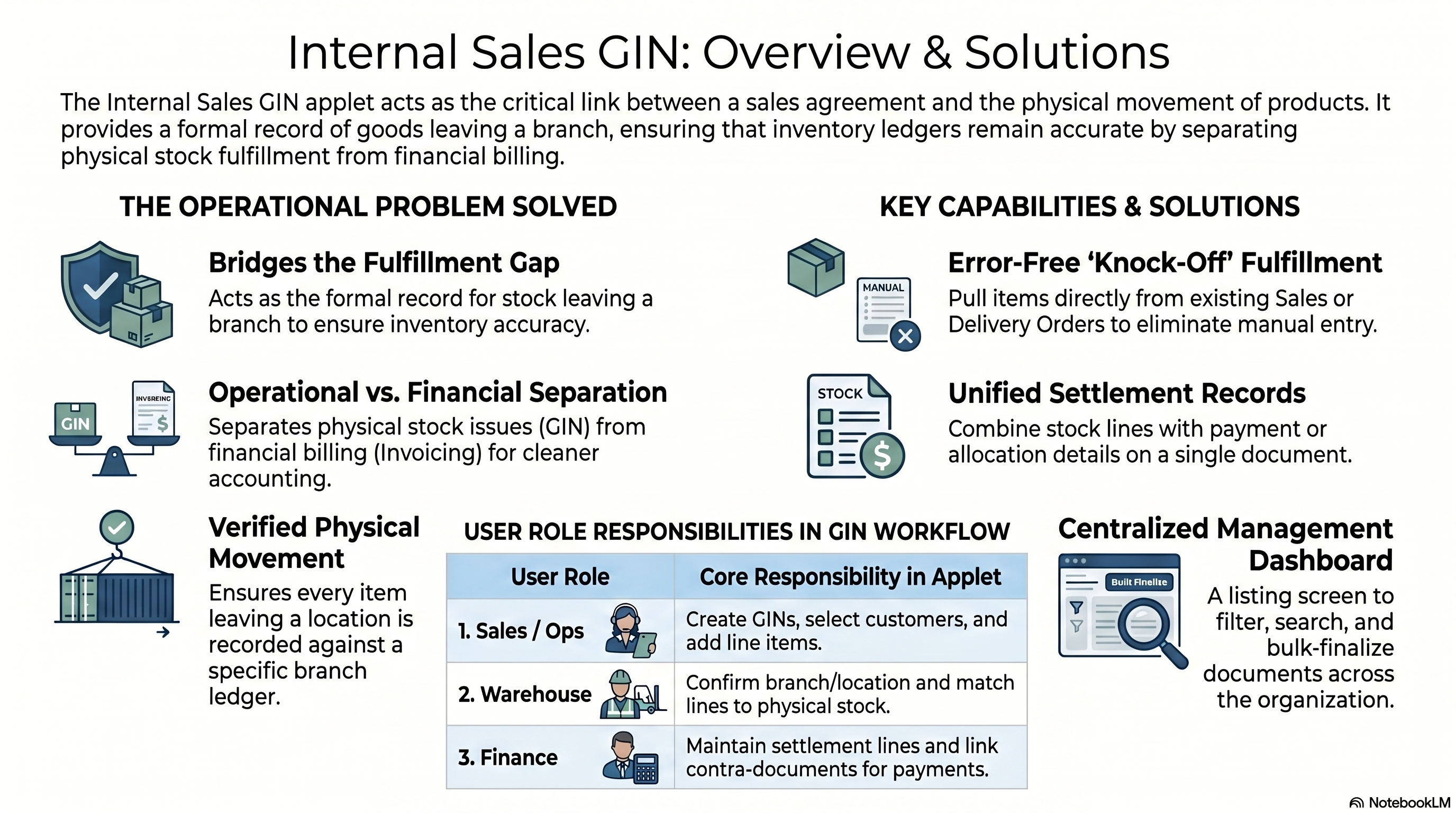
Sales GIN (Internal) is where you record a Goods Issue Note (GIN) against an internal sale: which customer, which items, from which branch and location.
INTERNAL_SALES_GOODS_ISSUED_NOTE, whose quantity signum and amount signum are both 0
(InternalSalesGoodIssuedNoteDataConsistencyObject.java:16-17, and the applet’s own
applet-constants.ts), and the type has no entry in JournalPostingTypeHandler. FINAL sets the
posting status and changes nothing in the stock ledger or the general ledger. The sales-side
document type that does move stock out is INTERNAL_SALES_GIN_STOCK_OUT (quantity signum −1),
which is a different document handled by a different applet.The window title is Internal Sales GIN Applet. The listing screen is Internal Sales GIN Listing.
Where GIN fits in the sales workflow
| Stage | Typical document | Role of this applet |
|---|---|---|
| Pre-sales / quote | Sales Inquiry (Internal) | Optional upstream context |
| Customer order | Sales Order (Internal) | Optional KO … source for lines on Select Item |
| Delivery / fulfilment | Delivery order documents in your setup | Optional KO by/for Delivery Order Item on Select Item |
| Issue record | Sales GIN (this applet) | Records the issue as a document. Moves no stock, posts no journal. |
| Billing | Sales Invoice (Internal) | Receivables and tax presentation—separate from GIN |
| Returns | Sales Return (Internal) | When goods come back after a sale |
GIN vs invoice: This applet records the operational fact of an issue. A sales invoice is about billing — and, unlike the GIN, a sales invoice does move stock (quantity signum −1) and does post a journal. Your organisation may use GIN before invoice, after invoice, or only one of them; follow your internal procedure.
Where to work in the menu
- Internal Sales GIN — listing, create, and edit.
- Line Items — cross-document line workspace when you need line-level review.
- Settings and Personalization — defaults, fields, print formats, and permissions (administrators and users respectively).
Before you begin
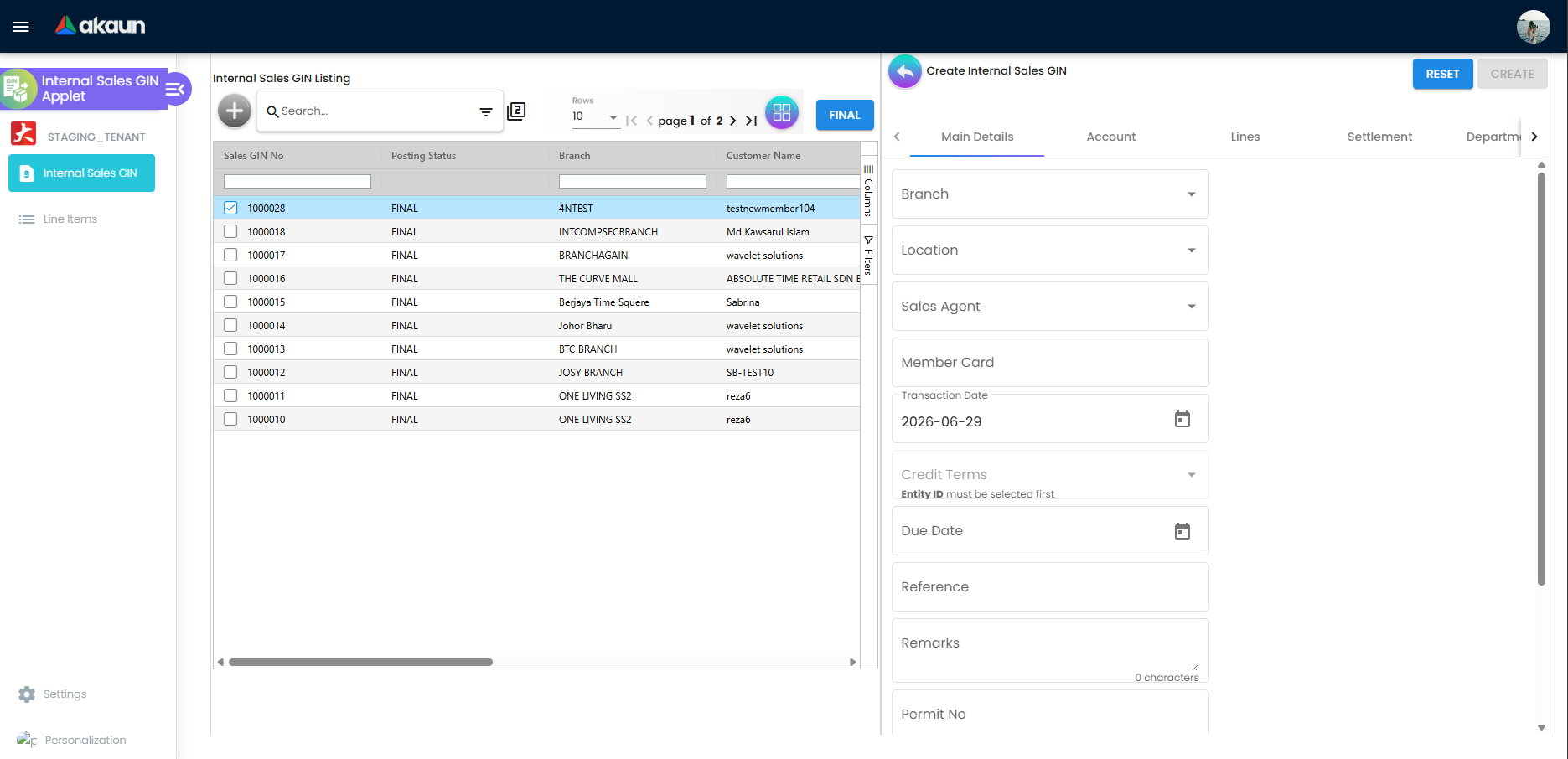
- You need customers, items, branches, and locations in master data; Branch and Location on Main Details record where the issue is booked.
- Credit Terms and Due Date on Main Details depend on the customer: select Entity ID on Account → Entity Details first.
- Member Card links the document to a membership record—click the field to open member selection. See Membership Admin Applet for card setup. The applet may require this field before CREATE / SAVE—ask your administrator if your shop should treat it as optional.
- Who may create or post is controlled by permissions and company policy.
- For hidden tabs and pricing columns, see FAQ.
Before you post
- FINAL (on the edit screen or listing) locks the GIN by setting its posting status. It writes no stock and no journal — see the callout above.
- Multi-select FINAL on the listing posts every selected draft in one action; there is no undo on that screen.
- CREATE / SAVE need valid Main Details, Account (entity), and at least one line on Lines.
- If Settlement, Department Hdr, price columns, or tabs are missing, your administrator may have hidden them—do not assume you are on the wrong screen.
Who uses this
| Role | Role in this applet |
|---|---|
| Sales / operations | Create GINs, choose the customer, add lines from Search Item or KO … tabs, set Reference / Remarks, and move the document to FINAL when policy allows. |
| Warehouse | Confirm Branch, Location, and Lines match the physical issue; after FINAL, new lines cannot be added from the Lines list. |
| Finance | Maintain Settlement lines when your company records payments or allocations on the GIN; use Contra when your process links contra documents. |
Key features
Quick start
Goal: Save your first internal sales GIN as a draft, then FINAL when your team agrees.
- Open Internal Sales GIN and use Internal Sales GIN Listing.
- Click + (tooltip Create) to open Create Internal Sales GIN.
- Main Details — Set Branch, Location, Transaction Date, Member Card (click to select), and other header fields your policy requires (Reference, Remarks, Currency).
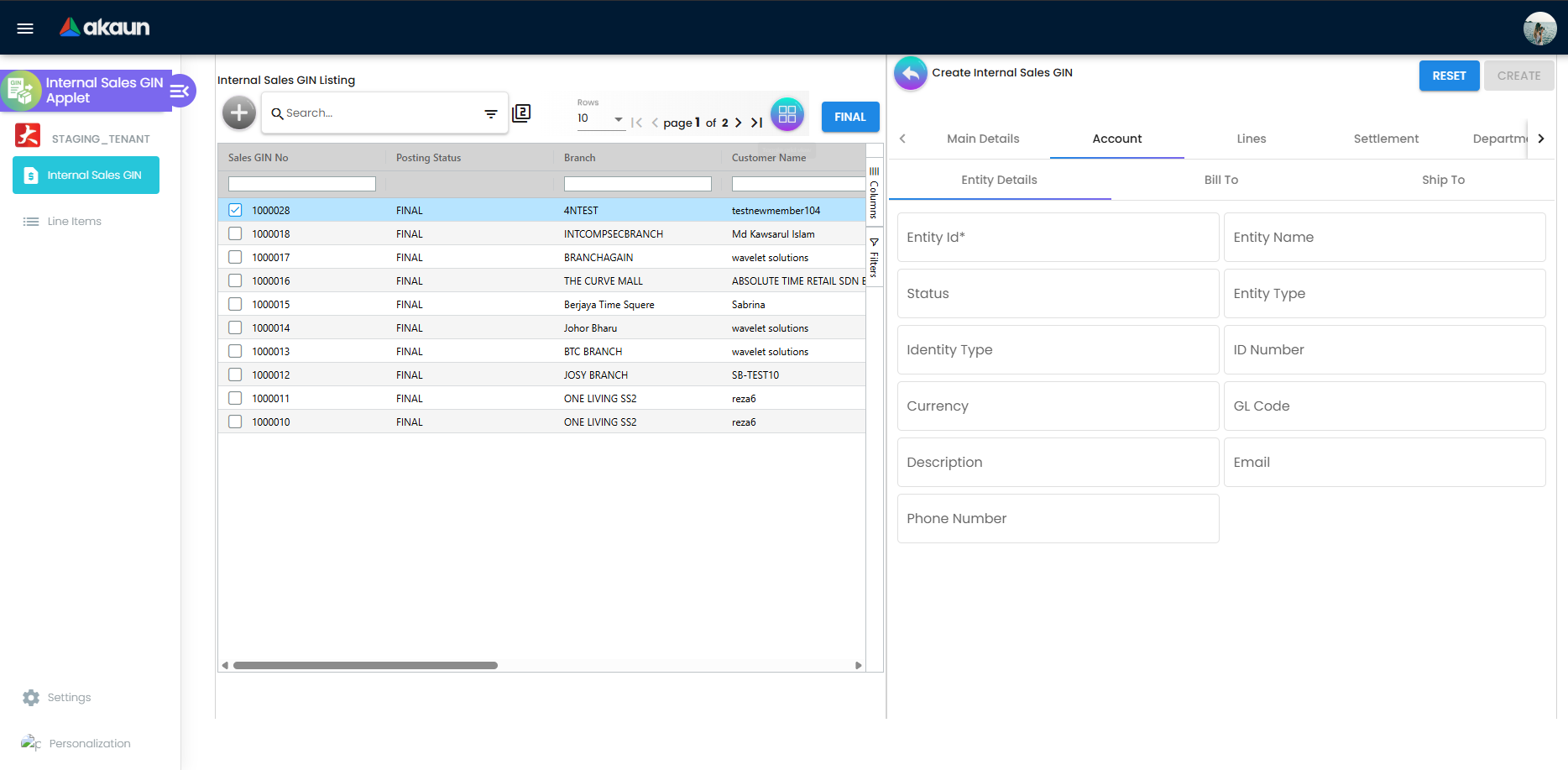
- Account → Entity Details — Select the customer (Entity ID is required).
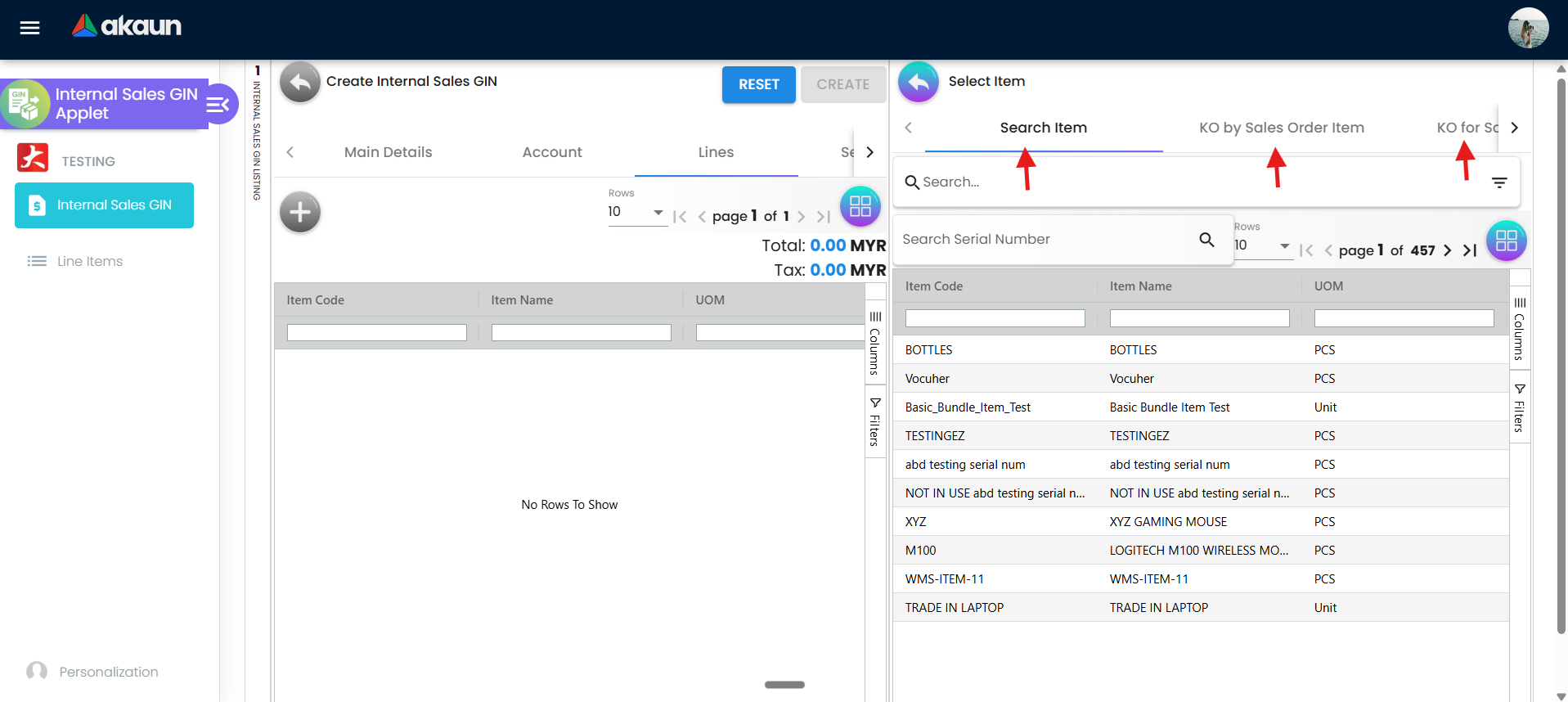
- Lines — Click + to open Select Item. Add at least one line from Search Item or a KO … tab (see Two ways to add lines).
- Click CREATE. The screen opens Edit Internal Sales GIN with SAVE available.
- Optional on edit: Settlement, Doc Link (review auto-linked documents), Attachments, Export.
- Click SAVE after changes. Click FINAL on the edit screen—or select the row on the listing and use listing FINAL—only when the document is complete and policy allows posting.
If CREATE or SAVE stays disabled, complete Main Details, valid Entity Details, and keep at least one line on Lines.
Two ways to add lines
Path A — Search Item (catalog)
- On Lines, click +.
- On Select Item, use the Search Item tab.
- Search and add the item until it appears on the Lines grid.
Path B — KO from an existing document
- On Lines, click +.
- On Select Item, open the KO … tab that matches your source—for example KO by Sales Order Item, KO for Delivery Order Item, or KO by Jobsheet Item (exact labels are on the screen).
- Choose source lines and quantities; return until new lines appear on Lines.
Doc links to source documents are usually created automatically when you knock off lines—see Doc Link tab.
Detailed walkthrough
How to use this section by role
- Sales and operations — Listing, Create and edit, Main Details and Account, Lines.
- Warehouse — Confirm Branch, Location, and Lines before FINAL.
- Finance — Settlement, Doc Link, Contra under Edit-only tabs.
Listing and search
Use Internal Sales GIN Listing to search, open, create, and bulk-post GINs.
Toolbar and search
| Control | Purpose |
|---|---|
| + (tooltip Create) | Opens Create Internal Sales GIN |
| Search… | Quick filter on the grid |
| Filter icon | Advanced search overlay (RESET / SEARCH) |
| FINAL | Posts selected rows that are not already FINAL |
Advanced search fields: Sales GIN No, Branch Name, Customer Name, Sales Agent Name, Created Date (from / to), Transaction Date (from / to), Created by.
Typical grid columns: Sales GIN No, Posting Status (blank shows as DRAFT), Branch, Customer Name, Sales Agent, Updated Date, Created Date, Transaction Date, Created by.
Click a row to open Edit Internal Sales GIN.
Export: There is no Export button on the listing. Use the Export tab on Edit Internal Sales GIN for EXPORT AS PDF (when enabled).
Create and edit Internal Sales GIN
Create Internal Sales GIN
- RESET — Clears the in-memory draft.
- CREATE — Disabled until Main Details, Account (entity), and Lines (at least one row) are valid.
Edit Internal Sales GIN
- RESET — Reloads the draft from the server while not FINAL; if already FINAL, you see a message that the document is posted.
- SAVE — Persists changes without posting (same validation as CREATE).
- FINAL — Sets posting status to FINAL when authorised.
When to use CREATE, SAVE, FINAL, and RESET
- CREATE — Once on the create screen when the first version is ready; opens Edit Internal Sales GIN.
- SAVE — On edit whenever you change header, Account, Lines, or Settlement without posting.
- FINAL — When the document is complete and authorised; locks most fields and disables new lines from Lines.
- RESET — Discard unsaved changes (create) or reload saved draft (edit).
Create vs Edit (which tabs you see)
Create: Main Details, Account, Lines, Settlement, Department Hdr (last two may be hidden by settings).
Edit (after CREATE): Above tabs plus Contra, Doc Link, Attachments, and Export.
Administrators can change tab order (Details Tab Ordering in Settings).
Main Details and Account
Main Details tab
On Create Internal Sales GIN, open Main Details first.
Fields to complete:
- Branch and Location — Where the issue is booked (warehouse: verify before FINAL; note that no stock ledger entry follows).
- Sales Agent
- Member Card — Click to open member selection; see Membership Admin Applet.
- Transaction Date, Credit Terms, Due Date, Reference, Remarks, Currency, document numbers when shown.
- Permit No — Optional permit or customs reference when your process requires it.
Credit Terms and Due Date may stay disabled until you select Entity ID on Account → Entity Details.
Account tab
Open Account → Entity Details and select the customer (Entity ID is required for CREATE / SAVE). Confirm Bill To and Ship To when your process uses them.
Lines and Select Item
Lines tab
- + adds a line while the document is not FINAL.
- Columns include Item Code, Item Name, UOM, Qty, and price or tax columns when your role may see pricing.
- Footer: Total and Tax.
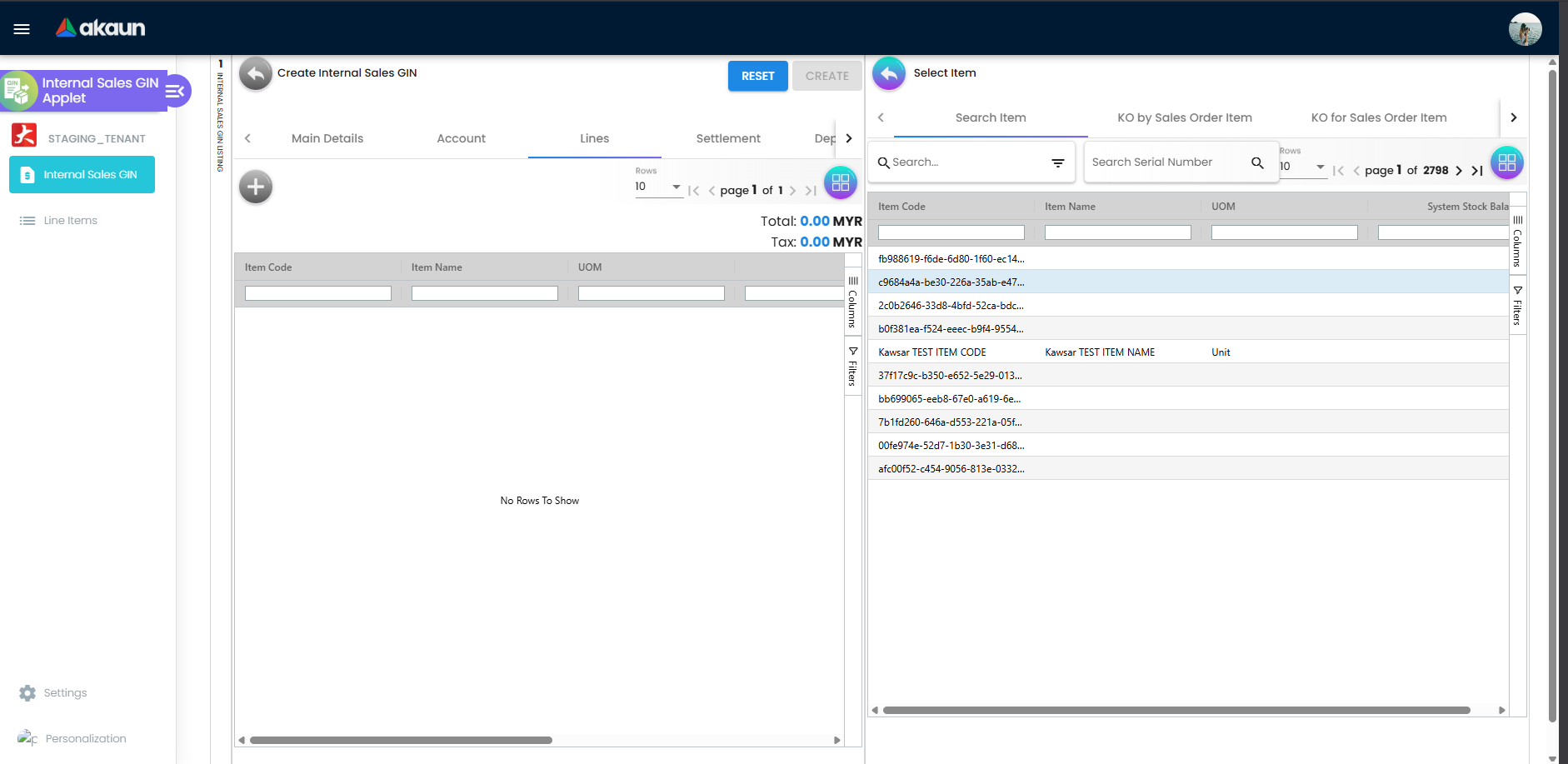
Select Item screen
- Search Item plus KO … tabs, including when enabled:
- KO by Sales Order Item / KO for Sales Order Item
- KO by Delivery Order Item / KO for Delivery Order Item
- KO by Jobsheet Item / KO for Jobsheet Item
- KO by Purchase Order Item / KO for Purchase Order Item
- KO by Purchase Requisition Item / KO for Purchase Requisition Item
- KO by Purchase Quotation Item / KO for Purchase Quotation Item
- KO by Purchase Invoice Item / KO for Purchase Invoice Item
CREATE and SAVE require at least one line on the grid.
Settlement and Department Hdr
Settlement tab
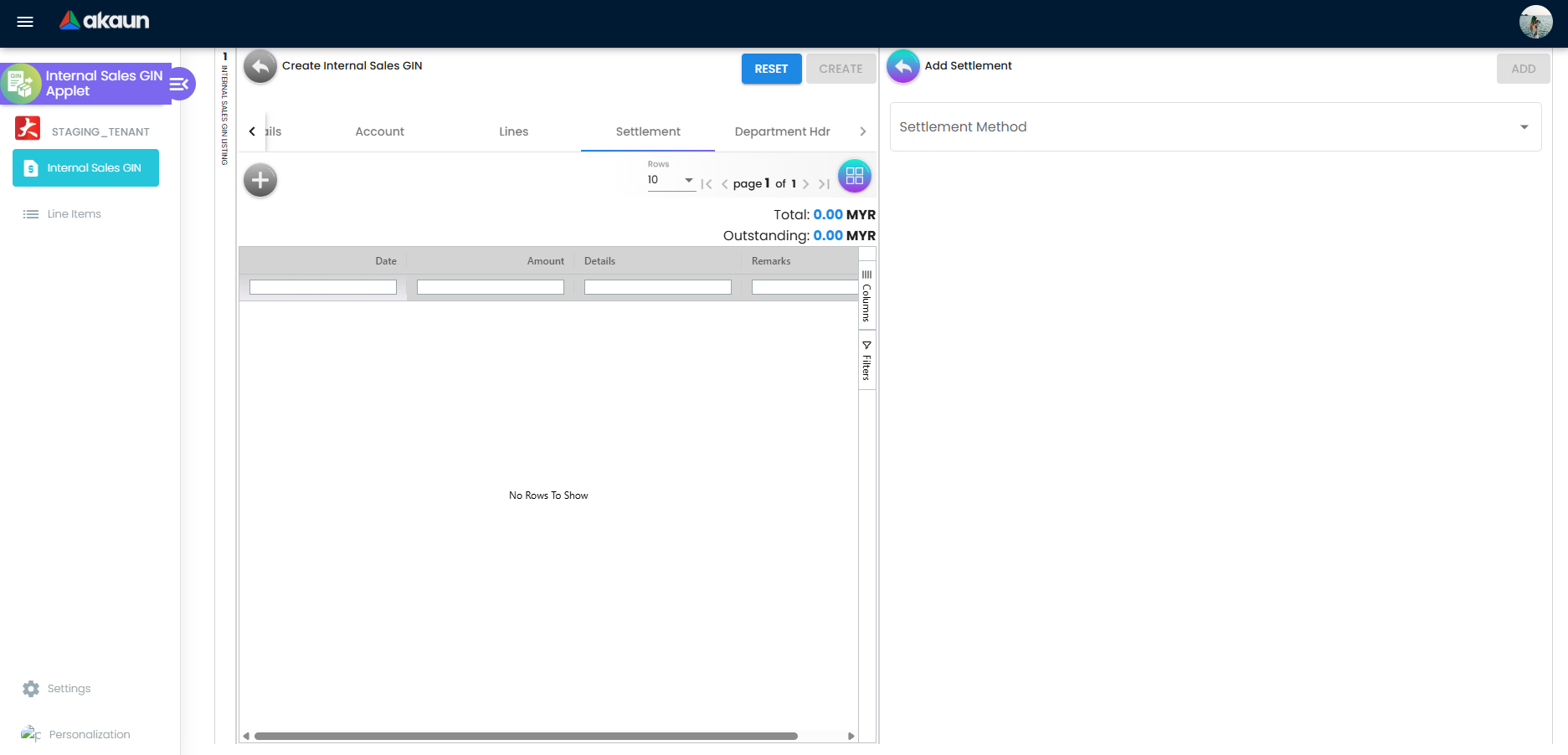
On Create Internal Sales GIN (or Edit when amending a draft), Settlement records payment or allocation lines (Date, Amount, Details, Remarks). The screen shows Total and Outstanding when configured. Click + to open Add Settlement, choose Settlement Method, then ADD. + is not available after FINAL.
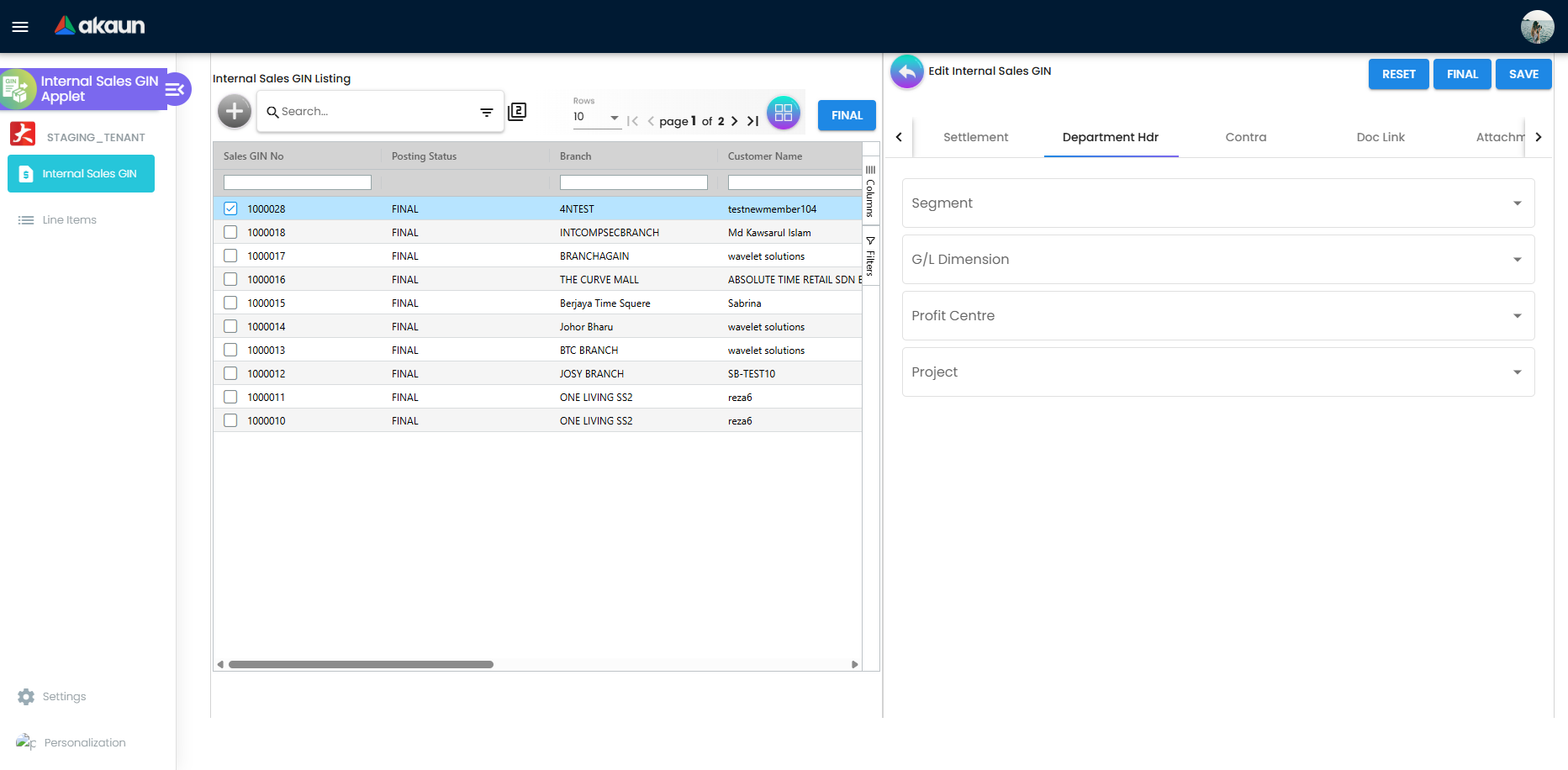
Department Hdr tab
On Edit Internal Sales GIN (after CREATE), Department Hdr holds cost dimensions when enabled—for example Segment, G/L Dimension, Profit Centre, and Project.
Doc Link tab
Available on Edit Internal Sales GIN only (after CREATE).
Purpose: Show document traceability—which upstream or related documents this GIN is linked to after line knock-off or system copying.
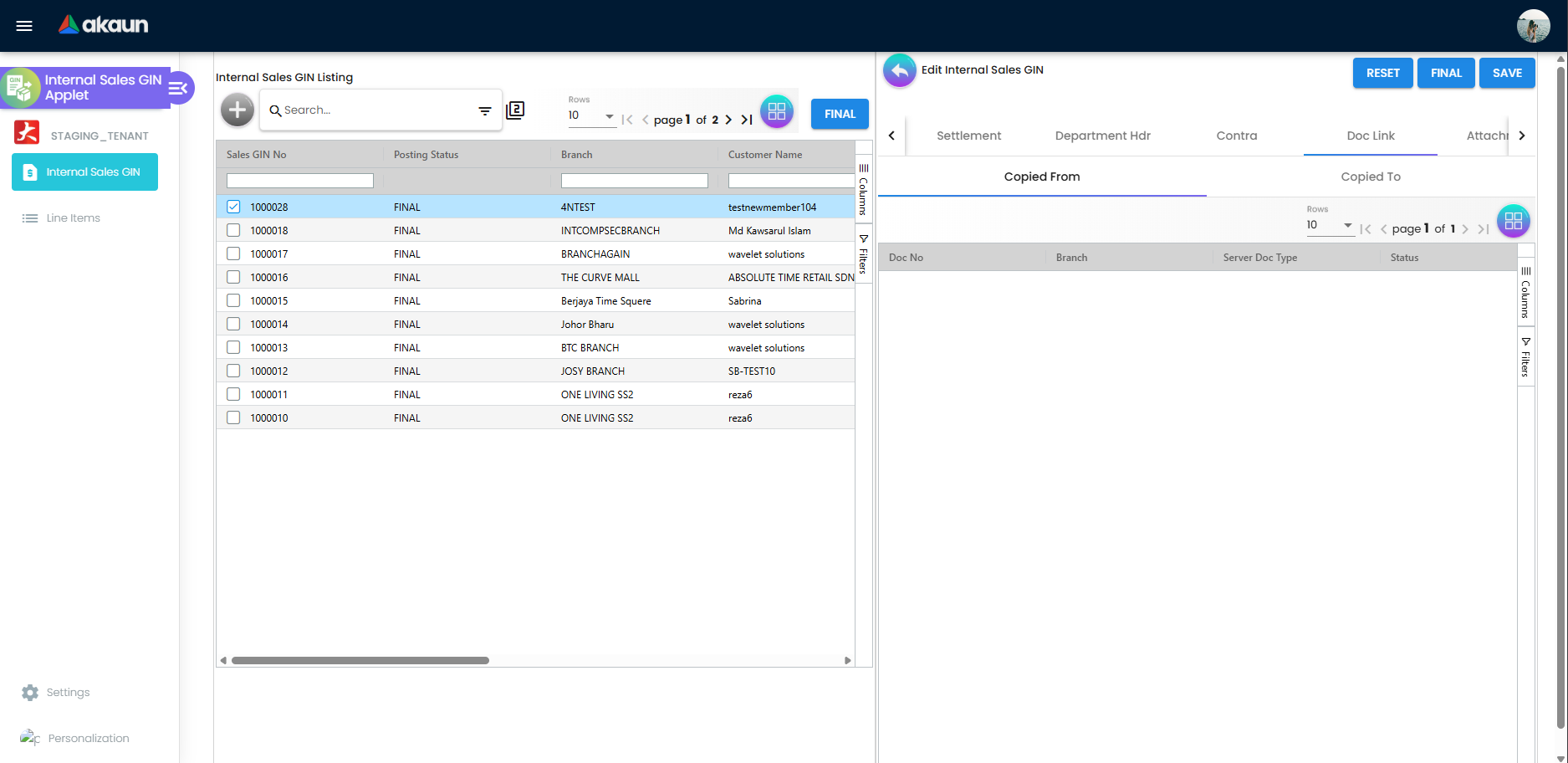
Sub-tabs
| Horizontal tabs | Vertical panels |
|---|---|
| Copied From | Copy From |
| Copied To | Copy To |
Grid columns (typical): Doc No, Branch, Server Doc Type, Status, Date.
How links appear
- You do not normally add links manually on this tab—the add control is not used in the standard flow.
- When you add lines via a KO … tab on Select Item, the system creates doc link rows automatically so auditors and finance can see which sales order, delivery order, or other source the issue came from.
- After knock-off, open Doc Link → Copied From to verify the source document appears as expected.
- Line-level link detail may also appear inside Add Item → Item Details → Doc Link (From / To sub-tabs) for individual lines.
If Copied From is empty but you used Search Item only, that is normal—no upstream document was knocked off.
Edit-only tabs
On Edit Internal Sales GIN:
- Contra — Linked contra / AR documents (finance).
- Attachments — Upload or view supporting files.
- Export — EXPORT AS PDF when printable formats are configured (not on the listing).
Delete — In vertical layout, DELETE may appear when SHOW_DOCUMENT_DELETE_BUTTON is enabled and the document is not FINAL (double-click to confirm).
Line Items workspace
The sidebar entry Line Items opens Line Items Listing—a cross-document view of GIN lines across many headers. Use it when you need to search or review Item Code, quantities, and amounts without opening each Edit Internal Sales GIN document.
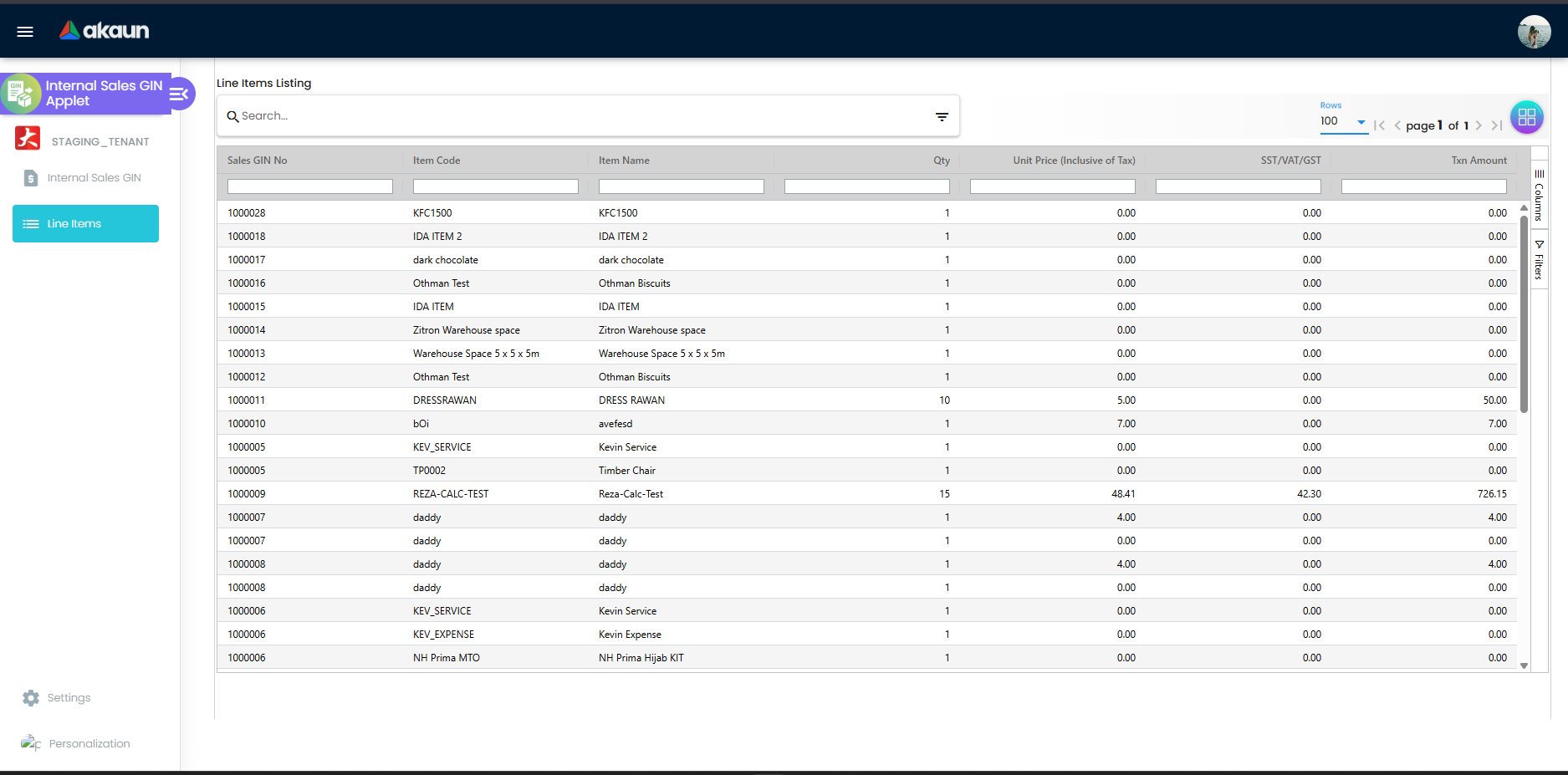
Typical columns include Sales GIN No, Item Code, Item Name, Qty, Unit Price (Inclusive of Tax), SST/VAT/GST, and Txn Amount. Price columns appear when your role has pricing display permission.
Configuration and settings
Administrators configure the applet under Settings in the sidebar.
| Area | What it controls |
|---|---|
| Application Settings | Line and department field visibility (for example Unit Discount, tax columns, Blanket Order) |
| Default Selection | Default Branch, Location, Details Tab Ordering |
| Printable Format Settings | Layout for Export / print |
| Feature Visibility | Menus and features users see |
| Permission Set / User / Team / Role Permission | Who can create, save, finalise, and view pricing |
Personalization — Your own default branch/location and sidebar layout.
If Settlement or Department Hdr is missing, ask your administrator to review HIDE_SETTLEMENT_TAB and HIDE_DEPARTMENT_HDR_TAB in application settings.
If something is wrong
| Symptom | What is going on | What to try |
|---|---|---|
| CREATE / SAVE disabled | Invalid header, account, or no lines | Complete Main Details, Entity Details, Member Card if required, add a line |
| + on Lines disabled | Document is FINAL | Follow void or adjustment process |
| RESET says document is posted | Posting status FINAL | Treat as read-only; use company correction process |
| Doc Link empty after KO | Link may appear after SAVE or on line detail | SAVE, reopen Doc Link; check Add Item line Doc Link |
| Settlement / Department Hdr missing | Settings hide tabs | Administrator reviews hide flags |
| Price columns missing | Role hides pricing | Request INTERNAL_SALES_GIN_DISPLAY_PRICING |
| DELETE never appears | Setting off or FINAL | Ask administrator |
Related documentation
- Membership Admin Applet — member cards for Member Card on the GIN.
- Sales Order (Internal) — upstream orders; KO by/for Sales Order Item on Select Item.
- Sales Invoice (Internal) — billing and receivables.
- Sales Return (Internal) — returns after a sale.
- My E-Invoice Admin Applet — e-invoice queues when your organisation uses them.
FAQ
What is the difference between a GIN and a sales invoice?
A GIN records the issue as a document but moves no stock. A sales invoice records billing and does move stock out. See Where GIN fits in the sales workflow.
Do I need a sales order before I can create a GIN?
No. Use Search Item without any order (Path A). Sales orders and other documents are optional sources on KO … tabs (Path B).
Can I edit a GIN after it has been finalised?
Mostly no. After FINAL, most Main Details fields lock (Remarks may stay editable). + on Lines is disabled. Use your organisation’s void or adjustment process.
Why is Doc Link empty?
If you added lines only via Search Item, there may be no Copied From link. Links usually appear when lines come from KO … tabs after SAVE.
Why can’t I see prices on the Lines tab?
Price columns require INTERNAL_SALES_GIN_DISPLAY_PRICING permission. Ask your administrator.
Why can’t I see Settlement or Department Hdr tabs?
Your administrator may have hidden them (HIDE_SETTLEMENT_TAB / HIDE_DEPARTMENT_HDR_TAB).
What happens to stock when I click FINAL?
Nothing. INTERNAL_SALES_GOODS_ISSUED_NOTE has quantity signum 0, so no bl_inv_txn_line is written, and the type has no journal posting handler, so no journal is produced. FINAL only changes posting_status from DRAFT to FINAL.
Does listing FINAL replace edit FINAL?
Both set posting status to FINAL. The listing control posts all selected drafts at once—see Listing and search.
Where do I export a GIN?
Use the Export tab on Edit Internal Sales GIN (EXPORT AS PDF)—not from the listing.
Where do I handle e-invoice for this sale?
Use My E-Invoice Admin Applet and your finance process.
Glossary
| Term | Meaning in this guide |
|---|---|
| GIN | Goods issue note for internal sales: a record of an issue. Carries no stock or ledger effect. |
| KO (knock-off) | On Select Item, KO by … / KO for … pulls lines from an existing document automatically. |
| Posting status | DRAFT (in progress) versus FINAL (locked). “Posted” here means the status changed, not that anything reached a ledger. |
| Settlement | Payment or allocation lines on the GIN when your organisation uses that tab. |
| Doc Link | Copied From / Copied To trace of linked documents—usually auto-created from KO lines. |
| UOM | Unit of measure on a line. |
| Reference | Free-text on Main Details for traceability. |
| Branch / Location | Issue-from branch and location on Main Details. |
Last updated: June 29, 2026