Sales Invoice No Stock Out (Internal)
Bills a customer and posts the same journal as an ordinary sales invoice, but moves no stock: every line is held at no stock movement, so it suits service fees, management charges, subscriptions and intercompany recharges. It does not stop you putting a physical product on it — the goods are then billed and the stock ledger never hears about it. Today it has no published screen, so the only way to create one is through the API.
This is not separately installable, and nothing loads it today. The Sales Invoice No Stock Out applet is not published, so it does not appear in the applet store and a tenant administrator cannot add it to a menu. What exists is the document type INTERNAL_SALES_INVOICE_NO_STOCK_OUT, which the platform supports and which can be created through the API, and a front end that is not yet published. So the only way to create one of these documents today is through the API. The purchase-side counterpart, Purchase Invoice No Stock In (Internal), is published, and does appear in the applet store.
Read the rest of this page, then, as the reference for a document type reached through the API and for a front end that exists but is not deployed to anyone. Where a screen behaves differently from the ordinary Sales Invoice (Internal), this page says so — and two of those differences would bite the first tenant who switched it on.
Overview
Sales Invoice No Stock Out (Internal) bills a customer exactly like an ordinary sales invoice and posts the same journal — but it does not move stock. That is the whole of the difference, and it comes from one number: the document’s quantity signum is 0, while its amount signum is +1. The ordinary Sales Invoice (Internal) carries −1 and +1.
Use it when you are billing something that does not leave a warehouse — service fees, management charges, subscriptions, intercompany recharges — and you want the stock ledger left alone with certainty rather than by convention.
txn_class = PNS and passes the document’s location, with an optional “only items with stock on hand” filter — the same search every sales document uses. PNS is the product-and-service line class, not a non-stock flag, and there is no check anywhere in the applet that refuses a stock item. Nothing stops you putting a physical product on this invoice; the consequence is simply that the goods are billed and the stock ledger never hears about it.Where it fits
| Upstream | This document | Downstream |
|---|---|---|
| A Sales Order, Jobsheet, Sales Quotation or Delivery Order knocked off from the Lines tab | The invoice is created and set to FINAL: the receivable opens and the sale posts | Receipts and contra settlement, e-Invoice submission, the Intercompany queue |
| Customer, company, branch, location and item master data | Read on Main Details, Account and Lines | — |
| — | Nothing in inventory | The stock ledger is untouched — no inventory transaction line is written |
Standard Sales Invoice vs No Stock Out
Both documents bill the customer, open the receivable and post the sale. Neither of them creates a Goods Issue Note and neither of them sends anything to the Pick Pack Queue that the other does not — the Pick Pack Queue is a screen in both applets, listing FINAL invoices awaiting a delivery job. The one difference is the quantity signum.
| Sales Invoice (Internal) | Sales Invoice No Stock Out (Internal) | |
|---|---|---|
| Server document type | INTERNAL_SALES_INVOICE | INTERNAL_SALES_INVOICE_NO_STOCK_OUT |
| Quantity signum | −1 | 0 |
| Amount signum | +1 | +1 |
| Journal on FINAL | Yes, under the SALES posting group | Yes, under the SALES posting group |
| Inventory transaction lines on FINAL | Yes, one per item line | None |
| Pick Pack Queue screen | Yes | Yes |
| In the applet registry | Yes (salesInvoiceApplet) | No |
So the choice is about the stock ledger, not about which items you are allowed to bill. If the line represents goods actually leaving a location, use the ordinary Sales Invoice. If it represents a service, a fee or an intercompany recharge, use this one.
Who uses it
Finance and accounts-receivable teams billing services, management fees, subscriptions and recurring charges; and whoever owns intercompany recharges between group entities, since the Intercompany screen tracks the matching document on the receiving side.
Key Features
Key Concepts
The intercompany flow
When you bill another company in the same group, the matching document on the receiving side can be created for you. The automation is a background job, the intercompany transaction job, and it is worth knowing exactly what wakes it and what it looks at, because three separate things have to be true before anything happens in the other company:
- Your tenant’s trigger configuration switches it on. It is a follow-on job of finalising — it never runs on a clock — and once your tenant’s trigger configuration enables it, it runs for every document type, this one included.
- The document carries intercompany configurations. The job reads the configurations chosen on the document and stops if there are none. They are set by the Account tab’s Intercompany sub-tab and by nothing else in this applet.
- Each configuration says AUTO or MANUAL.
AUTOcreates the target document and the link immediately;MANUALwrites a row into the intercompany processing queue for someone to confirm on the Intercompany screen. Either way the target document is a draft unless the configuration has Auto Final Target Doc. A failure in either writes anERRORrow into the same queue, carrying the error message in the database — but no screen shows that status or message. The Unprocessed listing has no status or error column and does not filter by status, so a failed row looks exactly like aMANUALrow waiting to be confirmed.AUTOnever leaves a row there, so a row whose Used Config is anAUTOconfiguration is a failure. The check that always works is the receiving side: look for the target document in the other company, whose description reads Auto Created From and this invoice’s number.
Company A (seller)                                    Company B (buyer)
   No Stock Out invoice, FINAL
        │  the intercompany job runs
        ├── no configurations            ──►  nothing happens, silently
        ├── configuration mode = AUTO    ──►  target document created (see the caution below)
        ├── configuration mode = MANUAL  ──►  queue row, UNPROCESSED  ──►  CONFIRM INTERCOMPANY TRANSACTION
        └── anything throws              ──►  queue row, ERROR, message kept but not shown on screen
Both sides are linked and auditable from the Intercompany screen.
Navigation Menu
The applet sidebar contains six main sections:
Sales Invoice No Stock-Out
The primary working area. Lists all invoices and is the entry point for creating new ones. The full create/edit/finalize/void lifecycle happens here.
Line Items
A cross-document view of all line items across all invoices. Used by finance teams to audit billed quantities and amounts without opening individual invoice headers. Also useful for identifying line items with posting errors.
Pick Pack Queue
The same screen the ordinary Sales Invoice (Internal) carries: a view of FINAL invoices from which a delivery job can be created. It is a work queue, not a stock movement — nothing in this applet deducts stock, here or anywhere else.
Sales Invoice No Stock-Out Template
Reusable invoice header templates for recurring billing — a monthly support fee, a standing management charge. The screens are bound to the ordinary Sales Invoice’s template family, so the pool is shared with that applet and there is no way to apply a template to a new invoice from here; see Sales Invoice No Stock-Out Template below.
File Import
Bulk CSV upload — and it creates ordinary Sales Invoices, which move stock. The screen is bound to the sales-invoice import endpoints, not to this document type. See File Import below before using it.
Intercompany
The processing queue and the document-to-document links for cross-entity transactions. What puts a row in that queue is a configuration chosen on the invoice’s Account › Intercompany sub-tab, not the existence of a group relationship.
Sales Invoice No Stock-Out
Listing
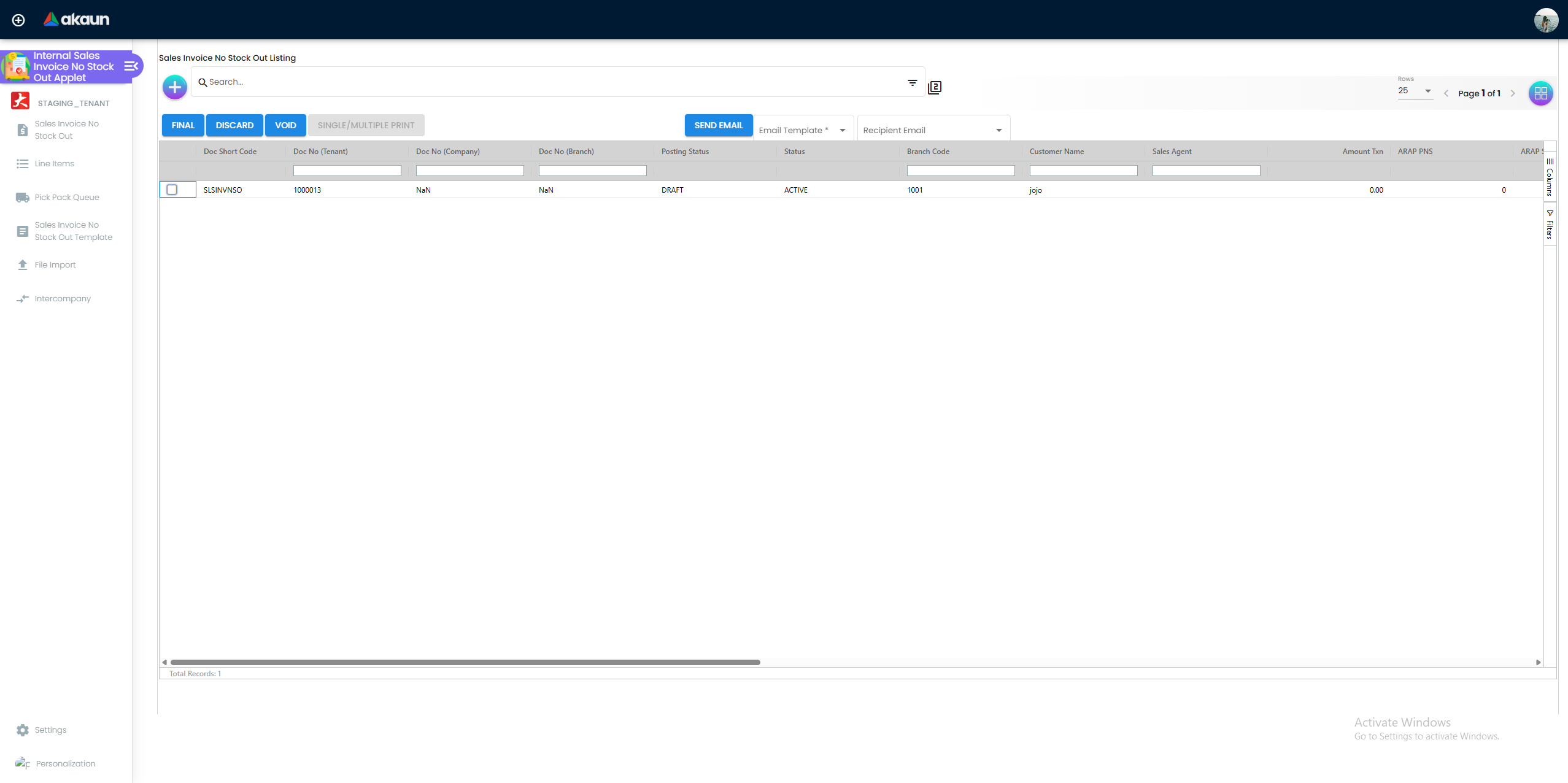
Lists all no stock-out invoices with their statuses. Multi-row selection is supported for bulk operations.
Bulk action buttons on the listing:
| Button | Function |
|---|---|
| FINAL | Finalizes selected draft invoices — triggers all financial postings (AR, GL, tax) simultaneously. No warehouse activity is triggered. |
| DISCARD | Cancels selected draft invoices with no financial impact. Only applies to documents still in draft — cannot discard a finalized invoice. |
| VOID | Reverses all financial postings on finalized invoices — AR entry removed, GL journal reversed, tax entry cancelled. Hidden when e-invoicing is enabled — once an e-invoice has been submitted to LHDN, you cannot void the document. Issue a credit note or sales return instead. Also blocked if the invoice already has a sales return linked to it. |
| SEND EMAIL | Sends the invoice document to the customer via email. |
| SINGLE / MULTIPLE PRINT | Generates printable invoice output. Only active if printing is enabled in Application Settings. |
Create
Pressing Add writes a document to the server before you have typed anything. The listing creates an empty document and opens it in the edit form. That document exists from then on, in status TEMP, whether or not you save; abandoning the screen leaves it behind, and it is the reason the KO For tab appears only while the document is still TEMP — knock-off is offered on a document that has not been saved yet and disappears afterwards.
The form is organised into tabs.
Main Details Tab
Captures the document header information that applies to the entire invoice.
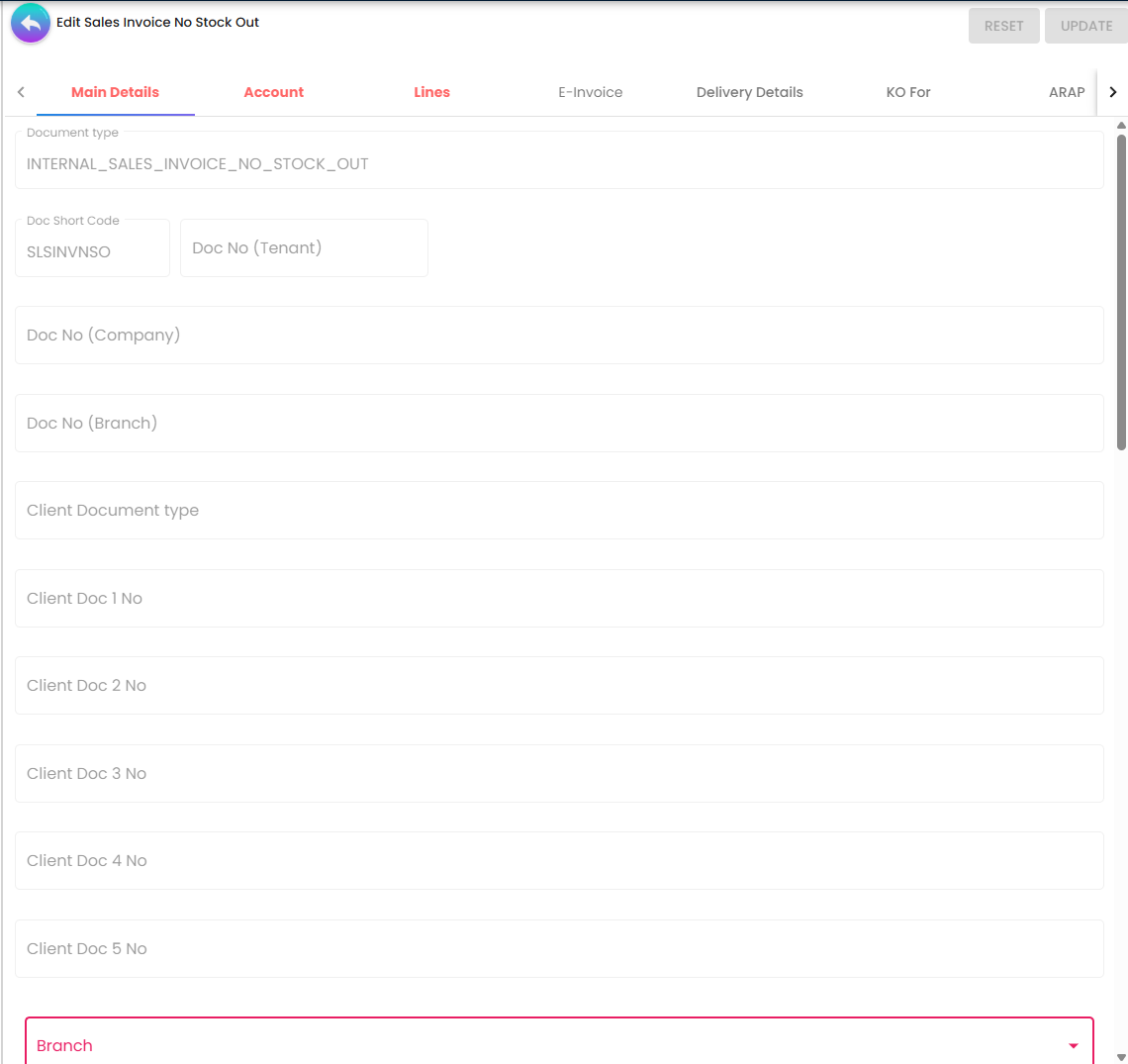
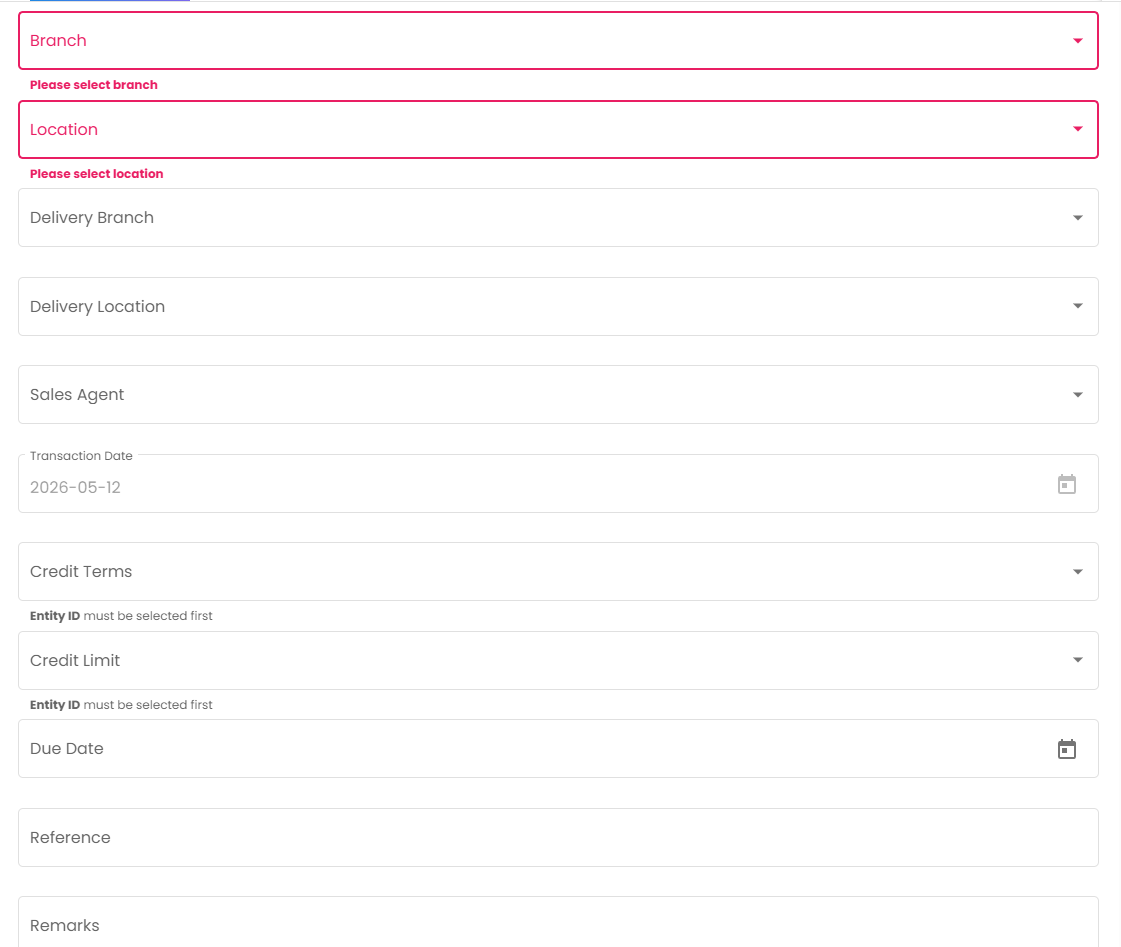
Screenshot withdrawn; a recapture from a demo tenant is on the list.
The tab takes the usual header identification — company, branch, location, transaction date, due date, reference, remarks, external remarks, currency and rate, sales agent, credit terms and credit limit, permit number, CRM contact, member card, sales lead, tracking ID and a delivery branch and location. Two of those, Branch and Location, carry Validators.required; nothing else on the form does. Document-number fields (Tenant / Company / Branch Doc No, Client Doc 1–5) are filled by the server and are not editable here.
form.value ? form.value: previous value — all seventeen of them, including the five that live inside doc_entity_hdr_json. Empty the Permit No box, or the Due Date, or the Tracking ID, save, and the old value is still on the document; the tab then re-patches itself from the draft, so the box can refill in front of you. The only way to change one of these is to type a different value over it. This is not specific to the field — it is the whole tab.The four rows below carry something the screen does not say:
| Field | What it decides |
|---|---|
| Branch | The company. At FINAL the applet re-reads the branch and overwrites the document’s company, company code, branch code and location code from it, then stamps that company, branch and location onto every line — and the same happens on create and on a plain save. A company picked by hand on the header, or a line that carried a different one, does not survive finalisation. |
| Transaction Date | The accounting period the journal lands in, and nothing warns you if that period is closed — the refusal comes back from the server at FINAL as a fiscal-period error. |
| Credit Terms / Credit Limit | Copied from the customer record into doc_entity_hdr_json when you pick the customer, and used only if the tenant switched credit-limit checking on — see Configuration. They are a snapshot: changing the customer’s limit afterwards does not change this document. |
| Remarks / External Remarks | Two different columns — doc_remarks and doc_external_remarks. Which of them a printed invoice shows is decided by the printable format bound under Printable Format Settings, not by the labels here. |
Account Tab
Identifies who is being billed and manages address information. Contains sub-tabs:
Screenshot withdrawn; a recapture from a demo tenant is on the list.
Bill To sub-tab — The billing address for the invoice. Populated from the entity’s master data. This address appears on the printed invoice.
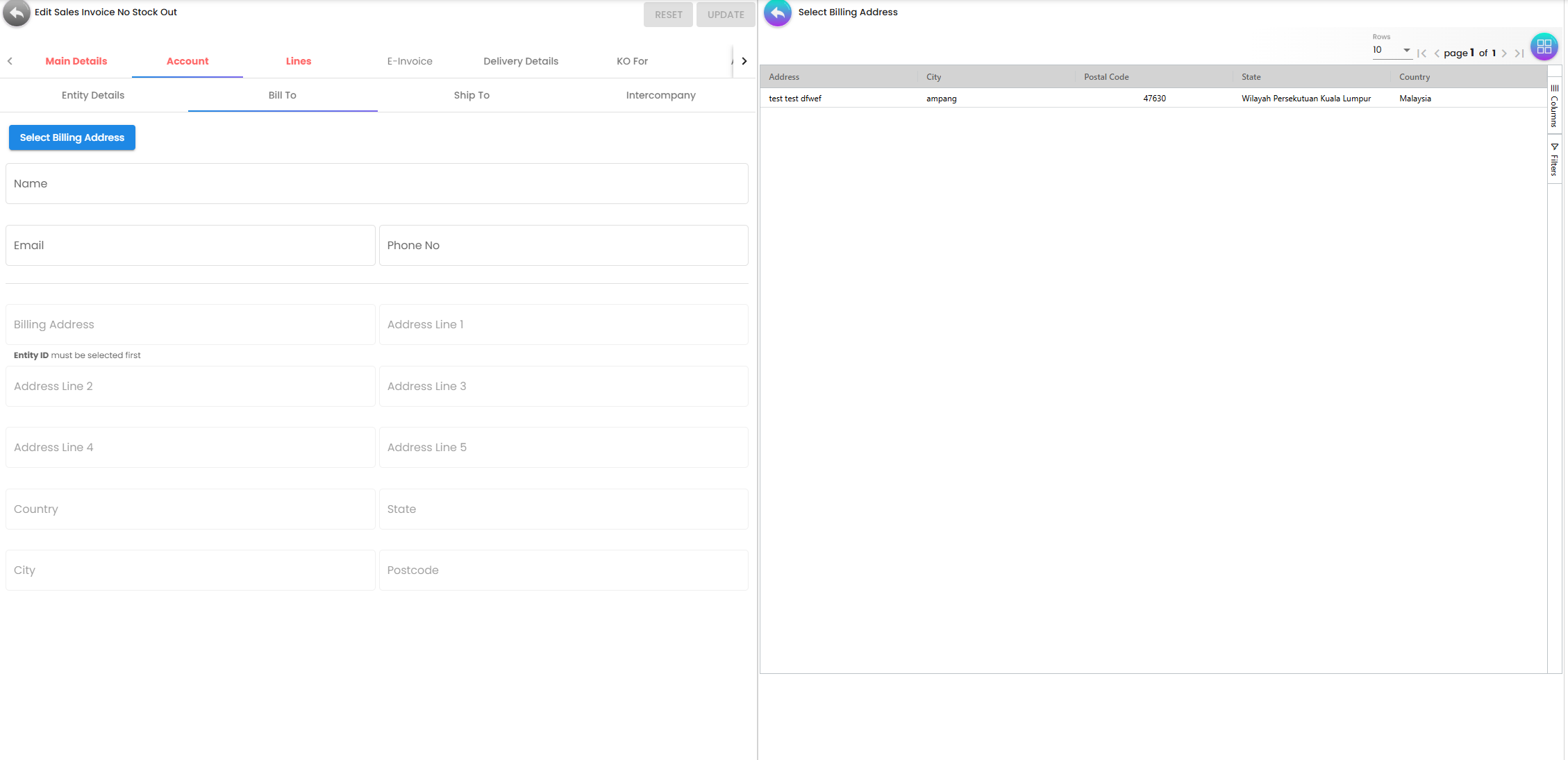
Ship To sub-tab — The delivery address. Can differ from the billing address — common when the invoice goes to head office but goods or services are delivered to a branch site.
Intercompany sub-tab — the fourth sub-tab, and the one that decides whether anything happens in the other company at all. It shows the branch and the customer read-only, and the two selectors that matter appear only when the customer you picked has at least one intercompany branch on its entity record. Choosing an intercompany branch and one or more intercompany configurations writes them onto the document — and the configurations are the only thing the intercompany job reads (see The intercompany flow). An invoice saved without them is not an intercompany document, however the two companies are related.
null. The component takes resolve.intercompany_settings_json.configGuids with no guard, and a new draft initialises that column to null. Nothing else on the Account tab depends on it, so the symptom is local to this sub-tab.Lines Tab
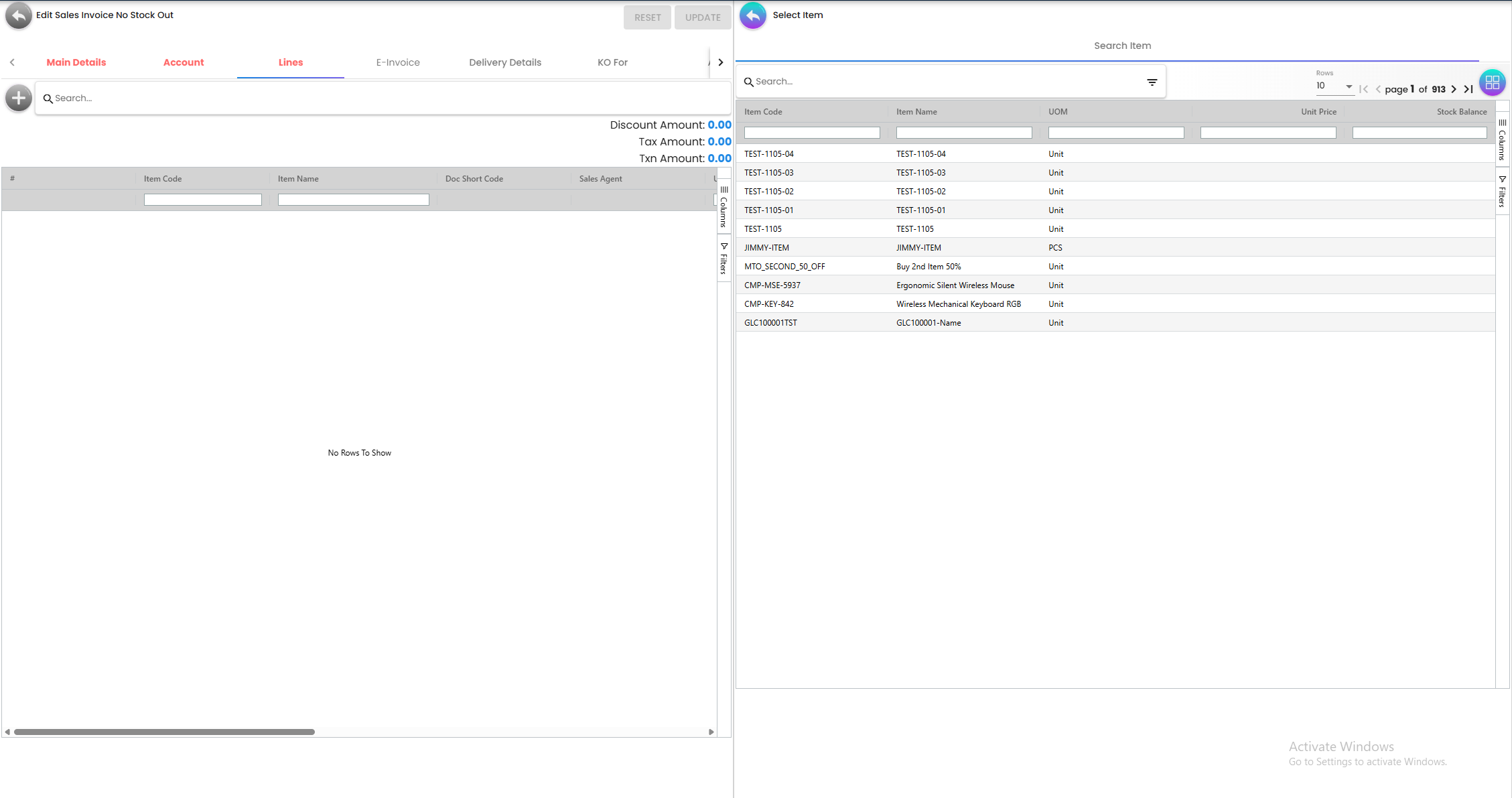
Lists all items being billed in this document. Each line item represents one service, fee, or non-inventory charge.
Running totals shown at the top:
- Total Transaction Amount — combined invoice value in document currency
- Total Tax Amount — total tax across all lines, posted to the tax authority account on finalization
Clicking a line item opens the Add/Edit Item form with sub-tabs:
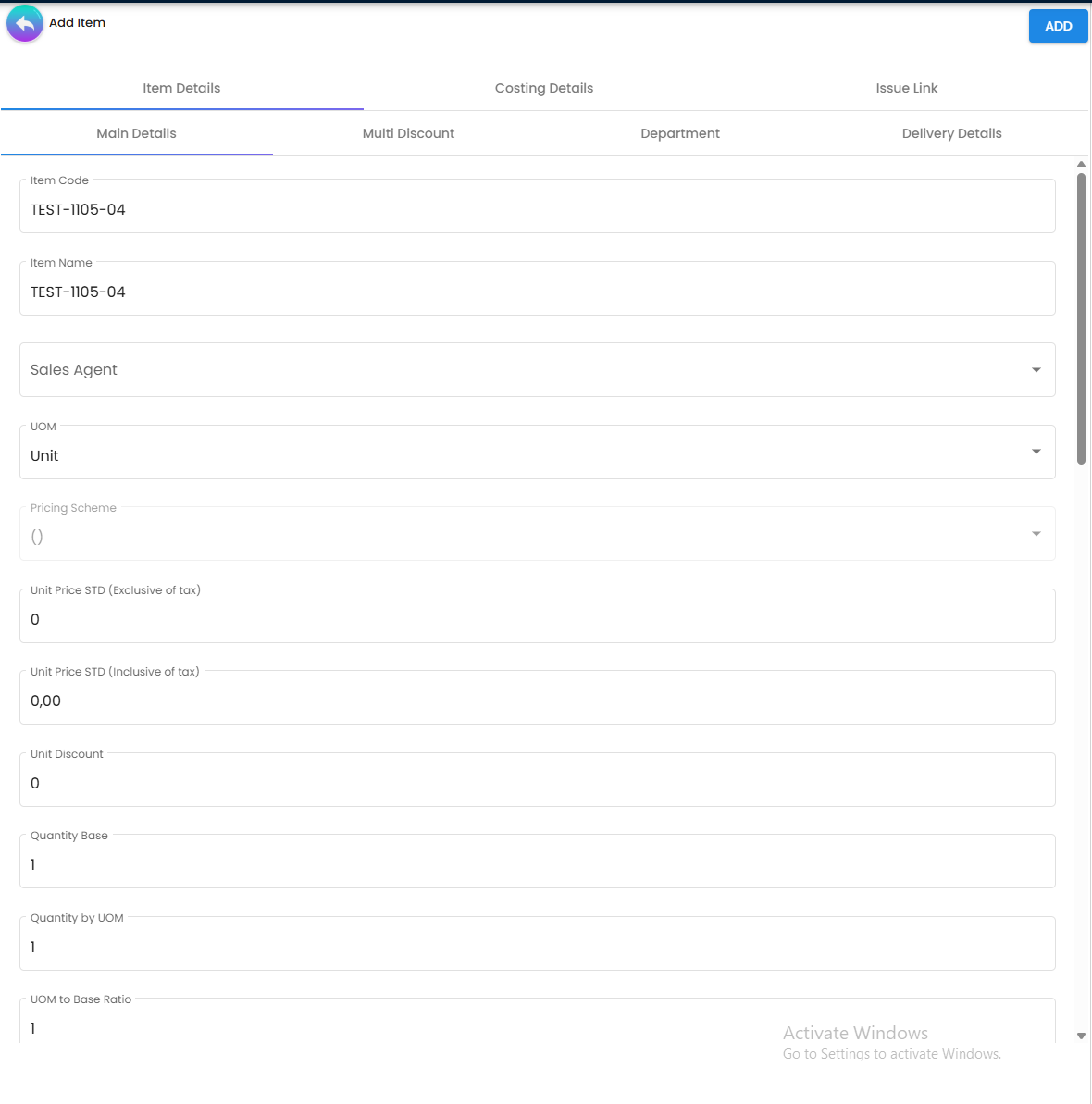
Item Details sub-tab — item code, description, quantity, UOM, unit price, discount, tax configuration. Price fields and discount visibility are configurable in Application Settings.
Serial Number sub-tab
(only shown if the item is configured as serial-number tracked)
Even though this applet does not generate a GIN or reduce stock, you can still capture which specific serial numbers were included in the transaction. This matters for warranty tracking, product recalls, and regulatory audits — you need to know which unit went to which customer, even if the inventory count did not move.
Batch Number sub-tab (only shown if the item is configured as batch-tracked)
Same principle as serial numbers. The batch number, issue date, and expiry date are captured per line item for traceability. Quantity is validated against the batch balance, but no stock is deducted from it.
Bin Number sub-tab (only shown if the item uses bin-level tracking)
Records which storage bin the item was picked from, along with container and quantity details. Again, for traceability and audit — not for stock movement.
Department sub-tab — assigns this line item to a cost center or department for GL dimension posting at line level.
Delivery Details sub-tab — per-line delivery branch, location, delivery type, and tracking ID. Overrides the header-level delivery settings for this specific line.
Settlement Tab
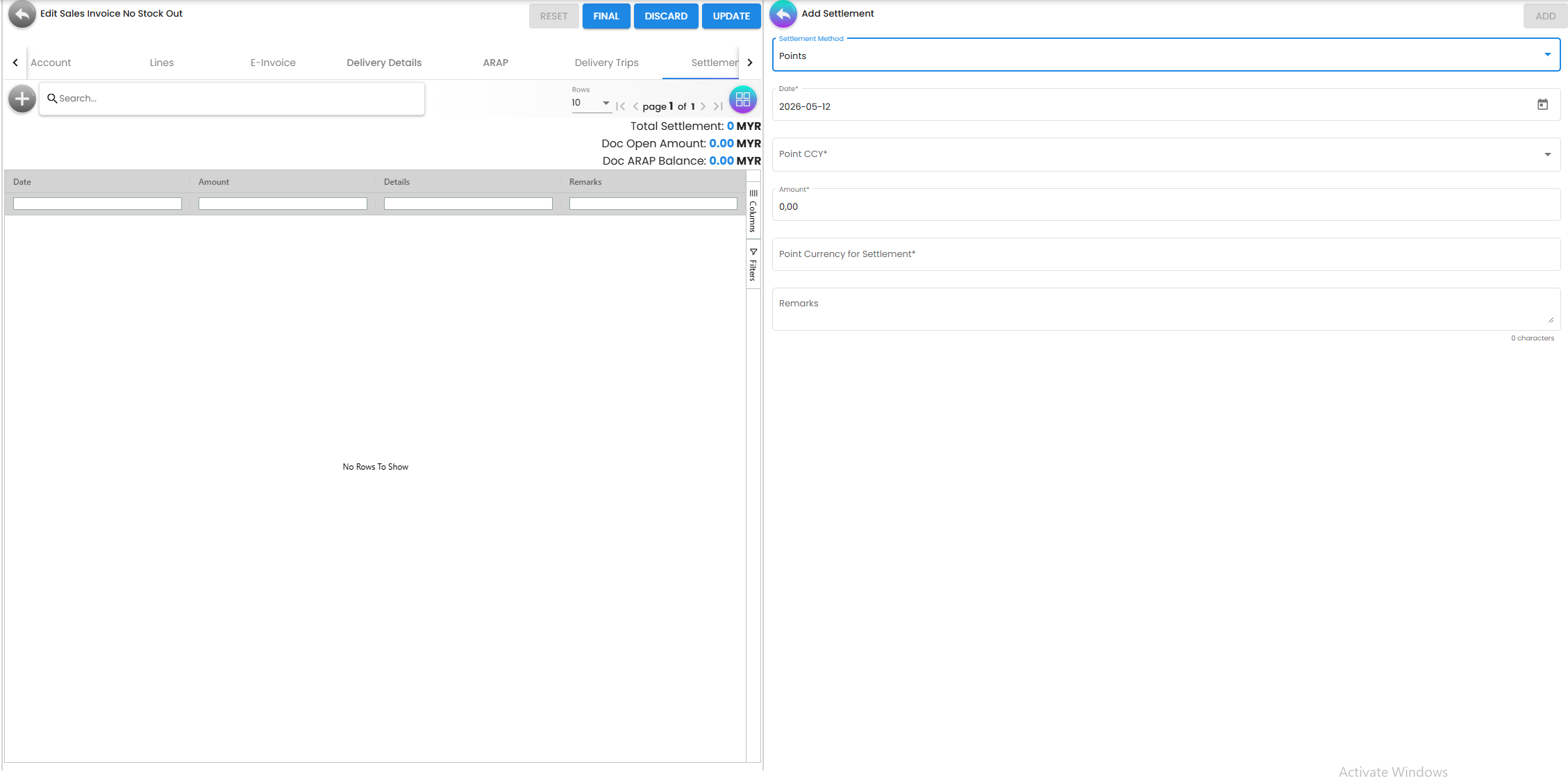
Records advance or partial payments against this invoice before or at finalisation. The three figures across the top — Total Payment, Doc Open Amount, Doc ARAP Balance — are read-only and computed; what you edit are the payment rows beneath them.
A payment here is a document line, not a separate record. Each row is a settlement line on the invoice itself, and FINAL sends it together with the item lines. Two consequences the screen does not show:
- A settlement line is stamped with the document’s signums like any other line. The data-consistency object fills every line of this document type with quantity signum 0 and amount signum +1, so a settlement line posts on the same side as the sale unless its own amount carries the sign — which is why the journal for a part-paid invoice is worth checking on the TraceDocument tab the first time you use this.
- New rows are detected by the length of their GUID. Before the save, every settlement row whose
guidis not 36 characters long has itsguidset tonullso the server treats it as new. It works, and it is the reason a hand-built payload with a short identifier is silently inserted rather than updated.
Delivery Details Tab
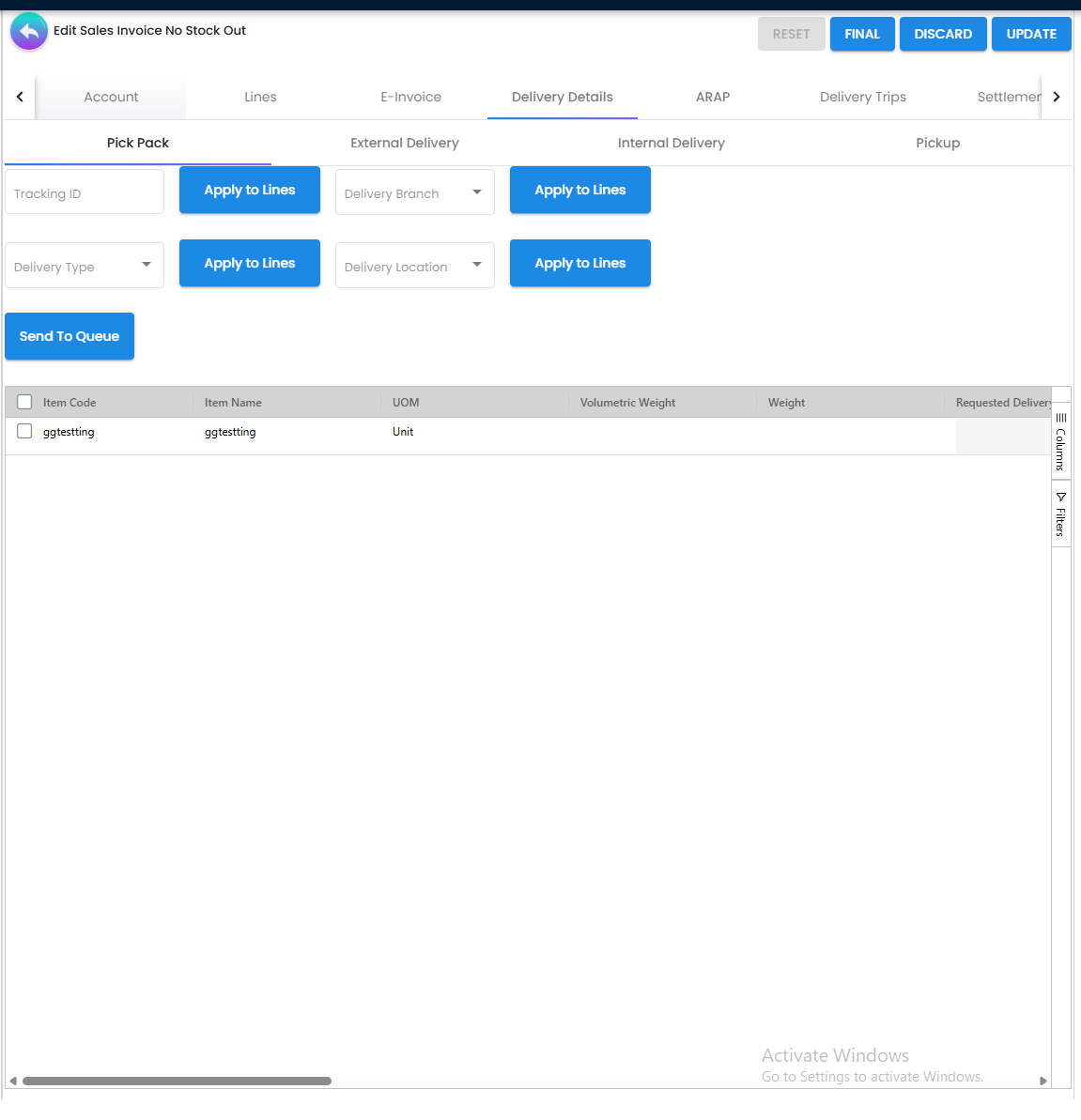
Bulk-apply delivery information across all line items at once — Tracking ID, Delivery Branch, Delivery Type (Internal, External, or Pickup), and Delivery Location. More efficient than editing each line individually when all lines share the same delivery details.
This tab contains four sub-tabs, each covering a different stage or method of delivery:
Pick Pack sub-tab
The starting point for all delivery fulfilment. This is where you assign delivery details to line items and queue them for dispatch.
Use the header fields — Tracking ID, Delivery Branch, Delivery Type (Internal Delivery, External Delivery or Pickup) and Delivery Location — to set values across the selected lines, or edit individual cells in the grid. The grid also shows Qty To Deliver, Qty Pending To Deliver and Pick Pack Status per line. Send To Queue is the only thing that puts a line on the Pick Pack Queue menu (see below) — a finalised invoice that nobody sent to the queue never appears there.
External Delivery sub-tab
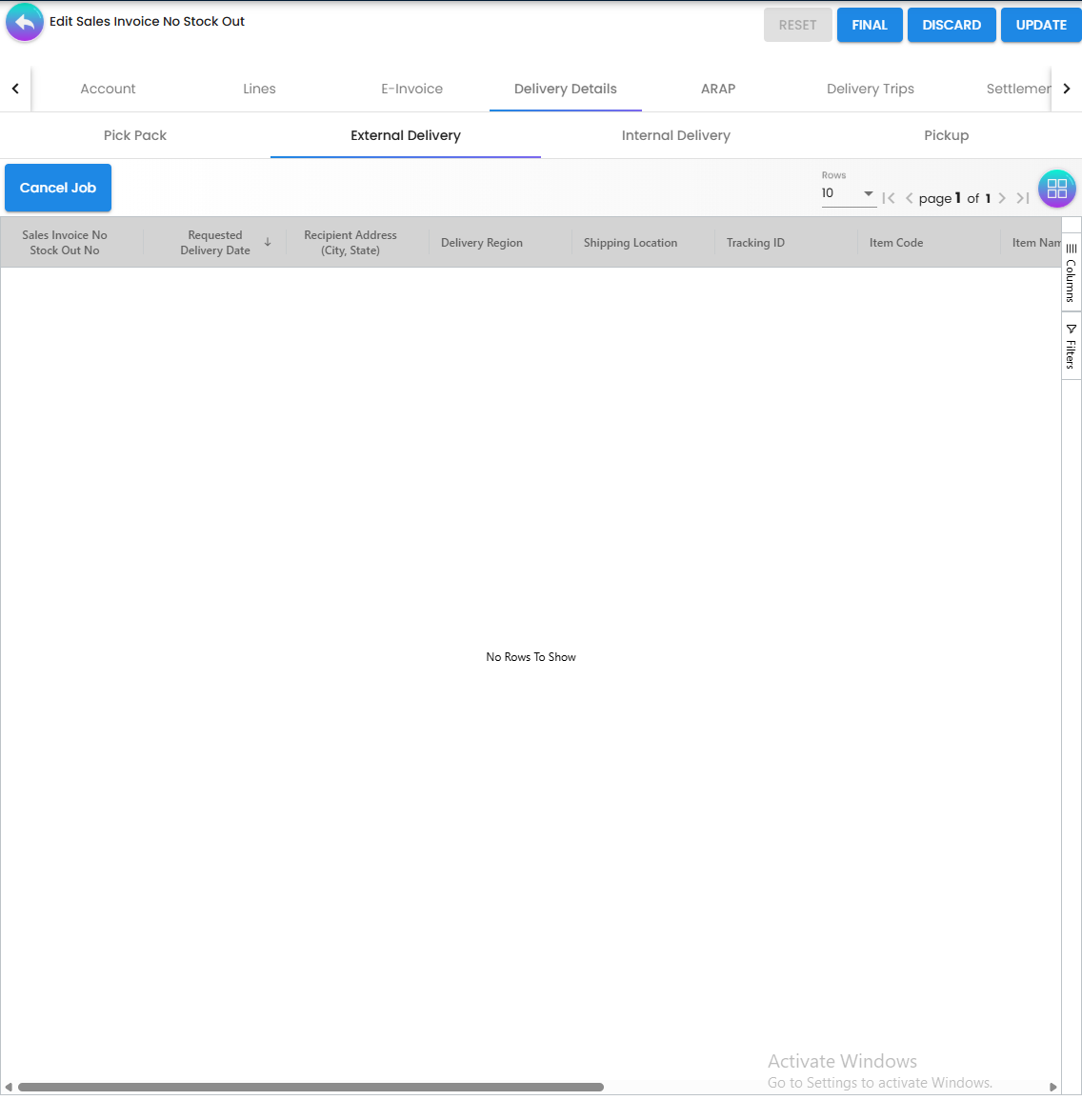
A read-only listing of all delivery jobs raised for lines marked as External Delivery (third-party courier). Jobs appear here automatically once they are created from the Pick Pack sub-tab. Rows are grouped by Delivery Job ID.
Shows: Delivery Job ID, Sales Invoice No, Requested Delivery Date, Recipient Address, Delivery Region, Tracking ID, Item Code, Item Name, Delivery Type, Qty, Delivery Status, Remarks.
You can Cancel Job directly from this listing if a delivery needs to be recalled before it is dispatched.
Internal Delivery sub-tab
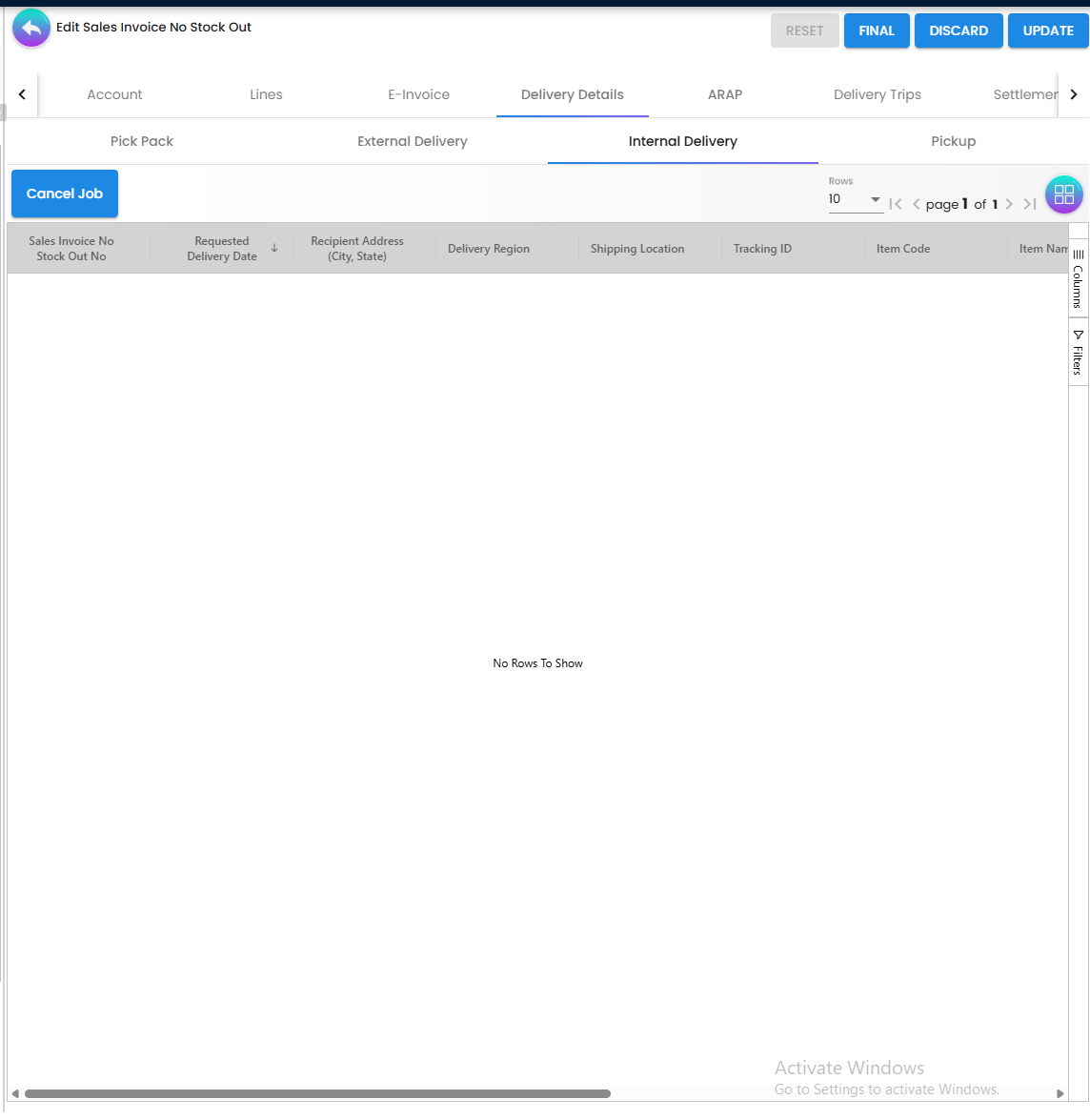
Identical in layout to External Delivery, but filtered to show only jobs marked as Internal Delivery (your own fleet or internal transport). Same grouping, same cancel action.
Pickup sub-tab
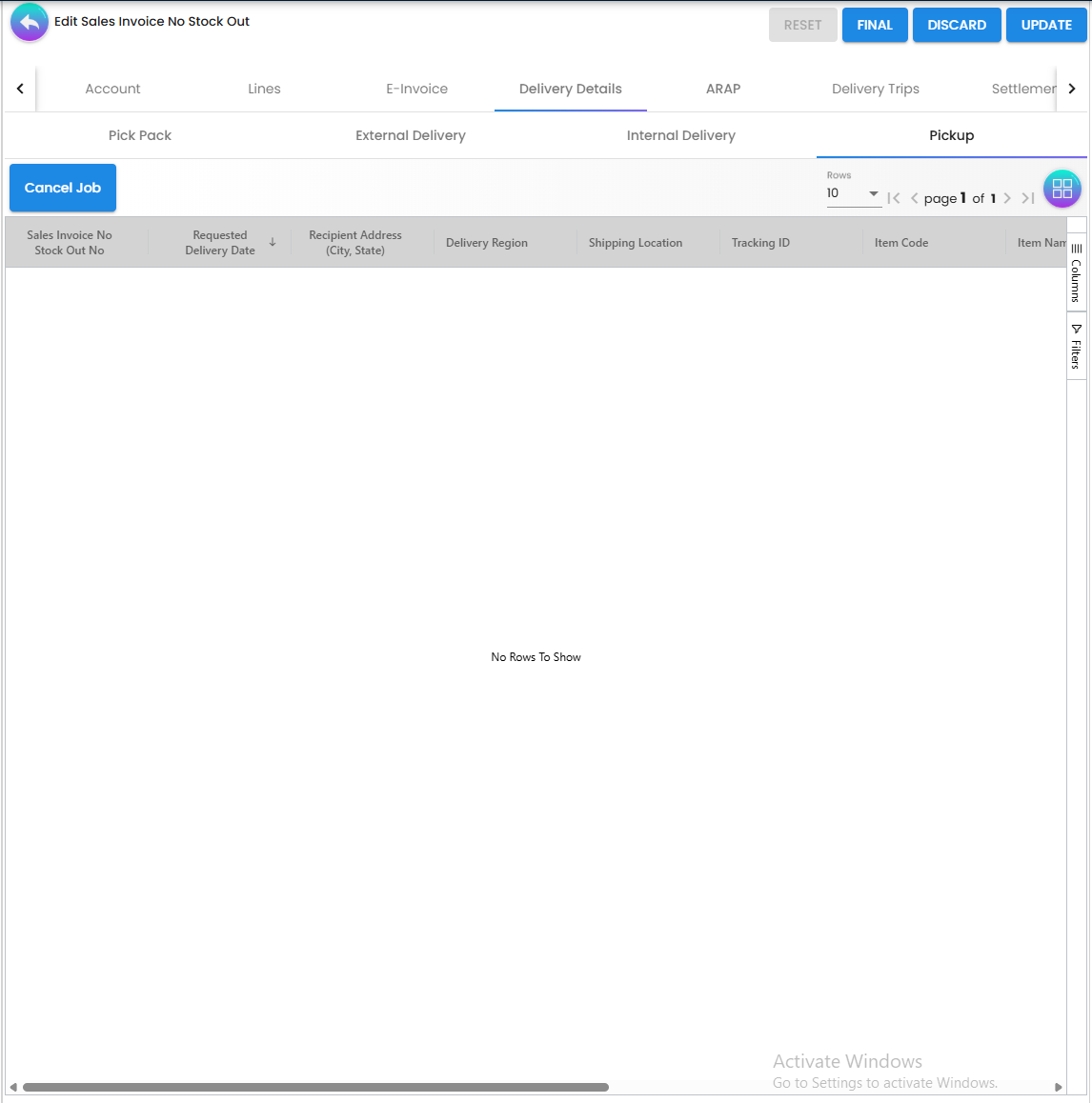
Identical in layout to External and Internal Delivery, but filtered to show only jobs where the delivery type is Pickup — meaning the customer is collecting the goods themselves rather than receiving a delivery.
KO For Tab
When a Sales Order, Quotation, or Delivery Order was raised before this invoice, the KO For tab draws a link between them — recording that this invoice is fulfilling that upstream document. It does not copy or create new documents; it simply closes the loop.
Supported upstream document types:
| Document | When to use |
|---|---|
| Sales Order | Invoice raised against a previously confirmed sales order |
| Jobsheet | Invoice raised against a job or service request |
| Sales Quotation | Invoice raised directly from an approved quotation |
| Delivery Order | Invoice raised against an outbound delivery order |
Department Hdr Tab
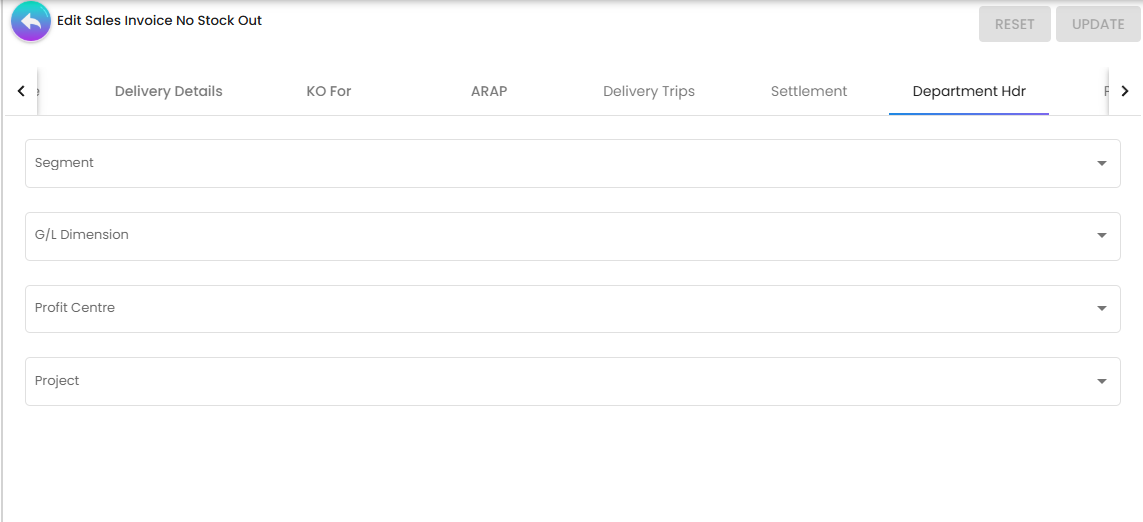
Branch and Location tell you where the transaction happened. Department tells you which internal team owns the cost. For example, an invoice might be issued from the KL Branch but the cost belongs to the IT Department. Setting the department here ensures it shows up correctly in departmental P&L reports.
Fields: Segment, Dimension, Profit Center, Project.
Posting Tab
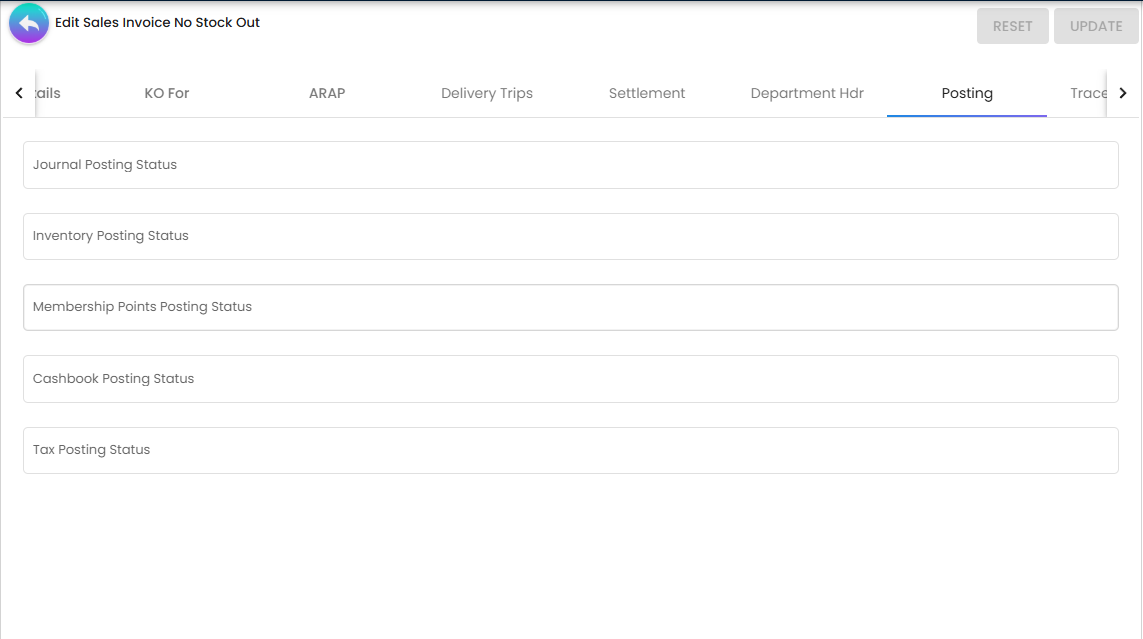
Five boxes — Journal, Inventory, Membership Points, Cashbook and Tax Posting Status — reporting what the backend recorded after finalisation. A document that posted cleanly carries POSTED in the ones that apply to it. On this document type the Inventory box stays empty, because no stock ever moves.
These five boxes are not read-only, and the backend trusts what is in them. They are plain text fields; typing in one changes the stored posting status, and the value is saved with the document. Two backend paths then read the Journal box as a statement of fact:
- posting the journal by hand refuses a document whose Journal box already reads
POSTEDand refuses to reverse one that readsVOID. A document hand-markedPOSTEDcan therefore never be posted that way, and nothing on the screen says why; - voiding reverses the tax transaction only when the Journal box reads
POSTED, so the same typing decides whether a void reverses the tax.
Automatic posting on FINAL does not consult the box — it builds the journal and then writes POSTED itself — so this is a trap for the repair paths, not for the ordinary one. The editable form of this tab is not unique to this applet; it is how most of the document applets ship it.
If a status comes back as an error, the document stays FINAL and the affected posting has to be investigated and re-triggered before the period can be closed — and the first thing to check is that nobody has typed over the box.
Edit
The edit form contains all the same tabs as create, plus additional tabs that only become meaningful after the document exists in the system.
Action buttons on the edit form are RESET, FINAL, DISCARD, VOID and UPDATE — there is no SAVE and no DELETE here; deletion is the listing’s DISCARD. Three of them behave in ways the screen does not explain:
| Button | What it actually does |
|---|---|
| RESET | Permanently greyed out. Its [disabled] binding is postingStatus === "FINAL" || status !== "ACTIVE" || status !== "TEMP" — the last two tests cannot both be false, so the expression is true for every possible status. The handler behind it would have discarded your unsaved changes and reloaded the draft. |
| UPDATE | Enabled even when the form is invalid. The guard is (main form invalid || entity form invalid) && status !== 'ACTIVE' — an and, so on a saved draft, whose status is ACTIVE, the button never disables. Required-field enforcement on the edit form is therefore the server’s, not the browser’s. |
| VOID | Shown only when the posting status is FINAL and e-invoicing is off for this tenant. The listing’s VOID carries no such test — see the note under Related applets. Both refuse a document that already has an ACTIVE sales-return link, and both report it as “The invoice has already been linked with a sales return”. |
FINAL from here is not the same as FINAL on the listing. The button inside the document first saves the whole document — header, item lines and settlement lines, with the branch, company and location re-read and stamped onto every line — and only then finalises it. The listing’s FINAL finalises whatever is already stored. So finalising from inside the invoice saves your edits; finalising from the listing does not, and a draft left dirty in one tab is finalised as it was last saved.
Additional Edit-Only Tabs
ARAP Tab
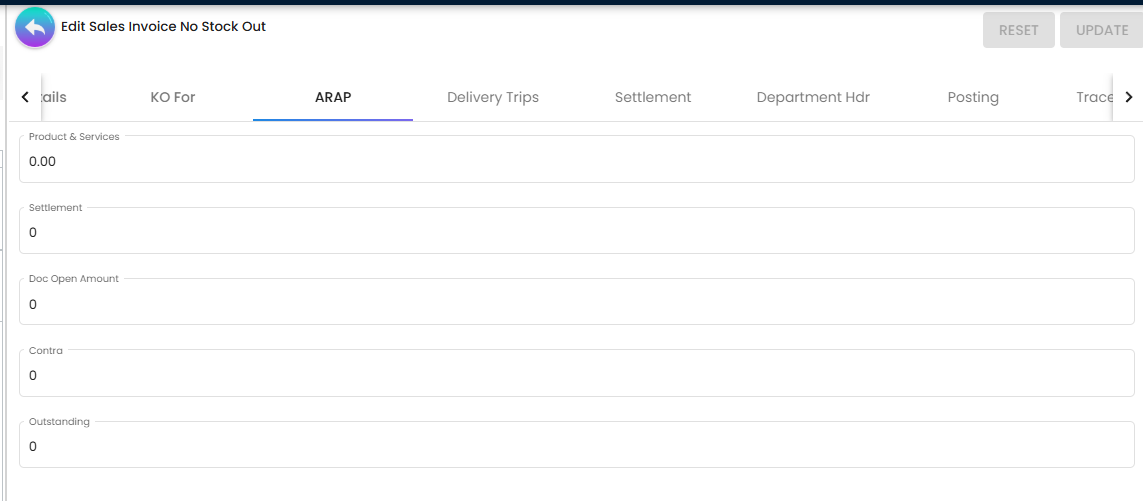
ARAP = Accounts Receivable / Accounts Payable. Once finalized, the customer owes you the invoice amount. This tab shows how much was invoiced, how much has been paid, and how much is still outstanding.
Five read-only figures — Products & Services, Settlement, Doc Open Amount, Contra and Outstanding — all computed by the backend from the document’s lines and its contra links, none of them typed here. What is worth knowing is which of them the settings can take away: HIDE_ARAP_PNS, HIDE_ARAP_SETTLEMENT, HIDE_ARAP_DOC_OPEN, HIDE_ARAP_CONTRA and HIDE_ARAP_BAL each remove one, and the tab itself disappears under HIDE_MAIN_ARAP_TAB. If a colleague sees a figure here that you do not, that is why.
TraceDocument Tab
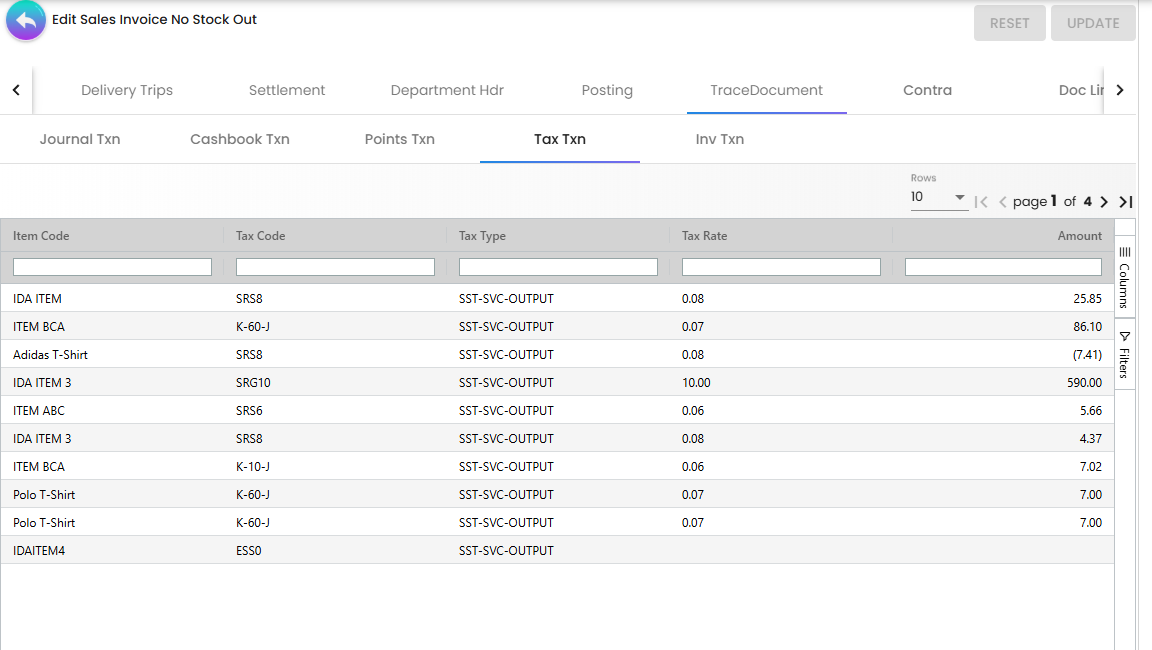
Shows the accounting journal entries (GL postings) that were created in the General Ledger when this invoice was finalised — which accounts were debited, which were credited, and for what amounts. Used by finance teams to verify the posting is correct and by auditors to confirm the financial entries match the invoice.
hide: 'HIDE_MAIN_CONTRA_TAB', the same key that hides the Contra tab — so switching Contra off takes TraceDocument with it. HIDE_TRACE_DOCUMENT_TAB is on the Application Settings screen and is read by nothing in this applet; see On the screen and doing nothing.TraceDocument vs Doc Link — what’s the difference?
- TraceDocument = accounting impact — the GL journal entries posted to the ledger when this invoice was finalized.
- Doc Link = document relationships — which upstream documents (Sales Orders, Quotations) this invoice was created from, and which downstream documents (Credit Notes, Debit Notes) were later created from it.
Contra Tab
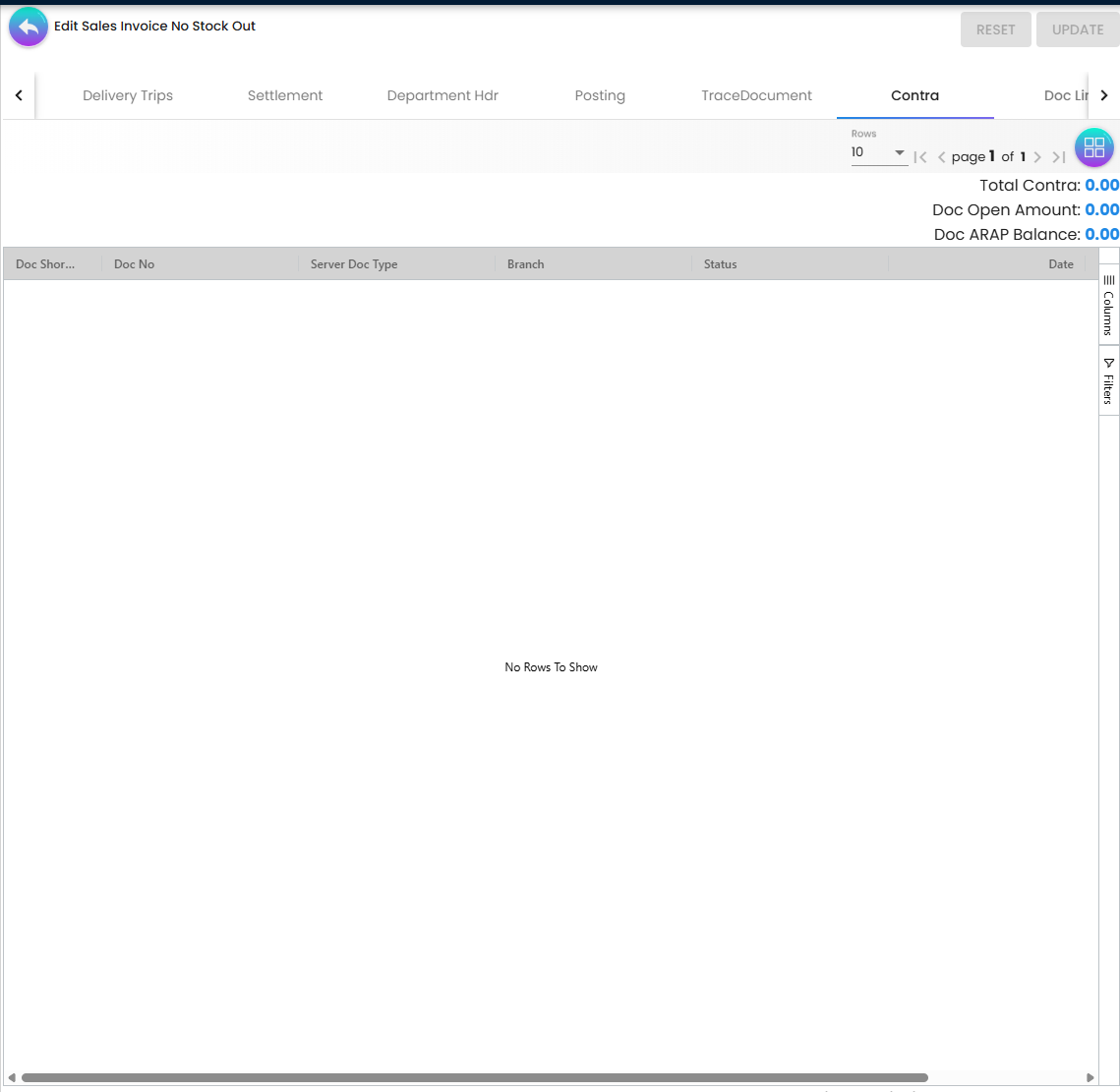
Contra is an accounting term for offsetting one document against another without cash changing hands. Example: the customer has a credit note of RM 200 and owes you RM 1,000 on this invoice. You contra the credit note here — the customer pays RM 800 and both documents are settled.
The system only shows documents eligible for contra — meaning they must:
- Belong to the same company and same customer as this invoice
- Be already finalized (FINAL status)
- Carry an opposite ARAP balance (a credit against a debit, or vice versa)
There is no fixed list of document types — the system dynamically shows whatever eligible documents exist for that customer at the time.
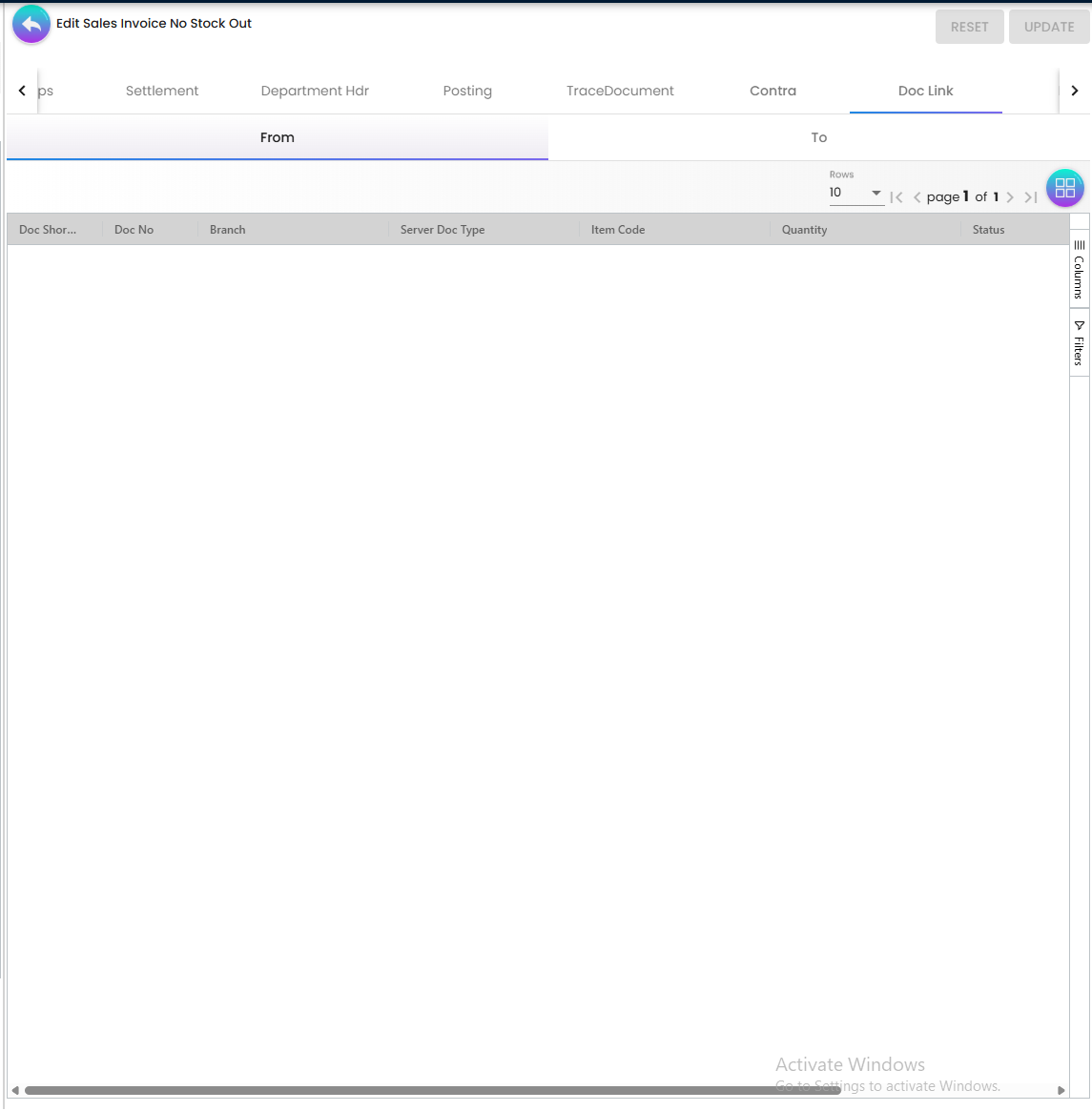
Doc Link Tab — Shows documents linked to this invoice in two directions: Copy From (source documents used to create this invoice) and Copy To (documents created from this invoice as a source).
Attachment Tab — Stores supporting documents — signed agreements, approval emails, supporting calculations. Stored against the invoice and accessible to all users with view permission.
Export Tab — Data export options for sending invoice data to external accounting systems or generating custom reports.
E-Invoice Tab — Manages the full LHDN e-invoice submission lifecycle for this document. Contains four sub-tabs:
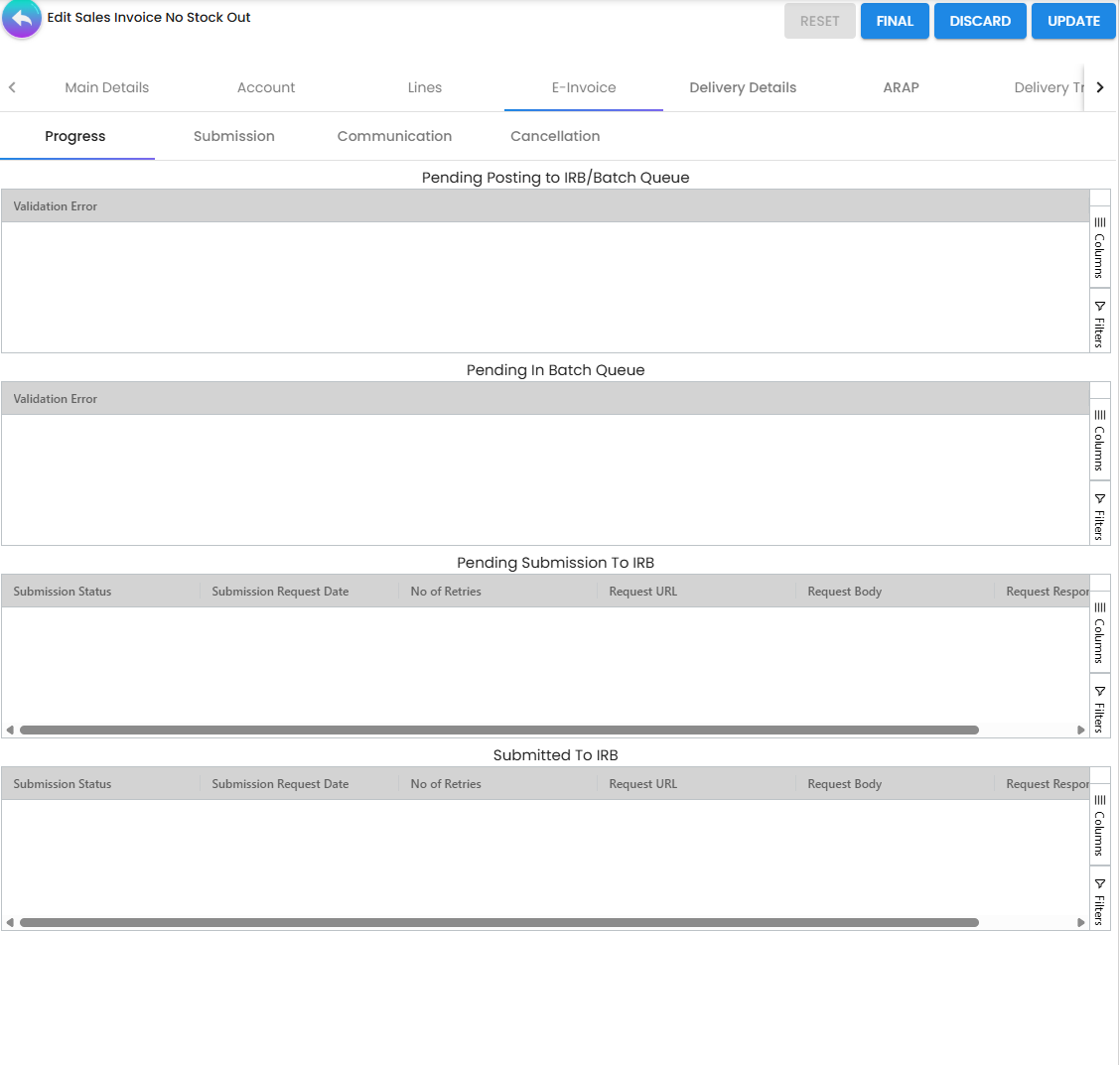
- Progress — Shows where the document is in the submission pipeline: Pending Posting, Pending in Batch Queue, Pending Submission to IRB, and Submitted to IRB. Validation errors appear here if the document fails pre-submission checks.
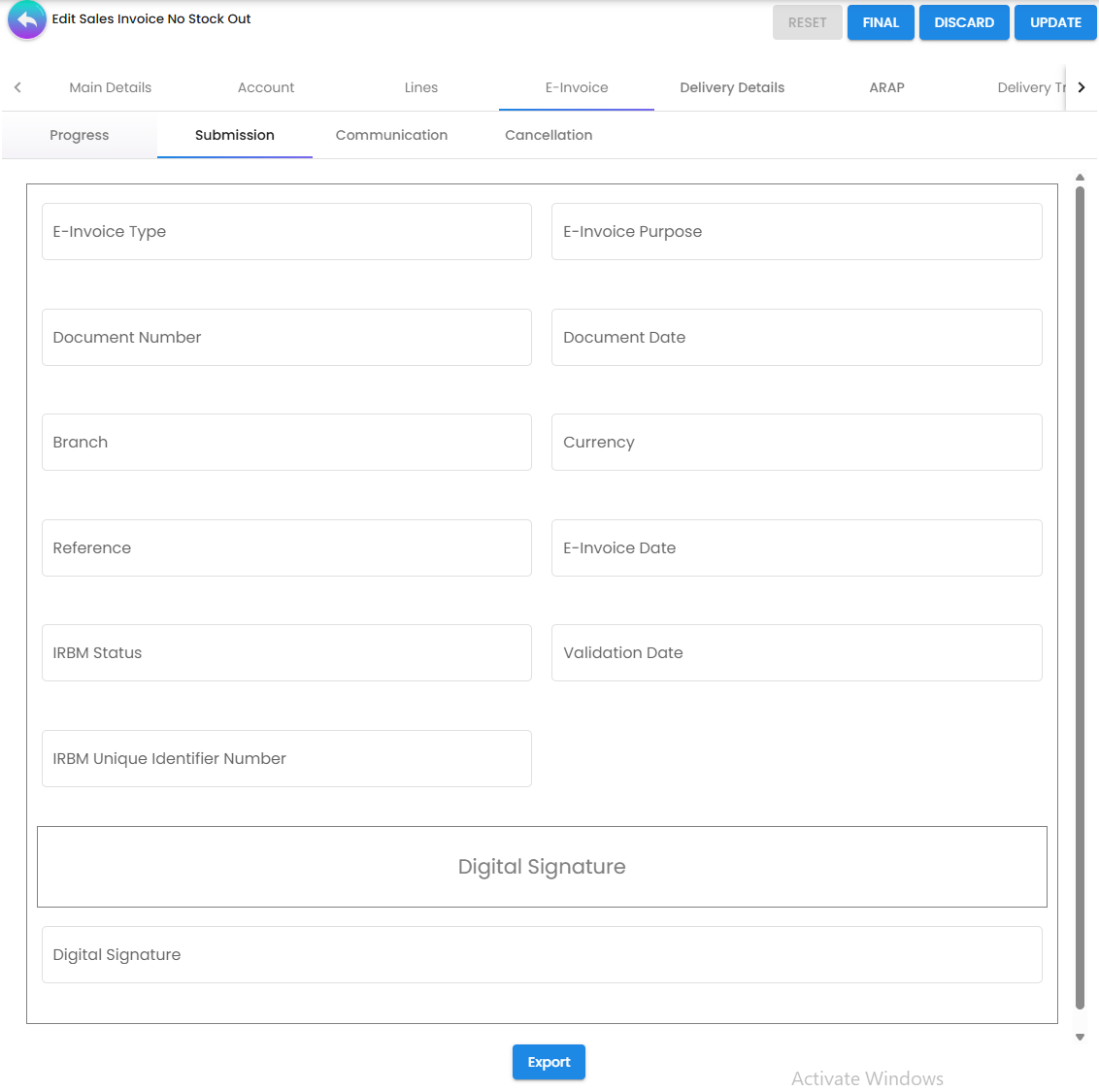
- Submission — Read-only view of the e-invoice data retrieved from LHDN after submission: e-invoice type, purpose, document reference, IRBM status, validation date, IRBM Unique Identifier Number, and a QR code of the digital signature.
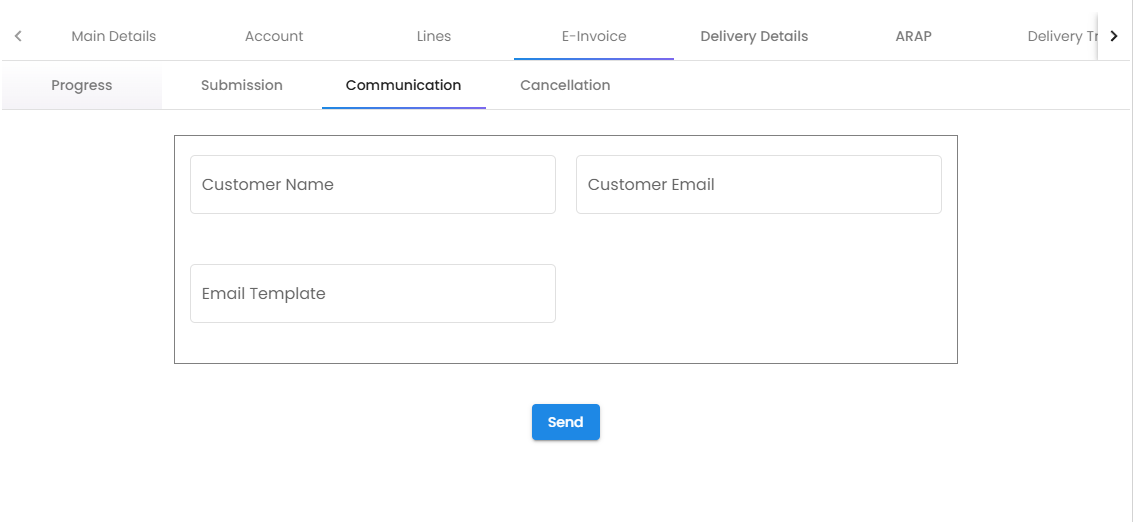
- Communication — Records and messages exchanged with IRB related to this document.
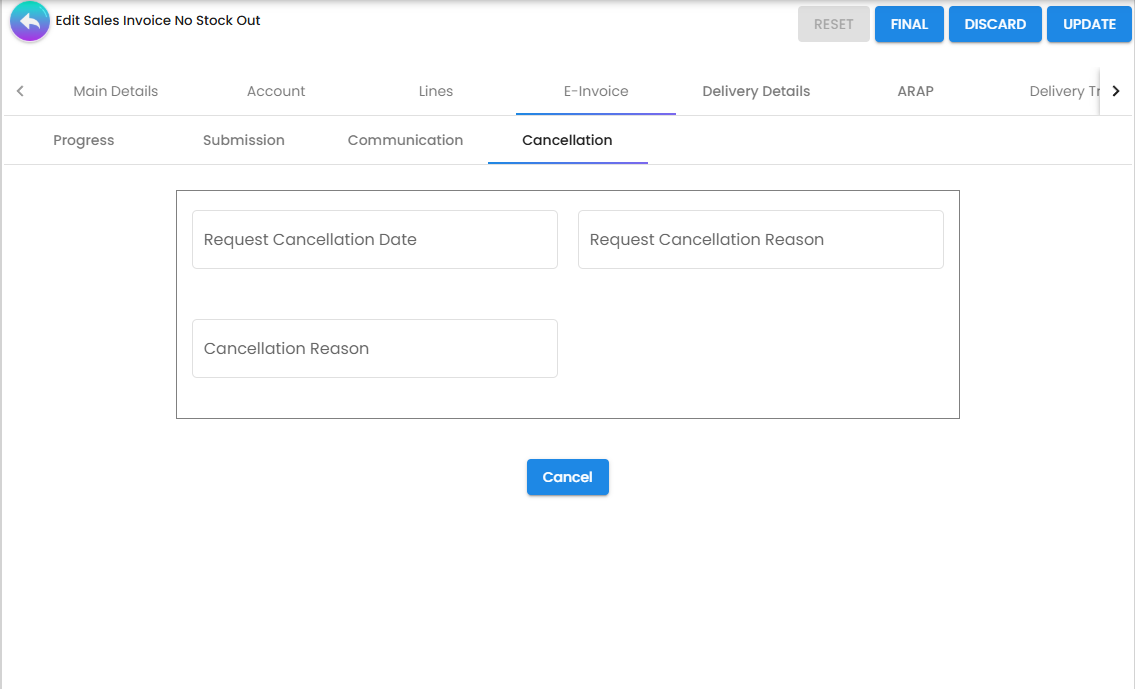
- Cancellation — Used to initiate an e-invoice cancellation request if the document needs to be withdrawn from LHDN after submission.
Delivery Trips Tab — Route planning for any physical handling associated with this invoice — used when internal delivery tracking is needed even though stock is not deducted.
Line Items
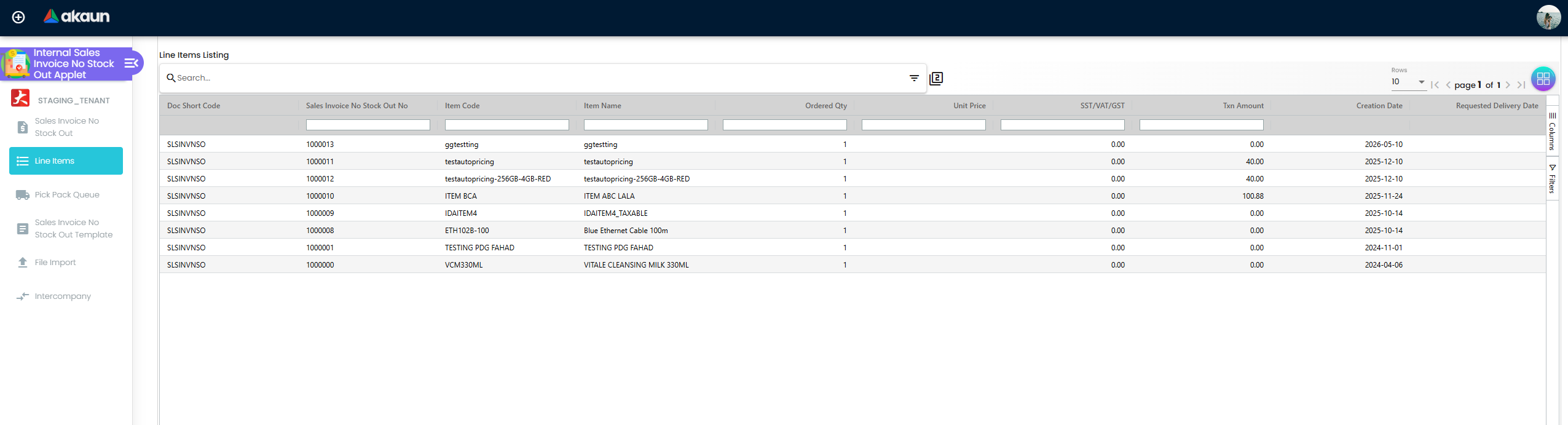
A standalone listing of all line items across all no stock-out invoices. Used by finance teams to:
- Audit billed amounts across multiple invoices without opening each header
- Filter by item, entity, or date range
- Identify line items with posting errors
Pick Pack Queue
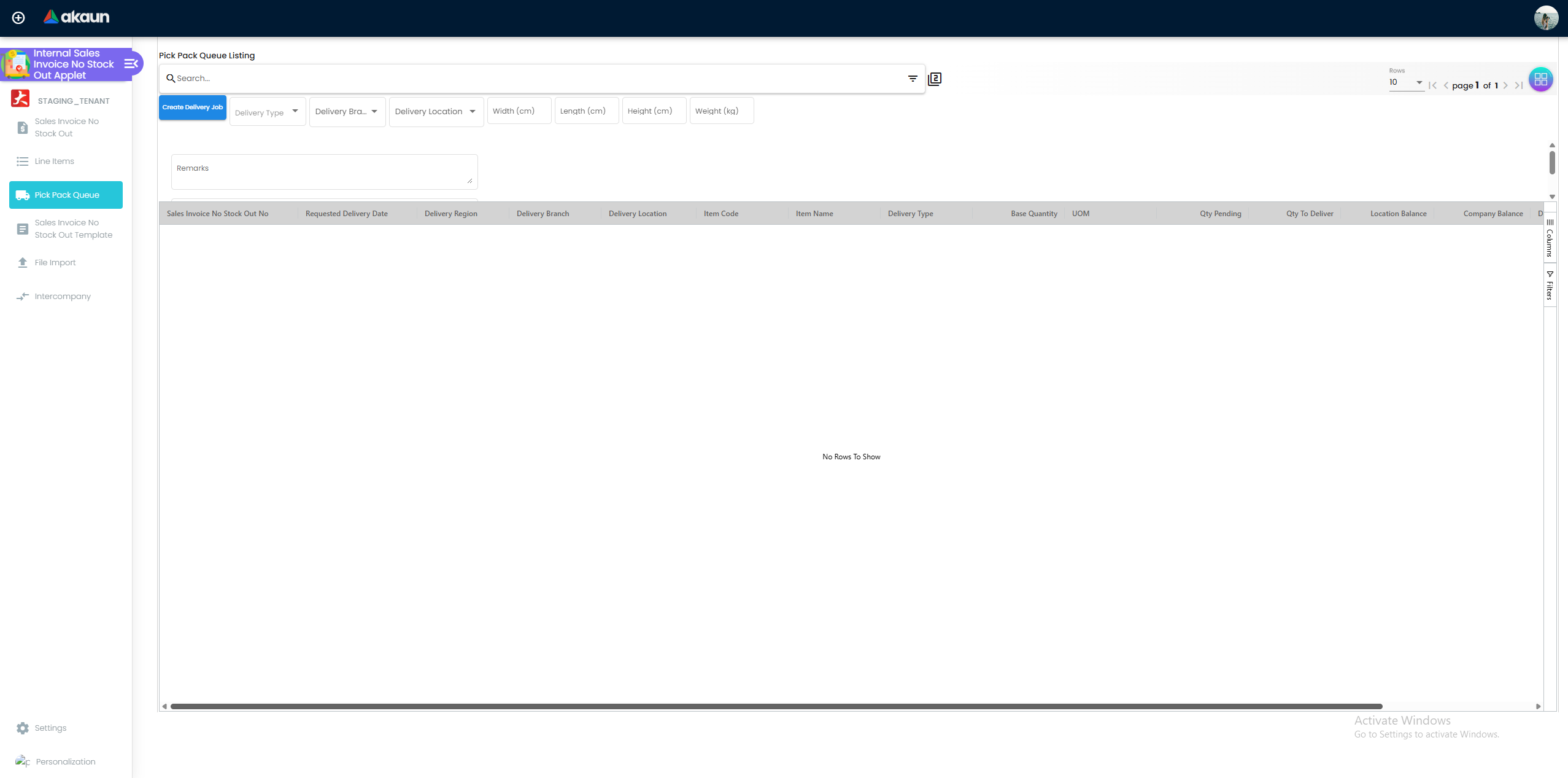
Even on a no-stock-out invoice, the goods or materials may still need to be physically delivered — just without the system touching inventory counts. The Pick Pack Queue is the staging area for that delivery step.
It shows all invoice line items that have a pending delivery quantity, grouped by invoice. For each line you can see:
- The requested delivery date and delivery region
- The pending quantity still to be delivered
- Current stock balance at the delivery location (for reference)
- Delivery type and delivery status
What you do here: Set the quantity to deliver for each line, select the rows, and click Ready To Ship. This creates a delivery job linked to the invoice — capturing the delivery branch, location, dimensions, weight, and remarks — and sets the delivery status to CREATED for tracking.
The financial invoice and the delivery job are separate records. The invoice handles the billing; the Pick Pack Queue handles the logistics.
What decides whether a line is here at all, because it is not what the name suggests. So:
- a line appears only once Send To Queue on the invoice’s Delivery Details tab has written a queue row for it — finalising an invoice does not put it here, and neither does anything else;
- the query does not filter on posting status. A draft invoice whose lines were sent to the queue sits in this list beside the finalised ones, and nothing on the row says which it is;
- the stock balance shown beside each line is the current balance at the document’s location, joined in for reference. It is a number about your warehouse, not about this document — this document never moves it.
Sales Invoice No Stock-Out Template
If you raise the same type of invoice repeatedly — same branch, same currency, same line items, same remarks — a template lets you save that standard configuration in one place instead of re-entering it every time.
Typical uses: monthly IT support charges, recurring management fees, standard intercompany service billing.
What a template stores
The Main Details tab of a template takes a template code and name, then the same header defaults as an invoice — branch, location, currency, reference, remarks — and the Lines tab holds standard line items. The header’s server_doc_type is copied from the draft that built it, which is the one part of the record that does distinguish the two document types.
Applying a template
There is no path from a template to a new invoice in this applet. The create screen has no template selector, and the route from the listing’s Add button opens the blank create form. A template made here is therefore a record you can build, list and edit, and cannot use — until the missing selector is added, or you copy the values across by hand.
Managing templates
Open a template from the listing, change the Main Details or Lines tab, save. Deleting is from the listing.
File Import
This screen imports ordinary Sales Invoices, which move stock. Every document it builds is an ordinary INTERNAL_SALES_INVOICE, so each imported row takes the goods out of stock — the one thing this applet exists to avoid. The batches listed here are the same batches the Sales Invoice (Internal) applet’s File Import shows, because they are the same records.
There is no file-import path that creates INTERNAL_SALES_INVOICE_NO_STOCK_OUT documents. To create them in bulk, use the generic-document API directly. Filed as a product finding; documented here because the screen is in the served build and says nothing about it.
Listing
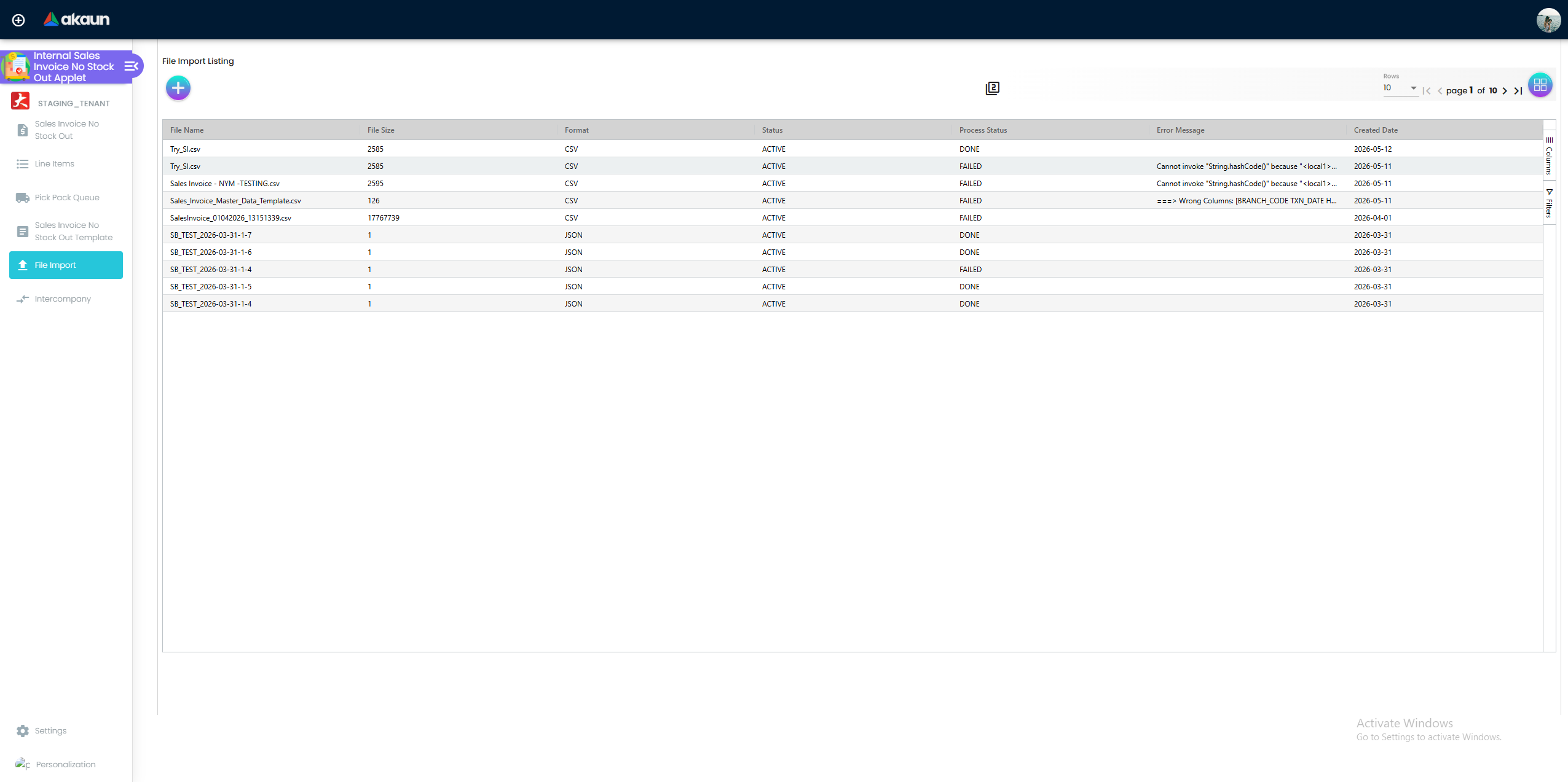
Shows all previously submitted import batches with their processing status.
Upload (Create)
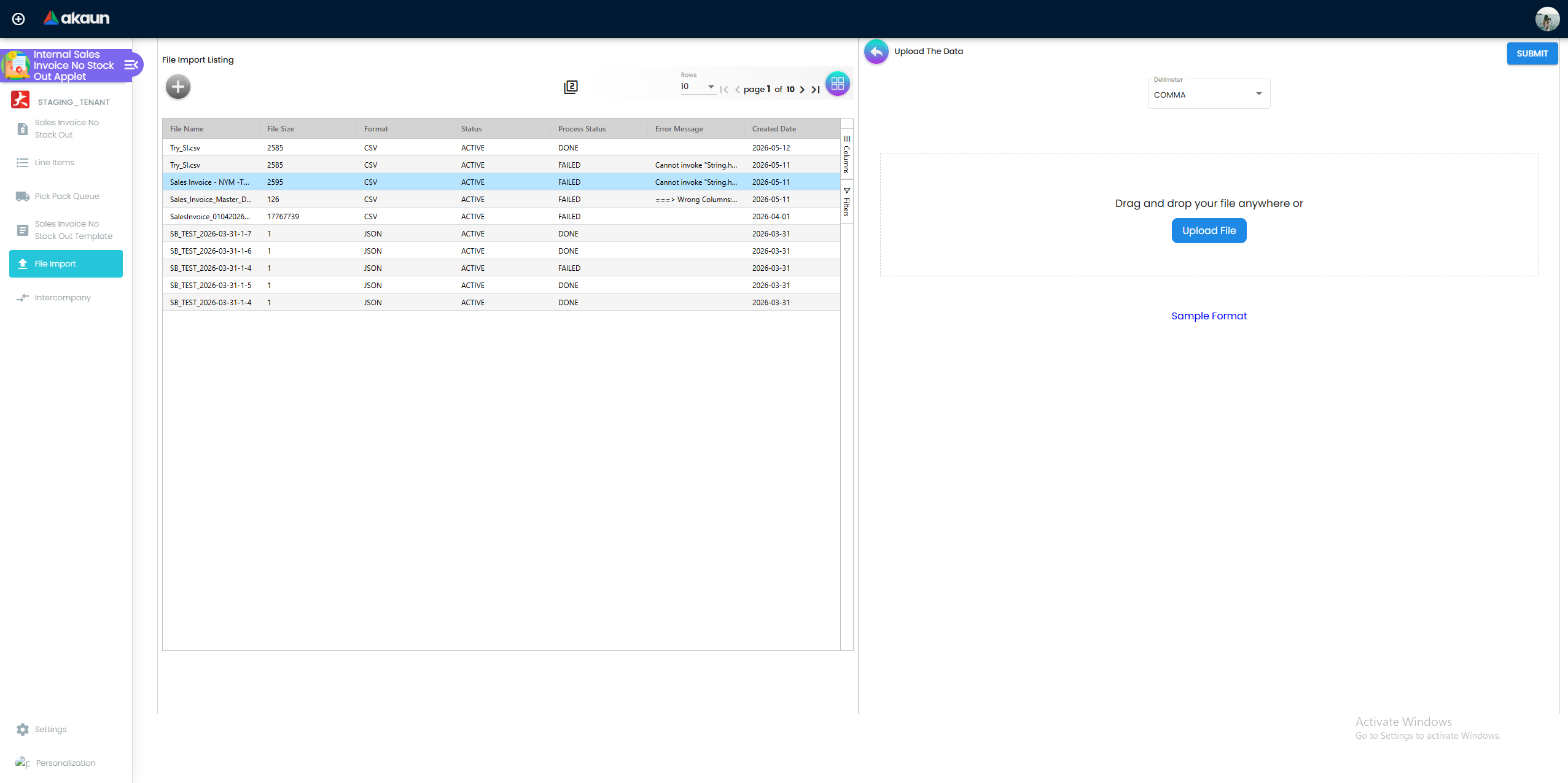
Used for bulk billing cycles. The upload process:
- Download the Sample Format first — this gives you the exact column structure the system expects. The file is named
Sales_Invoice_Master_Data_Template.csv. The column definitions come from the backend, so always download a fresh copy rather than reusing an old one. - Choose your delimiter — Pipe (
|) or Comma (,) — and make sure your CSV matches. - Populate the template with your invoice data and upload the file.
- Click SUBMIT to queue the file for processing.
Import Detail (Edit)
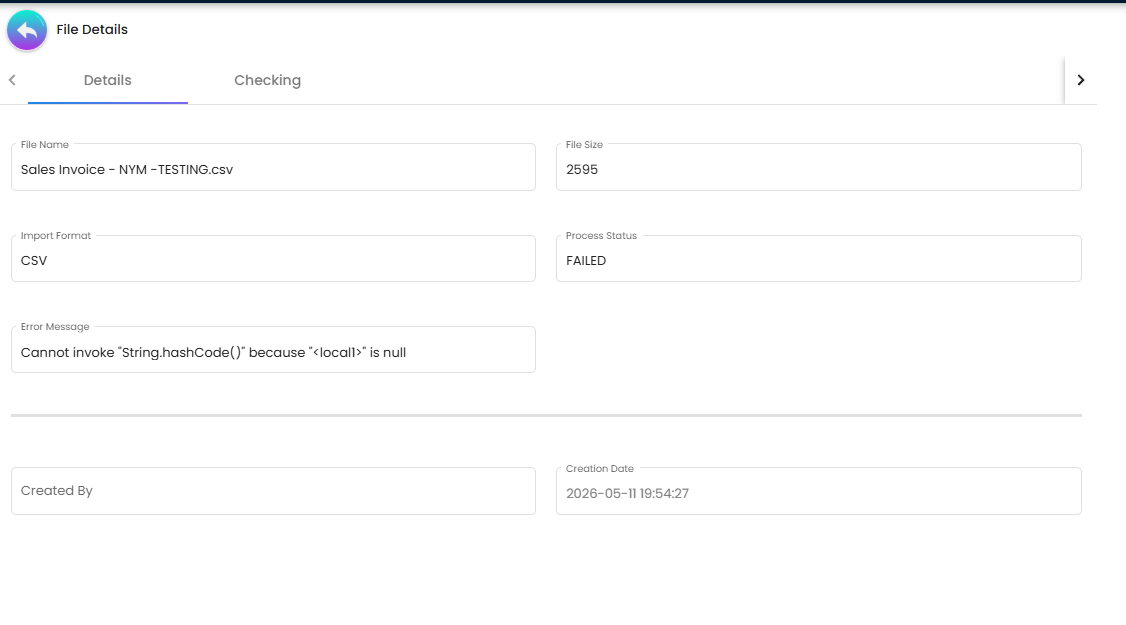
After submission, clicking an import batch shows:
Details sub-tab — read-only metadata: Process Status, Error Message, File Name, File Size, Import Format, Created By, Creation Date.
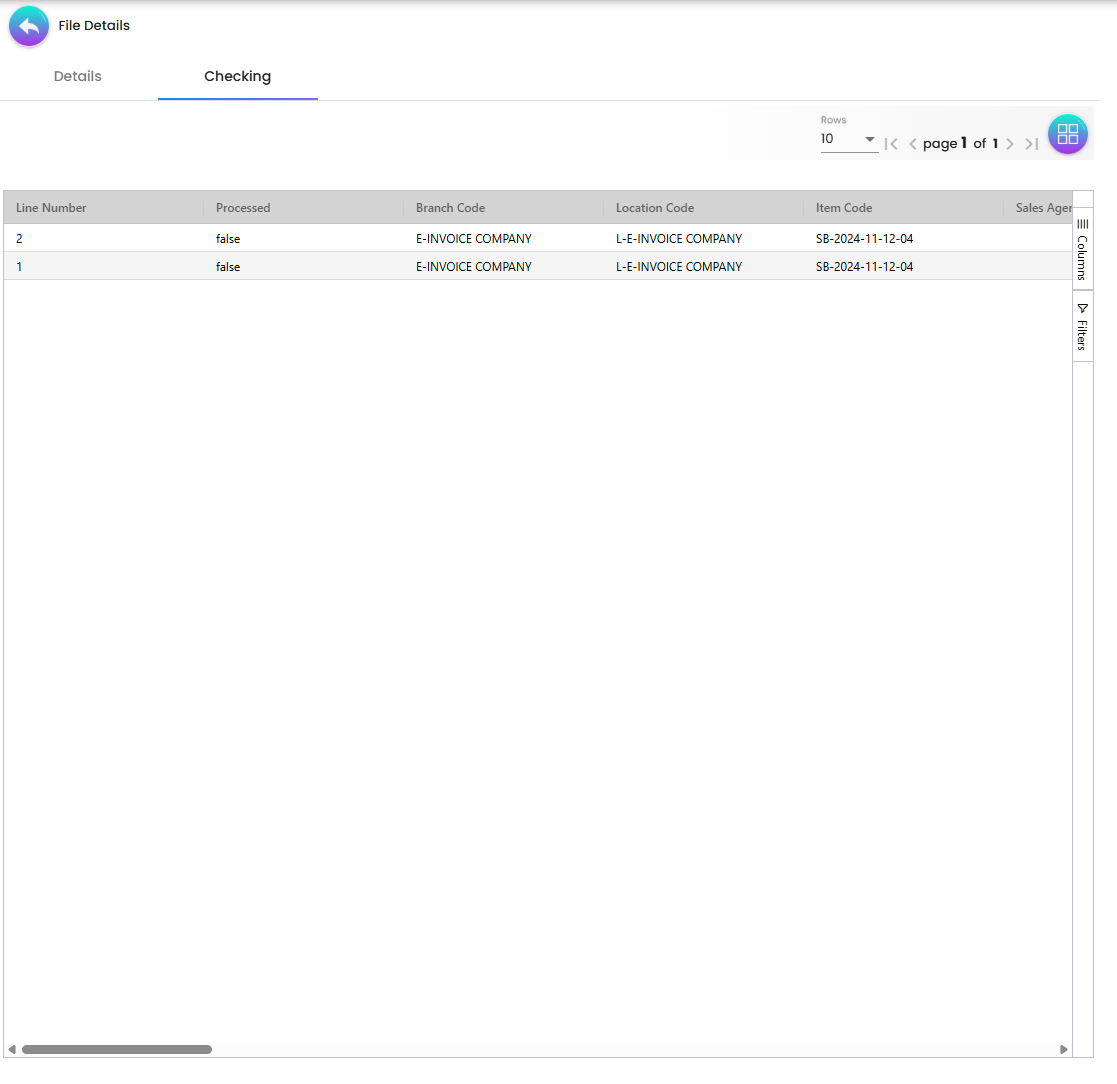
Checking sub-tab — line-by-line validation results showing which rows passed or failed, so you can identify and correct specific data issues before re-uploading.
Intercompany
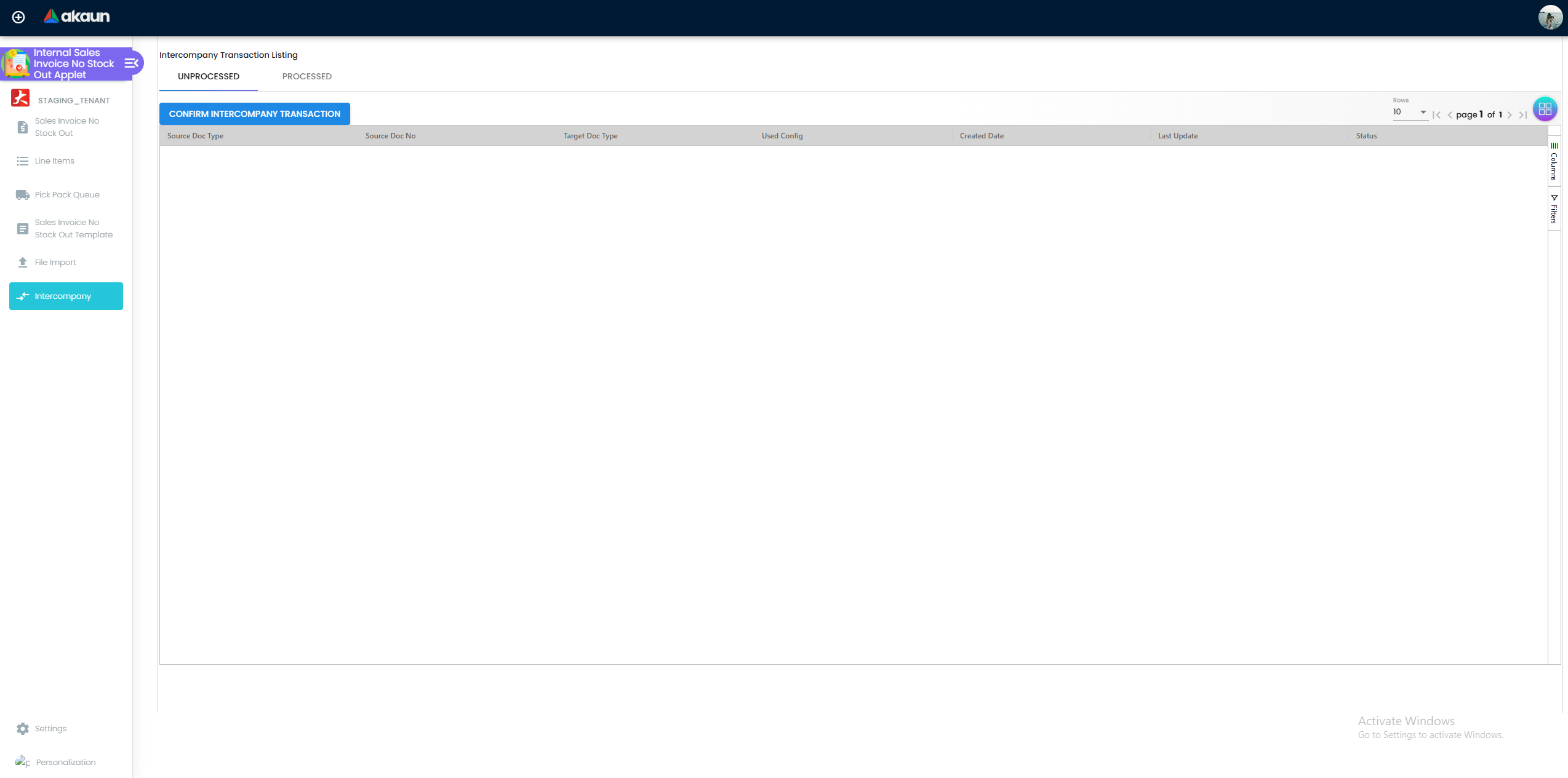
When a no stock-out invoice carries intercompany configurations — set on the Account tab’s Intercompany sub-tab, and nowhere else — the backend can generate the matching document in the receiving company. This menu shows the two halves of that: the processing queue, whose rows are the transactions the automatic path left for a human (MANUAL mode) or failed on (ERROR, with the message), and a listing of the generic-document intercompany links, which pair a document here with its counterpart there. The queue’s one action is CONFIRM INTERCOMPANY TRANSACTION. The listing shows neither the ERROR status nor the message, so the two kinds of row look the same; tell them apart by the Used Config column, since only a MANUAL configuration leaves a row on purpose.
The counterpart this document type generates posts nothing. The receiving company’s document is created with no stock movement and no amounts that post, so the receiving company gets a document with no journal behind it.
Nothing checks the generated document against the rules its own document type would normally enforce, and nothing errors. The generated document simply sits there, correct-looking and unposted.
Configuration
Settings live on the shared settings screen (Settings → Application Settings), plus four screens of this applet’s own. They are saved for the whole tenant and take effect for everyone who opens the applet.
The settings menu offers Application Settings, Default Selection, Printable Format Settings and Email Template. Nine more settings routes exist with no menu entry, reachable only by URL: webhook, feature-visibility, permission-set-listing, client-side-permission-listing, user-permission-listing, team-permission-listing, role-permission-listing, role-pricing-scheme-link-listing and permission-wizard-listing.
Before you can use it
| Prerequisite | Where | Why |
|---|---|---|
| A default GL mapping for the sales posting group | Chart of Accounts and the company’s default GL codes | The document posts under SALES. Without a mapping the journal cannot be built |
| Company, branch and location | Organisation Applet | Main Details requires all three; the item search passes the location |
| Customers with credit terms and, for e-Invoice, their tax identity | Customer Maintenance | The receivable and the e-Invoice header are built from the customer record |
| Items and their tax codes | Doc Item Maintenance, Tax Configuration | Line GL codes and tax come from the item and tax master |
| Intercompany configuration, if you bill group companies | The company record | Decides whether the matching purchase document is created automatically |
| A way to reach the applet | — | See the warning at the top of this page: there is no registry row |
Applet settings
Settings › Application Settings is the shared settings screen, and it offers this applet 115 settings — the standard sales-document surface. Most of them hide one field, tab, button or column and take effect the moment you save, so flipping one shows you what it did. The table below is only the ones that change what the applet will let you do. How settings are stored and who they apply to.
| Setting | What changes | Default when never saved | Advisory or hard |
|---|---|---|---|
DISALLOW_SELL_BELOW_MIN_PRICE, DISALLOW_SELL_BELOW_REPLACEMENT_PRICE, DISALLOW_SELL_BELOW_MA_COST | A line priced under the item’s minimum price, replacement price or moving-average cost is marked invalid and cannot be added | off — no check runs until the setting is on | Browser only. The server accepts the line either way, and the three matching ALLOW_SELL_BELOW_* client-side permissions clear the error for a user who holds them |
ENABLE_CREDIT_LIMIT_FILTER | FINAL first checks the customer’s credit limit and refuses the document when the customer’s available limit, adjusted by this document’s balance, is not above zero; the toast names the customer code and the limit — from inside the document and from the listing | off — with the setting absent, FINAL posts with no credit check at all | Browser only, and it is the only credit control in this applet |
ENABLE_MULTIPLE_KO | Whether one invoice may knock off more than one upstream document; with it off, picking a second source replaces the first, on all four knock-off screens | off — one source document | Browser only |
ENABLE_EDITING_UNIT_PRICE_STD | Whether the standard unit price can be typed over on a line | off — the field is locked | Browser only |
ENABLE_DRAFT_LOCK_SERIAL_NUMBER_CHECKING | Sends checkDraftLock: true with the item query, so serial numbers already held by another draft are excluded | off — only serials locked by finalised documents are excluded | Server-side: the flag changes what the query returns |
ENABLE_AUTO_POPUP | On FINAL from inside the document, prints the invoice through the Jasper print service before posting — and if no printable format is bound, shows “No Default Printable Selected” instead | off | Advisory. Note this is not what the name suggests: on this screen it is a print-on-final toggle |
PRINTABLE | The printable-format GUID used by both print actions. Empty, and SINGLE/MULTIPLE PRINT on the listing is disabled | none — no format, no printing | Hard, in the sense that the button is disabled |
ENABLE_FILTER_BY_TODAYS_TXN | The listing opens filtered to today’s transactions | off — the listing opens unfiltered | Advisory |
Default Selection writes DEFAULT_BRANCH, DEFAULT_COMPANY, DEFAULT_LOCATION, DEFAULT_PRICEBOOK and DEFAULT_TRANSACTION_DATE for the whole tenant; Personalization › Default Selection writes the same keys for one user, and the personal value wins. Printable Format Settings binds the format PRINTABLE names; Email Template binds the template SEND EMAIL uses.
On the screen and doing nothing
Of the 115 settings, 32 do nothing in this applet. Four of them are worth naming, because a reader would go looking:
HIDE_TRACE_DOCUMENT_TAB— on the Application Settings screen and does nothing here. The TraceDocument tab is hidden byHIDE_MAIN_CONTRA_TABinstead, so it disappears when you hide Contra.ENABLE_AUTO_FINAL— shown and saved, and does nothing in this applet. There is no auto-final behaviour here: FINAL is always a button somebody presses.ENABLE_DIMENSION,ENABLE_PROFIT_CENTER,ENABLE_PROJECT,ENABLE_SEGMENT,ENABLE_SST,ENABLE_WHTand the six matchingINCLUDE_*keys — twelve settings that read as though they switch the Department Hdr dimensions or the tax columns on and off. None does anything. The Department Hdr tab always shows all four dropdowns, and each is populated with the first 100 rows of its master list with no search — so a tenant with more than 100 profit centres cannot reach the rest from this screen.- The nine
HIDE_*_TABkeys for tabs this applet does not have — Collection, Convert, Expenses, Main Payment, Sales Commission, Search, Status — inherited from the sales-invoice applet this one was built from.
Who can change what
Server-side, the document type is guarded by four permissions — TNT_API_DOC_INTERNAL_SALES_INVOICE_NO_STOCK_OUT_CREATE_TGT_GUID and the READ, UPDATE and DELETE siblings — and those work, because they are the document API’s own permissions and do not depend on the applet being published.
Client-side, nothing can be granted. The applet reads six codes — SHOW_GENDOC_FINAL_BUTTON, SHOW_GENDOC_DISCARD_BUTTON and SHOW_GENDOC_VOID_BUTTON (which override the three HIDE_GENDOC_*_BUTTON settings), and ALLOW_SELL_BELOW_MIN_PRICE, ALLOW_SELL_BELOW_REPLACEMENT_PRICE and ALLOW_SELL_BELOW_MA_COST (which clear the pricing errors above). Client-side permissions belong to a published applet, and this one is not published, so it has no definitions and no way to grant any of the six. The overrides are unreachable; the settings they would override are not.
The applet also routes the shared Feature Visibility screen, five permission listings, a Permission Wizard and a Role Pricing Scheme Link screen. None of them is in the settings menu, so each is reachable only by typing its URL.
Lifecycle and effects
What posting does
| Document type | INTERNAL_SALES_INVOICE_NO_STOCK_OUT |
| Stock | None — ever. Every line is written with no stock movement, whatever the caller sends |
| Money | Raises a receivable, like an ordinary sales invoice |
| Journal | The ordinary sales journal: one journal line per document line that carries an amount |
| VOID | The listing’s VOID action reverses the posting; because nothing moved in inventory, there is nothing in the stock ledger to reverse |
Why the stock guarantee holds even against the API
Whether a line moves stock is not something a caller can set. Every line is forced to no stock movement on create and on every update, so a line sent through the API asking to take stock out is corrected before it is stored, and the stock job — which only acts on lines that move stock — has nothing to act on. The document’s direction is checked rather than filled: send anything but a normal sales direction and the create is rejected.
One path skips all of it: a document generated by the intercompany job skips these checks entirely. That is why the generated counterpart described under Intercompany keeps whatever it was handed.
The jobs this document touches
Everything that happens after FINAL is a background job. None of them needs scheduling — each runs in response to a user action:
| Job | When it runs |
|---|---|
| The main posting job | When a document is finalised |
| The intercompany transaction job | After FINAL, once your tenant’s trigger configuration enables it — and then for every document type, this one included |
| The tax void job | When a document is voided |
The one that matters for a first user is the second: the intercompany job will fire for this document type the moment your tenant enables it, because it is not limited to any document type.
Personalization
User-level customization. Unlike Settings (system-wide), Personalization applies only to the individual user.
Personal Default Selection
Screenshot withdrawn; a recapture from a demo tenant is on the list.
Personal default values for Branch, Location, and Company — overrides the system-wide defaults from Settings for this user only.
Related applets
| Applet | Why |
|---|---|
| Sales Invoice (Internal) | The same document with quantity signum −1. Use it when goods actually leave a location. Its page documents the shared field-configuration surface key by key |
| Purchase Invoice No Stock In (Internal) | The purchase-side counterpart, and the registered one |
| Sales GIN Stock Out (Internal) | Where a sales-side stock movement is recorded if one is needed alongside a no-stock-out invoice |
| Customer Maintenance | The customer on the Account tab. The applet embeds the customer editor, so credit terms, credit limit, billing address and currency can be corrected without leaving the invoice |
| Organisation Applet | Company, branch, location — and the intercompany configuration that decides whether the matching purchase document is created automatically |
| Doc Item Maintenance and Tax Configuration | Items, their GL codes and their tax codes |
| My E-Invoice Admin Applet | Where a finalised invoice’s e-Invoice submission is watched and fixed. Finalising here only queues it |
HIDE_GENDOC_VOID_BUTTON setting and the SHOW_GENDOC_VOID_BUTTON client-side permission and by nothing else. On the edit form it additionally requires that e-invoicing be switched off for the tenant. Both then call the same endpoint, and both refuse a document that already carries an ACTIVE sales-return link. An earlier draft of this page said flatly that e-invoicing does not hide VOID; that is true of the listing and false of the edit form, which is exactly the sort of difference that makes a reader think a button has disappeared at random.FAQ
Q: Can I put a physical product on this invoice? A: Nothing stops you — the item search here is the same one every sales document uses and has no non-stock restriction. The consequence is that the goods are billed and the stock ledger never hears about it, so only do this deliberately: because stock is tracked outside BigLedger, or because the movement is recorded separately on a Sales GIN Stock Out.
Q: How is tax handled? A: Tax logic (SST, GST, VAT) applies the same way as a standard invoice — calculated per line item based on the item’s tax configuration and the customer’s tax profile. The tax amount is posted to the tax authority account on finalization.
Q: What is the difference between this and the ordinary Sales Invoice?
A: One number. This document’s quantity signum is 0 and the ordinary Sales Invoice’s is −1, so the ordinary one writes an inventory transaction line per item and this one writes none. Both post the same journal, under the same SALES group. Neither creates a Goods Issue Note; both have a Pick Pack Queue screen.
Q: What happens when I VOID a finalised document?
A: The financial postings are reversed. Because the document never wrote an inventory transaction line, there is nothing in the stock ledger to reverse. VOID appears on the listing unless HIDE_GENDOC_VOID_BUTTON is set, and inside the document it also disappears when e-invoicing is on for the tenant. The SHOW_GENDOC_VOID_BUTTON client-side permission would override the setting — but it cannot be granted, because the applet has no registry row to hang a permission definition on.
Q: Can I partially pay an invoice? A: Yes. Use the Settlement tab to record partial payments. The ARAP tab on the edit form shows the remaining outstanding balance after each payment is applied.
Q: Why does the Posting tab show an error status? A: A posting error means the financial entry for that subsystem failed — usually due to a missing GL account mapping, a closed accounting period, or a tax configuration issue. The document stays in FINAL status but the affected posting must be investigated and re-triggered before the period can be closed.
Q: Can I bulk-create invoices?
A: Not of this type. The File Import menu here creates ordinary INTERNAL_SALES_INVOICE documents, which move stock — the opposite of what you came here for. For bulk creation of no-stock-out invoices, create them through the document API; the server forces every line to no stock movement itself, so the stock guarantee holds on that path.
Q: Why is the Pick Pack Queue empty when I have finalised invoices? A: Because finalising does not put anything in it. A line reaches the Pick Pack Queue only after somebody set a delivery quantity on the invoice’s Delivery Details › Pick Pack sub-tab and pressed Send To Queue. The queue is a list of what was sent to it, not of what is outstanding.
Q: I cleared a field on Main Details and it came back. Why? A: Every field on that tab is saved with the rule “use the new value if there is one, otherwise keep the old”, so an emptied box leaves the previous value on the document and the form re-fills from it. Type a different value over it instead.