Sales Order (Internal)
Record what a customer has agreed to buy before anything is invoiced or shipped. A finalised sales order posts nothing to the General Ledger and moves no stock, but it does count against available stock and the customer’s credit, and it can hold reservations. It is later knocked off into a Sales Invoice, Delivery Order or Packing Order.
Overview
The Sales Order (Internal) applet records what a customer has agreed to buy before anything is invoiced or shipped. Sales administrators create and finalise orders. Delivery Details and Send To Queue feed the Pick Pack Queue; from it a line goes either to the warehouse picking queue (Send To Warehouse Picking Queue, worked in the Warehouse Management applet) or to a delivery job (Create Delivery Job, worked in Delivery and Installation). Delivery Items is a view of the lines’ own delivery fields. The order is then knocked off into a Sales Invoice, Delivery Order or Packing Order. It also hosts the marketplace (Ecomsync) order feed, delivery planning and stock reservation.
INTERNAL_SALES_ORDER. Amount signum 0 and quantity signum 0: a FINAL sales order posts nothing to the General Ledger and moves no stock. It does count against available stock and against the customer’s credit, and it can hold reservations.Where it fits
| Direction | Document / applet | How it connects |
|---|---|---|
| Upstream | Sales Quotation (Internal), Jobsheet (Internal), shopping cart (e-commerce), intercompany Purchase Order (Internal) | Searched in the KO For tab; lines and customer copied in |
| Upstream | Customer, Pricebook, Stock Availability | Customer, prices, available quantity |
| Downstream | Sales Invoice (Internal) | Knock-off (SalesOrderToSalesInvoiceConverter); the SO Line with SI KO menu shows what is still open |
| Downstream | Delivery Order (Internal), Packing Order (Internal) | Fulfilment documents; Packing Order lists INTERNAL_SALES_ORDER as its source type |
| Downstream | Receipt Voucher (Internal) | Deposits and prepayments against the order (Receipt Voucher tab) |
| Downstream | Delivery Installation | Delivery plans and calendar sessions |
| Upstream | Shopping Cart Customer Access (Internal) | A customer login’s submitted cart is converted on the server into a FINAL sales order — the same document row, with server_doc_type rewritten to INTERNAL_SALES_ORDER |
| Sibling | Tiktok Sales Order Applet | A marketplace-oriented build over the same INTERNAL_SALES_ORDER documents: shorter sidebar, no settings screens, Lazada / Shopee dashboards. An order created or edited in either applet is visible in both |
| Sibling | Purchase Order (Internal) | Intercompany mirror in the buying company; auto-purchase of stock when configured |
Screens and menus
Route root: applet/tnt/wavelet/erp/internal-sales-order-applet/.
| Menu item | Route | What it shows |
|---|---|---|
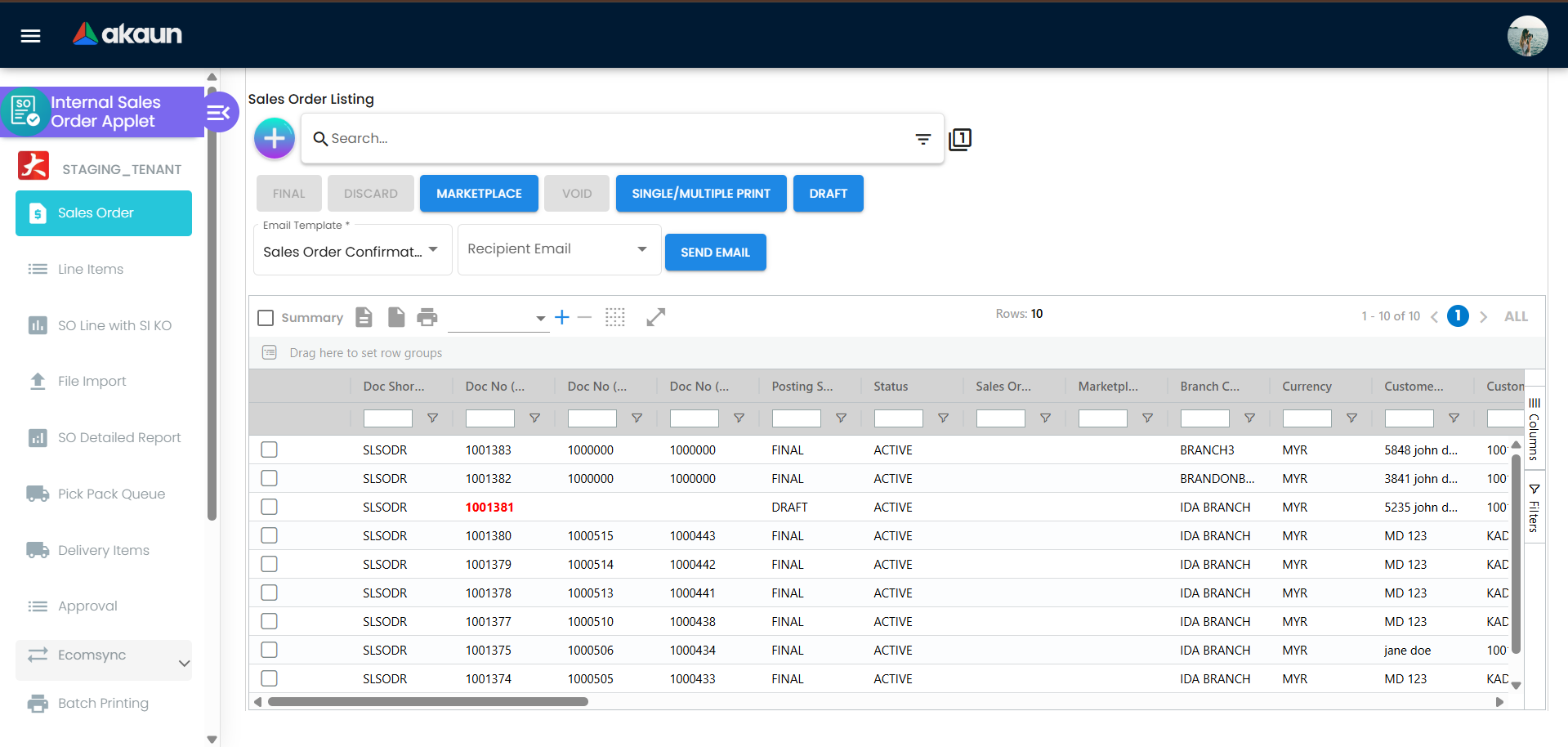
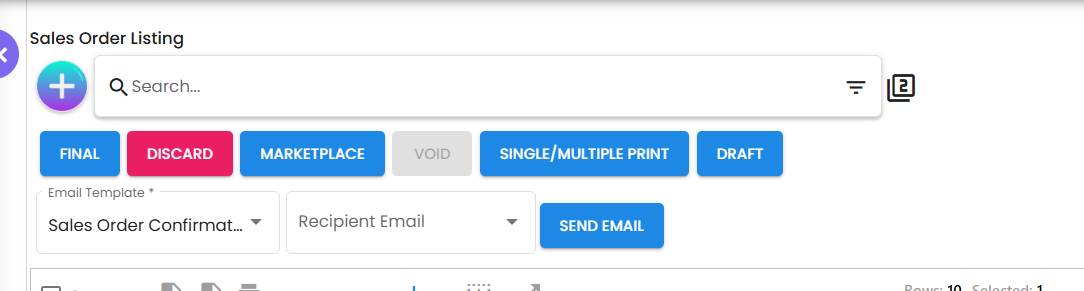
| Sales Order | internal-sales-order | Listing with advanced search, bulk FINAL / DRAFT / DISCARD / VOID / PRINT, email |
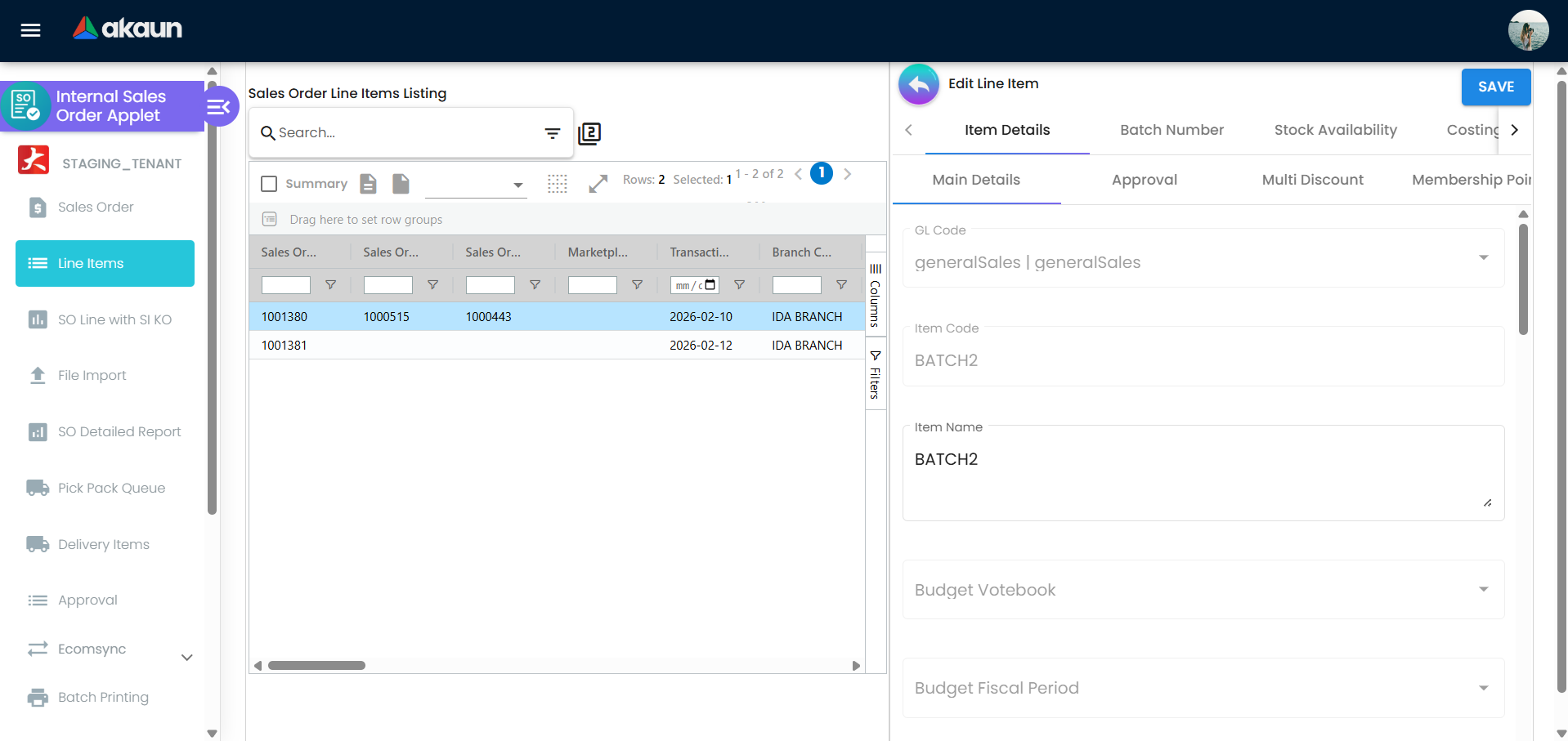
| Line Items | line-items | One row per order line |
| SO Line with SI KO | so-line-with-si-ko | One row per order line — open, closed or never opened, of any posting status unless you filter — with Qty Ordered / Qty Received / Qty Outstanding / Qty Closed / Queue Closed Status / SI No’s (Qty Received is the invoiced quantity) and a Close button in Queue Close Action, shown only while the line still has a balance. The three quantities are not worked out the same way — see The order’s balance under Lifecycle. Close moves the line to the closed list: the invoice’s KO For stops offering the line and its balance stops counting against availability. It closes the order-to-invoice balance only — the order-to-delivery balance for the same line is untouched |
| File Import | file-import | Bulk create orders from a delimited file |
| SO Detailed Report | sales-order-detailed-report | Grouped order/line report by date range |
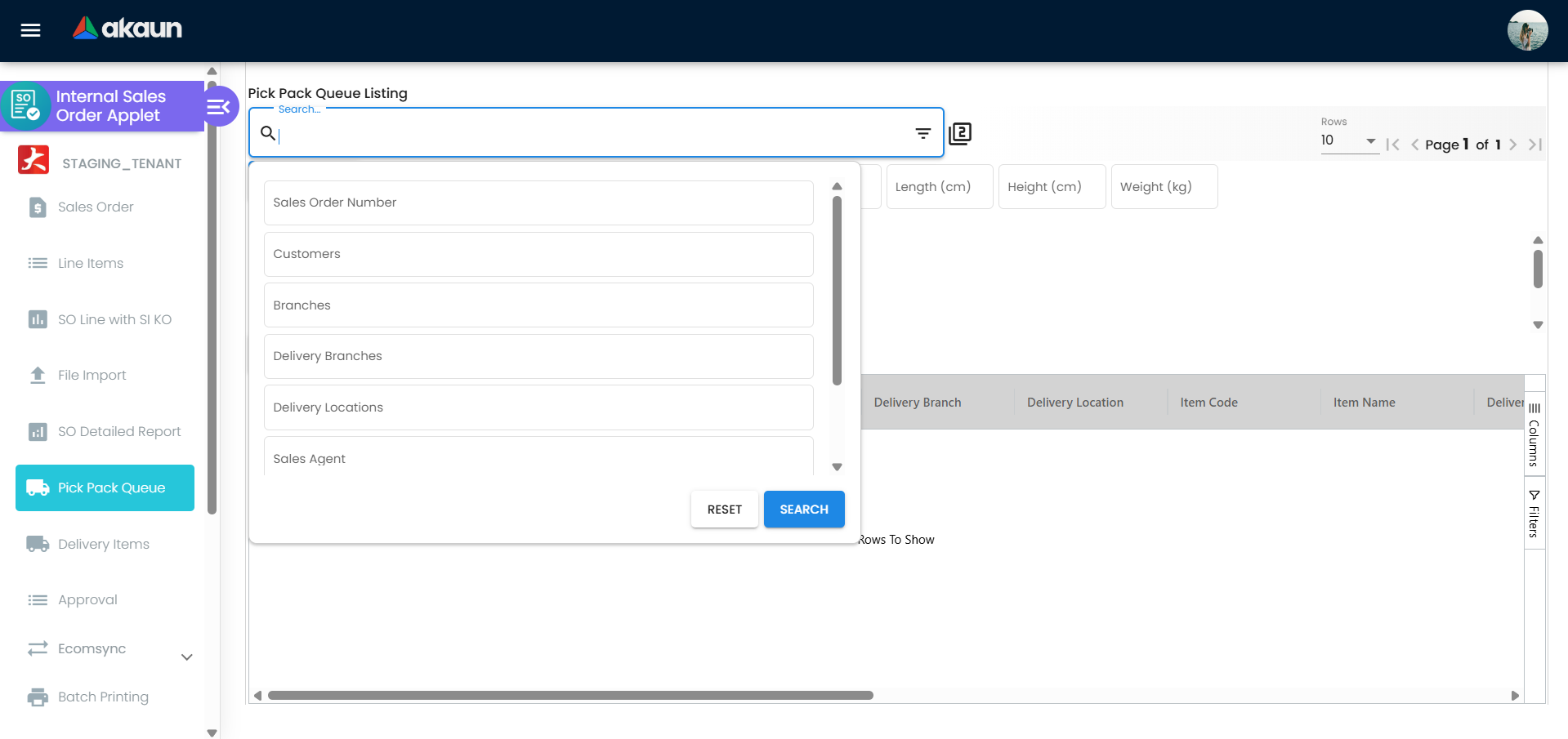
| Pick Pack Queue | pick-pack-queue | Order lines that were sent from the Delivery Details panel with Send To Queue; FINAL alone puts nothing here. Two exits: Create Delivery Job creates a Delivery and Installation job and reduces the queued balance; Send To Warehouse Picking Queue (hidden by the HIDE_WAREHOUSE_PICKING_QUEUE_POSTING setting) moves the rows to the Warehouse Management applet’s picking queue and deletes them here. A row takes one exit, not both |
| Delivery Items | delivery-items | Line-level delivery list with batch/bin editing and printing |
| Approval | approval-permission | Sell-below-price one-time permission overrides, recorded per line. A supervisor opens the line’s request and enters their own e-mail / mobile and password to approve (User is not the assigned approver. otherwise). It overrides DISALLOW_SELL_BELOW_* for that line only — no routing, no e-mail, no effect on FINAL; it is not the document-approval workflow |
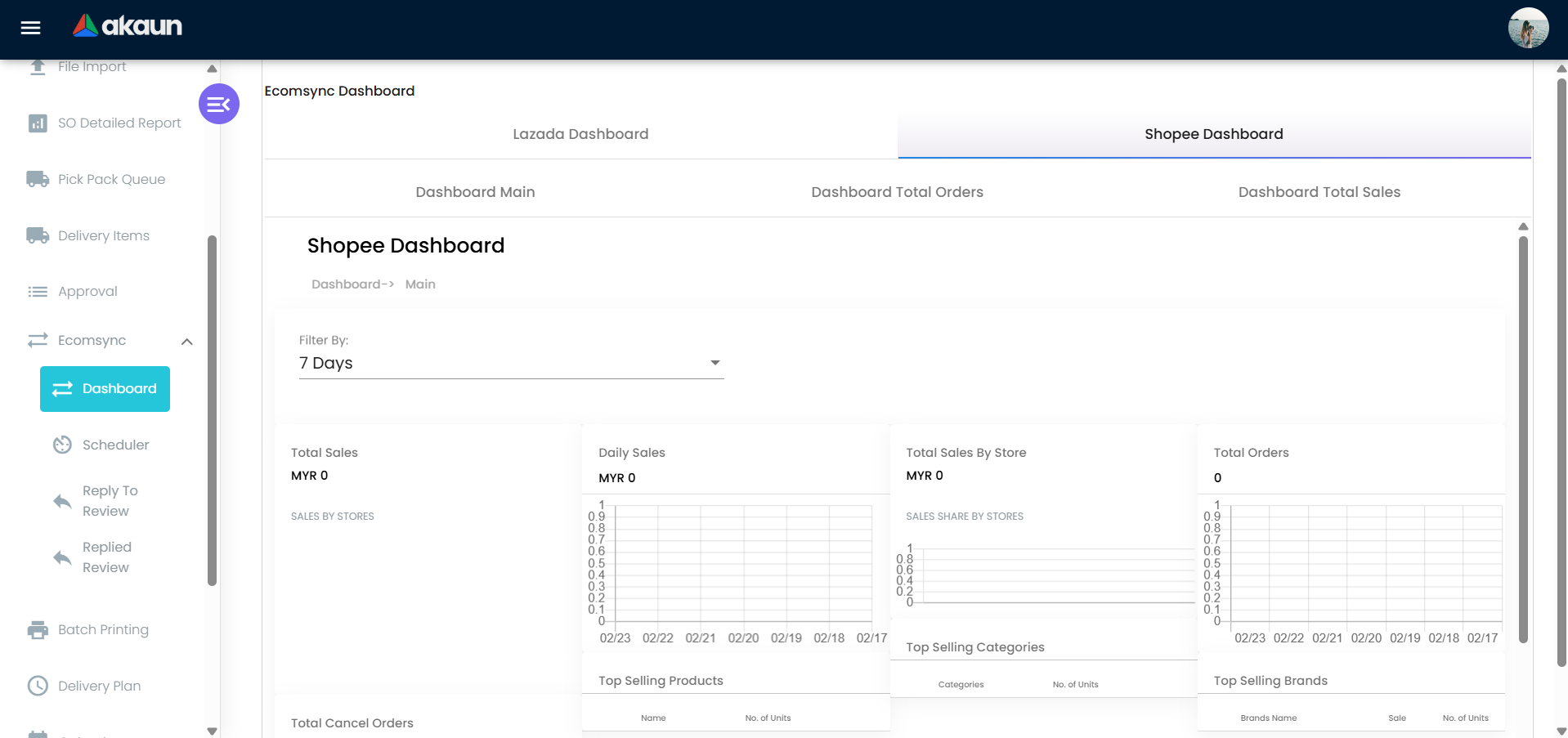
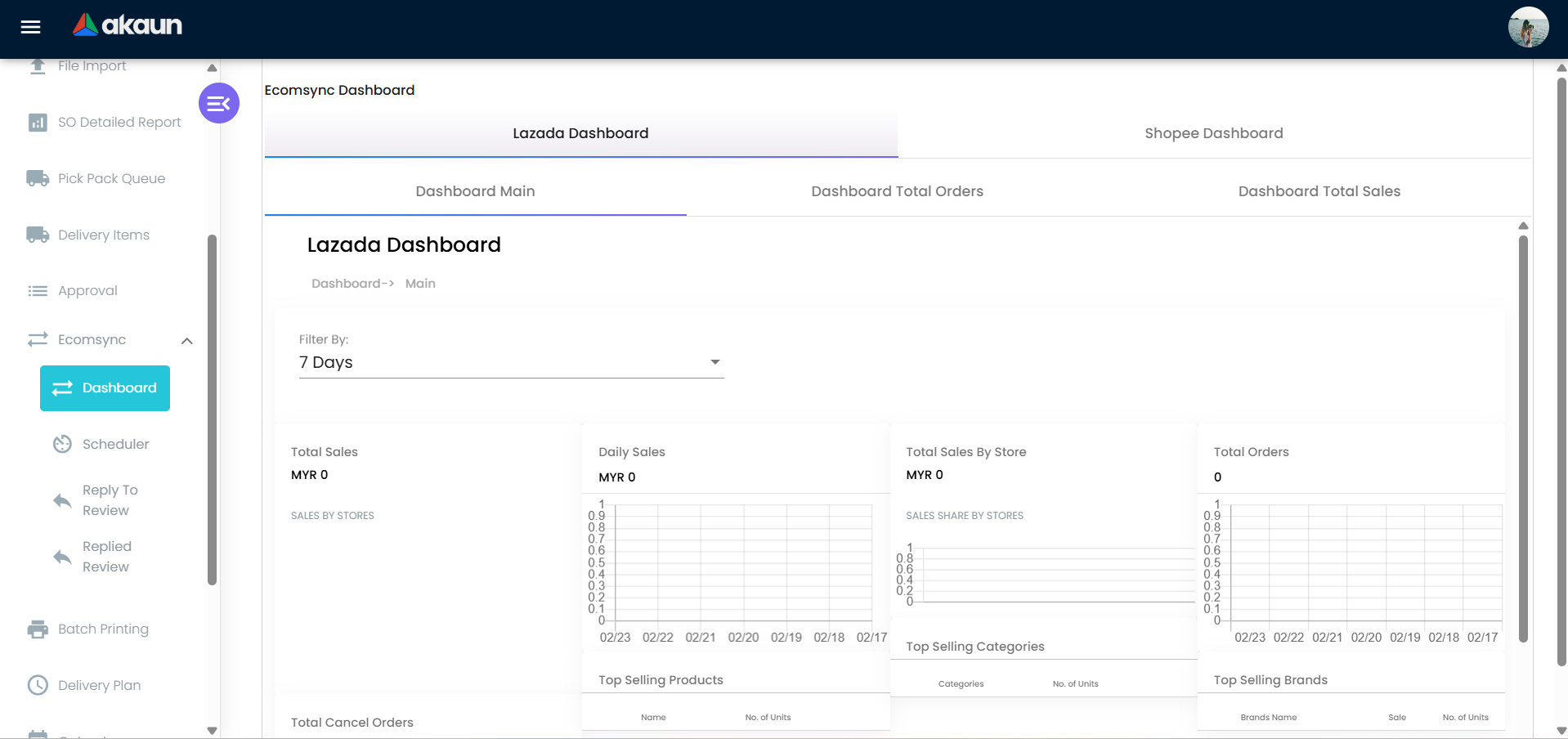
| Ecomsync › Dashboard, Scheduler, Reply To Review, Replied Review | ecomsync-* | Marketplace order sync and review replies. The Dashboard’s Total Sales is not the orders’ own totals — what it does count is under step 12 of EcomSync |
| Batch Printing | batch-printing | Print many orders at once |
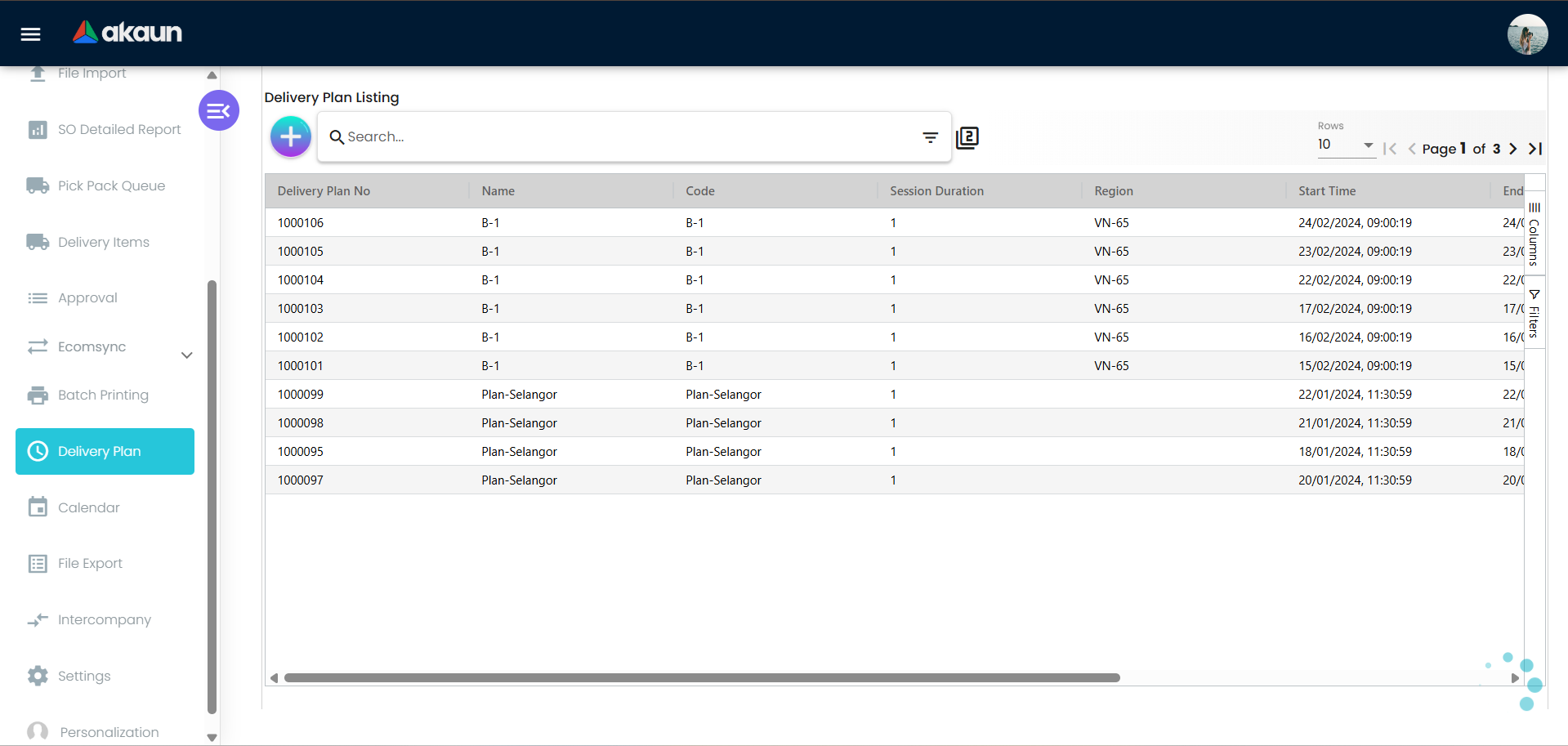
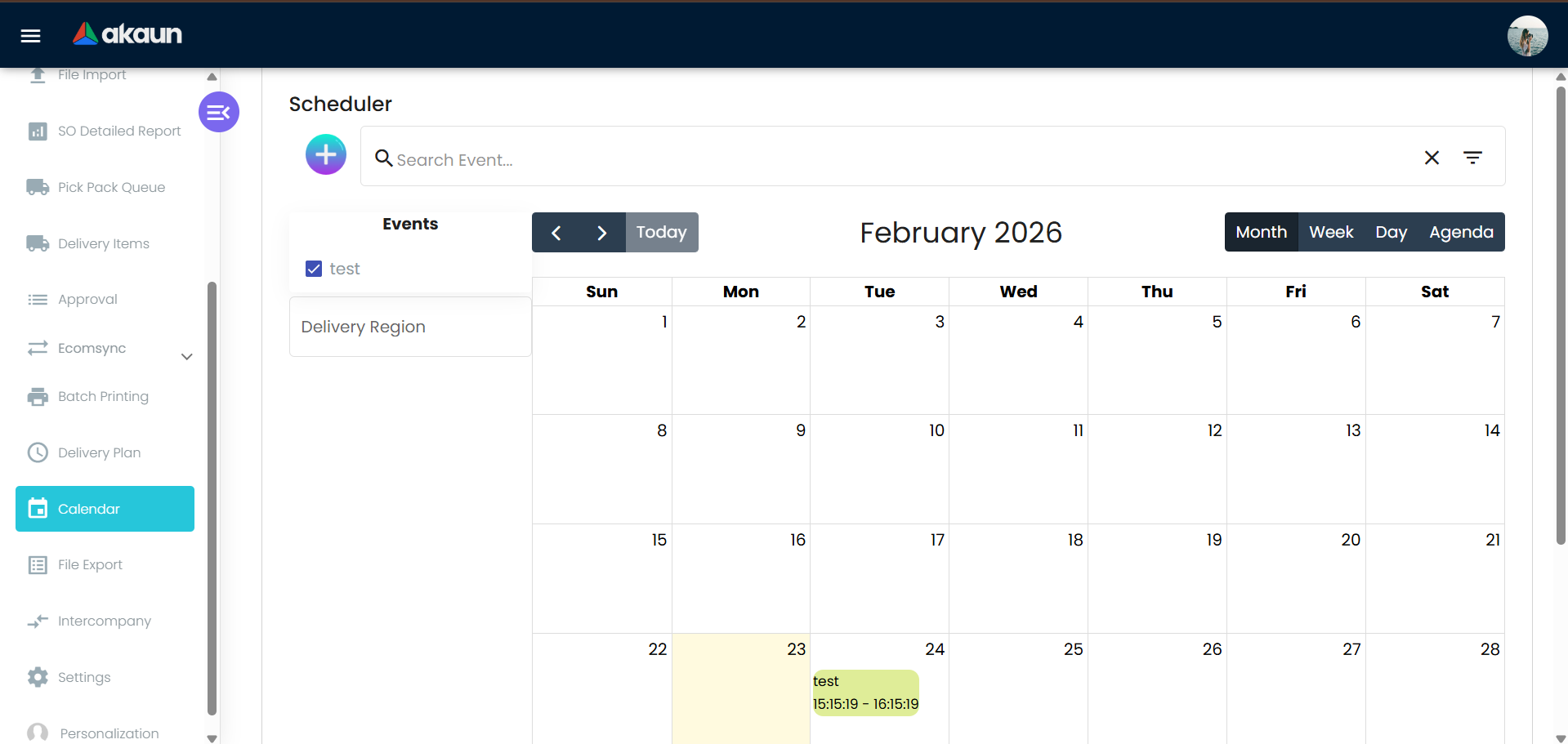
| Delivery Plan, Calendar | delivery-plan, delivery-plan-calendar | Delivery sessions (code, name, start date, session duration) and their calendar |
| File Export | file-export | Generate and download exports |
| Intercompany | intercompany | Intercompany queue |
| Audit Trail | audit-trail | Field-level change history |
| Settings / Personalization | settings/…, personalization/… | Configuration |
The create / edit form
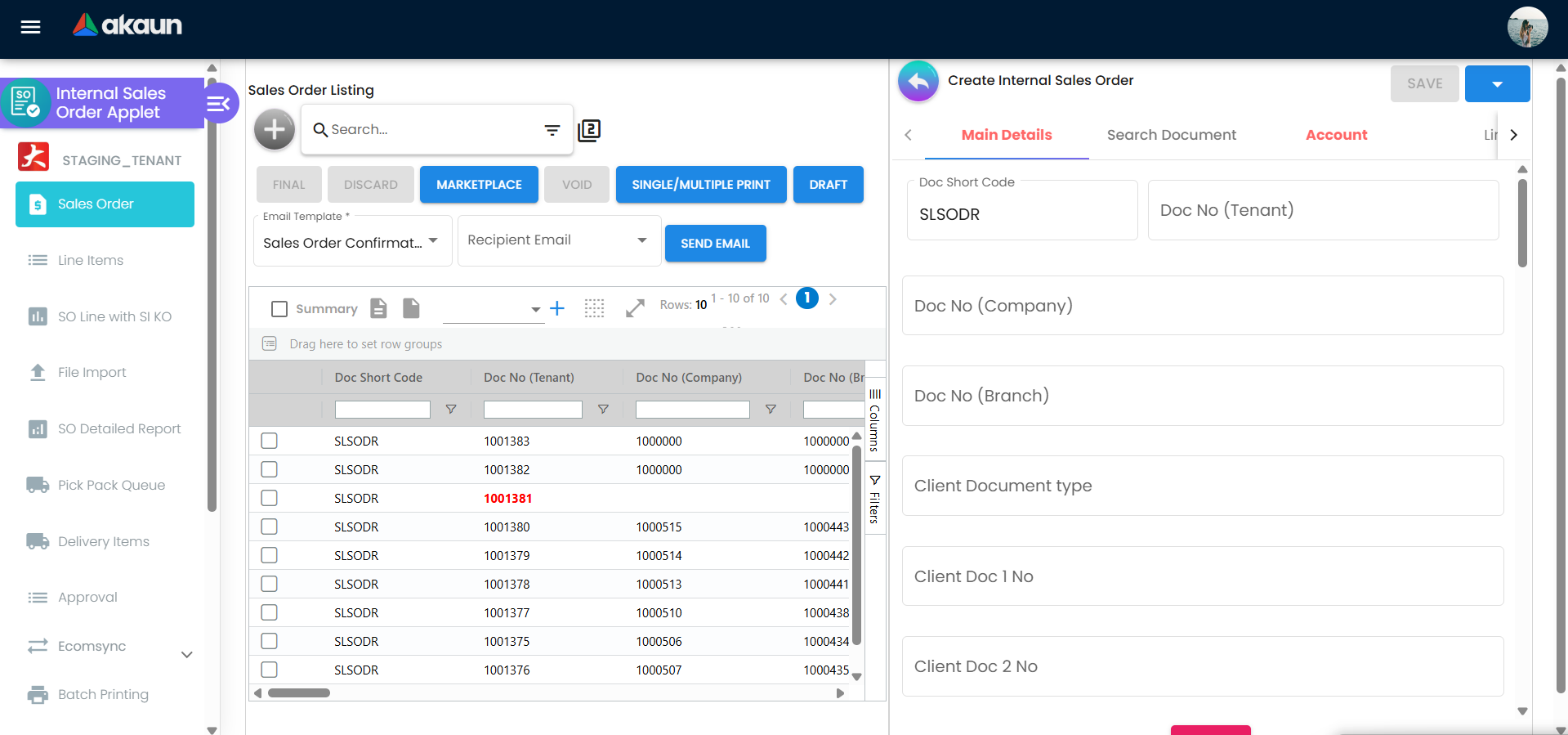
Tabs, in the default order (re-orderable under Default Selection): Search Document, Main Details, Account, Lines, ARAP, Delivery Details, Delivery Trips, Delivery Plans, Settlement, KO For, Receipt Voucher, Department Hdr, TraceDocument, Contra, Doc Link, Attachments, Export, Ecomsync, Status, Events, Gross Profit. Search Document and KO For are shown for TEMP/DRAFT documents only.
Most of the tabs are what their names say — Account holds the customer, Bill To and Ship To; ARAP, Contra, Settlement and Receipt Voucher hold what has been paid or offset against the order; Department Hdr, TraceDocument, Doc Link, Attachments and Export are the analysis codes, posting trace, linked documents, files and export; Ecomsync is the marketplace status; Events is the system event history. Six tabs do something the screen does not tell you:
| Tab | What it does that you cannot see |
|---|---|
| Main Details | Holds the DRAFT / FINAL / VOID buttons, and FINAL here takes a different backend path from FINAL on the listing — see Two FINAL buttons under Lifecycle. Its Remarks box is written to two columns, doc_remarks and doc_internal_remarks: there is no Internal Remarks box on this form, and the column of that name is a copy of Remarks |
| Lines | A line’s quantity must be at least 1 in both the add and the edit dialog; a zero-quantity line cannot be keyed. Line edits are merged onto the loaded line, so a column the dialog does not show survives a save |
| Delivery Details | The only control on it that moves anything is Send To Queue — the delivery fields themselves are saved with the order, and setting a delivery branch makes the order visible to whoever holds that branch (see Pick Pack Queue under Lifecycle) |
| KO For and Search Document | Shown for TEMP and DRAFT documents only. Knock-off is what links the order to its source documents; the editor saves the document first and writes the links in a second step after the save succeeds, so a save that succeeds and a link write that fails leave a saved order with no knock-off — the toast for the second failure is the only sign |
| Status | Writes Custom Status 1-5 to client_doc_status_01..05 on the header; the Sales Order Status drop-down on Main Details writes custom_status — a different column |
| Gross Profit | Permission-gated (SHOW_GROSS_PROFIT) — it decides who sees the tab, not who may know the margin; see the callout under Who can change what |
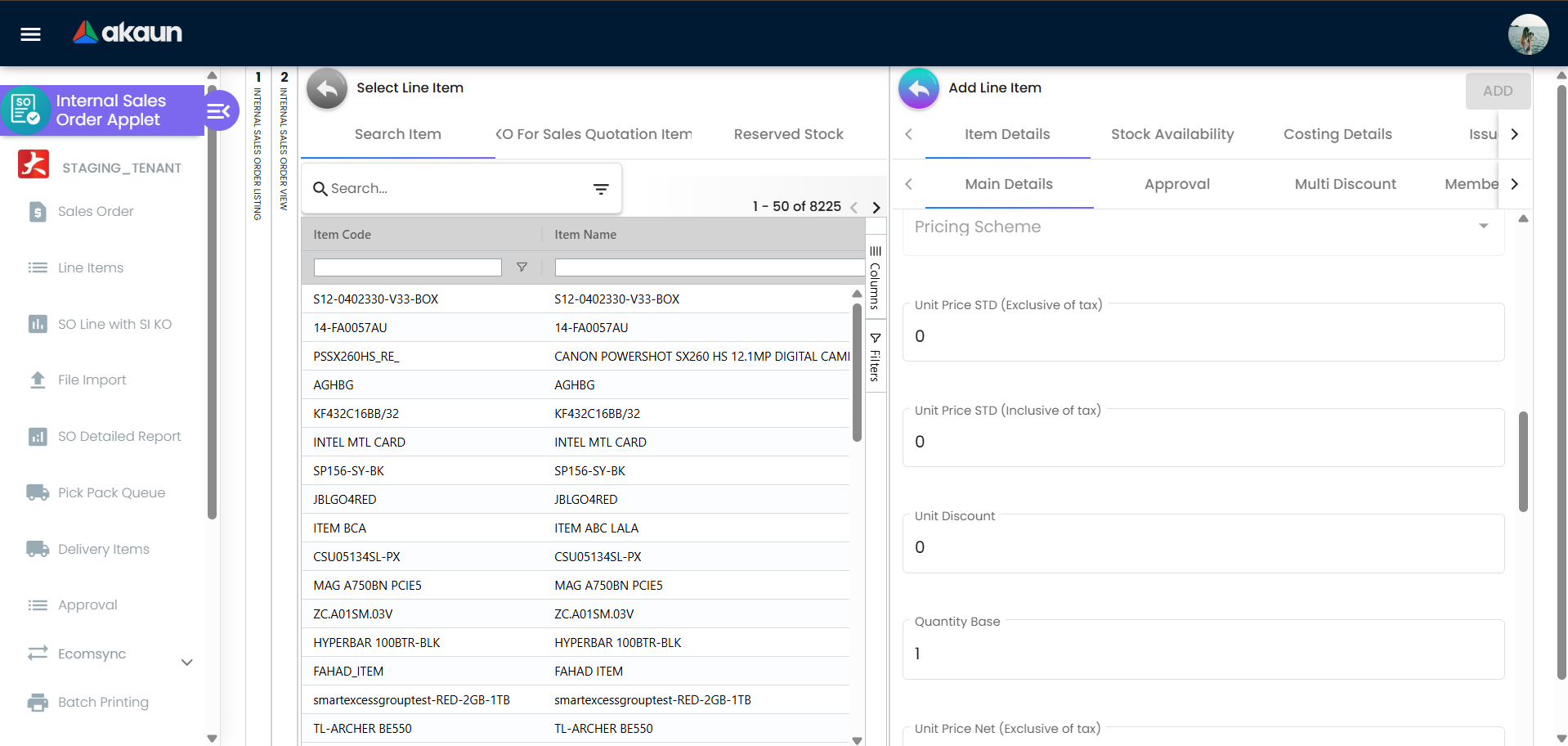
Inside a line: Item Details, Grouped Item, Serial Number (with import), Batches, Bin, Stock Availability (including availability by job and temporary reservation), Reserved Stock, MRP (job-order link), Costing Details, Issue Link, Sales History, Membership Points, Attachment, Ecom Sync.
The screenshot that stood here has been withdrawn: the capture showed real rows on a staging tenant carrying identifying data. A replacement taken on a synthetic demo tenant is on the list.
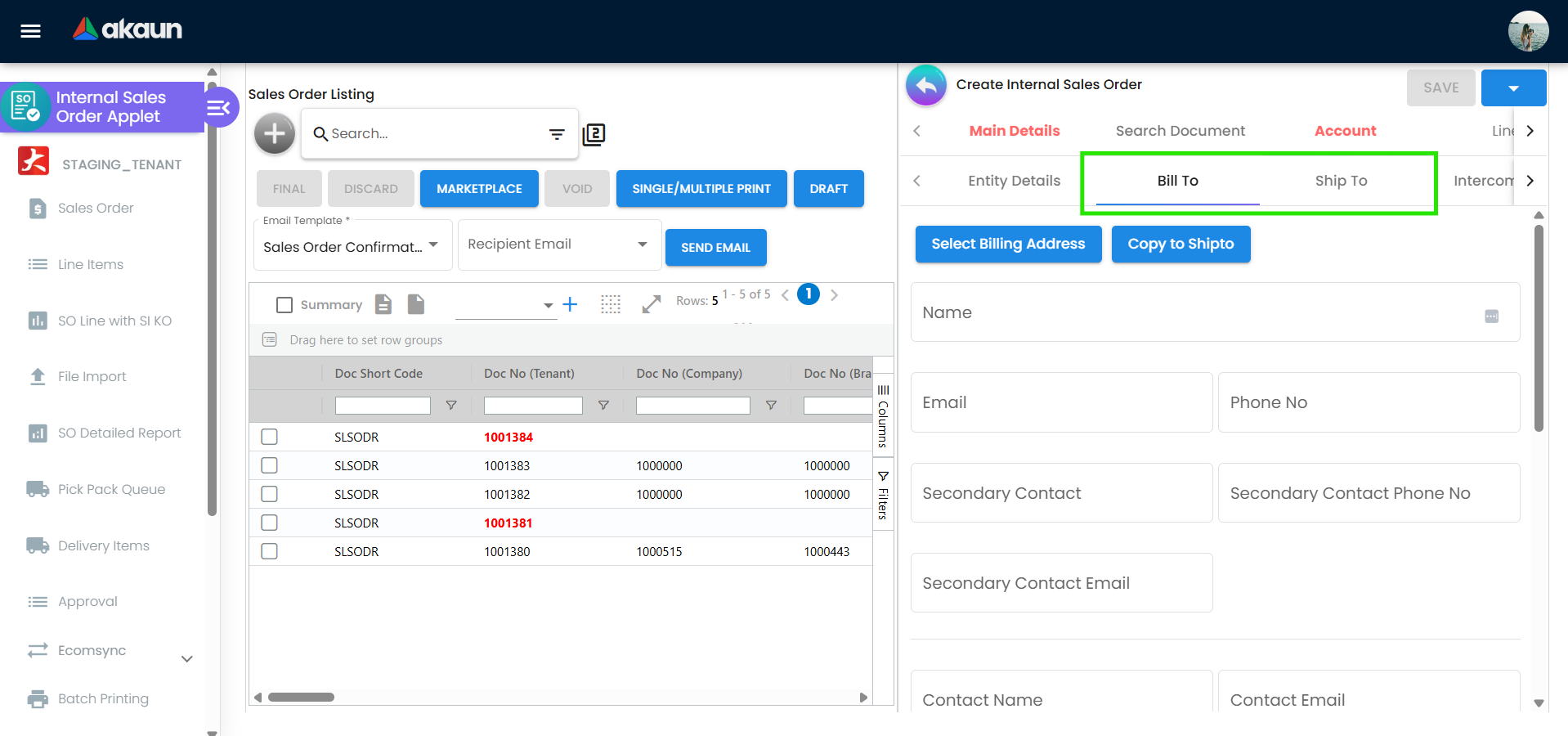
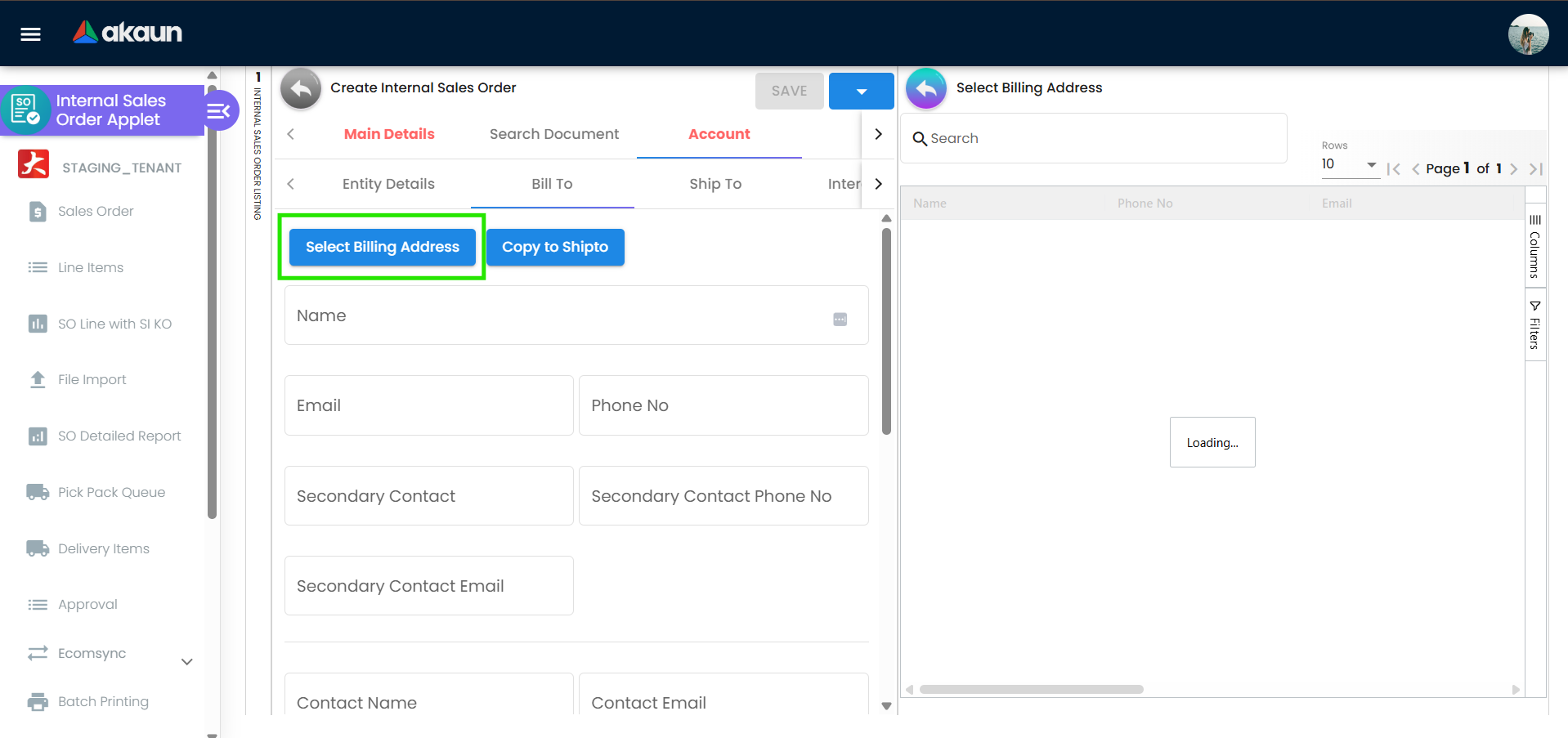
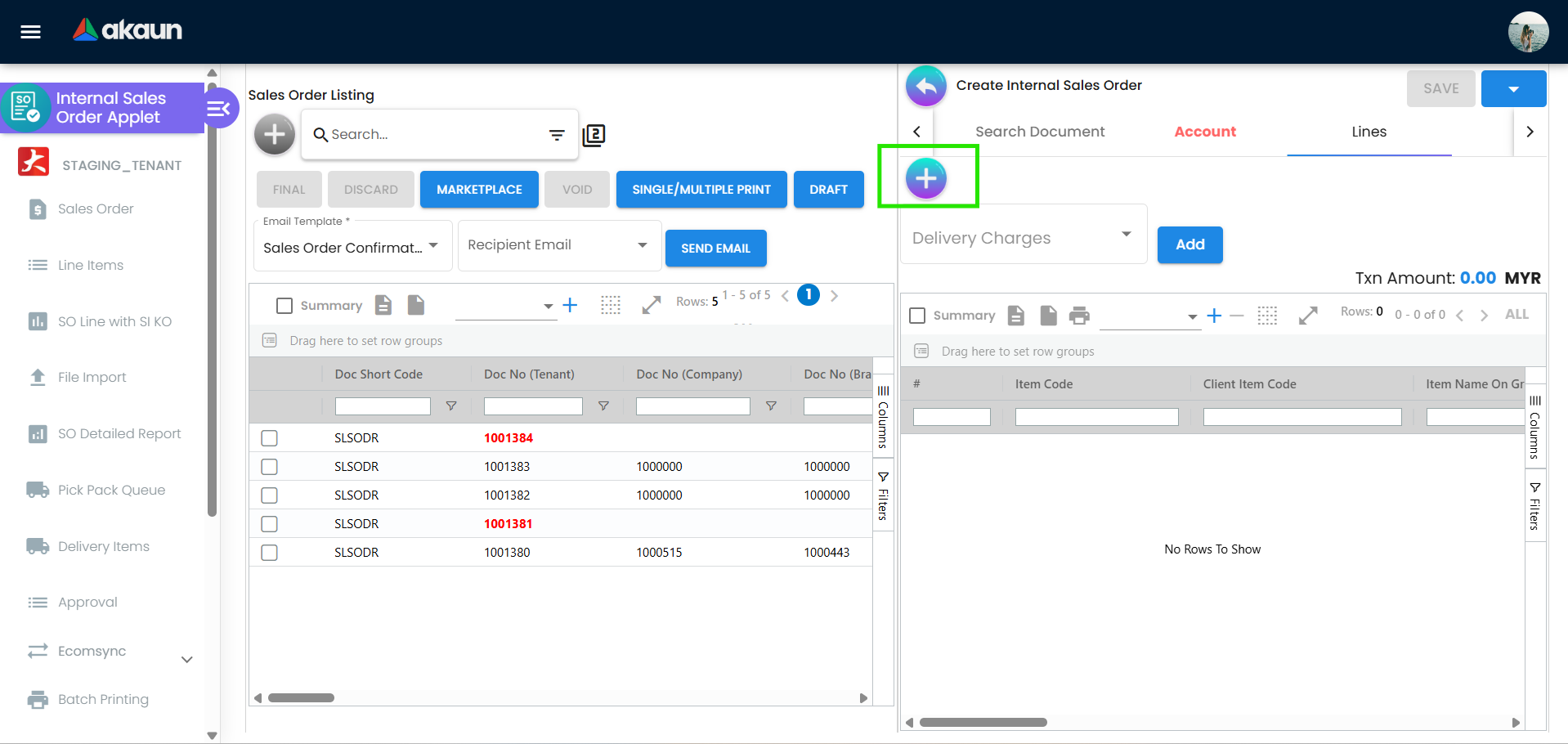
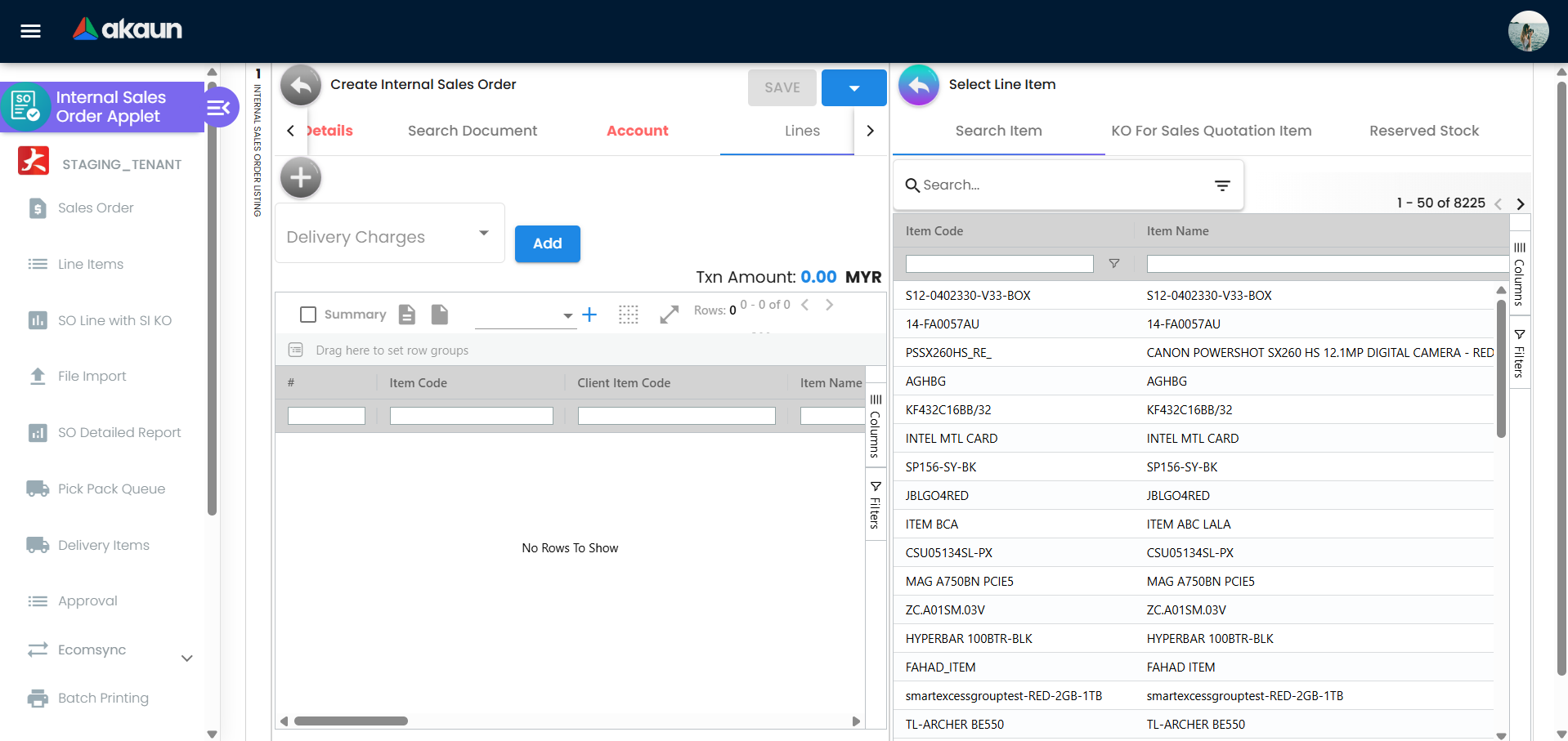
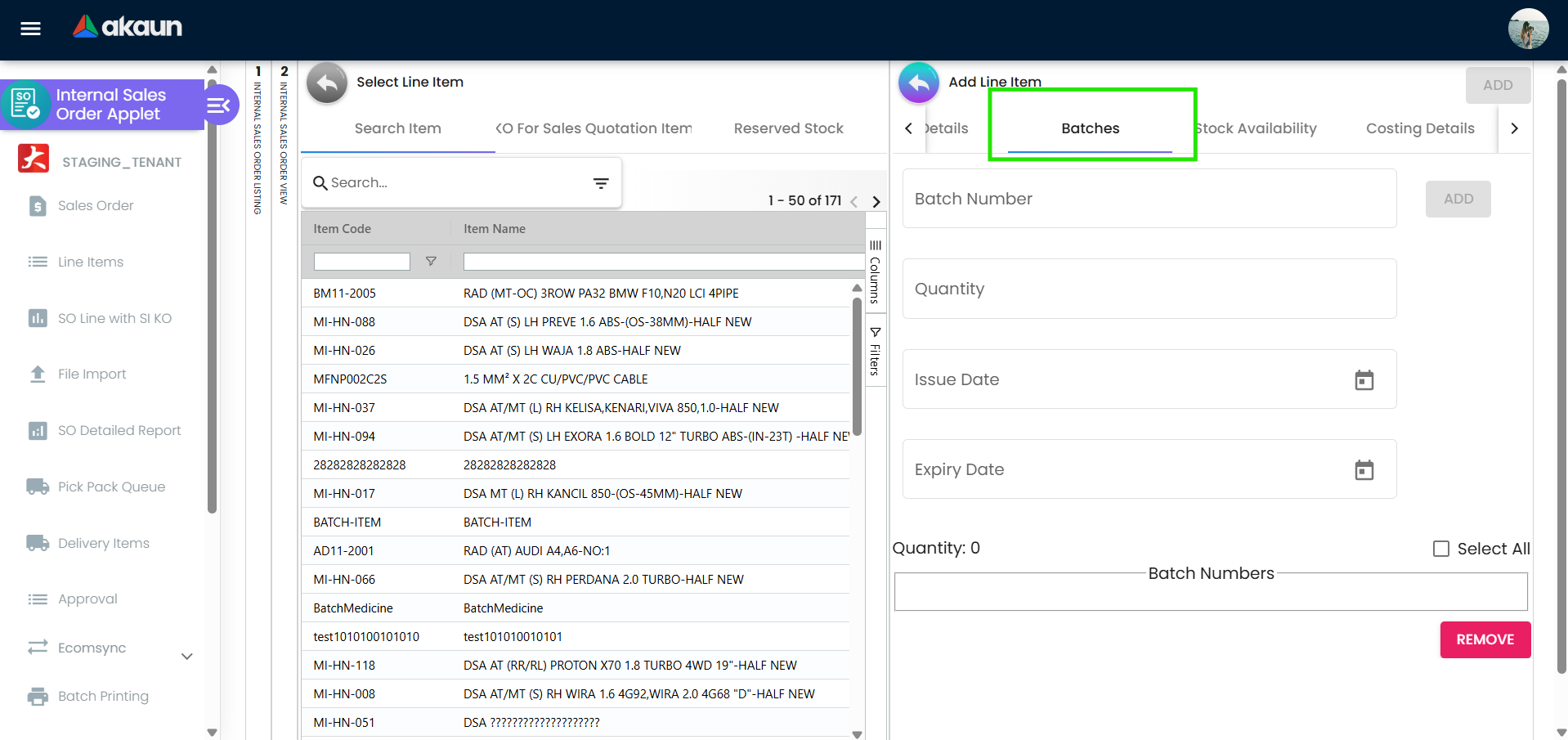
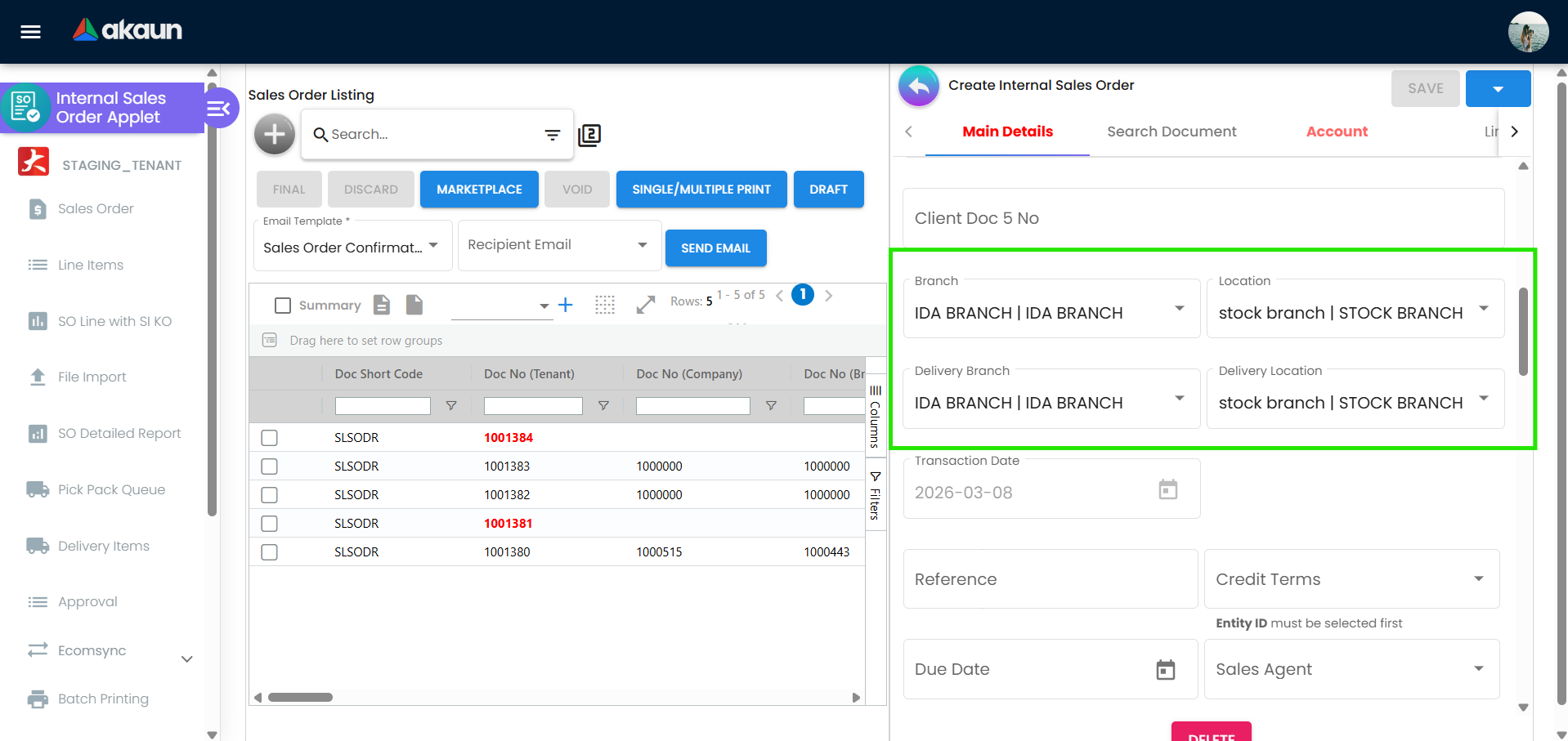
Screenshot withdrawn; a recapture from a demo tenant is on the list.
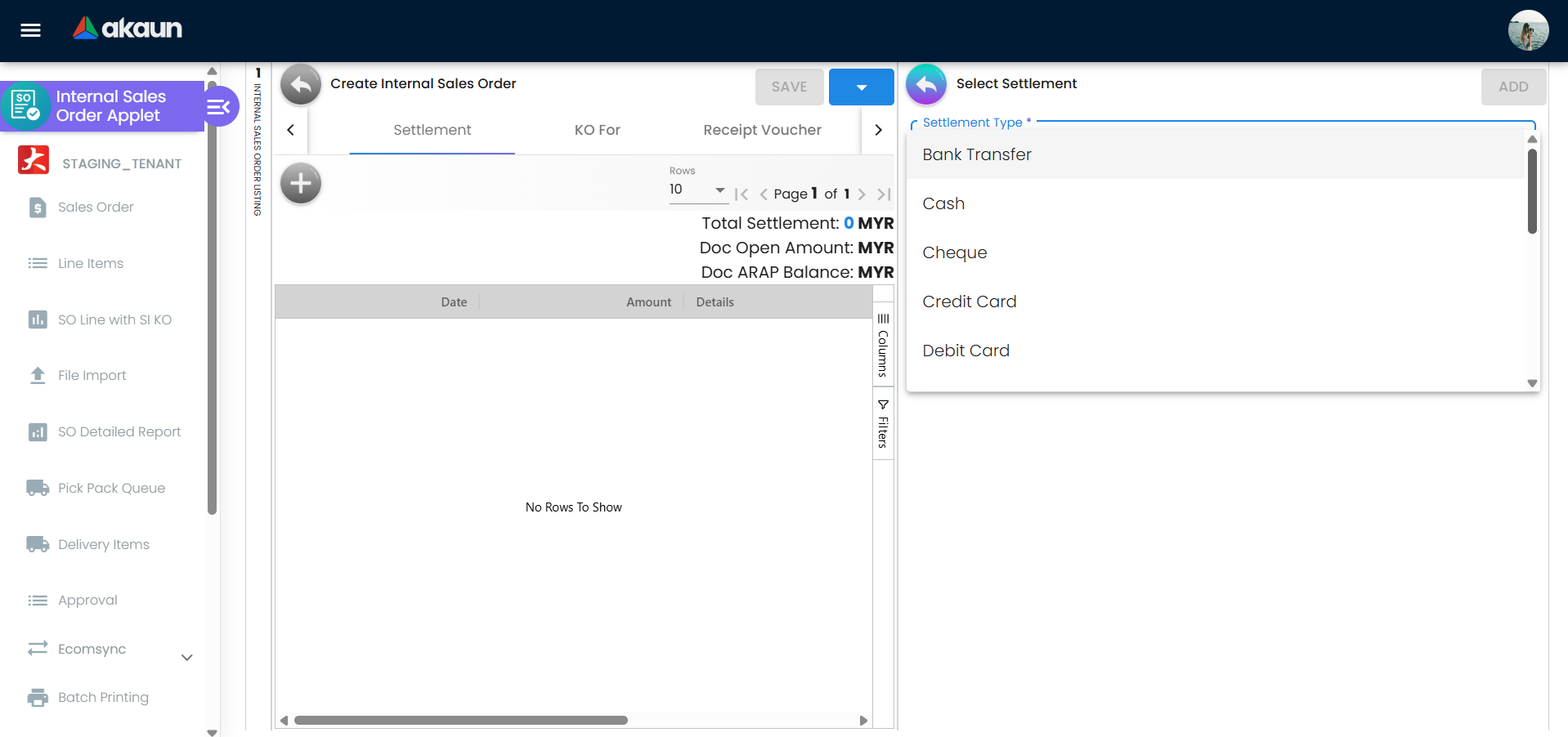
Screenshot withdrawn; a recapture from a demo tenant is on the list.
The screenshot that stood here has been withdrawn: the capture showed real rows on a staging tenant carrying identifying data. A replacement taken on a synthetic demo tenant is on the list.
Fulfilment screens
The screenshot that stood here has been withdrawn: the capture showed real rows on a staging tenant carrying identifying data. A replacement taken on a synthetic demo tenant is on the list.
The screenshot that stood here has been withdrawn: the capture showed real rows on a staging tenant carrying identifying data. A replacement taken on a synthetic demo tenant is on the list.
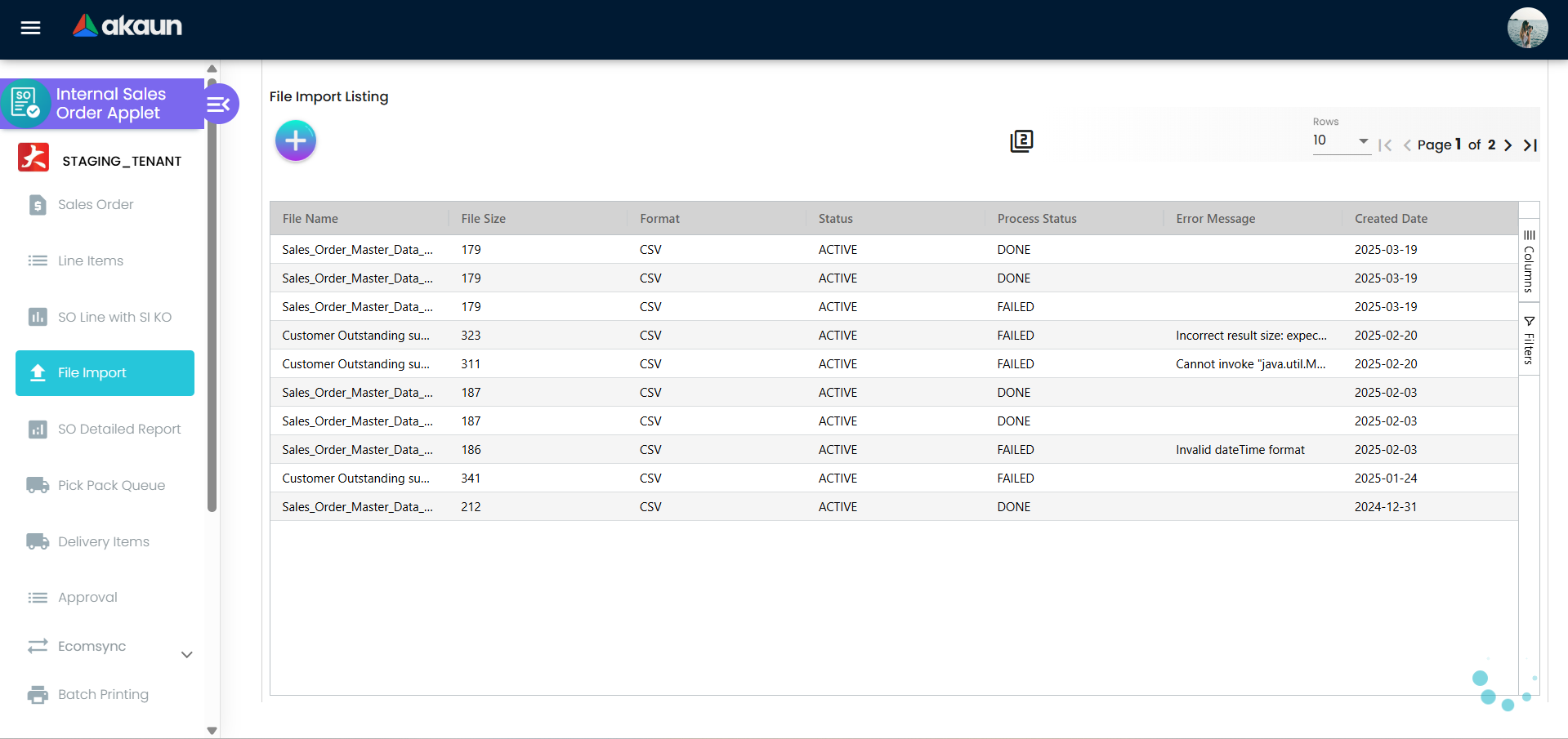
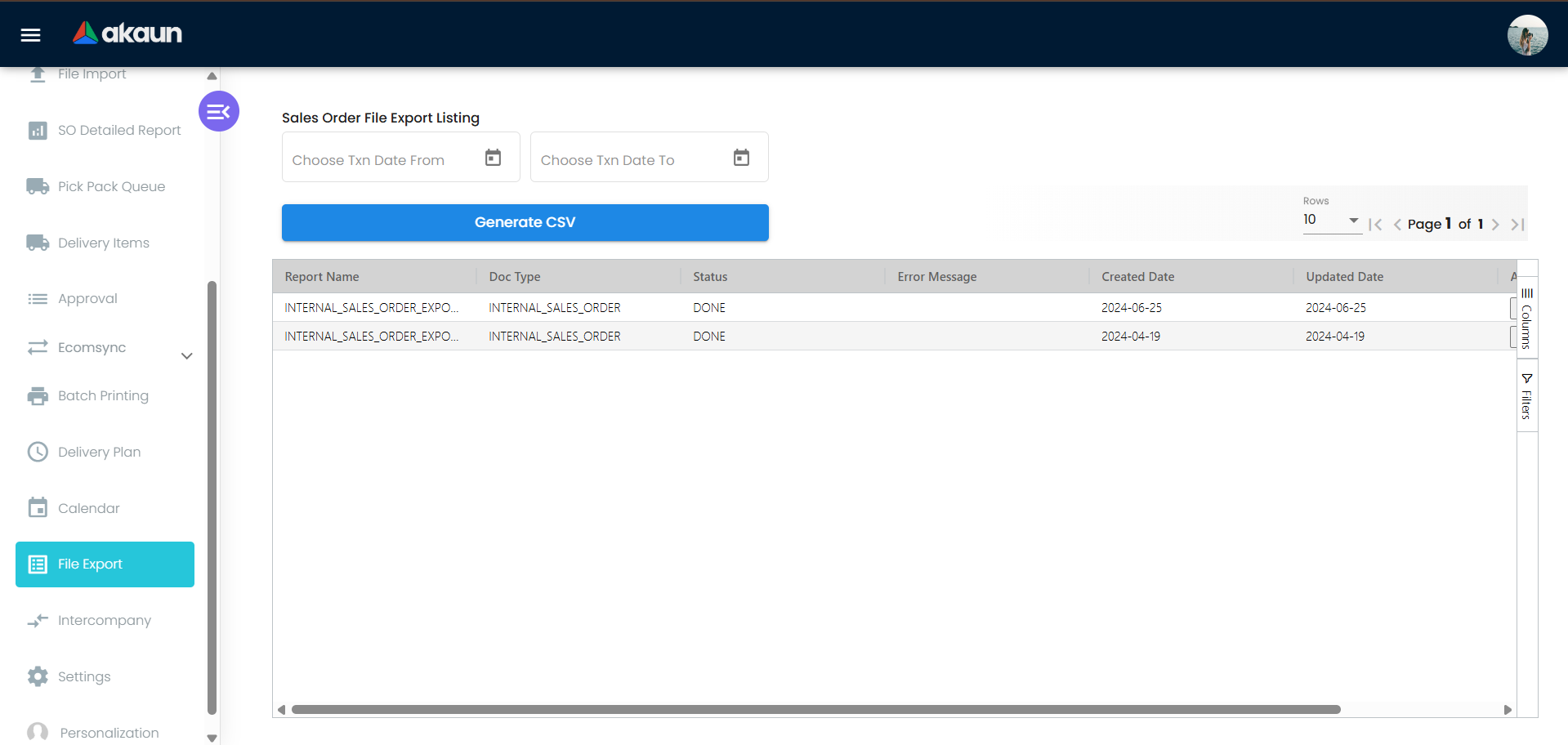
Settings menu
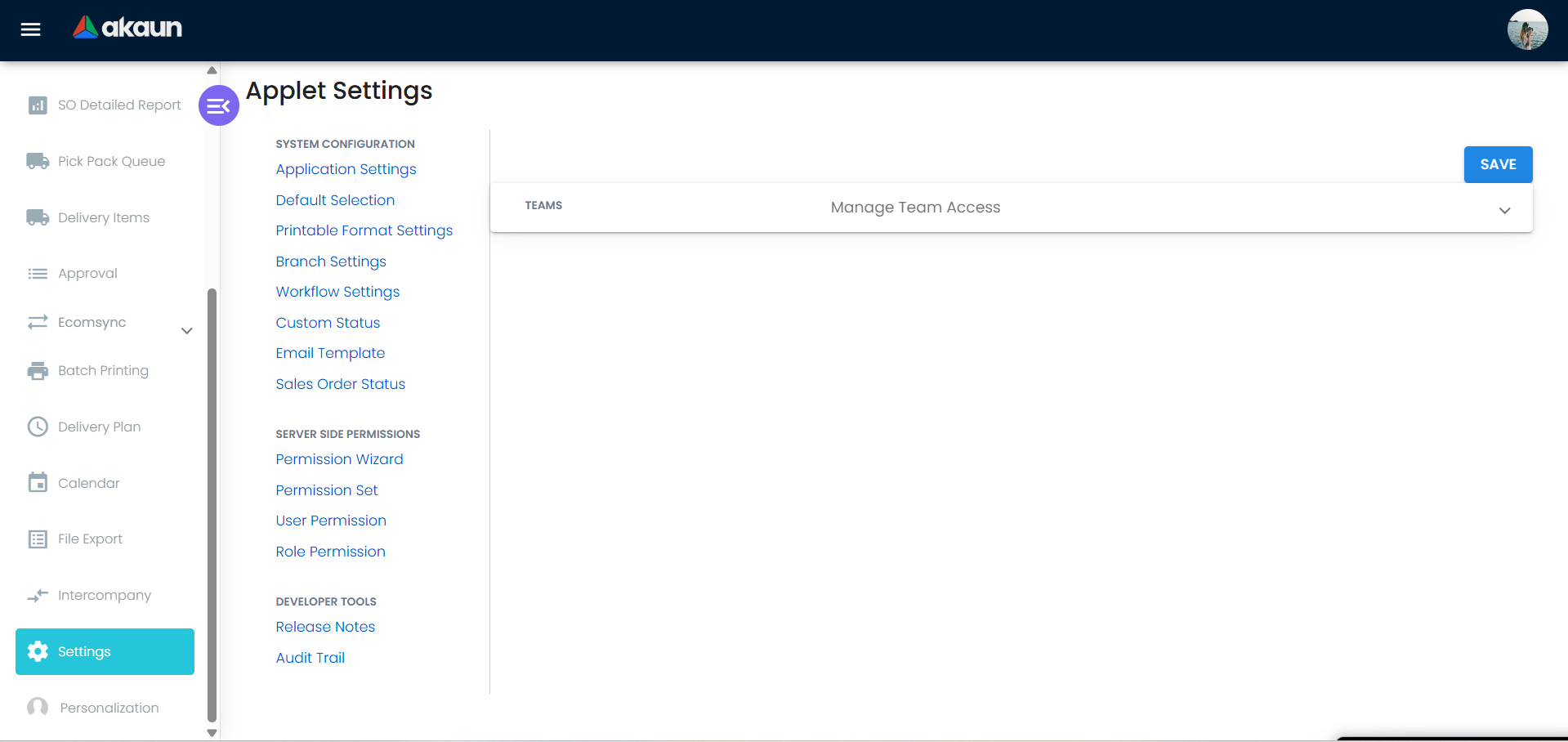
The Settings menu carries the standard entries — Email Template, Custom Resource Bundle Configuration (relabel), Custom Field Placement, Webhook, Feature Visibility, the permission listings, Role Pricing Scheme Link, Permission Wizard, Client-Side Permission, Audit Trail, Release Notes and Applet Log — and six whose effect is somewhere other than the screen you set them on:
| Settings entry | Route | What it decides elsewhere |
|---|---|---|
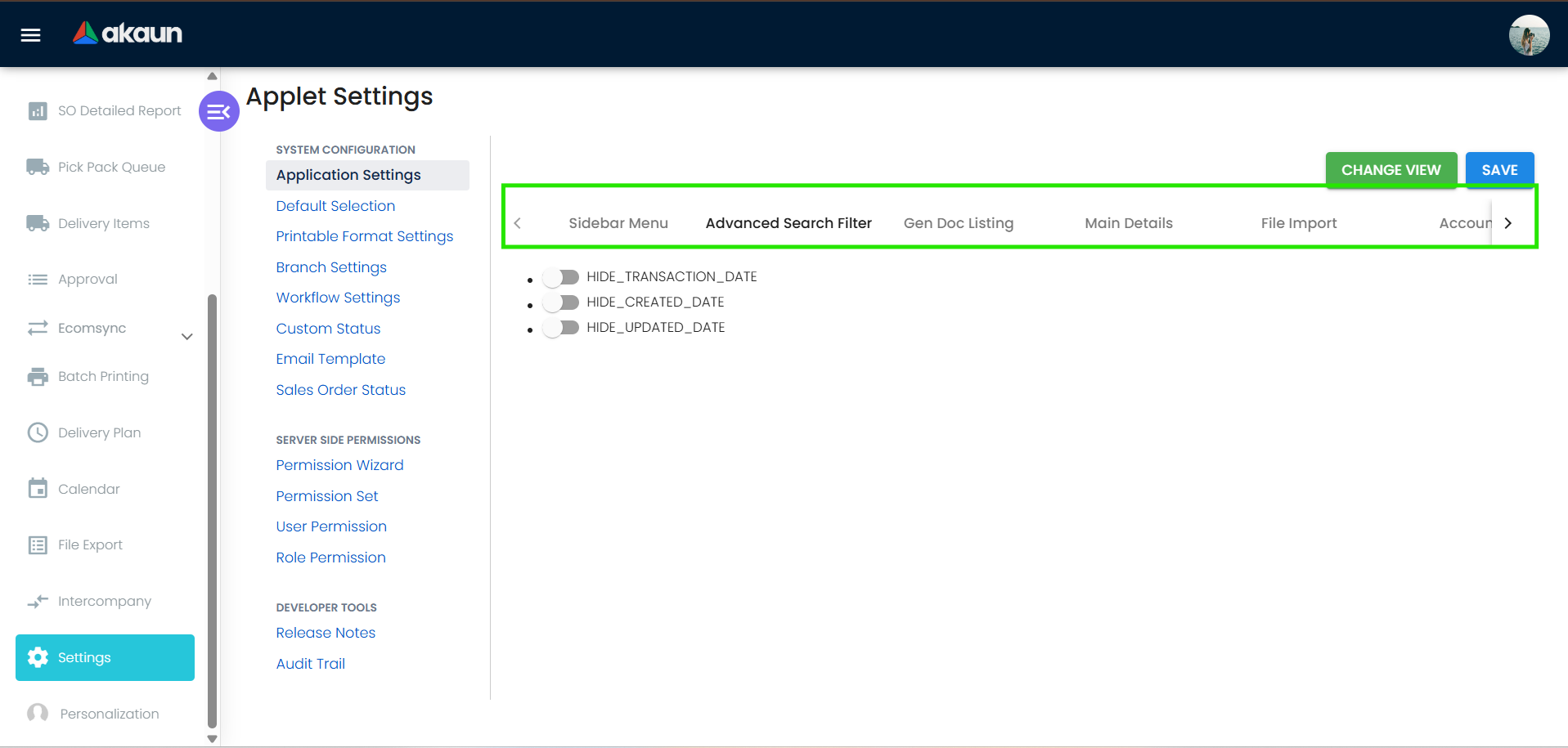
| Application Settings | settings/field-settings | The shared Field Configuration screen. 259 of this applet’s keys have a control on it, 195 of them a single HIDE_/EXPAND_ toggle; the eight that change behaviour are in the table under Applet settings |
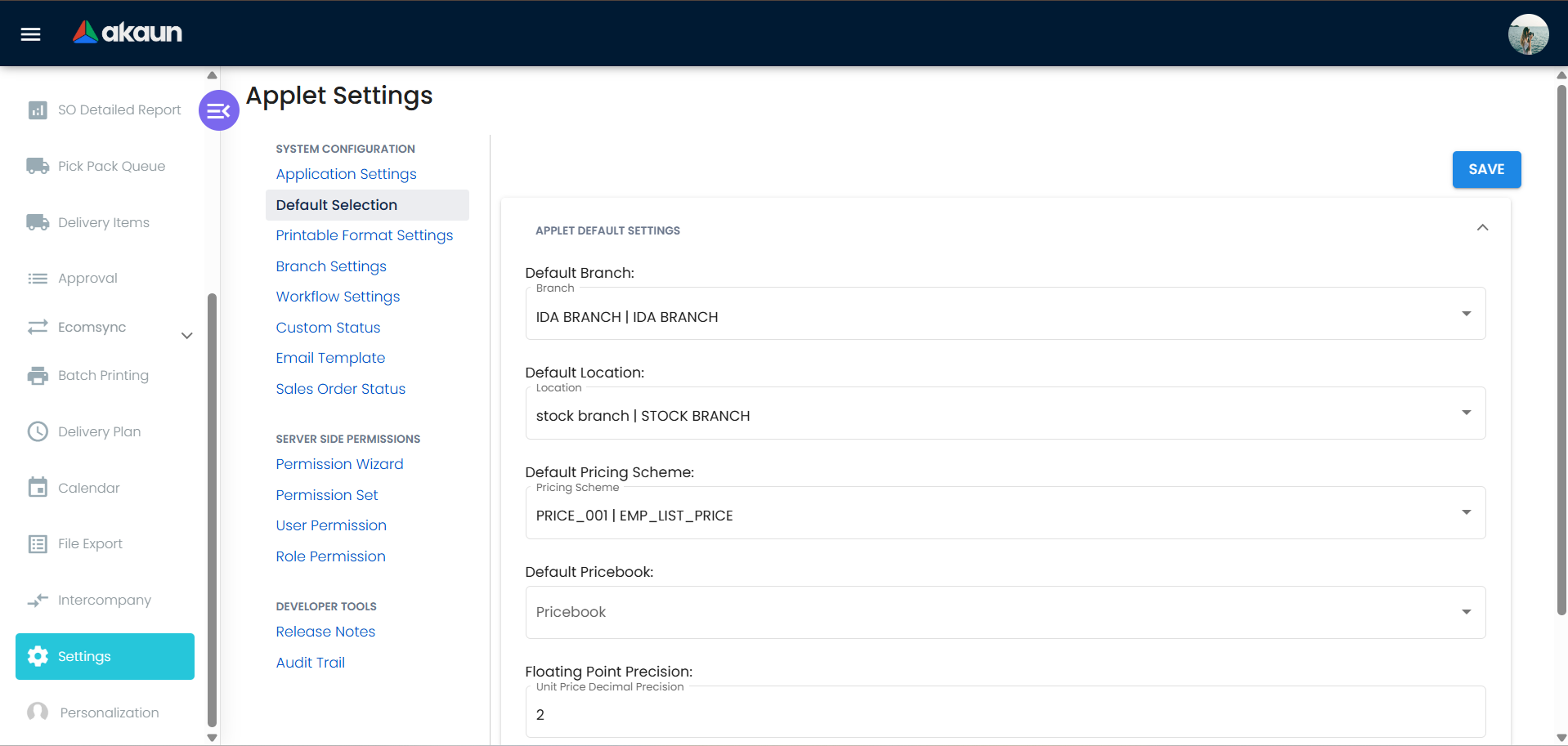
| Default Selection | settings/default-selection | Branch, location, pricing scheme, pricebook, currency, decimal precision and tab order — the pre-fills every new order starts from. Branch and location are the two header fields the form insists on |
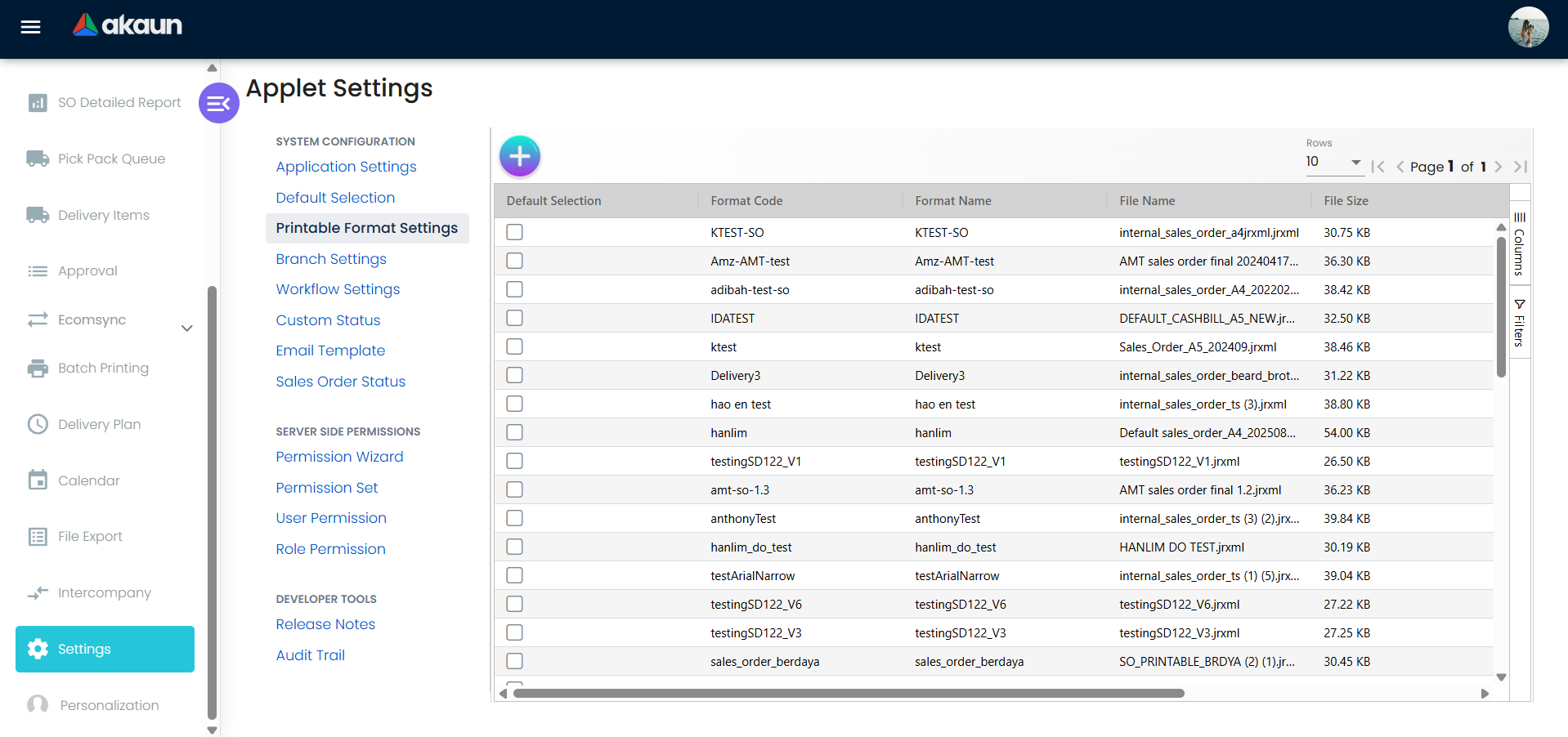
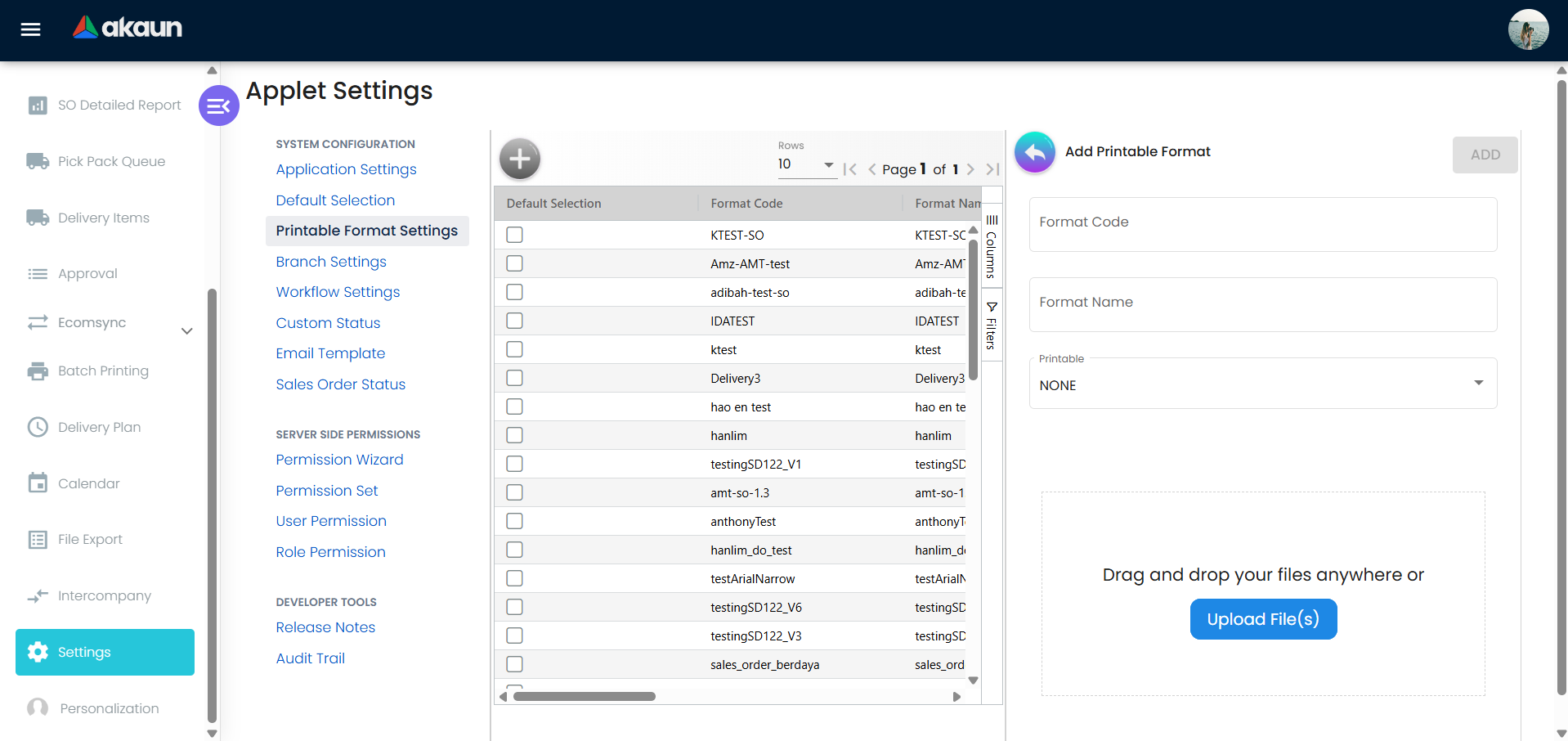
| Printable Format Settings | settings/printable-format-settings | The format you tick as default is the one ENABLE_AUTO_POPUP prints the moment an order is finalised; with the toggle on and no default ticked, every FINAL ends with No Default Printable Selected |
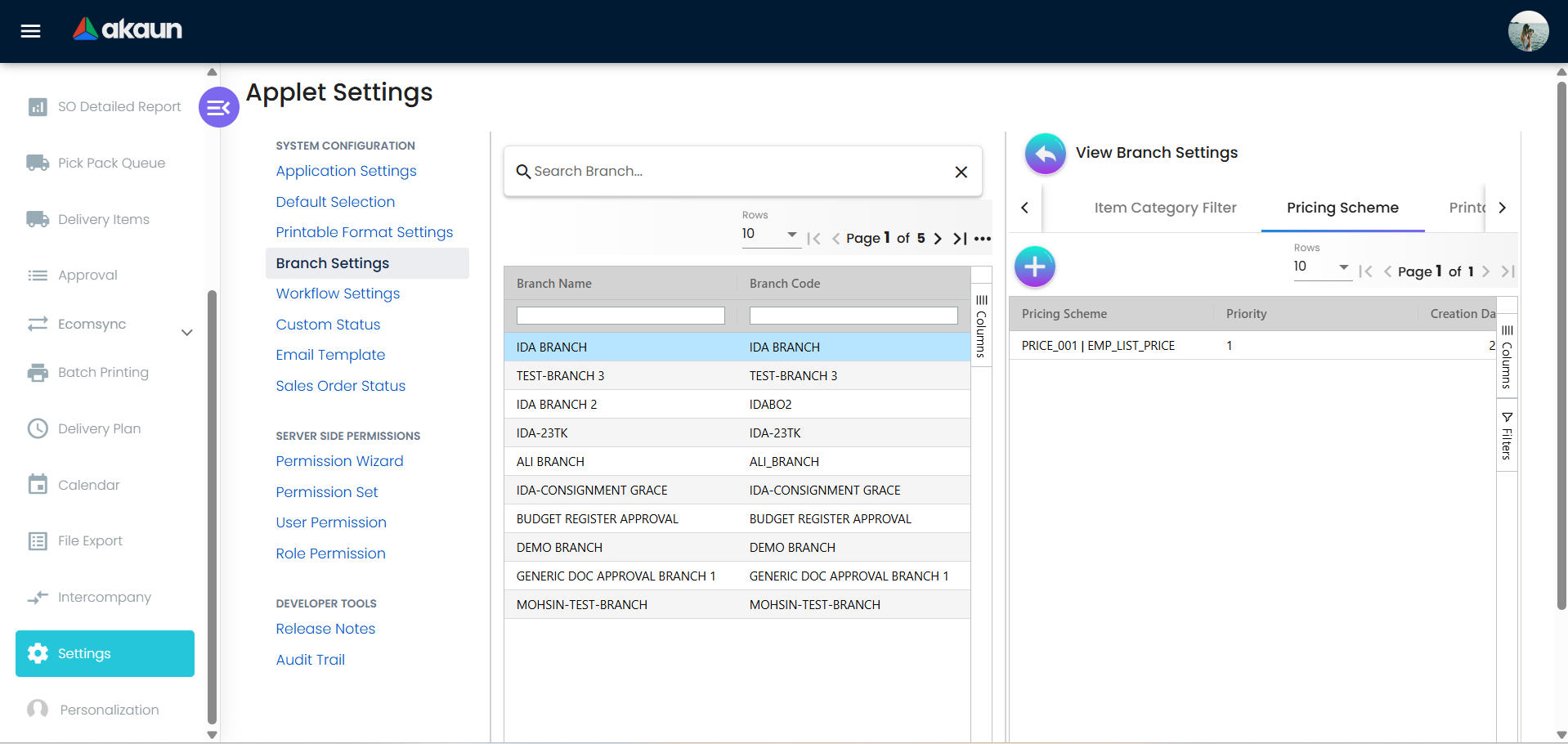
| Branch Settings | settings/settlement-settings | Per-branch header, footer, level and priority. The route name is historical — nothing on it is a settlement setting |
| Custom Status and Sales Order Status | settings/custom-status, settings/sales-order-status | Two different things with similar names. Custom Status defines up to five header and five line statuses, entered on the order’s Status tab and stored in client_doc_status_01..05; Sales Order Status is one free list (code, name, sort order) shown as a drop-down on Main Details and stored in custom_status. A report built on one will not see the other |
| Workflow Settings | settings/workflow-settings | Company ↔ workflow process links for INTERNAL_SALES_ORDER — the processes Workflow Selection on Application Settings lets you pick from. The process itself (WORKFLOW_PROCESS_GUID) and the Final status (FINAL_STATUS_GUID) are chosen there, not here. The Final status gives the order nothing at FINAL: the order view compares it with the workflow status saved on the order and offers FINAL only when the two match, or when it is unset — see the one real gate |

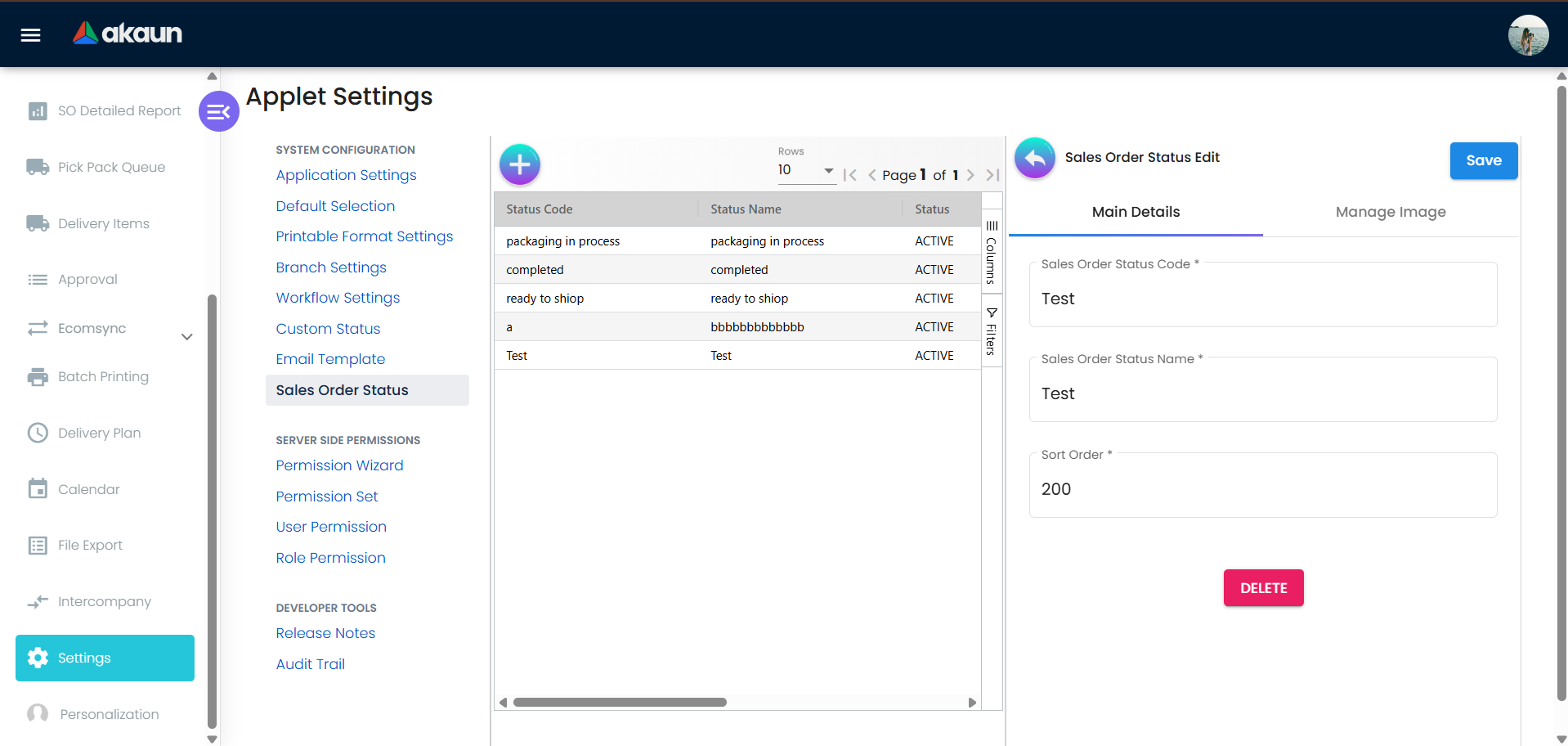
The screenshot that stood here has been withdrawn: the capture showed real rows on a staging tenant carrying identifying data. A replacement taken on a synthetic demo tenant is on the list.
Configuration
Before you can use it
| Prerequisite | Where | Why |
|---|---|---|
| Company, branch, location | Organisation | Header requires them; Default Selection pre-fills |
| Document flow configuration | Company (Organisation → Company → Knock Off Configuration) | Decides which follow-on documents FINAL opens the order up to (SO → Sales Invoice, SO → Delivery Order, …). Only the source → target pairs present in the configuration are opened; with no pair, FINAL succeeds and opens nothing, so the invoice’s KO For cannot find the order and availability ignores it |
Customers with credit terms and, optionally, CREDIT_LIMITS; not blacklisted | Customer | Blacklisted customers are rejected at FINAL; available credit = limit − AR balance − open amounts. The blacklist flag is set by a customer-blacklisting job that marks over-limit customers only (overdue terms do not trigger it); it runs as a scheduled job or on demand. How often it runs is your tenant’s own scheduler setting — check it in the Scheduler applet rather than assuming |
| Items, and stock at the location if you want availability shown | Inventory Item Maintenance, Stock Availability | Sales orders reduce available stock — by their un-invoiced balance, not the order quantity: a partly invoiced order holds back only its un-invoiced balance, and an order in a company without the SO → SI Knock Off Configuration pair holds back nothing |
| Pricing scheme and pricebook | Pricebook | Default Selection points at both |
| Settlement methods with cashbook and GL (only if deposits are taken on the Settlement tab) | Cashbook | Deposit lines post through the receipt-voucher path |
API permissions TNT_API_DOC_INTERNAL_SALES_ORDER_{CREATE,READ,UPDATE,DELETE}_TGT_GUID | Settings → permission listings | Branch targets scope the listing |
| Workflow process (optional) | Workflow Design | For Workflow Status and Final Button Status |
| Branch intercompany setting in AUTO mode with an auto-stock-purchase entity (optional) | Branch intercompany configuration | Lets a FINAL sales order queue an automatic intercompany purchase of stock |
| Marketplace connection (optional) | E-commerce / Ecomsync setup | Needed for the Ecomsync dashboard and scheduler |
Applet settings
Settings › Application Settings is the shared Field Configuration screen; Settings › Default Selection
holds the header pre-fills. 344 setting keys reach this applet and 209 of them begin HIDE_ or
EXPAND_ — they switch one field, column, tab, button or menu entry off, and flipping one shows you
what it did before you have finished reading this sentence. The eight below are the ones that change what
the applet will let you do, or what it does somewhere you cannot see from this screen.
How settings are stored and who they apply to.
| Setting | What changes | Default when never saved | Advisory or hard |
|---|---|---|---|
Let staff type over the standard unit priceENABLE_EDITING_UNIT_PRICE_STD | Makes Unit Price (Std) editable on the line. That field is not decoration: it is the figure the price floors and the price ceiling are measured against, the basis of Std Amount and of the discount the line reports, and the number gross profit is read from. Type over it and the line stops agreeing with the pricing scheme it came from, silently, for that document only. Switching the setting on also re-derives the whole line from whichever price box you typed in | Read-only — on both the add and the edit line dialogs | Advisory — the control is disabled in the browser. The API accepts any standard price |
Refuse a line priced below the minimum, replacement or average cost priceDISALLOW_SELL_BELOW_MIN_PRICE, DISALLOW_SELL_BELOW_REPLACEMENT_PRICE, DISALLOW_SELL_BELOW_MA_COST | The three price floors. Each compares the line’s transaction price with the item’s minimum price, replacement price or moving-average cost and puts the line dialog into an error state so it cannot be added. Three ways past each one, and the reader needs all three: the matching ALLOW_SELL_BELOW_… client-side permission on the user, an in-document line approval (Request Approval on the line — an approver’s decision clears the form error), or the supervisor override on the edit dialog | Off — an absent key is a floor that does not apply | Advisory. The check runs only in the browser; see the caution below |
Refuse a line priced above the standard priceDISALLOW_SELL_ABOVE_UNIT_PRICE_STD_INCL_TAX | The ceiling — refuses a line priced above the standard price including tax. Worth separating from the floors because its exception is not grantable: the applet reads ALLOW_SELL_ABOVE_UNIT_PRICE_STD_INCL_TAX and that code is not in the registry for this applet, so no role can hold it and the only way past is a line approval | Off | Advisory, browser only |
Check that serial and batch numbers add up before it can be finalisedENABLE_SERIAL_NUMBER_VALIDATION_FINAL | One of the few settings on this page the server acts on (the deposit auto-finalise pair under Deposits and the draft serial lock are the others). The applet passes it to the finalise step, and the server then checks that serial and batch quantities match the line quantity before it will post, and refuses when either does not | Off, so finalise accepts a serialised line whose serial numbers do not add up | Hard when on — from both FINAL buttons, with one exception. The listing’s bulk FINAL sends the flag too, unless ENABLE_CREDIT_LIMIT_FILTER is also on: that branch of the bulk FINAL sends the status alone, so on a tenant with the credit filter the check is skipped there whatever this setting says (see Two FINAL buttons under Lifecycle; a known issue, reported to engineering) |
Offer to raise the sales invoice as soon as the order is finalisedENABLE_SALES_ORDER_TO_SALES_INVOICE_AUTO_CONVERSION | When the order finalises, the applet immediately offers to convert it to a Sales Invoice and, on confirmation, posts one. That is stock out, a receivable, a tax document and an e-Invoice submission, started from the order screen. There is no control for it on any settings screen — not on Application Settings, not on Default Selection, not in the applet’s own settings model — so it can only be set through the API or by someone editing the settings record | Off — the effect coerces with !!, so absent is off | Advisory: a confirmation dialog opens first, and cancelling it leaves the order alone |
Hold the serial numbers on a draft order so nothing else can take themENABLE_DRAFT_LOCK_SERIAL_NUMBER_CHECKING | Serial numbers picked on a DRAFT order are held against other documents, so a second order or an invoice cannot take the same unit while the draft sits unposted. Without it, two people can promise the same serialised unit and only the second FINAL finds out | Off — no lock is consulted | Hard — the server reports the serial as taken, naming the document holding it |
Lock the exchange rate on the headerCANNOT_EDIT_CURRENCY_RATE | Disables the Currency Rate field on the order header, so the rate that arrives with the currency is the rate that is used. It decides the base-currency value of every line, the receivable raised, and the foreign-exchange gain or loss recognised when the receipt lands. Unlike the Purchase Invoice applet, this one registers no per-user exception — there is no EDIT_CURRENCY_RATE code for Sales Order, so a locked rate is locked for everybody including finance | Editable (a FINAL order disables it regardless) | Advisory — the field is disabled in the browser |
Let the sales agent be changed after the order is finalALLOW_EDIT_SALES_AGENT_FINAL | Leaves Sales Agent editable after the order is FINAL, when every other header field has been disabled. The agent on the order is what commission is later calculated from, so this decides whether a mis-keyed agent is a correction or a credit note | Locked at FINAL | Advisory — the control is disabled; the API will still accept a change |
Two things to know before you change anything on this screen. First, the name in italics under each setting is the applet’s internal key. It is there so you can match what you are looking at to what support asks you about; it is not a stable name and it can be renamed, replaced or dropped when the applet is updated, so do not build a script or an integration around one. Second, a setting can be switched back but it cannot be returned to never saved: the first time anybody saves this screen, every toggle on it is written into your tenant’s settings at whatever it was showing, and the applet stops falling back to its own built-in default. The Default when never saved column above is what you give up at that moment — worth reading before the first save rather than after. Checked against the product on 17 September 2026.
On the screen and doing nothing
Five keys here are worth naming because a reader configuring this applet will look for them and conclude the product is broken.
- The disable line item queue listing toggle and the key that actually works are the wrong way round.
The toggle you can see and save is Disable Line Item Queue Listing, and it does nothing in this
applet — the Purchase Requisition applet honours the same key, which is what makes it look like a
working control. The key that does stop the Pick Pack Queue loading its grid is
DISABLE_PICK_PACK_QUEUE_LISTING, and it has no control anywhere — the settings screen never offers it. Earlier versions of this page named the visible key as the working one; it is not. - A fourth disallow sell below price floor (the standard price incl. tax) — a price floor that is saved with your settings and has no effect anywhere. It has no toggle either, so it surfaces only if you read your own settings record or fetch it over the API, and then it looks like a floor you have switched off. The three floors that work are in the table above.
DISALLOW_SELL_BELOW_MA_COST_WHOLE_DOCUMENT— a slide toggle on the shared screen that reads as refuse to finalise a document whose total is below cost, which is the control a margin-conscious finance team would reach for first. On this applet finalise is never blocked by it. Switching the toggle on changes nothing at all.- Intercompany enable auto purchase stock — a toggle on the Intercompany panel
that the shared screen renders and saves, and that has no effect.
The automatic intercompany stock purchase is real and is driven by two other things — the branch’s
intercompany setting in
AUTOmode with a stock-purchase entity and branch, and the intercompany auto-purchase stock-location configuration. Switching this on does not enable it and switching it off does not disable it. - Filter by today’s transactions — saved by the shared screen with no control rendered for it and no effect in this applet (the same key name is a live listing filter in other document applets).
Sixty-two more keys sit in the applet’s settings model with no control on any of its settings screens.
Most are inert HIDE_* partners or are set elsewhere — the ENABLE_CUSTOM_STATUS_*, NAME_CUSTOM_STATUS_*
and LIST_CUSTOM_STATUS_* families belong to Settings › Custom Status — so they are not listed here.
WORKFLOW_PROCESS_GUID does have a control: the Workflow Selection panel of Application Settings sets it (see
Document behaviour settings).
Document behaviour settings
| Area | How it is configured |
|---|---|
| Status flow | DRAFT → FINAL → VOID, plus DRAFT ← FINAL through the DRAFT button — on the listing when either the SHOW_DRAFT_BUTTON setting is on or you hold the permission, on the order’s own screen only when both are. Discard deletes a draft. Close is a per-line action (close an order line that will not be invoiced, from the line editor or SO Line with SI KO), not a document status: it moves the SO → SI open-queue row to the close queue (deleteAndCreateCloseQueue), so the line leaves KO For and stops reducing availability. |
| Open-queue rows created on FINAL | Company document-flow configuration (server_doc_type_1 = INTERNAL_SALES_ORDER, server_doc_type_2 = the consuming type). |
| Custom statuses | Settings → Custom Status: enable up to five header and five line custom statuses, name them and list their values with a default; five client-document statuses likewise. Values are edited on the order’s Status tab. |
| Sales Order Status | Settings → Sales Order Status: a free list (code, name, sort order) shown as a dropdown on Main Details, independent of posting status. |
| Workflow | Application Settings › Workflow Selection: WORKFLOW_PROCESS_GUID is the process a new order is meant to start on, and FINAL_STATUS_GUID the workflow status an order must be saved at before its own screen offers FINAL. Finalising changes neither the setting nor the order’s workflow status. Today a new order is saved with no workflow status at all (a recorded product finding), its Workflow Status drop-down then has nothing to offer, and so with a Final status set the order view never shows FINAL for it: leave FINAL_STATUS_GUID unset on this applet until that is fixed. The listing’s FINAL, for orders you tick, does not consult the setting, so the gate holds only on the order’s own screen. |
| Reservation | Lines can reserve stock (Reserved Stock tab, temporary reservation by job); reserved rows are highlighted and show who reserved them. |
| Printables | Settings → Printable Format Settings / Printables; batch printing from the Batch Printing menu; a client-side permission gates printing drafts (ALLOW_PRINT_DRAFT_GEN_DOC). |
| Marketplace | Ecomsync dashboard and scheduler pull marketplace orders. The two commerce processors a FINAL can queue — CPCOMMERCE_SALES_ORDER_PROCESSOR for shopping-cart orders and CP_COMMERCE_SO_FILE_QUEUE_PROCESSOR for a transfer webhook — both need a subscription that is not created for you; see the processor table under Lifecycle. |
| Intercompany | Intercompany menu; mapping INTERNAL_SALES_ORDER ↔ INTERNAL_PURCHASE_ORDER. FINAL queues an automatic intercompany stock purchase only where the tenant subscribes INTERCOMPANY_AUTO_STOCK_QUEUE_PROCESSOR to the primary and the branch’s intercompany setting is AUTO with a stock-purchase entity and branch — the toggle on Application Settings is not the switch (see On the screen and doing nothing). |
| Webhooks | Settings → Webhook. |
Who can change what
Two different things govern this screen and they are not interchangeable: a setting is tenant-wide and changes the applet for everybody, a client-side permission is granted to a role and changes what one person sees.
Server-side. TNT_API_DOC_INTERNAL_SALES_ORDER_{CREATE,READ,UPDATE,DELETE}_TGT_GUID, with branch
targets scoping the listing. These are the only ones that can return a 403; everything below is decided in
the browser.
Client-side permissions registered for this applet: 24 ACTIVE. The ones worth granting deliberately:
ALLOW_SELL_BELOW_MIN_PRICE,ALLOW_SELL_BELOW_REPLACEMENT_PRICE,ALLOW_SELL_BELOW_MA_COST— the standing exception to each price floor above. A holder is never stopped; everyone else needs a line approval each time.SHOW_DRAFT_BUTTON— returns a FINAL order to draft, and the two places the button appears do not agree on what it needs. On the listing the setting or the permission is enough, the same rule as every grid column. On the order’s own screen it needs the setting and the permission. So with the setting off, a permission holder can return orders to draft in bulk from the listing but finds no DRAFT button inside the order; with the setting on, everyone has it on the listing and only holders have it inside.SHOW_GROSS_PROFIT,SHOW_COSTING_DETAILS— the margin and cost tabs on the order. Grant with the same care you would give a cost report, and read the limit below before you rely on withholding them.ALLOW_PRINT_DRAFT_GEN_DOC— printing an unposted order, which is how a draft ends up in a customer’s hands looking like a confirmation.SHOW_INTERCOMPANY_SO_SCREEN,SHOW_DELETE_CONTRA— the intercompany tab, and deleting a contra that has already been applied.
Registered and doing nothing here. SHOW_LAST_PURCHASE_PRICE is ACTIVE for this applet, but the
line panel that honours it is never shown on a sales order, so granting the code changes nothing here.
HIDE_PRICE and SHOW_UNIT_PRICE_STD_PRICING_SCHEME are in the registry with status DELETED, and
no screen can create a definition to grant in their place.
Read by the applet and missing from the registry, so no role can hold them and the behaviour they
guard is unreachable: ALLOW_SELL_ABOVE_UNIT_PRICE_STD_INCL_TAX (the exception to the price ceiling —
see the table), ALLOW_APPROVE_SELL_BELOW_PRICE (the code that decides
who may approve a below-floor line), and the menu family SHOW_SO_DETAILED_REPORT_MENU,
SHOW_PICK_PACK_QUEUE_MENU, SHOW_DELIVERY_ITEMS_MENU, SHOW_ECOMSYNC_MENU, SHOW_BATCH_PRINTING_MENU,
SHOW_DELIVERY_PLAN_MENU, SHOW_CALENDER_MENU, SHOW_FILE_EXPORT_MENU — each the intended escape hatch
for the matching HIDE_*_MENU setting, none of them grantable, so hiding one of those menus hides it from
everybody.
A permission that gates a setting. The Lock Amount toggle (DISABLE_EDITING_AMOUNT_TXN) is only
rendered on the Application Settings screen for a user who holds SHOW_DISABLE_EDITING_AMOUNT_TXN_SETTING. If an administrator cannot find that toggle, the
missing piece is a permission on their own account, not a setting.
SHOW_GROSS_PROFIT or
SHOW_COSTING_DETAILS removes a tab from one person’s screen, and keeping margin off a screen where it does
not belong is a good use of them. Do not choose them as the answer to “who may see our margins”: that
question belongs to the permission sets inside a role in the Tenant Admin applet — the server-side list —
and to your own access policy. If you are not sure which kind governs a figure that matters to you, ask
BigLedger support before relying on either.Fields
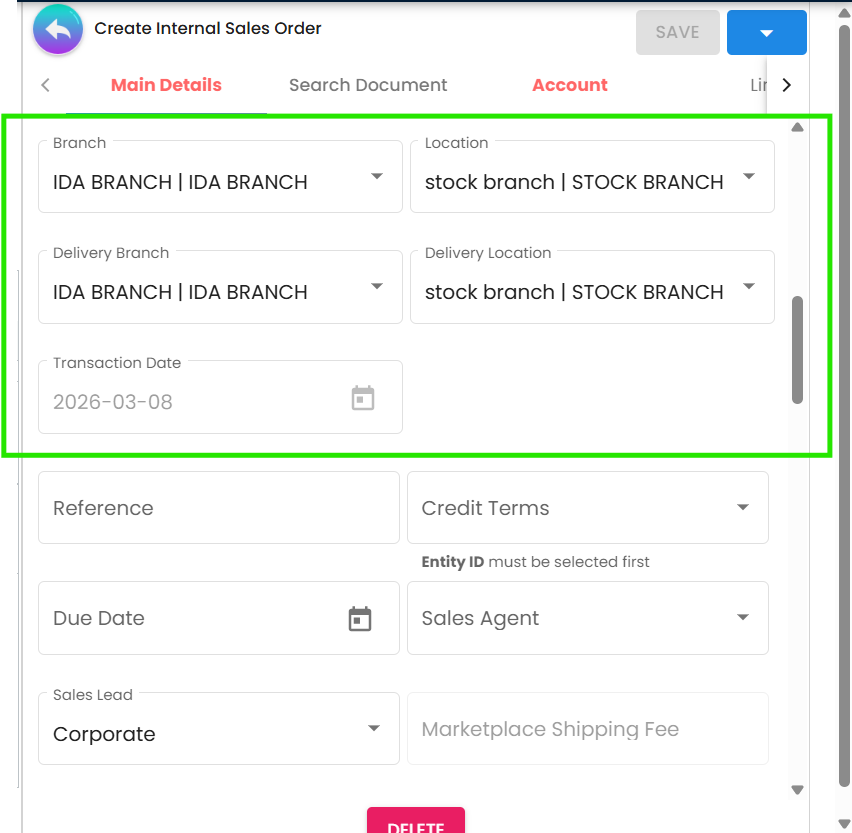
Main Details takes the selling company, branch and location (the only two fields the form insists on,
pre-filled from Default Selection), the transaction date, currency and currency rate, sales agent, the
customer’s credit terms, credit limit and due date, a reference, remarks and external remarks, the workflow
status and resolution, the Sales Order Status drop-down, Custom Status 1-5, and a row of optional header
attributes — tracking ID, permit number, client key and value, CRM contact, sales lead, member card,
marketplace shipping fee and courier service provider (the marketplace ones are filled by Ecomsync).
Account takes the customer (Entity ID, required) with billing and shipping contacts and addresses, and
an Intercompany sub-tab that is permission-gated. Lines take an item (parent/alias family search; bundles
and grouped items expand into child lines), quantity and UOM, the price, discount, net and transaction
amounts and tax code, serial numbers (importable from a delimited file), batches, bins, reserved stock and
availability, an MRP tab with three request statuses and a job-order link (with ENABLE_MRP_JOB_ORDER_LINK and MRP_MANDATORY_FOR_NON_FINISHED_GOODS on, the screen holds a line whose item lacks the Fast Moving Goods label until one status is REQUESTED — a job order is not required, and the API does not check it), remarks, Custom
Status 1-5 and the four department analysis codes — segment, dimension, profit centre and project. The
fields below behave in ways the screen does not show:
| Field | What the screen does not say |
|---|---|
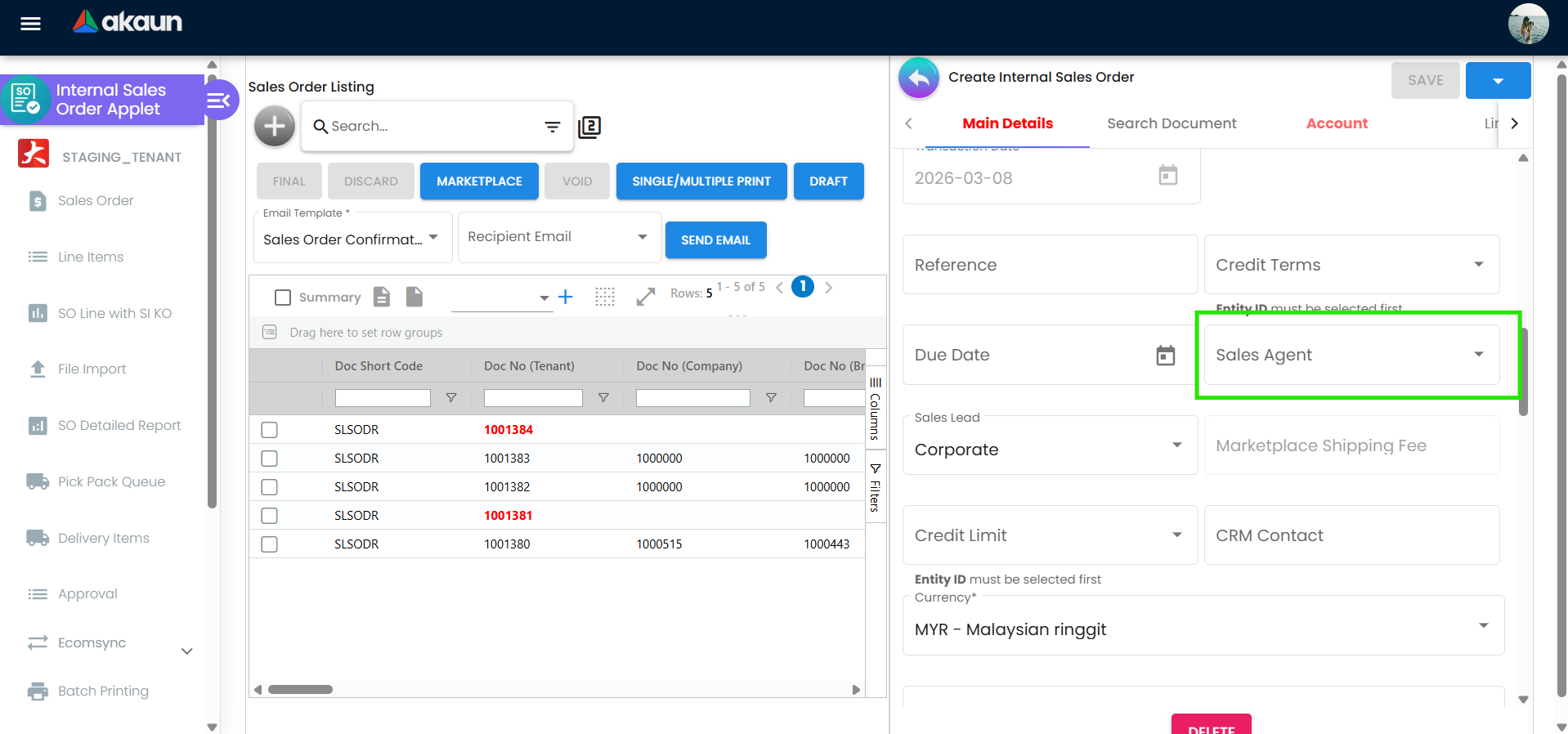
| Sales Agent | Optional unless MANDATORY_MAIN_DETAILS_SALES_AGENT is on. It is filled from the customer’s default sales agent only when ENABLE_SALES_AGENT_AUTOFILL is on — with it off, picking a customer leaves the agent as it was. Lands in sales_entity_hdr_guid, which is what commission is later read from. Locked at FINAL unless ALLOW_EDIT_SALES_AGENT_FINAL |
| Reference, Sales Agent, Due Date, CRM Contact, Member, Courier Service Provider | Cannot be blanked on a saved order. An empty box is read as keep what is stored, so clearing one of these and saving puts the old value straight back, under a success toast. Remarks, External Remarks, Sales Order Status and Client Key can be cleared — the rule is per field, not per form. To remove a reference, overwrite it |
| Internal Remarks | Not a box on this form. The column exists and is written with whatever Remarks holds, so a report that separates internal from external remarks shows the customer-facing remark under both headings. Nothing else writes the column, so it is either a copy of Remarks or empty — it never holds a remark of its own |
| Credit Terms, Credit Limit, Due Date, Sales Lead, Tracking ID, Permit No | Stored together as one block on the order, not as fields of their own — the listing cannot filter on them. The credit check is a browser check. With ENABLE_CREDIT_LIMIT_FILTER on, FINAL asks the server for credit limit − AR balance − open-queue amounts and refuses in the browser when the order would take it below zero (the button inside the order also refuses at exactly zero; the listing lets zero pass). The finalise step itself has no credit step, so an order finalised through the API or a conversion is never measured against the limit |
| Transaction Date | Both FINAL paths refuse a date inside a locked fiscal period — The selected date falls within a locked fiscal period. Date Finalized is a different column and is written by only one of the two FINAL buttons — see Two FINAL buttons under Lifecycle |
| Currency Rate | When the document currency differs from the company’s, FINAL refuses a missing or zero rate — since 30 September 2026 with Generic Document exchange rate is required before posting to FINAL (HTTP 403, before any other check, on the update-posting-status route); the validation message This document is in X but the company currency is Y. Enter a non-zero exchange rate before finalising sits behind it. Lockable with CANNOT_EDIT_CURRENCY_RATE |
| Quantity (line) | Minimum 1 in both dialogs. Quantity signum is 0 — no stock moves — but the line’s open-queue balance reduces available stock (see Lifecycle) |
| Item Name (line) | Required, and capped at ITEM_NAME_MAX_LIMIT characters when ENABLE_ITEM_NAME_MAX_LIMIT is on; with DISABLE_LINE_ITEM_NAME_EDIT on it cannot be typed over at all |
| Remarks (line) | Free text by default. SHOW_REMARKS_WITH_DROPDOWN does two things at once: it turns the box into a drop-down and makes it required — the setting reads as cosmetic and is not |
| Serial Number, Batches, Bin | Serial and batch quantities are checked against the line quantity at FINAL only when ENABLE_SERIAL_NUMBER_VALIDATION_FINAL is on and only from the editor’s FINAL (see Lifecycle). Bins are checked regardless — validateBinNumberQty is not gated by the setting, so a bin allocation that does not add up is refused on a sales order even with serial validation off. Serials on a DRAFT can be held with ENABLE_DRAFT_LOCK_SERIAL_NUMBER_CHECKING |
| Custom Status 1-5 | Configured under Settings › Custom Status; the header ones are stored in client_doc_status_01..05. Not the same column as the Sales Order Status drop-down (custom_status) |
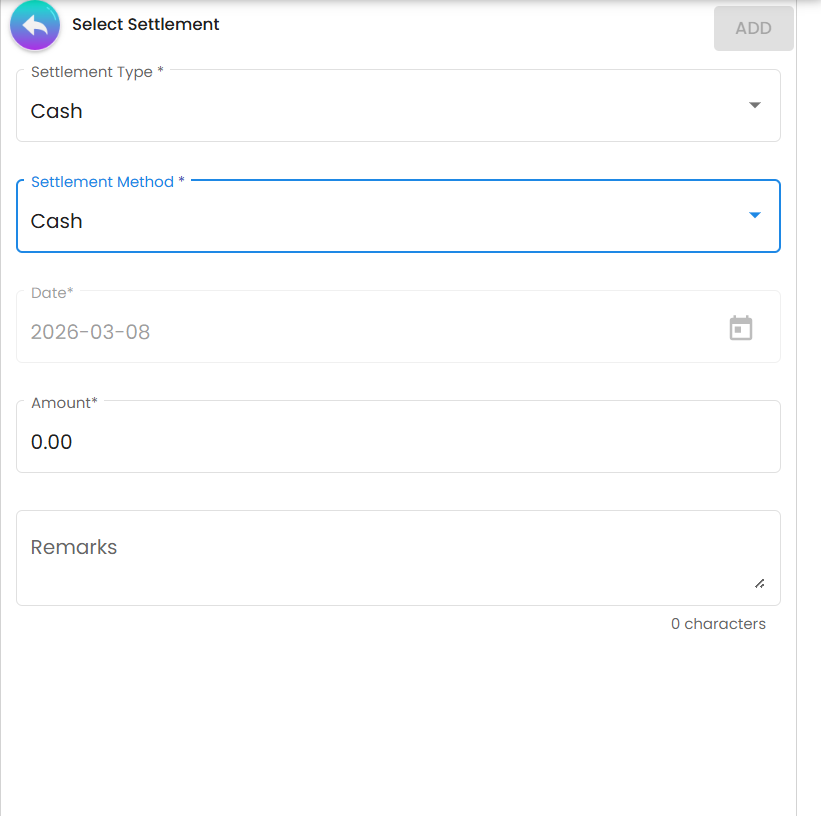
Settlement (deposits): date and amount always required; card fields per MANDATORY_*; cheque number for cheques; transaction number for bank transfer when MANDATORY_TRANSACTION_NO.
Contra: contra amount required.
Delivery Plan: code, name, start date and session duration required.
Lifecycle and effects
| Status | Meaning | Allowed next |
|---|---|---|
| TEMP | An empty header reserved by an import flow before its lines are keyed, so it is deliberately not numbered; it gets its tenant running number on the TEMP → ACTIVE transition. Marketplace ingestion does not use it — the channel jobs create the order ACTIVE, number it and set it FINAL in one pass | DRAFT |
| DRAFT | Editable; counts against available stock only if reservations are used | FINAL, Discard |
| FINAL | Numbered, locked; knock-off source for invoices and delivery documents (open-queue rows per the company flow config). Visible in Pick Pack Queue only after Send To Queue on Delivery Details | VOID; DRAFT (with SHOW_DRAFT_BUTTON) |
| VOID | Cancelled with a reason | none |
FINAL validation (on the server, both paths): exchange rate when currencies differ; customer not blacklisted; serial and batch quantities only when the serial setting is passed; bin quantities always; no coupon serial number listed twice (since 28 September 2026); stock balance — the inside button asks for that check to be skipped and the listing’s request says nothing, which the server reads as check, but the check looks only at lines that move stock and an order’s lines move none, so nothing is refused either way; date and company present; fiscal period not locked. Nothing about credit — that check lives in the browser (see Fields).
Two FINAL buttons, two backend paths
Finalise is its own step, not a save — and this applet has two of them. The FINAL button inside an order and the bulk FINAL on the listing take different paths, and the difference is not cosmetic:
| FINAL inside the order | FINAL on the listing (bulk) | |
|---|---|---|
| What is sent | The whole document as the editor holds it, plus the serial check from ENABLE_SERIAL_NUMBER_VALIDATION_FINAL | The status only; the server reloads the document. The serial check is sent when the setting is on — except when ENABLE_CREDIT_LIMIT_FILTER is also on, whose branch sends the status alone, so on a tenant with the credit filter bulk FINAL accepts a serialised line whose serials do not add up even with the setting on (a known issue, reported to engineering) |
| Date Finalized | Not written. An order finalised from inside is FINAL with an empty Date Finalized, and a report that keys on that field will not see it | Written as the moment of the click |
| Follow-on work | The main posting job only | The main posting job, plus the message-template (e-mail) job, plus Skip E-Invoice copied from the customer |
| Commerce transfer | Never — this button’s route does not check for it | Not on the change to FINAL either: this route checks the order as it stood before the status change. The transfer runs only when an order is created or saved with FINAL already in its body — an API client, a marketplace ingestion, a re-save of a FINAL order — and only where your tenant holds a webhook subscription to INTERNAL_SALES_ORDER_TRANSFER_FINALIZED, which nothing creates for you |
| Credit check | In the browser, with ENABLE_CREDIT_LIMIT_FILTER, refusing at or below zero | In the browser, with the same setting, refusing below zero |
So a FINAL sales order usually has an empty Date Finalized — that is the inside-the-order button at work, and it is the route most people finalise by. If a month-end report counts orders by the date they were finalised, count by the event history or the audit trail instead.
What FINAL does on the server: assigns the running numbers and starts the main posting job. No journal, inventory or receivable posting follows, because a sales order moves neither stock nor money. What the posting job does set off is not fixed: it runs only the follow-on jobs your tenant has switched on (each has its own trigger configuration) and that the company’s include/exclude list allows. Three are specific to the sales order and worth knowing by name — but they are not the whole list. Around thirty more subscriber jobs can run for a hand-keyed order wherever your tenant has them on, among them the journal and cashbook posting of the order’s settlement lines (the deposits below rely on exactly that), the e-invoice queues and the points processors. The three:
| Follow-on job | Fires when | If it is missing or fails |
|---|---|---|
| Open the order for knock-off | Every FINAL; opens the order up to invoicing and delivery, and to stock availability, for the pairs in the company’s Knock Off Configuration | The one you are most likely to have, and the one most likely to fail. A failed run is silent: the order is FINAL and simply does not appear in the invoice’s KO For — the KO For cannot find the order symptom in Troubleshooting |
| Shopping-cart order processing | Only orders that arrived from the shopping cart, never a hand-keyed one | Needs a subscription that nothing creates for you. Without it, those orders are created and simply never processed through this route — no error, nothing queued |
| Intercompany auto-stock | Every FINAL where switched on; queues an automatic intercompany stock purchase only if the branch’s intercompany setting is AUTO with a stock-purchase entity and branch. A separate scheduled job then works that queue | Needs the subscription, the branch setting and a schedule for the second job — nothing schedules it for you. Missing any of them, nothing is purchased and nothing says so |
Two more run outside that list. The message-template (e-mail) job runs for the listing’s FINAL, an
API finalise and a marketplace ingestion — never for the button inside the order. The commerce
order-file transfer runs only when your tenant subscribes to the
INTERNAL_SALES_ORDER_TRANSFER_FINALIZED webhook topic — a subscription nothing creates for you, so
without it the transfer never happens — and only for an order created or saved with FINAL already in its
body; neither FINAL button starts it (see the table above).
What FINAL does in the browser, after the server answers — these are requests the applet makes, not
jobs, and a failure in any of them leaves the order FINAL with the step undone and only a toast to say so: the knock-off links are written; the editing lock is
released; the job-order temporary reservations are moved to FINAL; an MRP request
e-mail goes out for every line whose production, schedule or existing-stock request is at REQUESTED, when
enableMrpEmails and a template are set on the shared settings screen; the default
printable opens if ENABLE_AUTO_POPUP is on; and the Sales Invoice conversion dialog opens if
ENABLE_SALES_ORDER_TO_SALES_INVOICE_AUTO_CONVERSION is on. The listing’s bulk FINAL raises the
same success action, but reads the editor’s draft store to do it, which the listing has not
filled — from there these steps are usually no-ops.
Journal: none. Stock: no inventory transaction; the order’s un-invoiced balance is subtracted from available quantity — a partly invoiced order holds back only its un-invoiced balance, a closed line nothing, and an order in a company without the SO → SI Knock Off Configuration pair nothing at all. Where used, reservations hold specific quantities, serials or bins.
Pick Pack Queue: FINAL puts nothing in it. The Delivery Details panel’s Send To Queue button sends each line with Require Delivery = YES and its Qty To Deliver. Cancelling a delivery job puts the row back; sending rows on to the warehouse picking queue removes them. Of the Delivery Details fields themselves, tracking ID and type of order are saved with the order and used by nothing downstream, and only Send To Queue moves anything — but the delivery branch is not inert. It is a branch-permission field: setting a delivery branch makes the order visible to whoever has access to that branch, as well as to the order’s own branch, which is usually what you want and is never stated on the screen. It is also a filter on the document listings.
Knock-off: an invoice created from the order is linked to it line by line; the SO Line with SI KO menu compares ordered against invoiced quantity and lets you close the remainder (Close ends the order-to-invoice balance; the order-to-delivery balance, if any, is untouched). Both exist only if the company’s Knock Off Configuration has the pair.
VOID sets the status and reason and starts the void job, which releases document links and reservations through its own list of follow-on jobs. The pick-pack void job is one of them: where your tenant has it switched on it deletes the order’s Pick Pack Queue rows and its warehouse picking list — unless the picking list has already been sent for packing — and does so for sales orders only. It is not switched on for you, and without it a voided order’s pick-pack queue rows stay exactly where they are — the Pick Pack Queue keeps offering a cancelled order for delivery. Delete them from the queue by hand after a void until it is enabled for you.
The order’s balance: what Available, the credit check and SO Line with SI KO read
An order moves no stock, so everything it does to availability and credit runs through one stored figure: the open-queue balance, one row per order line per follow-on document type, written by the open the order for knock-off job after FINAL — seconds later, not as part of it. The job writes a row only for the pairs the company’s Knock Off Configuration enables for sales orders, and from then on each knock-off link saved against the line rewrites it, and deletes it when it reaches zero.
Follow one GadgetSphere order through it. Branch GS-KV-01 holds 25 ultraportable laptops and takes
a corporate order for 10 at RM 4,200.
| Moment | On hand | Order balance (to invoice) | Available | Held against the customer’s credit |
|---|---|---|---|---|
| Order finalised, job has run | 25 | 10 | 15 | RM 42,000 |
| Invoice for 6 finalised | 19 | 4 | 15 | RM 16,800 (and the invoice’s RM 25,200 is now in their receivable balance) |
| Customer cancels the last 4; you Close the line | 19 | none | 19 | nothing from this order |
Invoicing does not change Available: the invoice takes 6 off the shelf and 6 off the balance together. Only the Close gives stock back, and the Close is a decision somebody makes (below).
Where each figure comes from.
- Available on the Stock Availability main listing is stock on hand at the location, minus the Sales Order → Sales Invoice balances held there, minus reservations. It reads that one pair only, so a company that fulfils orders with delivery orders alone has correct delivery balances and orders that never lower Available. And it reads the balance row by itself — it does not look at the order or the line the row belongs to, which is why a row that outlived its order goes on counting.
- Held against the credit limit is the same Sales Order → Sales Invoice balance, priced at the line’s unit price, for FINAL orders only. So a balance left behind on a voided order lowers Available and leaves the customer’s credit alone — the two figures can disagree about the same row.
- On SO Line with SI KO, Qty Received is recomputed from the invoice knock-off links each time you open the screen; Qty Outstanding is the stored balance; Qty Closed is what is left when both are taken from Qty Ordered. A negative Qty Closed therefore means the stored balance is higher than the invoices justify. Lines removed from the order are left off this screen even when a balance survives on them.
How you know the balances are right
Two checks, worth a minute at month-end. On SO Line with SI KO, search with Posting Status VOID and Qty Outstanding Filter YES: every row is a voided order still holding stock back. Then search Qty Outstanding Filter YES alone and sort by SO Date: the oldest rows are the orders somebody has stopped expecting to invoice.
Void, Discard and Close: what each does to the balance
| Action | What happens to the order’s balance rows | When |
|---|---|---|
| Discard | Deleted | In the same request as the discard |
| Void, or DRAFT on a FINAL order | Deleted by a follow-on job of the void (or undo) step | Afterwards — and only where your tenant has that job switched on |
| Close on a SO Line with SI KO row | That one row moved to the closed list | In the same request; the delivery balance for the same line stays |
| The order’s own CLOSE | Every row on the order, delivery balances included | In the same request |
A void that leaves the balance behind is a known issue, reported to engineering: where the follow-on job did not run, the voided order’s rows stay and go on lowering Available. Giving quantity back when an invoice linked to the order is voided also re-creates a row without checking that the order itself is still live. The month-end search above finds them; the repair is in Financial Report › Error Checking › Trace Document, where Missing Reversal Queue reads Error — Queue present for a voided order that still has rows and Resolve deletes them. The steps are in The order still shows a quantity outstanding after I invoiced it all.
A voided order is the easy case. VOID on a part-invoiced order is refused while its invoice links are live, and the refusal names the invoices — so Close is the tool for an order the customer has stopped wanting. A row left on a line removed from the order has no Close button, because the line is not on the screen; that one is a support repair.
Who closes a stale line, and when
Close is the same button for a line the customer cancelled and for a balance that should never have been there, so it is a judgement about the order rather than a stock correction. It belongs to whoever owns the order — usually the branch or sales admin, not the stock controller who noticed Available was low. Before pressing it, check two things on the line: Qty Received equals what you invoiced, and there is nothing more you intend to invoice. If either is uncertain, leave the line open. You know it worked when the row shows Closed under Queue Closed Status and Available at the order’s location has risen by the quantity the row was holding. Close needs a login allowed to delete open-queue entries, so who can press it is set in the role, not on this screen.
What the order will not do
- Check stock when it is finalised. FINAL runs the server’s stock check, and that check counts only lines that move stock — an order’s move none — so an order for more than you hold finalises normally. The check that can refuse the sale is the one on a document that moves stock, such as the sales invoice. If you promise from the order, look at Available first; that look is the control.
- Measure an order placed through the customer portal against the credit limit. The credit check
is this screen’s, in the browser, so an order the portal converts on the server never meets it. With
ENABLE_CREDIT_LIMIT_FILTERon, the FINAL button inside the order also acts only for a customer the available-credit lookup returns; for a customer it returns nothing for, the click neither finalises nor shows the refusal. Which customers that is, we have not established. - Count its delivery balance against Available. Only the invoice balance counts (above).
- Recover a balance that never appeared. If the open-queue job did not write the rows, the order is FINAL and invisible to KO For and to Available until someone re-queues it in Data Fix — see Troubleshooting.
Deposits taken on the order
A deposit can be recorded two ways, and they are not interchangeable. The worked example, from collection to close, is in Creating a Sales Order.
| Settlement tab | Receipt Voucher tab | |
|---|---|---|
| Document | Payment lines on the order itself | A separate receipt voucher with its own number, tied to the order by a contra pair. The tab lists the receipts contra’d to this order |
| Posting | At the order’s FINAL, the cashbook and journal jobs post the payment lines (Dr bank, Cr customer) — only where the tenant runs those jobs for sales orders. The product lines post nothing | At the receipt’s FINAL, the ordinary receipt posting. Whether the receipt, the order, both or neither are finalised for you depends on two applet settings that the standard applet’s settings screens do not offer: ENABLE_ALWAYS_FINALIZE_RECEIPT_VOUCHER finalises the receipt for you, and ENABLE_ALWAYS_FINALIZE_BOTH_DOC finalises the receipt and the order — the order through the bulk route, with no serial check (a known issue, reported to engineering). In the standard applet both can only be set through the API or the settings record |
| Order balance (ARAP tab) | Outstanding is the negative of the payments | Outstanding is the negative of the contra |
| On VOID of the order | Cashbook lines are removed and the journal is reversed, although the money was received | The receipt stands; the contra is removed and the receipt becomes an unapplied credit |
VOID is refused while the order has any live link to a target document, and the error lists those documents. Since 23 September 2026 it is also refused while the order’s warehouse picking list is at pending picking — the message names the packing status, though its error code reads as the e-invoice refusal. It does not check for deposits or contras. Close, whether on a SO Line with SI KO row or the order’s own CLOSE button, ends the open quantity only. It moves no money.
Using the deposit on an invoice. In the invoice’s KO For, picking an order with a balance asks Transfer Available Credit?. Yes contras the order’s whole balance to the invoice, so a deposit larger than a partial invoice leaves the invoice in credit. An invoice converted on the server from the whole order does the same without asking. A refund is a payment voucher to the customer, contra’d to whichever document now holds the credit.
Related applets
- Sales Quotation (Internal), Jobsheet (Internal) — knock-off sources.
- Sales Invoice (Internal) — the usual next document; converter
SalesOrderToSalesInvoiceConverter. - Delivery Order (Internal), Packing Order (Internal) — fulfilment.
- Delivery Installation — delivery sessions planned here.
- Receipt Voucher (Internal) — deposits against the order.
- Purchase Order (Internal) — intercompany mirror and auto stock purchase.
- Stock Availability, Stock Reservation — what an open order does to available stock.
- Tiktok Sales Order Applet — the marketplace build of this applet: same documents, shorter sidebar, Lazada / Shopee dashboards.
- Shopping Cart Customer Access (Internal) — a customer login’s cart becomes a FINAL sales order here when it is submitted.
- SO Consolidation — batches many FINAL sales orders into one consolidated sales invoice per company, branch, customer and sales agent.
- Customer, Pricebook, Cashbook, Chart of Account, Workflow Design — master data and workflow.
Troubleshooting
| Symptom | Cause | Fix |
|---|---|---|
| Final rejected: serial/batch quantity does not match | ENABLE_SERIAL_NUMBER_VALIDATION_FINAL on, allocations short, and you finalised from inside the order (the only path that sends the flag); the grid marks the line red | Complete the Serial Number / Batches tab; the message names the item |
| Customer cannot be finalised (blacklist) | Entity flagged blacklisted by the over-limit sweep | Clear in Customer |
| Invoice’s KO For cannot find a FINAL order; SO Line with SI KO is empty for it; availability ignores it | The company has no INTERNAL_SALES_ORDER → INTERNAL_SALES_INVOICE row in its Knock Off Configuration, so FINAL created no open-queue row | Add the row under Organisation → Company → Knock Off Configuration. Adding it creates nothing for orders already finalised: re-queue those in the Data Fix applet, Generic Documents › Missing Open Queue — see Recovering documents finalised before the configuration was right. The knock-off watchdog written for this case is not a runnable job and does not run |
| Batch picker shows a stale batch or does not return | Older build bug on create/edit line | Fixed; upgrade |
| Line positions reassigned to the wrong rows after deleting a line | Older build bug | Fixed; upgrade |
| Grid resets after Save / Final | Older build bug | Fixed |
| Bundle item saved with wrong child JSON | Older build bug | Fixed |
| Knock-off created without a document-link header | Older build bug | Fixed; re-create the knock-off |
| Zero-price line saved silently | WARN_ZERO_UNIT_PRICE_BEFORE_ADD off | Turn it on |
| Line blocked for selling below cost / min price | DISALLOW_SELL_BELOW_* on | Grant ALLOW_SELL_BELOW_*, or use the line approval (ALLOW_APPROVE_SELL_BELOW_PRICE is not registered for this applet — request it) |
| A menu (Pick Pack Queue, Ecomsync, Delivery Plan, Calendar, File Export, SO Detailed Report…) missing for one user | HIDE_*_MENU on and the corresponding SHOW_*_MENU codes are not in the registry for this applet | Turn the hide off, or ask BigLedger to register the SHOW_*_MENU codes for erp_internal_sales_order_applet_v2 |
| Print greyed out on a draft | Missing ALLOW_PRINT_DRAFT_GEN_DOC | Grant it |
| Custom fields did not save | Older build had a stray “retry saving custom fields” button | Fixed; use Custom Field Placement |
| A marketplace order has no running number | Not expected: the channel ingestion services number the order and set it FINAL in one pass, and none of them creates a TEMP document | Treat it as a failed run rather than a queue — check the marketplace branch’s connection record, then re-run that branch’s order job |
| Available stock lower than stock balance | Open FINAL sales orders reduce availability. On a marketplace branch the arithmetic is different — the channel stock calculation keeps orders by marketplace status, so a Shopee order at CANCELLED goes on holding stock back (each marketplace differs) | Close the lines that will not be invoiced — see Who closes a stale line under Lifecycle. A voided order still holding stock is the next row. For a marketplace branch see EcomSync troubleshooting |
| Available stays low after an order was voided | The void’s follow-on job did not remove the order’s balance rows (a known issue, reported to engineering), so they go on counting | On SO Line with SI KO, search Posting Status VOID with Qty Outstanding Filter YES to list them; clear each order in Financial Report › Error Checking › Trace Document, Missing Reversal Queue › Resolve |
| Qty Closed is negative on SO Line with SI KO | The stored balance is higher than the invoices justify | If nothing more will be invoiced, the order’s owner closes the line; otherwise report it with the line’s Qty Ordered, Qty Received and Qty Outstanding — The order still shows a quantity outstanding |
FINAL inside the order does nothing and shows no message, with ENABLE_CREDIT_LIMIT_FILTER on | The button acts only for a customer the available-credit lookup returns, and returned nothing for this one | Report it to BigLedger support with the customer code |
| FINAL is missing inside the order, with no message, and its Workflow Status box is empty | A Final status (FINAL_STATUS_GUID) is set on the applet, and the order was saved with no workflow status to compare it with — every new order is, today (a recorded product finding) | Clear the Final status on Application Settings › Workflow Selection until the finding is fixed, because until then the setting can only hide the button for good. An order someone has already checked can also be finalised from the listing’s FINAL, which does not consult it |
| A FINAL order has an empty Date Finalized | It was finalised with the button inside the order, which never writes date_finalized; only the listing’s bulk FINAL does | Expected today. Report by the event history or audit trail, not by that column |
Bulk FINAL accepted a line whose serial numbers do not add up, although ENABLE_SERIAL_NUMBER_VALIDATION_FINAL is on | ENABLE_CREDIT_LIMIT_FILTER is on: that branch of the listing’s FINAL sends the status alone, so the server skips the check (a known issue, reported to engineering). Without the credit filter the bulk FINAL does send it | Finalise serialised orders from inside the order, where the flag is always sent |
| Cleared the Reference (or Sales Agent, Due Date, CRM Contact) and the old value came back after Save | The header patch keeps the stored value when the box is empty | Overwrite the value instead of clearing it |
| Internal Remarks shows the customer-facing remark | The column is a copy of Remarks; the form has no Internal Remarks box | Expected today; use External Remarks for the customer-facing text and Remarks for the internal one |
| A voided order is still offered in the Pick Pack Queue | The pick-pack void processor is a subscription that has to be switched on, and nothing switches it on for you | Delete the queue rows by hand after a void, or ask for FINANCIAL_PICK_PACK_QUEUE_VOID_PROCESSOR to be enabled for your tenant |
| The order’s knock-off links are missing although the order saved | The links are written in a second request after the save and that request failed — its toast is the only sign | Open the order and save again; the links are re-sent |
Related documentation
- Standard Sales Workflow, Partial Delivery Workflow, Installation Scheduling Workflow
- The order still shows a quantity outstanding after I invoiced it all — the three ordinary causes of a stale balance and the repair for each
- Inventory module, E-Commerce module, Financial Accounting module
- Sales Workflow applets