Sales Proforma Invoice (Internal)
A priced document you give a customer before the real invoice, to quote a job, support a deposit request or get an order approved on their side. Its item lines move no stock and post nothing to the ledger; the sales invoice or sales order that follows is where the money and the stock move. The Payment tab is the exception, because settlement lines there can post, and Void and Discard do nothing in this applet, so delete a proforma before it is final rather than planning to void it.
Overview
A Sales Proforma Invoice (Internal) is a priced document you give a customer before the real invoice — to quote a job, to support a deposit request, or to get an order approved on the customer’s side. It looks like an invoice and totals like an invoice, and it deliberately does neither of the two things an invoice does: it does not move stock and its item lines post nothing to the general ledger.
The document type is INTERNAL_SALES_PROFORMA_INVOICE, short code SLPINV.
Where it fits
| Applet | Why | |
|---|---|---|
| Before it | Sales Quotation (Internal) | The line-item screen shows a Sales Quotation No. field, so a proforma commonly follows a quotation |
| After it | Sales Invoice (Internal), Sales Order (Internal) | The real document. This is where the money and the stock move |
| Looks identical, is not | Job Sheet (Internal) | A separate document type; see the callout above |
| Status routing | Workflow Design | Supplies the process whose statuses the document’s Workflow Status picker offers |
| Master data | Customer Maintenance, Pricebook, Tax Configuration, Organisation | Customer, prices, tax codes, branch and location |
Screens and menus
Two menu entries:
| Menu | What it is |
|---|---|
| Sales Proforma Invoice | Listing, create and edit |
| Line Items | Line-level view across proforma invoices |
The empty path redirects to the listing.
-v2 suffix. The applet opens at its own address with -v2 appended;
navigation works either way.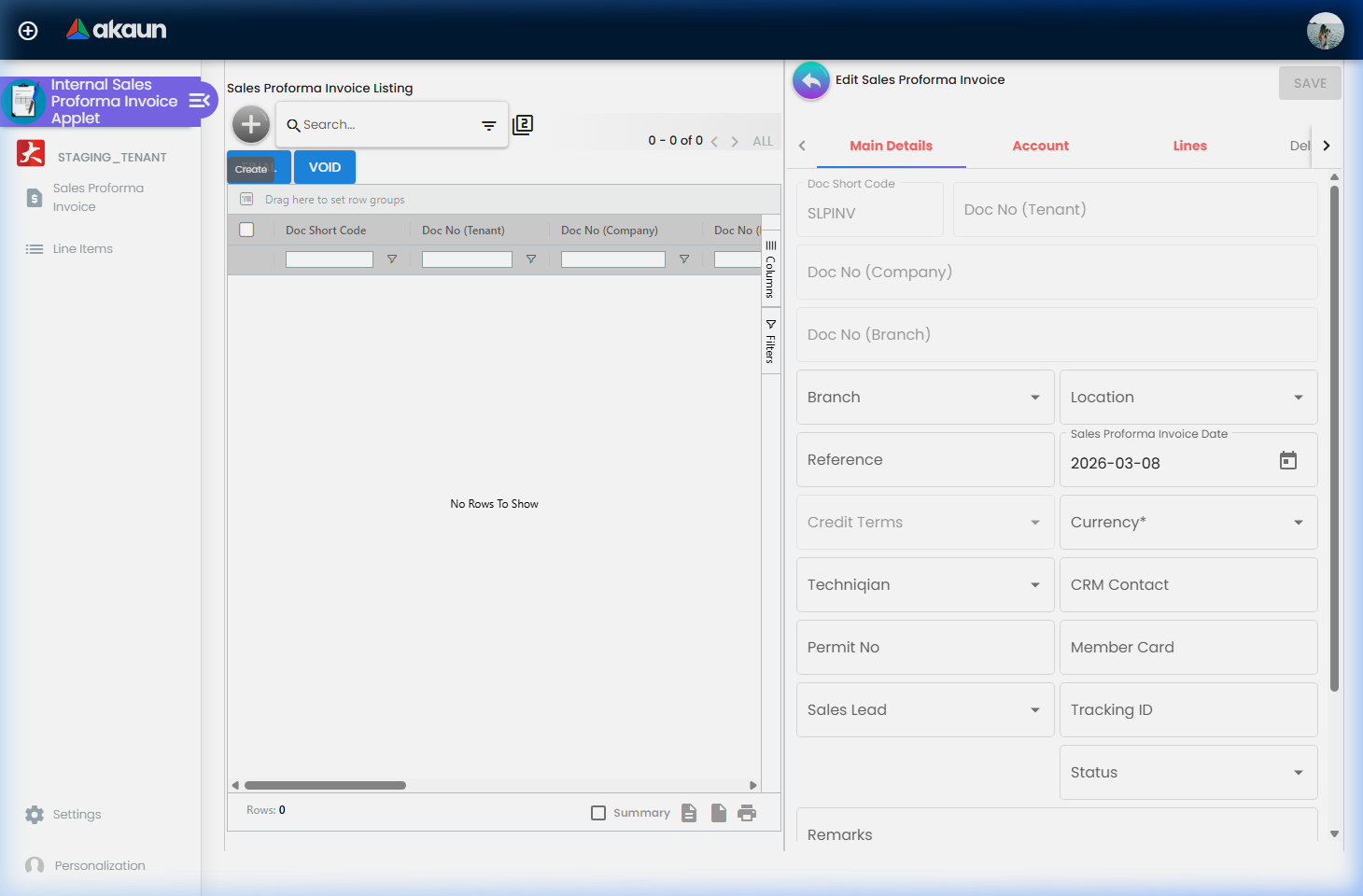
The edit workspace is a set of tabs whose order is configurable: Main Details, Account, Lines, Delivery Details, Payment, Department Hdr, Doc Link, Attachments and Export. There is no Contra or Convert tab, and the Search tab appears on the create screen only.
Settings and Personalization
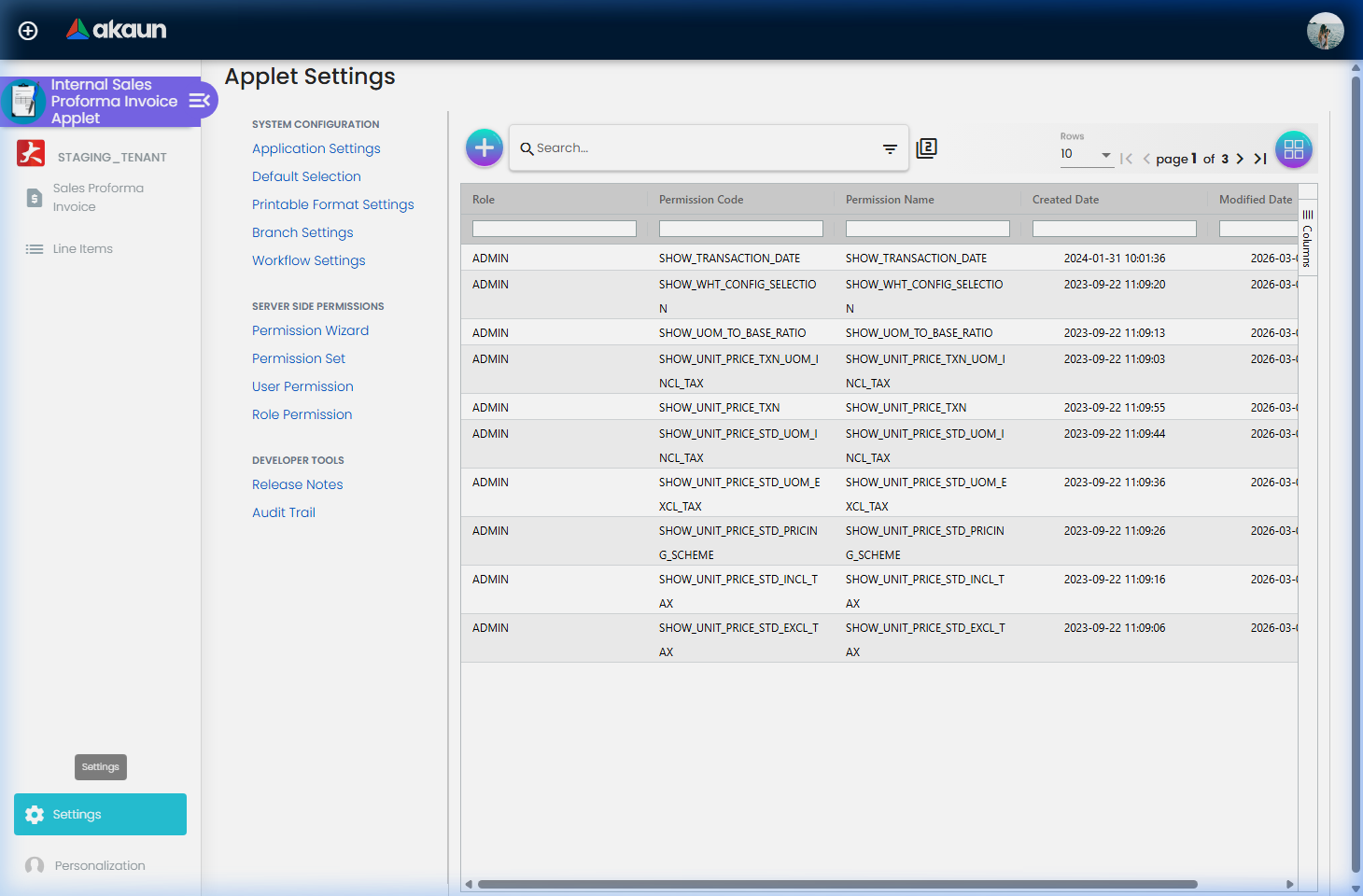
Five System Configuration entries: Application Settings, Default Selection, Printable Format Settings, Branch Settings, Workflow Settings. Personalization has one, Default Selection.
Configuration
Before you can use it
- Branch and location — both required on the document, and chosen on each one: the Default Selection screens save a branch and location that no proforma screen reads.
- A customer — the Account tab’s Entity ID is required.
- Document numbering for
INTERNAL_SALES_PROFORMA_INVOICE. - A printable format filed under this document type, if the proforma is to be printed.
- A workflow process, if the document is to carry a workflow status — set up in Workflow Design and bound to a company in Settings → Workflow Settings.
Applet settings
Where they live. Application Settings is the shared settings screen. Default Selection, Printable Format Settings, Branch Settings and Workflow Settings are this applet’s own. Personalization → Default Selection is per-login.
| Setting | Where set | What it controls | Default | Effect when changed |
|---|---|---|---|---|
DEFAULT_BRANCH, DEFAULT_LOCATION | Settings and Personalization → Default Selection | Nothing on the document | none | Picking a branch here fills the location with the branch’s main location, and both are saved — but no screen in this applet reads either, so a proforma never opens with them pre-selected. Choose branch and location on each document |
PROFORMA_JOBSHEET_DETAILS_TAB_ORDER | Settings → Default Selection, Details Tab Ordering (drag and drop) | Order of the edit-workspace tabs | the built-in nine-tab order | The saved order is merged with the current tab list on load and drives the edit screen’s tab order |
HIDE_* field toggles | Application Settings | Whether individual header fields appear: HIDE_CREDIT_TERMS, HIDE_PERMIT_NO, HIDE_CURRENCY, HIDE_MEMBER_CARD, HIDE_SALES_LEAD, HIDE_CRM_CONTACT, HIDE_TRACKING_ID, HIDE_SERVER_DOC_TYPE, HIDE_DOC_SHORT_CODE_PREFIX | unset (field shown) | Hides the field |
HIDE_*_TAB toggles | Application Settings offers only HIDE_ATTACHMENT_TAB for this applet; the other six have no switch anywhere in it | Whether a tab appears: HIDE_SEARCH_TAB, HIDE_MAIN_PAYMENT_TAB, HIDE_DEPARTMENT_HDR_TAB, HIDE_DELIVERY_DETAILS_TAB, HIDE_DOC_LINK_TAB, HIDE_ATTACHMENT_TAB, HIDE_EXPORT_TAB | unset | Hides the tab. The applet reads all seven, but the shared screen draws the tab section only for applet codes it knows, and this is not one of them, so the six other than the attachment hide can only be set through the API — and once set, nothing on screen turns them back |
HIDE_GENDOC_SAVE_BUTTON, HIDE_GENDOC_FINAL_BUTTON, HIDE_GENDOC_DISCARD_BUTTON, HIDE_GENDOC_VOID_BUTTON | Application Settings | Whether those buttons appear | unset | Each can be overridden per login by the matching SHOW_… client-side permission |
SHOW_DOCUMENT_DELETE_BUTTON | Application Settings | Whether DELETE appears | unset (hidden) | Read from the applet-wide settings only, so a personal setting cannot change it |
MANDATORY_* / HIDE_* settlement keys | Application Settings | Which payment fields are required or hidden on the Payment tab | unset | |
DEFAULT_COMPANY | — | Company on the header | — | Dropped on save — the header has no company control to hold it |
WORKFLOW_PROCESS_GUID | Application Settings → Main Details, Workflow Selection | The workflow process used on a new document | — | Read only when a new document opens with no workflow of its own; a document that already carries one keeps it |
Branch Settings has five tabs — Branch Details, Item Category Filter, Pricing Scheme, Printable Format and Default Settlement Method. Branch Name is required. There is no SAVE button on the branch shell.
INTERNAL_SALES_PROFORMA_INVOICE, while the Export tab and the Main Details screen look
it up under INTERNAL_JOBSHEET. The branch default is therefore never found, and the Export tab falls
back silently to whatever format the user has selected.Document behaviour settings — Workflow Settings
Workflow Settings binds a company + this document type → a workflow process. The edit screen’s Server
Doc Type field is read-only and always forced to INTERNAL_SALES_PROFORMA_INVOICE on save; the process is required.
On the document, that produces a Workflow Status picker and a read-only Workflow Resolution field. The picker answers a precise question: which next statuses may this user’s roles move this document to, from its current status — as set up in Workflow Design, transition by transition and role by role.
No e-Invoice control exists in this applet, and the document type is not one the e-Invoice VOID rules cover.
Feature visibility / permissions
Backend document permissions, all targetable by company, branch,
location and entity: TNT_API_DOC_INTERNAL_SALES_PROFORMA_INVOICE_CREATE_TGT_GUID, …_UPDATE_…,
…_READ_…, …_DELETE_….
Client-side permission codes, each overriding a HIDE_* setting: SHOW_TRANSACTION_DATE, SHOW_GENDOC_FINAL_BUTTON, SHOW_GENDOC_DISCARD_BUTTON,
SHOW_GENDOC_VOID_BUTTON, and twenty-six listing-column
codes covering the document numbers, branch, transaction
date, the five client-doc columns, the AR/AP columns, the analysis codes, amount, the four source-document
columns, remarks and reference.
Fields
Main Details
| Field | Meaning | Required | Notes |
|---|---|---|---|
| Doc Short Code | SLPINV | System | Disabled; shown on edit unless HIDE_DOC_SHORT_CODE_PREFIX |
| Doc No (Tenant / Company / Branch) | The three numbering series | System | All disabled |
| Status | ACTIVE or INACTIVE | Yes, edit screen only | Defaults to ACTIVE. There is no proforma progress status (created, in progress, completed, on hold) |
| Sales Proforma Invoice Date | Document date | No | Read-only input opening a date picker; editable only with the SHOW_TRANSACTION_DATE permission |
| Credit Terms | Payment terms | No | Disabled until the selected customer has credit-terms entries |
| Sales agent | Agent on the header | No | Rendered by the shared sales-agent control; its label is configurable, so a tenant may see something other than “Sales Agent”. Kept only when a Credit Term is chosen — see Sales Lead |
| Reference, Permit No, Tracking ID, Remarks | Free fields | No | Permit No and Tracking ID can be hidden in Application Settings; Reference and Remarks cannot. Once saved, Reference and Remarks cannot be emptied: clearing the box keeps the old text. Permit No is kept only when a Credit Term is chosen — see Sales Lead |
| Sales Lead | Corporate or Non-Corporate | No | Saved only when a Credit Term is also chosen on the document. With none chosen, Sales Lead, Sales Agent and Permit No are dropped on save without a message — and none can be chosen for a customer with no credit terms, or when Credit Terms is hidden in Application Settings |
| Currency | Document currency | No | A new proforma starts in MYR. Choosing a customer does not change it, even when the customer’s record carries another currency — set it here |
| CRM Contact, Member Card | Linked contact and membership | No | Read-only; set from their pickers |
| Workflow Status | Next status, from the role-gated transition list | No | A new document starts on the process’s default status. The list fills a few seconds after the screen opens and holds the current status plus the ones your roles may move to, sorted by code. Picking one fills Workflow Resolution from that transition |
| Workflow Resolution | Resolution code of the chosen status | No | Read-only, derived |
Editing stops when the document is settled. When posting status is FINAL, VOID or DISCARDED, or the
record status is anything other than ACTIVE, TEMP or null, sixteen controls are disabled — branch,
location, date, member card, sales lead, reference, currency, item code and name, serial number, CRM contact,
sales agent, permit no, tracking ID, status, remarks and credit terms.
Account
Entity ID (the customer) is required. The remaining account fields are data-driven labels rendered from configuration.
Lines
Required: Quantity Base, with a minimum of 1 and a default of 1; Amount Net (Exclusive of tax); and Txn Amount — each with a minimum of 0. Everything else on the line carries a minimum but is optional.
Read-only (calculated): UOM to Base Ratio, Unit Price Net by UOM, STD Amount, SST/GST/VAT percentage, Tax Amount, WHT percentage and WHT Amount.
Multi-UOM is handled as parallel base and UOM pairs — quantity in base and in UOM, the UOM-to-base ratio, and a
per-UOM price and discount for each of the standard, net and transaction prices — each with its own HIDE_*
key.
Sub-item tracking covers basic quantity, serial number, batch number and bin number. The batch form requires batch number, quantity (minimum 1), issue date and expiry date.
What actually gates Create and Save: the main form and the account form being valid — so in practice branch, location, status and customer. Line validators block the line drawer, not the document.
Advanced search
Customer, Branch, Sales Agent, Posting Status (DRAFT, FINAL, VOID, DISCARDED), Status (ACTIVE,
DELETED), Transaction / Created / Updated date ranges — all three defaulting to the last month, or the last week when DEFAULT_TRANSACTION_DATE is 1_week (a key with no control in this applet) —
Order By, and the four analysis codes. Rows belonging to a forex
document are painted orange-red in the listing.
Lifecycle and effects
Statuses. Two axes. Record status runs TEMP → ACTIVE (and DELETED); posting status runs DRAFT →
FINAL, with VOID and DISCARDED beside it.
Creation is a promotion, not a create call. The listing’s + button immediately posts a TEMP
document with all amounts zeroed. It becomes ACTIVE
automatically once branch, location, currency, customer and at least one line are present.
DISCARD and VOID do nothing, and CREATE does nothing by itself. Pressing DISCARD or VOID — from
the edit screen or the listing’s bulk VOID — produces no request, no toast and no error. CREATE does
nothing either, but the document has already been created by the TEMP promotion above, which is why
that one is invisible in normal use.
Do not plan a procedure around voiding a proforma invoice from this applet.
FINAL, SAVE and DELETE do work. FINAL saves and then finalises; the listing’s bulk FINAL skips rows already final. DELETE requires a second click — the button’s label
flips to “CLICK AGAIN TO CONFIRM” — and is hidden once the
document is FINAL.
What it posts. A proforma moves no stock and its item lines post nothing: every line is forced to carry no quantity and no amount, so no journal line and no inventory movement is produced, and there is no GL code to resolve for them. VOID would reverse nothing financial — and does not work here in any case (see above).
Backend rejections (as opposed to client-side toasts):
- Re-finalising a finalised document → HTTP 403, “Generic Document has already been posted to FINAL”.
- Moving a non-
FINALdocument to a non-final posting status → “Generic Document cannot be change to …!”. - VOID on a document with downstream links → “Generic Document cannot be changed to VOID because it has already been linked with the following documents: …”. This is the rule that matters once a proforma has been converted onward — though the applet cannot void at all today.
- Finalising a forex document already converted to a shadow → HTTP 403.
The applet’s own “This document has been posted” and “This document has not been finalized yet” are client-side toasts; no request is sent.
Related applets
- Sales Invoice (Internal) — the real document the proforma anticipates; the one that posts and moves stock.
- Sales Quotation (Internal) — typically upstream; its document number appears on the proforma’s line-item screen.
- Sales Order (Internal) — the other way a quoted price becomes a commitment.
- Job Sheet (Internal) — a different document type that this applet’s component names were copied from.
- Workflow Design — where the statuses the picker offers are defined, together with the roles allowed to make each transition.
- Customer Maintenance, Pricebook, Tax Configuration — the master data the document reads.
Troubleshooting
| Symptom | Cause | Fix |
|---|---|---|
| VOID or DISCARD does nothing | The buttons are not wired to anything | There is no workaround in this applet. Use DELETE while the document is not yet FINAL |
| The branch’s default printable format is ignored | Written under INTERNAL_SALES_PROFORMA_INVOICE, read under INTERNAL_JOBSHEET | Select the format manually on the Export tab |
| Release Notes or Audit Trail shows a 404 | The shared settings menu lists them; this applet has neither screen | Nothing to do |
| The Workflow Status picker is empty for a few seconds | It is populated inside a three-second timer | Wait, then choose |
| The Workflow Status picker throws when a status is chosen | The status has no resolution linked to it | Give every transition a resolution in Workflow Design |
| “Net Amount (SST/GST/VAT x Net Amount)” is always blank | The field is not connected to any value, here or on the Line Items screen | Read the Txn Amount field instead |
| Credit Terms cannot be edited | It is enabled only when the selected customer carries credit-terms entries | Add credit terms to the customer record |
| The document date cannot be changed | The field needs the SHOW_TRANSACTION_DATE client-side permission | Grant it to the login |
| The document went read-only | Posting status is FINAL, VOID or DISCARDED, or the record status is not ACTIVE/TEMP | Expected. Raise a new document |
| Nothing was posted when the proforma was finalised | Working as designed — a proforma posts nothing | The posting happens on the sales invoice |
| Something was posted when the proforma was finalised | The Payment tab was used; settlement lines are signed as receipt- or payment-voucher lines, not zeroed | The tab cannot be hidden from any screen in this applet (its hide has no switch here). If the document should be purely informational, do not record settlements on proformas |