Sales Quotation (Internal)
Record a priced offer to a customer before anything is committed. Finalising a quotation assigns its document number and locks the header’s branch, date, currency and credit fields, but it moves no stock, posts no journal and creates no receivable; the order, invoice or jobsheet raised from it does that. One tab to treat with care: Convert turns the quotation’s deposit lines into a Receipt Voucher and deletes the quotation.
Overview
The Sales Quotation (Internal) applet records a priced offer to a customer before any commitment exists. It is opened by sales staff who prepare quotes and by administrators who configure the quote screens. A quotation is a zero-signum document: finalising it assigns document numbers and locks the header’s branch, date, currency and credit fields, but it moves no stock and posts no journal. Upstream it can be built by knocking off a Jobsheet or an earlier quotation; downstream it is the source that a Sales Order, Invoice or Jobsheet knocks off, and its Collection (deposit) lines can be converted into a Receipt Voucher from inside the applet.
INTERNAL_SALES_QUOTATION, short code SLSQUO. Amount signum 0, quantity signum 0: FINAL has no stock, GL, receivable or e-Invoice effect. The backend fills the line signums; the header’s it only checks — a quotation created through the API without a header amount signum of 0 is refused as an invalid signum. The document numbers you see on the listing are only assigned at FINAL.Where it fits
| Direction | Document / applet | How it connects |
|---|---|---|
| Upstream | Sales Inquiry (Internal) | The informal enquiry that precedes a priced quote |
| Upstream (KO For) | Jobsheet (Internal), another Sales Quotation | The KO For tab offers Sales Quotation and Job Sheet as sources; the Sales Order source tab is present in the code but commented out |
| Upstream (master data) | Customer, Pricebook, Tax Configuration, Organisation, Inventory Item Maintenance | Entities, prices, tax codes, branches/locations and items the quote reads |
| Downstream | Sales Order (Internal), Sales Invoice (Internal), Jobsheet (Internal), Car Workshop | Those applets knock off a FINAL quotation in their own KO For tab; the quotation’s reference columns (Quotation / Order / Delivery Order / Invoice / Others) show the chain |
| Downstream | Receipt Voucher (Internal) | The Convert tab creates a receipt voucher from the quotation’s Collection lines and deletes the quotation |
| Sibling | Purchase Quotation (Internal) | The buying-side equivalent (INTERNAL_PURCHASE_QUOTATION), same zero-signum behaviour |
Screens and menus
| Menu item | Route | What it shows |
|---|---|---|
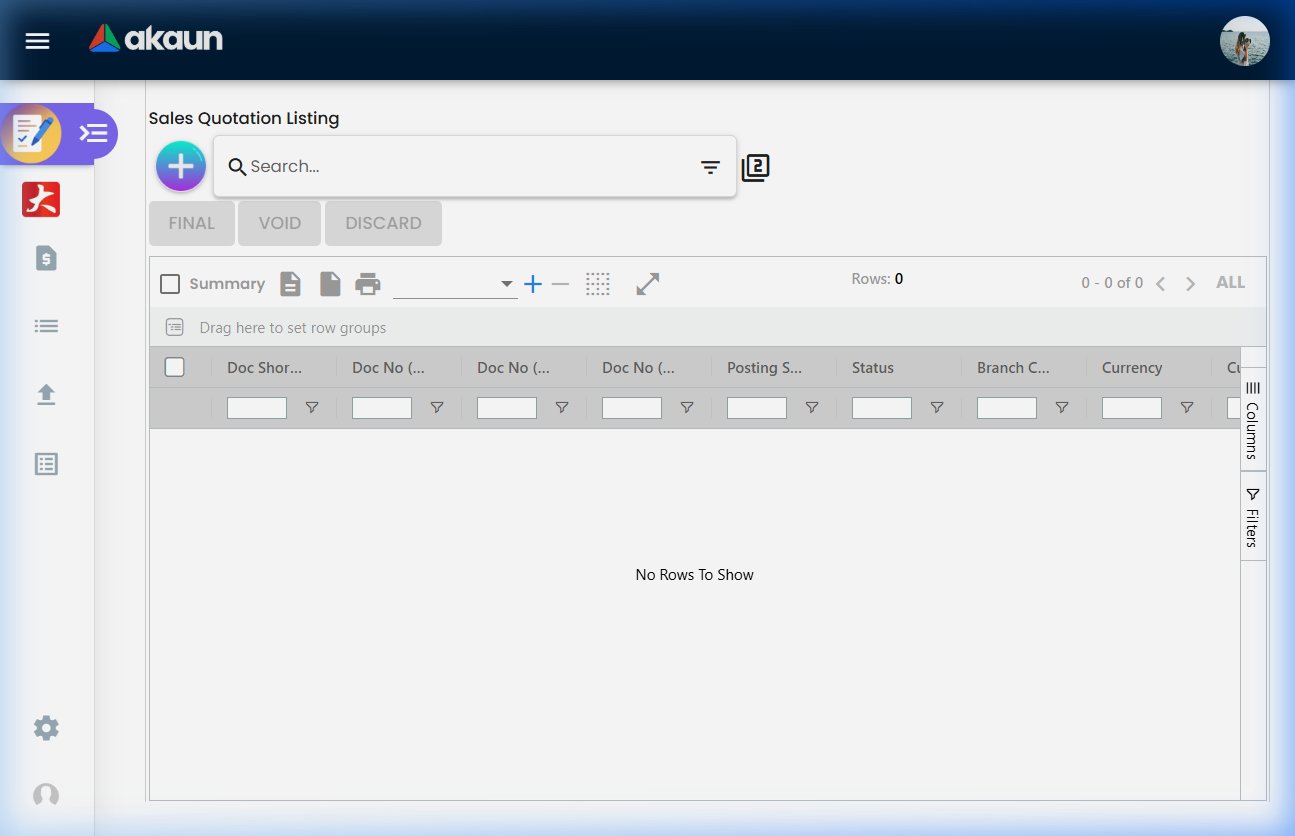
| Sales Quotations | internal-sales-quotation | Listing with advanced search, FINAL / VOID / DISCARD bulk buttons, create and edit |
| Line Items | line-items | One row per quotation line, for line-level search and export |
| File Import | file-import | Bulk-create quotations from a delimited file, processed as a background job; imported rows are created ACTIVE |
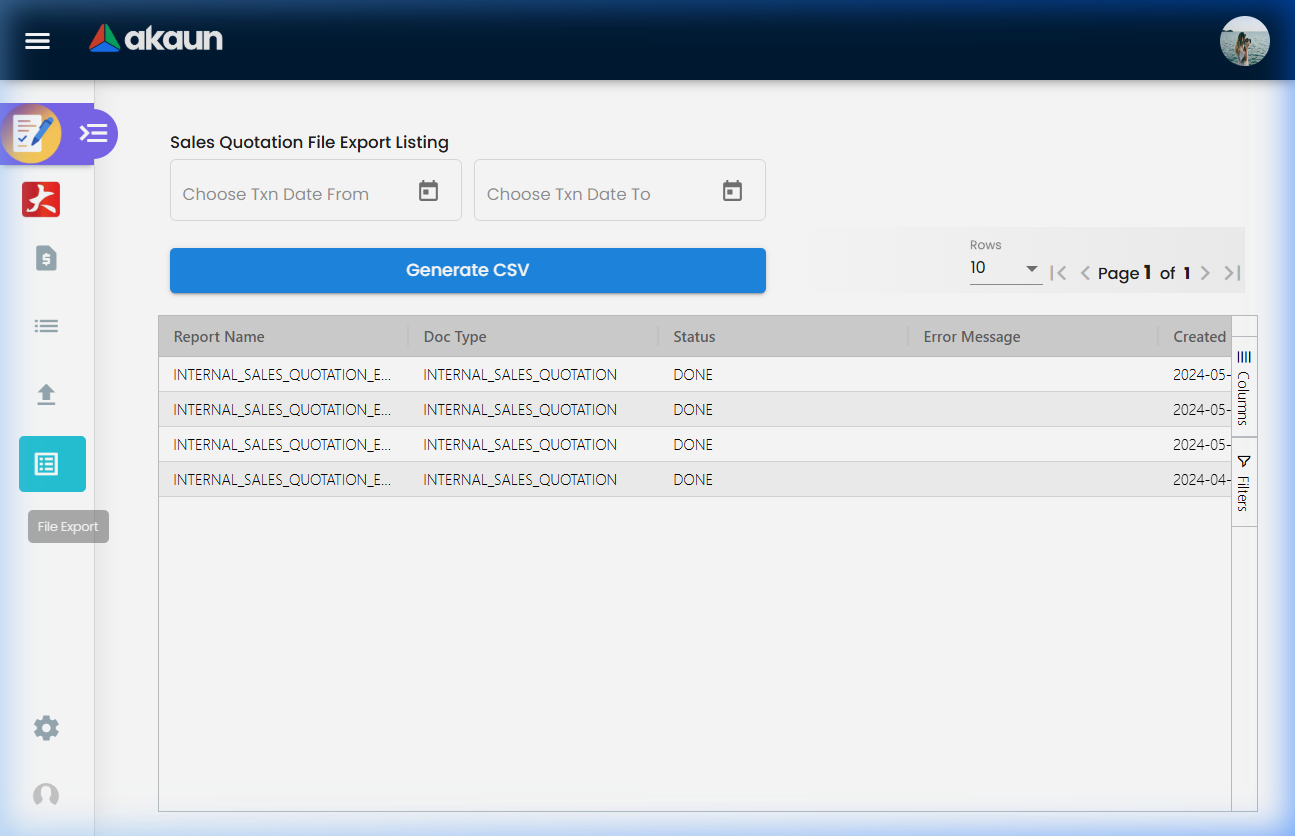
| File Export | file-export | Generate a CSV of quotations for a transaction-date range; the job history shows status and errors |
| Settings | settings/… | Administrator configuration (see below) |
| Personalization | personalization/… | Per-user Default Selection and sidebar |
The create / edit form
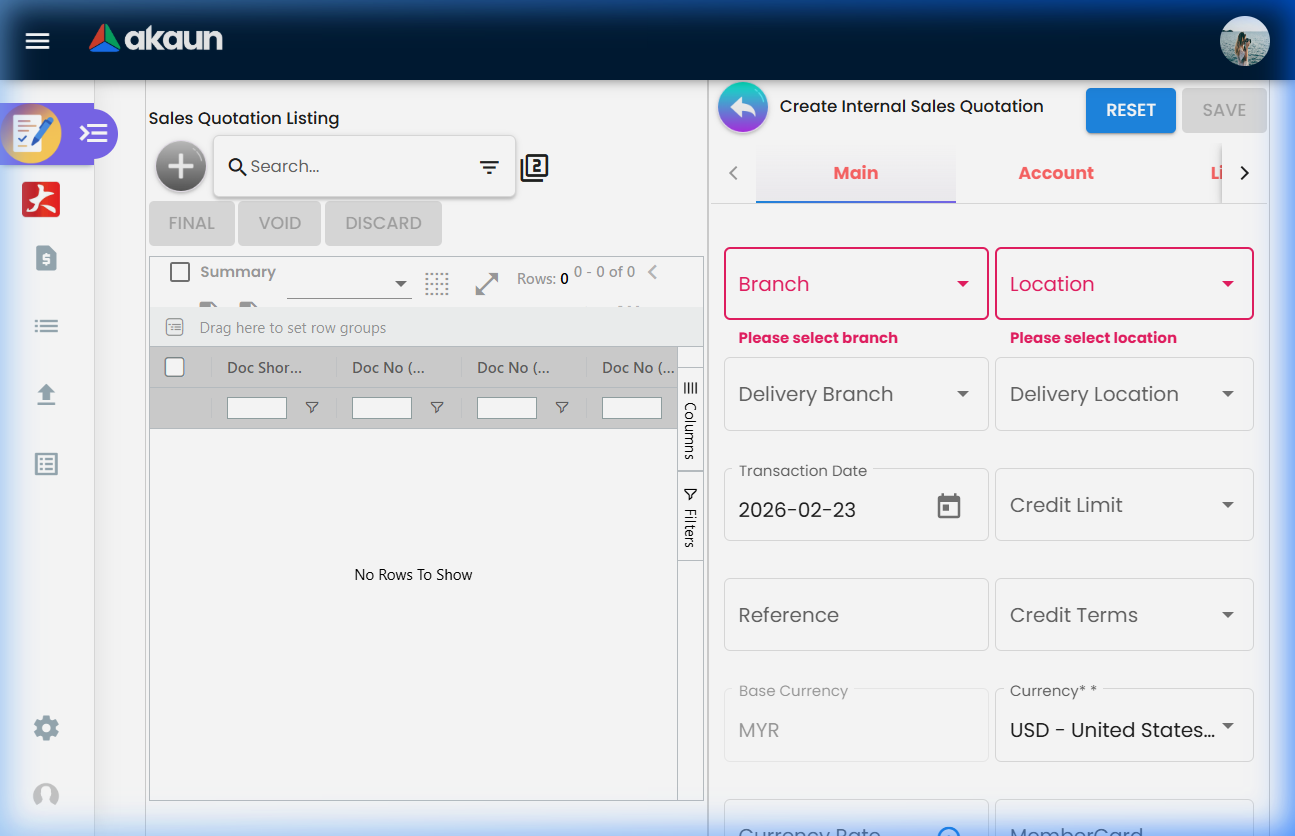
Pressing + creates a working document with status TEMP (the panel title reads Create); the first successful Save turns it ACTIVE (Edit). The create form has the tabs Main Details, Account, Line Items, Delivery Details, Collection, Department Hdr and KO For. The edit form (opened from the listing) shows Main, Account, Line Items, Delivery Details, Settlement, Department Hdr, Contra, Doc Link, Attachments, Export and Convert. Tab order is configurable (Settings → Default Selection → Details Tab Ordering); most tabs can be hidden with the HIDE_*_TAB settings under Configuration.
Line-item dialog tabs: Main Details, Grouped Item, Child Items, Multi Discount, Serial Number, Batch Number, Bin Number, Delivery Instructions, Department, Doc Link, Delivery Details, Sales History (the sales-history grid includes a company-name column). The header sales agent can be pushed to every line with the Apply to Lines button on Main Details.
Settings menu
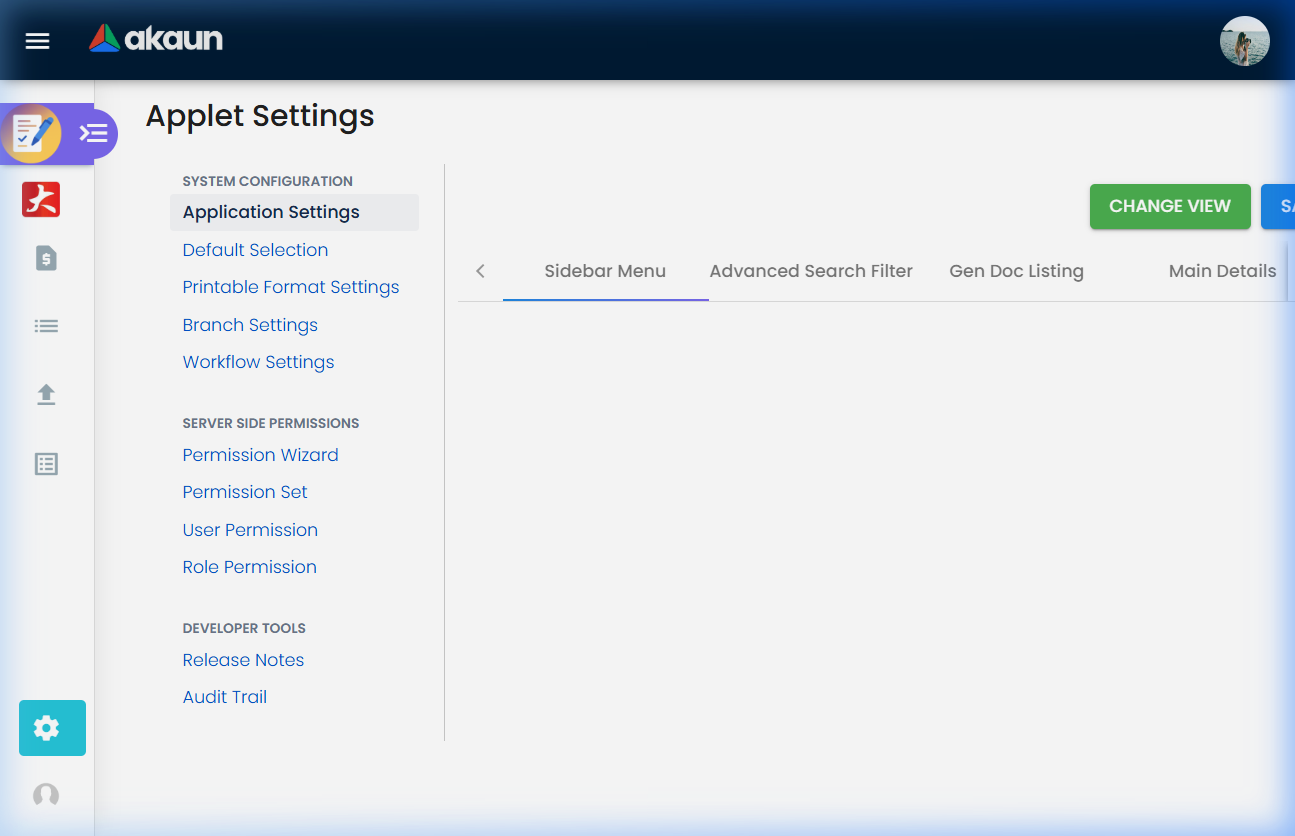
| Settings entry | Route | Purpose |
|---|---|---|
| Application Settings | settings/field-settings | Hide/show, listing-default and behaviour toggles (shared Field Configuration screen) |
| Default Selection | settings/default-selection | Default branch, location, company, pricebook, currency, pricing scheme, unit-price decimal precision, tab order |
| Printable Format Settings | settings/printable-format-settings | Register printable formats for this document type and pick the default |
| Branch Settings | settings/branch-settings | Per-branch header/footer text, default printable format, default settlement method per payment type, pricing scheme, sales agent, rounding and group-discount items, item-category filter, menu list |
| Workflow Settings | settings/workflow-settings | One workflow process per company for quotations: SAVE on a company creates its link or replaces the one it has. The link does one thing — a new quotation that opens on its Default Branch takes the process and its starting status (see Workflow Status under Fields). Nothing checks that status: it does not hold back FINAL, VOID or a knock-off |
| Webhook | settings/webhook | Subscribe endpoints to INTERNAL_SALES_QUOTATION_CREATED / …_DELETED events. The Settings menu has no link to it (the link is commented out in the shared menu); open the address directly |
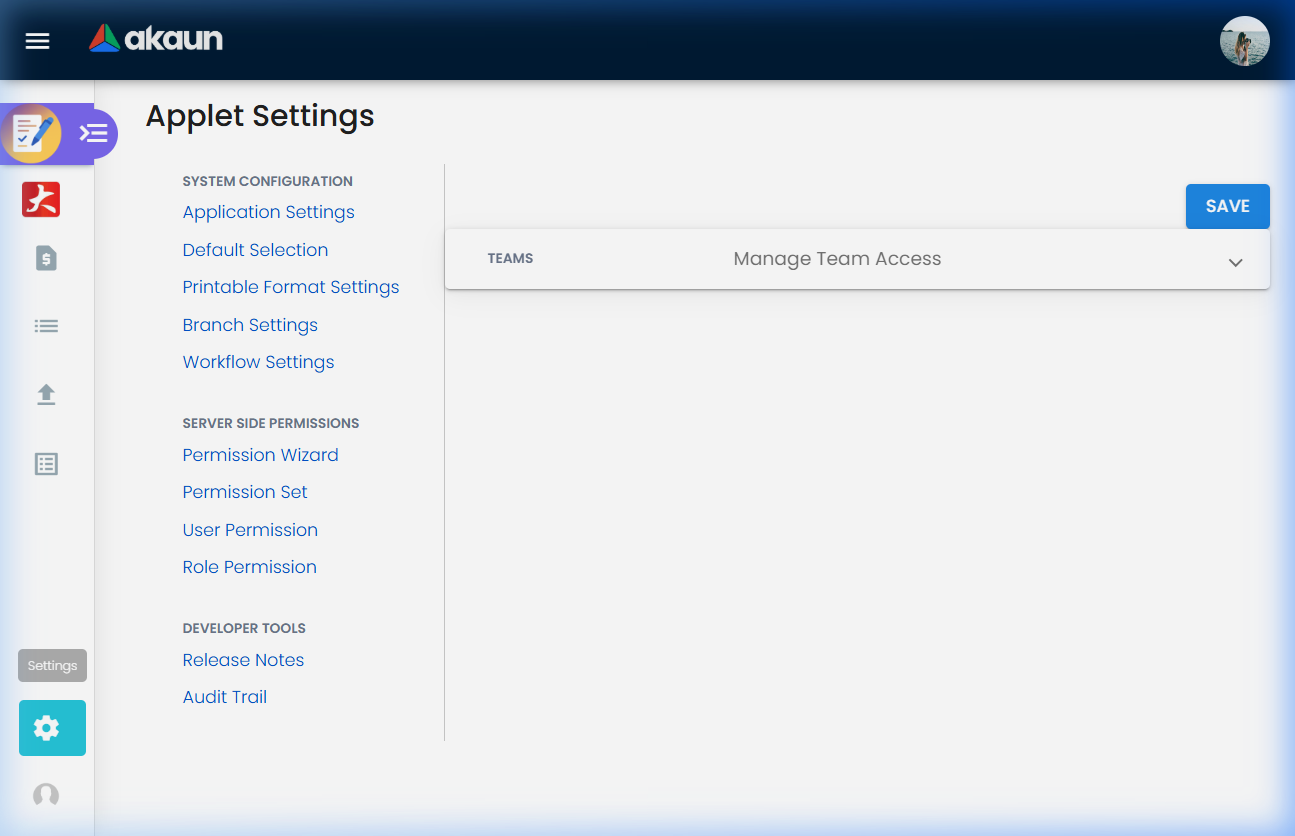
| Feature Visibility | settings/feature-visibility | The page Settings opens on, with no menu link of its own. It is a placeholder: the Teams panel offers the fixed entries Team 1, Team 2 and Team 3, and neither its SAVE nor its + button stores anything, so it grants and hides nothing. Give access with the permission screens in the next row |
| Permission Wizard, Permission Set, User Permission, Role Permission; Team Permission, Client-Side Permission, Role Pricing Scheme Link | settings/*-listing | The first four are the menu’s Server Side Permissions group. The last three have routes but no menu link, so reach them by address (for example settings/client-side-permission-listing) |
| Release Notes, Applet Log | settings/release-notes, settings/applet-log | Release Notes (menu group Developer Tools) is fixed text whose last entry is version 1.01 of 2024-12-08. It lists none of the fixes under Troubleshooting, so it cannot tell you whether your build has one; repeat the symptom on a test quotation instead. Applet Log has no menu link and shows only the heading Audit Trail, with no entries. The record that does hold a quotation’s history is elsewhere: the server writes every save made from this applet with its before and after values, and the Audit Trail entry in the sidebar lists them for this applet, with a detail view of what changed. That entry shows to OWNER and ADMIN users unless HIDE_AUDIT_TRAIL_MENU is on, and to anyone holding a permission whose code ends in SHOW_AUDIT_TRAIL_REPORT. Modified by and Modified date on Main Details show only the latest change. So when a customer disputes a price that was changed after sending, open Audit Trail, search by the document number, and read the change |
Configuration
Before you can use it
| Prerequisite | Where | Why the quotation needs it |
|---|---|---|
| Company, branch and location | Organisation | Main Details requires all three; picking a branch pre-fills its MAIN_LOCATION |
| Customer entities | Customer | The Account tab requires an entity; credit terms, credit limit, currency and addresses are copied in. Blacklist status is not checked for quotations (that check applies only to cash bills, invoices, orders and outbound delivery orders) |
| Sales agent (employee) | Organisation | Sales Agent is required on Main Details |
| Items and, optionally, a pricing scheme / pricebook | Inventory Item Maintenance, Pricebook | Lines take standard prices from the pricing scheme and pricebook chosen in Default Selection; stock is displayed (SHOW_ITEM_STOCK_BALANCE) but never deducted |
| Tax codes | Tax Configuration | Each line carries a tax code; SST is populated from it |
| Settlement methods (only if you take deposits on the Collection tab) | Cashbook | Collection lines are settlement-method lines; Branch Settings can pre-select a default method per payment type |
| Document numbering | Tenant running-number setup | Tenant / company / branch numbers are generated at FINAL; a tenant number is also assigned on creation when the quotation is created through the API |
API permissions TNT_API_DOC_INTERNAL_SALES_QUOTATION_{CREATE,READ,UPDATE,DELETE}_TGT_GUID | Settings → Permission Set / User / Team / Role | DELETE is needed for the Convert action (it deletes the quotation) |
| Workflow process (optional) | Workflow Design then Settings → Workflow Settings | Fills the Workflow Status / Resolution fields on Main Details; the fields are shown whether or not a process is linked |
Applet settings
Where the settings live. Four settings surfaces: the applet’s own Default Selection (with a personal copy under Personalization), the shared Application Settings screen used across applets (showing the sections that apply to this applet), the applet’s own Branch Settings form and Workflow Settings. Every key in the tables below is read by the applet, and nearly all are also declared in its model and rendered and persisted by the shared screen for this applet code. Six listing keys — DISABLE_GEN_DOC_LISTING, DEFAULT_POSTING_STATUS, DEFAULT_STATUS, SORT_ORDER, FUZZY_SEARCH_COLUMNS and DISABLE_ITEM_LISTING — and ENABLE_DRAFT_LOCK_SERIAL_NUMBER_CHECKING are read without being declared, and whether the shared screen shows their controls for this applet code was not re-confirmed; if a toggle you expect is missing there, the API or the settings record sets it. Keys that are declared but read by nothing are listed separately at the end of this section.
Who can change them: any user who can open Settings (there is no finer per-setting authority). Personalization → Default Selection lets an individual override branch, location and company for themselves only (DEFAULT_BRANCH, DEFAULT_LOCATION, DEFAULT_COMPANY, DEFAULT_TOGGLE_COLUMN).
Default Selection (applet-local)
| Setting | Key | What it controls | Default | Effect when changed |
|---|---|---|---|---|
| Default Branch | DEFAULT_BRANCH (+ DEFAULT_COMPANY) | Pre-fills company and branch on a new quotation; picking a branch copies its MAIN_LOCATION into Default Location | none | New quotations open on the new branch |
| Default Location | DEFAULT_LOCATION | Pre-fills the location | none | New quotations only |
| Default Pricebook | DEFAULT_PRICEBOOK | Pricebook consulted when items are added | none | Pricebook prices on new lines |
| Default Currency | DEFAULT_CURRENCY | Document currency pre-selected on a new quotation | none | New quotations only |
| Default Pricing Scheme | DEFAULT_PRICING_SCHEME | Pricing scheme used for standard prices | none | Standard prices on new lines |
| Unit Price Decimal Precision | DEFAULT_DECIMAL_PRECISION / DEFAULT_DECIMAL_STEP | Decimal places on unit prices, validated 2–4 | 2 | Rounding of prices entered afterwards |
| Details Tab Ordering | SALES_QUOTATION_DETAILS_TAB_ORDER | Drag-and-drop order of the form tabs (Main, Account, Line Items, Delivery Details, Settlement, Department Hdr, Contra, Doc Link, Attachments, Export, Convert); tabs added by an upgrade are appended | the order listed | Tab order for all users |
There is no Transaction Date Logic control in this applet’s Default Selection (unlike the invoice); the backend keeps the date typed on the form.
Application Settings (shared Field Configuration screen)
A toggle that has never been saved is off, with one exception: the detailed pricing columns and the department fields, which the screen initialises to hidden for this applet. The applet itself treats an unsaved (null) key as shown; those columns become hidden the first time an administrator saves this screen without switching the toggles off.
Behaviour and listing-default toggles
| Section | Setting | What it controls | Default | Effect when changed |
|---|---|---|---|---|
| Gen Doc Listing | DISABLE_GEN_DOC_LISTING | Listing does not load rows until a search is run | off | Faster first paint on large tenants |
| Gen Doc Listing | DEFAULT_TRANSACTION_DATE | Listing and Line Items open pre-filtered to a date range | none | Applied at next open |
| Gen Doc Listing | DEFAULT_POSTING_STATUS | Listing opens filtered to one posting status; ALL or empty means no filter | none → no filter | Applied at next open |
| Gen Doc Listing | DEFAULT_STATUS | Listing opens filtered to a record status; ALL or true means no filter | ACTIVE when unset | Applied at next open |
| Gen Doc Listing | SORT_ORDER | Listing sort column | Updated Date, descending, when unset | Applied at next open |
| Gen Doc Listing | FUZZY_SEARCH_COLUMNS | Comma-separated columns the search box matches | server_doc_1,client_doc_1…client_doc_5,doc_reference when unset | Search scope |
| Gen Doc Listing | ENABLE_SERIAL_NUMBER_VALIDATION_FINAL (label ENABLE_SERIAL_BATCH_NUMBER_VALIDATION_FINAL) | Asks the backend, at FINAL, to check that quoted serial numbers exist at the location even though the quotation moves no stock | off | Only the listing’s bulk FINAL sends the request. The FINAL button inside a quotation builds it and then drops it, so from inside the document the check never runs whatever this says (a known issue, reported to engineering). FINAL from the listing is rejected when a quoted serial is not in stock at the location |
| Gen Doc Listing | SHOW_DRAFT_BUTTON | Shows a DRAFT button on the listing and in the edit panel (bulk set back to DRAFT) | off; overridden per user by the SHOW_DRAFT_BUTTON client-side permission | Button visible |
| Gen Doc Listing | HIDE_GENDOC_FINAL_BUTTON, HIDE_GENDOC_VOID_BUTTON, HIDE_GENDOC_DISCARD_BUTTON, HIDE_GENDOC_SAVE_BUTTON | Hide FINAL / VOID / DISCARD / SAVE for everyone except users holding the matching SHOW_GENDOC_*_BUTTON permission | off | Button removed |
| Doc Settings | CANNOT_EDIT_CURRENCY_RATE | Exchange-rate field read-only | off | Rate always from the currency master |
| Doc Settings | SHOW_FOREX_DATA_SOURCE | Shows where the exchange rate came from | off | Extra label next to the rate |
| Doc Settings | ENABLE_EMPLOYEE_LOGIN_AUTO_DETECTION | Resolves the employee record behind the login on a new document | off | Sales agent pre-filled from the login |
| Entity Details | ENABLE_BRANCH_FILTER | Customer search and Jobsheet KO limited to the quotation’s branch | off | Fewer entities / source documents offered |
| Entity Details | ENABLE_CUSTOMER_FILTER_FROM_ACCOUNT_TAB | Customer picker honours the filters set on the Account tab | off | Narrower customer search |
| Lines | SHOW_ITEM_STOCK_BALANCE (label Disallow negative stock for basic item (validate stock balance)) | Shows the stock-balance column in item search. Display only here: this applet never asks for a stock-balance check, and the backend stock check skips zero-signum lines anyway | off | Column shown |
| Lines | DISABLE_ITEM_LISTING | Item search shows no rows until a keyword is typed | off | Faster item dialog on large catalogues |
| Lines | ENABLE_DRAFT_LOCK_SERIAL_NUMBER_CHECKING | Serial-number validation on Save also checks draft locks, so a serial already held by another draft document is returned as invalid with the remark “Serial Number is already locked by …” | off | Serial conflicts caught at save time |
| Lines | DISABLE_LINE_ITEM_NAME_EDIT | Item name locked to master data | off | Name read-only |
| Lines | ENABLE_EDITING_UNIT_PRICE_STD | Standard unit price editable in the line | off | Std price field unlocked |
| Lines | ENABLE_ITEM_NAME_MAX_LIMIT + ITEM_NAME_MAX_LIMIT | Maximum item-name length | off / none | Validator on the name field |
| Vertical UI | VERTICAL_ORIENTATION | Renders tabs as a vertical stack; EXPAND_* keys open a section by default | off | Layout change |
Hide / show and expand toggles — cosmetic. Every key is off (shown / collapsed) by default unless the row says otherwise.
| Section | Keys | Default |
|---|---|---|
| Gen Doc Listing columns | HIDE_SERIAL_NUMBER, HIDE_SERVER_DOC_1, HIDE_SERVER_DOC_2, HIDE_SERVER_DOC_3 (tenant / company / branch numbers), HIDE_TRANSACTION_DATE, HIDE_CLIENT_DOC_TYPE, HIDE_CLIENT_DOC_1 … HIDE_CLIENT_DOC_5, HIDE_ARAP_PNS, HIDE_ARAP_SETTLEMENT, HIDE_ARAP_DOC_OPEN, HIDE_ARAP_CONTRA, HIDE_ARAP_BAL, HIDE_AMOUNT_TXN_MAIN_LISTING | off; each is paired with a SHOW_* permission in the listing column map |
| Vertical UI | EXPAND_MAIN_DETAILS, EXPAND_ACCOUNT, EXPAND_LINE_ITEMS, EXPAND_KO_FOR, EXPAND_DELIVERY_DETAILS, EXPAND_DEPARTMENT_HDR, EXPAND_DOC_LINK, EXPAND_ATTACHMENT, EXPAND_EXPORT, EXPAND_MAIN_CONTRA, EXPAND_SETTLEMENT | off (collapsed) |
| Doc Settings (Main Details) | HIDE_TRACKING_ID, HIDE_PERMIT_NO, HIDE_CREATED_BY_DETAILS, HIDE_DELIVERY_BRANCH, HIDE_DELIVERY_LOCATION, HIDE_CRM_CONTACT, HIDE_REMARKS, HIDE_EXTERNAL_REMARKS, HIDE_MEMBER_CARD, HIDE_WORKFLOW_STATUS, HIDE_WORKFLOW_RESOLUTION | off |
| Header tabs | HIDE_DELIVERY_DETAILS_TAB, HIDE_COLLECTION_TAB, HIDE_DEPARTMENT_HDR_TAB, HIDE_KO_FOR_TAB, HIDE_SETTLEMENT_TAB, HIDE_MAIN_CONTRA_TAB, HIDE_DOC_LINK_TAB, HIDE_ATTACHMENT_TAB, HIDE_EXPORT_TAB, HIDE_CONVERT_TAB | off, except HIDE_DEPARTMENT_HDR_TAB, which the screen initialises to hidden for this applet |
| Lines — columns and fields | HIDE_SALES_AGENT, HIDE_UNIT_PRICE_STD_PRICING_SCHEME, HIDE_UNIT_PRICE_STD_INCL_TAX, HIDE_QTY_BASE, HIDE_UNIT_PRICE_TXN, HIDE_AMOUNT_TXN, HIDE_UNIT_DISCOUNT, HIDE_QTY_UOM, HIDE_UOM_TO_BASE_RATIO | off |
| Lines — detailed pricing columns | HIDE_UNIT_PRICE_STD_EXCL_TAX, HIDE_UNIT_PRICE_STD_UOM_INCL_TAX, HIDE_UNIT_PRICE_STD_UOM_EXCL_TAX, HIDE_UNIT_PRICE_NET_UOM_EXCL_TAX, HIDE_UNIT_PRICE_NET_EXCL_TAX, HIDE_UNIT_DISCOUNT_UOM_EXCL_TAX, HIDE_UNIT_PRICE_TXN_UOM_INCL_TAX, HIDE_AMOUNT_STD_EXCL_TAX, HIDE_DISCOUNT_AMOUNT_EXCL_TAX, HIDE_AMOUNT_NET_EXCL_TAX, HIDE_TAX_CONFIG_SELECTION, HIDE_WHT_CONFIG_SELECTION | hidden for this applet once the screen is saved; each has a SHOW_* permission counterpart read by the line grid |
| Department | HIDE_SEGMENT, HIDE_DIMENSION, HIDE_PROFIT_CENTER, HIDE_PROJECT | hidden for this applet once the screen is saved; the listing shows the department columns only when the paired SHOW_GL_DIMENSION / SHOW_SEGMENT / SHOW_PROFIT_CENTER / SHOW_PROJECT key is set |
| Line item main tabs | HIDE_BIN_NUMBER, HIDE_BATCH_NUMBER, HIDE_COSTING_DETAILS, HIDE_PRICING_DETAILS, HIDE_ISSUE_LINK | off |
| Line item sub-tabs | HIDE_DELIVERY_INSTRUCTION, HIDE_DOC_LINK, HIDE_RELATED_DOCUMENTS, HIDE_DELIVERY_DETAILS | off |
Branch Settings (applet-local)
One record per branch: branch code, name and company; Header and Footer text for printouts; a default printable format; a default settlement method for each payment type (cash, cheque, credit card, debit card, bank transfer, e-wallet, voucher, membership-point currency, others); a branch pricing scheme and sales agent; five-cent rounding with a rounding item and a group-discount item; an item-category filter for the item search; and the sidebar menu list for that branch. All controls start empty.
Rendered on the screen but not read by this applet
These controls appear on Application Settings for this applet and are saved, but nothing in the applet reads them: the location, billing-contact and shipping-contact hides, the last-purchase-price, total-discount-amount and line GL-code hides, the Department line sub-tab hide, the Trace Document and Main Payment tab hides, Disable line item queue listing (honoured by the Purchase Requisition’s queue listing), and the vertical-UI expand toggles for the AR/AP, Posting, Trace Document and Delivery Trips panels (the quotation has none of those tabs). The AR/AP tab hide other document applets get is not shown for this applet at all. Switching any of them has no effect here; the total-discount and department hides are honoured by the Sales Invoice and Sales Order, which is where the expectation comes from.
Read at runtime without a control in this applet
DEFAULT_AR_AP and DEFAULT_CURRENCY are read when a customer is created from the quotation’s customer
picker: the new customer’s receivable type is whatever DEFAULT_AR_AP says — AR_TRADE when it is
unset — and its currency is DEFAULT_CURRENCY. Nothing on this applet’s screens sets DEFAULT_AR_AP,
so a tenant whose quotations should raise non-trade customers sets it through the API; a wrong value
here lands every such customer in the wrong receivable account from the first invoice. The advanced
search also reads SHOW_GL_DIMENSION, SHOW_SEGMENT, SHOW_PROFIT_CENTER and SHOW_PROJECT to show
the analysis fields.
The listing column map reads HIDE_QUOTATION, HIDE_ORDER, HIDE_DELIVERY_ORDER, HIDE_INVOICE, HIDE_OTHERS (the reference columns), HIDE_LISTING_BRANCH, SHOW_DESCRIPTION, SHOW_REMARKS_MAIN_LISTING, SHOW_REFERENCE_MAIN_LISTING and SHOW_SALES_AGENT as settings, and Main Details reads HIDE_CREDIT_TERMS / HIDE_CREDIT_LIMIT; the shared screen renders those controls only for other applet codes (the credit-terms toggles are gated to jobsheet / return / purchase applets and the sales order; the reference-column toggles to purchase applets). They can only be set through the paired client-side permission of the same name, or by an API write to the applet settings.
Fifty-one further keys are declared but have no control anywhere (ENABLE_CUSTOM_STATUS_*, LIST_/NAME_CUSTOM_STATUS_HDR_*, department ENABLE_* / INCLUDE_* / MANDATORY_*, the SST and WHT enable flags, the last-purchase-price enable, the filter-by-today’s-transactions switch, DEFAULT_ORIENTATION, PRINTABLE). They are not documented as settings.
Document behaviour settings
| Area | How it is configured |
|---|---|
| Status flow | Fixed: TEMP (unsaved working row) → ACTIVE; posting status DRAFT → FINAL → VOID, plus DISCARDED for drafts and DRAFT-again through the SHOW_DRAFT_BUTTON action. No custom statuses are exposed in this applet’s settings screens. |
| Posting at FINAL | Nothing to configure: both signums are 0, so journal posting skips every line and no inventory transaction is written. Which follow-on posting steps still run is decided by the company’s posting configuration, not by an applet setting. |
| Backend FINAL validations the applet can switch | Only one, and only from the listing: ENABLE_SERIAL_NUMBER_VALIDATION_FINAL (quoted serial numbers must exist at the location). The FINAL button inside the quotation never sends it (a known issue, reported to engineering). The applet never asks for the stock-balance, sell-below-cost or redeemed-points checks. |
| Workflow | Settings → Workflow Settings links a company to a workflow process. No approval queue exists in this applet; the Pending Approvals and Team Reports screens described in older versions of this page do not exist in the code. |
| Printables | Settings → Printable Format Settings registers formats for this document type; Branch Settings can pin a default format per branch. |
| Convert | The Convert tab has one action, Convert to Internal Receipt Voucher. It posts a new INTERNAL_RECEIPT_VOUCHER (amount signum −1) whose header is copied from the quotation — customer, branch, currency and the current posting status included — with the quotation’s Collection lines, then deletes the quotation. Do this while the quotation is still a draft. The tab is offered on a FINAL quotation too, and because the posting status is copied the receipt voucher is then created already FINAL without ever running the FINAL step — a tenant number but no company or branch number, no posting job, no cashbook or journal line — and the quotation is gone (a known issue, reported to engineering). Hide the tab with HIDE_CONVERT_TAB if deposits are not collected on quotations. |
| Webhooks | Settings → Webhook. Creating a quotation through the API emits INTERNAL_SALES_QUOTATION_CREATED; deleting one emits INTERNAL_SALES_QUOTATION_DELETED. FINAL itself emits no document-type webhook for this type (only the invoice type does). |
| e-Invoice, intercompany, email | No controls in this applet; INTERNAL_SALES_QUOTATION is not an e-Invoice document type and has no intercompany mirror. |
Feature visibility / permissions
API permissions (server-side, target = branch / company / customer): TNT_API_DOC_INTERNAL_SALES_QUOTATION_CREATE_TGT_GUID, …_READ_TGT_GUID, …_UPDATE_TGT_GUID, …_DELETE_TGT_GUID.
Client-side permissions are assigned to a role — not to a user or a team — on the Client-Side Permission Listing (settings/client-side-permission-listing; the Settings menu has no link to it). Only two definitions are seeded for this applet: HIDE_PRICE and SHOW_TRANSACTION_DATE. The applet’s code checks many more; those must exist in the tenant’s permission definitions before they can be granted.
| Group | Permission codes | Gate |
|---|---|---|
| Buttons | SHOW_GENDOC_FINAL_BUTTON, SHOW_GENDOC_VOID_BUTTON, SHOW_GENDOC_DISCARD_BUTTON, SHOW_DRAFT_BUTTON | Re-enable a button hidden by the matching HIDE_GENDOC_* setting, or show DRAFT |
| Listing columns | SHOW_DOC_NO_TENANT, SHOW_DOC_NO_COMPANY, SHOW_DOC_NO_BRANCH, SHOW_LISTING_BRANCH, SHOW_TRANSACTION_DATE (seeded), SHOW_CLIENT_DOC_TYPE, SHOW_CLIENT_DOC_1 … SHOW_CLIENT_DOC_5, SHOW_ARAP_PNS, SHOW_ARAP_SETTLEMENT, SHOW_ARAP_DOC_OPEN, SHOW_ARAP_CONTRA, SHOW_ARAP_BAL, SHOW_AMOUNT_TXN_MAIN_LISTING, SHOW_GL_DIMENSION, SHOW_SEGMENT, SHOW_PROFIT_CENTER, SHOW_PROJECT, SHOW_DESCRIPTION, SHOW_QUOTATION, SHOW_ORDER, SHOW_DELIVERY_ORDER, SHOW_INVOICE, SHOW_OTHERS, SHOW_REMARKS_MAIN_LISTING, SHOW_REFERENCE_MAIN_LISTING | Column visibility per user |
| Pricing and cost columns on lines | SHOW_UNIT_PRICE_STD_PRICING_SCHEME, SHOW_UNIT_PRICE_STD_INCL_TAX, SHOW_UNIT_PRICE_STD_EXCL_TAX, SHOW_UNIT_PRICE_STD_UOM_INCL_TAX, SHOW_UNIT_PRICE_STD_UOM_EXCL_TAX, SHOW_UNIT_PRICE_NET_EXCL_TAX, SHOW_UNIT_PRICE_NET_UOM_EXCL_TAX, SHOW_UNIT_PRICE_TXN, SHOW_UNIT_PRICE_TXN_UOM_INCL_TAX, SHOW_UNIT_DISCOUNT, SHOW_UNIT_DISCOUNT_UOM_EXCL_TAX, SHOW_AMOUNT_STD_EXCL_TAX, SHOW_AMOUNT_NET_EXCL_TAX, SHOW_AMOUNT_TXN, SHOW_DISCOUNT_AMOUNT_EXCL_TAX, SHOW_QTY_BASE, SHOW_QTY_UOM, SHOW_UOM_TO_BASE_RATIO, SHOW_TAX_CONFIG_SELECTION, SHOW_WHT_CONFIG_SELECTION, SHOW_COSTING_DETAILS, HIDE_PRICE (seeded) | Reveal or hide price and cost data per role, overriding the HIDE_* column settings |
| Item search | EXCLUDE_ACCOUNT_CODE_ITEM_TYPE_AT_ITEM_SEARCH | Hides account-code items from the line item search |
Settings → Feature Visibility is a placeholder that stores nothing (see the Settings menu table); it is not a way to restrict this applet.
Fields
Main Details
| Field | Meaning | Required | Notes |
|---|---|---|---|
| Company, Branch, Location | Quoting company, branch and location | Yes | Location follows the branch; it is recorded but no stock moves |
| Delivery Branch / Location | Where goods would ship from | No | Hide with HIDE_DELIVERY_BRANCH / HIDE_DELIVERY_LOCATION |
| Transaction Date | Document date | No in the form; backend checks it | Must not fall in a locked fiscal period; kept as typed at FINAL |
| Sales Agent | Employee credited with the quote | Yes | Apply to Lines copies it to every line; auto-filled from the login with ENABLE_EMPLOYEE_LOGIN_AUTO_DETECTION |
| Currency, Currency Rate, Base Currency | Document currency and rate to base | Currency yes | Save is blocked in the form when the currencies differ and the rate is 0 or negative (“The currency rate cannot be ZERO or negative.”); the backend repeats the check at FINAL (FOREX_DOC_REQUIRES_NON_ZERO_XRATE) |
| Credit Terms, Credit Limit | Copied from the customer | No | Informational on a quotation |
| Reference, Remarks, External Remarks | Free text | No | Reference is one of the columns the listing’s search box matches by default; the two remarks are not. On a FINAL quotation these boxes, with Sales Agent, Permit No, Tracking ID and Sales Lead, stay editable and SAVE keeps the change. Trap: emptying a box and saving does not clear it — the old text comes back. Overwrite it instead (read, not run). Convert to Internal Receipt Voucher leaves Reference and Remarks blank on the voucher and carries External Remarks across |
| Permit No, Tracking ID, Sales Lead | Free text; Sales Lead is Corporate or Non-Corporate | No | Trap: a change to any of the three is saved only while Credit Terms has a value. For a customer with no credit terms it is dropped on save without a message (read, not run); reopen the quotation to check. Sales Lead shows Corporate whenever nothing is stored, so a Corporate you did not pick tells you nothing. Hidden by HIDE_PERMIT_NO, HIDE_TRACKING_ID |
| CRM Contact, MemberCard | Contact and member links | No | MemberCard opens a member picker. CRM Contact is a plain text box, but the server stores it as a link to a contact record, not as text, so a typed name is expected to be refused when you save (read, not run: try it on one test quotation before you rely on the box). Put the person’s name in Remarks instead. Convert clears both on the voucher. Hidden by HIDE_CRM_CONTACT, HIDE_MEMBER_CARD |
Doc Short Code (SLSQUO), Tenant / Company / Branch Doc No | Numbering | Generated at FINAL | Shown read-only |
| Workflow Status / Resolution | Where the quotation stands in its workflow process | No | Shown on every quotation opened for editing, but filled only on one that carries a process. A quotation takes the process, and the process’s starting status, when it opens on your Default Branch and that branch’s company is linked under Workflow Settings. As read, picking the branch by hand on a new quotation does not look the link up, so that quotation has no process and an empty list (read, not run: create one each way on a test company and compare). The list offers the current status and those the process allows next, by Code, once the quotation has been saved and reopened. Resolution is read-only and follows the status. Nothing else reads either field: FINAL, VOID and knock-offs are not held back, and the listing has no column or filter for them. If you use the status for approval, the check stays a person’s job — whoever clicks FINAL opens Main Details and confirms the approved status first. To find quotations waiting at a status, add a short tag to Reference as well, which the listing search does match. Hidden by HIDE_WORKFLOW_STATUS, HIDE_WORKFLOW_RESOLUTION |
| Created / Modified by and dates | Audit | Read-only | Hide with HIDE_CREATED_BY_DETAILS |
Account
| Field | Meaning | Required | Notes |
|---|---|---|---|
| Entity ID | The customer | Yes | Copies entity name, type, credit terms and limit, currency, billing and shipping addresses; a new customer can be created from the picker |
| Bill To / Ship To addresses and contacts | Addresses printed on the quote | No | Sub-tabs; member selection available |
Lines
| Field | Meaning | Required | Notes |
|---|---|---|---|
| Item Code / Name | Inventory or service item | Yes | Name editable unless DISABLE_LINE_ITEM_NAME_EDIT; grouped items expand into child lines |
| Quantity, UOM, UOM ratio | Quantity quoted | Quantity and the derived amounts are required | Both line signums are filled as 0 by the backend; the header’s amount signum must arrive as 0 — checked, not filled |
| Unit Price STD / Discount / Net / Transaction, amounts | Pricing chain | Derived | Multi-level discounts on the Multi Discount tab; Pricing Details tab (sales / purchase min-max prices) has its own required validators |
| Tax Code, Tax Amount, WHT | Tax on the line | No | The picker lists output tax codes (sales tax, service tax, GST), narrowed to the item’s output tax type, plus a blank; the rate and both amounts are read-only. When you add a line, picking a tax code keeps the tax-inclusive Txn Amount and backs the tax out of it (net = Txn Amount ÷ (1 + tax rate − WHT rate)), so the customer’s total stays put and the net falls. Editing Unit Discount or Amount Net afterwards puts the tax on top of the net instead. Check the Txn Amount after picking the code; if you meant tax on top of your price, re-enter the discount or the net (read, not run). Nothing posts from the quotation, but a Sales Order that knocks it off starts from a copy of each line, with the quotation’s tax code, rate and amounts; when part of the quotation was knocked off earlier, the tax on the remainder is recomputed at the copied rate. If the tax rate changed between quote and order, whoever raises the order re-picks the tax code on each line and checks that tax equals net × the current rate. Hidden for this applet once Application Settings is saved (HIDE_TAX_CONFIG_SELECTION, HIDE_WHT_CONFIG_SELECTION) |
| Serial Number, Batch Number, Bin Number tabs | Allocations for tracked items | Batch: batch number, quantity, issue date and expiry date required; Bin: bin code, container measure, container quantity and quantity | Checked at FINAL only when ENABLE_SERIAL_NUMBER_VALIDATION_FINAL is on |
| Sales Agent, Department (Segment, Dimension, Profit Center, Project), Delivery Instructions, Delivery Details, Doc Link | Optional attributes | No | Department fields hidden by default for this applet |
Collection (create) / Settlement (edit) — one line per deposit: settlement method, date, amount and, per method type, cheque number, transaction number, voucher number, card details (card no, name, issuer, expiry month/year, CVV, cash-back), points and point currency. These lines are what the Convert action turns into a receipt voucher; on the quotation itself they post nothing.
Delivery Details, Department Hdr, Contra, Doc Link, Attachments, Export: optional header-level tabs; Export builds the line rows for the File Export CSV.
Lifecycle and effects
| Status | Meaning | Allowed next |
|---|---|---|
| TEMP (record status) | Working row created by +, not yet saved | ACTIVE on first Save |
| DRAFT | Editable; no numbers assigned | FINAL, DISCARDED, delete |
| FINAL | Numbered; branch, location, date, currency, credit, member card and delivery fields locked (Reference, remarks, Sales Agent and workflow status stay editable); available as a KO source to orders, invoices and jobsheets | VOID; DRAFT (only through the SHOW_DRAFT_BUTTON action) |
| VOID | Cancelled with a reason | none |
Backend checks at FINAL — the backend runs the same FINAL validation for every document type; for a quotation the effective checks are:
| Check | Error code | Runs when |
|---|---|---|
| Exchange rate present and non-zero when currencies differ | FOREX_DOC_REQUIRES_NON_ZERO_XRATE | always |
| Serial-number count equals line quantity; no duplicates | Refused: serial count does not match the quantity, or a serial is repeated | always when a serial item has serials |
| Quoted serial numbers exist at the location | Refused: the serial is not at the location | only when ENABLE_SERIAL_NUMBER_VALIDATION_FINAL is on |
| Bin and batch quantities valid | bin / batch error codes | always |
| Transaction date not in a locked fiscal period | Refused: the period is locked | always when date and company are present |
Not applied to quotations: the customer blacklist check (it covers cash bill, invoice, order and outbound DO only) and the stock-balance check (lines with quantity signum 0 are skipped unless the caller specifically asks for them to be checked, which only the back-office conversion path does).
What FINAL does once validation passes: generates tenant, company and branch running numbers; starts the primary posting run (which fans out to whatever the company’s posting configuration enables); queues the message-template (email) processor. No document-type webhook fires at FINAL for this type.
Posting proof block
| Item | Value |
|---|---|
| Server document type | INTERNAL_SALES_QUOTATION (short code SLSQUO) |
| Amount signum | 0 (checked on create and update) |
| Quantity signum | 0 (filled on every line) |
| Dr/Cr equation | None. There is no dedicated journal handler for this type, so the generic sales handler is used, but every line is skipped for having a zero amount signum and the entity line is skipped because the total is 0 — an empty journal, i.e. nothing posts |
| GL precedence | Not applicable — no journal lines are built |
| Stock processor | No inventory transaction: quantity signum 0 gives a zero movement; the quotation is also not among the documents that reduce stock availability (only sales orders and invoices are) |
| What VOID reverses | VOID sets the status and the void reason and starts the void posting run; with nothing posted, it finds nothing to reverse. A voided quotation can no longer be knocked off |
| Back to DRAFT | Offered by the DRAFT button (SHOW_DRAFT_BUTTON), which uses the backend’s undo path |
| Convert | Creates an INTERNAL_RECEIPT_VOUCHER (amount signum −1) from the header and Collection lines, then deletes the quotation — which removes the document and emits the INTERNAL_SALES_QUOTATION_DELETED webhook event. From a FINAL quotation the receipt voucher is born FINAL and does not post on its own (a known issue, reported to engineering): its journal and cashbook line stay missing until somebody presses Resolve on Missing Journal and Missing Cashbook in Financial Report’s Trace Document, which accepts receipt vouchers |
Related applets
- Sales Inquiry (Internal) — the enquiry stage before a priced quotation.
- Sales Order (Internal) — knocks off a FINAL quotation to create the commitment; the order’s KO For tab lists Sales Quotation.
- Sales Invoice (Internal) — can knock off the quotation directly when no order is needed.
- Jobsheet (Internal) and Car Workshop — a jobsheet can be the source of a quotation (KO For → Job Sheet) and a quotation can be the source of a jobsheet.
- Receipt Voucher (Internal) — the Convert tab turns the quotation’s deposit lines into a receipt voucher.
- Purchase Quotation (Internal) — the buying-side equivalent.
- Customer, Organisation, Pricebook, Tax Configuration, Inventory Item Maintenance, Stock Balance, Cashbook, Workflow Design — master data read at entry time.
Troubleshooting
| Symptom | Cause | Fix |
|---|---|---|
| Save or FINAL blocked after a group discount was applied to the lines | Bug in the customer-selection flow fixed on 2026-08-31 | Upgrade the applet; re-select the customer on older builds |
| The item lines’ net amounts changed after a group discount was applied | Expected: a group discount is its own GL-code line with a zero amount and the discount, and the backend apportions that discount across the item lines in proportion to their net amounts, so each line’s net falls by its share | Check the lines after applying it; to discount one line only, use that line’s own discount |
| SAVE stays disabled on a new quotation | Branch, Location, Sales Agent or Currency is empty on Main Details, or no entity on Account — all are required | Fill the red-prompted fields; check HIDE_* settings have not hidden a required field |
| “The currency rate cannot be ZERO or negative.” | Document currency differs from the company currency and the rate is empty or 0 | Enter the rate (unlock it if CANNOT_EDIT_CURRENCY_RATE is on) |
FINAL rejected with FOREX_DOC_REQUIRES_NON_ZERO_XRATE | Same condition caught by the backend | As above |
| “The selected date falls within a locked fiscal period.” | Transaction date inside a period locked with LOCK_ALL or LOCK_TXN | Change the date or reopen the period in Chart of Account |
A quoted serial that is not in stock passed FINAL although ENABLE_SERIAL_NUMBER_VALIDATION_FINAL is on | FINAL was pressed inside the quotation, which never sends the check; only the listing’s bulk FINAL does (a known issue, reported to engineering) | Finalise from the listing when the check matters |
| FINAL rejected because a quoted serial is not at the location | ENABLE_SERIAL_NUMBER_VALIDATION_FINAL is on and a quoted serial is not in stock at the header location | Pick a serial that is in stock, or turn the setting off if quotes may name serials not yet received |
| Serial number flagged “already locked by …” on Save | ENABLE_DRAFT_LOCK_SERIAL_NUMBER_CHECKING is on and another draft document holds the same serial | Use another serial or release it from the other draft |
| Item search shows stock balance 0 for items that are in stock | Older builds queried the wrong location (fixed 2026-01-20) | Upgrade the applet |
| Grid does not refresh after Save or FINAL | Older builds (fixed 2026-05-26) | Upgrade the applet |
| Deleting one line removed all lines | Older builds (fixed 2026-02-24) | Upgrade the applet |
| Grouped item added several lines with wrong prices | Older builds (fixed 2025-11-10) | Upgrade the applet |
| SST amount not populated on lines | Older builds (fixed 2026-05-19) | Upgrade the applet |
| Transaction date not saved as typed | Older builds (fixed 2025-12-30) | Upgrade the applet |
| Pricing columns, Segment/Project fields or the Department Hdr tab vanished after Settings were saved | The shared screen initialises them to hidden for this applet | Application Settings → Lines / Department, switch the HIDE_* toggle off and save |
| A user cannot see FINAL / VOID / DISCARD | HIDE_GENDOC_*_BUTTON on tenant-wide | Grant the matching SHOW_GENDOC_*_BUTTON client-side permission — it must first exist in the tenant’s permission definitions (only HIDE_PRICE and SHOW_TRANSACTION_DATE are seeded) |
| Quotation disappeared after Convert to Internal Receipt Voucher | Expected: the action creates the receipt voucher and deletes the quotation | Find the receipt voucher in Receipt Voucher (Internal); hide the tab with HIDE_CONVERT_TAB if this is unwanted |
| Nothing appears in the ledger or stock after FINAL | Expected: both signums are 0 | Knock the quotation off into a Sales Order or Invoice |
| Available stock did not drop after FINAL | Expected: quotations are not in the stock-availability calculation | Use a Sales Order to reserve stock |