Sales Refund Note Applet (Internal)
Pay money back to a customer against a sale and record which items and which settlement methods it went out through. Finalising a refund note reverses the sale in the ledger and brings the quantity back into stock, so it is the document for a customer who is paid out; a return where nobody is paid, or a credit without a stock movement, has its own document. Where e-Invoice is enabled a finalised refund note cannot be voided from the document: the Cancellation sub-tab is the route.
Overview
Sales Refund Note (Internal) records money going back to a customer against a sale: which items, which settlement methods, and — where the tenant is registered for Malaysian e-Invoice — the refund note submitted to LHDN as e-Invoice document type 04, “Refund Note” (not a credit note, which is 02). It is the money-side counterpart of a Sales Return.
Server document type INTERNAL_SALES_REFUND_NOTE, short code ISRN. The registry serves the
v3 bundle (internal-sales-refund-note-applet-v3); v1 and v2 repositories also exist and are
not what ships.
Where it fits
| Document | What it does | |
|---|---|---|
| Upstream | Sales Invoice (Internal), internal sales cash bill (POS General) | What the refund is raised against; the Search tab finds them by customer or by document |
| This applet | Sales Refund Note (Internal) | Records the refund, its settlement, and the e-Invoice refund note (LHDN type 04) |
| Alternative | Sales Return (Internal) | Use when goods come back and the customer is not paid out |
| Alternative | Sales Credit Note (Internal) | Use to reduce a receivable without a stock movement (INTERNAL_SALES_CREDIT_NOTE is quantity 0) |
| Downstream | Intercompany queue | When the company’s intercompany configuration applies, a mirror document is queued in the counterparty company |
Screens and menus
Five menu entries:
| Menu item | Route | What it shows |
|---|---|---|
| Internal Sales Refund Note | internal-sales-refund-note | The listing, create panel and edit panel |
| Line Items | line-items | Cross-document line listing: Sales Refund Note No, Transaction Date, Branch Code, Item Code, Item Name, Ordered Qty, Unit Price, SST/VAT/GST, Tax |
| Intercompany | intercompany | The intercompany transaction listing — UNPROCESSED (the processing queue) and PROCESSED (the generic-document intercompany links) |
| File Export | file-export | Batch export jobs: Report Name, Doc Type, Status, Error Message, Created Date, Updated Date, Actions |
| File Import | file-import | CSV import of refund notes |
The Intercompany and File Export entries are removed from the menu when
HIDE_INTERCOMPANY_MENU / HIDE_FILE_EXPORT_MENU are set — see
Feature visibility and permissions for why that is one-way.
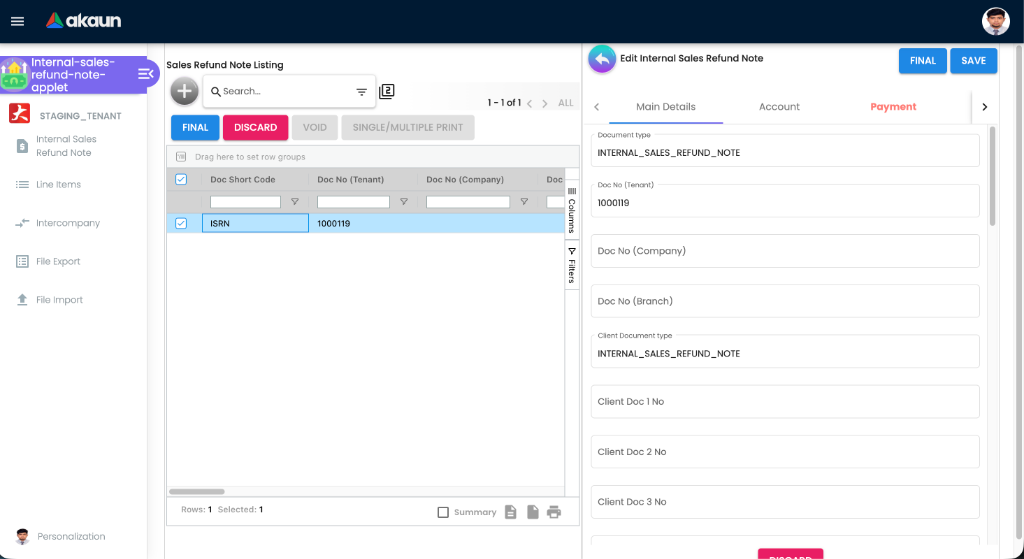
Listing
Thirty-four columns, including a Group column, the three document numbers, Reference, Remarks,
Posting Status, Status, Branch Code, Currency, Customer Name, Sales Agent, Transaction Date, Amount
Txn, the five ARAP columns (PNS, Settlement, Doc Open, Contra, Balance), Created/Updated By and Date,
Client Doc Type and Client Doc 1–5, and the four GL analysis columns (GL Dimension, Segment, Profit
Center, Project — each shown by its own SHOW_* setting). Buttons above the grid: FINAL,
DISCARD, VOID, SINGLE/MULTIPLE PRINT.
Create
The + above the listing does not open a blank form. It creates an empty draft on the server at once and opens it in the edit panel, titled Create, with the same tabs as Edit. (The code also carries an older, separate create panel with a shorter tab list; the listing’s + does not open it.) Until that draft becomes a live one it is a temporary record that the listing never shows, so a draft you walk away from leaves nothing to clear up, and nothing to come back to.
It becomes live in one of two ways: you press SAVE, or the screen saves it for you the moment it has a branch, a location, a currency, a customer and at least one line, so fill in the header, including Sales Agent and the currency rate, before you add the first line. FINAL only appears once the draft is live. The automatic save is read from the code, not tried: to see it for yourself, add a customer and one line without pressing SAVE, close the panel, and look for the note in the listing.
| Tab | What the screen does not tell you |
|---|---|
| Main Details | Company, Branch and Location are the three boxes SAVE waits for. Picking a branch sets the company and sets Currency to the branch’s currency with a rate of 1; unless delivery locations are hidden, the branch also becomes the delivery branch and the location you pick becomes the delivery location. Transaction Date starts as today, and changing it moves the date of every payment line with it, unless payment dates are set editable in Application Settings. Sales Agent is checked only where this applet’s settings hold the mandatory Sales Agent tick, and the shared settings screen does not offer that tick for this applet, so on a tenant that never set it SAVE and FINAL go through with no agent. If commission or sales reports depend on the agent, making sure every refund carries one is the job of whoever reviews refunds before FINAL. |
| Account | Four sub-tabs: Entity Details, Bill To, Ship To and Intercompany. Picking the customer, whether here or by pulling lines from an invoice on the Search tab, copies the customer’s name, e-mail, phone, ID number, e-Invoice tax ID and SST number onto the note, and fills Bill To and Ship To with the customer’s default address, or its only address. It is a copy taken at that moment: correcting the customer record afterwards does not change a note already raised. A customer whose own currency differs from both your base currency and the note’s switches the note to that currency and sets the rate to 0. Press the button inside the Currency Rate box to fetch a live rate, or type one, before you add lines. |
| Lines | Lines come from the Search tab (Search By Customer, Search By Invoice or Search By Cashbill; once lines come from an invoice the cash-bill search is hidden, and the other way round), from +, or by typing an item code into the scan box and pressing Enter; the scan shows stock at the note’s location. The Group Discount boxes add one discount line using the group-discount item set on the branch, or else on the company; with neither set you get Please configure the default group discount item code. Read Troubleshooting before you use it: the discount line is built with the wrong sign, and the journal it produces does not match the note’s total. The percentage box appears to do nothing when you press Enter, so type the discount as an amount (read from the code, not tried: on one draft, enter 10 in the percentage box and see whether a discount line appears). Every SAVE and FINAL writes the note’s branch and location onto every line, and its delivery location as well when the header has one, so all the goods on one note come back into one location. Goods that belong in two stores need two notes. |
| Payment | Each line pays the customer back through a settlement method. The list offers only methods that are active and assigned to the note’s branch, so a method missing here is assigned under that branch in Organisation, not in this applet. A new payment line’s Amount starts at 0.00 rather than at what is still owed: type it. The date is the note’s Transaction Date and is locked, unless payment dates are set editable. FINAL refuses until the Lines total and the Payment total are equal (see the balancing rule under Document behaviour settings), and checking that the money really went out through that method on that day is the cashier’s job, done against the cashbook or card terminal settlement. |
Edit
The edit screen builds its tab strip from an ordered list, so the tab order is configurable per
tenant (SALES_REFUND_NOTE_DETAILS_TAB_ORDER). The full set, in default order:
Search · Main Details · E-Invoice · Account · Lines · Payment · ARAP · Delivery Details · Payment Adjustment · Department Hdr · TraceDocument · Contra · Doc Link · Attachments · Export.
Each is hidden by its HIDE_* key and starts expanded (in panel mode) according to its EXPAND_*
key. Buttons: FINAL and SAVE at the top, DISCARD and VOID with the document.
E-Invoice tab
Four sub-tabs, backed by real services against the LHDN submission tables:
| Sub-tab | Shown when | What it shows |
|---|---|---|
| Submission | always | The document’s e-Invoice submission state and the pending-submission, pending-posting and batch-pool queues |
| Progress | e-Invoice is enabled and posting status is FINAL | Submission history against IRB |
| Notification | always | The e-Invoice notification queue |
| Cancellation | e-Invoice is enabled and posting status is FINAL | Requests a cancellation / rejection with IRB |
Configuration
Before you can use it
| What | Where | Why |
|---|---|---|
Branch, location, document numbering for ISRN | Organisation | Header context and the three running numbers |
| A sales agent (employee) | Employee Maintenance | SAVE and FINAL abort with Please select a Sales Agent to proceed. only where this applet’s settings hold the mandatory Sales Agent tick, which the shared settings screen does not offer for this applet |
| A customer entity with an AR/AP type | Customer | The journal’s entity line |
Default GL codes for the debtor mapping, SALES, SALES_RETURN, SALES_DISCOUNT and OUTPUT_TAX | Chart of Accounts | Not checked at FINAL — the posting job runs after the status change. The debtor mapping throws MISSING_DEFAULT_GL_CODE when unmapped; an unresolvable item or tax line is silently dropped, and the job then fails with TOTAL_DEBITS_AND_TOTAL_CREDITS_NOT_BALANCES only if the customer has no AR/AP type. With an AR/AP type on the customer — the usual case — nothing fails: the dropped line is absorbed by the receivable line and the journal posts wrong (see Troubleshooting). When the job fails, the note stays FINAL with no journal. Once the mapping exists, ask BigLedger support to re-post the note’s journal: Financial Report’s Trace Document and the Missing Journal screens do not accept this document type, so the journal cannot be re-posted from your side |
| Tax codes | Tax Configuration | Line tax; hidden by HIDE_TAX_CONFIG_SELECTION |
| Settlement methods | Organisation | The Payment tab pays the customer through them |
| A default printable format | Settings → Printable Format Settings | SINGLE/MULTIPLE PRINT and the auto pop-up after FINAL |
| Return reasons | This applet’s Return Reasons Settings | The Reason field on a line, unless HIDE_REASON is on |
| Company e-Invoice registration | Organisation → Company | Turns on the E-Invoice tab’s Progress and Cancellation sub-tabs — and removes the VOID button |
Applet settings
Settings live on the shared settings screen (field-settings).
Settings menu: Application Settings, Default Selection, Printable Format Settings, Return Reasons Settings, Branch Settings, Workflow Settings — plus Release Notes and Applet Log routes that have no menu entry. Personalization has one entry, Default Selection.
Of the 190 keys this applet is offered or reads (177 on the shared screen for applet code
internalSalesRefundNoteApplet, salesManLabels in its model, and twelve it reads without declaring —
2026-10-04 export), 137 are read by the applet and 53 by nothing. Grouped by what the working ones
control:
| Group | Keys | What they control |
|---|---|---|
| Layout | VERTICAL_ORIENTATION, and the fifteen EXPAND_* keys (EXPAND_MAIN_DETAILS, EXPAND_ACCOUNT, EXPAND_LINE_ITEMS, EXPAND_PAYMENT… ) | Tabs versus expansion panels, and which sections start open |
| Status flow | DEFAULT_STATUS, DEFAULT_POSTING_STATUS, DEFAULT_TRANSACTION_DATE, FINAL_STATUS_GUID, WORKFLOW_PROCESS_GUID | The custom-status workflow. FINAL only appears when the document’s current status matches FINAL_STATUS_GUID, or that key is unset |
| Buttons | HIDE_GENDOC_FINAL_BUTTON, HIDE_GENDOC_VOID_BUTTON, HIDE_GENDOC_DISCARD_BUTTON, HIDE_GENDOC_SAVE_BUTTON, SHOW_DOCUMENT_DELETE_BUTTON | Which document actions are offered |
| Listing | DISABLE_GEN_DOC_LISTING, SORT_ORDER, FUZZY_SEARCH_COLUMNS, HIDE_AMOUNT_TXN_MAIN_LISTING, HIDE_SERVER_DOC_1/2/3, HIDE_CREATED_BY_DETAILS, ENABLE_BRANCH_FILTER | The grid: which columns, how it sorts and searches, whether branch filtering applies |
| Refund control | WARN_EXCESS_RETURN_QUANTITY, SALES_RETURN_WITH_PAYMENT, ENABLE_EDITING_UNIT_PRICE_STD | Whether a line may exceed what was invoiced; whether FINAL waits until the note’s receivable balance is 0 (ARAP balance must be 0 for finalization, on the document and on the listing’s FINAL); whether the standard unit price may be edited |
| Line grid and item form | HIDE_QTY_BASE, HIDE_QTY_UOM, HIDE_UOM_TO_BASE_RATIO, HIDE_AMOUNT_*, HIDE_DISCOUNT_AMOUNT_EXCL_TAX, HIDE_MULTI_DISCOUNT, HIDE_TOTAL_DISCOUNT_AMOUNT, HIDE_UNIT_DISCOUNT*, the eight HIDE_UNIT_PRICE_*, HIDE_REASON, HIDE_LOCATION, HIDE_DELIVERY_BRANCH, HIDE_DELIVERY_LOCATION, HIDE_COSTING_DETAILS, HIDE_TAX_CONFIG_SELECTION, HIDE_WHT_CONFIG_SELECTION, DISABLE_ITEM_LISTING, ENABLE_ITEM_NAME_MAX_LIMIT + ITEM_NAME_MAX_LIMIT | What appears on the Lines tab and the add/edit line panel. The batch-number hide is offered too and read by nothing here (earlier versions of this applet and the Sales Invoice honour it); the bin-number hide does one thing only, on the settings screen itself — it hides and clears the mandatory bin number checkbox beside it |
| Header fields | CANNOT_EDIT_CURRENCY_RATE, SHOW_FOREX_DATA_SOURCE, HIDE_TRANSACTION_DATE, HIDE_PERMIT_NO, HIDE_TRACKING_ID, HIDE_SALES_AGENT, HIDE_CLIENT_DOC_TYPE, HIDE_CLIENT_DOC_1…_5, ENABLE_EMPLOYEE_LOGIN_AUTO_DETECTION | Which header fields render and whether the sales agent is derived from the logged-in employee |
| GL analysis | SHOW_GL_DIMENSION, SHOW_PROFIT_CENTER, SHOW_PROJECT, SHOW_SEGMENT | The four analysis columns and fields (opt-in) |
| Tabs | HIDE_ATTACHMENT_TAB, HIDE_MAIN_CONTRA_TAB | Hide those sections. HIDE_EXPORT_TAB is read as well but has no switch for this applet (see below). The line-level doc-link and related-documents hides beside them on the settings screen are read by nothing in this applet (the Sales Invoice and Sales Quotation honour them) |
| Document popup | HIDE_DESCRIPTION, HIDE_SETTLEMENT_TAB, HIDE_TRACE_DOCUMENT_TAB, HIDE_DOC_LINK_TAB, HIDE_ATTACHMENT_TAB | The popup that opens from the Doc No. cell of the knock-off grid on the add-line screen, where you pick the invoice lines to refund: the description hide removes its Description row, the tab hides remove its tabs. The refund note’s own Lines tab never reads the description hide — if a description vanished from a line, the cause is elsewhere |
| ARAP and contra | HIDE_ARAP_PNS, HIDE_ARAP_SETTLEMENT, HIDE_ARAP_DOC_OPEN, HIDE_ARAP_CONTRA, HIDE_ARAP_BAL, EDIT_CONTRA_TXN_DATE | ARAP columns and whether a contra transaction date may be edited |
| Serial numbers | ENABLE_DRAFT_LOCK_SERIAL_NUMBER_CHECKING | Blocks a serial number already held by another draft |
| After FINAL | ENABLE_AUTO_POPUP | Opens the printable PDF automatically |
Five of the keys above — ENABLE_DRAFT_LOCK_SERIAL_NUMBER_CHECKING, HIDE_MULTI_DISCOUNT,
DISABLE_ITEM_LISTING, DEFAULT_STATUS and FUZZY_SEARCH_COLUMNS — are read by the applet but declared
by neither its model nor the shared screen for this applet code, so they can only be set through the API
or the settings record. Five more undeclared keys are the ones that move money and master data, and no
screen shows them either: AUTO_SETTLE_CONTRA gives the contra picker a total-amount box with AUTO
SETTLE and RESET, to spread one amount across the listed documents; CONTRA_DATE_SAME_AS_DOC_DATE_TXN
dates each contra on the refund note’s own date instead of today, which matters at a period boundary;
and DEFAULT_CUST_TYPE (CORPORATE when unset), DEFAULT_COUNTRY and DEFAULT_CURRENCY are the type,
country and currency given to a customer created from this applet’s customer picker.
Read at runtime with no control on the shared screen — the tab-hide keys HIDE_SEARCH_TAB,
HIDE_PAYMENT_TAB, HIDE_DELIVERY_DETAILS_TAB, HIDE_DEPARTMENT_HDR_TAB, HIDE_MAIN_ARAP_TAB,
HIDE_DOC_LINK_TAB and HIDE_EXPORT_TAB, the document popup’s HIDE_SETTLEMENT_TAB and
HIDE_TRACE_DOCUMENT_TAB, and the two menu-hide keys HIDE_INTERCOMPANY_MENU and
HIDE_FILE_EXPORT_MENU. The shared screen does not offer their toggles for this applet. They keep
whatever value the tenant already holds; on a tenant that has never set them every gated tab, the
popup’s tabs and both menus render.
Return Reasons Settings is an applet-local screen: a listing of reason rows with Reason Code, Reason Name and a Default Selection flag, with ADD and SAVE panels. Those are the values the line-level Reason field offers.
Workflow Settings links a company to a workflow process designed in
Workflow Design. The process a new refund note starts
on (WORKFLOW_PROCESS_GUID) and the Final status (FINAL_STATUS_GUID) are chosen on Application
Settings › Workflow Selection. Without a process chosen there, a refund note carries no workflow
status. With one chosen and a Final status set, FINAL waits for that status and finalising leaves
it unchanged (see the Status flow row above).
Branch Settings and Default Selection / Personalization → Default Selection follow the standard pattern: applet-wide branch, location and company defaults, overridable per user.
Document behaviour settings
| Behaviour | Governed by | Effect |
|---|---|---|
| FINAL offered | HIDE_GENDOC_FINAL_BUTTON off (or the SHOW_GENDOC_FINAL_BUTTON permission), document ACTIVE, posting status empty or DRAFT, no invalid serial number, and the current status equals FINAL_STATUS_GUID (or that key is null) | Sends { posting_status: 'FINAL' } |
| FINAL blocked when unbalanced | not configurable | See the balancing rule below |
| DISCARD offered | HIDE_GENDOC_DISCARD_BUTTON off, document ACTIVE, posting status empty or DRAFT | |
| VOID offered | HIDE_GENDOC_VOID_BUTTON off, posting status FINAL, and e-Invoice not enabled | |
| Everything locked | a generic-document lock is held on the record | FINAL, SAVE, DISCARD and VOID are all withdrawn |
Feature visibility and permissions
The applet checks 45 client-side permission codes. One is seeded:
SHOW_TRANSACTION_DATE.
The other 44 — including SHOW_GENDOC_FINAL_BUTTON, SHOW_GENDOC_VOID_BUTTON,
SHOW_GENDOC_DISCARD_BUTTON, SHOW_EDIT_SETTLEMENT_FINAL, SHOW_INTERCOMPANY_MENU,
SHOW_FILE_EXPORT_MENU, EXCLUDE_ACCOUNT_CODE_ITEM_TYPE_AT_ITEM_SEARCH and the SHOW_*
counterparts of every hideable column — are not defined for this applet and therefore cannot be granted
to any role, team or user.
The practical consequence: every HIDE_* setting on this applet is all-or-nothing. Hide the
Intercompany menu and no role can get it back; hide the FINAL button and nobody can post.
Server-side permissions are unaffected: TNT_API_DOC_INTERNAL_SALES_REFUND_NOTE_CREATE_TGT_GUID,
…_READ_…, …_UPDATE_… and …_DELETE_… are all defined and used.
Fields
Main Details
Document type (read-only, INTERNAL_SALES_REFUND_NOTE), Doc No (Tenant / Company / Branch), Client
Document type, Client Doc 1–5 No, Customer, Sales Agent (required only where the mandatory Sales Agent tick is held — see
Create), Transaction Date, Reference, Remarks, Permit No, Tracking ID, Currency and Currency
Rate. Each of the client-document and reference fields is hidden by its own HIDE_* key; the
currency rate is locked by CANNOT_EDIT_CURRENCY_RATE.
Lines
Item Code, Item Name, UOM, UOM-to-base ratio, pricing scheme, the eight unit-price variants,
Quantity Base, unit / multi / total discounts, tax and withholding-tax codes, Description, Reason
(from Return Reasons Settings), Location, Delivery Branch and Delivery Location, plus batch, bin and
serial sub-tabs where the item uses them. Each hideable by its HIDE_* key.
Payment and Payment Adjustment
Payment holds the settlement lines that pay the customer back — these are the STL side of the balancing rule. Payment Adjustment holds settlement adjustments against them, on its own panel.
Lifecycle and effects
Status (posting_status) | Meaning | Allowed next |
|---|---|---|
empty / DRAFT | Editable | FINAL, or DISCARDED |
FINAL | Posted; document locked | VOID — unless e-Invoice is enabled, in which case use the Cancellation sub-tab |
VOID | Reversed by the void processors | — |
DISCARDED | Abandoned draft | — |
The server also carries a converter from a cash bill to a refund note — the API’s convert route for that pair; Search By Cashbill on the Lines tab is this applet’s own way of doing the same thing.
A new note starts as a temporary draft the listing does not show, and becomes a live draft on the first SAVE or, before that, automatically once it has a branch, location, currency, customer and one line (see Create).
What posting does:
| Item | Value |
|---|---|
| Document type | INTERNAL_SALES_REFUND_NOTE, short code ISRN |
| Direction | The reverse of a sales invoice: money back to the customer, and stock back into the location on the line |
| The journal | The ordinary sales journal mapping: debit SALES and OUTPUT_TAX; the balancing customer line is a credit to the customer’s AR account. Exactly the reverse of a sales invoice. Two accounts that sound as if they belong here receive nothing: a line’s discount is taken off before the line posts, so the Sales debit is the amount after discount and nothing goes to the sales-discount default; and the refund note is not one of the return types, so its lines debit Sales, not the sales-return default (SALES_RETURN), even though the stock comes back. If you report returns from the sales-return account, refund notes are not in it |
| Which GL code | Line GL → header GL → the item’s company default → company default. A missing customer mapping fails with MISSING_DEFAULT_GL_CODE; an item or tax line with no GL code at any level is silently left out, and the customer’s line is built from what remains, so it absorbs the amount and the journal posts wrong with no error. Only when the customer has no AR/AP type does the posting job — not FINAL, which has already succeeded — fail with TOTAL_DEBITS_AND_TOTAL_CREDITS_NOT_BALANCES, leaving the note FINAL with no journal |
| Stock | Stock in at the line’s delivery location, falling back to the line store, the header store and the branch default. This applet writes the header’s location, and its delivery location when there is one, onto every line on each save, so in practice the stock comes back into the header’s location |
| What VOID reverses | The void jobs your tenant has switched on: the stock lines are voided and balances recomputed, the journal is reversed, knocked-off lines are reopened and contras are reversed |
Related applets
- Sales Invoice (Internal) — the document a refund is normally raised against; Search By Invoice reads it.
- POS General — the source of the cash bills Search By Cashbill reads.
- Sales Return (Internal) — same stock effect, no pay-out.
- Sales Credit Note (Internal) — reduces the receivable without moving stock.
- Customer — the entity, its AR type and its credit terms.
- Employee Maintenance — the Sales Agent.
- Organisation — branches, locations, numbering, settlement methods, intercompany configuration and the company e-Invoice registration.
- Chart of Accounts — the debtor, sales and output-tax GL codes.
- Tax Configuration — line tax codes.
Troubleshooting
| Symptom | Cause | Fix |
|---|---|---|
| Please select a Sales Agent to proceed. on SAVE or FINAL | The Sales Agent field is empty and this applet’s settings hold the mandatory Sales Agent tick; the check runs before anything is sent | Set the sales agent, or switch on ENABLE_EMPLOYEE_LOGIN_AUTO_DETECTION to derive it from the logged-in employee |
| PNS total amount (x) must equal STL total amount (y) for finalization | The refunded line total does not equal the settlement total. Client-side; nothing was sent | Adjust the Payment tab so the settlement equals the lines |
| The currency rate cannot be ZERO or negative. on SAVE | The document currency differs from base and the rate is 0 or below | Enter a rate; if the field is locked, clear CANNOT_EDIT_CURRENCY_RATE |
| No FINAL button on a draft | HIDE_GENDOC_FINAL_BUTTON is on (and the SHOW_GENDOC_FINAL_BUTTON permission cannot be granted), the document is not ACTIVE, a serial number is invalid, or the workflow status does not match FINAL_STATUS_GUID | Check the workflow status first; then the setting |
| No VOID button on a finalised note | e-Invoice is enabled for the company, which withdraws VOID entirely | Use the Cancellation sub-tab on the E-Invoice tab |
| Every button disappears on one document | A generic-document lock is held on the record | Release the lock; check whether another session has the document open |
| A refund line can be added for more than was invoiced | WARN_EXCESS_RETURN_QUANTITY is off | Switch it on; with it on, the Search screens refuse a line where already-returned plus this return exceeds the invoiced quantity |
| The Intercompany or File Export menu is missing and cannot be restored per role | HIDE_INTERCOMPANY_MENU / HIDE_FILE_EXPORT_MENU are set, and SHOW_INTERCOMPANY_MENU / SHOW_FILE_EXPORT_MENU are not defined as permissions | Clear the setting for the whole tenant |
| No tab-hide toggles on Application Settings | The shared settings screen does not offer them for this applet | The settings keep whatever value the tenant already holds |
Note is FINAL and Trace Document → Journal Txn is empty; the reason BigLedger support reads is MISSING_DEFAULT_GL_CODE. No screen shows it | The customer’s AR/AP type resolves to a transaction code with no company default GL code; FINAL succeeded and the journal job failed afterwards | Map it in Chart of Accounts, then ask BigLedger support to re-post the note’s journal: Financial Report’s Trace Document and the Missing Journal screens do not accept this document type, so the journal cannot be re-posted from your side |
Note is FINAL, no journal, and the reason BigLedger support reads is TOTAL_DEBITS_AND_TOTAL_CREDITS_NOT_BALANCES | An item or tax line could not resolve any GL code and was dropped from the journal without a message, and the customer has no AR/AP type, so no customer line absorbed it | Set the GL code on the line, the item-company link, or as a company default, then ask BigLedger support to post the note’s journal: no screen posts a missing journal for this document type (Repost appears only once a journal has posted) |
| No error, but trade debtors no longer agrees with the debtor ageing, and sales or SST are short by the same amount | A line resolved no GL code and was left out of the journal; the customer’s line was built from the lines that remained, so it absorbed the amount and the journal posted. The note is FINAL with a journal, so Trace Document finds nothing, and the customer statement and ageing (built from documents) look right. Before go-live, check every code this note uses has a company default, or every item its own | Set the GL code on the line, the item-company link, or as a company default first. Then open the note in Error Checking › Trace Document and press Repost beside Posting Journal: it deletes the short journal and builds it again from the note, now with every line, and leaves the note as it is. The checks on that screen read Unsupported document type for a refund note; the Repost button does not depend on them. Repost successful means it worked. A failed Repost shows nothing, and it has already deleted the old journal, so open the Journal Txn grid afterwards: if it is empty, the cause is still there; fix it and press Repost again, or ask BigLedger support, who can read the reason. Or post a correcting journal yourself that moves the absorbed amount from trade debtors to sales or SST, or, where VOID is offered (not on an e-Invoice company), void the note and record it again |
| You refunded RM 1,000 less a RM 50 group discount and paid out RM 950, but the journal shows Sales debited RM 1,050 and the customer credited RM 100 | The applet builds the group-discount line with the opposite sign to every other line on the note, so the journal posts the discount on the same side as the refunded goods, and the customer line takes up the difference: twice the discount. The note’s screen total (RM 950) is right; the posting is not. Read from the code, not seen on any tenant (a known issue, reported to engineering) | Until it is fixed, take the discount off the line prices (unit discount) rather than using the Group Discount boxes. If a note already went through, check Trace Document → Journal Txn and correct it with a journal entry |
| No Default Printable Selected after FINAL | ENABLE_AUTO_POPUP is on but no PRINTABLE default is set | Set one under Settings → Printable Format Settings |
| An intercompany mirror document never appears | The row is still in the UNPROCESSED tab of the Intercompany listing, or no intercompany configuration matched | Open Intercompany → UNPROCESSED and check the Status and Used Config columns |
| Search By Invoice and Search By Cashbill cannot both be used | Once a line is linked to one document type the other tab is hidden | Raise one refund note per source document type |