POS General
Watch these as presentations — 14 on this page, slides with narration.
The retail checkout counter: cashiers ring up sales and take payment here, and supervisors open and close sessions, run the Z Report and correct a wrong payment method. Each sale becomes a cash bill that, on FINAL, takes the goods out of stock, posts the sale and the money to the ledger and cashbook, and queues the bill for e-Invoice.
Overview
The POS General applet is the retail checkout counter. A cashier opens it on a terminal, scans or picks items, applies member points, vouchers, discounts or free gifts, takes payment by cash, card, e-wallet, voucher, cheque, bank transfer or contra — settling the bill against the customer’s own open documents instead of taking money — and the applet writes a cash bill that — on FINAL — takes the goods out of stock, posts the sale and the money to the ledger and cashbook, and queues the bill for e-Invoice. Supervisors use the same applet to open and close cashier sessions with float counts, review the Cash Bill Listing, run the Z Report and Cashier Collection, correct a wrong payment method after FINAL, swap a wrongly scanned serial number, and approve sell-below-price requests. It can run offline against a local database and sync when the network returns.
INTERNAL_SALES_CASHBILL. Every line carries amount signum +1 and quantity signum −1 — the two flags that tell the engine which way the money and the goods move — so a cash bill is a sales invoice settled on the spot: it posts revenue and stock-out like an invoice, and its settlement lines (one per payment taken, each naming a method and an amount) post straight to the cashbook.Video tutorial
Where it fits
| Direction | Document / applet | How it connects |
|---|---|---|
| Upstream | Organisation | Company, branch (with its default location), location |
| Upstream | Inv Item Maintenance, Doc Item Maintenance | Items, barcodes, serial/batch/bin control, bundles and made-to-order items, the rounding / group-discount / points-discount adjustment items |
| Upstream | Pricebook | Pricing scheme, retail pricebooks, promotions; free-gift rules are stored as a pricebook of type POS_FREE_GIFT |
| Upstream | Customer, Membership Admin | Default walk-in customer, members, points earned and redeemed, spending limits, blacklist |
| Upstream | Cashbook, Chart of Account, Tax Configuration | Settlement methods with cashbook + GL; company default GL codes; SST codes |
| Upstream | Voucher Management | Vouchers and coupons redeemed as settlement or as lines |
| Downstream | Stock Balance | FINAL bills reduce stock at the branch’s location; trade-in lines bring stock in |
| Downstream | Daily Cashier Report, Sales Report | Z Report, Cashier Collection and sales analysis read FINAL cash bills |
| Downstream | Bank Reconciliation | Card / transfer settlement lines appear in the cashbook for reconciliation; updating a bill whose line is reconciled returns an unreconcile error |
| Downstream | My E-Invoice Portal | Cash bills submit as e-Invoice type 01 (Invoice), individually or consolidated by branch |
| Sibling | Sales Return (Internal) | A POS return is recorded as INTERNAL_SALES_RETURN lines inside the cash bill; larger returns go through the return applet |
| Sibling | Non Stock and Trade In | Trade-in lines carry doc type INTERNAL_PURCHASE_TRADE_IN and NSTI items |
| Sibling | Sales Invoice (Internal) | Same posting family; the invoice is the credit-terms equivalent |
Screens and menus
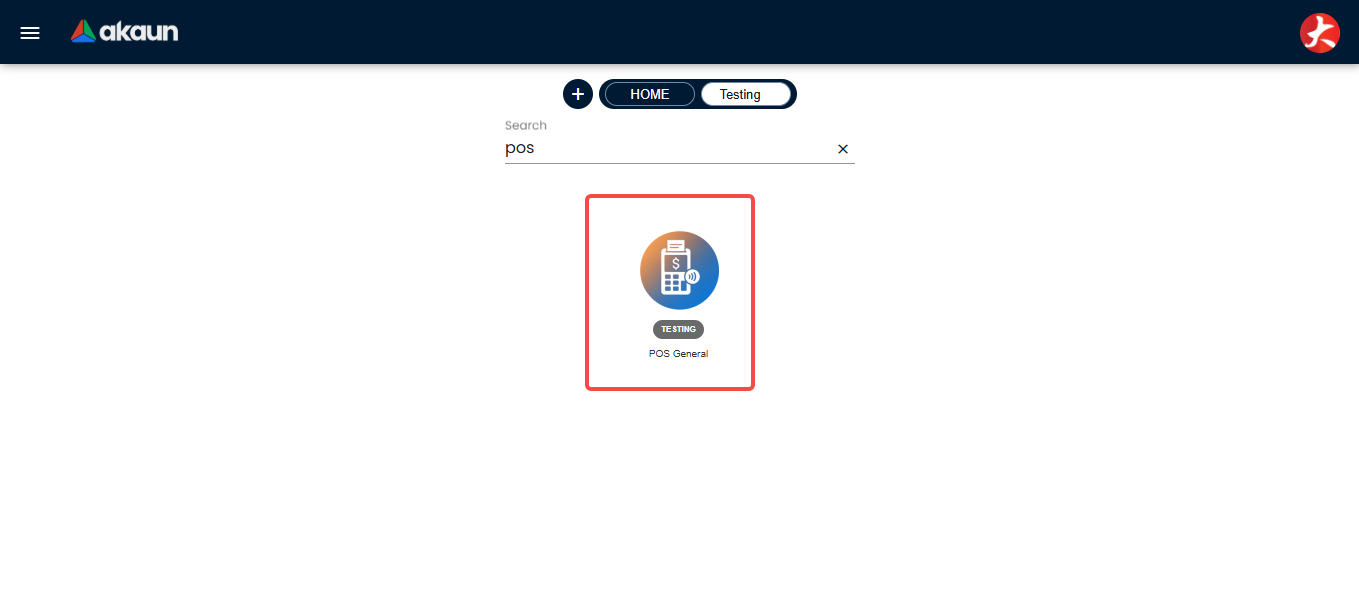
Route root: applet/tnt/wavelet/erp/pos-general-applet/.
| Menu item | Route | What it shows | Shown when |
|---|---|---|---|
| Create Cash Bill | pos | The counter screen (left-right or top-bottom theme) | always |
| Cash Bill Listing | listing | Advanced search, view/edit, reprint, email, export, void | always |
| Cashier Collection | cashier-collection-report | Collections grouped by settlement method per cashier | unless HIDE_CASHIER_COLECTION_REPORT (user with POS_SHOW_CASHIER_COLECTION_REPORT still sees it) |
| Z Report | z-report | End-of-day summary, export to PDF | unless HIDE_Z_REPORT (override POS_SHOW_Z_REPORT) |
| Upload Cashbill | file-import | Delimited-file import with a Checking step | unless HIDE_FILE_UPLOAD_MENU |
| Settlement Adjustment | settlement-adjustment | Change payment methods on FINAL bills; history | ENABLE_EDIT_SETTLEMENT_FINAL and user holds POS_EDIT_SETTLEMENT_FINAL |
| Swap Serial Number | swap-serial | Swap a sold serial for another available one; history | POS_SWAP_SERIAL_FINAL and user holds POS_SWAP_SERIAL_NUMBER_FINAL |
| Audit Trail | audit-trail | Who changed what on a bill | unless HIDE_AUDIT_TRAIL_MENU (override POS_SHOW_AUDIT_TRAIL_REPORT) |
| Approval, Approval History | approval, approval-history | Sell-below-price requests waiting for a supervisor; past decisions | POS_SHOW_APPROVAL and user holds ALLOW_APPROVE_SELL_BELOW_PRICE |
| Session | pos-session | Cashier sessions (code, name, device, start/end, status). Nothing refuses a session opened with no device — the API and older builds can open one — and a per-device Z Report filters by device only when a device is picked, so such a session’s bills are on the all-devices report and on no per-device one | SESSION_FLOAT_CONTROL |
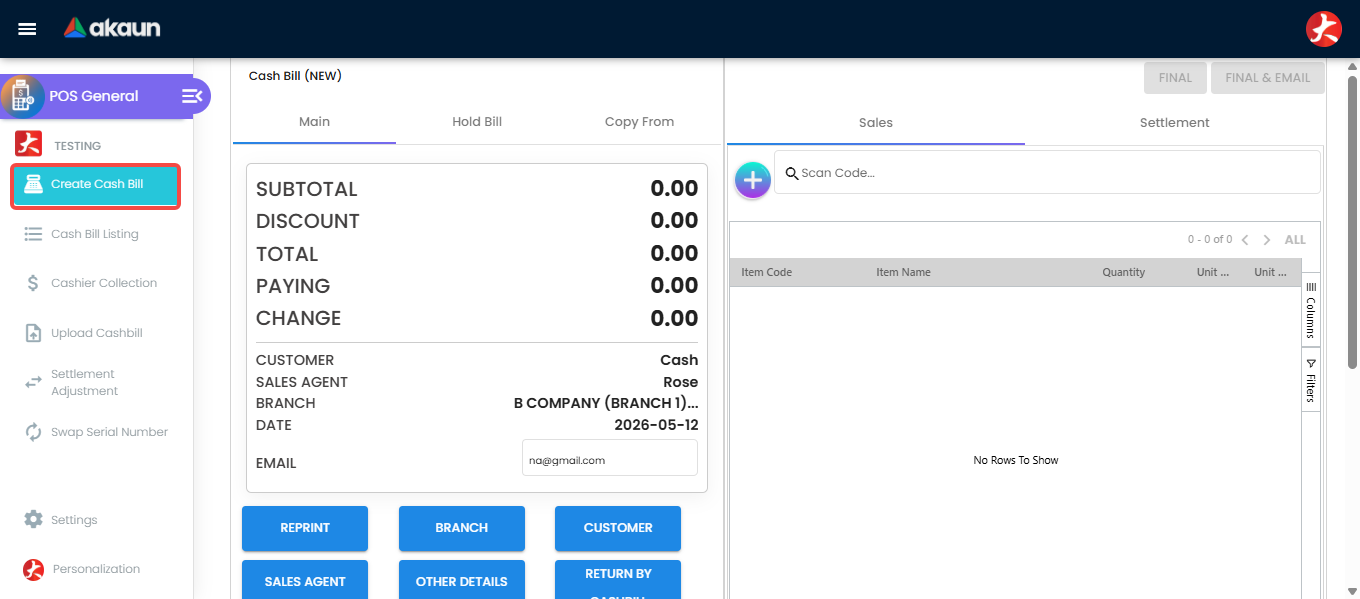
The counter screen (Create Cash Bill)
Tabs: Main; Hold Bill (parked drafts, on a bill that is not FINAL); Transaction Queue (bills waiting to sync in offline mode); Copy From (with POS_COPY_FROM — pull lines from a jobsheet, sales order or sales invoice by document number). Panels reachable from the Main tab: customer / member (Account), sales agent, branch (with POS_CHANGE_BRANCH), others (reference, remarks, backdate), department, item discount, group discount, points discount, e-Invoice buyer details, spending limit, gross profit, previous cash bill, attach / detach drawer, session open / close, float count, cash in / out.
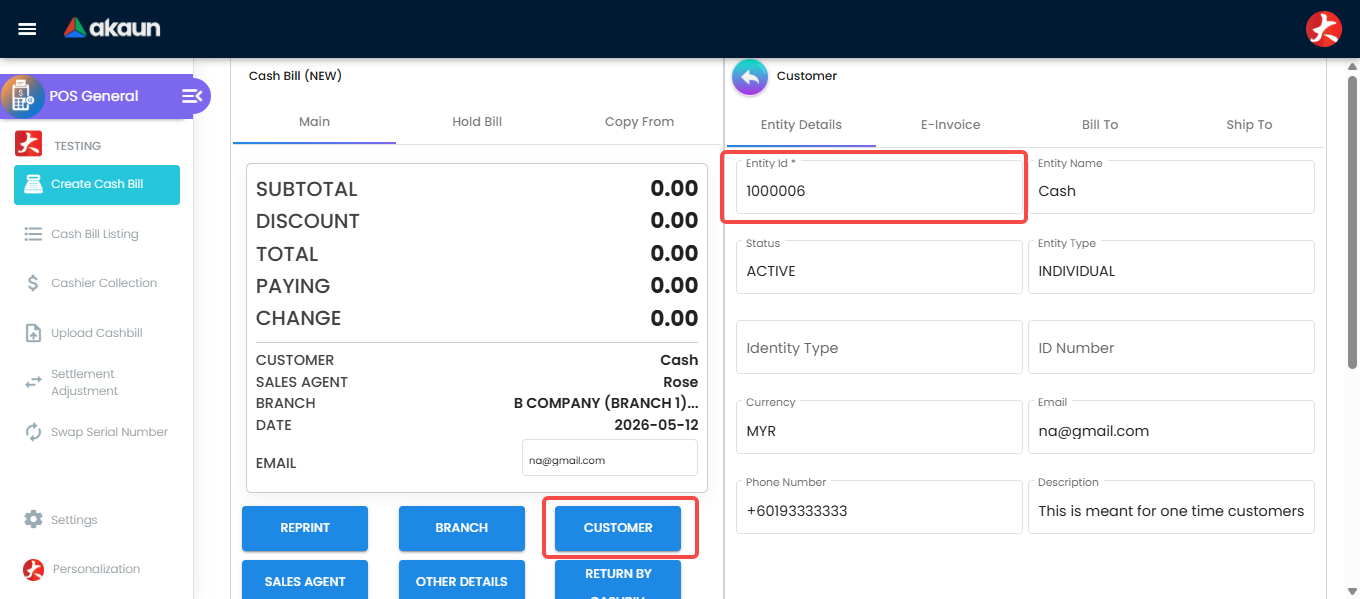
Screenshot withdrawn; a recapture from a demo tenant is on the list.
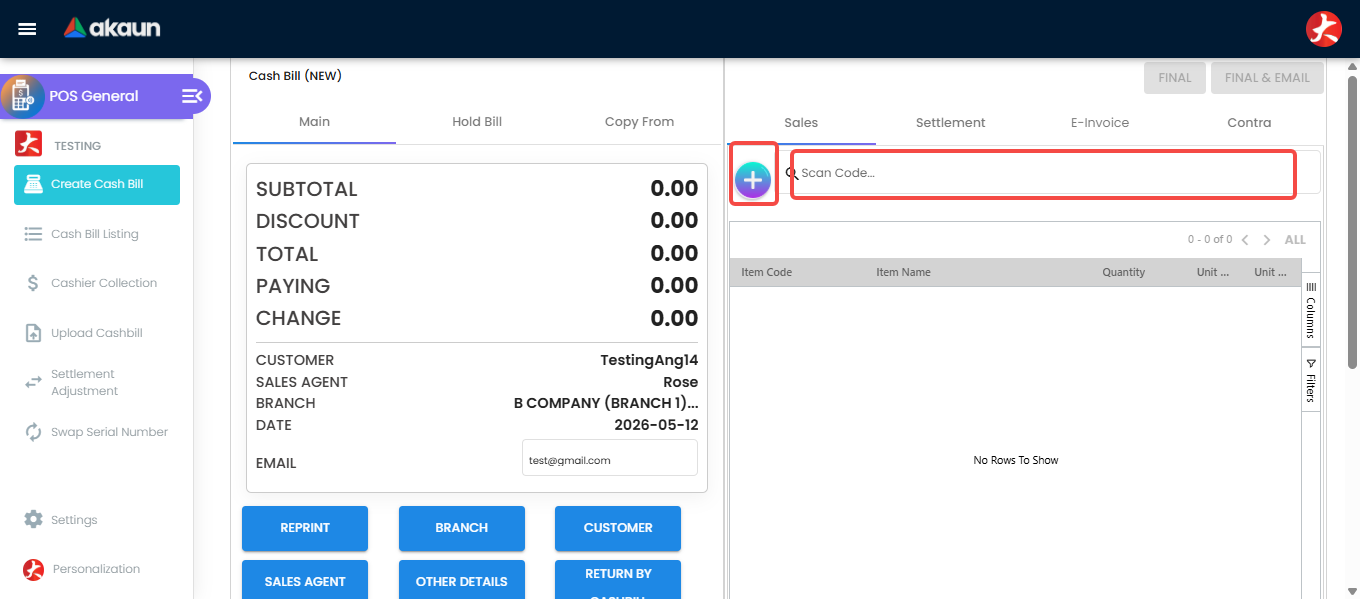
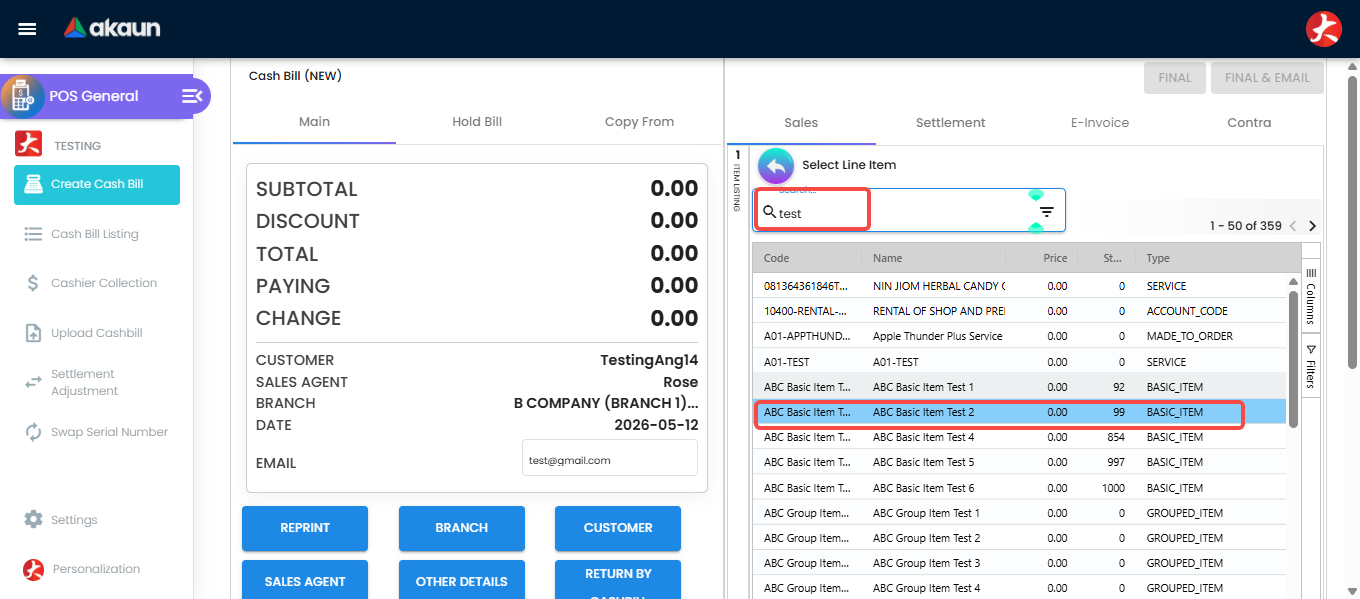
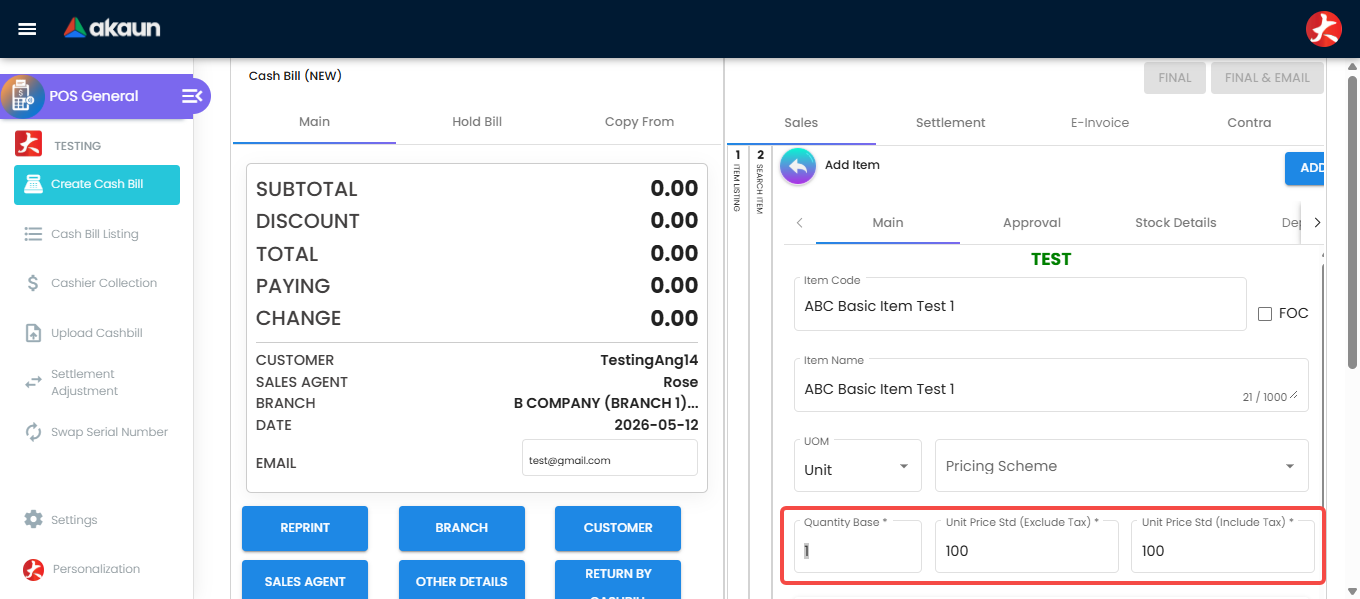
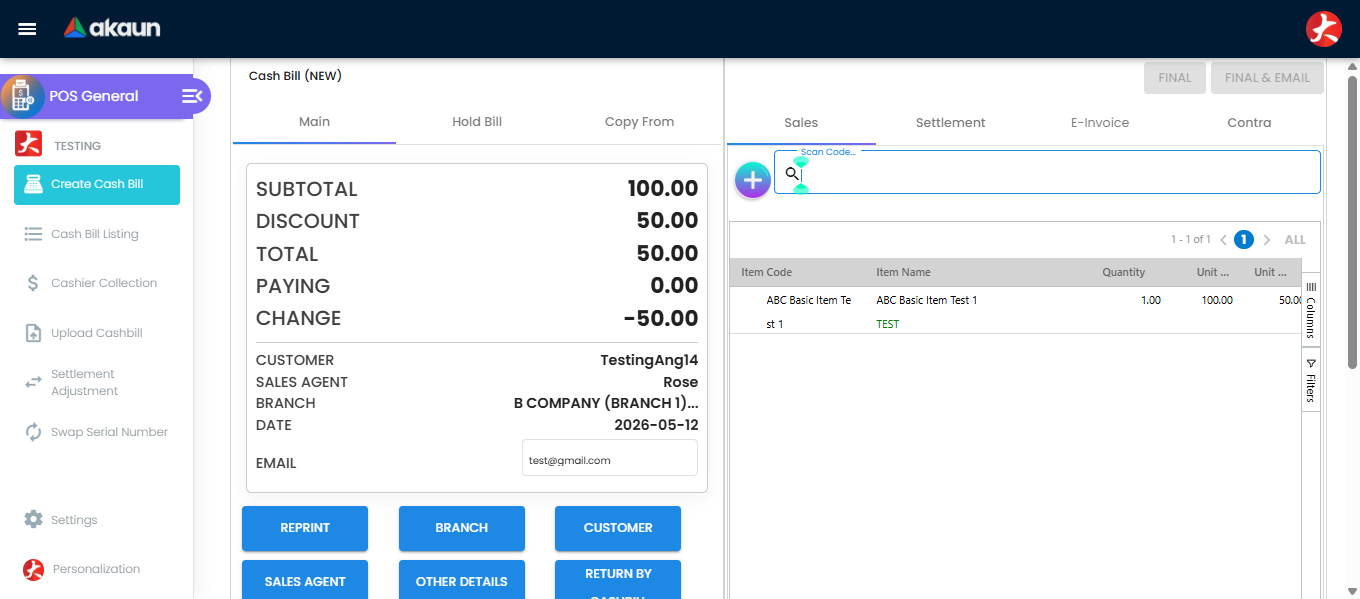
Item dialog tabs (shown per item type): Details, Item Details, Serial Number, Batch Number, Bin Number, Child Item (bundle), MTO (made-to-order), Grouped Item, Multi Level Discount, Membership Points, Department, Stock Details, Sales History, Swap Serial Number, Approval, Attachment.
Two of those tabs answer a customer’s question and one of them will mislead you, so they are worth describing rather than naming.
Stock Details is eight read-only figures — Balance, Average Cost, Last Cost, Replacement Cost, Minimum and Maximum Selling Price, Minimum and Maximum Purchase Price — and the balance comes from the company-wide current-balance service, not from anywhere near this till. The item search on the same screen filters on the session’s location. So the two disagree by design: a cashier can be looking at a positive Balance on this tab for an item the search will not offer, because the stock is at another location of the branch, or at another branch entirely. Neither number is wrong and nothing on the screen says they are answering different questions. It is also not a cross-branch view — it cannot tell a customer which shop has one. That question needs the Stock Report or Stock Availability applets.
And it is a commercial decision as much as an operational one: this tab puts your average cost, your
replacement cost and your price floors on a screen that faces a public room and is read by whoever is
on the counter. HIDE_STOCK_DETAILS closes it, POS_SHOW_STOCK_DETAILS re-opens it per role. Grant
it to the role that has to hold a price, not to the till.
Sales History (POS_SHOW_SALES_HISTORY) answers what has this customer paid for this item
before — Date, Doc No, Qty, Unit Price Std, Unit Discount and Unit Price Txn — which is exactly what
a cashier needs before quoting a price to a regular, and exactly the kind of grid that gets quoted
from without its scope being known. Its scope, from the request it builds, is narrow in four ways at once:
- This branch only (
guid_branch), so a customer who bought the same item at another GadgetSphere shop has no history here. - FINAL cash bills only. A sale to the same customer on a sales invoice does not appear.
- It needs a customer on the bill. With the walk-in default selected, the tab renders nothing — which is most counter sales.
- Ten rows, and only ten. The request asks for
limit: 10ordered byupdated_datedescending — the ten most recently touched bills, not the ten most recent sales, so a bill amended last week sits above a sale made yesterday. The More Page control cannot extend it: the component sets its record total to the number of rows it already has, so the test it makes before fetching more is never true.
Read it as “here are up to ten things this customer bought here”, never as “this is what they last paid”.
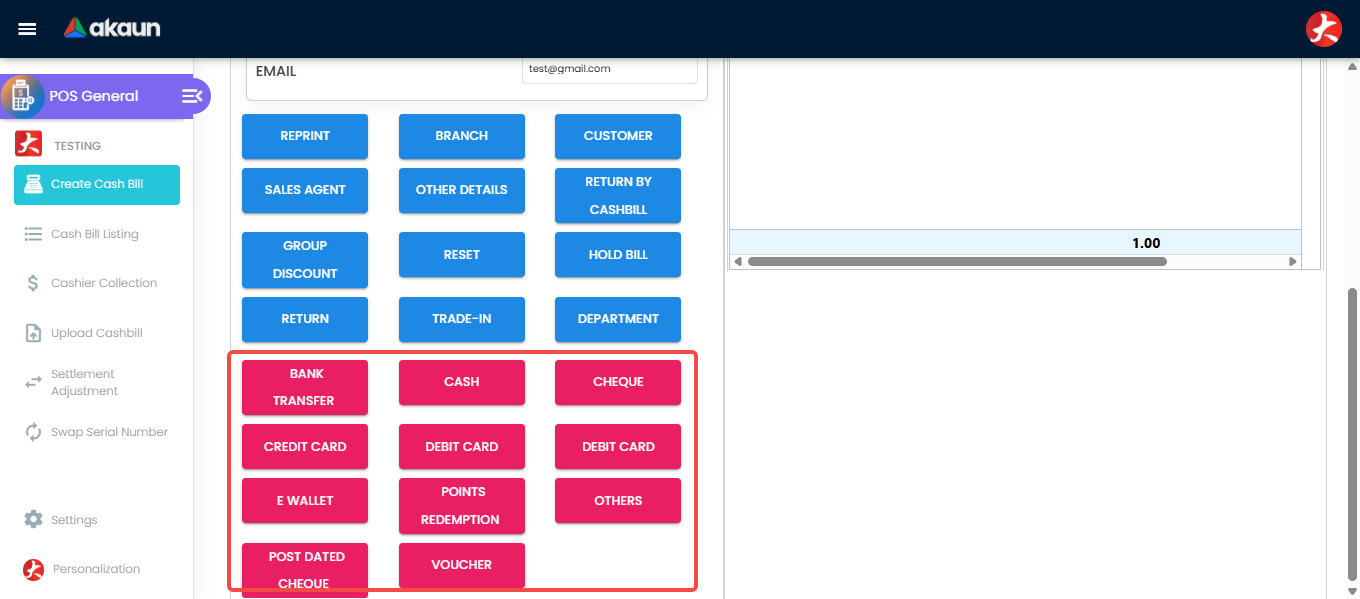
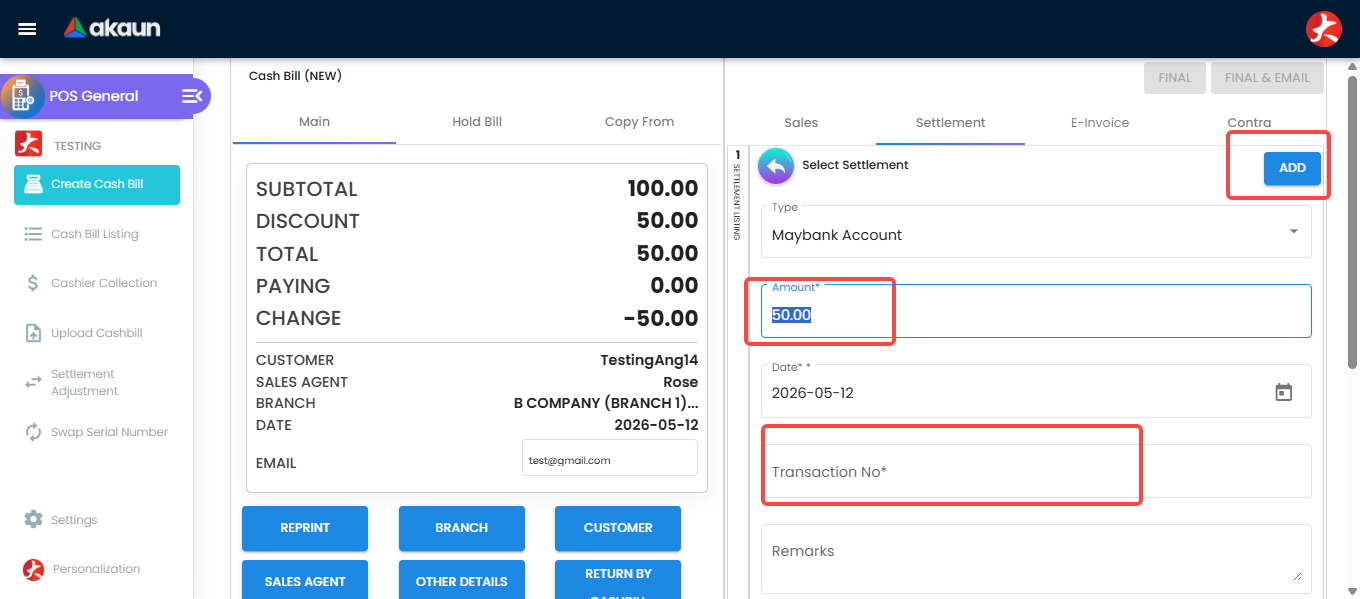
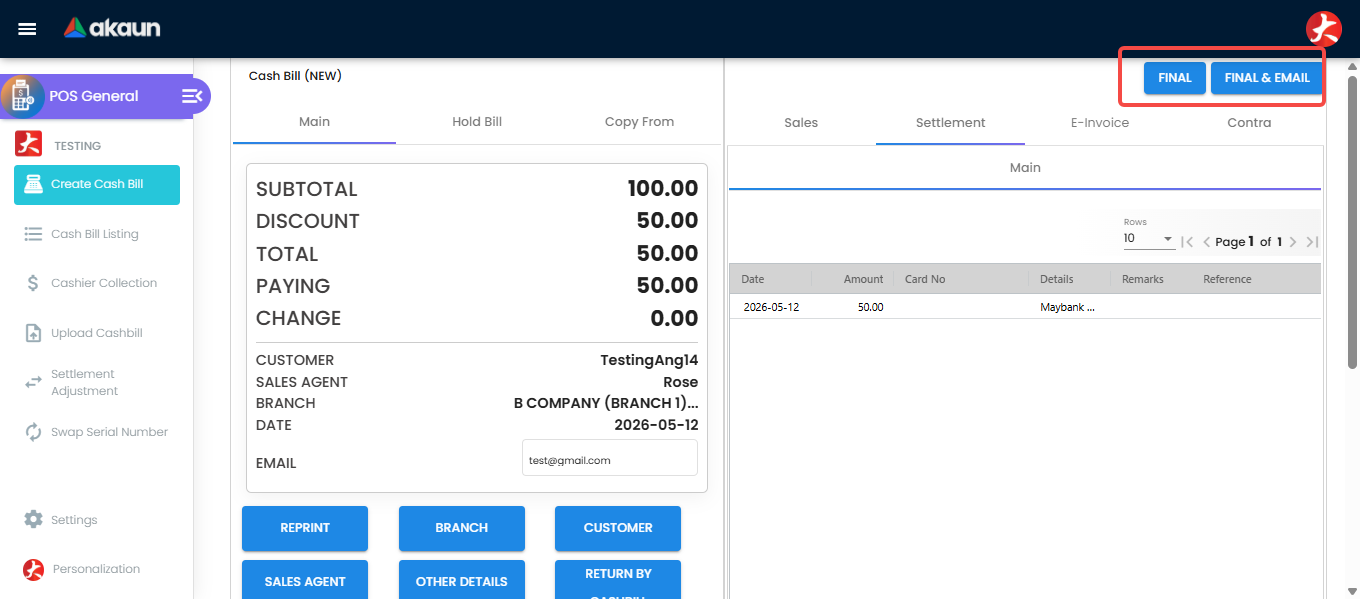
Settlement: a button per settlement method configured for the branch; types CASH (with six quick-cash buttons), CREDIT_CARD (card no., name, issuer, expiry, approval code, batch, card type — each hideable or mandatory), E_WALLET, VOUCHER, COUPON, CHEQUE, BANK_TRANSFER, member points (points ↔ cash value with a maximum), and Contra against the customer’s open documents when CONTRA_DOCUMENT is on. Rounding is added as a line using the rounding adjustment item.
Cash Bill Listing
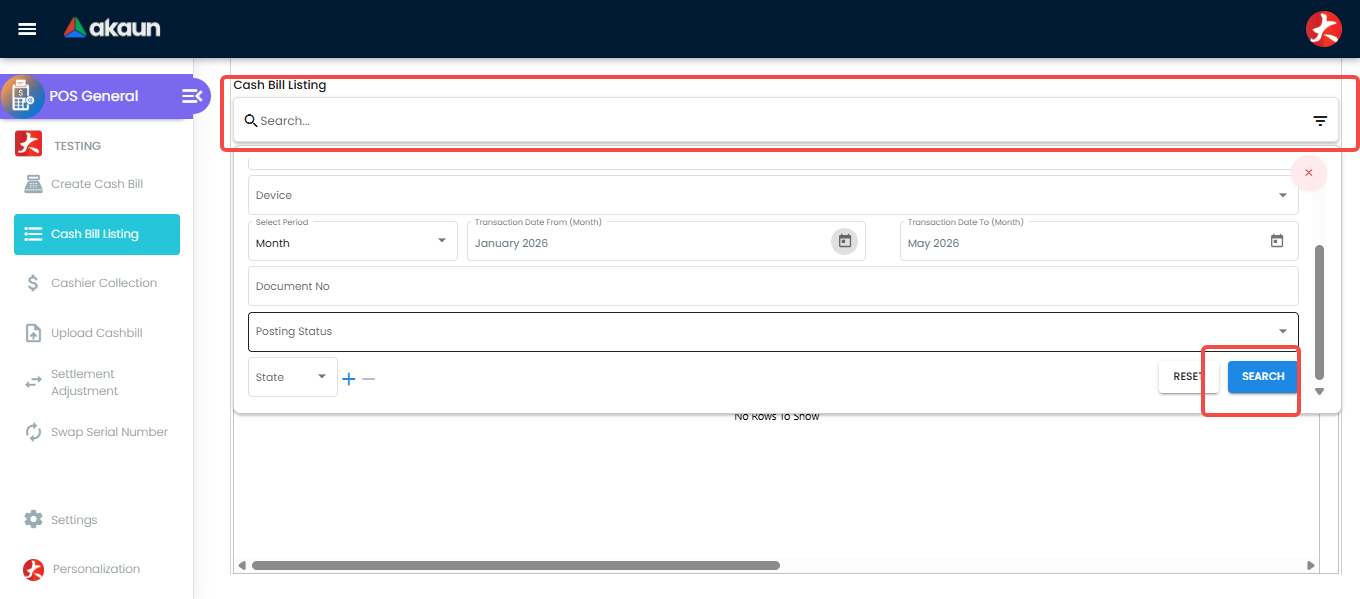
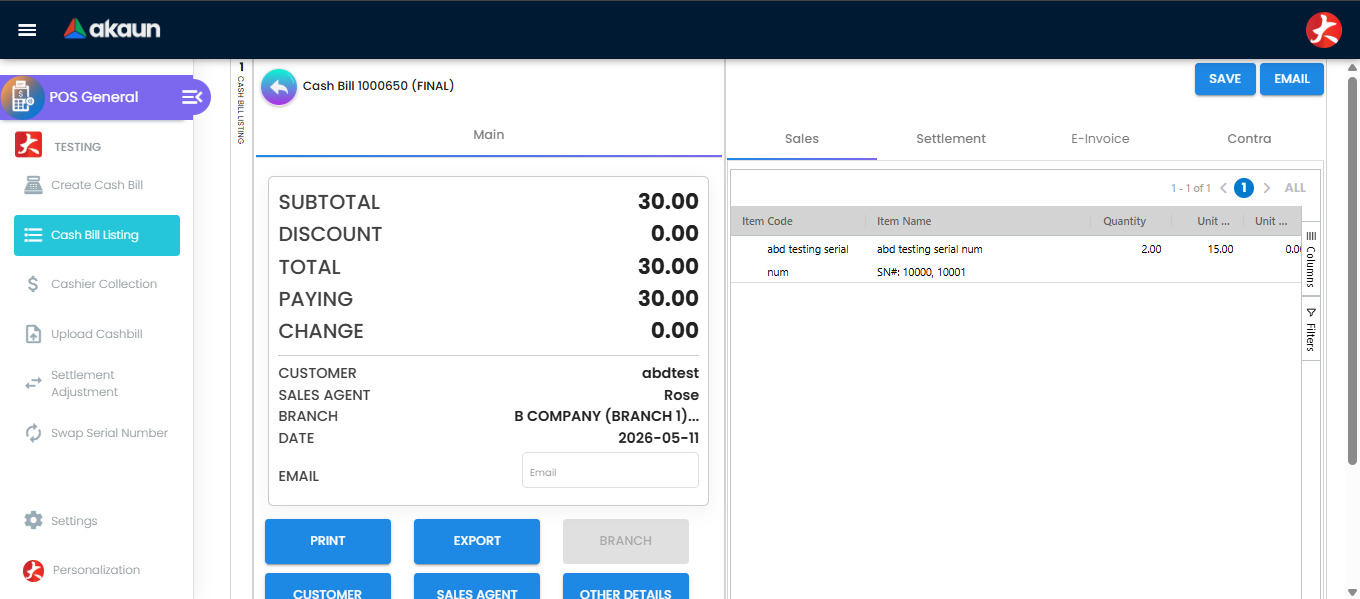
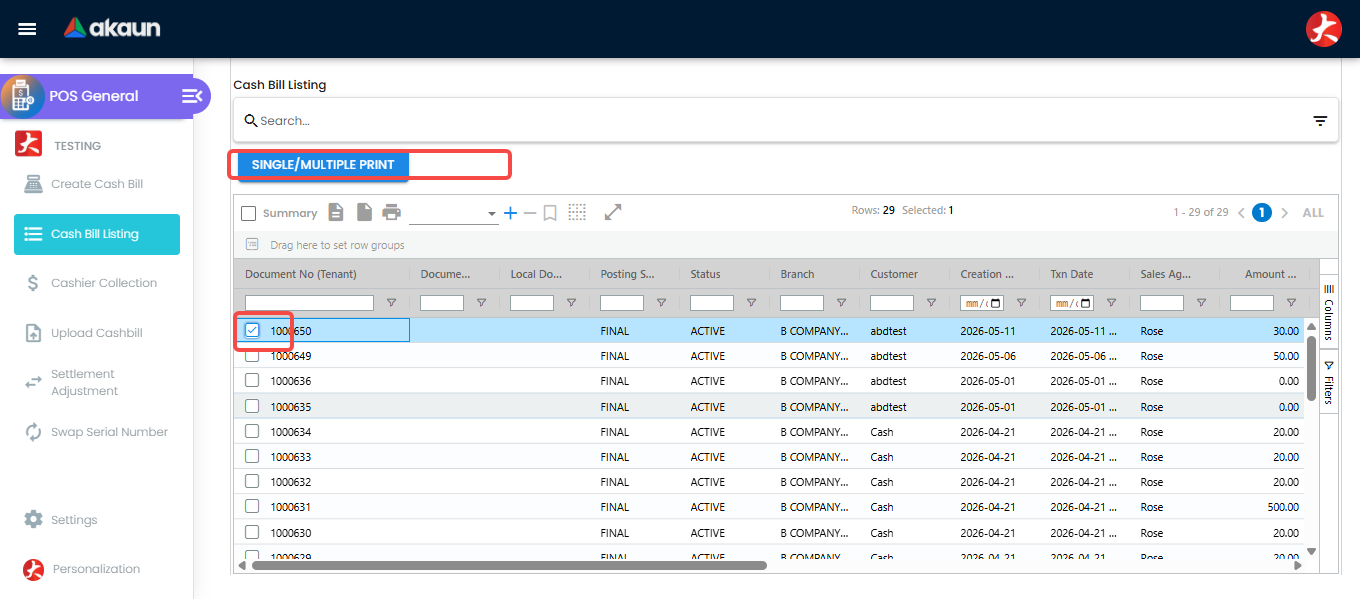
Advanced search by date, branch, status, customer, cashier; open a bill to view, edit remarks, email, export as PDF, void, return, reprint (single / multiple print with POS_PRINT_CASHBILL_LISTING).
Supervisor tools
Three things can be done to a bill that is already FINAL, and they reach different distances into the accounts. Swap Serial Number changes which physical unit was sold and no money moves. Settlement Adjustment changes how the bill was paid for, and it rewrites the journal and the cashbook. Approval happens before FINAL and is covered under price floors and ceilings. Each needs both its setting and its permission — turning the setting on is not enough, and the menu simply does not appear if either is missing.
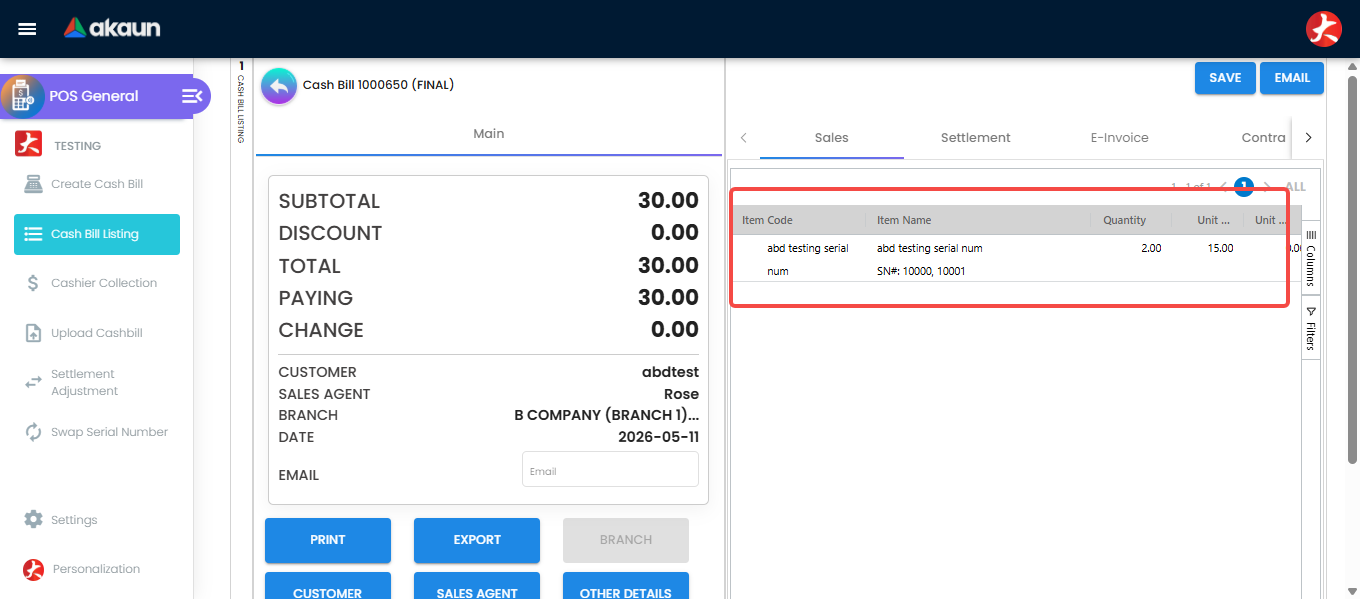
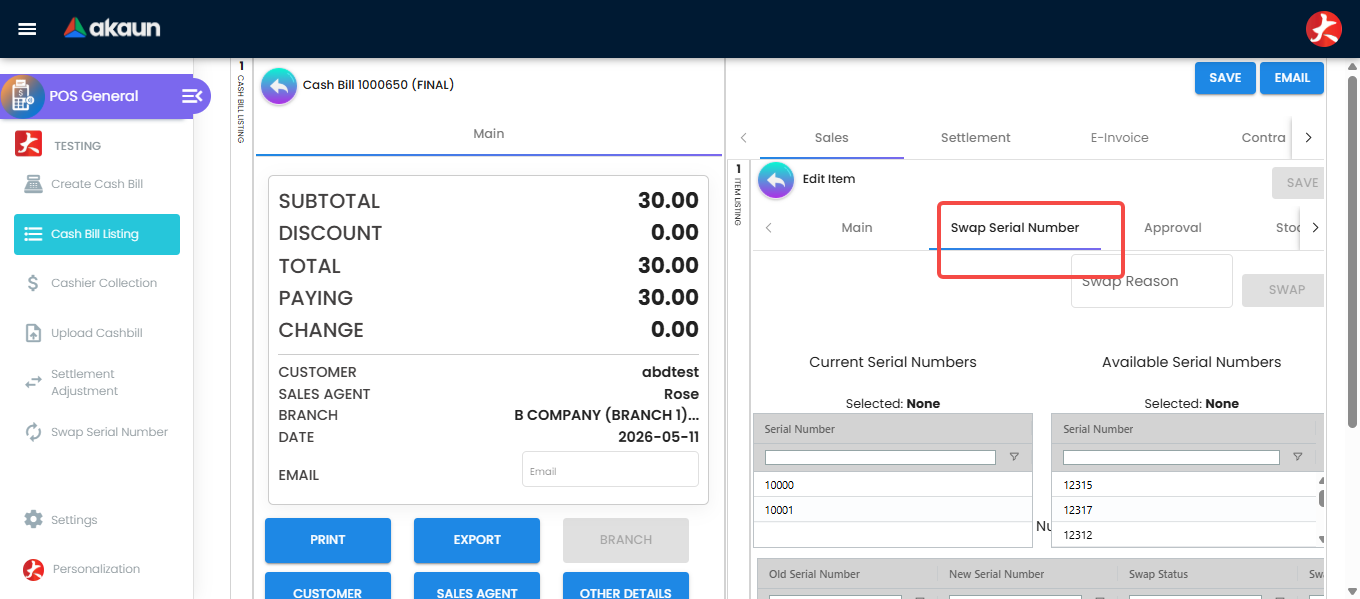
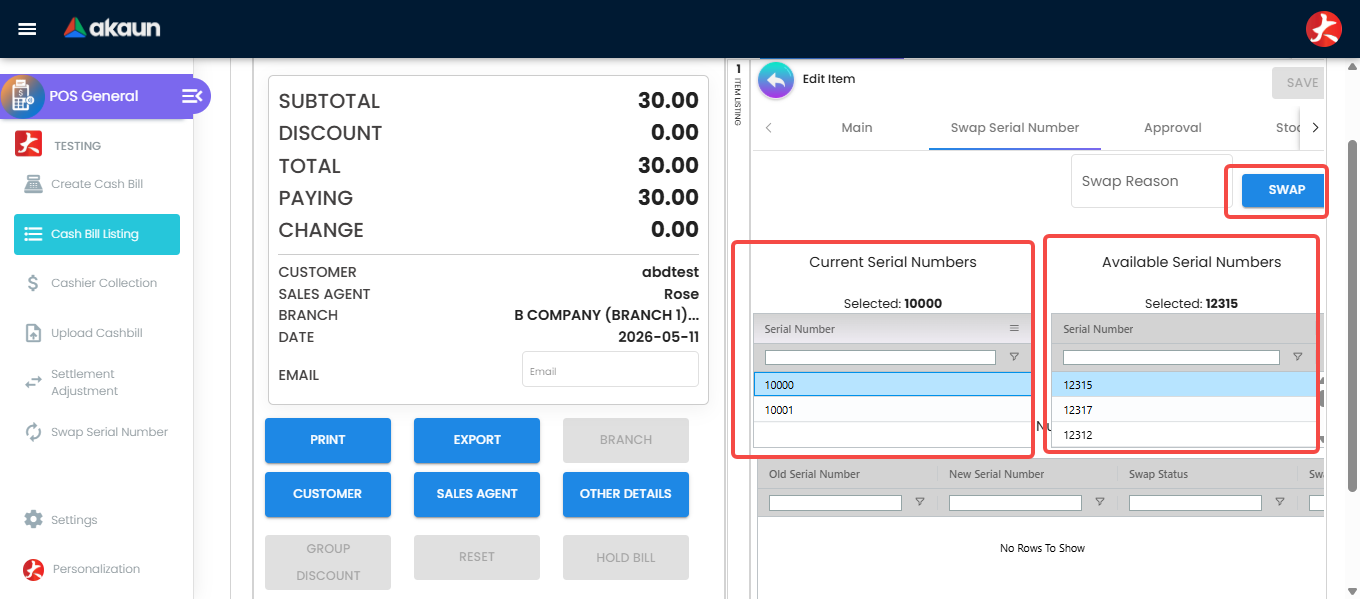
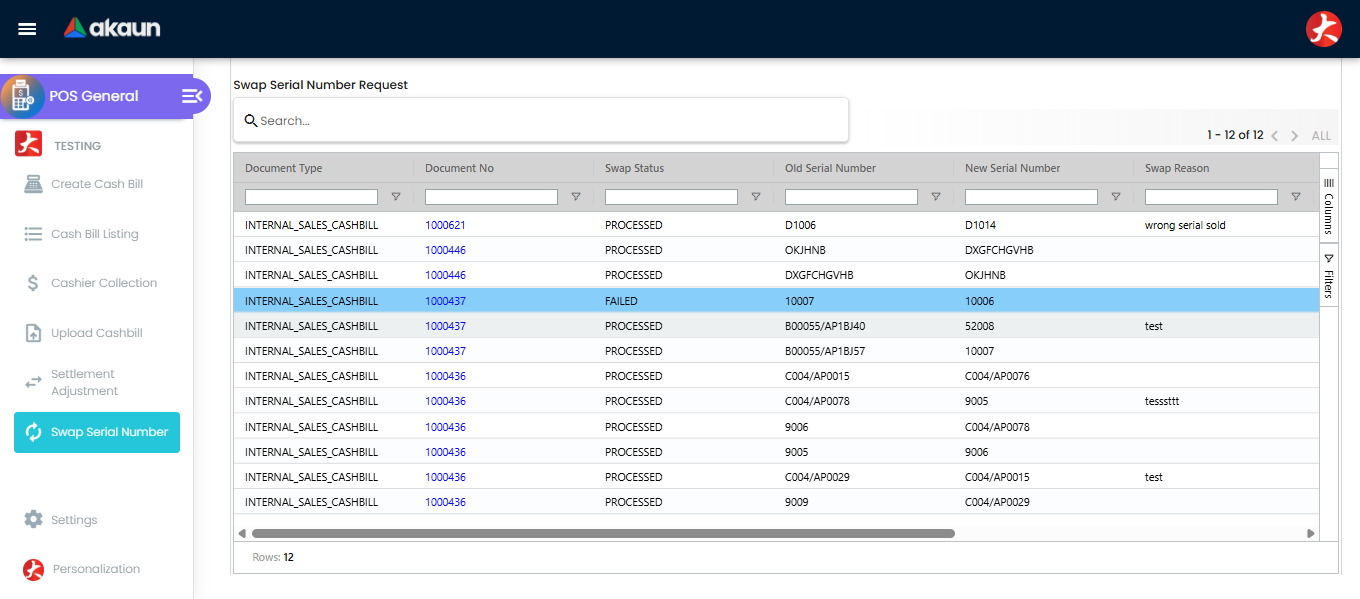
Swap Serial Number. Open the sold line on the bill, or the Swap Serial Number menu, pick the serial that was scanned and the correct available one, and execute. Both stock records are corrected. Nothing on the bill’s value changes, so no report and no journal move — which is exactly why this is the right tool when the right product left the shop under the wrong number, and the wrong tool when the wrong product left. The menu’s own listing is the record: Document Type, Document No, Swap Status, Old Serial Number, New Serial Number, Swap Reason and Error, and the Error column is where a swap that did not take says so. A reprint of the bill shows the new serial: no printout is stored against a document — every print renders the bill’s lines afresh — and the swap rewrites the line. The one copy that keeps the old serial is a PDF already e-mailed to the customer for the e-invoice, which is kept as it was sent; if the customer needs the corrected serial on paper, print the bill again.
What a swap checks, and what it leaves alone. Executing a swap files a request; a background job does the swap a moment later, which is why the history has a Swap Status at all. When the job runs it refuses — status Failed, reason in Error — if the old serial has already come back on a sales return against this line, if old and new are the same, if the new serial is not in stock for this item at the line’s location (its delivery location, otherwise the bill’s store) at that moment, or if the new serial is held on an unfinished document of the same type in the same company. The picker hides most of these already; the job checks again because stock can move between choosing and running.
When it succeeds it rewrites the line’s stock movement and the serial on the bill line, then adds one to the old serial’s balance at that location and takes one off the new serial’s. So the unit you name as “scanned by mistake” becomes sellable again at that branch — which is right only if it really is still on the shelf. It does not re-post anything: the journal, the cost of sales and the bill’s value stay exactly as they were, and the receipt the customer already holds still shows the old serial, so reprint it if they need the right number for a warranty. No screen re-runs a Failed request (the API has a re-run route that no applet calls): fix the cause and swap again. A request left at Processing with nothing in Error means the line had no stock movement of its own for the job to correct, and nothing will move it on.
The same tool sits on the Sales Invoice and Sales Return line. On a return it moves the two balances the way a sale would — the serial you say was recorded by mistake gains one, and the unit that really came back loses one — and its picker offers only serials already in stock, which the returned unit is not. Treat a wrong serial on a return as a correction to the return itself rather than a swap.
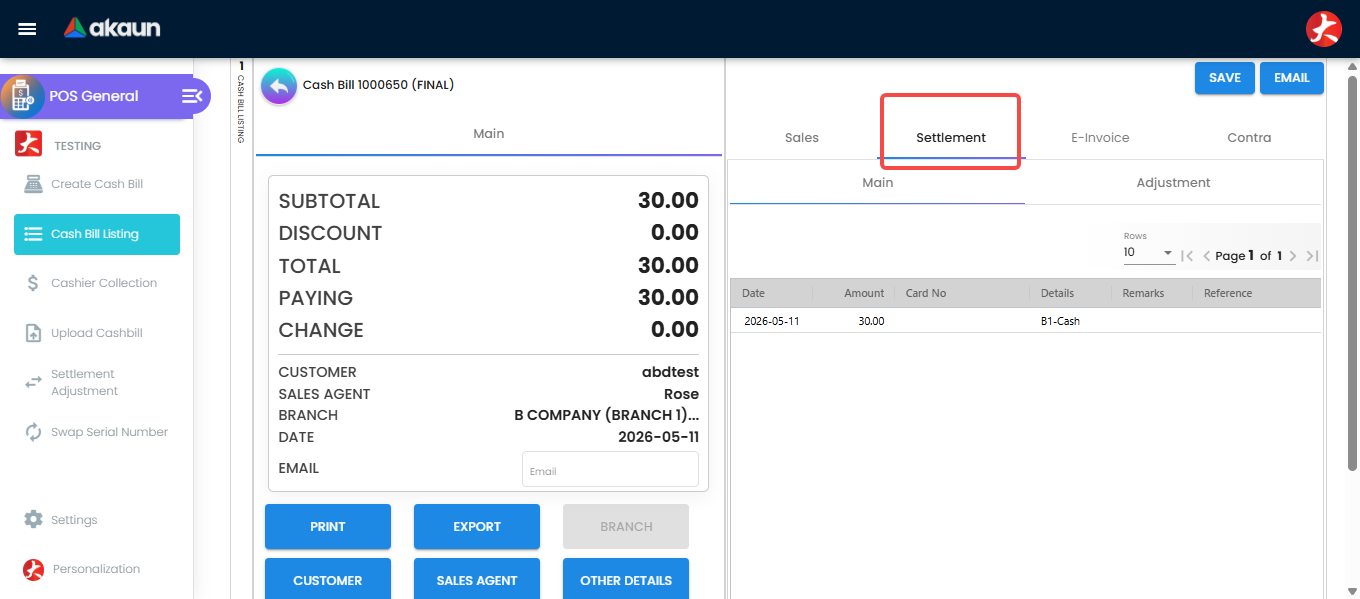
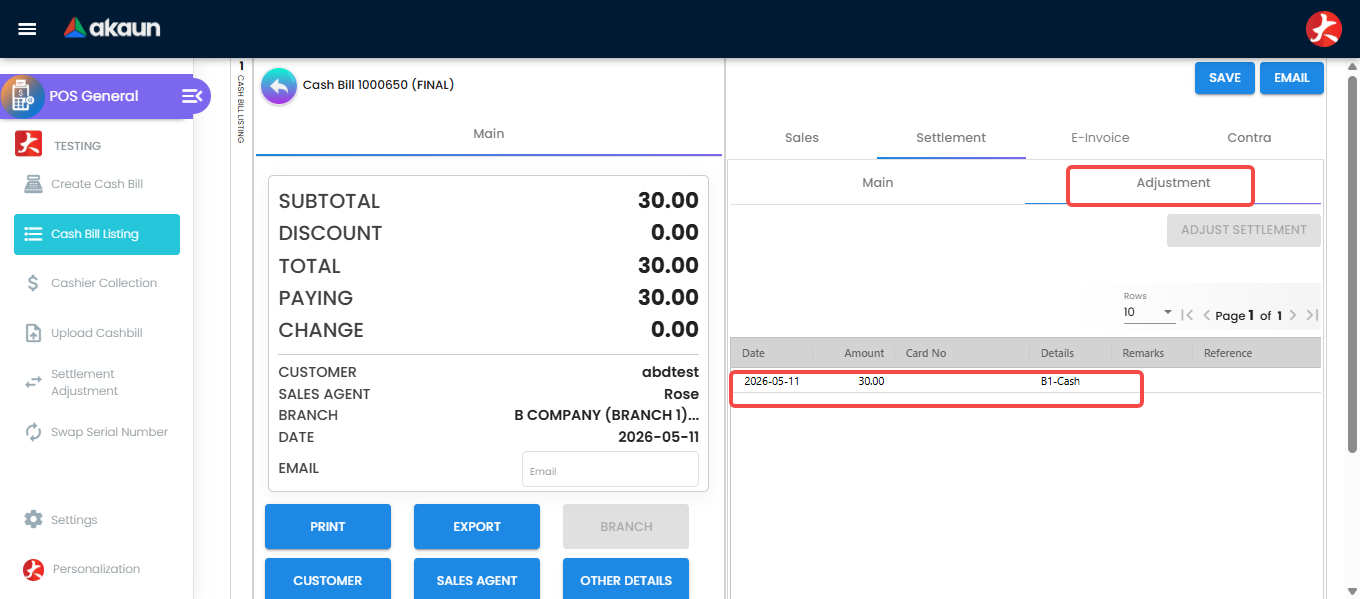
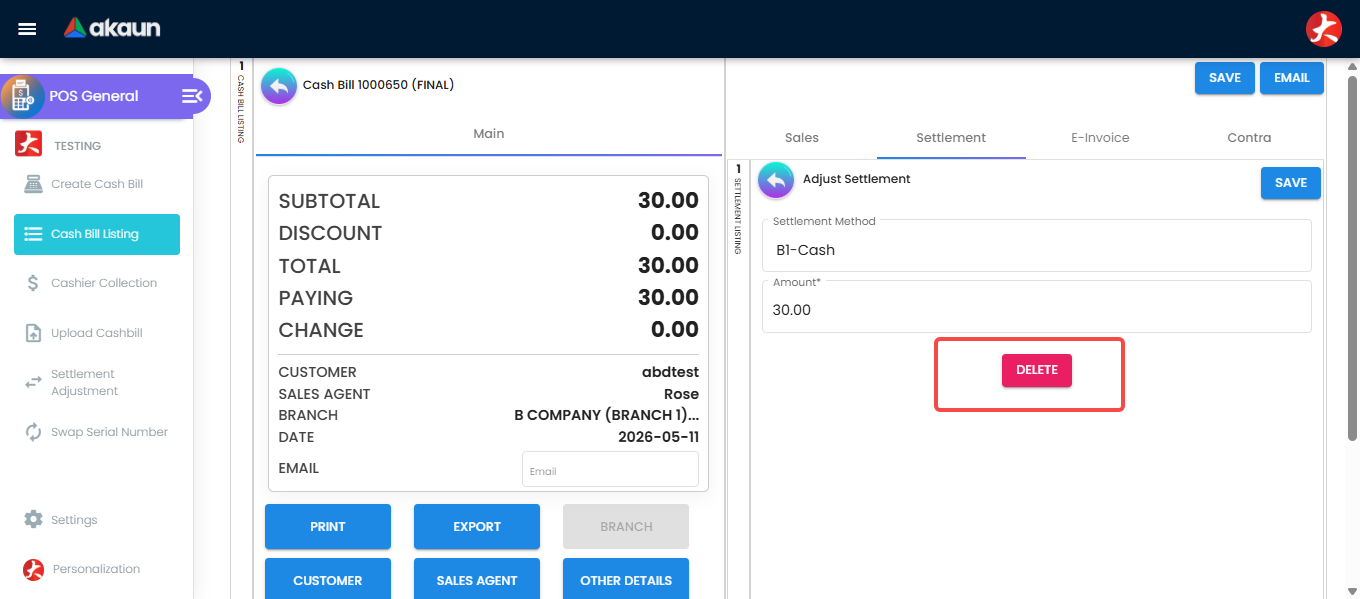
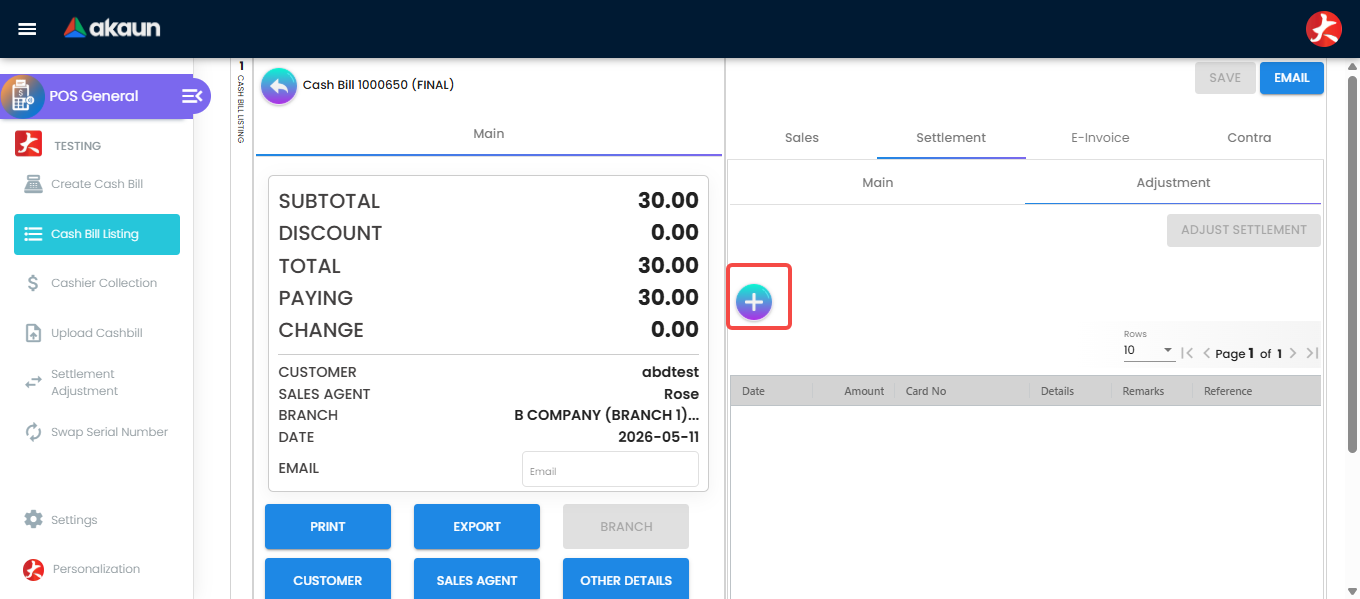
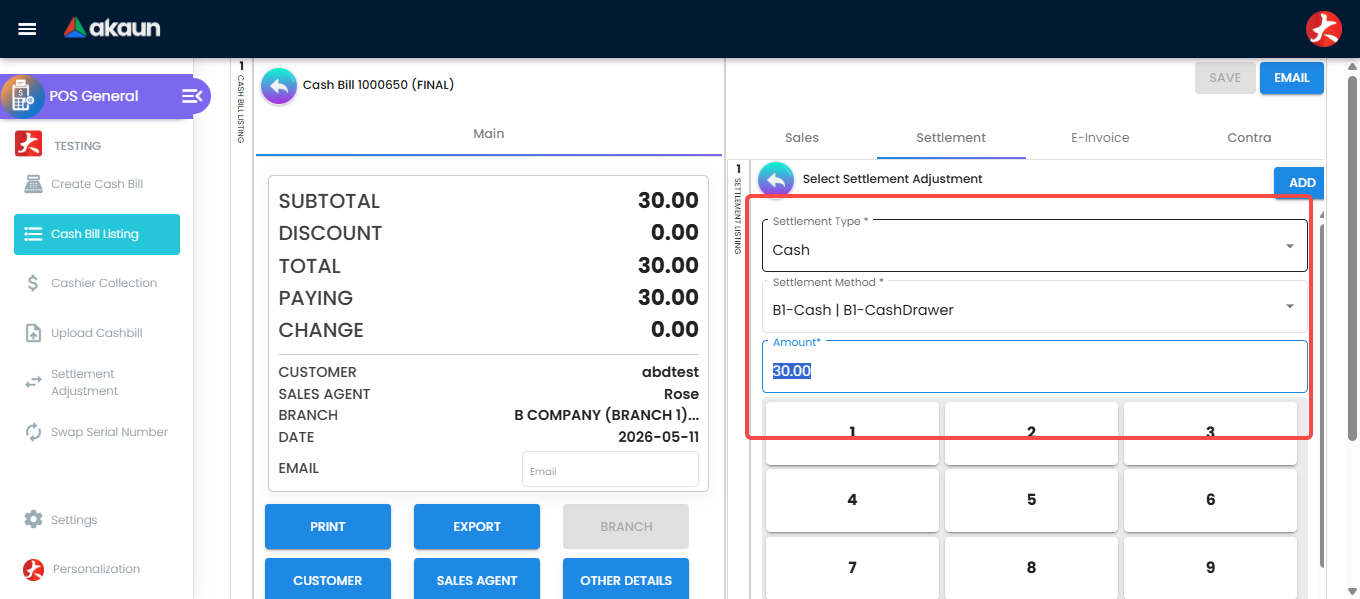
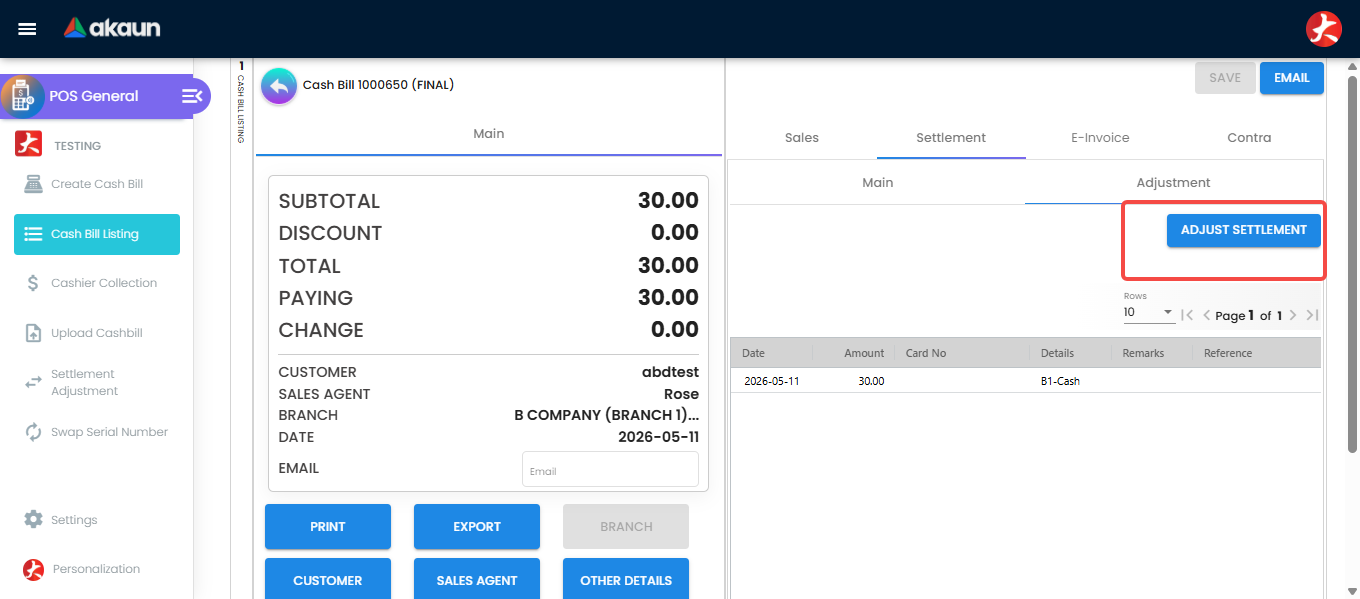
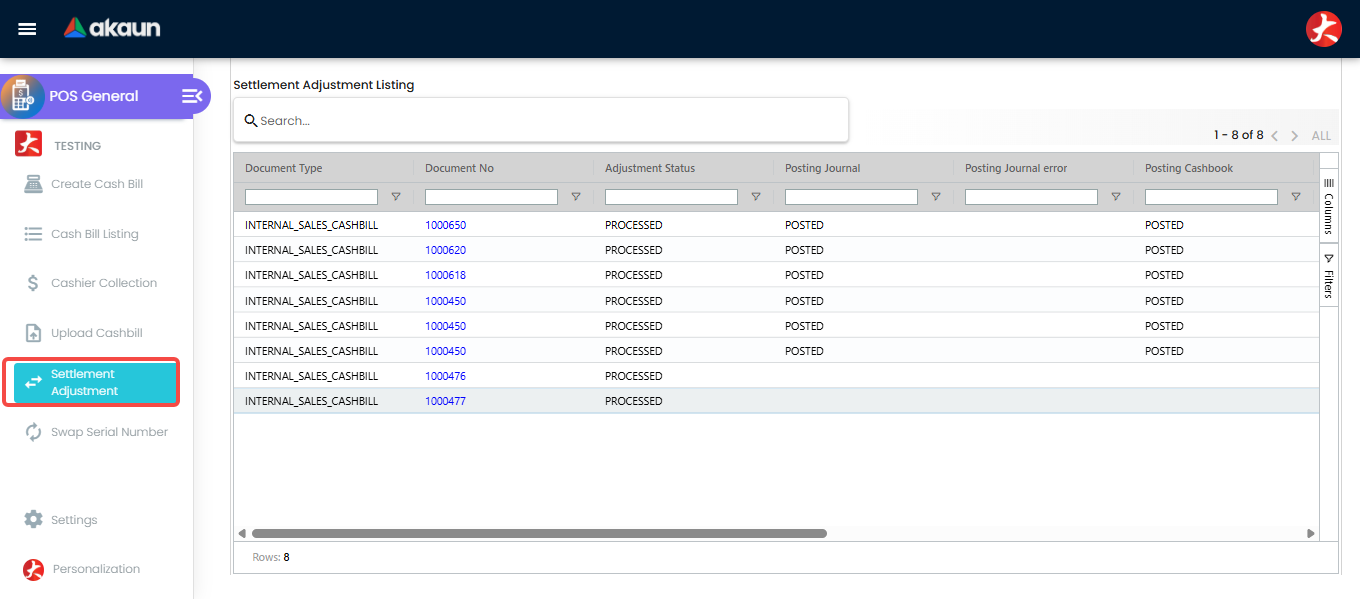
Settlement Adjustment is the correction for a payment rung up under the wrong method — cash keyed for a card, one e-wallet for another. On the bill’s Settlement tab, the Adjustment sub-tab lets you delete the wrong settlement line, add the right one with its details, and press Adjust Settlement.
What that sets off is more than the screen suggests, and it is the part that decides whether last night’s accounts change:
- The document’s settlement lines are deleted and re-added.
- If the bill already has a journal, the journal is deleted and a new one is posted.
- If the cashbook is already posted, every cashbook line for the document is soft-deleted and written again.
- Both come back on the document’s own transaction date, never today’s — so the correction restates the original day on the reports and in the ledger, and a reconciliation done before the adjustment will not reproduce afterwards.
- If either step fails, the adjustment is stamped
FAILEDwith the error message, which is what the Posting Journal error and Posting Cashbook Error columns on the adjustment listing show. - With
DISABLE_POSTING_JOURNAL_CASHBOOKon, the change is recorded on the document and nothing is reposted — the document says one thing and the ledger still says the other until somebody reposts it by hand.
The E-Invoice tab on a cash bill
Shown beside Sales and Settlement whenever the company’s e-invoice status is ENABLED and a bill exists. Four sub-tabs; the first exists only once the bill is FINAL.
| Sub-tab | On a DRAFT bill | On a FINAL bill |
|---|---|---|
| Submission | Editable: Submission Type (INDIVIDUAL, CONSOLIDATED, SINGLE-GENERAL), the buyer block (name, ID type and number, tax ID, SST ID, e-mail, contact, address name, five address lines, country, state, city, postcode) and Skip E-Invoice. INDIVIDUAL and SINGLE-GENERAL are selectable only once the bill carries an Account and a billing address — the hint reads To Select INDIVIDUAL Need to select Account And Billing Address First. Choosing CONSOLIDATED writes the General Public identity (EI00000000010, every other field NA) into the block. At RM 10,000 or more with ENABLE_HIGH_VALUE_SALES_VALIDATION, only INDIVIDUAL is offered | Read-only — the whole form is disabled at FINAL. Once a submission-history row exists for the bill the Validation URL and the LHDN QR code appear and Export prints the e-invoice PDF |
| Progress | — (not shown) | Four stages, re-read every 3 seconds: Pending In Posting Queue, In Batch Pool, In Internal Submission Queue, Submitted to IRB. Each shows a message and the row’s last update time. The batch-pool stage prints the pool row’s Validation Error (the mandatory-field reason); the queue stage prints Waiting to submit or the first rejection detail LHDN returned; the last stage reads Document Accepted as soon as a submission-history row exists — which the backend writes when LHDN accepts the submission, before it answers Valid or Invalid. Only the Batch Pool is queried: a bill parked in the Individual or Single General pool shows no stage lit at all. Read those in My E-Invoice Admin. The Batch Pool stage lights whenever a pool row exists, processed or not, so it stays lit after the monthly sweep — a consolidated receipt never reaches the third or fourth stage on this tab; the admin applet’s Batch Pool row (processed / success, linked to the consolidated e-invoice) is the record |
| Communication | Three empty read-only fields (customer name, e-mail, template) and a Send button bound to nothing | Same |
| Cancellation | Empty | Read-only, and populated only from an e-invoice header that carries this bill’s own document reference — a receipt reported inside a consolidated e-invoice shows nothing here, because the consolidated header has no single source document. Otherwise: E-Invoice Status, Cancellation Date, and — while the status is Valid — Available Hour For Cancellation, 72 minus the hours since validation_datetime, computed in the browser. If a rejection request already exists its requestor, approval and processing status, date and reason are shown. The Request for Rejection button is disabled on every bill: the eligibility check is commented out. A cancellation is raised in My E-Invoice Admin |
The high-value block. On a new bill of RM 10,000 or more at a Malaysian branch (or a company whose e-invoice country is MYS), the till checks the buyer block for a tax number, phone, e-mail, ID number, entity, ID type and address line 1, and shows the banner Regulatory Alert: Transactions of RM 10,000 or more require full Customer Details for E-Invoicing when any is missing. Whether that banner stops the sale depends on the company record: with Enable high sales value validation (Organisation → Company → E-Invoice) switched on, both Final buttons are disabled and the tab label turns red and bold until the block is complete; switched off, the banner shows and Final works, and the bill goes to the Individual Pool after FINAL if the block is incomplete. The check tests presence only — a wrong registration number or a mistyped tax number passes it and is caught later by LHDN. It does not run on an edited draft, only on a bill being created.
Void and the e-invoice. The Void button is offered on any FINAL bill with VOID_DOCUMENT on and POS_VOID_CASHBILL held; it carries no e-invoice condition. Voiding removes the bill from the e-invoice submission queue if it has not been sent yet; a bill whose e-invoice LHDN has already validated stays Valid at LHDN after the void, and needs a cancellation within 72 hours of validation or a credit note (Cancelling and Correcting).
Reports
Two reports live on this applet’s own menu, and they are not two views of one number. Cashier Collection is a list — one row per payment line — and answers what was tendered, by whom, on which till, over a range of days. The Z Report is a summary for one branch, usually over one day, and answers what does this branch owe the safe tonight. Neither of them is the ledger: taking either figure to the accounts is a third step, and it has its own section below — Reconciling a cash-up to the accounts.
Both screens read only this applet’s own document: a FINAL cash bill, and nothing else. That is worth saying twice, because two reports with the same names in the Daily Cashier Reports applet call the same backend endpoints with a wider document list — six types for its Cashier Collection, four for its Z Report — so the same report name opened from the other applet answers a different question and returns a different total (why the two screens will never agree). If two people quote different day totals, establish which applet each of them opened before looking for missing money.
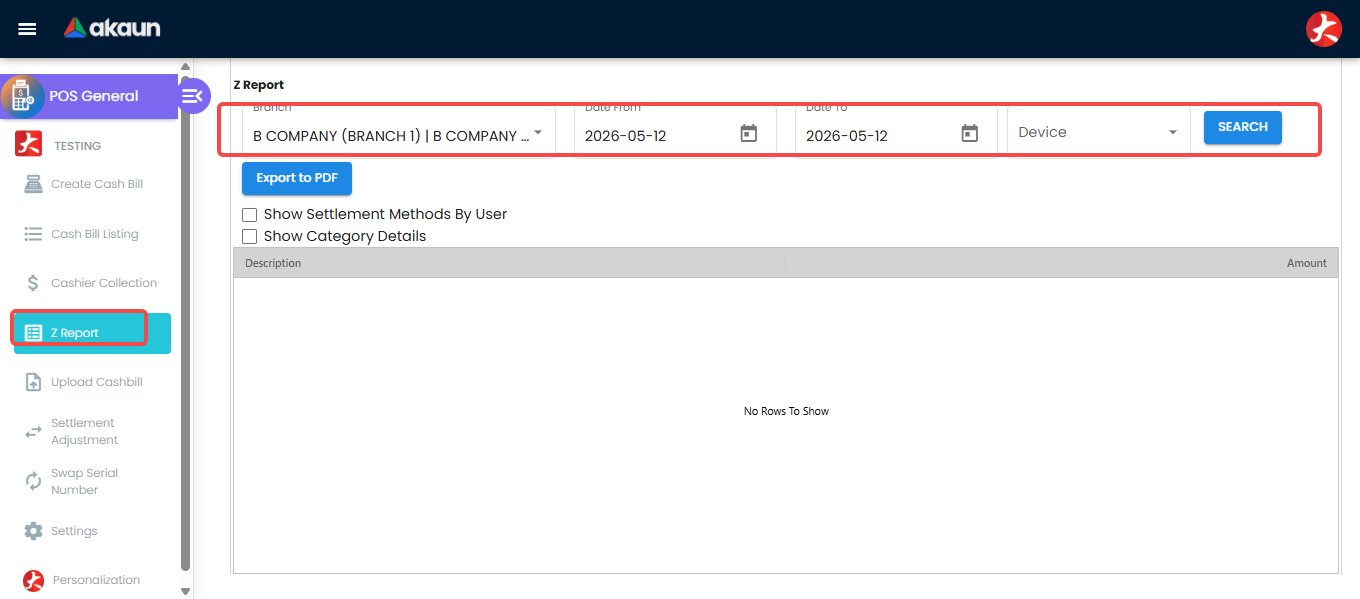
The Z Report’s device picker is a filter, not a partition. Leave it at all devices and every bill of the branch and day is counted; pick one device and only bills carrying that device are. A bill or session with no device — one opened through the API, or on an older build that did not stamp one — is therefore on the all-devices report and on none of the per-device ones, and the per-device reports will not add up to the branch total by exactly those bills. When the tills’ Z Reports do not sum to the day, run the all-devices report before looking for cash.
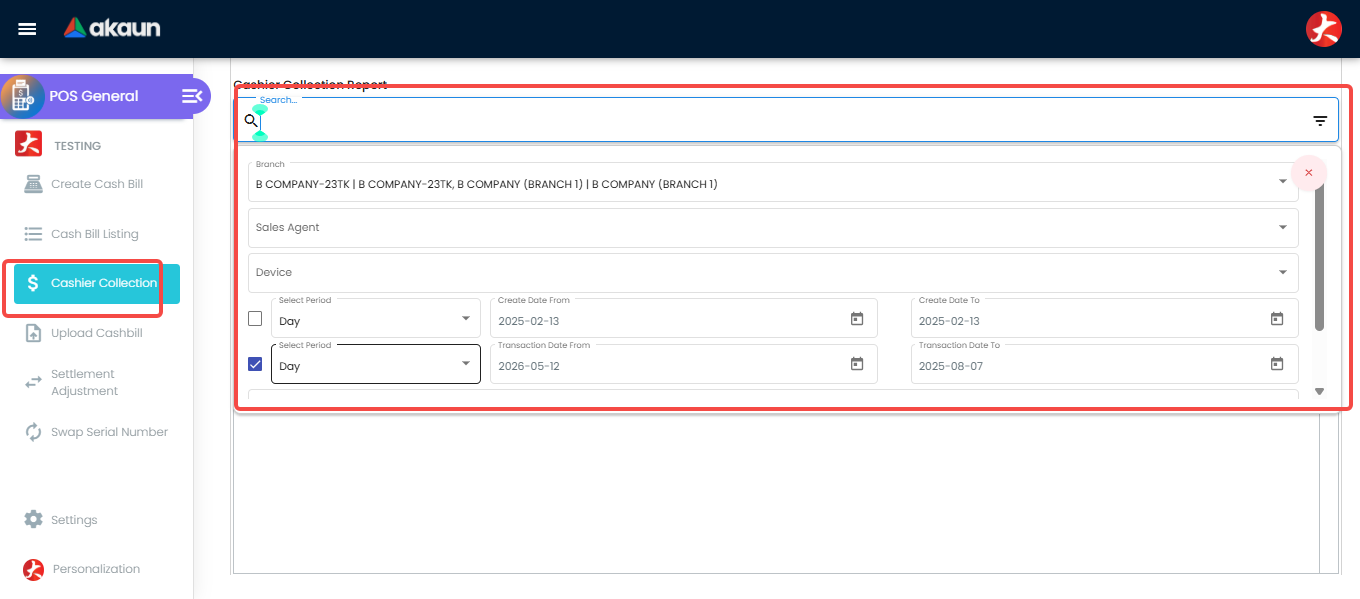
Cashier Collection — one row per payment line
Every row is one settlement line (txn_type = 'STL_MTHD') on one FINAL cash bill, with the
settlement method as Settlement Method, the bill number as Doc No, and the line’s own amount
as Amount. The grid arrives grouped by Branch, then Settlement Method; drag any other column into
the group bar to re-cut it. Totals are the grid’s, not the server’s.
Where its numbers come from, and the four things the panel does not tell you:
- Amount is the stored line amount, unmodified. The server returns
sum(doc_line.amount_txn)with no sign adjustment, and nothing in the browser negates a row. What the cashier keyed is what you see. - FINAL only.
hdr.posting_status = 'FINAL'. A bill parked in Hold Bill becauseDISABLE_AUTO_POSTINGis on has taken money at the counter and is not on this report, and neither is a voided one. On a counter running with auto-posting off, that gap is the first thing to check. - Contra is not here at all. A contra settlement is not a settlement line; it is a link between two documents. So a day with contra shows less collected on this report than the bills total — correctly, because no money moved.
- Date basis is yours to choose, and you may choose only one. Tick Transaction Date to filter
on the bill’s transaction date, or Create Date to filter on when it was keyed; ticking both is refused with
Please choose either the date txn or date create filter. With neither ticked the report covers
today only — the request falls back to the start and end of the current day. Tick a box and leave
its range empty and the bounds become
2022-01-01to2099-12-31, which is everything. For a cash-up, Transaction Date is the one that matches the accounts: it is the same column the cashbook line and the journal header take their date from. - Sales Agent and User Create are two different people. Sales Agent filters on the employee credited with the sale (who the sale is credited to); User Create filters on the login that made the bill. On a counter where one person serves and another rings up, these give different answers to “whose takings are these”.
- The User Create box is live in exactly one of three configurations. With
VIEW_OWN_CREATED_TRANSACTIONS_ONLYoff, whatever you pick is never sent. With it on and the user holdingPOS_VIEW_CASHBILL_ALL_USER_CREATE, the choice is sent. With it on and the permission absent, the filter is forced to the user’s own login and the choice is ignored. - Device is single-select although it sits among multi-selects, and the report is unavailable in offline mode.
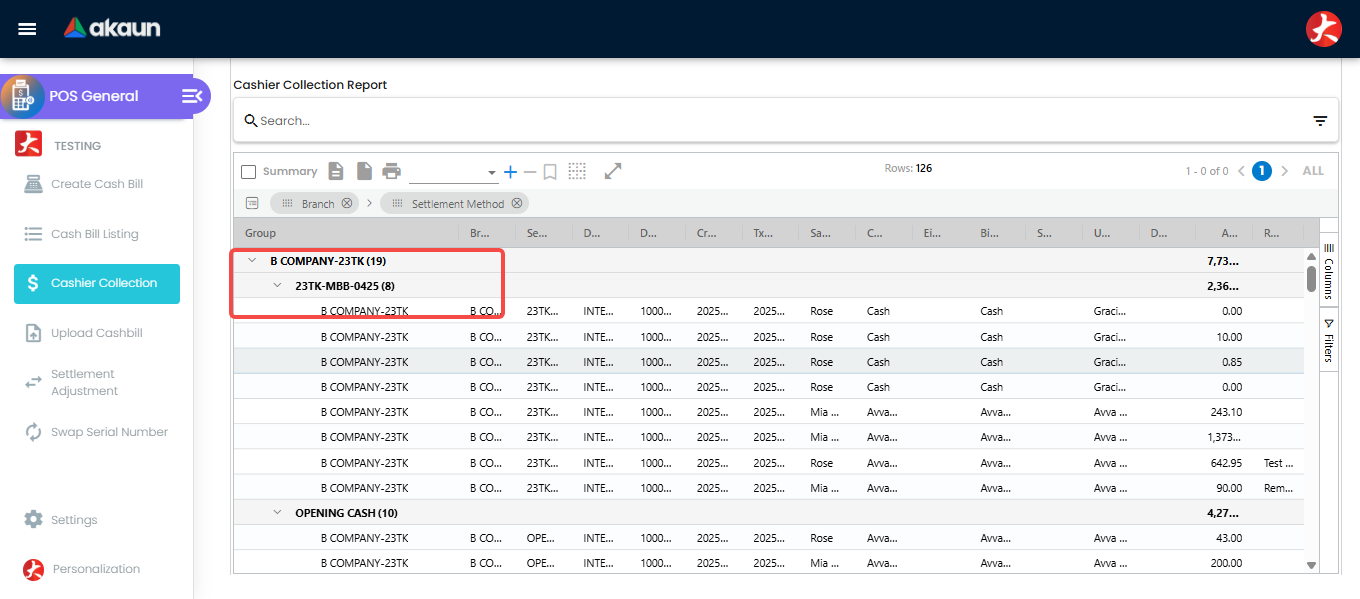
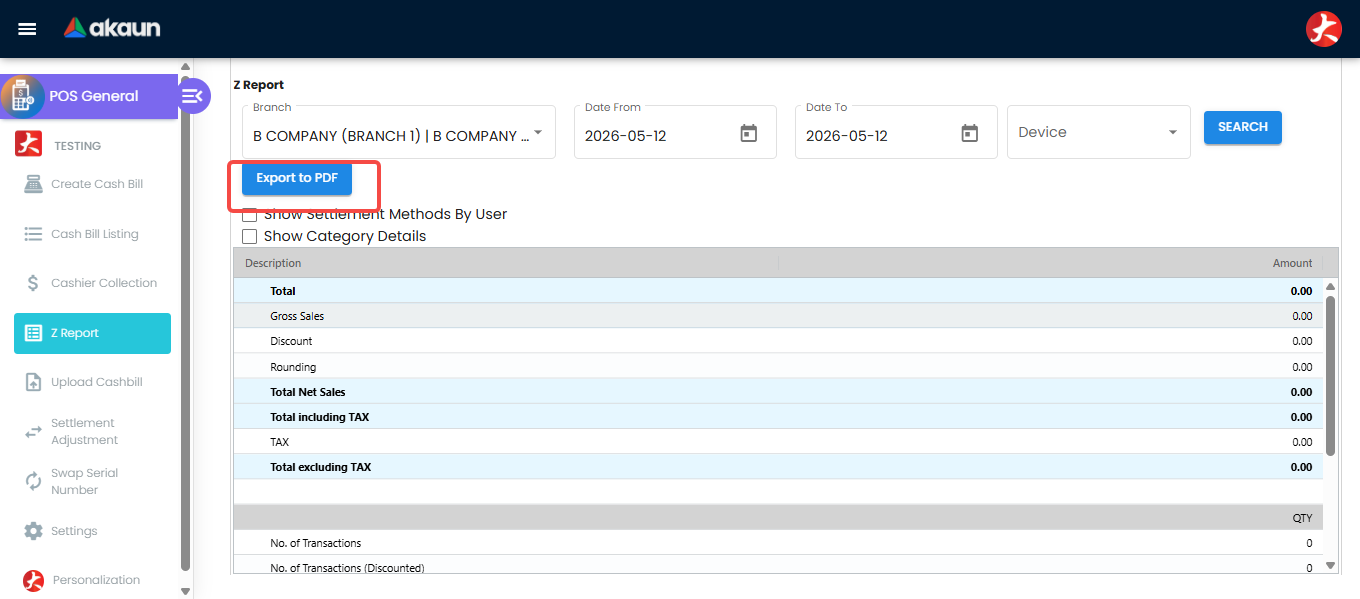
Z Report — one branch, one day, and a cash drawer
The form takes Branch (required), Date From and Date To, with an optional Device and, when a session is open, the session. For one day, set both dates to that day. The response is five blocks: takings by payment method, the same broken out per user, the sales block, item categories, and the counts.
- Date basis is the bill’s transaction date, from Date From up to Date To plus one day, exclusive. It is the bill’s transaction date, not the moment it was keyed — so a bill backdated from the Others panel lands on the day it is dated, not the day it was sold. The Cash Drawer Float block keeps only sessions that started on or after Date From and ended before the day after Date To, so a session that closes after midnight shows there only when the range covers both the day it opened and the day it closed.
- FINAL only for money; VOID and DRAFT are counts, not amounts. No. of Void counts
posting_status = 'VOID'and No. of Draft counts'DRAFT'; neither contributes a ringgit to the takings or sales blocks. - “Per cashier” means the login that created the payment line, resolved through an inner join
from
doc_line.created_by_subject_guidto an active e-mail-username login. That join is the one to remember: a payment line whose creator has no active login principal of that kind is dropped from the takings block entirely — the row does not appear under another name, it does not appear at all. Cashier Collection joins the same relationship with a LEFT join and keeps the row. If the two reports differ by a whole cashier’s takings, this is where to look before anyone counts the drawer again. - The sales block’s arithmetic, computed in the browser from the server’s sums:
Gross Sales = Total Net Sales + Discount − Rounding,Total Net Sales = Total including TAX, andTotal excluding TAX = Total Net Sales − TAX. Total Net Sales is the sum of the goods lines (returns counted negative), so it is sales, not money — it does not know how anything was paid for. - The Cash Drawer Float block reads four movement types and can only ever show you two. The
block looks for the drawer’s
OPEN,CASH_IN,CASH_OUTandCLOSEtransactions, but only through the drawer each movement is attached to — and the till never attaches a cash-in or cash-out to a drawer. Session open and session close both do; Cash In / Out records the session and not the drawer. So the two movements a reader most expects to find here — the mid-shift drop and the float top-up — are precisely the two that cannot appear. Whatever record your branch keeps of a drop, it is not this block, and the cash-up arithmetic has to take those figures from the cashier’s own slip. - The Variance line is about cash only — and the Variance is not. The Variance printed under
the block is
(Closing − (Opening + Cash In − Cash Out)) − Total Net Sales. The first half is cash movement; the second half is every sale, card and e-wallet included. At any counter that takes more than cash, that line is therefore negative by roughly the non-cash takings by design of the arithmetic, not because money is missing — and it is the single most common reason a cash-up “does not tally”. Reconcile the drawer against the Cash row of the takings block instead, which is the figure it can be compared with. - Two more things about that block. With more than one drawer on the session, the Variance is computed from the last drawer in the list only — the loop assigns rather than accumulates — so a two-drawer counter cannot read a group variance off this report. And the block only counts a session that started on or after the chosen day and ended before the next one: a session still open has no end date, so it produces no float block at all, and a session that closes after midnight is absent from the day it started.
- Contra is a separate figure with its own date. It appears only when
CONTRA_DOCUMENTis on (which is also what puts the column there), covers cash bills on both sides, and is filtered on the contra record’s transaction date, not the bill’s. So a contra applied on Tuesday against Monday’s bill appears on Tuesday’s Z Report while the bill itself is on Monday’s.
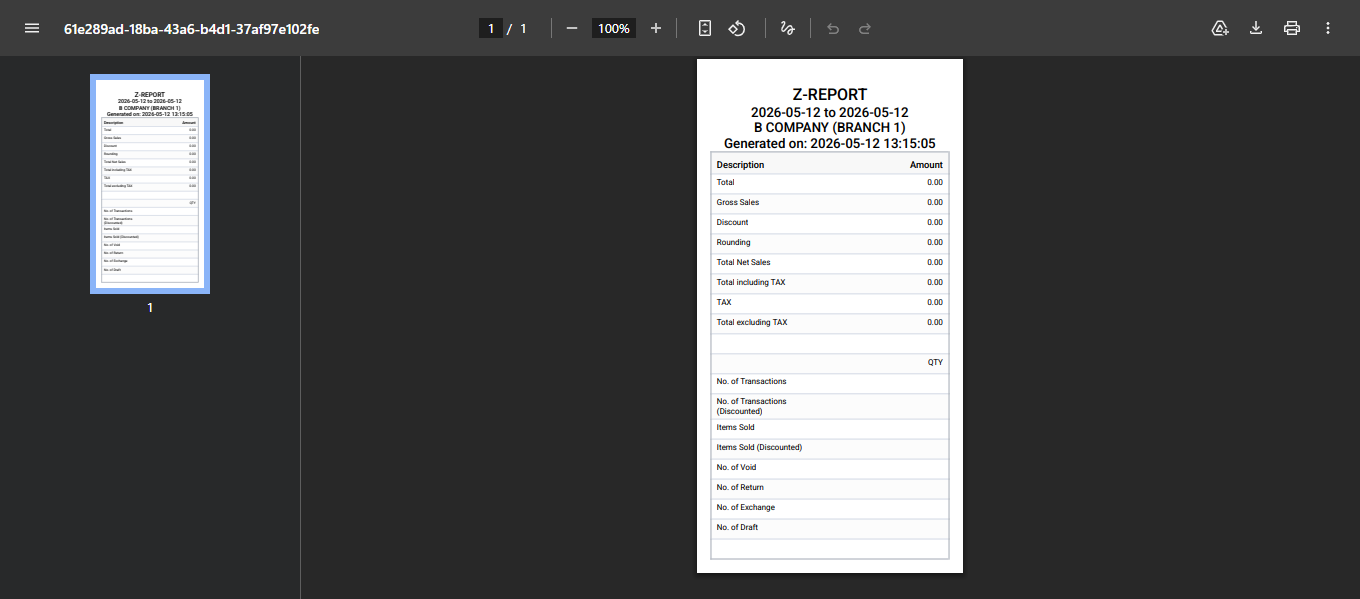
Why the two can differ on the same day, and which difference is real
Both read FINAL cash bills, both read the same amount_txn column, and for an ordinary retail day
they agree on total tender. When they do not, it is one of six things, and only the last is missing
money:
| The difference | Why |
|---|---|
| The Z Report shows a whole cashier’s takings and Cashier Collection does not (or the reverse) | The Z Report’s inner join to an active e-mail-username login drops those lines; Cashier Collection’s left join keeps them |
| One shows contra, the other does not | Contra is on the Z Report as its own figure and is not on Cashier Collection at all |
| Totals differ and the dates were entered the same | One of them is filtering Create Date. Only Cashier Collection offers that choice, and only it can be set to the wrong one |
| Cashier Collection looks empty or enormous | Neither date box was ticked (today only), or one was ticked with an empty range (2022-01-01–2099-12-31) |
| A device was chosen on the Z Report | Every Z Report query gains AND hdr.device_guid = :device_guid, and a bill written with no device is excluded by any device-specific run. Run it on All and compare — see Troubleshooting |
| The branch sells in a second currency | Cashier Collection excludes the base-currency shadow document a foreign-currency bill creates; the Z Report’s queries carry no such predicate |
Settings and Personalization menus
The Settings menu also carries Printable Format Settings, Device Settings, Return Remarks, Drawer Settings, Free Gift Settings, Email Template, Webhook, Feature Visibility, Release Notes and Applet Log; each does what its name says, and the ones with a consequence are described under Configuration. The entries below are the ones whose reach is not on the screen:
| Entry | Route | Purpose |
|---|---|---|
| Application Settings | settings/field-settings | Shared Field Configuration screen — 155 toggles apply to this applet (see Configuration) |
| Default Selection Settings | settings/default-selection | Applet-wide defaults: customer, pricing scheme, pricebook, entity type, currency, adjustment items |
| Branch Settings | settings/branch-settings | Per-branch: details, default settlement method, item category filter, menu list, pricing scheme priority, printable header / footer and image |
| Settlement Method Settings | settings/settlement-method | Which settlement methods (code, name, cashbook, type) each company / branch offers |
| Client-Side Permission, Role ↔ Pricing Scheme Link, Permission Wizard / Set / User / Team / Role listings | settings/*-listing | Access control; the role–pricing-scheme link decides which pricing scheme a role sells at |
| Personalization → Default Selection | personalization/personal-default-selection | Per-user: default branch (and delivery branch / location), default customer, default sales agent — overrides the applet defaults |
| Personalization → Offline Settings | personalization/offline-settings | Offline mode, POS Agent and port, offline print, plain-text print with paper size, local running-number prefix, sync |
The screenshot that stood here has been withdrawn: the capture showed real rows on a staging tenant carrying identifying data. A replacement taken on a synthetic demo tenant is on the list.
A legacy Pos Settings screen at settings/pos-settings is still routable but is not in the Settings menu; it edits a subset of the same keys plus a Show WHT switch (read by nothing), SERIAL_OPEN_QUEUE and the barcode fields (REGEX, ITEMCODE_LENGTH, ITEMPRICE_LENGTH).
Configuration
Before you can use it
| Prerequisite | Where | Why |
|---|---|---|
| Company, branch, location — and the branch’s default location set | Organisation | FINAL fails with The location does not match the branch’s default location when the bill’s location differs from the branch default |
Company default GL codes DEBTOR, SALES, SALES_DISCOUNT, SALES_RETURN, OUTPUT_TAX, FOREX_GAIN, FOREX_LOSS — and SETTLEMENT_CHARGES as soon as any settlement method carries a charge | Chart of Account | The SALES journal handler has exactly those seven sub-ledger handlers and no COGS line; cost of goods sold is the month-end journal from Financial Report. A missing DEBTOR fails the journal job that runs after FINAL with MISSING_DEFAULT_GL_CODE: DEBTOR on a bill that needs a receivable line — one settled partly by a contra, or one where another missing code left a line out. A bill paid in full whose every line found an account never reads it; the bill stays FINAL with no journal until it is mapped and the job re-run from Financial Report › Error Checking › Trace Document. The others do not fail at all. A sales, return or tax line whose code does not resolve is left out of the journal and the customer’s receivable line takes up the difference, so the journal balances and posts wrong: on a RM 106 cash bill (RM 100 goods, RM 6 SST) with no SALES code, sales are RM 100 short and trade debtors carry a RM 100 credit. SETTLEMENT_CHARGES is the eighth, and the same thing happens to the charge; see Reconciling a cash-up to the accounts. Only when the customer has no AR/AP type does the gap fail the balance check instead |
| Settlement methods, each with a cashbook and GL code, linked to the branch | Cashbook → then Settings → Settlement Method Settings and Branch Settings | Every payment line posts to that cashbook; a method with no cashbook or GL code fails the cashbook / journal job after FINAL with MISSING_CASHBOOK / MISSING_GL_CODE: STL_MTHD [code]; no buttons appear on the counter until the branch has methods |
| A default (walk-in) customer, entity type and currency | Customer → Settings → Default Selection | Every bill needs an entity; blacklisted customers are rejected at FINAL |
| Pricing scheme and (optionally) pricebook | Pricebook → Default Selection; Branch Settings → Pricing Scheme; Role ↔ Pricing Scheme Link | Retail price per item; role link decides who sells at which scheme |
Adjustment items for rounding (DOC_HEADER_ADJUSTMENT), group discount (GROUP_DISCOUNT) and points discount (MEMBER_POINT_DISCOUNT) | Doc Item Maintenance → Default Selection | Without them rounding, group discount and points redemption cannot add their lines |
| Tax codes | Tax Configuration | Shown when SHOW_TAX is on; posts to OUTPUT_TAX |
| Items with barcodes, serial / batch / bin control, bundles, MTO | Inv Item Maintenance | Scanning and sub-item tabs |
Printable format for INTERNAL_SALES_CASHBILL and branch header / footer | Settings → Printable Format Settings, Branch Settings | Receipts; offline print needs it synced to the device |
| POS Agent installed on the terminal (for cash drawer, customer display, card terminal, device auto-detect) | Personalization → Offline Settings | POS_AGENT + AGENT_PORT; device MAC address is read through it |
Members, points currency and rates (if SHOW_MEMBER) | Membership Admin (PTS CCY Module, PTS to CCY Config) | Points earned are generated on save for a bill with a member; redemption is validated against balance |
API permissions TNT_API_DOC_INTERNAL_SALES_CASHBILL_{CREATE,READ,UPDATE,DELETE}_TGT_GUID, API_TNT_DM_ERP_REPORT_CASHIER_COLLECTION_READ, API_TNT_DM_ERP_Z_REPORT_READ | Settings → permission listings | Bill access is scoped by branch target; the two report permissions unlock Cashier Collection and Z Report |
Applet settings
Which layer a setting lives in decides how many branches it changes, and only three layers are branch-aware. This is the first thing a group running more than one counter needs to know, and nothing on the settings screens says it.
| Layer | Stored as | Keyed on | Changing it affects |
|---|---|---|---|
| Application Settings, Default Selection, the legacy Pos Settings | one settings record for the whole applet | the applet installation | every branch at once |
| Branch Settings | the branch record and its linked lists | the branch | that branch |
| Settlement Method Settings | the branch ↔ settlement-method link | branch + settlement method | that branch |
| Device Settings | the terminal device record, looked up by MAC address | the device | that terminal |
| Personalization | your own settings on the applet | applet + login | that one person |
The settings form saves its whole value into the one applet-wide settings record, and that record
carries no branch, company or user. So switching on
HIDE_DISCOUNT, DISABLE_AUTO_POSTING or DISABLE_POSTING_JOURNAL_CASHBOOK switches it on at all
22 counters of a 22-branch group, and there is no per-branch override for any of them.
Inheritance is the exception, not the rule. Exactly two values fall back from branch to company — the Rounding Item and the Group Discount Item, read from the branch first and the company when the branch has none — and the printable format falls back from branch to the applet-wide default at nine sites. Everything else is set exactly once at whichever level owns it, with no fallback: the company’s e-invoice status and chart of accounts are company-only, and the settlement-method links, item category filter, pricing scheme priority and branch e-mail template are branch-only. One trap in the pair that does inherit: unticking Rounding Five Cent on a branch also writes the branch’s Rounding Item back to null, so the branch silently reverts to the company’s item.
Default Selection (settings/default-selection, applet-wide)
Default Customer (DEFAULT_CUSTOMER), Entity Type and Currency are what every new bill starts
with. The three adjustment-item codes — Rounding Item (POS_DEFAULT_ROUNDING_GUID), Group Discount
Item (POS_DEFAULT_GROUP_DISCOUNT_GUID) and Points Discount Item (POS_DEFAULT_POINTS_DISCOUNT_GUID)
— name the items that rounding, a whole-bill discount and a points redemption are added to the bill
as, and each of the three needs its item set before it can add its line (Before you can use it). Two
settings here do more than their labels say:
| Setting | Key | What it controls |
|---|---|---|
| Default Pricing Scheme | PRICING_RETAIL_GUID | Retail price source — the counter falls back to it where the branch record’s Default Pricing field is empty (the child-item search uses it directly) |
| Default Pricebook + Auto Apply Points From Pricebook | DEFAULT_PRICEBOOK and the auto-apply-points switch | Promotion pricebook; and whether the server fills in points the counter did not. The counter works a line’s points out from the pricebook whatever this switch says; the switch is read only by the server, which — when it is on — completes points on cash-bill lines that carry a member and arrived with no points, and never overrules points already on a line |
Personalization → Default Selection (per user; overrides the above): Default Branch (DEFAULT_BRANCH), Default Delivery Branch / Location (with POS_SHOW_DELIVERY_BRANCH_LOCATION), Default Customer, Default Sales Agent.
Personalization → Offline Settings (per user / terminal)
| Setting | Key | Effect |
|---|---|---|
| Offline Mode | OFFLINE_MODE | Bills are written to the browser’s local database and queued (Transaction Queue) until the network returns; master data is synced down |
| Enable POS Agent, POS Agent Port | POS_AGENT, AGENT_PORT | Talk to the locally installed agent for drawer, display pole, card terminal and device detection |
| Enable Offline Print, Print as Plain Text Format, Paper Size | OFFLINE_PRINT_DEXIE, OFFLINE_PRINT_TEXT, PAPER_SIZE (80mm / 58mm) | Print from the locally cached printable, optionally as plain text for thermal printers |
| Local Running Number Prefix | LOCAL_DOCNO_PREFIX | Pattern such as {BRANCH_CODE}-{DEVICE_CODE} for numbers issued offline |
| Sync All / Developer sync buttons | — | Re-sync printable, items, pricebook, device, pricing scheme, images; the sync panel needs POS_OFFLINE_SYNC |
Branch Settings (settings/branch-settings, per branch): Branch Details (code, name, company) · Default Settlement Method · Item Category Filter (which categories this branch may sell) · Menu List · Pricing Scheme (with priority) · Printable Format (header, footer) and printable image.
Settlement Method Settings (settings/settlement-method): per company / branch, the list of settlement methods offered at the counter — Settlement Method Code, Name, Cashbook, Settlement Type (CASH, CREDIT_CARD, E_WALLET, VOUCHER, COUPON, CHEQUE, BANK_TRANSFER).
Device Settings (settings/device-settings): Devices (Code, Name, MAC address detected through the POS Agent, Branch); Card Terminals (Code, Name, Integration Type CardBiz / Revenue, Transport Mode ECR cable / WIFI, IP Address, Port Name); settlement methods allowed per device. DEVICE_COMPULSORY refuses to sell from an unregistered device.
Drawer Settings (settings/drawer-settings): Drawers (Code, Name); drawer transactions listing (drawer, device, session, start / end). Return Remarks Settings: the reasons offered when SALES_RETURN_REMARKS_LIST is on. Free Gift Settings: Promotion Name, Start / End Date, Status; Qualifying Item Rule (Item Code, Item Code Regex, Item Category, None) with Min Quantity / Min Amount; Free Gift Rule (None, Repeat for Every Qualifying Amount); Branch Rule (Branch Code); Customer Rule (Customer Code, Customer Category); Free Gift Price Source; Auto Add Free Gift.
Application Settings (settings/field-settings) — behaviour toggles this applet reads (off unless stated). Section names are those on the shared screen.
POS Settings
| Setting | Effect when on |
|---|---|
DISABLE_AUTO_POSTING | Taking payment does not finalise: the bill is saved as a DRAFT (Hold Bill) and finalised later from the listing. Default: payment posts FINAL immediately |
DISABLE_POSTING_JOURNAL_CASHBOOK | Settlement Adjustment and Swap Serial Number record the change on the document without re-posting journal and cashbook (their listings track a pending re-post state) |
VOID_DOCUMENT | Void button on FINAL bills, for users with POS_VOID_CASHBILL |
HIDE_RETURN, POS_ALLOW_SALES_RETURN_HIGHER_THAN_SALES, SALES_RETURN_REMARKS_LIST | Hide the Return action (users with POS_CAN_SALES_RETURN still see it); allow a return larger than the sale; pick return reasons from the Return Remarks list |
SHOW_TRADE_IN | Trade-in lines (doc type INTERNAL_PURCHASE_TRADE_IN); with TRADE_IN_BASIC_ITEM (Lines) ordinary stock items may be traded in, not only NSTI items. The trade-in list the till shows is served by the Non Stock and Trade In applet’s own read permission, and the drop-down swallows a refusal: a cashier role without that permission (TNT_API_NON_STOCK_TRADE_IN_HDR_READ) sees an empty list as if no units existed. Grant it to the cashier role alongside this setting |
SHOW_MEMBER, COMBINE_CUSTOMER_MEMBER_LIST, POS_HIDE_DOB, POS_HIDE_MEMBER_PHONE_NO, POS_ALLOW_VERIFIED_MEMBER_REDEEM_POINTS, POS_DEFAULT_MEMBERSHIP_CLASS, POS_MEMBERSHIP_END_DATE, POS_WARRANTY_ITEM_FOR_MEMBERS_ONLY, POS_SHOW_MEMBER_POINT_DISCOUNT_POINT_LISTING, POS_SHOW_MEMBER_POINT_DISCOUNT_Z_REPORT | Membership panel and its privacy / redemption rules; default class and end date for members created at the counter; warranty-item search only for members; points discount columns in the listing and Z Report |
SHOW_TAX | Tax code and amount columns (the legacy screen’s Show WHT switch is read by nothing, so it adds no column) |
HIDE_DISCOUNT, HIDE_MULTI_DISCOUNT, POS_APPLY_GROUP_ITEM_PRICEBOOK_DISCOUNT_LOGIC, POS_MANUAL_PROMOTION_SELECTION, POS_FOC_ITEM | Disable item discount; hide the multi-level discount tab; group-item pricebook discount logic; choose the promotion manually instead of best-price; allow marking a line free of charge |
SHOW_ITEM_DETAIL_AFTER_SCAN, POS_SIMPLIFIED_ITEM_DETAILS_UI, QTY_DELIMITER | Open the item dialog after each scan; simplified dialog; delimiter for qty*barcode scans |
SESSION_FLOAT_CONTROL, POS_AUTO_SESSION_CODE_NAME | Adds the Session menu: open with an opening float, cash in / out, close with a count; auto-generate session code and name |
DEVICE_COMPULSORY, CUSTOMER_DISPLAY, DISPLAY_POLE_URL, POS_CARD_TERMINAL, POS_CASH_DRAWER_CASH | Registered device required; customer-facing display; display pole; integrated card terminal payment; open the drawer on cash settlement |
ENABLE_EDIT_SETTLEMENT_FINAL, POS_SWAP_SERIAL_FINAL, POS_SHOW_APPROVAL | Enable the Settlement Adjustment, Swap Serial Number and Approval menus (each still needs its permission) |
GROUP_SETTLEMENT_METHOD, HIDE_CC_DETAILS, POS_HIDE_CC_CHARGES, CASH_OPTION1…6 | Group settlement buttons by type; hide card details / card charges; the six quick-cash amounts |
POS_ATTACHMENT, POS_COPY_FROM, POS_PRINT_CASHBILL_LISTING, POS_HIDE_REPRINT, POS_HIDE_EXPORT, ENABLE_AUTO_POPUP, ENABLE_AUTO_DOWNLOAD, ZREPORT_PAPER_SIZE | Attachment tab; Copy From tab; single / multiple print from the listing; hide Reprint on the counter; hide Export; open / download the printable after FINAL; Z Report paper size |
POS_THEME (LEFT_RIGHT default, or top-bottom), POS_HIDE_KEYPAD, SHOW_LOCATION_MAIN, SHOW_GROSS_PROFIT, HIDE_ADD_CUSTOMER, POS_SHOW_DELIVERY_BRANCH_LOCATION, POS_RETAIN_ITEM_LIST_CHANGE_CUSTOMER, POS_VIEW_ALL_SALES_AGENT_FROM_PERM, POS_SHOW_ALL_PRICING_SCHEMES | Layout and counter conveniences; gross profit panel (with POS_GROSS_PROFIT); delivery branch / location fields; keep lines when the customer changes; listing by all sales agents according to permission; show every linked pricing scheme |
POS_SHOW_RACE, MANDATORY_POS_SHOW_RACE, CUSTOMER_NAMING, COMPULSORY_WARRANTY_SERIAL, POS_VOUCHER_INVENTORY | Race field in the Others panel, with an Other free-text box; naming pattern for customers created at the counter; serial numbers required on warranty items; vouchers treated as inventory when scanned. MANDATORY_POS_SHOW_RACE does not make the field mandatory in any sense that stops anything: when Race is blank it raises a warning triangle with the tooltip Some of the fields are compulsory beside the Others panel, and nothing else — FINAL is not blocked. At a till that is the right way round; a demographic field is not worth refusing a paying customer over, and the person who wants the number collected should expect a prompt, not a gate |
Five of those switches decide something the switch itself does not show.
CONTRA_DOCUMENT adds the Contra button to the payment panel, which settles a bill against the
customer’s own open documents instead of taking money — how an unapplied credit or an over-payment is
spent at the counter. The same key also decides whether the Z Report carries its Contra column, so switching contra off after a month of using it removes the figure
that explained the difference between takings and sales from the report as well as the button from the
till.
READ_MYKAD puts a Read MyKad button on the customer create, add and address screens, filling the identity block from the card through the POS
Agent. It is worth more than the keystrokes it saves: the identity number it writes is the field an
Individual e-invoice submission needs, and typing that by hand at a busy counter is where wrong
identity numbers come from — wrong ones pass the till’s presence check and are refused later by LHDN.
AUTO_APPLY_MTO re-matches made-to-order lines every time a line is added,
POS_MTO_USE_COMBINED_ITEMS lists the combined item instead of its parts, and
POS_COUNT_MTO_CHILD_QTY counts child quantities in the bill total.
POS_GROUP_SAME_ITEM_CODE merges a rescanned item into the line already on the bill — but only when
every price component matches to the cent. The merge key is item code, transaction price, net price,
standard price, unit discount, unit tax and withholding tax, so the same
item at a price somebody typed stays a second line, which is usually what you want and never what you
expect. The first line is the one kept, the second is deleted after its amounts have been backed
out, and made-to-order lines are excluded from the merge entirely. The same switch changes how a group
discount promotion forms its groups: on, quantities of the same item code are summed; off, the lines
are sliced into groups of N in list order and a partial group is discarded. Nothing turns this on for
you, and turning it on changes both behaviours at once — treat it as a deliberate choice for a counter
that rescans the same item often, not a default to leave alone.
EMAIL_CUSTOMER with EMAIL_SENDER, EMAIL_TITLE and EMAIL_BODY mails the receipt from the Cash
Bill Listing; the template itself is maintained on the Email Template screen.
Auto UI, Gen Doc Listing, Fields, Create & Print
| Setting | Effect when on |
|---|---|
HIDE_Z_REPORT, HIDE_CASHIER_COLECTION_REPORT, HIDE_FILE_UPLOAD_MENU, HIDE_AUDIT_TRAIL_MENU | Remove the sidebar item (see Screens for the permission overrides) |
AUTO_UI (+ AUTO_UI_ENTITY_SORT, AUTO_UI_SALES_AGENT_SORT, AUTO_UI_LINE_ITEM_SORT) | Auto UI walks the cashier from panel to panel instead of leaving them to click around one screen. The three numbered boxes under it are an Auto UI Sequence, not a sort order: which panel comes first. Only two sequences are implemented — customer then sales agent (entity 1, agent 2) and the reverse (entity 2, agent 1); any other pair of numbers falls through to the ordinary layout with no message. Line Item is saved and changes nothing — setting it has no effect on the counter |
SORT_ORDER, DEFAULT_POSTING_STATUS, DEFAULT_STATUS, FUZZY_SEARCH_COLUMNS | Listing defaults and fuzzy search |
VIEW_OWN_CREATED_TRANSACTIONS_ONLY (Cashier Collection Report tab) | Cashier Collection shows only the bills the user created (POS_VIEW_CASHBILL_ALL_USER_CREATE lifts it; POS_VIEW_ALL_SALES_AGENT_FROM_PERM with POS_VIEW_CASHBILL_ALL_SALES_AGENT widens the listing by sales agent) |
HIDE_GENDOC_SAVE_BUTTON, HIDE_GENDOC_DISCARD_BUTTON | Hide Save on edit (users with POS_SHOW_SAVE_BUTTON keep it) and Discard (SHOW_GENDOC_DISCARD_BUTTON) |
HIDE_SERVER_DOC_3 (branch doc no.), HIDE_SERVER_DOC_4 (device doc no.), HIDE_CLIENT_DOC_4, HIDE_STATUS_GEN_DOC | Each drops a column from the Cash Bill Listing and sets suppressColumnsToolPanel, so the column cannot be put back from the grid’s own column panel — only from here. HIDE_SERVER_DOC_3 is the one to think twice about: the branch running number is the column whose blankness is the only visible sign that the allocation described under Troubleshooting failed, and a blank one stops a by-branch consolidated e-invoice being built |
Doc Settings, Entity Details, Lines, Department, Line item tabs
| Setting | Effect when on |
|---|---|
ENABLE_EMPLOYEE_LOGIN_AUTO_DETECTION, SHOW_SALES_LEAD | Takes the sales agent from the employee linked to the login, and adds the sales-lead field. Switching it on also switches the branch’s Default Sales Entity off — see Who the sale is credited to, which is the order worth knowing before commission is calculated |
ENABLE_CUSTOMER_FILTER_FROM_ACCOUNT_TAB, ALLOW_EDIT_ALL_ENTITY_DATA | Narrows the Account tab’s customer search to the bill’s branch, and allows every customer field to be edited from the counter. The branch filter is not absolute: a user holding the client-side permission DISABLE_CUSTOMER_FILTER_FROM_ACCOUNT_TAB searches the whole customer list with the setting still on. A filtered counter is also why a member registered at another branch does not appear in the Account tab’s customer search and gets created a second time — the duplicate earns points the original never sees. Look the member up in Select Member (by name or card number), which is not branch-filtered, before creating one |
SHOW_ITEM_STOCK_BALANCE | Disallow negative stock for basic items — stock balance validated on FINAL (and synced for offline checks) |
ENABLE_DRAFT_LOCK_SERIAL_NUMBER_CHECKING | Serial numbers on a DRAFT are locked against other bills |
ENABLE_EDITING_UNIT_PRICE_STD, ENABLE_EDITING_UNIT_PRICE_TXN | Which price the cashier may edit (paired with POS_EDIT_UNIT_PRICE_STD / _TXN) |
SHOW_MA_COST | Puts the item’s moving-average cost on the line at the counter. It is the number the gross-profit panel is computed from, and it is not the number the ledger’s cost of sales is built from — see Where the cost of sales comes from before showing it to a cashier who is paid on margin |
HIDE_STOCK_DETAILS, HIDE_SALES_HISTORY | Item dialog tabs (POS_SHOW_STOCK_DETAILS / POS_SHOW_SALES_HISTORY re-open them per role) |
HIDE_SEGMENT, HIDE_DIMENSION, HIDE_PROFIT_CENTER, HIDE_PROJECT, HIDE_DEPARTMENT_HDR_TAB | Department fields and tab (MANDATORY_SEGMENT / _DIMENSION / _PROFIT_CENTER / _PROJECT are read from the settings record but have no toggle on this applet’s screen) |
The rest of the Lines section is one long family of column switches, and a list of them tells you
nothing a glance at the screen does not: DISABLE_ITEM_LISTING, HIDE_SALES_AGENT,
HIDE_TARIFF_CODE, HIDE_UOM, HIDE_QTY_BASE, HIDE_QTY_UOM, HIDE_UOM_TO_BASE_RATIO,
HIDE_UNIT_PRICE_*, HIDE_UNIT_DISCOUNT*, HIDE_AMOUNT_*, HIDE_DISCOUNT_AMOUNT_EXCL_TAX,
HIDE_TAX_CONFIG_SELECTION and HIDE_WHT_CONFIG_SELECTION each remove one column from the line grid.
What is worth knowing is what hiding one actually does. These remove the fields
themselves in the line grid and the item dialog, so hiding a field takes away the cashier’s ability to choose a value — it does not take the
value off the document. Hide the tax-code picker and the line still carries the item’s or the scheme’s
tax code, and still posts the tax. Use these to simplify a counter, not to stop something being
recorded.
Line Permission — price floors and ceilings
| Setting | Effect when on | Per-role override |
|---|---|---|
DISALLOW_SELL_ABOVE_UNIT_PRICE_STD_INCL_TAX | Block a price above the standard tax-inclusive price | ALLOW_SELL_ABOVE_UNIT_PRICE_STD_INCL_TAX |
DISALLOW_SELL_BELOW_MIN_PRICE (+ HIDE_PRICE_SELL_BELOW_MIN_PRICE) | Block below the item’s minimum price; optionally hide that price | ALLOW_SELL_BELOW_MIN_PRICE |
DISALLOW_SELL_BELOW_REPLACEMENT_PRICE (+ hide) | Block below replacement price | ALLOW_SELL_BELOW_REPLACEMENT_PRICE |
DISALLOW_SELL_BELOW_MA_COST (+ hide), DISALLOW_SELL_BELOW_MA_COST_WHOLE_DOCUMENT | Block below moving-average cost per line / for the whole bill | ALLOW_SELL_BELOW_MA_COST, ALLOW_SELL_BELOW_MA_COST_WHOLE_DOCUMENT |
RESTRICT_ITEM_PRICE_EDIT_BY_TYPE | Price editing allowed only for item types whose ALLOW_<TYPE>_ITEM_PRICE_EDIT permission the user holds | ALLOW_BASIC_ITEM_PRICE_EDIT, ALLOW_BUNDLE_…, ALLOW_ALL_ITEM_PRICE_EDIT, … |
When a blocked price is entered, the cashier can raise an approval request naming an approver; a
supervisor holding ALLOW_APPROVE_SELL_BELOW_PRICE approves or rejects it in the Approval menu, or
releases the line there and then on the Approval tab.
What the Approval tab actually asks for is a login, and that is the most control-relevant fact on
this page. The two boxes — Email or Mobile Number and Password — are not an identifier or a
shortcut password: they are sent together as one login request. The component then compares the authenticated
subject against the request’s approver_subject_guid and refuses anyone else with “User is not the
assigned approver.” On success it writes the grant to the one-time permission request history,
naming who approved which line.
Three things follow, and they are the difference between a control and a habit:
- The exception is authorised by a named person, not by a shared code. There is no per-scheme override code anywhere in this applet. A supervisor cannot delegate this by telling someone a number.
- The record is worth having. The request history is the only list in the product of who released which price, and it is the first thing to pull when a margin pattern is being investigated.
- A supervisor is typing their own platform credential into a shop-floor terminal, in front of the cashier who asked for the exception. That is a real trade-off and the business should take it deliberately: it is what makes the record trustworthy, and it is also a password that can be watched being typed. The mitigation is procedural — the supervisor never stays logged in on the till “to save time”, because that hands the exception power to the counter permanently.
Credit Card Settings: HIDE_ / MANDATORY_ for CARD_NO, NAME, CARD_ISSUER, CARD_EXPIRY, APPROVAL_CODE, BATCH, CARD_TYPE.
Keys read by the code with no toggle on any screen: ENABLE_HIGH_VALUE_SALES_VALIDATION (on a bill of 10,000 or more, the e-Invoice submission type is forced to Individual — Single General and Consolidated are disabled; on its own it requires no buyer field and does not block FINAL — but see Enable high sales value validation on the company record under The E-Invoice tab on a cash bill, which does), ENABLE_FILTER_BY_TODAYS_TXN (listing defaults to today), STAFF_PURCHASE_BRANCH, EMPLOYEE_DISCOUNT, SERIAL_OPEN_QUEUE, SHOW_TABLE_NO, ROUNDING_OPTION, SALES_NAMING, SALES_RETURN_NAMING.
Branch Settings — what each tab actually reaches
Settings › Branch Settings › pick a branch. Seven tabs, saved per branch, and they do not all reach the same layer: two change what the counter can find, one changes what it charges, one only changes what is pre-selected, and one is a rounding flag that travels attached to something else.
| Tab | Where it is stored | What it reaches |
|---|---|---|
| Details | the branch record — the same record the Organisation applet edits | Rounding Item and Group Discount Item are read from the branch first, then the company; Rounding Five Cent has no company fallback and is delivered to the till inside the rounding item’s payload, so a branch with the box ticked and no rounding item anywhere rounds nothing |
| Default Settlement Method | nine defaults on the branch — cash, credit card, debit card, voucher, bank transfer, cheque, e-wallet, membership point currency, others | Pre-selection only. Nothing on the server acts on it. The counter reads it after a settlement button has been pressed, to decide which method of that type is pre-selected inside the payment panel. It never decides which buttons exist: those come from the branch’s linked settlement methods, and leaving this tab empty removes nothing from the counter. Two of the nine defaults never apply: the Voucher default is saved and never used for pre-selection, and the E-Wallet default never matches an e-wallet method, so neither pre-selects anything. Where the money posts is the cashbook on the settlement method itself |
| Item Category Filter | one list of permitted categories per category level (0–10) | Narrows what this branch may sell. An item outside the filter is absent from the item search, and absent looks exactly like out of stock |
| Pricing Scheme | the branch’s list of pricing schemes, each with a Priority number | The price on the Add Item panel. Of the schemes this branch lists that the item is also priced in, the highest priority number wins, and the first with a sales unit price above zero is taken. A scanned barcode does not read this list: it is priced at the branch record’s Default Pricing field, or this applet’s Default Pricing Scheme when that field is empty — so the same item can come in at two prices depending on whether it was scanned or picked. See three branch pricing surfaces |
| Printable Format (default format, Header, Footer) | the branch’s default printable format per document type | Pre-selects the print dialog and supplies the HEADER / FOOTER parameters — which print only if the template references them. Full resolution order in Printable formats |
| Printable Image | branch printable image link | The logo or image the receipt template can draw |
Why the item search hides things. The counter’s Add Item search asks only for items with stock above zero at the session’s location — and so do the child-item search and the offline sync. For basic items and their aliases only, an item needs an ACTIVE stock record at exactly that location with a ledger quantity above zero. Service and non-stock items are unaffected. So an item can be absent from the search for three different reasons that look identical on screen: no stock at your branch’s location, stock sitting at a different location, or the item’s category being outside the branch’s Item Category Filter. Only the first is about stock.
The same search can show a price you deleted. The counter has two ways into the price table and
they do not agree. The barcode-scan query joins the pricing-scheme link with
AND pricing_link.status = 'ACTIVE'; the label and text-search query, a few lines away in the same
class, joins it with no status predicate at all. So a
price row somebody removed — a duplicate scheme entry, an old member price — can still be offered in
Add Item search results while the same item scans at the price you expect.
The symptom the counter reports is “the search shows an old price”, and the give-away is that scanning the barcode gives a different answer from typing the name. Until the join is fixed, the safe habit at a till that has just had its price list cleaned up is to scan rather than search. The price the bill keeps is whichever row the cashier picked, so this is a wrong-price-taken problem, not a display one.
A price typed at the counter is not marked as typed. Nothing on a cash-bill line records that its unit price came from a person rather than from the scheme — there is no such field, and no flag by any name in the applet. Two effects then rewrite a line’s price from the pricing scheme without asking where the current price came from: changing the entity on the bill (attaching or swapping a member) refetches each line’s scheme price, rebuilds the line and adjusts the bill’s balance by the difference in standard, net and transaction amount; and the scheme re-search effect overwrites the line’s price, item and UOM from the first row an unordered query returns.
So a price a cashier typed over the scheme price can be replaced during the same bill, with nothing on screen to say it happened. Where the scheme price is the lower of the two the bill is short, and if it is below moving-average cost the day’s margin is wrong as well. There is no setting that turns this off.
The habit that avoids it is ordering: attach the member first, adjust the price second, and read the line total against the figure you typed before taking payment. A bill already finalised at the wrong total is corrected the way any other wrong cash bill is.
A zero-total bill settles itself. A cash bill whose total reaches exactly zero — a full return or a cancelled line against a sale on the same bill — must still balance, because FINAL checks that the item lines and the settlement lines agree. If such a bill carries no settlement line at all, the server generates one for zero against the most recently created ACTIVE cash settlement method linked to this branch. It does not consult the branch’s Default Settlement Method tab. So the newest cash method on the branch collects these zero entries, and if that happens to be an administrative or area float rather than the shop’s own till cash, that is where they appear. With no cash method linked to the branch at all, no line is generated.
Document behaviour settings
| Area | How it is configured |
|---|---|
| Posting on payment | FINAL immediately, unless DISABLE_AUTO_POSTING (DRAFT / Hold Bill, FINAL from the listing) |
| Backdating | Others panel → allow backdate toggle, limited to one week before today; editing the transaction date needs POS_EDIT_TRANSACTION_DATE |
| Void | VOID_DOCUMENT + POS_VOID_CASHBILL; voided bills are counted in the Z Report |
| Return | Return action on a FINAL bill adds INTERNAL_SALES_RETURN lines to the bill (reason from the remarks list); HIDE_RETURN, POS_CAN_SALES_RETURN, POS_ALLOW_SALES_RETURN_HIGHER_THAN_SALES |
| Settlement correction after FINAL | ENABLE_EDIT_SETTLEMENT_FINAL + POS_EDIT_SETTLEMENT_FINAL; unreconcile the line in Bank Reconciliation first if it has been reconciled |
| Serial swap after FINAL | POS_SWAP_SERIAL_FINAL + POS_SWAP_SERIAL_NUMBER_FINAL |
| Printables | Settings → Printable Format Settings; branch header / footer; ENABLE_AUTO_POPUP / ENABLE_AUTO_DOWNLOAD; offline print from the cached format |
EMAIL_CUSTOMER + Email Template | |
| e-Invoice | Cash bills are e-Invoice type 01 Invoice; buyer details, submission type and skip e-Invoice on the bill’s E-Invoice tab; consolidated submission by branch is supported; the pools, queues and cancellation workflow live in My E-Invoice Admin. Enable high sales value validation on the company record (Organisation → Company → E-Invoice) makes a new Malaysian bill of RM 10,000 or more refuse to finalise until the buyer block is complete |
| Offline | Personalization → Offline Settings; bills queue in Transaction Queue and post when synced |
| Sessions and floats | SESSION_FLOAT_CONTROL; opening amount and closing amount reach the Z Report’s Cash Drawer Float block. Cash in and cash out do not — those lines never carry a drawer reference and the block inner-joins on it (see Fields → Session and §3.9 of the block’s description). The float count is a denomination printable at close and a stored record at open |
Feature visibility / permissions
API: TNT_API_DOC_INTERNAL_SALES_CASHBILL_{CREATE,READ,UPDATE,DELETE}_TGT_GUID; API_TNT_DM_ERP_REPORT_CASHIER_COLLECTION_{READ,ADMIN,OWNER}; API_TNT_DM_ERP_Z_REPORT_{READ,ADMIN,OWNER}.
Client-side permissions registered for this applet (31 ACTIVE):
| Group | Codes | What they unlock |
|---|---|---|
| Counter actions | POS_CHANGE_BRANCH, POS_CREATE_CUSTOMER, POS_EDIT_TRANSACTION_DATE, POS_EDIT_ITEM_NAME, POS_EDIT_UNIT_PRICE_STD, POS_EDIT_UNIT_PRICE_TXN, POS_EDIT_PRICING_STAFF_PURCHASE, POS_ITEM_DISCOUNT, POS_GROUP_DISCOUNT, POS_SHOW_SAVE_BUTTON, SHOW_GENDOC_DISCARD_BUTTON | Branch switch, new customer, date, item name, price edits, staff-purchase pricing, item / group discount buttons, Save and Discard |
| After FINAL | POS_VOID_CASHBILL, POS_CAN_SALES_RETURN, POS_EDIT_SETTLEMENT_FINAL, POS_SWAP_SERIAL_NUMBER_FINAL | Void, return, settlement adjustment, serial swap |
| Sessions and cash | POS_CLOSE_SESSION, POS_FLOAT_CASH_IN_OUT, POS_ATTACH_DRAWER | Registered; the current UI code does not check them (session, cash in / out and drawer actions are gated by the settings above) |
| Visibility | POS_GROSS_PROFIT, POS_SHOW_STOCK_DETAILS, POS_SHOW_SALES_HISTORY, POS_SHOW_AUDIT_TRAIL_REPORT, POS_VIEW_CASHBILL_ALL_USER_CREATE, POS_VIEW_CASHBILL_ALL_SALES_AGENT, POS_OFFLINE_SYNC | Gross profit panel, item tabs, audit trail, Cashier Collection / listing scope, sync panel |
| Pricing | ALLOW_APPROVE_SELL_BELOW_PRICE, ALLOW_SELL_ABOVE_UNIT_PRICE_STD_INCL_TAX, ALLOW_SELL_BELOW_MIN_PRICE, ALLOW_SELL_BELOW_REPLACEMENT_PRICE, ALLOW_SELL_BELOW_MA_COST, ALLOW_SELL_BELOW_MA_COST_WHOLE_DOCUMENT | Approve requests; bypass each price floor / ceiling |
The app also reads POS_SHOW_Z_REPORT, POS_SHOW_CASHIER_COLECTION_REPORT, EXCLUDE_ACCOUNT_CODE_ITEM_TYPE_AT_ITEM_SEARCH (hides account-code items from item search) and the ALLOW_<TYPE>_ITEM_PRICE_EDIT family, none of which are registered for this applet (see Troubleshooting).
Three of these rows are privacy decisions, and nothing on the screen frames them as such. A counter faces a public room, and the person on it is usually the least senior member of staff.
| What is exposed | The control | Who decides, and how they check |
|---|---|---|
| A member’s date of birth and phone number in the member search | POS_HIDE_DOB and POS_HIDE_MEMBER_PHONE_NO (Application Settings). They set both hide and suppressColumnsToolPanel on those grid columns, so a cashier cannot put them back from the column chooser; POS_HIDE_DOB also removes the date of birth from the counter’s membership panel | The tenant administrator, before the counter goes live. Check: open the member search at a real till and confirm both columns are gone from the grid and from the column tool panel |
| Your average cost, last cost, replacement cost and price floors | HIDE_STOCK_DETAILS closes the Stock Details tab; POS_SHOW_STOCK_DETAILS re-opens it for a role | Whoever decides what a cashier may know about margin. Check: sign in as the cashier role and confirm the tab is absent |
| Margin on the bill in front of the customer | POS_GROSS_PROFIT | The same person, same check. Useful to a supervisor holding a price; not something to leave on a shared counter login |
And the exposure no setting covers: the e-Invoice buyer block asks for a tax number, an identity number and an address, at a counter, out loud. The till validates presence and never correctness, so reading a number back to confirm it buys nothing and costs the customer their privacy. Take it from the customer’s own document or screen, and confirm by showing rather than announcing.
Fields
Header (Main and Others panels)
| Field | Meaning | Required | Notes |
|---|---|---|---|
| Branch, Location | Selling branch; location defaults to the branch’s default location | Yes | FINAL rejects a location that differs from the branch default |
| Customer / Member | Entity on the bill | Yes (default customer pre-filled) | Blacklisted customers rejected at FINAL. A spending limit is not enforced at FINAL — it is a counter-side quota check when a line is added, plus an after-the-fact usage calculation (see Lifecycle) |
| Sales Agent | Employee credited | No | Auto-detected from login with ENABLE_EMPLOYEE_LOGIN_AUTO_DETECTION |
| Transaction Date | Accounting date | Yes | Today; backdate up to one week with the toggle and permission |
| Reference, Remarks, Race, Delivery Branch / Location | Reference and Remarks travel to the printable and the listing; Race is demographic capture for retail analysis, stored on the header as demographic_race with a free-text box when Other is chosen; Delivery Branch / Location is where the goods leave from when that is not the selling branch | No | MANDATORY_POS_SHOW_RACE raises a warning triangle and does not block FINAL. Delivery Branch / Location needs POS_SHOW_DELIVERY_BRANCH_LOCATION. Note that FINAL still checks the bill’s Location against the branch’s default location, which is a different field from the delivery choice |
| Department (segment, dimension, profit centre, project) | Four analysis dimensions carried independently of branch — branch is its own column on the header and on every line, so a profit centre is a second cut (business line, department, project), not a restatement of where the sale happened | No unless MANDATORY_* | What is set here reaches the journal, and not evenly: see Which dimension the journal line ends up with |
| e-Invoice buyer details | Name, ID type / no., tax ID, SST ID, contact, email, address; skip e-Invoice | No — with one exception | Below RM 10,000 nothing at the till requires them: a bill finalises with the panel empty, and the routing afterwards decides where it goes. On a new bill of RM 10,000 or more at a Malaysian branch, with Enable high sales value validation switched on for the company, both Final buttons are disabled while the block is empty or missing the tax number, phone, e-mail, ID number, ID type or address line 1, and the E-Invoice tab label turns red. The check is for presence, not validity: a wrong registration number passes it. ENABLE_HIGH_VALUE_SALES_VALIDATION (the applet key) only forces submission type Individual at that amount |
Lines (txn_type = PNS, doc type INTERNAL_SALES_CASHBILL; return lines INTERNAL_SALES_RETURN; trade-in lines INTERNAL_PURCHASE_TRADE_IN)
| Field | Meaning | Required | Notes |
|---|---|---|---|
| Item (scan or search) | Stock item, bundle, MTO, grouped item, coupon, voucher, NSTI trade-in | Yes | Barcode may embed quantity (QTY_DELIMITER) or price (REGEX, ITEMCODE_LENGTH, ITEMPRICE_LENGTH) |
| Quantity, UOM | Sold quantity | Yes | Quantity signum −1; serial / batch / bin sub-tabs must add up to the quantity |
| Unit price (standard / transaction), discount, multi-level discount | Price and discounts | Price yes | Edits gated by settings and permissions above; FOC with POS_FOC_ITEM |
| Tax code, tax amount | SST | From item / scheme | Visible with SHOW_TAX |
| Serial Number, Batch Number (batch no., qty, issue / expiry date), Bin Number (bin code, container measure / qty, qty) | Sub-item tracking | Per item control | Duplicate serial rejected; warranty items may require a serial |
| Membership Points | Points earned / redeemed on the line | No | Redeemed points validated against balance at FINAL |
| Department | The same four dimensions, per line | No | A line that carries its own overrides the header’s on the sales, tax and charge journal lines; a line that leaves them blank inherits the header’s. The debtor and cashbook side of the journal takes the header’s whatever the lines say (why that matters) |
Settlement lines: Settlement Method and Amount always required; card fields per MANDATORY_*; points lines carry points and cash value. The sum of settlement + contra must equal the bill total. Contra is not one of these lines — it is a separate record linking this bill to the customer’s own open documents, with the total shown on the bill’s header. That is why it settles a bill without money moving, why it never appears on Cashier Collection, and why the Z Report carries it as a separate figure on its own date — see Reports.
Session: Session Code, Session Name, Opening Amount (required), Remarks; Float Count by denomination; Cash In / Out (type, amount, remarks); Closing Amount (required). What each screen actually stores is not what the fields suggest, and it decides what evidence a shift leaves behind:
| On the screen | Stored | Not stored |
|---|---|---|
| Session open | The session (code, name, start, branch, device), an OPEN drawer line carrying the cashier and the drawer, and a float-count record with one line per denomination whose count is above zero | The Remarks box — the form has it and onSave never sends it |
| Cash In / Out | An amount, the direction (CASH_IN / CASH_OUT), the remarks, and the session | The drawer. The line never gets drawer_guid, and the Z Report’s float block inner-joins on exactly that column — so these movements cannot appear on it. Also: no reason code, so the remark wording is the only control there is. The Float Count tab here only totals into the Amount box |
| Session close | The session’s end, and a CLOSE drawer line with the total and the login that pressed CLOSE | The Remarks box, and the closing denominations — the Float Count tab totals into Closing Amount and is not saved. Its Print menu (Receipt PDF / HTML / Accounts Use) is the only artefact of what the drawer was made of |
Three practical consequences, because none of this is visible on the screen: the opening count can be proved note by note and the closing count cannot, so print the closing count before pressing CLOSE; a cashier’s explanation of a difference has nowhere to live in the product, so it belongs on the printed slip; and a mid-shift drop is invisible to the day’s own report, so the paper record is the record. The procedure built on all three is Balancing the Drawer.
Upload Cashbill: Delimiter is mandatory; the helper validates branch code, GL code, segment / dimension / profit-centre / project codes and tax codes per row and reports them in the Checking step; the listing shows File Name, Format, Process Status and Error Message.
Lifecycle and effects
| Status | Meaning | Allowed next |
|---|---|---|
| DRAFT (Hold Bill) | Parked; no posting; serials optionally locked | FINAL, Discard |
| FINAL | Numbered; stock out; journal and cashbook posted; points generated; e-Invoice queued | VOID; Return lines; Settlement Adjustment; Swap Serial |
| VOID | Reversed with a reason; counted on the Z Report | none |
FINAL validation (backend, in addition to the generic checks): total of sales lines must equal settlement lines plus contra — otherwise FINAL is refused; location must equal the branch’s default location; customer must not be blacklisted for credit limit or credit term (ENTITY_BLACKLISTED); serial, bin and batch quantities must match; stock balance when SHOW_ITEM_STOCK_BALANCE; redeemed points within balance; forex rate when the currency differs. A zero-amount bill gets a zero settlement line generated automatically. When the bill has a member, missing reward and redeem point lines are generated on save using this applet’s point settings. Coupon redemptions and commission-scheme rules that apply to sales invoices also apply to cash bills.
A spending limit is not in that list, and the correction matters. No document validator references spending limits at all: the calculation runs in a secondary job processor after finalise, which computes usage and suspends the entity’s status — it throws nothing, so a bill that breaks a customer’s limit always goes through. What does stop something is a client-side quota check at the counter, before the line is even added — see The staff purchase below. Two published pages already stated the FINAL position correctly, including Credit Sales Workflow; this page was the one that was wrong.
Journal — SALES handler, amount signum +1:
| Dr | Cr | Amount | Source |
|---|---|---|---|
| Cashbook GL of each settlement method | Each settlement line | Settlement method → cashbook | |
Debtor (DEBTOR) | Remaining open amount (normally nil) | Company default GL | |
| Sales (or the item’s GL) | Net per line | Item-company GL link → company SALES | |
Output tax (OUTPUT_TAX) | Tax | Company default GL | |
Sales return (SALES_RETURN) | Cashbook / debtor | Return lines | Return lines post with the SALES_RETURN code |
Stock: each PNS line writes an inventory transaction of −quantity at the branch location; return lines +quantity; trade-in lines (INTERNAL_PURCHASE_TRADE_IN, quantity signum +1, amount signum −1) bring the traded-in unit in and reduce the amount due.
Settlement Adjustment deletes and re-adds settlement lines on a FINAL bill and re-posts the cashbook side (unless DISABLE_POSTING_JOURNAL_CASHBOOK). Swap Serial Number exchanges the sold serial for another available one and fixes both stock records.
Z Report (FINAL bills only): collections by settlement method per cashier, sales by item category, discounts and member-point discounts, tax, items sold, void and draft counts, session opening / closing / cash in / cash out, contra amount.
e-Invoice: INTERNAL_SALES_CASHBILL maps to e-Invoice type 01 (Invoice); VOID removes the bill from the submission queue; branch-level consolidated e-Invoices include cash bills.
What FINAL sets off, and what decides whether it happens
Pressing Final is not a save. It calls its own endpoint, and what that endpoint does — after the
validation above — is write the bill to FINAL, allocate the branch and device running numbers, and
then queue two jobs: the main posting job and a message-template job that
every finalised document gets whatever its type. Every
consequence a cashier expects — stock out, journal, cashbook, points, e-invoice — happens after that,
in separate background jobs, each in its own transaction. This is why a bill can be FINAL, printed and
handed over, while its journal does not exist yet or fails.
The main posting job does not contain the list of what to run. It asks for it, and three things decide the answer:
- What is linked to it centrally. A few of the follow-on jobs are for sales orders and the commerce front end and never fire for a cash bill. The ones a retailer cares about: inventory transaction lines, journal posting, cashbook transaction lines, membership points, e-invoice sales document matching and e-invoice posting, coupons (selling, purchasing and redemption), non-stock and trade-in lines, sales commission, forex gain and loss, spending limits, intercompany transactions and the serial / batch / bin unlock.
- Whether your tenant has each one switched on. A follow-on job runs only where your tenant holds a trigger configuration for it — there is no default-on. Each is opted into on its own: journal posting, the cashbook, inventory transaction lines, e-invoice matching, membership points and the spending-limit check each need their own trigger configuration, and any one of them can be missing while the rest are present. Nothing at the counter shows you which are on.
- Whether the company has overridden the list. A company can carry an include or exclude list of posting jobs; an exclude list drops the named jobs for every document at that company, an include list restricts the run to exactly those named. It is a company-level setting with no screen on this applet.
So “FINAL posts the journal” is true of a normal installation and is not a law. A counter with no journal-posting configuration behind it produces no journal at all, ever — a till running without a ledger is a supported way to buy this product, not a fault. The practical consequence for a reader: if cash bills finalise cleanly and no journal appears anywhere in the tenant, the GL mapping is not the thing to check. The subscription is.
One thing the till deliberately does not set off: the webhook. The document webhook and the sales
contract processor are queued only for INTERNAL_SALES_INVOICE, so an integration
subscribed to document events hears nothing when a shop sells something. Cash bills reach an
integration through the API and the e-invoice chain, not through that topic.
How to tell whether the posting happened
Nothing on this applet answers that question. The counter shows FINAL, prints the receipt and
moves on; the Cash Bill Listing has no posting-status column; and there is no cash-bill Posting
tab in this applet. The only grid here that carries posting state is the Settlement Adjustment
history — Posting Journal, Posting Journal error, Posting Cashbook, Posting Cashbook Error,
Settlement Update Status, Settlement Update Error (those six columns are removed
when DISABLE_POSTING_JOURNAL_CASHBOOK is on) — and that reports on the adjustment, not
on the bill.
So the routes below live in other applets. There are three, in increasing order of how many bills they answer for at once, and a reader doing a cash-up will usually want the second.
| You have | Open | It answers |
|---|---|---|
| one bill number | Financial Report › Error Checking › Trace Document | did this bill post, to the journal and to the cashbook |
| a date range and a branch | Ledger And Journal › Error Checking › Missing Journal and Cashbook › Enquiries › Cashbook Discrepancy Checking | which bills of a whole day have no journal, and which have a cashbook line that disagrees with the document |
| a cashbook and a date | Cashbook › Enquiries › Query Cashbook Transaction | did the money land, and what does the ledger say about it |
Trace Document takes a Server Doc Type (INTERNAL_SALES_CASHBILL) and the bill’s Server
Doc No — the same number the Cash Bill Listing shows as Doc No — and returns the document’s date,
amount, posting status and posting journal, then runs its checks. Two of them matter here: Missing
Journal and Missing Cashbook, both of which apply to a cash bill. Each failed check carries a
Resolve button that posts the missing artefact, and a Repost button appears when the
document is already POSTED. Repost deletes the journal before it builds the new one and shows no
message when it fails, so open the bill’s Journal Txn grid after pressing it; if it is empty, use
Resolve on Missing Journal. The badge does not say why. The backend’s own message —
MISSING_DEFAULT_GL_CODE: DEBTOR, MISSING_CASHBOOK: STL_MTHD [code],
TOTAL_DEBITS_AND_TOTAL_CREDITS_NOT_BALANCES — appears only once you press Resolve and it fails
again.
Missing Journal is the one to run for a whole night’s takings. Pick Server Doc Type
INTERNAL_SALES_CASHBILL, set Date From and Date To to the trading date, press SEARCH, and you get
every FINAL cash bill in that range whose posting_journal is empty — with Branch, Amount and
Amount Settlement, so you can total what is missing before fixing anything. Tick the rows and press
CREATE and it posts each one, writing POSTED / SUCCEED back into the grid on success and
the error code into the Remarks column on failure: the code alone, such as MISSING_DEFAULT_GL_CODE,
without the part of the message that names which default is missing. That write-back, the same one on
Data Fix below, and Status on the Stock Flow Report’s Difference Listing (which carries the full message)
are where you see, per document in a list, why a posting failed.
Missing Journal rebuilds journals only. A night whose bills failed for a settlement method with no
cashbook is missing its cashbook lines as well, so Cash Level and Bank Reconciliation stay short after
every journal is back. The cashbook half has its own list, in the Data Fix applet under Cashbook ›
Missing Cashbook. Pick INTERNAL_SALES_CASHBILL, set Date From and Date To (both open on today), and
press SEARCH. You get every FINAL cash bill in the range that has a settlement amount and no cashbook
line. Tick the header box and press CREATE: each row’s Remarks reads SUCCEED, or the error code if
its settlement method still has no cashbook. It is the same repair as Resolve on Missing Cashbook, for
a whole range, and a bill that already has its line is not written twice. Data Fix is an administrator’s
applet; if it is not on your menu, ask BigLedger support to add it to your login.
Before you press anything, check you are allowed to. The three screens in the table above open without a
client-side permission — there is no per-check gate on Trace Document — but their Resolve,
Repost and CREATE buttons post real accounting entries, and the server refuses them unless
you hold one of API_TNT_DM_ERP_FI_JOURNAL_OWNER / _ADMIN / _CREATE for the journal and one of
API_TNT_DM_ERP_CASHBOOK_TXN_OWNER / _ADMIN / _CREATE for the cashbook. They are repairs, not
enquiries: each one writes a journal or a cashbook line dated on the document’s transaction
date, so if that day sits in a period finance has already reported, agree it with them first.
What none of them will tell you is whether the journal or cashbook subscriber is switched on for your tenant at all. There is no job-failure screen anywhere in the product — every diagnostic above infers a failure from an artefact that is absent, and nothing raises an alert when a secondary job fails (how work actually runs → what this will not do). The distinction is worth establishing before changing anything: Missing Journal on one bill is a repair, while every bill missing its journal, at every branch, is the subscription described above and no amount of GL mapping will change it.
Reconciling a cash-up to the accounts
A cash-up involves four numbers, and none of them is a restatement of another. Taking them in the wrong order, or comparing two that were never meant to be equal, is where most of a night is lost.
| The number | Where it lives | What it is |
|---|---|---|
| The drawer | the session’s float count and Close | physical cash, counted |
| The till’s record | the Z Report takings block, or Cashier Collection line by line | what was tendered, gross, by method |
| The bank and cash accounts | Cashbook › Enquiries › Query Cashbook Transaction | what was received, net of the method’s charges |
| The ledger | the journal behind each bill | the double entry, including the charge |
Step 1 — settle the date basis before comparing anything. Everything downstream of the counter uses the bill’s transaction date, not the moment it was keyed: the Z Report filters on it, the cashbook line copies the bill’s transaction date onto itself, and the journal header takes the same date and records the posting moment separately. So run the Z Report for the trading date, and if you use Cashier Collection as well, tick Transaction Date and not Create Date. A bill backdated from the Others panel moves on all three together — which is the point of backdating, and also why a backdated bill is invisible on the day it was actually sold.
Step 2 — take the till figure from the takings block, not the Variance line. Run the Z Report with Device on All first (a bill written without a registered device is excluded from any device-specific run — see Troubleshooting). Read the takings block: one row per settlement method, plus Contra where it applies. That is the gross tender, and it is the number the accounts have to explain.
Step 3 — compare cash against the drawer, and only cash. Expected drawer movement is
Opening + Cash In − Cash Out + cash takings; the count at Close should match it. Do not use the
printed Variance, which subtracts Total Net Sales — every sale, card and e-wallet included —
from a cash-only movement, and is therefore negative by roughly the non-cash takings at any counter
that accepts a card.
Step 4 — take each method to its own cashbook. A settlement method names the cashbook it posts to (Cashbook → Settlement Method); there is no single “takings” account, and a branch with a cash till, a card acquirer and two e-wallets reconciles four accounts.
Open Cashbook › Enquiries › Query Cashbook Transaction. It asks for Company and Cashbook
(both required, one each), a Date From / Date To and an optional Payee, plus a keyword box
that needs three characters and searches the cashbook code and name, the reference, and the
document number — so a single bill can be found by typing its Doc No. The date it filters on is
date_txn_doc, which is the bill’s transaction date, so it agrees with Step 1 by construction.
The grid is Doc Short Code · Document No · Branch · Payee · Reference · Remarks · Transaction Date · Cashbook · Debit · Credit · Credit Card Details · Balance, with a synthesised Opening Balance row at the top and no total row at the bottom — the screen builds one and does not display it. Debit and Credit are two renderings of one stored figure — a positive amount is shown as Debit, a negative one as Credit — and Balance runs down the grid from the opening, so the period’s movement is the last row’s Balance less the Opening Balance row’s. Compare that movement against the takings block for that method, and never add the two columns together. For the same figure without the subtraction, Cashbook › Enquiries › Cash Level over the same dates shows it as In/Out, one row per cashbook (where Cash Level’s figures come from). Clicking a row opens the source document with a Journal tab beside it, which is the shortest way from a cashbook figure to the double entry behind it.
Step 5 — expect the cashbook to be lower than the till, by a computable amount. This is the
single most common reason a cash-up “does not tally”, and nothing on either screen says it. The
cashbook line is the tender less the settlement method’s charges —
open_amount = (amount_txn − charges) × amount_signum —
and the journal agrees with it: the cashbook GL line is posted at |amount| − |charges| and the charge goes out as its own line against the company’s
SETTLEMENT_CHARGES default GL code. Charges are configured on the settlement
method itself, either as a rate on the tendered amount plus an optional surcharge or as a flat
amount. So a card method charging a merchant fee reports the gross
swipe at the till and the net receipt in the cashbook, and the difference is the fee — which is also
what the acquirer’s statement will show, and why the cashbook is the figure
Bank Reconciliation can actually match.
A method with charges and no SETTLEMENT_CHARGES GL code posts a journal that is wrong, not one
that is missing. The charge line is added only if a sub-ledger resolved for that code; without one
the line is dropped, and the customer’s receivable line — built from what is left — takes up the fee.
A RM 106 card payment on a method charging 1.5% posts RM 104.41 to the cash book, nothing to the
card-fee account, and debits trade debtors RM 1.59 against the walk-in customer: the fee now looks
like money the customer owes you. The bill stays FINAL, the cashbook line is right, the journal
balances, and no message appears.
How you would notice: trade debtors creep up by the day’s card fees on days that were all
counter sales, the card-fee expense is empty, and the receivable account stops agreeing with the
debtor ageing, which is built from the documents and never shows the fee. Before go-live, map
SETTLEMENT_CHARGES the moment any method carries a charge. It is an eighth company default GL code
this applet needs, not one of the seven the SALES handler uses. Map it in Chart of
Account, then repost the affected bills from
Financial Report › Error Checking › Trace Document.
The exception is a bill whose customer has no AR/AP type: there is no receivable line to absorb the
fee, so the journal is refused with TOTAL_DEBITS_AND_TOTAL_CREDITS_NOT_BALANCES: Total Debits: …, Total Credits: … and the bill sits at FINAL with no journal while its cashbook line is written
anyway.
Step 6 — when a bill is on the till report and nowhere in the accounts, the posting did not happen, and the route to prove it and fix it is How to tell whether the posting happened. Work one bill first: a single Missing Journal is a repair, while every bill missing its journal is the subscription described under What FINAL sets off and no amount of GL mapping will change it.
Step 7 — check what was corrected after the cash-up. A Settlement Adjustment made this morning restates last night: the rebuilt journal and cashbook lines carry the bill’s own transaction date, not today’s, so the figures you reconciled before the correction will not reproduce after it, and nothing on either report marks the row as corrected. The mechanism, what it deletes and rebuilds, and the bank-reconciliation trap are under Supervisor tools; the Posting Journal and Posting Cashbook columns on the adjustment’s own listing are where you see whether the repost succeeded.
What this applet will not do, and it matters most to a group. There is no facility to compare, copy, export or import settings between branches. No screen shows two branches side by side, no control copies one branch’s configuration onto another, the settings grids switch grid export off on seven of them, and the branch listing selects one row at a time. The one multi-branch action is linking a settlement method to several branches at once on the method’s Branch tab, and even that sends one request per branch. Nothing on the server does it either: there is no bulk operation that takes a set of branches.
What that leaves you is a short list, not a long one, because the layer table above says most settings are applet-wide and cannot differ between branches at all. Only six things are per branch, and these are the whole of a branch audit:
- The branch’s linked settlement methods — Settlement Method Settings, the Branch tab of each method. This is the one that produces a missing button or a tender posting to the wrong account.
- Each linked method’s cashbook and GL code, and its charges — set on the method itself, so shared by every branch that links it (Cashbook → Settlement Method).
- The seven Branch Settings tabs: Details (rounding item, rounding five cent, group discount item), Default Settlement Method, Item Category Filter, Menu List, Pricing Scheme priority, Printable Format and Printable Image.
- The branch’s default location, in Organisation — FINAL refuses a bill whose location differs from it.
- The devices registered to the branch, and their card terminals — an unregistered terminal is what takes a bill out of a device-filtered Z Report.
- The API permission targets that decide which branches a person’s Z Report and Cashier Collection drop-downs offer.
Record those six for the branch you have just fixed, and that is your baseline; there is no report that would show another branch drifting from it, so the comparison is a recurring task somebody has to own.
The one genuine multi-branch control is Settings → Settlement Method Settings → pick a method → Branch → Add, whose branch grid is multi-select: one settlement method is linked to every branch you tick in a single submit. Its mirror on Branch Settings adds many methods to one branch, and the ADD on Branch Settings → (branch) → Settlement Method does nothing at all — see Troubleshooting.
How you know the day’s takings reached the accounts
Two checks, run by two people at two times. The first proves the till’s record is complete before the drawer is counted; the second proves the accounts received it. Each has an answer you can read in under a minute, and the answer to look for is nothing: an empty list, a zero, a match.
At the till, before the session is closed — the supervisor, on the branch’s own terminal:
- Run the Z Report for the branch with Date From and Date To both on the trading date and
Device on All. Read No. of Draft first. It counts this branch’s bills dated in that range
that are still DRAFT, and none of them is in the takings. Anything above zero is a bill
to finalise or discard from Hold Bill before you count — on a counter running with
DISABLE_AUTO_POSTING, a draft may already hold the customer’s money. - Count the drawer against the Cash row, as When the drawer is genuinely short sets out: opening float plus the Cash row plus cash in less cash out, with the cash-in and cash-out figures from the cashier’s slip. Print the closing count before pressing CLOSE; it is not stored.
- Hold each card and e-wallet row against the provider’s own slip for the day — the settlement report your card terminal prints, the e-wallet merchant summary. A cash shortage matched by a card overage of the same amount is a tender keyed to the wrong method, not missing money.
In the back office, the next morning — the accounts clerk. Not straight after close: posting happens in background jobs after FINAL, so a bill finalised a minute ago can still be on its way.
- Ledger And Journal › Error Checking › Missing Journal, Server Doc Type
INTERNAL_SALES_CASHBILL, Date From and Date To on the trading date, SEARCH. The grid should be empty. It covers every branch at once and has a Branch column, so one search answers for the whole group. Each row is a FINAL bill with an amount and no journal; one row is a repair, every bill of the day is the posting subscription (What FINAL sets off). - Data Fix › Cashbook › Missing Cashbook, same type and date. Also empty. A row here is a bill whose payment never reached a cashbook, usually a settlement method with no cashbook. Where the cashbook watchdog clock is scheduled on your tenant, such a line is retried by itself every 15 minutes once the method has its cashbook, so by morning this list holds only what retrying could not fix (who writes a cashbook line); the journal is not retried that way, which is why step 4 comes first.
- Cashbook › Enquiries › Cash Level, the trading date. Each method’s cashbook should show an In/Out equal to that method’s row on the Z Report less the method’s charges. When a cashbook also carries other documents — receipt vouchers, transfers, or several branches’ card takings — open it in Query Cashbook Transaction and total only this branch’s cash-bill rows instead.
- Open one card bill’s journal: Ledger And Journal › Journal Transaction, search its document number, View, Line Items. A bill paid in full whose every line found an account carries the cashbook, sales and tax lines — and a fee line when the method carries a charge — and no trade-debtors line. A trade-debtors line on such a bill — for the card fee, or for a sales or tax amount — means a GL code did not resolve and the journal balanced by putting the gap on the customer (see Before you can use it). Sample a card bill because it exercises the fee mapping as well as the sales and tax ones; a new item or a new method is worth one more sample on the day it is first sold.
What success looks like: No. of Draft is 0; the drawer matches or the difference is reported; Missing Journal and Missing Cashbook are both empty; each cashbook’s In/Out is its takings row less charges; and the sampled journal has no debtor line. If all five hold, the day is in the accounts as the till recorded it. They do not prove the till recorded it right — a wrong method or a wrong price is still a wrong record — which is what steps 2 and 3 are for.
The staff purchase is a quota, not a price
Every shop sells to its own staff, and the wrong way to do it is the obvious one: let the cashier type a lower price. This applet has a purpose-built path instead, and it is worth knowing because nothing on the screen announces it.
It is built on the customer record, not on the item. An employee buys as themselves — their own customer entity, carrying a spending limit — and the till behaves differently for that customer in two ways:
- The line is refused at the quota, when you add it. When the customer’s spending-limit line is enabled and its per-item maximum is one, the counter counts what the limit has already used plus what is in the basket, and refuses the add with “Customer account has reached the maximum quantity quota for this month”. This is enforcement at the point of choice — before a price is discussed, not after a bill is finalised — and it is the only place a spending limit stops anything, because no FINAL validator consults one.
- Price editing on that line is granted by its own permission. With the quota check engaged,
whether the price can be edited at all comes down to
POS_EDIT_PRICING_STAFF_PURCHASEand nothing else — so the person who may price a staff purchase can be a different person from the one who may price anything else.
STAFF_PURCHASE_BRANCH is what makes the customer listing look the limit up in the first place; the
key is read by the code and has no toggle on the settings screen, which is why it looks absent.
EMPLOYEE_DISCOUNT is read when the customer entity is flagged as an employee and passed into the
line dialog, and what it changes on the line is not established — the input exists and no
template binding for it was found. Do not plan a staff discount around it until somebody settles
that.
Who does what, and when. The quota is set on the employee’s customer record, by whoever maintains customer master data, before the first staff sale — not at the till and not by the cashier. The cashier’s part is to ring the sale against the employee’s own customer record rather than the walk-in default, which is also what makes a staff purchase reviewable afterwards. How anyone knows it is working: ring one staff sale over the quota and confirm the refusal message appears; then check that the same employee’s purchases can be listed from the Cash Bill Listing by customer. If a staff sale is going through as a walk-in with an edited price, none of this control exists on it.
When the drawer is genuinely short
Reconciling a cash-up to the accounts answers the opposite question — why is the difference I am looking at not a shortage? This section is for the case where it is, and it is the question the counter actually asks.
Establish the expected figure first, and understand that you are the one establishing it. No screen and no report in this product subtracts what should be in the drawer from what is: the Z Report gives opening, closing, cash in and cash out as four separate sums and never differences them, and the one line labelled Variance is a different calculation entirely (above). The comparison is:
Opening float + the Z Report's Cash row + cash in − cash out vs. the countwith the cash-in and cash-out figures taken from the cashier’s own slip, because those lines never reach the report (Fields → Session).
Then name which of four things the difference is. They need four different actions and only one of them is money.
| Cause | The evidence that settles it | Who acts |
|---|---|---|
| A tender keyed to the wrong method — cash rung up for a card, one e-wallet for another | The Z Report’s takings block splits cash, card and each e-wallet. A shortage on cash matched by an equal overage on card is this, and the day’s total is correct. Confirm against the card terminal’s own settlement total | A supervisor, with Settlement Adjustment — and see the bank-reconciliation warning under Supervisor tools, because the repost lands on the bill’s original date |
| A void or refund that left no document | The Z Report’s No. of Void count, and the Cash Bill Listing filtered to the date, branch and status VOID. A cash refund handed over with no document is money out with nothing behind it | A supervisor reconstructs the document; the cashier supplies the receipt and the time |
| A change error | None exists in BigLedger. The till records the settled amount, which must equal the bill to the cent, and what was handed back across the counter is not stored anywhere at all. There is nothing to query. What you have is the receipt, the time and the customer | Nobody can prove it from the system. A difference that is not round, and is not matched by an opposite difference on another tender, is usually this |
| A genuine shortage | Everything above has been eliminated, and that elimination is the evidence | Reported, with the exported Z Report, the printed closing count and the cash slips, to somebody who did not count the drawer |
And the rule the product only half-enforces: report a difference, never quietly correct it. The two actions that would make a day’s figures agree — VOID and Settlement Adjustment — are both permission-gated, which is this applet’s own way of saying they belong to somebody other than the person holding the drawer. If a cashier role holds either of them, that is a configuration choice and it removes the only separation there is. The counter-facing procedure built on this section is Balancing the Drawer.
What this applet will not do about any of it. It computes no variance, keeps no record of why one
happened (the closing Remarks box is not saved), produces no exception report, raises no alert on a
run of voids or a pattern of discounts, and records nothing at all when a drawer is opened outside a
cash sale — there is no no sale function, and the drawer is kicked only on a cash settlement with
POS_CASH_DRAWER_CASH on. Each of those is a review somebody at the branch performs from the six
screens listed under the module’s reports page, on a named day, or it does
not happen.
Where the cost of sales comes from
A cash bill’s journal has no cost of sales line, and this surprises people who have used other systems. The sales journal has exactly seven lines it can post to — debtor, sales, sales discount, sales return, output tax, forex gain, forex loss — and no inventory or COGS among them. Nothing the counter does debits cost of sales.
The ledger gets its cost of sales periodically, from Financial Report’s month-end run, using the
oldest formula in the book: COGS = opening stock + purchases − purchase returns − closing stock. The closing figure comes from the month-end closing stock
record, either the system’s computed value or a value keyed by hand, per stock class — and the run
deletes the period’s previous COGS journal and writes a new one each time it is executed. Separate COGS_RAW, COGS_WIP, COGS_FG and COGS_NSTI codes are posted against their
matching stock-balance codes where a company uses them.
Two things follow that a cashier and a manager both need to hear:
- Gross profit on the counter is not gross profit in the ledger. The panel behind
SHOW_GROSS_PROFITand theSHOW_MA_COSTcolumn read the item’s moving-average cost, computed per line; the ledger’s cost of sales is a period calculation that never looks at a line. They answer different questions and will not reconcile bill by bill. - The document line does carry a cost, and it arrives late. Once the inventory transaction lines exist, costing runs and writes the cost back onto the bill’s lines — under four methods side by side: moving average, weighted average, FIFO and LIFO. A margin report run seconds after a busy hour can therefore be reading lines whose cost has not been written yet, which looks exactly like selling at zero cost.
Which dimension the journal line ends up with
Branch, segment, dimension, profit centre and project sit on the bill’s header and on every line, independently of one another — branch is its own column, so a profit centre is a second cut rather than a restatement of where the sale happened. When the journal is built, the two levels are not treated the same:
- Sales, tax and charge lines take the value from the document line, falling back to the header when the line is blank.
- The entity side — the debtor line and the cashbook line, the money half of the entry — always takes the header’s, whatever the lines carry.
So on a bill whose lines are split across two profit centres, revenue and tax divide between them and the cash or receivable does not: it lands whole on the header’s. A profit-centre report that balances on revenue and not on cash is not wrong, and this is why. If profit-centre cash matters to you, split the sale into two bills rather than two lines.
The customer on the bill is a copy
When you pick a customer, the counter copies that customer’s identity block onto the bill — code, name, status, e-mail, phone, GL code, identity number and type, entity type, currency — rather than pointing at the record. Editing it on the bill changes the bill alone; pushing a correction back to the customer record is a separate act. That is what makes a reprinted receipt from March match the one handed over in March, and it is also why correcting a member’s phone number at the till this afternoon does nothing for this morning’s bills. Two things are not frozen: the AR/AP type that decides the control account is read live at posting time, and an entity merge deliberately rewrites the snapshot on every document pointing at the surviving record. Full mechanism: the entity snapshot.
Who the sale is credited to
Three sources can fill the Sales Agent, and they are consulted in an order nothing on the screen shows:
- Your own default — Personalization → Default Selection → Default Sales Agent
(
DEFAULT_SALESAGENT). If this is set, it wins, and the auto-detection setting is not even consulted. - The logged-in employee, when
ENABLE_EMPLOYEE_LOGIN_AUTO_DETECTIONis on and you have no personal default. The applet resolves the employee linked to your login. - The branch’s Default Sales Entity, which is applied only when
ENABLE_EMPLOYEE_LOGIN_AUTO_DETECTIONis off. Turning auto-detection on silently switches the branch default off.
That order decides whose sale it is, and the sales commission processor is one of the secondaries a
FINAL cash bill triggers — so it decides whose commission it is as well. When a commission dispute
lands on your desk, ENABLE_EMPLOYEE_LOGIN_AUTO_DETECTION is the first thing to look at: it decides
both which employee the bill is credited to and whether the branch default was consulted at all.
Related applets
- POS Customer Display — the shopper-facing second screen. It reads this applet’s offline draft out of the same browser IndexedDB database, so it only mirrors a counter running in the same browser profile.
- Daily Cashier Report — Z Report and Cashier Collection in a report-only applet.
- Sales Return (Internal) — returns that need their own document; POS returns are lines on the bill.
- Sales Invoice (Internal) — the credit-terms sibling; same journal handler, and it earns points only if the company’s member-point setting names the sales invoice instead of the cash bill (Points Setup).
- Non Stock and Trade In — NSTI items received through trade-in lines.
- Membership Admin, Voucher Management Applet V2 — members, points currencies and rates, vouchers and coupons used at the counter.
- Customer, Inv Item Maintenance, Doc Item Maintenance, Pricebook, Organisation — master data.
- Cashbook, Chart of Account, Tax Configuration — posting setup.
- Stock Balance, Bank Reconciliation, Sales Report, Receipt Voucher (Internal), My E-Invoice Portal — downstream.
Troubleshooting
| Symptom | Cause | Fix |
|---|---|---|
| FINAL rejected: The location does not match the branch’s default location | Bill location differs from the branch default location | Set the branch default location in Organisation, or select that location on the bill |
| FINAL rejected: sales lines and settlement do not match | Settlement lines plus contra do not equal the bill total (rounding line missing, partial payment) | Add the remaining settlement or the rounding item; check the Rounding Item Code in Default Selection |
MISSING_CASHBOOK / MISSING_GL_CODE: STL_MTHD [code] | Settlement method has no cashbook or GL | Fix it in Cashbook, then re-link under Settlement Method Settings. Bills already finalised have no journal and no cashbook line until they are restored, as How to tell whether the posting happened describes: Missing Journal for the journals, then the Data Fix applet’s Missing Cashbook for the cashbook lines. Rebuilding the journals does not write the cashbook lines. Where the cashbook watchdog clock is scheduled on your tenant, the cashbook lines come back by themselves on one of its 15-minute passes after the fix; the journals still need Missing Journal |
MISSING_DEFAULT_GL_CODE: DEBTOR (or DEBTOR_NON_TRADE) | The receivable code for the customer’s AR/AP type is not mapped, and this bill needed a receivable line: a contra settled part of it, or another code is missing and its line was left out. On a bill paid in full it is the second case, so look for the other missing code too. It is the only company default GL code whose absence raises this message on a cash bill: an unmapped SALES, SALES_RETURN or OUTPUT_TAX raises nothing — the line is left out and trade debtors absorb it (see the next row). COGS is not used by the bill at all | Chart of Account → company default GL, then Resolve from Trace Document |
| No error, but the ledger’s sales or SST for a day are short, and trade debtors moved on a day of cash sales | A sales, return or output-tax line resolved no GL code and was left out of the journal; the customer’s receivable line took up the same amount. A RM 106 bill (RM 100 goods, RM 6 SST) with no SALES code credits trade debtors RM 100 | Map the missing company default, then Repost the affected bills from Trace Document. Check every sales, tax and charge code has a default before go-live |
| No settlement buttons on the counter | The buttons are the branch’s linked settlement methods and nothing else: the counter shows ACTIVE settlement methods that are linked, ACTIVE, to the selected branch and carry a settlement type. So: no branch selected yet, no link for this branch, or a linked method with no settlement type — that last one is silently absent although the link exists. The panel is also hidden while SESSION_FLOAT_CONTROL is on and no session is open, and on a bill that is already fully settled, FINAL or VOID | Settings → Settlement Method Settings → pick the method → Branch → ADD, then re-select the branch at the counter. Do not go to Branch Settings → Default Settlement Method: it is pre-selection only and leaving it blank never removes a button. The ADD button on Branch Settings → (branch) → Settlement Method is the wrong door as well — it does nothing, reports nothing and saves nothing |
| An item the stock report shows is not in the counter’s item search | The search requires an ACTIVE stock row above zero at the session’s location for stock-controlled items, so stock at another of the branch’s locations does not count; or the item’s category is outside the branch’s Item Category Filter | Check the stock report by location, not by branch or company. If stock is there, check Branch Settings → Item Category Filter before suspecting the search |
| The price in the item-search list differs from the price on the line once the item is added | The branch pricing-scheme priority is applied when the line is built but discarded in the search grid, whose renderer guards on highestLevel.length — findHighestLevel returns an object, so the test is always false and the grid falls back to the single default scheme | The line price is the correct one. Nothing at the counter fixes the grid |
| Rounding Five Cent is ticked on the branch and nothing rounds | The flag reaches the till attached to the rounding item; with no Rounding Item on the branch or the company the payload is never sent | Set a Rounding Item (Default Selection, or the branch) — the tick alone is not enough |
| A zero-total bill settled into a cash book this branch does not use | The generated zero settlement line takes the most recently created cash settlement method linked to the branch, not the Default Settlement Method tab | Expect the newest cash method on the branch to win; review which cash methods are linked to this branch |
| The Z Report misses bills that are plainly in the Cash Bill Listing for the same day and branch | Whenever a device is chosen in its form, every block of the Z Report is limited to bills carrying that device, and a bill carries whichever device the browser held when it was written — the terminal online, the browser’s stored device on the offline path. A bill written with no device is excluded by any device-specific run | Run the Z Report with the device left on All and compare. If the totals differ, the missing bills were written without a device — the money is not lost, the filter is. Register the terminal under Device Settings so it cannot recur |
| The collection report agrees with the till but the cashbook or the ledger does not | Three causes, in the order worth checking. (1) The cashbook holds the tender less the settlement method’s charges and so does the journal, with the charge posted separately to SETTLEMENT_CHARGES — the till reports gross. (2) The posting job did not run for some bills: FINAL is not a save, and nothing tells anybody when a secondary job fails. (3) A settlement method carries a charge and SETTLEMENT_CHARGES is unmapped, so every such bill’s journal posts with the fee on trade debtors instead of the card-fee account — the cashbook agrees, the expense is missing and the receivable is up by the fee (refused with TOTAL_DEBITS_AND_TOTAL_CREDITS_NOT_BALANCES only when the customer has no AR/AP type) | Work Reconciling a cash-up to the accounts in order. For (2), run Ledger And Journal › Error Checking › Missing Journal over the trading date for INTERNAL_SALES_CASHBILL — it lists every FINAL bill with no journal and, on CREATE, writes the server’s own error text against each row |
| The Z Report’s Variance line looks like a large shortfall every single night | It is not a cash variance. It is (Closing − (Opening + Cash In − Cash Out)) − Total Net Sales, and Total Net Sales includes card, e-wallet and every other tender — so at any counter taking more than cash it is negative by roughly the non-cash takings, by arithmetic rather than by loss | Ignore that line. Compare the drawer against the Cash row of the takings block instead. If the counter has more than one drawer, note that the variance is computed from the last drawer in the list only |
| The Z Report shows no Cash Drawer Float block at all | The block filters session.date_start >= from AND session.date_end < to+1. A session that is still open has no end date and is excluded; so is a session that closes after midnight, on the day it started | Close the session, then re-run. For a session that spans midnight, set Date From to the day it opened and Date To to the day it closed |
| One cashier’s takings are on Cashier Collection and missing from the Z Report | The Z Report’s takings block joins the payment line’s creator to an active e-mail-username login with an inner join, so a line created by a subject without one is dropped from the report entirely. Cashier Collection uses a left join and keeps it | Check the login behind that user; the money is on the bills either way. Reconcile from Cashier Collection until the login is fixed |
| Cashier Collection comes back empty, or returns years of data | With neither date checkbox ticked the request covers today only; with a checkbox ticked and its range left blank the bounds become 2022-01-01–2099-12-31 | Tick Transaction Date — not Create Date, and not both — and set the range |
| A settlement corrected this morning changed last night’s figures | By design. A Settlement Adjustment deletes and rebuilds the journal and the cashbook lines on the bill’s own transaction date, not today’s | Expected — re-run the reconciliation after the correction rather than before. Unreconcile the bank match first if there is one |
| Customer is blacklisted due to credit limit / credit term | Customer flagged in credit control | Not a fault and not a counter decision. The flag is a credit-control judgement somebody made deliberately (Credit Sales Workflow); clearing it or re-keying the sale against a different entity are the two things that guide explicitly forbids. At the counter: name the person who owns credit control, tell the customer the account is on hold, and let them settle it or pay by another tender in their own name. Clearing the flag is that person’s action, in Customer Maintenance, after the reason has gone |
| Cannot sell — device not detected / device compulsory | DEVICE_COMPULSORY with no registered device, or POS Agent not running on the port | Register the device under Device Settings; start the agent; check AGENT_PORT |
| Cash drawer, customer display or card terminal does not respond | POS_AGENT off, wrong port, or terminal integration type / transport mode wrong | Offline Settings → agent; Device Settings → card terminal |
| Backdated bill refused | Backdate limited to one week before today | Post through Sales Invoice (Internal) for older dates |
| Bank-reconciliation error when updating or finalising a bill | A settlement line of the bill is already reconciled | Unreconcile in Bank Reconciliation first, or leave the settlement as is |
| Settlement Adjustment / Swap Serial Number / Approval menu missing | Setting off, or the user lacks POS_EDIT_SETTLEMENT_FINAL / POS_SWAP_SERIAL_NUMBER_FINAL / ALLOW_APPROVE_SELL_BELOW_PRICE | Turn on the setting and grant the permission |
| Both Final buttons disabled and the E-Invoice tab is red on a bill of RM 10,000 or more | Enable high sales value validation is on for the company and the buyer block is missing a tax number, phone, e-mail, ID number, ID type or address line 1 | Complete the block on E-Invoice → Submission; the check is for presence, so verify the numbers are right as well |
A finalised bill has no branch running number (server_doc_3 blank), and by-branch consolidation later refuses it | The branch running number is allocated after the bill is written to FINAL, from a pre-allocated sequence pool. Under concurrent load at a busy counter the pool can be momentarily empty; the allocation throws, and the exception is caught and logged in two places without being re-thrown. The bill finalises normally and nothing on screen says the number is missing | Nothing at the counter recovers it: the sysadmin repair endpoint calls the same allocator and no-ops if the pool is still empty. Ask support to back-fill server_doc_3 before consolidation runs — the by-branch consolidation builds its lines from consecutive server_doc_3 values and cannot place a blank one (My E-Invoice Admin → Troubleshooting). Send the bill numbers with a blank branch running number, the branch and the business dates — the back-fill has to take consecutive values from that branch’s pool, so it is done per branch and a list is what makes it possible (what to send) |
| The Progress sub-tab shows no stage lit on a finalised bill | The bill is in the Individual or Single General pool, which Progress does not read | Open My E-Invoice Admin → the pool; complete the details there and Save and Resubmit |
| Request for Rejection is greyed out on the bill’s Cancellation sub-tab | It is disabled on every bill in this applet | Raise the request in My E-Invoice Admin → Internal Submission → To IRB E-Invoice |
| Z Report or Cashier Collection missing for one user although the hide setting is off | API_TNT_DM_ERP_Z_REPORT_READ / API_TNT_DM_ERP_REPORT_CASHIER_COLLECTION_READ not granted | Grant the API permission; note POS_SHOW_Z_REPORT / POS_SHOW_CASHIER_COLECTION_REPORT are read by the app but not registered for this applet |
| Price edit blocked even for a supervisor | RESTRICT_ITEM_PRICE_EDIT_BY_TYPE on; the ALLOW_<TYPE>_ITEM_PRICE_EDIT codes are not registered for this applet | Turn the restriction off, or request the codes |
| Reward points not applied / points discount missing | Points Discount Item Code not set, member not verified (POS_ALLOW_VERIFIED_MEMBER_REDEEM_POINTS), or points currency rate missing | Default Selection; Membership Admin (PTS to CCY Config) |
| Free gift not added | Promotion inactive, outside date range, qualifying rule not met, or Auto Add Free Gift off | Free Gift Settings |
| Voucher / coupon rejected | Redemption limit or daily limit reached, or voucher rule header missing | Voucher Management |
| Bundle will not add to the bill | All child items out of stock with stock validation on | Older builds blocked this; newer builds allow it — or turn off SHOW_ITEM_STOCK_BALANCE |
| Duplicate serial number error | Same serial scanned twice or already sold | Swap Serial Number on the earlier bill, or scan the correct unit |
| Offline bills not syncing | Offline mode without POS_OFFLINE_SYNC, or device / printable not synced | Offline Settings → Sync All; check the Transaction Queue |
| Upload Cashbill rows rejected | Branch, GL, department or tax code not found | Read the Checking step; fix master data; re-upload |
Related documentation
- Point of Sale module and its configuration page
- Daily tasks video library — cash bill creation, discounts, settlement and reports
- Sales Workflow applets