Sales Commission Applet
Work out what each sales agent earned in a period and pay it: a cycle is processed against the active commission schemes, the report shows each agent’s figure and the invoice and receipt lines behind it, and Payout Processing is a payment-voucher editor inside the applet. Rates are not defined here; they live in Commission Scheme. Processing a cycle moves no money; nothing is paid until a payment voucher is created and posted.
Overview
Sales Commission calculates what each sales agent has earned over a period and turns the result into a payment. It has four screens: a Sales Commission Cycle (the period), a Sales Commission Report (the calculated result per agent per cycle), a Sales Commission Details Report (the invoice-and-receipt lines behind one agent’s figure), and Payout Processing (an Internal Payment Voucher editor embedded in the applet).
The applet does not define commission rates. Those live in the Commission Scheme applet, and the backend matches each sales document against the active schemes when the cycle is processed.
Where it fits
| Applet | Relationship | |
|---|---|---|
| Rates | Commission Scheme | Defines the schemes; the backend evaluates each against every candidate document |
| Source documents | Sales Order (Internal), Sales Invoice (Internal), internal sales cash bills from POS General | The three sales documents the calculation looks at, plus receipt vouchers through their knock-offs |
| This applet | Sales Commission | Cycle → processing → report → payout |
| Payment | Payment Voucher (Internal) | Payout Processing edits exactly this document type (INTERNAL_PAYMENT_VOUCHER) |
| The agent | Employee Maintenance / Customer | Sales agents are entities; a report can also point at a member or an MLM member |
Screens and menus
Four menu entries:
| Menu item | Route | What it shows |
|---|---|---|
| Sales Commission Report | sales-commission-report | Calculated commission per agent per cycle |
| Payout Processing | payout-processing | Internal payment vouchers that pay the commission |
| Sales Commission Cycle | sales-commission-cycle | The periods, and the processor that fills them |
| Sales Commission Details Report | sales-commission-details-report | The invoice-and-receipt detail behind one agent’s figure in one cycle |
Sales Commission Cycle
The listing shows Cycle No, Company, Start Date, End Date, Created Date, Updated Date, Created By, Updated By. Creating a cycle asks for a Company, a Start Date and an End Date; the dates start as the first and last day of the current month, and CREATE stays greyed out until a company is picked. Nothing on the cycle can be changed once it is created — the Main tab shows all three read-only — so a cycle with the wrong dates is deleted and created again, before any stage has been run on it.
Opening a cycle gives two tabs: Main (with a two-click DELETE) and Processor.
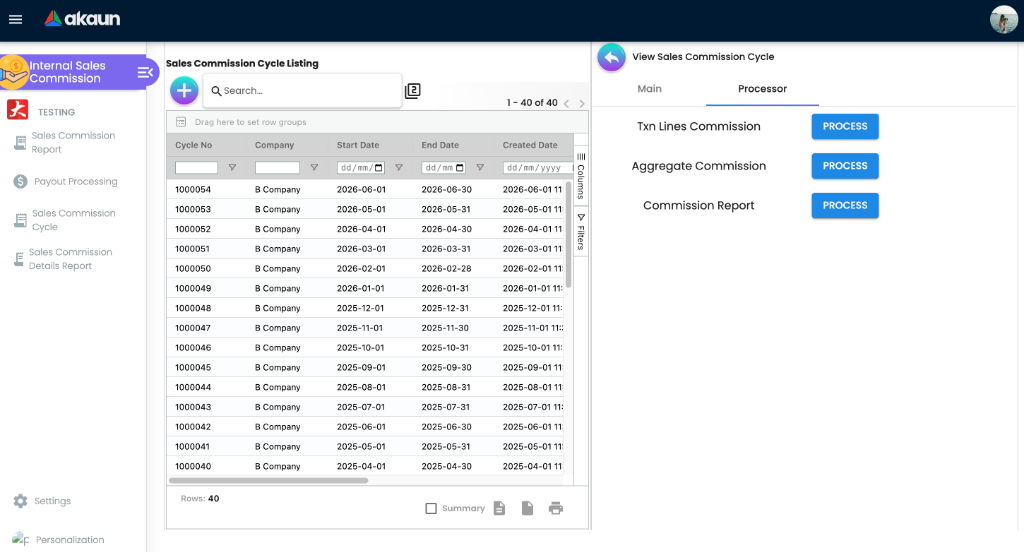
The Processor tab is the engine, and its three buttons must be pressed in the order shown:
| Stage | Button | What the backend does |
|---|---|---|
| 1 | Txn Lines Commission | Reads every candidate document in the cycle’s company and date range, matches each against the active commission schemes, and writes intermediate commission transaction lines. Each document it produced lines for is then marked as processed for commission |
| 2 | Aggregate Commission | Groups those transaction lines per agent for the cycle |
| 3 | Commission Report | Creates one commission report per agent from the transaction lines and the aggregates, with money status ACTIVE. Pressing it again deletes every report the cycle already has and writes new ones, with new report numbers — so press it once the cycle’s sales are complete and before anyone raises a payout against it. What a re-run does to a report already attached to a payout voucher was not traced; do not re-run a paid cycle |
Each button is disabled while a stage is running. There is no single “run everything” button in the UI — the backend has a combined endpoint, and a scheduled job processor exists for it, but the applet exposes only the three stages.
Which documents count. The candidate query is narrow and worth knowing exactly:
- the document is a sales order, sales invoice or cash bill (
INTERNAL_SALES_ORDER,INTERNAL_SALES_INVOICE,INTERNAL_SALES_CASHBILL), or a receipt voucher — see below - its posting status is
FINAL - it has not been deleted
- it has not already been processed for commission by an earlier cycle
- its transaction date falls between the cycle’s start and end dates — from the start of the Start Date to the end of the End Date, both days included. It is the date on the document, not the day it was finalised, so an invoice dated 31 March and finalised on 2 April belongs to the March cycle
- the company matches the cycle’s company
Receipt vouchers are how commission on collection works. A FINAL receipt voucher is a candidate when it has a knock-off dated inside the cycle. Under a scheme with item-line conditions, each knock-off becomes its own commission line, dated with the knock-off date, credited to the sales agent of the invoice it settles, and scaled by the share of that invoice that is items rather than GL-code lines. Under a scheme with no line conditions the receipt gives one line, for the receipt’s own sales agent and dated with the receipt’s date, so a receipt with no sales agent earns nobody anything. The receipt is then marked as processed, like any other document, so a knock-off made against it after it was first processed never earns commission. That last point is read from the code, not tried: knock a receipt off against one invoice, process a cycle, knock the rest off against a second invoice, process the next cycle, and look for the second invoice on the Line Item tab.
The “already processed” condition is the double-payment guard, and it guards only stage 1. A document that produced commission lines is marked and no later cycle creates lines for it again. A document that matched no scheme is not marked, so a scheme created later picks it up in any cycle whose dates cover it. Stages 2 and 3 do not look at which cycle created a line: they take every line of the company dated inside the cycle’s range. Two cycles whose dates overlap therefore both report the same sales (read from the code, not tried). Nothing refuses an overlapping cycle, so whoever sets up cycles makes each one start the day after the previous one ends, and checks that on the listing before pressing anything.
Lines can also exist before anyone has processed a cycle. Where your tenant has the FINAL-time commission job switched on, every invoice earns its lines the moment it is finalised, with no cycle recorded on them, and stages 2 and 3 pick those lines up by date like any other. That is why stage 1 can refuse a document as already posted for commission on a cycle nobody has run: the document was marked at FINAL.
A void does not take commission back, any more than a return does. An invoice or cash bill voided before any commission was written for it earns nothing, because only FINAL documents are candidates. Voided afterwards — after Finalise where that job is on, or after stage 1 of a cycle — its lines stay. Nothing in the void touches them, and stages 2 and 3 and REGENERATE select lines by company and date, not by the state of the document behind them, so a voided sale keeps counting on every report whose dates cover it. Whether a return or a void should reduce commission automatically is a policy question still open with BigLedger; today whoever approves the payout deducts it by hand.
Sales Commission Report
The listing shows Sales Commission No., Company, Billing Cycle, Start Date, End Date, Sales Agent, Member, MLM Member, Money, Point, Created Date, Updated Date, Created By, Updated By.
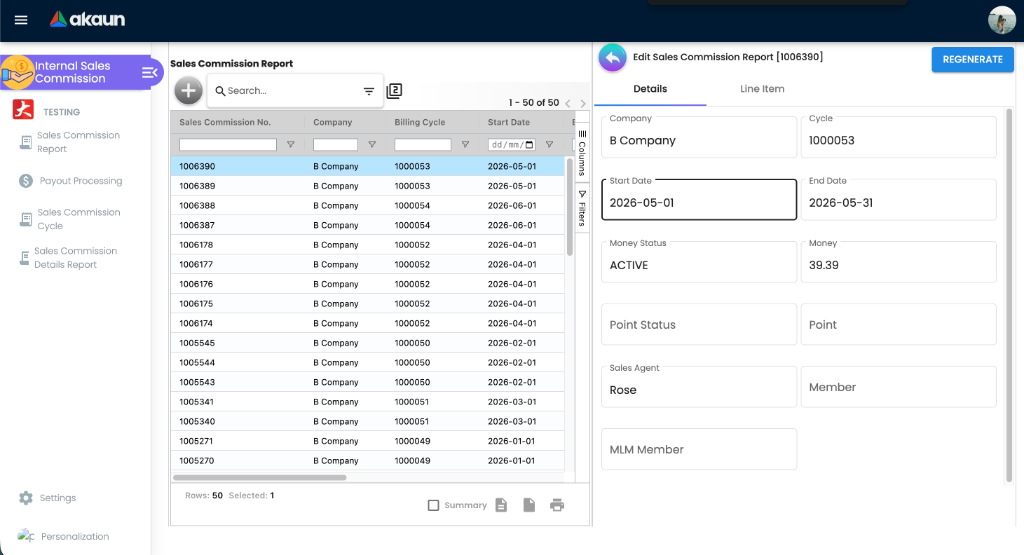
Opening one gives two tabs, Details and Line Item, and one button, REGENERATE. The SAVE and RESET buttons are commented out of the template: an existing commission report cannot be edited by hand, only recalculated. The listing’s Create does post a hand-made report, but stage 3 deletes the cycle’s reports and writes new ones each time it runs, so a report typed in by hand does not survive the next recalculation.
Details shows Company, Cycle, Start Date, End Date, Money Status and Money, Point Status and Point, Sales Agent, Member and MLM Member. Line Item shows one row per source document line: Doc Type, Doc No, Commission Scheme, Money, Point, MLM Program, Item Code, Item Name, UOM, Amount Txn — which is where a disputed figure is traced back to the scheme that produced it.
Sales Commission Details Report
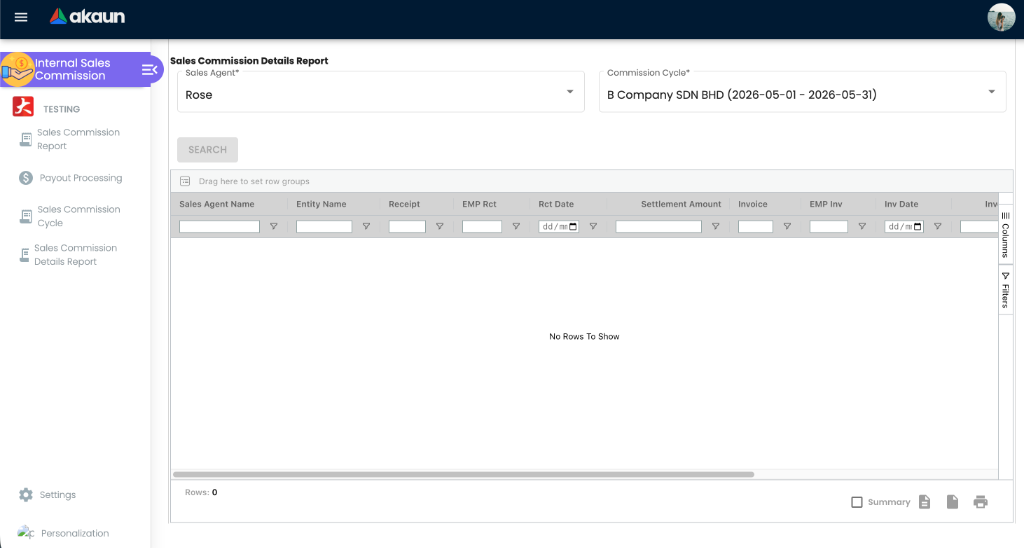
Two mandatory filters — Sales Agent and Commission Cycle — then SEARCH. The grid columns are Sales Agent Name, Entity Name, Receipt, EMP Rct, Rct Date, Settlement Amount, Invoice, EMP Inv, Inv Date, Invoice Amount, Contra Date, Days, Commission Amount: the receipt-against-invoice view, including how many days elapsed, for commission schemes that pay on collection rather than on invoicing.
Payout Processing
A listing — Doc No, Branch, Entity Name, Currency, Payment Amount, Open Amount, Creation Date — over Internal Payment Vouchers, with a create and a view panel. The view has tabs Details, Account, Payment, Expenses, Payout For, Contra and Non GL Doc Contra; the create panel has Details, Account, Expenses, Payment and Non GL Doc Contra. A Gl Doc Contra tab is commented out in both.
Payout For is the link between the two halves of the applet: it lists the commission reports this voucher pays, with Sales Commission Report No, Company, Cycle, Start Date, End Date, Payout (MYR), Payout Status, Sales Agent Entity, Sales Agent Member, MLM Program, MLM Program Participant, and an add panel to attach more.
Because the document is a real INTERNAL_PAYMENT_VOUCHER, everything that applies to a payment
voucher applies here — the GL codes it needs, the journal it posts and what VOID reverses are
documented on Payment Voucher (Internal).
Configuration
Before you can use it
| What | Where | Why |
|---|---|---|
| At least one active commission scheme | Commission Scheme | Without one, stage 1 produces no lines and every report is empty |
| A company | Organisation | The cycle is company-scoped. The screen will not create a cycle without one; the server accepts one written without a company, and every processor stage then fails on it |
| Sales agents on the source documents | Employee Maintenance | The aggregation is per agent |
| Finalised sales orders, invoices or cash bills in the period | The sales applets and POS General | Drafts are ignored — only FINAL documents count |
| The commission server permissions on the user’s role | Settings → Permission Set / Role Permission | See below; without them the PROCESS buttons return not authorized |
| Everything a payment voucher needs (cashbook, settlement method, GL codes) | Payment Voucher (Internal), Chart of Accounts | Only for the payout half |
Applet settings
Settings live on the Field Settings screen shared with the other document applets; the applet has no working settings screen of its own.
The settings menu has three entries: Field Settings (the shared screen), Default Selection and Printable Format Settings. A Release Notes route exists with no menu entry. Personalization has one entry, Default Selection.
Almost none of the shared settings screen applies to this applet. The applet’s settings model
declares 35 keys. Only three switches are both rendered on the shared screen for applet code
salesCommissionApplet and read by the applet’s own code (the salesperson-label filter below is a fourth setting, a picker):
VERTICAL_ORIENTATION turns the tab strips into expansion panels, and EXPAND_MAIN_DETAILS and
EXPAND_LINE_ITEMS open the Details and Line Item panels. Two things the screen does not tell you:
the two expand settings act only on an opened commission report, the one screen with panels of
those names; and each user’s Default Tab Orientation under Personalization overrides the
applet-wide choice in both directions, so a user who reports “the setting did nothing” usually has a
personal orientation saved.
The other model keys — the six dimension and tax include flags, their enable twins and the fifteen custom-status keys — appear only in the model file. No control writes them, no screen or job processor in this applet reads them, and the backend does not know the names at all.
salesManLabels is the exception and an earlier version of this page wrongly listed it here. It is
read by the salesperson picker on the commission report create and edit screens and on the Payout For
screen, which uses it as a filter on salesperson labels. So a non-empty salesManLabels restricts
which salespeople the picker offers. It is set on the shared Field Settings screen, Main Details
tab, in the Sales Man picker of employee labels — a fourth setting that works here.
Settings → Default Selection shows Default Branch and Default Location but cannot save them: the
screen is mounted on its own, with nothing holding the applet’s settings record behind it, so the first
pick raises a browser error and SAVE sends nothing anywhere (a known issue, reported to engineering). Use
Personalization → Default Selection, which does save them — per user — and adds Default Language,
Default Toggle Column and Default Tab Orientation (DEFAULT_LANGUAGE_CODE,
DEFAULT_TOGGLE_COLUMN, DEFAULT_ORIENTATION).
Printable Format Settings manages the printable formats for the applet. It filters and tags them
by transaction type INTERNAL_SALES_COMMISION — a document type that does not exist anywhere in
the backend, and which is misspelled with one S. Because the applet both writes and reads the same
string the screen works, but formats saved here are invisible to every other applet and to any
backend print service.
Feature visibility and permissions
This applet has no client-side permissions: none exist, and the applet checks none. Every screen and control is visible to anyone who can open the applet.
The real gate is server-side, and it is enforced per endpoint:
| Action | Any one of these permissions |
|---|---|
| Txn Lines Commission and Aggregate Commission | TNT_API_SALE_COMMISSION_INTERMEDIATE_PROCESSING_TXN_LINE_ADMIN, …_OWNER, …_CREATE |
| Commission Report | TNT_API_BACKOFFICE_COMMISSION_ADMIN, …_OWNER, …_CREATE |
| REGENERATE | tenant owner or admin, or TNT_API_BACKOFFICE_COMMISSION_ADMIN / …_OWNER / …_UPDATE |
| Reading cycles and reports | The matching …_READ permissions; a cycle the user has no permission on is treated as not existing |
| Sales Commission Details Report (SEARCH) | TNT_API_BACKOFFICE_COMMISSION_OWNER only. The endpoint names the owner permission three times where its siblings name owner, admin and read, so an ADMIN or READ holder gets not authorized here and nowhere else (a known issue, reported to engineering) |
Without them the endpoint returns not authorized rather than an empty result.
Fields
Sales Commission Cycle
A cycle has a Company, a Start Date, an End Date and a Cycle No. The dates bound documents by their own date, both days included, and are fixed once the cycle exists (see Which documents count). Cycle No is a plain running number, one counter across every company in the tenant, so the March cycles of two companies get different numbers and a company’s own cycles are not consecutive. It is copied onto each report as its Billing Cycle, which is the column to filter on when you look for one period’s reports. Company is required on the screen; a cycle written without one through the API is accepted and fails at every processor stage.
Sales Commission Report (Details tab, read-only)
Company · Cycle · Start Date · End Date · Money Status · Money · Point Status ·
Point · Sales Agent · Member · MLM Member. Money status is set to ACTIVE when the report is
created.
Lifecycle and effects
| Object | What it is | What it writes |
|---|---|---|
| Sales Commission Cycle | A dated period per company | Its own cycle row. Deletable from the Main tab |
| Intermediate commission transaction lines | Stage 1 output, one per matching document line | Their own table; and marks each source document as processed for commission |
| Aggregate agent rows | Stage 2 output, one per agent per cycle | Their own table |
| Sales Commission Report | Stage 3 output | Its own header and lines. No journal, no stock, no signums — the applet carries a nominal document code (INTERNAL_SALES_COMMISION) that is not a server document type and is used only to tag printable formats |
| Payout | An INTERNAL_PAYMENT_VOUCHER | A real financial document with amount signum +1 and quantity signum 0 — see Payment Voucher (Internal) |
REGENERATE recalculates one existing commission report in place.
Nothing in this table is undone when a source document is later returned or voided. Its transaction lines stay where they were written, and the next stage 3 or REGENERATE counts them again; the deduction is made by hand on the payout voucher (see Which documents count above).
Related applets
- Commission Scheme — where the rates, treatments and pricing models are defined. Nothing is calculated without an active scheme.
- Sales Invoice (Internal), Sales Order (Internal), POS General — the three sales documents the calculation reads; receipt vouchers count through their knock-offs.
- Payment Voucher (Internal) — the document Payout Processing edits, and where its posting is documented.
- Employee Maintenance and Customer — sales agents, members and MLM members.
- Organisation — companies, branches, locations and numbering.
- Chart of Accounts — the GL codes the payout voucher needs.
Troubleshooting
| Symptom | Cause | Fix |
|---|---|---|
| Txn Lines Commission runs and produces nothing | No candidate documents: the period has no INTERNAL_SALES_ORDER, INTERNAL_SALES_INVOICE or INTERNAL_SALES_CASHBILL at posting_status = FINAL, or every one of them was already processed for commission by an earlier cycle | Check the documents are FINAL and dated inside the cycle; a document already processed by an earlier cycle will never be picked up again |
| A commission report is empty although the sales are there | No active commission scheme matched the documents | Check the scheme’s conditions and treatment in Commission Scheme |
| A document type you expect to earn commission never does | Only sales orders, sales invoices, cash bills and knocked-off receipt vouchers are considered. Credit notes, refund notes and jobsheets are not, so a sale that is later returned keeps its commission. Where commission is written at Finalise, a return can even be offered to a scheme with no Document Type rule as if it were a sale (see Commission Scheme) | There is no setting for this. Whoever approves the payout compares the credit notes issued in the period, and any document voided since, with the invoices on each report’s Line Item tab and deducts by hand on the payment voucher |
| A voided invoice or cash bill still counts on a report | Its commission lines were written before the void, and nothing removes them: stages 2 and 3 and REGENERATE select lines by company and date, not by the state of the source document | Before approving a payout, check the Line Item tab for voided document numbers and deduct them on the payment voucher. Re-running stage 3 does not drop them |
| A late-arriving invoice is missing from the cycle | It was finalised after the cycle was processed | Run all three stages again, in order. Stage 1 adds only the new document; stage 3 replaces the cycle’s reports with new ones under new numbers, so do this before a payout is raised |
| The cycle is reported as not existing | Either the cycle really is gone, or your role has no read permission on it — the backend filters by permission before reporting existence | Grant the commission read permission |
| Any processor stage fails for want of a company | The cycle was written without a company, which only the API can do | Delete it and create it again on this screen, choosing the company |
| A document is refused as already posted | A single document was pushed through commission processing twice | Expected; nothing to fix |
| The PROCESS buttons return not authorized | The role holds none of the required TNT_API_SALE_COMMISSION_INTERMEDIATE_PROCESSING_TXN_LINE_* or TNT_API_BACKOFFICE_COMMISSION_* permissions | Grant one of them |
| The Details Report’s SEARCH returns not authorized although the user can read cycles and reports | That one endpoint accepts only TNT_API_BACKOFFICE_COMMISSION_OWNER (a known issue, reported to engineering) | Grant the owner permission, or have an owner run the report |
| A commission figure is disputed | Open the report’s Line Item tab: each row names the source document and the commission scheme that produced it. For collection-based schemes use the Sales Commission Details Report for the receipt-to-invoice detail and the Days column | |
| SAVE and RESET are missing on a commission report | They are commented out — the report is not hand-editable | Use REGENERATE |
| SEARCH is disabled on the Details Report | Both Sales Agent and Commission Cycle are mandatory | Choose both |
| A printable format saved here does not appear anywhere else | It is tagged with the transaction type INTERNAL_SALES_COMMISION, which is not a real document type | Nothing to fix inside the applet. |
| Settings changed on Field Settings have no effect | Only VERTICAL_ORIENTATION, EXPAND_MAIN_DETAILS and EXPAND_LINE_ITEMS are wired for this applet |