Sales Report Supplier Access
Gives a supplier’s own login one report: how much of its items you sold, in which branch, over a date range, with a cost value beside it, so nobody has to export a spreadsheet and e-mail it. It reads the final lines of sales invoices, POS cash bills and sales returns, with returns subtracting, and it creates no document, posts nothing and moves no stock. Sales Cost is the price or cost basis you choose multiplied by the quantity, not a recorded cost of sale, so agree the basis with the supplier.
Your job, and the screen for it
| The job | Screen or tab | Read |
|---|---|---|
| See how much of your items sold, by branch, over a date range — Branch is required, and CODE and DESCRIPTION read as blank in the code (not run), so identify items by ALTERNATE CODE | Sales Report, with its advanced-search filters | Sales Report; Fields |
| Read the Sales Cost figure — it is the basis you pick times the quantity, not a recorded cost of sale; agree the basis with the supplier | Calculate Base On filter | Fields; Troubleshooting |
| Export the report | Export PDF and Export XLS above the grid | Sales Report |
| Choose which branches a supplier may filter on — with none, the required Branch filter is empty | Settings › Supplier Settings, then Add Branch Link | Supplier Settings |
| Make sure a supplier sees only its own sales — link the login to the supplier; removing permissions will not help | Supplier Applet, the supplier record’s Login tab | Before you can use it; Troubleshooting |
Overview
It is a read-only report applet. It has one report screen, seven columns, and no second report. The one thing it writes is a setting: which branches each supplier is allowed to filter on.
Where it fits
| Applet | Why | |
|---|---|---|
| Supplies the data | Sales Invoice (Internal), POS General, Sales Return (Internal) | The report reads FINAL lines of exactly three document types — sales invoice, POS cash bill and sales return |
| Creates the login link | Supplier Applet | The supplier record’s Login tab is what links a BigLedger login to a supplier entity; without it this applet shows the whole tenant |
| The same idea, other documents | Purchase Order Supplier Access, Purchase GRN Supplier Access, Purchase Invoice Supplier Access, Supplier Delivery Order | The other supplier-facing windows onto the tenant’s documents |
| The internal equivalent | Sales Report | The back-office sales reporting applet, with no supplier scoping |
| Supplies the branches | Organisation | The branches a supplier can be whitelisted for |
Screens and menus
Opening the applet lands on the report screen; anything unmatched goes to a 404 page.
There is exactly one menu entry:
| Menu | Route | What it is |
|---|---|---|
| Sales Report | sales-report-by-item-code | The one report screen |
Settings has two entries: Application Settings (field-settings) and Supplier Settings
(supplier-settings). Personalization lists two, but only Default Selection
(personal-default-selection) opens — its Field Settings entry points at a screen that does not exist
and falls through to the 404. Six further screens have no menu entry at all: webhook, release-notes
and the four permission listings.
Sales Report
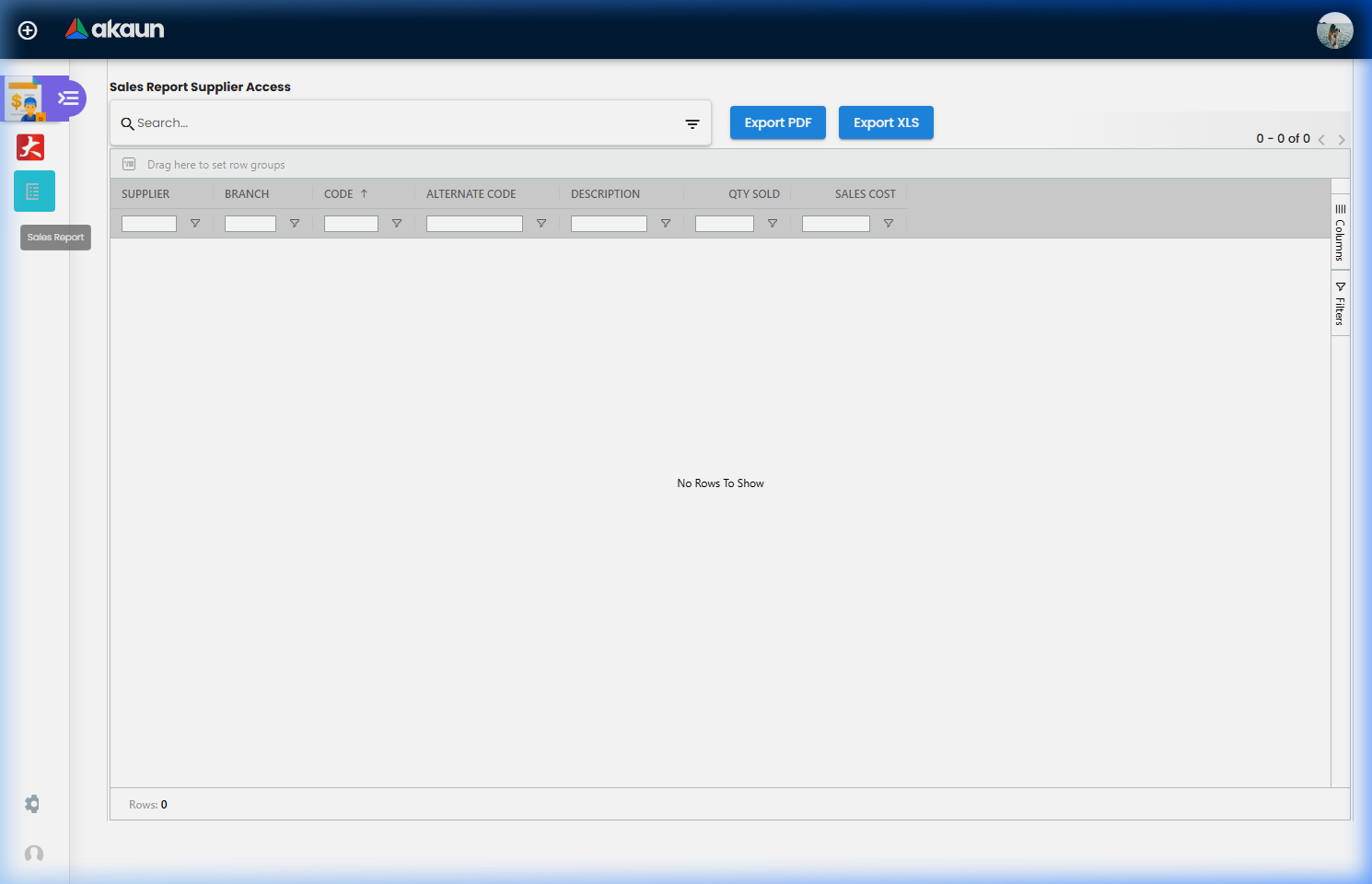
Seven columns:
| Column | What it is |
|---|---|
| SUPPLIER | One row per supplier the item is linked to, so an item two suppliers both carry appears under each of them, each time with the full quantity. A supplier’s own login sees only its own rows; a back-office login sees them all, so do not total QTY SOLD down this column |
| BRANCH | The branch on the sale’s header. The same item and branch can still take more than one row, because rows are also split by the document’s currency and exchange rate, neither of which the grid shows |
| CODE | Meant to show the tenant’s item code, and the grid sorts on it. Read in the code, not run: since February 2025 the report returns the item code under a different name from the one this column reads, so it comes back blank. The keyword search still matches item code, name and description on the server |
| ALTERNATE CODE | The supplier’s own code for the item, from the item’s supplier pricing link |
| DESCRIPTION | Meant to show the item name; blank for the same reason as CODE |
| QTY SOLD | The signed sum of base quantity over the matching lines — sales add, returns subtract |
| SALES COST | The server adds up quantity × the per-unit price stamped on each sale line when it was sold, for every basis at once; the browser shows the one picked in Calculate Base On. It is not today’s price and not the cost of sale posted to the ledger, and returns subtract |
There is no gross-profit, margin, inventory-turnover, sell-through-forecast or stockout column, and no screen that produces one.
The grid is ag-Grid with pagination, the side bar, row grouping (“Drag here to set row groups”), range selection and multi-row selection turned on, and Export PDF and Export XLS buttons above it.
Supplier Settings
Two columns. Supplier Listing lists suppliers — Supplier Code, Supplier Name, Description, Type, Phone — filtered to active suppliers and searched on code, name, phone and description. Clicking a row opens Add Branch Link for that supplier.
Add Branch Link is the branch whitelist editor: a multi-branch drop-down, ADD, Delete and
SAVE, over a grid of Code and Name. Saving stores the list on the supplier record itself, as the
supplier’s SUPPLIER_ACCESS_BRANCH setting — not in this applet — so it survives whatever happens to
this applet and is visible from the supplier’s own record. The confirmation toast reads “Add Branch Link
saved successfully”.
That whitelist is what the report’s Branch filter offers: the branch drop-down reads the login’s
supplier links and takes the branch list from each linked supplier’s SUPPLIER_ACCESS_BRANCH setting.
Configuration
Before you can use it
- The supplier must exist as an entity flagged as a supplier, maintained in Supplier Applet.
- The supplier’s people must have BigLedger logins linked to that supplier entity. The link is written from the supplier record’s Login tab. Without it the applet is not scoped at all — a login with no entity link falls into the back-office path and sees every supplier, subject to the three permissions below.
- Item–supplier links with the supplier’s own code, if ALTERNATE CODE is to show anything: it comes from the item’s supplier pricing link.
- A branch whitelist per supplier, set in Supplier Settings, or the supplier’s Branch filter will be empty — and Branch is a required filter.
Applet settings
Where they live. Application Settings is this applet’s own settings screen, not the shared one other applets use. Supplier Settings is applet-local. Default Selection under Personalization is per-login.
Three toggles are rendered on the Sales Report Listing tab of Application Settings, each labelled with its raw key and each saved as an applet setting.
| Setting | What it controls | Default | Effect when changed |
|---|---|---|---|
| Hide MA cost | Nothing. | unset | No consumer. The key is read back into its own form and nowhere else |
| Hide GP | Nothing. | unset | No consumer, and there is no gross-profit column for it to hide |
| Hide GP percentage | Nothing. | unset | No consumer, and there is no margin column for it to hide |
Personal Default Selection offers Default Branch and Default Location, saved per login. Nothing in the report screen reads either; they are inert in the same way.
Application Default Settings exists in the applet but has no route and no menu entry, so you will not find it on screen.
Settings in other applets that control this applet
| Setting | Where it is set | Effect here |
|---|---|---|
| The supplier’s login links | The Login tab of the supplier record in Supplier Applet | The whole scoping. Which supplier’s rows a login sees, and whether the permission check applies at all |
| The entity’s supplier flag | Supplier Applet | The report only joins entities flagged as suppliers |
| The item’s supplier pricing link | The item’s supplier pricing | More than ALTERNATE CODE: the link is how a sale reaches this report. A sale of an item with no pricing link to the supplier is on no row, however many the supplier delivered. An item linked to the same supplier twice, under two codes, takes two rows, each with the full quantity |
Feature visibility / permissions
The applet declares no permissions of its own. The backend defines three:
| Permission | Description |
|---|---|
API_TNT_DM_ERP_SALES_REPORT_SUPPLIER_ACCESS_OWNER | “The assignee is Allowed to be Owner of sales report by supplier access” |
API_TNT_DM_ERP_SALES_REPORT_SUPPLIER_ACCESS_ADMIN | “The assignee is Allowed to be admin of sales report by supplier access” |
API_TNT_DM_ERP_SALES_REPORT_SUPPLIER_ACCESS_READ | “The assignee is Allowed to read information of sales report by supplier access” |
They are evaluated only when the login has no supplier link. For an actual supplier user none of the three is ever checked. Granting them to a supplier changes nothing; withholding them from a supplier blocks nothing.
The Add Branch Link screen checks nothing of its own — reaching the applet’s Settings area, and the backend’s own authorisation on reading and updating the supplier record, are the only controls on who may edit a supplier’s branch whitelist.
Fields
The report has no form. Its inputs are the advanced-search filters:
| Filter | Type | Required | Notes |
|---|---|---|---|
| Item Code | text | No | Matched as a keyword |
| Branch | multi-branch select | Yes | The list is the supplier’s whitelist |
| Date | date range with a checkbox | Yes, if its checkbox is ticked | Defaults to today–today; unticked, the request covers everything from 2022-01-01 to 2099-12-31 |
| Month | month range with a checkbox | Yes, if its checkbox is ticked | Expands to the start of the from-month and the end of the to-month |
| Calculate Base On | select | Yes | Which stored price or cost the SALES COST column multiplies by; defaults to replacement cost |
Calculate Base On offers fourteen bases: replacement cost, reference price 1–3, delta price 1–3, rebate price 1–3, sales minimum and maximum price, and purchase minimum and maximum price.
Date and Month are mutually exclusive — ticking both is refused (see Troubleshooting).
Lifecycle and effects
This is a report applet. It creates no document, posts no journal and moves no stock. There is no server document type of its own; it reads other documents’ lines.
What it reads. One report query, taking the selected branches, the keyword and the date range. The response comes back as a single stream rather than in pages, which is why the applet counts the rows itself.
How the rows are chosen: document lines that are FINAL, whose transaction date falls in the range (the end date is included), that are not forex-linked, and that belong to a POS cash bill, a sales invoice or a sales return. Those are exactly the three sales document types that move quantity — cash bill and invoice one way, return the other — so a quotation, an order or a delivery order never appears here, and a return subtracts from QTY SOLD rather than adding.
The supplier scoping, exactly:
- The report looks up the supplier entities the logged-in user is linked to (active links only).
- If it finds any, the permission check is skipped outright, and the query is narrowed to those suppliers.
- If it finds none, the three permissions above are checked instead, and the query is not narrowed: every active supplier is returned.
So an unlinked login with one of the three permissions sees every supplier, and a linked login sees only its own — regardless of permissions. That is the behaviour to check first when a supplier reports seeing too much or too little.
What it writes. The supplier branch whitelist (onto the supplier record), the applet settings from Application Settings, and the login’s personal settings from Default Selection. The advanced-search component also saves the current filter state as a personal setting on every search. Nothing else.
Related applets
- Supplier Applet — where the supplier entity and, crucially, the login link are maintained. Everything this applet does hangs off that link.
- Sales Report — the internal sales reporting applet, with the full column set and no supplier scoping.
- Sales Invoice (Internal), POS General, Sales Return (Internal) — the three document types whose FINAL lines this report sums.
- Supplier Delivery Order, Purchase Order Supplier Access, Purchase GRN Supplier Access, Purchase Invoice Supplier Access — the rest of the supplier-facing set, scoped by the same login link.
- Organisation — the branches the whitelist is drawn from.
Troubleshooting
| Symptom | Cause | Fix |
|---|---|---|
| A supplier login sees every supplier’s sales | The login is not linked to any supplier entity, so the report took the back-office path | Link the login to the supplier on the supplier record’s Login tab. Removing permissions will not help — for a linked login they are never checked, and for an unlinked one they are the only gate |
| The Branch filter is empty, and Branch is required | The supplier has no branch whitelist yet | Add branches in Settings → Supplier Settings → Add Branch Link for that supplier |
| “Please select branch.” | No branch was selected | Pick at least one branch |
| “Please choose either the date or month filter; selecting both is not allowed.” | Both the Date and the Month checkboxes are ticked | Untick one |
| “Search keyword must more than 2 characters.” | A one- or two-character keyword | Type at least three characters |
| CODE and DESCRIPTION are blank on every row | The report returns the item’s code and name under names these two columns do not read (read in the code, not run) | Identify the item by ALTERNATE CODE, or search by item code, which still works. A fix in the platform is needed |
| The SALES COST column is blank | Calculate Base On resolved to an empty selection, so the column has nothing to multiply by | Re-select a Calculate Base On value and search again |
| Sales cost does not match the retailer’s figures | SALES COST is the selected basis × quantity, not a recorded cost of sale. The default basis is replacement cost | Agree a basis with the retailer and select it consistently |
| A sales return made QTY SOLD go down | Working as designed — a sales return carries the opposite sign to an invoice, and QTY SOLD is the signed sum | Nothing to fix; the figure is net of returns |
| Turning on Hide GP did not hide anything | The three Application Settings toggles have no consumer and there is no GP column | Nothing to do in the applet |
| Personalization → Field Settings shows a 404 | The menu entry exists but the screen does not | Use Settings → Application Settings instead |
Related documentation
- POS and Sales module
- Supplier Applet — the Login tab that makes supplier access work.